
Remove a User’s Access in SharePoint in Minutes


 3 min. read
  Published on

Managing permissions is essential in SharePoint to ensure only the right people can view or edit your files. If someone no longer needs access, follow the steps below.
Table of contents
How to Remove Access to Someone in SharePoint?
1. Open Your SharePoint Site and Locate the File or Folder
- Go to your organization’s SharePoint website in your browser.
- Sign in with your Microsoft 365 account.
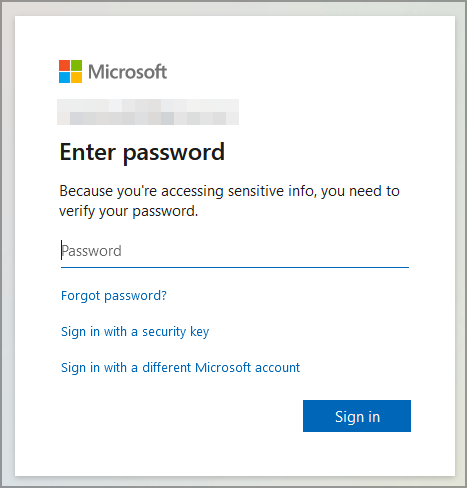
- Confirm you have Owner or Admin permissions to manage access.
- Open the site or team that contains the content.
- Navigate to the correct document library.

- Browse to the specific file or folder you want to update.
Need to set up a new workspace first? See how to create a site in SharePoint.
2. Open the Manage Access Panel
- Select the file or folder.
- Click the three dots (…) or the Share button.
- Choose Manage access from the menu.

- Review the list of users and links that currently have access.
3. Remove a User’s Access
- In Manage access, find the person under Direct Access or Links Giving Access.
- Click the X or Stop sharing beside their name.

- Confirm when prompted to revoke their permissions.
4. Adjust Site-Level Permissions (Optional)
- Click the gear icon in the top-right corner.
- Select Site permissions.
- Open the relevant group: Members, Owners, or Visitors.
- Find the user’s name in the list.
- Click Remove from group to revoke access to the entire site.
Cleaning up an unused site? Here is how to delete a SharePoint site.
5. Verify Permissions
- Return to the Manage access panel.
- Confirm the user is no longer listed.
- Refresh the page if the list has not updated.
- Notify your team about the change if needed.
Why You Should Regularly Review Access
Routine audits improve security, prevent unauthorized edits, and keep your environment compliant. If you also sync libraries locally, consider stopping local sync where appropriate. Learn how to unsync a SharePoint folder to prevent offline access after permission changes.
To keep priority workspaces easy to reach after a permission audit, you can add a site to favourites in SharePoint and access it from the Following section anytime.
After reviewing permissions and cleaning up old access, you can organize shared data more efficiently by learning how to create a list in SharePoint for better tracking and collaboration.
FAQs
Select the item, open Manage access, and review users and shared links.
Yes. Open Share, enter their email, and send a new invite.
Yes. In Manage access, locate external addresses and choose Stop sharing.
They cannot view, edit, or open any content within that site.
Conclusion
Removing access in SharePoint helps you maintain strict control over sensitive files. Review permissions after team changes and on a regular schedule to ensure only the right people retain access.

Read our disclosure page to find out how can you help Windows Report sustain the editorial team. Read more



Improve this guide




User forum
0 messages