
How to Use SharePoint (Step-by-Step Beginner Guide)


 4 min. read
  Published on

SharePoint is Microsoft’s online platform for storing, organizing, and sharing files across your team. Whether you use it through Microsoft 365 or Microsoft Teams, SharePoint makes collaboration simple.
Follow this concise guide to learn how to use SharePoint effectively.
Table of contents
How to Use SharePoint?
What Is SharePoint
SharePoint is a web-based collaboration tool that acts as your organization’s document management and intranet system. It helps teams stay organized and work together efficiently.
- Store and share documents securely
- Manage access permissions
- Track file versions and edits
- Automate workflows through integrations
You can access SharePoint through your browser or inside Microsoft Teams.
How to Access SharePoint
Use these steps to open your organization’s SharePoint site and start using it right away.
- Sign in to your Microsoft 365 account.

- Open the app launcher and select SharePoint.
- Choose your team site or communication site.
- Open the Documents library to view files.

If you want to work with files from your desktop more naturally, we have a great guide on how to Open SharePoint in File Explorer.
Need a new workspace for your team? Learn the exact steps to set one up in how to create a site in SharePoint, then return here to organize files and manage access.
How to Create and Organize Files
Creating and organizing files in SharePoint is quick once you are inside a document library.
- Select New and choose Folder or a document type.
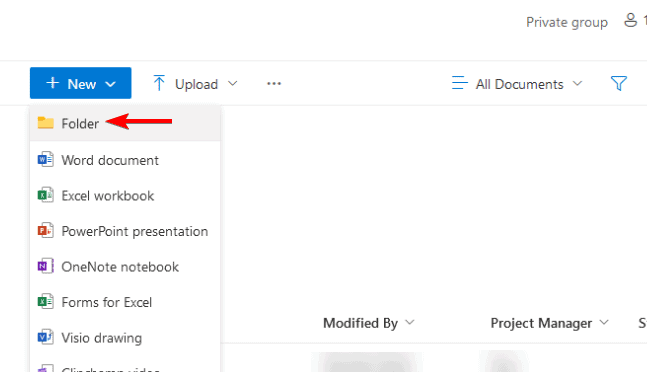
- Name your folder or file.
- Drag and drop or use Upload to add files.
- Organize with folders or metadata such as project or department.
To keep projects structured and easy to navigate, don’t miss our guide on how to create a folder in SharePoint.
How to Share Files and Manage Access
Share files to collaborate in real time while keeping permissions under control.
- Hover a file or folder and select the three dots menu.
- Choose Share.

- Add people by email and set View or Edit.
- Send the invite to grant access.
To adjust existing permissions, use Manage access on the file or folder.
When reorganizing content across folders or sites, it’s crucial to know how to move files in SharePoint, so don’t miss our dedicated guide.
How to Use Version History
Version History protects your work and lets you revert mistakes quickly.
- Select the document in the library.
- Open Version History from the toolbar or context menu.

- View differences and restore an earlier version when needed.
How to Integrate SharePoint with Teams and OneDrive
Connect SharePoint with other Microsoft apps to simplify daily workflows.
- In Microsoft Teams, open the channel’s Files tab.
- Choose Sync to link the library to your PC.

- Work directly from File Explorer while changes sync to SharePoint.
Need to disconnect a library from your PC after syncing it with OneDrive? Learn the quick steps in this guide on how to unsync a folder in SharePoint.
Best Practices for Everyday Use
Adopt these habits to stay organized and avoid conflicts.
- Use clear, consistent folder names.
- Check the Recycle Bin before items expire.
- Use Check Out for sensitive documents.
- Create alerts to track important changes.
When a workspace is no longer needed, follow this step-by-step guide on how to delete a SharePoint site to archive content correctly, free storage, and keep your environment organized.
Troubleshooting and Tips
Fix common issues fast with these quick checks.
- Clear browser cache and cookies.
- Confirm your Microsoft 365 license status.
- Restart the OneDrive sync client.
- Test in a different browser profile.
FAQs
Open the Documents library, select Upload, then choose files or drag and drop.
Yes. Access it directly in a browser and sync libraries to your PC if needed.
Yes. It uses enterprise-grade security with granular permissions and compliance tools.
Open the site Recycle Bin, select the items, then choose Restore.
Conclusion
Once you understand libraries, permissions, and syncing, SharePoint becomes a powerful hub for team collaboration. Use the steps above to organize content, share securely, and streamline daily work with Teams and OneDrive.

Read our disclosure page to find out how can you help Windows Report sustain the editorial team. Read more



Improve this guide




User forum
0 messages