
How to Uninstall Xbox Game Bar on Windows 11 Easily


 3 min. read
  EEST
EEST
Uninstalling Xbox Game Bar can free up resources and declutter your system. Here are the main ways to remove it completely.
Table of contents
How to Remove Xbox Game Bar from Windows 11?
1. Uninstall from Settings
You can remove the app quickly from the Settings menu.
- Press Windows + I to open Settings.
- Select Apps from the left menu.
- Click Installed apps.

- Type Xbox Game Bar in the search bar.
- Click the three dots next to it and choose Uninstall.

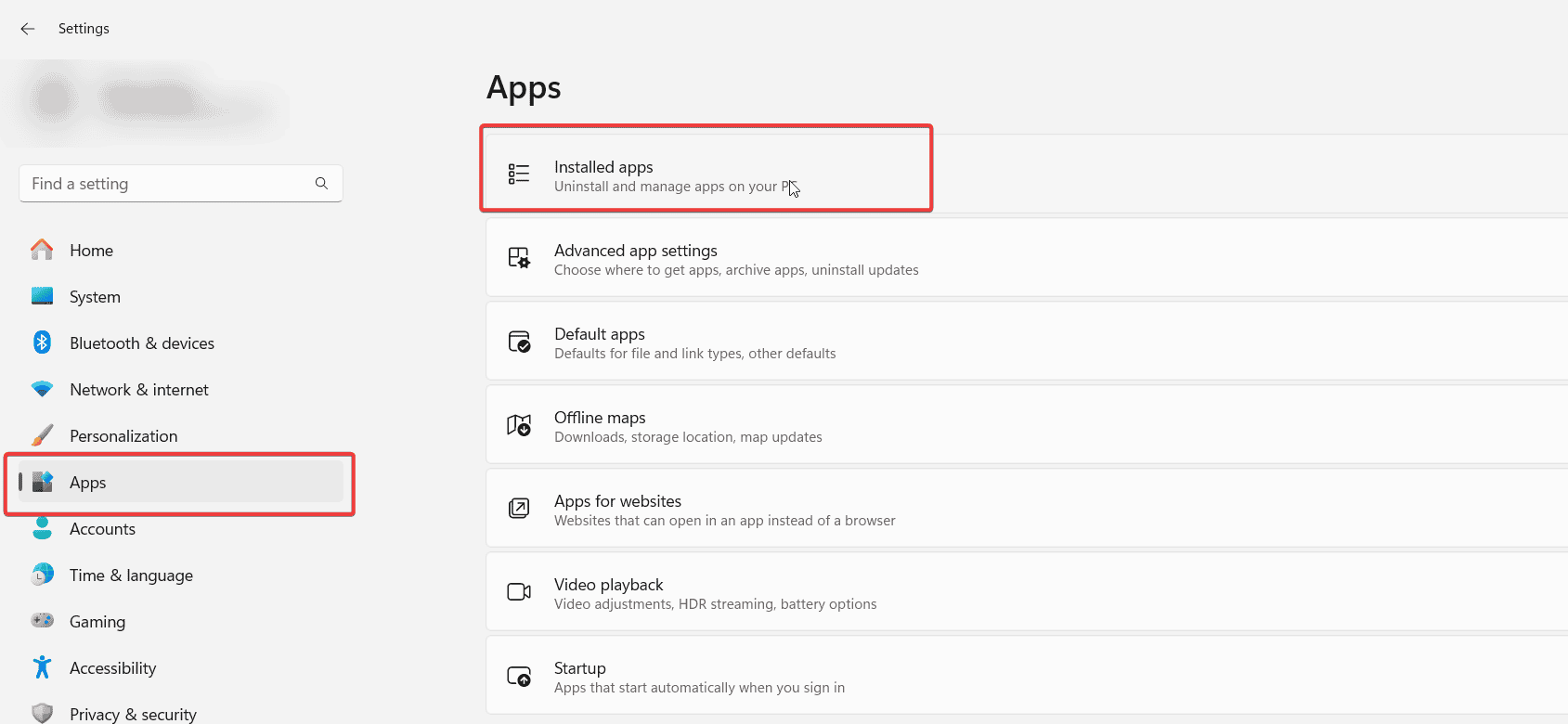

This is the simplest method for most users. If you later decide you want it back, you can follow this guide on how to install Xbox Game Bar.
If the app does not behave correctly even before uninstalling, you can try resetting it first. Follow this guide on how to reset Xbox Game Bar to clear corrupted data and restore defaults.
Before removing it, consider updating the app to fix bugs and restore features. You can use this quick guide on how to update Xbox Game Bar.
2. Remove Using PowerShell
For more control, you can uninstall it through PowerShell.
- Press the Windows key, type PowerShell, and choose Run as administrator.

- Enter this command and press Enter:
Get-AppxPackage Microsoft.XboxGamingOverlay | Remove-AppxPackage - Wait until the process finishes.
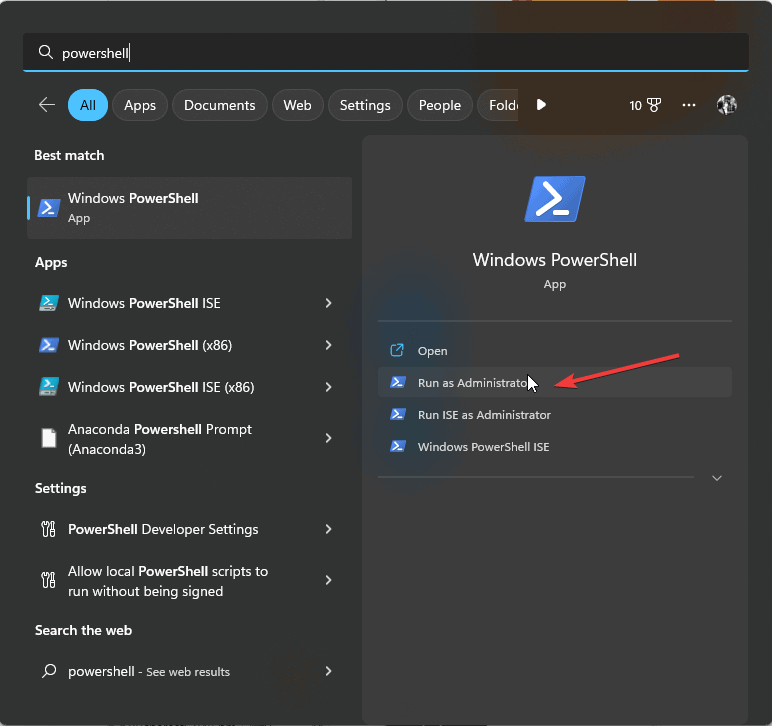
PowerShell ensures Xbox Game Bar is removed at the system level.
3. Uninstall with Command Prompt
Another option is to use Command Prompt and the Windows Package Manager.
- Open Command Prompt as administrator.

- Type this command and press Enter:
winget uninstall Microsoft.XboxGamingOverlay - Confirm when prompted.

This method uses the Windows Package Manager to handle removal. Once reinstalled, you can learn how to open Xbox Game Bar and configure it again.
FAQs
Yes. You can reinstall it anytime from the Microsoft Store.
No. Your games will still run normally, but you will lose overlay features like recording and widgets.
No. It is optional and can be safely removed if you do not use its features.
If the app remains, try rerunning the PowerShell or Command Prompt commands as administrator, then restart your PC.
Conclusion
Removing Xbox Game Bar on Windows 11 is straightforward using Settings, PowerShell, or Command Prompt. If you do not rely on its overlay features, uninstalling it can improve performance and reduce background activity. To better understand its functionality before removing it, you can read more about how to record with Xbox Game Bar.
After reinstalling, you may also need to know how to restart Xbox Game Bar to refresh the app properly.

Read our disclosure page to find out how can you help Windows Report sustain the editorial team. Read more



Improve this guide

User forum
0 messages