
Windows 7 Administrator Login Guide for Beginners


 4 min. read
  Updated on
Need to access the administrator account on Windows 7? This guide shows step-by-step methods to log in as an administrator when you need elevated privileges for software installation or troubleshooting.
Table of contents
How to Login as Administrator on Windows 7?
1. Enable and Login as Administrator Using Safe Mode
If the administrator account is disabled by default, you can turn it on using Safe Mode.
- Restart your computer and press F8 repeatedly before Windows loads.
- From the Advanced Boot Options menu, choose Safe Mode with Command Prompt.
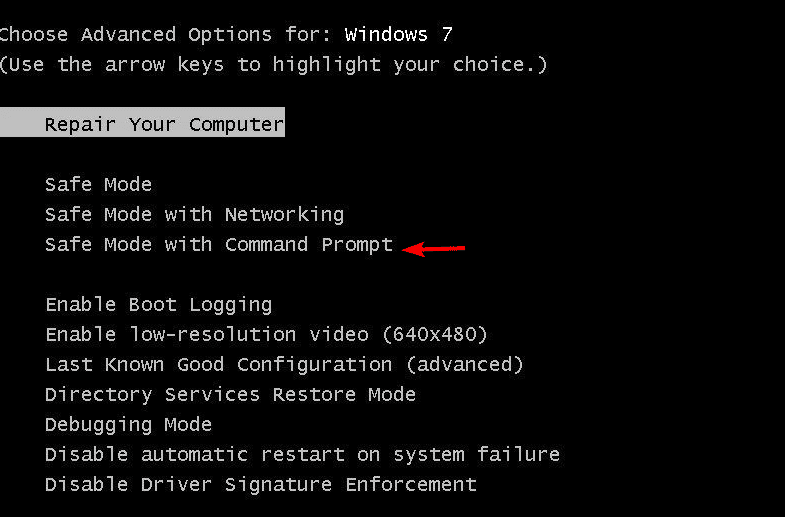
- When Command Prompt opens, type
net user administrator /active:yes
- Restart your PC and the Administrator account will appear on the login screen.

- Select the Administrator account and log in without a password if none is set.
If you need help with boot options, learn how to boot into Safe Mode in Windows 7. Once logged in with administrator privileges, you can perform advanced maintenance tasks. For a full cleanup before reinstalling or restoring Windows, see how to wipe a hard drive in Windows 7 securely to erase all data safely.
2. Login as Administrator via Local Users and Groups
You can enable and access the administrator account from system tools if your edition supports it.
- Press Windows + R, type lusrmgr.msc, and press Enter.
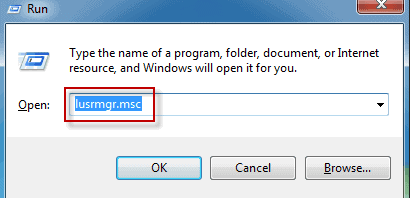
- Expand Users in the left panel.
- Double-click Administrator in the right panel.
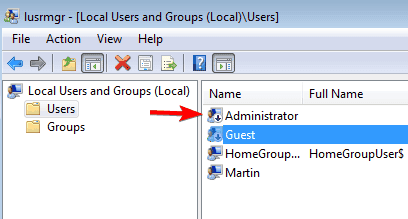
- Uncheck Account is disabled and click Apply, then OK.
- Log off and choose the Administrator account to sign in.
For users unable to access Windows normally, check Windows 7 not starting for recovery steps before attempting to log in as Administrator.
3. Access Administrator Account Through Control Panel
Another method is through user account settings in the Control Panel.
- Open the Start menu and go to Control Panel.
- Open User Accounts and select Manage another account.
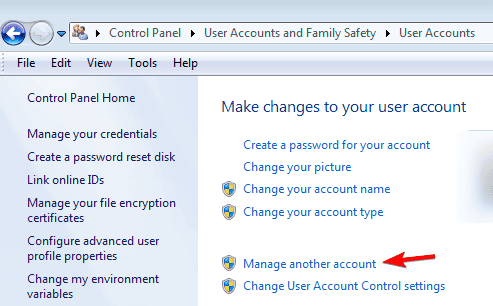
- Click the Administrator account.
- If the account is disabled, enable it here.
- Log out and sign back in using the Administrator account.
If you plan to reinstall or reset Windows, make sure you have a valid Windows 7 product key ready.
Once you have access to the administrator account, it’s a good idea to configure your Internet connection next. You can follow this complete guide on how to set up Internet on Windows 7 to make sure your network settings are properly configured.
After gaining full administrator access, some users may encounter activation issues that display a validation error. To resolve this, follow the complete guide on how to fix Windows 7 not genuine and restore proper system functionality.
Encountering the “Not a Valid Win32 Application” message when running programs after enabling Administrator access? Fix it easily with this complete troubleshooting guide.
Why Use the Administrator Account
Logging in as Administrator lets you install software, modify system files, and run administrative tools without restrictions. Use it only when needed to reduce risk.
FAQs
Boot into Safe Mode with Command Prompt and run net user administrator newpassword to set a new password.
No. The built-in Administrator account is usually disabled on Windows 7.
You cannot delete the built-in account, but you can disable it when not needed.
No. Installation requires admin privileges. Follow this step-by-step guide to install Windows 7.
Conclusion
Knowing how to log in as Administrator in Windows 7 helps when you need full system access. Whether through Safe Mode, Local Users and Groups, or Control Panel, these methods give you the rights needed to manage your PC effectively.

Read our disclosure page to find out how can you help Windows Report sustain the editorial team. Read more



Improve this guide




User forum
0 messages