
How to Save to Computer From Clipchamp in 5 Steps


 3 min. read
  Updated on

Learn how to save your finished Clipchamp project directly to your computer in just a few steps. This guide explains everything from exporting your video to choosing the right format.
Table of contents
How to Save a Clipchamp Video on Your PC?
1. Open the Export Option
Start by locating the export menu inside Clipchamp.
- Finish editing your project in Clipchamp.
- Click the Export button in the top right.

- Wait for the export settings window to appear.
If you want to preserve progress before exporting, see how to save a project in Clipchamp.
2. Select Video Quality
Next, pick the resolution that matches your needs.
- Choose 480p for smaller files and quick previews.
- Pick 720p HD for balanced quality and size.
- Select 1080p Full HD for the best clarity and sharing.

3. Wait for Rendering
Now let Clipchamp process the video into a playable file.
- Watch the rendering progress bar.
- Let Clipchamp finish processing without switching tabs too often.
- Do not close the app until the export is complete.
4. Save to Computer
Finally, download the finished file to your PC.
- Click Save to your computer when the export finishes.
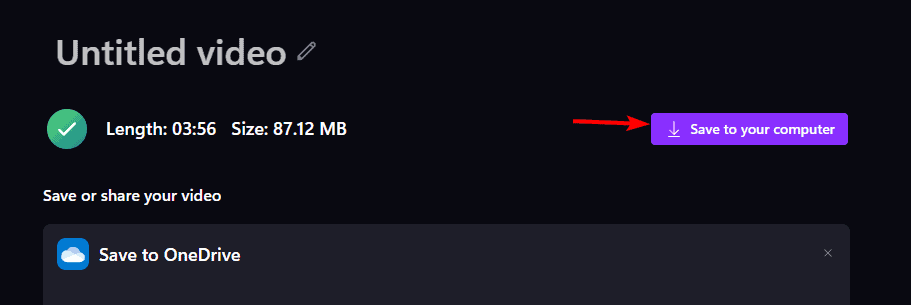
- Select a destination folder on your PC.
- Confirm and download the MP4 file.
5. Alternative Save Options
If you prefer, you can export your video directly to online platforms.
- Choose OneDrive to back up online.
- Export to Google Drive for cloud access.
- Share directly to YouTube or TikTok if needed.
If you are polishing clips for social sharing, learn to crop a video in Clipchamp for the perfect framing. You can refine your edits further by learning how to trim videos in Clipchamp with this trimming guide.
FAQs
Yes, exporting in 1080p is free if you only use basic features and free assets.
Clipchamp saves videos as MP4, which works on most devices and platforms.
They are stored in the folder you choose after clicking “Save to your computer.”
Yes, projects autosave in the cloud, but you still need to export to create a playable file.
Large projects, higher resolutions, or slower hardware can increase render time.
Conclusion
Saving a Clipchamp project to your computer only takes a few clicks. Export in the right resolution, download the MP4, and you are ready to share or archive. For creative effects, try a simple freeze frame in Clipchamp to highlight key moments.

Read our disclosure page to find out how can you help Windows Report sustain the editorial team. Read more



Improve this guide




User forum
0 messages