
How To Use Enhance Audio On Windows 11 For Clearer Sound


 2 min. read
  EEST
EEST
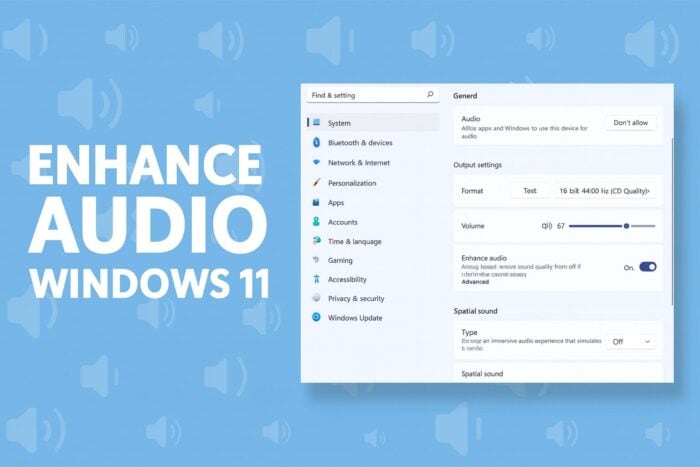
Windows 11 includes a built in Enhance audio feature that boosts clarity and improves overall sound output with a single toggle, and in this guide we’re going to show you how to use it.
Table of contents
How to Use Enhance Audio on Windows 11?
Enable the Enhance audio feature
Follow these steps to turn on the enhancement toggle.
- Right click the taskbar sound icon.
- Select Sound settings.

- Choose your output device.
- Scroll to Enhance audio.

- Switch it On.


You can also view more ways to adjust audio quality through guidance on how to improve sound quality.
Access More sound settings
Open this menu when you need to confirm device support.
- Go to Settings > System > Sound.
- Select More sound settings.

- Double click your output device.
- Open the Enhancements or Advanced tabs.
- Verify the Enhance audio option is available.

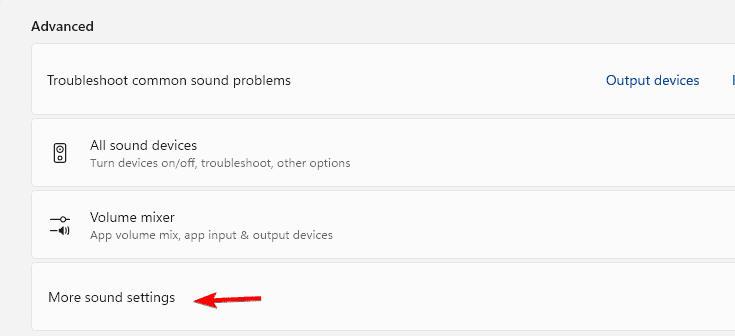

If you need help finding the device panel, you can follow a guide on how to open sound settings.
FAQs
It boosts clarity, balances volume levels, and corrects frequency ranges to create cleaner audio without manual tuning.
Your audio driver may not support this feature. Opening More sound settings helps you confirm whether your device includes enhancement options.
Yes. The feature affects whichever output device you select in the Sound settings menu.
It often helps by raising lower signals, but extremely quiet output can also relate to app volume levels or driver support.
Enhance audio offers an easy way to improve sound quality on Windows 11 with minimal setup. Turning it on increases clarity, balances frequency levels, and produces a fuller output for most devices. Opening the advanced sound menu helps you confirm support, and once enabled, the feature provides an immediate upgrade to everyday listening. For deeper control over your sound profile, you can also learn how to change sound settings in Windows 11.

Read our disclosure page to find out how can you help Windows Report sustain the editorial team. Read more



Improve this guide

User forum
0 messages