
How to Find Docking Station in Device Manager on Windows 11


 4 min. read
  Published on

If your laptop dock isn’t being detected, checking Device Manager is the quickest way to troubleshoot it. This guide will show you how to locate your docking station, update its drivers, and confirm that it’s working correctly on Windows 10 or Windows 11.
Table of contents
- How to Find Your Docking Station in Device Manager?
- 1. Open Device Manager
- 2. Expand the Universal Serial Bus Controllers Section
- 3. Check Under Network Adapters or Display Adapters
- 4. Reconnect the Docking Station
- 5. Update or Reinstall Dock Drivers
- Why Docking Stations Might Not Appear in Device Manager
- How to Confirm the Dock Is Working Properly
- FAQs
- Conclusion
How to Find Your Docking Station in Device Manager?
1. Open Device Manager
Start by accessing the Device Manager to view all hardware connected to your PC.
- Press Windows + X on your keyboard.
- Click Device Manager from the list.

- Wait for the Device Manager window to appear.
2. Expand the Universal Serial Bus Controllers Section
This section displays all USB connected devices, including most docking stations.
- Scroll down and double click Universal Serial Bus controllers.
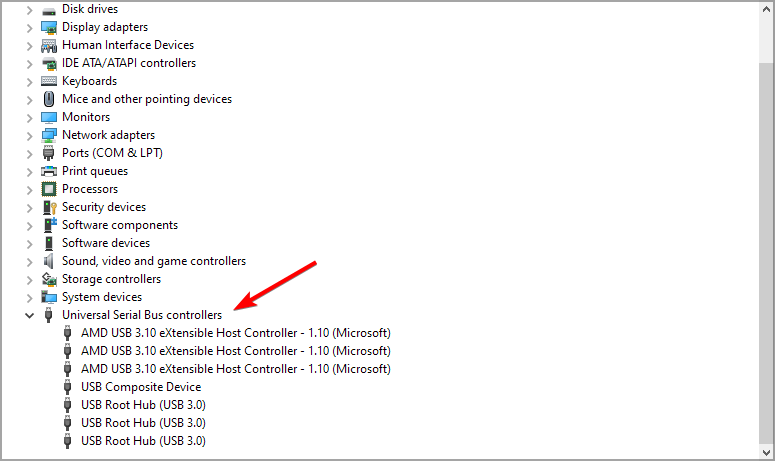
- Look for devices labeled with your docking station brand, such as Dell Dock, HP USB C Dock, or Lenovo Dock.
- If it’s missing, proceed to the next section.
If you can’t get your external display to show up, follow this fix for external monitor not detected through docking station.
3. Check Under Network Adapters or Display Adapters
Some docks appear under other categories depending on their ports and functions.
- Expand Network adapters if your dock includes Ethernet.
- Expand Display adapters if it provides video output.
- Identify any device entries matching your dock model.
4. Reconnect the Docking Station
If your dock doesn’t appear, disconnect and reconnect it to trigger driver recognition.
- Unplug the dock’s USB C or Thunderbolt cable.
- Wait a few seconds, then plug it back in.
- Watch for new entries appearing in Device Manager.
- If prompted, let Windows install the drivers automatically.
5. Update or Reinstall Dock Drivers
Keeping your dock drivers up to date ensures full compatibility and performance.
- Right-click your docking station entry in Device Manager.
- Select Update driver.

- Choose Search automatically for drivers.

- If no update is found, download the latest version from your manufacturer’s website.
If your Ethernet connection fails after a driver update, see this guide on Ethernet not working on Dell Dock.
Why Docking Stations Might Not Appear in Device Manager
If the dock doesn’t show up, it’s often related to connection or driver issues. Here’s what to check:
- Outdated USB or Thunderbolt drivers: Use Windows Update > Optional Updates.
- Faulty port or cable: Try a different USB C port or cable.
- Dock not powered properly: Verify that the power adapter is connected.
- Firmware issue: Update your dock’s firmware from the manufacturer’s site.
How to Confirm the Dock Is Working Properly
Once your dock appears in Device Manager, test it to ensure it’s functioning as expected.
- Connect a USB flash drive, mouse, or external monitor to the dock.
- Check that Windows detects the connected devices.
- If it still doesn’t work, restart your PC and reconnect the dock.
FAQs
It might be hidden under another category, disabled, or missing drivers. Enable View > Show hidden devices to reveal all hardware.
Right click the dock in Device Manager, choose Uninstall device, then disconnect and reconnect it. Windows will reinstall the driver automatically.
Yes, but compatibility depends on the dock’s connection type such as USB C or Thunderbolt and your laptop’s supported drivers.
Some brands like Dell, HP, and Lenovo offer companion apps or driver packages for advanced features. Check your manufacturer’s support page to install them.
Conclusion
Checking your docking station in Device Manager helps you pinpoint most connection issues quickly. Make sure you explore the USB, Network, and Display categories, reinstall drivers if needed, and verify functionality with connected peripherals. If the issue persists, use the linked fixes for detection problems, display issues, and Ethernet failures.
You can easily locate your dock using the built in Device Manager tool in Windows by follow the steps from above. If your computer doesn’t recognize the dock at all, you can also check this guide on Windows 11 not detecting docking station.

Read our disclosure page to find out how can you help Windows Report sustain the editorial team. Read more



Improve this guide
User forum
0 messages