
How to Create a New Notebook in OneNote (Step-by-Step Guide)


 3 min. read
  Updated on

If you’re wondering how to create new notebook in OneNote, the process is easier than you might think. This guide will tell you all you need to know to get started.
Table of contents
How to Create a New Notebook in OneNote
1. On Windows
To make a new notebook on Windows, follow these steps:
- Open the OneNote app.
- Click File in the top menu.
- Select New.
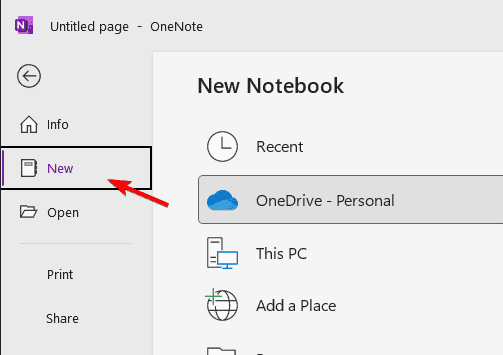
- Choose a storage location (OneDrive is recommended for sync).
- Enter a name for your notebook.
- Click Create Notebook to finish.
Want a deeper overview of all the main functions? Here’s a full guide on how to use OneNote. After you create your notebook on Windows, organize it with sections by following this step by step guide on how to add tabs in OneNote.
After creating your notebook and adding sections, structure tables more clearly by learning how to merge table cells in OneNote. You can customize your workspace further by using this guide on moving tabs to the top in OneNote to change how your sections appear on the screen.
2. On Mac
If you are using a Mac, here is how to do it:
- Open OneNote for Mac.
- Go to the File menu.
- Select New Notebook.
- Pick a location (OneDrive for sync or On My Mac for local storage).
- Name your notebook and click Create.
3. On the Web (OneNote Online)
To create a notebook online, use these quick steps:
- Sign in to OneNote Online.
- From the sidebar, click + Notebook.
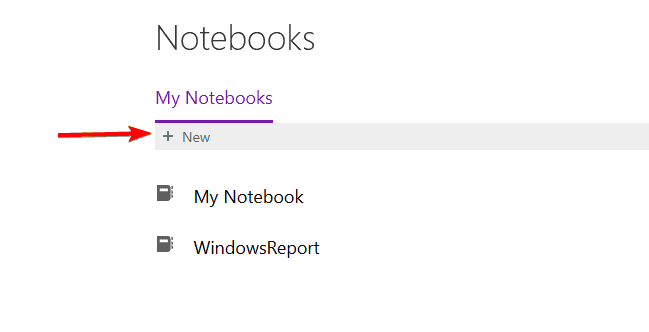
- Enter a name for the notebook.
- Click Create Notebook and it will open instantly in your browser.
4. On Mobile (Android & iOS)
Creating a notebook on mobile is fast and straightforward:
- Launch the OneNote app.
- Tap the Notebooks tab.
- Select + Notebook.
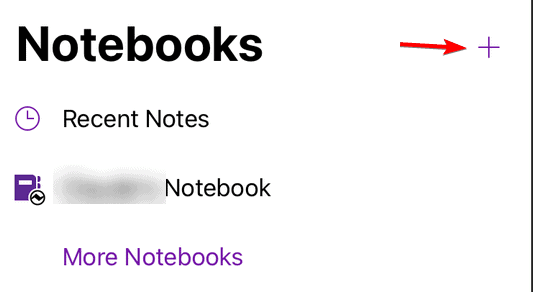
- Type in a notebook name.
- Tap Create and start adding sections.
If you ever want to tidy things up, you can also learn how to delete a notebook in OneNote.
FAQs
Yes. The easiest way is to rename it from OneDrive. Right-click the notebook file, select Rename, and changes will sync across your apps.
By default, OneNote stores them in your OneDrive Documents folder. Local storage is also possible on desktop versions.
No. You can create as many notebooks as your OneDrive storage allows.
Yes. You can invite people via email or create a share link in OneNote to collaborate in real time.
Conclusion
Creating a new notebook in OneNote only takes a minute, and you can do it on any device. By setting up multiple notebooks, you’ll keep your projects organized and make your notes accessible anywhere. If you ever run into issues, you can also recover deleted OneNote files with a few quick steps. Now that you know how to do it, open OneNote and create your first notebook today.
For even more control, you can also learn how to share a page in OneNote to give access only to specific content instead of the whole notebook.

Read our disclosure page to find out how can you help Windows Report sustain the editorial team. Read more



Improve this guide




User forum
0 messages