
How to Share a Page in OneNote: Quick Steps for Any Device


 3 min. read
  Published on
Want to let someone see or edit just part of your notes? This guide will show you how to quickly and easily share a page in OneNote on Windows, Mac, or mobile so you can collaborate without sending the entire notebook.
Table of contents
How to Share a Page in OneNote?
1. Open the Page You Want to Share
First, open the exact page you want to share. This ensures that the invitation link will point to the correct content.
- Launch OneNote on your device.
- Navigate to the notebook and section.
- Select the page you want to share.
If you are new to the app, check out this beginner’s tutorial on how to use OneNote. While opening a page to share, you might also want to organize your sections with this guide on how to add tabs in OneNote.
2. Access the Share Option
Next, bring up the Share option depending on your device.
- On Windows or Mac, go to File > Share.

- On the OneNote app, tap the Share icon at the top.
For tidier collaboration, see how to move pages to the right in OneNote and structure your notes with subpages before sharing them.
3. Choose Share Settings
Now, choose how you would like people to use your shared page.
- Type the email addresses of your collaborators.
- Decide between Can view or Can edit permissions.

- Add a short personal message if you would like.
When setting permissions for shared content, you can also improve formatting by learning how to merge table cells in OneNote.
4. Send the Invite
Finally, send out the invite so they can access the page.
- Click Send.
- Your recipients will receive a link by email.
Alternative: Share a Link to a OneNote Page
Sometimes you do not want to add names one by one. A shareable link is faster.
1. Copy the Page Link
- Go to the page you want to share.
- Select Share > Copy Link.
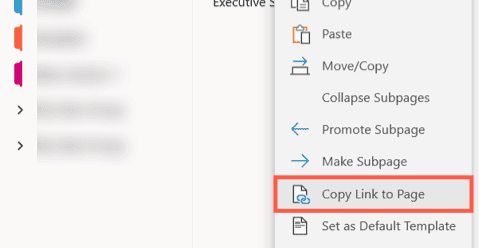
2. Choose Link Permissions
- Pick either Edit link or View-only link.
- Paste the link into chat, email, or any other app.
FAQs
Yes. OneNote allows sharing individual pages without exposing the rest of your content.
In most cases, yes. They sign in with a Microsoft account to access the link.
Yes. Open the Share menu again and remove permissions or disable the link.
Yes. Both iOS and Android versions support sharing pages directly from the app.
Conclusion
Sharing a page in OneNote is quick once you know the steps. Whether you invite people directly or send a link, collaboration becomes easy and everyone stays on the same page. For more tips, see how to create a new notebook in OneNote or manage your work by learning how to delete a notebook in OneNote.

Read our disclosure page to find out how can you help Windows Report sustain the editorial team. Read more



Improve this guide




User forum
0 messages