
How to Open Sound Settings in Windows 11 (Step-by-Step Guide)


 3 min. read
  EEST
EEST
Learn how to open Sound Settings in Windows 11 using several simple methods. Whether you want to switch audio devices, fix sound problems, or manage your microphone, these quick steps will get you there fast.
Table of contents
How to Access Sound Settings on Windows 11?
1. From the Settings App
This is the most direct method for opening the Sound Settings.
- Press Windows + I on your keyboard.
- Click System from the left sidebar.
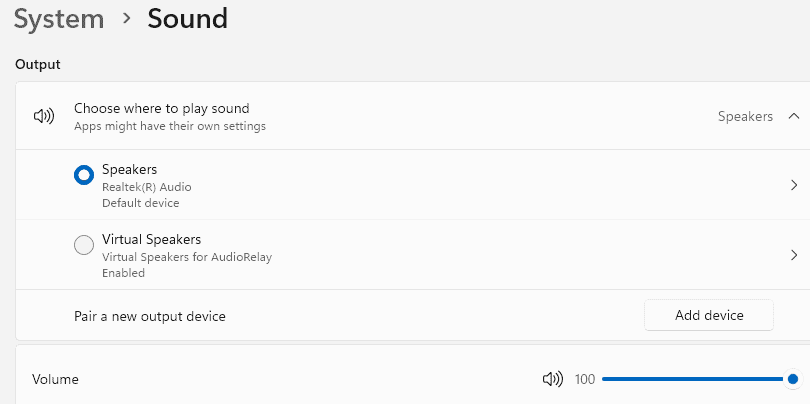
- Select Sound on the right side.

- You can now manage your output and input devices.

If you want to change your output device, read this guide on how to change the output device in Windows 11.
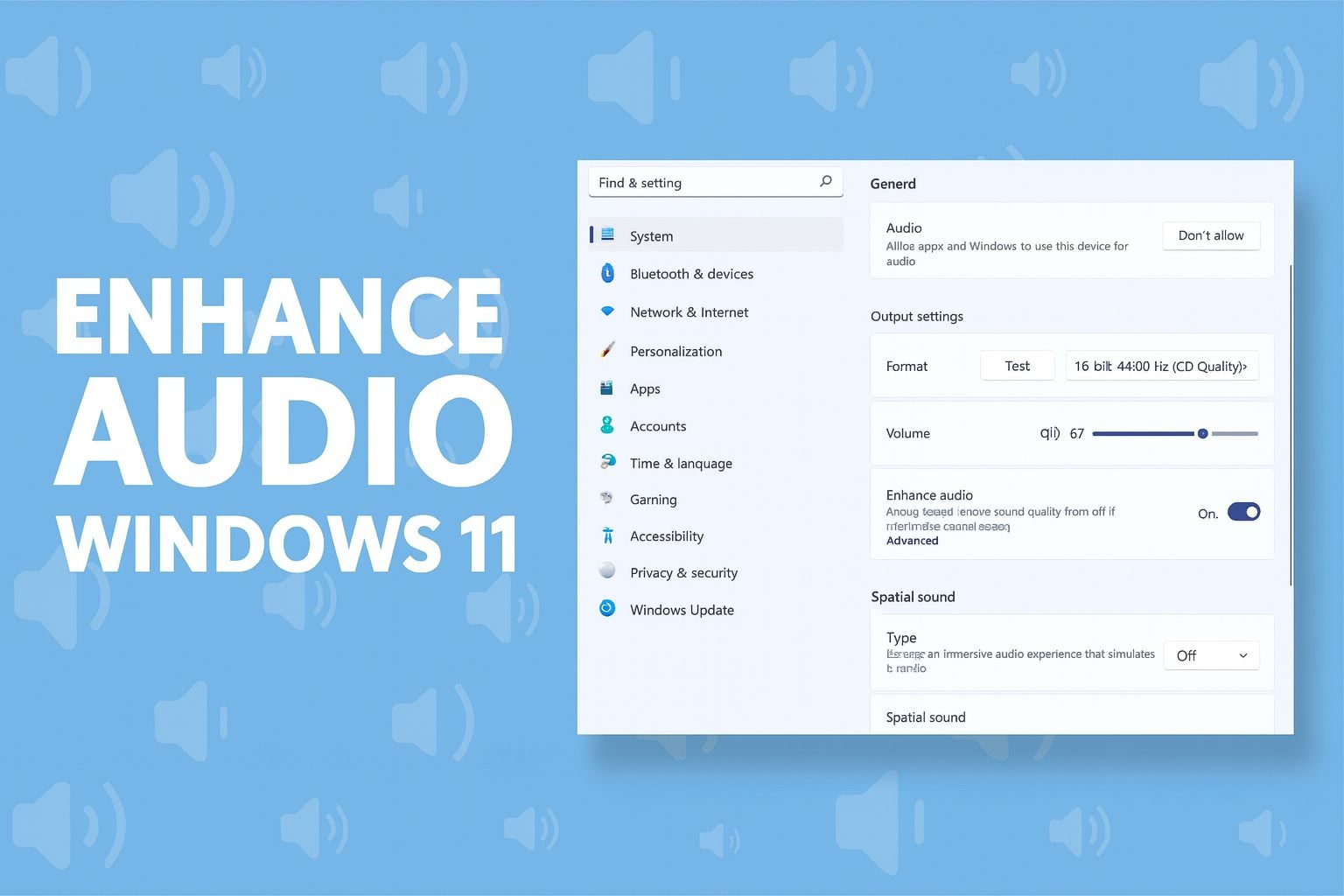
To enable spatial audio in Windows 11, learn how to set up Windows Sonic surround sound. Learn how to enhance audio in Windows 11 by using the built in enhancement toggle available in the Sound settings through this step by step Enhance audio guide.
2. From the Taskbar
You can quickly access Sound Settings through the taskbar icon.
- Right-click the sound icon on the taskbar.
- Select Sound settings from the menu.

- The Sound Settings window will open immediately.


3. Using Quick Settings Panel
This is ideal if you need to adjust audio on the fly.
- Click the sound icon on the taskbar to open Quick Settings.
- Select the arrow (˄) next to the volume slider.
- Choose More sound settings to open advanced audio options.
If your speakers are not properly configured, check our guide on how to set default speakers in Windows 11.
4. With Command Prompt or PowerShell
You can open Sound Settings directly with a command.
- Open Command Prompt or PowerShell.
- Type the following command and press Enter: start ms-settings:sound
- Windows will launch the Sound Settings window instantly.
5. Using the Classic Control Panel
If you prefer the traditional interface, use this method.
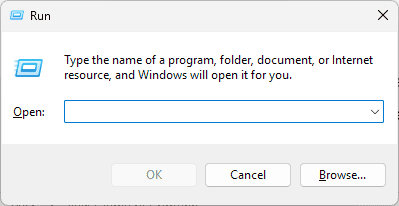
- Press Windows + R to open the Run dialog box.

- Type control mmsys.cpl sounds and press Enter.
- The classic Sound dialog box will open, allowing you to configure playback and recording devices.
FAQs
Press Windows + I, then navigate to System > Sound.
Yes, open the Run dialog and type control mmsys.cpl sounds.
Go to Settings > System > Sound, then select Choose where to play sound.
This can happen if system files are corrupted or services like Windows Audio are disabled. Restart your PC or run the Audio Troubleshooter to fix it.
Conclusion
Opening Sound Settings in Windows 11 can be done in multiple ways, from the Settings app to command-line shortcuts. Knowing these options helps you manage your audio devices effectively.
You can also explore more detailed steps on how to change sound settings in Windows 11 to customize your audio output, input devices, and system sounds effectively. You can also enable or disable sound devices to resolve conflicts when audio options refuse to load correctly.
If you experience uneven audio, see our guide on how to fix audio balance issues in Windows 11.

Read our disclosure page to find out how can you help Windows Report sustain the editorial team. Read more



Improve this guide


User forum
0 messages