Educator takes the Microsoft Surface Pro 3 to new heights

Technology is the key to improving how we edify tomorrow’s leaders, both students and educators alike. Technology changes the way teachers teach and the way students learn. With entire classrooms now able to collaborate and share virtual notebooks with OneNote, not only with Microsoft products but with Apple iOS and Google’s Android as well, Microsoft is changing the face of education and developing technology to change how learning. For David Lopez, a K-5 classroom teacher and professional development specialist, the Surface Pro 3 is the ideal tool for education and a crucial piece of technology.
Mr. Lopez’s job requires him to frequently travel to different schools and school districts. While visiting other institutions, Lopez assists other educators integrate technology into their schools, teaching them the benefits of productivity tools such as the Surface Pro 3 and OneNote. While traveling 30,000 feet in the air, Lopez often bumps elbows with other frequent fliers who are more than a little curious about all he is able to do with this Surface Pro 3. Being the ever scholarly man that he is, Lopez can’t help but demonstrate his favorite features.
Lopez tells us about his experiences in post on Microsoft in Education blog:

They see me take out my active stylus and start highlighting a document in OneNote, and then they look at the papers they’re working on, wondering how they could do the same thing. And when I flip the keyboard under the screen and read an e-book while keeping the flight tracker open on the split-screen? Yes, I’ve seen their eyes peek over at my screen and I have to say, “Pretty cool, huh? Would you like to give it a try?”
The teacher in me can’t help but demonstrate how this great device has changed the way educators collaborate and communicate with their students.
My favorite feature to demonstrate is how I can give descriptive feedback to my students in OneNote using the inking feature and the built-in microphone. I simply open OneNote, find the paper, insert a recording, and then begin writing and highlighting on the screen just as I would on paper. The real eye-opener is when I click “playback” and the inking starts highlighting and moving down the page as my recorded voice comes through the speakers.

Lopez goes on to express his desire for all of his students and fellow educators to have access to devices like the Surface Pro 3. Although there are perhaps hundreds of uses for Microsoft’s Surface devices, educators like Lopez see its value in education and all the possibilities Surface can create.
What do you think about the Surface Pro 3 in education? Let us know in the comments below.
Microsoft names new 4Afrika regional director

As of October 2015, Amrote Abdella has taken over Fernando de Sousa’s role of regional director for Microsoft’s 4Afrika Initiative, a program initiated by Microsoft that aims to improve access to technology, resources, and skills development for African individuals and companies.
“At Microsoft, our mission is to empower every person and organisation on the planet to do more. The 4Afrika Initiative is perfectly aligned to accelerate this for the African continent through locally relevant innovation, affordable access and skills development,” Abdella said in a statement after her promotion. “Creativity is what I love most about working in Africa and is what I hope to continue to help unlock and ignite across the continent — to see Africans not just being empowered by technology but also building innovative solutions relevant for our markets.”

Microsoft's Amrote Abdella
Microsoft’s Amrote Abdella

Abdella has a rather impressive body of experience before her time at Microsoft and has worked at the World Economic Forum, the World Bank Group, the Hunger Project, and the Grameen Foundation with a focus on African financial services, policy guidance, and economic development.
Corporate vice president for Microsoft Middle East & Africa, Ali Faramawy had the following to say about Abdella’s appointment, “Having worked with the initiative since its launch in 2013, Amrote has a deep understanding of both the continent and 4Afrika’s mission. Her wealth of firsthand, on-the-ground experience with startups, investors, government bodies and nonprofit organisations has given her insight into the exact challenges and opportunities we’re focusing on through 4Afrika. We are confident in her ability to move the initiative forward and refocus our efforts.”
Microsoft’s 4Afrika initiative has to date helped 273,000 small- to medium-size enterprises, 76,000 young people and 20,000 government employees. Two noteworthy examples of 4Afrika projects are the recent introduction of telemedicine services in Botswana and providing internet services to universities in Ghana.
Have you heard much about 4Afrika before now? What do you think is Microsoft’s most impressive initiative? Let us know in the comments below.

Microsoft uses guerrilla marketing to promote its New York City flagship store

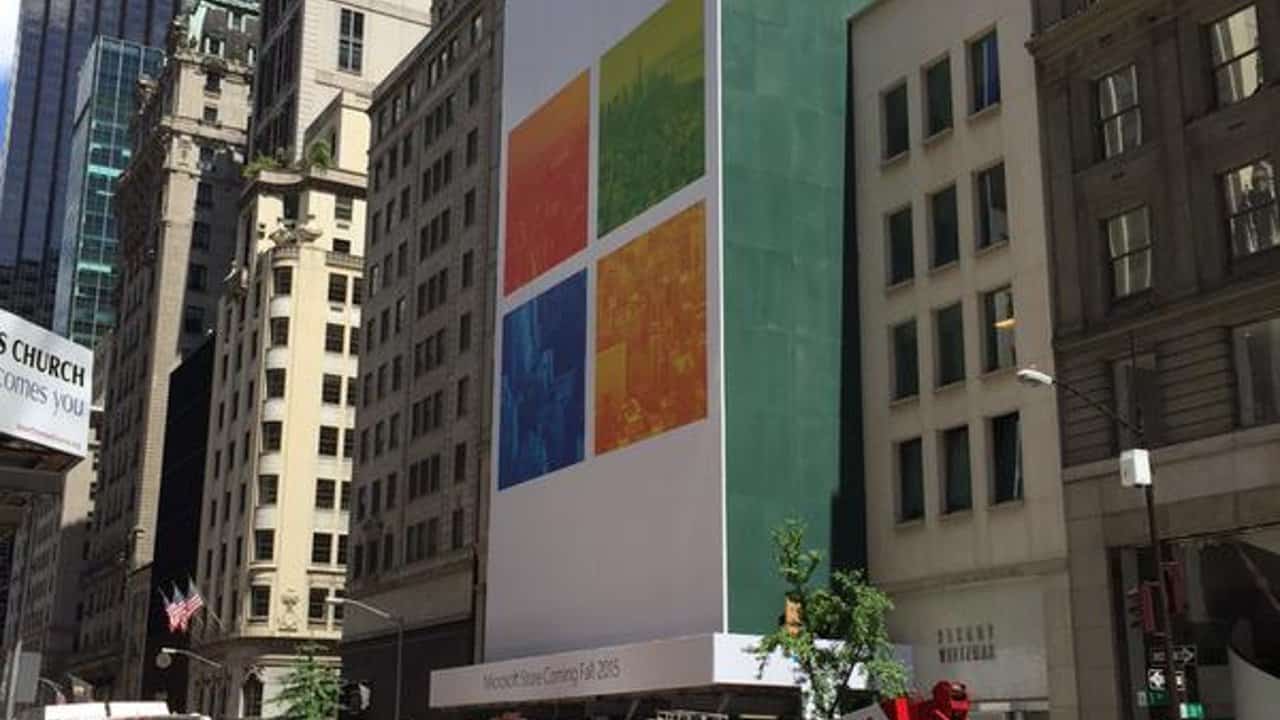
Microsoft is set to open up its highly touted and long awaited New York retail store next week, and the company is pulling out all the stops to entice New York citizens to check it out. The new Microsoft Store sits a few blocks away from the iconic glass cube Apple Store and sports an impressive 22,269 square foot imprint. Leading up to the October 26th unveiling of its new five-story flagship store, Microsoft has been engaging in a bit of guerrilla marketing to spread the news.
Microsoft’s new campaign began with positioning food trucks in various places throughout New York that offered free food. The vehicles were covered in the traditional Microsoft Windows blue and suggested that not only, “lunch is on us,” but that eaters should upgrade their day, presumably at the new store.

In addition to free food, Microsoft is also planning to roll out prize machines to two different locations throughout New York each day for the next week. The vending machine looking devices are covered in the same Windows blue color and wrapped with Microsoft promotional tags. Inside the machines are said to be Microsoft products such as Xbox One’s, Surface tablets and other cool swag. The vending machines are designed to dispense free gadgets as long as fans tweet directly from the box. Fans are encouraged to visit Microsoft’s Facebook events page for details on locations and prizes.

Lastly, Microsoft will be giving away tickets to a Pitbull concert scheduled October 26th during the flagships unveiling. To receive a free Pitbull concert ticket, fans need to line up at 6:00 AM ET at the Fifth Avenue and 53rd Street Store location.
According to Microsoft:

  • The first 1,000 people in line, at a minimum, for the Microsoft opening on Monday, October 26 will receive two complimentary tickets for the Pitbull special performance on Monday, October 26. Like us on facebook.com/microsoftstore to get up-to-the-minute details.
  • Customers in line by 9:00 AM on Monday, October 26, will be entered into a raffle to meet Pitbull. A limited number of customers will be selected at random.

As Microsoft looks to influence the direction of the PC market with its renewed software and hardware offerings, the company is also taking its retail presence into heavy consideration. The location of the New York City flagship signifies a hefty investment from Microsoft in its bid to reestablish the PC buying experience for some New York natives.
We’ll see in a weeks time whether or not Microsoft’s street campaign efforts pay off with long lines on October 26th at its latest Store.

Microsoft launches new India-based commercial cloud services

In a new Azure blog post, Microsoft announces the launch of several cloud based services in India. First are new commercial cloud services spawned from data centers stationed in various regions. Second are Office 365 services which will be available later this month, and finally Dynamics CRM Online services, which will be available some time in the first half of 2016.
In discussing its new cloud services in India, Microsoft India chairman Bhaskar Pramanik explains:

The Microsoft Cloud in India will transform the way computing is done in the country.  The hyper-scale cloud will empower governments, businesses and users and offer enough computing power that will support all their existing workloads. We are happy to partner with government and businesses to make the Microsoft Cloud work for India and for Indians.

Microsoft’s cloud services are built on core pillars of security, privacy, control, compliance, and transparency. This makes its cloud services useful for all varieties of businesses, individuals, and state-owned enterprises and agencies that require their data to be stored locally. All data can be replicated, distributed, and stored in various data centers in India exclusively. As such, its new cloud services are well-suited for startups, small businesses, education, developers, IT, government, and many more categories of customers who require the advantages and security of data stored locally within India.
Microsoft further explains that its cloud offerings are well-suited not just to new organizations, but to those who already have their own existing IT infrastructures. Such organizations can now extend and augment their existing infrastructure with Microsoft’s local cloud services, creating hybrid cloud scenarios which can significantly reduce the cost of IT management.
BFSI, government departments, ISVs, ecommerce, and startups have expressed interest in Microsoft’s local cloud services. To show off its cloud offerings to such clients, Microsoft has put together a special private preview program, which is now being tested by organizations such as Mahindra,  Robert Bosch, Honeywell, Kotak Life, Bajaj Finserve, Medi Assist, Fortis Healthcare, Narayana Health, AIIMS, Haryana State Electronics Development Corporation, MIDC, TN ePDS, Rediff, Meru Cabs, Sony Corporation, Aspect Software, Gupshup Technologies, NanoBi Data and Analytics, Ideal Invent Technologies, and many more.
Capture
Finally Microsoft takes the opportunity to announce its flagship summit. Future Unleashed is a two-day conference centered around unique applications of combined business and technology use cases. Notable speakers at the conference include Satya Nadella and Scott Guthrie, who will be speaking about the important role these technologies play in shaping the future of technological infrastructure. The conference will take place in the NESCO Convention Centre in Mumbai next month on November 5-6th.
Future Unleashed will be marketing itself under the hastag #ADateWithTheFuture.

Microsoft and Johns Hopkins University team up to scale new healthcare solutions

Microsoft and the Johns Hopkins University recently announced a collaboration that could result in a solution that helps improve patient safety and care quality in the future. The collaboration is aimed at creating a solution that draws data from medical records in conjunction with the modern devices people use every day. Once the data has been gathered, the information can help better determine when a patient would require treatment to prevent possible medical complications. Microsoft likens it to “a life-saving checklist that operates in real time.”
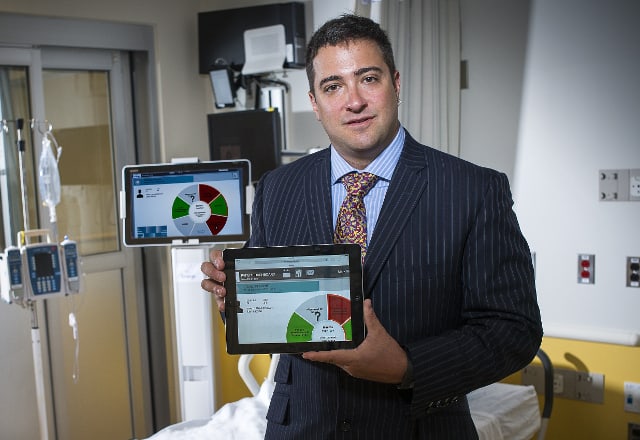
Part of the solution relies on a previous Johns Hopkins efforts with Project Emerge. Project Emerge uses a $9.4 million (US) grant to create tablet-based apps to help coordinate data for clinicians.

The foundation of Project Emerge is a tablet application that coordinates and integrates all data from all monitoring equipment and information systems. Rather than scavenge medical records, devices and other sources to ensure patients receive all the appropriate care, clinicians can use the tablet app to quickly see all data in one location.

The tablet apps were also designed to help patients and their families interact with the health staff at hospitals. Patients and family members could use the bedside tablet and app to ask questions about health care, and include a patient’s favorite music or television programs.
CPM7857
Couple with Project Emerge, Microsoft’s Cloud will help scale the university’s earlier solution to bring real-time date-driven intelligence to patient care soon. Using Microsoft’s Azure computers, Johns Hopkins University will be able to tap into massive amounts of storage, analytics, and actionable insights while having everything tied together across mobile efforts, sensors and upcoming Internet of Things (IoT) devices.
Microsoft’s Health Division states:

Our mutual goal is to deliver Project Emerge to health organizations across the country and transform the way care is delivered by arming health professionals with the right information, at the right time.
By combining our leading expertise, Johns Hopkins and Microsoft hope to capture the immense opportunity to transform intensive care, and dramatically reduce the estimated 400,000 lives lost each year from preventable harms.”

Over the past few months, we’ve been reporting about how Microsoft’s cloud-connected efforts are making splashes in the health industry as it allows caregivers to jump in and out of mountains of metrics while also streamlining processes for many hospitals.
Project Emerge is currently just a pilot program and it may take some time before its partnership with Microsoft bears any tangible fruit, but the possibilities for improving health care seem to be within arms reach.

Google is fully committed to competing with Microsoft's Office 365

Google Apps for Work (previously known as Google Apps) took an early lead in cloud based productivity software for a long time before Office 365 hit the market. But competition really picked up once Microsoft started its new Software as a Service version of its Office productivity suite. As we have reported over the last year, Office 365 has seen much quicker growth. And just in this past quarter, reports have been surfacing that Office 365 has over taken Google Apps for Work.
As Microsoft threw its weight into the market for cloud based producvity apps, the question remained how would Google respond and how important was this competition to their business, which is historically driven by advertising revenue and dominating the search market. Not to mention their attention being divided by many other projects which include everything from Android mobile operating system to self-driving cars.
Two articles today from Business Insider by Matt Weinberger reveal that Google Apps for Work is extremely important for the Mountain View based technology company, and they aren’t going to let Microsoft ascend to being market leader without a fight.
google apps for work
Weinberger’s first article gives some insight into why Google Apps for Work is important to Google’s long standing corporate mission, and that the company’s mandate to compete with Microsoft Office comes directly from the founders of Google themselves. As Weinberger puts it:

“Founders Larry Page and Sergey Brin have long believed that given the sheer amount of time that people spend at their jobs, ignoring the workplace would be doing a disservice to Google’s long-standing corporate mission — ‘to organize the world’s information and make it universally accessible and useful.”

As such Google wants to offer compelling services for users not just when they are on their free time searching the web, sending emails and shopping online, but also when they are sitting at their desk for eight hours a day.Weinberger also notes that Rich Rao, head of Global Sales of Google Apps for Work, recently shared Page, Brin, and newly minted Google CEO Sundar Pinchai devoted the entirety of one of Google’s “TGIF” weekly all-hands meeting to discussing Google Apps.
The question of how far Google will go to compete with Office 365, and consequently the importance of Google Apps for Work to their mission, is becoming clearer with their newest offer which specifically targets existing Microsoft customers. In his other article, Weinberger reports that Google announced Microsoft customers who are under an Enterprise Agreement with the Redmond based technology company can receive Google Apps for Work for free. The only caveat being they commit to the full price of Google Apps for Work for at least one year after their Enterprise Agreement with Microsoft expires. This provides a much lower switching cost to businesses currently locked into a three year contract with Microsoft’s services under a three year long Enterprise Agreement who are interested in considering alternatives.
office 365
Additionally, Google is paying $25 per user to resellers for signing up their clients with Google Apps for Work. As Weingerger notes, resellers are usually trusted IT contractors that help set up a business’ technology infrastructure. This includes everyone from small independent firms to large consultant practices. The $25 per user bonus helps these resellers lessen their costs of training their client’s staff in newly deployed software.
Enterprise customers are a lucrative segment, one that Microsoft has built much of its position off of through decades of renewed Enterprise Agreements. Google’s new tactics, which won’t come cheap at least in the short run, are a clear signal that they are fully committed to competing with Microsoft and not letting them amass a substantial lead. And the new levels of Google’s commitment could be a significant threat to Microsoft as many of their other businesses, such as Azure, rely heavily on Enterprise customers. As every business who switches away from Office 365 is only that much more likely to not rely on Microsoft for other services.
The question will remain who will have a more compelling service that wins over companies amidst the growing trend of cloud based producvity software. Will it be the offering from a company that’s mission is to organize the world’s data or a company whose mission is to empower every individual and business on the planet?

Microsoft Ignite 2016 now open for pre-registration

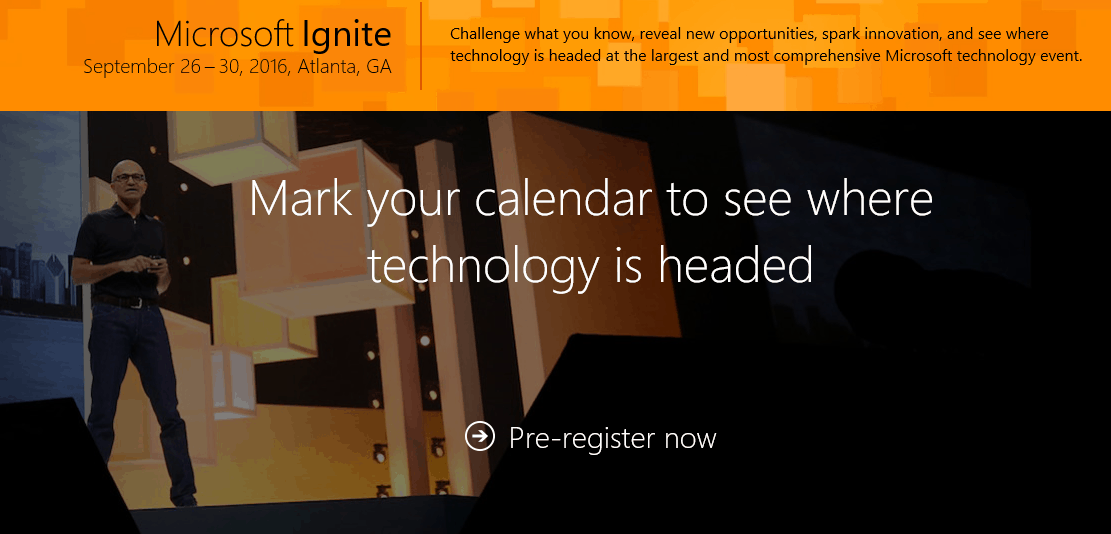
Microsoft Ignite is a popular get-together for IT professionals who want some insight into upcoming technologies and opportunities to build out their Microsoft skillsets. Next year’s Ignite event will be held in Atlanta on September 26-30, after being rescheduled and relocated from Chicago, and pre-registration is now open, according to the Windows blog.
Here’s what you can expect at Ignite 2016:

• 1,000+ hours of content, 700+ sessions, and a multitude of networking opportunities
Insights and roadmaps from industry leaders
• Deep dives and live demos on the products you use every day
• Direct access to product experts
• Interactive digital labs
• Knowledge and answers direct from the source
• Smart people talking tech everywhere you look

Microsoft’s complete event schedule for 2016 looks like this, according to the Microsoft Blog, just in case you’d like to fill out your entire calendar for the year:

• Build: Spring 2016 in San Francisco
• Convergence: April 4-7, 2016 in New Orleans
• WPC: July 10-14, 2016 in Toronto
• Microsoft Ignite: September 26-30, 2016 in Atlanta

It looks like Microsoft has some excellent opportunities on tap in 2016 to get up close and personal with the company’s products, services, and personnel, and so get your flights booked.

Microsoft explains its commitment to basic research

Nobody can argue that basic research and development isn’t important to a company and to an economy. Technology impacts everything today, from medicine, food production, and entertainment to business operations, logistics, and marketing. Basic research is the engine that creates the ideas that lead to products, services, and processes that change our lives on a daily basis.
Microsoft Research, a division made up of over 1,000 researchers that was founded almost 25 years ago, clearly agrees. Corporate Vice President at Microsoft Research Jeannette M. Wing took some time this morning to provide an overview of the division’s research not only to Microsoft as a company, but to the greater world as well.

A strong Microsoft is vital to the livelihood and productivity of billions of users around the world who rely on Microsoft products and services. A strong Microsoft is critical to a strong U.S. economy in a time when we are facing unprecedented global competition. And a strong Microsoft allows us to look beyond the horizon in pursuit of The Next Big Thing that can improve the human condition.
Microsoft’s nearly 25-year bet on research is a way to cover all these bases, and so far, the return on that bet is paying dividends to Microsoft, our industry and our global economy.

Microsoft Research has been instrumental to the development of a number of Microsoft products and services. The machine intelligence behind Cortana and Skype Translator is heavily influenced by the work done at Microsoft Research, and the group is looking into a variety of technologies that will drive future advances, such as quantum computing and synthetic biology.
Wing goes on to discuss two reports that highlight the value of basic research and development, Restoring the Foundation: The Vital Role of Research in Preserving the American Dream and Rising Above the Gathering Storm. Also, Microsoft CEO Satya Nadella signed onto the Innovation Imperative, an initiative to compel the U.S. Congress to take a look at federal policies around STEM education and peer review.
This focus on federal involvement in basic research and development funding seems to be the ultimate focus of the blog post:

On Tuesday, October 20, I have the honor to participate in a roundtable discussion on Capitol Hill to help identify key priorities for the America COMPETES Reauthorization Act of 2015. As lawmakers consider this bill, our goal should be clear: Let’s reaffirm our commitment to funding basic research, and maintaining our place as a global innovation leader, by passing a robust version of America COMPETES.

Microsoft Research has accomplished some amazing things over the last quarter-century. We’ll continue to look forward to tomorrow’s advancements as well.

Here's how Windows Hello works on the Surface Pro 4 (video)

Did you know you can unlock the Surface Pro 4 with your face thanks to Windows Hello? Our friend Sean Ong has put together a short video demonstrating how the new Surface Pro 4 can utilize Windows Hello on Windows 10 to make your unlocking experience easier than ever. “This only works if you have a special camera. Facial unlock does not work on the Surface Pro 3, Surface 3, or earlier devices. There’s also a fingerprint scanner option – which is available on a special version of the new Type Cover,” Sean explains.
Microsoft has worked hard to beef up Windows 10 with enterprise-grade security, making sure that both consumers and businesses are protected from threats. One particular feature in Windows 10 is called Windows Hello, which allows users to seamlessly and securely log into their PCs. Windows Hello supports three types of biometric entry, which includes fingerprint recognition, iris, and facial recognition.
“With Windows Hello, you’ll be able to just show your face, or touch your finger, to new devices running Windows 10 and be immediately recognized.  And not only is Windows Hello more convenient than typing a password – it’s more secure!  Our system enables you to authenticate applications, enterprise content, and even certain online experiences without a password being stored on your device or in a network server at all,” Microsoft explained in an official blog post back in March of this year.
We’ve embedded the video below for your viewing pleasure. Enjoy!

Windows 10 news recap: Redstone, SMS from the desktop, build 10565

The second update coming for Windows 10 is codenamed Redstone, and is a larger update compared to Threshold 2. Redstone will be what Windows 8.1 was to Windows 8 essentially, bringing much needed changes and improvements to the feature-set and design of Windows 10. Redstone is scheduled to launch around a year after Windows 10 did, and is pretty much the ‘next’ version of Windows. You can read more about this here.
At the start of this week, Microsoft released Windows 10 build 10565 to participants of the fast ring. This build adds new Skype messaging, calling and video experiences, as well as the ability to sync favorites and reading list items in Microsoft Edge. There are new Cortana improvements (she can now understand your inked notes) and colored title bars in apps! Microsoft also added new icons (Registry Editor got a new icon!) and improved the context menus on Start. This build also allows you to better manage your default printer, and is also easier to activate. You can read more about the features here or watch our hands-on demo of the build below.

Microsoft also released the ISO for build 10565, in case you prefer to install it on a virtual machine or want to clean install it. Windows 10 build 10565 also introduced a preview of nested virtualization. Nested virtualization is a feature that virtualizes certain hardware features that are required to run a hypervisor in a virtual machine.
If you’re running the non-Windows Insider preview version of Windows 10, a.k.a. build 10240, then head on over to your Windows Update settings. Microsoft served up a few updates, including a security update for IE’s version of Flash and an always-welcome cumulative update.
During a hardware event in Korea, Microsoft’s Terry Myerson stated that Windows 10 is currently powering more than 22,000 devices in Korea, is seeing adoption rate 5 times faster than Windows 8, and has accumulated over 1 billion user hours in the country.
Microsoft is currently working on a way for users who own a Windows Phone to text via Cortana on the desktop. Build 10565 for desktops includes an option to alert you when you miss a phone call, but doesn’t work on the latest mobile build. It does work on more recent internal builds however, and we’ve had the chance to play with it. Watch our exclusive hands-on video below.

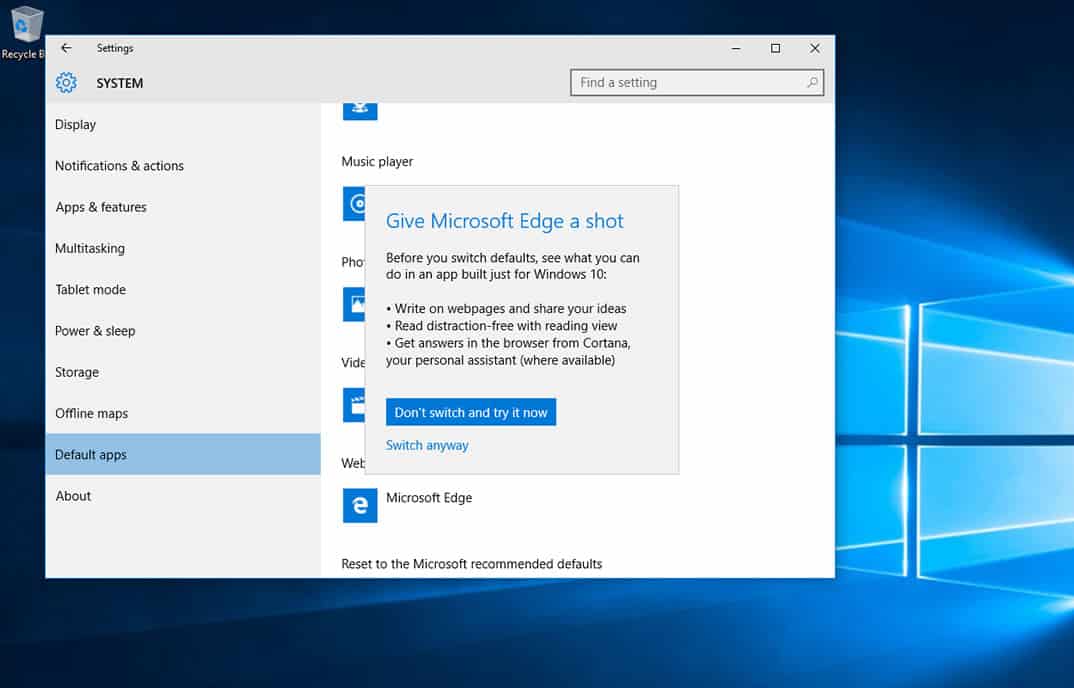
Windows 10 desktop build 10568 leaked onto the internet at the end of the week, and it doesn’t really feature anything new. In fact, this build is quite buggy and we advise against installing it. There is one small interesting change in this build however. A small prompt appears in Windows 10 build 10568 when you attempt to change your default apps. When you try to change your default browser to something other than Edge, Microsoft’s own browser, you are prompted with a small box that says “Give Microsoft Edge a shot” while listing a few of Edge’s features like Cortana integration and the ability to write on webpages.
That’s it for our weekly Windows 10 news recap folks. Stay tuned for another exciting week of Windows 10 news.

Microsoft really wants you to give Edge, Groove Music a shot in Windows 10

Earlier today, a leaked build of Windows 10 for desktop made it’s way to the internet. Build 10568 doesn’t really come with any major improvements, but there are some small differences when compared to the latest official build available to Insiders (build 10565).
One interesting change is a small prompt that appears in Windows 10 build 10568 when you attempt to change your default apps. When you try to change your default browser to something other than Edge, Microsoft’s own browser, you are prompted with a small box that says “Give Microsoft Edge a shot” while listing a few of Edge’s features like Cortana integration and the ability to write on webpages.
The same thing appears when you attempt to change your default photo app, or music app. Microsoft is really pushing their own apps as superior alternatives, and it can be a daunting task to get consumers to break away from what they are used to. Clearly this is Microsoft’s attempt at trying to convince consumers to give their own apps a chance before dismissing them.
Do you think these prompts will entice consumers to give Edge, or Groove Music a shot? Or do they simply get in the way? Share your thoughts in the comments below.

Windows 10 desktop build 10568 screenshots leaked

Screenshots of Windows 10 desktop build 10568 have hit the internet, just a few days after Microsoft officially rolled out Windows 10 desktop build 10565 to participants of the Windows Insider program. At this time, there is no word on exactly what’s new or changed in this build — assuming there are any changes.
The screenshots don’t reveal much, but it does indicate that build 10568 may be leaked soon. Of course if or when that happens, we’ll let you know and we’ll have a hands-on demo showing off whatever new improvements are in this build. This is a developing story, so stay tuned!

Windows 10 build 10568

Windows 10 build 10568


Microsoft shows off the power of Continuum on Windows 10 (video)

Continuum for Windows 10 is a feature Microsoft announced back in April, which essentially turns your Windows 10 Mobile device into a desktop PC, allowing you to use a mouse and keyboard with apps scaled up as if they were running on a Windows 10 desktop. Since the announcement however, Microsoft hasn’t really shown off the feature in detail aside from quick showcases here and there.
Continuum is the notion that one computing experience is continued regardless of the device used or the location. It allows for a consistent user interface, a familiar style of operation for the user to become accustomed to.
A new video has surfaced online showcasing Continuum (spotted by @tfwbordom), and it appears to be an official advertisement from Microsoft. Seems like the ad may have gotten pulled for now (probably due to the music that was used) but it does show off Continuum on Windows 10. We’ve embedded the video below for your viewing pleasure.

Microsoft PR guy Frank Shaw kicks ass at making Microsoft look good

There’s no doubt that Microsoft employees have been making some waves in the technology industry lately. From CEO Satya Nadella navigating the company through some extremely choppy waters to researchers leading the way in creating brand new technologies, Microsoft is chock full of great people.

no-3-frank-shaw-microsoft
Frank Shaw, Microsoft Vice President of Corporate Communications.

Business Insider highlights another Microsoftie effective at his job. Specifically, Frank Shaw, Vice President of Corporate Communications, comes in at #3 on Business Insider’s PR 50. The list highlights the 50 most effective PR staff in the technology industry, and Shaw’s placement at #3 is a testament to how well Microsoft has managed to maneuver through some highly controversial occurrences.

Frank Shaw is the go-to PR guy for the many, many reporters who cover Microsoft and he has been for a lot of years. He’s fast to respond and can quickly navigate Microsoft’s labyrinth to find answers to any question, be it a product question or something to do with one of Microsoft’s executives. Shaw, a former Marine, joined Microsoft proper after years of doing Microsoft’s PR from its primary agency Waggener Edstrom (which now calls itself WE). If all that isn’t enough, he’s also “funny on Twitter and bakes incredible sourdough bread,” one tech editor raved.

Congratulations to Mr. Shaw, and we hope he keeps the lines of communications open. Microsoft is engaged in some pretty complicated strategic changes in its business, and there’s still lots to be done. It’s inevitable that hiccups will occur, and as site that focuses on Microsoft’s doings, we recognize the benefit of having someone at the helm who can make sure the right questions get the best answers.

Suggested apps start showing up in Windows 10 build 10565 Start Menu

If you’re running Windows 10 build 10565, you might notice something interesting popping up in your Start Menu. Namely, close to the same place where you’ll typically see a list of newly installed apps is a new “Suggested” section. Here, you’ll cycle through Windows 10 apps that Microsoft thinks might be of interest based on your past app installations.

Windows 10 evaluates your installed apps and makes suggestions for new ones.

Right-click to turn off a single suggestion or turn off the feature entirely.

When a suggestion is dismissed, Windows 10 might cycle to another one.

Clicking on a suggestion opens it in the Windows Store.

This isn’t anything new: Microsoft showcased the upcoming Windows 10 feature at Build 2015. And, it’s easy enough to turn off–just head into Settings > Personalization > Start and toggle “Occasionally show suggestions in Start.” As you can see from the screenshots above, you can also disable the feature by clicking on a suggestion.

Turning off suggestions is easy enough.

As Betanews notes, Microsoft doesn’t consider the suggestions to be “ads.” Semantics aside, this feature is just one of the ways that Microsoft collects and analyzes data in order to provide a personalized Windows 10 experience. Whether or not the feature is a privacy concern likely comes down to how intrusive a people feels about Microsoft keeping an eye on things like app installations.
In the end, the information being gathered is relatively innocuous, and there’s real value in terms of app discovery. One analogy would be music services that monitor what you listen to and then offer up customized playlists. “Suggested apps” is precisely the same kind of thing. The fact that it’s integrated in the operating system itself doesn’t necessarily make much of a difference, and the feature is certainly easy enough to turn off.
Nevertheless, Microsoft has demonstrated that it’s not afraid to turn Windows 10 into an operating system that knows your habits and caters directly to them. Whether or not this becomes a bigger deal in the future remains to be seen, but in the meantime don’t be surprised if you’re a Windows Insider and Windows 10 starts giving you advice.

How to Change the Install Location of Microsoft Office

Microsoft Office offers all sorts of new features, but there’s one major flaw. Microsoft Office 2016 can only be installed in the default directory. However, there is a way to change the default install location for Office 2016.

With Office 2010 and newer versions, Microsoft has decided to use a different technology called Click-to-Run that downloads Office setup files directly from Microsoft servers into the default directory.

This is great for new users who want to install Office 2016 easily, but as you can see, it lacks many customization features. So, let’s find out how to install Office to a different folder!

How do I change the default install location for Office 2016?

Use the Office Deployment tool

  1. Download Office 2016 Deployment Tool.
  2. Run Office Deployment Tool to extract files to the desired directory. We’ll use the Office folder in the E: drive for our example, but you can use any other directory or hard drive partition.
  3. Go to the folder you choose earlier, and then find the configuration.xml file. Right-click it and choose Edit.
  4. Delete all the contents from the configuration.xml file and then replace them with:<Configuration><Add SourcePath="E:Office" OfficeClientEdition="64" ><Product ID="O365ProPlusRetail"><Language ID="en-us" /><ExcludeApp ID="Access" /><ExcludeApp ID="Groove" /><ExcludeApp ID="InfoPath" /><ExcludeApp ID="Lync" /><ExcludeApp ID="OneNote" /><ExcludeApp ID="PowerPoint" /><ExcludeApp ID="Publisher" /><ExcludeApp ID="SharePointDesigner" /></Product></Add></Configuration>
  5. You can change some of the values, such as:
    • Source path – This should match the directory you specified in Step 2. In our case, it’s:E:\Office
    • OfficeClientEdition – This value is used to select which version you want to download. Set it to 32 or 64, depending on your operating system.
    • Product ID – The value is used to set which version of Office 2016 you wish to download. There are several options available:
      • ProPlusRetail
      • ProfessionalRetail
      • HomeStudentRetail
      • HomeBusinessRetail
      • O365ProPlusRetail
      • O365HomePremRetail
      • O365BusinessRetail
      • O365SmallBusPremRetail
      • VisioProRetail
      • ProjectProRetail
      • SPDRetail
    • Language ID – This value is used to set the language for Office 2016. We’ve used en-us in our case.
    • ExcludeApp ID – The value is used to specify which Office apps you do not wish to install. The list of values is:
      • Access
      • Excel
      • Groove
      • InfoPath
      • Lync
      • OneNote
      • Outlook
      • PowerPoint
      • Project
      • Publisher
      • SharePointDesigner
      • Visio
      • Word
  6. You can also add more entries if you want to skip the installation of more Office 2016 tools. Keep all the values you enter between quotes, or else the installation might not work.
  7. After you’ve done with the changes, save them, close the file, and go to the folder you specified earlier.
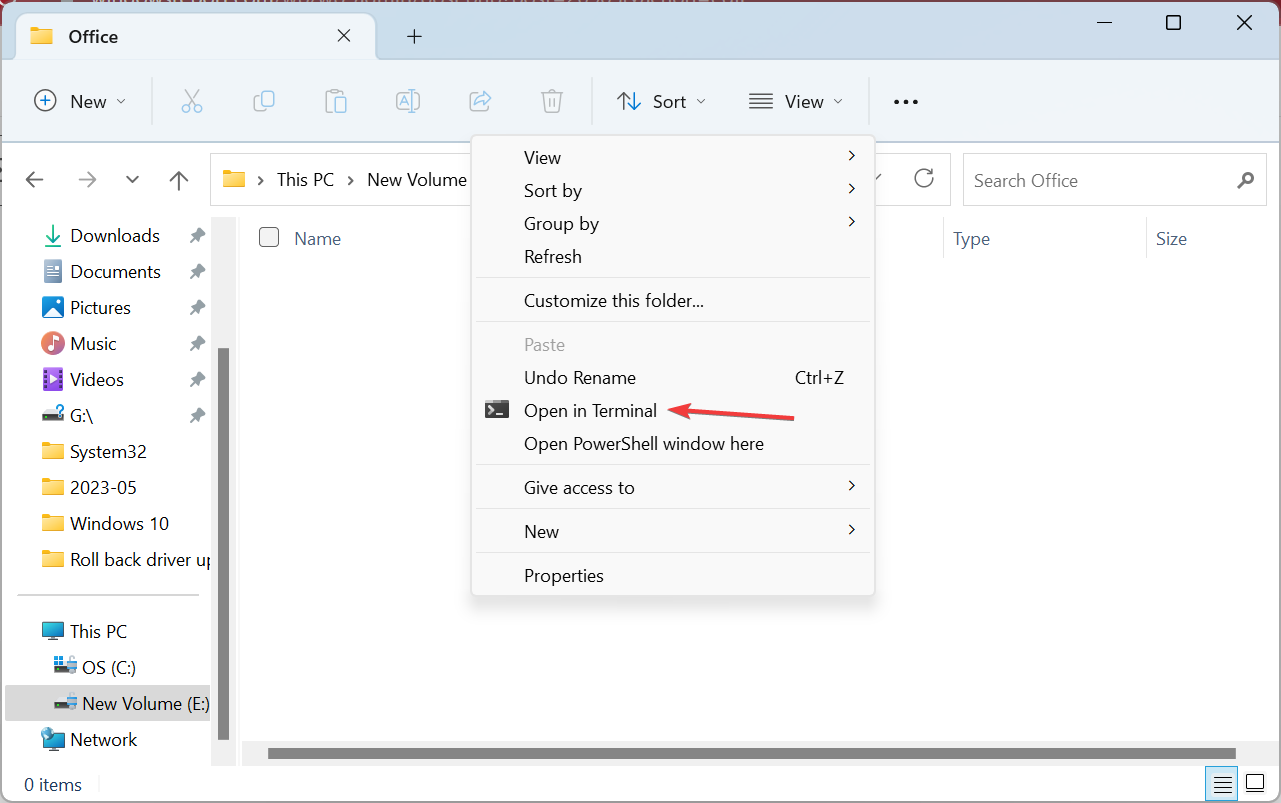
  8. Hold Shift and then right-click on an empty space. Choose Open in Terminal here from the menu.open in terminal to change office install location
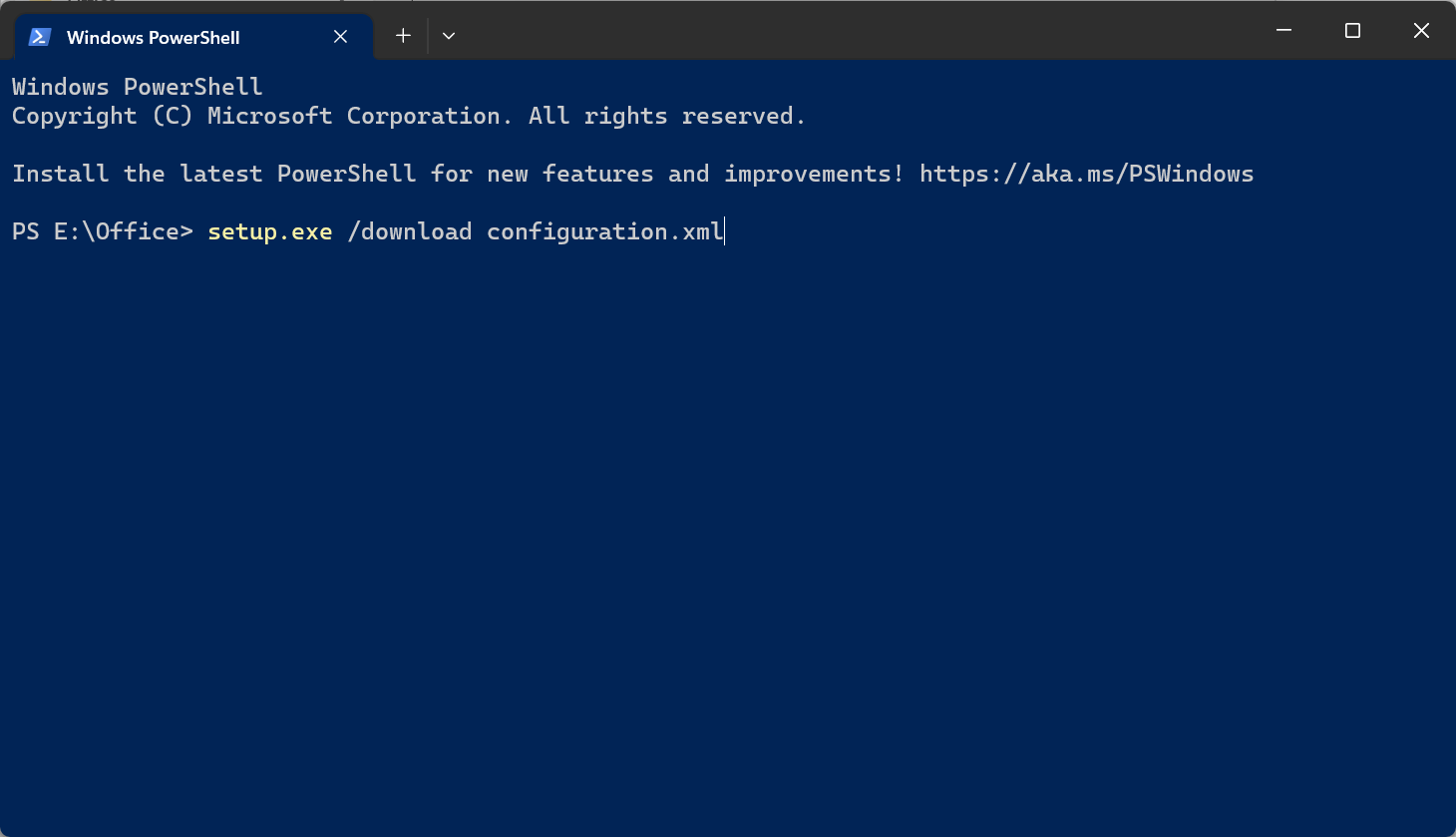
  9. Execute the following command and then wait for Office 2016 to download:setup.exe /download configuration.xmlcommand
  10. If there are any errors, this means that your configuration.xml isn’t configured properly, so you might want to go a few steps back and check if you’ve configured the configuration.xml file properly
  11. After the download process is complete, type the following command and then press Enter:setup.exe /configure configuration.xml

That’s it! By now, Office should be installed in the desired location instead of the default system drive. However, beware that a proplusww.msi installation error may occur if you have corrupt files.

You can solve many common Office sync and caching issues by reviewing this guide on how to disable Microsoft Office Upload Center, which helps you avoid unwanted save prompts during custom installations.

If you are looking for other options, check the most reliable Office alternatives to use in Windows.

For any queries or to share your review of Microsoft Office, drop a comment below.

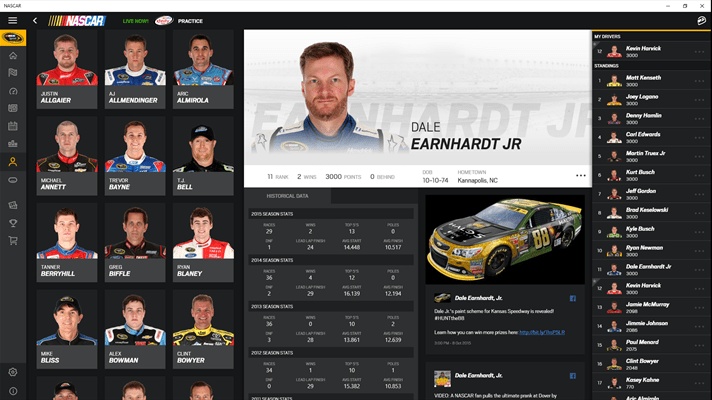
NASCAR app for Windows 10 is now available for download

NASCAR fans who use Windows 10 should be excited to hear that the race car company has released their official app for Windows 10 devices. The app comes after Microsoft’s recent partnership with NASCAR to sponsor Windows 10 on Dale Earnhardt Jr.’s #88 car. It provides a comprehensive and customizable user interface.
Fans can follow their favorite driver, and will be targeted with news, videos, and social content. Fans who pay a subscription can also check out the premium live leaderboard, view the in-car cameras, and even listen to driver audio during a live NASCAR race.
All users have access to the following features:

  • Interactive Chase Grid
  • Live leaderboards for all NASCAR Series (limited)
  • Lap by Lap commentary
  • Extensive Driver data, news and social media feeds
  • Real time news and video
  • Complete Schedule and Full Driver Standings
  • Customizable Notifications

Here’s a list features included with a premium subscription:

  • Premium Live Leaderboard – Track your favorite drivers on a customized leaderboard with all new data points
  • Live Driver Audio – Listen to the in-race strategy between Drivers, Crew Chiefs and spotters
  • Live In-Car Cameras – Watch Live in-car cameras for the entire 2015 NASCAR Sprint Cup Series season
  • Live Broadcast Radio & Officials Radio – Listen to the official NASCAR Radio Broadcast for each race of the season and listen to the NASCAR Officials Radio for all Sprint Cup Series races

If you want the app you can grab it from the link below. Have an opinion to share about the new app? We’d love to hear what you think in the comments below!

NASCAR
NASCAR
Price:
Free

Skype, Bing, and Surface featured in this week's episode of Born to Explore on ABC TV

The use of Skype in education will be the focus of ABC TV’s Born to Explore this Sunday as it’s used to broadcast a live dinosaur dig in Mantua Fossil Heritage Site in New Jersey conducted by palaeontologist, Dr. Ken Lacovara. “From an explorer or naturalist’s standpoint, the whole technology revolution has been great for us,” said Wiese about the incorporation of technology in the scientific process. “Through the magic of technology like Skype and Bing everyone can be an explorer.”
Through Microsoft’s collaboration with the team at “Born to Explore”, not only was Skype used in this episode but so was Bing and several Microsoft Surface devices. “The ability to interact with students in real time via Skype in the Classroom has been so exciting,” added Wiese. “We were able to turn a page in a 65 million-year-old history book and make dinosaurs come to life. The chance to be a part of the dig team is a rare opportunity.”
Naturally there are numerous other streaming services that could have been used to broadcast the dig to a wider, more public audience but for broadcasting video to a select target audience, Skype has quickly become one of the most popular programs to use.

Fifty nonprofit organizations worldwide chosen for monetary support from Microsoft

Microsoft has always been one of the most active supporters and contributors to world betterment projects in the tech world, be it through third-party organizations or by itself. As part of this ongoing corporate social responsibility program, the company kickstarted a 12-month Upgrade Your World initiative where it seeks out the most prominent nonprofit organizations around the world through public voting to give monetary support, and today, a post on the Windows blog has announced 50 winners from 10 partnering countries.
Five nonprofits are chosen from each of the countries in the program, which include Australia, Japan, China, Kenya, France, Mexico, Germany, United Kingdom, India, and the United States. The causes of these organizations range from empowering young woman, fighting, refugees support, to tech literacy for children, environment protection and more. One notable example mentioned in the post, Edgar’s Mission in Australia, shelters more than 200 homeless people and abused animals and protected them through a fire last week.
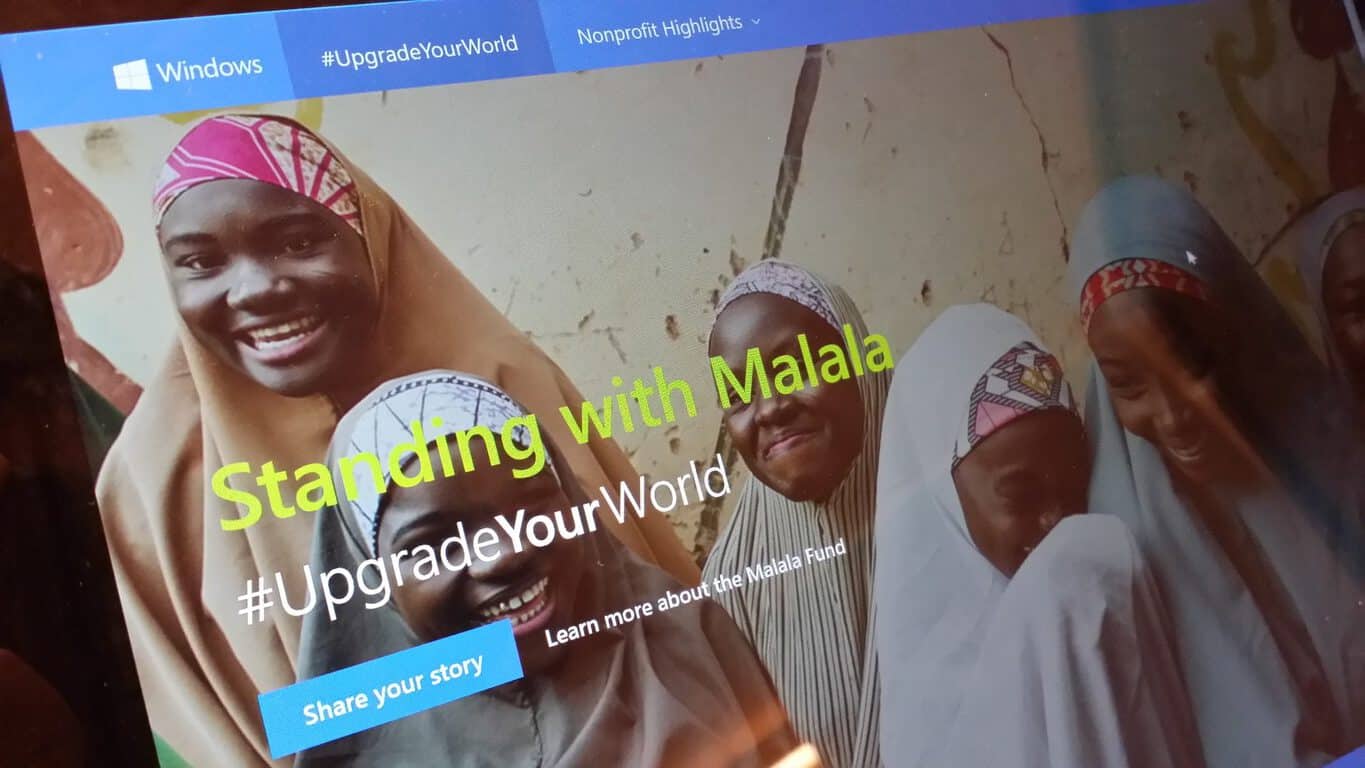
As part of the program, each nonprofit organization will be able to draw from a $50,000 budget allocated to each partnering country for their projects, part of Microsoft’s $10 million investment. A new global partnership from October between Upgrade Your World with the Malala Fund, a global organization dedicated to helping girls around the world complete their 12-year education, was also announced.
You can share your stories and follow the news with the hashtag #UpgradeYourWorld.

Microsoft is adjusting its 2016 event schedule, here's what to expect

Microsoft’s event line-up for 2016 has made quite a stir yesterday with Microsoft Ignite being rescheduled and relocated, causing much uproar in the local community. The change does not stop there however, and we are going to take a closer look at how Microsoft is staggering its events for the upcoming year, detailed in an official blog post.
According to the statement, with the change in Ignite, Microsoft’s main event line-up for 2016 will be as follows:

  •  Build: Spring 2016 in San Francisco (no specific date was given)
  • Convergence: April 4 – 7, 2016 in New Orleans
  • Worldwide Partners Conference (WPC): July 10-14 in Toronto
  • Microsoft Ignite: September 26-30, 2016 in Atlanta
Along with the main happenings, there will also a Convergence EMEA set in Barcelona on November 30 – December 2, as well as a Microsoft Cloud Roadshows. Noticeable is the absence of WinHEC, Microsoft’s Windows hardware engineering conference in China, held in March this year for the first time in 7 years.
The rest of the events have been kept quite consistent with 2015’s schedule, which saw Microsoft increasingly moving away from making big announcement in general industry events to orchestrate its own, as well as combining several smaller events into a comprehensive, bigger one (Ignite being a prime example.) The schedule is expected to be relatively consistent for years to come.

Poll: When, if ever, will Windows 10 hit 1 billion installations?

At last week’s Windows 10 Devices event, Microsoft announced that Windows 10 has officially hit 110 million installations. That’s a very solid start given that the operating system only became available to the public on July 29th. That being said, Microsoft has stated that their goal for Windows 10 is for it to reach 1 billion devices. This week’s poll is about how long that will take or if it will happen at all.
It’s important to note that Windows 10 works across multiple types of devices, and Microsoft will likely include everything from PCs, tablets, and phones to IoT devices in their counts. That may seem a bit unfair since many will compare Windows 10 install numbers to other popular operating systems that are only on one or two form factors but since Windows 10 shares a large amount of its inner workings across all of its versions, it does make sense to combine them.

Let us know what you think by voting in the poll and commenting below. You can hear us discus the results by listening to the WinBeta Podcast this week.

How to Uninstall Windows 10 Downloader From Windows 7 And 8.1

As guys who like innovations from Microsoft, we recommend you to install Windows 10, but if for some reason, you don’t to, ‘Get Windows 10‘ feature is probably annoying to you. So, we’re going to show you how to remove it from your Windows 7 or Windows 8.1 computer.

How to Uninstall Windows 10 Downloader From Windows 7 And 8.1

How to Uninstall Get Windows 10 Feature From Windows 7 And 8.1

You received Widows 10 Downloader automatically as a part of KB303558 /Windows/System32/GWX3 update earlier this year, like all other genuine users of Windows 7, Windows 8 and Windows 8.1. The update adds /Windows/System32/GWX folder to your system, and that folder contains Get Windows 10 feature.

So, to get rid of this feature, you’ll have to uninstall KB303558 from your computer, and you’ll delete Windows 10 Downloader. But, since this is a recommended update, you should consider if you want to delete it once again. Uninstalling updates is similar on Windows 7 and Windows 8, so the following instructions apply to both systems. Here’s how to uninstall KB303558 update and get rid of Get Windows 10 button:

  1. Go to Control Panel, Programs, Programs and Features and click on View Installed Updates on the left side of the windowdelete windows downloader
  2. It will show you the list of installed updates in your Windows 8 system. Now, find KB303558 update,  right-click on it and choose Uninstall
  3. User Account Control (UAC) will ask for your confirmation about removing the updates. Just Click on Yes
  4. Again UAC will ask you to save and close the open Application. Just Click on Uninstalldelete windows downloader1
  5. Wait for some time until the uninstallation process is finished
  6. Reboot Your System

In some cases, even if you uninstall the update, GWX folder will still be present on your computer. So, go to System32 and delete it. You won’t be able to delete it regularly, as yo need to take the ownership of the folder. If you’re not sure how to do that, check out this article. Once you take the ownership, you can delete the folder manually.

In order to make sure Windows doesn’t install this update again, you have to go to Update Settings, and uncheck Give me recommended updates the same way I receive important updates”. This will make the update ‘optional’, and it won’t be installed automatically.

If you want KB3035583 update to disappear completely, right click on it in Updates, and choose Hide Update from the context menu. That way the update won’t install ever, and you won’t receive any notifications.

Read Also: Windows 10 KB3097617 Update Problems: Start Menu, Failed Installs and Login Issues

Microsoft hits the Brasil Game Show and reveals some Xbox One news

Microsoft’s Phil Spencer and developers from 343 Industries, Crystal Dynamics, and Remedy Entertainment attended the Brasil Game Show in Sao Paulo this week. The Brasil Game Show is the largest gaming show in Latin America and its attendance continues to grow every year. While there didn’t appear to be too many major announcements, there were a few interesting news pieces that were dropped during the several days of the show.
Xbox One games such as Rise of the Tomb Raider, Gears of War: Ultimate Edition, and the recently released Forza Motorsport 6 were given their share of promotion as were Halo 5: Guardians and the animated film, Halo: The Fall of Reach, which premiered its new trailer.

It was also announced that Quantum Break and Rise of the Tomb Raider would both have a full Brazilian Portuguese voiceover option when they each launch and ID@Xbox title, Aritana and The Harpys Feather, was revealed to be the first ID@Xbox game to have a Brazilian developer.
The Brasil Game Show has been running on an annual basis since it first started in 2009 as the Rio Game Show. In 2010 it changed its name to the Brasil Game Show and has since gone from around 4,000 attendees in 2009 to an estimated 280,000 in just six years. While most Western press seems to focus on North American game events, it will be interesting to see if the Brasil Game Show becomes more of a major player on the global scene in years to come. 2016’s Brasil Game Show will once again be held in Sao Paulo from October 1st to 5th and with its upward trend in popularity, is expected to have an even higher number of visitors.
Did you go to the Brasil Game Show this year? What excited you the most about it?

Minecraft Story Mode launches today and also gets a physical disk release

The first episode of Minecraft Story Mode, The Order of the Stone, is out now on Xbox One in digital format via the Xbox Store. Minecraft Story Mode is a spin-off from the main Minecraft series and incorporates Telltale’s signature choice-based gameplay to explore the world of Minecraft with a brand new story voiced by a rather solid cast of actors including Patton Oswalt, Brian Posehn, Corey Feldman, Cat Taber, Ashely Johnson, and Billy West. A short video introducing the cast has been released and you can watch it right here.

Minecraft Story Mode – Episode 1: The Order of the Stone can be bought by itself though most Minecraft fans will want to buy the Minecraft: Story Mode – The Complete Season (Episodes 1-5) which comes with the first episode and will automatically add the other four as they’re released over the following months.
In an unusual move, a special physical disk version will be made available for Xbox One and Xbox 360. This disk version of Minecraft: Story Mode is being referred to as a “season pass disc” and will contain the first episode of the five part series and grant access to the remaining four episodes as they’re made available via digital download. This retail release will be available in North America on October 27th.
Telltale Games has found tremendous success with their licenced titles with their two Walking Dead releases finding a particularly large following. One of their earlier games based on the popular Back to the Future trilogy of films was just re-released on Xbox One this week to celebrate the year 2015, which is the year the films’ future is set in.
Have you played Minecraft Story Mode – Episode 1: The Order of the Stone yet? How well do you think the franchise made the jump to choice-based gameplay? Without posting any spoilers, let us know in the comments below!
Buy Minecraft: Story Mode – Episode 1: The Order of the Stone on Xbox One
Buy Minecraft: Story Mode – The Complete Season (Episodes 1-5) on Xbox One

Twist is the new photo storytelling app from Microsoft Garage

As a follow-up to this morning’s post, Microsoft Garage has just given the details on its new photo conversation app Twist. Twist creates a new and interesting way to combine photography and conversation. This is best shown off with Twist’s introductory video:

The app splits the image space between two photos in any number of captivating angles or compositions. One user provides one photo, and the other “completes” the collage with his or her own photo. It can create a compelling, perhaps even suspenseful, storytelling experiences, as a user waits in anticipation of how another user will respond to his or her image prompt.
Principal Program Manager of the Silicon Valley-based Twist Team explained her rationale behind the Twist project:

“When we were designing Twist, we observed that many of the digital ways people communicate today don’t allow for rich, expressive exchanges, many messaging apps are adding functionality to make their experiences feel richer, such as stickers, emoji and animated gifs. We wanted to look at ways we could make that experience even better. That’s how we landed on a photo canvas as a rich medium, as a way you can really share your current situation, funny moments, spark creativity, etc.
The mechanics we came up with focus on this idea of juxtaposed images. Having this ability to have a back-and-forth really unlocks a rich communication mechanism where you can share context, compare and contrast, and build a story together.”

Some examples of the fun and creative things Twist users can do include mixing and matching body parts, such as starting the top half of the collaboration with the top half of one user’s face and filling the bottom half with another user’s jaw. Other creative things include comparing pairs of shoes side by side, or throwing logic out altogether and putting an ice cream above a mountain shot. There are no limits.
For the Twist team, this app is not a cute idea brought about in the heat of the moment, but the culmination of a lot of research and studying. Program Manager of the Twist team Chong Han Chua states:

“We observed how photos are being shared and used, and more importantly how photos are turning into the medium of conversations. They use memes as a way of expressing something. That sort of pictorial expression, especially using images that are well understood in popular culture, is extremely powerful. We’re hoping to tap into the emotional and expressive aspects of visual communication.”

screen1
It’s also very important to emphasize that these juxtapositions can be captioned with text, which can make something of a comic experience for users. Or for making silly meme photos.
Shen explains that the project is a good fit for the Silicon Valley-based team, and in particular, is thrilled to be working on this project through Microsoft’s innovative Garage department.

“The Garage is an awesome avenue for us to launch this app.  We’re able to test out if users like it or want it, and if they do, we’ll do more with it. We were able to use a lot of best practices and share components that came out of other teams who developed apps for The Garage. So for Twist, we didn’t have to start from scratch.”

Chua further pays tribute to the Garage:

“The Garage lets us explore these emergent communications and not be tied down to shipping as part of the productivity services we usually do. I really appreciate the flexibility and freedom in that regard.”

The app is currently only being launched in Canada and the US. Sadly, like many Garage projects these days, Twist is currently only available on iOS, and the Microsoft Garage team has made no indication that it intends to create a universal Windows counterpart. Disappointing, as this is maybe one of the few social photo apps I might actually be interested in trying.

The app was not found in the store. ?

Microsoft Ignite 2016 conference rescheduled and relocated

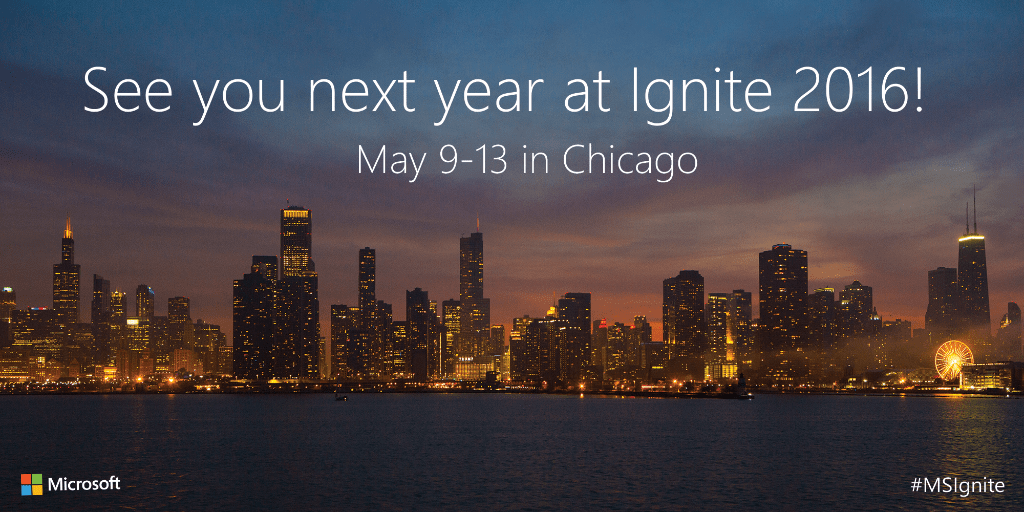
As we reported earlier today, Microsoft canceled its May 9-13th, 2016 conference at McCormick place in Chicago. Now, it seems the schedule has not exactly been canceled, but instead rescheduled and relocated to Atlanta on September 26th to 30th, 2016.
Now that the event has been confirmed to be relocated, it’s easy to assume this unfortunate turn of events has dealt a sizeable blow to Chicago’s technology and tourism industries for that month. As reported earlier, the cancellation will affect more than 50 hotels and result in the loss of 90,000 room nights. The loss could further agitate an already struggling tourism industry in Chicago.
According to information from Windows IT Pro, in addressing this fiasco, Microsoft sent out a private email specifically stating that Microsoft’s developer-focused BUILD conference will not be merged with Ignite this upcoming year.
Other than what was described as poor event timing, it is not yet entirely clear why the event was taken away from Chicago. We will update with more information about the Ignite conference as it comes.

Get $150 off of Windows 10 devices today

Have you been looking to pick up a new Windows 10 device, but aren’t inclined to wait for the cutting-edge devices coming out later this October? Today on the Microsoft Store, you’ll be able to take advantage of some good prices on the Surface Pro 3 and other laptops (Toshiba, Lenovo, Dell and Asus brands.) You’ll be able to get $150 dollars off of the laptops today only, so you should look into them sooner rather than later.


https://twitter.com/Windows/status/654325796715253761

Microsoft reported to cancel its Ignite conference in Chicago

The Chicago Tribune is reporting that Microsoft has canceled the 2016 Ignite Conference which was set to occur May 9-13 at McCormick Place in Chicago.
The Tribune’s sources said that Microsoft wanted to reschedule for later in the year, but McCormick place was unavailable. The Tribune’s article was not able to clarify if alternate locations or cities are being considered, or if the conference is all together being canceled, as a Microsoft spokesperson declined to comment to the Tribune.
Microsoft’s Ignite conference this last May was the first for Microsoft, who used the new conference to consolidate its various conferences related to enterprise technology. The conference focused on demonstrating new Windows, Office, and Azure features important for enterprise customers and IT professionals.
The Tribune is also reporting that the loss of Microsoft’s Ignite conference is a blow to the city’s technology community and tourism industry. In total, the cancellation will affect more than 50 hotels and result in the loss of 90,000 room nights. The loss will increase Chicago’s projected deficit of convention room nights to nearly 300,000 for 2016.
It is possible the conference or some version(s) of it will continue at some point in 2016 for a number of reasons. Windows 10’s adoption by enterprise customers is a big part of their plan for its latest operating system to be on a billion devices in 2-3 years. Additionally, Enterprise customers has been a long standing core of Microsoft’s customer base and the technology company has been making big investments in its growing commercial cloud based solutions, such as Office 365 and Azure. Still, with no official word from Microsoft about the reported cancelling of Ignite, it remains to be seen exactly how Microsoft will continue to showcase its latest technology to the enterprise customer segment, or why the May dates wouldn’t work.
What did you think of Microsoft’s first’s Ignite conference? Do you hope that it continues in Chicago or elsewhere? Let us know in the comments section below.

LG showcases a number of new Windows 10 devices in Korea

Over the past few days, we’ve seen several OEMs launching and showcasing their new Windows 10 devices. Earlier this week, we saw some new Windows 10 devices from Acer and Toshiba and it seems LG doesn’t want to stay behind.
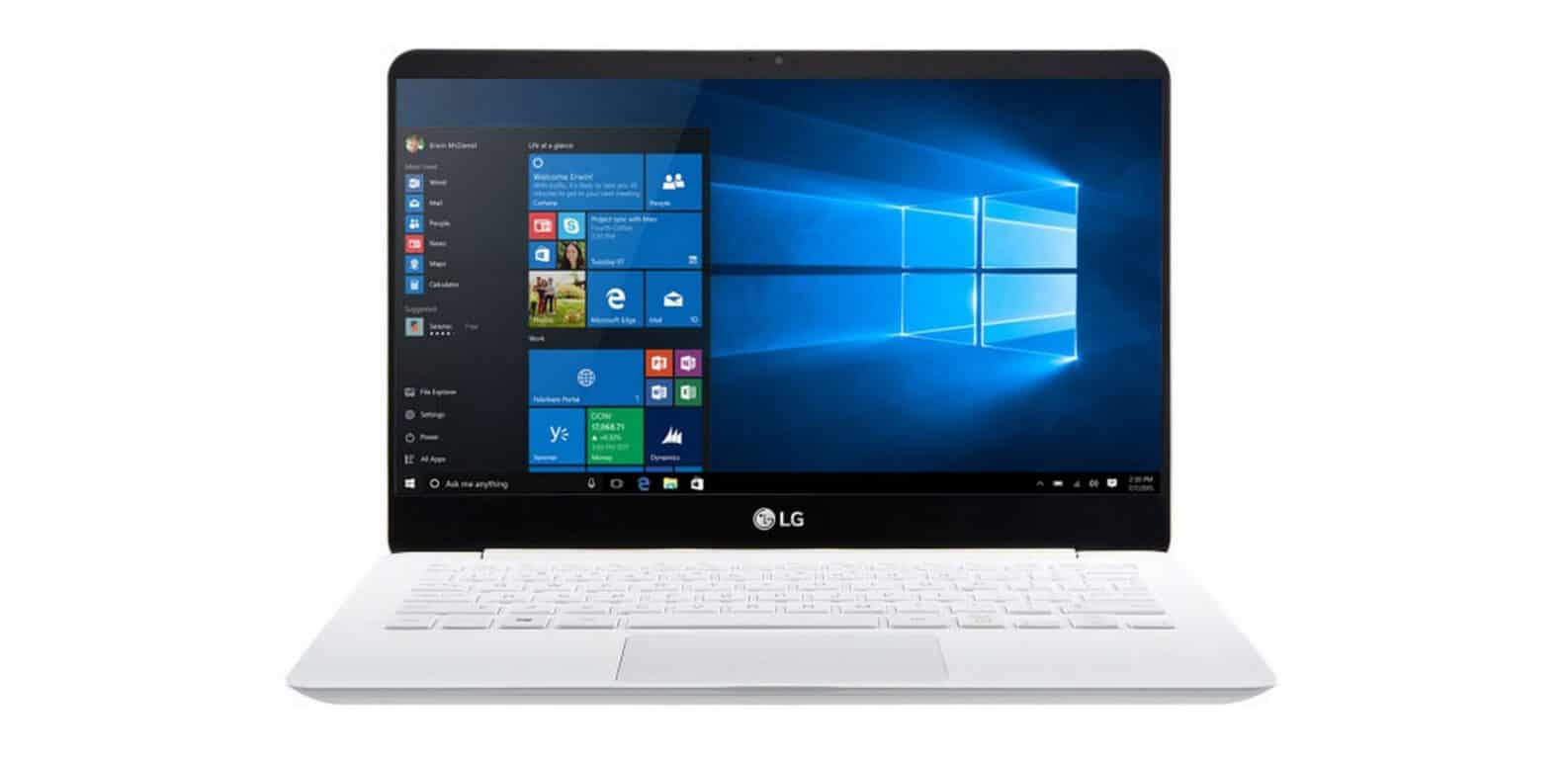
Terry Myerson was on hand in Korea as LG announced a number of new Windows 10 devices, including the gram 13”, gram 14”, Tabbook Duo (10.1” Tablet), and 21:9 Curved AIO. All these devices will ship with Windows 10. Furthermore, customers interested in the LG Gram will be able to get their hands on it through Microsoft stores this holiday season, and the company also aims to make sure these devices are available in other global markets as well.
LG also mentioned that all of its PCs will be upgraded to Windows 10 by December. The software giant seems to have a strong presence in Korea which is the “fastest adoption the market has ever seen for Windows – five times faster than Windows 8.” There are 22,000 devices already running Windows 10, with over 1 billion hours spent on Windows 10 since launch.

Fix: Ink Disappears in OneNote 2016

There are more problems with Office 2016 apps than anyone expected. This time, users of OneNote 2016 complain that ink disappears while they’re working on their projects. So we have a couple of solutions which may help you to get your ink back in OneNote 2016.

OneNote ink problem 2016

How to Fix Ink Disappearing Problem in OneNote 2016

Solution 1 – Install the latest update for OneNote 2016

Not much longer after the release of Office 2016, and this problem appeared, people complained about it on Microsoft’s forums, and people from Microsoft actually heard them, as they announced an official update-fix. The update arrived on October 2, so if you still didn’t, you should go and check for updates for your OneNote 2016. This is cumulative update for Windows 10, so besides OneNote fix, it should bring some improvements and enhancements to the system itself.

Solution 2 – Disable Automatic hardware recognition

Some people also suggest that if you still have issues with ink in OneNote 2016, even after you applied the latest update, you should disable automatic handwriting recognition. To disable this feature in OneNote 2016, do the following:

  1. Open OneNote 2016
  2. Go to File, Options, and then to Advanced tab
  3. Uncheck Enable automatic handwriting recognitiononenote ink problem

Now try to write with your pen, and you shouldn’t have any problems.

Solution 3 – Move your files out of OneDrive

But in case you actually still have problems with your ink in OneNote 2016, there’s another thing you can try. You can try to move your notes out from OneDrive. If your notes are too long, it may take a little bit longer for them to upload and sync, and that prevents your pen from writing normally. So, if nothing from above worked, you can give this workaround a shot, as well. Once you finish your notes, you can move them back to OneDrive to keep them safe.

Read Also: Fix: Outlook 2016 Crashes on Launch

Windows 10 build 10565 contains an early preview of nested virtualization

With each release of Windows 10 Insider Preview builds, more and more advanced features are being introduced. As Microsoft preps for the first public preview of Hyper-V Containers, Windows 10 build 10565 introduced a preview of nested virtualization. Nested virtualization is a feature that virtualizes certain hardware features that are required to run a hypervisor in a virtual machine.
While Hyper-V Containers are not officially out yet, nested virtualization allows for you to try it out on Hyper-V virtualization machines. As I am not the most equipped to explain nested virtualization, Microsoft’s Virtualization Blog has a better explanation:

“Hyper-V relies on hardware virtualization support (e.g. Intel VT-x and AMD-V) to run virtual machines. Typically, once Hyper-V is installed, the hypervisor hides this capability from guest virtual machines, preventing guests virtual machines from installing Hyper-V (and many other hypervisors, for that matter). Nested virtualization exposes hardware virtualization support to guest virtual machines. This allows you to install Hyper-V in a guest virtual machine, and create more virtual machines “within” that underlying virtual machine.”

For more information about the known issues with nested virtualization or the steps to enable nested virtualization, head over to Microsoft’s Virtualization Blog.

Windows 10 SDK documents reveal new 'quick actions' coming to Live Tiles

As Microsoft continues to develop Windows 10, the last iteration of its OS, users are experiencing Windows as a service with its continual update cycle. As we reported earlier today, Microsoft is already hard at work on its next major software release for Windows codename: Redstone. Members of the Windows Insider program, however,  are able to get a glimpse into the changes to come in preview builds. These previews are not just for eager users, though. Today, Microsoft has updated its Windows 10 SDK  with quite a few improvements including new emulators for both PCs and Mobile for developers.
From documentation made available from the newly released SDK, we have learned more about changes Microsoft is making to its Live Tiles. The new SDK allows for developers to expand how they use jump lists for their apps. For instance, developers can now have users right click or long press a Live Tile to pull up a jump list. From here, developers will have the option to create additional functionality or quick-actions for their Live Tiles. As Windows 10 is a single OS for PCs and phones, quick-actions could make their way to Windows 10 Mobile Live Tiles in the future.
Additionally, we reported a few months ago that Microsoft received a patent for a feature called 3-D touch (that name sounds very familiar). This feature would allow users to access contextual menus by hovering their finger over a tile. With the SDK released today, we can get a glimpse into new abilities and possible interaction paradigms for the Live Tiles in Windows 10.
What features do you wish to see added to jump lists in Windows 10? Let us know in the comments below.

Microsoft to celebrate 50th anniversary with NYCATE

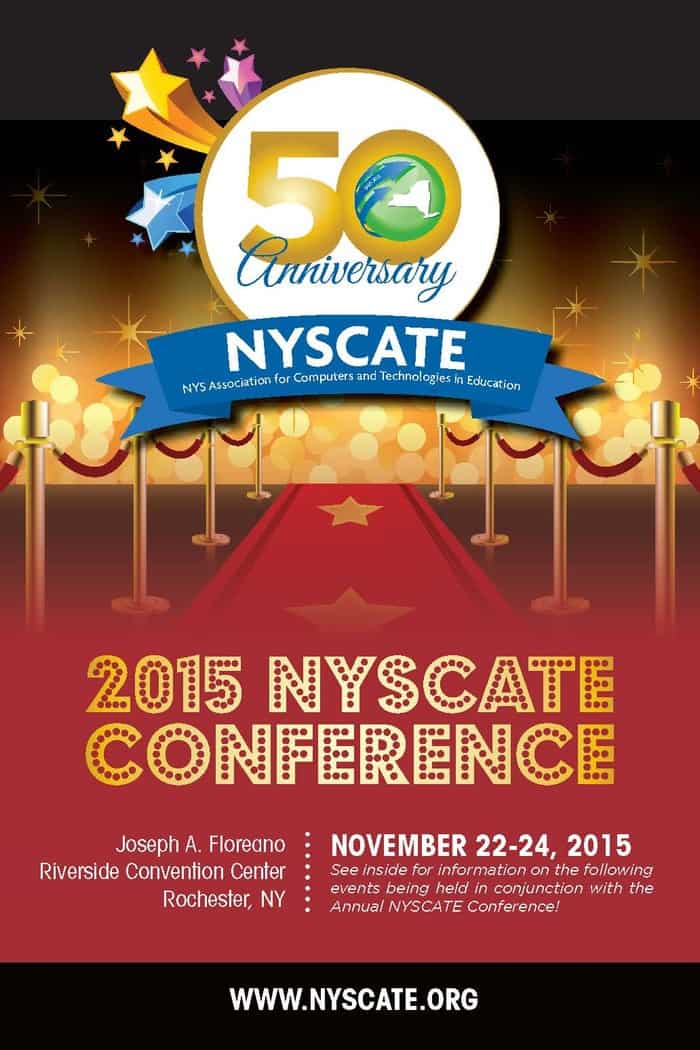
A little over a month ago, we reported that Microsoft was set to deliver new educational tools to schools this year, helping educate and empower young minds. Of these tools, Microsoft has already made a significant update to its OneNote application that now allows for classrooms (and faculty) to share notebooks. However, Microsoft is not just interested in providing tools for productivity; they are also interested in educating individuals on how to use them.
From November 22nd to the 24th Microsoft is set to celebrate NYCATE’s 50-year Anniversary at the Rochester Riverside Convention Center in Rochester New York. NYCATE (New York State Association for Computers and Technologies in Education), is an organization whose purpose is to help educators transform the classroom with technology. To aid in their efforts, Microsoft will have a host of educators and trainers hold break-out sessions to help students and teachers learn tools to make them more productive.

To celebrate NYSCATE’s 50-YEAR ANNIVERSARY, they’ve lined up at this year’s conference some of the most celebrated, tech-savvy speakers in the country. You’ll also have the opportunity to visit numerous, highly informative breakout sessions, attend hands-on workshops in the latest technology for the classroom, visit over 75 exhibitors, and network and socialize with hundreds of your peers that are dedicated to incorporating and exposing technology to students in the classroom.

This conference has three main goals.

Re-invent Productivity with Office 365 Education to save teachers time and stay organized.
Build the Intelligent Cloud with Office 365 Education that fosters 21st century skills for college and career readiness (collaboration, creation, communication and creation) across any device.
More Personalized Computing – Digital inking and personalized learning with Windows 10.

Before the conference even begins, there will be pre-conference training on both Saturday and Sunday, the 21st and 22nd respectively. Microsoft and NYSCATE encourage participants to bring their own devices in which they will be able to install free educational subscriptions ofOffice 365. Microsoft is set to even raffle off a free Surface 3.
For more information about NYSCAT 2015, click the link here. It is great to see Microsoft’s efforts to empower educators and students, not only providing powerful tools but teaching them how to use them as well.
If you are in the New York area, let know if you plan on attending this year’s NYCATE.

Microsoft releases details about new DT-904 wireless charger

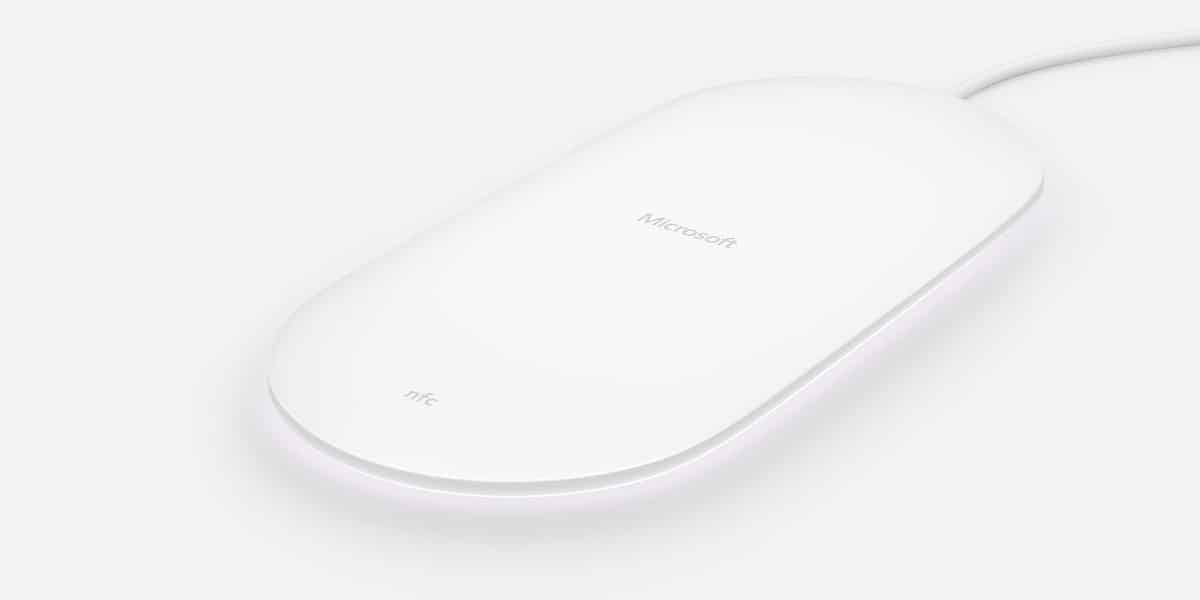
Microsoft has released the details about its new wireless Qi charging pad on its website, with a model number showing up as DT-904.
The new Microsoft Wireless Charger doesn’t appear to be any different than the previous DT-903 wireless charger. The charger holds the same shape, size and the same LED notification light at the bottom for new messages and calls. The only noticeable change is the use of the Microsoft logo on top of the device.
The new wireless charger likely comes in preparation of the launch of the Lumia 950 and 950 XL, as it’s also likely built mostly for the new handsets.
While it doesn’t seem to be available for sale just yet, we imagine that the pricing won’t be much different than the DT-903 wireless charger, which currently sells for $60.
Have something to share about what you might think about Microsoft’s wireless charger? We’d love to hear what you think in the comments below!

Fix: QuickTime no Longer Works after Windows 10/11 Upgrade

When switching to a new operating system, there’s always a concern about whether your favorite apps will work on your new operating system.

According to reports, QuickTime no longer works after the upgrade from Windows 7 to Windows 10, so let’s see if there is a way to fix this issue.

What to do if QuickTime doesn’t work in Windows 10?

Users report that they can’t install QuickTime on Windows 10 to open QTL files, but there are a few workarounds that will allow you to install QuickTime even if you’re using Windows 10.

Before we start, you’ll need to download QuickTime for Windows as well as WinRAR or 7Zip. Remember the location where you’ve saved the QuickTime installation because you’ll need to visit that folder a couple of times to complete this process.

For simplicity, it’s best to save the installation in the C:\QT folder.

Repair the QuickTime installation

  1. Right-click the QuickTime installation and select the Extract Here option.
  2. Download the TRANSFORM file.
  3. Extract the content from FIX.zip to the C:\QT folder.
  4. Run and install AppleSoftwareUpdate.msi and AppleApplicationSupport.msi.
  5. Right-click QuickTime.msi file and choose Troubleshoot compatibility.
  6. Wait for the wizard to complete the scan.
  7. You should get a notification saying that Skip Version Check workaround has been applied.
  8. Now click Test the program and run the installation.

If for some reason this solution didn’t work for you, you might want to try these steps as well:

  1. Run Command Prompt as administrator. You can open it by typing CMD into Search bar, right clicking Command
  2. Prompt from the list of results and choosing Run as administrator.
  3. Navigate using Command Prompt to the folder where you’ve extracted QuickTime installation files. You can do so by typing CD C:\QT in Command Prompt.
    Enter the following command into Command Prompt and press Enter:
    • msiexec /i QuickTime.msi /qn TRANSFORMS=FIX.mst ALLUSERS=1 /log C:\QT\install.log
  4. Wait for the installation to complete.
  5. QuickTime should be installed now, but if QuickTime isn’t working, you can check the install.log file in the C:\QT folder to see what errors you encountered.

That would be all. I hope this solution helps you solve the problem with QuickTime in Windows 10. Elsewhere, if a qtcf.dll file is missing, we know how to get it back. If you have any questions, comments, or suggestions, see the comment section below.
Microsoft researcher Zuzana Kukelova receives prestigious award for advances in computer vision

As a company that keeps itself on the technological cutting edge, Microsoft needs to hire and maintain a constant stream of highly competent employees. Whether it’s hardware engineers working on Surface devices, coders working on Windows 10, or mathematicians exploring the latest concepts in machine intelligence, Microsoft suffers from an embarrassment of riches when it comes to really smart people.
The Technet blog took a few minutes today to honor just such a person, researcher Zuzana Kukelova. Something of a math wiz, Kukelova works as a computer vision researcher at Microsoft’s Cambridge, U.K. research lab, and has been working on some pretty heady stuff.

Now a post-doc researcher specializing in computer vision at Microsoft’s research lab in Cambridge, U.K., Kukelova is the recipient of the 2015 Cor Baayen Award, given to the best Czech and Slovak Ph.D. thesis in computer science and, naturally, applied mathematics.
The Cor Baayen announcement specifically cited Kukelova’s ability to bridge the gap “between highly abstract mathematical results, such as algebraic geometry, and engineering applications.”

Kukelova received her Ph.D. from the Czech Technical Program in Prague, working to flesh out the work of Henrik Stewinius on applying advanced algebraic methods to computer vision to solve some significant real-world problems.

“Our techniques for solving systems of polynomial equations have wide applicability,” she said. “Computer vision of course, but also robotics, controlling satellite trajectory, game theory, market equilibrium problems, computational biology — there are still some unsolved problems that can probably be solved using techniques that we have developed.”

Speaking about receiving the prestigious award, Kukelova was a bit less effusive than some of her colleagues.

“I am honored to have been chosen,” she says.
“I am used to working with amazing colleagues, but very few combine Zuzana’s mastery of complex mathematical tools with her zeal for real-world applicability,” said Andrew Fitzgibbon, a principal researcher in the lab’s computer vision group. “We are very lucky to have the opportunity to work with her.”

We know that Microsoft is engaged in some advanced research and development, and that ultimately results in some pretty cool technology. Seeing the company taking time to highlight the people behind the research is always welcome.