Welcome back to our weekly Windows 10 news recap. This week, we kicked off with news of Windows 10 surpassing 120 million installs, three months after launch. 120 million installs in three months is nothing to sniff about. With the Windows 10 November Refresh update around the corner, it’s possible we’ll see that number spike yet again as people who want to upgrade for Windows 10 are likely waiting to the update to release first before making the jump. We’ve also got millions of Xbox One devices waiting to be added to this number too, as Windows 10 for Xbox One rolls out on November 12.
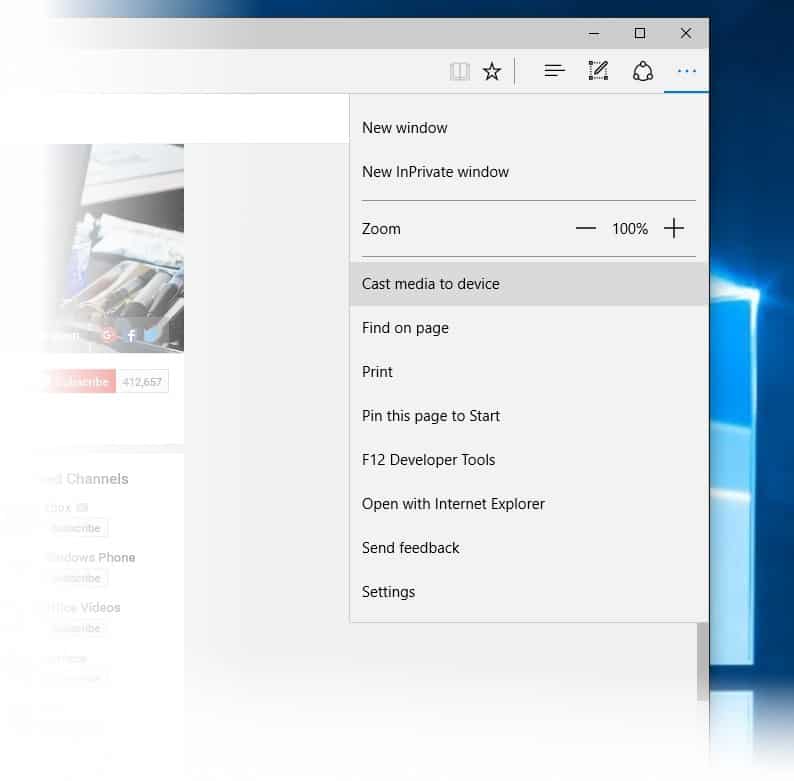
Also this week, Microsoft rolled out a new Windows 10 desktop build for insiders, build 10576. The build doesn’t really include much feature wise, but is a lot more stable than before. One new change is Edge-cast, which allows you to stream video from the likes of YouTube to a miracast enabled device, directly from within Edge.
Now onto important news, Microsoft announced that starting next year, Windows 10 will automatically download to your machine, but will not install unless the user agrees to it. Microsoft said:
Early next year, we expect to be re-categorizing Windows 10 as a “Recommended Update.” Depending upon your Windows Update settings, this may cause the upgrade process to initiate automatically on your device. Before the upgrade changes the OS of your device, you will be clearly prompted to choose whether or not to continue. And of course, if you choose to upgrade (our recommendation!), then you will have 31 days to roll back to your previous Windows version if you don’t love it.
Moving onto some Redstone news. I reported this week that Redstone would further improve upon Continuum, bringing “Continuity-like” functionality such as app roaming and the ability to take phone calls from your desktop beamed from your Windows 10 Mobile device.
Microsoft is essentially planning to introduce the ability to roam apps across your Windows 10 PC and Windows 10 Mobile device. What I mean by this is simple, imagine working on an email on your phone in the Mail app, but you decide you want to continue working on your email on your desktop. Simply open the Mail app on your desktop, and Windows will pick up exactly where you left off. Another example is with web browsing with Microsoft Edge on your desktop, opening the app on your phone will bring you to where you left off on your desktop. Pretty neat.
And finally, according to a Microsoft Support Engineer, Windows 10 Threshold 2 could launch on November 10th. The Support Engineer on the Microsoft Answer forums has said the Windows 10 “Fall Update” will launch on November 10th, bringing with it Cortana support in India. That’s one of many things coming in the “Fall Update”, other features include UI improvements, Edge improvements and a new Messaging app.
That’s all for this week, what was your favorite story?
Last week, I reported that Microsoft was planning to launch the Windows 10 “Fall Update” on November 2nd, but Microsoft was unable to sign off on a final build last week meaning they still don’t have anything ready. So November 2nd isn’t happening now, but according to a Microsoft Support Engineer, the 10th it is.
The Support Engineer on the Microsoft Answer forums has said the Windows 10 “Fall Update” will launch on November 10th, bringing with it Cortana support in India. That’s one of many things coming in the “Fall Update”, other features include UI improvements, Edge improvements and a new Messaging app.
Assuming the Support Engineer knows what he’s talking about, the 10th gives Microsoft one more week to sign off on a final build for the Fall Update, after missing their planned deadline last week, they’ll probably want to sign off on a final build very soon so they can ship to Insiders for final testing, much like how they did with the original Windows 10 RTM. Thanks for the tip, Sumit Dhiman
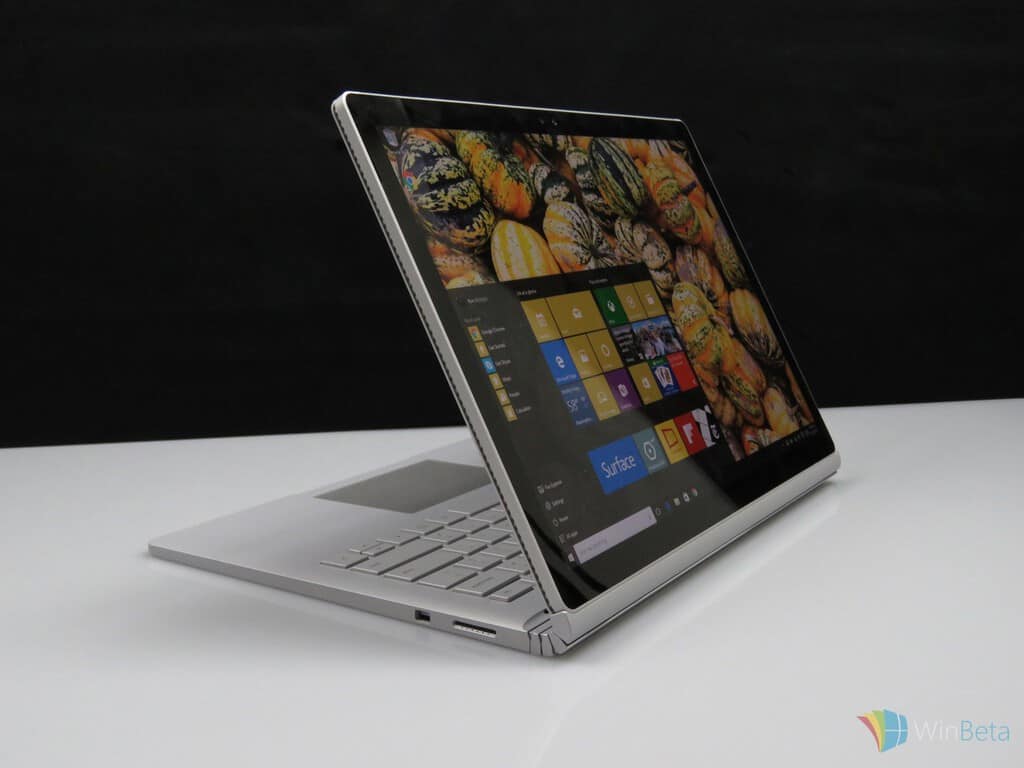
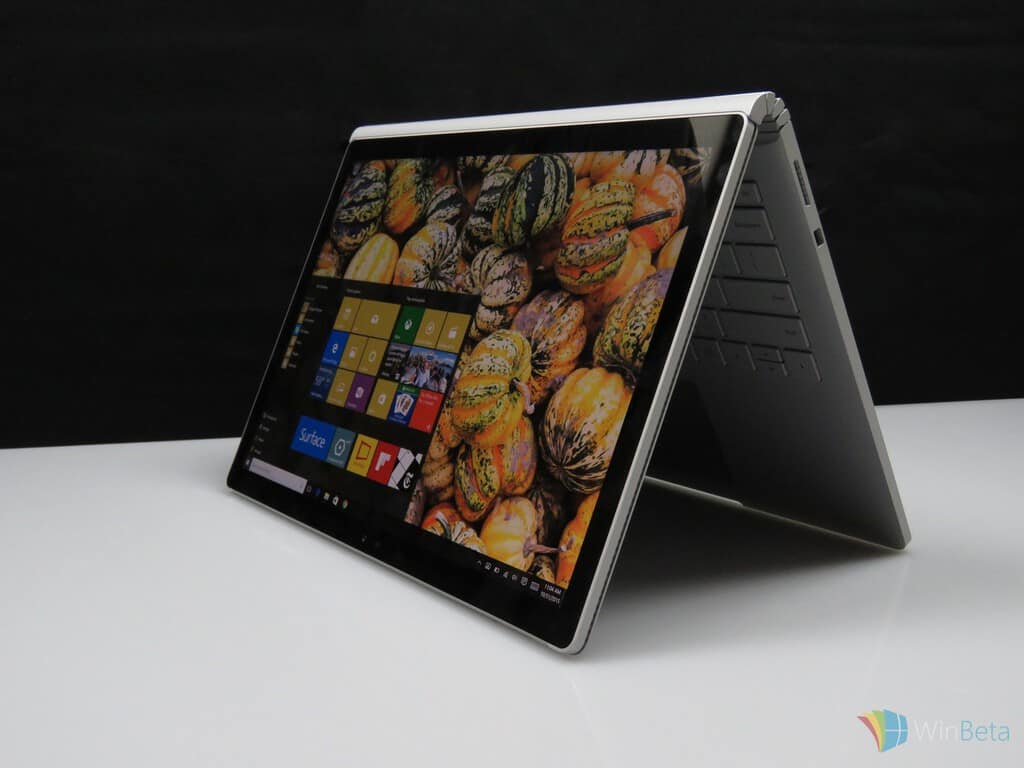
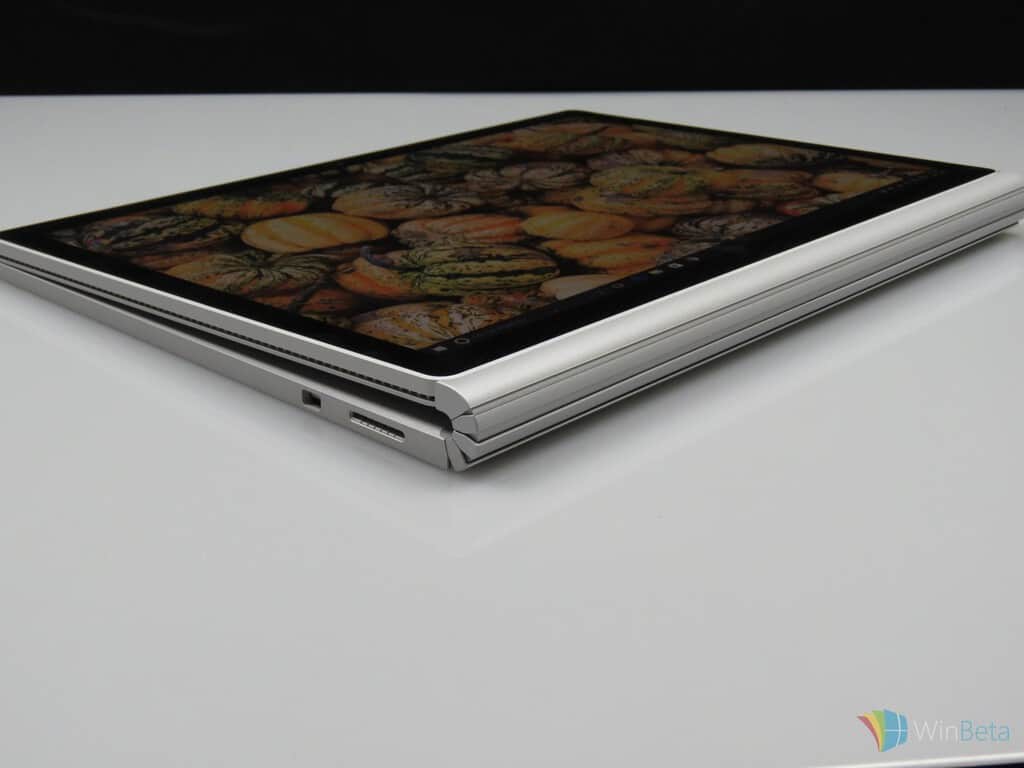
The Surface Book is Microsoft’s new ultimate laptop and is an amazing piece of hardware that can be used in various ways to keep you productive. Just because it looks like a laptop doesnt mean you are stuck using it as a laptop. You can detach it from the keyboard and use it as a powerful tablet. You can prop up the display in stand mode, or turn the device over and use it in tent mode. All these options help make you productive, no matter what the scenario.
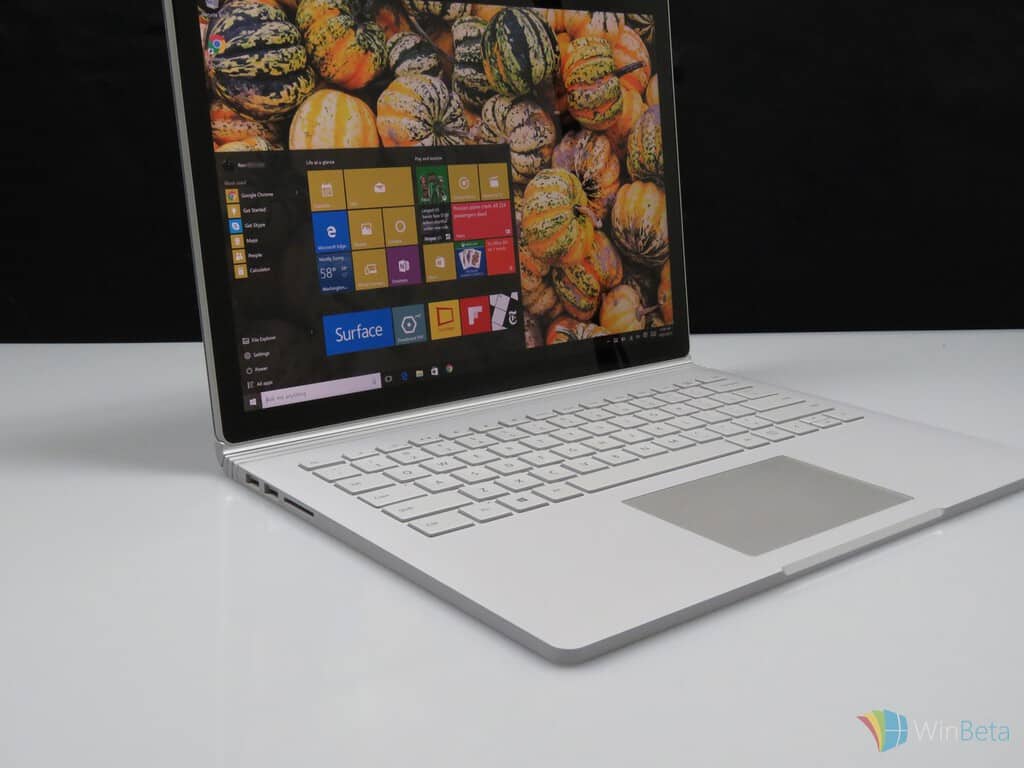
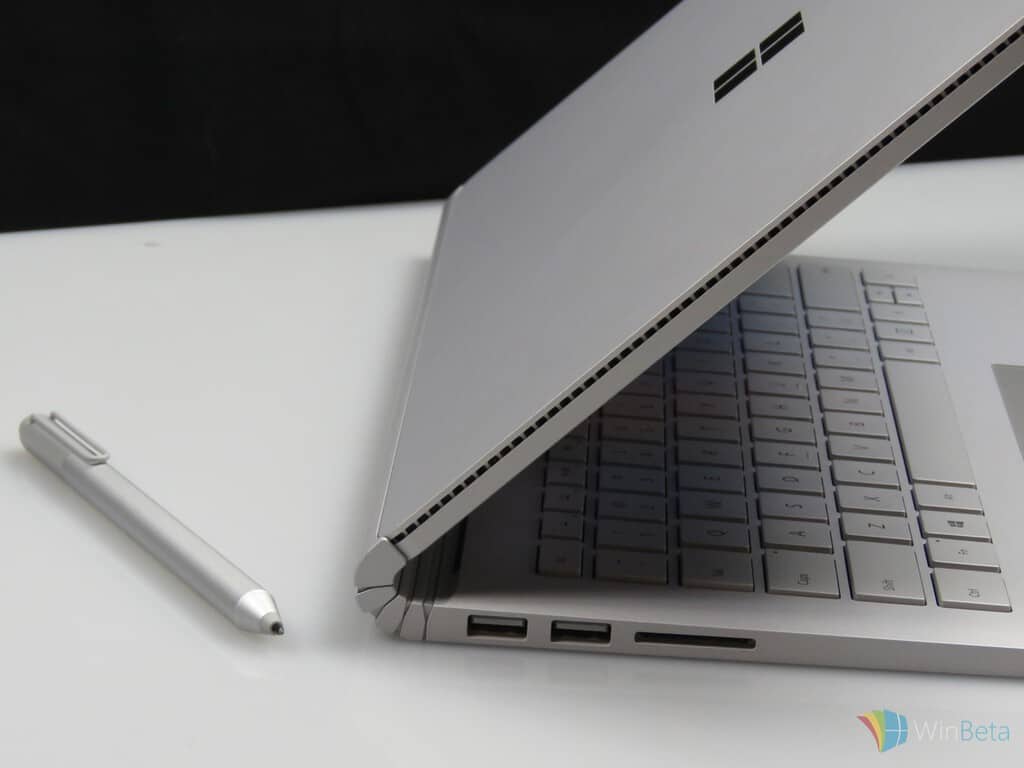
There are several different ways you can use your Surface Book to meet your productivity needs. First, and the default way to use the Surface Book, is the laptop mode. As you can see in the image above, this mode is the traditional laptop mode. Nothing exciting or revolutionary here, but definitely one of the big selling points of the Surface Book.
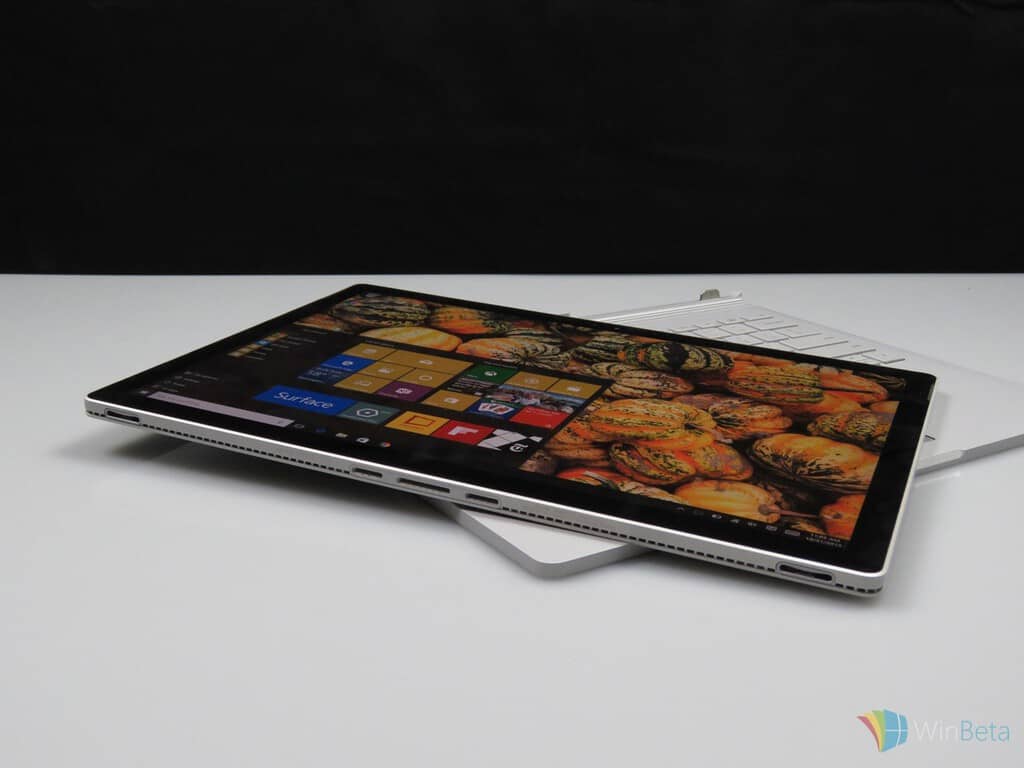
One big feature of the Surface Book is the ability to detach the display from the keyboard, effectively turning your Surface Book into a powerful Surface tablet. All you have to do is press the screen detach key located on the left side of the “Del” key and you can remove the display from the keyboard base.
You can sit on the couch or walk around with the device in your hands, having turned your Surface Book laptop into a powerhouse tablet.
Instead of re-attaching your Surface display to the keyboard base the normal way, why not attach it backwards? In this mode, you can effectively use your keyboard base as a stand — perfect for use in the kitchen when you want to display a recipe on-screen or if you are watching a movie on netflix.
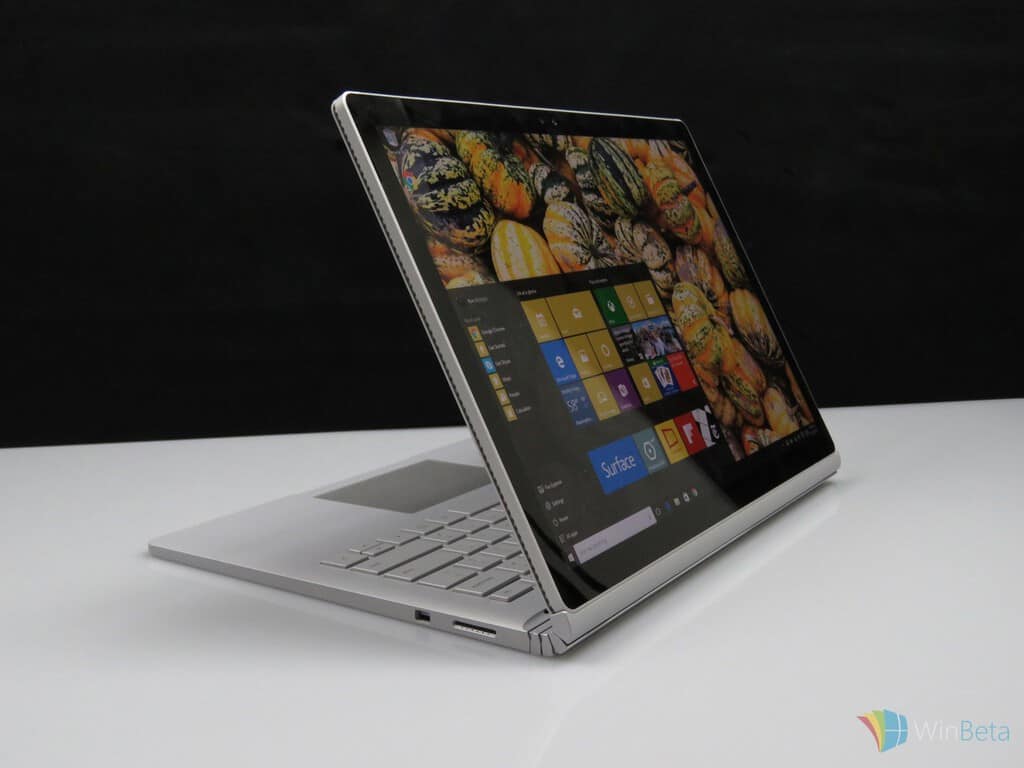
An alternative mode to this is called the “tent mode” that other device manufacturers like Lenovo often tout. Similar to the above scenario, you can use this mode to watch movies or view presentations with ease.
And finally, you can fold back the device the opposite way (as long as the display is inserted the opposite way), effectively turning your Surface Book into a tablet with the keyboard attached to it. This is yet another interesting way to use your Surface Book, but may not feel as practical as the above listed modes.
Which mode do you tend to use the most? I personally prefer the first three modes, with the default laptop mode obviously being used the most. There are times where I am on the couch and I want better “lapability” so i’ll use the tablet mode instead. Or i’ll insert the display backwards onto the keyboard base so I can set the Surface Book on a table while I view a presentation or watch an episode on Netflix.
The Surface Book keyboard features a standard layout with cool backlit keys, but did you know you can also control the screen brightness with a keyboard shortcut as well as adjust the keyboard backlighting? It’s quite easy to do so!
There are two keys located on the keyboard that allow you to decrease or increase the keyboard backlighting. Located at the F1 and F2 keys, these two keys allow you to control your keyboard backlighting. For those of you who prefer to not have any backlit keys, you can simply decrease the lighting until it’s gone.
With the keyboard, you can also adjust your screen brightness to your optimal levels. To increase screen brightness via the keyboard, simply press Fn + Del. If you want to decrease screen brightness, simply press Fn + Backspace.
Do you like the keyboard backlighting? Share your thoughts in the comments below.
Up until now, a great place to give feedback to Microsoft has been through the Windows and Windows Phone UserVoice site. These sites have given Windows 10 and Windows 10 Mobile (and Windows Phone) users a place where they can hand feedback over to Microsoft engineers effectively, and has been a platform that’s continuously improving around the wants and needs of the people who use it. Both Windows and Windows Phone on UserVoice are, however, being shut down.
Microsoft announced that, starting from October 30th, they are in the process of ramping down the UserVoice site. Windows 10 and Windows 10 Mobile for UserVoice will continue being functional until November 16th, but after that point it will no longer be accessible. This may be somewhat alarming to those who frequently utilized the website, but fear not: UserVoice is being replaced by something that, hopefully, will be even more effective at bringing feedback to Microsoft’s attention.
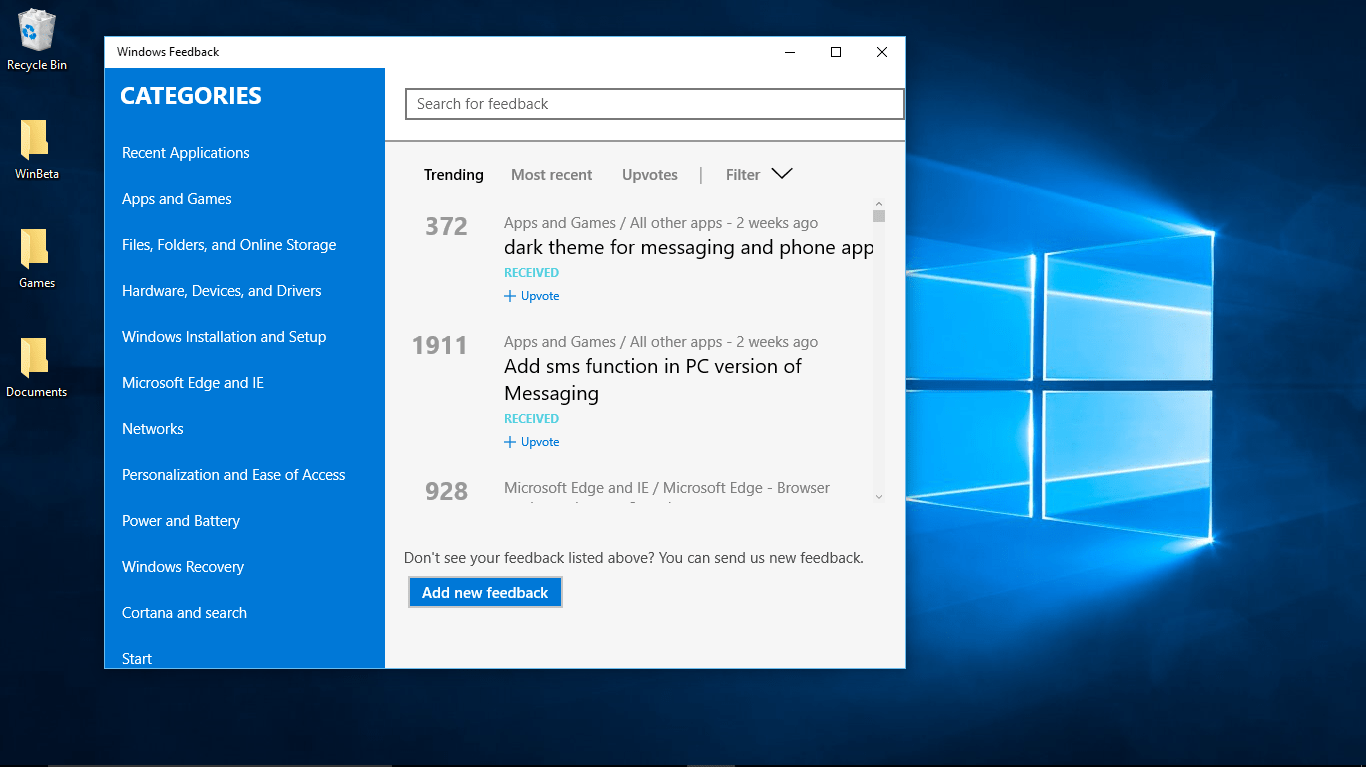
Now, instead of keeping feedback in a website separate from Windows 10 itself, feedback is all going to be coming from a client built right into the operating system. All feedback should now be directed through the Feedback app on Windows 10 and Windows 10 Mobile, which should be on your Windows 10 device right now, accessible by typing “Windows Feedback” into your Cortana search bar.
With Windows 10 Feedback now doing work as the primary medium through which our feedback is delivered, Microsoft hopes that they will have even more ways to refine Windows 10 and Windows 10 Mobile in the future. Windows 10 Feedback gives Microsoft engineers access to “the complete set of raw feedback” and, according to the post on UserVoice, “not only makes it easy for the engineers to find user feedback, but also makes it easy for them to act on it.”
Hopefully Microsoft is right about Windows 10 Feedback being a more effective tool with which users can interact with Microsoft directly – since it’s directly built into the operating system, it certainly seems to be a more useful system than UserVoice presented before it.
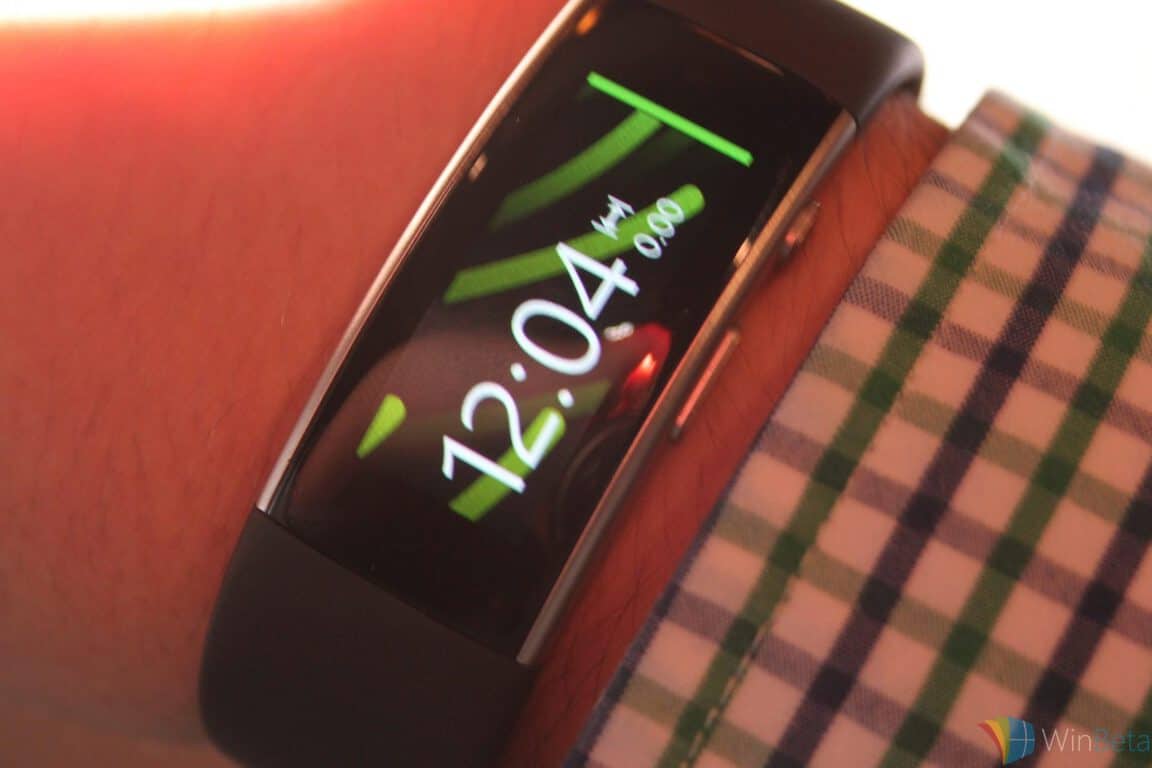
To those who have purchased a brand new Microsoft Band 2, congratulations. Now comes one of the fun parts of owning Microsoft’s fitness smartwatch — pairing it with your Windows 10 Mobile device. If you’re new to all this, don’t worry — we’ve got you covered.
Before you get started, you will need to download and install the Microsoft Health app for Windows 10 Mobile. You will also need your Microsoft Account login credentials. You should also have Bluetooth enabled on your phone.
Press the power button on your Microsoft Band and choose your language
Swipe left and select your phone’s operating system, then swipe left and tap Pair now
On your Windows 10 Mobile device, open the Microsoft Health app and sign in using your Microsoft Account
If this is the first time you are opening the app on your phone, you will be prompted to complete your profile.
Enter your Profile info and tap Next. Then choose which type of Band you own (in this case, tap Microsoft Band 2)
Make sure Bluetooth is enabled on your phone.
Tap scan now and tap the name of your Band. This will be some variation of MSFT Band
On your Windows 10 Mobile device, enter or select the PIN code that appears on your Band and tap Pair
On your phone, tap Next then Allow
On your Band, press the action button (located on the right side of the power button) to start. A flashing arrow will point to the action button
Congrats, your new Microsoft Band is now successfully paired with your Windows 10 Mobile device. Bookmark our dedicated Microsoft Band page for all the latest news on this cool new gadget of yours. Enjoy!
The Microsoft Band 2 is available everywhere starting today, and the reviews are starting to pour in on the update from the popular original version. Buried in Microsoft’s announcement, though, is news about a new first party nutrition partner, Lose It!
Lose It! Is a personalized, full-featured weight-loss system based on matching goals with exercise and nutrition. The Lose It! system is intended to provide up-to-date progress as your exercise activity is impacting your daily calorie budget, and works hand-in-hand with Microsoft Health and the Band 2 to incorporate this system into your daily weight control efforts.
Microsoft will be providing more information on how Lose It! and other partners are working together to help you improve your health. In the meantime, if you have some aggressive weight loss goals, then the Band 2 and Lose It! stand by to lend a wrist.
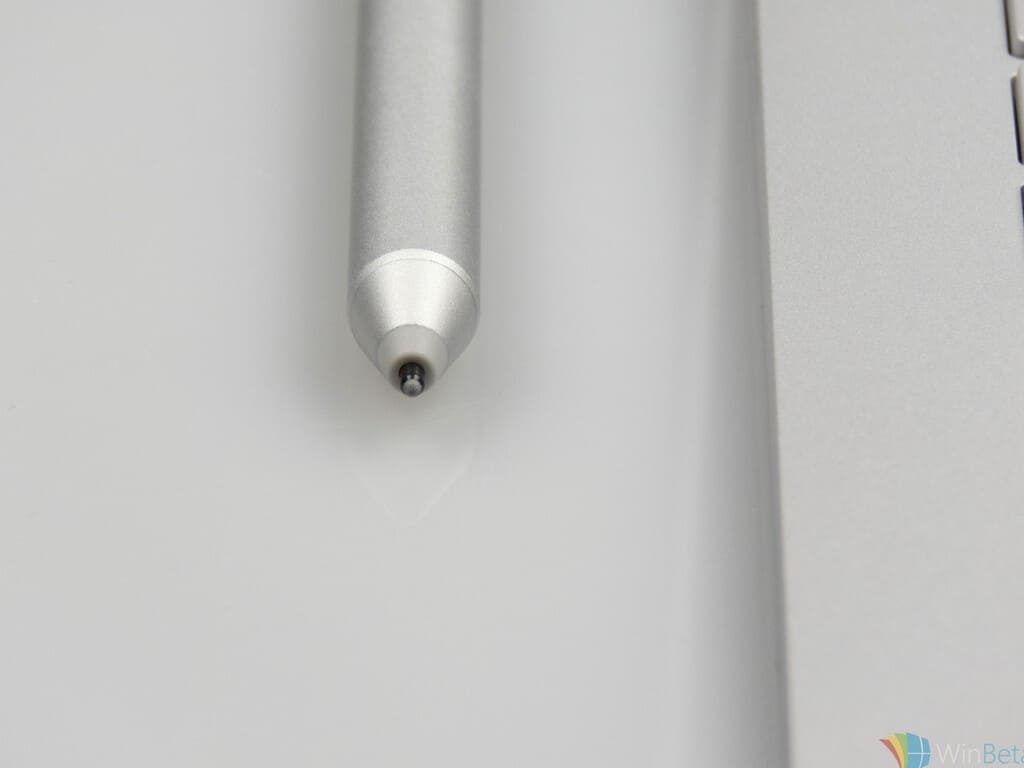
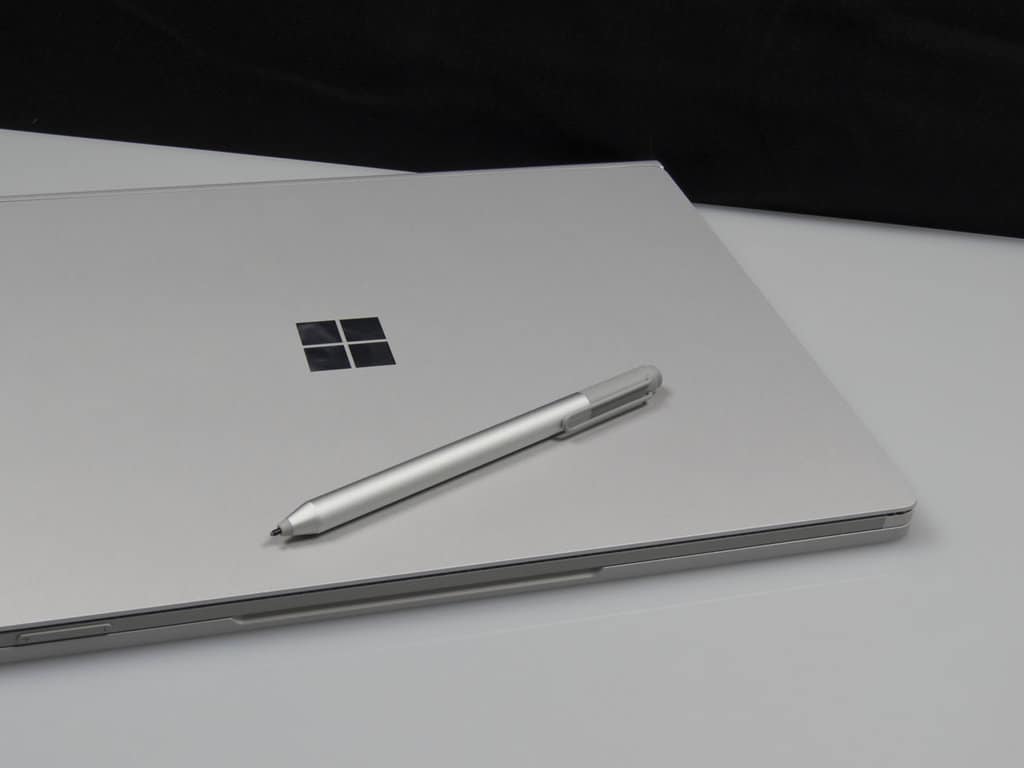
The Surface Pen is an awesome piece of hardware to compliment your new Surface Book or Surface Pro 4. For those that did not know, the updated Surface Pen offers the ultimate writing experience with 1,024 levels of pressure sensitivity and reduced latency. In this post, we’re going to look at some top tips and tricks regarding the Surface Pen, to make your experience just a tad bit easier.
On the opposite side of the clip is the flat side of the Surface Pen, featuring a magnetic strip that allows you to attach the Pen to your Surface device.
Clicking the top button on the Surface Pen opens up OneNote so you can begin writing away.
If you click and hold the top button on the Surface Pen, you will open up Cortana on Windows 10 (or Search if Cortana has yet to be set up).
Double-click the top button to take a screenshot. You can use your Surface Pen tip to drag from one corner to another in the screenshot and your selection appears in a new page in OneNote.
You can use the top button on the Surface Pen as an eraser, simply flip the pen over and use the top as an eraser (how easy was that?).
The Surface Pen features a “right-click button” located at the tip end of the raised area on the flat side of the pen. All you have to do is press and hold the button, touch the screen with the pen tip, then release the button. This will bring up the right-click menu.
Adjust Pen pressure sensitivity by opening the Surface app, going into the Pen category, and adjusting the slider.
The Surface Pen is powered by one AAAA battery. When your battery is running low, the LED will glow red.
Do you have any cool tips or tricks to share? Let us know in the comments below.
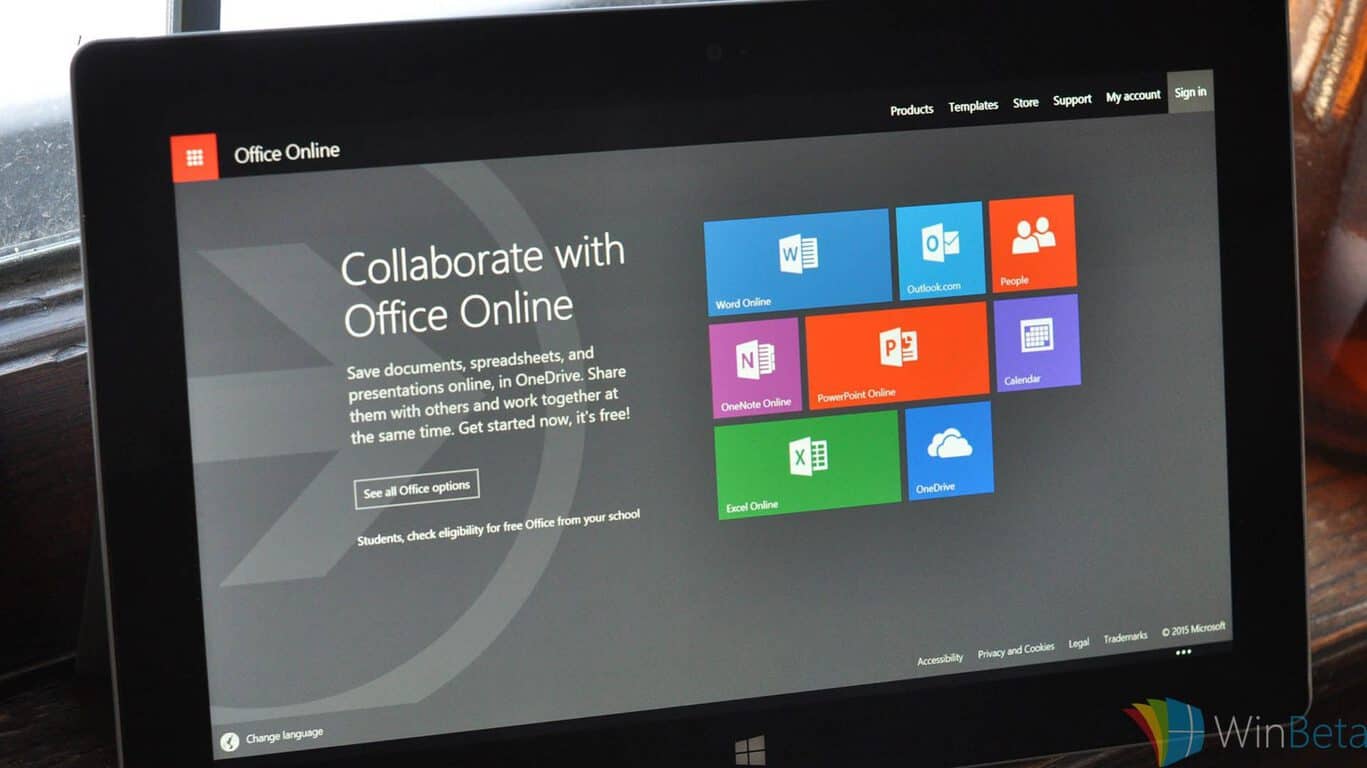
Today’s teams want to collaborate in creating documents and processing information, and Microsoft Office 2016 is one of the more significant and powerful tools people use in getting their work done. Right on cue, Microsoft has put together a quick tutorial making it perfectly clear how easy it is to co-author documents using Word 2016 or Word Online.
The easiest way to get up to speed on co-authoring in Word is just to watch the video overview over at Office Mechanics:
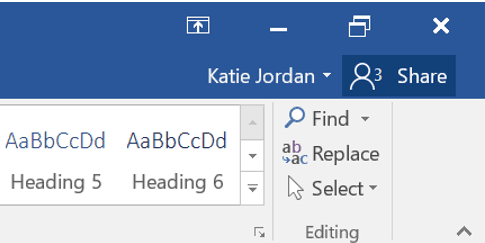
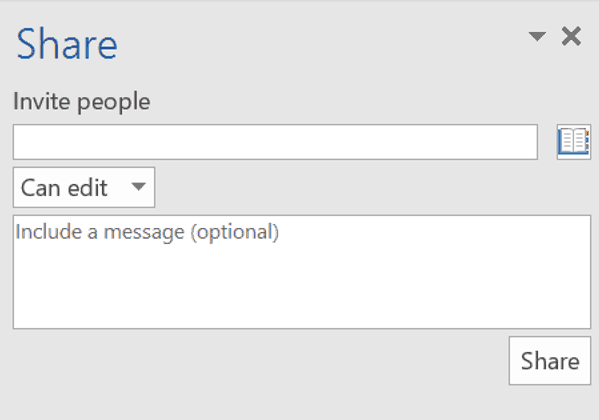
The first thing to do when collaborating in Office 2016 is to hit the Share button. Select the people you want to work with, and click Share.
Click the Share button to get started.Then, choose your teammates.
Then, changes will show up in real time in Word 2016 and Word Online, and you’ll be able to see just which changes were made by which team member.
Finally, be mesmerized as changes automagically show up in your shared document.
There you have it, everything you need to know to get started on collaborating with Word 2016. If you haven’t already, get a team together and give it a try. We’re sure you’ll like it.
Disney has been expanding its empire of entertainment for many years now, having gobbled up countless companies and getting a slice of every medium’s market share. Whether it be in the Marvel Cinematic Universe for TV and movies, or, more recently, their dominating entry in video games: Disney Infinity. Infinity is Disney’s title in the genre sparked by Skylanders years ago – a genre where players can collect real-life toys for use in the game world.
Disney Infinity 3.0 has come to Windows 10, once again offering Windows 10 users a peek into the console gaming world. This comes just as the Star Wars franchise is being added into the game, letting players enjoy all of their favorite stories, characters, and settings from the legendary sci-fi franchise. Standing alongside the characters and settings from Marvel and Pixar, Disney Infinity is boasting a pretty massive roster where most people can find something to like.
Disney Infinity 3.0 is free to download right now on the Microsoft store, and you can try out a rotating character trial to see any characters that you might like before you go dropping money on the game.
Windows 10 “Threshold 2” is almost ready. With final tests hopefully beginning next week (I’m told it won’t be launching November 2nd now, more on that here), Microsoft has begun focusing on its next planned update for Windows 10, codenamed Redstone and coming in the summer of 2016. Redstone is set to be a much larger update compared to Threshold 2, incorporating a number of new features and user-experiences which will enhance Windows 10.
Redstone for the most part is still being drawn up internally, which explains why so few details regarding the update have leaked. There are however a few plans already on the table, features such as extensions for Microsoft Edge are expected to arrive with Redstone after being postponed in Threshold 2. Now, I’ve started hearing plans regarding Continuum in Redstone, and how Microsoft is planning to beef it up with new OS X Continuity-like features that connect your PC to your Windows 10 Mobile device like never before.
Microsoft is essentially planning to introduce the ability to roam apps across your Windows 10 PC and Windows 10 Mobile device. What I mean by this is simple, imagine working on an email on your phone in the Mail app, but you decide you want to continue working on your email on your desktop. Simply open the Mail app on your desktop, and Windows will pick up exactly where you left off. Another example is with web browsing with Microsoft Edge on your desktop, opening the app on your phone will bring you to where you left off on your desktop. Pretty neat.
Another feature on the cards is the ability to make phone calls directly on your desktop, beamed from your Windows 10 Mobile device. This, along with the ability to roam your apps will bring the desktop and phone experiences of Windows 10 closer together, something that definitely needs to happen as Windows 10 for desktops and Windows 10 Mobile still feel pretty disconnected, even with universal apps and user interfaces.
Microsoft is rather obviously taking heavy inspiration from Apple’s “Continuity” feature, which does exactly what I’ve explained in this post just with an iPhone and Mac instead. The Redmond giant is planning to introduce this functionality with 1st party apps in Redstone, and will provide an SDK for 3rd party developers to utilise this functionality too.
We’re still several months away from Redstone being finalised, and considering we’re still only weeks into development, plans can very easily change so keep that in mind. Still, it’s exciting to know that Microsoft is planning to beef up Continuum in Redstone. I honestly believe the improved Continuum may give people an incentive to buy a Windows 10 Mobile device, because who doesn’t want to be able to make phone calls from their PC using their phones cellular connection? I know I do.
Would you like to see functionality like this make an appearance in Redstone? Let us know below!
Microsoft has released a new build for Windows 10 today for Windows Insiders who are on the Fast Ring. One interesting new feature in this build is the ability for users to cast photos, videos, and music from Microsoft’s Edge web browser onto any Miracast and DLNA enabled device connected to the same network.
Users can cast media such as YouTube videos, Facebook photo albums, and music streaming from Pandora by clicking on the ellipsis menu to the right of the address bar, click or touch Cast media to device, then choose which device they want to cast their media onto.
Unfortunately, media content that is protected by DRM, such as videos from Netflix and Hulu, is not supported for the time being. Hopefully support for protected media will be available in the future.
What do you think of this feature? If you’ve tried it yet, how to you like it? Let us know what your thoughts are in the comments below!
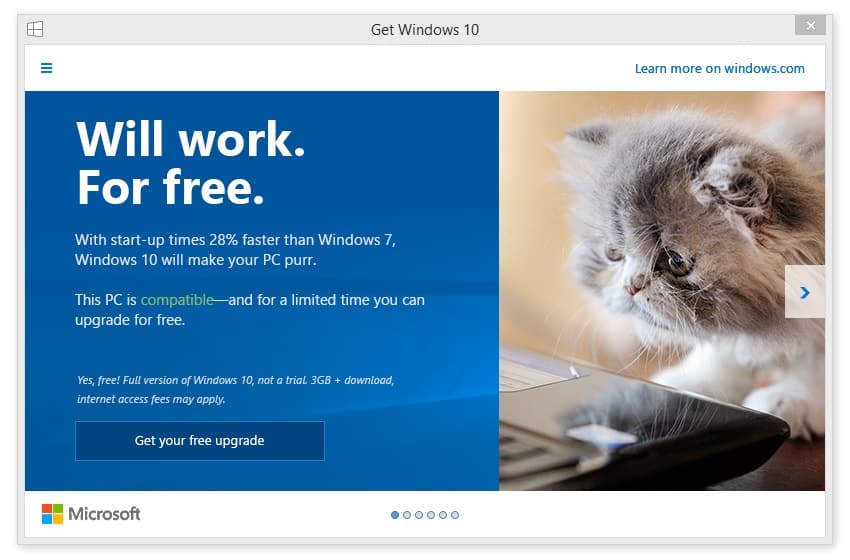
We reported earlier today that Microsoft’s Windows 10 OS has managed to surpass 120 million installs worldwide. As nice as the Windows 10 launch has been for Microsoft’s PR, the install process hasn’t been as worry free for some Windows users. Since the July release of Windows 10, some users on older versions of Windows have complained about annoying pop-up reminders, background WiFi-chugging update processes. In some rare instances, Windows 10 bits have downloaded onto devices in preparation for an update seemingly without any user intervention.
As a rather large Fall update to Windows 10 is just a week or so out for users, Microsoft is attempting not only make it even easier to upgrade to Windows 10 but explain the process and dispel some myths floating around on the internet.
From the mouth of Microsoft executive vice president of the Windows team, Terry Myerson:
We understand you care deeply about what happens with your device. This is why – regardless of your upgrade path – you can choose to upgrade or decline the offer.
That being said, we would encourage everyone to upgrade because Windows 10 is the best Windows ever – familiar, safer, faster, and full of innovations. After any upgrade, you can easily go back to your prior version of Windows within 31 days if you choose. We do this by keeping a full copy of your previous operating system on your device – including apps and settings – for the first 31 days following your upgrade. At any time during the first 31 days, you can go to “Settings->Update and Security->Recovery and Uninstall Windows 10” to return to your prior version of Windows.”
Myerson continues, addressing the notifications users of older versions of Windows are receiving. It seems going forward, the once annoying notification to upgrade for some, is being evolved. The notification will now have a more ‘approachable’ feel and should appear clearer to users as to what is being asked. Users will also now have the option to dismiss the notification in their respective Windows 7 or Windows 8.1 settings.
For users who decided to finally take the plunge and update, there are now going to be new processes in place to ideally transition from one version to another as smoothly as possible. Beginning with how Windows 10 is categorized and where users can find the update.
We will soon be publishing Windows 10 as an “Optional Update” in Windows Update for all Windows 7 and Windows 8.1 customers. Windows Update is the trusted, logical location for our most critical updates, and adding Windows 10 here is another way we will make it easy for you to find your upgrade.
Early next year, we expect to be re-categorizing Windows 10 as a “Recommended Update.” Depending upon your Windows Update settings, this may cause the upgrade process to initiate automatically on your device. Before the upgrade changes the OS of your device, you will be clearly prompted to choose whether or not to continue. And of course, if you choose to upgrade (our recommendation!), then you will have 31 days to roll back to your previous Windows version if you don’t love it.”
Myerson also discusses more pressing issues of the upgrade process such as upgrading over a metered connection, with a DVD ISO and upgrades for Non-Genuine users. As far as metered connections go, Windows 10 will default to users Windows 7 or Windows 8.1 settings. According to Myerson, users who opt out of automatic updates, should still manually check for updates now and then and also consider installation of all ‘Recommended’ and ‘Important’ updates. Doing so will allow Windows 10 to use a metered connection only if there is a security issue addressed in the update. Otherwise, it’s still up to the users to install updates.
For users who choose to do a full and clean installation of the Windows 10, the Windows team will issue an update to the Media Creation Tool allowing the creation of DVD ISO’s or USB keys from within the OS.
Myerson touches on the efforts non-Genuine Windows customers have gone through to get Windows 10, and to use that feedback, he and his team are willing to try an experimental one-click opportunity to get a Genuine copy of Windows. Users will be able to go to the Windows Store to grab a valid copy of Windows 10 using an activation code they happened to purchase elsewhere. The experiment is only being opened to the US for now, but based on telemetry, the Windows team may scale it to other countries.
According to Myerson and the Windows team, many of these improvements come by way of the feedback users have been offering, and they would like that continue. For anyone using Windows 10, you may have noticed a little pop-up asking for feedback about new features. That feedback is something the Windows team hopes reaches more of their users.
Share yours or your friends and family’s upgrade experience in the comments below!
Windows 10 Mobile build 10581 isn’t the only new thing Microsoft has been working on today. The Office team is also announcing the Office October feature update. This month brings some welcome updates to Office Online, as well as Office Mobile for Android and Office 2016 for OS X.
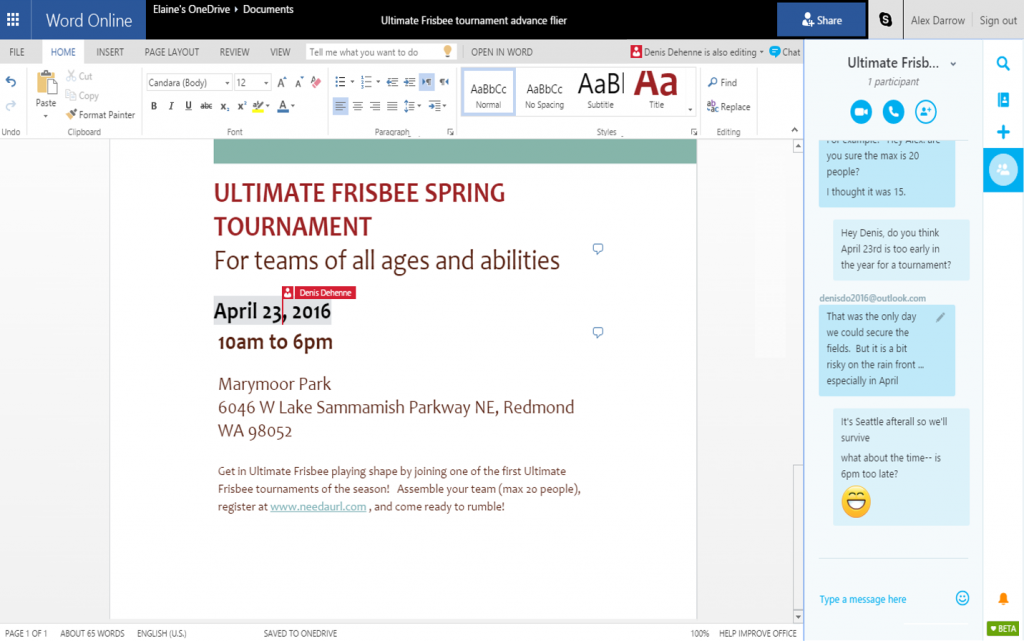
Office Online gains some new Skype integration, taking last month’s basic Skype functionality and expanding it to include voice and video. Starting in November, when you’re collaborating on Word, Excel, PowerPoint, and OneNote documents, you’ll be able to jump into Skype voice and video calls to spice up your co-authoring sessions.
Use Skype for voice and video calls when collaborating in Office Online.
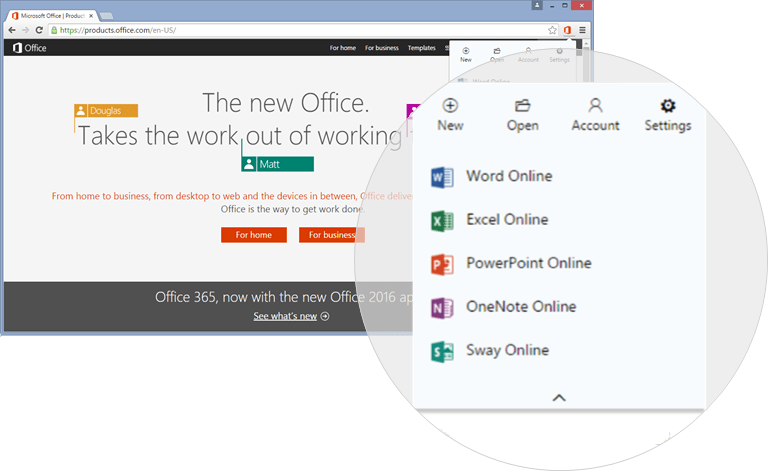
Next, although Windows 10 Edge users will have to wait a little while for extensions, the Office team is full steam ahead on integrating more closely with Google’s Chrome browser. Specifically, they’re introducing a new Chrome extension that provides some instant gratification when creating and accessing documents in Office Online.
Chrome gets a nice new Office Online extension.
Office Online also gets a new Navigation pane to make it easier to work with large Word documents, and formatting Excel online and PowerPoint online should be easier.
In more news, Office on Android went on a diet, specifically being a full 40% smaller. Signing in should be easier for Office 365 work and education users, and Enterprise and Android for Work users can now be fully productive in Android M. Finally, PowerPoint on Android now enjoys a Presenter View to make it easier to present to groups using your robotic device.
The Office team rounded things out in October with Visual Basic enhances to Office 2016 for the Mac. Learn more about what Office developers can now accomplish on the Mac.
So, there you have it, all of October’s Office updates win one fell swoop. Microsoft is certainly keeping itself busy, and keep checking back for more news.
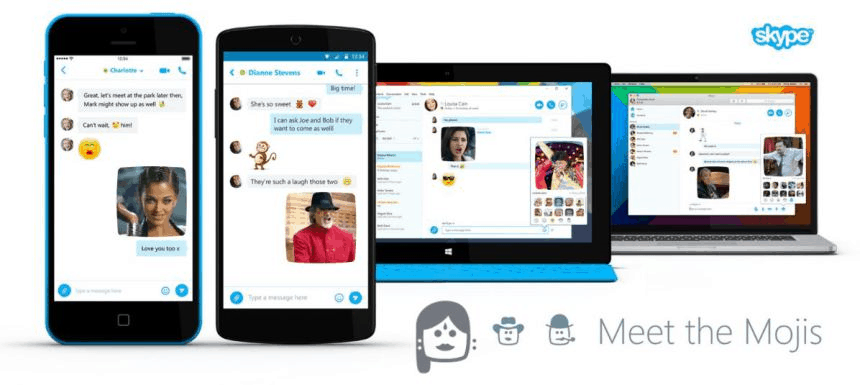
Makes sure you’re on the latest Skype version to access some Bollywood action.
If you’re not aware, Bollywood is the most visible part of India’s film industry, producing scads of Hindi language films and rivalling Hollywood for its influence on the culture. Skype is celebrating that influence by injecting some new video clips into their Moji functionality, as well as some fun new emoticons to spice up your chats.
You’ll want to be on the latest Skype app on your platform of choice to get in on the fun. And as always, Microsoft wants to know which new Mojis and emoticons they should be adding next.
For the release of Windows 10, Microsoft came out with a new browser named Microsoft Edge. Edge has high speed ratings but is still in development. Some features have already been added while others are on the way. The most notable feature still in the wings in extension support. Unfortunately this won’t be available for the public until 2016. With Edge being a fast but unfinished browser, this week’s poll is on when you will use Edge as your primary browser (there are options for already doing so and never).
There are a lot of things that go into picking a browser. Some already use Edge and find it useful. It is fast and has features such as annotations and Cortana integration. It also makes it easy to share things. For some web users features such as syncing between devices and extensions aren’t that big of a deal. For others they are a must. Some won’t use Edge at all, let alone as their primary browser, until extensions are supported.
Let us know by voting and in the comments below when you’ll use Edge as your primary browser and what factors affect your choice of browsers. To hear us discuss the results tune into the WinBeta Podcast this week.
As fans, we sometimes forget that sports is a business. It’s big business, in fact, whether it’s professional football or NASCAR. And these businesses make the same kinds of technology investments that other businesses make, and for the same reasons–to improve productivity, efficiently utilize assets, and make a profit.
Microsoft’s Corporate VP of Developer Platform & Evangelist Steve Guggenheimer spent some time over at the MSDN blog talking about just this topic. Clearly, Microsoft has been making significant investments in being a technology provider to the sports industry, and Guggenheimer provided a fascinating overview of some of their recent efforts.
Technology utilized throughout sports today, from putting spectators in the middle of the action to helping teams gain competitive advantages by enhancing their ability to plan and assess their performance. Internet of Things (IoT) sensors and elaborate 2D and 3D camera systems are two examples of how technology is making a significant impact on how sports are being played and enjoyed.
Guggenheimer focuses on two examples of where technology is being utilized in the most innovative ways, and where Microsoft is a serious player.
First, there’s Zebra, which has partnered with the NFL to place RFID sensors on players to gain up-to-the-second information on precisely where players are on the field, how they’re moving, and even the g-forces they’re achieving (or suffering). As an example of how this impacts a fan’s ability to enjoy a game (not to mention how a team can evaluate plays and players), open up the Windows 10 NFL app and click on “Top Playmakers.”
Check out the Windows NFL app for a new way to experience replays.
Next, there’s NASCAR, which offers up tons of race-day information including live leaderbords, lap-by-lap commentary, real-time updates and video, and social media feeds. Fans can even listen in live to the back-and-forth between drivers and crew as they fight for every second of advantage.
The impact on the business of sports is just as dramatic, if not more so. Guggenheimer covers the example of NASCAR streamlining technical inspections, reducing the time necessary to gather information during eight inspection stages from up to six hours to less than two. And, more information is evaluated more efficiently, improving the process while saving time and money.
NASCAR is turning raceday into an incredibly immersive experience.
Microsoft’s involvement in sports also has two dynamics. First, it’s a great business opportunity and utilizes everything that Microsoft has to offer, particularly as the company transitions to their “mobile-first, cloud-first” strategy. But it’s also a great marketing tool, with Microsoft Surface devices front and center during every timeout as NFL coaches evaluate plays.
Guggenheimer is speaking to the sports industry today by invitation of Sports Business Daily, where he’s laying out how technology continues to impact sports. Go check out his blog post for more information on all of the ways that Microsoft is a player.
In its mission to “empower every person and every organization on the planet to achieve more,” Microsoft has teamed up with Sequence to help curb the daily violence taking place daily in El Salvador by making handcrafted products. Founder Ariela Suster, along with local artists Oscar Bautista and Natali Orellana, mentor and employ local youth to help her create bracelets, necklaces, scarves, and hats that showcase the best parts of El Salvador’s culture. Suster’s mission is to keep kids out of the gang lifestyle by employing them at Sequence to develop creative designs.
Suster and her Sequence team’s latest creation is an NFC bracelet. The bracelet contains an NFC chip that plays a short background video on the story behind the bracelet; how it was made and who created it, when tapped to the back of Windows Phone, Android, or Blackberry phone. These NFC bracelets are being sold at the flagship Microsoft Store in New York City.
Microsoft helped Sequence grow their idea and business with the help of software and hardware, including the Surface Pro 3, which played an integral part in designing these NFC-implanted bracelets. For every 1,000 bracelets sold, Suster and Sequence can help employ another artist and help save them from being swept up in El Salvadorian gang violence.
Although not available for purchase online through the Microsoft Store, you can purchase these bracelets through the Sequence website.
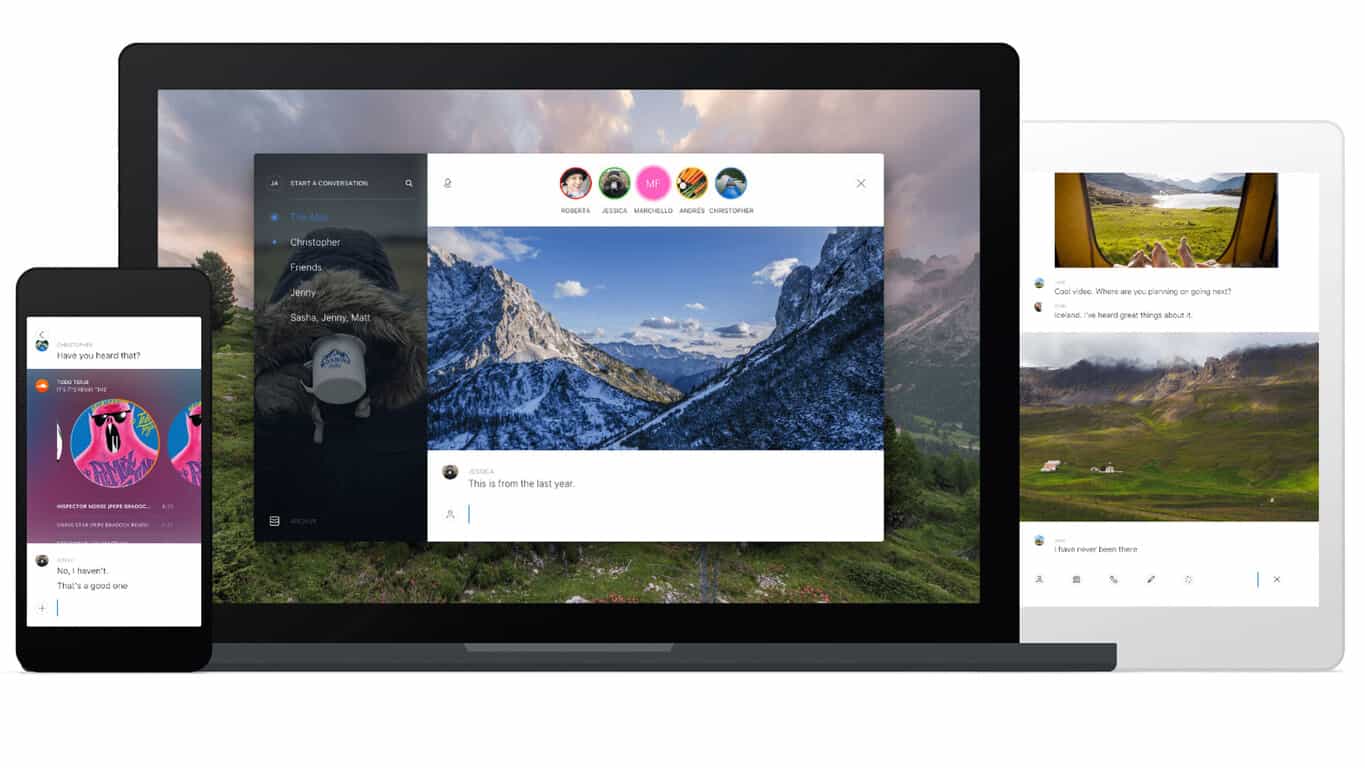
Last December, a group of former Skype employees with extensive experience in online communications launched Wire, a new IM messaging client for iOS, Android, and the web. Now today they’re opening up their messaging client to a new audience with the launch of Wire for Windows, available on Windows 7, 8.x, and 10.
I had a chance to talk with one of the co-founders of Wire, Jonathan Christensen, on a Wire audio chat using the new client earlier this week. Christensen, who worked at Microsoft on Messenger and helped to create Lync (now Skype for Business), led the audio / visual teams at Skype, but when it was acquired by Microsoft he decided it was time to try something new, and left to form Wire.
Along with the help of co-founders Alan Duric (CTO), Priidu Zilmer (head of design), and Koen Vos (chief scientist and audio engineer), the company sought to build a new messaging system that was both beautiful and secure.
Leveraging the team’s experience in audio engineering, Wire is a high fidelity, end-to-end encrypted, and beautifully designed client, now optimized for Windows, featuring:
End-to-end encrypted HD calls – in stereo with groups
Beautiful conversations with high resolution photos and GIFs
YouTube, Spotify, SoundCloud and Vimeo content right inside the chats
Group chats with up to 128 people
Wire conversations are synced between clients, running on a custom built back end built on the Haskell programming language and based in Switzerland, with offices in Berlin. Christensen talked about a “sea change in privacy”, with users in Europe especially looking for more security in their mobile and online communications. He noted the efforts the company has made in both privacy and encryption, pointing out that Wire does not use any data collection methods that make users “pay with their privacy”. For now, the company is concentrating on providing the best and most secure service, but plans to offer premium services.
Wire is easy to use, crystal clear, and sports a clean and simple interface, one that will look really good with Windows 10 especially.
You can try out the new Wire for Windows beginning today, or try out Wire on the Web or on iOS or OSX or Android.
Microsoft announced earlier this month that Windows 10 had surpassed 110 million installations worldwide, which is an impressive number indeed. Windows 10 has been out for three months now, so I decided to check in and see how the install number is holding up. According to my contacts, Windows 10 has now been installed on over 120 million PCs worldwide.
120 million installs in three months is nothing to sniff about. With the Windows 10 November Refresh update around the corner, it’s possible we’ll see that number spike yet again as people who want to upgrade for Windows 10 are likely waiting to the update to release first before making the jump. We’ve also got millions of Xbox One devices waiting to be added to this number too, as Windows 10 for Xbox One rolls out on November 12.
Microsoft wants 1 billion Windows 10 installs in three years. If the Redmond giant keeps this momentum of 120 million installs per three months, in 24 months they’ll be at 960 million installs, just shy of 1 billion. Hopefully by then, Windows 10 Mobile would’ve taken off too, and HoloLens will be out on the market further adding to that install count.
What are your thoughts on 120 million installs? Let us know below!
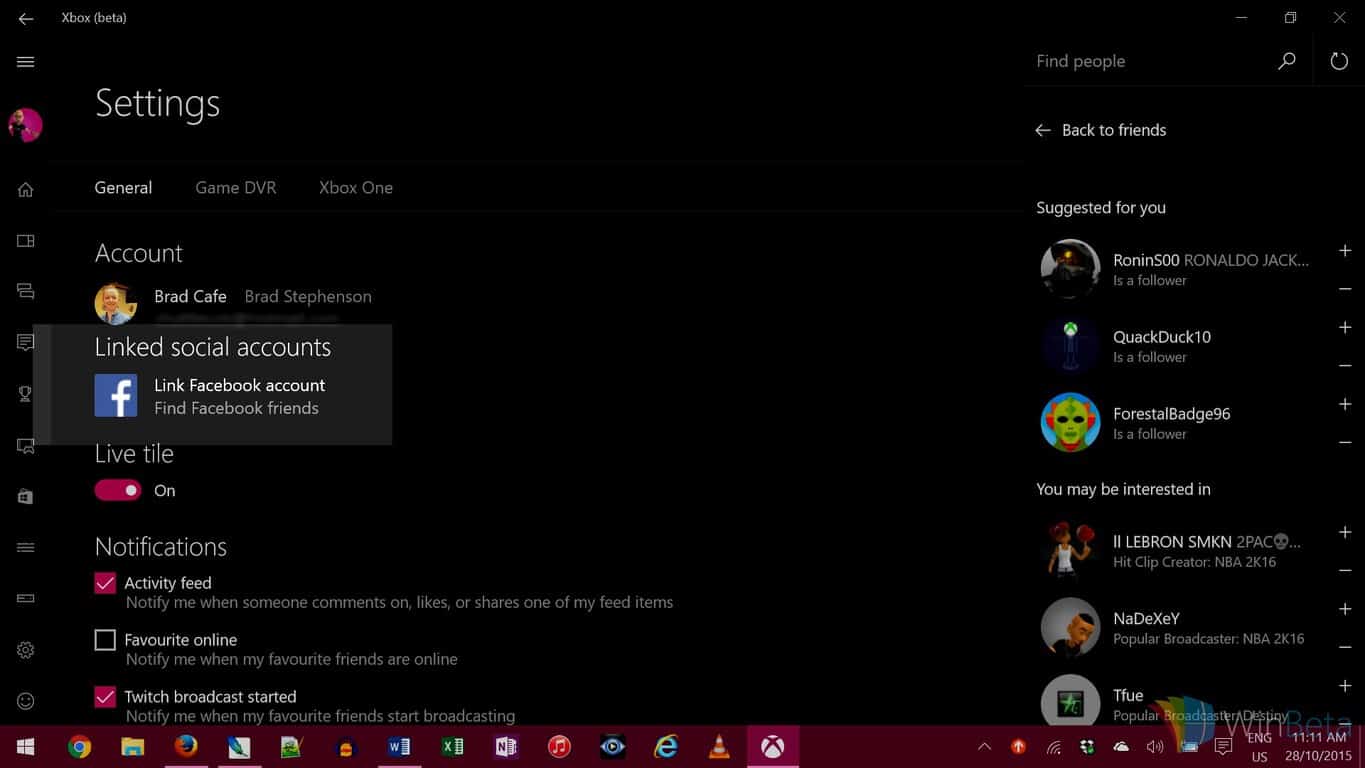
These steps are for how to connect a Facebook account to an Xbox Live account from within the Xbox Beta app. The steps are expected to be identical once rolled out to the regular Xbox App.
1 ) Once the app is open, look in the upper-right corner of the app. You should see a small Facebook icon and the text, “Link Facebook account.” Click on this.
How to connect Facebook to Xbox Live
Note: If you don’t see this link, or have for some reason unlinked your Facebook account, go into the app’s Settings via the gear icon on the left menu and click on the Facebook link there.
How to connect Facebook to Xbox Live
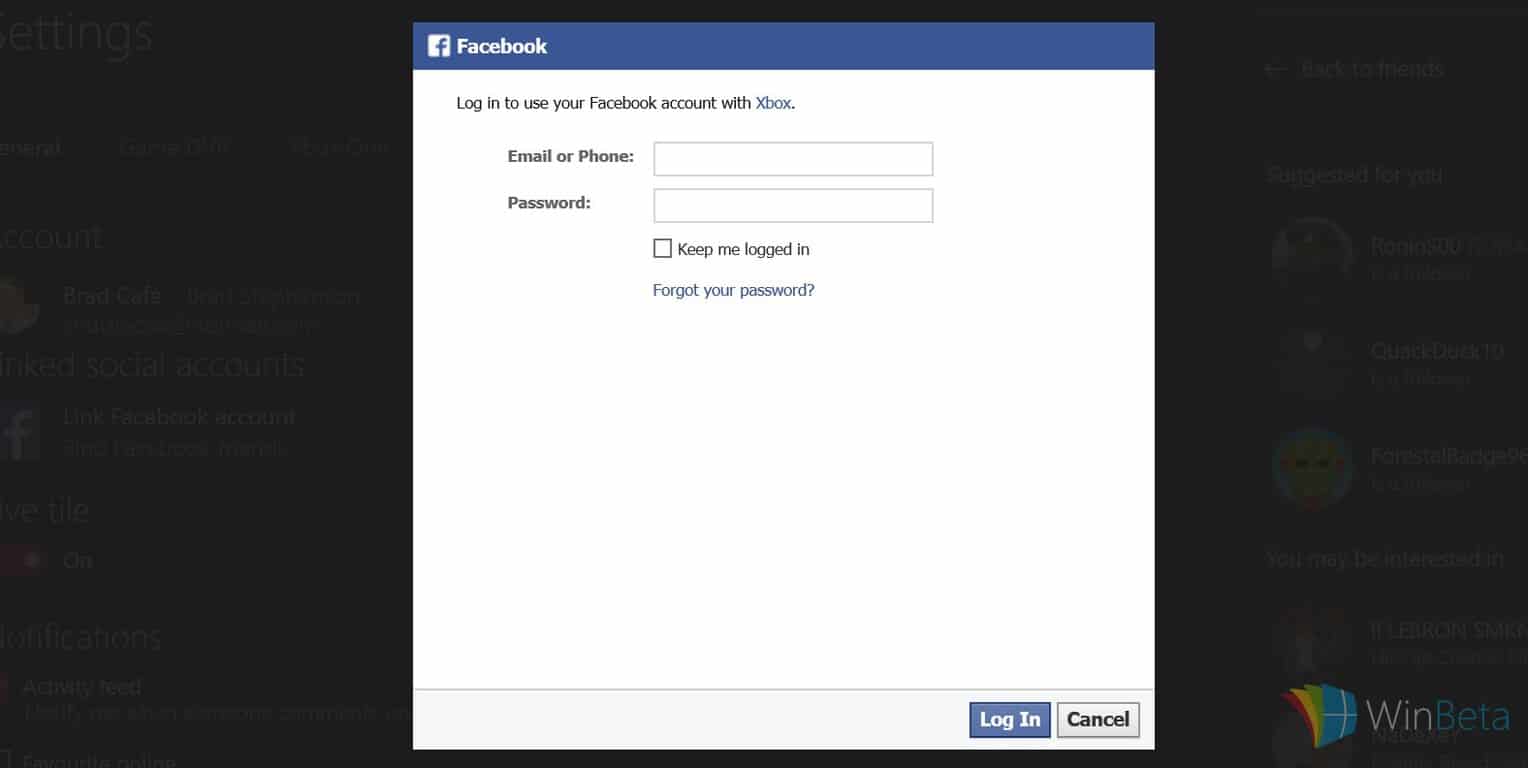
2 ) Clicking on this link will open up a Facebook login box. Enter your phone number or email address associated with your Facebook account as well as your password and login.
How to connect Facebook to Xbox Live
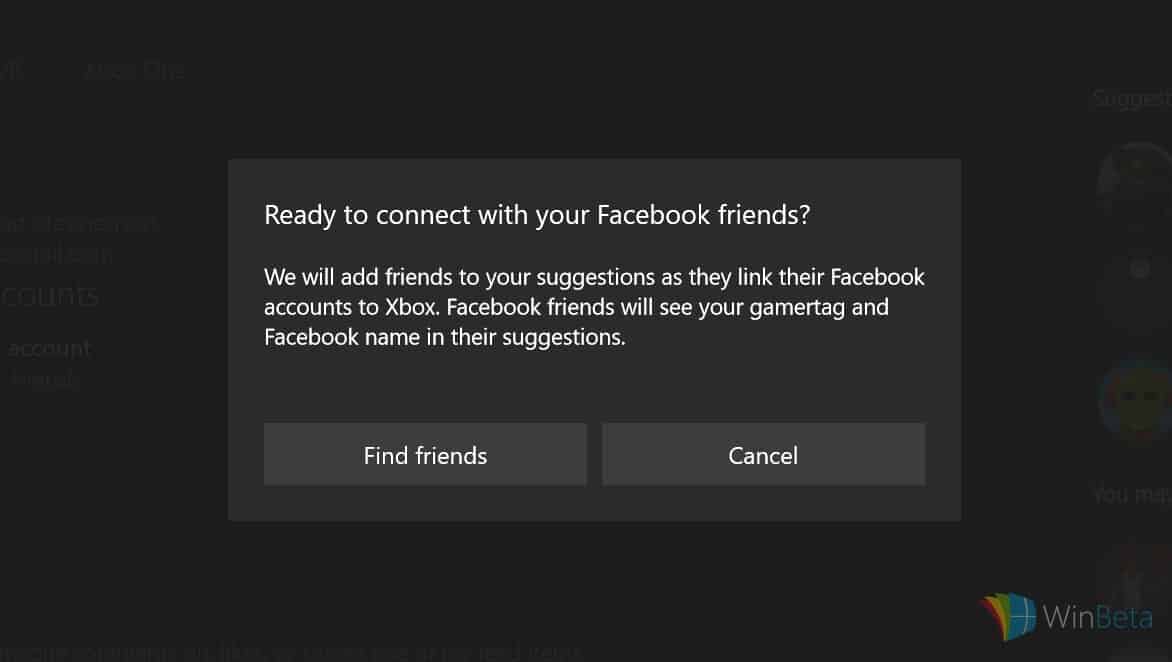
3 ) Your Xbox Live and Facebook accounts will now be connected and a message should pop up informing you that the connection has been made. The app will now scan for any Facebook friends who have also linked their Xbox Live accounts and present them to you as suggested friends in the upper-right corner of the app.
How to connect Facebook to Xbox Live
Note: Only Facebook friends who have also linked their accounts will show up here. Linking just your accounts will not enable Microsoft to detect which of your Facebook friends have an Xbox Live account or what their Gamertags are.
Are you glad to see this connectivity come to Xbox? What other social network integration would you like to see? Twitter? Google+? Let us know in the comments below.
If you purchased a brand new Surface Book or Surface Pro 4, you were also treated to a brand new Surface Pen which comes in the box. For those that did not know, the updated Surface Pen offers the ultimate writing experience with 1,024 levels of pressure sensitivity and reduced latency. So it’s already designed to offer a great experience.
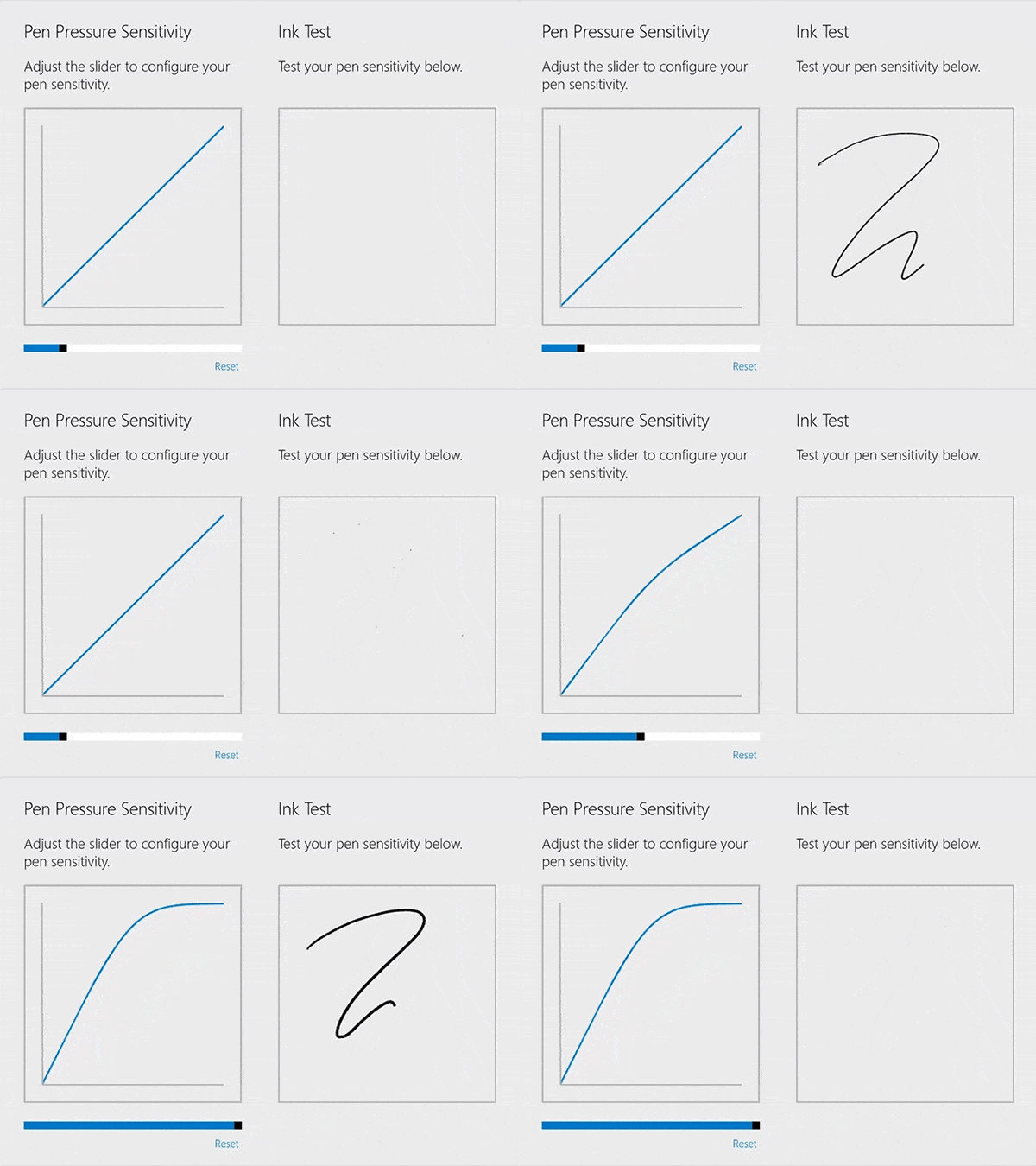
But you can improve that experience a tad bit more thanks to the Surface app that comes with your Surface Book and Surface Pro 4. All you have to do is fire open the Surface app (it’s pinned to your Start menu) and tap the Pen category on the left side of the app. Under Pen Pressure Sensitivity, simply adjust the slider to change your pen’s settings.
You can use the Ink Test area to test your new pen sensitivity by drawing or writing (make sure you try it with varying levels of pressure). The app will automatically save your settings.
The dilemma for someone considering a switch from a traditionally gasoline-powered vehicle to a hybrid or purely electric vehicle (EV) spans far beyond the initial purchase price. Part of the inherent problem with electric cars is the sparsely populated public EV charging stations found around the world. Unlike, the mostly ubiquitous gasoline station pumping traditional fossil fuels, there are only 106,000 EV charging stations around the world. Furthermore, there are more than 1 million EV’s on the road to date, and industry projections have that number growing in the coming years.
Although the numbers are low for physical EV stations, the global revenue from EV charging stations is expected to increase going from 152.6 million last year to $2.9 billion by 2023. The revenue projections come courtesy of Navigant Research.
In this growing industry, some EV charging station companies are looking to capture that revenue growth with new products, improved scalability while also reducing their maintenance costs at the same time.
ABB Group, an EV charging station company recently partnered with Microsoft to launch a new electric vehicle fast-charging service platform. The ABB Group of companies operates with 140,000 employees in over 100 countries worldwide. With the help of Microsoft’s Azure cloud-based platform and services, ABB’s EV fast-charging stations will benefit from global scalability and advanced management features for ABB customers. The result for ABB is more advanced charging stations for the predicted influx of new EV drivers of the future.
According to Microsoft:
With the rapid pace of innovation these days, platform performance and stability can be key differentiators. Microsoft believes that moving to the cloud offers not only the necessary performance and stability but also the ability to scale — as big and as quickly as needed. This flexibility, combined with stability and security features, is a game-changer for the world’s automotive markets.”
Master of the tease, Gabe Aul of the Windows team has once again piqued the interest of Windows 10 Insiders with another vague tweet. Earlier today, Gabe took to Twitter to sadly inform eager Insiders that there would be no new Windows 10 Mobile Insider build to expect.
Last week, Gabe mentioned that there would be a newer build released sometime this week, and it would be much more stable and do away with the inconvenient rollback and upgrade bug plaguing the latest mobile Insider builds. Here it is Wednesday and Insiders have yet to see a new build.
However, Gabe also took time out to tease that, not only is the newer build much better than he had planned on last week, but that whenever it is delivered to Insiders, it will be done in a way that has “never before with new builds.”
We are working on doing something we’ve never done before with new builds…but not today.
The cryptic message may be little consolation for some impatient Insiders, although, it has raised others curiosity about what Gabe and the Windows team has cooking for the next build. Some have already begun to speculate that the Windows team is finally in a position to start delivering both PC and mobile builds together. Other Insiders believe Microsoft may start implementing A-B testing of different flights.
I wonder if Microsoft is planning to release both a desktop and mobile build at the same time… Maybe even the RTM build?!
— Zac Bowden (@ZacB_) October 28, 2015
If the new build is delivered tomorrow, it may be only a matter of hours before we find out what the Windows teak has up its sleeve.
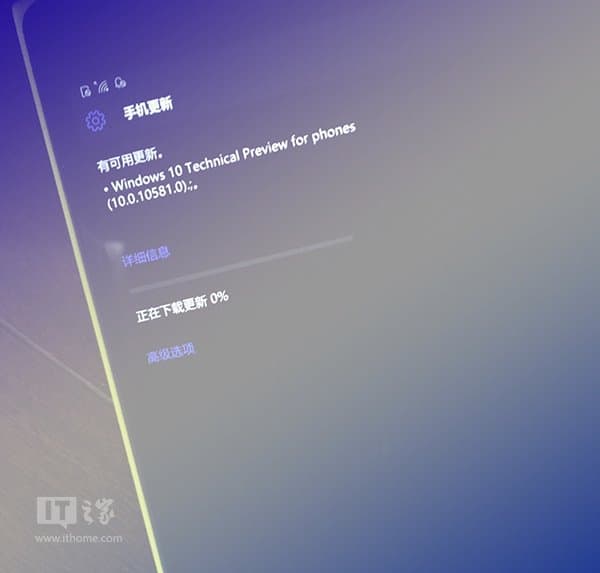
More to Gabe’s tweets earlier in the week about the new build surpassing his previous predictions from last week of delivering build 10575 to Insiders, an alleged screenshot of a Windows 10 Mobile build 10581 has surfaced on a Russian blog site, Onetile. With no other screen shots of the OS or a clear hands-on video, it’s hard to say if this is more than just wishful photoshopping.
Courtesy of ITHome.com
Either way, the Windows team is set to deliver a new build to Insiders this week and at that time, we’ll know what the ‘never been done before’ is all about.
Many have clamored for Microsoft to make an alternate play into ‘the living’ room, ditching its relatively expensive gaming focused Xbox consoles for a more practical in-home experience for non-gamers. Items such as the Apple TV, Chromecast, Roku and Amazon Fire Stick have all been brought up as pricing and form factors Microsoft should follow, to offer a more convenient way to enjoy the content using Microsoft services.
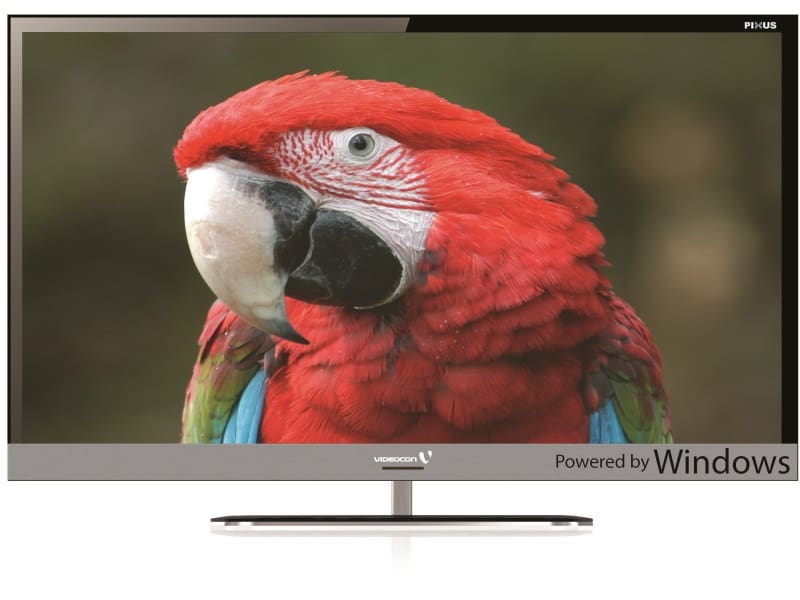
While we have yet to hear about a Xbox-lite piece of hardware coming from Microsoft anytime soon, the company does appear to be testing alternative content delivery methods for the living room. According to Gadgets360, “Videocon, in partnership with Microsoft, on Wednesday launched what it is calling the world’s first Windows 10-powered LED TV, priced at Rs. 39,990 for the 32-inch panel, and Rs. 52,990 for the 40-inch model.”
The 40-inch TV, with help from Microsoft, can also double as a personal computer. Called ‘One Touch PC, One Touch TV’, it will house Microsoft Office as well as the Windows Store and All Cast app, making it the all-in-one device some hoped the Xbox One would eventually mature into. Specifically, the TV is a full-HD display with 2GB of DDR3 RAM, built in WiFi and houses HDMI ports, 16GB of built-in storage that can be expanded with a microSD card.
The new TV puts a stamp on Microsoft’s new strategy of being everywhere the customers are. As phones, tablets and other screens become the center of attention for most computing needs, building Windows 10 into the few devices people are now using for computing is beginning to make clear sense.
In these changing times, we realised the needs of our consumers of having easy access to technology at their convenience and, therefore, designed the world’s first hybrid TV/ PC,” Videocon Head of Technology and Innovation Akshay.
Currently, Videocon is selling 32 and 40-inch models of its presumably, Android-based TV sets, but depending on the feedback from the market, it is open to upping the size to 55 or 65 inches for both Windows 10 and Android.
Microsoft Director of Windows Business Group Vineet Durani added,
With this innovative product, we intend to extend the Windows 10 experience to more users… At Microsoft, it is our constant endeavor to help our partners enter newer categories and create innovative products in order to offer our customers the best user experience at affordable price points.”
Yesterday, Microsoft’s Brand Anderson announced that in the future version of System Center Configuration Manager will be delivered as a service with more frequent updates and new features. Anderson notes in his announcement that because of Microsoft’s new approach to delivering Windows as a Service “the management solution you’ll use to manage Windows 10 must also must be a service.”
What this new commitment to service and regular updates will mean is:
“Each and every time a new set of Windows 10 capabilities gets released, your management solution will need to be updated as well. This means that you are now going to need immediate support for Windows 10 capabilities multiple times a year.”
The new as a Service model for Configuration Manager will allow for IT professionals to more easily manage the latest updates across a wide arrange of devices, including iOS and Android. Anderson explains this work is an extension of what already began with the 2012/R2 product which built an integrated hybrid solution between Intune and Configuration Manager. Now with the latest push for ConfigMgr to be as a service, it will support:
Update ConfigMgr easily each and every time new Windows capabilities are released.
Update ConfigMgr each and every time updates or iOS and Android are released.
Deliver the single-pane-of-glass for managing all devices – with immediate support across Windows, iOS and Android without you have to go through complex individual upgrades. We’ll do the work for you.
ZDNet’s Mary Jo Foley spotted the blog post yesterday and commented how this move to provide Configuration Manager as-a-Service is part of Microsoft’s continuing efforts to deliver all of its software under a new as-a-Service model. Foley explains that this was signaled earlier in the year by Microsoft when they said “the company would be moving toward more of a service-centric Windows and device management model as it made available more pieces of its promised ‘Windows Update for Business.’” Foley also points out that Microsoft committed back in May to releasing a new version of Configuration Manager by the end of 2015 that will support “deploying, upgrading and managing Windows 10.”
In the future each version or update of Configuration Manager will be supported for 12 months, before organizations are required to update to the latest version in order to continue receiving support. Do you think Configuration Manager’s new as-a-Service model is an improvement that will help you manage multiple devices? Let us know in the comments section below.
With Windows 10, Microsoft has made serious progress in their plan to keep Window modern and relevant. Windows 10 introduced a new app model which shifted many daily useful programs from Win32 programs to Windows Apps which are updated from the Store and ideally run universally across devices. However, there remains a subset of the classic tools which have been in Windows for years. What are these tools, are they useful, and are there any better solutions today?
To begin, these legacy programs are located in relatively the same place since their inclusion into Windows, and that would be within a folder in the Start Menu. Previous versions of Windows kept these programs in a folder named Accessories; in Windows 10 they are in a folder called ‘Windows Accessories.’ Most of these programs are have been obsoleted but still serve some specific purpose which has yet to be replicated by another app.
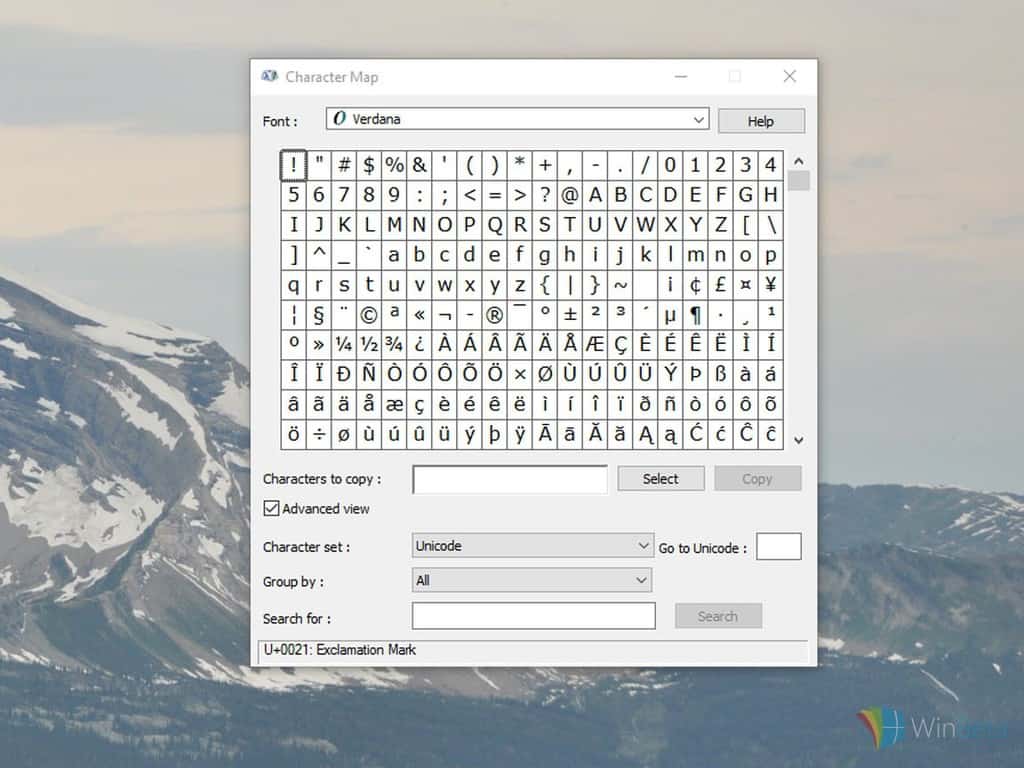
Windows 10 Character Map Legacy Program
Character Map sits at the top of the list and is a very useful app for anyone who needs to input special characters into the document or art they are working on. The program consists of a drop down which contains all installed fonts, then a massive grid containing every character in the selected font family. Picking a character give a bigger preview, then the select button adds the character to the text box for copying. There is an advanced view check box which adds additional options for choosing character sets, or jumping to a specific Unicode character, and another dropdown for further filtering. The search option does not work as you would expect, so finding the symbol you need could take some time slowly looking row by row for the symbol you need.
Up next, everyone’s favorite web browser, Internet Explorer! Windows 10 shipped with a new and improved web browser called Edge, but good ol’ IE is still hanging around for legacy support. By including IE, Microsoft has been able to keep Edge forward facing without all the legacy code which was bogging down IE. The version included here is IE 11, and when opened for the first time, Microsoft suggests users try Edge. This method seems like a fair balance between legacy support and keeping an OS modern. If users really want/need IE to be front and center they can always pin it to Start, drop an icon on the desktop, or keep it on the taskbar.
After IE comes the lesser known Math Input Panel which is exactly what it sounds. Adding math equations can be very tedious so Microsoft created this program to make writing long and complex equations easy and fast for those who need it. If you frequently print math equations or use them in documents, then this input panel will be a god send, assuming you haven’t found another solution yet. Another more discoverable solution to this problem would be OneNote, which has Ink-to-Math support baked in. Many of these accessories have been replaced or built into OneNote.
Speaking of built into OneNote, next on the list is Notepad which is a basic text editor. Notepad may be the most straightforward program in Windows, because computers do not get much more simple than text on a page. Notepad has been left as a blank page to hold unformatted text since Windows 1.0 and still serves a very simple purpose. Any user who needs text to be free from extra formatting and extra code will find Notepad very useful. The output of Notepad by default are .txt files which are universally supported. Notepad can also serve as a basic coding platform by saving text files as .html, .js, .css, .bat, .vbs, .log, and so on. Many beginner coding courses start with Notepad to emphasize accuracy, and it is a tool every Windows user has by default.
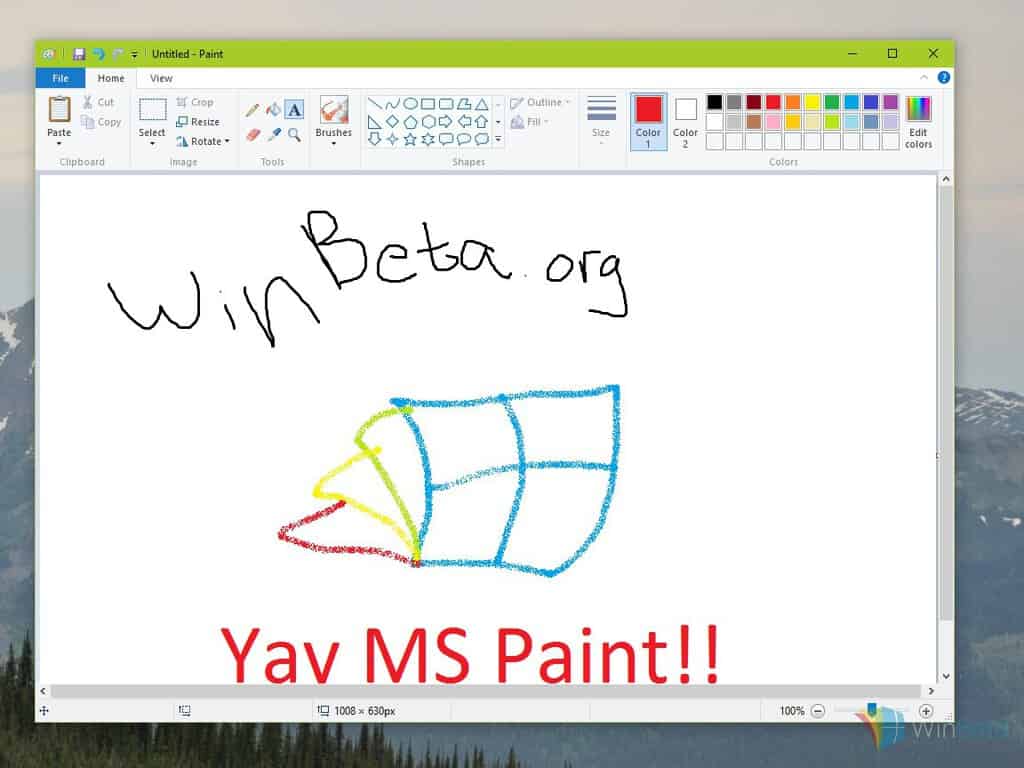
Windows 10 Microsoft Paint
While Notepad is famous (or infamous), Paint may be the most famous legacy program in Windows. Paint has also been around since Windows 1.0 and has received a UI update once in Windows 7 to use the ribbon UI. Like Notepad, Paint may be extremely basic but the program does offer very helpful functions such as converting images between formats, reducing the size of an image, cropping images, and annotating images. While OneNote has tried to take over some of the screen capture annotation functions, Paint still serves as a handy image manipulation program.
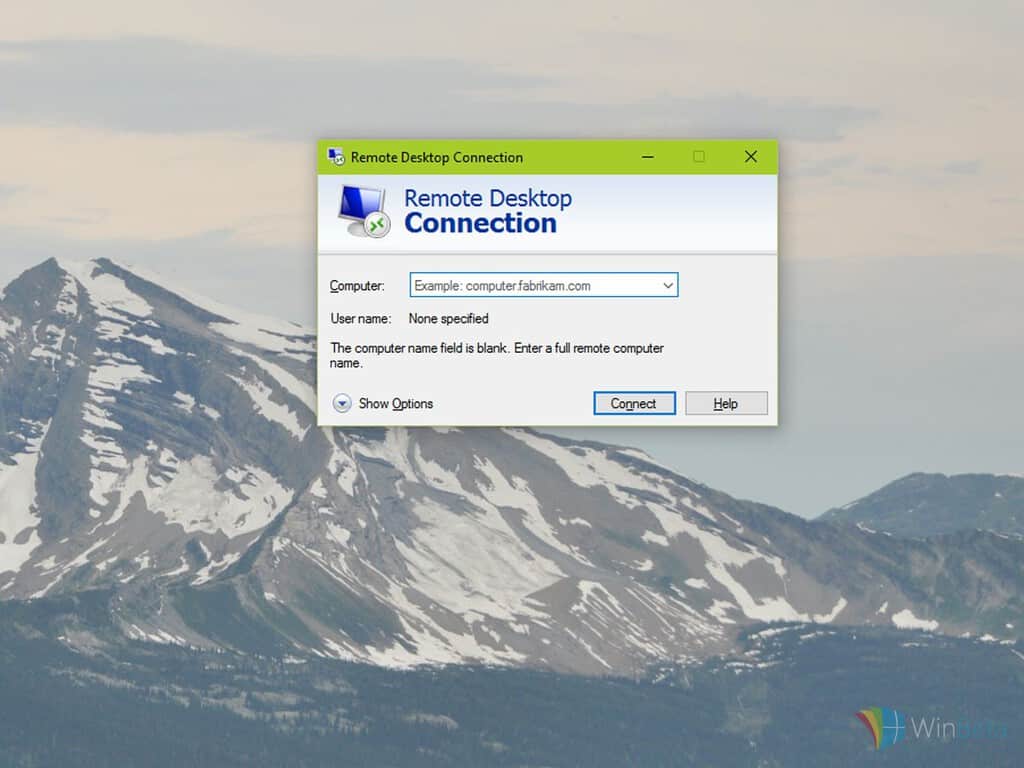
Coming in sixth on the list is Remote Desktop Connection tool which does what you would expect, connects to other Windows desktops or servers remotely. Remote Desktop Connection represents the first line of defense when IT support needs to access a computer to preform repairs, maintenance, or troubleshooting. Even though there is an app in the Windows Store which offers a more modern UI, the Remote Desktop Connection tool remains because when uses are having issues they may not be able to connect to the store to download and install an app.
Windows 10 Remote Desktop Connection
Next is the Snipping Tool which is another tool replaced by OneNote. Introduced in Windows Vista, this tool lets users take cropped screenshots with ease, annotate them and save the image to their computer. This program is more user friendly than the PrtScn button which took a screenshot that needed to be pasted somewhere to be viewed. OneNote added a program which lives in the Notification Area called the Send to OneNote Tool which enabled a few shortcuts like Win+Shift+S for screen capture, and Win+N for a new quick note. The Snipping Tool conveniently saves the region to the clipboard for quick pasting into chats, emails, documents, or other programs.
Windows 10 Steps Recorder
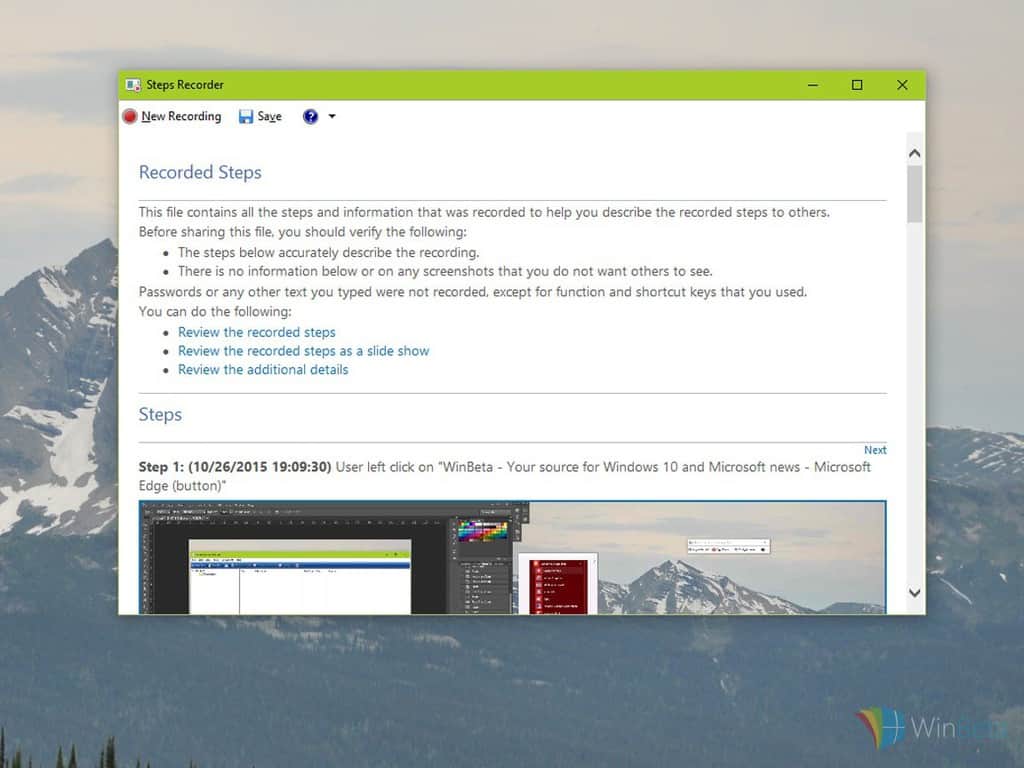
After Snipping Tool, the Steps Recorder gives users the ability to record actions leading to problem, bug, or for teaching others how to access a feature or function. The Steps Recorder was in previous version of Windows, but in a different spot with a different icon. Perhaps with the Windows 10 Insider Program, Microsoft wanted more detailed information on their issues. The Steps Recorder is a simple program which takes screenshots and details which buttons are pressed and when to reproduce exactly the same results. This timeline of events can be saved in a Zip file as a MHTML document which is viewable in a web browser. Ideally after a recording is saved it can be sent to developers, support, or other users for analysis.
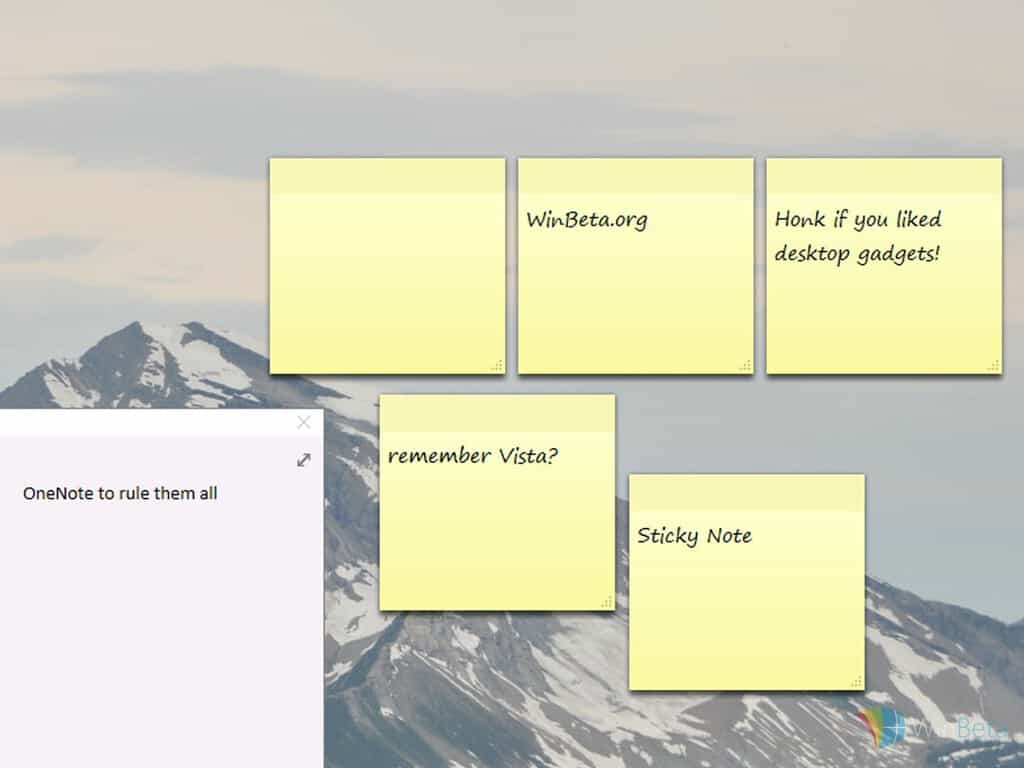
Sticky Notes represents yet another program which has been overtaken by OneNote and the Send to OneNote Tool. Introduced in Windows Vista (codename Longhorn), this program simply displays floating Sticky Notes which give users the ability to type notes to themselves and have them readily available. OneNote’s Quick Notes feature does this job better because the Quick Notes are saved to OneNote when their mini window is closed. This means if users store information they need to save but accidently close a sticky and ignore or turn off the warning then that information is lost. OneNote on the other hand saves the information for later reference, and all of these notes are searchable.
Windows 10 Sticky Notes
Most people today don’t use fax machines but Microsoft still needs to support those users who do with the Windows Fax and Scan program. In Windows 8, Microsoft released a standalone app called Scan which would connect to scanners and give users options to adjust color, DPI, etc. to make their scans. It would seem Microsoft would consider faxing and apps as mutually exclusive and has chosen not to continue updating the fax capabilities in Windows.
Windows Journal can be lumped with Notepad, Math Input Panel, and others as generally overtaken by OneNote. The core functionality in Windows Journal has been transitioned to OneNote which is now Microsoft’s central pen-input product. Originally, the program was introduced in Windows XP Tablet PC edition and has not seen much development support since then. Microsoft has however continued to include the program in Window 10 for those users who still want to read and write in Windows Journal.
WordPad occupies the awkward space between the barebones Notepad and the fully functional Microsoft Word. This program offers users the ability to write, read, and save documents in open formats such as Rich Text Format, Open Document XML, Plain Text, OpenDocument Text, or a Unicode Text Document. Microsoft must have felt that rolling this functionality into the Word Mobile app for Windows 10 would not satisfy the few users to are accustomed to using WordPad. Since gaining the Ribbon UI in Windows 7, WordPad has not seen any improvements.
Microsoft developed the XPS document format as a response to the ubiquitous PDF, but needed to include a viewer with Windows so any users could benefit from the format. The XPS Viewer simply opens XPS documents and lets users view and potentially sign them. The idea behind the XPS format is that users could share a document which would look exactly the same regardless of where it was opened. Unlike Word documents, XPS documents do not reflow to fit screen sizes and should retain their original intended layout. While this document format never took over the PDF, there are still XPS documents around and Microsoft has included a viewer so users can access them.
Windows 10 Magnifier
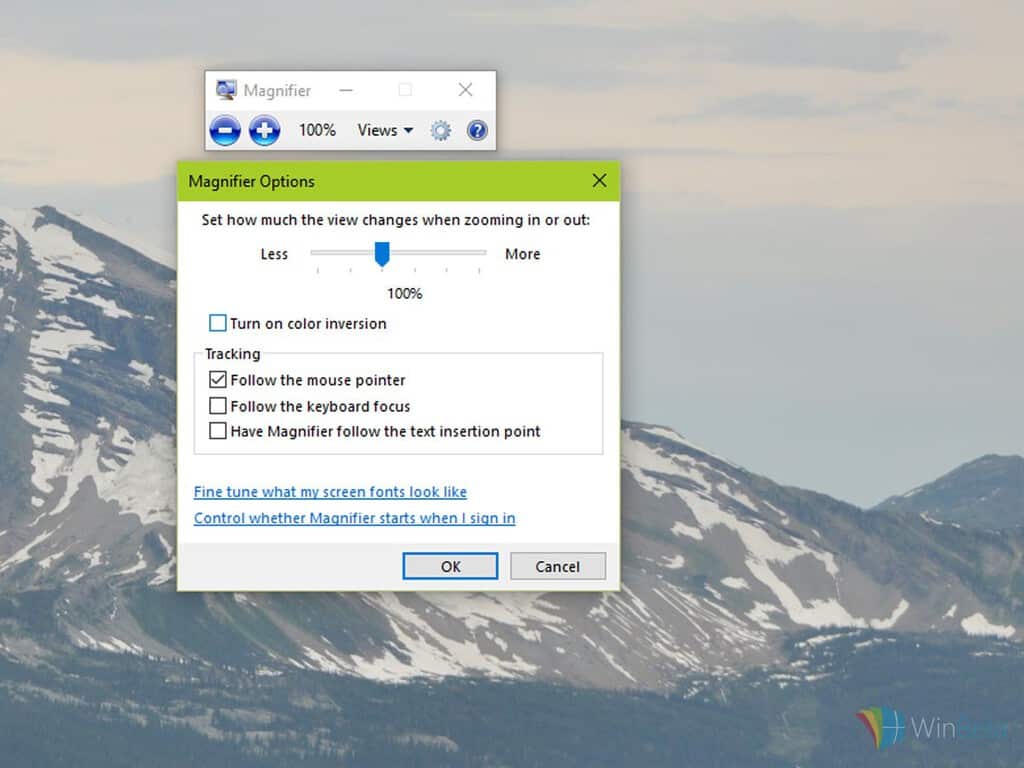
The next section of legacy tools included in Windows would be under the Windows Ease of Access folder. These programs are aimed to make using Windows easy for everyone, especially those with a disability. The first tool in this folder is the Magnifier which simply zooms the screen to make objects easier to see. The magnifier can be activated by a quick shortcut (Win+=), a small window appears with the zoom level and other options which then reduces to a transparent magnifying glass. Pressing = or – while holding the Windows key will zoom in or out respectively. From the options window the Magnifier can be used to invert the colors on the display which may be helpful for presenters or anyone looking to easily invert their display colors. However, keep in mind Windows and other programs are unaware the colors have been inverted, so any documents or photos created with inverted colors will look normal on any other device.
Next is the Narrator which reads the screen aloud and can be quickly activated via the shortcut Win+Enter. Activating the Narrator can be very confusing if done accidentally because it will begin reading everything on the screen aloud. The narration is not particularly pleasing and does sound very robotic, however adjustments to the voice such as speed and gender can be changed in the settings. The text which is being read gets a surrounded by a blue box and these items are not constrained by the program but are read by Windows. Text programmed into the tooltip of a button or UI element controls what text gets read when there is little or none.
Windows 10 On-Screen Keyboard
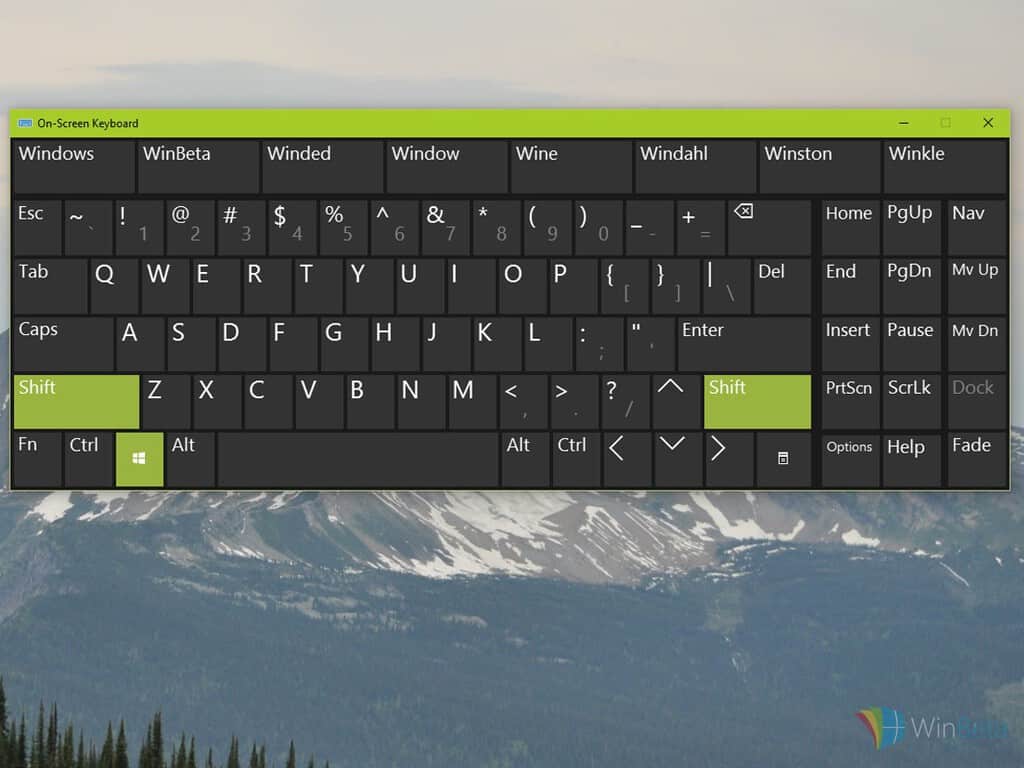
The On-Screen Keyboard in the Windows Ease of Access folder is not the same as the touch keyboard which pops up in tablet mode. Instead, this virtual keyboard is more of a digital reconstruction of a generic keyboard and comes complete with keys such as Home, End, Print Screen, Scroll Lock, Page Up/Down etc. This keyboard has not been optimized like the standard touch keyboard but does have word prediction which can speed typing up. I find the On-Screen Keyboard to be very handy if I am having issues with my computer detecting my keyboard and I need to enter commands. Although since Windows 8, the touch keyboard has been better for text entry than the On-Screen Keyboard.
Finally, the Windows Speech Recognition closes out the Windows Ease of Access folder. This tool lets users control their computers with their voice. The commands are not as simple and fluid as using Cortana but they are much more powerful. In fact, the entire OS can be controlled using the Windows Speech Recognition tool, granted using the tool can be clumsy and awkward to use. Nevertheless, anyone who wishes to have complete control of Windows with their voice has this functionality today with the Windows Speech Recognition tool.
[pullquote align=”full” cite=”” link=”” color=”” class=”” size=””]”OneNote serves as a single program to replace six of the thirteen Windows Accessories”[/pullquote]
All of these legacy desktop programs stand to remind us of how using a computer used to be with a different tool for every function. Now OneNote serves as a single program to replace six of the thirteen Windows Accessories and not only that OneNote does so much more. Windows 10 looks different from Windows 7, but it also works differently; hopefully better. Lucky for those who are not ready to jump on the app train just yet, Microsoft has kept the old toolbox around for those rainy days when an app just doesn’t cut it. These accessories stand as another reminder that when all is said and done Microsoft offers their users the choice to get work done how they please and with the tools they are comfortable with. But if, or when, those users want to move into the modern age of computing with cloud connected apps which run across platform, Microsoft is there too.
If you are a gamer you probably want to get the maximum performance out of your hardware. This is why many AMD users are using Crossfire technology to get the most out of their graphic cards, but sadly, there are reports that Crossfire isn’t working with Windows 10.
What to do if AMD Crossfire Doesn’t Work in Windows 10
Crossfire technology was developed by AMD back in 2005 and it is used to combine two AMD graphic cards to get better performance. This idea sounds great on paper, and many gamers are using this technology to get the maximum performance while gaming. According to reports second GPU isn’t detected on Windows 10, and there’s no support for Crossfire on Windows 10, although it works perfectly on previous versions of Windows. So what can we do to fix this?
Solution 1 – Update your display drivers
Updating your display drivers may be a hard task if you are doing this for the first time. We suggest you try a dedicated driver updater tool that will find and update all the outdated drivers from your PC save and fast.
Using a specialized tool you will also avoid any risk of getting malfunctions.
Solution 2 – Unplug your second monitor
If you’re using two monitors, you might want to unplug second monitor before installing AMD Catalyst drivers. After you have installed the drivers, you can enable Crossfire and then plug in your second monitor. This is a simple workaround, but for some reason Crossfire won’t stay enabled in Catalyst Control Center when the second monitor is plugged in. As you can see, this isn’t the best solution, but it’s a simple workaround that might work for you.
Dragon Nest is a popular free-to-play Massive Multiplayer Online Role Playing Game. Like any MMORPG, you must invest a lot of time into it. Unfortunately, users have reported that the Dragon Nest launcher is not working on Windows 10, and today we’ll try to solve that.
What can I do when Dragon Nest is not launching?
Tip
Users report that Dragon Nest used to run smoothly on previous versions of Windows, but after the update to Windows 10, the game won’t start. This is quite unusual, so let’s see if we can fix that.
1. Try running the game as an administrator
This is a pretty straightforward and simple solution, it might not work for you, but it’s still worth trying.
Locate the Dragon Nest shortcut.
Right-click it and choose Run as administrator from the menu.
2. Change folder permissions
Locate your Dragon Nest installation folder and right-click it.
Select Properties from the menu and go to the Security tab.
Click the Advanced button at the bottom.
You should see the owner’s name at the top of the window.
Click the Change link next to the owner’s name.
If you get a UAC prompt, just click Yes.
In Select User or Group window, click on Advanced.
Next, click Find Now and select your user name in the list below.
Click OK to select it.
Check the Replace owner of subcontainers and objects box.
Click OK to perform the changes.
If you get Windows Security asking for your confirmation, click Yes to confirm.
Locate the Dragon Nest shortcut and right-click it.
Choose Properties from the menu.
Go to the Compatibility tab.
Check the Run this program in compatibility mode for and choose some of the older versions of Windows.
Click Apply and OK to save your settings.
4. Reinstall the game and apply all the patches
If nothing else works, you could try to uninstall the game completely and then reinstall the most recent version with all the latest patches. This should help when Dragon Nest is not launching on Windows 10.
If this doesn’t help, you might want to contact the game developers for more information about this issue.
Tell us which fix worked for you in the comment section below.
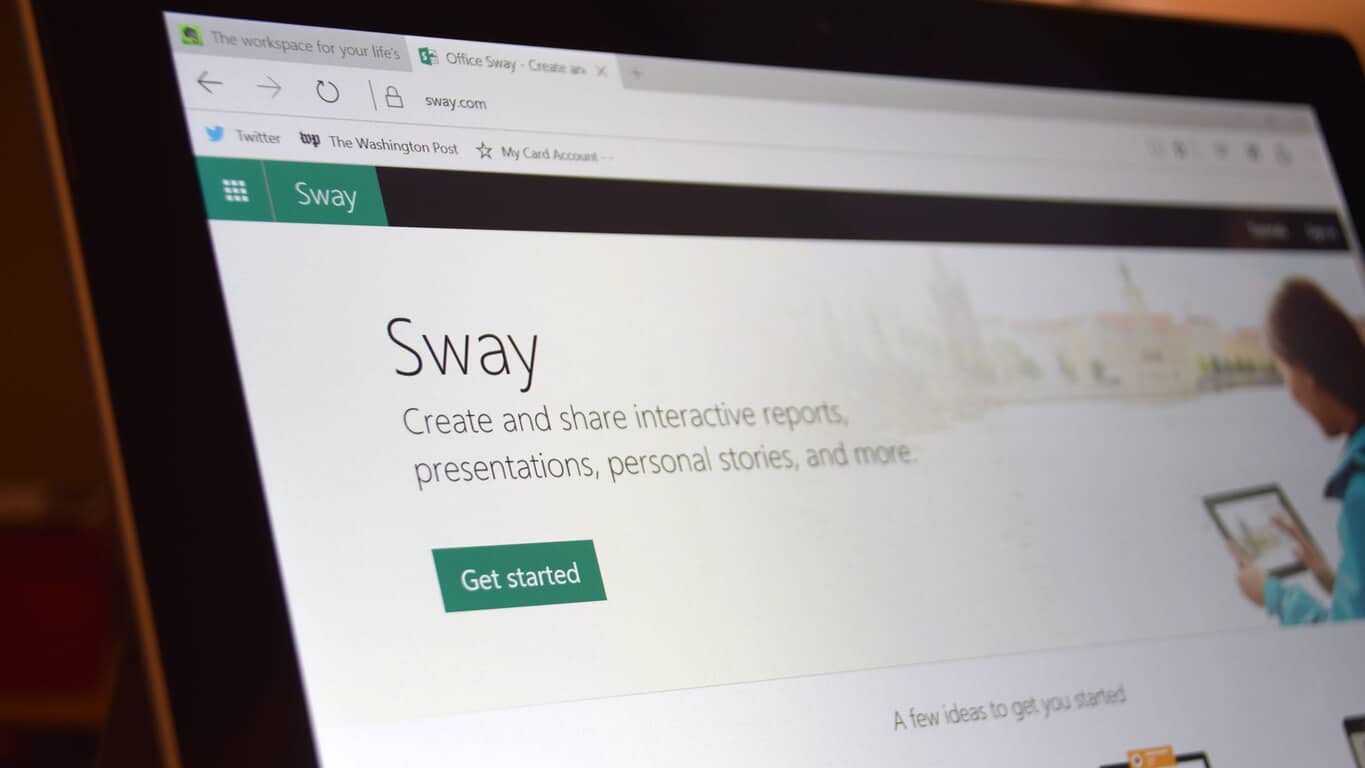
Microsoft Sway is a great tool for presenting stories using graphics and video, and OneNote is one of the best note-taking and organizational tools out there. It’s no surprise, then, that when Roads & Kingdoms wanted a set of tools to help them bring travel guides into the 21st century, they turned to Sway and OneNote to get it done.
In a joint project with the help of Microsoft and publisher HarperCollins, Roads & Kingdoms has produced a set of “digital travel collections” using Sway as the foundation, to go along with city guides built on OneNote. The tools are focused on the geography and culture of Japan, and take the concept of the travel guide to places it’s never been before.
Sway and OneNote help extend the travel guide to new dimensions.
According to Roads & Kingdoms founder Matt Goulding:
“The guidebook genre has long been in need of a reboot,” says Goulding. “We see the way forward as a two-part experience: a deep, narrative-driven book to give readers the inspiration they need to travel to Japan, plus a detail-rich digital guide to arm them with the information they need once they get there. Microsoft, with its variety of excellent digital platforms that fit perfectly into the food and travel space, is the perfect partner to bring that second part to life.”
The guide allows travelers to create their own stories.
One example of how Sway can extend the paper travel guide is in how Roads & Kingdoms handles one culinary treat, ramen noodles:
Take ramen as an example of the depth and breadth of the Sway guidebooks. There’s an entire digital guide to the iconic noodle soup in Fukuoka—the spiritual home of ramen, where more than 2,000 ramen shops ply their trade. Not only are there a series of recommendations for the best bowls in Fukuoka, the Sway travel guide includes a specialty map outlining the ultimate ramen crawl, an infographic on Japan’s regional ramen styles and a video clip from “Tampopo,” Japan’s most famous ramen film. This is the ultimate ramen digital guide in the palm of your hand, making it not just a vital collection of expert recommendations, but also an educational and entertainment tool.
OneNote’s contribution is to provide the foundation for a personalized travel guide. You can download one of seven specific city guides as OneNote notebooks, and then mix and match information to create your own guided tour of Japan. Some of the things you can do include:
Combine travel guides
Create a custom sightseeing to-do list
Tag itinerary details
Access your customized OneNote guide even when offline
Of course, you can even use Sway to create your own multimedia trip down memory lane, and share it to friends and family.
The entire collection can be accessed and downloaded via roadsandkingdoms.com/japan, and the team also provides a helpful overview of how to best make use of the guide. Remember that you can download a free version of OneNote for just about any platform, as well access it online. Go to OneNote.com to get started.
Ever since unveiling the first version of the Surface Pro, Microsoft has always made clear its intention to target the market of creatives, one of the strongholds of its chief rival, Apple, and the Surface line has never made more sense to creatives with the arrival of the Surface Book and Surface Pro 4. With their new blog post, Microsoft is making the case for their new Surface device to a specific niche of content creators: musicians.
While the focus is on the Surface Book, the discussed advantages also applies to its tablet sibling, the Surface Pro 4. A video shows artist Thavius Beck and the Surface Book in various use cases, highlighting the hardware features that sets it apart from competitors. Whether on stage, at a studio or at home, the Surface Book’s multitude of input options; touch, pen, keyboard, ensures limitless versatility. The touch screen in particular is used extensively and works great with supported software to provide a more natural way for musicians to interact with their tools. The Surface Book’s powerful internals ensure that content creation is smooth and fast, using top-class, full-featured software that’s only available on a desktop OS like Windows.
No matter how advanced the hardware, it’s the software that makes or breaks it for users, and frankly, with full desktop-grade Windows 10 on board, the Surface Book has it in spades. All Windows-compatible content creation programs are supported, and Microsoft has taken the chance to highlight some new and old favorites among music creators. Bitwig Studio is a popular dynamic music creation software and version 1.3 brings improvements designed for Surface Book, but should be a boon to any premium hybrid machine, including better touch controls optimized for the high-resolution PixelSense screen with various scaling levels, a new special touch music keyboard, radial menu, and the ability to change music effect with pen pressure.
A new version of the relatively fresh music annotation Windows Store app StaffPad also gets a mention, as it’s fully updated and designed for Windows 10 and Surface. The new version brings a home screen that reacts to time and weather information and usability improvements. An “exciting new voice activated smart assistant” was also added to the app; whether this means close integration with Cortana, or an entirely new digital assistant remains a mystery, and will only be solved when the new version goes live later this month.
Finally, music composition behemoth Avid Sibelius also gets a Surface-optimized makeover, shown off in a video made with University of Southern California members.
The Surface Pro 3 started the trend of content creation software being adapted to its unique hardware proposition with Adobe Creative Cloud, and it looks like Microsoft is riding the train well with the new Surface Book. As more and more traditional programs are optimized for high-resolution screens and embracing new inputs found on hybrids, it will be interesting to see how far Microsoft can go in resonating with creatives and trendsetters, who has always been in the firm grip of Apple. In the meantime, check out our hands-on of the Surface Book, and stay tuned for upcoming news. Cover photo showing StaffPad, courtesy of Microsoft Blog.
The Windows Maps app received a nifty update today, bringing it up to version 4.1510.2941.0 on both Windows 10 and Windows phones (it’s a Universal app, after all). The update adds in a few welcome features that bring Microsoft’s cartography solution a little closer to parity with the competition.
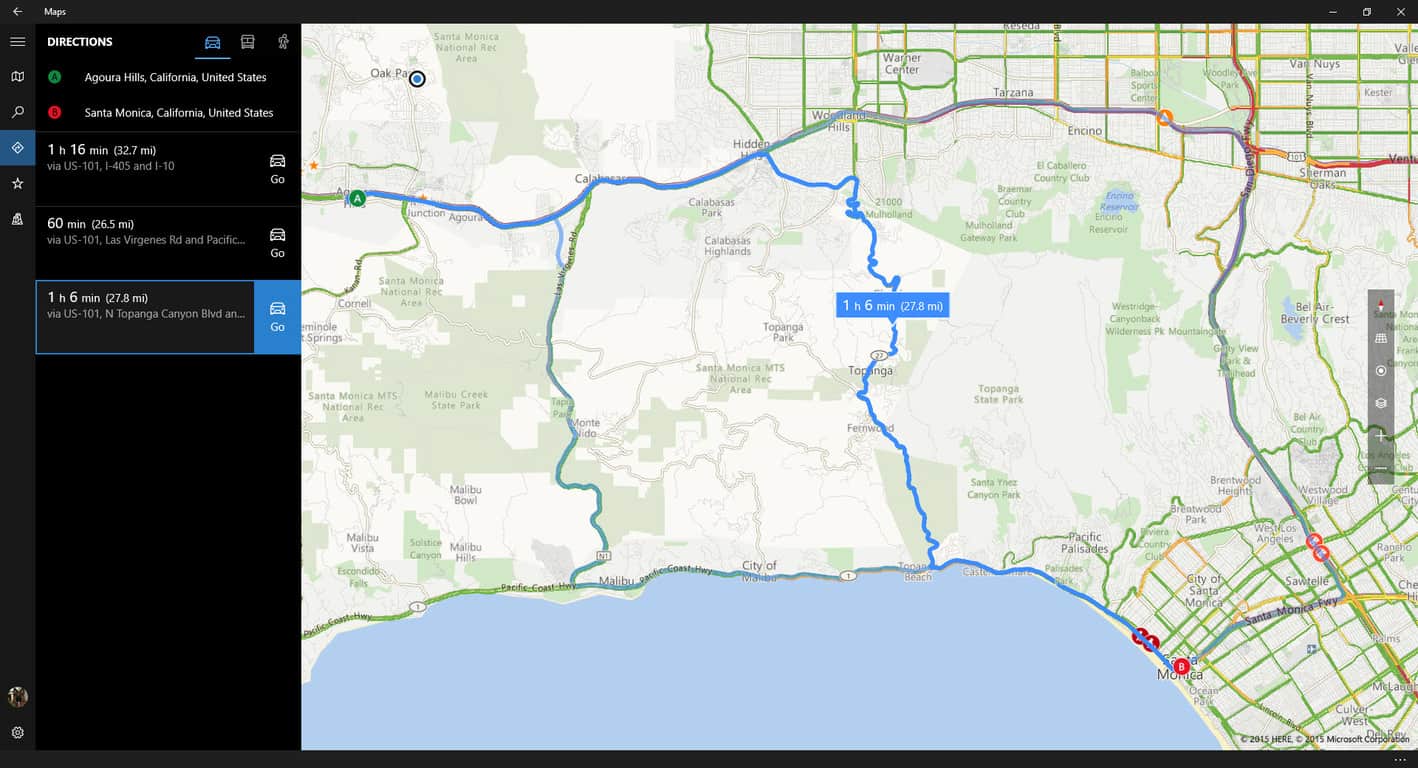
First, Windows Maps now offers up multiple routes to a destination along with their impact on time and distance (presumably factoring traffic into the equation). Now, you can see which route will get you to where you need to go with the least muss and fuss.
Windows Maps will now show you multiple routes to a destination.
Additional updates include the ability for Windows Maps to remember where you parked, so you’ll avoid the embarrassing lost-in-the-woods look as you wander around a parking lot trying to find your ride. And, in a very Google Maps-like fashion, Windows Maps will now present a street view of the destination at the end of a route, helping to make sure that you’re actually where you’re supposed to be.
Go ahead and hit the update button, or download the app from the link below if for some reason it’s not already on your Windows devices.
If you’re like me, you probably installed the latest Windows 10 Insider build on your new Surface Book. Why? Because you want to test out the latest in what Microsoft has to offer. If you just purchased a brand new Surface Book, here’s what you need to do in order to update to the latest Windows 10 Insider build.
First, fire up the Settings app and head over to Update & Security. Tap or click on Windows Update and then Advanced options. Under the “Get Insider builds” category, tap or click on get started. You will receive a prompt asking you if you are an Insider, and you will have to sign in with your Microsoft Account.
Once you are signed into your Microsoft Account, you will be taken back to the Advanced options page in Settings and you will now be able to download the latest Windows 10 Insider builds. Hit the back button and check for updates to snag the latest preview build available! Happy testing folks!
The Surface Book comes with an awesome precision touchpad and it also comes with the ability to use touchpad gestures to make your Windows 10 experience that much better. All you have to do is head over to Settings > Devices > Mouse & touchpad and tinker with a few settings.
You can adjust settings for three finger tap, four finger tap, and three finger drag/slide. For example, with a three finger tap on the touchpad, I currently have Cortana set to open. You can change this to open the Action Center instead, or disable this shortcut completely. With this gesture, all I have to do is use three fingers to tap on the touchpad to immediately fire up Cortana for a search. How cool is that?
I have the Action Center open up with a four finger tap, but you can change it to open Cortana instead or have it disabled. With a three finger drag/slide, I kept it at the default setting of “switching apps.” You can disable this option as well if you don’t see a need for it. Basically, you can use three fingers to drag down on the touchpad and this will automatically switch through your open apps.
You can also adjust various other touchpad settings by heading over to Settings > Devices > Mouse & touchpad. For example, you can enable or disable two finger tap for right click as well as two finger pinch to zoom. Give it a try and see if it helps improve your Surface Book experience!
Multimedia is a huge part of our Windows 10 experience, and it can be a big problem if you can’t enjoy multimedia content to the fullest on your PC.
Speaking of multimedia issues, some users report that they cannot use Creative Console Launcher or Control Panel for Soundblaster cards, so let’s try to fix that.
This issue seems to affect Xi-Fi Platinum Fatality cards from Soundblaster, and like most incompatibility issues, the main cause is driver incompatibility.
According to users, audio works fine, but they cannot access the Creative Console Launcher and the Control Panel. There are a few things that might fix this issue.
What to do if Creative Console Launcher doesn’t work in Windows 10?
1. Install Daniel K’s driver pack for Windows 10
Daniel K, a forum user on Creative Forum, created the driver pack for Creative cards. He’s been working on that pack for years, and although his driver pack is unofficial and not supported by Creative Labs, it seems to work better than the drivers that Windows 10 installs.
Although Daniel K’s pack isn’t perfect and has some flaws, such as not being able to save software settings, it will fix problems with Creative Console Launcher or Control Panel for Soundblaster cards. His driver pack supports a variety of Creative cards, and you can download it from here.
2. Revert to the default driver and install Creative Console Launcher separately
If installing Daniel’s drivers didn’t get the job done, you can try one more solution. You can try to revert to the default driver and then install Creative Console Launcher separately. Here’s exactly what you need to do:
Go to Settings > Apps & Features and uninstall everything that is related to Creative.
Restart your computer.
Go to Device Manager and find your Creative audio drivers.
Uninstall the drivers.
Windows should now install its own drivers.
Restart again.
Enter Device Manager once again and find your newly installed drivers.
Right-click them and choose Update.
Choose Browse my computer > Let me pick from a list of device drivers on my computer and choose the latest one.
Now, you need to download Creative Console Launcher and install it.
Just bought a new Surface Book? It comes with the Surface Pen and if you are unable to pair the two during your initial setup, here’s a quick and easy way to do it. All you have to do is head over to the Settings app, tap or click on Devices, then tap or click on Bluetooth. Ensure Bluetooth is turned on and then hold down the top of the Surface Pen for approximately seven seconds.
Here’s a quick breakdown of what you need to do:
Go to Start , and select Settings > Devices > Bluetooth.
Make sure Bluetooth is On.
Hold down the top button of the pen for about seven seconds, until the light at the rear of the pen clip starts to flash.
You’re done! You should now see that the Surface Pen is paired to your Surface Book. If you click the top of the pen, OneNote should immediately launch, allowing you to quickly take notes while on the go. A very convenient feature indeed!