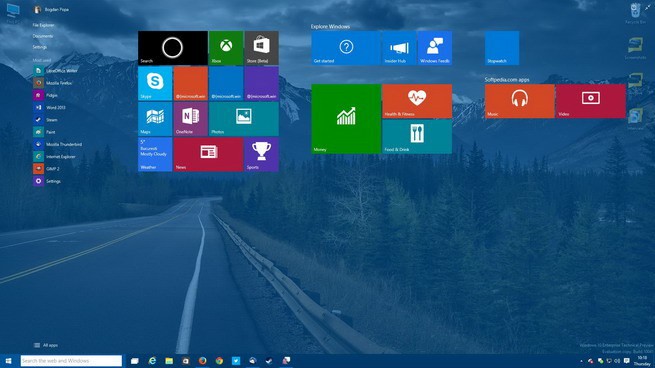
Windows 10 build 10041 receives updates, addresses vulnerabilities, Start screen issues, and more

Tuesday updates for Build 10041 address vulnerabilites, task view, and start screen issues

Some of you may be like me and check for an update every Tuesday for your Windows device. Usually if there are no big updates, you can at least count on a Windows Defender update. Well, today’s updates pack a few more tweaks than just updating Windows Defender.

According to Gabe Aul, the General Manager of the OSG Data and Fundamentals team over at Microsoft, there is an update waiting for Insiders running Windows 10 Technical Preview build 10041. There are three updates, addressing issues with the Start screen transparency, a fix for the Task View, and a patch for a pretty nasty vulnerability.

Update (KB3050284)

  • This update resolves a problem that may result in a transparent Start screen and Task view, transparencies when snapping or dragging windows, and can cause desktop thumbnails to appear as black squares.
  • This update resolves a problem that results in severe graphical artifacts on screen when Magnifier is launched in docked or lens mode.
  • This update contains a reliability improvement to resolve a common system crash.

Update (KB3050279)

  • Sharing the desktop in a meeting causes remote users to see a black rectangle instead of the desktop in the Lync client.
  • On Microsoft Surface Hub, selecting the I’m Done button may cause the user interface to crash, thus making the Call, Whiteboard, and Connect buttons nonfunctional.
  • If the Connect app is closed via the task switcher and then restarted, it may crash.

Patch (MS15-031)

  • This security update resolves a vulnerability in Microsoft Windows that facilitates exploitation of the publicly disclosed FREAK technique, an industry-wide issue that is not specific to Windows operating systems. This vulnerability could allow a man-in-the-middle (MiTM) attacker to force the key length of an RSA key to be downgraded to EXPORT-grade length in a TLS connection. Any Windows system that uses Schannel to connect to a remote TLS server by using an insecure cipher suite is affected.

If you’re an Insider currently running Build 10041, take out 10 minutes today and visit the Settings app to grab the new updates.

Microsoft to set Spartan as the default browser on Windows 10, and will remove IE's Trident from it

Microsoft to set Spartan as the default browser on Windows 10, and will remove IE's Trident from it

When Microsoft announced Spartan, the company planned to make it the one browser needed to take advantage of the latest web standards, as well as one that supported legacy websites. Those plans have since changed, and Microsoft has shifted the focus of its next-gen browser.

In a feature we posted last month, we described Microsoft’s thinking behind Project Spartan. Microsoft thought it was important that the browser supported the latest web standards, in addition to making it easier for web developers to write code for modern browsers, knowing that the code would just work on Spartan without browser-specific enhancements. To accomplish this, Microsoft was to include both the new Edge rendering engine as well as the Internet Explorer’s existing Trident rendering engine in Spartan and IE. This would allow both browsers to rapidly render modern sites with Edge, and automatically switch back to Trident when a user tries to render older/legacy sites.

Microsoft to set Spartan as the default browser on Windows 10, and will remove IE's Trident from it

Upon further evaluation of this strategy, Microsoft has concluded that this is not the right approach going forward, and has decided to remove Trident completely from Spartan. Trident isn’t going to die though as it will still be available in Internet Explorer on Windows 10. So, you have Spartan with Edge, and IE with Trident. Both browsers will come pre-installed in Windows 10, with Spartan set as the default.

Why is Microsoft doing this you ask? According to a recent Microsoft blog post, there are three main reasons. The first, is that a separation of new and legacy rendering engines will enable Microsoft to more easily deliver on its promise of providing Windows as a service, updating the browser with new standards on-the-go. The company also cited that only a small percentage of users needed Trident to access older sites.

Microsoft to set Spartan as the default browser on Windows 10, and will remove IE's Trident from it

The second reason for the separation is enterprises. We know how stubborn large enterprises can be when it comes to upgrading software, and Microsoft states that “for Internet Explorer 11 on Windows 10 to be an effective solution for legacy scenarios and enterprise customers, it needs to behave consistently with Internet Explorer 11 on Windows 7 and Windows 8.1”, and having Edge as part of IE – as it is in the Technical Preview – could cause “compatibility implications”.

Microsoft to set Spartan as the default browser on Windows 10, and will remove IE's Trident from it

“For a small set of sites on the Web that were built to work with legacy technologies, we’ll make it easy for customers to access that site using Internet Explorer 11 on Windows 10. Enterprises with large numbers of sites that rely on these legacy technologies can choose to make Internet Explorer 11 the default browser via group policy. In addition, since Internet Explorer 11 will now remain fundamentally unchanged from Windows 7 and Windows 8.1, it will provide a stable and predictable platform for enterprise customers to upgrade to Windows 10 with confidence.”

Thirdly, according to the software giant, feedback garnered from Windows Insiders indicated that both regular consumers and developers were having a hard time differentiating between the web capabilities of Spartan from that of IE. This resulted in a confused mess and it made more sense to just separate the browsers and their respective rendering engines, leaving Spartan for those who want a bleeding-edge browser, and IE for those that need to access legacy websites.

Although both browsers will be included in Windows 10, “Project Spartan is our future” says Microsoft. We don’t yet know whether this separation only applies to the desktop, or whether it will also be the case on Window 10 for phones too, but Microsoft should be releasing more information on the matter over the coming months. Stay tuned to WinBeta for the latest.

Fix: Unable to Find Build 10041 for Windows 10

A coupe of days ago Microsoft announced its new 10041 build for Windows 10 Technical Preview. But some users experienced a problem as they weren’t able to find the new build when they checked for updates. Fortunately, this is a minor problem, and we have a solution for it.
Unable To Find Build 10041 Build For Windows 10
Maybe everything is okay, but the new build just didn’t reach to you yet. You can choose how fast you want to receive new builds, and if your settings are not set to Fast, you maybe just need to wait for a couple of days. To check if your ‘updates receiving settings’ are set to Fast, go to Settings > Update & Recovery > Advanced options, and Choose how preview builds are installed, and check if it’s set to Fast. If you’re already using Fast method, but you’re still unable to receive updates, something in your Registry is not set correctly. There are two ways to fix this, and we’ll show you both.

Solution 1 – Install the Windows Update that will reset your Flight Registry Settings

You can download the update directly from the Microsoft Update Catalog. There’s the update designed specially for problems of this kind. You just have to install it, and then check for updates again. Just go to https://catalog.update.microsoft.com/v7/site/Search.aspx?q=3038930, download the update, install it, and check for the new build again.

Solution 2 – Do some editing in your registry

But, if you’re somehow not able to install the update, you can instead edit the registry yourself. But be aware, you can apply this steps only if you’re running a 9926 build of Windows 10 Technical Preview, with Choose how preview builds are installed set to Fast:

  1. Open regedit.exe
  2. Navigate to HKEY_LOCAL_MACHINE\SOFTWARE\Microsoft\WindowsSelfHost\Applicability
  3. Ensure the following values exist:
    • {value name}, {value type}, {value data}
  4. BranchName, REG_SZ, fbl_impressive
  5. ThresholdOptedin, REG_DWORD, 1
  6. ThresholdRiskLevel, REG_SZ, low
  7. Delete all other values
  8. Open Settings > Update & recovery > Windows Update
  9. Tap or click Check for updates

Read Also: Fixed: Folder’s View Settings Continuously Changes

Microsoft: Rumors of Internet Explorer's demise have been greatly exaggerated

Extended Enterprise Site Discovery support for IE8, IE9, and IE10 proves IE will be around for a while

Reports on the death of Internet Explorer caught like wildfire last week. Without out any substantial information, some news outlets spun an execution story of IE similar to the, “look at the flowers” meme based on a scene from this season’s Walking Dead tv show. Today, the IE team is carving out time to reassure people (specifically enterprise), that they hadn’t quite unholstered their side piece yet when it comes to the support for Internet Explorer.

Perhaps the tarnished brand of Internet Explorer will become increasingly deprecated over the next few years. Microsoft may even look to reduce it’s appearance in marketing material or in the promotion of Windows going forward, but the browser (more importantly, the functionality) itself will still look to service enterprise who move at glacier speed to new technologies.

In today’s blog post, the IE team is announcing two new updates that can now be found in the Enterprise Site Discovery options found in IE8, IE9, and IE10. This update includes expansion of Enterprise Site Discovery for older browsers as well as the ability to scope enterprise sites by zones and domains. 

Enterprise Site Discovery on IE8, IE9, IE10, and IE11

Originally shipped in November of 2014 for IE11, the same Enterprise Site Discovery support and enhanced privacy options are now bundled in an update this month to support previous versions of IE. The updates allow IT Pros discovery items like, which of their Enterprise line of business applications are being used- and how. The expansion for older browsers is especially useful for enterprise who deal in dreaded ActiveX documents. IT pros who deal with ActiveX can now prioritize their testing of apps leveraging that technology specifically.

Extended Enterprise Site Discovery support for IE8, IE9, and IE10 proves IE will be around for a while

Scoping Enterprise Site Discovery

Beyond simply expanding discovery to previous versions of IE, the second part of this month’s update gives IT pros the tools to specify which zones and domains are included in the information gathered from Enterprise Site Discovery. This discovery tool set now helps paint a clearer picture for IT pros as to how IE is being used in their deployment with real-time user date.

Extended Enterprise Site Discovery support for IE8, IE9, and IE10 proves IE will be around for a while

The IE team does point out that once the update is collected from the Enterprise Site Discovery Toolkit, most of the above features will be turned off by default. When enabling the features, IT pros will be able to collect data from all sites visited by users with IE except for those browsing in an InPrivate browsing session. The information gathered is done so silently, and there is no end-user notification so employees can continue with all that productivity they should be doing.

Fix: Windows 10 App Store Has Stopped Working

Crashing of Windows App Store is very annoying thing, especially if it crashes when you need it. This problem is present every version of Windows, from Windows 8, to the latest build of Windows 10 Technical Preview (10041), but there’s a solution.
Windows App Store Has Stopped Working

Solution 1: Check if Windows Store service is enabled

I suggest you to check if the Windows store service and the Windows update service is running. Refer to these steps:

Maybe your Windows Store service has stopped working for some reason, to check that, do the following:

  1. Press Windows key and R at the same time and type services.msc
  2. Locate the Windows store service and the Windows update, and check if these services are running
  3. If not, right click on each service and select Start to start the service manually
  4. Also, right click on each service, select properties and set the startup type to Automatic

Solution 2: Fix the registry with Command Prompt

Maybe your problem lays somewhere in the Registry. To fix that, you’ll have to write a few lines in Command Prompt, and here’s exactly what you should do:

  1. Press Windows key and R at the same time and type cmd
  2. Open Command Prompt as Administrator
  3. In Command Prompt enter the following line:
    • powershell -ExecutionPolicy Unrestricted Add-AppxPackage -DisableDevelopmentMode -Register $Env:SystemRootWinStoreAppxManifest.xml
  4. Hit Enter, and after that, add this line: start "" "ms-windows-store:"
  5. Hit Enter again

Solution 3: Create a new user account

If previous Registry fix didn’t solve your problem, you can also try to create a new user account and see if it will work. To do that, follow these instructions:

  1. Press Windows Key and W at the same time
  2. Type Users in the search box and select “Users” option from the left panel.
  3. Select “Add Users” under “Other users” option.
  4. Add the user profile details.
  5. Then login to the new user account and then check if the issue is fixed

.Hope some of these steps helped you with your Windows Store problem, if you have any comments or suggestions, please write them down in the comments section below.

Read Also: Fixed: Folder’s View Settings Continuously Changes

WinBeta Poll Results: From where did you obtain your copy of Windows?

WinBeta poll results: Where did yo obtain your copy of Windows from?

Last week, Microsoft announced that pirates will be able to upgrade their existing copy of Windows to Windows 10 free of charge, but then quickly backtracked and clarified that while the upgrade to Windows 10 will be possible, it won’t give pirates a genuine license.

What began as an internal discussion around how many of our readers will be affected by Microsoft’s decision to not grant pirates a genuine copy of Windows 10, turned into a poll, and the results are in. Almost 2000 of you (1925 to be exact) voted letting us know where you obtained their copy of Windows from.

As it turns out, most of our readers (38%) got their hands on Windows along with a new PC, so the cost of a Windows license was included with the cost of the device they purchased, be it a new desktop, laptop, or tablet.  

WinBeta poll results: Where did yo obtain your copy of Windows from?

17% said they bought a retail/boxed copy of Windows to install on their computers, and another 16% said that they bought Windows online, either directly from Microsoft.com or from other online stores we assume. We know that some schools and workplaces will provide Windows to their students and employees, sometimes for free and sometimes for a nominal fee and 13% of you stated that that is how you obtained your copy.

So in general, 84% of our readership legally obtained Windows and are running a genuine copy, which is a very good number. Once Windows 10 is released you should have no issues upgrading and retaining your genuine license.

As for the other 16% who have downloaded Windows via shady means, we strongly recommend you purchase a genuine license. The pre-activated copies of Windows you obtained from torrent sites can easily include malicious software that will put your private information at risk.

WinBeta poll results: Where did yo obtain your copy of Windows from?

(Superfish, which was preinstalled by Lenovo, is a small example of what seemingly safe software is truly capable of)

A recent study from research firm IDC concluded that the chances of getting infected with tracking spyware, trojans, and malicious adware are 1 out of 3 if you download pirated software. You can check out the full study on the dangers of pirated software here.

“The dangers from counterfeit software are real. For consumers, it is not just lost time and money to fix the problem but also the risk of lost data and identity theft. For enterprises and governments, it is time and money better spent on other things, lost business and reputation from data breaches, and threats to critical infrastructure.” – IDC

If there’s a good time to buy Windows, it’s now. Microsoft announced that it will provide Windows 10 “as a service”, meaning that users will continue to enjoy feature updates down the line without having to wait for a new version of Windows to come out, and without having to purchase a new license.

WinBeta poll results: Where did yo obtain your copy of Windows from?

Buying Windows is a relatively easy process, if you are uncomfortable paying $199 for Windows 8.1 from the Microsoft Store, you can always head over to sites like Amazon.com (or its regional sites) and download Windows for a discounted price ($89.99 as of today). If you are a student, Microsoft sells Windows 8.1 for an even cheaper $69.99. You could even opt to buy Windows 7 on the cheap and still be eligible to upgrade to genuine Windows 10 for free once it launches. Microsoft has also confirmed that it intends to allow those on the Windows 10 Technical Preview to upgrade to the final version, but we are unsure at this time if that will require a license purchase. 

Always use genuine Windows and keep your PC up-to-date with the latest security updates. You may not think that you have anything of value worth stealing on your PC, but having your identity stolen is not something worth risking. It’s no pleasant experience when someone gets a hold of your passwords and proceeds to wreak havoc on your finances, social networks and personal contacts. It can be very damaging. Better safe than sorry.

Fix: Windows Apps Show X in The Bottom Right Corner

Build 10042 of Windows 10 Technical Preview is out, and everyone is  solving problems that the new build brought, but we mustn’t forget problems from ”old,” Windows 8. One of the most common problems of Windows 8 is appearance of “Xs” in the bottom right corner of Metro apps. But fortunately, there’s a solution for this issue.
Windows 8.1 Modern Apps Show X In The Right Corner

Solution 1: Re-register Windows Store Apps

Maybe your apps are unable to start because of some User Account issues in your system. This problem could be solved by creating the new admin account, because Windows automatically sets default options for new accounts. To re-register your apps, you don’t even need an internet connection, because it could be done with PowerShell. To re-register your Modern apps using PowerShell, perform the following steps:

  1. Press Windows Key and Q at the same time, type powershell and select Windows PowerShell from the results
  2. Right click over it and choose Run as administrator
  3. In the administrative Windows PowerShell window, type following command and hit Enter key then:
    • Get-AppXPackage | Foreach {Add-AppxPackage -DisableDevelopmentMode -Register “$($_.InstallLocation)\AppXManifest.xml”}

Solution 2: Sync licenses in App Store

If re-registering your apps didn’t help, you maybe have some problems with synchronization. The “X” in the bottom right corner of the live tiles could represent an issue with the license, or maybe with Windows App Store. To solve this issue, you just need to go to Windows App Store and do the following:

  1. Launch the Windows Store
  2. Open Settings, select App updates
  3. Click Sync licenses under the App licenses section

If none of these solutions worked, you can also try to reinstall all apps that are showing “X” in the bottom right corner and hope that it will disappear after the apps are installed again. If you have some additional comments or suggestions, please write them down in the comments, below.

Read Also: Fix: Problems with Host Process for ‘Synchronization’ in Windows 10 Surface Pro 3

Windows 10 news recap: Build 10041, pirates and a summer release

Windows 10

Another Windows 10 news week is behind us, and this week we got a brand new Windows 10 build to play with! The build was compiled on Friday and it comes with new functionality and a bunch of bug fixes. There’s a new Start experience with transparency, improvements made to virtual desktops where you can drag applications from one desktop to another making for faster and easier multitasking, and Cortana is now available to new markets such as China, the UK, France, Italy, Germany, and Spain.

Up next, Microsoft claimed that they were planning to get Windows 10 out the door by summer this year in 190 countries and in 111 different languages. Windows 10 will be a free upgrade for hundreds of millions of customers running Windows 7, Windows 8.1, and Windows Phone 8.1 for the first year after it is released.

Furthermore, the company announced a new feature coming in Windows 10 called Hello. Windows Hello will be able to use your fingerprint, face, or iris to authenticate you and allow access to your device. In addition to Windows Hello, Microsoft has also announced a service code named ‘Passport’ that aids in authenticating users without storing a password on a server.

Also this week, the company announced and then unannounced that Windows 10 would be free for pirates. Pirates upgrading to Windows 10 will likely face the same 30-day trial experience where once that period of time expires, users will not be able to log into their PCs. It is yet to be seen whether Microsoft will include added limitations to non-genuine Windows 10 installs or implement stricter security measures to prevent piracy in the OS itself.

And finally, a newer build of Windows 10 for phones saw a number of screenshots leak onto the web. The screenshots reveal an improved UI across a number of areas of the OS, as well as new icons for the status bar. The UI improvements mirror that found on Windows 10 for the desktop, considering both operating systems share the same code this is to be expected. It’s good to see Microsoft finally bringing both their mobile and desktop operating systems together in these latest screenshots.

There you have it, another week of Windows 10 news done and dusted. What was your favorite Windows story this week?

WinBeta Podcast 7: Windows 10, Windows 10, and more Windows 10

WinBeta

Welcome to another edition of our weekly podcast, where this week we talk about a plethora of Windows 10 news which broke throughout the week. If you haven’t already listened to our previous episodes, you can check them out on your favorite podcast clients including SoundCloud, TuneIn, iTunes, and the Windows Phone Podcast app. Eager listeners can also use the RSS feed provided below to use their favorite applications not aforementioned.

This week, the team discusses the new Windows 10 build 10041, leaked Windows 10 for phones screenshots, the death(?) of Internet Explorer, and many more interesting stories of the week. Get listening via the embedded player below!

Just a heads up for those interested, next week we are planning to do the podcast live, with video! It’ll be an interesting experience for all of us, and we hope you can join us for the ride. We’re not too sure on the specifics just yet, but we do know it’ll be on Friday. We’ll write up another article in the week with all the details you need to know.

Included stories this week:

Forget SKUs, Microsoft is creating 'classes' of Windows 10 IoT instead

Forget SKUs, Microsoft is creating 'classes' of Windows 10 IoT instead

Just when we thought Microsoft had played all its cards this week at its WinHEC conference in Shenzen, today we are finding out that the Windows 10 project is much larger than some of us initially realized. We’ve reported on a truckload of Windows 10 for desktop news, we’ve reported on sprinklings of Windows 10 for phone news, and now we also have insights into apps, hardware, and availability to some degree. Today we find out some more news about Microsoft’s plan for Windows 10 and the Internet of Things.

Some may have thought that support for Windows 10 on Raspberry Pi 2 was the path Microsoft was going to adopt for IoT. However, the version of Windows 10 supported by the Raspberry Pi 2 appears to be a scaled down and customized version of Windows 10. Moving forward Microsoft will have an entirely new edition of Windows 10 creatively called “Windows 10 IoT”.

Within this “Windows 10 IoT” edition, there will be three ‘classes’, one for mobile devices, one for small devices, and one for industry devices. Please, note the absences of the term ‘SKU’ as Microsoft goes to great pains not to refer to the new classes as Stock Keeping Units (SKU’s). Perhaps for the best.

Forget SKUs, Microsoft is creating 'classes' of Windows 10 IoT instead

Unlike the much-debated disaster that was Windows RT, each class will be linked together with support for universal apps and drivers making them somewhat interoperable with each other. This level of interoperability extends the deployment options for app developers looking to target beyond desktops, laptops, tablets and game consoles.

While the idea of Twitter being on something like the HoloLens may not be that appealing, it does speak to the developer community that seems to be migrating at speed, away from the Windows platform. The ability to have a development experience be very similar while targeting a broad audience on various devices should not be overlooked. And now for the nitty gritty details.

Microsoft making 'editions' not SKU's for Windows 10 IoT

Industry Devices

Similar to Windows 10 32-bit on desktops, the Industry devices class will require x86 processors, 16GB of storage and 1GB of RAM. Beyond the requirements, Microsoft has yet to shed much light on how Windows 10 IoT will differ from ‘traditional’  Windows 10. There is speak on the use of services like Azure to offer deeper cloud integration, security and device-to-device connectivity, however.
 

Mobile Devices

Microsoft’s is using mobile devices and Windows 10 IoT to make a more substantial branch from Windows 10. For mobile, Windows 10 IoT will retain only a subset of functionality from Windows 10. There will be a reduction in the requirements for storage and memory with 4GB and 512MB respectively put in place. Without the need for desktops, only the modern interface design language will be followed. While much of this follows the phone and tablet trends for computing, Microsoft is limiting this class to ARM processors only. Why the limitations when there are Intel-based tablets already on the market and rumors of a possible Intel-based phone? Microsoft has not yet made this clear, but we are sure more information will be waiting for developers at Build 2015.

Small Devices

It looks like Microsoft is using this class to target Point of Sales (PoS) kiosk and media center-like devices. In doing so, they are dropping most of the Windows 10 features and looking only to maintain universal app compatibility.

“To keep storage and memory costs low, this edition of Windows 10 does not include a Windows start experience or inbox apps. Instead, the device maker builds the device experience as a Windows universal app and configures the device to launch that app at boot, giving the device developer complete control over the device experience,” Microsoft. 

As the requirements for devices running this edition have lowered even further to 256MB of RAM and 2GB of storage, this edition does surprisingly support both ARM and x86 processors. Another nice tidbit about small devices is that Microsoft intends Windows 10 IoT for tinkerers and start-ups. Microsoft announced that Windows 10 IoT will be free for small device makers and commercial device builders but seemingly excludes deploying Windows 10 IoT within a company.

Microsoft making 'editions' not SKU's for Windows 10 IoT

As much as we now know about Microsoft’s intentions for Windows 10 for IoT, there is a lot more we don’t know. With the explosion of knowledge from WinHEC, we can only imagine what new information we’ll get at Build 2015.

Fixed: ‘DRIVER_POWER_STATE_FAILURE (9f)’ Error

Every month, Microsoft releases a couple of important updates to its Windows users, trying to fix various bugs and problems. This time, we’re talking about the annoying DRIVER_POWER_STATE_FAILURE error, which has received a solution recently.
DRIVER_POWER_STATE_FAILURE fixThe above problem has been solved by Microsoft in update file KB 2983336. So, if you ever received this error message: DRIVER_POWER_STATE_FAILURE (9f) when you were trying to shut down the computer while you were using the built-in VPN client, then you should know that it has now been fixed.

Here’s how the official symptom sounds like:

You use the built-in VPN client on Windows 8.1 or Windows Server 2012 R2. When you shut down or suspend the system, the computer crashes, and you receive the following error message:

DRIVER_POWER_STATE_FAILURE (9f)

As there isn’t a hotfix available for donwload, the single solution is to install the above mentioned update, which is part of the KB 3013769 update roll-out. I sincerely hope you have managed to fix it, if not, leave your input below and let us know what are the errors that you’re getting.

READ ALSO: Fixed: OneDrive Crashes or Freezes When it Synchronizes Folders

[wl_navigator]

Educational TV channel BabyFirst has released its official Windows Store app

Educational TV channel BabyFirst has released its official Windows Store app

If we had to guess, one of the reasons tablets from competing platforms are popular in schools, particularly in kindergarten and elementary classrooms is the abundance of educational games and applications available to them. The Windows Store admittedly lacks in that department but it’s making up ground with some new big-name arrivals.

BabyFirst TV, a popular TV channel dedicated to developing early skills in babies and pre-k children such as counting numbers, color and shape recognition, and learning vocabulary, has now made its official BabyFirst Video app available to download on Windows devices. The intelligently designed ad-free app brings several of the shows’ main characters like Harry the Bunny, Peekaboo, VocabuLarry, the Notekins and a lot more to PC’s and tablets, and is available in several languages.

You can download the BabyFirst Video app now from the Windows Store, as well as its smartphone version from the Windows Phone Store over at the download links below.

Microsoft Technology Licensing LLC is taking over IP disputes and deals

Microsoft Technology Licensing LLC will take over IP disputes and deals

Intellectual property (IP) litigation has become another daily cost of doing business for US technology companies. From Apple and Samsung to Android patent licensing deals companies big and small pay one way or another for IP protection or usage. Microsoft has a reputation for using patents to gain licensing deals from potential competitors such as Android device makers, and last year Microsoft broke their IP licensing business into a separate entity called Microsoft Technology Licensing LLC.

Previously Microsoft would simply perform the litigation, but now patent and licensing deals will be handled by Microsoft Technology Licensing LLC which was spun off of Microsoft last year during a reorganization announced by Satya Nadella after he took over as CEO. Microsoft has been transferring their IP from Microsoft Corp. over to Microsoft Technology Licensing LLC in order to give this new entity legal power to litigate the patents.

Twenty percent of patents sold in 2014 went from Microsoft Corp. and fourteen percent of patents in 2014 were assigned to Microsoft Technology Licensing LLC, according to a report from IAM-Media . This is a massive amount of patents, with the next seller and the next assignee coming in at only 7%. Shifting patents enables Microsoft Technology Licensing LLC to operate fast and decisively to broker new deals between competitors or any companies looking to break into a market using protected technology.

Time will tell if Microsoft Technology Licensing LLC will become a destructive force in the tech world but hopefully the legal suits will be reasonable and not follow in the footsteps of other patent trolls. So far the major news concerning Microsoft Technology Licensing LLC revolves around the patent agreement struck between Fuji Xerox and Microsoft, and the lawsuit recently brought against Kyocera.

Microsoft signs deal with Fuji Xerox

Consumers who are concerned this new licensing focused company will prevent new products from coming to market should not worry yet. Licensing deals are better than trade embargoes which prevent products from being sold in a particular market. Microsoft has a track record of striving for licensing deals over preventing product sale, and hopefully Microsoft Technology Licensing LLC will continue that trend. Licensing IP can make products more expensive which affects consumers, but companies not investing in developing new technologies cannot expect to use existing IP for free.

What do Users Demand From Windows 10?

Users are testing Windows 10 Technical Preview for almost half a year. This is a big period of time in digital world and in that period a millions of users were able to say what they like about the new system, what they don’t like and what they expect from it.
What Users Demand From Windows 10
In this article we’re going to talk about everything users expect from the final release of Windows 10. I hit Windows forums in order to find out what users think about the current state of Windows 10 Technical Preview and what they want in the future. And even if this operating system is expected to be much better accepted than its predecessor, there are still a lot of things users want to improve and I picked the most notable ones for this article.

We’re going to start with UI of Windows 10. Starting from build 9926, Windows 10 UI changed a lot compared to the first build. In previous builds of Windows 10 Technical Preview users were pretty much satisfied with the user interface, but then suddenly, a big change in 9926 build happend. User interface has been changed almost completely, and the most different were icons. They’re just too big and and look more like the old-fashiond icons from some pre-XP operating system, than modern icons of the brand new Microsoft’s product. Users are complaining about this a lot, and this Microsoft’s move just isn’t clear to many. But luckily, people from Microsoft responded to this, as they said they will consider complete redesign of icons. We certainly hope that this will happen, because these icons just don’t fit in the modern operating system.

Since we’re talking about the UI, another part of has been moved away from Windows 8 and still isn’t present in Windows 10 TP. It’s legendary Aero Glass transparent team that was super-popular in Windows 7. But the return of Aero is one of the most popular suggestions on Microsoft’s Feedback App for Windows 10 TP. And Microsoft’s General Manager of OSG data, Gabe Aul said that there’s a big chance that we’ll see Aero theme back in the final release of Windows 10 or some future builds.

Throughout the years users mocked Internet Explorer (mostly because of its speed), and now, just like it’s the case with Nokia device, one era will be ended. Microsoft recently announced that it will kill Internet Explorer and launch the new browser, Spartan in its place. Spartan looks a lot more advanced than Internet Explorer, and a lot of users are looking forward to it. It has some great features, and reportedly is faster than Microsoft’s previous browser, that lasted for many years, despite its lower performances. Spartan will have some really cool features, like note-taking mode, which will allow you to draw directly on web pages, or built-in virtual assistant, Cortana.

Another things users want Microsoft to improve are stability and security of the system. And it looks like Microsoft heard them. Microsoft Developers added a variety of drivers from OEMs to the operating system, so you won’t have to wander around the internet searching for your Ethernet or audio driver, for example. Also users are demanding the improved Windows Defender. This security tool was decent in previous versions of Windows, but there’s still room for improvement. Some users point out that it would be good for Microsoft to make partnership with some third-party security software and make it a built-in Windows 10 feature, but we still doesn’t have Microsoft’s official response to this request.

Testing of Windows 10 is coming into its final stage, as the Technical Preview will expire on April 15th. But people had enough time time to test it, and tell Microsoft exactly what they want from a new operating system. What’s your opinion about the new operating system, what do you expect from it and what you wouldn’t like to see in it? We would love to hear your opinion.

Read Also: Fix: Windows Defender Won’t Update – 0x80240016 Error

Microsoft reportedly states that pirates will not be able to upgrade to genuine Windows 10

Microsoft reportedly states that pirates will not be able to upgrade to genuine Windows 10

Yesterday, Microsoft announced that pirated versions of Windows will be able to upgrade to Windows 10. This means that anyone with a pirated version of Windows 7 or 8 will be eligible to upgrade to Windows 10 for free during the first year of its launch, just like those with a genuine copy.

Since Microsoft is providing Windows 10 “as a service”, pirates would then be able to install all the subsequent feature updates to Windows without having to pay for anything. Originally, this was thought to be part of some grand plan to get as many people as possible upgraded to Windows 10, so that Microsoft could then maximize on profits. That may still be the case, but Microsoft has reportedly confirmed that while pirated versions of Windows 7 and 8 with non-genuine licenses can be upgraded to Windows 10, they will not be upgraded to a genuine license.

Microsoft reportedly states that pirates will not be able to upgrade to genuine Windows 10

“We have always been committed to ensuring that customers have the best Windows experience possible. With Windows 10, although non-Genuine PCs may be able to upgrade to Windows 10, the upgrade will not change the genuine state of the license. Non-Genuine Windows is not published by Microsoft. It is not properly licensed, or supported by Microsoft or a trusted partner. If a device was considered non-genuine or mislicensed prior to the upgrade, that device will continue to be considered non-genuine or mislicensed after the upgrade. According to industry experts, use of pirated software, including Non-Genuine Windows, results in a higher risk of malware, fraud (identity theft, credit card theft, etc), public exposure of your personal information, and a higher risk for poor performance or feature malfunctions.”

Microsoft reportedly states that pirates will not be able to upgrade to genuine Windows 10

Pirates upgrading to Windows 10 will likely face the same 30-day trial experience where once that period of time expires, users will not be able to log into their PCs. It is yet to be seen whether Microsoft will include added limitations to non-genuine Windows 10 installs or implement stricter security measures to prevent piracy in the OS itself. We have reached out to Microsoft for more info and will update this post should we get a reply.

Is Microsoft doing enough to put a stop to piracy, especially in regions where piracy runs rampant such as China? Let us know your thoughts in the comments below. Also, have a go at the poll below. Just to remind you, it’s anonymous and we’ve hidden the results for now. We’ll publish them once we get enough votes. 

Microsoft announces the Lumia 430, the most-affordable Lumia yet

Microsoft introduces yet another entry-level Windows Phone 8.1, costs $70

It’s been less than a month since Microsoft unveiled the Lumia 640 and 640 XL, and the software giant has introduced yet another budget-friendly handset  for the masses — the Lumia 430 Dual SIM. The handset comes with an extremely affordable price tag of $70, and will hit retail in several regions across the globe including APAC, IMEA, Russia, Kazakhstan, Ukraine and Belarus from April. The handset will hit retail in two color options: black and orange. 

“People around the world have responded enthusiastically to our affordable Lumia range. We continue to invest in this segment to ensure that as many people as possible can enjoy signature Microsoft experiences, regardless of budget,” said Jo Harlow, corporate vice president for Phones at Microsoft. “The Lumia 430 Dual SIM continues our commitment to combining the right hardware, software, services and apps with the right price to give people a smartphone they can afford and be proud to use.”

The handset comes with low-end specifications in two, featuring a 4-inch display sporting a resolution of 800 by 480 pixels with the processing power coming from a quad-core Qualcomm Snapdragon 200 processor. The handset also boasts 1GB of RAM, 8GB of internal storage coupled with a microSD card slot which supports up to 128GB of internal storage. To beef the storage a little bit more, users will also get 30GB of free OneDrive storage (15GB for sign up and 15 for activating the camera backup feature).

Other features include a 2MP rear shooter for photos and videos, VGA front-facing camera, dual-SIM support, a 1,500 mAh battery and ships with Windows Phone 8.1 with Lumia Denim as its operating system. Microsoft mentioned the handset is capable of running Windows 10, and the upgrade will be available once the operating system is officially released to the public.

Microsoft and Salesforce still chummy with new app for Outlook

Microsoft and Salesfoce still chummy with new app for Outlook released

As it seems like Microsoft just threw up all over the news today and some tidbits may have gotten lost in the commotion. While Microsoft released information on the future of Windows, they were simultaneously splurging up some of their existing partnerships. Today, Microsoft released a new Salesforce app for Outlook for the low price of free.

The new app offers users of both Microsoft and Salesforce services an easy and single source for checking Salesforce contacts, accounts, leads, and opportunities when customer emails are highlighted.

Microsoft and Salesfoce still chummy with new app for Outlook released

The app is being called Salesforce for Outlook (yeah Microsoft still sucks at creating buzz worthy names sometimes) and the app works with Office 2013, Office 365, Outlook Web App (OWA), and Outlook for Mac. Also noted, the app is currently in beta and requires a subscription to Salesforce Enterprise Edition (or higher) in order to access the new app features. This strategic partnership between Salesforce is intended to help millions of people use both Outlook and Salesforce to run their businesses.

The app can be found for free in the Office Store.

Slack app arrives on Windows, supports Windows 7 up to Windows 10

Slack app arrives on Windows, supports Windows 7 up to Windows 10

Earlier today, Slack introduced their official app for Windows users; supporting Windows 7, Windows 8.1, and Windows 10 Technical Preview. If you are unfamiliar with Slack, it’s similar to other corporate instant messaging software like HipChat, allowing for team collaboration without the need to make a conference call or arrange a meeting. 

Slack announced a beta about a month ago and it is great to see how fast they were able to finally release an official Slack app on Windows. Hopefully, more developers will be interested in developing official apps for Windows 8.1 and the summer release of Windows 10. 

The arrival of a Slack app for Windows is an exciting development, especially if you have been relegated to using Slack via a browser. There is also talk of a Slack app upcoming for the Windows Phone, which would be great. For now, I will just have to settle for using Slack via my PC running Windows 10 Technical Preview. Download Slack for Windows in the download link below.

Windows 10 build 10041 is missing Spartan but comes with new IE rendering engine updates

Windows 10 build 10041 is missing the Spartan browser but comes with new rendering engine updates

As some people are quickly finding out, the famed Spartan browser is missing from today’s Windows 10 build 10041. However, just because Spartan isn’t present in the release today, that does not mean that it isn’t being worked on furiously by the IE team.

In a post on the IE blog site, the team covers some of the improvements they have achieved in the rendering engine department for the Windows 10 Technical Preview. Much of their updates come by way of addressing user feedback from the Windows Insider program. The new engine features now include:

  • Improved ECMAScript 6 compatibility (up to 74% in the Kangax ES6 compatibility test in this preview)
  • Expanded support for DOM L3 XPath
  • Support for WAI-ARIA Landmark Roles
  • Support for CSS Conditional Rules (@Supports)
  • Support for the Web Audio API
  • Support for CSS Gradient Midpoints (aka color hints)
  • Improved FeBlend mode support
  • Unprefixed support for the Fullscreen API
  • Support for the Touch Events API and related interoperability improvements. Touch Events are enabled when a touchscreen is present and can be enabled under about: flags.
  • Support for the HTML5 Date-Related Inputs API. This is off by default and can be enabled in about:flags. Improved accessibility is coming in a future build.
  • Partial support for CSS Transitions & Animations on SVG elements
  • A toggle for the CSS Filters API is available in about:flags but the feature is not yet implemented in this build.

Windows 10 build 10041 is missing the Spartan browser but comes with new rendering engine updates

As the IE team was attempting to shift to the ‘newer’ release cadence of the entire OS, some new features have been either been omitted or partially implemented. Insiders will find these partially implemented features are under active development and as such, will be worked on and released over the preview process of Windows 10.

If you had your heart set on testing out Spartan today, unfortunately, you will have to wait until upcoming builds. Insiders can however play around with the features made available to the rendering engine in today’s build release.

With the focus on making Windows 10 better for desktops, Microsoft hasn't forgotten about Continuum

With the focus on making Windows 10 better for desktops, Microsoft hasn't forgotten about Continuum

Microsoft’s current focus on improving Windows 10 for PCs has left some fans of the Windows 8 and 8.1 experience scratching their heads. Many are appreciating the polished touches of the desktop experience like virtual desktops, refined Start menu options, and windowed apps. Some of us, however, are still waiting to see how Windows 10 will improve the tablet experience.

The Windows 10 team hasn't forgotten about Contiuum
Microsoft’s proposed Continuum project had some light shed on it at a couple of announcements leading up to the Windows 10 Technical Preview reveal in January. At the January event, Joe Belfiore and others touted the experience as a game-changing feature. Continuum would do a better job of selling newer forward-thinking devices, as well as guide the user experience in a natural way. Since January, there seems to be no movement of the project and features related to the tablet experience.

Today at WinHEC, Microsoft is showing their dedication to the project and offering some more insight on Continuum. We’ve seen at events how Continuum was designed to transition detachables like the Surface Pro 3. Today, Miron Vranjes, the Senior Program Manager of the Windows 10 User Experience Team also informs us that Continuum will work across tablets and convertibles. Vranjes explains the intended goal of Continuum is to enable a great tablet and great laptop experience.

The Windows 10 team hasn't forgotten about Contiuum

The session titled ‘Designing Great Hardware for the Windows 10 UI’ goes into some detail about explaining to OEMs how tablet mode is supposed to work. Users of Windows 10 devices, particularly tablets, detachables, and convertibles can initiate Tablet Mode manually. 

The Windows team is recommending better hardware sensors as well as implementing injection drivers to handle the processes while the hardware is transitioning. OEMs were also informed that Continuum will also extend to docking stations as other means of Windows 10’s UI change.

Windows 10 tablet desktop modes

Vranjes also highlights some of the improvements that are desktop side but effect the way tablet users will interact with Windows 10 and newer hardware. Much of this section is old news to Windows Insiders but should be welcomed to all once Windows 10 is finally released.

Microsoft kicks off dotnetConf, catch it on Channel 9

Microsoft kicks off dotnetConf, catch it on Channel 9

Microsoft open-sourced the .NET CoreFX last November, and followed that up with the .NET CoreCLR in February, effectively opening up what had been at one time one of Microsoft’s most closely guarded properties.  Since then, there have been some 3,500 forks of the GitHub submissions, and Microsoft is seeing a growing number of contributions, both from the community and from Microsoft itself.

Today, Microsoft kicks off its dotnetConf, featuring speakers well known to both the .NET and open source communities, including Scott Hanselman from Microsoft and Miguel De Icaza from Xamarin.

​This infographic shows the growth on GitHub, with some 62% of pull requests coming from the community, a healthy sign:

dotnet on GitHub

You can watch the livestream here, it’s just starting as of this posting:

Or check it out on Channel 9.

New Windows 10 icons shown in a survey as Microsoft seeks more feedback

New Windows 10 icons shown in a survey as Microsoft seeks more feedback

You grabbed your pitchforks over the Windows 10 icons, but before things escalate again, Microsoft is looking for feedback, specifically on your thoughts on what the Windows 10 icons should look like.

Microsoft has a dedicated website where invitation only members are able to take surveys to provide feedback on Microsoft products and services. In one of the Windows 10 surveys, Microsoft seeks opinions on the state of the icons in Windows 10 and revealed a screenshot showing new icons from an unannounced build.

New Windows 10 icons shown in a survey as Microsoft seeks more feedback

Looking at the screenshot above, it’s clear that most of the icons have been reworked and now have subtler colors. There’s a new Recycle Bin icon too which is more angular than the one we’ve been used to seeing for the past 9 years. We don’t know whether these icons are final (probably not) or whether they were just used for illustrative purposes in the survey, so make of them what you will.

We know you have strong opinions over what constitutes as acceptable iconography, so let us know what you think of the new Windows 10 icons in the comments below.

Microsoft integrates their Azure Media Service with Azure Content Deliver Network

Microsoft integrates their Azure Media Service with Azure Content Deliver Network

Accessing streaming media content has been the majority of many people’s internet consumption, but with streaming media comes the almighty evil, buffering. Preventing streaming services from being bogged down by demand or network load requires several solutions. Delayed content can be caused by poor connections or high demand on content server side or poor connection and high demand on the user side. Companies looking to deliver streaming media to their users need to do everything in their power to ensure they are not causing content to lag.

Microsoft Azure offers a range of services to reduce the potential content delays and now has done even more to improve streaming media quality. Bringing data in closer physical proximity to its intended destination can help improve network performance. This is because switching between networks introduces small amounts of lag with each connection. Azure has a system which distributes content to be as close to its intended recipient as possible called Content Delivery Network (CDN).

This network leverages datacenters located in different countries to shorten the route data needs to travel before it completes its journey. Microsoft has now enabled Azure Media Services to take advantage of this CDN. Enabling this connection means better connections to users which can bring higher quality streaming media. Improvements like these pave the way for more streaming events with less buffering and lag.

Companies should see their users experience a better experience with the content they provide, and users should begin to see less buffering and faster load times. Big names who have used the Azure Media Service include NBC Sports, the CW, and Xbox Media. These companies rely upon the cloud to deliver their content in this new generation of consumers who are looking more and more to the internet for their content. Cable TV has been on a decline for years now and Microsoft wants to make Azure the service which companies use to stream their content over the internet.

Qualcomm announces the DragonBoard 410c development board with Windows 10 support

Qualcomm announces the DragonBoard 410c development board with Windows 10 support

We know that Windows 10 will find its way to Internet of Things (IoT) devices, and we got confirmation of that when the Raspberry Pi 2 launched with support for Microsoft’s upcoming operating system. Now, another board maker has announced support for Windows 10, and its none other than Microsoft’s premier Windows Phone chipmaker; Qualcomm.

If you were not aware of this, Qualcomm has its own Raspberry Pi equivalent called the DragonBoard. This tiny credit card-sized computer packs a quad-core 64-bit SnapDragon 410 processor running at 1.2GHz, an Adreno 306 GPU and a host of connectivity and expansion options. Once Windows 10 for IoT is out, users will be able to install the OS on the DragonBoard and start developing all sorts of solutions, be it for education or prototyping for robotics, cameras, wearables, medical solutions, vending machines and more.

Qualcomm announces the DragonBoard 410c development board with Windows 10 support

“Qualcomm Technologies continues to offer the mobile device and development community the foundation and resources they need to build their portfolio of Windows devices across smartphones, tablets and IoE applications,” – Jason Bremner, SVP, Product Management, Qualcomm

With Windows 10 installed on the DragonBoard, creators will be able to take advantage of a host of Microsoft services, particularly Azure Cloud Services to accelerate the commercialization of new inventions and solutions. Qualcomm took the liberty of demoing the DragonBoard 410c running Windows 10 for IoT at the recent WinHEC event and we’ll have more info of this version of Windows 10 soon.

“Microsoft is committed to advancing the Internet of Things with Windows 10 and Azure Cloud Services. Our collaboration with Qualcomm Technologies to provide Windows 10 for the DragonBoard 410c is an important milestone in realizing a new device-as-a-service proposition for device builders,” – Kevin Dallas, GM, OS Group, Microsoft

Qualcomm announces the DragonBoard 410c development board with Windows 10 support

Additionally, Qualcomm’s new reference designs based on the Snapdragon 210 will be the first by the company to support Windows 10 Mobile. It will come in both tablet and smartphone form factors for OEMs to start developing devices with. This should result in a slew of new Windows 10 based devices ready to hit the market by the time Windows 10 launches in the summer.

Read more about the Qualcomm DragonBoard 410c over at the source link below. 

Windows 10: Microsoft wants the Control Panel gone, will be subsumed by the Settings app

Windows 10

There have been countless debates regarding the new Settings app in Windows 10 and whether Microsoft has the intent (and the ability) of removing the Control Panel and having just one Settings app for all your needs. Well, according to Gabe Aul, the new Settings app is designed to subsume all the Control Panel features, and in time remove the Control Panel completely.

The tweet, embedded below, confirms that Microsoft is indeed planning to subsume the current Control Panel in favor of the new Settings app. Eventually, the new Settings app will be able to do everything the Control Panel can do. This is definitely exciting news for those who are in favor of the Settings app, but bad news if you’re a lover of the Control Panel.

I understand that many people are going to be quick off the mark here by telling me ‘subsume’ doesn’t necessarily mean replace. However, look at the first three words of Gabes response. “In time yes”. The original tweet was asking if the legacy Control Panel would be removed, to which Gabe’s answer is “in time, yes”. Furthermore, the definition of subsume is: “include or absorb (something) in something else”, so it’s not looking good for the Control Panel.

Many people have continuously been saying that Microsoft simply couldn’t remove the Control Panel from Windows, as it’s too integral to the operating system, however it appears that’s not the case. We’re not entirely sure what ‘in time’ means, so it could be a while before we finally say farewell to our beloved Control Panel. Either way, what are your thoughts on this? Do you prefer the new Settings app or the old Control Panel? Leave your thoughts below!

Microsoft: Windows 10 will be released this summer in 190 countries and 111 languages

Microsoft: Windows 10 will be available this summer in 190 countries and 111 languages

During the Windows Hardware Engineering Community (WinHEC) summit in Shenzhen, China, Microsoft unveiled that Windows 10 will be available this summer in 190 countries and in 111 different languages. Windows 10 will be a free upgrade for hundreds of millions of customers running Windows 7, Windows 8.1, and Windows Phone 8.1 for the first year after it is released.

“We continue to make great development progress and shared today that Windows 10 will be available this summer in 190 countries and 111 languages. Windows has always been global with more than 1.5 billion users around the world and here in China hundreds of millions of PCs operate Windows today. That’s why it was particularly fun to show our latest global innovation, Windows Hello, on stage for the first time, and to feature a number of Windows 10 customizations for the China market, such as Cortana in Mandarin,” Microsoft stated in an official blog post.

Microsoft has a strategic partnership in place with Lenovo, Tencent, and Qihu 360, offering Windows 10 to hundreds of millions of customers in China and across the globe. Lenovo will offer Windows 10 upgrade services at 2,500 service centers and select retail stores in China when the operating system becomes available. Tencent, a Chinese company, will offer Windows 10 as a free upgrade to its customers on Windows 7 and Windows 8.1. Qihu 360, a leading internet security company in China, will offer upgrades to Windows 10, while Xiaomi will help test Windows 10 for phones, providing valuable feedback to the Redmond giant.

Microsoft did not offer a specific release date, but simply mentioned that it would be released during the summer of 2015 — just in time for the back-to-school shopping season. Windows 10 is currently available to Windows Insiders as a Technical Preview, with a newer test build expected later this month. Windows 10 will come with Cortana integration, a new browser called Spartan, and much more. We’ll have more on this story as it develops.

Here's what the White House 2016 budget looks like in 3D using Power Map for Excel

Excel Senior Programer visualizes the 2016 White House Budget

If you’ve ever considered yourself an informed citizen, you may have questioned how your nation’s budget was spent at one time or another. When a crisis strikes, where is that funding being pulled? When a government program is proposed, how much of that contributes to the deficit? How much is your government actually spending and on what?

Igor Peev, senior program manager on the Power Map for Excel team, took to the Office Blogs today to show his work in making millions, billions, and trillions of dollars a visual ordeal. Igor begins his recount of his events with an email he received from United States Vice President Joe Biden. Part of the email read, “This time of year, I like to break out a little saying: Don’t tell me what you value, show me your budget and I’ll tell you what you value.”

Igor saw this as an opportunity to explore the data and make a visual representation. Using Power Map, Igor decided to experiment with the data from the budauth.CSV file published on GitHub, and these were his results.


With a visualization of the budget, Igor was easily able to identify outliers in the budget that set markers for particular events. Using the Data Card feature in Power Map, Igor could pinpoint the spending for Hurricane Katrina back in 2005. He could also identify the Savings and Loan crisis of the 1990’s as well what was being spent in North America for Homeland Security.

With this form a visualization, spending hours and hours scouring reports for businesses big and small could be a thing of the past.

How to Get Windows 10 Updates for Phones on Time

Ever since the release of Windows 10 Technical Preview for phones users had some appeals and questions about the system. Some users were disappointed that their phone isn’t on the list of compatible devices, while others were asking why they don’t get any updates even if their phones are compatible. 
install windows 10 for phones on non-supported devices
Well for those who don’t have compatible devices, we have an advice to wait a little, because there’s a chance that their smartphones will be compatible with Windows 10 Technical Preview in the future. And for those who are able to, but still don’t get any updates, we maybe have a solution.

After you install Windows 10 Technical Preview on your phone you’ll be prompted to choose between two enroll versions, “Fast” and “Slow.” If you chose “Slow” enroll option, you’ll get your updates slower, but fortunately, you can change it. Just go to your Windows Insider App and go to Get preview builds. From here go to the Enroll page and select Fast settings.

On the other hand, if you selected “Insider Fast”, and you still aren’t offered the upgrade, there’s probably some problem in your software. To check if your device has that conflict in software, you have to check the version of your OS first:

  1. Navigate to Settings, About
  2. Check the version of the OS. If your device shows 8.10.14226.359 or greater, your device has this conflict. Devices with other OS versions do not.

To solve this software problem of your device, follow these steps:

  1. Use the Windows Phone Recovery Tool to re-flash your device
  2. Performing a recovery will bring back your device to a software build that doesn’t have the conflict
  3. After the recovery is completed, DO NOT CONNECT YOUR PHONE TO WI-FI. This is very important, because it will prevent the device from automatically updating the OS version to the one that contains conflict.
  4. Once you boot your phone, go to Settings, Phone update and uncheck the “Automatically download updates if my data settings allow it” box
  5. Restart your device
  6. Turn Wi-Fi on and download the Windows Insider app
  7. Launch the Windows Insider application and select the desired Insider state (Slow or Fast).
  8. Go to Settings, Phone update and tap Check for updates
  9. Apply the update and follow all on-screen instructions to complete the installation of Windows 10 Technical Preview for your phone

If you have some additional questions or comments, please write the down in the comments section below.

Read Also: How to Install Windows 10 for Phones on Supported Devices


MixRadio disappears from the Windows Store but promises to be back 'later in the year'

Mix Radio disappears from Windows 8.1 but promises to be back

Another day, another story of an app missing from the Windows Store. Recently Windows and Windows Phone users lost such apps as Bank Of America, Chase, Vevo, and MLB at Bat. Today, there are reports that former Nokia developed MixRadio service has gone missing from the Windows Store.

Let’s have a moment of silence for another fallen Windows app shall we. Before the pitchforks are brought out, and the torches raised, let’s refer to voices from Nokia because there appears to be a legitimate reason for the apps removal — the app uses Nokia account and payment services which are being closed next month.

While some MixRadio users breath a sigh of relief, being a Windows Phone user still feels like living on a razor’s edge. As users, some days we rejoice when a new game or big app title dances into the store. On other days (more often than not) users have to defend their Windows device of choice as another app is found missing from the store.

Unlike the recent platform indifference some app developers seem have for Windows Phone, MixRadio and Microsoft still appear to have an eager working relationship.

Bracketology with Bing: Breaking down Bing’s predictions for the NCAA tournament (with video)

Bracketology with Bing

March becomes a surprisingly inefficient month at work in the United States.  While this could be a result of daylight savings time, it’s most likely because a large number of workplaces will have employees watching the NCAA Basketball tournaments. I’ve seen classes stop and know of workplaces taking quite a few long lunches to watch one of the largest playoffs in American sport.

Continuing their trend of predicting major events, Bing has come out with a group of features for making brackets for the NCAA tournament. A fun way to stay involved with the tournament that fields 68 different college teams is filling out a bracket and seeing if you can predict the outcomes of the tournament.  ‘Bracketology’ isn’t an exact science but millions of people fill out brackets and compete in various online, office, and other pools.

In this video, I walk through the brackets, and show you how Bing can help you fill out yours:

This year Bing’s predictions include an auto fill feature that is based off of ten years of data as well as the ability to import your bracket into NCAA.com. 

Microsoft partners with Tencent to offer easy Windows 10 upgrade for Chinese users

Microsoft partners with Tencent to offer easy Windows 10 upgrade for Chinese users

Microsoft will apparently partner with Tencent in China to offer users with an easy way to upgrade to Windows 10 when it launches later this year. Spotted by the folks at WPDang, it seems someone jumped the gun a little early, revealing details about the partnership between Microsoft and Tencent. Microsoft is expected to announce the details about the partnership at WinHEC  which will kick off in Shenzhen starting tomorrow. 

It appears users running Windows XP, Vista, Windows 7 and Windows 8 will be able to upgrade to Windows 10 free of cost — as revealed before as well. Furthermore, with the Tencent Computer Manager will make sure the update process is seamless by providing real-time update guidance, fast downloads, drivers and more.

For those of you who don’t know, WinHEC will be a two-day event starting tomorrow in Shenzhen. WinHEC stands for Windows Hardware Engineering Community, and is for OEMs and others who are currently working on or interested in hardware for Windows technologies.

This is what Microsoft is doing to give you more free storage space in Windows 10

This is what Microsoft is doing to give you more free storage space in Windows 10

It wasn’t because Windows 7 ate 9 that Windows 10 was given its name, it was because this next version of Windows is no mere incremental upgrade, but an OS that Microsoft hopes will usher in a new era of computing. For the first time, Windows 10 will run on multiple devices of different form factors, and to make that happen, Microsoft needed to make Windows 10 as compact as possible, leaving a minimal storage footprint on the devices it runs on.

By the time Windows 10 is ready, Microsoft would have made numerous improvements to the way the OS reduces its storage footprint, and one of the most common methods of doing so is by compression. Windows 10 will use a new compression algorithm to compress its system files once installed. This would result in freeing up about 1.5GB of storage space on 32-bit systems and up to 2.6GB on 64-bit machines. Windows 10 for phones will also utilize the same compression algorithm, and given current storage capacities on phones, the storage savings should be more noticeable and appreciated. This compression will also extend to apps installed from the Windows Store.

This is what Microsoft is doing to give you more free storage space in Windows 10

However, Windows 10 will only compress files if the OS determines that the device it’s running on is capable of staying responsive when compressing and decompressing them. Should the device not have enough RAM or CPU power to run the decompression algorithm without slowing the device to a crawl, then the OS will not compress files to begin with. Because of the large diversity of Windows devices out there today, Windows 10 will run a compression “suitability assessment” during the upgrade path.

Another method of freeing up storage space is reassessing how the Windows Refresh and Reset functions work. Currently, those functions require a separate recovery image to read from. These recovery images are usually preinstalled by OEMs and can take up to 12GB of storage space. On Windows 10, a separate recovery image will not be needed as the Refresh/Reset functions will instead rebuild Windows 10 using runtime system files. You will still be able to use recovery images to restore the OS and preinstalled drivers and software should you decide to do so.

This is what Microsoft is doing to give you more free storage space in Windows 10

Microsoft regards Windows 10’s compactness as an evolution of its Windows Image Boot (WIMBOOT) technology. Introduced as part of the Windows 8.1 Update, WIMBOOT allowed for devices with small storage capacity (think devices with 16GB eMMC storage) to run the full Windows 8.1 OS with plenty of room to spare for to apps and content. However, upgrading from Windows 8.1 to Windows 10 is still a challenge that Microsoft needs to address as the upgrade process will require the Windows 8.1 OS, the download image, and the Windows 10 OS. All three are necessary should something unexpected happen during the process and a rollback is needed.

There’s still a lot of work left to be done with Windows 10, and while we may agree and disagree about how beautiful/ugly the icons are, we can at least accept that more storage space and a smaller footprint will benefit everyone.

Fix: ‘Trust This PC’ Issue in Windows 8.1 and Windows 10/11

Have you ever had a problem to perform a certain operation because your computer is not “trusted,” even if you know it is? Well, if that’s the case, we will now show you how to make your computer a “trusted PC,” just like it should be.
Windows 8 Trust This PC Issue
What a trusted PC actually means? Well, when you try to edit or add sensitive info about your Microsoft account, like your password, or credit card number, you’re going to need to insert a security code first, if you’re not accessing these information from a trusted PC. But, once you make your PC a trusted device, you don’t have to write that security code every time you want to access your confidential info. “Trust This PC” option is not turned on by default (logically), and once you turn it on, your “Trust This PC” problem will be gone. To make your current PC a trusted device, follow these steps:

  1. Press Windows key and I at the same time in order to open PC Settings
  2. Under PC Settings go to Users tab
  3. You’ll get your Microsoft account info, and “Trust This PC” option beneath it
  4. Click on “Trust This PC”
  5. Login to your Outlook account, and go to Security Info
  6. Now just confirm your PC as a trusted device and you’re good to go

If you already marked your PC as a trusted device, but still getting this error, you should login to your Microsoft account, go to Trusted PC and remove all your devices. Now just add your PC to the list again by performing the steps above, and everything should work.

If you have some additional comments, suggestions or something somehow doesn’t work for you, please write that down in the comments section, below. We would love to hear your opinion and maybe provide you some additional help.

Read Also: Fix: Google Chrome Doesn’t Work in Windows 10

Office Delve gets released to enterprise Office customers

Office Delve gets released to enterprise Office customers

Big data has been a buzz word in the tech world for some time now, but frequently the concept has little to do with people on an individual level. Microsoft looks to change how big data affects people starting with Office Delve, combining machine learning and big data into an enterprise grade social graph. Now that all those other buzz phrases have been used here is what Office Delve really is; a place where you are connected to the different pieces of information located in different places around the internet.

Documents could be stored in OneDrive, email attachments, or shared via links, but Office Delve aims to bring relevant documents to your feed so you don’t get lost in data. Delve also accesses data from Yammer, Sharepoint, and Office 365 video content to bring relevant information above the noise. Most people working today have several different places they communicate with colleagues, instead of creating a new form of communication Microsoft wants to unify the existing modes of communication.

All of this amazing analysis work is done with the Office Graph which uses machine learning to map the connections between people, documents, and data. Mapping the connections happens with existing data which companies are creating every day. Office Delve will help companies extract value from existing workflows to save time hunting for documents or not being kept in the loop.

The days of long chains of emails back and forth are hopefully numbered. Office Delve will help employees to understand what is relevant to them and where the necessary documents are located. Perhaps a new training video has been created and should be viewed by you, but you were not included on the original email. Office Delve could see the activity of people who you work with viewing this company training video, then bring the video to your feed so you can be trained too. This is one example of how machine learning and big data help avoid gaps in business.

Office Delve rolling out to all eligible Office 365 business customers worldwide. 

Fix: TV Home Media 3 Not Working in Windows 10/11

TV Home Media 3 is a great program for connecting your TV and computer, but it has one big flaw, it is not compatible with Windows 10. But no worries, you can still enjoy watching TV on your Windows 10 with TV Home Media 3, by running it in compatibility mode.

TV Home Media 3 Not Working In Windows 8

What can I do if TV Home Media 3 is not working in Windows 10?

  1. Right-click on TV Home Media 3 icon and choose Properties.
  2. When the Properties dialog box appears, go to Compatibility tab and then click on Run Compatibility Troubleshooter button. When you run the Compatibility Troubleshooter it will try to guess what version of Windows TV Home Media 3 needs to run normally ( in this case it’s Windows 7), and then it will try to run it with preferences for Windows 7. If the program works, you’re good to go, if it doesn’t, you need to try to set the compatibility manually.
  3. To choose the compatible operating system manually, you have to get back to Compatibility Mode section, select the Run This Program in Compatibility Mode For check box, and select the program’s desired Windows version from the drop-down list (In our case, that would be Windows 7).
  4. Click OK and try running TV Home Media 3 again to see whether it works.

This method could be applied to any older program incompatible with Windows 10. Unfortunately, there are a lot of old programs we used to love that are just not compatible with newer versions of the Windows operating system.

If running TV Home Media 3 in a compatibility mode didn’t solve your problem, you might want to consider changing your TV adapter and software to be compatible with Windows 10 and higher because it is unlikely that the creators of TV Home Media 3 will make it compatible with newer Windows operating systems in the future.

Office 2016 for IT Pro and Developer Preview gets released today

Office 2016 for IT Pro and Developer Preview gets released today

In the spirit of moving fast and delivering more software to their customers, Microsoft has announced a preview program for Office 2016. This preview is not feature complete but has lots of the new look and feel of the next version of Office. Through the course of the preview Microsoft will push out updates to enable new features. Previously covered on WinBeta the Office 2016 has a new visual look with program specific colors at the top of each program.

Features are geared toward enterprises focusing on features such as Data Loss Prevention (DLP) in Word, Excel, and PowerPoint, as well as more support for different account types in Outlook. Click-To-Run also has received an improvement with 2016 to be faster and more efficient on the network while respecting priority traffic to not hog then network during critical traffic times. Microsoft also made a point to mention how existing Macro and Add-Ins will work without needing to be updated.

Currently the preview seems to be aimed at only enterprise customers so personal Office 365 subscriptions are not enough to gain access for now.