How does Wi-Fi Direct file transfer on the Surface Pro stack up to other means of file transfer?

How does Wi-Fi Direct file transfer on the Surface Pro stack up to other means of file transfer?

Bluetooth remains one of the most convenient ways to quickly transfer files from one device to another, and while the protocol has gotten faster and more power efficient with Bluetooth 4.0, it’s still relatively slow. Try sending 1GB worth of video over Bluetooth, you’ll be waiting a while.

We’ve since fallen back to the ever so reliable USB thumbstick to handle the heavy lifting, but that’s a several step process of copying, switching devices, and pasting. Not that big of a deal particularly with “SuperSpeed” USB 3.0 and a relatively new (and immature) contender in the mobile consumer space; Wi-Fi Direct.

The real question is of course, how fast is Wi-Fi Direct in real-world applications? And how does it compare to existing means of file transfer in terms of not only speed, but ease of use/convenience? Today we put Wi-Fi Direct to the test.

Using the Microsoft Surface Pro 2 as the host PC, Wi-Fi Direct was used via the ‘Send my Files’ app available on the Windows Store. A 1.5GB file was then sent over Direct to another Windows 8.1-based PC that supports the protocol. The test was then repeated over Bluetooth 4.0, USB 3.0, and USB 2.0. See the results below.

How does Wi-Fi Direct file transfer on the Surface Pro stack up to other means of file transfer?

Compared to its wireless counterpart, Wi-Fi Direct took just over 9 minutes to complete the transfer verses the 2 hours it took using Bluetooth 4.0. While it couldn’t match the speeds of USB 2.0, let alone USB 3.0, Wi-Fi Direct is a viable method of transferring large files wirelessly.

The protocol becomes especially convenient when transferring smaller files, this was tested by repeating the same process mentioned earlier, but with a 20MB file.

How does Wi-Fi Direct file transfer on the Surface Pro stack up to other means of file transfer?

The results are much closer this time. Clocking in at 7.7 seconds, Wi-Fi Direct was just over a second slower than USB 2.0, and keep in mind, USB speeds did not include the time it takes to safely disconnect the drive, and plugging it into the second PC to initiate the copy process. So you could argue that Wi-Fi Direct is faster overall.

Microsoft’s next task is to make transferring files over Wi-Fi Direct as native and as easy as it is with Bluetooth. Give Direct a try, let us know what your experiences with it are. Note that you must have Wi-Fi Direct supported devices to use it.

Patent filing reveals Microsoft’s idea for price differentiation by market for in-app purchases

Patent filing reveals Microsoft's idea for price differentiation by market for in-app purchases

A new patent filing, discovered by WinBeta today, details Microsoft’s plan to offer price differentiation for in-app purchases (IAP) depending on the market. 

In the patent filing, Microsoft provides an example with Apple, stating that they do not provide a way for developers to charge different prices for an item in different markets. Rather, developers are forced to select a single price tier that is used across each market. 

Microsoft wants to change that with the Windows Store and Windows Phone Store. In fact, Microsoft wants developers to be able to associate different prices for an IAP based on the market that is associated with the user. 

The idea here is simple. Let’s say you were playing Top Gear on your Windows 8.1 device in the United States. You will be charged a different price for an item within the game, compared to someone who is playing the same game in another country or market. 

Microsoft’s patent filing also details the IAP process in Apple’s app store. According to the filing, Apple developers must pick one of eighty-seven price tiers for their product, ranging from $0.99 to $999. Based on what is selected, Apple will automatically determine the relative pricing to adjust for various currencies within that price tier. Once that tier is selected by the developer, it is automatically used across different markets.

If Microsoft does follow through with this idea, it does seem that this ability to adjust the price for IAP based on market would be a feature that allows developers more control over their product. It also allows developers to adjust IAP pricing depending on the market. 

For those of you who are app developers, how do you feel about price differentiation for in-app purchases? Sound off in the comments below.

Indian youth arrested for stealing and selling Microsoft product keys

Indian youth arrested for stealing and selling Microsoft product keys

The Central Bureau of Investigation (CBI), India’s foremost investigating police agency, has arrested a man for stealing product keys of various Microsoft products and selling them online. The convict has been identified as “D. Prabhu.”

A complaint was lodged by Microsoft, which lead the agency to investigate and find the person who was causing a loss to the software giant. Prabhu is suspected to have hacked into government websites which use Microsoft’s software, and possibly steal their licensed product keys.  The bureau is still quantifying the exact loss.

The agency has filed a case under different sections of the IT Act 2000 on the allegations that Microsoft Volume License Service Centre (VLSC) agreements in many respects were violated. The CBI has also recovered several hard drives, a router, and a number of Microsoft product kits and other documents from the convict’s home. The agency also froze his bank account in which he used to collect the sale amount.

Software piracy and online fraud have become sort of custom in the nation. While CBI’s success in tracking down Prabhu is appreciable, we are looking at a very big culprit business here. The ease with which one can purchase pirated copies of Windows software (or any other product) is rather shocking.

Yammer cofounder David Sacks leaves Microsoft after two-year tenure

Yammer cofounder David Sacks leaves Microsoft after two-year tenureYammer co-founder David Sacks is leaving Microsoft. On Wednesday, Sacks tweeted a thank you and goodbye to his former bosses. The software giant acquired Yammer — enterprise social networking and chat tool– for $1.2 billion in 2012.

As for the Yammer technologies, Microsoft has been further integrating it into Office 365, SharePoint and will eventually expand it to Outlook as well. As ZDNet’s Mary Jo Foley reports, Kristian Andaker from Office team will be spearheading Yammer engineering.

“Thank you to my current and former YamFamily for 6 great years and to Microsoft for the last two. I look forward to new adventures,” Sacks tweeted. He had always been considered as a transformative figure, who even was reportedly considered as a potential candidate to replace Steve Ballmer last year.

Yammer is now used by more than 500,000 organizations. Microsoft thanked Sacks for his contribution, and wished him the best for his future endeavors. “We thank David for his commitment to Yammer and Microsoft and wish him the best in his future endeavors. Yammer has grown tremendously since the acquisition in 2012, and is now an integral part of Office 365 and used by more than 500,000 organizations. As part of our long-term plan, David has played an instrumental role over the past two years in building a strong leadership team to set a solid direction for Yammer as part of Microsoft Office 365 and our vision for enterprise social”, Microsoft said in a statement to ZDnet.

Microsoft just wants to have fun: watch the ‘Click it and I Note it’ LMFAO parody video

Microsoft just wants to have fun: watch the 'Click it and I Note it' LMFAO parody video

Let’s face it, working in an IT or software development environment can be stale and boring at times. We’ve all been there. Sometimes it helps to be creative. In Microsoft’s case, sometimes creativity leads to parody videos. In this case, Microsoft’s OneNote team has created a parody to LMFAO’s “I’m Sexy and I Know It.”

Now, before you say this is in poor taste or that this is a horrible marketing job, keep in mind that this is simply a parody video done in an attempt at humor. You have to admit, it’s pretty funny. 

Just recently, the OneNote team introduced us to Gary, a man who uses sticky notes to keep important notes. Unfortunately, this results in a mess and an overload of information. Thankfully, we have Microsoft’s OneNote product, which can help you stay organized without the mess. Clearly, the OneNote team is just trying to have some fun.

Don’t expect to see this parody video on TV, since it was simply intended to entertain us Internet folks. “This is a parody of “Sexy and I Know It” by LMFAO celebrating our new integration with Surface Pro 3. It was recorded and produced by the OneNote Engineering Team,” the video description reads.

We’ve embedded the video below for your entertainment pleasure. Enjoy!

Thanks for all the tips, guys!

These are the thirteen new Microsoft Stores set to open in US and Canada over the next few months

These are the thirteen new Microsoft Stores set to open in US and Canada over the next few months

Microsoft is set to expand its retail footprint with several new Microsoft Store locations, set to open over the next few months. These locations include United States and Canada, with no stores yet to be revealed in any other country.

A Microsoft Store offers an assortment of products and services, including Windows 8.1 PCs, tablets, Windows Phones, Xbox One, Office 365, and much more. Customers can also receive support and services from staff members who can make recommendations and more. A kiosk-style specialty store is a smaller store that features the best of what Microsoft has to offer in a smaller space.

Over the next few months, Microsoft will open up new stores in various locations (confirmed to us via a Microsoft Store spokesperson). The new locations in both US and Canada are:

  • Chinook Centre in Calgary, AB Canada
  • The Streets at Southpoint in Durham, NC
  • Westfield Topanga in Canoga Park, CA (opens September 21st)
  • Baybrook Mall in Friendswood, TX
  • SouthPark in Charlotte, NC
  • Destiny USA in Syracuse, NY
  • NorthPark Center in Dallas, TX
  • Chandler Fashion Center in Chandler, AZ
  • Lakeside Shopping Center in Metairie, LA
  • Westfield Montgomery Mall in Bethesda, MD
  • Los Cerritos Center in Cerritos, CA
  • Toronto Eaton Centre in Toronto, ON Canada
  • Woodland Hills Mall, Tulsa, OK

No specific details have been revealed about these store locations, but as soon as we find out more information, we will let everyone know. Keep in mind that new store openings usually feature a wide assortment of festivities as well as giveaways and discounts on Microsoft products.

Do you live near any of these new locations? 

Fix Windows 8.1 Hangs at ‘Finalizing Your Settings’

installing windows 8.1

Are you having problems while trying to install Windows 8.1 OS? In case you can’t manage to safely end the installation wizard or if you get various hangs at relevant flashing points, such as a screen freeze on ‘Finalizing your settings’, don’t hesitate and use our dedicated troubleshooting solutions.
In that matter, you can anytime learn how to offline install Windows 8.1, how to apply the update without using a Live Microsoft Account, or how to get past the ‘Next You’ll set up your account’ freeze issue. Moreover, by checking the guidelines below now you can easily learn how to solve the problem that is occurred when receiving the ‘Finalizing Your Settings’ prompt, which is related to the last stage of the Windows 8.1 installation process.

As you can see, flashing Windows 8.1 is not as easy as we might think; even though the firmware is free distributed and can be anytime downloaded from Windows Store, more and more users are reporting different issues that are related mainly to the installation process. So, due to some reason, we will try to safely address all these problems for you.

How to Fix Windows 8.1 Hangs at ‘Finalizing Your Settings’

First of all, if you are dealing with this problem you should ensure that you have the latest drivers compatible with your device and with the Windows 8 or Windows 8.1 system. So, in order to address this issue, before starting the flashing operation uninstall your drivers; then access your manufacturer’s official website and from there download the latest drivers for your laptop, tablet, or computer.

We recommend as well using a solution that will keep your laptop away from future malfunctions because of old, faulty, or corrupt drivers. A third-party utility will let find the best currently compatible drivers for your laptop and will let you choose which one to install.

⇒ Get Fortect Driver Updater

Now, if that isn’t working for you, try to follow and complete the guidelines from below:

  • It is recommended to temporarily deactivate your security protection – you should do that because antivirus and antimalware programs might interfere with the Windows installation process.
  • Disable the disk utility software, including DVD/CD burning tools or third-party defragment programs that you might use on your computer.
  • You should apply all the Windows 8 updates before updating to Windows 8.1.
  • If external devices are connected to your computer, before starting the flashing operation you should disconnect the same.
  • Your hard disk must be checked against errors; in that matter, you should run a scan disk operation – open a cmd window and on the same type “chkdsk /r /f”.

By applying these guidelines before starting to install Windows 8.1 on your computer you will be able to prevent issues such as the ‘Finalizing Your Settings’ freeze screen problem. If you are still experiencing issues, don’t hesitate and share your thoughts with us by using the comments field from below and we will assist you as soon as possible.

Solve ‘Your Windows 8.1 Install Couldn’t be Completed’ Issue

As you know managing your Windows 8 updates is easy and almost intuitive as Microsoft is providing in that matter a dedicated program to assist you: the Windows 8 Upgrade Assistant tool. Anyway, by using this feature you can apply general updates and you can also download and install Windows 8.1 OS for free.windows 8.1 issues
Getting and flashing Windows 8.1 represents official operations that can be completed for free on any Windows 8 based tablets, laptops and desktops. The update can be anytime downloaded from Windows Store, or from Microsoft’s servers in case you want to offline install Windows 8.1 on your device. But, as you might already know, when trying to apply the Windows 8.1 platform you might experience various problems; the firmware might not be available in your region, your migration choice isn’t compatible or you can even be prompted with the following alert: ‘Your Windows 8.1 Install couldn’t be completed’.

All these issues aren’t real problems though as there are some situations that are causing these malfunctions. Well, due to same reasons you should learn how to troubleshoot your problems by using dedicated tutorials. Thus, by following the guidelines from below you will be able to learn how to deal and how to address the ‘Your Windows 8.1 Install couldn’t be completed’ error message with ease and within a few minutes.

Easily Solve ‘Your Windows 8.1 Install couldn’t be completed’ Issue

The ‘Your Windows 8.1 Install couldn’t be completed’ issue is being reported by many users who are trying to download the Windows 8.1 update from Windows Store. It seems that during the download process the mentioned message will be displayed. Of course a retry will not fix anything as you will be facing with the same problem.

Resolving this Windows 8.1 malfunction is easy as there is in fact an incompatibility problem in the middle of everything. It seems that if you haven’t applied all the official and default Windows 8 updates, you will not be able to download and install Windows 8.1 OS from Windows Store. So, for resolving the ‘Your Windows 8.1 Install couldn’t be completed’ error, you just have to update your Windows 8 system first.

In that matter, on your device head towards PC Settings from where access the Windows Update feature. On your way, click the “Restore hidden updates” option in order to apply the hidden updates and install everything that is being displayed as an Windows 8 update.

In the end you should be able to download and install Windows 8.1 from Windows Store without dealing with the ‘Your Windows 8.1 Install couldn’t be completed’ alert message.

Fix ‘Verify your Identity on this PC’ on Windows 8.1

Getting your machine updated to Windows 8.1 is free as the OS can be anytime downloaded from Windows Store by the users who are already using Windows 8 as their default OS on their tablets, laptops or desktops. But, after flashing Windows 8.1 you might experience some issues, which must be addressed by using dedicated tutorials.verify your identity windows 8.1
In that matter during the guidelines from below we will be checking how to easily fix the ‘Verify your identity on this PC’ alert that is usually prompted after updating to Windows 8.1 firmware. It is still unclear why this error is being occurred, though it might be possible to experience the same if while installing Windows 8.1 you couldn’t ensure an internet connection – check how to offline install Windows 8.1 for further details.

Now, the ‘Verify your identity on this PC’ message can become quite annoying and stressful as a pop-up will be displayed on your computer very often. Furthermore, as you will notice there aren’t offered info on how to deal with this issue, so you will have to manually address your problem – of course here is when this guide becomes helpful for you.

How to fix ‘Verify your identity on this PC’ Issue on Windows 8.1

Method 1

  1. Go to the Home Screen of your computer and click on the Start button.
  2. Then choose PC Settings and head towards your Accounts.
  3. Click on the Verify button that is being displayed.
  4. On the bottom left of your window you need to select “Cancel Updates” option.
  5. An email address will be set as an backup address – if it is a valid email address then press OK and wait for your new code (it will be send on the new address).
  6. In the end enter the code you received, save your changes and reboot your device.

Method 2

  1. Once more go to your PC Settings.
  2. From there access Accounts and select the “Disconnect” option.
  3. Your account will be now switched to Local.
  4. Type your email from Windows Apps and enter your email and password to confirm.
  5. Once more a new backup address will be displayed; use the same for receiving a new code.
  6. Enter the code you received and save everything before rebooting your Windows 8.1 machine.

There you have it; that was how you can anytime address the ‘Verify your identity on this PC’ alert on Windows 8.1. So, try the methods from above and then return here for sharing your experience with us and with our readers by using the comments field from below.

Microsoft’s decision not to ship Surface Mini reflected in 2014 cost of revenue

Microsoft's decision not to ship Surface Mini reflected in 2014 cost of revenue

Today’s earnings call from Microsoft includes some interesting facts and figures. While financial results don’t tend to make for particularly fascinating reading, the FY2014 results are surprisingly revealing. We already know that revenue from the Surface range was $409 million, but the revelation hides another little snippet of information.

Microsoft says that–whilst managing to avoid naming the device directly–that the cost of revenue played a role in the decision not to release the Surface Mini earlier in the year:

“Current year cost of revenue included Surface inventory adjustments resulting from our transition to newer generation devices and a decision to not ship a new form factor.”

The Earnings Release for the year is not really the place to discuss in detail what the future holds, so there is no hint at when the Mini might be released. COO Kevin Turner, said: “Looking forward, we are excited by the amazing opportunities enabled by our technology roadmap and our strong engagement across partners, customers, and developers.”

Microsoft adds emphasis on design excellence, is trying to make devices attractive and desirable

Microsoft adds emphasis on design excellence, is trying to make devices attractive and desirable

When you think of a Microsoft product, do you think of “cool” or “attractive?” Do these Microsoft products seem desirable? For some of you, your answer might be no. Well, Microsoft hopes to change all that — by adding emphasis on design excellence, in an attempt to make devices seem attractive, cool, and desirable.

According to a new report from AP, Microsoft is looking to make its products more competitive than ever, especially against rivals Apple, Google, and Amazon. Microsoft is typing to stimulate hardware partners to dream up new and innovative devices to offer more competitive offerings.

Apple is known for offering devices that are sleek, comfortable, and easy to use. Microsoft wants to jump on board that bandwagon and produce products that have the same qualities.

In fact, Microsoft has placed a priority in designing devices that work around people’s lives, help reduce information overload, and become intimate and knowledgeable with users — all this over the past few years. But this is not enough. Microsoft wants to make devices that are attractive, cool, and desirable.

Microsoft has already doubled the number of designers it has to roughly 1,400 — each with a wide variety of experience in filmmaking, food, and footwear. The company’s 64,000 engineers make up over half the workforce, but designers are the ones who are shaping the company’s products, user interfaces, and concept devices. Designers play a key part in a product’s development. They are a central figure in the early stages of product development, all the way to the marketing aspect.

“Microsoft is empowering its designers”

“It used to be that engineers ruled the roost and engineers would bring in designers to make icons. It’s changed now,” says Joe Belfiore, Microsoft’s corporate vice president overseeing personal computers, tablets and phones. Microsoft is “empowering” its designers to challenge the conventional notions of what Windows devices can do.

Microsoft is also promoting designers to more prominent leadership roles within the organization. For example, Albert Shum, who was a former designer for Nike, was part of the team that “revolutionized the Windows Phone software design to feature the boxy live tiles that are central to the Windows 8 touch-based interface.” Shum is now in charge of “interaction design” for Windows, Windows Phone, and Xbox. 

The company is focusing on its modern design philosophy, which stresses content over chrome — all while adding clean typography and nice motions. This design philosophy is central to all products and services. In fact, Microsoft’s products and services for non-Windows platforms like Apple’s iOS and Google’s Android should retain the same look and feel of the Microsoft brand. 

Microsoft has a lot of work to do. We already know that Microsoft wants to make greater use of the tiles in an upcoming version of Windows (codename Threshold) by adding live tiles to the returning Start menu. Microsoft is also looking to expand Cortana with new features and even expand Cortana to more than just Windows Phone.

We’ve begun to see a unification in various stages in various products. We’ve begun to see unified Windows Store and Windows Phone Store apps, and soon Windows Phone and Windows RT will merge. We recently wrote about Windows OneCore, a modern UI framework that works across all devices — PC, smartphone, and Xbox.

Microsoft’s main goal of offering products that are attractive and desirable is slowly coming to fruition.

How to Fix ‘Windows 8.1 not Available in your Region’ Error with Ease

If you want to update to Windows 8.1 you should know that you can do it for free as the OS is freely distributed by Microsoft for all those who are already running on Windows 8. But, as you might have already noticed, there are several issues caused by the update process and we will check how to resolve the same.windows 8.1 isn't available for download
In that matter, today I will show you how to address the ‘Windows 8.1 not available in your region’ error that might be experiencing when trying to download and install the latest OS update on your Windows 8 based laptop, tablet or desktop. Furthermore, if you want to obtain other tips on this topic you should check our previous tutorials where we have explained how to offline install Windows 8.1, how to flash Windows 8 without using a Live Microsoft account or how to resolve the “your migration choice isn’t available” issue.

The easiest way in which you can update to Windows 8.1 is by using Microsoft’s in built feature dubbed as Windows 8 Upgrade Assistant. This program will check if your device is compatible with the Windows OS and if the update is available in your country. Then the same tool will take you through the update process.

Now if when using Windows 8 Upgrade Assistant you will get the same ‘Windows 8.1 not available in your region’ alert and you know for sure that the update is available in your region (you can check that by going here), you should apply the steps from below for being able to address the mentioned issue with ease.

Fix ‘Windows 8.1 not available in your region’ alert in a minute or less

  1. First of all close the Windows 8 Upgrade Assistant software in case it is still running on your computer.
  2. Then navigate towards the folder where the upgrade assistant is installed.
  3. Within that folder find the .exe file (the assistance executable file) and right click on the same.
  4. Select “Properties” from the displayed list of options.
  5. Choose “Compatibility” and from there select “Run this program in compatibility mode for:” and from the dropdown menu pick “Windows XP (Service Pack 3).windows 8 upgrade assistant
  6. Apply all the changes and in the end run Windows 8 Upgrade Assistant once more.

That’s all; now you should be able to install Windows 8.1 update on your machine; do tell us how things worked for you by using the comments field from below.

How to Quickly Close Apps on Windows 8, 8.1

Since Windows 8 and Windows 8.1 are two platforms designed especially for touch based devices, managing your daily tasks will be different since you were used when talking about older versions of the Microsoft OS. Therefore, closing apps on Windows 8, 8.1 might be a tricky thing to do, especially if you have no idea regarding to the same operation.easily close windows apps
As you know Microsoft is providing two different versions of its Windows 8 system, depending on the UI you choose: tile based metro UI and normal desktop mode. With the desktop mode you will be able to open, minimize and close your apps by using the classic method (you have the “x” icon available) but when coming to metro UI mode, the apps aren’t featuring the classic interface which means that you can’t close them in the traditional way.

Anyway, Microsoft designed its Windows 8 and Windows 8.1 OS in matter of usability and portability. Thus, all the apps will not slow down your machine – even when you will not use a certain app, the same will still run on background and after a short time the Windows system will automatically close the mentioned tool. But, if you want to close all of you apps, or a certain software, right after using it, you should take a look over the guidelines from below as I will show you how to quickly close apps on Windows 8 and Windows 8.1.

How to Close app on Windows 8, 8.1 and RT

The easiest way in which you can close a certain app is to move your cursor (or drag it from the top of the screen to the very bottom) to top of the app window; at that point your cursor will become a hand and then you will have to left click and hold the mouse while dragging the app to the bottom of the screen.

In case you want to close multiple apps at the same time, move your cursor to the top left corner of the app window. A list of opened apps will be then displayed; just right click on the app you want to close and choose “close”.close apps windows 8

Of course you can also use the Task Manager in order to end various processes and even the “ALT+F4” combination in order to close a certain app (though not all apps are detecting the ALT + F4 keyboard combination). So, choose the method you prefer the most and manage with ease any app you want, whether you are using a touch based device or a desktop or laptop Windows 8, Windows 8.1 or Windows RT powered machine.

That was all for now; if you have questions or any other problems related to this topic, don’t hesitate and share your thoughts with us – use the comments field from below in that matter.

How to Install Windows 8.1 Offline on any Windows 8 powered device

Microsoft released Windows 8.1 as an official and free Windows 8 update, which means that if you are currently using Windows 8, you can anytime head towards Windows Store from where to download and install Windows 8.1 on your own tablet, laptop or desktop.windows 8.1 offline install
Even though Windows 8.1 represents a free update made available for the Windows 8 users, downloading the firmware might raise some issues in term of availability. Why? Well basically because for updating to Windows 8.1 on several devices it is implied a separate download procedure for each computer in part. Thus, you cannot install Windows 8.1 on multiple devices at the same time. This is not good especially if you don’t have a free internet connection or if you are located in a place where you cannot go online at all.

In that case downloading Windows 8.1 from Windows store might seem like an impossible thing to do. Anyway, there is a trick that you can use in order to install Windows 8.1 offline; I will detail this trick during the guidelines from below, so don’t hesitate and check it all out.

Windows 8.1 Offline Install method available

By using the steps from below you will be able to download the Windows 8.1 ISO from Microsoft’s servers by using your Windows 8 product key. Then, by using this ISO you can create your own DVD or USB media to update your Windows 8 device to Windows 8.1 for free and offline.

  1. First of all go to this page.
  2. From there select the “Install Windows 8” option.
  3. Follow the on-screen prompts and run the “Windows8-Setup.exe” executable file and when asked enter your Windows 8 product key.
  4. Up next just close the installation window and confirm that you want to exit.
  5. Now, you will be back on the main window page from where this time you should select “Install Windows 8.1”.
  6. Follow the on-screen prompts and run the “WindowsSetupBox.exe” executable file. The Windows 8.1 ISO file will now be downloaded.download windows 8.1 iso
  7. In the end, select “Install by creating media” and choose whether to burn a new DVD or to create a new USB media in order to update to Windows 8.1 offline.

There you have it; that’s how you can choose to install Windows 8.1 offline. Of course, you will not be able to make a clean install by using this method as the steps from above should be applied only for skipping the Windows Store download process. Do tell us if you have problems while trying to complete the steps from above and we will assist you as soon as possible.

If you missed it: Microsoft job cuts, Windows 9 for enterprise, Lumia Cyan updates, and wearable tech

If you missed it: Microsoft job cuts, Windows 9 for enterprise, Lumia Cyan updates, and wearable tech

The news from camp Microsoft was not all good this week. Rumors had been flying around for a while that there were a number of job losses on the horizon, but the announcement that was made was worse than just about anyone had imagined. In total, some 18,000 ended up losing their jobs as Satya Nadella attempts to refocus Microsoft. Jobs weren’t the only things on the chopping block at Microsoft this week. Also getting the cut was Microsoft’s interest in Android and Xbox Entertainment Studios. The intriguing McLaren handset was also dropped.

Looking to the future, Microsoft Research is working on Project Adam a fascinating artificial intelligence project that can understand speech, text, and images. Potential applications for the AI project are plentiful, and the same is true of Smart Alice, a new wearable project that could help blind and partially sighted people. Of course, what most people are interested in is Windows 9, and this week we learned more about how the next version of Windows could look.

Talking about Windows 9, also known as Threshold at the moment, Microsoft COO Kevin Turner said that this release is going to include game-changing features for enterprise — we can only assume that there will be similarly impressive features for home users as well. This was a fairly upbeat message delivered at this year’s Worldwide Partner Conference, but Microsoft also admitted it has a lot a work to do in terms of increasing its device share, which currently stands at just 14 percent. On a more positive note, we did learn that the Lumia 520 remains the most popular Windows Phone, having sold more than 12 million handsets. With Satya Nadella praising Google’s marketing, perhaps we’ll see Windows Phone taking a leaf out of Android’s book.

We always get excited about the latest handsets to roll off the production lines, but with so much choice out there it can be difficult to decide which one is right for you. We compared the Lumia 930, Lumia Icon, Lumia 630, and Lumia 635, and also learned that the much loved Lumia 1020 could be coming to the end of its life very soon. It’s a device famed for its incredible 41MP camera, and Microsoft highlighted this in a new Windows Phone video. Interestingly, unlocked versions of the handset went on sale through Microsoft, and while individual Windows Phone handsets are much-loved, we learned that the highest levels of brand loyalty are still enjoyed by Apple.

More pleasingly, Windows Phone is currently the fast growing mobile OS. Existing Windows Phone users awaiting the delivery of the Lumia Cyan update have a website they can use to keep track of the schedule after the rollout started. If you need a rundown of what to expect from the update, check out our guide.

Hopefully this coming week will be rather more position in tone, but we’ll be sure to bring you all the latest news whatever happens.

How to Manage (Disable/Configure) Windows 8.1 Bing Web Search Service

With Windows 8 and Windows 8.1 Microsoft tried to bring a user friendly OS that can be used on both portable, touch based devices and also on classic computers or desktops. Thus, new features and in-built services were added, the Bing Web Search engine being one of these new tools available by default on Windows systems.bin web search windows 8
With Bing Web Search service you can search everything you want, right from web and within your default Windows 8.1 Start Page. So now each time you want to search or find something, the Bing feature will take you right on the web. Of course only relevant results will be displayed on your Home Screen and while sometimes this service might be useful, in most of cases the same is slowing down your computer, especially if you are using a poor Internet connection.

So if you want to learn how to easily manage the Bing Web Search engine for configuring or even for disabling the same, you can anytime check the guidelines from below, where I have explained everything you need to know.

Disable or configure Bing Web Search in Windows 8.1 within a minute or less

  1. Go to your Home Screen and place the cursor of your mouse in the top right or bottom right corner of your device.
  2. From the list that will be displayed click or tap on “settings”.
  3. Then choose “Change PC settings” followed by “Search and apps”.change pc settings
  4. From the side bar click or tap on “Search”.search and apps windows 8
  5. Now you will be on the main menu of Bing Web Search.
  6. From there you can clear your search history, you can disable Bing online search and you can customize your search experience.
  7. Make the settings you want, save it and then reboot your machine.

That’s how you can anytime configure the Bing Web Search engine in your Windows 8.1 powered laptop, tablet or desktop. In case you have other questions, share the same with us during the comments section from below (if there are problems we will try to resolve your issues as soon as possible).

Solve Windows 8 Error: ‘Your Migration Choice isn’t Compatible’

Updating to Windows 8 from previous versions of Windows might be a tricky thing to do, especially if you are experiencing issues such as the following alert: “No compatible offers are available. Your migration choice isn’t compatible with the offers available in your country/region. Please go back and try again after changing what you chose to keep.”.updating windows 8
Well, by using the guidelines from below you will be able to learn how to address this issue and how to safely and quickly update to Windows 8, or at least you will be able to check if your machine is compatible with Windows 8 or not.

As we all know, there are several problems with the Windows 8 or Windows 8.1 updates. We can mention incompatibility issues, reported bugs and even lags or force close errors caused by official updates released by Microsoft. Basically these problems can be resolved either by uninstalling the update or by reinstalling your drivers. Now, since the ‘Windows 8 your migration choice isn’t compatible’ error will be issued when trying to update to Windows 8, you will have to try to resolve your problem by using other troubleshooting solutions.

Fix ‘Windows 8 your migration choice isn’t compatible’ issue

First of all, before deciding to install Windows 8 on your device, run a system compatibility sequence. You can do that easily by using a program provided by Microsoft, this feature being dubbed as Windows 8 Upgrade Assistant. You can download this service from here; then scan your computer with the same in order to see if you can download and install Windows 8 on your device and also to see how you can flash the firmware on your dekstop or laptop by using dedicated steps provided by Microsoft.windows 8upgrade assistant

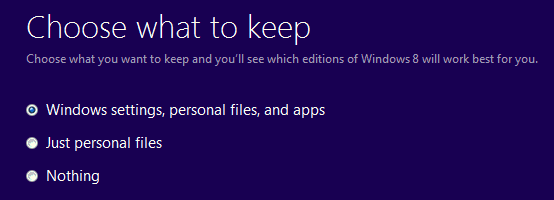
After scanning your computer you will get a message that will tell you how many apps are being compaible with Windows 8 and which software to review before appliyng the update. Finally, you will be prompted with a question, just like in the image from below.windows 8 assistant

Well, if you will choose “Windows settings, personal files and apps” you might be prompted with the ‘Windows 8 your migration choice isn’t compatible’ alert. If that happens, go back and choose “just personal files”; now you will be instructed with the steps you need to follow in order to download and install Windows 8 on your machine.

In addition, if you are still experiencing this update problem, just buy the official Windows 8 DVD from store or download the same from other sources.

So, there you have it; that’s how you can check if your device is compatible or not with Windows 8 system and also this is how you can solve the ‘Windows 8 your migration choice isn’t compatible’ error. Do share your experience with us and with our users – use the comments field in that matter.

Despite being the biggest job cut in Microsoft’s history, impact on India is ‘very very small’

Despite being the biggest job cut in Microsoft's history, its impact on India 'very very small'

Microsoft had its biggest-ever layoff in company history by letting go 18,000 employees. Of the total 18,000, about 12,500 will be removed through synergies and strategic alignment of the Nokia Devices and Services business. But despite being the biggest layoff, it will only have “minimal” impact in India.

The company pledged to save $600 million within the next 18 months after the completion of Nokia’s acquisition. “The first step to building the right organization for our ambitions is to realign our workforce. With this in mind, we will begin to reduce the size of our overall workforce by up to 18,000 jobs in the next year,” wrote Nadella.

India is one of the most important geographies for Microsoft. There are about 6,500 Microsoft employees working in the country. However, the impact of the job cut will be “very, very small”. “We have about 6,500 employees in India, which also includes employees from Nokia. The impact will be minimal. It will be very very small.” said a Microsoft spokesperson to Press Trust of India.

But again, not to forget the drama going on in the Chennai-based factory where thousands of employees recently lost their jobs.

Microsoft gearing up for Nokia X2’s launch in India, but do you care anymore?

Microsoft gearing up for Nokia X2's launch in India, but do you care anymore?

Arguably at the worst timing ever, Microsoft is gearing up for the launch of Nokia X2 handset in India. The import manifest data available on Zauba states that the company has imported 25,000 units in the country, suggesting that the launch is imminent.

In the emails sent to the employees, CEO Satya Nadella, and Vice President of Microsoft Devices, Stephen Elop have officially stated that the company is ending further development of the Android-powered Nokia X, entry level smartphones Asha lineup, and feature phones Series 40 in favor of Windows Phone.

Nokia X2 is a step up from the company’s first Android smartphones — the Nokia X series. Originally introduced last month, Nokia X2 sports a 4.3-inch WVGA ClearBlack display with the same 480×800 screen resolution. Powered by 1.2GHz dual-core Snapdragon 200 processor and coupled with a gig of RAM, the device runs on Nokia X software platform 2.0, which is based on AOSP Android JellyBean.

Although it will be tough for the company to rope many buyers for this handset, Nokia X2 still offers great value for money. There is a 5MP shooter with LED flash, and a 0.3MP camera upfront. On the connectivity front, the device supports WiFi and 3G and Bluetooth.

While the company is yet to reveal the pricing, we expect it to be around Rs 8,500 ($140). Would you consider getting one of these handsets? Or rather stick with other Android smartphones? Or maybe get yourself a Lumia 630 instead, or a Lumia 520? Let us know in the comments.

Microsoft Research says there’s nothing wrong with using weak passwords

Microsoft Research says there's nothing wrong with using weak passwords

Passwords are something we all have to deal with on a daily basis, and the advice has long been to use complex passphrases, to use unique passwords for each site and service, and to change them on a regular basis. But Microsoft Research has different ideas. A paper published by researchers Dinei Florencio and Cormac Herley and Paul C. van Oorschot from Carleton University, Ottawa, Canada suggests taking a rather different approach.

The paper recognizes that users now have a large portfolio of passwords to remember, and goes on to say that “mandating exclusively strong passwords with no re-use gives users an impossible task”. What does this mean? Essentially, the researchers are saying that by encouraging, or even forcing, users to select complex, lengthy, unique passwords, the likelihood of forgetting them is greatly increased.

The researchers admit that their findings “directly challenge accepted wisdom and conventional advice”, but continues to say that “portfolio strategy ruling out weak passwords or password re-use is sub-optimal”. The use and re-use of simple passwords for low-risk websites is not only not discouraged by the paper, but actively encouraged. Strong, difficult-to-remember password should be reserved for sites and services that pose a high risk.

The aim is to overcome the problem of poor memory. If you have super-strong, unique passwords for every site and services, sure you’ll probably keep out the bad guys, but there’s a high chance that you’ll also lock yourself out when you ultimately forget them. You could write them down, but this defeats the purpose of a password. Password managers are another solution, but they are not perfect and can be vulnerable to attack. There is also the problem of the “finite-effort user” to take into account — users can only be expected to be willing to do so much in the name of secure access.

While the advice of the paper comes across as slightly counter intuitive to start with, with a little consideration it is easy to understand the thinking behind the advice — which boils down to the question “why make life any harder than it needs to be?” It’s a trade-off between the level of security you want, and the amount of effort you want to put in.

Microsoft in talks to acquire Israeli security startup Aorato

Microsoft in talks to acquire Israeli security startup Aorato

Microsoft may be on the verge of loosening the purse strings and making a new security investment. According to sources close to Microsoft, the company is in talks to acquire Aorato, an Israeli security startup. Talks are believed to be at an early stage, and it is likely that Microsoft is not the only interested party.

A potential price tag of $200 million has been suggested, but the figure has not been confirmed. Neither Microsoft nor Aorato have released a statement yet, but it is possible that the deal could be concluded within a couple of months.

Aorato came into being back in 2011, and managed to raise $10 million earlier in the year, following investment from Accel Partners, Innovation Endeavors, and Glilot Capital Partners.

If the talks do conclude with Microsoft acquiring the company, it will represent yet another step into enterprise for Nadella’s company. Aorato is best known for producing software that monitor access to active directory components to check for unauthorized access.

Office 365 Public Folders limit gets a 10x increase, bumped to 100,000

Public Folders limit gets bumped to 100,000 folders in Office 365

Microsoft has scaled up the limits for Public Folders in Office 365. Now, the folder count limit is capped at 100,000 folders — a 10x increase over the previous limit. This is simply the first round in the public folder scale improvements that Microsoft is working to deliver with Exchange Server 2013 to receive it next.

“We have made investments to scale up the limits for Public Folders in Office 365. Today we are raising the folder count limit to 100,000 folders. This is a 10x increase over the prior limit as defined in the Exchange service description limits. This enables migration of larger existing public folder hierarchies and increased use of the feature in Office 365. Customers can immediately take advantage of this new scale for public folders,” Microsoft stated in an official blog post.

With this increase, the number of public folder mailboxes and the total public folder quota remain unchanged. The folder count limit has been increased for all Exchange Online users with public folders. Exchange Server 2013 will receive this increase in cumulative update 6.

Microsoft to add ‘Academic Researcher’ to Cortana’s curriculum vitae

Microsoft to add 'Academic Researcher' to Cortana's curriculum vitae

Cortana has been praised for her ability to keep you better connected to your family and friends with people-based reminders, she has made a name for herself with her predictive capabilities, and soon, she’ll present you with academic search results that will help you ace your essays. You are probably well aware of the fact that referencing Wikipedia is a big no-no in the academic community, so Microsoft is prepping Cortana to become a “researcher’s dream assistant.”

Powered by the Microsoft Academic Search engine, the virtual assistant/heroine will gain the ability to follow the works of specific researchers that interest you, in addition to tracking conferences that you may wish to attend. Users will be also able to take advantage of Cortana’s Notebook feature for finer control over how much academic content she should track for them, further enhancing her abilities as a research assistant.

“Since the academic audience is an important user segment and a source of innovative suggestions and feedback, we are announcing the new development during the Faculty Summit to broaden our engagements with this community.” Says Microsoft’s Kuansan Wang emphasizing the importance of the academic community to Microsoft Research.

It will be interesting to see how Cortana is received in the academic world and whether or not she’ll be the next big thing for students and researchers alike.

Microsoft’s Project Adam: a deep-learning ‘brain’ that can see, hear, and read

Microsoft’s Project Adam, a deep-learning “brain” that can see, hear, and read

The mad-scientists over at Microsoft Research have been hard at work creating a computer system that they hope will evolve into “true artificial intelligence.” While a computer than can emulate the human brain as it is today is still a far way off, Microsoft believes that a computer than can recognize speech, interpret images, and read documents is a good foundation to build on.

Microsoft’s Project Adam is a deep-learning system that utilizes a massive data set of information to help it better recognize speech and classify images. For example, Project Adam can look at a picture of a dog and be able to identify its breed, and that breeds sub-breeds, in addition to warning you if that bug you just took a picture of is poisonous.

The system is designed with the help of technology from the University of Wisconsin. It mimics the human brain in a sense as it has it has a number of processors (think neurons) that can work independently of each other, but write to the same memory location. With nothing preventing them from overwriting each other’s data, it might sound like a giant mess but it works in certain situations.

Google on the other hand, are also using a similar artificial brain that is today used to perform some of the computational calculations required across Google services. Although Microsoft claims that Project Adam out-shines the competition in efficiency; requiring 30x fewer machines, and having 2x the accuracy of competing systems.

According to Microsoft Research head Peter Lee, there are no plans to release an app for Project Adam yet, but there is a lot of potential for the system in e-commerce, robotics, and sentiment analysis.

Experience Tumblr on Windows 8 by Using this New App

Tumblr is one of the most popular platforms used by worldwide users, so experiencing the same on your Windows 8 device is a must, especially if you want to stay in touch with everything that’s new. Therefore, you might want to test this new Tumblr client which has been recently released on Windows Store.tumblr + windows 8
In that matter Tumblr + will offer instant access to your favorite social media platform; the software is based on Tumblr mobile website and brings all the stock features that can be managed within the official desktop client.

As you might know, Tumblr represents a microblogging platform and social networking website, where you can post personal multimedia or other related content for free. You can also share your posts, read other articles and follow other users that are using the Tumblr platform. Of course, your personal account can be customized as you can add your own pictures, or set biographical data.

Tumblr +: Your Tumblr account optimized for your Windows 8 device

Tumblr + is especially optimized in order to smoothly run and fit on any Windows 8 based device, whether we are talking about portable devices (such as tablets or laptops) or about desktops or classic computers. The app also features an easy to use interface providing support for various operations such as following other users, post text, photos, links, music, videos or any other content right from your browser and even sharing your info and history on Facebook.experience tumblr on windows 8

Tumblr + will work on any device you want, the app being compatible with all three Windows based systems: Windows 8, Windows 8.1 and Windows RT. The tool is priced $2.99 on Windows Store but you can download a free trial version before spending your money in order to test the software by yourselves – you can also share your experience with us and with other users, who might want to use Tumblr +, by using the comments field from below.

Download Tumblr + from Windows Store.

Learn How to Live Healthier using iYoga on Windows 8

Yoga exercises are recommended for all those who wants to live healthier and also for those who tries to discover their inner peace. So, if you want to be more relaxed and if you want to be an active person, then try iYoga on your Windows 8 device.iyoga windows 8
Living healthier implies in scheduling your daily activities and also in following a strict diet. I’m not talking only about what, how and when you are eating as it is quite important to have an active life and to do as much physical exercises as possible too. Practicing Yoga is more than recommended as these types of exercises will relax your body and will free your mind from gloomy thoughts.

Therefore, installing iYoga on your Windows 8 is a must, especially if you also use other similar workout apps – for more info related to this subject you can read our following reviews: “Top Windows 8 Workout Apps for a Trained Body”, or “Top 8 Windows 8 Health and Fitness Apps”.

iYoga: the best way to relax after a busy and stressful day

iYoga is one of the most popular Yoga apps, the software featuring a variety of top quality Yoga poses (asanas); these poses are indicated for those who are having problems with burning fat, or reliving stress, iYoga bringing a strong balance between your body and your mind.

The Yoga poses are divided into categories, each position being exemplified by a Yoga expert. Basically you will learn various training methods that include poses from the following categories: Standing, Sitting, Knee, Supine, Prone, Balancing, Essential, Closing and others.practice yoga

In case you want to try this new app on your Windows 8 device, you should know that there is a limited discount offer for the same – the tool is priced at only $2.49 (the offer is up until the end of July); moreover iYoga is compatible with Windows 8, Windows 8.1 and Windows RT platforms so you can try the same on any handset you want.

Download iYoga from Windows Store.

Microsoft have patented a robotic butterfly that reacts to mood changes

Microsoft have patented a robotic butterfly that reacts to mood changes

Microsoft can no longer be considered solely as a ‘software giant’, not with devices like the Xbox, Surface, and Nokia under their wings. In addition to PC accessories and the upcoming “smartwatch” of course. If we were to guess what the company’s next plunge in hardware would be, we’d say a Surface laptop perhaps, not a mood-actuated robotic butterfly.

The idea for the device came from Microsoft’s recognition that while there are a number of devices available to detect stress, very few are available for stress intervention. The butterfly is designed to react accordingly to the different emotional states of its user. For example, if the user is calm, the butterfly’s wings would move slowly, resulting in a “gentle hover”. On the other hand, if a user is stressed, or angry, the butterfly’s wings would move faster and further, resulting in a “large flap” of its wings. Speaking of the wings, the patents notes that they will be made of a flexible material that will be able to change shape and texture, becoming flat or crumpled, again as a response to mood changes.

To determine those mood changes, the butterfly will rely on external devices such as heart-rate monitors, and galvanic skin response monitors, in addition to direct user input from a smartphone app. This positions the robot butterfly as more of a medical device than a consumer electronics one, so its availability may be limited. You can read more about the robot via the source link below.

Rumor: Microsoft resumes Surface Mini production for launch this Summer

Rumor: Microsoft resumes Surface Mini production, to launch the tablet in Summer

It’s been months since we have been hearing the rumors of the existence and launch date of a 7 to 8-inch size Surface Mini tablet. We hoped that Microsoft would unveil it at its Surface event in May, but for some reason that didn’t happen. However, according to a new leak, the Surface Mini tablet is back in production and could launch sometime this upcoming summer.

The company had earlier accidentally revealed the existence of Surface Mini in the manual guide of the Surface Pro 3 tablet. Over the last few weeks, several rumors have suggested that Microsoft wasn’t confident with its Surface Mini lineup. A report on DigiTimes suggested that the company closed the production after learning the rumors of 4.7- and 5.5-inch iPhones. Though, the connection still doesn’t make sense to me — as with Surface Mini, Microsoft would be aiming at 7 to 8-inch tablets — possibly Nexus tablets and iPad Mini.

As of now that’s all the information we have, we will update the post as we hear more. 

Microsoft holding Nokia Con event in Japan on July 27th

Nokia

Japan is not the best market for Windows Phone. According to Kantar’s figures for the month of May, the market share for Windows Phone on Japanese shores was almost 1.4 percent, with iOS being on top with 51.1 percent. In an effort to increase it presence in the country, the company has organized an event — Nokia Con — where they will showcase several Windows Phone handsets so that users could get some hand-on experience of the operating system.

It’s a great effort to let people know what Windows Phone can do, especially after the launch of the Windows Phone 8.1 operating system. The devices powered by the new OS are widely available across the globe. There’s no word about the devices which will be on display, but there’s a likelihood that Nokia Lumia 930 as well as the budget-friendly Lumia 630/635 may hit the stage. 

To visit the event, you must register for it, as there are limited number of seats available. You can check out this link to try your luck if you’re in Japan, but at the time of writing this, the capacity was full. It strange the capacity was set to just 60 seats, but it could be due to the fact that Windows Phone is not very popular in the region.

What we know about the next iteration of Windows: Windows Threshold

Windows Threshold

With the recent increase of Windows Threshold information, we’ve decided that it would be a good idea to throw it all into one convenient place for users who might not have caught everything, and for users who do know everything to share their opinions on the upcoming release.

What is Windows Threshold?

Windows Threshold is the codename for the next update/release of Windows. Threshold is the codename for this particular release, meaning we’re not too sure what it will actually be called when it launches. It’s highly likely that this release will be called Windows 9 to further distance itself from the Windows 8 car-crash, but with recent rumors claiming Windows 9 is coming after Threshold, we’re not entirely sure.

Threshold is built upon Windows 8.1, and was originally intended to be an update for Windows 8.1 users. Since Windows 8 (as a brand) is tanking so hard, Microsoft is looking at different approaches for launching Threshold. It’s possible that Threshold could be a much broader release than originally planned, and that it could even be released for Windows 7 users at the low-low price of free.

What will it be like?

Start MenuWe had an entire slew of Threshold information leak all around the same time. I had reported on a number of changes coming to Threshold, which was then echoed by a number of other sources [1] [2].

From what we know, Microsoft has hit a happy-medium for user-experiences within Threshold. Desktop users will have the Start Menu, and tablet users will have the Start Screen. Much like in Windows 8.1 Update, the operating system will automatically detect your kind of device, and change settings accordingly.

The Start Menu in Threshold is different from what we’ve previously seen. It includes live tile support, and the ability to maximize the menu to get a Start Screen-esc Start. It’s also very customizable, with the ability to show only desktop apps, and have them come up as tiles or a list.

Threshold for tablet users is a different story. The Start Screen is front and center for tablets, so much so that Microsoft is actually toying with removing the desktop completely from RT devices. This can happen because Microsoft is set to replace stock Win32 apps for Modern UI alternatives, meaning the desktop will be useless when Threshold rolls around. Desktop users (and devices like the Surface Pro) will still have stock Win32 applications of course. Office Gemini will be ready for primetime when Threshold is released too.

The UI in Threshold has too been updated, being distinctively different from what Windows looks like today. It’s even more flat and cleaner, and that’s definitely a good thing.

When is it coming?

Threshold will be launching for all Windows 8.x and possibly Windows 7 users in April 2015, according to rumors that is. We haven’t heard any official word from Microsoft on a release date, so anything is possible at this time.

We could see a public preview of Threshold later this year, which will be useful for Microsoft to gather feedback for the final release. The public preview will obviously be pre-release software, and not a full release.

How will it be distributed?

Much like Windows 8.1, Threshold ‘could’ be delivered via Windows Update or the Windows Store. Considering Threshold is an update for Windows, it’s plausible.

Microsoft will also release Threshold as a standalone product, again much like Windows 8.1. Threshold will become the latest version of Windows, making Windows 8.1 obsolete.

Geeky details

Windows Threshold is currently being developed in the 9600.xxxxx build range. This could change, considering we know that 97xx builds exist. It’s possible that engineers decided to push past 9600, but at this time we’re not entirely sure. Could 97xx builds be something after Threshold? We don’t know.

Something else worth noting is that we recently learned about a new Windows NT kernel version. NT 6.4 is currently in development with the 97xx builds. Does this mean we’ll see Threshold get an NT kernel change too? Possibly.

Over to you

That’s your roundup of all the major Windows Threshold news. Of course, we’ll continue to update you on all the latest Threshold news. Until then however, we want to know what you think about Threshold. Do you like what’s coming in the pipeline? Let us know below!

Windows Threshold development hits Windows NT 6.4

Windows NT

Microsoft is currently developing the next major version of Windows, currently known as Windows Threshold or Windows 9. We’ve been tracking development via a user on Twitter, who constantly watches app logs to check for new build numbers. Today, Stealth2013 has spotted the first Windows NT 6.4 build, which means Windows Threshold is going to bring yet more improvements to the NT kernel.

Today’s build is 9788, and other than the NT version number we don’t know much else about the build. These are not full build strings sadly, which means we are unable to determine when the builds were compiled or what lab they were compiled in. What this does tell us though is that Microsoft are constantly compiling new builds, and that even more kernel changes are in the pipeline for Threshold.

Much like every major version of Windows, the NT kernel is usually bumped by x.1 or even a whole version. The jump from Windows XP to Vista saw the NT kernal rise from 5.1 to 6.0. Windows 7 was 6.1, Windows 8 was 6.2 and Windows 8.1 was 6.3, so Windows Threshold could have either been 6.4 or 7.0. It seems Microsoft went for the minor bump instead of the larger increase.

We recently heard about how Threshold was going to act for both desktop and tablet users, with a Start Menu taking center stage for users without touch, and an improved Start Screen for tablet users. We’ll update you accordingly when new Threshold information arrives, so stick around at WinBeta until then.

Microsoft reportedly cutting jobs after Nokia acquisition, as high as 10 percent

Nokia

It’s been a few months since Microsoft completed the $7.2 billion acquisition of Nokia’s devices and services division. Along with the division, over 25,000 employees were also added to the roster. As with every acquisition, the layoffs are inevitable as companies don’t want redundancies in their departments, and Microsoft is also reportedly planning to reduce its workforce, as high as 10 percent of the total employees.

Before the acquisition, the Redmond-based company had 100,000 employees across the globe, and with the addition of Nokia, there were 25,000 more people added to the payroll. One source told GigaOM, “Look, [Microsoft CEO Steve] Ballmer buys Nokia and adds 25,000 people and a business that makes no money, so do the math.” In reality, this makes a lot of sense, Nokia was struggling to compete in the smartphone market dominated by Apple and Android. 

The cuts could come at the company’s annual sales meeting, which will kick off on July 22nd later this year, or it could come in August when the employee reviews are done by the company. Let’s wait as the annual sales meeting is just a few days away, and we’ll find out if this report is correct or not.

Pinball Star for Windows 8 Lets you Play the Good Old Game with Nice Visuals

Playing old fashion games is the best as in this way you can revive precious moments from your childhood. So, if you are getting melancholic and if you want to try something that reminds you of happy moments, then don’t hesitate and try Pinball Star on your Windows 8 device.pinball star windows 8
Pinball is maybe one of the best games that were ever made and now you can play it on your Windows 8 powered device. Of course, there are various Pinball clients already available on Windows Store, but unfortunately, almost all the platforms are being modified and customized so the classic user experience is now nowhere to find. But, with Pinball Star you will be able to experience the same game as the one that we used to play in the past on our Windows based computers, when there weren’t any portable touch based devices available.

Read Also: Cover is a New Windows 8 App to Read and Manage your Comic Books

Pinball Star: A classic Pinball game with Improved Graphics

Of course, playing the same classic Pinball might be unattractive as the graphics might look awful on a high end tablet or laptop. So, that’s why, Pinball Star features nice visual effects along with improved graphics, which will make the classic gameplay compatible with high resolution displays.pinball gameplay

With Pinball Star you will be able to experience up to 16 missions, your goal being that of achieving higher scores than your friends or “opponents”. So, experience the Pinball classic table and try to outbest your friends by launching the ball through various “secrets compartments” and by developing your skills and by improving your distributive attention – of course do all that for keeping the ball on the Pinball table as if you drop it, the game will end.

Pinball Star is available for free on Windows Store and can be installed on any Windows powered device as the app is compatible with Windows 8, Windows 8.1 and Windows RT. Also, for testing other “oldies” on your Windows 8 device use a dedicated emulator, such as Emu7800 or Genstalgia.

Download Pinball Star from Windows Store.

Microsoft acquires SyntaxTree, creator of UnityVS plug-in for Visual Studio

Microsoft acquires SyntaxTree, creator of UnityVS plug-in for Visual Studio

Microsoft has announced the acquisition of SyntaxTree, the creator of UnityVS plug-in for Visual Studio for the Unity game engine. The company did not disclose the details of the agreement.

Microsoft is planning to use this technology in Visual Studio, said Microsoft Developer Division chief Soma Somasegar in a blog post. The UnityVS plugin will allow developers to view and debug the codes from within Virtual Studio.

“In today’s mobile-first, cloud-first world, Visual Studio provides a great development environment for game developers targeting the breadth of mobile devices, and connecting to the rich services platforms in Azure,” Somasegar explained.

The company would utilize this plugin to grow the number of Windows 8 and Windows Phone 8 apps. Several other companies, including Ubisoft, Valve, Blizzard, EA, use the UnityVS plugin. The plug-in will soon be available to download from Microsoft.

“Over the last 10 years, the Unity cross-platform game engine has grown to become a widely used rendering engine and tool for game developers targeting desktop, consoles, mobile devices and the web, with over 2 million developers now using Unity for game development. Unity offers great support for targeting or porting to Windows, across Windows desktop, Windows Store and Windows Phone,” Somasegar added.

Microsoft joins the AllSeen Alliance to help standardize the connected home

Microsoft joins the AllSeen Alliance to help standardize the connected home

Have you ever wished that your smartphone could tell your air conditioner to power on as you approach home, which would then get your doors unlocked, shades closed, lights on, kettle brewing, and your bath running by the time you walk through the door? Regardless of the brand of your appliances or the operating system they run on? When things are too good to be true they usually aren’t, but not in this case.

That scenario is not far beyond the realm of possibilities, thanks to the AllSeen Alliance by Qualcomm that Microsoft has now become a part of. The Alliance aims to create open standards for Internet of Things (IoT) devices having publicly released the source code to developers.

Microsoft has joined a number of renowned appliance makers including LG, Sharp, and Panasonic, in addition to retailers, automakers, and cloud service providers to make fully connected homes a reality.

Let us know the ways in which you would like your home appliances to communicate with each other, or would you rather they remain manually activated?  

Join Microsoft’s pre-release beta program for Office and help make the next version better

Join Microsoft's pre-release beta program for Office and help make the next version better

Want to be a part of Microsoft’s pre-release beta program for Office? Wish you could beta test early versions of Office productivity apps before they hit retail and have your feedback monitored by Microsoft? Now you can. Microsoft is allowing anyone to sign up for a chance to be a part of the program.

“The Office team at Microsoft is looking for participants to join us in pre-release beta programs!  Your feedback in these programs will be instrumental in building the best productivity software and services available. The programs will span across the full family of Microsoft Office client, server and cloud services.  The family of products include Word, Excel, PowerPoint, OneNote, Visio, Access, Publisher and Outlook applications, as well as the Exchange, SharePoint and Project server products and cloud services,” Microsoft stated.

Before you can dive into the pre-release code, you will first need to tell Microsoft about yourself or your company. It all depends on what kind of feedback you wish to provide. The survey you must fill out is your standard survey, asking you to reveal your full name, email, address, your company role, and what version of Office you currently use. You will also be asked if you use Office 365 and why you would like to partake in this pre-release beta program.

No word on what pre-release beta software you will be testing, but with touch-centric Office (codename Gemini) and Office 2015 on the horizons, you might get a chance to provide feedback on the company’s biggest release yet. Office for Android is also on the table. And let’s not forget that you can help be a part of any upcoming updates to Office 365 or Office 2013. 

Head over to the VIA link below to sign up. Happy Beta testing!