Microsoft FY15 Q1 numbers released: $23.2bn in total revenue, $908m for the Surface

Microsoft FY15 Q1 numbers released: $23.2bn in total revenue, $908m for the Surface

Microsoft has released its financial numbers for the first quarter in the 2015 fiscal year (FY15 Q1), which ended on September 30th, 2014. The numbers are quite impressive, and feature $23.2 billion in total revenue, and $14.93 billion in gross margin, $5.48 billion in operating income, and $0.54 in diluted earnings per share.

If you are an investor, cash dividends per common share end up at $0.31, up from $0.28 on the same time as last year.

To explain a little bit, the total revenue is all the money that Microsoft was paid. The gross margin is the difference in the revenue and the cost Microsoft put to make the products or services. The operating income is the revenue minus the operating costs of the company. All these statistics are supposed to create a predictive future for how the company actually did, as the total revenue could be misleading by itself.

If none of that makes sense, that’s ok, there is one more way to judge the performance for the casual. This is through looking the same stats from last year’s quarter from the same time period.

SEGMENT REVENUE AND GROSS MARGIN

Microsoft has also included some highlights of their quarter. The Surface revenue, thanks to the Surface Pro 3, tallied up at $908 million. The Surface revenue, thanks to the Surface Pro 3, tallied up at $908 million. There were a total of 2.4 million Xbox sales, which is an increase of 102%, partly thanks to the Xbox One launching in 28 new markets. Phone hardware has less context, Microsoft merely stated that it exceeded $2.6 billion, “with ongoing focus on execution discipline.” Interestingly, Windows consumer licensing grew, while OEM non-Pro revenue declined (but only by 1%).

In total, the devices and consumer totaled $10.96 billion, a growth of 47%. The commercial revenue totaled $12.28 billion, a growth of 10%, and featured involvements in all Server products and servers, Office, Lync, SharePoint, Exchange, and Windows volume licensing.

To find out more about on the statistics, highlights, forward-looking statements, and more, go here.

Interoperability: Pushing towards a unified experience on Microsoft, Apple, and Google platforms

The Interoperability of Operating Systems

The term “personal computer” has over the past decade become as vague and ambiguous as device spec sheets at IT retailers. Let’s see, it started off as a device that was always tethered to your home or office; you’d use it to get work done, browse the internet, and play minesweeper among other things of course. The PC then lost its wires, making it portable in its book-shaped form factor, and allowing you to accomplish your computing needs while you’re out and about. It then started shrinking, becoming smaller, thinner, and lighter, so much so that it could fit in our pockets. The image below pretty much sums up just how much technology can change in 10 years.

The Interoperability of Operating Systems

The evolution of the PC is undoubtedly a remarkable feat, PC’s now come in all sorts of shapes, sizes, and form factors. Just look at the Lenovo Yoga 3, Dell’s XPS 12, the Surface Pro 3, and the Asus Padfone S. It’s all covered. Check out the “portable” AIO “tablets” from Asus and Dell and tell me it’s not all covered. So the hardware has evolved desperately beautifully, but there’s still much that can be done with the software.

Despite the form factors that try to merge the phone and the tablet, and the tablet and the desktop and so on, the software remains relatively fragmented across individual devices. What you could call the ‘interoperability of operating systems’ – coincidentally (I swear) abbreviated ‘IOS’ – has not reached its potential. Devices don’t “talk” to each other as much as they could to make for a seamless computing experience. Although progress is being made in this area, it’s still at a messy, headache-inducing stage.

Today, in the midst of a vicious platform war, you get to choose from three major ecosystems; Apple’s OSX and iOS, Microsoft’s Windows and Windows Phone, and Google’s Chrome OS and Android. As the cloud becomes more prominent, the big 3 ecosystems are respectively becoming ever so integrated, making it harder for one to own a Mac desktop, a Windows tablet, and an Android phone without having to deal with significant incompatibility issues between the three devices. 

The Interoperability of Operating Systems

It’s also more expensive to be invested in 3 separate ecosystems. Unless you use a third-party service, none of your apps, music, or movies will transfer between devices, forcing you to purchase the same content thrice. Not very ideal. It’s hard enough these days to justify the purchase of a single application let alone have to consider which devices that application will be available on, and whether or not you’ll have to buy that very same app 2 more times.

Here at WinBeta, we tend to focus on all things Microsoft, but this piece isn’t about convincing you to switch to any single platform, nor will it attempt to justify which platform is the ultimate best. No, this editorial attempts to look at the current state of the interoperability of operating systems from the 3 major software giants. Which one is leading the pack in this area will be left for you to decide.

Although I must admit, my inner fanboy is screaming at the back of my head with what it thinks is the obvious answer. But as Thomas Nagel suggested; there is no such thing as a ‘view from nowhere’. What’s important is that I’m wary of that inner fanboy, and I’ll try my very best to keep him locked up in a sound-proof cage for the duration of writing this piece. Savvy?

The Platforms

The Interoperability of Operating Systems

Before we dive into what sets each of the three platforms apart, let’s get the basics out of the way. These are the features that everyone will come to expect from a desktop + mobile ecosystem in 2014. Each of the ecosystems offer a free cloud service that acts as the glue between the devices you own; Apple with iCloud, Google with Drive, and Microsoft with OneDrive. These cloud services will make sure that your contacts, calendar, email, files, photos, music, videos, device settings, and browser histories are always with you and up-to-date. You probably already know all this, and you should, they’re 2014 expectations after all. So the basics are out of the way, let’s move on to what makes each platform special, and unique in terms of the interoperability features that tie the different form factors of devices together.

Apple

The Interoperability of Operating Systems

Starting chronologically with Apple, despite claiming that iOS shares OSX’s base code during the announcement of the first iPhone, the two operating systems are fairly distinct. The company has been putting a lot of emphasis on drastically improving their mobile OS after defining the “Post-PC” era while making only minor changes to its desktop OS. In fact, many of the recent changes to OSX were carried over from iOS. Going back to OSX Lion, the desktop OS saw the App Store, FaceTime, auto-save and auto-resume for app multi-tasking, Launchpad, Messages, Notification Center, Notes, Reminders, Game Center, and a fresh design language all brought over or inspired by the company’s mobile OS.

“…it might be hard for OS X users not to feel neglected — many of the latest new features feel a bit like iOS hand-me-downs.” – Brian Heater, Engadget.

Despite Apple’s push to increase the synchronicity between iOS and OSX, the two operating systems still function as separate entities, and it’s only the aforementioned basics that the platforms share. Apple argues that this may not necessarily be a bad thing considering the different use cases of a phone and desktop PC.

The Interoperability of Operating Systems

Progress is being made though in the upcoming version of OSX, Yosemite, which is the first major improvement on device interoperability by bringing the phone to the desktop. Customers who own both an iPhone and a Mac will enjoy the added benefit of managing their phone calls and messages directly from the Mac, without having to pull their iPhone’s out of their pocket. That comes in addition to what Apple calls ‘Handoff’, a form of continuity between devices where a user could start writing an email or a document on the phone and continue exactly where they left off on a Mac. The feature works both ways and the best part is that the API is available for developers to integrate into their apps.

It’s these types of features that really add to the experience and practicality of owning multiple devices from a single manufacturer.

Google

The Interoperability of Operating Systems

I said “Google” and asked friends to blurt out the first thing that pops into their heads, you can probably guess their answers because it’s likely the exact same thing you’re thinking of; “search engine”, “Android”, or “Google”. The last one I found particularly interesting, and upon further inquiry, the response I got was both surprising and obvious. “Google is everything”, because they’ve got their fingers in everything; the phone market, search, robotics, automotive, internet service provision, wearables, you name it. It’s reached a point where you can think of any industry in tech and it wouldn’t sound too weird if you put Google’s name before it. It’s only a matter of time before Google Aerospace sees the light of day.

The problem with an approach like that is that a company loses focus of their core competencies. While their mobile platform is a force to be reckoned with, Chrome OS is a confusing product. It would have made more sense to better optimize Android for larger screens than to offer a completely different OS that is practically useless offline. Unfortunately, unless you are satisfied with a very basic level of cross-device interoperability, there is absolutely no special or unique benefit of owning both a Chrome OS device and an Android phone. Android apps don’t run on Chrome OS – although Google is trying to make that happen – and Chrome extensions/apps don’t carry over to Android.

“At the recent Google I/O conference, the dissonance between the two systems [Chrome OS and Android] was apparent” – Steven Levy, Wired.

Since Android is open source, OEM’s have taken it upon themselves to customize the OS. You’ll find Android installed on not only phones, but hybrid tablets, and even AIO PC’s that would each classify as different form factors. In cases such as those, one would of course benefit from a singular OS on all their devices, but Android is not yet suited for serious PC usage, and it’s certainly no competitor to Windows or OSX.

“Chrome OS is still just bookmarks masquerading as native apps” – David Pierce, The Verge.

The Interoperability of Operating Systems

Although, to give credit where it’s due, Google’s cloud-based solutions are powerful, particularly Google Now which we’ve recently seen come to Chrome on the desktop. Since many spend at least half of their time on a PC in the browser, there is a lot of potential for Google to exploit. The current card-based notification center shared by Chrome and Android is a good first step, but that only goes so far. The search behemoth has done a good job with wearable thus far though. Android Wear looks great on devices like the Moto 360 and according to reviewers, does go a great length in making you forget that you have a smartphone in your pocket. That right there is what the interoperability of operating systems is all about, making you disregard the form factor of a device for the functions it can perform, whether those functions be watch, phone, tablet, or desktop centric.

Microsoft

The Interoperability of Operating Systems

If you’re a regular reader of WinBeta, you likely already know a lot about Microsoft, its products, and what the company has been up to lately. If not, here’s the down-low; you’ve got Windows powering the PC, Windows RT as the companion OS for tablets, and Windows Phone for smartphones.

Microsoft has worked hard to make Windows (+RT) and Windows Phone feel like they are extensions of each other. Not only is that true with the shared Modern UI, but also in a collection of smaller ways.

While Apple also has universal apps, they only work across iOS devices. Microsoft’s approach goes a step further, it makes for a significant convenience for customers by allowing them to purchase an app once, and have the ability to install the app on all of their devices; PC, tablet, or phone. Microsoft’s solution also offers continuity with its universal apps, where some apps and games will remember where you last left off, so you can continue watching a movie or continue playing a game exactly where you last left off on one device, and jump right back in on another.

Other ways in which Microsoft adds to the interoperability of devices are smaller, yet make for great practicality when put in use. An example would be how a Windows Phone will automatically offer to share its internet connection with a Windows device when they are in Bluetooth proximity. Or how your Windows and Windows Phone devices will share Wi-Fi passwords among each other. Or even how Windows will automatically match the theme you set on your Windows Phone. All these add up to you getting a sense of sameness when owning devices with Microsoft OS’s installed on them, a sense that you’re not using two or three distinct OS’s, but ones that are one in the same.

To further tie the form factors together, a rebrand effort will soon be underway that will see “Windows” become the sole brand irrespective of the form factor of the device it’s running on. But it’s not just the brand that’s being made cohesive, but the OS itself is gradually being unified.

The Interoperability of Operating Systems

Starting with Windows 10, all ‘Windows’ based devices will share the same store, bringing devices closer together than they ever were before. Windows 10 users will also enjoy the same features and services across devices like Cortana and Action Center. Whether or not the phone will be integrated to Windows 10 on the PC is yet to be seen, as Microsoft is still in the early stages of its development.

“The promising Universal Apps that Microsoft announced earlier this year will finally have the universal operating system they needed to thrive [in Windows 10].” – Eric Limer, Gizmodo.

The company has also been reportedly testing streaming Xbox games to browsers, while it’s not a native experience, it does bring the Xbox and console gaming into the interoperability fold, something that neither Google nor Apple have.

Final Thoughts

To conclude, Microsoft is clearly pushing for a more unified, seamless computing experience across devices, and it’s pushing hard. Apple may be out first by bringing simple phone integration to the desktop, and they may even be credited for setting the trend in device interoperability, as they usually are, and Google is well on its way with the wearables, but there’s no denying that Microsoft is set to offer a more complete solution on top of what they already offer today, all due in the latter half of 2015.

Microsoft adds new app launcher to easily switch between Outlook.com and its other online services

Microsoft adds a new app launcher to easily switch between Outlook.com and its other online services

When Outlook.com first launched as the new Hotmail, Microsoft’s main priority was to offer a cleaner, simpler, and more modern email experience for the masses. However, the software giant hasn’t stopped there, as more improvements are being rolled out to Outlook to enhance that experience.

Today, the Outlook team have announced the addition of an app launcher on the new Outlook.com header. According to Microsoft, the new launcher “offers a single point of access to the personal services you use daily: Outlook.com, People, Calendar, OneDrive and Office Online”.

Microsoft adds a new app launcher to easily switch between Outlook.com and its other online services

The new launcher brings a level of familiarity to users of Microsoft consumer-centric email services, considering that a similar launcher was also added for Office 365 customers. Users can now quickly and easily switch between different Microsoft services on the fly. Head over to outlook.com now to check out the new launcher, and if it hasn’t rolled out for you yet, the image above is what it looks like.

Microsoft Wireless Display Adapter App Available on Windows Store, Download Now

A few hours ago, we were presenting the Microsoft Wireless Display Adapter and why it’s better than other rival products like the Chromecast. Now we’re pointing you to the app that has been made available for download. Read more below.
Microsoft Wireless Display Adapter App Available on the Windows Store Download Now
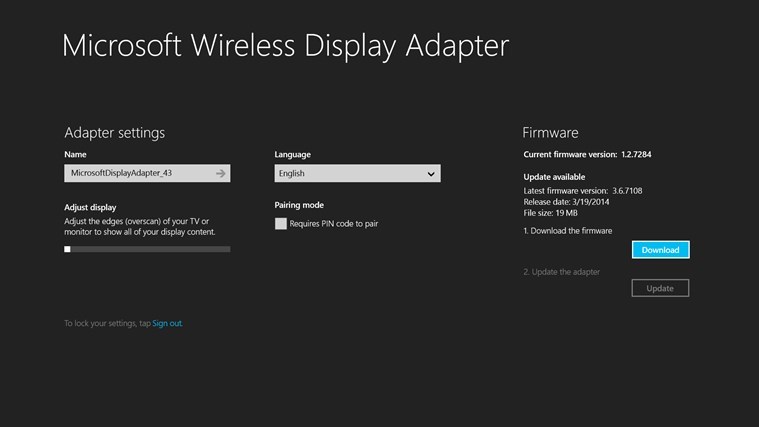
Microsoft has recently made available the official application for the new Wireless Display Adapter. By using it, you can get settings and firmware updates for the Microsoft Wireless Display Adapter. The app is very basic, allowing you to name your Dispaly adapter, adjust the edges of your TV or monitor to show all of your display content. Also, you can enable the pairing mode.

READ MORE: Microsoft to Launch its own Smartwatch, Windows on a Tiny Screen?

Also, from inside the app, you can change the TV or monitor language  and set a password to lock the adapter. So, if you’re looking to buy a Wireless Display Adapter or if you already own one, then this is a must-have.

The app is available in the following languages – English (United States), Chinese (China), German (Germany), Spanish (Spain), Japanese (Japan), French (France), Russian (Russia), French (Canada), Danish (Denmark), Finnish (Finland), English (India), Italian (Italy), Korean (Korea), Dutch (Netherlands), Norwegian (Bokmål) (Norway), Portuguese (Brazil), Portuguese (Portugal), Swedish (Sweden), Chinese (Taiwan), Thai (Thailand), Spanish (Latin America and the Caribbean).

It will work on x86, x64 and ARM processors. Follow this link to download the free app from the Windows Store.

READ ALSO: Toshiba’s New Satellite Radius 11 Convertible with Windows 8.1 Announced for $329

Windows 10 build 9860 includes new Notification Center, PC settings changes and more (video)

Windows 10

Microsoft earlier today released a brand new preview build for Windows Technical Users which includes a number of new features and enhancements. We’ve compiled a quick video demonstrating the most noticeable new changes within the build, including the Notification Center, new window animations, zPC Settings and more.

The build released today is 9860, which was compiled on October 8th and is a pre-release development build meaning it’s rather buggy and not intended for production use. Data Sense and Battery Saver are new in this build, as well as the features listed above. References are being found to the Continuum UI which was shown off via Microsoft as a concept last September.

Still no Cortana in this build sadly. We’re not sure when Microsoft is planning to push out a build with Cortana enabled, we doubt it’ll be anytime soon sadly. Make sure you watch our video below demonstrating all the new features available in this new build!

Microsoft Fixes ‘The Profile for the User is a Temporary Profile’ Error

We’ve been reporting here at Wind8Apps about a bunch of recent updates that have been released by Microsoft for Windows 8 users, and also for Windows 7 to fix their problems. Now we’re covering the ‘the profile for the user is a temporary profile” error when you install a MSI package in Windows.
The profile for the user is a temporary profile error fix
“The profile for the user is a temporary profile” is an issue after you install update KB 2918614 in Windows 8.1, Windows Server 2012 R2, Windows RT 8.1, Windows 8, Windows Server 2012, Windows RT, Windows 7, or Windows Server 2008 R2. Here’s how the problem has been described by Microsoft on the official page:

READ MORE: Why Windows 10 Needs to be Free for Windows 8, 8.1

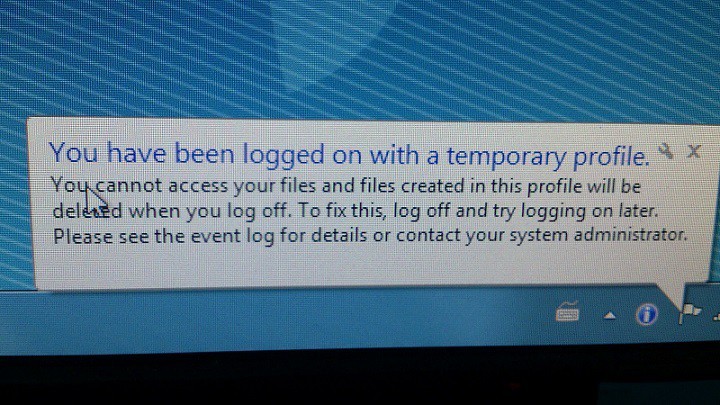
Assume that you install update 2918614 on a computer that is running Windows 8.1, Windows Server 2012 R2, Windows RT 8.1, Windows 8, Windows Server 2012, Windows RT, Windows 7, or Windows Server 2008 R2. When you try to install any MSI package that uses a mandatory or temporary user profile, the MSI package installation fails, and you receive an error message that resembles the following:
The profile for the user is a temporary profile.

When this issue occurs, the MSI log will contain an error message that resembles the following:
SECREPAIR: A general error running CryptAcquireContext / Crypt Provider not initialized. Error:-2146893813

Here’s how the cause has been described:

This issue occurs because update 2918614 uses cryptographic keys and certificates for hashing the installation files together with the logged-in user profile. However, cryptographic keys and certificates cannot be used by mandatory or temporary user profiles. Therefore, when a user uses a mandatory or temporary user profile to install any MSI package, the MSI package installation fails and the error message returns.

You can choose to fix this problem by downloading the available hotfix from Microsoft’s secure servers or by following the links indicated here to get the latest KB install files that takes care of this problem. However, to install this update or hotfix, you must install update 2919355 in Windows 8.1 or Windows Server 2012 R2 prior to getting and Service Pack 1 for Windows 7 or Windows Server 2008 R2.

READ ALSO: Fix Error Code ‘0x80073cf9′ in Windows 8, Windows 10

Buy the 14-inch Lenovo ThinkPad X1 Carbon Windows 8 Laptop Now, Save $600+

If you plan on getting a new Windows 8.1 laptop that you will easily be able to upgrade to Windows 10, then you need to check out the 14-inch Lenovo ThinkPad X1 Carbon that’s been discounted on Microsoft’s online store.
lenovo windows 8 laptop discount
A 14-inch Windows 8/Windows 10 laptop can have a lot of power if you know where to look. The Lenovo ThinkPad X1 Carbon laptop is currently on sale over at the Microsoft Store and can be yours with a price cut of $600. We’re talking about the i7 256GB LTE Signature Edition, which is the top one that you can buy.

READ MORE: Lenovo’s Latest Windows Tablet Has a Pico Projector and Subwoofer, First of Its Kind

The price is now $1,699.00, down from $2,299.00. If this still doesn’t seem affordable for you, have a look at the specs to see why:

  • Display – 14.0 in WQHD IPS ThinkPad ColorBurst (2560 x 1440), 10-finger multi-touch support
  • Processor – Intel Core i7-4600U 2.10 GHz with Turbo Boost Technology up to 3.30 GHz
  • Memory – 8GB DDR3L 1600 MHz
  • Hard drive size – 256GB SSD
  • Operating system – Windows 8.1 Pro, 64-bit
  • Audio – Dolby Home Theater v4
  • Video – Intel HD Graphics 4400 with shared graphics memory
  • windows 8 laptop lenovo price cut

  • Ports – 2 USB 3.0 (1 charge) • HDMI • Mini DisplayPort • Headphone output/Microphone input combo • Lenovo OneLink connector • Micro-Sim slot • LAN (10/100/1000) with included adapter
  • Battery – 8-cell lithium-ion (up to 9 hours)
  • Camera – 1.3 MP 720p HD webcam
  • Wireless – 802.11ac/a/b/g/n (Miracast enabled), Bluetooth
  • Dimensions – 13.03 x 8.94 x 0.55-0.79 in (330.96 x 227.07 x 13.97-20.06 mm)
  • Weight – 3.09 lbs (1.40 kg)
  • Other features – 4G LTE enabled • Keyboard travel: 1.5 mm • Touchpad dimensions: 100 x 70 mm • Adaptive keys • Fingerprint reader • Security lock slot • Backlit keyboard

If you choose the version with Office 365 included, you’ll have to pay more – $1,778.99 but you’ll also save $20 more. If you’re still not interested, check out the newest convertible laptop from Lenovo that’s said to be even better than the MacBook Pro.

READ ALSO: Lenovo’s Latest Windows Tablet Has a Pico Projector and Subwoofer, First of Its Kind

Police investigating the disappearance of a Microsoft Windows program manager

Police investigating the disappearance of a Microsoft Windows program manager -- search under way

Over the weekend, a Microsoft Windows program manager has gone missing. Following the discovery of Krishna Venkatesh’s Toyota Corolla at a parking lot at Deception Pass State Park, a missing persons search is now underway.

According to close friends of Venkatesh, there was nothing unusual found on or inside the car. The Island County Sherriff’s Department and the Seattle Police Department are now involved and working on the case, with local authorities set to aid as well.

Attempts have been made to obtain data from Venkatesh’s smartphone via T-Mobile to help locate him, but T-Mobile have yet to comply with the requests. Below is the poster put together by his friends and co-workers that is currently being distributed. Those with any relevant information are encouraged to contact the Seattle Police Department or the number provided in the poster.

Venkatesh, 27, was last seen on Wednesday October 15th at the Microsoft Redmond campus.

Police investigating the disappearance of a Microsoft Windows program manager -- search under way

How to mirror Windows 10/11 via Wireless Display Adapter

There are plenty solutions available on the market to perform the thing that I have described in the title – to connect Windows 8 or Android devices to High-Definition TVs, monitors or projectors, but Microsoft’s new Wireless Display Adapter comes with many advantages.
Microsoft Wireless Display Adapter Connects Windows 8 10 Android to HDTVs Monitors and Projectors
Unveiled more than a month ago, just as we have previously hinted, I feel that this product hasn’t received all the attention it deserved, so that’s why I’m speaking about it just now. Microsoft’s new wireless display adapter, which is available for preorder for $59.95, allows devices running Windows 8.1 and Android 4.2.1 (and later) to connect to HDTVs, monitors and projectors. And it does so in a very, very simple and intuitive matter.

The wireless adapter connects to an HDTV, monitor or projector and shares audio and visual content from Miracast-enabled devices within a 23-foot range. The adapter won’t work with Surface RT, but there are big chances that its death is imminent, anyway.

READ MORE: Internet Explorer 12 Release Gets Closer: Many Upcoming Features Revealed by Microsoft

connect windows 8 tv

You can use this dongle to project from Windows Phone running version 8.1 of the Windows Phone OS to a large-screen device, but also from Android, which goes along with Microsoft’s cross platform strategy.

Albeit more expensive than the $35 Chromecast dongle (or the recently announced $25 Mozilla Firefox OS Matchstick), it does mirroring of both Android and Windows devices while Chromecasts supports mirroring just from Android devices. At least for now.

And it’s incredibly easy to set up – just plug the USB and HDMI from the Wireless Display Adapter into your HDTV or monitor, connect, then mirror or extend your screen. Just make sure that all the latest Windows updates are installed.

Right now, the adapter is available via Microsoft’s online and brick-and-mortar stores and via Best Buy, but probably more retailers will soon follow.

READ ALSO: World’s Smallest USB Mini-PC From Intel Can Run Windows 8.1 or Android, Linux

Microsoft Project Online web app (PWA) receives updates and improvements

Microsoft Project web app recieves updates and improvements

Microsoft Project Online has received new updates to improve usability. Most of these changes are improving and tweaking the experience for Project Online. Menus were refined to reduce the number of steps to accomplish a task and many features received performance enhancements. Administrators now have more power with these new updates. The ability to limit site creation and task syncing is now possible. Microsoft has also increased the number of instances the web app can run from 2,000 to 5,000 and increased the number of instances per tenant to seven.

Microsoft Project is a tool for project management. This program has a desktop and web app version which enables access to projects from anywhere. Microsoft Project is a timeline based task management program where very detailed project structures can be modeled. Team members can be assigned tasks and can track the overall project status. Microsoft has created this tool to help companies stay on top of highly detailed and complex projects.

The Microsoft Project Web App (PWA) has received an update. This update improves the overall experience of PWA by improving performance and reducing unnecessary steps. PWA has been improved to handle more projects and more instances per tenant. Managers of projects now have the option to disable new enterprise site creation by their team members. In addition to normal performance gains, users can now turn of Task List Sync which speeds the publishing time.

These improvements are small steps toward a future where web apps are fully featured and highly responsive. Microsoft is fully embracing the cloud by improving their Office cloud suite. This also makes Office 365 a more enticing deal for IT administrators. Microsoft will not be left behind when it comes to the future of enterprise, but they are also keeping one foot firmly in desktop programs. The future is a dual solution, where some situations call for a cloud solution and some for the dependable desktop.

Microsoft Cloud Event Recap: What makes it the most complete cloud platform?

Microsoft <3 Linux

Microsoft hosted an event today talking about the future of their cloud offerings. Overall, I was impressed by the immense breadth of Microsoft’s cloud services; there really is something for every business, and I left believing their claim of the most ‘complete’ cloud.

Microsoft sees two other key players in their cloud market: Amazon and Google. Microsoft aims to distinguish itself from its two competitors with its ability to offer a hyper-scale, enterprise-grade, and hybrid cloud infrastructure. While Amazon or Google are competitive in some areas, such as hyper-scale solutions, no one does all three as well as Microsoft.

In fact, one of these areas, hybrid cloud infrastructure, is only offered as a solution by Microsoft; they are the only company that supports on premise servers. Using Azure, companies can connect every on-premises server they host (Storage, Backup, Disaster recovery, Identity, Networking, etc.) to the cloud.

In addition to the breadth of Microsoft’s cloud, the company talked about their higher level cloud services, such as Machine Learning, and live streaming capabilities, which offer higher margins. They are also quite impressive — for example, NBC encodes and streams live using Azure. I inquired about start-ups being able to afford this technology, but wasn’t given a detailed response as pricing is not readily available. However, as there are startups that are finding business in setting up these services for larger corporations, I am assuming that the price a premium for now.

What sets Microsoft's Cloud apart from the competition

New announcements

While Microsoft talked about their general current approach and future, they also announced specific updates and additions to their cloud. The first was the G series, the largest Virtual Machines in the public cloud that offers up to 32 CPU cores, 450 GB RAM, and 6.5 TB of local SSD storage. Microsoft also announced premium storage of up to 32 TB of storage per Virtual Machine, and 50,000+ IOPS (input/output operations per second) with under a millisecond of read latency. Furthering their hybrid solutions, Microsoft also announced Cloud Platform System to bring Azure to your datacenter. Lastly, they announced further Docker support in the form of CoreOS support on Azure. 

“We love Linux”

This was iterated many times through the event. Azure supports five Linux distributions, which means they have iso images available on the Azure Marketplace and you can get one running on your Virtual Machine. CoreOS, the new addition, a container-focused distribution that supports Docker, a platform to build, ship, and run applications.

Actually, CoreOS requires a container format, which are similar to Virtual Machines, in that they promise a safe environment for your web application, but unlike VMs, they are application focused.

 Microsoft Cloud Event Recap: What makes it the most complete cloud platform?

Talking to the CEO confirmed my impressions of CoreOS — it is not the typical Linux distribution. It is not based on Debian (as Ubuntu is) or any other distribution, and neither is its philosophy.  For one, they push updates automatically, and the users don’t get a choice. They had patched the recent bash vulnerability in mere hours! If that scares you, they have ‘Alpha’ and ‘Beta’ tester programs to test out their updates before they hit stable. Typically servers like running very stable builds (you don’t want your website to crash because of a bug!), so I was very surprised when he told me that their users were pretty split among the alpha and stable builds.

Second, they push best practices upon their developers. They are requiring container applications since they can ensure stability of APIs and the environment as they push updates. The aim of CoreOS is for you not to worry about it ever.

Lastly

My impression of Microsoft’s strategy on the cloud is Google’s strategy in the consumer space. Both companies want you to use their services in any way possible, and enable you to injunction with pretty much anything (in different ways).

This is only a fraction of what was covered, and if you want the full details (including a lot of details on different companies such as Cloudera, strategies including Office 365, etc.), we highly recommend watching the event for yourself (here, or reading the transcript here), or reading more here and here. You can also read our live reporting for my impressions here. 

LIVE BLOG: Microsoft Cloud Event (San Francisco, October 20th)

Microsoft Cloud Event (San Francisco, October 20th) Liveblog

Microsoft recently sent out invitations to a cloud event taking place today in San Francisco. The event takes place at 11AM PDT and CEO Satya Nadella will be in attendance along with Executive Vice President of Cloud and Enterprise, Scott Guthrie.

Microsoft is expected to talk about ‘Cloud OS’ and how it enables businesses to build, do, and make in a mobile-first, cloud-first world. Microsoft is also expected to talk about Azure, which is the foundation for the company’s cloud offering, along with what differentiates Microsoft’s approach to the cloud.

There will be a webcast of the event, and as usual, we here at WinBeta will be providing you with full live-coverage of the event. We’re curious to see what Microsoft has in store, especially on the cloud front. What are you expecting from Microsoft’s event on the 20th? Sound off in the comments below. You can also check out the live blog below, as our very own Dilraj Singh is at the event.

Watch Microsoft’s October 20th Cloud Briefing live webcast right here (video)

Watch Microsoft's October 20th Cloud Briefing live webcast right here (video)

Microsoft’s cloud event takes place at 11AM PST and the company is set to talk about the company’s Cloud OS and how it enables businesses to build, do, and make in a mobile-first, cloud-first world. Microsoft is also offering a live webcast of the event, embedded below for your viewing pleasure.

The event is scheduled to be one hour long. Microsoft CEO Satya Nadella will be in attendance along with Executive Vice President of Cloud and Enterprise, Scott Guthrie. We’re curious to see what Microsoft has in store, especially on the cloud front. What are your expectations for this event? Let us know in the comments below.

Office 16 unveiled: Pre-release bits showcase new black theme, Tell Me and more

Office 16 unveiled: Pre-release bits showcase new black theme, Tell Me and more

Microsoft is currently in the process of developing and testing its next version of Office, currently codenamed Office 16. This new version of Office is rumored to be the first iteration of the suite to include dedicated touch-first Modern UI apps. Microsoft has issued a private group of users an early build of Office 16, and we’ve managed to get our hands on with this pre-release build.

First and foremost, as this is an early pre-release build of Office 16, everything seen in the video and in screenshots does not represent the final product and is subject to change before public launch. Also, considering how early of a build this pre-release is, many core features such as dedicated Modern UI apps are not currently available. This pre-release focuses entirely on the desktop side of things.

Still, there are a number of new changes in this build. For those keeping count, this pre-release build of Office 16 reads 16.0.3030.1016. Included in this build is as follows:

  • Tell Me
  • Insert images with the correct orientation
  • Enable pan and zoom while loading large Charts/SmartArt
  • BI in Excel – upgrade, backend DLL, search in field list
  • Timeline View – Multiple Timeline Bars and Custom Date Ranges
  • Attaching/Sharing Most Recently Used (MRU) local and cloud files on OneDrive (Consumer and Business) and SharePoint
  • Accessibility (Keyboard access for Shape Panel) in Visio
  • Content Refresh in Visio
  • Information Rights Management (IRM) protection now added for Visio files
  • Black Theme
  • Lean Outlook storage footprint on small devices
  • Visio Getting Started Feature

Office 16

These features are early work in progress, meaning they are subject to change. Features like Tell Me aren’t exactly new to Office, as Tell Me has been available via the Office web apps for sometime now. It’s a new addition to the desktop application suite however, and Microsoft is conducting feedback similar to how they’re doing it with the Windows Technical Preview.

Another new feature which isn’t exactly new is the return of the Black Theme for Office. According to Microsoft, the top-requested feature for Office 16 was the return of the Black Theme from Office 2010. Microsoft listened and have redesigned the Office 2013 UI to include a new black theme, which is available for testing in this pre-release build.

It’s currently unclear when Microsoft is planning to issue a build of Office 16 to a more open audience. Right now the Office 16 preview is under strict NDA and is only available to a small subset of users. Here at WinBeta we understand that right now Microsoft is only issuing this build to a tiny handful of users who signed up for the Office Beta Program and have an active Office 365 subscription. Microsoft is not currently issuing this Office preview to users who outright purchase Office, just a small amount of users with an active Office 365 subscription.

We’ve got ourselves a hands-on video of this early build of the Office Word app which has been embedded below. We’re going to be talking lots about the new version of Office over the coming weeks, so stay tuned.

Power user tips: Advanced keyboard shortcuts for Windows 8.1 and Windows 10

Poweruser tips: Advanced keyboard shortcuts for most versions of Windows

Windows has a large number of keyboard shortcuts. Some are very common such as pressing Alt+Tab to switch between open programs. Windows 7 has also introduced a couple new handy features such as Aero Snap; this feature makes it easy to snap an application to one half of the screen, making it more efficient to multitask between two programs. An Aero Snap can be done easily with the keyboard by holding the Windows key and pressing the right or left arrow key.

Much like Mortal Kombat, Windows keyboard shortcuts have the best affect in combos. For example, a common task in any operating system is copying files from one folder to another. Using four quick key presses, there can be two Windows Explorers side by side awaiting file transfers. The combo is: hold the Windows key and tap E, left arrow, E, right arrow, then you can release the Windows key.

Maneuvering Around

Pinning programs to the taskbar can save time in finding and launching programs, but if you are typing and want to open a program but don’t want to take your hands off the keyboard, there is a way. By pressing Windows Key + 1, you open the first program pinned to the taskbar. Windows Key + 2 opens the second program on the taskbar, and so on. Using this shortcut with the window snapping makes a nice combo.

Programs pinned to the taskbar

This shortcut can become confusing if you have multiple instances of a program open such as multiple file folders or multiple Internet Explorer windows, then the number applies to the group of windows associated with the program. Pressing the number (while holding the Windows key) will cycle through the different windows. If you hold the control key with this shortcut, Windows will jump to the first window in the program’s group.

Programs pinned to the taskbar with open windows

Accessing a jump list to a pinned taskbar shortcut can save a lot of time. Luckily there is a keyboard shortcut to open the jump list of pinned programs. The shortcut is, Windows Key + Alt +  number, then release the keys and use the up or down arrows to navigate to an item and press enter to select it.

Accessing the jump list of a pinned program

Accessing the Right Click Menu

The most forgotten key known to Windows users is the ‘menu’ key. This key is on the bottom row of the keyboard usually to the right of the spacebar and has the icon of a menu, sometimes with a cursor on it. This key functions as the right click. So if you are navigating through folders and you want to open the right click menu on a file or folder, press this key. It is worth noting that some keyboards, such as the one included with the Surface, have done away with this key.

While writing a paper in Microsoft Word, if you find a word has been misspelled and thus underlined, use the arrow keys to go to the word and press the menu key to select the proper correction. This key combo can be very helpful when trying to do more complicated tasks, while avoiding the mouse.

The menu key on a Microsoft keyboard

Files and Folders

An all too common task with computers involves renaming a batch of files — doing this with Windows is easy and quick. Automatically rename files or folders by pressing F2, then press Tab to rename the next file. If you want to rename the file above the selected one, press Tab + Shift. If you need to edit the properties of a file press Enter + Alt. Then use Tab and the arrow keys to navigate, and the Spacebar to check and uncheck boxes.

Navigating through folders, or websites can be slow with a keyboard. Luckily there are a couple special keys to help out. The Home and End keys will jump to the top or bottom of a web page or folder. If you are typing, Home and End will move your cursor to the beginning or end of the line. PageUp and PageDown are handy, but I find myself using Home and End way more.

Application Menus

Did you know there are shortcuts all over applications you use every day? You may not know the exact keys to press but Windows makes it easy. When you are in a program, Windows Explorer for example, and you want to make a new text document, you can do it quickly and easily with just the keyboard. Tap the Alt key to activate the keyboard shortcuts.

Shortcut keys old version

The underlined letter indicates the key which corresponds to that menu item. For example, to make that text document, tap Alt, tap F, tap W, then tap T. If there are no underlined letters in the item you want, try using the arrow keys to get there, or just guess a key and see if it works. This shortcut also applies to dialog boxes; usually N is no and Y is yes, but the underlined character corresponds to the key to press.


You can also improve your navigation skills by learning how to search for text and commands using Ctrl + F on Windows. This shortcut is essential for quickly finding content in files, folders, or application menus without u_

Shortcut keys new version

Switching between open windows is easy with Alt + Tab, but did you know you can reverse the order you cycle through them by also holding Shift? There is also a similar keyboard shortcut to Alt + Tab, but is used when switching between items like tabs or documents. This shortcut is Control + Tab, and you can also hold Shift to reverse the cycle order. Most web browsers also allow jumping directly to a tab by pressing Control + (tab number), so to get the first tab press 1, second 2, etc.

To close a window press Alt + F4. This will close the active program window, but if you need to save a document it should ask first. To close the active tab in a browser press Control + F4. This makes switching between tabs and closing them easy to do with just the keyboard.

Conclusion 

There a lot of time saving mechanisms built into Windows. Even with the changes to the OS the keyboard shortcuts tend to stay about the same. The shortcuts mentioned in this article should work with Windows 8, 7 and some work with Vista and XP. Working with the keyboard can make common tasks easier and faster, but a little practice is required. It is also important to experiment with different ways of doing something and find the method which makes the most sense. Usually the fastest way to complete a task is a combination of input methods.

October Patch Tuesday Botched Updates: KB 3000061, KB 2984972, KB 2949927, KB 2995388

Usually, whenever Microsoft releases its monthly Patch Tuesday updates, there are a bunch of problems related to the update files. Here are the problems related to this months’s release. Let’s have a look at some more details.
broken patch tuesday october 2015
We’re getting some new reports of recent botched patches that are causing a lot of problems for Windows users – especially Windows 8, but also Windows 7 ones. If you too have been affected by these problems yourself, leave your comment below and let us know the exact details. This will help rectify these botched updates and hopefully, Microsoft will issue a fix via the Windows Update feature in the near future.

Botched update KB 3000061

This is a kernel mode driver update from MS 14-058, one of Microsoft’s zero-day patches this month. And here’s one of the users describes a problem with installing KB 3000061 on a Windows 8.1 computer. This could be replicated on others, of course, but this is what we know so far:

After rebooting it started the configuring and then gave an error “Failure configuring windows updates, reverting changes” After restarting Windows update still showed the same 18 updates. I ran the update troubleshooter from https://support.microsoft.com/kb/949358 and it showed that it fixed 3 errors. Same thing happened when I tried installing all the updates from the control panel. I then installed all the updates one at a time and everything worked OK except KB3000061. I ran the troubleshooter again and manually installed KB3000061. Same error on reboot.

Botched update KB 2984972

This update enables the Remote Desktop Connection client to perform restricted administration logons and also enables the Remote Desktop Service that is running on an RD host to perform restricted administration. Here’s how some recent problems have been described as:

AutoCAD itself was not affected but Revit, Navis, DWG TrueView all were. Not got to the bottom of why yet (the explanation for the update does not sound like it would make any difference) but simply removing the update from client PCs fixes the packages which will do me for now.

Harjit Dhaliwal, on the Patch Management forum, also added his input:

Heads up, KB2984972 on Server 2008R2 RD server caused issues with our Wyse thinclients – it caused them all to span desktops across multiple monitors rather than presenting multiple monitors to the host OS. After uninstalling & rebooting clients are presented with multiple monitors again.

Botched update KB 2949927

This adds SHA-2 hashing support to Win7 and Server 2008 R2 and here’s how some of the concerns surrounding it sound like:

All 3 of my own Win2008R2SP1 servers got stuck in a triple auto-reboot Windows Update Failure this morning. All had 16 updates… They did eventually recover after 2 or 3 auto-rollback reboots… Checking updates on them all now shows this one still to install: Security Update for Windows Server 2008 R2 x64 Edition (KB2949927)

Sombeody else from the TechNet forum says:

KB2949927 will fail to install and revert the changes at the next boot if you have BitLocker disabled. The “fvevol” service must be started, and it must be registered in the “LowerFilters” value under this registry key: HKEY_LOCAL_MACHINE\SYSTEM\CurrentControlSet\Control\Class\{71a27cdd-812a-11d0-bec7-08002be2092f}. If you don’t have it, KB2949927 will fail!

Botched update KB 2995388

This one is said to be causing problems with VMware. Here’s how problems sound like:

After installing the patch, every time you try to boot a virtual machine, you get a message: “Not enough physical memory is available to power on this virtual machine with its configured settings.” The VMware folks recommend you not install KB 2995388; if you have, they recommend that you uninstall it.

Have you encountered any of these issues? Sound off below.

The top 15 current feedback suggestions for Windows 10 — add your voice!

Here is the current top feedback for Windows 10, add your voice!

Microsoft has encouraged users to give feedback for their Windows 10 technical preview, and one way they facilitate that idea is with a UserVoice forum, where you can leave feedback yourself, as well as vote and comment on others’. Here are the top 15 current suggestions:

  1. Add Persian calendar to Windows
  2. Windows store for Iranian people
  3. Add tabs to Windows Explorer/File Explorer
  4. Make Windows free for everyone
  5. Please give the people of Iran to access the Microsoft Store. Thank you.
  6. Make Windows Update the one stop for all drivers
  7. Please merge PC settings and Control Panel!
  8. Redesign & replace ALL aero-themed objects in Windows 10
  9. Add support for .rar .7z and .bz2 file types within File Explorer
  10. Windows Calendar Event Support
  11. Provide a better Notepad application
  12. Bring back Aero Glass from Windows 8 Developer Preview
  13. Built-in support for multiple codecs
  14. Let me pin ANYTHING I want to the start screen (shortcuts and files and any other thing that I want, not just executables).
  15. Give us the ability to customize the Login Screen

As you can see, a lot of international users want a more optimized experience that is on par with the US version. Some of the feedback, however, is overly optimistic, and somewhat misguided. For example, making Windows free will depend on financial analysis, it is not really something you can request. Notepad priority is probably pretty low, as there is a lot of competition from coding (sublime text, Notepad++, Visual Studios, etc.) and editing (Microsoft’s own Word, OneNote, etc.) perspectives — however, a desktop app store could give easy access to those alternatives and reduce complaints. 

The codec and file support feedback is the same since Windows 7. Not all these formats are free, and Microsoft isn’t very open as to why they don’t ship them out of the box. I am assuming it’s not much different to why they no longer support DVD playback — licensing. You can download alternative players that either license all the different technologies, or rely on open source projects, such as VLC, in countries where the law is different than the US (VLC’s justification: “Neither French law nor European conventions recognize software as patentable … Therefore, software patents licenses do not apply on VideoLAN software”). 

You can view all the feedback, and submit your own here. This is only one of the ways to provide feedback, and since anyone can vote or submit, probably not as specific to Windows 10 as the feedback received through the operating system’s built-in mechanism. 

New Windows Tablet Dell Venue 8 Pro to Get Price Cut to Just $159?

When it was originally released, the Dell Venue 8 Pro was one of the best Windows 8 tablets available on the market, and even now, it’s not that bad, either. And it seems that it could be getting a nice price cut.
dell venue 8 pro
As discovered initially by TabTec.com publication, Amazon.de has recently listed a new version of the Dell Venue 8 Pro that is said to start shipping November 4th at prices starting at 159 Euros. So, if turns out to be true, then the new Dell Venue 8 Pro will be priced at about $159, which is an amazing price, considering that it comes from Dell.

READ ALSO: Dell Venue 8 Pro WiFi Issues get Fixed by Update

However, it seems that the price cut has been caused by a decrease in specs, as well. The new model is less powerful, sporting just 1GB of RAM instead of 2GB on the old model. The new Venue 8 Pro also ditches the digitizer but this seems to be just about it.

There’s still a quad-core Intel Atom Z3740D processor clocked at up to 1.8GHz per core, an 8-inch display running a resolution of 1280 by 800 pixels, a 4830mAh battery, a 5MP primary camera, and a 1.2MP front facing camera with the same design.

The new Dell Venue 8 Pro comes with a one-year subscription to Microsoft Office, while the previous cersion came with the full version of Office Home & Student. So, it will be a real pity if this turns out to be true, but this would justify the much cheaper price.

The current-generation Dell Venue 8 Pro is available at $249 in the US, but comes with 2GB of RAM. If the new one halves that to just 1GB, then it might not run as smoothly as this one.

READ ALSO: Toshiba Encore vs Dell Venue 8 Pro: Head-to-Head Fight

Microsoft now accepting Internet Explorer feedback from the web development community

Microsoft now accepting Internet Explorer feedback from the web development community

Microsoft has worked hard to truly transform itself into a feedback-driven company, be it for hardware products such as Surface or software including Windows Phone, Xbox Music, and Cortana, Microsoft is listening, even though they have hundreds of ideas to sift through.

To help facilitate this “two-way conversation” between Microsoft and its ever so dedicated customers, the software giant has turned to the UserVoice platform which uses a voting process for shared ideas. And to show just how much Microsoft cares about user generated feedback, the company may have several UserVoice sites covering different aspects of a single product, as is the case with Internet Explorer.

“Our UserVoice site (both vote counts and comments) will be an important source of input into our feature prioritization going forward and will be regularly monitored,” said Jonathan Sampson, Program Manager of the Internet Explorer team.

Microsoft now accepting Internet Explorer feedback from the web development community

Earlier this year, Microsoft established a UserVoice site for Modern IE so that users could send in their suggestions on new features, improvements to existing features, and communicate what they like or don’t like about the software. Now, Microsoft have announced in a MSDN blog post that it has launched a UserVoice site for IE that caters to the web development community, which will hopefully result in IE support for tools and web standards that are in demand, and an overall better web browser. Top rated features will then be moved to another Microsoft site where contributors can monitor the progression of their development and integration into Internet Explorer. Talk about transparency!

The company did emphasize however that bugs reports should continue to be submitted via the company’s Connect site rather than the UserVoice sites to better help with categorization. If you haven’t already joined or submitted your ideas via UserVoice, now is the time to get involved and help improve Microsoft’s products and services for the better. Below is a list to some key Microsoft UserVoice sites.

Latest Firefox Version for Windows 8 Improves Video Streaming and the Viewing Experience

Mozilla has recently updated its Firefox browser for both mobile and desktop platforms, bringing it to version 33.0. If you have it running on your Windows 8, 8.1 or even the Windows 10 preview, you need to know what are the new features. Let’s have a look.
mozilla firefox windows 10
The latest version of the Firefox browser for Windows 8 brings some new features to improve the video streaming and viewing experience for users, and the usual bug fixes and performance improvements that are present in every release. There’s huge competition between between Firefox, Chrome and Internet Explorer, as every company tries to come up with new features.

The desktop version of Firefox 33.0 now features improved search thansk taster JavaScript strings, search suggestions on the Firefox Start and new tab, improved reliability of session restoration, and Azerbaijani language support. All these are nice and much awaited updates, so make sure you update to the latest version from your browser.

Firefox 33.0 for desktop now suppors OpenH264 for WebRTC-based video chat; however, the H.264 functionality is used only for WebRTC-based video chatting, and doesn’t yet support web videos. To update to the latest version, perform the following:

  1. Click the menu button, click help and select About Firefox
  2. The About Firefox window will open and Firefox will begin checking for updates and downloading them automatically
  3. When the updates are ready to be installed, click Restart to Update.

READ ALSO: Easy: How to Use ‘Favorites’ in Opera Browser

UserVoice for Windows allows users to suggest new features for upcoming Windows 10 operating system

Windows Feedback

Microsoft recently launched the Windows Insider Program for all enthusiasts which to help test and supply feedback for the Windows 10 operating system. Microsoft also has a dedicated UserVoice forum for Windows, which allows users to submit suggestions regarding new features and more, much like the Windows Phone and Xbox forums.

Microsoft is actively watching its UserVoice forums for any new features which are popular amongst users. The way UserVoice works is simple. Someone posts an idea for a feature, and other users vote and comment. The most popular ideas are then forwarded to Microsoft to be looked at. If reasonable (and sensible,) Microsoft will work towards getting said feature into their products.

Compared to the Windows Insider Program (which generally focuses on feedback on features already in Windows), the UserVoice forum will allow users to suggest new things that aren’t currently available in the Windows operating system. One of the most popular UserVoice suggestions right now is the inclusion of Windows Explorer tabs, something users have wanted for many years.

Give the UserVoice forum a look around and make sure to vote for your favorite features and ideas. Who knows, perhaps your vote could help towards bringing new features to Windows 10!

Top five reasons to dump your Android/iOS device for a Windows Phone

Microsoft’s Windows Phone platform serves as a breakaway from the traditional, and more popular, Android and iOS operating systems. In this two part feature, we are first taking a look at the Top five reasons to dump your Android/iOS device for a Windows Phone. Join us later this week for the sequel, where we will discuss the top five reasons to keep your Android/iOS device and avoid Windows Phone.

Let us begin — why should you switch to Windows Phone — here are five reasons!

Live Tiles

It is difficult to talk about Windows Phone, without mentioning the revolutionary start screen at the heart and soul of the platform. Live tiles provide a glimpse into each application, allowing you to quickly take in information with one glance. While other platforms use static icons or widgets, Windows Phone’s live tiles allow applications to display mass amounts of information, without putting stress on the phone’s battery life. In addition, due to the ability to resize tiles, many more Windows Phone Live Tiles can be fit onto a screen than Android Widgets.

Cortana

Ah, Cortana – the sweet robotic woman that lives within Windows Phone. While, recent tests showed that Cortana lacked behind Siri and Google Now’s custom responses, she has a collection of tricks up her sleeve. Presenting some of the most seamless integration into third party apps, Windows Phone’s voice assistant can do things that no other can; even if it is something as basic as ordering a pizza via voice command using the Domino’s app. In addition, Cortana goes beyond a voice recognition bot, with her ability to take down your interests and more to alert you of your day ahead.

Hubs

When Windows Phone was first announced, the concept of hubs was touted everywhere, but it seems that the excitement has died down in Microsoft’s marketing campaign. Either way, hubs allow you to access a plethora of related features all in one central location. For example, with the People Hub, there is no need to jump between address books, Facebook, Twitter, LinkedIn, and other groups – simply launch the People Hub and all the information you need is condensed into one spot. Other hubs include the Music and Video hubs, which allow you to access related content without jumping around your phone.

Live Lock Screens

Both iOS and Android provide beautiful and semi-customizable lock screens, but Windows Phone’s Live Lock screens allow third party applications to take full control of what you see the moment your phone is clicked on. Want to see you Facebook friends, the weather forecast, a Reddit gallery, new music videos, or the latest deals on Groupon? Thanks to Microsoft’s open ideal, you can have almost anything you want on your screen.

Lumia Exclusives

Now, we technically know that not all Windows Phones are Lumia devices, but they still hold their post as the most popular devices for the platform. Microsoft, then Nokia, has released a number of great additions that allow you to take your mobile experience one step further. Our personal favorite is the Glance Screen, which allows you to peak at the time or notifications without having to wake up the device. Other Lumia exclusives we love include Nokia Camera, Lumia Creative Studio, Lumia Panorama, Lumia Cinemagraph, and Lumia Selfie (for when you have to look perfect for Instagram).

These are our favorite reasons to ditch your Android/iOS device for a Windows Phone, but we want to know all about yours in the comments bellow! Be sure to stay tuned to WinBeta, as we will soon be publishing the top 5 reasons to keep your device and avoid Windows Phone (yes,we will be talking about the app ecosystem)!

Microsoft ‘inadvertently’ targets YouTube videos for having stolen product keys in the comments section

Microsoft inadvertently targets YouTube videos for having stolen product keys in the comments section

Apparently, numerous people are receiving copyright infringement notices from Microsoft regarding videos uploaded to YouTube. This created a bit of fuss on the internet as people began wondering why Microsoft would issue these notices for videos that involved Windows 8, or various other Microsoft products.

Turns out, Microsoft targeted some of these videos for having stolen product keys embedded in the comments section. Microsoft had no intention of targeting legitimate YouTube content. 

“While we are still investigating the recent YouTube takedown notices, it appears some of these videos were inadvertently targeted for removal because there were stolen product keys embedded in the comments section of the videos. Our intention was not to target legitimate YouTube content and we are sorry for the impact this has had.  We have already taken steps to reinstate legitimate video content and are working towards a better solution to targeting stolen IP while respecting legitimate content.” – Microsoft spokesperson

And this statement makes perfect sense and brings this issue to light. Majority of the videos that were affected dealt with tutorials for Windows 8. In the comments section, there is always some idiot who will post a retail key or link to download a retail version of the operating system. I’ve personally caught these types of comments in stories we have written here and have removed them immediately.

Take Scott Hanselman for example, he is a Microsoft employee who posts helpful content on YouTube. He was also targeted with the copyright infringement notice — a process that is typically automated.

So, if you were affected by this, now you know why. We highly suggest you check the comments section of your YouTube video content and remove the illegal comments. You can read our original story about this issue right here.

This Free Software Fixes Common PC Problems in Windows 8, Windows 10

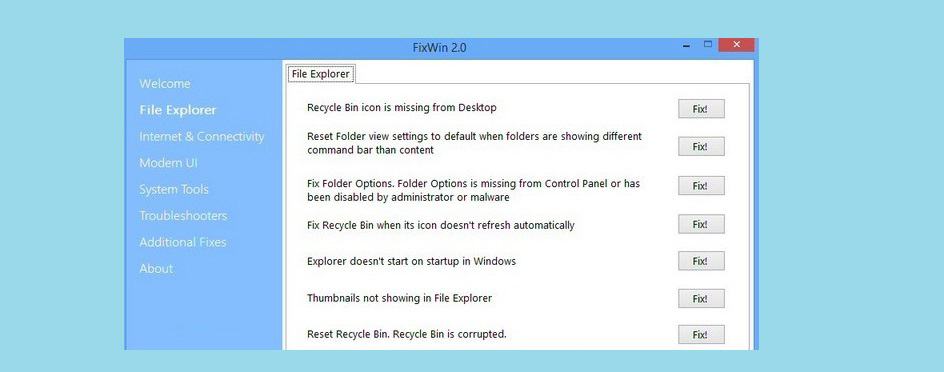
The FixWin 2.0 software is a free tool that you can use to fix various problems related to Windows 8, Windows 8.1 and Windows 10.
fix-windows-8-windows-10-problems
The program lists 50+ common problems and symptoms across a range of categories: “File Explorer”, “Internet & Connectivity”, “Modern UI” and more that you will discover below. And what’s really cool is that the software is available completely for free, so go ahead and follow this link in order to download. See below all the fixes that it comes with.

File Explorer

– Recycle Bin icon is missing from Desktop
– Reset Folder view settings to default when folders are showing different command bar than content
– Fix Folder Options. Folder Options is missing from Control Panel or has been disabled by administrator or malware
– Fix Recycle Bin when its icon doesn’t refresh automatically
– Explorer doesn’t start on startup in Windows
– Thumbnails not showing in File Explorer
– Reset Recycle Bin. Recycle Bin is corrupted.
– CD drive or DVD drive isn’t recognised by Windows or other programs
– “Class not registered” error in File Explorer or Internet Explorer
– “Show hidden files, folders and drives” option isn’t shown in Folder Options

READ ALSO: Easily Solve Windows 8.1, Windows 10 Shutdown Problems

Internet & Connectivity

– Right Click Context Menu of Internet Explorer is disabled
– Cannot connect to internet. There’s some problem in Internet Protocol (TCP/IP)
– Problem regarding DNS resolution. Fix it by clearing DNS resolver cache
– Long list of failed and installed updates. Clear Windows Update History
– Problem with Windows Firewall settings. Reset Windows Firewall Configuration
– Reset Internet Explorer To Default Configuration.
– Runtime errors are appearing in Internet Explorer while surfing
– Optimize Internet Explorer maximum connections per server to download more than two files at the same time
– Internet Options are missing in Settings under “Advanced” tab of “Internet Options” dialog box
– Repair Winsock (Reset Catalog)

Modern UI & Windows Store

– Having problem downloading Apps from Store. Clear and reset Store cache
– The Application wasn’t installed from Windows Store. Error Code: 0x8024001e
– “Something happened and your purchase couldn’t be completed”
– “Something happened and Windows Store is no longer working”
– “Something Happened and this app couldn’t be installed” Error: 0×80080008
– Reset PC Settings. PC Settings doesn’t open
– Disable OneDrive. OneDrive runs in background and syncs huge amount of files.
– Closing Windows Store Apps By Dragging Down From Top Method Is Very Slow
– Repair Windows Component Store.

System Tools

– “Task Manager has been disabled by your administrator” or Task Manager Option is disabled
– “Command Prompt has been disabled by your administrator” and can’t run any cmd or batch file
– “Registry Editor has been disabled by your administrator”
– Enable MMC Snap-ins. Some viruses disable Snap-ins which prevents Group Policy (gpedit.msc) and similar services to run
– Reset Windows Search to defaults. This will fix issues related to Windows Search
– “System Restore has been disabled by your administrator. Please contact your system administrator.”
– Device Manager isn’t working properly and not showing any devices.
– Repair Windows Defender. Reset all Windows Defender settings to default.
– Action Center and Windows Security Center don’t recognise installed AntiVirus or Firewall or still identifies old AV as installed.

Troubleshooters

The following built-in Windows troubleshooters can be launched directly from FixWin:

– Playing Audio
– Recording Audio
– Power
– Printer
– Shared Folders
– Homegroup
– Internet Explorer Performance
– Internet Explorer Safety
– Windows Media Player Settings
– Windows Media Player Library
– Windows Media Player DVD
– Internet Connections
– Hardware and Devices
– Incoming Connections
– System Maintenance
– Network Adapter

Additional fixes:

– Enable Hibernate. Hibernate option is missing from Shutdown options
– Restore the Sticky Notes delete warning dialog box
– Aero Snap, Aero Peek or Aero Shake isn’t working
– Fix Corrupted Desktop Icons. Fix and rebuild corrupted icon cache.
– Taskbar jump list is missing or doesn’t store MRU file list
– Balloon tips aren’t being shown in Notification Area
– Windows Script Host access is disabled on this machine
– App Switcher isn’t being displayed correctly
– The recovery image cannot be written. Error code – 0x8004230c
– Windows Media Player shows following error: “An internal application error has occurred.”

READ ALSO: Fix Error Code ‘Dns_probe_finished_no_internet’ in Windows 8, Windows 10

Xbox Store gets The Evil Within, Duck Dynasty, Sleeping Dogs Definitive Edition, and more

The Evil Within, Duck Dynasty, Sleeping Dogs Definitive Edition, and The Walking Dead Complete First Season hit the Xbox Store

Xbox One gamers can rejoice, as four new titles have hit the Xbox Store. The Evil Within, a survival horror game, joins Ducky Dynasty, Sleeping Dogs Definitive Edition, and The Walking Dead The Complete First Season. These games are available via the Xbox Store and your pricing may vary. 

I have personally been looking forward to The Walking Dead The Complete First Season! It is a fantastic game. Check out the games below and let us know which one is on your must-buy list!

The Evil Within, Duck Dynasty, Sleeping Dogs Definitive Edition, and The Walking Dead Complete First Season hit the Xbox Store

The Evil Within ($59.99)

“Developed by Shinji Mikami, The Evil Within embodies the meaning of pure survival horror. Highly-crafted environments and an intricate story are combined to create an immersive world that will bring you to the height of tension. With limited resources at your disposal, you’ll fight for survival in this perfect blend of horror and action.”

The pre-order bonus for the game is available through October 28th, allowing you to snag the game immediately. If you purchase the game now, you can receive The Fighting Change Pack, which includes items that allow players to survive a tad bit longer.

The Evil Within, Duck Dynasty, Sleeping Dogs Definitive Edition, and The Walking Dead Complete First Season hit the Xbox Store

Duck Dynasty ($49.99)

“Hunt, Race and Prank to Become a Robertson! Take on the role of Willie’s son John Luke as he learns how to become one of the Robertson Duckmen! Interact with Willie, Uncle Si, Jase and the rest of the family from the hit TV show. Go duck hunting, varmint shooting, off-roading and play office pranks in the Robertson’s hometown of West Monroe, LA. Will you learn the way of the beards?”

If you love the TV show, you will love this game. You can do all sorts of crazy things like hunt Louisiana wildlife including squirrels, frogs and fish. You can join Jase in a duck call room. You can even race against Willie in an airboat. Endless hours of entertainment with this game.

The Evil Within, Duck Dynasty, Sleeping Dogs Definitive Edition, and The Walking Dead Complete First Season hit the Xbox Store

Sleeping Dogs: Definitive Edition ($59.99)

“A vibrant, neon city teaming with life, Hong Kong’s exotic locations and busy streets and markets hide one of the most powerful and dangerous criminal organizations in the world: the notorious Triads. Play as Wei Shen – the highly skilled undercover cop trying to take down the Triads from the inside out. You’ll have to prove yourself worthy as you fight your way up the organization, taking part in brutal criminal activities without blowing your cover. Destroy your opponents in brutal hand-to-hand combat using an unmatched martial arts system. Dominate Hong Kong’s buzzing streets in thrilling illegal street races and tear it up in explosive firearms action. Sleeping Dogs’ Hong Kong is the ultimate playground. Undercover, the rules are different.”

This special edition of Sleeping Dogs has been rebuilt and remastered for Xbox One. All the previously available DLC content from the Xbox 360 edition have been integrated into this game — all 24 extensions in fact. The story-extending episode Year of the Snake and the horror-themed Nightmare in North Point are also included in this edition. 

The Evil Within, Duck Dynasty, Sleeping Dogs Definitive Edition, and The Walking Dead Complete First Season hit the Xbox Store

The Walking Dead: The Complete First Season ($24.99)

“A five-part game series set in the same universe as Robert Kirkman’s award-winning series. Play as Lee Everett, a convicted criminal, who has been given a second chance at life in a world devastated by the undead. Experience events, meet people and visit locations that foreshadow the story of Deputy Sheriff Rick Grimes. A tailored game experience – actions, choices and decisions affect how your story plays out across the entire series.”

If you are a fan of The Walking Dead, this game is a must-have. This game allows you to make choices and determine the course of action. Should you save her or should you let the zombies attack her? It is totally up to you in this game.

Microsoft improves settings UI for Outlook Web App with new intuitive tree interface

Microsoft improves settings UI for Outlook Web App with a new intuitive tree interface

Microsoft is continuing their improvements and response to user feedback by improving the settings in the Outlook Web App (not Outlook.com). The improvements focus on a cleaner User Interface while still improving discoverability, and a better experience for tablet users. Also, this will enable the team to add features in the future while keeping the settings familiar.

Currently, if you click the gear icon (upper right), and select an option you go to this pane:

Current Outlook Web App options

In the future, following these steps will take you to:

New Outlook Web App options

This new interface offers an options tree on the left that houses all your settings. Each subset of options is nested in an appropriate section. For example if you want to mark a message as read, you can expand the ‘Automatic procession’ to click on that option directly. This is also more intuitive to users that have used other software such as Office for Desktop which follows a similar settings structure.

These improvements will be hitting the Outlook Web App for Devices mobile apps, and on tablets you will have the entire options that are currently available only to web users. On phones, the options will remain limited to those ‘best suited to that layout.’ These changes will be rolling out in the coming months for all users. There are a few options not added to the new interface, and those are still accessible through get icon or through ‘Other’ on the bottom of the new interface’s tree.

Lenovo’s Best Convertible Windows 8 Laptop Outclasses the MacBook Pro

Lenovo is one of my favorite companies, with millions of customers all over the world. After we have previously spoken about potential specs of the upcoming new Lenovo Miix tablet, it’s time to have a look at the Lenovo Yoga Pro 3.
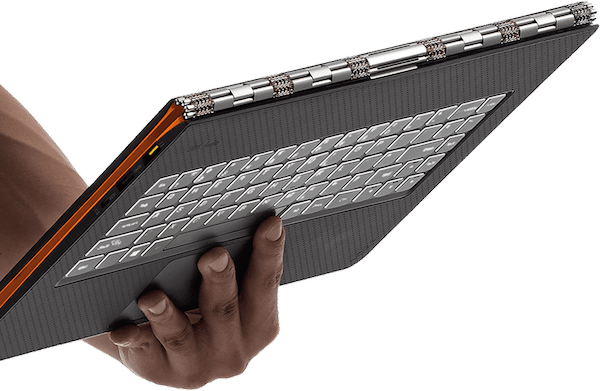
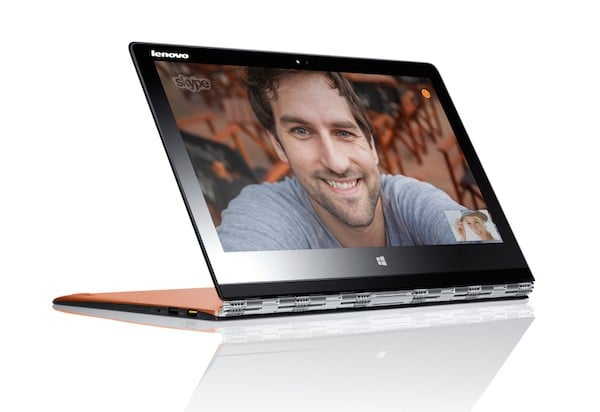
Lenovo Yoga 3 Pro windows 8 laptopLenovo Yoga 3 ProThe newest Lenovo Yoga 3 Pro comes with top notch hardware inside a sleek and sexy body which is said to have been constructed of about 800 individual pieces of steel and aluminum, with six attachment points across the display. The device is 17 percent thinner and 15 percent lighter than the Yoga 2 Pro, and sports the impressive 3200 x 1800 QHD+ display and has Intel’s new Broadwell processors on this inside.

READ ALSO: How to Keep Using Old Skype Versions in Windows, Windows 10

Lenovo says the device will have up to 9 hours of battery life, thanks to the new Broadwell chips and will be available with up to 8GB of RAM and 512GB of flash storage. The 3200 x 1800 pixels QHD+ screen is much better than the hyped Retina display (2560 x 1600 pixels) on the MacBook Pro.

Also, the new Yoga 3 Pro is one of the very first laptops to charge over USB, which makes it really portable. On the inside we also find the JBL-tuned speakers with WavesAudio processing at the bottom of the laptop along with two USB 3.0 sockets, a micro HDMI port, a headset jack, and an SD card slot. The laptop also comes with 5GHz 802.11ac support out of the box and the latest Bluetooth 4.01.

The Windows 8.1 Lenovo Yoga 3 Pro featurs “Harmony”, an option that can automatically adjust settings to optimize whatever app you’re using. It will change the brightness and color temperature according to the environment lighting. However, the new Yoga 3 Pro is available at a starting price of $1349 and it comes in three colors: silver, orange, and gold.

Despite the high price for a 13-incher laptop, I think this is a special device and is much better than the MacBook Pro. So, if you have the money for it, then it’s a no-brainer. And considering that it will make the jump to Windows 10, then you have another reason to make use of it.

READ ALSO: OneDrive App for Windows Devices Gets Fixes for Problems Linked to Files Downloads

Sunset Overdrive launch event taking place at your local Microsoft Store on October 27th

Sunset Overdrive launch event taking place at your local Microsoft Store on October 27th

Sunset Overdrive is set to be the next big hit game for Microsoft’s Xbox One entertainment console. The highly-anticipated game, exclusive to Microsoft’s console, is set to make its debut on October 28. Pre-orders are already under way.

For those of you who are excited about the game, you can head over to your local Microsoft Store on October 27th at 10PM to pick up a copy of the game and receive exclusive swag, giveaways, and more as part of a special launch event. Here is what Microsoft has to say about it:

Come join us at your local Microsoft retail store for the launch of Sunset Overdrive! Free and early game play kicks off at 10pm (local time) on Monday, October 27. Be one of the first customers to pick up a copy of Sunset Overdrive at midnight to receive exclusive SWAG, giveaways and more*! Plus, enjoy food and play games to receive a raffle ticket to score additional prizes – one lucky winner will receive an exclusive Sunset Overdrive bundle and other awesome prizes!

Sunset Overdrive launch event taking place at your local Microsoft Store on October 27th

If you haven’t preordered the game yet, you can do so now and get a $10 Xbox gift card digital code, along with melee weapons for the game. You can also purchase the Sunset Overdrive Xbox One Console Bundle and score a Microsoft Store exclusive white controller stand to match your new white controller.

Visit your local Microsoft Store on Monday, October 27th from 10PM to 1AM. The following stores will have different hours (October 28th from 6PM to 9PM): Garden State Plaza, Rockingham Mall, Fashion Centre at Pentagon City, Westroads Mall, and Roosevelt Field.

You can take a look at a trailer of the game below. If you are wondering why Sunset Overdrive is an exclusive title to the Xbox One, you can find out here.

Microsoft’s Tony Prophet on why they skipped Windows 9 for Windows 10: ‘It came and it went’

Microsoft's Tony Prophet on why they skipped Windows 9 for Windows 10: 'It came and it went'

When Microsoft announced Windows 10 on September 30th, everyone’s jaw literally dropped. We were all expecting Microsoft to unveil Windows 9. Even members of our news team were in shock that Microsoft skipped a version number — It simply was not expected.

So what happened? Well, according to Microsoft’s marketing boss for Windows, Tony Prophet, “it came and it went.” That is literally the answer we are getting for why Microsoft skipped Windows 9 in favor of Windows 10.

Here is what Prophet had to say further during the Dreamforce conference in San Francisco: “Windows 10 is not going to be an incremental step from Window 8.1,” he explained. “Windows 10 is going to be a material step. We’re trying to create one platform, one eco-system that unites as many of the devices from the small embedded Internet of Things, through tablets, through phones, through PCs and, ultimately, into the Xbox.”

Interestingly enough, Microsoft CEO Satya Nadella has been saying pretty much the same thing as Prophet. And it makes sense too. Windows 10 is not just another operating system. Microsoft has been taking a whole new route in terms of feedback, with the inception of the Windows Insider Program. 

Microsoft revealed today that the Windows Insider Program has seen one million registrants in under two weeks. On top of that, Microsoft has received 200,000 pieces of feedback from eager testers. Windows 10 is shaping to be Microsoft’s best operating system yet.

Remember those “Windows 7 was my idea” advertisements that Microsoft was running several years back? Sounds like it needs a comeback — Gangnam Windows 10 style.

Microsoft is being relatively quiet about Windows 10, so people don’t flake at buying new PCs this holiday season

Microsoft is being relatively quiet about Windows 10, so people don't flake at buying new PCs this holiday season

According to a Gartner analyst, Microsoft is being relatively quiet with Windows 10 in the consumer front, so people don’t flake on purchasing new PCs this holiday season. Microsoft recently unveiled Windows 10 and launched the Technical Preview, which was aimed at enterprise customers.

“Microsoft can’t make a big bang and talk about a new version of Windows in September with the holidays coming and consumers deciding that ‘if Windows 10 is coming, I’m just going to wait and not buy a PC,’” said Michael Silver, an analyst with Gartner. “That’s why last week’s announcement was pretty quiet and enterprise focused,” Silver added. “That’s why the hype [about Windows 10] is so low.”

This bold statement does make sense and explains why Microsoft launched a preview for the enterprise first, rather than consumers. Microsoft touted changes in Windows 10 that would benefit corporations and a less of an emphasis on Windows 8’s dual user interface (Modern UI vs desktop). Clearly businesses will find Windows 10 a much better solution as the line between touch and non-touch have been further blurred.

As Computerworld points out, the key message during the September 30th unveiling of Windows 10 was that users would not be confused when making the move from Windows 7 or Windows 8. “..whether they’re coming from Windows 7 or Windows 8, the workers at these companies will be immediately productive,” said Windows chief Terry Myerson during the Windows 10 unveil.

Once the 2014 holiday sales season is over, Microsoft is expected to talk more about Windows 10 for consumers. “Early in 2015 we’ll introduce the consumer chapter and talk much more about other device types and more consumer features,” Myerson added.

You can follow all our Windows 10 news and tutorials right here. Do you agree with Silver? Sound off in the comments below.

Microsoft launches new election experience at Bing, offers 360-degree view into Elections 2014

Microsoft launches new election experience at Bing, offers 360-degree view into Elections 2014

Microsoft has launched a new Bing experience for the upcoming elections (United States). In fact, Bing now gives you a 360-degree view into Elections 2014, with various perspectives and predictions.

With the new experience, Microsoft wants to arm voters so they can make decisions based on the most comprehensive information available. Microsoft is introducing a personalized Voter Guide which includes side by side comparisons of candidates’ positions as well as a tracker to find the nearest polling sites in your area. Here is what Microsoft had to say:

“As the U.S. approaches one of the most hotly contested political seasons in years, Bing has launched a new election experience at Bing.com/election that helps you get 360-degree view – from local to national – into Elections 2014.  Bing brings you the latest news from the right, left and center perspectives, up-to-date predictions across governor and national congressional races, a personalized Voter Guide* that includes side by side comparisons of candidates’ positions as well as a tracker to find the nearest polling sites in your area.”

Microsoft is also launching an interactive map of the United States as part of the new Bing election experience, allowing you to see which party is predicted to win across the Senate, House, and gubernatorial races. All you have to do is hover over a state or zoom into a district to see who is going head-to-head and their respective odds of winning. You can sort by incumbents, Bing Predicts, and receive a view of real-time exit polls on election day.

Microsoft launches new election experience at Bing, offers 360-degree view into Elections 2014

Microsoft is also adding a “My Ballot” option to the right side of the page at Bing.com/Elections. Bing will display everything that will appear on your ballot as well as the location of the nearest voting station. With this feature, you can compare candidates, dig into propositions and even see predictions from Bing as to which candidate has a higher chance of winning the elections.

If you are curious to see how the 2014 elections unfold, keep an eye on Bing!

Using the Windows 10 Technical Preview with Media Center? You’ve just opted out of updates

Windows 10

Windows Media Center is a program many are still clinging onto. With Windows 8.1, it was possible to purchase a license which would add Media Center to your operating system replacing the branding of “Windows 8.1 Pro” to “Windows 8.1 Pro with Media Center”. It appears, due to a bug, it is possible to upgrade to Media Center with the Windows 10 Technical Preview too, but according to Microsoft this will stop you from receiving any future updates to the operating system.

Those who have upgraded to Media Center with the Windows 10 Technical Preview will notice that the operating systems branding changes from “Windows Technical Preview” to “Windows 8.1 with Media Center”, rather obviously this bug causes anomalies with the branding within the operating system. Because of this, the Technical Preview will not receive any future updates, so you’ve essentially just opted-out of updates if you’ve installed Media Center.

Don’t worry though! There’s an easy-fix for this, according to the Microsoft support forums, an in-place upgrade will fix this problem. We’re yet to try this so don’t take our word for it. How many of you decided to install Windows Media Center, and if you did why haven’t you stopped using it yet?

Microsoft’s Surface Hub app for Surface Pro 3 lets you set your Surface Pen preferences and more

Microsoft's Surface Hub app for Surface Pro 3 lets you set your Surface Pen preferences and more

If you own a Surface Pro 3, you must download this app right now. New to the Windows Store is an app called Surface Hub, which is designed to complement the Surface Pro 3 by allowing you to set your Surface Pen preferences and more.

“Get the most out of your Surface. Surface Hub provides you with customization for your Surface Pro 3 device. Configure your Surface device. Give feedback on your experience so we can keep making it better,” the app description reads.

The app allows you to set the Pen pressure sensitivity to your liking by simply adjusting a slider. You can then test your pen sensitivity within the app. The second option allows you to dictate whether the top button on the Surface Pen opens up OneNote (modern) or OneNote (desktop application).

Microsoft's Surface Hub app for Surface Pro 3 lets you set your Surface Pen preferences and more

The app also allows you to provide feedback directly to Microsoft. It is a very basic form that lets you rate your Surface Pro 3 experience by asking you if you would recommend the device to a colleague or friend. You can also type up some feedback and send it to Microsoft.

The app is very basic at this time and clearly this app coincides with the recent firmware update that Microsoft released. In fact, that particular update for the Surface Pen Driver (v2.0.1145.0) enabled “additional upcoming configuration options for Surface Pro 3.” We knew this app was going to be released, but had no idea it was going to be made available so soon.

Hit the download link below to snag the app for your Surface Pro 3.

Microsoft's Surface Hub app for Surface Pro 3 lets you set your Surface Pen preferences and more

Strap in your seatbelt – here is how to make Cortana your car’s Bluetooth copilot

Cortana on the Road

For many Windows Phone users, Cortana has served as a sense of pride; she is our fight against Apple’s Siri and she assisted Master Chief when he needed help the most. Cortana provides quick access to information and allows users to perform complex actions, such as calendar scheduling, with a simple voice command. However, when we get in our cars, it can be hard to call upon her without taking our eyes off of the road – or is there a better way?

Cortana on the Road

After Microsoft introduced Windows Phone 8.1, a new subtle feature was added to devices that many users are still unaware exists. To put it simply, when you connect your Windows Phone to a car’s Bluetooth system, a once hidden contact for Cortana appears in your address book. Thanks to this new functionality, Cortana’s useful features are only a steering-wheel button press away.

We are going to show you how to easily access Cortana while you are driving, but you will need a few things to make this possible. First, you will need a Windows Phone device running the latest version of the operating system, 8.1. Second, you will need an automotive vehicle with built-in Bluetooth. Instructions will vary depending on your vehicle, but we will try to give a broad overall explanation, so that you can take this advice back to your very own car.

Setting the System Up

To start, we are going to have to pair our Windows Phone device with the car’s Bluetooth system. Begin by swiping down from the top edge of your device and selecting “All Settings”. Next, select the “Bluetooth” menu option and ensure that the toggle switch is set to the “ON” position.

For this example, we are going to be using a 2014 Toyota Corolla with Toyota’s Entune audio display system. Start by selecting the Setup button in the upper right corner of the home screen (Note: on some models, it is a physical hardware button), then select Bluetooth, and finally, the “Add” button.

Now, head back to your Windows Phone and look for the name of your car in the Bluetooth settings list – in this example, my car was named “TOYOTA COROLLA”. Once you have selected your car, give the unit a moment to connect, and if prompted, enter the provided Bluetooth pairing PIN on your phone.

Once a connection has been established, your phone will ask permission to transfer contacts from your device to the car’s system – select yes; this process may take a bit of time depending on how many contacts you have on your device. My Windows Phone has over 800 contacts, and the process took almost five minutes.

If you do not have a Toyota with Entune, your system may still be similar. Look for a settings menu, and then an option to access Bluetooth and add a device.

Using Cortana on the Go

Once the car and phone have been connected, you are ready to go! You will find a listing for Cortana in your car’s address book. If you have voice recognition in your vehicle, you can simply activate it (Toyotas have a button on the right side of the steering wheel), and state “Call Cortana”.

Once again, if you do not have a Toyota with Entune, the process may be similar in your vehicle. Check your owner’s manual on how to initiate a phone call via the auto’s Bluetooth system.

After stating, “Call Cortana”, you will hear the typical beep letting you know that she is listening, and you can make any requests as usual. For Example: “Text John Smith that I will be late to tonight’s party.”

To create an even better experience, head into the settings of your Windows Phone once again, but this time select the “Speech” menu option. From here, you can tell Cortana to read text messages out aloud when you are connected to a Bluetooth device. She will let you know who is texting you, and then you can either ignore the text, respond back by voice, or initiate a phone call.

We are here to Help

We hope this helps, as it has made my drives much easier over the last few weeks. Remember, if you have a different model car with Bluetooth, you should consult your owner’s manual for detailed instructions. If you need any additional help, be sure to comment below and we will try to help you out as best as we can!

Disclaimer: We are not aiming to promote Toyota — it is simply the car I own. If you would like to send me a BMW, Mercedes, or Tesla to test out, I will gladly write a tutorial just for you. ?

HTC One M8 for Windows reportedly coming to AT&T on November 7th alongside the Lumia 830

HTC One M8 for Windows

Earlier this year, HTC released the Windows Phone version of their flagship device dubbed as the HTC One M8 for Windows. The handset brings all the goodness of HTC One M8, but with Windows Phone 8.1 as its operating system. Currently, the HTC One M8 for Windows is available from Verizon Wireless, but it seems more carriers will offer the handset in the coming months. 

In the US, AT&T is also expected to add the handset to its product portfolio in the coming weeks. As per our friends at WPCentral, the HTC One M8 for Windows will hit retail at AT&T on November 7th. What’s even more surprising is that it’s the same date when the carrier is expected to begin selling the Lumia 830. This is definitely a welcoming news if it’s legit as customers will now get more choice, since most of the popular Windows Phone handsets are available at Verizon. 

The report didn’t mention anything about the pricing of the HTC One M8 for Windows on AT&T, but it shouldn’t be too different than Verizon. As for the Lumia 830, the mid-range flagship retail price is around 330 Euros so we do have an estimate. 

HTC One M8 comes with Windows Phone 8.1 as its operating system, and rocks a 5-inch display sporting a resolution of 1920 by 1080 pixels. There’s a quad-core Snapdragon 801 processor under the hood, 2GB of RAM, and 32GB of expandable storage, supporting microSD card of up to 128GB. It also retains the Duo camera setup with a 4MP UltraPixel camera and a depth sensor. 

The HTC One M8 is superior to the Lumia 830 when it comes to hardware, expect the photographic capabilities. That’s one area where Lumia 830 takes the lead, thanks to its 10MP camera featuring Pureview technology and Carl Zeiss optics.

There’s no official confirmation from AT&T at the moment, but we’ll keep an eye on the news, and notify you as soon as anything official comes up.

Microsoft optimizes JavaScript execution in Internet Explorer for Windows 10 Technical Preview

Microsoft optimizes JavaScript execution in Internet Explorer for Windows 10 Technical Preview

We recently wrote about the advances in JavaScript performance in Internet Explorer in the Windows 10 Technical Preview. Today Microsoft has revealed more details into the areas they are targeting.

Chakra is the JavaScript engine that interprets JavaScript code into functionality in Internet Explorer 9 and up.

How it works

Chakra supports a three-tiered architecture. There is a an interpreter focusing on fast start up times, a JIT compiler used to produced highly optimized code, and a garbage collector that reduces pause and improves responsiveness.

Once Chakra gets JavaScript code from an app or website it checks it for any syntax errors, which are statements that violate language rules. When a function is executed Chakra creates an abstract syntax tree (which is the source code represented in a tree data structure). This is used to make byte code (non-human readable code used by interpreters for languages such as Java and Python also). This is interpreted immediately (the browser is acting upon the code) while the JIT Compiler creates more optimized machine code by collecting data. It also optimizes loops, parts of code that are being run multiple times, so that it is not reading them over and over. Once the JIT compilation is complete, every time the function is called, Internet Explorer will run the faster machine code, rather than interpreting the slower byte code.

This is a simplified version of the process, but now you have a general understanding of what happens to JavaScript code in Internet Explorer. Here is a diagram for a visual recap.

Chakra’s JavaScript execution pipeline

New Optimizations

Now, we get to the improvements to this flow that Microsoft is working on.

The first is a Simple JIT that accompanies the Full JIT compiler. The JIT compiler produces machine code that runs much faster. However, it takes time to produce this code. So the slower interpreter is running byte code while Chakra waits on the Full JIT. To reduce the time it takes from executing slower byte code to machine code, Microsoft has added the Simple JIT. This will ignore complex optimizations but will produce machine code faster than the full JIT, enabling Chakra to switch from slower byte code to faster machine code earlier. Once the full JIT is finished, the Chakra will switch to that code.

So far, there has been three threads used by Chakra. But some hardware can handle more than this workload. Chakra can now determine when the hardware is capable of more, and then starts multiple threads for JIT compilation. This also decreases the time it takes to switch from slower byte code to faster JIT machine code.

The last improvements come to the JIT compiler itself. So far, I’ve tried to make it as easy as possible to understand for those of you without a technical background, but here it becomes impossible to delve into details. The JIT compiler takes byte code and turns it into machine code that is read by the computer directly. New optimizations make the resulting code more efficient and produce performance boosts when it is run by Chakra.

Wrap-up

If your head is already spinning, no worries, this is not easy to follow even for some programmers as it is very low level material.

Here is a “tl;dr”– JavaScript is an ‘interpreted’ language, which means that it requires a program to read and execute its instructions. Other languages like C++ are ‘programed,’ which means they are compiled into machine code that the computer directly understands. In fact, the program that reads interpreted languages is usually written in programming languages such as C++. What Chakra does is read and execute JavaScript while producing faster machine code for it. The optimizations are aimed at transitioning to this machine code as fast as possible, and making the machine code more efficient.

Note: lead image is just a snippet from the jQuery source code.