Internet Explorer 11 Preview launched, offers 100 tabs per window

IE11

Microsoft has launched the Windows 8.1 Preview today for those who are on Windows 8. On top of which, Microsoft has launched a new version of its Internet Explroer browser as part of the update to Windows 8. Users who install Windows 8.1 Preview will be treated to Internet Explorer 11 Preview.

So what’s new with Internet Explorer 11? Microsoft touts IE11 as the browser that offers better touch performance, faster page load times, continuous browsing experience across Windows devices, and a completely redesigned and reimagined F12 developer tools.

According to Microsoft, touch is the new fast. Internet Explorer 11 was built to be fast, responsive, and battery efficient when it comes to touch. “IE11 delivers a fast, fluid experience, using as many tabs as you want, and side-by-side browsing so you can use your favorite sites and Windows Store apps together. IE11 puts your sites first, delivering the best Web on Windows across the full range of Windows devices and screen sizes, that’s equally great for touch, mouse, and keyboard,” Microsoft stated in an official blog post.

IE11 now allows up to 100 tabs per window, with each tab being suspended when not in use to preserve resources and battery life. IE11 also has an option to always show the tabs and address bar for faster access. IE11’s touch optimized interface allows for better navigation, easier access to favorites, and the browser even supports the latest standards and frameworks actively used by Web developers.

Hit the source link to read more about IE11 or give it a whirl in the recently released Windows 8.1 Preview. No word on when Windows 8 or Windows 7 users will be able to snag IE11, but it only makes sense that we will see it on these two editions of Windows at some point.

Watch Microsoft’s Build 2013 developer conference right here #bldwin

Build 2013

Microsoft’s Build 2013 Developer Conference is finally upon us and the software giant is expected to showcase the Windows 8.1 update, along with releasing the update for all to download. On top of which, Microsoft is expected to go over other services and devices at the event.

Starting June 26th at 9AM Pacific Time, Microsoft will begin the conference and the event will be live streamed on the homepage of https://channel9.msdn.com/. We will also embed the live feed in this post when it becomes available for your viewing pleasure.

As Microsoft states, this event will give us a glimpse at what’s next. “At Build, we’ll share updates and talk about what’s next for Windows, Windows Server, Windows Azure, Visual Studio, and more. Build is the path to creating and implementing your great ideas, and then differentiating them in the market. Join us for three days of immersive presentations delivered by the engineers behind our products and services, while networking with thousands of other developers getting the first look at what’s next,” Microsoft explains.

Day 1 and Day 2 of the event is now over, but you can now watch the live stream of Day 3 below.


Video: Check out the Start Button and more in Windows Server 2012 R2 Preview

Windows Server 2012 R2 Preview

Microsoft have officially released the Windows Server 2012 R2 Preview to the public today, allowing anyone to test it out for free. Windows Sever 2012 R2 is similar to the Windows 8.1 Preview, meaning the Start Button, Boot-to-Desktop and more is included. We’ve made a short video demoing such features.

A word of warning before watching, this video does not go over actual server features. I am not a Server guru therefore I’m not someone to be talking about Server features, this video is strictly for the most obvious changes, like the Start Button. If you want to see Server specific features, this is not your video.

Check back at WinBeta tomorrow for full coverage of the BUILD 2013 conference, included a hands on with the new Windows 8.1 Preview!

‘Internet Explorer 10 was designed with security in mind’ says Microsoft

Internet Explorer 10

In an official blog post, Microsoft is touting Internet Explorer 10 as the browser that was designed with security in mind. Microsoft also touts Internet Explorer 10’s ability to block over 99% of malware and has less vulnerabilities compared to rival browsers on the Windows operating system.

“Internet Explorer 10 includes significant advancements in security to help keep you safer as you browse the Internet. Backed by third-party evidence, Internet Explorer 10 not only blocks over 99% of malware, but also has fewer software vulnerabilities than other browsers on Windows,” Microsoft stated in an official blog post.

Microsoft says Internet Explorer 10 keeps you protected from from socially-engineered attacks thanks to SmartScreen URL filtering and Application Reputation; attacks on websites thanks to the XSS Filter; and attacks on the browser or operating system by keeping your browser updated via Automatic Updates. Microsoft argues that Chrome, Firefox, and Safari all fail to offer the same level of protection as Internet Explorer 10 does.

“Your browser is the first line of defense in keeping you safe on the Web. Internet Explorer 10 was designed with security in mind, and third-party reports like those from NSS Labs and Secunia show that IE10 provides industry-leading security for Windows customers. If you’re looking for a web experience that is fast, fluid and safer, try Internet Explorer 10 for Windows,” Microsoft adds.

What browser do you feel safe using?

Microsoft to open a Windows Store within 600 different Best Buy locations across US and Canada

Windows Store within Best Buy

Microsoft has revealed that the software giant will be opening a Windows Store, roughly 1,500 square feet to 2,200 square feet, within 600 different Best Buy locations.

“Microsoft Corp and Best Buy Co. Inc. today announced a strategic partnership to create the Windows Store only at Best Buy. The comprehensive store-within-a-store will be in 500 Best Buy locations across the United States and in more than 100 Best Buy and Future Shop locations in Canada,” Microsoft stated in an official blog post.

These Windows Stores within Best Buy will allow consumers to browse, try, compare, and purchase a wide variety of Microsoft’s products including Windows-based PCs and tablets, Windows Phones, Office, Xbox, and much more.

“The Windows Store offers a large-scale, hands-on customer experience that will show customers how Windows and Microsoft devices and services can make it easier for them to work and play. We’re pleased to partner with Best Buy in bringing the latest technologies to consumers at scale in a unique environment where they can explore how Microsoft products fit together across entertainment, travel, music and other scenarios.” Microsoft’s Tami Reller stated. She’s the chief marketing officer and chief financial officer of the Windows Division.

These new Windows Store locations within Best Buy (FutureShop in Canada) will roll out from late June through September, according to Microsoft.

Best Buy App for Windows 8/RT/10 [Review]

The Windows 8, Windows 10 Best Buy app is of great use if you are a Best Buy customer and you often shop online; the app comes with many interesting features, read our review to find all about it
best buy windows 8 app
If you live in the US and you want to buy something at a bargain price, chances are you will end up in a Best Buy store. However, if you want to do your shopping online and have your products delivered to your doorstep, then you can use your Windows 8, Windows 10 device to shop at Best Buy.

The store offers customers the Best Buy app for Windows 10, Windows 8 so they can do their shopping from the comfort of their home. Using the Best Buy Windows 8, Windows 10 app is very simple and customers will find that browsing the store and comparing various items can be done very easy.

Buy anything from Best Buy App with the dedicated Windows 8, Windows 10 app

best-buy-shopping-online-windows-8

The Best Buy Windows 8/RT app can be downloaded for free from the Windows Store. It is a easy to use app and thanks to the hard work of the developers, the user interface is very intuitive and it allows for easy shopping.

From the main window of the app, customers can see the daily deal, a table of different categories as well as all the deals that the store offers. From here, users can browse depending on what item they want, sort lists based on price or other relevant criteria or add products to a compare list.

If a customer is looking for a specific item, then it is very simple to search for it using the Windows 8, Windows 10 Search charm. One feature that is missing is a “filters” panel. This would greatly improve the searching process for different products, but we hope that this feature will be available in future builds.

shop-online-with-best-buy-app-windows-8

Adding items to the compare list is as easily as selecting them and clicking on the “Compare” button located on the bottom menu, on the right side of the menu. At this point, all the selected items are moved to the compare table, where users can very easily browse through them.

The Best Buy app for Windows 10, Windows 8 allows customers to buy products directly from the app, either from a guest account, or from their Best Buy online account. Also, it give the user the option to either select home delivery (express or regular) or to locate the nearest Best Buy shop and pick his order from there.

get-deals-from-best-buy-with-windows-8-app

As you can see, the Best Buy App for Windows 8/RT has a number of features that will be very useful for customers who want to do their shopping from home. The pleasant interface of the app and the ease of use make it a great way to shop online.

Download Best Buy app for Windows 10, Windows 8

Microsoft highlights all of its modern services in new ‘Windows Everywhere’ advertisement (video)

Windows 8

Microsoft has put together a new video advertisement highlight all of its modern services, including Skype, Bing, SkyDrive, and Xbox Live. The video advertisement also highlights Windows 8, Windows Store, and Internet Explorer 10.

As Microsoft points out, Windows 8 brings all of Microsoft’s modern products and services to life. The software giant is touting Windows 8 as bringing together all these services onto your PC, tablet, or phone. Microsoft even uses the tagline, “One experience. On every device. For everything in your life.”

The video advertisement is thirty seconds long and we have embedded it below for your viewing pleasure. Sit back and hit play!

Microsoft Solitaire Collection, Minesweeper, and Mahjong apps receive minor update

Microsoft Solitaire Collection

Over this past weekend, Microsoft has rolled out three updates to three of its popular gaming apps in the Windows Store. The Microsoft Solitaire Collection app, along with the Microsoft Minesweeper and Microsoft Mahjong apps have all received minor updates.

These three apps received minor updates this past Sunday, featuring bug fixes and optimizations, according to their respective change logs. No further details were revealed by Microsoft as to what was fixed. If you have these apps installed, head over to the Windows Store and download the updates. Let us know in the comments below if you notice any new changes or improvements.

As of June 9th, there are 85,953 apps in the Windows Store. Microsoft is expected to release a public preview version of Windows 8.1, the next big update to Windows 8, which also features a redesign of the Windows Store. The new design makes the Windows Store much more organized and simplistic.

Bing Translator for Windows Translates Text in Real Time from Camera

Bing Translator is a free app that has been available for Windows Phone devices for a while now. It has received lots of positive feedback by users and thanks to its simplicity, it has been a favorite translator app amongst travelers.

Now, the Bing Translator app is available for Windows 8/RT devices also, so tablets, laptops and computers can have this wonderful app that tries to break the barrier of speech. While its translations are not 100% perfect, it is much better than most other apps I’ve used.

Bing Translator now available for Windows 8/RT

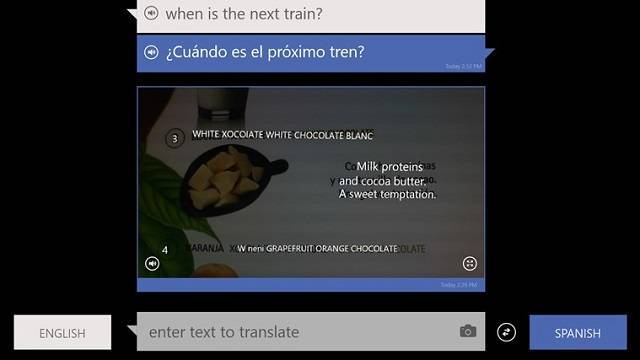
Bing Translator Translates Text in Real Time from Camera

The app is free to download from the Windows Store. As like other Microsoft Apps, it does not require users to pay any additional fees for new languages, so every user can rest assured that he can have install it before taking a trip and no hidden costs will appear later on.

The app itself is very simple, having three menus in total, where users can access all the features of Bing Translator. One the main screen, users can see the “translating area”, where text is inputted and translated by the app. Here is where the best feature of Bing Translator comes into focus.

translate-text-and-photos-bing-translator-free-app-for-windows-8

The app allows the user to translate text from images. Just point your device’s camera to the text you want translated and it will show you exactly what it says. Granted this feature only works on mobile devices, it is still an awesome thing to have with you when travelling to a foreign country.

The other features of the app can be accessed from the top drop down menu. The second menu contains all the available languages that the app can translate. Here, you can also see what type of translation it can do, as not all languages have photo translation.

The third and final menu is the download menu, where users can download the languages they need to their device, so they can use the app offline. This is an awesome feature, as many don’t want to make roaming costs when traveling outside their country. But keep in mind to download these languages prior to your trip, as they are pretty big (over 100 MB).

bing-translator-free-language-download-for-offline-use

As you can see, Bing Translator for Windows 8/RT is a must have app when traveling. It will allow you to translate in a manner of seconds any text from any language. The option to translate text from photos is also a great feature, and thanks to the possibility of downloading languages, users can use the app offline.

Download Bing Translator for Windows 8/RT

Even more, admins can follow some simple steps to enable transcript translations in Microsoft Stream.

Window 8.1 Video Preview of The New Features

windows-8.1-update-features-video-demo-first-look

A few days ago, we talked about the what changes will Windows 8.1 bring. Although we covered pretty much every nook and cranny of the the update, it’s one thing to read about something and a totally different thing to see it in action.

If you want to see the how Windows 8.1 looks and works, then you can check out the video demo, where Jensen Harris shows off the new features. We’re all pretty siked about this update, and I hope it will the first of many updates that will improve the Windows 8 experience.

Video Demo of Windows 8.1

As promised, here is the video demo for the Windows 8.1 update. The feature that Jensen Harris didn’t talk about is the Start Button, which seems to be a part of the new update, but if you look closely, you can see it minute 2.12. Enjoy!

[youtube]VQb5caeSo00[/youtube]

We can hardly wait for this update to come out, and I hope that you are as excited as I am to test out the new features of Windows 8.1.

Best Windows RT Games For You to Play

In our opinion, these are one of the best Windows RT games out there that you can install on your tablet and start playing. If you know any other worthy Windows RT games, do let us know by leaving your comment and we will definitely add it to the list.

best-windows-rt-8-games
Our favorite pastime – games, and to be more specific, video games. Even from the good old days of the arcade games and right up to games for mobile devices such as smartphones and tablets, one of the most important aspects of the computer industry is gaming. So much that gaming has paved the road for computer innovation.

Nowadays, with the rise of Windows 8 and mobile technology being the thing on everyone’s minds, developers are trying to create games that work on multiple platforms. This is why Windows 8/RT has so much potential when it comes to games. Windows RT games will work on any type of device, be it a computer or a tablet, and games for Windows RT have surpassed our expectations in the same way as Android or iOS game had a while back.

What are the best Windows RT games?

We’ve previously talked about some games, here at Wind8Apps, and we’ve reviewed some pretty awesome games, but now we’re trying to find what are the best Windows RT games available. As you might know, choosing “the best game” is not quite easy, as each of us have different tastes and we enjoy different types of games. However, I’ll try to create a top of the best Windows 8 games based on a few elements:

  • Graphics – how well the game looks
  • Gameplay – ease of use and other game elements
  • Quality – stability of the game, number of features etc
  • User Rating – this is also an important part, as users are the best critics

Based on these aspects, I tried to put together a list of the best games for Windows RT. Some titles were previously reviewed, so, if you want to know more about them, I’ll provide links to the previous articles so you read about them. But now, let’s see which were the best games I could find on the Windows Store.

Adventure Games

windows-8-best-games-Enigmatis The Ghosts of Maple Creek

Coming from a long line of similar games, Enigmatis: The Ghosts of Maple Creek is a wonderful point and click Windows 8 adventure game that will keep players entertained and coming back for more. When testing the game, I was impressed by the very high quality of the graphics, as well as the ease of use.

Of course, the various puzzles throughout the game are pretty challenging, but if you pay attention, you’ll have no problems whatsoever. A word of warning though: within this game lies addiction.

best-windows-8-games-rt-ga,es-Abyss The Wraiths of Eden

Offering players a captivating story and very simple gameplay, Abyss: The Wraiths of Eden is a Windows RT game that will keep even the most particular gamer captivated for a while. The high quality graphics that the game has fall in the same category as the others coming from this developer.

I can admit that I played all the related games and I had fun every single time. Even though the gameplay is the same, the story will make players curious and wanting to play as soon as they start it.

windows-8-adventure-games-Nightmares From The Deep The Cursed Heart

If you are interested in a game that has a very interesting plot that will keep you interested day in and day out, high quality graphics and easy gameplay, then Nightmares From The Deep: The Cursed Heart is the Windows RT game for you.

The developer of the game has put a lot of work in it to make it as good as his other games. Point-and-click games rarely get as good as this game. I highly recommend it as one of the best Windows RT adventure games I have ever tired.

games-for-windows-rt-8-best-games-Dark Arcana The Carnival

Like other games from the same developer, Dark Arcana: The Carnival is simply stunning. As a point-and-click game, some might think that it doesn’t offer much, but the story behind it is fascinating. Also, the textures and graphics are amazing.

While playing the game, I was always wondering what awesome level will come next and what new puzzle I would have to solve. Overall, the game is awesome, and I recommend it to any adventure fan who likes to unravel mysteries. While the game it not free, it does have a free demo that you can try, just to get a feel of what it’s like.

windows-rt-games-adventure-best-Adera

Adera is a free Windows RT adventure game that players will definitely find thrilling. The graphics of the game are exquisite, much better than what I originally expected. The gameplay is similar to the other Windows 8/RT adventure games, and if you are a fan of puzzles and twisting stories, then you will definitely enjoy Adera for Windows 8/RT.

Within the game, you will have to solve different puzzles and other mini-games that will keep you entertained. The game is pretty straight forward, with a linear storyline, but it makes for a pretty good weekend game that players can enjoy.

Shooter/Action Games

Judge Dredd vs. Zombies-windows-8-rt-shooter-game

We all like  a good zombie killing game from time to time. It’s strange how it takes the edge off and it allows us to relax when we’re blowing the head off from a green-blooded zombie that’s out to get us. Judge Dredd vs. Zombies is exactly like this, throwing wave after wave of zombies at you and you.

While the graphics are a bit more rugged than on other games, the gameplay is very immersive and fun. For more information about Judge Dredd. vs. Zombies, you can read our full review of the game.

Arcade Games

best-windows-8-arcade-games-windows-rt-games-Jetpack Joyride

In true style of Arcade games, Jetpack Joyride is a coin-grabbing, fast paced fun factory. The decent graphics, tons of upgrades and very fun gameplay make it a perfect addition to every Windows RT device. In the time I’ve tested the game, I was amazed at how much I liked it, despite the odd names that are given to each upgrade.

If you are looking for a great free Windows RT game, then this is the one to go for. But be warned, it can become addictive and you won’t notice the hours passing you by.

Fruit Ninja-for-windows-rt-8-best-games-arcade

Although I am not a big fan of this game, it has lots of fans on all mobile platforms. Android and iOS users have played Fruit Ninja on their devices for a long time, and seeing that it has been appreciated by the audience, the developers, Halfbrick, have created the Windows RT version.

Fruit Ninja for Windows RT has in stored for its players the same great graphics as before and the same intense gameplay that we are all used to. The game offers users a free demo, but if they want to have all the features, they will have to buy it.

Simulator/Tycoon Games

tycoon-game-windows-8-simulator-game-best-games-Game Dev Tycoon

I must admit I’m not a huge fan of simulator games, and at first, I didn’t think much of Game Dev Tycoon. After I started playing the game, I went on and on playing a few good hours straight. I never thought that a Windows RT simulator game would be so interesting.

In a few short hours, it has become one of my favorite Windows 8/RT games and I can hardly wait for the PC version to be available so I can play it on my Windows 7 computer also. I bow my head to the developers! A truly great idea that has become a great Windows RT game!

Other Awesome Windows 8/RT Games

If you haven’t seen our past reviews of Windows 8/RT games, then you should take a look over them. We’ve featured puzzle games, solitaire games and a number of other interesting titles. Stay tuned, as we’ll be coming back with other great games for Windows 8/RT.

Although I find these games awesome, some of you might not think I was right about all of them, or you might think I should have added other titles that you like. Keep in mind that each of us has different tastes, and so, what I like, you might find not at all pleasing. However, if you think I omitted some great games, please let me know by leaving a comment and I’ll try to add your game to the list.


Windows RT 8.1 build 9410 demoed at TechEd 2013

Windows RT 8.1 Start Screen

Michael Niehaus, senior product marketing manager at Microsoft held a keynote today at TechEd 2013 where he spoke about Windows RT in the Enterprise and how RT is good for businesses. During the keynote, he demoed a pre-release build of Windows RT 8.1. The build was 9410, which means its compilation date was before the Start Button was re-added to the taskbar.

The demo shows off the Start Screen, Desktop and IE11, however the IE11 demo seems to crash before they can get it going. Of course, this is pre-release software so it is expected.

The keynote was around an hour long, and the Windows RT demo’s are fairly short. We’ve done the hard work for you and cut the keynote down to just the Windows RT parts, which means some of the things being talked about in the video might not make much sense. Don’t worry, if you want to check out the full keynote, check out the Source Link below.

Track Your Reddit Feed on Windows 8, Windows 10 With Redditopia

There are many users of Windows 8, Windows 10 that want a official app for their favorite news website: Reddit, where they can find the latest headlines, pictures all other interesting content gathered from the Web. However, due to the lack of an official Reddit app, users had to make due with third party apps.

Redditopia is one such app that promises to offer users a great Reddit experience, complete with all the content and the features that they are accustomed to from the website. After looking for a decent Reddit app, we found that Redditopia comes pretty close to the real deal.

Redditopia brings Reddit to Windows 10, Windows 8

Redditopia-brings-reddit-to-windows-8-app (5)

This free app is available in the Windows Store for anyone to download, and if you are a regular user of Reddit, then you can log in to your account and you can use it just like you would the web interface. The app itself is lightweight and it loads very fast, giving all the headlines in a few seconds.

Redditopia-windows-8--news-reddit-app (4)

Redditopia for Windows 10, Windows 8 allows users to browse the Reddit stream easily, via the simple user interface that groups the items just like you would see in the top menu bar from the website. When they see a interesting article, users can open it and the webpage of the article will be opened in a window within the app, and on the left side, they can see a list of the other articles in that category.

Redditopia-windows-8-reddit-app (6)

There are also some other features that Redditopia for Windows 10, Windows 8 provides, such as two different views, apart from the regular view:

  • Tablet –  which allows users to see the article on almost the entire screen, with a information and navigation bar at the top of the screen
  • Fullscreen – The article is showed in a full screen view with no other buttons or features except the “Exit Full Screen” button in the upper left corner

Other features of the app include subscribe to the current category you are browsing, save post, which lets users save different articles for reading later, toggle comments, for those who want to read or leave comments to different posts, refresh post and open in IE, which will open the article in Desktop Mode with the default browser.

Redditopia-windows-8-reddit-app (7)

In terms of customization, the app has five themes, so users can select which color they find the most relaxing. Apart from this, there are no other customization options, but for a news app, you don’t need to many of these anyway.

The app also allows video playback, where users can watch news in full screen view, and by double clicking / tapping, they can change the video quality (if the video has more than one quality level).

Redditopia-windows-8-reddit-app-free

As you can see, there are lots of great features that are offered by Redditopia for Windows 10, Windows 8, and regular Reddit users that work on Windows 10, Windows 8 will definitely find this app more than adequate for their needs. After testing the app, I found it very intuitive and fast, and as a Reddit user, I will definitely use it in the future.

Download Redditopia for Windows 10, Windows 8

Learn All There is to Know About Star Wars With This Windows 8, Windows 10 App

Star Wars fan and possessor of a Windows 8, Windows 10 tablet? Then you need to download the Star Wars Almanac app from the Windows Store to know all there is to know about Star Wars with this Windows 8, Windows 10 app

star-wars-almanac -windows-8-star-wars-podcast

Star Wars was a big part of my childhood, and I bet most of you feel the same way. The Star Wars Universe will never disappear and its fans will remain faithful forever. If you are a Star Wars fan, then this app will surely be to your liking. Star Wars Almanac for Windows 10, Windows 8 offers users lots of information on a variety of topics related to Star Wars.

If you want to see what does this Windows 8, Windows 10 app provide for its users, then keep on reading and I think you will like what you see. I’ve seen some great fan-apps for different movies or books, but few come close to the level of Star Wars Almanac for Windows 10, Windows 8. Take a look and see for yourself.

Star Wars Almanac: A complete Star Wars Encyclopedia on your Windows 8,Windows 10 Device

star-wars-almanac -windows-8 (8)

This free app can be downloaded from the Windows Store by any Star Wars fan out there. Also, if you like the app and you want to support the developer, you can upgrade the app for $1.49 to remove the ads, or buy coins from the app, which are used to unlock special content and app features.

star-wars-almanac -windows-8 (7)

Overall, the app is pretty well designed, having most of its content accessible from the main page. Here, users can see a daily featured item, their favorite pages or browse for content from different categories. Most pages are complete with pictures, videos and audio files, apart from the basic information about each and every element. Also, the app provides integration with the Star Wars Wiki, for those in need of some extra information on different topics.

star-wars-almanac -windows-8

Users can browse depending on categories, where they have People, Vehicles, Races or Planets. Each page from the app has a an impressive amount of information, and if this isn’t enough, Star Wars Almanac for Windows 10, Windows 8 also offers users a separate section with Star Wars News and Podcasts.

star-wars-almanac -windows-8-information

The quality of the pictures and videos is decent, depending on the source. Videos are added from YouTube, while the image galleries are integrated within the app. Also, users have the possibility to search for information witht the help of the Search charm.

star-wars-almanac -windows-8-with-star-wars-game

The developers also added a new feature to Star Wars Almanac for Windows 10, Windows 8, and that is the Guess Who game, where users have a multiple choice answer to guess who or what is in a picture that gradually appears on the screen. The scores from the game are saved and compared on a leaderboard only for those who have an account. The account can be set up with only two clicks or taps from the Settings charm and under User Profile.

star-wars-almanac -windows-8 (6)

Overall, the app is pretty good, although there was a slight issue with the Twitter button, causing the app to crash when pressed, but otherwise, there was only smooth sailing. The user interface of the app is pretty good, however, I’d like to see some improvements, making it easier to navigate and more pleasing to look at. This cannot be said as a drawback, as I’m sure the developers are hard at work making the app better.

star-wars-almanac -windows-8-fan-app

Probably the best thing about Star Wars Almanac for Windows 10, Windows 8 is the amount of information contained in the app. After browsing the app for a few hours, I am amazed that the developers have managed to get so much information about virtually everything into one place. Star Wars Almanac is the best app for every Star Wars fan out there, there’s no doubt in my mind about this.

Download Star Wars Almanac for Windows 10, Windows 8

Experience Battleship in Windows 8, Windows 10 with Airplanes

Airplanes is without a doubt, the best Battleship game to be played in Windows 8, Windows 10 and Windows RT device. Have a look at the review below to see why we think it’s so great!

airplanes-for-windows-8-game-brings-battleship-experience (5)

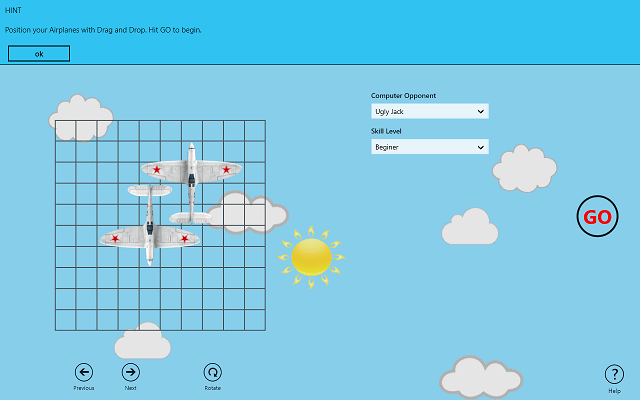
One game that we all share from our youth is Battleship: the one where you had a board and you placed ships on it and tried to guess where your opponent’s ship is. If you remember that game, and you want to recreate that childhood experience, then Airplanes for Windows 10, Windows 8 is game that lets you do just that.

This simple game is very entertaining, even now, after so many years have passed since we last played it. Nevertheless, those of you who still want to kill your time by playing Battleship, you can give this game a try.

Airplanes brings the Battleship experience to Windows 10, Windows 8

airplanes-for-windows-8-game-brings-battleship-experience (1)

This free game can be downloaded for free from the Windows Store and installed on any Windows 10, Windows 8/RT device. While the game itself is free to play, users who want some extra features will have to pay $1.49 to unlock them. These extra features consist of larger boards and more airplanes.

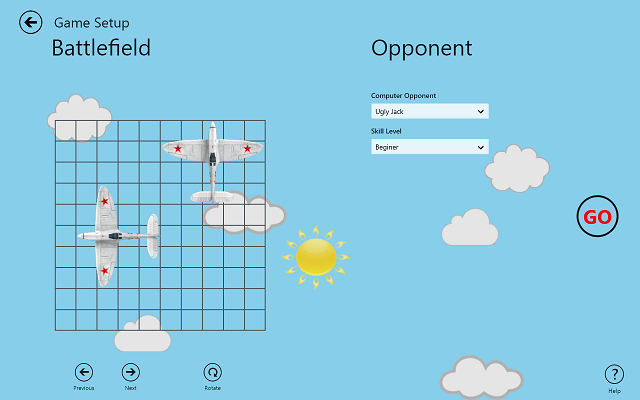
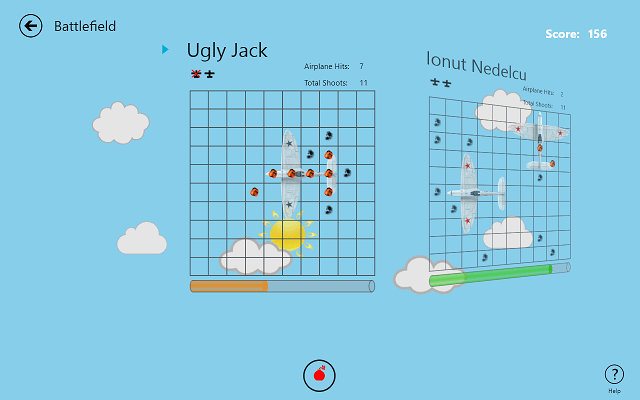
As all of you know, the purpose of the game is to shoot down your opponent’s airplanes by guessing where they are located on the board. If you shoot the front end of the game (the cockpit), that plane will automatically be destroyed. The player who manages to destroy all the airplanes of the opponent wins the game.

airplanes-for-windows-8-game-brings-battleship-experience (2)

As for the app itself, it is pretty well built, in the course of my tests all the features were running great. The graphics are pretty basic, but in this type of games, they are not very important. Nevertheless, the game looks pretty good, and its textures are well picked, so you can concentrate on your game.

The game offers users both single player mode, which is the Training area, where they will play against a computer, which is pretty easy to beat and a online mode, where you play against actual players. In the main screen of the game, you have your board, and when it switches from your side to the opponent, there is a nice transition effect.

airplanes-for-windows-8-game-brings-battleship-experience (6)

Users have the possibility of sending short messages to their opponents when playing with human players, however, there is no custom chat window and you only have a few lines to pick from. Nevertheless, it is still a good feature, and I hope the developer will make a full chat window in the future.

At the end of the game, users can also share their score over Twitter. There is also a Facebook share button, but when I pressed it, it still forwarded me to Twitter. This feature works best on the other platforms that this game is on, and those are: Windows Phone and Facebook.

Overall, I think Airplanes for Windows 10, Windows 8 is a very nice game and a nice experience for fans of the game. The possibility to play online and also invite friends to play with are some very nice features. I had lots of fun testing out Airplanes for Windows 10, Windows 8 and I hope that you will find it as amusing as I did.

Download Airplanes for Windows 10, Windows 8

Sun Follow is a World Clock App for Windows With Great Graphics

sun-follow-app-world-clock-with-great-graphics (3)

I’ve seen quite a few world clock apps for every platform available, and they all seem to have in common one thing: a boring user interface. But all of this is about to change with Sun Follow, a Windows 8 app that acts as a world clock and gives you information about the Sun’s position in every corner of the world.

Know what time it is everywhere in the World with Sun Follow

sun-follow-app-world-clock-with-great-graphics (1)

This free app can be downloaded from the Windows Store to any Windows 8/RT device and it will provide users who need to know what time it is in different corners of the world. Although the app is free to download, it comes with only 5 cities where you can get information, and if you want to use it for others, then you will have to unlock them.

By now, you are probably wondering two things:

1. What is so special about this app?
2. What information does it provide users?

The answer to the first question is that Sun Follow for Windows 8 is not too different than other World Clock apps, as it shows the time in various places around the world. However, it does this by using a very nice and easy to follow user interface, where the user can very easily get the information he wants and he can browse through the different cities very easily. Users can also use the Search charm to look for a certain city.

sun-follow-app-world-clock-with-great-graphics (4)

The second question relates to the features that the app has. You already know about the cool looking user interface and the ease of use of the app, but it also offers some great information about the cities you search for. On the main menu, you see at the top of the screen the time and date of the city you are currently observing, and underneath, there is a dial where you see the position of the sun as seen from that location, as well as the time it has spent on the sky in that day.

Underneath the Sun dial, the developers have added a box where famous quotes are show. While this is not a part of the overall theme of the app, it does offer a plus of functionality or at the very least some reading material as you look how the sun passes through the sky.

sun-follow-app-world-clock-with-great-graphics (5)

On the right side, you will see the list of cities, of which the free app only has 5, but if you want more, you can upgrade and get up to 500 (yes, 500) cities. After the city list, you will find a Details area, where the Sun Follow app for Windows 8 gives some extra information:

  • Timezone (of the currently selected city)
  • GPS Location
  • Time of Dawn
  • Time of Sunrise
  • Time of Solar Noon
  • Time of Sunset
  • Time of Dusk
  • Total Day Light
  • Total Civil Day Light
  • Total Darkness

Apart from this, Sun Follow for Windows 8 does not do anything else, but if you are interested in a world clock that looks great and offers some extra information on over 500 cities around the world, then I can honestly say that this app will get the job done.

Download Sun Follow for Windows 8

Manage Tasks & Projects in Windows 8, Windows 10 With Telerik App

Tasks-by-Telerik-for-Windows-8-The-best-personal-assistant (3)

Most of us have our calendars full of tasks that we have to do, and some of them suffer no delays, while others are pushed for the next day. But if you have multiple projects or a high workload, all the tasks that keep piling up will take their toll on you and your productivity will go down.

Also, is these cases, chances are that you will forget some tasks that you feel are less important. With our already full calendar getting more stuffed with stuff to do, it would seem only natural to look for a good task manager that will allow you to keep track of all your tasks and let you know what you have to do. Enter Tasks by Telerik, a Windows 8, Windows 10 task manager that keep all your tasks in order.

Tasks by Telerik for Windows 10, Windows 8 – The best personal assistant

Tasks-by-Telerik-for-Windows-8-The-best-personal-assistant (2)

If you want to have a place where you can store all your tasks and organize them depending on importance or due dates, then Tasks by Telerik for Windows 10. Windows 8 is the app you are looking for. This free app can be downloaded from the Windows Store and installed on your Windows 10, Windows 8/RT device and it will act as your personal assistant that never forgets anything.

Tasks-by-Telerik-for-Windows-8-The-best-personal-assistant (4)

At first, you might find the user interface a bit confusing, as it offers users many features, but after only a few minutes of fiddling with the app, you will see that it is very simple to use. The app organizes your tasks very neatly and it provides you with the option to create categories, projects or tasks. A task can be added to a category or to a projects, so, you can have a neat schedule, where everything has its place.

Creating tasks, projects or categories is pretty simple, as you only have to click the “+” symbol and fill in the information. You can set different colors for categories, while projects can be organized by their due date.

Tasks-by-Telerik-for-Windows-8-The-best-personal-assistant (6)

Adding a task to any project or category is pretty simple. Open the New Task window and fill all the information you want. Also, from here, you can set voice memos or location for tasks that need to be completed in other places. Photos can be added to the task to make them easier to find, and for each task, you can set a reminder or a repetitive alarm.

Tasks-by-Telerik-for-Windows-8-The-best-personal-assistant (7)

To be sure you don’t forget any of your tasks, you can sync all the information that the app contains to other devices by using the integrated Google Tasks or Microsoft Exchange. If you are worried that the device you have the app will crash, or if you just want your information to be safe, you can sync it to the Telerik Cloud at any time. Users can also use the Search charm if they add multiple tasks, in order to find them quickly, as well as share them with friends via the Share charm.

Tasks-by-Telerik-for-Windows-8-The-best-personal-assistant (5)

Keep in mind that not all the features are free to use, and some of them, like the cloud sync will require you to subscribe to a monthly plan. If you don’t want these options, then you can use only the local storage.

Tasks-by-Telerik-for-Windows-8-The-best-personal-assistant (8)

Overall, Tasks by Telerik for Windows 10, Windows 8 is one of the best task managers apps that I’ve seen so far and thanks to its great design and top notch stability provided by the Telerik controls for Windows 10, Windows 8, I feel that everyone will have much to gain by using this app. The only reason I can think of that someone wouldn’t want to use Tasks by Telerik for Windows 10, Windows 8 is if they want to forget some tasks.

Download Tasks by Telerik for Windows 10. Windows 8

Rob Schneider plays ‘Google Docs’ in another Office 365 video, shows how he can be unproductive

Microsoft vs Google

Microsoft recently put up a video as well as a blog post highlighting why using Google Apps is similar to taking a gamble. Microsoft touts Google Apps as a platform that compromises an organization’s security and privacy. In a new video featuring actor Rob Schneider, Microsoft points out how unproductive Google Docs really is.

In the video, Google Docs is represented by actor Rob Schneider and Office is represented by someone who is great at basketball. While at the basketball court, Google Docs begins to bring the team down. “Google Docs! You’re making everybody out here less productive, even your own team has to work harder!” the video mentions. It’s a pretty funny and entertaining video. Take a look at the video below.

Just recently, the city of Boston, Massachusetts, as well as other organizations, have dropped Microsoft’s Exchange platform for Google Apps. More than 20,000 city employees including the Major will be shifted over to Google Apps. According to Microsoft, Google cant compare to Microsoft when it comes to Exchange. In fact, Google “lacks the proper protections most organizations require.”

Registration open for Microsoft WPC 2013, event focuses on the ‘Modern Life’

WPC 2013

Microsoft’s Worldwide Partner Conference 2013 is almost upon us, taking place July 7th to the 11th in Houston, Texas. We will see a global gathering of top Microsoft partners who will focus on the “modern life” of technology.

“With more than 16,000 attendees from over 160 countries, it’s no secret that there’s no better way for Microsoft partners to make contacts and connections that matter to their business. It’s happening now. The time to commit to the future of your business is now,” Microsoft stated.

Microsoft is expecting to discuss and possibly showcase the big areas of being modern, which includes the cloud, big data, mobility, and social. Microsoft is said to be changing the landscape of businesses as we know it, and this event will be the company’s way to showcasing just how they are making that impact.

A WPC 2013 Partner all access conference pass will run you for $1,995, or you can hope for a streaming video of the event just like Microsoft did for WPC 2012. Head over to the source link for more information on the event.

If you think the Worldwide Partner Conference 2013 will be uneventful, just remember that during the event in 2012, Microsoft announced the exact timeframe of when Windows 8 would reach RTM and when it could be generally available. Let’s see what big announcement Microsoft has for this years event.

Microsoft highlights Read Mode in Word 2013, helps you stay focused from distractions

Word 2013 Read Mode

Office 2013 has been available for a little while now and Microsoft has showcased a feature called ‘Read Mode’ in Word 2013 in the past. Microsoft has put up another blog post over the weekend highlighting this cool feature yet again.

For those that don’t know, Read Mode is a feature in Word 2013 that pretty much turns your Word documents into an interactive digital magazine and offers you a view without toolbars and menus. “Crafting the right content takes time and attention. To help you minimize the distractions, we created a Read Mode layout in Word. Read Mode is an option in the View menu that hides toolbars and menus to leave more room for the pages themselves,” Microsoft stated in an official blog post.

Microsoft created this new layout to allow users to work optimally, even when the window is resized or viewed on a different device. Navigating through a document in Read Mode is simple, just pan right or left or use your keyboard up/down or left/right buttons. Read Mode is great because it remembers where you left off, so if you turn off your computer, you can eventually open up the document at the exact same place you left off when you turn your computer on again.

If you haven’t given Read Mode a try yet, simply head over to View > Read Mode to enter Read Mode. To get out of Read Mode, simply click or tap View > Edit Document.

Qualcomm ‘very optimistic’ with Windows RT, commits to a long-term investment

CES 2013

A Qualcomm executive has revealed that the company is ‘very optimistic’ with Microsoft’s Windows RT platform, which has seen negative criticism about its sales as of late. Qualcomm is even committed to a long term investment with the platform.

“Windows RT launched on devices from major manufacturers last October and used Qualcomm Snapdragon processors. Qualcomm is working with many more OEM’s to launch on Win RT in the future and has a long-term investment in it,” Luis Pineda stated. He’s the senior vice president of product management at Qualcomm.

Qualcomm is also reportedly “very excited about Microsoft’s strategy around Windows RT.” Qualcomm apparently has a close partnership with Microsoft, but refused to detail any upcoming changes to Windows RT in the coming year.

Windows RT is expected to receive the Windows Blue update in the near future, which is rumored to merge Windows 8 with Windows RT. Qualcomm’s Pineda had no comment about this speculation, referring to Windows RT as “true for work and play.”

As for the negative criticisms, Pineda stated that Qualcomm is not discouraged by it. “Whenever you launch a brand new ecosystem like Windows RT it would be nice to have a home run from day one. But there’s lots of excitement about what’s coming,” Pineda adds.

IDC analyst: Microsoft’s Surface Pro ‘is not there yet’ and is ‘too heavy’

Surface

According to an IDC analyst, Microsoft’s Surface Pro tablet device is an “interesting product, but its just not there yet.” Tom Mainelli, IDC’s research director for tablets, continues to slam the Surface Pro by adding that it is “too heavy.”

“The battery life’s not there. It’s too heavy,” Mainelli slams the Surface Pro’s battery life by stating that its just “not there.” “While it performs like a notebook, Surface Pro is always going to be compared to other tablets, and tablets really need to run 8 to 10 hours. [Surface Pro’s] four hours is a nonstarter,” Mainelli adds.

Mainelli also argues that Microsoft needs to decide on Windows 8 or Windows RT as its operating system for tablets. “I think ultimately Microsoft needs to decide on one operating system for tablets. I don’t think they can successfully do Windows RT and Windows 8 and support Windows 8 phone. You end up pitting your own operating systems against each other,” he adds.

IDC was in the news recently with another piece attacking Windows 8, claiming that Windows 8 “sucks” because of its apps. In fact, IDC believes that the upcoming Windows 8.1 (Windows Blue) update will not fix the problem. This piece gathered a lot of reaction from the Windows community, even mentioning that IDC should stick to facts and not opinions.

According to new data from IDC, Microsoft has sold nearly 900,000 Surface RT and Surface Pro tablets during the first quarter of 2013. The Surface Pro has been available since February of 2013.

Microsoft rumored to announce Surface 2.0 during Build 2013, will only feature 7 to 9 inch displays

Surface

According to a new report, Microsoft is expected to announce its next-generation Surface devices during Build 2013 in June. On top of which, these new Surface 2.0 devices will only feature a 7inch to 9inch display to battle against the current demand for small screen touch devices.

Microsoft is set to hold the Build 2013 developer conference on June 26th to the 28th, and thats when Microsoft will introduce its Surface 2.0 product line. This information comes from sources within the upstream supply chain.

“The sources also noted that the second-generation Surface devices reportedly will only feature a 7- to 9-inch displays to meet the rising demand for smaller tablet devices,” the report adds. Back in January of this year, during a Microsoft’s earnings call, Microsoft’s chief financial officer Peter Klein mentioned, “We’re working closely with chip partners and OEMs to bring the right mix of devices” and added that Microsoft is looking to “expand the product lineup” and provide “a greater variety of devices at a bigger variety of price points.”

Microsoft is looking to jump on board the small screen touch device bandwagon as quickly as possible. This market is currently dominated by devices such as the Google 7-inch Nexus tablet and the iPad mini.

According to new data from IDC, Microsoft has sold nearly 900,000 Surface RT and Surface Pro tablets during the first quarter of 2013. Microsoft’s Surface RT has been available since October of 2012 while the Surface Pro has been available since February of 2013.

Best Windows RT Games: Puzzle Games

best-windows-rt-puzzle-games (5)

App developers have really took to Windows 8/RT and thanks to this, a lot of awesome apps and games have surfaced. In this series, we’ll be tracking down the best Windows RT games and we’ll let you know which games we liked the most. Our first part in the Best Windows RT Games Series is all about Puzzle Games.

We’ve featured a few Windows 8 puzzle games in the past, here at Wind8Apps, but today, we’re taking a look at some other awesome games that you should know about. If haven’t had the chance to see our past reviews, here’s a quick recap of the Windows RT puzzle games we’ve covered so far:

Best Windows RT Puzzle Games

best-windows-rt-puzzle-games (4)

The best way I can describe this game is Angry Birds meets Jaws. In Shark Dash! players have to aim and shoot a shark at coins and ducks and catch them all with as fewer tries as possible. The graphics of the game are awesome and the diversity of the levels is one of its best features.

If there was ever a better Angry Birds alternative for Windows RT, then Gameloft’s Shark Dash! is that game. The game has a great overall quality, which is something we have come expect from anything that comes from Gameloft.

best-windows-rt-puzzle-games (3)

A remake of the classic puzzle game where you had to perfectly align a cube with the floor in order to get into the perfect position to finish the level. Some might find this game boring, but for those who like puzzle games that are pretty strict, they will find this great Windows RT puzzle game perfect.

The textures used in the game have a very good quality and the overall look and feel of the game are in the premium area. There are a number of free levels that users can fiddle with before buying the full game.

best-windows-rt-puzzle-games (2)

One of the first games I’ve tried out on Windows 8 and later on Android, Flow is a pretty awesome puzzle game where users have to connect different colored pipes without overlapping them and filling out the entire grid.

If at first you find the game too simple, know that later on, it can prove to be quite difficult and it will give you a hard time. There are lots of levels, so you will spend a lot of time playing the game, but if you ask me, it’s time well spent.

best-windows-rt-puzzle-games (1)

Bejeweled is a game with tradition. It has been around for what seems like ages and in this time, it has gathered a huge number of players. Although the game can be downloaded as a Windows 8 desktop game, it is also available for Windows RT users in the form of an app: Bejeweled LIVE.

The game is exactly the same as it is in desktop form and it can be downloaded fro the Windows Store as a free demo that has 10 levels, or it can be purchased to gain access to all the levels and all the game modes.

If you have other suggestions as to which are the best Windows RT puzzle games, please let us know and we will definitely update the list. As for now, these games will surely keep you busy for some time. Stay tuned as we will be coming with other lists on the best Windows RT games in the following days.

Microsoft places WiFi hotspots in Forbes Magazine to push Office 365

WiFi hotspot

Microsoft has confirmed that they have taken a new route to promoting Office 365: WiFi hotspots in select Forbes magazines! These T-Mobile connected routers offer the recipient 15 days of wireless access and can accommodate up to 5 devices. Before use, they require 3 hours of charging via a Micro-USB cable

The device was first noticed by a user on Slickdeals and then later confirmed on Mashable by a Microsoft spokesperson. Each device is being sent via the May 6th 2013 issue of Forbes Magazine to a “limited number of technology and business professionals.”

The intent is to drive more users to the cloud and in turn, the Office 365 experience as well as just make the cloud seem cool and inspiring. The always on, always available and always connected ideal is at the core of Office 365 and having multiple users interfacing with Office via one always on device further promotes the collaborative space offered by Office 365.

Though I am not certain how many will buy into Office 365 because of this, I can say for certain this router would look nice next to my stack of AOL CDs.

Image

How to create a Start Button in Windows 8

Start Button in Windows 8

If you, like me, are using Windows 7 in your work environment but often find that you must use Remote Desktop to get to a Windows 8 or 2012 box, then you often are likely slowly dragging the mouse to find the Start button or the Charms menu so that you can reach the Modern UI. No longer. Here’s a solution to help fix this problem.

Or maybe you are just not willing to wait for Windows 8.1 and the possible return of the Start button? Do this on the Windows 8 or 2012 machines to help ease your troubles now:

  1. Open Notepad by doing a Charms search
  2. Copy this text:
  • set shell=createobject(“wscript.shell”)
  • shell.sendkeys “^{Esc}”
  1. Now Save as windowskey.vbs to somewhere accessible by you or all users on the machine, such as the root of C (C:\) or if you will be the only one needing this, the root of your profile (C:\users\%username%\)
  2. Right click on your desktop and choose New->Shortcut
  3. The path for this shortcut will be “C:\Windows\system32\wscript.exe” and name it something like Windows Key or Start Button
  4. Now, alter the icon by right clicking the icon and choosing Properties from the menu and then Change Icon
  5. To find different icons already available in Windows, alter the path to “C:\windows\system32\shell32.dll”
  6. I chose a Star
  7. Press OK or double click the icon in the list of icons and then Apply once your icon is chosen. Leave the Properties window open
  8. Now alter the path of the Target in the Properties dialog box:
  • For the root of C: c:\windows\system32\wscript.exe c:\users\%username%\windowskey.vbs
  • For the root of your profile: c:\windows\system32\wscript.exe c:\users\%username%\windowskey.vbs
  1. The shortcut now appears on your desktop and if you press it, it will function as a Start button to get you to the Modern UI/Start screen
  2. Now drag the shortcut to the taskbar to pin it

Now when you press the icon on the Taskbar it will emulate a Windows key press and function as a Start button! Wowza!

Microsoft celebrates one year anniversary of its investment in open standards and open source

Microsoft

Microsoft’s Open Technologies subsidiary is celebrating its one year anniversary and Microsoft is dedicated in the company’s investment in openness including interoperability, open standards, and open source.

“At MS Open Tech, we work fast, we work openly with others, bridging the interaction between Microsoft’s proprietary development processes and the company’s open innovation efforts and relationships with the open source and open standards communities,” Microsoft stated. MS Open Tech was created on the 12th of April, 2012.

As MS Open Tech celebrates its first anniversary, Microsoft explains that there are more than 70 individuals at the Open Tech organization, each of the individuals being diverse in their skills and background. The team members consist of engineers, standards professionals, and technical evangelists looking to build relationships with the open source/standard communities.

In just one year, MS Open Tech has shipped 51 important open source devices and services projects. There are also 25 active open source projects on CodePlex and GitHub. Microsoft is also an ongoing contributor to several other open source and open standards initiatives.

To give you an idea of the organization’s that MS Open Tech deals with, here is a quick rundown: jQuery, MongoDB, Apache Cordova, Redis, Apache Qpid, Apache Solr, Outercurve, Eclipse, Node.js, Cocos2D, Ogre3D, Web Platform Docs, Symfony, Doctrine, WebKit, GitHub, CodePlex and more.

Hit the source link to see a timeline of events from the day MS Open Tech was created to the organizations’ first anniversary.

Microsoft and Internet Explorer 10 play a role in the new SDP-US caption spec

Internet Explorer 10

In an official blog post, Microsoft is showcasing Internet Explorer 10’s support for the new SDP-US video captioning spec. This spec was created after input was given by companies such as Adobe, MovieLabs, NBC, Cox, Apple, Netflix, and even Microsoft.

For those that don’t know, Internet Explorer 10 was one of the first browsers to include early support for HTML5 based video captioning (via theelement) using the TTML and WebVTT file formats. Microsoft has now gained valuable feedback from content authors and a new spec called SDP-US was formed. This new spec provides interoperability and a fully featured captioning solution for modern browsers.

“SDP-US will meet this need by defining a streamlined set of captioning capabilities for the HTML5element. Developers will be able to add captioning to an HTML5 video by providing a caption file that contains a styled text representation of the video dialog or actions and by using theelement to render and display the contents of that file,” Microsoft explained.

Timed Text Markup Language (TTML), which is a framework that has been used in the video industry for years, is still the basis for SDP-US. However, the new spec will have better features that lets you control the layout, style, timing, and requirements for captions. SDP-US will streamline the creation of closed captions to deliver media content to a wide variety of platforms, such as Internet Explorer on a desktop computer to the Xbox entertainment console and even via apps that are built using the Microsoft Media Player Framework.

SDP-US

This new spec allows for professional-quality online video, including the ability to color your captions and even apply a background color to those captions. From the screenshot above, you can see how Internet Explorer 10 showcases a colored caption, via this new spec. You can review the new spec’s profile here.

Microsoft Store wants your old gadgets as part of Recycle for Rewards program

Microsoft Store

Microsoft is kicking its Recycle for Rewards program into full gear by offering retail store credit if you turn in your old gadget or device. Of course, your device will have to be appraised based on its condition and current market value.

“To get started, simply bring your computer, phone, or other device to the Answer Desk at the Microsoft retail store. We will appraise its value based on condition and current market value. If it’s determined to have value, we will provide you with a Microsoft retail store credit. If it doesn’t have value, we will wipe it of all data and safely recycle it for you. The process is fast, easy, and free of charge,” Microsoft stated on its website.

Microsoft will be accepting qualified laptops and tablets, cell phones, digital audio players, and video game consoles as well as video games. If you turn in a console or PC, you must also turn in the power cord and the device must not be password protected. Microsoft will then offer a gift card that may equal trade-in value.

Microsoft would also like to remind everyone that the software giant ‘supports the responsible disposal and recycling of electronic products.’ In case you had any doubts. Head over to your local Microsoft Store to check out this program.

Pinball FX2: A Taste of Childhood in Windows 8, Windows 10

pinball-fx-2-windows-8-game (4)

As kids, most of us spent our time at the arcade, playing Pac Man and Space Invaders. But one type of game will always remain in our hearts: Pinball. The sweet sounds of the Pinball machine and the dazzling light will be with us for ever, and with this Windows 8, Windows 10 Pinball game, anyone can remember how those games were.

Pinball FX2 is a free Windows 8, Windows 10 game that is fun for everyone, even for those that haven’t played pinball on the real ting. Even if you are like me and you want to remember the good old days, when we played Pinball, or if you are now starting to play, Pinball FX2 for Windows 10, Windows 8 is a awesome game.

Pinball FX2 for Windows 10, Windows 8 – The True Pinball feel

pinball-fx-2-windows-8-game (3)

The game is free to download from the Windows Store, however, it features only one free level, the rest of the layouts can be bought in-game if you want. The layout that is free is called Mars, and your mission is to repair the ship and get out of there.

pinball-fx-2-windows-8-game (1)

In terms of gameplay, there’s not much to say, as the game has a classic Pinball look and feel. However, the developers have managed to add options for controlling the game via a keyboard, a controller or the usual touch interface. The layout of the buttons can be seen in the Options menu.

pinball-fx-2-windows-8-game (6)

The graphics of Pinball FX2 for Windows 10 Windows 8 are pretty good, having decent textures and a very entertaining light show. The menu is pretty simple, however, the options menus are others are not as simple to navigate and the Operator’s menu is pretty difficult to operate.

pinball-fx-2-windows-8-game (5)

Nevertheless, this game is tons of fun, and thanks to its integration with Xbox Live, you can compete against your friends to see who has the biggest scores. In the sound department, the game pretty good, the music in not annoying and the sound effects are what you’d expect from a Pinball machine.

pinball-fx-2-windows-8-game (2)

Overall, I think that Pinball FX2 is a wonderful Windows 8, Windows 10 game that everyone should try out. It’s great for both players who want to take a trip down Memory Lane or for those who want to experience the game that fascinated generations before them.

Download Pinball FX2 for Windows 10, Windows 8


Microsoft launches new consumer awareness campaign focused on online privacy

Internet Explorer

While many of us enjoy sharing data with others online, some of the data should never make it online for all to see. Microsoft has launched a new campaign focused on online privacy. Microsoft also revealed that 85% of Americans are concerned about their online privacy, but less than that take any action about it.

Microsoft aims to help raise awareness on how users can have greater choice and control as they browse the internet. Microsoft, of course, recommends Internet Explorer 10 as the browser of choice for enhanced security and privacy.

“We want to help people learn more about the tools and technologies Microsoft provides that give them have greater control over personal information as they browse the web and use their favorite Microsoft devices. As part of this, we’re also launching an advertising campaign to kick start awareness and conversation,” Microsoft stated in an official blog post.

Microsoft has created a new page on its website that offers you a quiz and identifies your privacy tendencies and preferences. After the quiz, you are presented with tips on how to turn your new awareness into action. Head over to www.microsoft.com/YourPrivacy to check it out and take the quiz at yourprivacytype.com

Twitter kills support for Microsoft’s Internet Explorer 6 and 7 starting May 13th

IE6

Twitter has announced that they are killing support for Microsoft’s Internet Explorer 6 and Internet Explorer 7 starting May 13th. Twitter’s Tweet button was first introduced in 2010 and was built around Internet Explorer 6.

“When the Tweet button was introduced in 2010, Microsoft’s Internet Explorer 6 was our baseline. Now, most users have upgraded and we see IE6 usage dwindled. On May 13th 2013, we’re going to prune our support for that browser and its successor, IE7,” Twitter stated in an official blog post.

In essence, the Tweet button, Follow button, embedded Tweets, and Twitter timelines will no longer work in Internet Explorer 6. “The script will detect the unsupported browser and silently exit. The content from the embed codes will remain in place,” Twitter adds. The framework that allows developers to respond to user interactions with Twitter widgets will no longer work in IE6 and IE7.

In Internet Explorer 7, however, widgets will still be rendered but only for the time being as the browser is now given “limited support” and future features may not be implemented. Although support for IE6 and IE7 is dead, “Tweet” links will still share your page, “Follow” links will still point to a users’ profiles, and embeddable timeline codes will link to the main timeline on the Twitter website.

Again, this does not take affect until May 13th.

Microsoft now allows you to sign-in with an alias on Outlook.com, offers 32 new email address domains

Outlook.com

Along with the announcement of enabling two-step verification for your entire Microsoft Account, Microsoft has revealed that Outlook.com will now allow sign-ins using an alias. Microsoft is also offering 32 new email address domains for Outlook.com.

For those of you who signed up on Outlook.com with an email alias, Microsoft is now allowing you to sign into Outlook.com using that alias. Microsoft is finally allowing this feature based on consumer feedback. Microsoft has also made it easier to manage your aliases.

“We’ve heard from a lot of you that you love using Outlook.com but you wish you had more flexibility signing in. Many of you have added an email alias to your account, but you can’t use the alias to sign in to your account. Previously the only option was to permanently rename your account, which is a hassle and requires you to reset certain devices,” Microsoft explained.

Microsoft has also added 32 new email address domains, so you can rock an @outlook.com email address specific to the country of your choice. “But we also heard from some of you that you’d like to be able to have an @outlook address that is unique to your country (e.g. @outlook.de),” Microsoft stated in an official blog post. Take a look at the list of domains below:

Outlook Alias

Microsoft is set to release these new features for Outlook.com over the course of the next few days.

Google beats out Microsoft’s Bing when it comes to keeping malware out of search results

Bing

The guys over at AV-Test have concluded an 18 month study, in which they were able to determine that Google is safer than its primary competitor Bing, when it comes to keeping malware out of search results. In other words, Bing delivers five times as many malicious malware results than Google does.

The results are from nearly 40 million websites provided by seven different search engines, including Bing and Google. 10 million of those results were from Bing and another 10 million from Google. Of the 40 million sites, AV-Test found 5,000 total pieces of malware, with Bing having the most compared to Google. (see chart below).

“The infected websites mostly use malware that exploits existing security vulnerabilities in users’ software. These vulnerabilities normally involve outdated browsers, old add-ons or extensions and out-of-date versions of PDF readers. Users can drastically reduce the likelihood of infection by keeping the software on their systems up to date. They can also guarantee that they have the best possible protection by additionally using high-quality security software that is constantly updated,” AV-Test stated.

While these results don’t mean you should stop using Bing in favor of Google, it just shows that Google places a stronger effort in keeping its users safe online. Which search engine do you use?

AV-Test

Search for Cheap Flights With SkyScanner for Windows 8, Windows 10

The official SkyScanner app for Windows 10, Windows 8 and Windows 8.1 tablets is one of the best ways to search for flights (yes, cheap ones, as well) while you’re on the go. Read our review below.

search-for-flights-with-skyscanner-for-windows-8-app-review (3)

Are you a frequent flyer? Or are you planning for your next trip? Regardless of the case, you will probably go online to see which flights are available and you will probably want to pay less for your flight. If this is true, then you need a way to see all the flights departing from your local airport and going towards your destination. SkyScanner is a very well known service that does exactly this, allowing you quickly find all the possible apps from one place to another.

While there are some other services that do this, most are regulated by an airline, which makes their flights appear in front of others. This might confuse some and they won’t get the best deal they could. SkyScanner is a great way to get unbiased results of flight costs no matter what airline you prefer.

SkyScanner for Windows 10, Windows 8

search-for-flights-with-skyscanner-for-windows-8-app-review (5)

I used to use this app on my Android device, and I was very pleased with it. However, it did have one flaw: while the app itself is not regulated by any airline, which means that it shows pretty much every airline, on some occasions, it does not show some flights. I’m sad to say this sometimes happens to the Windows 8, Windows 10 version of the app, and I hope it will be sorted out in the next updates.

search-for-flights-with-skyscanner-for-windows-8-app-review (4)

The SkyScanner app for Windows 10, Windows 8 is great! First off, let me start by saying that this is a free app, but it does however show one ad on the bottom of the screen. Apart from this, there are no other ads or other promotional material in sight.

search-for-flights-with-skyscanner-for-windows-8-app-review (6)

Once you’ve installed the app, you will be greeted by a screen which allows you to input your location and your destination, the days of your flights and the number of passengers. The user interface is very simple to use, the menus are easy to follow and by pressing the Search button, you can view a list of flights.

search-for-flights-with-skyscanner-for-windows-8-app-review (7)

You have the option to sort the flights according to price, time, airline, number or stops and if you find the one that is perfect for you, you can proceed to book the flight. This process will refer you to a webpage for completion, as in-app booking are not allowed.

search-for-flights-with-skyscanner-for-windows-8-app-review (8)

On the main menu, if you scroll to the right, you can see your recent searches as well as a list of the cheapest destinations flying from the airport you have imputed in the main window. If you want to see specific flights from this list, you can simply click on the country you are interested in and see all available flights in a very nicely designed calendar view.

search-for-flights-with-skyscanner-for-windows-8-app-review (9)

Overall, SkyScanner for Windows 10, Windows 8 is a great app to search and find flights. It works everywhere in the world and you can even set your current city and currency for your future searches from the Settings charm. The app worked excellent throughout our tests. Its stability and ease of use are the main highlights of SkyScanner for Windows 10, Windows 8. I gladly recommend this app to everyone who is in need of information regarding a flight.

Download SkyScanner for Windows 10, Windows 8

Microsoft releases Office 2010 and SharePoint 2010 Service Pack 2 Public Beta

Office 2010

Back in January, we learned about Office 2010 Service Pack 2 entering private beta testing. Microsoft sent out invites to select testers to get their hands on the new Office 2010 SP2, which is the sequel to SP1, released nearly a year and a half ago.

Microsoft is now allowing a public beta test for the service pack. The Beta build of Service Pack 2 is dated April 8th of 2013 and comes in a 32bit flavor for Office 2010 (1,759.51 MB) as well as a 64bit flavor for Office 2010 (1,954.7 MB).

Microsoft has not revealed exactly what is new with Office 2010 Service Pack 2, but stated that there were improvements in stability and performance and compatibility with Windows 8 and IE10. Service Pack 2 is valid for Office 2010, Project 2010, Visio 2010, SharePoint Designer 2010, Office 2010 Language Pack, and Office 2010 Filter Pack.

“This service pack beta includes previously unreleased fixes that were made specifically for this service pack. In addition to general product fixes, these fixes include improvements in stability, performance, and security as well as compatibility with Windows 8, Windows Server 2012, and Internet Explorer 10. The service pack beta also includes all the public updates and cumulative updates (hotfixes) that have been released since Service Pack 1. A full list of fixes will be available at the time of final release,” Microsoft stated.

Office 2010 has been available since June of 2010 and according to recent reports, Office 2010 was discontinued by Microsoft. In fact, some retailers were reported to have jacked up the price of Office 2010’s cheapest multi-license package as a result.

The Public Beta of Service Pack 2 is valid until December 31st of 2013, or until Microsoft releases the final version of Service Pack 2, and is available in either English or Japanese. Hit the source link to read the EULA and download SP2!

Thanks for the tip, Krst1! Much appreciated!