
How to Resize an Image in Photos App on Windows Quickly


 3 min. read
  Published on

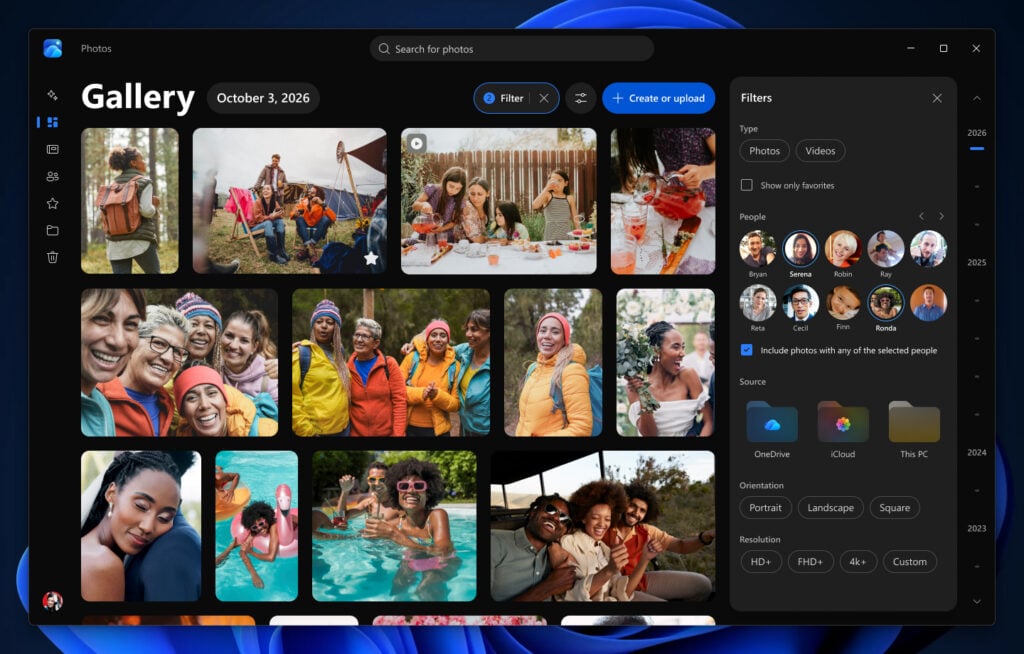
Resizing an image in the Windows Photos app takes only a few clicks. This guide shows the exact steps you need for quick edits on Windows 11.
Table of contents
All You Need to Know About Resizing Images in Photos App
How to Resize an Image in Photos App
Follow these steps to change the size of any picture.
- Open Photos from your Start menu.
- Click Open and choose your image.
- Select the three dots in the top corner.
- Click Resize.

- Choose a preset size like Small, Medium, or Large.
- Select Define custom dimensions for your own size.
- Enter the width and height you want.

- Pick Fit, Fill, or Stretch if needed.
- Click Save resized copy and choose a location.
If you want an alternative method outside Photos, look at this detailed roundup of image resizer tools that provide more control.
How to Resize Multiple Images in Photos App
Batch resizing helps when you want consistent dimensions across many images.
- Open Photos and click Collections or Folders.
- Select multiple images with Ctrl + click.
- Click the three dots.
- Select Resize.
- Pick a preset or enter custom dimensions.
- Click Save resized copies.
How to Keep Image Quality While Resizing
You maintain clarity by choosing the right scaling method and not shrinking the image too much.
- Use Large or Custom dimensions when quality matters.
- Keep the aspect ratio locked.
- Save as PNG for sharper edges.

How to Resize for Social Media
Most platforms use specific dimensions. Follow these steps to match them.
- Open your image in Photos.
- Choose Resize.
- Open Define custom dimensions.
- Enter a common size like 1080×1080 for Instagram or 1280×720 for YouTube.
- Save your resized copy.
If you prefer automation, you can also resize photos using Microsoft PowerToys, which offers a fast right-click workflow.
When You Should Resize an Image
You may want a smaller image for email, social media, or faster uploads. The Photos app offers preset sizes and a custom option that saves you time.
FAQs
Use larger dimensions or save in PNG format to keep edges crisp.
Yes. Use Define custom dimensions in the Resize menu.
Yes. Select multiple images and resize them at once.
Photos saves them in the folder you choose after you click Save resized copy.
The Windows Photos app gives you a simple way to resize images without extra software, which helps when you need quick edits or social media friendly dimensions. You now know how to resize single images, adjust batches, maintain quality, and create exact resolutions.
If you want more desktop options, you can also check a full comparison of resize methods in this guide on resizing an image to desktop size.
You can also improve your workflow in the Photos app by learning how to add Google Photos to Windows 11 Photos app, which helps you manage online and local images in one place.

Read our disclosure page to find out how can you help Windows Report sustain the editorial team. Read more



Improve this guide


User forum
0 messages