
Porofessor Overlay Not Working In-Game? Here's Why & How to Fix


 4 min. read
  Published on
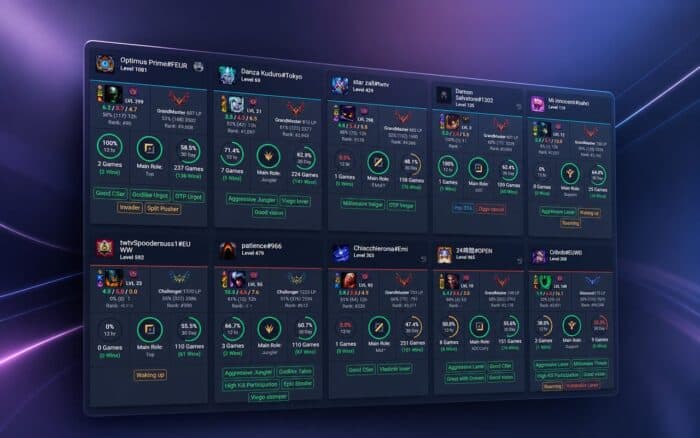
If you’re wondering whether Porofessor isn’t working or loading in your game, the problem is usually related to Overwolf, the in-game overlay, or a recent League of Legends update. Whether Porofessor won’t open, the overlay isn’t showing, or it suddenly stopped working after working fine before, there are several proven fixes that can get it running again.
Most players experiencing these issues report that the app itself isn’t permanently broken. Instead, the problem is often caused by disabled overlay permissions, outdated app files, antivirus software, or temporary bugs introduced after a League patch. This guide covers the fixes recommended by Overwolf Support and the Porofessor community.
Why is Porofessor not working?
If Porofessor isn’t working in-game, it is usually because of one of these reasons:
- The Overwolf overlay is disabled.
- League of Legends received a new patch.
- Porofessor or Overwolf needs an update.
- Windows or antivirus is blocking the overlay.
- Cache files have become corrupted.
- Another overlay, such as RivaTuner, MSI Afterburner, or GeForce Experience, is conflicting with Overwolf.
1. Make sure the Overwolf overlay is enabled
If the Porofessor overlay isn’t showing in-game, the first thing to check is whether Overwolf’s overlay is enabled for League of Legends. Open Overwolf > Settings > Overlay & Hotkeys, then verify that the overlay is enabled for League. According to Overwolf Support, a disabled overlay is one of the most common reasons apps fail to appear in-game.
2. Restart Overwolf and update Porofessor
If Porofessor stopped working after a League update, restart both Overwolf and the app before launching another match. Developers frequently release compatibility updates after Riot patches the game, so running the latest version can resolve loading and overlay problems without any additional troubleshooting.
3. Clear Overwolf’s cache
If Porofessor isn’t loading properly or champion icons are missing, clearing the cache can fix corrupted files. Close both Overwolf and Porofessor, then delete:
C:\Users\YourName\AppData\Local\Overwolf\CefBrowserCache
Several Reddit users confirmed this instantly fixed missing images and loading issues after a recent update, and a Porofessor team member recommended the same solution.
4. Disable your antivirus, VPN, or custom DNS temporarily
If Porofessor suddenly stopped working, your security software or network configuration could be blocking its connection. Members of the Porofessor team have advised users to temporarily disable third-party antivirus software, VPNs, firewalls, or custom DNS settings while testing the app. Restarting your router can also help restore connectivity.
5. Run Overwolf as recommended and check for overlay conflicts
If Porofessor is not showing in-game, another overlay may be interfering with Overwolf. Applications such as RivaTuner Statistics Server, MSI Afterburner, or other overlay software can prevent Overwolf from attaching to League. Updating or temporarily disabling these apps often resolves the problem.
6. Reinstall Porofessor or try the standalone version
If none of the above fixes work, uninstall both Porofessor and Overwolf before installing the latest version. Some Reddit users also reported that switching to the new Porofessor Standalone version solved crashes, lag, and overlay issues because it no longer relies on Overwolf.
Final thoughts
Most Porofessor issues can be fixed by enabling the Overwolf overlay, clearing the cache, updating the app, or removing software conflicts. If the overlay still refuses to load after trying every fix above, use the official Overwolf Troubleshooter or contact the Porofessor team through their Discord, where they actively respond to bug reports.
Keep in mind that sometimes you might experience issues with Overwolf, such as the Overwolf overlay not launching. This isn’t the only issue, and for many, Overwolf won’t stay on top. If that happens, you’ll need to disable the Overwolf overlay or reinstall the software.
FAQs related to Porofessor overlay not working in-game
1. Why is Porofessor not working in-game?
The most common causes are a disabled Overwolf overlay, an outdated app version, or conflicts with antivirus or overlay software.
2. Why isn’t the Porofessor overlay showing?
Make sure the Overwolf overlay is enabled for League of Legends and restart both Overwolf and the game. If it still doesn’t appear, check for overlay conflicts or reinstall the app.
3. Why is Porofessor stuck loading?
Corrupted cache files, VPNs, custom DNS settings, or temporary server communication problems are common causes. Clearing the CefBrowserCache folder has fixed the issue for many users.
4. Does Porofessor work after every League patch?
Usually yes, but some League updates temporarily break overlay functionality until Porofessor releases a compatibility update. Keeping both Overwolf and Porofessor updated is recommended.
5. Is Porofessor safe to use?
Yes. Porofessor is widely used by League of Legends players and operates within Riot’s third-party app policy. It provides in-game statistics and overlays without automating gameplay.

Read our disclosure page to find out how can you help Windows Report sustain the editorial team. Read more



Improve this guide


User forum
0 messages