
Surface Pro: How to Open the Boot Menu Fast


 3 min. read
  Updated on
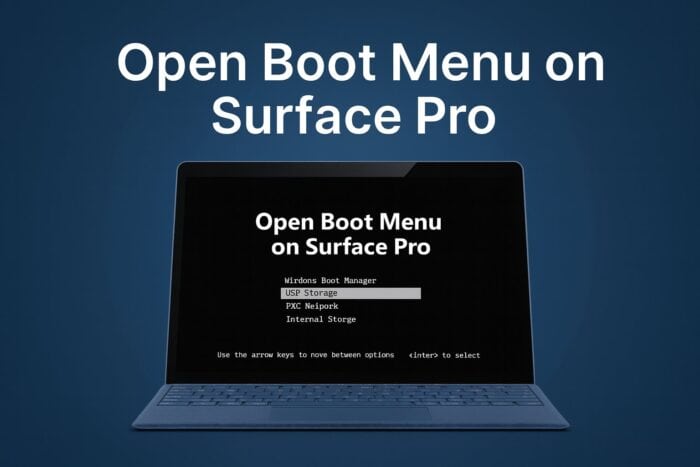
Learn how to access the boot menu on Surface Pro quickly. Whether you need to boot from USB, change startup settings, or troubleshoot, the process is simple.
Table of contents
How to Access the Boot Menu on Surface Pro?
1. Use Hardware Buttons
- Shut down your Surface Pro completely.
- Press and hold the Volume Down button.
- While holding Volume Down, press and release the Power button.
- Keep holding Volume Down until the Surface logo appears.
- The device will boot directly to the USB or boot menu.
If you are not sure which model you own, here is a guide on how to tell what version of Surface Pro you have. You can follow this clear guide on how to boot Surface Pro from a USB drive to get step by step help.
2. Access via Windows Settings
- Press Windows + I to open Settings.
- Go to System > Recovery.
- Under Recovery, select Restart now in Advanced startup.

- On the blue screen, choose Use a device to boot from USB or network.
While you are in these menus, it helps to know how to enable smart charging on Surface devices.
3. Through UEFI Firmware Settings
- Open Settings > Update & Security > Recovery.
- Select Restart now under Advanced startup.
- Choose Troubleshoot > Advanced options > UEFI Firmware Settings.

- Press Restart to enter UEFI and set your boot options.
After adjusting startup options, you can also learn how to use the Surface Pro pen to write text.
Why You May Need the Boot Menu
- Install or repair Windows using a USB drive.
- Change boot sequence for troubleshooting.
- Run diagnostics when your device does not start properly.
FAQs
Hold Volume Down, press Power, then release Power but keep holding Volume Down until the logo appears.
No. The boot menu selects devices. UEFI settings are accessed through Advanced startup and UEFI Firmware Settings.
Ensure the USB is bootable and properly formatted. Try another USB port or recreate the media.
No. Opening the boot menu or UEFI does not delete data. Data loss occurs only if you reinstall or reset Windows.
Enter UEFI via Advanced startup, then adjust the boot sequence under Boot configuration and save changes.
Conclusion
The boot menu on Surface Pro helps with installs, startup repairs, and device selection. Use hardware buttons for quick access, Windows settings for guided options, or UEFI to change boot order.
To make your Surface Pro even easier to use, check out how to turn on the keyboard light so you can type comfortably in low light conditions.
Once you finish adjusting startup options, you may also want to expand your knowledge. Our how to use Surface Pro guide shows you how to set up the device, work with the pen, and make the most of its features.

Read our disclosure page to find out how can you help Windows Report sustain the editorial team. Read more



Improve this guide




User forum
0 messages