
How to Fix Windows 7 Not Connecting to the Internet


 4 min. read
  Published on
Windows 7 not connecting to the internet is a common issue that can happen after updates, driver changes, or network misconfigurations. This guide walks you through proven steps to restore your internet connection quickly.
Table of contents
How to Fix Windows 7 Not Connecting to the Internet?
1. Check Physical Connections
- Ensure your Ethernet cable is securely plugged in if you use a wired connection.
- If using Wi-Fi, confirm that the wireless switch on your laptop is turned on.
- Restart your modem and router by unplugging them for 30 seconds.
- Reconnect your devices and check if the internet works on another computer.
If your network works elsewhere, move to the next steps on your Windows 7 PC. For additional setup guidance, see this tutorial on how to set up internet on Windows 7.
2. Run the Network Troubleshooter
- Click Start and open the Control Panel.

- Go to Network and Internet > Network and Sharing Center.

- Click Troubleshoot problems on the right panel.
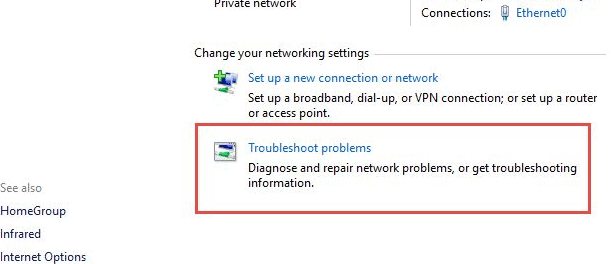
- Follow the wizard to diagnose and repair any issues found.
If the troubleshooter does not resolve the issue, continue with manual fixes. You can also verify your wireless settings using this guide on how to connect to Wi-Fi in Windows 7.
Still cannot see any wireless networks? Try the steps in Windows 7 not showing WiFi networks to restore the list of nearby networks and continue with the fixes.
3. Reset TCP/IP and Winsock
- Click Start, type cmd, and right-click Command Prompt.
- Select Run as administrator.
- Type the following commands one by one and press Enter after each:
netsh int ip reset
netsh winsock reset
ipconfig /release
ipconfig /renew
ipconfig /flushdns
- Restart your computer and test your connection.
If the connection still does not work, try changing your IP address in Windows 7 to eliminate possible network conflicts.
4. Update or Reinstall Network Drivers
- Press Windows + R, type devmgmt.msc, and press Enter.
- Expand the Network adapters section.
- Right-click your adapter and select Update Driver Software.
- Choose Search automatically for updated driver software.
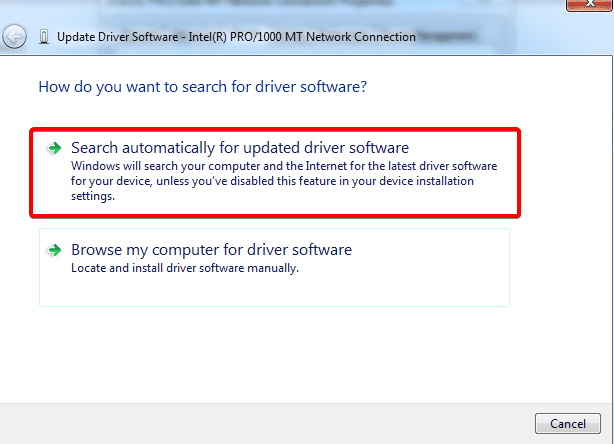
- If no update is found, uninstall the driver and restart your PC.
Windows usually reinstalls the driver automatically. If it does not, download the correct driver from your manufacturer’s website using another device.
5. Check Network Adapter Settings
- Go to Control Panel > Network and Internet > Network and Sharing Center.
- Click Change adapter settings on the left.

- Right-click your active network connection and choose Properties.
- Select Internet Protocol Version 4 (TCP/IPv4) and click Properties.
- Choose Obtain an IP address automatically and Obtain DNS server address automatically.
- Click OK and restart your computer.
6. Disable Firewall or Antivirus Temporarily
- Open Control Panel > System and Security > Windows Firewall.
- Click Turn Windows Firewall on or off.
- Select Turn off Windows Firewall (not recommended) temporarily.
- Test your internet connection.
- Re-enable the firewall after testing.
If your antivirus includes a firewall, disable it temporarily and recheck the connection.
7. Restore Network Settings via System Restore
- Click Start, type System Restore, and open it.
- Choose Restore my computer to an earlier time.
- Select a restore point before the problem began.
- Follow the on-screen steps to complete the process.
Your PC will restart and automatically revert recent network changes.
FAQs
It usually happens when the IP configuration is invalid, the router has issues, or drivers are outdated.
Re-enable the Wi-Fi adapter, check router settings, and reset Winsock or TCP/IP from Command Prompt.
Sometimes. If your IP conflicts with another device, changing it can restore connectivity.
Yes. Some antivirus tools mistakenly block network traffic. Disable it temporarily to confirm, then adjust settings or switch tools.
Windows 7 no longer receives security updates. If you continue using it, apply strong security practices and consider upgrading for better protection.
Conclusion
If your Windows 7 is not connecting to the internet, start with simple checks like cables and router restarts. Then use built-in tools such as the Network Troubleshooter or Command Prompt resets. With these steps, you can restore your connection and get back online quickly.

Read our disclosure page to find out how can you help Windows Report sustain the editorial team. Read more



Improve this guide


User forum
0 messages