
What to Do When Windows 7 Won’t Boot or Load


 4 min. read
  Published on
If Windows 7 is not booting, it could be due to corrupt system files, hardware failures, or incorrect BIOS settings. You can fix this using built-in recovery tools or installation media.
Table of contents
What Can I do if Windows 7 Won’t Boot?
1. Boot Windows 7 in Safe Mode
Safe Mode starts Windows with only essential drivers. It helps identify if third-party software is blocking the boot.
- Restart your PC.
- Press F8 repeatedly before the Windows logo appears.
- From the Advanced Boot Options menu, choose Safe Mode.
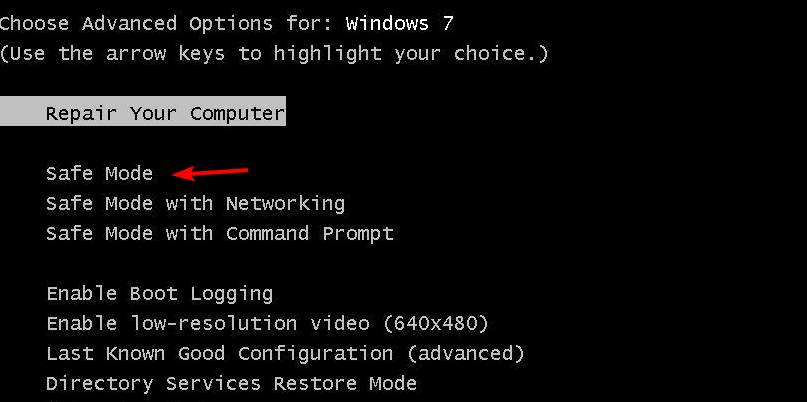
- Press Enter and wait for Windows to load.
- If Windows starts successfully, uninstall any recently added software or drivers.
For a complete walkthrough that complements the steps below, see Windows 7 not starting for additional checks and recovery methods.
If Safe Mode also fails to load, proceed to the next fix. Learn more about the process in how to boot into Safe Mode in Windows 7.
2. Run Startup Repair from Recovery Options
Startup Repair can automatically detect and fix startup problems.
- Restart your computer and press F8 again during boot.
- Select Repair Your Computer and press Enter.

- Choose your keyboard layout and click Next.
- Log in with your administrator account.
- Select Startup Repair from the list of recovery tools.

- Wait for Windows to diagnose and fix issues.

Once the repair completes, restart your computer to check if Windows 7 boots normally. If repair fails, you can try a system reset. Read how to factory reset Windows 7 for detailed steps.
3. Use Windows 7 Installation Disc or USB
If recovery tools are unavailable, use installation media to fix boot errors.
- Insert the Windows 7 installation DVD or bootable USB drive.
- Restart your PC and press F12, F2, or Esc to open the boot menu.
- Select your installation media and press Enter.
- When prompted, click Repair your computer instead of Install now.
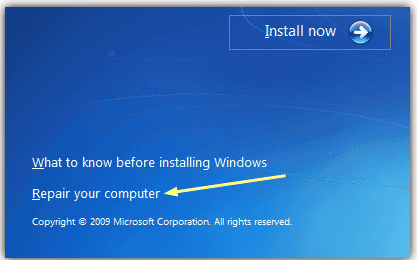
- Choose your Windows installation and open System Recovery Options.
- Click Startup Repair to fix boot problems automatically.
For a clean system reinstall, check how to wipe a hard drive in Windows 7.
4. Fix Boot Configuration with Command Prompt
If Startup Repair does not work, rebuild the boot configuration manually.
- Boot from the installation media again.
- In System Recovery Options, select Command Prompt.
- Type each command and press Enter after each one:
bootrec /fixmbr
bootrec /fixboot
bootrec /rebuildbcd
Close the Command Prompt and restart your PC. This restores missing boot records and allows Windows 7 to start correctly.
5. Check Hardware Components
Sometimes, a hardware issue prevents Windows from booting.
- Unplug any external USB drives or devices.
- Open the PC case and check cables for the hard drive and RAM.
- Try reseating the RAM modules and reconnecting the drive.
- If available, run a Memory Diagnostic or hard drive test from BIOS.
Faulty RAM or a failing hard drive can cause repeated boot failures.
FAQs
It often means system files are corrupted or a driver is preventing startup. Try Safe Mode or Startup Repair.
Yes, if your PC has a recovery partition. Access it by pressing F8 and choosing “Repair Your Computer.”
You may need to reinstall Windows 7 or replace faulty hardware components.
Boot into Safe Mode with Command Prompt or use a bootable recovery USB to copy files to an external drive before repairing or reinstalling the system.
Conclusion
When Windows 7 fails to boot, start with Safe Mode to remove faulty drivers or software. Then use Startup Repair or the Command Prompt method to rebuild damaged system files. If these steps do not work, check your hardware for faults or consider a clean reinstall to restore your PC’s functionality.

Read our disclosure page to find out how can you help Windows Report sustain the editorial team. Read more



Improve this guide

User forum
1 messages