
Fast Guide to Repair Wi Fi on Xbox Ally X With Driver Update


 3 min. read
  EEST
EEST

The Xbox Ally X can develop Wi Fi issues when its MediaTek drivers or network settings fall out of sync with Windows. A few quick updates and resets usually restore a stable connection.
Table of contents
How to Fix Wi Fi Issues on the Xbox Ally X?
Update the MediaTek WLAN driver on your Xbox Ally X
Updating the MediaTek driver often fixes unstable Wi Fi performance on the Xbox Ally X. This step matters because outdated WLAN drivers cause slow speeds and connection drops.
Download the latest MediaTek WLAN driver
Before you begin, make sure you can reach the Windows Desktop so the download process runs correctly.
- Enter the Xbox Full Screen Experience.
- Drag up from the bottom of the screen and select Windows Desktop.
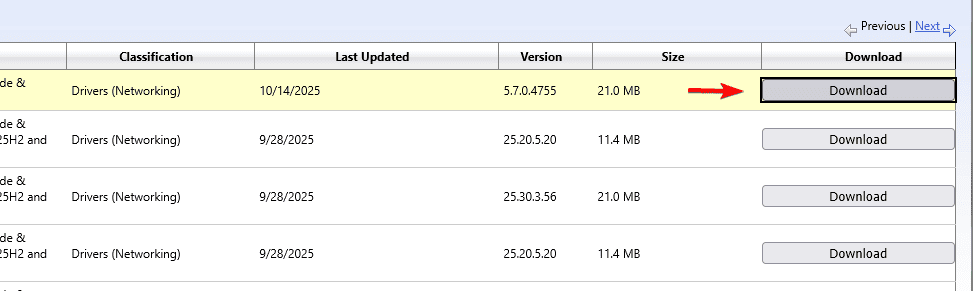
- Open a browser and go to the Microsoft Update Catalog.
- Search for the MediaTek Wi Fi driver.

- Download the latest version at the top when the popup appears.

- Select the blue link and save the file somewhere easy to access.

You can also review mode switching issues in this helpful guide: how to fix ROG Ally not switching to tablet mode.
Install the MediaTek driver through Device Manager
Installing the driver manually gives you more control and avoids incorrect automatic updates.
- Open the Start Menu.
- Search for Device Manager and open it.
- Expand Network adapters.
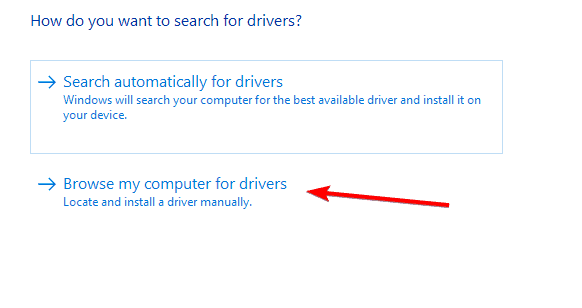
- Hold your finger on MediaTek Wi Fi 6E MT7922 (RZ616) 160Hz Wireless LAN Card and select Update driver.

- Select Browse my computer for drivers.

- Select Browse and locate the downloaded driver, then select Ok.
- Select Let me pick from a list of available drivers on my computer.

- Select the new driver.
- Select Next.
- Restart your Xbox Ally X.


FAQs
Driver bugs or corrupted settings often cause unstable signals.
No. It affects networking components only.
You only need internet access to download the driver.
It corrects software and configuration problems, not physical faults.
These steps help restore stable Wi Fi on the Xbox Ally X by updating the MediaTek driver, rebuilding network components, and using MyASUS diagnostics for deeper troubleshooting. If issues continue, test a different router or run Windows Update to refresh all system components.

Read our disclosure page to find out how can you help Windows Report sustain the editorial team. Read more



Improve this guide



User forum
0 messages