
Xbox Case Review Guide: Appeal Suspensions Easily


 3 min. read
  Published on

If your Xbox account has been suspended or enforcement action was taken, you may be able to appeal by submitting a case review. This guide will show you how to go through the process step by step.
Table of contents
How to Submit a Case Review on Xbox?
1. Check Eligibility
Before you begin, confirm that your enforcement action qualifies for review.
- The suspension is longer than 24 hours
- It is a permanent ban or serious enforcement action
Temporary suspensions under 24 hours cannot be appealed.
If you face issues tied to your location or purchases, it can help to first learn how to change region on Xbox.
2. Sign in to the Enforcement Website
Next, sign in to the official Xbox Enforcement portal.
- Go to the official Xbox Enforcement site.
- Sign in with the Microsoft account linked to your Xbox profile.
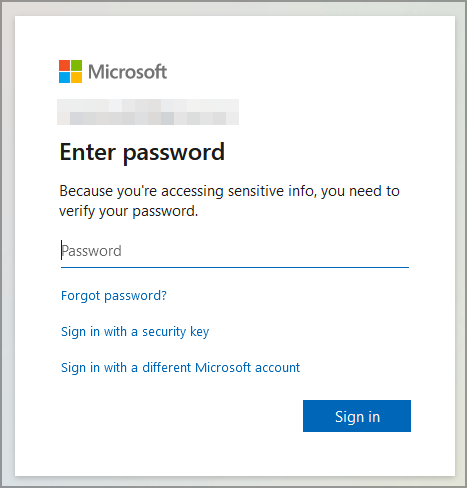
- Make sure you are using the same account that received the enforcement notice.
You may also want to adjust console settings like setting your Home Xbox to better manage your account.
3. Open Your Enforcement History
Now, locate the specific action you want to dispute.
- Once signed in, select Enforcement history.

- Review the actions taken against your account.
- Choose the specific action you want to dispute.
4. Start the Case Review
If the option appears, you can launch the review process.
- If eligible, select Apply for a case review.
- Read the terms and provide any requested information.
- Complete the short questionnaire to confirm you understand the Xbox Community Standards.
5. Submit Evidence
Here you should provide your explanation and any proof.
- Add details explaining why you believe the action was unfair.
- Upload screenshots or other relevant evidence if available.
- Keep your explanation clear and respectful to improve chances of success.
Some enforcement cases involve issues connected to external accounts like EA, and resolving them may require managing those links. In such situations, review how to unlink your EA account from Xbox for additional guidance.
6. Wait for the Decision
Finally, wait for the Enforcement team to respond.
- After submission, the case will be reviewed by the Xbox Enforcement team.
- Reviews usually take up to 72 hours.
- You will be notified of the outcome through your Microsoft account messages.
FAQs
Most case reviews are processed within 72 hours, but complex cases can take longer.
No. Short suspensions under 24 hours are not eligible for case review.
The enforcement action will remain in place and cannot be appealed again.
You can only submit one case review per enforcement action.
Conclusion
Submitting a case review on Xbox is the official way to challenge enforcement actions. By following the steps carefully and presenting solid evidence, you improve your chances of having the suspension lifted or penalty reduced.
If you want more control over how others see you during gameplay, you can also check how to appear offline on Xbox.

Read our disclosure page to find out how can you help Windows Report sustain the editorial team. Read more



Improve this guide



User forum
0 messages