
How to Turn Off Background Apps in Windows 11
Note that background apps slow down your PC


 4 min. read
  EEST
EEST
Key notes
- Some users are interested to disable background apps in Windows 11 because it seems like they can slow down the PC performance.
- The easiest way to perform this action is through the Settings menu.
- Task Manager allows you to disable traditional desktop programs from running in the background.
- To turn off specific background apps, the Local Group Policy Editor can also support you.

How do I stop apps from running in the background Windows 11?
1. Use the Apps settings
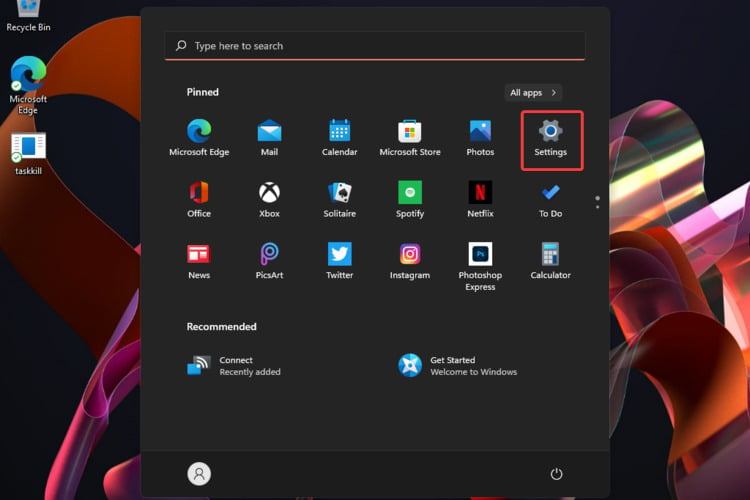
1. Hit the Windows key, then open the Settings menu.

2. Click on Apps, then on Apps & features.
3. Search for the app you want to disable.
4. Click on the three horizontal dots next to the app, and select Advanced options.
5. Navigate to the Backgrouns apps permissions section.
6. Under Let this app run in the background, choose the Never option.
7. Repeat the same steps for each background app you need to disable.
Unwanted apps can be easily prevented from running in the background on your device through the Apps Settings. In the apps list, you will be able to view and configure settings for all the apps that have permission to run in the background.


2. Try the help of Battery Settings
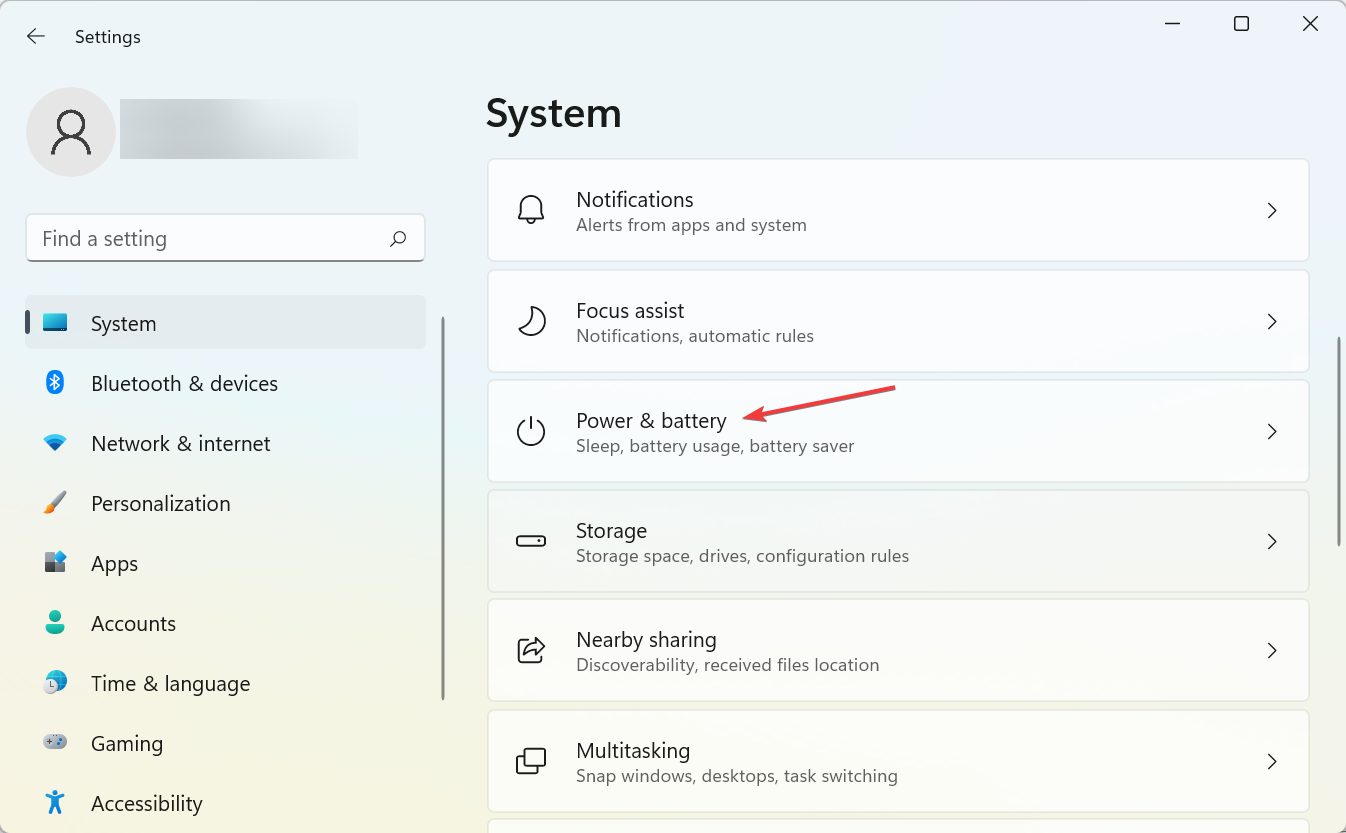
- Press simultaneously on Windows + I to open the Settings menu, go to System, then click on Power & battery.

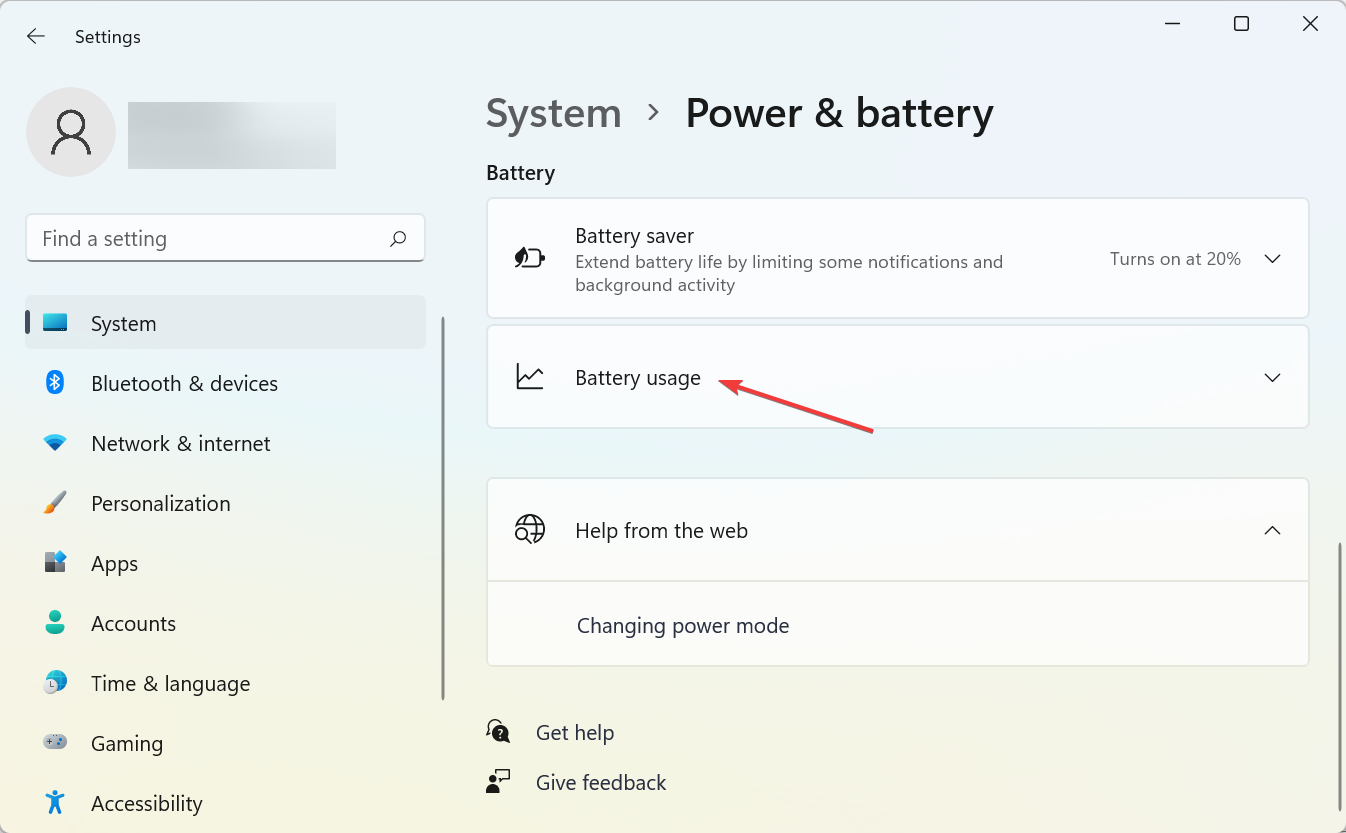
- Click on the Battery usage section.
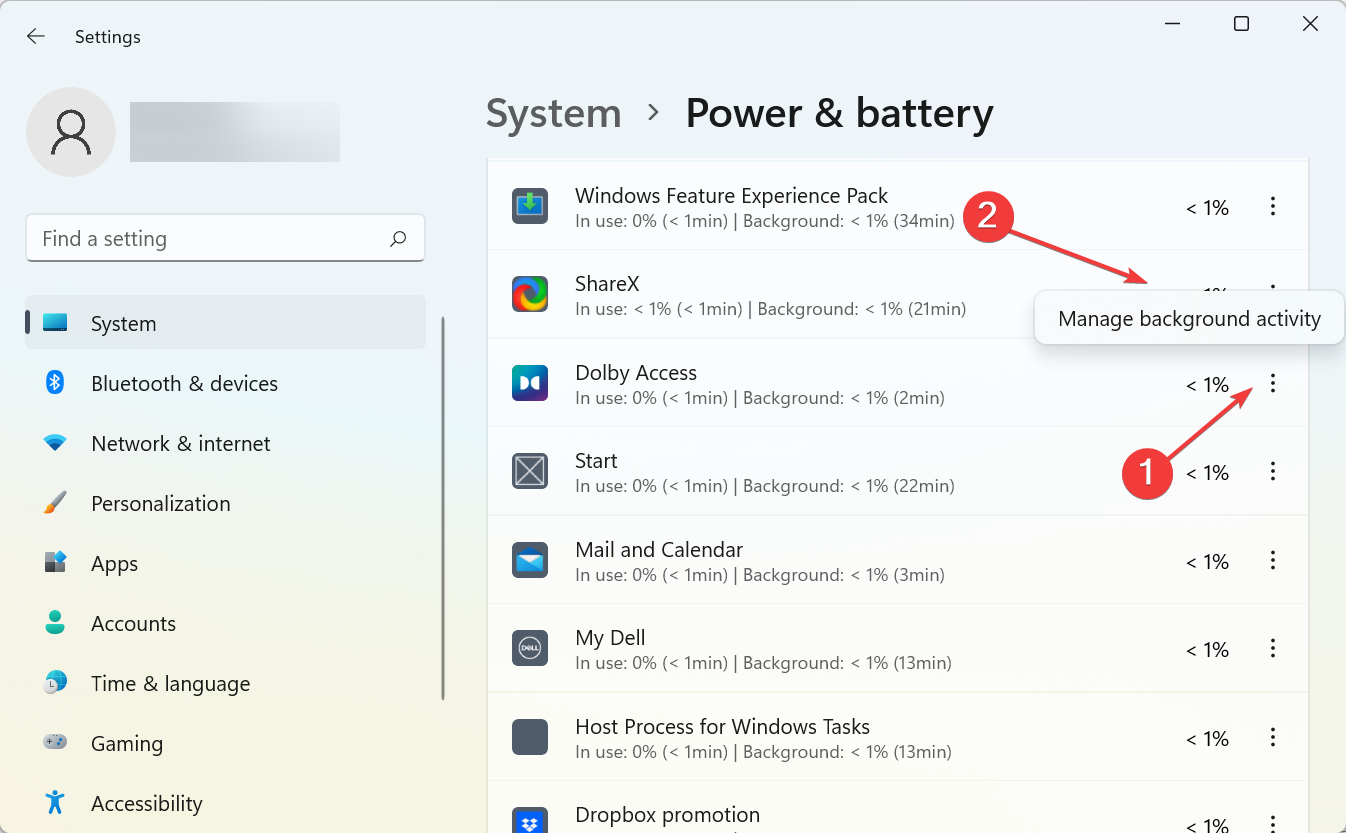
- Under the Battery usage per app section, search for the needed background app, click on the ellipsis next to it, and then select Manage background activity.
- You’ll be redirected to the Apps & features page. There, under the Background apps permissions section, choose again the Never option.
3. Navigate to Task Manager
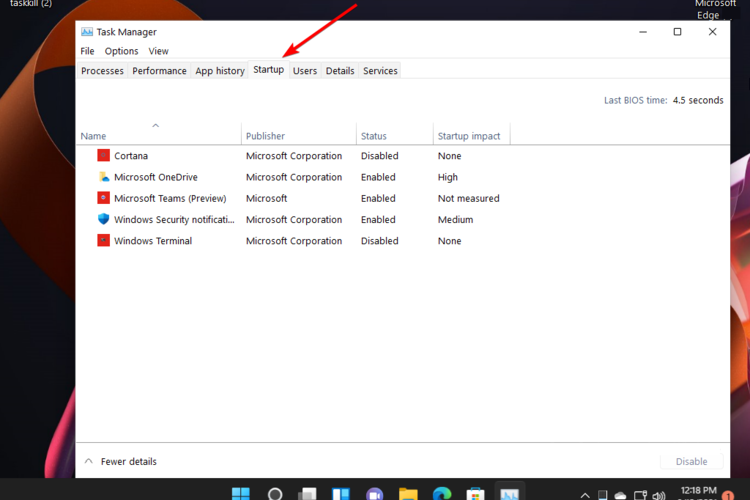
- Press Ctrl + Shift + Del to open the Task Manager, and then go to the Startup tab.
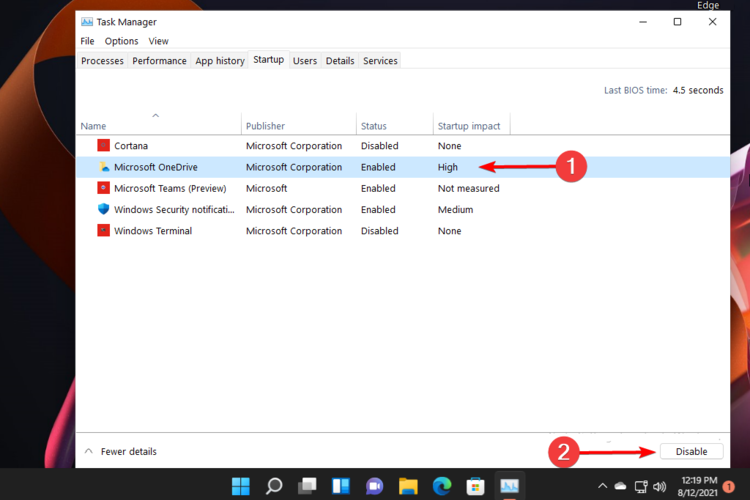
- Search for the app you want to turn off, click on it, then press the Disable button.
4. Use Local Group Policy Editor
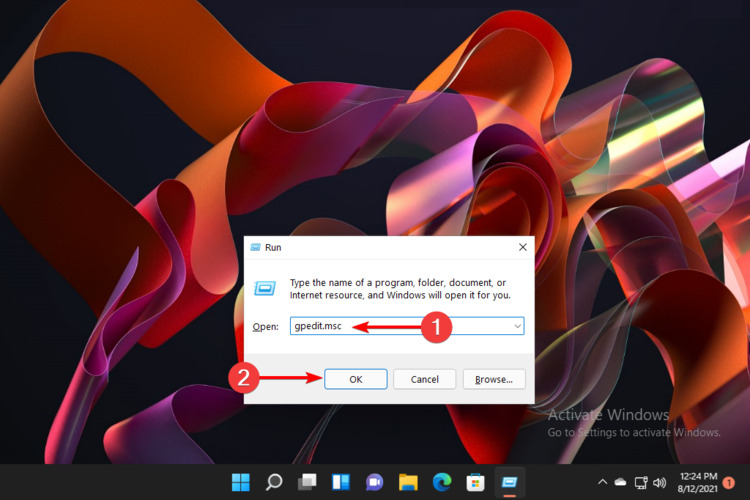
- Press Windows + R to open the Run command, type gpedit.msc, then click on OK.
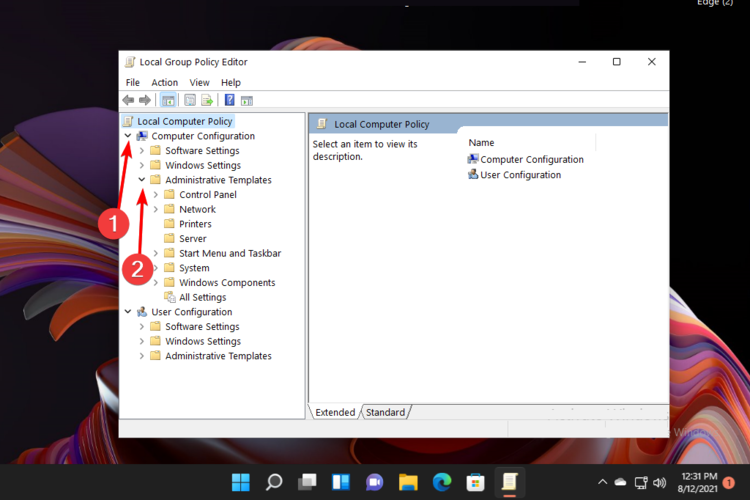
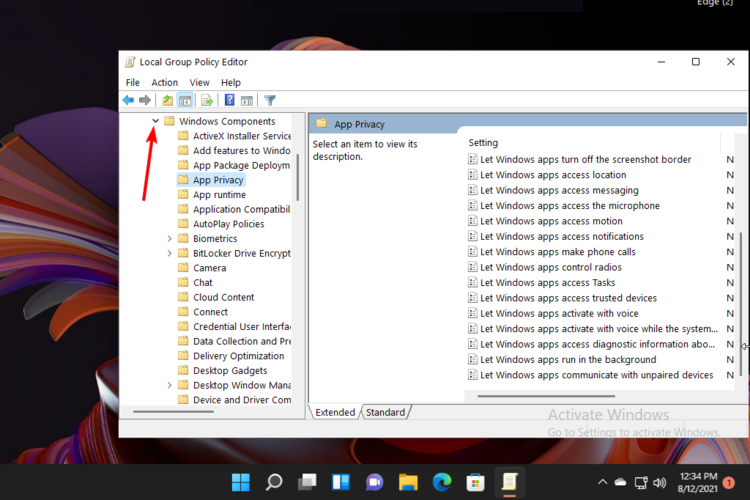
- Expand the Computer Configuration section, then the Administrative Templates section.
- Open the Windows Components section.
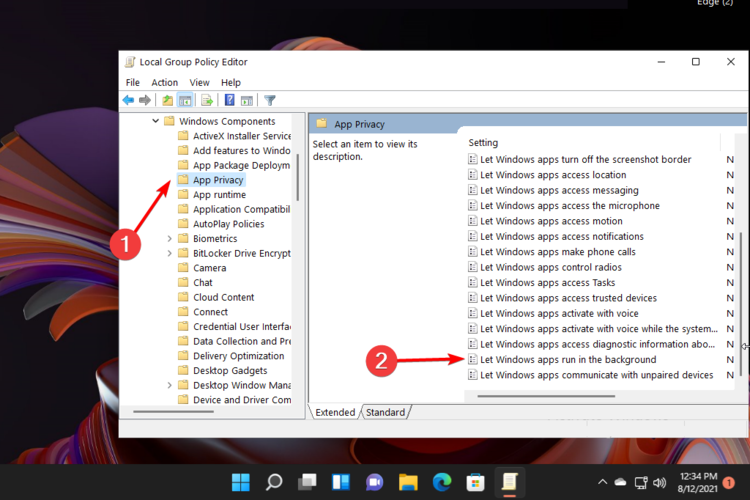
- There, click on App Privacy, then look at the right window side and double-click on Let Windows apps run in the background.
- Checkmark the Disabled option.
- Click on Apply, then on OK.

5. Disable background apps in Windows 11 via Registry
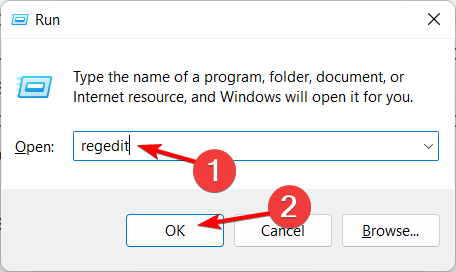
- Press Windows Key + R and enter regedit. Press Enter or click OK to open the Registry Editor.

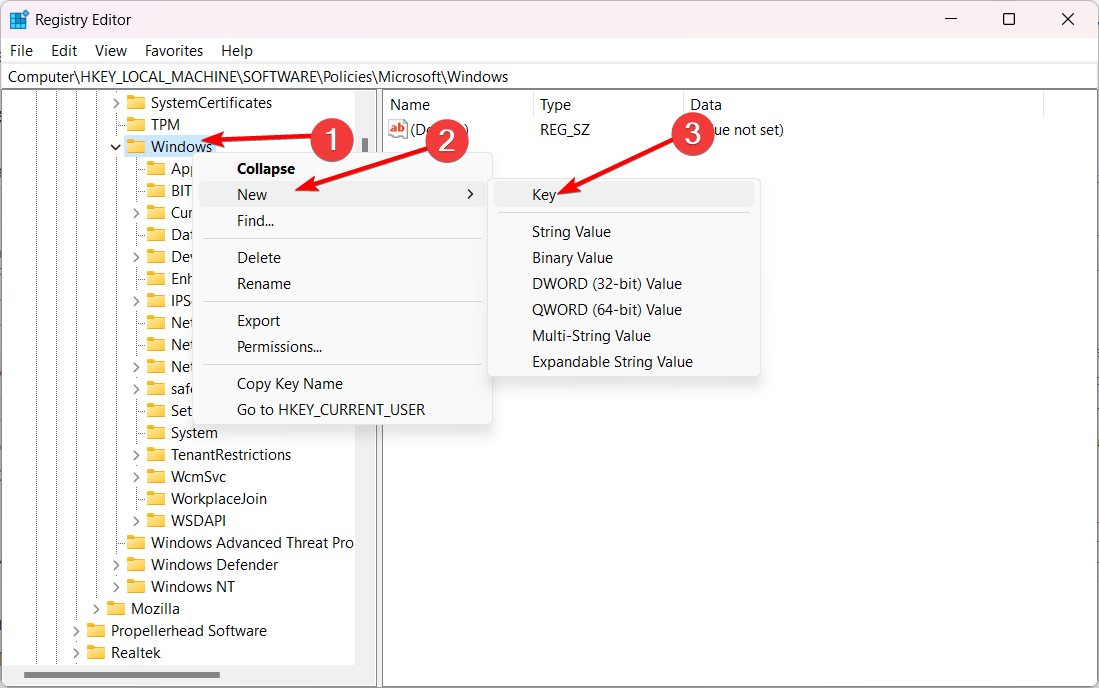
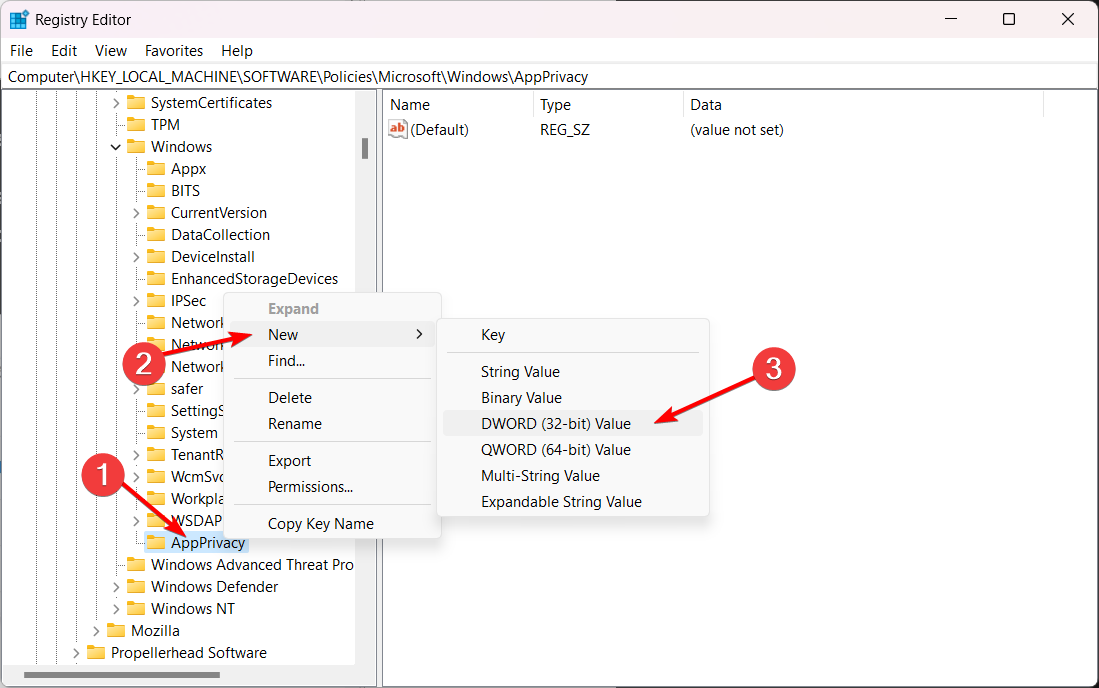
- Navigate to the following key then check if you have AppPrivacy under Windows. If not, you’ll have to create one:
HKEY_LOCAL_MACHINE\SOFTWARE\Policies\Microsoft\Windows - Right-click on Windows then choose New followed by Key and name it AppPrivacy.

- Next, right-click the AppPrivacy key then choose New followed by DWORD and name it LetAppsRunInBackground.
- Right-click the LetAppsRunInBackground value and select Modify. Set the Value data to 2 then save the changes made and reboot your PC.
How do I enable background Apps?
How do I see what apps are running in the background Windows 11?
Wrapping up

Read our disclosure page to find out how can you help Windows Report sustain the editorial team. Read more



Improve this guide


User forum
0 messages