
How to Fix: Computer Restarted Unexpectedly or Encountered an Unexpected Error


 8 min. read
  Updated on

If your computer restarted unexpectedly or keeps rebooting without warning, you’re not alone. This issue affects many Windows 10 users, and it can happen during setup, idle periods, or while you’re working. Hardware faults, overheating, corrupted system files, or incompatible drivers may trigger it. Below, we’ve outlined all the verified solutions to help you fix the problem and prevent future interruptions.
How can I fix “The computer restarted unexpectedly” error?
Table of contents
1. Use Registry Editor
In order to fix this problem, you’ll need to use the Registry Editor. To do that, follow these steps:
- When you see The computer restarted unexpectedly error message press Shift + F10 on your keyboard. This should open Command Prompt.
- Enter regedit and press Enter to start Registry Editor.
- Once Registry Editor starts, navigate to the
HKEY_LOCAL_MACHINE\SYSTEM\Setup\Status\ChildCompletion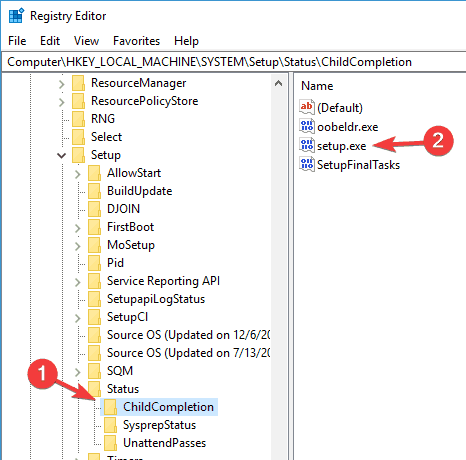
and double click the setup.exe in the right pane.
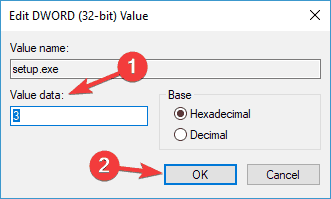
- Change the Value Data from 1 to 3 and click OK to save changes.
- Close Registry Editor and restart your computer.
2. Check your hard drive cables
Sometimes you might get stuck in The computer restarted unexpectedly loop due to hard drive cable problems.
Users reported that switching the cables that connect the hard drive to the motherboard fixed the issue, so you might want to try that.
Keep in mind that by opening your computer case you will void your warranty, so if your PC is still under warranty, it might be better to take it to the official repair center.
3. Reset your BIOS settings and format the installation partition
- Boot from your USB flash drive and if you see The computer restarted unexpectedly error message, press Shift + F10 to open Command Prompt.
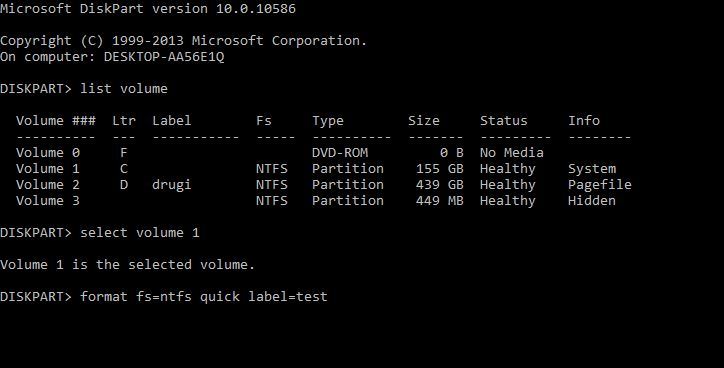
- Once Command Prompt opens, enter diskpart and press Enter.
- Enter list volume and press Enter. You should see a list of all partitions available. Find the partition on which you wish to install Windows 10 and remember its Volume number.
- Enter select volume 1. We used volume 1 in our example, but you need to use the volume that matches your partition.
- Enter format fs=ntfs quick label=test and press Enter. You can replace test with any other name you want to use for your partition. We have to warn you that by executing this command you’ll remove all files and folders from the selected partition.
- Type exit and press Enter to exit Command Prompt.
- After you restart your computer problem with The computer restarted unexpectedly loop should be fixed.
4. Change your boot settings
- While your computer boots, press Alt + F10 shortcut.
- Command Prompt will now appear. Remove /noexecute=optin and enter system recovery. Now press Enter.
- Now you should see a boot screen that has the address of the recovery partition. Press Enter and you should start the recovery process.
5. Disconnect all your USB devices
Most of us use various USB devices on their PC, but sometimes these devices can interfere with Windows and cause The computer restarted unexpectedly error.
If you’re having this problem, be sure to disconnect all your USB devices such as flash drives, printers, and even your USB keyboard and mouse.
Several users reported that disconnecting their USB mouse and keyboard fixed the problem for them, so be sure to try that.
We aren’t sure how your keyboard and mouse can cause this issue to appear, but if you encounter it, be sure to try this solution.
6. Change your BIOS settings
To do that, follow these steps:
- Enter your BIOS while the PC boots.
- Once you enter BIOS, navigate to Advanced Tab > Onboard Device Configuration.
- Set the SATA Mode to AHCI.
- Now go to the Boot tab and set Secure Boot to Enable. Also, change Load Legacy OPROM to Disable.
- Set Boot Mode to UEFI and save changes.
While your PC boots, press F12 to open the boot menu. Now select your UEFI boot device. Keep in mind that you might not have all these settings available in BIOS, and if that’s the case, try to enable the available settings.
If the problem still persists, try disabling the aforementioned settings one by one and check if that solves the issue.
7. Use a Windows recovery drive
- Connect a USB flash drive to your PC. For this task you’ll need a drive that is at least 8GB in size. In some cases, 8GB drive won’t be enough, and many users are recommending to use at least a 16GB drive.
- Press Windows Key + S and enter recovery. Select Recovery from the list of results.
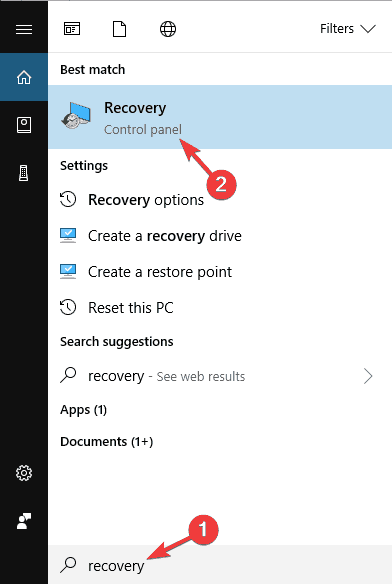
- Now select Create a recovery drive.
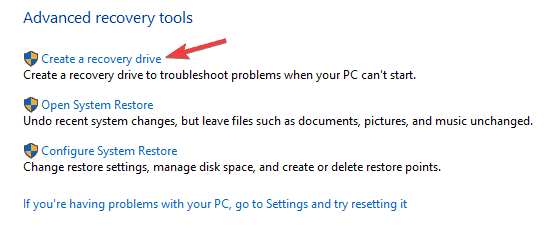
- Choose to create the recovery drive on your USB flash drive and follow the instructions on the screen to complete the process.
Once you create the recovery drive, need to do the following:
- Connect the drive to your PC.
- Now restart your PC several times during the boot sequence in order to access Advanced Boot section.
- Select Troubleshoot > Advanced options > System Image Recovery.
- Now follow the instructions on the screen to restore your PC.
Keep in mind that this is an advanced solution, so be extra cautious while performing it. It’s worth mentioning that a recovery drive from another PC might not always work, so it’s always a good practice to create a recovery drive on your PC before you encounter any problems.
Several users reported that they download the recovery drive from their computer manufacturer, so you might want to try that as well. You can also try to fix this problem by using third-party tools to safely recover your drivers.
8. Update your BIOS
In some cases, you might encounter this problem if your BIOS is out of date. Outdated BIOS can sometimes cause The computer restarted unexpectedly error appear, and in order to fix this problem, you might have to update your BIOS.
Updating BIOS is an advanced process, and if you’re not careful you can cause other problems with your PC to occur. In some cases, you can even permanently damage your motherboard, so be extra cautious.
Since you can’t access Windows, you’ll need to download a new version of BIOS on a different PC and move it to your flash drive. Now you’ll need to start Command Prompt and run BIOS update from it.
To see how to update your BIOS, be sure to check your motherboard manual for detailed instructions.
Once you update your BIOS to the latest version, check if the problem is resolved.
What are some variations of the computer restarted unexpectedly loop?
The computer restarted unexpectedly error can be quite problematic, and speaking of this error, users reported the following problems as well:
- The computer restarted unexpectedly or encountered an unexpected error setup is starting services – This error can occur due to your boot settings, and if you encounter it, you might have to adjust your settings accordingly.
- The computer restarted unexpectedly loop Windows 10 Surface Pro 4 – This error can appear on almost any PC, and many Surface Pro 4 users reported it. However, you should be able to fix it using one of our solutions.
- The computer restarted unexpectedly loop Windows 7, Windows 8 – This error can appear on almost any operating system and Windows 7 and Windows 8 aren’t exceptions. Even if you don’t use Windows 10, you should be able to fix this problem by using one of our solutions.
- The computer restarted unexpectedly restart the installation, installation cannot proceed – Sometimes this error can prevent you from installing Windows 10. If this happens, be sure to check if your hard drive is properly connected.
- The computer restarted unexpectedly regedit – Sometimes this problem can be caused by your registry. However, you can easily fix the problem by changing a few values in your registry.
The computer restarted unexpectedly or encountered an unexpected error message can be rather troublesome and prevent you from installing Windows 10, but hopefully, you’ll be able to fix it by using one of our solutions.
Other Windows startup issues we covered include: PCs getting stuck on the restart screen, Windows 10 not restarting properly, and Dell laptops freezing during restart.
You’ll also find fixes for more specific problems, like random restarts in Windows 10, unexpected restarts in Windows 11, and even cases where your PC restarts when playing games.
For a broader guide on systems stuck during reboot, check out our full article on how to fix a PC stuck on restarting.
Let us know which one worked for you in the comments section below.

Read our disclosure page to find out how can you help Windows Report sustain the editorial team. Read more



Improve this guide



User forum
64 messages