
Epic Games Launcher Setup Ended Prematurely: How To Fix It


 4 min. read
  Published on

When the Epic Games Launcher setup ended prematurely error appears, the installer closes before completing required actions. This issue usually points to missing system components, damaged files, or leftover data that interrupts the installation. You can fix it by repairing Windows components and clearing blocked installer conditions.
Table of contents
- Fix the Epic Games Launcher setup ending prematurely
- Run the installer with admin rights
- Install the latest Visual C++ Redistributables
- Repair system files with SFC and DISM
- Clear the Windows Temp folder
- Turn off antivirus scanning during installation
- Uninstall corrupted Epic Games Launcher remnants
- Use a clean boot environment
- Why these fixes work
- Why the Epic Games Launcher setup ended prematurely
- Quick checks before you run the installer
Fix the Epic Games Launcher setup ending prematurely
Run the installer with admin rights
Admin access ensures the installer writes required files correctly.
- Right click the EpicInstaller file.
- Select Run as administrator.
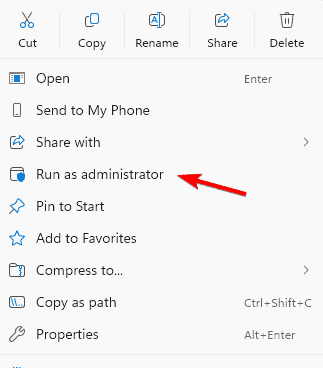
- Approve the UAC prompt and start installation.
Install the latest Visual C++ Redistributables
Missing runtimes often cause the installer to stop early.
- Download the current Microsoft Visual C++ Redistributable package.

- Install both x64 and x86 versions.
- Restart your PC and run the Epic installer again.
Repair system files with SFC and DISM
Windows components often break after updates or failed installs.
- Open Start and type cmd.
- Right click Command Prompt and choose Run as administrator.
- Enter sfc /scannow and wait for verification.
- Run
DISM /Online /Cleanup-Image /RestoreHealth - Restart the PC and try the installer again.
If the issue appears during normal launcher use, you can review a full troubleshooting guide for Epic Games errors.
Clear the Windows Temp folder
Conflicting temporary files can interrupt installation.
- Press Windows + R and type
%temp%
- Select all files and delete them.
- Empty the Recycle Bin.
- Open the installer again.
Turn off antivirus scanning during installation
Security software sometimes blocks extracted setup files.
- Open your antivirus dashboard.
- Disable real time protection temporarily.
- Run the Epic installer.
- Re enable protection after installation completes.
Uninstall corrupted Epic Games Launcher remnants
Partial installs often leave components behind that cause future failures.
- Press Windows + I and open Apps.
- Locate Epic Games Launcher.
- Select Uninstall.

- Delete the folder at
C:\Program Files (x86)\Epic Games - Try the installer again.
Use a clean boot environment
A clean boot reduces interference from third party services.
- Press Windows + R and type msconfig.
- Open the Services tab.
- Check Hide all Microsoft services.
- Click Disable all.

- Restart your PC.
- Run the installer.
- Restore normal startup after installation succeeds.
If the launcher installs but fails to load properly, check this guide for Epic Store not working.
Why these fixes work
Each solution repairs a different part of the Windows installation environment. Correct permissions, available runtimes, and clean system files allow the installer to complete its actions without interruptions.
Why the Epic Games Launcher setup ended prematurely
The premature exit message often happens when your PC lacks required Visual C++ libraries or when old Epic Launcher files conflict with new installation scripts. Incorrect permissions and corrupted Windows components can also stop the process unexpectedly.
You can remove problematic remnants by following this guide on uninstalling the Epic Games Launcher.
Quick checks before you run the installer
These simple checks help you start with a clean installation environment.
- Close background apps that use heavy system resources.
- Restart Windows so locked processes release.
- Disable your VPN to avoid corrupted installer downloads.
- Delete old Epic Games folders that remained after failed installs.
FAQs
This usually happens because of missing Visual C++ runtimes, leftover launcher files, or corrupted Windows components that interrupt the installation process.
Yes. Real time scanning can stop extracted setup files from running correctly, which often triggers the premature exit message.
Yes. Many installers rely on both architectures. Missing one often causes incomplete or failed installations.
No. A clean boot only stops third party startup apps from running. It does not remove personal files or installed programs.
You can usually resolve the Epic Games Launcher setup ended prematurely error by fixing runtimes, cleaning leftover files, and repairing corrupted Windows components. A clean install environment removes most blockers and helps the launcher install and run correctly again.

Read our disclosure page to find out how can you help Windows Report sustain the editorial team. Read more



Improve this guide

User forum
0 messages