
Gears of War Reloaded Multiplayer Issues: Easy Fix Guide


 3 min. read
  Published on

If you are facing Gears of War Reloaded multiplayer not working, you are not alone. Many players report server errors, failed connections, or problems joining friends, but the fixes below can help.
How to fix Gears of War Reloaded multiplayer not working?
Table of contents
1. Check your internet connection
- Restart your router and modem by unplugging them for at least 30 seconds, then plug them back in.
- Reconnect your device to the network.
- Run an Internet speed test to confirm you have at least 25 Mbps download speed.

- If possible, switch to a wired Ethernet connection for more stability.
If connectivity still drops, advanced steps from other Gears titles can help, such as those in how to fix Gears 5 errors.
2. Restart the game and your device
- Exit Gears of War Reloaded completely.
- Restart your PC or console to clear cached data.
- Launch the game again and try joining a multiplayer match.
If the game closes instead of restarting properly, try the tips in Gears 5 crashing on startup which often apply here too.
3. Check Xbox Live or Steam server status
- Visit the official Xbox Live or Steam status page for your platform.
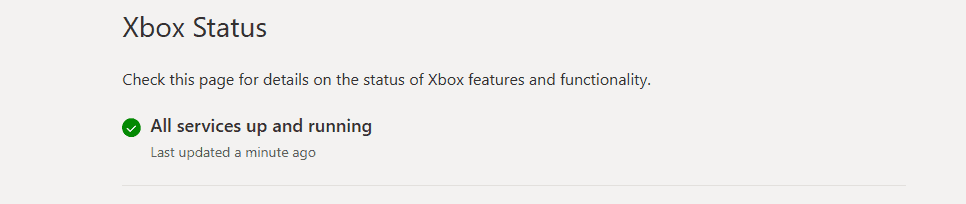
- Look for any outages or maintenance notices affecting Gears of War Reloaded.
- If servers are down, wait until the service is restored, then retry matchmaking.
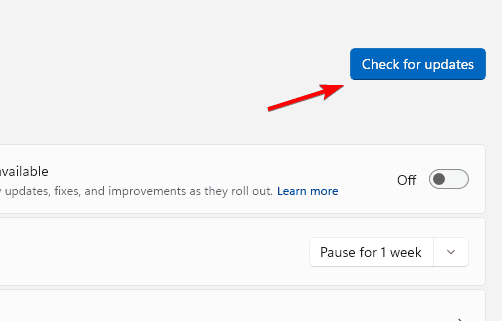
4. Update the game and system software
- On PC, open Steam or the Microsoft Store and check for pending updates.
- On Xbox or PlayStation, open the game options and select Check for updates.
- Update console firmware or Windows to the latest version and reboot.
5. Clear cache or temporary files
- On PC, press Win + R, type %localappdata%, then delete temporary files related to Gears of War Reloaded.

- On Xbox, clear cache by holding the power button for 10 seconds, unplugging the power cable, waiting 1–2 minutes, then restarting.
- Relaunch the game and test multiplayer again.
If you notice odd sound behavior after clearing files, follow the steps in Gears 5 audio issues to stabilize audio during matches.
6. Reinstall the game or try another client
- Uninstall Gears of War Reloaded from your PC or console.

- Restart your device to remove any cached remnants.
- Reinstall the game from Steam or Microsoft Store.
- If issues persist, try a different supported client to rule out store-specific conflicts.
Most cases of Gears of War Reloaded multiplayer not working come down to network stability, outdated files, or temporary glitches; working through the steps above typically restores smooth online play.
If you run into similar issues in other tactical shooters, check our Ready or Not multiplayer not working guide for fast fixes.
FAQ
It usually stems from poor internet stability, corrupted cache, or temporary service outages. Verifying servers and clearing cache often helps.
Yes. Reinstalling replaces corrupted files and resets configurations that can block matchmaking.
Occasional outages happen. Check Xbox Live or Steam status pages to see if the issue is global before changing local settings.

Read our disclosure page to find out how can you help Windows Report sustain the editorial team. Read more



Improve this guide

User forum
0 messages