Paper Abrasion Setting on Canon Printer: How to Turn Off

Canon printers include a Prevent paper abrasion setting that you can select to reduce smearing on paper.

While this is a useful feature that can help if the printer makes indents on paper. While it’s enabled, you’ll always get a window mentioning that this feature will impact the printing quality.

It can get quite tedious after a while, so today, we will show how to prevent it.

What is paper abrasion on Canon printer?

  • The Prevent paper abrasion setting widens the space between the paper and the print head.
  • This helps reduce smudging and smearing while printing.
  • It can also spoil the print quality a little while printing.

How do I turn off paper abrasion on my Canon printer?

Adjust the printer settings

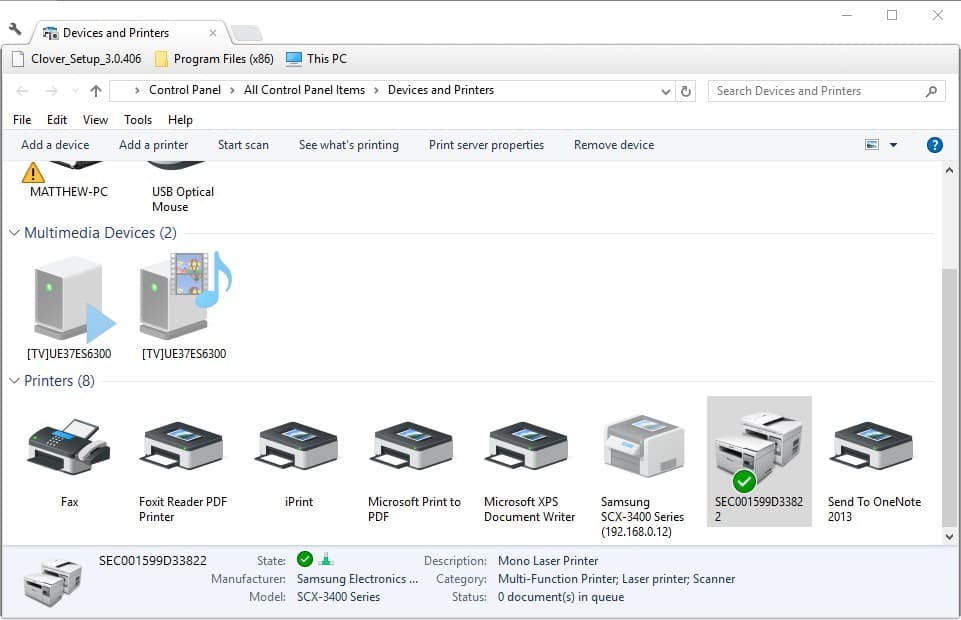
  1. First, open the Devices and Printers tab. You can do that in Windows 10 by clicking the Cortana button and entering Devices and Printers in the search box.
  2. Select Devices and Printers to open the Control Panel tab shown directly below.
  3. You can right-click the listed Canon printer you’re printing with from the Devices and Printers tab. Select Properties from the context menu that opens.
  4. Click the Maintenance tab on the Canon Properties window.
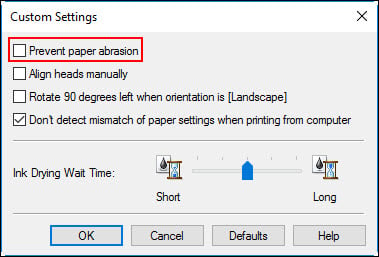
  5. Press the Custom Settings button on the Maintenance tab to open a Custom Settings window.
  6. The Custom Settings window includes a Prevent paper abrasion option. Click that setting’s check box to deselect the option.
  7. Then press the OK button to confirm the adjusted settings.
  8. Press the Apply and OK button on the Properties window.

Now the paper abrasion setting on the Canon printer will be disabled. Deselecting the paper abrasion setting might also enhance print quality a little.

To learn more about Canon printers, check our guide on paper jam on Canon and see how to fix it properly.

Did you find this guide helpful? If so, let us know in the comments section below.

Kaspersky DDoS Protection Connect helps small and medium businesses thwart cyber threats

The DDoS (Distributed Denial of Service) is the preferred way for attackers to take down websites. Attackers make the website or online service unavailable by sending an overwhelming amount of traffic, usually targeting banks, news outlets and e-commerce websites at scale with the help of infected computers, often referred to as the ‘botnets.’

Once exploited, attackers are able to control the machines remotely and launch an attack on their target. In order to defend against attacks, Kaspersky has launched a new version of Kaspersky DDoS Protection Connect designed specifically for small and medium businesses. This is perfect timing after a recent report found that a week-long DDoS attack can be bought for as little as $150 on the dDark web.

Unlike larger organizations, small and medium size companies suffer a lot since they usually don’t have the resources to ward off the attack. As per Kaspersky’s report, a single DDoS attack can cost a small organization in excess of $123,000 plus the amount spent to repair the damage along with productivity/business loss.

What’s new?

We already know about Kaspersky DDoS Protection services but the new program comes with certain features that are high on utility. For instance, the new DDoS Protection program doesn’t require an installation of a special sensor inside the customer’s infrastructure and it’s mostly a DIY effort that doesn’t require help from IT professionals.

Also Read: 5 best DDoS protection software to use

The Special mode offered by the DDoS protection suite constantly keeps an eye on incoming traffic with the help of scrubbing centers. Kaspersky has also achieved a better cost to features ratio by limiting the number of resources and the threshold of the volume. On the contrary, Kaspersky DDoS protect is for more comprehensive coverage in order to thwart attacks of any magnitude.

“Because SMBs have limited resources, they often can’t afford to protect themselves with an anti-DDoS system within their own infrastructure and have the necessary IT staff to maintain it. Efficiency, affordability and minimal technical support – that’s what small companies need when it comes to cybersecurity. The more companies that are protected against DDoS, the less effective this kind of illegal business will be. And, the more successful we are at protecting businesses from DDoS, the greater our contribution will be in fighting this threat. That’s why we have developed a solution that serves this vulnerable group of businesses”-Kirill Ilganaev, Head of Kaspersky DDoS Protection, Kaspersky Lab

Xbox Live Gold members can enjoy Middle-earth: Shadow of Mordor free this weekend

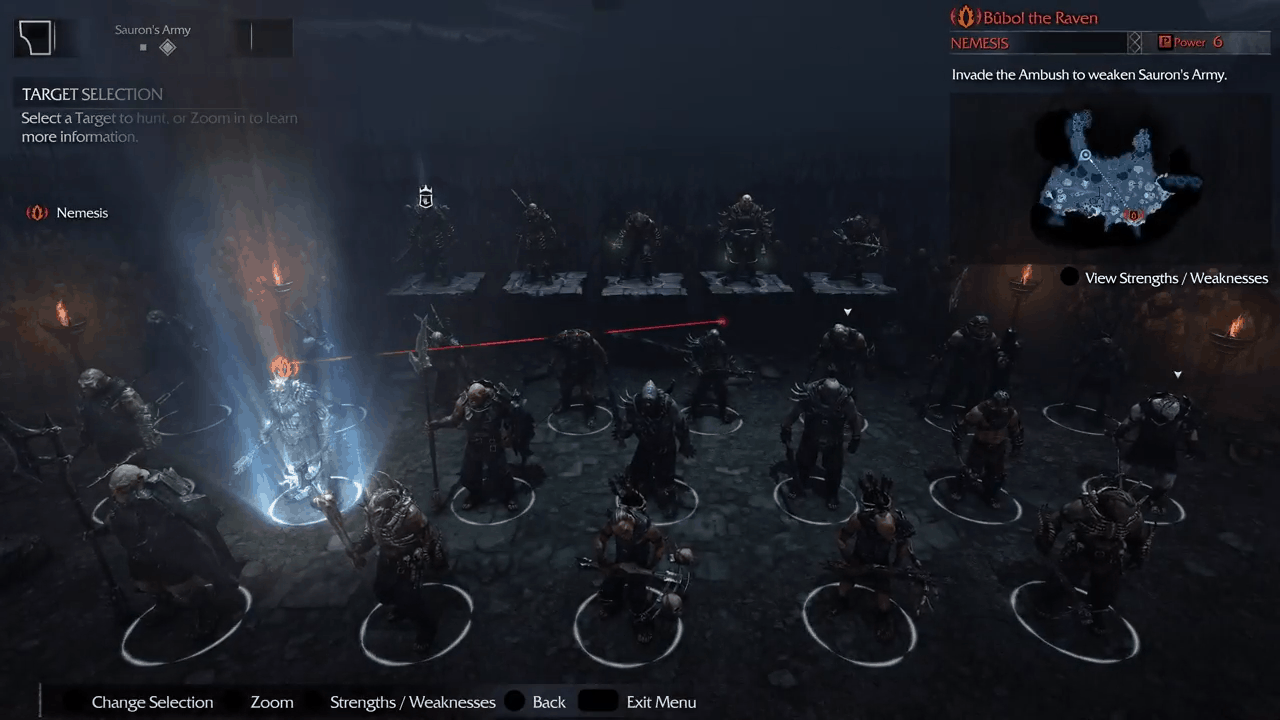
If you’re looking for a game to play on your Xbox this weekend, you might want to check out  Middle-earth: Shadow of Mordor. Microsoft has announced that the open world action role-playing video game will be free to play this weekend for Xbox Live Gold members.

The free play will run from Thursday, July 6 at 12:01 am PDT to Sunday, July 9 at 11:59 pm PDT. During the same period, you can purchase the title for  80% off the regular price. And, if you decide to purchase the game, your saved progress and achievements from the free play will also carry over.

To find the game, all you need to do is to head to the Xbox Store and search for  Middle-earth: Shadow of Mordor. Once you have downloaded, you can play as much as you want for free up until July 9 at 11:59 pm PDT.

As a reminder, Shadow of Mordor was recently updated with the ability to export your enemies and companions into Shadow of War.  This means you will easily be able to enjoy the next installment to the series once it is released on October 10th on Xbox One.

Microsoft’s back-to-school deals begin today, run through September 17th

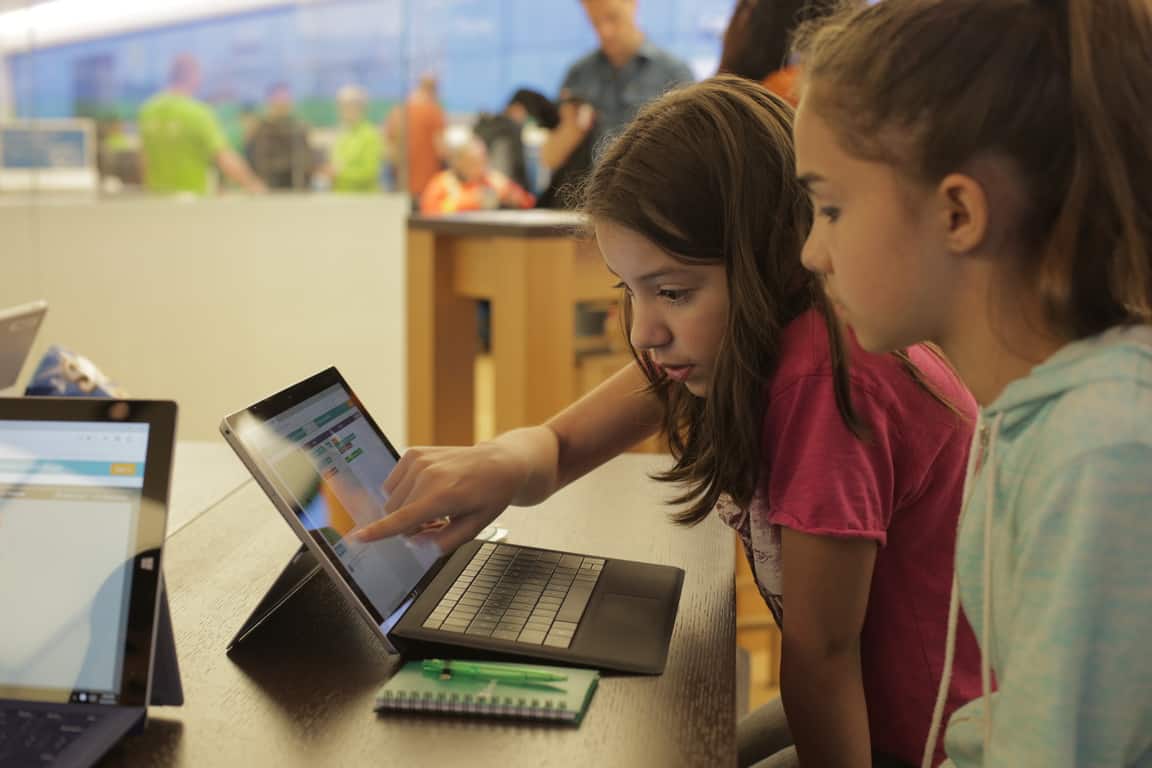
Even though the last school year just ended, Microsoft is getting a jump on the new school year with some awesome deals from the Microsoft Store. Recently, Microsoft unveiled the new Surface Pro and Surface Laptop, so it’s time for Microsoft to offer some great deals before the new school year even begins.

Starting today and running until September 17, 2017, Microsoft Stores across the US are offering up to $150 off Surface Book, Surface Pro 4, and Xbox One. Additionally, college and university faculty, students, and staff can get an extra 10% off.

Here is a list of the back-to-school deals that Microsoft is offering:

Surface Pro 4
  • Surface Pro 4 and a black type cover for $999. $899 (additional 10% off) for students (with valid student ID). Additionally, students and teachers get Office 365 for Education for free, which includes Word, Excel, PowerPoint, OneNote, and now Microsoft Teams, with additional classroom experiences. All you need to get started is a valid school email address.

  • Save up to $150 on Surface Book. As an added bonus, you can receive a free 3-month Groove Music membership with any Surface Pro 4 or Surface Book purchase. Microsoft Store’’s Recycle for Rewards program allows customers to trade in their old devices including laptops, tablets, phones and gaming consoles for up to $850 off a new Surface Pro or Surface Laptop.
  • Receive a 3-month Groove membership with any Surface purchase. Surface devices are well-crafted, beautiful devices that help people get stuff done, and with a Groove Music Pass, you will have access to millions of ad-free songs, custom and expert-curated playlists and artist radio.
  • Get creative with a free Intel Software Starter Pack with eligible PCs: Receive the software bundle, worth $429, with seven apps centering around creativity, entertainment, and productivity when you purchase an eligible PC, including Dell XPS 15, Dell XPS 13, HP Spectre x360, and Lenovo Yoga 910.
Xbox One S
Xbox One S

Be sure to visit Microsoft.com for more information on these deals or pop in to your local Microsoft Store. Microsoft Store staff are ready, willing, and able to help you find the right Windows 10 device to help you with work or school.

Enjoy the rest of your summer!

Some new Surface Pros are randomly hibernating, Microsoft is investigating

A few weeks ago, a select group of Surface Pro owners took to the Surface Subreddit and the Microsoft forums to vent about hibernation and random shutdown issues occurring on their new devices. Though the issue still appears to be linked to only a small set of users and devices,  a more recent report from Paul Thurrott shows that the issue is still persistent, and Microsoft is now investigating.

The report shows that roughly 300 people have confirmed the hibernation issue, with some people even experiencing a loss of data. In a response on the Microsoft Answers forums, though, Microsoft indicates that they are aware of the issue with a “small group of customers,” and are “investigating the issue.” In the same forum thread, Microsoft MVP Barb Bowman also offers up an explanation and advice for users who are experiencing the issue on their Surface Pro.

“Reading between the lines, I interpret this as they could not reproduce this with their in-house new Surface Pro’s…. They also say “small group”. While there are 200+ me too’s in this thread, and 20 pages of posts, the term “small group” may be relative…. So, in my OPINION, based on the fact that it has historically taken Microsoft months and months to identify issues and come out with a fix and since these devices are still eligible for return for full refund, you may want to consider returning for a full refund and repurchasing. If you do that, you get another 30 days of being able to return and repurchase, etc…”

To be fair, Microsoft has not exactly had a good record when it comes to fixing issues with Surface devices. As Barb Bowman points out, after a customer experiences an issue with a device within six months of purchase, the company would simply exchange it for a refurbished unit, which the quality of  “has not been consistent.” Bowman instead suggests customers who are experiencing this issue should return the device for a full refund while they still can and then consider repurchasing again.

How to generate a battery health report for your Windows 10 laptop or tablet

Device batteries don’t last forever. After a few years of solid use, you’ll notice that your laptop or tablet begins to require charging more frequently as the lithium-ion cells start to age. If you want to monitor your battery’s deterioration, Windows’ built-in battery health report lets you check its state over time.

The battery health report was introduced with Windows 8. It’s a hidden feature that provides a wealth of information on your system’s battery and how it’s faring. You can’t access the report from the Windows interface. It’s only available from an administrator Command Prompt or PowerShell window, so most people aren’t aware it exists.

Screenshot of Win+X Command Prompt option

First, open a terminal by right-clicking the Start button and selecting “Command Prompt (Admin)”. On post-Creators Update builds of Windows 10, you may see PowerShell in this menu instead of Command Prompt. It doesn’t matter which you use but you must select the “Admin” version. Confirm the User Account Control dialogue to open the terminal.

Screenshot of cmd battery-report command

You can only need to type one command to generate the battery report. Enter “powercfg /batteryreport” (without the quotations) and press enter. This will save the battery report to the default location in the Windows folder. It’s generated as an HTML webpage which you can view in a web browser. To open it without leaving Command Prompt, type “battery-report.html” and press enter. This will open the report in your default browser.

Screenshot of cmd battery-report command

The first section of the report provides some basic information on your device and its batteries. Under the “Installed batteries” subheading, you can see the manufacturer and model of each of your system’s batteries. You can also check the design capacity and current full charge capacity of each battery. The design capacity indicates the theoretical charge of the battery when it was new from the factory.

Screenshot of Windows 10 battery report

The next section shows how your device has used energy over the past three days. You can see when different power-saving modes, such as Connected Standby, were active and how much charge was depleted during each of your sessions. Below this, there’s a detailed “Usage History” report which gives an overview of how long you’ve been using your device for over time.

Screenshot of Windows 10 battery report

Further down the page, you’ll find the “Battery capacity history” heading. This is the most valuable insight into the degradation of your battery over time. You should see that the “Full Charge Capacity” of your battery gradually gets lower as the months go by. You should notice a gradual downward trend with a few mWh being depleted each month.

Sometimes, there may be anomalies where the full charge capacity heads back up again. Calculating full charge capacity is an inexact science and your battery won’t always charge to the same level on each cycle. However, any significant jumps in the data could signal a defect in your battery. It’s worth checking the report if you suspect a fault is developing.

Screenshot of Windows 10 battery report

The last section of the report shows how your device’s estimated runtime has changed over time. While this may be expected to decrease in proportion with the battery capacity, in practice the trend could be skewed or non-existent.

Screenshot of Windows 10 battery report

Unless you rigidly use the same apps for months, your real-world battery usage will fluctuate significantly over time. Changes made to Windows in updates might improve efficiency, offsetting the gradual declines in your battery’s capacity. Alternatively, a few late night gaming sessions in quick succession could cause your battery life estimate to plunge, even though there’s been no change to the cell’s capacity.

The best way to assess the reduction in your device’s runtime is by looking at the very last entry in the report. Windows provides you with estimates of your device’s battery life at design capacity and at current capacity, based on aggregate data collected since the operating system was installed. While it’s still far from precise, the quoted figure is the best representation of how the gradual capacity decreases relate to real-world runtime.

Yes, using an NTFS SD card for OneDrive is fine with us, Microsoft says

Just one last thing on this week’s little snafu around OneDrive and NTFS. Over the holiday weekend, users (probably mostly ones like me who had a Surface Pro, an SD card formatted to the “default” ExFAT, and a desire not to use up precious hard drive space) found that their OneDrive installations no longer worked.

Microsoft explained, sorta, and we received a plausible explanation from an interested third party, saying that the new OneDrive placeholder system, called OneDrive On-Demand, required NTFS as it is using something called Reparse Points.

First, a bit of an explainer. A File Allocation Table, or FAT, was first developed way back in 1997 for use on floppy disks, and evolved into pretty much the only vestige still left, FAT32. NTFS actually came even earlier, with an early v1.0 shipping in 1993 but then replaced by v1.1 in 1995, which is incompatible with v1.0. The last major version of NTFS, version 3.1, was released in 2001 along with the launch of Windows XP.

In 2006, Microsoft introduced ExFAT, loosely based on the FAT architecture but incompatible, and optimized for flash drives and USB sticks. It’s the default file system for many systems using SD cards, including Surface devices.

That’s why the sudden shutdown of OneDrive support for ExFAT (and FAT32, ReFS etc.) came as an unpleasant surprise to many. Like myself, many users added an SD card to a Surface Pro, formatted it in ExFAT (the default offered), and pointed OneDrive storage to it.

This worked fine until this past weekend, then it didn’t. Now users are required (and there’s a difference here between “ending support” for something like XP, still used by millions around the world, and OneDrive support for only NTFS, meaning that other file systems no longer work, or at least are prevented from working).

We asked Microsoft if what many users are/have been doing, putting OneDrive on an SD card, is supported:

…does Microsoft support the installation of OneDrive on NTFS formatted SD cards?
Yes, Microsoft does support the installation of OneDrive on NTFS formatted SD cards

We don’t have confirmation that Microsoft now requires NTFS for OneDrive because its new placeholder system, OneDrive On-Demand (we asked a lot of questions, they only answered the one above),  but it seems logical as we know from experience that OneDrive did work just fine on ExFAT. What we do know is NTFS is now required, but according to Microsoft go ahead and keep (or start) using OneDrive on an SD card.

Halo DLC is now free on the Xbox Store

Yesterday, Microsoft announced the Halo Summer Celebration, which includes a 4K update for Halo 5 Guardians, and backward compatibility for Halo 3, and 4. Well, another part of the initial Summer Celebration announcement is now live, as every Xbox 360 Halo add-on map pack in the Xbox Store is now free.

This means that all DLC for Halo 3, Halo 3: ODST, Halo 4, and Halo: CE Anniversary are now free. including map and map packs.  For instance, the Halo 3 Heroic Map Pack, and Halo 4 Forge Island are now all listed as free when searching the Xbox 360 Marketplace for “Halo.”

Now that every Xbox 360 Halo-add on map pack is free, fans of the Xbox exclusive franchise will no doubt have all they need to take advantage of the forthcoming backward compatibility of Halo 3, Halo 3: ODST, Halo 4, and Halo: CE Anniversary on Xbox One. This will no doubt keep Halo players busy, as Halo 6 won’t be talked about by Microsoft anytime soon.

Microsoft and Boku expand carrier billing to Spain, Austria, and Romania

The Microsoft and Boku partnership has already enable carrier billing for Windows Store purchases in regions such as Canada, to the UK, Russia, Turkey, Poland, Italy, and France and this week the payment option expands to include Spain, Austria, and Romania.

“One critical component to the continued expansion and adoption of Windows 10 has been, and will continue to be, the ability for every consumer to make purchases via the Windows Store. To that end, Microsoft and Boku have been working since the launch of Windows 10 to provide carrier billing as a credit alternative for consumers in major markets worldwide,” the official statement reads. “Longtime Boku carrier partner Orange will be leading the charge in Spain and Romania, bringing this new payment option on Windows 10 to more than 23 million mobile customers. In Austria, more than 5 million A1 mobile subscribers will now see “carrier billing” as an option the next time they log into their Windows Store account.”

Do you use carrier billing to make Windows Store purchases or do you prefer other options such as PayPal or credit card? Let us know in the comments below.

Xbox One gamers will soon be able to gift video games to friends

A feature Xbox One gamers have been requesting for a while has been the ability to give digital video games to friends. There has been the occasional talk from Microsoft confirming that it was something that they were considering but today on Twitter, the company’s Mike Ybarra stated in a reply to another user that this feature would indeed be coming soon.

It’s unclear at this point if the gifting being discussed is the ability to buy a game for another user or transfer ownership to them, it could even be both. Either way, it’s still welcome news for many Xbox One owners who had been wanting to share titles with those close to them.

Have you been waiting for this feature? Let us know in the comments below.

Fix: Ink may Have run out Error Message for Canon Printers

Are you getting an Ink may have run out error message when printing with a Canon printer? If so, that’s not surprising, as Canon printers report lower ink levels than other alternatives. The printers stop printing when the error message appears. They report low ink with the following error message:

The following ink cartridge may have run out:
Black PG-40/PG-50
Colour/Color CL-41/CL-51

The function for detecting the remaining ink level will be disabled since the ink level cannot be correctly detected.
If you want to continue printing without this function, press the printers Stop/Reset button for at least 5/five seconds.
Canon recommends to use new genuine Canon cartridges in order to obtain optimum qualities.
Please be advised that Canon shall not be liable for any malfunction or trouble caused by continuation of printing under the ink out condition.

However, the ink cartridge usually hasn’t run out. Sometimes, you might be surprised by a Canon printer reporting low ink after recently adding a fresh cartridge. That’s mainly due to how the Canon printers estimate their ink levels.

They don’t have any way of detecting fresh ink, so instead, the cartridge monitors how many pages you’ve printed and the average page coverage. Consequently, Canon printers’ ink level estimates are usually short of the actual mark.

What can I do when getting Ink may have run out error on my Canon printer?

1. Press the Stop/Reset/Resume button

The primary fix for the Ink may have run out error is straightforward. As the error message states, you should press and hold your printer’s Stop/Rest/Resume button for about five to 10 seconds.

The specific button you need to press varies from model to model, but all the buttons have exactly the same symbol. The symbol is an upside-down triangle within a circle like the one below.

The ink error message will close when you press and hold the button. Then, the printer will resume printing as before. So don’t press the Cancel Printing button.

2. Don’t print with remanufactured ink cartridges

Note that remanufactured cartridges can also cause the ink error. A remanufactured ink cartridge is otherwise a recycled one refilled with ink. They also have monitoring chips that were only intended for one-time use.

Thus, that monitoring chip can also throw your printer’s ink level estimates for a newly installed cartridge as it’s set to empty. As such, don’t install remanufactured ink cartridges; and print with new OEM ones instead.

3. Check the ink cartridge’s printer compatibility

Also, consider checking the cartridge’s compatibility. To make sure your Canon printer has a compatible ink cartridge, check out this website page.

There you can find compatible cartridges for Canon printers by selecting a series model number from one of the drop-down menus. Then press the Go button to open a PDF that lists compatible ink cartridges for Canon printers. Install a compatible ink cartridge if your printer currently has an incompatible one.

So you can fix this ink error with the press of a button! To ensure it doesn’t become a recurring issue, make sure your printer is printing with compatible OEM ink cartridges. Check out this Windows Report article for further Canon printer tips.

Microsoft brings Responsive visualizations to Power BI

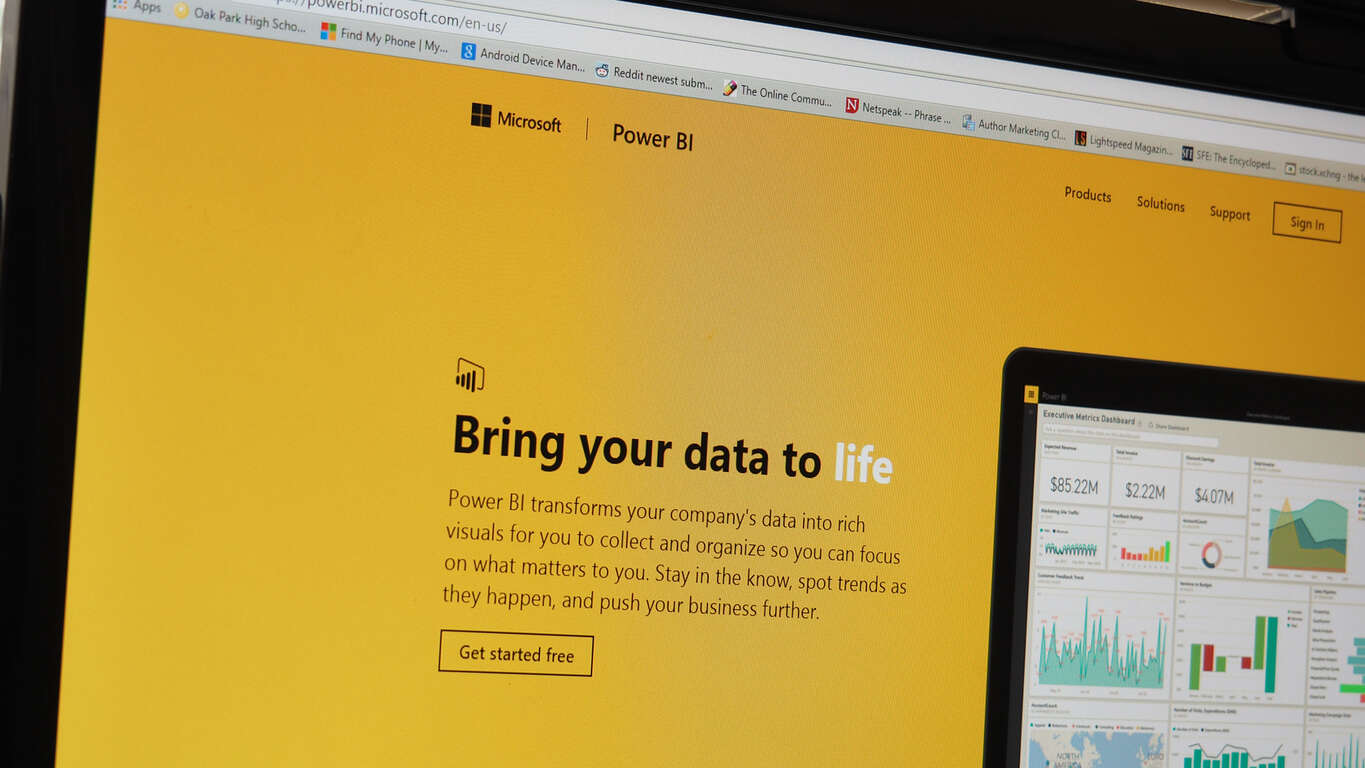
Adding to a long list of quality-of-life features in the Power BI software, Microsoft is introducing “Responsive visualizations” to Power BI. These new changes to Power BI make a fairly simple yet impactful change: Your projects will now dynamically react to being moved around, resized, etc. The shift will have a big impact for people who don’t want to spend more time than necessary making their work look nice when they try to reformat it.

As you can see in the example, you can shrink down the new Power BI graphs quite a bit before you start to sacrifice any information. The graph will intelligently shift around things like titles and color legends in a way that makes them easy to read, saving some time for the end user.

This feature is available right now and will be backward compatible with your existing projects – although the feature will be off by default. To turn on responsive visualizations, just switch the “responsive” option in your client to “on.”

Microsoft and Baidu partner to bring AI powered vehicles to the automotive market

Microsoft has become one of the several companies to sign up with Baidu – the massive Chinese search engine – in their effort to implement AI technology into the new self-driving car market. Announced on Wednesday, the news came alongside the announcement of Baidu’s new partnership with several other tech organizations including TomTom and Robert Bosch. We know fairly little about the project’s particulars, apart from the fact it’s being called “Apollo.”

Apollo is likely to remain under wraps for quite a bit longer as Baidu and its new partners talk behind closed doors about the nature of the project. With self-driving cars becoming more and more of a reality as time goes on, the promise of these massive companies all working together towards the future of the industry is a promising development. We’ll keep an eye out for how it works out moving forward.

How do you scan the giant jaws of a tyrannosaurus rex? With a Microsoft Kinect!

What do professional researchers at Massachusetts Institute of Technology (MIT) do when their commercial high-end 3D scanning equipment doesn’t make the cut? They pull out the Microsoft Kinect, apparently.

At the Field Museum of Natural History in Chicago last, the largest tyrannosaurus rex skull to be found had some unusual holes along its jawbone. For a long time, it was assumed that the holes were bite marks from another dinosaur and the T-Rex known as ‘Sue’ was simply scarred from an attack. However, the irregular spacing along the jaw line caused scientists to become curious about its origin.

To research the cause of the misshapen remains, forensic dentists were allowed permission to record a 3D scanning of the skull. Unfortunately, the dental scanners ended up being too small for a T-Rex (imagine that) and the team had to make do with the next best thing.

They called in some assistance from the MIT Media Lab.  bought a Microsoft Kinect and hooked it together into a makeshift system. In the recent PLOS One journal, Anshuman Das of the MIT Media Lab explained the system. MIT News summarizes it quite neatly:

The system uses a Microsoft Kinect, a depth-sensing camera designed for video gaming. The Kinect’s built-in software produces a “point cloud,” a 3-D map of points in a visual scene from which short bursts of infrared light have been reflected back to a sensor. Free software called MeshLab analyzes the point cloud and infers the shape of the surfaces that produced it.

Das mounted the Kinect in a modified camera harness and wore it on his chest as he moved around the skull. Thanks to quick thinking and Microsoft technology, the 3D scanning system was able to record across the entire five foot long jaw and produced evidence that assisted a full team of dentists, anthropologists, veterinarians, and paleontologists.

Image Credits: MIT News

The low cost of $150 was nothing compared to the more professional 3D scanners, of course. However, Das believes that the system will be useful for other scientists around the world needing a quick and easy way to record their findings. Chalk another up for Microsoft, one innovation at a time even in the most unexpected places. As for ‘Sue’, there is still a hole in her mystery that scientists are determined to discover.

Microsoft program manager pays video tribute to Seattle as he leaves the company

Sometimes saying goodbye is not easy, especially after you spent a long time at a famous company such as Microsoft. Well, one program manager who is leaving Microsoft on a new journey to work for Jabra GN Audio has done a video tribute to the city of Seattle as part of his final goodbyes to the Redmond giant. (via GeekWire)

Jens Eggert, who worked at Microsoft and at Nokia before that, compiled a video which is all about all about his longtime home city of Seattle. The video is not only produced by Eeggert, but also features a rock/grunge song titled “Seattle,” which Eggert wrote and performed on his own. Of course, scenic snapshots from various locations across the Seattle area, and from various Microsoft events are seen throughout the video. A website which is dedicated to his departure from Microsoft, and his new chapter in life, tells the story of the video.

So I sat down and wrote a song about Seattle, the city I love…. Many of the things I grew up with and loved came from Seattle (but didn’t know it back then), such as; the whole “grunge rock” scene (Nirvana, Soundgarden, Pearl Jam, Alice In Chains etc.), PC computers, Twin Peaks (also “re-released” now) and more. So I thought, if there’s a time to release anything it’s now. This might be an epic fail, but then it’s a true honest one. I took some of the pictures I’ve captured over the years around the Seattle area and made a “music video/collage…”

The video was made entirely on Windows Movie Maker, and all the photos were captured from Nokia and Microsoft smart phones. Eggert will be leaving Microsoft to work at Jabra GN Audio as senior software product manager. We wish him well on his new chapter in life, and thank him for his service at Microsoft!

Expected sales layoffs at Microsoft to begin today

Microsoft’s recently rumored restructuring is said to be underway according to a report from Business Insider, who used references to several anonymous chats found on the app Blind.

While Business Insider does not have verified access to the company managed chat app Blind, chatter about conference room bookings and schedules has surfaced from the more than 25,000 user base over at Microsoft. Based on the murmurs it’s shaping up to look as though layoffs are in Microsoft’s near future, starting today.

On Monday, a company memo was released, preparing some employees for a massive shift in the company’s focus on the sale, support, and maintenance of commercial and consumer sale of software. However, there has been no number attached to how many could be released during this shift, and today’s chatter on Blind has yet to crystallize the potential. Fortunately, as Business Insider and All About Microsoft has reported, not everyone scheduled for meetings today will be let go. Some of Microsoft’s efforts in the reorganization of its sales teams will result in several positions being shifted, refocused or combined.

As history has shown, Microsoft tends to shed jobs in the month of July , the start of the fiscal year, as proven with the several rounds of cuts that came from the failed Nokia acquisition as well as dumping some marketing jobs the following years. With it being July 6, 2017, the company is in line, historically, to do another round of massive layoffs.

Microsoft has not confirmed or denied the potential for massive cuts, but with 52,000 global sales and marketing positions worldwide, it seems reasonable that the company would be looking to trim that number quite a bit.

Update: Microsoft is said to be laying off up 3,000 sales employees with a majority of the positions coming from international offices according to  CNBC.

Minecraft: Story Mode – Season Two launches soon and here’s the trailer

Fans will soon be jumping down the rabbit hole with Telltale Games’ next iteration, Minecraft: Story Mode – Season Two. The blocky story-driven game of choices is set to launch next Tuesday, July 11. Today, Mojang and Telltale released their launch trailer to hype up the release.

Furthermore, the title will be premiered live at RTX Austin this weekend. On Sunday, July 9 at 10 a.m. CT, Minecraft: Story Mode – Season Two will be center stage with Rooster Teeth’s Jon Risinger driving through the full first episode. With crowd play, even those watching live will get to join in the fun by making choices for the demo. The event, of course, will be available via livestream.

Mojang also did a post introducing some of the main characters you’ll meet throughout the game. Jesse and Petra from the first game will join new faces such as Jack the “once-legendary adventurer”, Radar as Jesse’s intern, and Stella and Lluna from Champion City. Yes, that reference isn’t lost on us.

Minecraft; Story Mode – Season Two is already available for pre-order with a 10% discount. It will be available to play on July 11th for Xbox 360, Xbox One, and Windows 10 PC.

Microsoft Partner Community launches with new centralized community platform

Recently, the Microsoft Partner Community (MPC) was born to create a new centralized community platform to discuss the latest in Microsoft partnerships, all located in one location at the Microsoft Partner website. The MPC is a place where Microsoft can discuss the latest partnerships for its products and services, including HoloLens, Surface, Office 365, and more.

Microsoft has benefited greatly by community feedback on its products and services and it is about time that Microsoft recognized this. Thus, the MPC is born to create a centralized online platform where Microsoft partners can learn, network, collaborate, and grow with each other to produce great things.

Connect with the Microsoft Partner Community (MPC) and become a member.

Skype subscriptions in India gets expensive as it comes under the ambit of GST

In order to meet new Indian tax requirements, Skype will be required to remit Goods and Services Tax (GST) for customers in India on all purchase of Skype paid products from July 1.

While Skype will delay charging the users the increased GST until August 1, 2017 and Microsoft will bear the GST expenses, from August 1, the subscription price will change to include the GST rate of 18%.

For example, before August, if a subscription costs 22.60 (no GST is charged), the same subscription will cost ₹26.67 (₹22.60 + ₹4.07 GST at 18%).

Since the Pay As You Go rates are inclusive of taxes, there will be a small increase to the inclusive rates for PAYG calls. The taxes on subscriptions and Skype Numbers of course is charged at the time of purchase or renewal.

While GST is not charged when you buy (or allocate) Skype Credit or when your Skype Credit is automatically topped up, the applicable GST-inclusive rates are applied when you use your Skype Credit to make calls, send SMS, use Skype Wi-Fi or any other paid Skype products.

Skype will determine if you are eligible to pay Indian GST based on your billing address. If you do not agree with this change, you can cancel your subscription prior to August 1.

Microsoft responds to OneDrive NTFS snafu, says warning message was missing

If you know what snafu stands for, then yup, this is a snafu. Over the weekend, we received some tips that OneDrive users, who had been using SD cards or external drives formatted in another filesystem protocol were now requiring NTFS:

OneDrive NTFS warning

A number of commenters on our initial post had been using non-NTFS drives, for whatever reason, for some time, and were confused and upset that they suddenly had lost access to their OneDrive files. We asked Microsoft for comment, and although the 4th of July holiday slowed things down a bit, Microsoft emailed today to offer an explanation:

“Microsoft OneDrive wants to ensure users have the best possible sync experience on Windows, which is why OneDrive maintains the industry standard of support for NTFS. Microsoft discovered a warning message that should have existed was missing when a user attempted to store their OneDrive folder on a non-NTFS filesystem – which was immediately remedied. Nothing has changed in terms of official support and all OneDrive folders will continue to need to be located on a drive with the NTFS filesystem.”

In this doozy of a statement, Microsoft admits they’ve been missing (for years?) a warning message and “immediately remedied” the problem (without warning or announcement!!). They contend that “nothing has changed in terms of official support,” when every affected OneDrive user knows full well that a lot has changed. It’s just an incredible statement, for a lot of reasons.

In looking through this OneDrive documentation, we can’t find anything mentioning NTFS, and a search on Microsoft.com for “OneDrive NTFS” only brings up multiple complaints about the recent changes. While, according to Microsoft, non-NTFS filesystems aren’t officially supported, those systems have worked just fine until just this past week.

I tested my Surface Pro 4 again, to see if there was a workaround I was missing, but it’s now apparently impossible to use anything but NTFS with OneDrive.

There are a couple of ways to get OneDrive working again. I just formatted the drive to NTFS, and set up OneDrive from scratch, using the D: drive (an SD card) as the OneDrive location. OneDrive then re-synced all my files and was ready to go again in an hour or so. Our How To post on setting up OneDrive goes into all the details.

If you’re using ExFAT or ReFS, you’re going to have to reformat your drive, but if you’re using a FAT drive, you can use the “convert” command by opening up a command line and running “convert <drive letter>: /fs:ntfs” (no quotes). This will convert the drive to NTFS without losing any data, although it’s probably far more likely you’re using ExFAT.

We’re going to respond back to Microsoft’s response, to see if we can clarify the clarification, but the short answer is that OneDrive now requires NTFS. Situation normal, and all that.


How to create multiple partitions on a USB drive

A partition is a specific region of a hard disk or external storage device. The primary partition of a HDD is the C: drive, but some users add new partitions to their hard disks so that they can organize folders and files more efficiently. Partitioning HDDs is especially handy for multi-boot configurations as users can create a separate partition for the additional operating system. So there are numerous third-party software utilities for Windows that enable you to create new drive partitions.

Windows only recognize the first primary partitions on USB drives, which is a notable restriction. Consequently, additional drives on USB sticks don’t show up in File Explorer. As such, there are seemingly few advantages to partitioning removable USB sticks for Windows users; but Linux platforms do recognize multiple partitions on external storage devices.

However, times are changing; and with the Creators Update, Windows 10 does support multiple USB drive partitions. The Creators Update ensures that Windows 10 users can see multiple partitions on their USB drives in File Explorer. This update also enables you to add new partitions to USB sticks with the Disk Management utility, but you must have Windows 10, Version 1703 with ADK installed.

Set up Multiple USB Drive Partitions With Disk Management

So Windows 10 users with the Creators Update (v1703) can partition their USB drives with the platform’s Disk Management tool. First, back up your USB stick if it has files on it; but it’s better to partition an empty external drive if possible. Then you can add partitions to USB storage with the Disk Management system tool as follows.

  • Insert the USB drive into a desktop’s or laptop’s USB slot.
  • Then format your USB drive with the NTFS file system if it isn’t already. You can check the file system by clicking This PC in File Explorer, right-clicking the USB drive and selecting Properties.
  • If the drive isn’t formatted with NTFS, you can right-click the USB drive in File Explorer and select Format from the context menu. That will open the window directly below from which you can select NTFS on the File system drop-down menu.
  • Press the Start button on the window and then click OK to format the external drive in NTFS.
  • Now press the Win key + X hotkey and select Disk Management to open the window shown directly below.
  • Next, you should right-click the USB stick listed on the Disk Management window and select the Shrink Volume option.
  • A window that includes an Enter the amount of space to shrink in MB text box then opens. So enter the amount of storage space to use for the new drive partitions in that text box.
  • Press the Shrink button on that window to create unallocated space on the USB stick.
  • Then you can right-click the unallocated USB stick space on the Disk Management window. Select the New Simple Volume option from the context menu.
  • A New Volume Wizard opens where you can enter the size for the new partition in the Simple volume size in MB text box. However, leave that text box at its maximum value if you’re only adding one new partition.
  • Press the Next button, and then you can select a drive partition letter.
  • Click the Next buttons and press Finish to create the new partition. Then you’ll see the new partition on the Disk Management window.

Add new Partitions to a USB Drive With Bootice

  • Alternatively, you can partition your USB drive with third-party software if you don’t have Windows 10, Version 1703. Bootice is one program that includes a partition manager. So you can add new partitions to USB sticks with that program as follows.
  • First, press the Download button on this Softpedia page to save the software’s RAR file. As Bootice saves as a RAR, you’ll also need the freeware 7-Zip software to extract it.
  • Open 7-Zip, select the Bootice RAR and click the Extract button to choose a path to extract the software to. Open the Bootice window below from the extracted folder.
  • Insert your USB stick into desktop or laptop. You can select that USB flash drive from the Destination Disk drop-down menu.
  • Press the Parts Manage button to open the window shown directly below.
  • Press the Re-Partitioning button to open a Removable disk-partitioning window.
  • Select the USB-HDD mode (Multi-Partitions) option and click OK to open Partition Settings.
  • There you can configure the size of the partitions. If you only need one or two extra partitions, enter ‘0’ in two of the Size text boxes.
  • Enter the partition labels in the Label text boxes.
  • You can also select either an MBR or GPT partition table type. MBR is fine for saving files and booting more outdated systems.
  • Press OK to format the USB drive. This will delete all the USB stick’s files, so you should have already backed up the drive if required.

Bootice also enables you to select the partition Windows displays, which is handy if your laptop or desktop hasn’t had the Creators Update yet. Select the drive for Windows to display on the Partition Manager window, and then press the Assign Drive Letter button. Now File Explorer will display the selected partition.

Add new Partitions to a USB Drive With AOMEI Partition Assistant

Partition manager utilities also enable you to create partitions on USB flash drives. Adding partitions to USB drives is straightforward with AOMEI Partition Assistant. That also has a freeware version you can add to Windows by clicking the Download Freeware button.

  • Insert your USB drive in PC, and open the AOMEI Partition Assistant window.
  • Now you can right-click the USB flash drive listed in AOMEI Partition Assistant and select the Create Partition option.
  • You can specify the partition size and drive letter in the Create Partition window. Press the OK button to close that window.
  • The AOMEI Partition Assistant window will display the new partition for your USB storage device.
  • Press the Apply button to finish the drive partitioning.

⇒ Get AOMEI Partition Assistant

So that’s how you can create multiple partitions on a USB flash drive with the Disk Management utility, AOMEI Partition Assistant, and Bootice. Then you can organize your folders more efficiently on the external storage. There are plenty of other third-party programs you can partition USB sticks with, and this Windows Report article tells you about some of the best partition managers.

60fps is a “developer choice” says Head of Xbox Operations Dave McCarthy

In an interview with MCV, Head of Xbox Operations Dave McCarthy sat down to explain why the team decided to call the next console from Microsoft the Xbox One X. Of course, during said interview, some other interesting information cropped to the surface such as the topical debate of 60fps.

For Xbox fans, this has been one of the major complaints about the Xbox family of consoles. 4k resolution is an admirable goal for gaming consoles, bringing more beautiful and realistic graphics to the TV screen. So why are gamers so upset that most Xbox games aren’t at 60fps?

The PC ‘Master Race’ has had access to 4k gaming in 60fps for quite a while now. With the high performance that computers have been able to achieve, many console gamers have long since converted – or at least use their PC for more demanding games. The Xbox One runs most games at 30fps with a 1080p resolution. So with the Xbox One X focusing most of its marketing on the 4k resolution, fans feel like bumping up games to 60fps should be a natural progression for the next Microsoft console that is supposedly “in a different league“.

Xbox One S One X

But according to McCarthy, the job of creating higher frame rates is up to the studios that make the games (via MCV).

“We’re all about the developer choice there overall. Different developers are going to choose to do different things for different game formats. But the good news is that the Xbox One SDK that everyone writes to will be able to handle that variation. You don’t need a unique version for Xbox One X. It’s just going to know if I’m running a One X, will take advantage of it and going to feel like a premium PC experience overall.”

McCarthy went on to explain that the Xbox One X is one of the easier consoles to get developers “up-and-running in a day or two” with its SDK, allowing them more options with a 2,160 frame buffer or to increase their game’s fps optimization further.

Paired with 4k resolution televisions, the Xbox One X console is likewise an ‘elite’ console that is priced as such. Still, it’s been made clear that the newer console will give developers a chance to push their games to optional higher quality than the previous iterations in the Xbox family. Whether they take that opportunity or not, is up to them. Even so, gamers have been arguing that they’d rather see the increase of 60fps for games across the board rather than the same performance across more pixels.

Forza Motorsport 7

It’s already been confirmed that its flagship titled Forza Motorsport 7 will be able to hit 60fps in native 4K resolution. Unfortunately, other games like Destiny 2, will be locked at 30fps for compatibility across other console devices. It remains to be seen how developers will utilize what the Xbox One X has to offer and which titles will take advantage of its native 4K capabilities.

This guy jammed the Xbox One S and PS4 Slim together in one console called the “Xstation”

Have you ever wanted to save some space in your entertainment center and jam your Xbox One S and PlayStation 4 together as one? Well, Eddie Zarick, the guy who you may remember as the inventor of the Xbox One S Laptop, has a solution which he created just for the fun of it. Zarick’s latest creation, dubbed the XStation, is an ultimate Xbox One and PS4 combination console that combines the best of both platforms into one single home gaming console.

As detailed in his video above, Zarick was inspired by fan reaction to his Xbox Laptop and decided to create a “Xstation” home console which has both a PS4 and an Xbox One built inside. Ultimately using parts from both slim versions of the Xbox One and the PS4, he was able to both combine Sony’s and Microsoft’s home console into one case.

The Xstation features an HDMI out and a main power port on the back and two USB ports per console on the back, along with disc slots and eject buttons for the games on the front side. There is also a fancy LED indicator to show that the console is on, Green for when the Xbox side is being used, and Blue for when the PlayStation side is being used.

Though there is a sync button, a switch button, and individual buttons for each console’s power on the front of the console, Zarick explains that you can’t use the Xbox One and the PS4 at the same time, mainly because he believes “there is no reason for it.”

Zarick demonstrates how one can switch between Xbox and PS4 using the button on the console, saying that there is an HDMI splitter which helps transition between the two different consoles. At one point, he even gives a size reference between the two consoles, revealing a bit about the internals of the Xstation, and the fact that the motherboards of the consoles are sitting inside, one upside down, with the heat sinks aligned so it can cool both systems.

And, just if you had extra doubts, Zarick gives a live demo of how you can install games and switch between both consoles seamlessly. There is one caveat, though, as he explains that you need to turn one console off before switching to the other, since the Xstation takes the power and transfers it to the other side. And obviously, you will need to have both an Xbox controller and a PS4 controller to enjoy the experience.

Unfortunately, Zarick says that the XStation won’t be mass produced like his Xbox or PlayStation laptops since he says that it’s just a “fun project just to show.” Indeed it is fun, and we hope that one day Sony and Microsoft can come together and produce a console which will do the same.

What’s in a name? Dave McCarthy explains why it’s called the Xbox One X

Since its reveal at E3 2017, fans have been debating about the Xbox One X. It’s name, price, and game line up are all hot topics across the board. During an exclusive interview with MCV, head of Xbox operations Dave McCarthy sat down with an Xbox One X and answered questions about the next console from Microsoft.

Particularly, what many fans have been curious about is why is it called an Xbox One X? The team understandably wanted to slide it into line with others of the Xbox One family, but the years of calling it ‘Project Scorpio’ has become a fonder name for many in comparison to the Xbox One X revealed at E3 2017.

“There was a real appeal to going back to our roots as an ‘X’ box team. That original Xbox was founded on a principle of real technical innovation, opening up some new avenues for games developers, and gamers overall. So it didn’t take us long to land on the X name,” McCarthy explains. “It spoke to us, it meant something in our history. So, as a team, we gravitated to the name pretty quickly. But I like Scorpio as a project code name as well.”

According to McCarthy, the historical representation of the X is meant to show technical innovation. Even the look of the Xbox One X is black like the original, something that the interviewer also brought up. When asked whether the sleek dark color was intentional in comparison to the white Xbox One S, McCarthy replied:

“Were we that purposeful?” McCarthy muses. “At the launch of the original Xbox One, we did a ‘we made this’ white version of the console for our employees. So we had white in mind, it was actually pretty awesome, people like the design of it in their rooms. And obviously putting together the Xbox One S was a pretty special design moment for us.

“Did I know that we were going to land back on black specifically? That might be a bit of a stretch, but it was definitely a journey we went on from launch with that special edition. We also did a special edition of the original Xbox One in white that sold very well.”

Whether purposeful or not, the black color of the Xbox One X and the name of it is clearly attempting to redefine the Xbox family as the more powerful consoles to date, even so far as saying that it’s “in a different league” compared to the PlayStation 4 Pro. McCarthy also noted that he only recently received a prototype and in that time playing with his son, the Xbox One X was easy to set up and play with better performance on already released games like Halo 5 and Battlefield 1.

The next console from Microsoft will be launching on November 7. Have you decided if the heavy $499 price tag is worth the quality gaming experience or will you be sticking to the now discounted Xbox One S?

UK gets an expanded set of Azure Services

On the Microsoft Azure blog, the UK is set to get a number of new Azure Services in a much needed upgrade. Microsoft will be bringing the following Azure Services to the UK:

For another first in the UK, Microsoft Azure SQL Data Sync will be available as a Public Preview. SQL Data Sync Public Preview is SQL Database service that allows users to sync data across multiple SQL Server and SQL Databases. Users can sync their data and create sync groups that define specific databases, tables, or columns on a synchronization schedule.

Microsoft is pumped for the new Azure Services availability in the UK and hopes Azure enterprise users try them out and give Microsoft feedback via the Azure UserVoice.

How to project your phone screen to a Windows 10 PC

Wireless screen sharing is an increasingly popular way to consume media from a smartphone. Using protocols like Miracast, you can beam video from your mobile device to your TV. If you own a Windows 10 PC, you can project your screen to it too, letting you mirror your phone onto your desktop monitor.

Since the release of the Anniversary Update, Windows 10 has come with everything you need to stream your screen to your PC. You can both send and receive Miracast content within the operating system. To get started configuring your PC as a Miracast receiver, open the Settings app and click through to the “System” category.

Screenshot of Windows 10 projecting to PC Settings screen

All the relevant settings are listed on the “Projecting to this PC” page. Here you can choose where your PC is allowed to receive content and whether a PIN should be used for sharing.

Close-up screenshot of Windows 10 project to PC availability settings

The “Windows PCs and phones can project to this PC when you say it’s OK” dropdown menu lets you choose the physical locations that streaming is enabled for. By default, it’s set to “Available everywhere on secure networks.” Your PC will only show up as a Miracast receiver when it’s connected to a trusted network. Alternatively, you can force Miracast to be “available everywhere” or “always off.”

Close-up screenshot of Windows 10 project to PC availability settings

The second dropdown menu, “Ask to project to this PC,” controls whether you should be prompted before a device connects. Usually, “First time only” should be sufficient. You’ll get an alert the first time a new device connects but it will be remembered for subsequent uses. If you intend to use Miracast on an open network, “Every time a connection is requested” may be a safer option. Once you’ve finished setting the access controls up, you’re ready to start streaming content to your PC.

Screenshot of Windows 10 Connect app with compatibility warning

First, open the Connect app on your PC. This is Windows’ built-in Miracast player that will display the projected content. Then, on the device you want to stream content from, open your media and use the operating system’s controls to connect to a wireless display.

On Windows 10 devices, you only need to open Action Center and press the “Connect” quick toggle. Your PC should show up in the list if it’s on the same network. Tap its name to get connected. On Android, you can usually connect to a wireless display from the Quick Settings screen in the notification tray. The exact procedure will vary with the device used. iOS doesn’t include native support for Miracast devices but apps such as AirServer allow you to bridge the gap.

When you’ve connected your device, you should see a live view of its screen appear in the Connect app after a few seconds. It will stream in real-time from your phone, although performance will vary with each device combination. Only newer Windows 10 PCs and laptops include the dedicated hardware necessary for smooth Miracast streaming. If your device doesn’t fully support the standard, the Connect app and projection settings page will display a warning that performance might be degraded.

No PS4 release for indie gem Cuphead, game to remain an Xbox One/PC exclusive

Cuphead, the run and gun platform game with gorgeous vintage cartoons art style is one of the most exciting Xbox One/Windows exclusive titles to be released this year. The game was first shown three years ago during Microsoft’s E3 2014 press conference, and after a long wait gamers will finally be able to play it on September 29 with a simulatenous release on the Windows/Xbox Store and Steam.

The game is the first project by indie developer StudioMDHR Entertainment, and it won’t be released on Sony’s Playstation 4. Answering questions about the game on NeoGaf last week, the developers explained that the game will remain a Windows and Xbox One exclusive for now, though a Mac and Linux version could be released at some point (via Polygon):

Yes, this Cuphead game is exclusive to Xbox and PC (with Steam and Win10 versions at launch and a GoG release likely shortly after). There will likely be a Mac version down the road and possibly a Linux version beyond that (unless we lose our houses or whatever). We own the Cuphead IP.

Cuphead being a Xbox/Windows exclusive (the game will also support Xbox Play Anywhere if you purchase it from the Windows Store) is obviously a big win for Microsoft, though you may remind that indie games were clearly a big focus during Microsoft’s E3 2017 press briefing. We can’t really say the same about Sony, with Playstation boss Jim Ryan recently explaining to Gameindustry.biz that indie games were “less relevant now.”

With no new Halo or Gears of War title in the pipeline this year, Microsoft really needed a more diverse lineup of games to conclude 2017, and we expect Cuphead to do really well this fall. Let us know in the comments if you can’t wait to play the game on your Xbox One or Windows PC.

Digital Foundry digs up some initial Xbox One X benchmark specs

Eurogamer’s Digital Foundry was able to unearth some initial benchmark specifications for Microsoft’s new Xbox One X. As noted on Reddit, Richard Leadbetter posted a YouTube video guide where he details Microsoft’s Xbox One X benchmarks, as well as discusses 4K scaling on 900p and 1080p Xbox One game titles and backward compatibility performance.

Leadbetter’s extensive Xbox One X benchmark rundown on Eurogamer goes through Microsoft’s technical specs and whether the Xbox One X will be able to deliver on expectations. Leadbetter discovered some interesting insight into the Xbox One X benchmarks in a visit to Microsoft’s Redmond campus for a presentation by David Cook, a software engineer with Microsoft’s Advanced Technology Group (ATG). Take a look at the Leadbetter’s video below.

Leadbetter noted that Cook gave a detailed look at Scorpio Engine GPU, with “detailed performance profiling.” Leadbetter explains that the numbers presented in his report were not provided by Microsoft, but instead, “we sourced them via developer contacts and we further verified them before publishing.”

While it is hard to know for sure how the Xbox One X will perform in real-life testing, Leadbetter found some great insight and a look at Microsoft’s advice to game developers.

“The fundamental architecture of the Xbox One X GPU is a confirmed match for the original machine with additional enhancements. There are other features, including AMD’s delta colour compression, which sees performance increases of seven to nine per cent in two titles Microsoft tested. DCC is actually a feature exclusive to the DX12 API. In fact, DX11 moves into ‘maintenance mode’ on Xbox One X, suggesting that Microsoft is keen for developers to move on. There are benefits for both Xboxes in doing so – and there may be implications here for the PC versions too. We could really use improved DX12 support on PC, after all.

Expect an easy port to Xbox One X with a baseline 4x resolution boost, start with your high-end PC settings, use the memory well and fill any extra frame-time with additional effects. Guard carefully against increased loading stalls and – yes – consider techniques like checkerboard rendering and dynamic resolution. We’ve certainly seen representation of the latter techniques already, but as we move closer to Gamescom and the run-up to the Xbox One X launch, these early benchmarks are fascinating – and how the scaling demonstrated here translates into final shipping software should be fascinating to track once we have hardware and games to test.”

We will have to wait until the Xbox One X release on November 7, 2017 to see whether or not Leadbetter’s benchmark findings are correct.

Microsoft’s upcoming Faculty Research Summit to focus on AI

Microsoft’s annual Faculty Research Summit is coming up on July 17th, and the focus this year is “The Edge of AI.” The event will feature keynotes, sessions, and technologies, and will bring together leading figures in the computer science, social sciences, and human design worlds.

You can watch a live stream of certain segments from the event by clicking here, starting July 17th, 8:30 AM Pacific Time. Other parts of the event, and the keynotes which will also be live streamed can be seen below.

Together we will highlight some of the key challenges posed by artificial intelligence, and will identify the next generation of approaches, techniques, and tools that will be needed to develop AI to solve the world’s most pressing challenges.

  • Opening: AI in the Open World with Eric Horvitz, Microsoft, Technical Fellow and Managing Director
  • Keynote: Smart Enough to Work With Us? Foundations and Challenges for Teamwork-Enabled AI Systems, with Barbara Grosz, Harvard University
  • Research in Focus: Deep Learning Research and the Future of AI, with Yoshua Bengio, University of Montréal
  • Research in Focus: Conversational Agents, with Alan Ritter, Ohio State University, Lucy Vanderwende, Microsoft, Senior Researcher and Jason Williams, Microsoft, Principal Researcher
  • Fireside Chat with Harry Shum, Microsoft, Executive Vice President, and Christopher Bishop, Microsoft, Technical Fellow and Managing Director

If you’d like to learn more about the Microsoft Faculty Research Summit, you can visit this website to check out the full agenda, list of speakers, and more.

Xbox Fitness is still working on Xbox One after its closure

Last year, Microsoft announced that they would be shuttering the Xbox One’s Xbox Fitness program and would be phasing out its functionality in stages with none of the workouts being playable by June 30th 2017. It’s now almost a week after the apparent shutdown and Microsoft appears to have changed their tune somewhat.

On July 1st 2017, a new notification was added to Xbox Fitness which automatically displays when the app/program is opened for the first time since the deadline. It states that Xbox Fitness workouts can no longer be downloaded or streamed. This isn’t news but what’s interesting is that it makes no mention of lack of functionality for workouts that have already been downloaded onto the console. Indeed, all of the purchased workouts which I had downloaded onto my Xbox One work perfectly fine with all the related features such as stat tracking working as normal. Pretty great news!

It’s unclear how long Xbox Fitness will remain functional for loyal users with downloaded workouts but since the in-app notification only makes mention of streaming and downloading, it appears that it’s here to stay albeit with a userbase limited to those who have bought and downloaded content.

Are you excited by this change in policy by Microsoft and will you continue to use Xbox Fitness? Would you like to see some sort of Xbox Fitness revamp? Let us know in the comments below.

Death Note and other anime discounted on Xbox One and Windows 10

Microsoft is once again holding their Anime Month promotional campaign which means a plethora of anime series and movies are now discounted within the Windows Store that are playable on Windows 10 devices and the Xbox One video game console.

With movies, a variety of Dragon Ball, Naruto, and Inuyasha films have had their prices slashed quite significantly while Death Note, Dragon Ball Z, Naruto Shippuden, Fairy Tail, and many more series have also had their prices reduced. Some series such as Dragon Ball Z and Fairy Tale are also giving away their first seasons for completely free. These can simply be claimed from within the store. View all the anime discounts here.

Have you bought any discounted anime recently? Share your recommendations with us in the comments below.

Microsoft’s new Modern and Surface Arc mice are now available

Microsoft’s recently announced Surface Arc Mouse and Modern Mouse are both now available to buy in the Microsoft Store and other electronic outlets.

The Microsoft Surface Arc Mouse is available in black, gray, burgundy, or blue and is designed to work with the Surface line of devices but functions with other computers as well. The mouse can snap flat for easy storage and now supports both vertical and horizontal scrolling. View its store listing here and here.

The Microsoft Modern Mouse is ironically more of a traditional device aimed at those who like the look and feel of their current computer mouse. View its store listing here.

Do you like either of these new products and will you buy them? Let us know in the comments below.

Fix: Peek at desktop setting grayed out in Windows

Microsoft introduced Aero Peek in Windows 7, which enables users to peek through all open windows for a desktop preview by hovering the cursor over a Show Desktop taskbar button.

Although Windows 10 and 8 don’t include Aero effects, those platforms still retain Peek desktop previews. However, some Windows users have reported that the Use Peek setting is grayed out for them. This is how you can fix a grayed out peek at desktop setting in Windows 7/8/10.

Check the Enable Peek Setting

  1. First, check that Enable Peek is selected on the Visual Effects tab. To open System Properties, press the Win key + R keyboard shortcut, input ‘Sysdm.cpl’ in Run’s text box and press OK.
  2. Select the Advanced tab on the System Properties window.
  3. Press the Performance Settings button on that tab to open the window below.
  4. Click the Visual Effects tab. Click the Enable Peek checkbox if it’s not selected.
  5. Press the Apply and OK buttons to confirm selected settings.

Edit the Registry

  1. You can also fix the Peek setting with a registry edit. Open Run with the Win key + R hotkey and then enter ‘regedit’ to launch the Registry Editor.
  2. Click REGEDIT, HKEY_CURRENT_USER\Software\Microsoft\Windows\DWM on the left navigation pane as below.
  3. Now you can double-click EnableAeroPeek to open the window in the snapshot directly below.
  4. Enter ‘1’ in the Value data text box on that window, and click the OK button.

Run the Aero Troubleshooter in Windows 7

This is as fix more specifically for Windows 7 users. Some Windows 7 editions include an Aero troubleshooter that might help fix Aero Peek. You can run the Windows 7 Aero troubleshooter as follows.

  1. Press the Start button and enter ‘aero’ in the search box.
  2. Now select Find and fix problems with transparency and other visual effects to open the Aero troubleshooter window.
  3. Click Advanced and select the Apply repairs automatically option.
  4. Press the Next button to run the scan.
  5. If the troubleshooter fixes anything, you can click View detailed information for further details about detected issues.

Select an Aero Theme

Windows 7 users might find the Use Aero Peek to preview desktop option is grayed out for non-Aero themes. As such, if Windows 7 currently has a non-Aero theme, change it to an Aero theme instead, by right-clicking the desktop and selecting Personalize. Then select an alternative Aero theme.

Disable the LogMeIn Driver

The LogMeIn remote desktop software disables Aero Peek. The program’s driver is incompatible with Windows Aero. So if you’re using LogMeIn, consider removing the program and replacing it with alternative remote desktop software. Or you can disable the LogMeIn driver as follows.

  1. Open Run, enter ‘devmgmt.msc’ in the text box and press OK to open the Device Manager window below.
  2. Select Display Adapters and right-click the LogMeIn driver listed there.
  3. Select the Disable option on the context menu.
  4. Then restart Windows when prompted.

Close Anti-Virus Software

Anti-Virus software can also block the Enable Aero Peek option. If that happens, the setting might not be visible at all. So closing, or at least disabling, anti-virus programs might also fix Peek.

  1. You can usually disable anti-virus software from the system tray. To do so, you can right-click the software’s system tray icon and then configure the shield controls from the context menu.
  2. Alternatively, close the anti-virus utility with Task Manager by right-clicking the taskbar and selecting Task Manager.
  3. Click the Processes tab, and then scroll down to the software listed under Background processes.
  4. Select the anti-virus utility and press End task to close it.

Now open the taskbar settings or the Taskbar and Start Menu Properties window to select the Use Peek option. The peek at desktop setting will no longer be grayed out! Thus, you can preview the desktop with the Show Desktop button once more.

Xbox gamerscore king loses title after 11 years while on his honeymoon

Ray “Stallion83” Cox, long time owner of the world’s highest Xbox Gamerscore, has finally lost its crown after holding the title for eleven years (via Eurogamer). Three years ago, Cox was also the first player to reach a one million Gamerscore and it’s really impressive to see that the dedicated player managed to stay on top to this day.

But even hardcore gamers have to take some time off too, and Cox recently stopped his gaming sessions to go on honeymoon: this was when he was overtaken by Stephen “smernov” Rowe, who has a 1,591,840 Gamerscore at the time of this writing (Cox is not far behind at 1,585,854). According to a recent tweet, the former Xbox Gamerscore is not to worried about losing his title on such a special occasion.

As Cox has always taken achievement hunting extremely seriously, we guess he won’t give up his crown so easily. As you may know, this is pretty much a game within the game, and we certainly understand gamers who find the “Achievement unlocked” notification so addictive and gratifying. Sound off in the comments if your Xbox also turned you into an Achievement hunter over the years.

Sony pulls down PlayStation 4 Anthem trailer with Xbox One footage

Yesterday, we reported that Sony uploaded a gameplay trailer video of Anthem, Bioware’s new open-world IP. The controversial video had fans in an uproar between Xbox One and PlayStation 4 more than usual when it was discovered that the video was the same used for its Xbox One X demo presentation at E3. The only difference was the edited button controls in the video, and unfortunately for Sony, they weren’t edited well enough.

After numerous reports and backlash concerning the video, it appears Sony has been feeling the heat. The video has since been removed. Not long after the news went viral, the video was marked as unavailable to the public.

Aaron Greenberg, General Manager of Xbox Games Marketing, summed up what many have been thinking with a single word mocking the video’s release:

It’s worth noting, as many have, that it’s more likely that the publisher created the video for marketing release. But without any statement from either party, we can only speculate. One thing is certain, the poor editing job left Sony marketing in the spotlight.

You can see the original Xbox One X footage of Anthem here.

E3 2017: Everything we liked and didn’t like from Microsoft’s Xbox One X reveal

With it now being more than a week since Microsoft’s 2017 E3 presentation, I decided to ask On MSFT’s Kit McDonal and Laurent Giret what excited them the most and where they felt the company could have improved.

Kit McDonald: For me, I’ve been mostly excited about Minecraft cross-play. Ever since Microsoft bought Mojang, it’s been clear that they’ve wanted to push Minecraft further. They’ve been teasing for a while now that they were hoping to merge Minecraft into one ecosystem for players to enjoy the game together, but when asked, they were always tight-lipped.

Laurent Giret: I was really pleased with the final Project Scorpio reveal: I think the Xbox One X branding is good, the design of the console is impressive, and it’s consistent with the Xbox One S. As for the $499 pricing, it’s quite expensive for a gaming console, but it’s actually very affordable for a 4K gaming machine (much more than a high-end gaming PC). Besides, the Xbox One S is still available to purchase and will support all upcoming Xbox One games, so gamers on a budget will still have options.

Brad Stephenson: I thought the Xbox One X console reveal was pretty solid as well and while its price is notably more expensive than its rival consoles, there’s no denying the value for money in regards to its tech plus there’s also the fact that $499 is exactly what the original Xbox One console sold for in 2013 (albeit with the Kinect). Not a bad deal really. It was a shame that the next Tomb Raider game wasn’t on display in 4K as a title like that could really help sell consumers on the Xbox One X. Honestly though, the console is a must-buy for me. It’s just a matter of when (likely before the end of the year).

Kit: The presentation seemed to go a lot smoother than what I was expecting. Moments such as the new Porche being revealed and the sportscast of the Darwin Project made the show an enjoyable watch. I can’t wait to play some of the new titles across both Xbox One and Windows 10 this year.

Laurent: The Original Xbox Backward compatibility was another big announcement I enjoyed. This probably won’t matter much to most Xbox gamers, but it makes the Xbox One more PC-like, and overall it’s a good incentive to invest in the Xbox ecosystem.

Brad: While some of the bigger titles like Anthem and Assassin’s Creed: Origins looked great, it was the smaller entries that piqued my interest. Super Lucky’s Tale admittedly borrows way too much from the Super Mario and 3D Sonic games to be called a completely original title but it is exciting to see a family-friendly game such as this on the Xbox One (and Windows 10) and given so much exposure during Microsoft’s E3 presentation. Another game that stood out for me was The Last Night which immediately became my favorite new game of E3. I’m generally over the use of 8-bit sprites in modern games but The Last Night makes the retro style look fresh and the entire game has a glorious aesthetic that’s somehow modern and old-school at the same time. I can’t wait to play this title. Was there anything you guys didn’t like?

Laurent: The Xbox One has suffered from two perception issues: Being slightly underpowered compared to the PS4 and Sony having better first-party exclusive games. Microsoft fixed the first issue with the Xbox One X this week but the second one still remains. Yes, Forza Motorsports 7 was a great demo for the Xbox One X but it’s is clearly not for everyone, unlike the more arcade and casual Forza Horizon 3, and unfortunately Sea of Thieves and Crackdown 3 are probably not the blockbuster exclusive games that the Xbox One X needed to make a big splash this holiday season.

Kit: I’m pretty easy to please actually. There wasn’t really anything I disliked from Microsoft at E3 this year. My biggest rant is about Bethesda but that’s a whole other topic.

Laurent: Microsoft probably had the more-impressive E3 press briefing this year but I think it lacked the ‘one more thing’ to please the more hardcore fans. This could have been Xbox Play Anywhere support for Gears of War: Ultimate Edition, or the release of Halo 5: Guardians on Windows 10 (Microsoft teased us with Halo 5 Forge on the Windows Store last year). These two franchises are very popular and their absence was really disappointing.

Brad: As an Xbox One owner who uses his Kinect every day, I was disappointed to see a complete lack of the console accessory during the presentation. With Cortana now available on the console, Microsoft has the capability to turn the Xbox One into some sort of Alexa or Google Home competitor and I’m fairly confident we’ll see some degree of this happen in 2017 or 2018. I’m not necessarily surprised the Kinect wasn’t mentioned given the need to promote the Xbox One X but some sort of small mention would have been nice. A new Dance Central game or a replacement for Xbox Fitness would have been amazing and would have gone a long way in reassuring all of the Kinect users who are beginning to feel abandoned. Maybe we’ll hear more about Kinect at Gamescom?

What did you like or dislike about Microsoft at E3 this year. Did they make you want to buy and Xbox One X or any of the new 4K-enabled games? Was there anything that was missing? Let us know in the comments below.