If you’re using a third-party platform (a service or tool not made by Microsoft) that has public and private groups or channels, you will soon be able to move your content more easily from there to Microsoft Teams.
According to a recent entry to the Microsoft 365 Roadmap, the Redmond-based tech giant has created a new tool called a Migration Tool, which you’ll be able to find in the Microsoft Admin Center (MAC) starting this May.
This tool will help administrators connect the third-party platform to Teams, organize the move, and transfer all the files, messages, or other data into standard channels in Teams.
Here’s what the entry says:
Customers will now be able to move content seamlessly from public and private channels in a third-party solution to Teams standard channels. A new first-party Migration tool on Microsoft Admin Center (MAC) will allow admins to connect the third-party solution workspace, plan, and perform content migration to Teams.
In short, this makes it easier to switch from another platform to Teams without losing your content.
Microsoft has released the latest update for the Edge Dev Channel, version 136.0.3193.0, introducing a range of fixes and improvements across multiple platforms.
The update includes a new close button for the color picker dialog in appearance settings, enhancing user customization. On iOS, users can now enjoy a custom app icon feature, while several crash issues related to account authentication and InPrivate mode have been resolved.
Android users will benefit from smoother transitions between the New Tab Page and ZIP, fixes for weather widget glitches, and dark/light mode settings.
The update addresses issues across various platforms, including Mac, where the Favorites bar no longer flashes white during searches.
On Android, the omnibox suggestion dropdown positioning has been corrected, and inactive tab settings on iOS now display the appropriate background color.
In similar news, Microsoft is now pushing Copilot ads everywhere in Edge, including on the Settings page. The Redmond-based tech giant wants users to access Copilot in the browser, plastering it with suggestions for using the AI model.
Mojang confirmed that there are no plans for a sequel to Minecraft in an interview for IGN, humorously comparing the idea to creating an “Earth 2.”
Despite being 15 years old, Minecraft remains immensely popular, and the developers aim to support and evolve the game for at least another 15 years.
While the game’s aging technology presents challenges, Mojang is committed to introducing updates, such as the Vibrant Visuals graphics update, to keep the experience fresh.
For the same publication, the studio has also ruled out making Minecraft free-to-play or incorporating generative AI technology. Minecraft’s legacy continues to thrive without the need for a direct sequel.
I mean we built the game for a different purpose. So monetization doesn’t work in that way for us. It’s a purchase of the game and then that’s it. For us it’s important that our game is available for as many people as possible. And so I think that’s a very core value that it should be accessible for everyone. It’s the best deal in the world.
For those hoping Minecraft would get a sequel or become free, well, there you go. However, the game now has a Marketplace Pass, and it acts similar to the Xbox Game Pass.
Toast notifications were recently introduced in desktop version of Chrome to provide users with immediate feedback when copying links, images, or videos. While helpful, these notifications can sometimes be intrusive. Google is now addressing this with a new setting in Chrome Canary called “Copied to clipboard confirmations,” allowing users to disable these popups altogether.
If you have found these popups messages useful, you can leave them, otherwise, new setting avaialble in Accessibility section lets you get rid of them.
Image Credit: WindowsReport.
“shows a confirmation when you copy links, images or videos” the new setting description reads.
How to turn Off Toast Notifications in Chrome
Launch Chrome Canary.
Click on the Menu and select Settings.
Go to Accessibility.
Toggle off the “Copied to clipboard confirmations” setting.
Image Credit: WindowsReport.
After disabling the setting, we tested it by copying links and images. No toast notifications were displayed, confirming that the feature works as intended. The Setting is present in Chrome Canary and may soon be avaialble to everyone with future updates to Chrome.
For users who often copy multiple links or images back to back, turning off these notifications can reduce distractions.
By default Toast popups are enabled in Chrome. Because of this, Chrome displays a small toast notificaiton at the top of the screen whenever you copy content.This notification confirms that the action was successful. These toasts can be seen in Android Apps, Google has recently brought them to Chrome on desktop
Microsoft has rolled out the latest Windows 11 Insider Preview Build 22635.5097, or KB5053648, to the Beta Channel. This release includes many improvements and fixes to enhance the user experience.
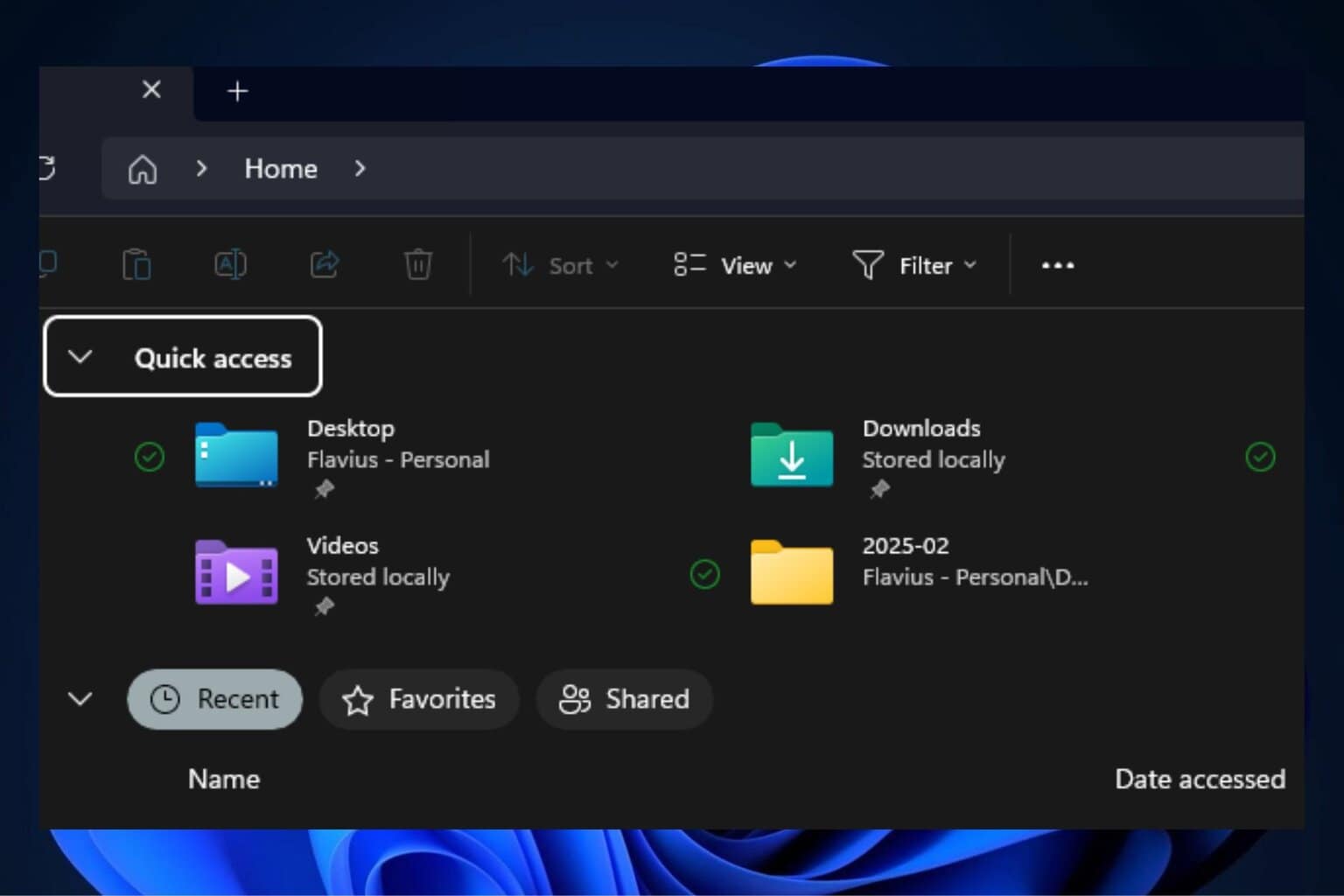
The new build introduces accessibility enhancements in File Explorer, including expanded support for text scaling across warning and error message dialogs. Users can adjust text scaling via the Accessibility settings in Windows 11. Additionally, the update resolves issues such as blank dates for files and folders in Home and improves the reliability of File Explorer launches
Other fixes released with KB5053648 include addressing problems with voice typing in the Chinese (Simplified) narrow layout and resolving issues with Windows Sandbox failing to launch in recent Beta builds. The taskbar also sees improvements, particularly for users with Hebrew or Arabic display languages.
Microsoft has acknowledged some known issues with the new grid and category views in the Start menu. These include delays in app icons appearing after installation and context menu glitches.
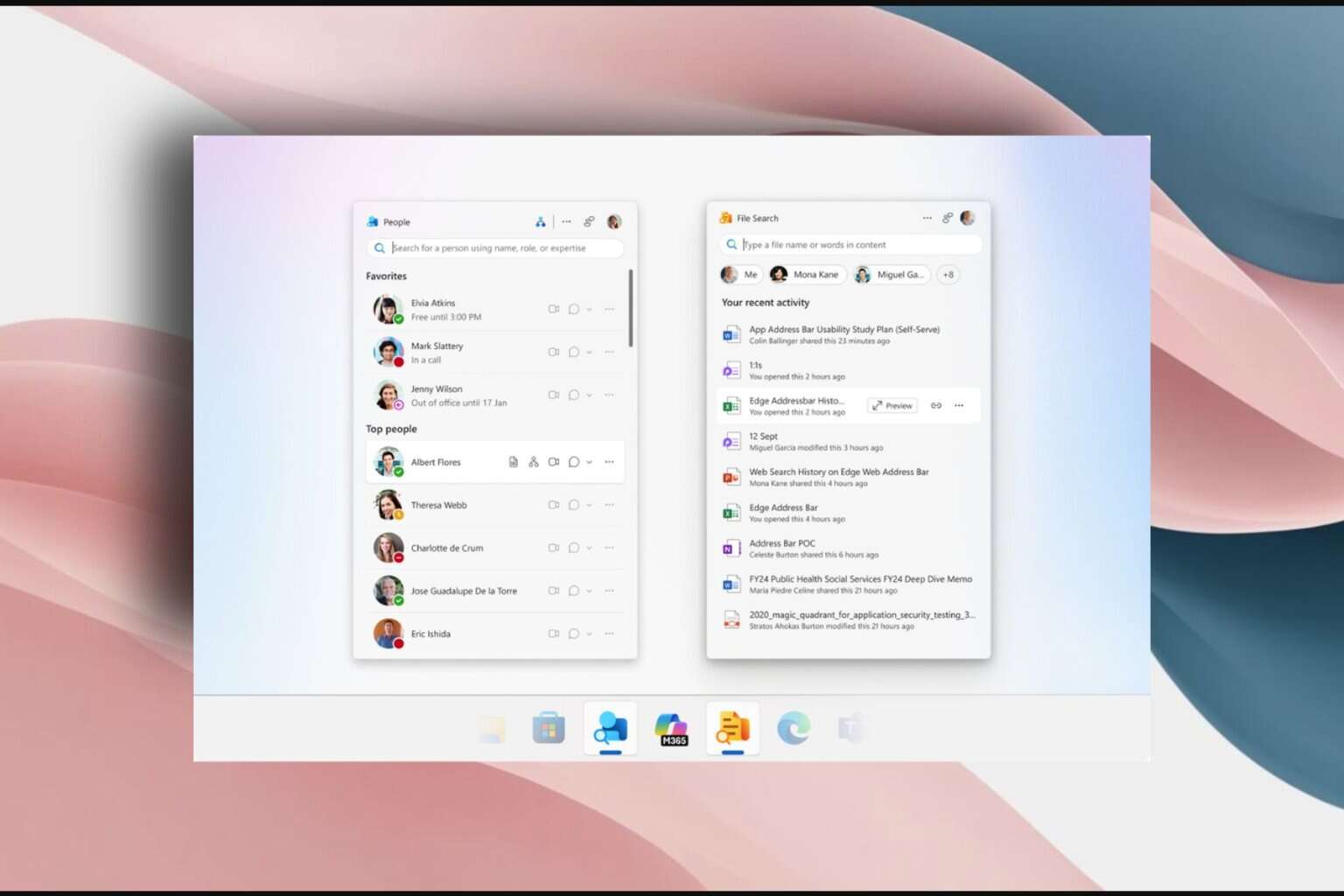
Microsoft is adding two new apps to the Microsoft 365 experience: People and File Search. In an announcement, the Redmond-based tech giant says the two apps are designed to simplify workflows, improve accessibility, and bring users closer to their most important resources—people, files, or information.
The People app focuses on improving communication and collaboration within organizations. It lets users quickly find and connect with their colleagues, retrieve information about their roles, and seamlessly integrate contact details across Microsoft 365 applications.
This app is tailored to create a centralized hub for professional networking and teamwork.
On the other side, the File Search app revolutionizes the way users locate their documents and resources. With advanced search capabilities, this app helps users find files based on criteria like keywords, timestamps, or content relevance.
By delivering precise and quick search results, the goal is to save valuable time and enhance productivity.
The two apps are only available to Windows 11 users who have downloaded and installed the Microsoft 365 app and are enlisted in the platform’s Insider program.
The introduction of People and File Search could be a game-changer for those seeking streamlined solutions to their daily productivity challenges. It should also give users more options for productivity.
Speaking of productivity, OneNote for Windows 10 will be retired later this year, in October, and Microsoft recommends users to migrate to Windows 11 for alternatives.
Microsoft has announced it will end support for OneNote for Windows 10 on October 14, 2025. This means the app will no longer receive updates or security patches.
In a message to the Microsoft 365 Admin Center, the tech giant encourages users to transition to the OneNote desktop app, part of Microsoft 365, to enjoy new features, security updates, and a modernized experience.
As we continue to enhance OneNote with a unified and modern experience, we want to remind you that OneNote for Windows 10 will reach end of support on October 14, 2025. To avoid disruptions, we strongly urge your organization to fully transition to OneNote on Windows (OneNote M365) and uninstall the legacy application as soon as possible. Migrating ensures continued access to the latest features, security updates, and a modernized experience.
The Redmond-based tech giant plans to gradually phase out the older app by slowing its sync performance starting in June 2025 and displaying banners in July 2025 to remind users of the upcoming changes.
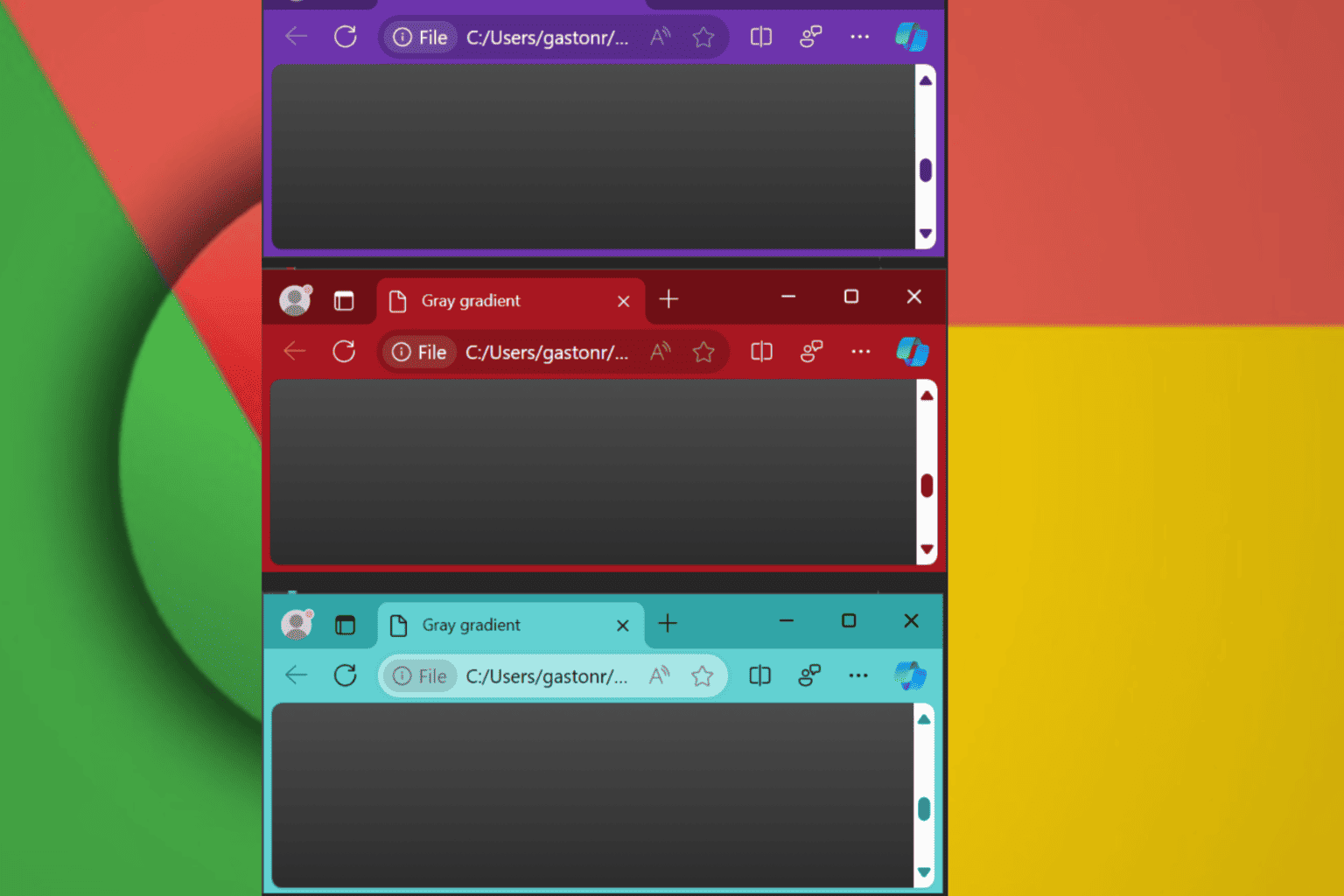
Google is working on making Chrome scrollbars match the browser’s theme. This feature is currently being tested behind a flag. Until now, when you installed a custom theme, the scrollbar wouldn’t adapt to it—but soon, it will. Microsoft is collaborating with Google on this development, so this feature may also become available in Microsoft Edge.
Currently, Chrome’s scrollbars are primarily defined by the operating system’s settings or default browser styling. They do not automatically adapt to custom browser themes. By enabling scrollbars to follow the browser’s theme, Google aims to improve personalization and make Chrome’s interface feel more integrated.
The new feature introduces a flag that allows the root scrollbar (the main scrollbar of the browser window) to dynamically adjust its colors to match the browser theme.
The “Make scrollbar follow theme”, flag description reads: “If enabled, it makes the root scrollbar follow the browser’s theme color.”
Image Credit: WindowsReport.
Google notes in a commit message “Make Fluent root scrollbars follow browser theme. This CL makes the root scrollbar follow the browser’s theme when the new feature flag ‘RootScrollbarFollowsBrowserTheme’ is enabled.”
This feature is designed specifically for Fluent Scrollbars, a sleek and modern type of scrollbar already available in Chrome. They have a simpler look with larger elements, making it easy to apply theme colors smoothly.
Scrollbars are usually viewed as part of the browser’s design, and users want all parts, including scrollbars, to match the theme they choose. With this feature, Google is adding more personalization, making sure the entire browser matches the user’s preferences.
Apart from this, Chrome already offers built-in theme customization options. For users interested in exploring these, Google provides a variety of official color themes available on the Chrome Web Store, which you can try out to personalize your browsing experience further.
You can’t directly change the scrollbar’s appearance through Chrome’s built-in themes, but you can use CSS, extensions, or themes that modify scrollbars.
Windows 11 24H2 was released last October, and despite the major enhancements and new features, the release was full of bugs.
While Microsoft has addressed many of them, and the patch is mainly doing OK now, some still get stuck for dozens of hours in the installation process.
Take this Reddit user, for example: when they tried to install the latest major Windows 11 patch, the installation process went to 88%, and it got stuck there for more than 16 hours.
What should you do if this happens to you?
Try to make sure it’s not frozen. If you install Windows 11 24H2 on a PC, try to see if your hard drive light is blinking. If it does, then keep waiting.
You can also try to force restart the PC, and eventually, the Windows installation might resume or roll back.
If you’re not sure how to proceed, we have a comprehensive guide on what to do when the Windows installation or updating process gets stuck.
Microsoft Word recently got enhanced with Copilot, and the AI tool is quite useful: it can rephrase text for you, summarize it, or even come up with entire drafts.
But you know what it can’t do? Correctly position an image in Word. Unfortunately, after all these years, Microsoft Word still messes up all the documents when trying to place an image in them.
Reddit users, especially, are frustrated with this, and for good reason. Many text-based documents nowadays contain images, and from papers to reports or even full-fledged dissertations, images are needed to illustrate all sorts of information.
It’s 2025 – why is it still impossible to correctly position an image in Microsoft Word without it messing up the entire format of the document?
In all honesty, you can add images to a Microsoft Word document, but you have to take the extra steps to ensure everything fits and your text is not impacted by it. You’ll also have to be extra careful if you want to move an image around in Microsoft Word, but we’ve got you covered with a short guide on making the most of it.
Either way, Copilot should be able to do that automatically, and Microsoft should think about enhancing it to support this kind of task.
The other Reddit users have come up with their own solutions, and if you visit the thread, you’ll see many inventive ways to fix the issue. However, the extra steps might be too much for many.
Outlook introduced an offline mode a while ago, and the platform essentially lets users work on an email even if they lose connection to the Internet. However, according to a new entry to the Microsoft 365 Roadmap, the Redmond-based tech giant wants to let users search emails while offline.
This means that even if you’re not connected to the internet, or the search service isn’t working correctly, you can still perform essential search functions within Outlook.
You can find emails or other content stored locally on your device without relying on an active internet connection or external search services.
We are adding more functionality to offline mode in the new Outlook for Windows. You will now be able to do basic search functions without internet connection or when the search service fails.
As the entry says, this new enhancement is only available to the new Outlook for Windows, so those still using the classic version of the app won’t be able to access it.
However, given just how much users would like Microsoft to offer support for classic Outlook on AI PCs, this feature could also be released to this app version at some point.
It will be generally available to all starting September 2025.
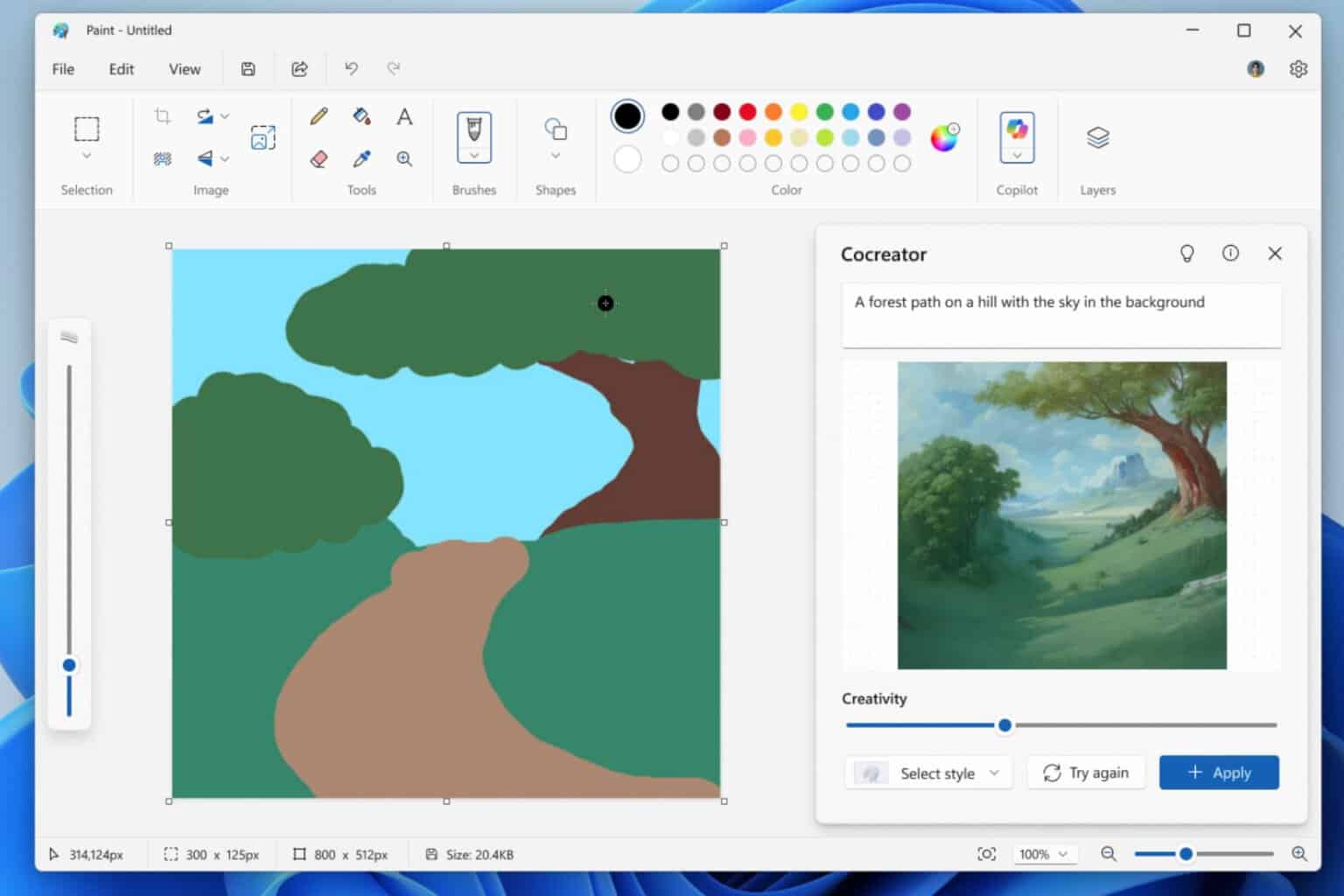
Microsoft has rolled out an update for Paint (version 11.2502.121.0) to Windows Insiders in the Canary and Dev Channels on Windows 11.
The update improves the Cocreator side panel with a simplified and more intuitive layout. Users can describe what they want to create, start drawing on the canvas, and use AI tools like the Creativity slider and Select style dropdown.
New features include a “Try again” button to regenerate images and an “Apply” button to add generated content to the Paint canvas.
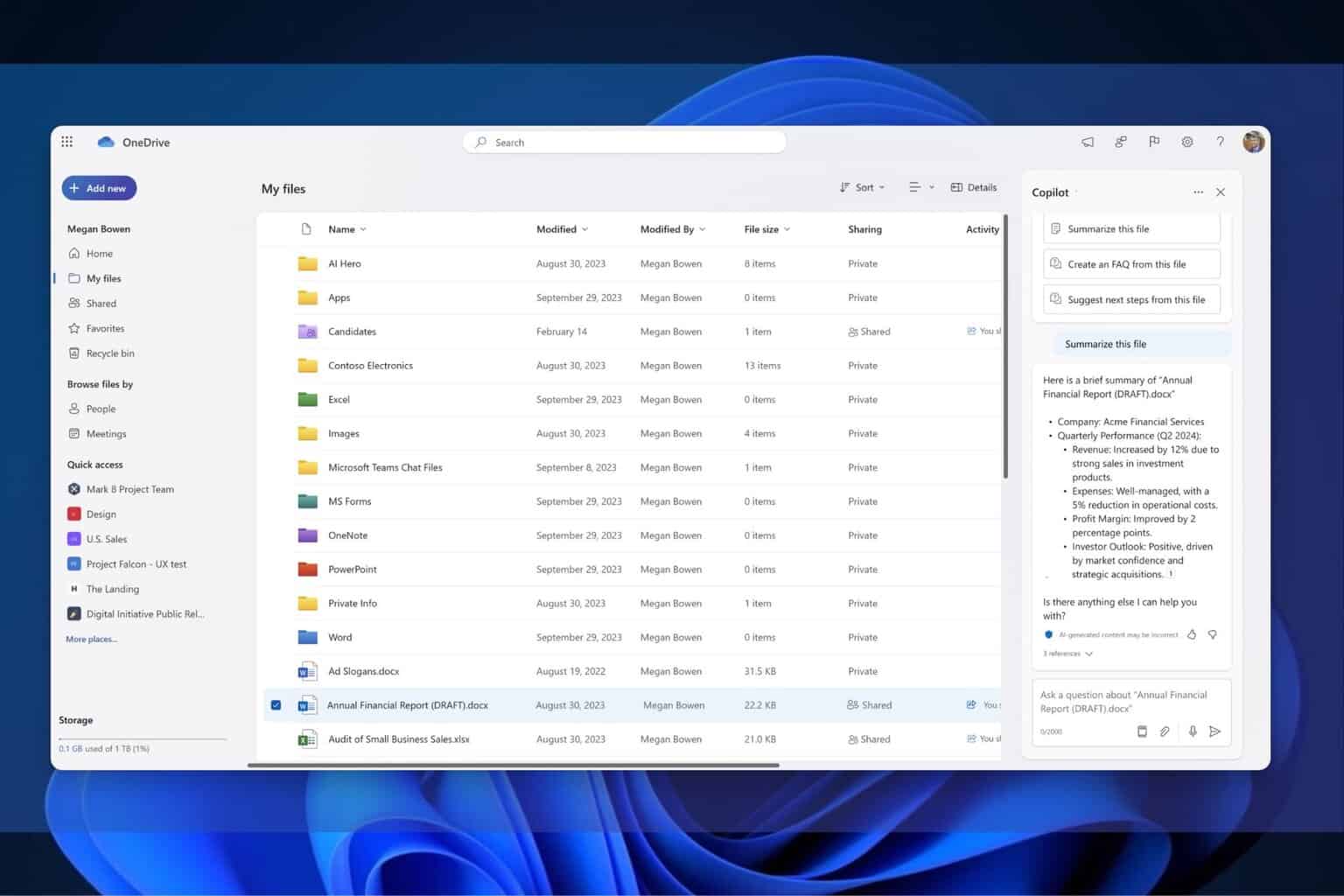
Microsoft 365 subscribers can now access Copilot features in OneDrive on the web. Copilot can perform tasks like summarizing documents, comparing multiple files, and answering specific questions about file content.
These features are available for text-based files, such as Office documents, PDFs, and more, with a file size limit of 150MB. Previously available only to work and school accounts, these features are now accessible to Microsoft 365 Personal and Family subscribers.
In the updated support page, Microsoft says it has plans to expand support to include images, videos, and other file types.
Copilot in OneDrive is only available through the OneDrive website. It’s available to users with a work or school account, and is now rolling out over the coming months to Microsoft 365 Personal or Family subscribers.
The AI tool was added to OneDrive in 2023, but only on the desktop app; Copilot wasn’t available to the online version of the app for Microsoft 365 subscribers. However, earlier this year, the Redmond-based tech giant added it to the Microsoft 365 plan, and changes to prices of the subscriptions to fit Copilot. Ever since, the company has been adding Copilot anywhere.
OpenAI has announced the release of its latest audio models, designed to revolutionize the capabilities of voice agents. These new models, available via API, include advanced speech-to-text and text-to-speech functionalities, offering developers tools to create more expressive and customizable voice applications.
The new speech-to-text models, named gpt-4o-transcribe and gpt-4o-mini-transcribe, boast significant improvements in accuracy, language recognition, and reliability. These advancements were achieved through reinforcement learning and extensive training on diverse, high-quality audio datasets. The models are designed to handle challenging scenarios, such as accents, noisy environments, and varying speech speeds, with greater precision.
On the text-to-speech front, OpenAI introduced the gpt-4o-mini-tts model, which enhances steerability, allowing developers to control how text is articulated. While currently limited to preset artificial voices, this model represents a step forward in creating more natural and engaging voice interactions.
OpenAI has also integrated these models with its Agents SDK, enabling developers to build voice agents with ease. For applications requiring low-latency speech-to-speech experiences, OpenAI recommends using its Realtime API. So, in other words, we will soon hear more human-like voices in games or on the other side of the call services.
For the first time, developers can also instruct the text-to-speech model to speak in a specific way—for example, “talk like a sympathetic customer service agent”—unlocking a new level of customization for voice agents. – from the OpenAI press release
Looking ahead, OpenAI plans to continue refining its audio models, with a focus on improving intelligence, accuracy, and customization options. The company also aims to explore ways for developers to incorporate custom voices while adhering to safety standards.
These new audio models are now available to developers, marking a significant milestone in the evolution of voice agent technology. With these tools, OpenAI is paving the way for more advanced and personalized voice-driven applications.
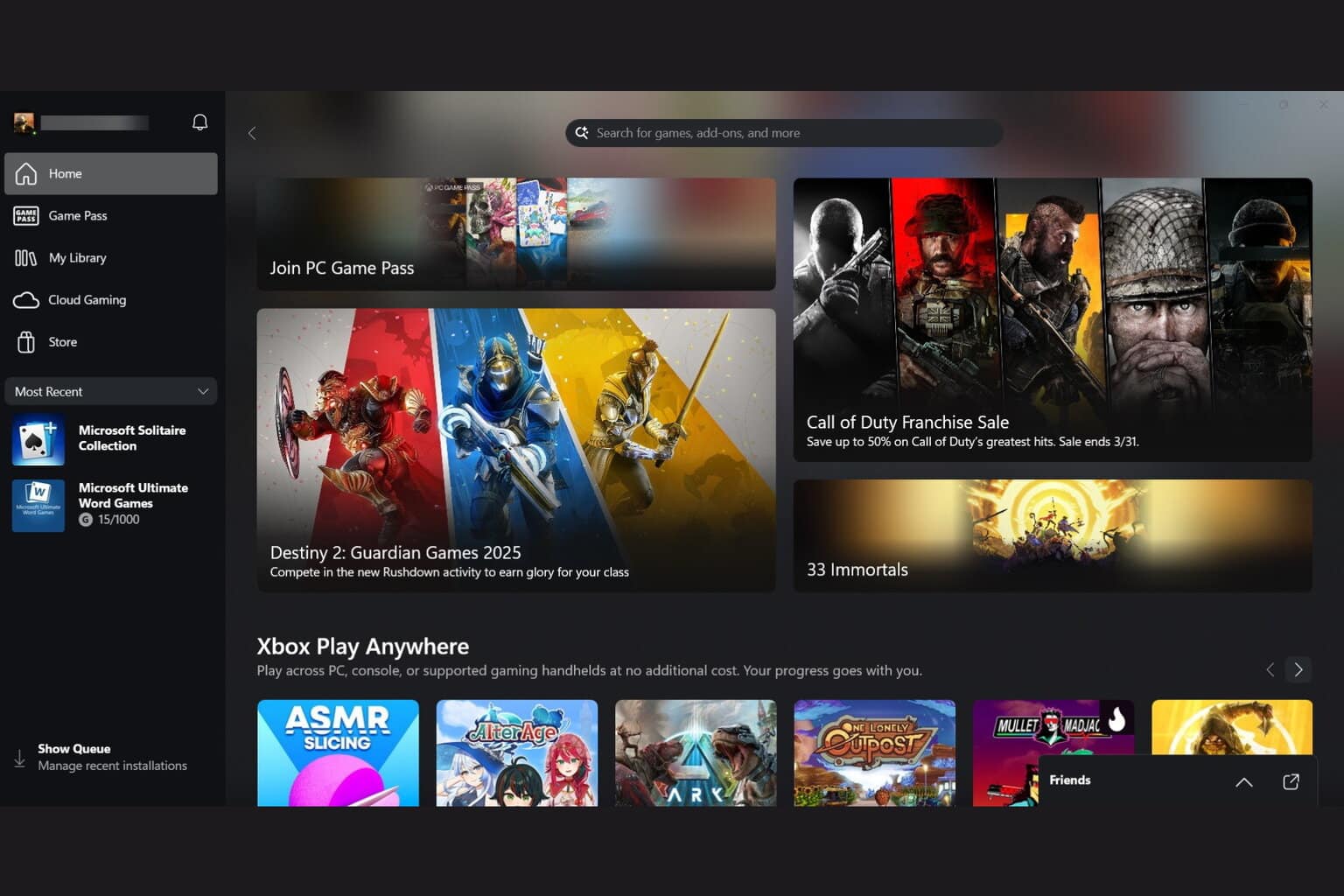
Microsoft is reportedly working on a significant update to its Xbox app for PC, aiming to transform it into a universal launcher for all installed games. This development could simplify the gaming experience for PC users by consolidating games from various platforms, such as Steam and the Epic Games Store, into a single interface.
The speculation arose after an intriguing image published by The Verge showcasing the Xbox app’s user interface with a Steam button placed alongside Game Pass. Although Microsoft quickly replaced the image, sources suggest that the company is exploring the possibility of integrating all PC games into the Xbox app.
Source: Microsoft via The Verge
This feature would mirror the functionality of third-party launchers like Playnite and GOG Galaxy, which already offer similar capabilities.
Currently, the project is allegedly in its early stages, and there is no guarantee that it will make it to the final version of the Xbox app. However, if successful, this update could streamline game management for PC gamers, eliminating the need to juggle multiple launchers. Even if the Steam button on the mockup UI was a mistake, the slogan Open a Billion Doors with Xbox clearly speaks for Microsoft’s ambition to make Xbox the main gaming portal.
However, on the other side, Valve is on the verge of shaking things up with their Steam OS to benefit from Steam’s ever-increasing popularity among PC gamers.
As with any unconfirmed reports, it’s wise to approach this news with caution until Microsoft makes an official announcement. If implemented, this feature could mark a significant step forward in unifying the gaming experience on PC.
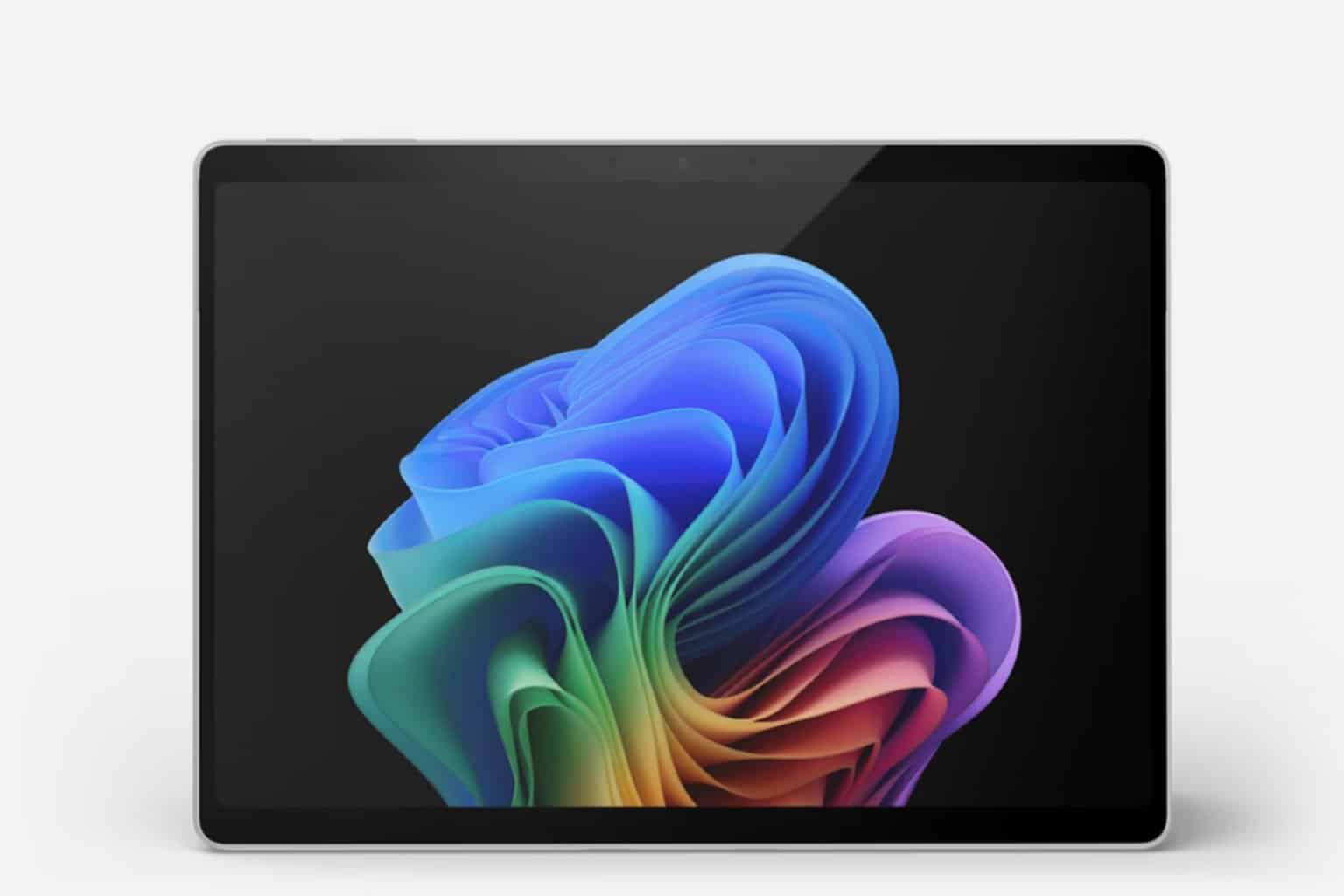
Microsoft has made some changes to its policies. Due to new EU requests, the Redmond-based tech giant will no longer ship Surface Pro 11 devices with a power supply.
However, this will only impact some European markets; other markets, such as the US, should be safe.
So what should the customers do? As Windows Central noted, Microsoft gives them the option to purchase the power supply separately, and depending on the region, it can be quite expensive. For example, in the UK, the power supply £40.00, but it was initially sold for £79.00.
Customers can also choose not to purchase one; in that case, they’ll need a USB-C charger.
Microsoft is set to release the new Attestation readiness verifier for TPM reliability, which should make TPM-based devices safer.
According to the announcement, the Attestation Readiness Verifier for TPM is a tool introduced for Windows 11, version 24H2, that helps check the health and reliability of a computer’s Trusted Platform Module (TPM).
This verifier tool simulates checks to identify potential issues with the TPM and related security features, like Secure Boot and Virtualization-based Security.
It ensures that your system is compatible with Windows features and is running securely. It also provides detailed logs about the system’s boot process, helping users and IT professionals diagnose and fix any problems.
The Redmond-based tech giant has also published a short guide on how to use the attestation readiness verifier.
Microsoft says IT admins and managers should enable the verifier, which keeps users and data safe across the organization.
Try applying this tool to your workflows as an indicator of local system security health. If you’re an IT admin managing large fleets of devices in an enterprise, help ensure security compliance readiness. If you’re an original equipment manufacturer (OEM) or BIOS developer, use it to help validate compliance with the ever-increasing set of Windows security capabilities. Attestation readiness verifier helps keep users and data safe across your organization.
You can find out more about the new attestation readiness verifier here.
Microsoft’s latest Windows 11 update, released in March 2025, has introduced an unexpected bug that is causing the Copilot app to be uninstalled and unpinned from the taskbar on some devices. The issue, linked to updates KB5053598 and KB5053602, has also been reported on certain Windows 10 installations with KB5053606.
According to Windows Latest, Microsoft quietly updated the release notes for the KB5053598 update for Windows 11 to acknowledge this new bug.
The bug affects multiple versions of Windows, including Windows 11 22H2, 23H2, and 24H2, as well as Windows 10 21H2 and 22H2. While the issue isn’t widespread, it has raised concerns among users who rely on the Copilot app for its AI-powered assistance.
Microsoft has acknowledged the problem and has already fixed it. In an updated support page for the patch, the Redmond-based tech giant says the devices are now properly functioning.
In the meantime, affected users can manually reinstall the app from the Microsoft Store and pin it back to the taskbar.
This update has also been reported to cause other issues, such as Remote Desktop connection bugs, Blue Screen of Death errors, and SSD crashes. Microsoft has yet to address these problems comprehensively but has assured users that fixes are on the way. For now, users experiencing these issues are advised to monitor Microsoft’s support channels for updates.
Microsoft has rolled out the latest Windows 11 Insider Preview Build 27818 to the Canary Channel, introducing several updates and improvements for testers. This build enhances security features, refining user experience and addressing known issues.
One of the key updates in this build is the enhancement of the Windows Security app. Users with devices equipped with Pluton security chips can now access detailed technical information about these chips, including manufacturer details and version numbers. This update aims to provide greater transparency and control over device security.
Additionally, Microsoft has officially removed the “Suggested Actions” feature, which was previously deprecated in December 2024. This feature allowed users to take quick actions, such as scheduling events, based on copied text like dates or phone numbers. Its removal marks a shift in Microsoft’s focus on streamlining the user interface.
The build also brings performance improvements, particularly in extracting zipped files within File Explorer. It also resolves a crash issue related to the d3d9.dll file, which had been causing problems for some applications in earlier builds.
OpenAI has introduced its latest innovation, the o1-Pro model, a cutting-edge reasoning AI designed to tackle complex problems with enhanced precision. This advanced version of the o1 model is now available through OpenAI’s developer API, offering developers a powerful tool for creating AI-driven applications.
The o1-Pro model stands out for its ability to deliver consistently better responses by leveraging significantly more computational power.
According to the announcement, it supports many features, including a 200,000-token context window, image inputs, and structured outputs. These capabilities make it ideal for applications requiring detailed and reliable outputs.
However, this performance comes at a premium. The o1-Pro model is priced at $150 per million input tokens and $600 per million output tokens, making it OpenAI’s most expensive model.
Despite the high cost, OpenAI is confident that the model’s improved reasoning capabilities will appeal to developers working on challenging tasks.
Access to the o1-Pro model is limited to select developers who have spent at least $5 on OpenAI’s API services. It primarily targets AI agents—applications designed to perform tasks autonomously—through OpenAI’s new Responses API.
Good news for managers and event organizers using Microsoft Teams: the Redmond-based tech giant will allow them to give other presenters permission to control slides.
This means that when you’re giving a presentation in a meeting or webinar, you can let other presenters help you control the slides. Instead of you being the only one clicking to go to the next slide, they can do it, too.
This makes the presentation smoother and more manageable because no one has to ask, “Can you change the slide for me?” anymore. Everyone presenting can work together seamlessly.
The new enhancement was announced in a recent entry to the Microsoft 365 Roadmap. Here’s what it says:
Meeting or event presenters can now share control of slides with fellow presenters eliminating manual slide changes and maintaining a smooth flow during meetings or webinars.
Microsoft is replacing the Tab Actions menu button in the title bar with the Tab Search button. Edge users can try this feature by enabling the “Tab Search button” flag in the Canary version.
image Credit: WindowsReport.
The original article follows.
Microsoft is experimenting with a new dedicated Tab Search button in Edge Canary. The company has also moved the search panel to the left side, making it more similar to Chrome’s layout.
The Tab Search feature in Microsoft Edge helps users quickly find open tabs, especially when working with many tabs.
Till now, finding tabs in Edge required clicking the Tab Actions menu and selecting “Search Tabs” from the dropdown menu. This action opened a search pane in the center of the browser window, showing a list of all open tabs.
With the latest Edge Canary build, Microsoft has added a dedicated Tab Search button. This button is placed right after the Workspaces button (also represented by a downward arrow). It removes the need to go through menus, allowing users to access the Tab Search feature with a single click.
Additionally, the search pane has been moved to the left side of the browser window. This offers a better experience compared to the previous center-aligned design.
How to Use Tab Search in Microsoft Edge
For users not on the Canary version, the Tab Search feature can still be used in two ways:
Press the keyboard shortcut Ctrl+Shift+A (or Cmd+Shift+A on Mac) to quickly open the tab search panel.
Click the Tab Actions menu in the top-left corner of the browser and select “Search Tabs” from the dropdown menu.
Edge’s Tab Search UI in Stable version.
While the keyboard shortcut is a quick option, many users prefer using their mouse. For these users, the new Tab Search button in Edge Canary is a big improvement. It removes the extra steps of going through menus.
By combining a dedicated button with a left-aligned search pane, Edge is now following Chrome’s default layout. Adding a dedicated Tab Search button is a small but meaningful improvement for users who often handle multiple tabs.
This change not only makes the feature quicker to use but also makes it easier to find for new users. Placing the button prominently on the toolbar allows all users to easily take advantage of this handy Tab Search tool.
For now, the dedicated Tab Search button is only available in the Edge Canary build. This means it is still being tested. Microsoft has not announced when—or if—this feature will be added to the stable version of Edge.
When Microsoft released Windows 11 24H2 in October, the major patch caused the popular Asphalt 8 game to crash when users played it or exited it, requiring them to restart the game if they wanted to play it again.
This meant devices wouldn’t be offered to install Windows 11, version 24H2, via the Windows Update setting, and the Redmond-based tech giant actually advised users not to try to install the patch manually.
Fortunately, Microsoft said it has effectively fixed the issue, and now Windows users can safely play Asphalt 8 on Windows 11 24H2.
This will enhance the Windows compliance policy – device health by adding five additional hardware attestation settings specific to Windows 11 using advanced platform security features like Memory Integrity and Access Protection, firmware protection, virtualization-based security, and Early Launch Antimalware protection.
However, it will be released at the end of the year, in 2025.
Waht does this mean for organizations? Well, a more secure environment. Overall, it means better security and safety for all devices connected to a network. Let’s not forget that Microsoft products and services, including Windows 11, are some of the most targeted by hackers. 7-Zero Day vulnerabilities were addressed this month, alone.
According to a recent entry in the 365 Roadmap, Microsoft will add the text-sizing capability to the whiteboard platform.
The Text Sizing feature helps make text easier to read and understand by letting users make the text size bigger or smaller based on their needs. But there are several more options:
Pick from ready-made font sizes for quick adjustments.
Set your custom size for the text to make it as straightforward as you want.
Whiteboard’s Text Sizing is designed to improve the appearance of text, making it easier to read and better organized so it’s simple to follow.
The Text Sizing feature offers users the ability to: 1. Adjust Font Sizes: Increase or decrease font sizes as needed. 2. Preset Font Sizes: Choose from preset font sizes for convenience. 3. Custom Text Size: Input custom text sizes for enhanced clarity. This feature enhances readability, improves clarity, and establishes a structured visual hierarchy, ensuring well-organized and easily comprehensible content on the board.
The enhancement will be added to the platform next month.
Microsoft released the Copilot Dashboard a while ago, and the platform helps organizations keep AI usage metrics in place; according to a recent entry in the Microsoft 365 Roadmap, it’s coming to Viva as well.
What will the Copilot Dashboard on Microsoft Viva do?
The entry says it helps users understand how employees are using Copilot and spot patterns or opportunities to improve. In turn, this can help businesses make smarter decisions about their licenses.
Users can also view how Copilot is being used (Adoption metrics) by the week or month and focus on specific groups of employees if they want.
They can also examine details like how much Copilot has helped (Assisted Hours), actions employees have taken, and specific features being used.
Copilot Dashboard users can now visualize trends in additional key adoption and impact metrics over time to more quickly identify patterns and opportunities in employee adoption for better licensing decisions. Users will be able to now view Adoption metrics on either a monthly or weekly timeframe for specific groups of interest, as well as deep dive into Impact metrics like Copilot Assisted Hours, Actions Taken, and feature-specific dimensions.
Microsoft will integrate Copilot Dashboard with Viva in April 2025.
In the coming weeks and months, the new Outlook for Windows will be enhanced with several new options, including the ability to send pretty much anything as a PST file.
Thanks to these enhancements, Outlook users will be able to interact with PST files in various ways: replying and forwarding emails in a PST file will be possible, grouping messages as conversations for emails within PST files will also be possible, and the platform will allow users to browse and read calendars and events within a PST file.
All of these enhancements will be available in the new Outlook starting next month, with some becoming available in August.
In another entry to the Roadmap, the Redmond-based tech giant says the platform will also warn its users about the tone of the email when they have to send it to a large audience.
This enhancement will be available to Outlook for Android and iOS and released to the platform in April.
All of these changes are part of Microsoft’s efforts to encourage users to migrate to the new platform. As you might already know, Outlook users prefer the classic version over the new one, and many of them demand that Microsoft update it so they can use it on the new Copilot+ PC devices, which were released last year.
Microsoft is set to enhance the user experience in Windows 11 with a new feature that will inform users of the hardware requirements for this operating system.
The upcoming change was spotted by tech enthusiast @phantomofearth. It will include an improved “About” section in the Settings app, which will provide users with detailed explanations about their PC’s hardware and its impact on performance.
New Frequently Asked Questions list in Settings > System > About, hidden in builds 26120.3576 and 22635.5090. Has some questions related to the Windows version and device specs. (vivetool /enable /id:55305888) pic.twitter.com/AkaP8XR3PR
The updated “About” section will feature a dedicated FAQ section, addressing common questions such as:
Am I running the latest version of the Windows OS? What is the latest Windows version?
Is my GPU sufficient for high-end gaming and video experience? How can having a dedicated GPU enhance my experience and productivity?
How does having 4-8 GB of RAM impact my PC’s performance? Can I run modern applications smoothly with this RAM capacity?
The answers will be customized based on the user’s specific hardware configuration.
For instance, users with integrated graphics will receive insights on the absence of a discrete GPU, while those with less than 4GB of RAM will learn about its limitations.
The feature is hidden, but it can be uncovered using the third-party app, ViveTool.
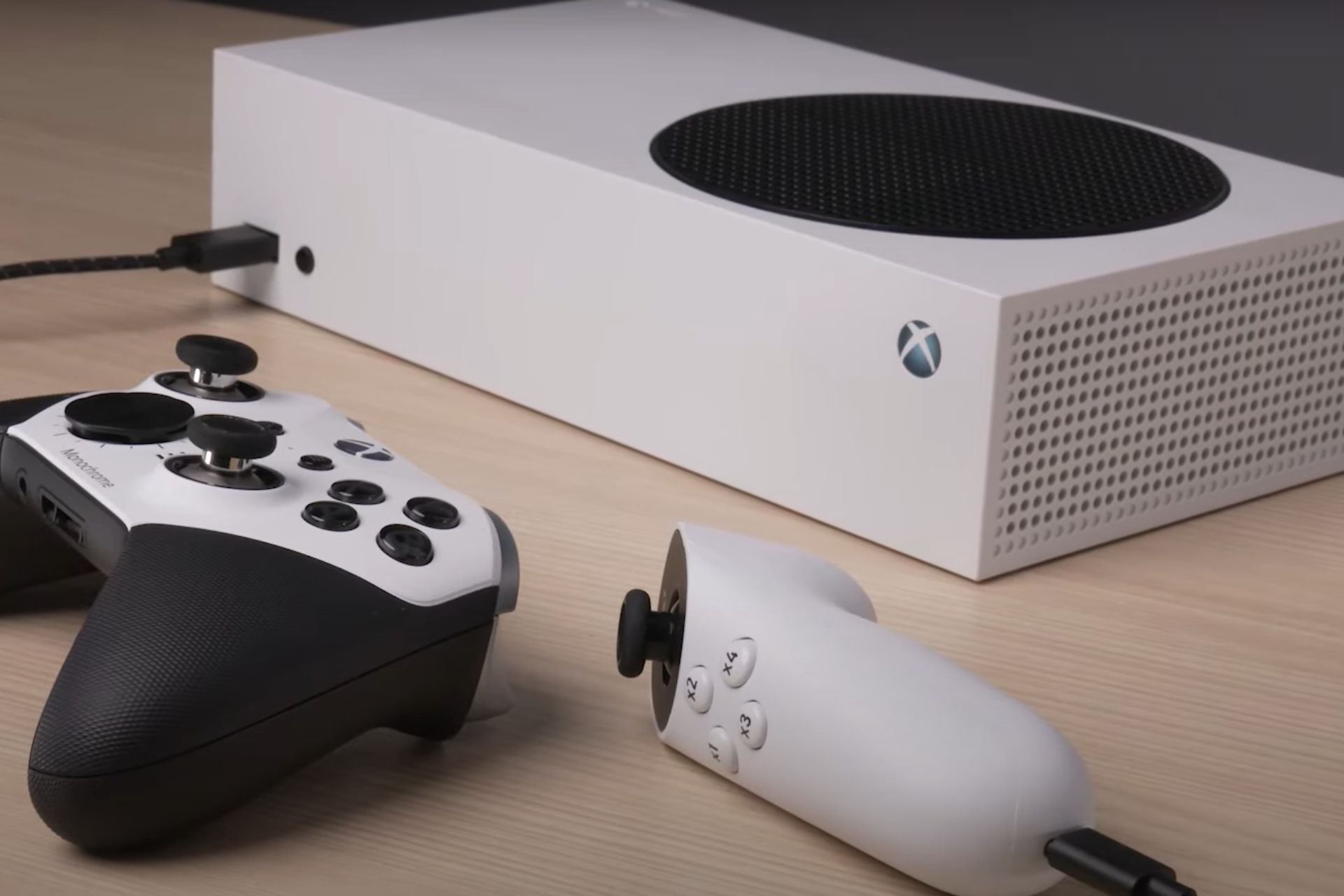
Microsoft has always valued inclusion and accessibility, and the Redmond-based tech company has taken another significant step in its commitment to these ideals with the launch of the Xbox Adaptive Joystick.
Designed to empower gamers with limited mobility, this innovative device is set to transform the gaming experience for millions worldwide. The joystick offers a range of adjustable features, including mappable buttons and a versatile thumbstick, allowing users to tailor their gaming setup to their unique needs.
Compatible with Xbox consoles and PCs, the Adaptive Joystick can be paired with other Xbox controllers and accessories for a comprehensive, adaptive gaming setup.
The device is part of Microsoft’s broader initiative to make gaming more accessible, ensuring that everyone can enjoy the thrill of interactive entertainment.
The Xbox Adaptive Joystick is available exclusively through the Microsoft Store, reflecting the company’s dedication to creating accessible solutions for gamers of all abilities.
Microsoft and NVIDIA unveiled new advancements in a collaboration to revolutionize artificial intelligence (AI) development and performance. As a result, the two tech giants have released the new NVIDIA Blackwell platform, which is now integrated with Azure AI services and offers unparalleled performance for AI workloads.
Thanks to the new NVIDIA Blackwell platform, developers and organizations can harness the full potential of NVIDIA’s advanced computing power within the Azure ecosystem.
According to the official announcement of the partnership, Azure AI Foundry now features NVIDIA NIM microservices, providing optimized containers for over two dozen popular foundation models. This enhancement accelerates the deployment of generative AI applications and improves inferencing workloads, making AI development more efficient and accessible.
Epic, a leading electronic health record company, is leveraging NVIDIA NIM on Azure AI Foundry to enhance patient care and operational efficiency. Epic aims to drive medical innovation and improve clinical outcomes by deploying open-source generative AI models.
But the companies are not stopping here: Microsoft and NVIDIA want organizations to develop their own in-house AI agents capable of solving specific tasks, thanks to the new integration of the NVIDIA Llama Nemotron Reason models into Azure AI Foundry.
For more details, you can explore the official Azure Blog.
Microsoft has been aggressively integrating its AI-powered assistant, Copilot, into the Edge browser. Most recently, the company has added a Copilot button to the address bar in Edge Canary, further expanding its presence.
Microsoft’s AI-powered assistant, Copilot, is designed to deliver real-time suggestions, page summaries, content generation, and troubleshooting assistance. By integrating Copilot into Edge, Microsoft aims to provide users with personalized support directly within the browser.
However, this integration is starting to feel less like innovation and more like overkill. From the sidebar and new tab page to the bottom of every webpage with Copilot Vision enabled—and now a new button in the address bar—Copilot seems to be everywhere.
Image Credit: WindowsReport.
Why It Feels Like Overkill :
Too Many Entry Points for Copilot. Copilot is already everywhere:
Sidebar: Always visible, one-click access. New Tab Page: Prominently featured in the search bar. Bottom of Pages: With Copilot Vision, a prompt appears on every webpage—though it doesn’t always work as promised.
Ad-Like Prompts:
Have you spotted the message in settings? “Running into a problem? Ask Copilot to offer known solutions.” While it might be helpful for some, it feels redundant and intrusive for others. Users who already know about Copilot—or don’t want to use it—might see it as over-the-top.
The address bar should be clean and efficient, not stuffed with AI buttons. For those who don’t use Copilot often, its placement here feels more distracting than helpful.
Here’s what Microsoft could do to tone things down:
Give Users More Control. Let people decide where they want Copilot—address bar, sidebar, or nowhere at all.
Be contextual. Instead of being everywhere, Copilot could show up only when it’s genuinely helpful, like during troubleshooting or complex tasks.
Respect Preferences. Not everyone is on board with AI assistants. Make it easy to minimize or disable Copilot features without disrupting the browser experience.
Copilot is undeniably a powerful tool, but Microsoft’s constant push to promote it risks doing more harm than good. Between the sidebar, new tab page, bottom-of-page prompts, and now the address bar, it’s starting to feel like Copilot is everywhere—whether you want it or not.
Microsoft should take a step back and rethink this approach. Sometimes, less really is more. A great assistant knows when to help—and when to stay out of the way.
Microsoft has released Windows 11 Build 26100.3613 (KB5053656) to the Release Preview Channel. With it, the Redmond-based tech giant now allows developers to build their own dynamic and interactive widgets from existing web content.
These widgets can then be added to widget surfaces in Windows 11. This new capability gives users extra options to customize the widget experience the way they prefer.
Elsewhere, KB5053656 brings enhanced communication capabilities to AMD and Intel-powered Copilot+ PCs. Live captions now support real-time translation into English for over 44 languages. Additionally, Snapdragon-powered Copilot+ PCs gain real-time translation support for Simplified Chinese.
A new Settings homepage is being gradually rolled out for enterprise-managed PCs, featuring cards like “Recommended settings” and “Bluetooth devices.” Users will also notice “top cards” under Settings > System > About, providing a quick overview of key PC specifications such as processor, RAM, storage, and GPU.
The update introduces a Gamepad keyboard layout for the touch keyboard, allowing Xbox controllers to navigate and type more efficiently. A new system tray icon on the taskbar improves the discoverability of the emoji and more panels.
This update is being rolled out gradually, meaning not all features may be immediately available to all users. Some of them will only be available in the next days.
Google has added time range options to Clear Browsing data dialog at the top. Please check the new screenshot below.
Image Credit: WindowsReport.
The original article follows.
Last month, we reported that Google was testing a revamped ‘Delete Browsing Data’ dialog in Chrome Canary. Now, the preview of the new UI is live. While it is not fully working yet, it is simpler and easier to use than the previous version. Here’s what’s new—and what’s still missing.
Chrome allows users to clear various type of browsing data including history, cookies, saved passwords, and autofill information. The interface hasn’t been updated since a long time.
The new Clear Browsing Data dialog introduces several changes aimed at improving the user experience.
A single, clean interface replaces the Basic and Advanced tabs.
A “Show more” button appears at the bottom, though it currently doesn’t populate any additional options.
The option to delete all saved passwords at once has been removed,
DBD new UI. Image Credit: WindowsReport.
What’s missing in new UI:
The timeframe range (e.g., last hour, last 24 hours, last 7 days, last 4 weeks, all time) is not currently available but may be added in a future update.
The “Delete Data” button is not working at the moment, meaning users can only view the new UI but cannot actually clear their browsing data using this dialog. It’s likely that Google is still working on the feature and will fully enable soon.
Note: To keep it simple, we’ve attached a screenshot of the Delete Browsing Data dialog for a user not signed into Chrome.
Here’s a quick comparison of the old and new designs:
Feature
old UI
New UI
Tabs
Basic and Advanced
Single Screen
Password Deletion
Option to delete all passwords at once
Removed
Layout
cluttered with seperate tabs
Cleaner with a “show more “button
The updated Clear Browsing Data dialog is currently available in Chrome Canary, Here is how you can try it out
Launch the latest version of Chrome Canary.
Go to chrome://flags
Find and enable the “”Revamped Delete Browsing Data dialog” flag
Restart Chrrome
Image Credit: WindowsReport.
Once enabled, you’ll see the new UI when you navigate to Settings > Privacy and Security> Delete Browsing Data.
As you might already know, Microsoft is retiring Skype for good this May. The decades-old app will be discontinued, and of course, all Skype users are encouraged to migrate to Teams.
The migration should be easy: you’ll only need to log in to Teams using your current Skype credentials, and you’ll be good to go. However, ever since the announcement that Skype is going away for good, many Skype users have started to wonder what’s going to happen with the remaining Skype credit.
Skype credit is used to purchase Subscriptions, Skype Numbers, and generally any non-free Skype features: these include calls to mobiles and landlines, SMS text messages, and more.
With Skype going away, any remaining Skype Credit can be used to purchase and renew Skype-paid products until April 3, 2025. After this date, Microsoft says Skype Credit can be allocated to group members and used for calling.
So, there you have it. If you want more credit, you can do so until April, and then you should use it until May. Microsoft also says that existing calling and Skype Number subscriptions will continue to automatically renew until April 3, 2025, and they will remain active until Skype is deprecated in May.
After the deprecation, the Skype Dial Pad will be available to remaining paid users from the Skype web portal and within Teams Free.
You can find more information about Skype Credit here.
It’s been almost a year since Microsoft unveiled Copilot+ PC devices, the AI-powered laptops that run on ARM architecture. While they’re faster and better than anything on the market, they’re still limited to only running ARM-based apps, and this is one reason why many tech enthusiasts are not really into getting them so far: some really useful apps, such as the classic version of Outlook, can’t run on these devices.
On Reddit, many Windows users are disappointed that Microsoft didn’t release an ARM-64 version of Classic Outlook, especially since this version of the emailing app is still available and enhanced with modern capabilities, such as AI.
I was extremely disheartened to find that Microsoft forces you to use new outlook on ARM based windows, because in my experience, you cannot do anything more advanced than setting up an IMAP account.
More Windows users then preferred the classic Outlook and asked Microsoft to release a standalone Classic Outlook app for ARM-64.
While there isn’t such a version, Microsoft indeed released an ARM-64 version of the entire Office suite three years ago. The suite also included classic Outlook. However, it was only available for Insiders back then, and it might not be available today—I looked everywhere on official Microsoft websites and forums, and I couldn’t find anything.
Will Microsoft release an ARM-64 version of the Classic Outlook app? Most likely, yes. As we said, the app already has AI capabilities, and support for it will continue for a few more years.
Microsoft has announced the extensibility of Teams Phone for the Dynamics 365 Contact Center. The new integration aims to streamline businesses’ operations and improve customer experience. It offers advanced voice capabilities alongside Microsoft-certified ISV (Independent Software Vendor) solutions.
In the announcement, Microsoft says the Teams Phone extensibility enables businesses to integrate their contact center operations directly with Microsoft Teams, leveraging its voice and video communications infrastructure. The update is designed to provide seamless connections, boost efficiency, and elevate customer interactions across industries.
Collaboration with certified ISV solutions offers additional customization options for businesses, making integration adaptable for each organization.
By connecting Dynamics 365 Contact Center with Teams Phone, businesses can expect a unified communication hub that aligns customer relationship management with modern collaboration tools, including Anywhere365, AudioCodes, ComputerTalk, Enghouse, IP Dynamics, Landis, and Luware.
This flexibility ensures that customers can select the best solutions for their unique requirements, further enhancing the value and functionality of their Teams Phone platform. ISV solutions that will be certified for Teams Phone extensibility include Anywhere365, AudioCodes, ComputerTalk, Enghouse, IP Dynamics, Landis, and Luware.
With its rollout, Microsoft hopes to set a new benchmark for enterprise communication by offering a more innovative, streamlined solution for modern businesses’ ever-evolving needs.
Speaking of Teams, Microsoft introduced the new Live Chat to the platform, allowing organizations to embed the widget on their official websites for better customer communication.