You can replace almost all the components from Surface Pro 10 and Surface Laptop 6

We wrote intensively about the Right to repair movement and we even conducted a survey that spread the word about the laws that have been adopted in many states, including California, New York, Colorado, Massachusetts and more. Now, we’re starting to really feel the changes, and Microsoft, with their Surface Pro 10 and Surface Laptop 6 set the tone for what’s next in the consumer electronics industry.

Both devices were designed for business and enterprises but they are highly repairable, having an unprecedented number of replaceable components.

They have easy serviceability with clear visual icons and built-in repair instructions.

Nancie Gaskill, general manager of the Surface business, in an interview with The Verge

In the interview, Gaskill also says that the parts will have QR codes on them for easier identification and that will make for the most easily serviceable Surface devices ever.

What components can I replace on Surface Pro 10?

On Surface Pro 10, you will be able to replace the display module, the SSD, the battery, the motherboard (including the CPU and RAM), the Surface Connect pot, the thermal module, the microphone module, the SSD door, the speakers, front and rear cameras, power and volume buttons and the kickstand.

iFixit has partnered with Microsoft since 2021 to provide service tools to consumers and be able to repair their devices. Later, in 2022, after Microsoft lunched Surface Pro 9, iFixit gave it a 7 out of 10 score for reparability.

Recently, Lenovo also worked with iFixit and got a 9/10 reparability score for their latest laptops.

The things are slowly moving in the right direction and soon, you will be able to fix your laptops and replace the components at home, because the manufacturers are forced to allow you access to parts tools and instructions for that.

However, that all comes with an additional cost from manufacturers who might translate into higher prices for us, the consumers. All those QR codes, the easily detachable connectors inside the device, and others don’t come cheap. If until now, the manufacturers struggled to eliminate all those elements for the sake of portability and compactness, now they need to add them back, and all the process is costly.

We have to give it a bit of time until we get the numbers on how the Right to repair impacts the electronics industry. Until then, we should be happy that we can prolong the life of our electronics and don’t have to throw them away. A quick look at the latest e-waste statistics could give anyone a chill down the spine so this is quite a right step forward.

Would you repair your device at home or get a new one instead? Let’s talk about this in the comments section below.

Microsoft should bring its Encarta Encyclopedia back online at least, users agree

Remember the Encarta Encyclopedia, Microsoft’s personal multimedia Wikipedia, published from 1993 to 2009, annually?

The encyclopedia used visual, audio, and text-based content to provide Windows users with an array of information on a variety of subjects, ranging from politics to arts, culture, history, science, and so on.

From 1993 to 2009, Microsoft Encarta ran in different formats: from CD/DVDs to the online format until one day, in March 2009, when the Redmond-based tech giant decided it should be discontinued. It even had a dedicated site (however, accessing it doesn’t seem to work).

By that time, Wikipedia (the real one) says the encyclopedia had more than 62,000 articles, including photos and illustrations, music clips, videos, interactive content, timelines, maps, atlases, and homework tools.

There were ways to download the encyclopedia in its entirety, but for unknown reasons, Microsoft has closed all the official ways to get it.

Well, the Redmond-based tech giant might want to reconsider it, as it seems there is increasing interest from Windows users and Microsoft enthusiasts to experience it again. On this Reddit post, which became quite popular in a span of a few hours, there are signs, that people would want to access the encyclopedia once again.

We actually need to bring this back.

Reddit user

Even though some of its information might be outdated to today’s standards, the Redmond-based tech giant brings its Microsoft Encarta encyclopedia back online, as a website platform that uses contemporary technology to preserve its UI mechanisms.

As most devices don’t use CD/DVSs anymore, and the Internet speed is much better nowadays, this could easily be accomplished, while also catering to those who feel nostalgic about the product. And there are not a few.

Encarta was very good. I remember it had a collection of samples of music around the world that you could play, I remember I liked Trinidad and Tobago music.

Reddit user

I remember there was a time in school where they preached that encyclopedias were on the way out and in the future everyone would use Microsoft Encarta for all of their research.

Reddit user

As a long-time fan of encyclopedias myself, and a self-described Wikipedia nerd, the online version of the Microsoft Encarta would give newer generations a chance to experience a Wikipedia-styled encyclopedia back when the Internet wasn’t readily available to everyone.

Not to mention, the access to the information of those times.

Should we start a petition to ask Microsoft to bring its Encarta encyclopedia back?

At long last, Minecraft will finally make its way to PlayStation 5

Microsoft and Sony have been in a console war since day one, but that seems to be coming to a slow end with Microsoft planning to bring almost all Xbox games to PlayStation.

Speaking of which, another game will make its way to PlayStation, and this time, it’s Minecraft.

Minecraft to finally make its way to PlayStation 5

Minecraft has been available for PS4 for a while, but we never saw a PS5 version. The reason for this was revealed during the legal battle that Microsoft had with Activision Blizzard.

During the hearing, Microsoft was accused of not releasing a PS5 version of Minecraft, but Xbox’s Phil Spencer responded that this was because Sony didn’t provide dev kits to Microsoft.

That seems to be water under the bridge since Minecraft is finally making its way to PS5, as PlayStation LifeStyle claims.

This comes after users on the PS5 subreddit found title IDs for the PS5 version of the Minecraft on PSN backend. Unfortunately, we don’t have any official confirmation from Microsoft or Sony, so be sure to stay tuned to keep up with the latest news.

Speaking of Xbox games, it seems that Xbox ports are dominating PlayStation charts, and we can’t wait to see Minecraft available among other Xbox hits.

Update Edge and Chrome browsers now to avoid ANGLE exploits

ANGLE, or Almost Native Graphics Layer Engine was a feature introduced by Google in 2010 to allow Chromium browsers running WebGL content without the need for OpenGL drivers.

However, as it has been discovered, ANGLE had a critical vulnerability, CVE-2024-2883, allowing attackers to exploit heap corruption using a HTML page, ghacks.net reports.

Use after free in ANGLE in Google Chrome prior to 123.0.6312.86 allowed a remote attacker to potentially exploit heap corruption via a crafted HTML page. (Chromium security severity: Critical)

Microsoft updated Edge and Google updated Chrome

Microsoft released an urgent Edge update to version 123.0.2420.65 which patches this vulnerability, but also points out that all the Chromium-based browsers have the same problem.

In the summary, of this vulnerability report, Microsoft also acknowledges that the CVE was assigned by Chrome and that it has been exploited:

This CVE was assigned by Chrome. Microsoft Edge (Chromium-based) ingests Chromium, which addresses this vulnerability. Please see Google Chrome Releases for more information.

Google is aware that an exploit for CVE-2024-2883 exists in the wild.

However, strangely enough, although Google also updated Chrome to version 123.0.6312.86/.87 to patch this vulnerability, they don’t seem to know about any such exploits. They also restricted the access to bug details to protect the users who didn’t update the browser yet.

Note: Access to bug details and links may be kept restricted until a majority of users are updated with a fix. We will also retain restrictions if the bug exists in a third party library that other projects similarly depend on, but haven’t yet fixed.

Regardless, you should update your browser now to the latest version to avoid this issue. For Chrome, go to Settings > About Chrome and the browser will perform an update automatically. In Edge, go to Settings > About Microsoft Edge to do the same.

If you have another Chromium-based browser such as Vivaldi or Brave, you should also update it swiftly. After that, restart the app for the changes to take effect.

Did you receive the latest update? Let us know if you had any problems in the comments section below.

This is how Windows 11 would’ve looked like if Microsoft had continued improving the Aero design

Microsoft’s Aero (it apparently stands for Authentic, Energetic, Reflective, and Open) design was first introduced to Windows in 2006 with the release of the Vista operating system and brought a transparent, glass-like design to the Windows interface.

In other words, Windows Vista looked modern, sleek, and translucid. The design would go on to be improved upon in Windows 7, which was released in 2009. However, with the release of Windows 8, in 2012, Microsoft left behind the transparent interface for a more solid, flatter, and geometrical look, and the Aero design became a thing of the past.

Neither Windows 10 nor Windows 11 would see the Aero design again, which left some Windows users wishing for it, and idealizing it in various mockups. One of those mockups was created by a Reddit user who imagined how Windows 11 would’ve looked like if Microsoft had continued improving the Aero design.

As you can see in the image below, Windows 11 Aero would keep the main elements of the operating system, such as a centralized taskbar, and similar Start menu design, but making it all translucid. windows 11 aero

The user hasn’t revealed anything else, aside from the Windows 11 Desktop, but it’s not hard to imagine how the rest of the operating system would look like with the Aero design on. It is very similar to Windows 7, but it sports all the UI elements of Windows 11.

Other Reddit users would happily download this Aero theme for their Windows 11 if given the chance:

AMAZING original FA art needs more regonition. Btw I would absoloutley use windows 11 if this theme existed

Reddit user

I wish this was a theme available for download now!

Reddit user

This looks………amazing. The future we all wanted but never had.

Reddit user

However, another user correctly pointed out that it’s missing an essential Windows 11 feature. And that’s it, of course, Windows Copilot.

It needs more Copilot.

Reddit user

We don’t know how Windows Copilot would fit the overall Aero theme of the mockup, but the creator behind the mockup said they actually thought about it.

Until Microsoft releases an Aero theme for Windows 11 (highly unlikely, but we can all dream), there are ways to enable parts of it on Windows 11. It’s not the same, sure, but at least some of the UI elements will be translucent.

After Chrome, Microsoft Edge helps you change autofilled form information

Microsoft is testing an Undo Autofill feature in the Edge Canary browser, which helps you get rid of inaccurate information that may have been filled by Edge from saved information in the wallet or Password Manager.

Microsoft Edge gains Autofill undo support

Web browsers such as Google Chrome and Microsoft Edge come with the ability to save and autofill your addresses and phone numbers the next time you visit related websites that request your information. The information will be autofilled as you start typing your name, among other details.

Until now, you either had to disable autofill or remove individual entries if, for instance, the browser filled in an old address, or you didn’t want to enter your phone number due to privacy reasons. The situations mentioned above demand an Undo Autofill feature, which the Google Chrome release already supports, and a flag is available for the same.

UndoAutofill Allows reverting Autofill filling operations. Replaces Clear Form functionality – Mac, Windows, Linux, ChromeOS, Android, Fuchsia, Lacros.

To avoid privacy concerns, the Edge wallet doesn’t save or show your payment and address info in the browser when required to fill in on websites by default.

Microsoft is now testing the feature in Edge Canary. Here is how you can use it:

How do I use the Undo Autofill feature in Edge?

  1. Open Edge and visit Settings > Profiles > Open Wallet.
  2. Under Personal Info, ensure that Save and Fill Basic Info and Automatically Fill My Info on Sign-Up Forms. are turned on.
  3. Now, if you visit any shopping website or one that requires entering your address or phone number, Edge will autofill it as you start to type, or you can right-click and select Addresses and More under Fill in Form and choose from the personal info displayed. If you’ve entered the wrong info, right-click and select Undo Autofill; all filled form information, or individual entries, will be cleared.

The feature is being A/B tested on select users in Canary, with no guarantee that it will make it into release like other experimental features.

What’s your take on Microsoft Edge getting an Undo Autofill option? Let’s talk about this in the comments section below.

Google will use Lacros to split Chrome from the ChromeOS

Chromebooks evolved from simple notebooks with Chrome installed to devices with ChromeOS. In addition, there are some useful features and advantages to using the Google OS. For example, it works on low-cost computers, receives automatic updates, and has good security.

On top of that, it runs Android apps, boots fast, and offers integration with Google services and Android phones. Unfortunately, one of their biggest con is that the browser depends on the OS. To fix this issue, Google created Lacros.

What is Lacros?

Google’s Lacros is a new software architecture that splits Chrome from ChromeOS on Chromebooks. Yet, this doesn’t mean they won’t come with the browser anymore. Instead, with the help of the new feature, Google can update Chrome and ChromeOS separately. This way, Chrome will get new features even after the OS meets the AUE date.

Unfortunately, a downside of Chromebooks is that Google stops updating them after they reach the AUE date. So, their security stops getting any fixes or new features. On top of that, the notebook becomes e-waste, even if you can continue using it. However, Google guarantees ten years of updates for devices released since 2019.

Additional features

Lacros is going to bring more features to Chromebooks. For example, you won’t have to switch between user accounts if you have multiple profiles. In addition, the notebooks will get new Chrome features matching the ones available on the browser for the other devices. Thus, Chrome won’t feel so outdated on Chromebooks compared to other devices.

Another good feature of the Lacros software architecture is that it can bring faster security patches to the browser and the OS because Google won’t have to update them simultaneously. Thus, it will fix the four-week update cycle problem. As a result, Chrome had delays every time developers encountered bugs and issues.

By the way, you can enable Lacros before its official release by heading to chrome://flags/#lacros-only. Afterward, you will have a Restart button at the bottom of your screen. Click it and wait a few minutes until your notebook calibrates.

Ultimately, the new Lacros software architecture will change Chromebooks, especially if Google implements it right. So, we will get updates for Chrome even after the AUE date and during the four-week update cycle if needed. Also, the newer browser updates won’t force developers to improve the OS.

What are your thoughts? Are you going to try the Lacros software architecture? Let us know in the comments.

The new Azure safety features will protect your AI model and generations

Microsoft brings new safety features for Azure customers. Thus, you can use the Azure AI Studio tools to detect AI hallucinations and malware. Additionally, they can block malicious prompts from any model from the Azure platform. On top of that, you can access and use them with ease.

The new Azure safety features will protect those of us who don’t hire red teamers to test the AI services. In addition, Microsoft aims to defend users from injection attacks and hateful comments. Also, you can take a look at the video below to learn how to protect your Azure AI applications.

Microsoft learned from past errors

According to The Verge, Microsoft learned from AI controversies like Gemini’s historically inaccurate images or Designer’s celebrity fakes. So, the new safety features for Azure will restrict prompts. Thus, users won’t be able to generate misleading content.

Azure AI has three safety features you can preview: Prompt Shields, Groundedness Detection, and safety evaluations. The first feature prevents malicious queries that trick AI into generating content against their training and restrictions. The second one finds and blocks hallucinations. The third one assesses vulnerabilities in your AI model and generations.

AI hallucinations are errors. Thus, a learning model might generate them upon encountering new types of content that don’t fit its training data. Threat actors can use hallucinations to trick the AI into believing that spammy emails or malware are harmless. This way, they can bypass security measures.

Microsoft also trained Azure’s safety features to check for banned words in queries or hidden prompts. If the system finds any, it won’t send them to the AI model. Afterward, it will verify the answer received to see if the AI hallucinated information that isn’t present in the prompt.

Azure’s safety features will help system administrators

The company added a user report that warns administrators about who’s responsible for triggering unsafe outputs. This feature is helpful to organizations using red teamers because it aids them in distinguishing them from wrongdoers.

By the way, if you use a less popular AI model, you might need to enable the safety features manually.

In a nutshell, the new Azure safety features protect you from injection attacks and hateful content. In addition, they prevent malicious users from using AI hallucinations to trick the models. Furthermore, they will generate a user report for you and assess the security vulnerabilities of your AI model and generations.

What are your thoughts? Are you an Azure user? Let us know in the comments.

Xbox bans FFXIV players for saying ‘Free Company’

Xbox reportedly banned several FFXIV players after mentioning Free Company while using in-game chat. Free Company is a term for groups run by players from where one can recruit resources to complete tasks that are difficult to do single-handedly.

It’s not a surprise for players to recruit others to join their guild (Free Company) because more people working towards the same target can help complete tasks faster. However, it seems some players are serving a ban from Xbox just for advertising their Free Company on Xbox. 

Here’s why Xbox is banning FFXIV players after mentioning ‘Free Company’

No one is entirely sure of the reasons behind the ban. However, many talked about responses they got from Xbox on the matter. Apparently, the phrase ‘Free Company’ triggers the Xbox’s word filter suspecting the user of solicitation or self-promotion.

A Reddit user (@TGB_B20kEn) shared a post on the Final Fantasy 14 subreddit to report the issue. A part of the post shared by the Redditor reads: 

I have just gotten banned by Xbox because they believe that “Free Company” is solicitation in their looking for group posts. I filed an appeal and that got denied and have no idea what else to do.

Further down the thread, the user also shared the details of the message that triggered the ban. It reads:

Hello Sprouts! We are currently recruiting for a new Free Company that accepts anyone! Please have Discord because we have PC Players! Pm if interested friends!

According to the user, he is banned for 61 days, and in between the specified period, the user can’t communicate with others, join multiplayer games, or upload media to the Xbox network.

This is just one case, the Reddit post by the user has a pool of comments that point in the same direction. It has been just over a week since Final Fantasy 14 debuted on Xbox and is already in controversy. 

Are you also among the affected FFXIV players? Let us know in the comments below.

The ‘All apps’ list in the Start menu of Windows 11 gets a new grid layout

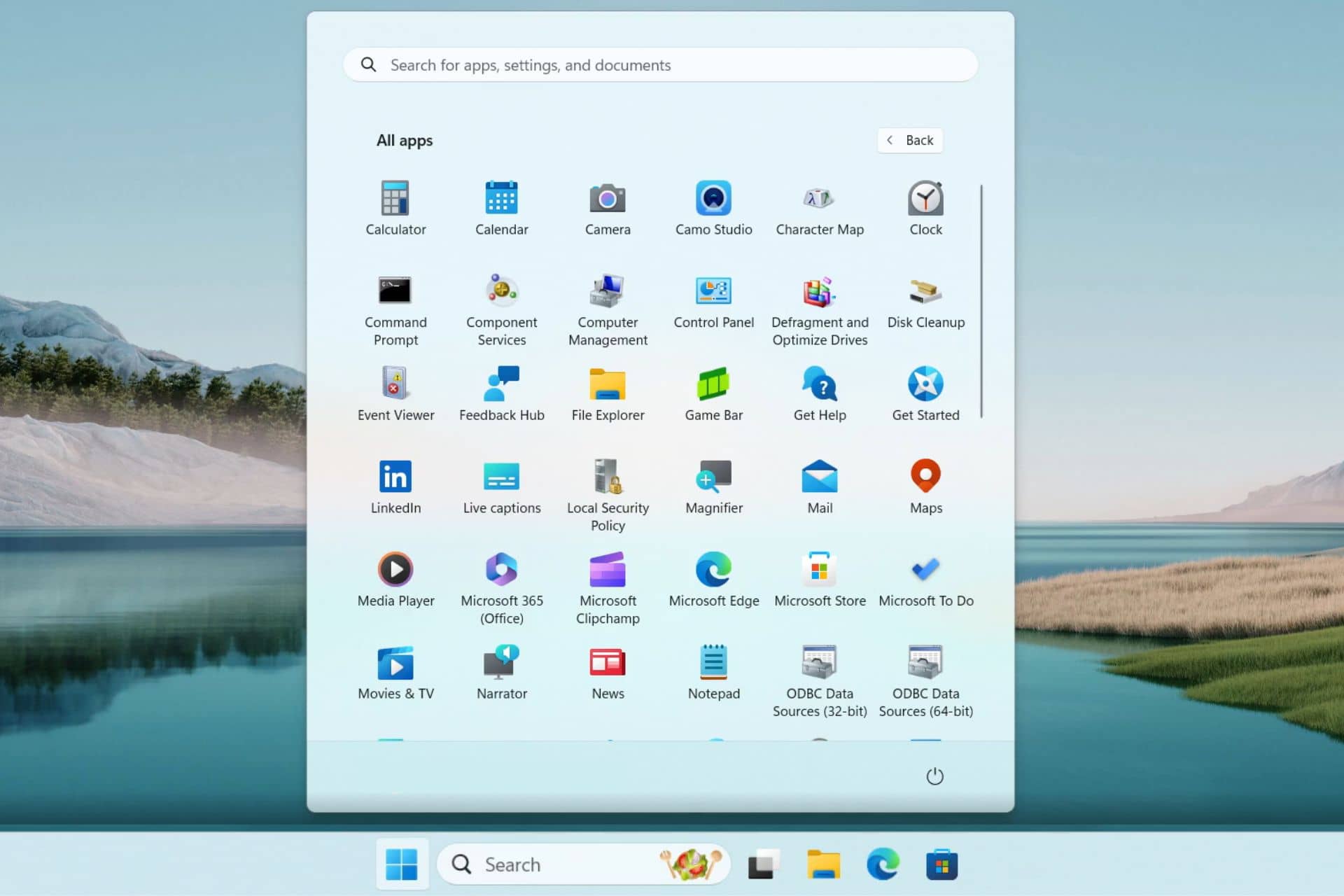
Microsoft is testing a new grid layout to display every single app under the All apps list in Windows 11’s Start menu. The new layout offers a similar vibe to the Windows 10X’s Start menu and is available in the beta builds.

The change was first reported by a Reddit user (@PhantomOcean3) who shared a screen recording to showcase the grid layout for the All apps list. The video showcases that the app icons are placed side-by-side and on top of each other to form a grid layout. This makes the app list look more organized and screen-efficient. 

That’s not all, the new grid layout for the All apps list lets you see more apps without having to scroll more as you would generally do in the current vertical list. Also, you can find the apps quickly, thanks to the bigger icons that are easy to spot.

Although the new grid layout looks promising, there are a few concerns. Since many things are happening visually in the list, you might find it harder to read the app names. Also, if there are way too many apps on your device, the list might look cluttered at your end. 

Moreover, if you’ve been using the vertical layout for a long time now; it will take some time to adapt to the new grid layout.

Do you like the new grid layout for the All apps list in the Start menu of Windows 11? Share your thoughts with our readers in the comments below. 

Microsoft brings 9 more AI voices for Azure AI service users in all regions

Microsoft has recently updated Azure AI services with nine additional AI voices for better human-bot conversations which are generally available now. Back in September 2023, Microsoft introduced several realistic voices to Azure AI services for all the business customers 

In a recent blog post, Microsoft mentioned the newly added AI voices in Azure are useful for multiple tasks. They are useful for gaming, e-learning, entertainment, voice assistant, chatbots, and more. 

Here’s the list of nine AI voices made available in all regions:

  1. en-US-AvaMultilingualNeural, 
  2. en-US-AndrewMultilingualNeural
  3. en-US-EmmaMultilingualNeural
  4. en-US-BrianMultilingualNeural
  5. De-DE-FlorianMultilingualNeural
  6. De-DE-SeraphinaMultilingualNeural
  7. Fr-FR-RemyMultilingualNeural
  8. Fr-FR-VivienneMultilingualNeural 
  9. zh-CN-XiaoxiaoMultiligualNeural

Talking about the newly added realistic-sounding voices in Azure AI services, Microsoft added: 

This expansion broadens our capacity to articulate content across 91 languages and their variants. This advancement underscores our steadfast commitment to surmounting language barriers and promoting a more inclusive and accessible global communication landscape.

All the AI voices have distinctive tones and styles and are suitable for various applications. For example, Microsoft mentions en-US-EmmaMultilingualNeural voice is a friendly, light-hearted, and pleasant female voice that works well for e-learning and more. Likewise, the en-US-AndrewMultilingualNeural voice has a warm tone with an engaging male voice that sounds like someone you want to know.

Additionally, Microsoft mentioned other voices previously added to Azure services like en-US-RyanMultilingual and en-US-JennyMultilingualV2 (merged with en-US-Jenny Multilingual) are now generally available in all regions.

Let’s not forget that the updated version of en-IN-NeerjaNeural and hi-IN-SwaraNeural voices with three different styles in Southeast Asia, West Europe, and East US are available in preview.

Microsoft also mentioned that new female voices like en-IN-KavyaNeural, en-IN-AnanyaNeural, en-IN-AashiNeural, hi-IN-KavyaNeural, hi-IN-AnanyaNeural are available in preview in Central India. 

While it is true that Microsoft is adding many realistic-sounding AI voices in Azure, it’s worth noting that the service also offers over 400 Text-to-Speech voices covering 140 languages and locales. 

Microsoft, OpenAI partner on $100 billion ‘Stargate’ supercomputer project

Microsoft is reportedly partnering with OpenAI to build a data center with a supercomputer codenamed Stargate for AI training. Reportedly, the total money behind this project is a whopping $100 billion. Yes, you read that correctly.

As per a report by The Information, Microsoft and OpenAI are in the third of a five-phase supercomputer project Stargate. The report also claims that the supercomputer will reportedly feature millions of specialized chips from different suppliers.

The report further suggests that Microsoft and OpenAI aim to complete the Stargate supercomputer project over the next six years. Let’s not forget that Microsoft is likely financing the project, which could cost 100 times more than some of the biggest data centers available today.

That’s not all, the Redmond giant is reportedly also working on a fourth-phase supercomputer for OpenAI, which will launch in 2026. However, the completion of the Stargate project is subject to the availability of OpenAI’s next-gen AL LLM model, GPT-5.

Although Microsoft and OpenAI are running the AI race together, this project might draw regulators’ attention in the near future. Antitrust regulators in the US, UK, and EU have been closely monitoring the partnership of the two entities for some time now. How can we forget the European Union (EU) investigation of Microsoft’s $13 billion OpenAI investment?

Microsoft tests hiding full URL in Edge browser address bar

Microsoft Edge in the Canary version has begun showing only the full domain name by default in the address bar. The complete URL is revealed only when you click on it.

Microsoft Edge hides the Full URL and shows the domain only by default

This approach isn’t entirely new. Back in 2022, Google conducted a similar experiment in Chrome to raise user awareness of phishing attacks and scams by controlling URL visibility in the address bar. Similar to Edge’s current test, Chrome displayed only the domain name initially, revealing the full URL on hover. Additionally, Chrome offered a right-click option in the Omnibox to permanently display full URLs, addressing concerns for users who found the abbreviated version confusing.

Currently, Chrome hides the “HTTPS” and “WWW” prefixes in the address bar, showing only the remaining parts of the link. Users who prefer to see the full URL, including “HTTPS” and “WWW,” can enable the “Always show full URLs” option by right-clicking in the Omnibox. Since most websites utilize HTTPS for security, this shouldn’t be a significant issue for most users.

Following Google’s discontinued experiment, it seems Microsoft Edge is now testing a similar feature. Users within the Canary channel might observe the browser hiding a portion of the URL behind ellipses in the address bar. Clicking on the address bar reveals the complete URL.

Microsoft hasn’t made any official announcements regarding this feature. It’s currently part of an ongoing experiment in the Canary version, which is unstable and prone to surprises. Canary users should expect unexpected features and changes.

There’s no guarantee that Microsoft will release this hidden URL functionality to the public. This applies to all features being tested in the Canary version.

If you intentionally want to hide the address bar entirely, you can utilize the F11 keyboard shortcut. This shortcut works across most modern browsers, including Microsoft Edge and Chrome, and hides the entire address bar, not just the URL.

If you’re an Edge user, you should be aware that Microsoft is testing a new Resource Controls feature, that allows users to select the amount of RAM their browser utilizes. Additionally, Edge has recently updated the First Run experience in beta.

After in-app games, LinkedIn is testing a TikTok-like video feed in its app

LinkedIn is testing a vertical video feed feature in its app similar to TikTok. With this experiment, the popular networking platform moves in the direction of numerous short-form video apps like YouTube, Snapchat, Instagram, and more.

An Instagram employee Jenny Eishingdrelo shared a screenshot on the Threads app showcasing LinkedIn’s experimental video feed feature. Also, an influencer marketing executive, Austin Null, shared a video where a separate video feed is visible in the app. 

Expect more professional and careers-related videos in the LinkedIn video feed

LinkedIn’s vertical video feed will focus on careers and professionalism rather than the different types of videos you generally see on TikTok, Instagram, or YouTube. While one can think that the video posting feature has been on LinkedIn for many years now, this one is different.

The new feature will allow users to scroll vertically to move between posted videos, similar to TikTok and Instagram Reels. You can also post short videos in the video feed and have better chances of getting more views and engagement.

The new experiment is no surprise because LinkedIn has been trying new trendy features for a while now. How can we forget the experimental disappearing story feature discontinued in less than a year? More recently, we covered a story about LinkedIn experimenting with in-app games. 

That’s not all, LinkedIn could also introduce monetization features for the video feed, just like other apps. The move could be an encouraging factor for content creators out there to share informative videos on the networking platform. Moreover, TechCrunch reported that LinkedIn confirmed the tests, but there is no official release date for now.

All that said, there’s a different side to this story. There are a few users who are expressing concerns about the new addition. Time will tell how well people will receive LinkedIn’s video feed feature once it goes live across the globe. 

OpenAI announces a risky voice cloning AI model ‘Voice Engine’

OpenAI has announced a new AI voice cloning model called Voice Engine. However, the public release is not happening any time soon due to associated risks. 

OpenAI’s new voice cloning AI model can recreate a person’s voice with a 15-second audio sample

On Friday, OpenAI announced its new custom voice creation model – Voice Engine. It is worth noting that OpenAI filed a trademark application for the model name a few weeks back.

Talking of the same in its blog post, OpenAI says the new AI voice cloning technology can recreate a natural-sounding person’s voice with just 15 seconds of audio recording of the person.

OpenAI opted to preview the newly announced Voice Engine and not widely release it, at least for now. It also mentioned that this move is an attempt to curb the risk of misinformation that could affect the US elections. A part of the statement from the company reads:

We recognize that generating speech that resembles people’s voices has serious risks, which are especially top of mind in an election year. 

The AI giant said the early Voice Engine testers agreed to their usage policies. It prohibits early testers from impersonating individuals or entities without their consent or legal rights. Moreover, they need to disclose that the voices are AI-generated. 

More recently, citing similar risks, the OpenAI CTO Mira Murati confirmed the company’s plan to push the SoraAI public release after the presidential elections. It seems OpenAI is well aware of the risks AI models bring into the picture. 

Will Voice Engine be the next big thing from OpenAI? Let us know your thoughts in the comments below.

The new Dropbox App, currently in beta, comes to the Microsoft Store, providing access via File Explorer and the Taskbar

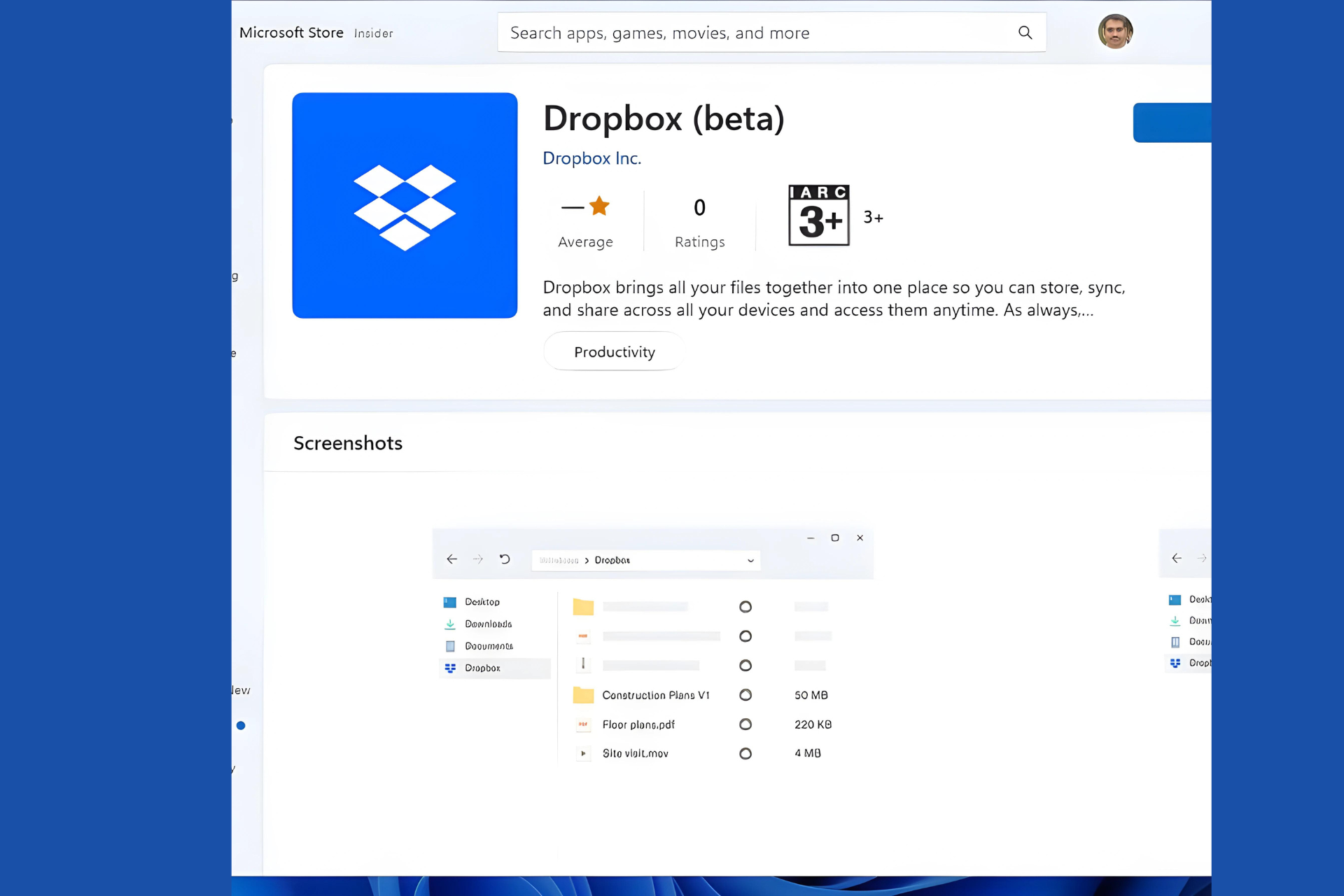
Good news for Dropbox users! The full-fledged Dropbox app for Windows in beta version is now available for download on the Microsoft Store for Windows 10 and Windows 11 devices. This means you can enjoy the complete Dropbox experience directly from your File Explorer and Taskbar.

Download Dropbox (beta) for Windows from the Microsoft Store

Previously, only a limited version called “Dropbox Lite” was accessible on the Microsoft Store, but it worked only in Windows S mode. Now, that the full app is here, Dropbox has quietly released it to the Microsoft Store.

When you install Dropbox from Microsoft Store on Windows 10 or Windows 11, you’ll be prompted to uninstall the existing desktop app. After uninstalling, you can sign into your Dropbox account via a web browser and then resume the installation process on your desktop.

System Requirements:

To use the Microsoft Store version of Dropbox, make sure you’re running Windows 10 version 21H2 (build 10.0.19044.0) or higher. However, Dropbox recommends that Dropbox teams should continue using the desktop app for now.

With this release, Dropbox now has two apps available on the Microsoft Store. However, you cannot use both the Dropbox desktop app and the Microsoft Store app simultaneously. You’ll need to choose one. But if you prefer, you can use Dropbox Lite alongside the Microsoft Store app on supported Windows versions.

Do note, that the Dropbox app from the Microsoft Store does not support Microsoft Office add-ons.

Features of the Dropbox Folder for Desktop:

  • Faster Uploads: Upload files to Dropbox more quickly than using the web interface.
  • Local Access: Access all your content directly from your desktop.
  • Space Savings: Easily move local files on your computer to online-only storage in Dropbox, saving hard drive space.
  • Taskbar Integration: Check the upload status and recent file activity by clicking the Dropbox icon in your PC’s taskbar.
  • File Management: Right-click on files to sign them, send them for signature, view version history, and perform other actions—all from your desktop.
  • So, if you’re a Dropbox user, give the Microsoft Store version a try and see how it fits into your workflow!

Download the Dropbox beta from the Microsoft Store here. Check the help page recently updated by Dropbox here.

If you’re using the Dropbox Desktop App, learn how to add Dropbox to File Explorer and use selective Sync.

US Congress bans staff from using Copilot fearing data leak

The US Congress has recently banned its staff members from using Microsoft’s AI chatbot, Copilot, on all government-issued Windows devices citing data leaks. Axios reported that it accessed guidance to congressional offices from House Chief Administrative Officer Catherine Szpindor.

Congress bans Microsoft Copilot on all its Windows devices

The move from the US Congress to ban Copilot comes after the Office of Cybersecurity deemed Copilot a risk to users due to the threat of leaking House data to non-House-approved cloud services. The circular further mentions removing and banning Copilot from all House Windows devices. It is worth noting that the congress staff can still use Copilot on their own phones and laptops.  

Let’s not forget that a year ago, Congress also banned its staff from using ChatGPT. However, the imposed ban aimed at stopping the use of the free version of ChatGPT on House devices. The staff could still access the paid version aka ChatGPT Plus because of better privacy settings.

Regarding the Copilot ban, Microsoft says that a suite of tools is on the way for the government that hopefully addresses the concern of Congress. The tech giant is planning to roll out such tools this summer. 

Talking with Axios on the matter, a Microsoft spokesperson mentioned:

We recognize that government users have higher security requirements for data. That’s why we announced a roadmap of Microsoft AI tools, like Copilot, that meet federal government security and compliance requirements that we intend to deliver later this year.

Recently, the White House has also introduced different rules related to generative AI. The government says that federal agencies should follow the new rules to protect the rights and safety of Americans.

All in all, the fear of data leaks after using AI chatbots isn’t only haunting companies but the government too. What do you think about the US Congress’ move to ban staff use of Copilot? Share your thoughts with our readers in the comments below.

Microsoft updates Copilot to show up every time users copy text or images

Microsoft released the KB5035953 patch to the Windows 11 Beta Channel, and it has a lot of new and documented features, such as the new position of the Widgets board in the left-aligned Windows 11 taskbar and the updated Windows Share that allows users to generate QR codes for URLs and cloud file links.

However, the patch also has some interesting undocumented ones: the first one is the ability to move files in Windows 11 by dragging and dropping them in the File Explorer address bar.

Another one, discovered by the same insider, @PhantomOfEarth, is an updated Copilot that shows up every time users copy texts or images.

If previously. Copilot would appear only if users hovered over it, now it will automatically appear whenever someone is performing a copy action of text or image.

Fortunately, though, Windows 11 users will be able to turn this feature off from the Copilot in Windows Settings page, as the @PhantomOfEarth states:

However, the feature will be turned on by default, meaning that the Redmond-based tech giant might want Windows 11 users to use Copilot as much as possible.

This feature is not documented, meaning the Redmond-based tech giant didn’t intend to release it with the patch. However, it will most likely be released in the next insider builds.

Microsoft is also constantly updating its AI tool. For instance, earlier today, the company announced that Microsoft 365 users can create Copilot prompts using their work content.

Copilot will also be coming to the Microsoft Photos app, a Windows native application, in the following weeks, where it will assist Windows users in creating a slideshow, searching for favorite images, and changing the desktop’s background.

Microsoft’s new Babylon.js 7.0 allows for complex 3D rendering without having to download large 3D assets

Babylon.js 7.0 is here and Microsoft has updated the tool with some game-changer features, including the addition of exciting procedural geometry, which the Redmond-based tech giant calls Node Geometry.

The company says Node Geometry is an advanced system that allows developers to create procedural geometry using a non-destructive node tree system. This means Babylon.js 7.0 is capable of creating anything from tiny geometric variations to complex worlds/landscapes.

However, the most intriguing part of the Node Geometry technology is its ability to use the CPU to create large 3D assets, instead of having to download them.

Procedural geometry offers the ability to create complex geometry at run/build time. This means that the end-user doesn’t have to download large 3D assets. Instead, the local machines/devices can use the CPU to create those assets. This means rather than requiring your web visitors to download hundreds of MBs worth of 3D assets, they can instead download a few KBs worth of Node Geometry data and allow their own machine to create the geometry. This adds a tremendous layer of flexibility for creators to offer the perfect loading/performance optimization for their unique web experience!

Microsoft

Together with the new Node Geometry, Babylon.js 7.0 also introduces three more capabilities: Global Illumination, Gaussian Splat Rendering, and Ragdoll Physics.

Global Illumination allows for a more real rendering of lights and shadows in virtual environments.

With Babylon.js 7.0, we are excited to introduce support for basic Global Illumination. This highly desired and advanced feature allows Babylon.js scenes to render even more lifelike experiences by allowing light and shadows to “bounce” around environments in a way that much closer matches reality.

Microsoft

Gaussian Splat Rendering allows developers to capture and display real-world elements with almost perfect visual fidelity. The Redmond-based tech giant says Babylon.js 7.0 can support this capability on the web, across all devices, running at 60 fps.

Gaussian Splatting is a new technique to capture and display volumetric data using Neural Radiance Fields, point clouds and billboards. In more simple terms, it’s an advanced way of allowing people to capture and display the real world with a level of unmatched visual fidelity and performance.

Microsoft

Ultimately, Ragdoll Physics allows Microsoft to enhance Babylon.js 7.0 with ragdoll animation. When this is enabled, any skeletal rigged asset collapses and flops around with limp lifelessness.

You can read the full blog post here. If you want to read more detailed documentation about each capability coming with Babylon.js 7.0, you can do so by heading over to the official website.

You can now move files in Windows 11 by drag&drop them in the File Explorer address bar

Microsoft released the KB5035953 patch to the Windows 11 Beta Channel, and it’s quite big. The patch introduced a new position of the Widgets board in the left-aligned Windows 11 taskbar.

The build also updated Windows Share with a game-changer capability: users will be able to generate QR codes for URLs and cloud file links, allowing them to quickly access webpages and download files across and between desktop and mobile devices.

However, this is not all. Although not documented, it seems that the KB5035953 patch also allows Windows users to move files in Windows 11 by simply dragging and dropping them in the File Explorer address bar, according to insider @PhantomOfEarth.

However, the capability is gradually rolling out, so it’s not available to everybody, but it can be enabled with the third-party ViveTool app by running this special command:

vivetool /enable /id:47664723

This makes moving files in Windows 11 a quick process, and users won’t have to right-click the file, select the Move option, and then paste it to the preferred location. As long as the preferred location is in the File Explorer address bar, it can be easily moved around.

Given that Windows 11’s File Explorer is tab-based, you can virtually have access to any folder that you want from the comfort of the address bar, so this capability is even more versatile.

Since it’s in the Beta channel, and undocumented, maybe Microsoft hasn’t intended to put it out just yet, so it might not see the light of day in the next weeks, but it will most likely be released with the Windows 11 2024 Update, which is coming later this year.

However, the capability is quite exciting. It allows for easier file management, and it’s intuitive, as well. We’re excited about it. How about you? What’s your opinion on this?

OneDrive is getting this much-needed text annotation capability and it will save a lot of time

OneDrive will finally allow users to annotate PDF files with text boxes that can be edited, as long as these files are stored in OneDrive or SharePoint, announces Microsoft in the latest entry to the 365 Roadmap.

According to the announcement, the text annotation capability will be released in May 2024, and it will be available on OneDrive and SharePoint. To edit the PDF files, users will only need to open those text boxes and select the Edit button.

This feature allows you to annotate and save PDF files with text boxes, when those files are stored in OneDrive and SharePoint. Users can access the annotation feature by opening the PDF in file viewer and selecting “edit”.

Microsoft

We don’t have any images of what these new settings look like, but it was about time Microsoft would implement them. What makes it very interesting, and quite useful is that any PDF file that is uploaded to OneDrive or SharePoint, can be virtually edited to support editable text boxes.

This would not just save a lot of time when dealing with PDF files, but it’s also quite handy: as long as users have access to OneDrive for Web, they can open PDF files on mobile devices and edit them on the spot.

Although many users want to uninstall OneDrive, and they can do so now, they might want to reconsider the decision. OneDrive has been getting a plethora of incredibly useful features, and the text annotation capability might just be it.

Considering just how often we deal with PDF files on a daily basis, and just how much we need to be able to edit them, this capability will allow users to do just that, with any PDF file, anytime, anywhere, as long as they have access to the platform.

Are you excited for it?

Microsoft updated Windows Share with a game-changer capability that makes file transfer way easier

Microsoft released the KB5035953 patch to the Windows 11 Beta Channel, and it’s quite big. The patch introduced a new position of the Widgets board in the left-aligned Windows 11 taskbar.

According to the official blog post, the Widgets board will have a new entry point: it will be moved to the left of the system tray, and it will be much wider, allowing users to spot it more easily.

However, Microsoft also updated Windows Share with a game-changer capability: users will be able to generate QR codes for URLs and cloud file links, allowing them to quickly access webpages and download files across and between desktop and mobile devices.

Users will be able to now generate QR codes for URLs and cloud file links through the Windows share window to seamlessly share webpages and files across their devices. To try this out in Microsoft Edge, just click the share button in the Edge toolbar and choose “Windows share options”.

Microsoft

As you can see in the featured image above, you’ll be able to click on the QR icon, and Windows Share will automatically generate a QR code to begin the process.

Plus, users won’t have to worry about closing the Windows Share window by mistake, as the Redmond-based tech giant also updated it to not be automatically closed when clicking outside of it.

To prevent accidentally closing the Windows share window, clicking outside the Windows share window will no longer close it. To close the Windows share window, just press the close button at the top right corner.

Microsoft

You can check the full changelog for KB5035953 here.

Left-aligned Windows 11 taskbars will place Widgets in a new position

Microsoft just released the KB5035953 patch to the Windows 11 Beta Channel, and it’s quite big. It comes with some new features, including a new position of the Widgets board in the left-aligned Windows 11 taskbar.

According to the official blog post, the Widgets board will have a new entry point: it will be moved to the left of the system tray, and it will be much wider, allowing users to spot it more easily.

We’re beginning to roll out a new position for the Widgets entry-point on left-aligned taskbars. The taskbar entry-point will move to the left of the systems tray and will be wider so you can see richer content from Widgets on your taskbar. When you launch the Widgets board, it will fly out from the right side instead of the left side.

Microsoft

However, given the new position, the Redmond-based tech giant says there will be several known issues with it, and users have to be aware of them. The company will address them in the next patches.

[Widgets]

Windows Insiders in the Beta Channel who have the new position for the Widgets entry-point on left-aligned taskbars may see the following known issues:

  • [NEW] Swipe invocation for Widgets may not work if taskbar is center-aligned instead of left-aligned.
  • [NEW] Unpinning Widgets from the taskbar may not work if taskbar is center-aligned instead of left-aligned.
  • [NEW] The Widgets board is incorrectly positioned when Copilot is in side-by-side mode.
  • [NEW] Turning on/off Widgets in taskbar settings may refresh the taskbar.

Microsoft also released Insider builds for the Preview channel earlier this week, and with it, the Redmond-based tech giant ditches build watermark, however, they will return at a later date.

You can read the full blog post here.

Microsoft now allows users to create Copilot prompts grounded in their work content

Starting in April, Microsoft will allow users to create prompts for Copilot that are grounded in their work content done in Word, Excel, Outlook, and PowerPoint. The work can include chats, documents, meetings, emails, and so on, and the prompts will force Copilot to come up with answers related to the work users have done.

This would effectively allow for a more specific conversation between users and Copilot which can greatly enhance and improve productivity, as the tasks Copilot completes are now based on existing data.

When using Copilot in Word, Outlook, Excel, and PowerPoint, you will be able to create prompts grounded in your work content – your chats, documents, meetings, and emails – not just the currently open file. This brings the ability to the same capabilities from the dedicated Copilot chat experiences (e.g. Work tab at copilot.microsoft.com, the Teams app, microsoft365.com) directly into the apps. If you’re writing a document and want to remember the date of an upcoming deadline or drafting an email and want to incorporate action items from yesterday or notes from a recent meeting, just open Copilot in the right pane and ask.

Microsoft

In a blog post, Microsoft said the feature is set to be gradually released to users in April, and the Redmond-based tech giant also has several other new capabilities in store for the AI model for the next month.

It includes some big changes coming for the Microsoft 365 app for mobile users. Android and iOS users will be able to get information based on their company’s data with Copilot.

This means employees will be able to use Copilot to get information about previous meetings, chats, conversations, and even documents. The tool will even create documents based on company data.

Starting today, you can use Copilot in the Microsoft 365 mobile app to connect to and reason across your enterprise data – your chats, documents, meetings, and emails.  Anyone with a commercial license for Copilot for Microsoft 365 can use the app to:  

  • Stay on top of the workday and let Copilot catch you up on pre-reads, meetings, conversations, and document updates. 
  • Ask Copilot to summarize, translate, explain documents, or ask questions about any content, and receive answers grounded in organizational data.  
  • Create work documents, emails, blogs, or presentations by generating content based on their inputs, existing information, and past work.  
Microsoft

Aside from this, Microsoft has explained that Copilot can be interacted directly with on Outlook, now, and the Redmond-based tech giant also updated it to support new ways for users to engage with it in Excel, even though the tool is still in public preview.

Microsoft recently updated Copilot to let users delete the entire chat history at once, and it would be interesting if that feature could also be available in these situations.

You can read the entire blog post here.

Copilot in Edge now lets users delete their entire chat history with just a few clicks

In case you didn’t know Microsoft Copilot is capable of keeping up a history of all the conversations you have with the tool. In Microsoft Teams, it can be accessed quite easily. You can also access it on Windows 10, Windows 11, or Microsoft Edge.

Now, according to the tech enthusiast, @Leopeva64, Edge will finally let users delete their entire Copilot chat history at once with just a few clicks. If previously, users had to delete each entry in the AI tool’s chat history, now it is possible to get rid of it altogether.

Here’s how to do it:

  1. In Edge, click on the three-dot icon near the Plugins button.
  2. Select Delete all chat history.edge copilot chat history
  3. That’s it.

The entire Copilot chat history can be deleted with just 3 clicks on Edge. Since all the Microsoft Copilots follow the same design pattern, this button could be released on Windows Copilot, and the other Copilots out there, as well.

The button is currently available on Edge Canary, although it will be released to the stable channel in the following weeks. Edge Dev 124 was released earlier this month, and this week, the build arrived on the Beta channel, as well, with a lot of new features, including an updated First Experience Run, that could potentially make the browser popular with new users.

Copilot, on the other hand, is getting to other Windows native apps, such as the Photos app, which now supports the AI tool, and it’s capable of coming up with slideshows, searching up favorite images, and even using them to change the desktop background.

The app must be updated to the latest version, but once that is done, Copilot should appear right after opening it up. We don’t know for sure if you can erase Copilot’s chat history, there as well, but most likely, Microsoft will update it with this enhancement, in the following weeks.

Microsoft Edge 124 Beta updates the First Run Experience, and it could be the feature that makes the browser bigger than ever

Edge 124 made its way to the Beta Channel before its stable release, and similar to its Edge Dev 124 update, this one is quite big, and it has a lot of new features, changes, and improvements, while also implementing new policies, and deprecating other policies as well.

The Beta 124 patch has a plethora of new features, but the most interesting one (and the most useful one, if you ask us) is the new ability to allow first-time Edge users to cancel unintentional creations, such as accounts, profiles, and setting ups, in a way that’s easy and convenient.

The feature is now part of the Edge Beta 124, but Microsoft said they’re gradually rolling it out in a controlled manner, so not everybody will get access to it right away. However, once they do, the perks will be quite big: new users won’t have to worry about enabling something that does not fit their style of browsing, as that can be easily undone.

The new updates to the profile options in the new profile experience are necessary if Microsoft wants Edge to become more popular than ever before. Why? Because it provides a seamless and easy introduction of the browser to the new users. The browser is already quite good, and many believe it is better than Google Chome, but it does not have its popularity.

You can see all the new features, changes, and improvements coming with Edge Beta 124, below:

Feature updates

  • Email notifications for extension requests in the Microsoft Edge management service. The Microsoft Edge management service provides admins with the ability to receive email notifications for extensions that their users requested. This helps inform them promptly of any new feedback. Note: This experience is in public preview and can be accessed by opting in to targeted release in the Microsoft 365 admin center.
  • Updated default profile pill for EDU users in Edge for Business. To improve the applicability of the current Edge for Business default visuals, users signed in with an EDU account will see the default profile pill label updated to “School”.
  • Desktop Shortcut for New Enterprise Devices. New Microsoft Enterprise devices running through Windows Out of Box Experience (OOBE) for the first time will see a Microsoft Edge desktop shortcut automatically created. This desktop shortcut provides users with an alternative way to access their Microsoft Edge browser without needing to manually pin and configure their set-up.
  • Updated profile options in new profile experience. Many users unintentionally create empty profiles, cluttering their workspace and impeding their browsing experience. To reduce clutter and the likelihood of profile churn, updated First Run Experience (FRE) string options encourage users to sign-in and meaningfully create profiles for an improved browsing experience, or easily cancel unintentional creation. Note: This feature is a controlled feature rollout. If you don’t see this feature, check back as we continue our rollout.
  • Copilot Page Context Policies. To summarize and answer questions based on page context in Microsoft Edge, Copilot needs to be able to access the page content. We’re providing two new policies to offer more flexibility for admins to customize Edge page context access across Copilot chats in Edge sidebar.
    • CopilotPageContext – Control Copilot access to page contents for Microsoft Entra ID profiles
    • CopilotCDPPageContext – Control Copilot with Commercial Data Protection access to page contents for Microsoft Entra ID profiles
    • The DiscoverPageContextEnabled policy is deprecated in Edge version 124 and will be obsoleted in Edge version 127.
  • Updates to Settings pages on privacy, security, search, & services. To improve ease of use, we’re updating Edge settings page into two sections: “Privacy and Security” and “Search and Services.” This streamlined approach should enable users to find the settings they’re interested in more easily. Note: This feature is a controlled feature rollout. If you don’t see this feature, check back as we continue our rollout.
  • Removal of Web SQL. Web SQL support is fully removed. In prior releases, Web SQL support was disabled by default but could be re-enabled via the WebSQLAccess policy. After this change, there’s no longer any mechanism to enable Web SQL support. This change is happening in the Chromium project, on which Microsoft Edge is based. For more information, see Intent to Deprecate and Remove Web SQL.
  • Sidebar Tools App – SpeedTest. Adding a SpeedTest answer by default to the Tools app in the Microsoft Edge sidebar. For more information, see Manage the sidebar in Microsoft Edge.
  • Updated reauthentication flyout when Web Single Sign-On (SSO) fails. Users who encounter Web single sign-on (SSO) failures for User Interaction Required (UIR) accounts will experience a flyout with a call to action to sign in and verify their account.
  • Updated profile management and customization controls. Enhancing the profile management and customization experience through surfaced profile controls and an expanded range of default avatars. With these updates, users can effortlessly tailor their profiles to their preferences and select from a broader collection of profile avatars.

Policy updates

New policies

Deprecated policies

Obsoleted policies

The mysterious AMD MI388X AI GPU will not be available in China courtesy US sanctions on AI processors

Recently, AMD has added an unrevealed AI chip, the MI388X, along with Instinct MI250 and MI300A, to its regulatory 10K filing with the SEC, considering it will not be sold to Chinese customers due to US sanctions on AI processors.

In a statement, AMD said:

In October 2023, BIS [U.S. govt. Bureau of Industry and Security] issued new requirements for certain advanced computing items that apply to the export of products classified ECCN 3A090 or 4A090 to a party headquartered in, or with an ultimate parent headquartered in, any of Country Groups D1, D4 or D5, including China.

These controls prevent us from shipping our AMD Instinct MI250, MI300X, MI300A, MI388X integrated circuits and our Versal VC2802, VE2802 FPGAs to China, or to customers outside of the United States whose ultimate parent is headquartered in a D5 country (including China), without a license.

AMD and Intel are powerful companies that make processors and other products for almost every computing need, but not all the products are listed on the website, as some could be customized for customers or the military.

However, sometimes, due to laws in place, they are forced to disclose them someplace else; we think that’s what happened with this AMD Instinct MI300 series product

The MI300 series products comprise multiple configurations featuring different CPU and GPU core distributions.

The declaration of this chip in regulatory form has proved its existence and is evidence that it is made for more than one customer outside China. Apart from this, there is no other information about it, like whether it is a custom product targeted to high-performance or lower-performance.

The Instinct MI309 was another chip barred from exporting to China. It didn’t meet the US government export rules and was too powerful to be shipped.

Microsoft added Copilot to the Photos app, and the AI tool can show your favorite images

Microsoft has added the Windows Copilot AI tool to the Photos App in Windows 11, and it is capable of searching for favorite images, as well as creating a slideshow of the images available on the Windows device.

According to insider @PhantomOfEarth, who also spotted the new Photos App capability, Copilot is available with app version 2024.11030.22001.0.

Besides its slideshow creation capabilities, Copilot in Microsoft Photos is also capable of changing the users’ desktop background, as far as the insider experimented with it.

The Microsoft Photos app is getting a Windows Copilot plugin, which is used for actions like creating/viewing slideshows and setting the desktop background. It’s available with app version 2024.11030.22001.0.

@PhantomOfEarth

The Redmond-based tech giant is known for adding AI capabilities to the native Windows apps, so Copilot coming to the Photos app wouldn’t be a first. For instance, last year, Microsoft Paint got the Cocreator AI, which is a sort of Copilot that comes up with AI-generated art that is quite stunning, as per our account.Copilot Photos App

Notepad also received the Cowriter tool, and it helps Windows users with composing, creating, and editing passages of text. This one is also quite useful, and quite easy to set up, as well.

So, as we mentioned, Copilot in Photos is not surprising. On the opposite, it was expected for the app to get AI capabilities, since Microsoft is slowly moving the whole Windows experience into AI territory. For now, its capabilities are quite rudimental, with basic options to create slideshows or search for certain images.

However, it would be quite useful if Microsoft updated the tool to actually come up with editing options: an AI-based kind of Photoshop? Why not? Should we expect one, eventually? Definitely, yes.

As we said, the Redmond-based tech giant is trying to shift the focus to AI, as it prepares to introduce the world to its AI-based Windows.

Are you excited about this new feature?

VPNs may become victim to password spraying attacks, Cisco alerts

Cisco’s cybersecurity researchers warned about a surge in password spraying attacks targeting Virtual Private Network (RAVPN) services, including its in-house products and some third-party ones. Hackers use this technique to gain unauthorized access to many accounts or systems.

How does a password spraying attack work?

These types of attacks are considered low-risk and high-profit and, therefore, attract considerable attention. As password spraying can remove account lockout mechanisms, cyber criminals usually use it to access networks and steal personal information.

When attackers perform password spraying attacks, they make numerous login attempts with a small number of commonly used passwords across several accounts.

It helps the hackers avoid detection by evading multiple failed login attempts on a single account, which could trigger security alerts.

If the targeted device has security measures like account lockout policies that lock user accounts after several failed login attempts, these attacks can lock your accounts.

As the hackers make fewer attempts per account, it is more challenging for security systems to identify and block the attack.

When multiple accounts are locked out due to this technique, it can overwhelm system resources, disrupting legitimate users’ access to their devices.

This can result in denial-of-service (DoS)- like conditions, wherein the system becomes inaccessible because of request overload.

These attacks also serve as a reconnaissance effort for attackers, as they will identify which accounts have weak passwords or are more susceptible to this type of attack, gain insights into the security system, and exploit it in some other way.

These attacks are not directly a threat but can serve as a precursor to more sophisticated cyberattacks. It is usually used against services or systems that don’t have strong password policies or 2FA in place, making them vulnerable.

How do they affect VPN services?

VPNs provide remote access to internal networks, making them a lucrative target for attackers seeking unauthorized entry into corporate networks.

The attacks can be used for further exploitation upon successful compromise of VPN accounts. The reason for these aggravated attacks is the prevalence of reused or weak passwords in VPN services.

The cybersecurity analysts at Cisco have issued several recommendations to eliminate the risk of password spraying attacks targeting VPN services:

  • Make sure comprehensive logging is enabled so that suspicious activities can be detected and investigated.
  • Use robust security measures to secure default remote access VPN profiles from exploitation.
  • Implement TCP shunning mechanisms to obstruct malicious IP addresses in password spraying attacks.
  • Employ Access Control Lists (ACLs) to control traffic and block unauthorized access to VPN services.
  • Implement certificate-based authentication to improve authentication security for Remote Access VPN services.

In addition to these, Cisoc also mentioned numerous Indicators of Compromise (IoCs):

  • Unable to establish VPN connections with Cisco Secure Client (AnyConnect) when Firewall Posture (HostScan) is enabled

Users attempting VPN connections with Cisco Secure Client encounter an error about Cisco Secure Desktop not being installed and this prevents the successful connections.  This symptom seems a side effect of the DoS-like attacks but further investigation still continues.

  • Unusual Amount of Authentication Requests

The Cisco ASA or FTD VPN headends exhibit the symptoms of password spraying, with millions of rejected authentication attempts visible in the “syslogs.”

Cybersecurity researchers are investigating these attacks, but all organizations must be active in strengthening their VPN infrastructures against evolving threats.

They must adopt security practices and stay vigilant for signs of compromise so that they can eliminate the risk posed by these attacks.

What are your thoughts on the matter? Share your opinions with our readers in the comments section below.

Underclock your Intel CPU to fix Outpost: Infinity Siege crashes, developers say

Outpost: Infinity Siege was recently released and the game unfortunately has its share of issues. Even though two patches have been released, issues persist.

However, developers have found a workaround that allows users to play the game until the issue is permanently resolved.

Team Ranger developers are recommending downclocking Core i9 CPUs

The game has its share of issues, but it seems that crashes and blackouts are related to Core i9 Raptor Lake or Raptor Lake Refresh CPUs as Tom’s Hardware writes.

According to the latest patch notes, the issue occurs with 4090 graphics cards and 13900K or 14900K CPUs.

Since there’s no official solution available, the developers are advising users to lower the CPU frequency from 5.5 to 5GHz to prevent future crashes and issues.

Other suggestions include switching to an energy-saving mode as well as standard troubleshooting methods such as verifying the cache and updating the drivers.

It seems that the problem is caused not by the game, but by the hardware since Raptor Lake CPUs already had similar issues in other games.

It is speculated that the issue is caused by automatic power limits in BIOS for these processors, and we hope that Intel and the game developers will soon find a permanent solution.

As for other Intel news, new Intel Battlemage GPU specs have been spotted, so you might want to check them out.

Get ready for immersive gaming on Xbox and Playstation with JBL Quantum headsets

JBL has been known for the quality of its devices, especially the Quantum headset series. After the success of the series on PC, JBL decided to expand its market.

This is good news for console owners since they will finally get the chance to experience the Quantum series.

JBL Quantum headsets are now available for consoles

JBL has expanded its line of headsets with Quantum 100X/P and 360X/P models as IT Brief writes. Both models are available for Xbox and PlayStation and both offer wireless spatial audio virtualization with head-tracking.

As for the specs, Quantum 360 X/P comes with JBL’s Dual Source technology, which allows you to have two devices connected to the headset. The battery will last up to 22, and you can change it simultaneously while playing.

This model also offers QuantumSOUND features and 40mm drivers for a truly immersive gaming experience.

Quantum 100X/P are intended for less demanding users, but they are lightweight and durable while providing crystal clear sound at all times.

Overall, these are great headphones, and they are already available for sale, so be sure to consider getting them.

In other news, leaks show a new all-digital Xbox console, so stay tuned for more Xbox news.

Microsoft is testing the 24H2 version on WSUS ahead of its release on Snapdragon X

The Windows 11 2024, 24H2 update is available as a preview build for Windows Insiders, and according to recent reports, it is getting ready for the Snapdragon X Elite PCs. The update is expected to be released publicly in mid-2024.

However, a user on the My Digital Life forum recently spotted that Microsoft is testing the 24H2 version on WSUS. Windows Server Update Services (WSUS) is a tool used by admins to manage the distribution of updates and hotfixes released to computers in a corporate environment.

The code snippet result added in the comments indicates that Microsoft could release the 24H2 update soon. As per the screenshot, the update is for Windows 11 Client S (PCs in S mode), Windows 11, and Windows Server.

Microsoft has created a version 24H2 category on WSUS, which suggests that the final version may be soon available.

We previously talked about RTM (Release to Manufacturers), which is expected to come this April and allow PC makers to test current and upcoming devices against it. This is a sign of the 24H2 update.


The absence of a technical preview build watermark in newer builds like 26090 is also another sign that Windows 11 2024 Update (24H2) RTM (Release to Manufacturing) will be here soon. While the 26090 is not the build for RTM, the removal of the watermark from the desktop is a signal that the final release candidate is just around the corner.

Microsoft has already announced that the Windows 11 2024 update will be a two-phase rollout. Phase one of the release will only be available for AI-powered PCs, such as new Surface ARM devices and upcoming Snapdragon X Elite devices.

These devices will have the latest version of Windows 11, deep integration of Copilot, a dedicated Copilot key, and other advanced AI features.

The second phase is for others, so existing hardware owners will not see Windows 24H2 until September or October. This will also include the release of the remaining features.

Based on the rumors and information released so far, we can presume that some of the advanced AI features, like AI Explorer, might not work on existing PCs, as they may need NPU.

Recently, Microsoft also announced the new gen Surface laptops, which will come packed with NPU-based processors. To learn more, read this guide.

Are you excited about the release of the 24H2 update? Share your thoughts in the comments section below.

Lowest ever price alert: Grab ASUS ROG Zephyrus G14 for $999 from Best Buy

Gaming laptops are usually expensive, given the advanced configuration and better temperature control, unless you go with a mid-range gaming laptop and compromise on performance. But what if you could get a high-performance gaming laptop at a steal deal?

The ASUS ROG Zephyrus G14, a laptop known for its quiet performance and AI-enhanced graphics, is available for $999.99 during the Best Buy deal, down by $600 from its regular price of $1,599.99.

Additional benefits with the purchase include a 1-month free Xbox Game Pass Ultimate Membership, a 6-month subscription to Norton 360 Deluxe for upto 3 devices and LifeLock Identity Advisor for all-round security. You can save more on trading in a similar device on Best Buy!

The laptop has received mixed reviews from the gaming community, but given the mid-range pricing, it’s worth every penny. Besides gaming, it handles resource-extensive applications like Solidworks, AutoCAD, and Matlab exceptionally well, as confirmed by verified users.

With an optimal display, a too-good-to-be-true keyboard, seamless connectivity, extraordinary performance, and effective cooling, the ASUS ROG Zephyrus G14 can compete with any device in the price range. The laptop’s battery backup could be a downside if you prefer gaming on the go!

ASUS ROG Zephyrus G14’s specifications

ProcessorAMD Ryzen 9 7000 Series, 8 Cores
GraphicsNVIDIA GeForce RTX 4060, DLSS 3 and Ray tracing supported
Operating SystemWindows 11 Home
Storage512 GB SSD (Solid State Drive)
RAM16 GB DDR5 (expandable up to 32 GB)
Display size14 inches
Display resolution2560 x 1440
BatteryUp to 10 hours of backup

ASUS ROG Zephyrus G14 also finds a place amongst our top picks for VR-ready laptops and is a value-for-money device!

Get the ASUS ROG Zephyrus G14 at $999.99 from Best Buy during the ongoing deal!

If you are looking for other cost-effective options, check out the deals on Dell laptops or go with a discounted Microsoft Surface 4, though performance will take a hit.

What’s your take on ASUS ROG Zephyrus G14? Share with our readers in the comments section.

Lenovo will gain the upper hand in AI PCs by focusing on user experience

Lenovo will use a different strategy than other AI companies and focus on AI features instead of specifications. Their main goal is to enhance the user’s experience while performing tasks with AI. So, they might work around Copilot and give it some new tools.

The company will also bring something different than Copilot. However, they didn’t disclose details about the future project, except that they will make it very different from the Microsoft AI assistant. So, besides new AI features, Lenovo wants to bring something that will help them take the upper hand against competitors. After all, the future AI PCs using Windows 11 will come with Copilot.

How is Lenovo’s definition of AI PC different?

Most companies have their definition of what an AI PC is. For example, Lenovo doesn’t care about Tera Operations per Second (TOPS), the metric used to assess processing power. Instead, they believe that AI PCs are different from ordinary ones because they are specifically for AI.

Not caring about the TOPS is a bold move. After all, Intel, AMD, and Qualcomm are competing to meet Microsoft’s AI requirement of 40 TOPS. However, Lenovo stated that companies still need to meet that criteria and focus on what’s available.

In addition, Lenovo breaks AI PCs into two categories: Essential and Pros. The Essential AI PCs lack a GPU and are better for light AI tasks, while the Pro AI PCs have a GPU, CPU, and NPU and can do tasks that benefit from graphical processing power and AI.

During its Innovate event in Bangkok, Lenovo unveiled Yoga devices, a range of high-end and budget-friendly AI PCs with AI-powered functionalities. One of their features is the Lenovo AI Core chip, designed to improve AI’s performance, preserve battery life, and enhance cooling.

On top of that, they added the Creator Zone software, which creates visuals from text prompts or sketches. Additionally, Lenovo will deliver the Creator Zone by the end of 2024.

In conclusion, Lenovo will focus on AI features and user experience to differentiate it from competitors. Also, they will bring new tools to make Copilot even more useful on their devices. However, we don’t know yet exactly what they want to develop. So, we are eager to hear more from the company.

What are your thoughts? Are you going to get a Lenovo AI PC? Let us know in the comments.

Get Microsoft Surface Laptop 4 at 30% off on Amazon, price slashed to $699

The market for touchscreen laptops is rapidly expanding owing to increasing demand. A touchscreen laptop offers more utility and is optimal for drawing and graphic designing. If you are looking for a budget-friendly option, the Microsoft Surface Laptop 4 would be the perfect choice.

The laptop is currently available at a massive 30% discount on Amazon. Priced at $699.99, down $300 from the regular price of $999.99, this is one of the best deals on Microsoft Surface Laptop 4 ever since its launch.

Based on the configuration, the laptop is ideal for regular use and running low to mid resource-consuming applications. It runs smoothly under multitasking, and the touchscreen functionality performs exceptionally well, if that’s something you are concerned about!

As for the appearance and design of the lightweight laptop, the keyboard’s suede-like material is a hit amongst users. Besides, the sleek design and compact nature are two key highlights of Microsoft Surface Laptop 4.

Microsoft Surface Laptop 4 specifications

ProcessorAMD Ryzen 5 4680U Mobile Processor with Radeon Graphics, Microsoft Surface Edition (6 cores)
Operating SystemWindows 11 Home
Storage256 GB SSD (Solid State Drive)
RAM8 GB LPDDR4
Display size13.5″
Display resolution‎2256 x 1504
Battery backup9 hours
Item weight2.77 Pounds (1.26 Kilograms)

If you want a budget-friendly touchscreen laptop, Microsoft Surface 4 would be a great pick at this price.

Remember, the Microsoft Surface Laptop 4 is not meant for gaming. Simpler, smaller games may run fine, but not the resource-extensive ones. And, while the device will deliver for another few years, the lack of AI support and an NPU chip may hurt you in the long run, if you intend to run AI-extensive tasks.

Get the Microsoft Surface Laptop 4 for $699 from Amazon during the sale!

If you want to explore other options, there are heavy discounts on Dell laptops and some fantastic deals on HP Envy.

Do you believe this is the best price for Microsoft Surface Laptop 4? Share with our readers in the comments section.

KB5035845 still doesn’t install, more than 2 weeks after release. Here’s what you can try

Microsoft issued the KB5035845 update for Windows 10 with quality improvements and fixes but more than two weeks after, many users still can’t install it.

A disgruntled user signaled this problem on the Microsoft Answers forum, and an independent advisor responded that they encountered a number of reports of the same. Unfortunately, there is no official solution for the problem but we will try to help you with a few tips.

How can I fix the KB5035845 update failure on Windows 10?

The most simple way to deal with this problem is to install the update manual. If you look on the Microsoft Update Catalog for KB5035845, you can download the version for your system.

We also have a guide on how to manually install Windows 10 updates that will offer more information about this.

Another thing you can do is to check the update history for this KB patch and see if it was already installed. To do that, go to Settings > Windows Update > View update history and see if KB5035845 shows up in the list.

If it does, click on Uninstall updates and uninstall it, then restart you PC and check for updates.

These solutions usually solve these kinds of Windows Update problems. You may also wait for a Microsoft resolution, but it may take a while longer.

Are you in the same situation? Tell us if you managed to fix the problem, or if you have better solutions in the comments section below.