
How to Fix Service Host Network Service High Network Usage


 4 min. read
  EEST
EEST
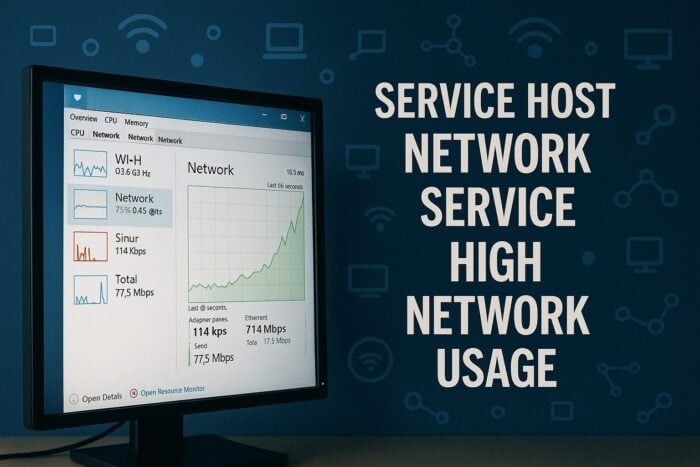
High Service Host Network Service network usage slows down your connection and makes apps feel unresponsive. This guide walks you through quick fixes that reduce background traffic and keep Windows stable.
Table of contents
How Can I Fix Service Host Network Service High Network Usage?
Check for Windows updates
Stuck or incomplete updates cause constant background downloads and heavy bandwidth usage. You clear that pressure when you install all pending updates.
- Open Settings and select Windows Update.
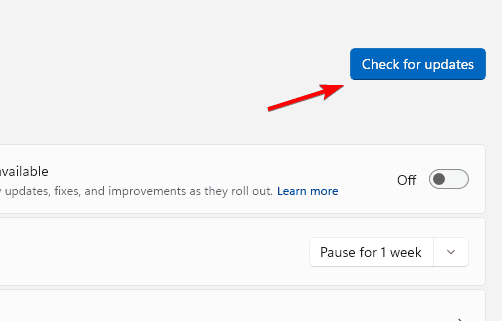
- Click Check for updates.

- Install all available updates.
- Restart your PC and monitor usage again.
If you want to understand how host processes manage many services at once, read about what svchost.exe does in the background.
Disable delivery optimization
Delivery Optimization uploads and downloads update files in the background. You take control of bandwidth when you stop it from sharing updates with other devices.
- Open Settings and choose Windows Update.
- Select Advanced options.
- Click Delivery Optimization.
- Turn off Allow downloads from other PCs.
For similar resource spikes that involve host services and restricted network profiles, compare your case with service host local service network restricted issues.
Limit background Windows services
Startup apps sync, download data, and check for updates as soon as Windows loads. You free network capacity when you stop non essential apps from running at startup.
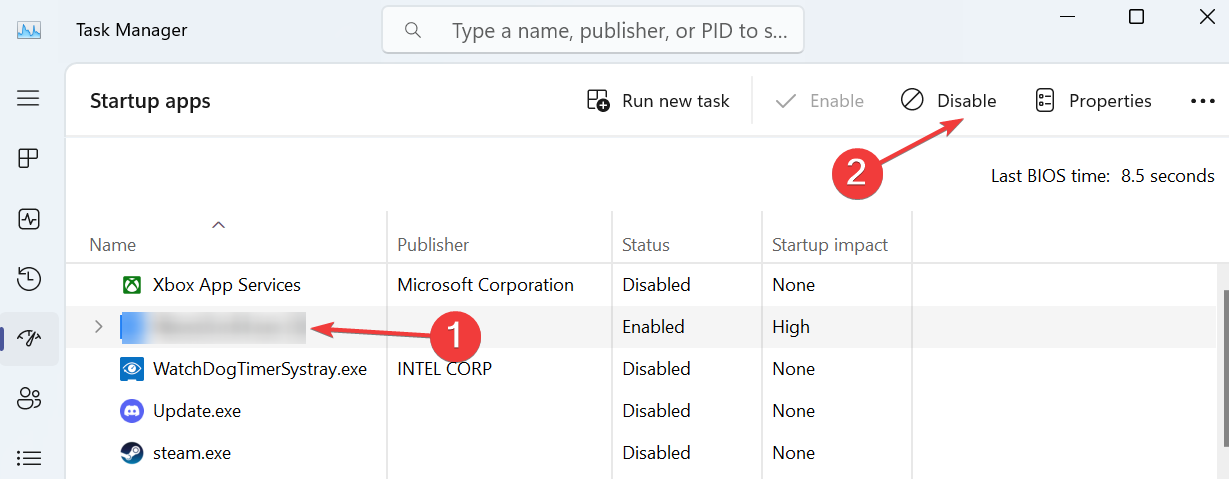
- Press Ctrl + Shift + Esc to open Task Manager.
- Select the Startup apps tab.
- Disable apps you do not need to run at startup.

- Restart your PC and test your connection.
Stop the SysMain service temporarily
SysMain improves launch times but sometimes increases disk and network activity. You check its impact when you stop it and see if usage drops.
- Press Windows + R, type services.msc, and press Enter.

- Scroll to SysMain and double click it.
- Click Stop.
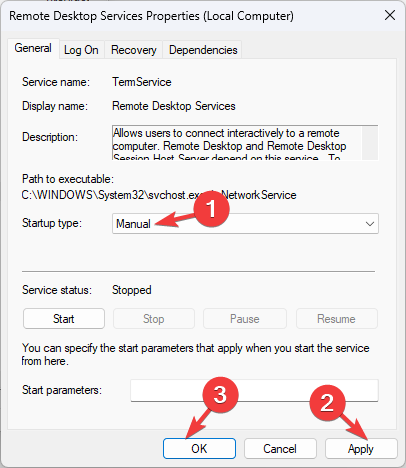
- Set Startup type to Manual if you want to control it later.


If image related services or photo apps also slow down while usage increases, check how the Windows image acquisition service (imgsvc) behaves.
Scan for malware
Malicious programs open hidden connections and send data in the background. A full scan helps you remove threats that inflate Service Host Network Service traffic.
- Open Windows Security.
- Click Virus and threat protection.
- Select Scan options.
- Run a Full scan and follow the recommendations.
Reset network settings
A damaged network stack creates retries, timeouts, and repeated calls to services. You restore a clean baseline when you reset network components.
- Open Settings and click Network and Internet.
- Select Advanced network settings.
- Scroll down and click Network reset.
- Restart your PC to apply the reset.
Update your network adapter driver
Outdated or buggy drivers cause packet loss and unstable throughput. You often fix random spikes when you install the latest network driver.
- Press Windows + X and select Device Manager.
- Expand Network adapters.
- Right click your active adapter and choose Update driver.

- Select Search automatically for drivers and follow the prompts.


FAQs
No. It is a core Windows component that groups network related services. Malware can still hide behind normal processes, so a full scan always makes sense when you see unusual traffic.
It handles updates, telemetry, and background communication for various services. When updates stall or services loop, network usage grows very quickly.
You should not remove it or try to turn it off directly. Instead, you adjust related features such as Delivery Optimization, startup apps, and specific services that cause heavy usage.
A VPN might hide your activity from a provider, but it does not remove the cause. You need to fix the underlying Windows services and drivers to reduce network load.
You reduce Service Host Network Service network usage by fixing stuck updates, limiting Delivery Optimization, and trimming background apps. When you also check SysMain, scan for malware, reset network settings, and update drivers, you tackle the main triggers that cause bandwidth spikes. These steps help your PC stay responsive while it runs the network tasks it needs.

Read our disclosure page to find out how can you help Windows Report sustain the editorial team. Read more



Improve this guide
User forum
0 messages