
Windows 11 ISO Download Error: How to Fix it in 7 Ways
Give a try to these quick methods now


 4 min. read
  EEST
EEST

Seeing a Windows 11 ISO download failed error while trying to grab the installation image? This issue usually happens due to browser limitations, server-side interruptions, antivirus conflicts, or corrupted downloads. Here’s how to fix it and successfully download the ISO file without issues.
Table of contents
What are the minimum Windows 11 requirements?
For devices to be able to install or upgrade to Windows 11, they must match the following minimum hardware specifications:
- Processor: 1 GHz and higher with two or more cores on a compatible 64-bit processor or system on a chip.
- RAM: 4 (GB) or more.
- Storage: 64 GB or more available storage is required to install Windows 11.
- Additional storage space may be required to download updates and enable certain functions.
- Graphics card: Needs to be compatible with DirectX 12 or later, with a WDDM 2.0 driver.
- System firmware: UEFI, Secure Boot capable.
- TPM: Trusted Platform Module (TPM) version 2.0.
- Display: High definition (720p) display, 9″ or greater monitor, 8 bits per color channel.
- Internet connection: Internet access is required to perform updates, as well as to download and use various functions, such as video streaming.
There may be additional requirements in the future for upgrades and to enable certain functionality inside the operating system as the operating system evolves. More information can be found in the Windows 11 specifications.
What to do if Windows 11 ISO download failed
1. Check computer requirements for installation
- Go to the Microsoft ISO download page and click on Before you begin.

- A list of requirements will appear. Verify that your system meets each one.


If your system lacks TPM or Secure Boot support, you can still install Windows 11 without TPM by following a simple bypass method.
2. Disable your antivirus
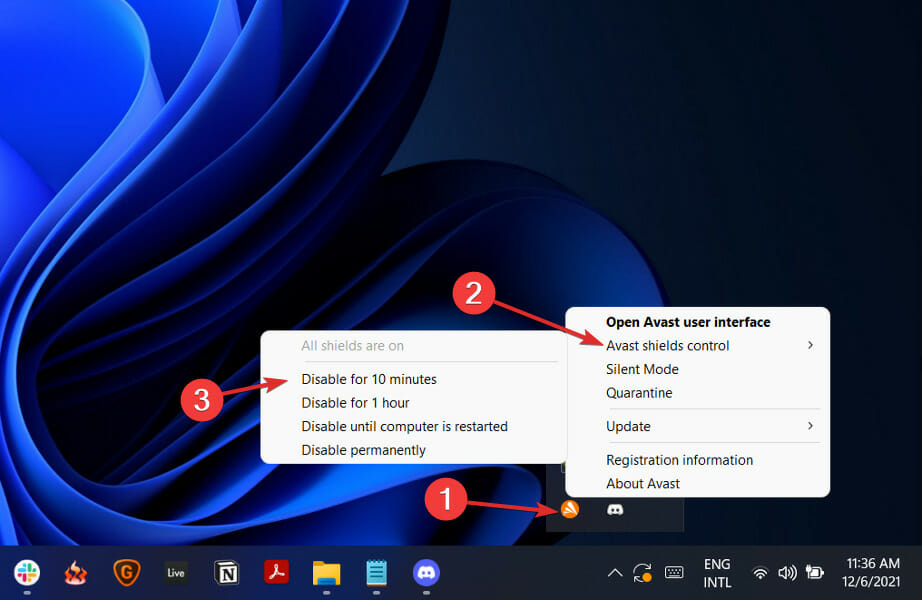
1. Click the expand arrow in the taskbar, right-click your antivirus, and choose Disable for 10 minutes.
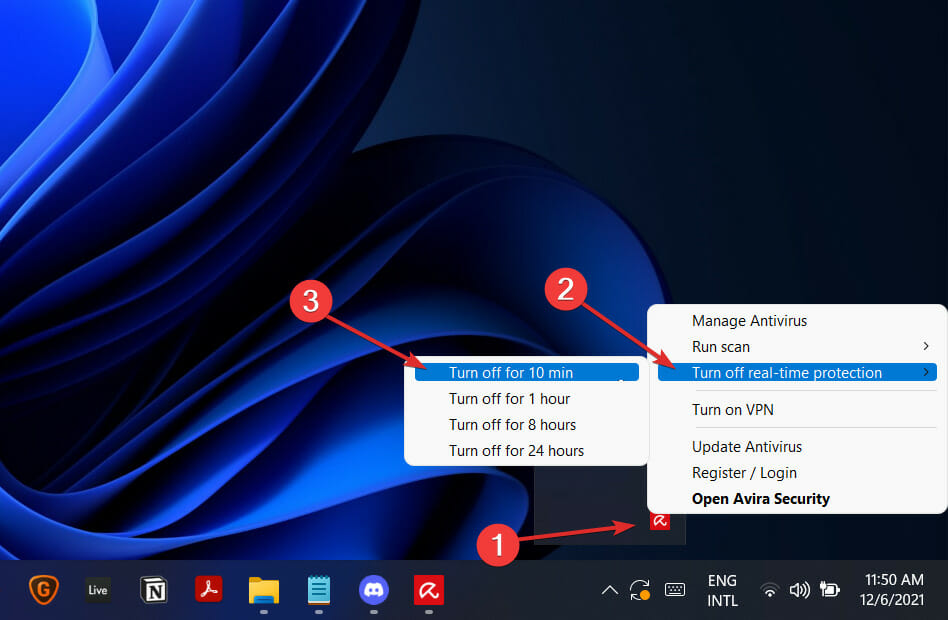
2. If using other antivirus software, follow its specific steps to temporarily disable protection.
3. Run Disk Cleanup
- Press Windows + R, type
cleanmgr /VERYLOWDISK, then press Enter.

- You’ll receive a report of how much space was cleared.
- To choose what gets deleted, use
cleanmgr /LOWDISKin the Run window. For minimal cleanup with more options, trycleanmgr /sageset:1.

4. Clear browser cache
Cached data can prevent files from downloading properly. In Chrome or Edge, go to Settings → Privacy → Clear browsing data. Delete cached files and cookies, then retry. If you’re not sure how browser data affects downloads, our guide on downloading the Windows 11 ISO has additional instructions.
5. Switch to another browser
Sometimes the browser itself causes issues. Use another browser like Firefox or Edge. Try downloading in Incognito or Private mode to avoid cached data and extension conflicts. If your current browser consistently fails, the problem could also indicate deeper compatibility issues, as seen in our Windows 10 ISO troubleshooting guide.
6. Use the Media Creation Tool
If the ISO fails directly, try downloading via the Media Creation Tool. Choose “Create installation media,” then either save the ISO or build a bootable USB drive. This method is also ideal if the download is stuck midway or freezing completely.
You can follow a detailed walkthrough on using the tool by checking our guide on the Windows 11 Enterprise ISO download with Media Creation Tool, which explains how to trigger the correct edition reliably.
7. Try a different device or network
If the issue persists, use another PC or switch to a different network, such as a mobile hotspot or wired Ethernet — to avoid local restrictions or bandwidth issues. If your device lacks BIOS access to enable TPM, here’s how to enable TPM 2.0 without BIOS and continue setup.
Was this guide helpful for you? Don’t hesitate to tell us in the comments section below so that we can improve our future posts for you. Thanks for reading!

Read our disclosure page to find out how can you help Windows Report sustain the editorial team. Read more



Improve this guide



User forum
0 messages