Check out Eventide: Slavic Fable and The Bunker today on Xbox One

Eventide: Slavic Fable and The Bunker both launched on the Xbox One today and both titles can now be bought, downloaded, and played on the console.

Eventide: Slavic Fable is a fantasy adventure title and boasts a heavy dose of inspiration from Slavic muthology and legends. A free demo is available in the Windows Store for those interested in checking the game style out before investing in the full version. Here’s the official game description: “Eventide: Slavic Fable is an exciting adventure game inspired by Slavic mythology. Set in a contemporary heritage park where mythical Slavic creatures co-exist with humans, the adventure begins when the protagonist, a famous botanist, receives an alarming invitation from her grandmother, the park’s curator. The protagonist is tasked with saving an endangered plant, but this turns out to be the least of her concerns…”

Buy Eventide: Slavic Fable on Xbox One

The Bunker is an intense live action video game experience created by the writer and designers behind The Witcher, SOMA, and Broken Sword. The game stars Adam Brown (The Hobbit), Sarah Greene (Penny Dreadful), and Grahame Fox (Game Of Thrones) and was all filmed on location in a real-life bunker. The game is entirely made through film editing and no CGI was used.

Here’s the official game description: “As the last remaining survivor in a nuclear bunker, John’s daily routine is the one thing that keeps him sane. But when an alarm goes off, his mind starts to self-destruct. Venture into long forgotten areas, recover repressed childhood memories and unlock the dark secrets of The Bunker. The Bunker is a completely live-action experience, filmed on location in a decommissioned government nuclear bunker with a plot crafted by writers behind The Witcher, SOMA and Broken Sword.”

Buy The Bunker on Xbox One

Have you played either Eventide: Slavic Fable and The Bunker or yet? Let us know which one you think others should buy in the comments below.

Windows 10 build 14931 now available for Insiders

Microsoft just released a new Windows 10 build for Fast ring Insiders. The new build is available only for PC, as the Windows 10 Mobile version isn’t ready to be released yet.

The build doesn’t bring any new features, only a few app updates. That was completely expected, since Microsoft released the Anniversary Update one and a half months ago, so it will take some time until new features are developed, and a major update for Windows 10 is released to Insiders.

Microsoft delivered updates for the Feedback Hub, Maps, and Skype Preview. The first two received the dark mode support, along with some additional improvements, while Skype Preview users now have the option to send SMS messages. Build 14931 also brings support for USB Audio 2.0.

As we mentioned above, Microsoft decided not to release this build to Windows 10 Mobile Insiders yet because of the high number of complaints about PIN keyboard, and SIM card issues from the previous build. Apparently, Microsoft won’t release the new build to Mobile until it solves these issues.

And of course, Microsoft also presented its list of other improvements and known issues. At first look, this build doesn’t look that troublesome, since there are just a few known issues, but we’ll see the whole picture once Insiders begin to test the update.

Of course, as soon as Microsoft decides to push the Mobile build, we’re going to let you know.

Here’s the list of improvements for PC:

  • “We fixed the issue causing people to experience a black screen when signing out and switching to another user account and unable to log in to that account.
  • We fixed the issue causing the built-in Windows 10 apps such as Calculator, Alarms & Clock, and Voice Recorder to not work after updating to a new build.”

These are the known issues:

  • “While using Narrator and Groove Music, if you navigate to the progress bar while a song is playing then Narrator will continually speak the progress of the song e.g. update with the current time of the progress bar every second. The result is you will be unable to listen to the song or hear any other control you navigate to.
  • Oracle VM VirtualBox will crash on launch after upgrading to this build.
  • Optional components may not work after upgrading to this build. To get it working again, go to “Turn Windows features on or off”, scroll down and check the right optional component and click ok.  After a reboot, the optional component will be enabled again.
  • For keyboard users, using tab to navigate the Settings app will not work in this build. The arrow keys should work as a temporary workaround.
  • Tencent apps and games will cause your PC to bugcheck (bluescreen).”

To install this build, just head over to the Settings app > Updates & security, and check for updates. If you’re on the Fast ring, of course.

If you’ve already installed build 14931 on your computer, let us know if there are any additional issues. We’re going to search for some on our own, as well.

RELATED STORIES YOU NEED TO CHECK OUT:

Turn Off the Lights extension for Edge appears in the Windows Store, but you can’t get it yet

Back in March of this year, we learned that a new extension for Microsoft Edge was being developed.  This extension is called “Turn Off the Lights” and is also available on Google Chrome, Internet Explorer, Mozilla Firefox, and other browsers, allowing users to dim everything on the screen except the Flash or HTML5 video being watched.

apps-596-13510798887658134-259af954-4e79-419c-9b54-c3e2d3d480ef
Turn Off the Lights extension

This extension was available as a preview on Github, but it appears that soon you will be able to snag it via the Windows Store.  As discovered by WalkingCat on Twitter, the extension has made an appearance in the Store, but you can’t get it just yet.  Here’s the official app description:

The entire page will be fading to dark, so you can watch the videos as if you were in the cinema. With a single click on the lamp button, the page will fade to dark. And automatically focus on the video. By clicking on it again, the page will return to normal. Turn Off the Lights is a lightweight and useful add-in designed for a more comfortable watching experience. It works for all known video sites such as YouTube, Vimeo, Dailymotion, Hulu, Metacafe, YouKu, etc. Not only this but these extensions are compatible with Google Chrome™, Apple Safari™, Mozilla Firefox™, Opera™, Microsoft Edge™, Maxthon™ and Yandex™ web browsers.

https://twitter.com/h0x0d/status/779131552504553473?lang=en

The extension has a bunch of neat little features such as the ability to automatically dim the screen whenever you click the play button on a video, the option to enable or disable fade effects, Flash detection, and a bunch more.  Hopefully we see this app appear in the Windows Store soon.  Would you find this extension to be useful?  Share your thoughts in the comments below.

New OpenType specification is a result of Microsoft, Adobe, Apple and Google collaboration

Microsoft isn’t above working together with other industry leaders to make something new. Just last week, they announced on their Typography blog that in collaboration with Adobe, Apple, and Google, they’ve helped create a new enhancement to OpenType.

The article explains in further detail:

OpenType Font Variations enables web site designers and application developers to deliver typographically rich experiences while using very little network bandwidth and small font files. Variable fonts will also give document creators a broad palette of typographic features without having to manage hundreds of font files. Variable fonts are all about doing more with less.

In layman’s terms, every font has a few variations such a bold, italic, etc. These different variations each have their own file and take up more space than they would if they were combined. With OpenType Font Variations, the files are condensed and take up much less space. This will improve the bandwidth of a web page as well. Not only will the performance improve, but the files can contain much more information such as adding new styles of that smoothly adjust. Responsive typography is a feature that will help design across a wide range of resolutions.

OpenType specifications were originally released nineteen years ago. This is the first enhancement it’s had since then, a major accomplishment for all of those involved. The Font Variations are available in OpenType 1.8.

If you’re that much of an enthusiast for OpenType, an hour and a half long video was released of the ATypI 2016 conference where the announcement was made.

According to the announcement, Microsoft wants to implement platform support for the OpenType Font Variations next year. Maybe even early in 2017 since they mentioned updates reaching the Windows Insider preview builds ‘in the coming months’. The hinted at “soon” schedule didn’t stop Microsoft from slipping in some of the functionality in the Windows 10 Anniversary Update earlier this summer.

Microsoft Flow gets some additional updates for September 2016

Microsoft Flow has been getting a number of updates and accessibility as of late from minor performance issues to making it publicly available for everyone to sign up. Now they are rounding up the end of the month with a couple of more features that will prove to be useful.

Flow’s job is to integrate a seamless experience across apps and services, particularly used for businesses and coordinating teams. The Flow Preview blog post shows just a couple of new ways they intend to do this.

Flow UI will be added to Microsoft Graph for the new people picker feature coming in its next release. It will help users sort through a list of contacts and emails.  Microsoft Flow will also be able to integrate with Dynamics AX Online like it already does for Dynamics CRM Online.

Mobile app developers will also be happy to know that appFigures and Insightly integrations are also in the works. Both provide better management tools for apps such as getting triggered events when a new review is published.

The updates are scheduled to be released before the end of September according to the post.

Latest Microsoft Mechanics video highlights recent updates to RDS for Windows Server 2016

Remote Desktop Services (RDS) for Windows Server 2016 is seeing some serious love, and the latest Microsoft Mechanics video is here to show off exactly what all of the improvements customers can expect to see.

In the video, Simon May and RDS Principal Group Program Manager Scott Manchester get together and show off a ton of different demos to showcase just what RDS is capable of with the latest improvements under the hood.

Here are some bullet points detailing the video, as per the blog post on Microsoft’s Technet.

  • Graphics performance improvements: Scott and Simon take us through the significant performance and app compatibility improvements we have made in user experience, through Discrete Device Assignment (DDA) technology for server class graphics cards; this technology simultaneously provides the full power of available graphics processing to virtual desktops as well as session-based desktops and apps by surfacing the actual IHV’s GPU driver, which improves app compatibility. He also talks about the RemoteFX vGPU related investments including enhanced support for Open GL and Open CL.
  • Connection scale: They then show the new RD Connection Broker capabilities that handle massively concurrent connection situations, commonly known as the “9 am scenario” or “log on storm.”
  • Optimizations for Cloud:  We also see the Azure QuickStart templates in action that can quickly set up a scalable and highly available deployment of RDS on Azure infrastructure.

The world has a whole lot of people doing things remotely these days, so the improvements that the RDS teams are working on could do quite a bit of good. Optimization in graphics performance means that people like 3D animators and modelers will more easily be able to work remotely and the improvements directed towards fixing the “9 am scenario” will save people a lot of headaches. Even if you aren’t the biggest user of RDS, the presentation that Microsoft Mechanics has in its video is pretty sweet. This is definitely worth a watch if you have 15 minutes free.

Microsoft’s Windows 10 update support is lacking, according to UK watchdog group Which?

Windows 10 general release was an arguable success for Microsoft with the argumentative part being how it became a success. Microsoft has yet to reveal the internal metrics the company used to judge the Windows 10 levels of success, but with 350 million installs and counting within a year and a half remains an impressive feat still.

However, the journey to those 350 million installs hasn’t been without its casualties and anecdotal horror stories, stories that UK consumer advocacy group Which? are now using to make a case that Microsoft’s customer service during the Windows 10 upgrade has been poor, to say the least.

According to a report from the BBC, the crux of Which?’s argument stems from the influx of user complaints levied at the Windows 10 upgrade prompt, webcam malfunctions after installations, concerns about the collection of personal data and general usability issues.

Perhaps, more damning than having a faulty upgrade experience with Windows 10 is the notion that hundreds of users claim to have had to pay to get their once properly functioning PCs, fixed. It is one thing to toil with the tedious process of upgrading, installing, rolling back and downgrading of software, it is another thing to have pay money to get something back in working order.

Once installed, people reported various problems, including printers, wi-fi cards and speakers no longer working with their PC; instances of lost files and email accounts no longer syncing; and, most significantly, their computer encountering such problems that they had to pay someone to repair it.”

Beyond the poor install experience lays another unflattering wrinkle for Microsoft with Which? Claiming it’s surveyed users ran into multiple instances of poor customer support from the company in regards to the botch Windows 10 upgrades.

Windows Ink Workspace on Windows 10

Microsoft has yet to fully address Which?’s survey or complaints, offering only a vague public response to the BBC,

Customers have distinct options. Should a customer need help with the upgrade experience, we have numerous options including free customer support.”

With the company projected to see an increase in enterprise installs in the European region in the next few months, users should expect to see some complaints handled in various ways soon as it attempts to polish the overall experience for its largest customer base.

Disable automatic reboots after Windows 10/11 updates

Windows 10 is all about updates. When Microsoft presented the the idea of “Windows 10 as a service”, it became clear that users won’t be able to use the system properly without installing updates. However, as good as Windows 10 updates are, there’s still one thing the the most users find annoying.

That, of course, are unexpected restarts when installing updates. Ever since Microsoft introduced updates for Windows, it is required to restart your computer to install them. User of previous versions of Windows had major problem with that, as installing updates interrupted, and wasted a lot of users’ work.

In Windows 10, however, the situation is slightly better. Windows Update now offers you full control over installing updates, as you can choose when exactly you want your computer to restart and install downloaded updates. But some users still don’t seem satisfied, as they usually forget to set a restarting time, and end up having their computers unexpectedly rebooted once again.

Because of that, users want to completely disable automatic restarts, and install updates when they choose to. That was possible in some previous versions of Windows, using the Group Policy Editor, but Microsoft removed this option in Windows 10. However, there’s actually a way to disable automatic restarts using another method, and we’re going to show you how.

How to disable automatic restarts after updates in Windows 10

First thing you need to do is to the Reboot task in Task Scheduler. If you’re not sure how to do that, just follow these instructions:

  1. Go to Search, type task scheduler, and open Task Scheduler
  2. Head over to Task Scheduler > Task Scheduler Library > Microsoft > Windows > UpdateOrchestrator
  3. Find Reboot, right-click on it, and choose Disabledisable-windows-update-reboot-1

Once you’ve disabled Reboot, you need to forbid all users and groups from your computer to access this file. That way, you’ll disable automatic reboot for all users, and system also won’t be able to turn it back on. Here’s what you need to do:

  1. Go to this path: C:\Windows\System32\Tasks\Microsoft\Windows\UpdateOrchestratordisable-windows-update-reboot-2
  2. Now, find the Reboot file, and take ownership over it. If you don’t know how to do that, check out this article.
  3. We assume you’ll stay on the Advanced Security window after taking ownership over the file, so now go to Disable inheritancedisable-windows-update-reboot-3
  4. Once you perform this action, all users and groups should be removed. If there are any left, remove them manually
  5. Now, click on Add > Select a principal > enter your username under Enter the object name to select > Check Names > OKdisable-windows-update-reboot-4
  6. You should see only permission now on the “Advanced Security Settings” page, and that one should be full control for your user account
  7. Now, just click OK, and you’re good to go

There you go, after performing this process, your computer won’t reboot automatically every time you download a new update. But don’t be confused, this won’t prevent your system from receiving updates, they just won’t be fully installed until you restart your machine by yourself.

In case you have any comments, or questions about this method, just let us know in the comments below.

RELATED STORIES YOU NEED TO CHECK OUT:

Rackspace adds Management Identity and Access to their Azure offerings

Microsoft appears to be bolstering its Azure service proposition with the addition of Rackspace support for Managed Identity and Access.

According to a press release from the Rackspace blog,

Rackspace is expanding our Fanatical Support for Microsoft Azure portfolio of services to include Managed Identity and Access. Through this solution, we will leverage Azure Active Directory, coupled with Rackspace expertise and Fanatical Support, to help customers simplify identities that are spread across cloud services and corporate Active Directory environments.

For those unfamiliar with how Microsoft’s Azure works with Rackspace, the press release goes into brief detail about the relationship.

  • Managed Identity and Access spans application management, security and digital platform support. Other solutions in our Azure portfolio include Managed Security for Microsoft Azure, Managed Application Services for Microsoft Azure. Rackspace also offers a fully dedicated, hosted private cloud solution powered by Hyper-V Server and System Center.
  • Aside from the tight integration that comes with using Microsoft’s Azure service to manage customer identities with Rackspace, users also benefit from the following:
  • Active Directory expertise: Customers have unlimited access to a Microsoft Certified Master in Active Directory and 250+ dedicated Microsoft Certified Experts at Rackspace
  • Future proof identity strategy: Rackspace designs and delivers identity strategies that enable simplified authentication and access for current and future business needs
  • Rapid deployment time of cloud identity: Customers receive guidance and best practices for rapid deployments of their cloud-based active directories from Rackspace, which has 14 years of collaboration with Microsoft
  • Reliable solutions for maximum uptime: Customers receive proactive monitoring and alerting for identity synchronization and cloud-based domain controllers
  • Minimize costs of Identity and Access: Customers eliminate the need for on-premises hardware and maintenance expenses as well as the need to have IAM experts in house

For more on the additional support and what Rackspace plans to provide customers searching for specific identity needs, read the full press release here.

Additional information will be given to attendees of this year’s Microsoft Ignite conference at booth 521 as well.

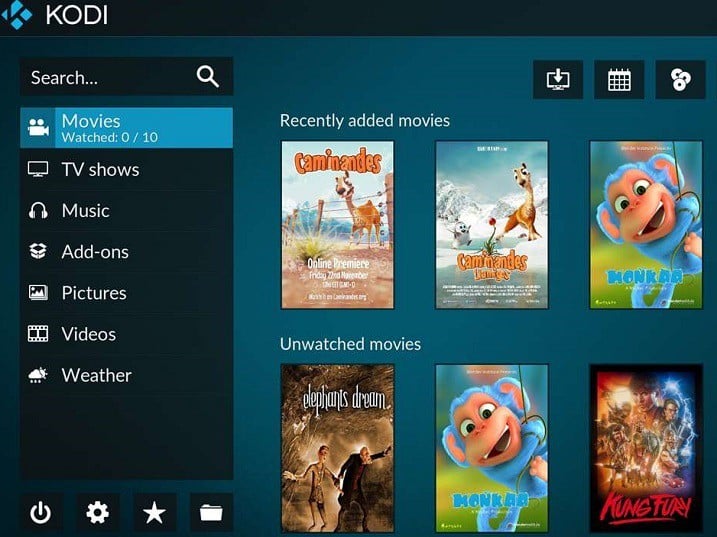
Download Kodi Media Player on Windows 10

Windows 10 PC owners who missed the opportunity to download the Kodi media player are now able to do so from the Windows Store. At first, the team was worried that the app won’t be published in the Store.

Shortly after Kodi posted on its blog that its media player wouldn’t be published in the Windows Store due to being created with the Desktop App Converter, a Microsoft representative contacted the developers and asked them to be part of the store because Kodi successfully converted its app into a UWP app.

“We were quite shocked that it was that easy and of course gladly accepted this cooperation to get this done,” said Kodi, adding that the company has worked with Microsoft to make the application functional in the Windows Store.

Moreover, the Desktop App Converter was improved with the help of Kodi and it will be useful for other developers who want to publish their apps in the Windows Store. As for the new version of the media player, Kodi explained thefollowing:

It’s still the same Kodi version you are used to without any limitations. Additionally, you don’t really have to go to our website anymore but straight away install Kodi from the Windows Store and automatically receive any future updates. For us developers, the added benefit is we’ll possiblly get some crash logs in case they happen and we could use these to identify problems and include fixes in next update.

Windows 10 PC can install version 17 beta 2 of Kodi. The developer will continue to release updates until the final version is available. As for the application, it has a graphical user interface that allows you to easily browse and view videos, photos, podcasts, and music from a hard drive, optical disc, local network, and the internet using only a few buttons.

You can download Kodi Media Player from the Windows Store.

RELATED STORIES TO CHECK OUT:

6 best Xbox One background audio apps

Background audio is one of the best Xbox One features recently rolled out, allowing gamers to listen to their favorite songs while playing the latest Xbox One games. All you need to do to is launch an app supporting Xbox background audio, start playing your favorite music, and then hit the Home button to resume your game.

The next question is: which apps support background music? For the time being, there are only a handful of apps that support Xbox One background audio, but Microsoft promises more will soon follow.

Xbox One background audio apps


Groove Music

groove-music-xbox-one-background-music
You need to install the latest version of Groove Music to be able to use the Xbox One background music feature. Go to the main dashboard screen and click on Games & Apps. Then select the Apps tab, click on Groove with the view key on your controller, and install the update.

With Groove Music you can stream and download millions and millions of songs. Choose the perfect playlist for every game genre from Groove curated or make your own. You can also add your MP3 tracks to OneDrive, and then listen to your favorite songs on the Xbox One.

You can download Groove Music for free from the Windows Store.


Pandora

pandora-xbox-one-background-music
Pandora is one of the most popular streaming services, offering millions of songs from thousands of artists. Thanks to a recent update, the Pandora app now supports Xbox One background music. Play your favorite tracks in the background, while heading to the first position in leader boards. The only disadvantage of Pandora is its availability limit: you can use in the United States, Australia and New Zealand.

You can download Pandora for free from the Windows Store.


Simple Background Music Player

simple-background-music-player-xbox-one
The Simple Background Music Player allows you to play tracks stored on a USB-connected external device. It can’t get easier than this: all you need to do is transfer the tracks on the stick, plug it in to your Xbox One, launch the app, and hit the play button.

This app supports MP3, M4A, MP4, FLAC and WMA music file formats. The only disadvantage is that it can only play 200 songs at a time.

You can download Simple Background Music Player for free from the Windows Store.


Spoticast for Spotify

spoticast-for-spotify-xbox-one-background-music
Spoticast brings Spotify on your Xbox One, allowing you to enjoy your favorite tracks while sweeping your enemies. The app relies on YouTube to stream music and allows you to access your Spotify playlists.

Other features include:

  • No need for Premium Spotify account
  • Create and manage your Spotify playlists
  • Customize the search filter: live, acoustic, remix, covers
  • No subscription : buy it once and enjoy it forever on all your devices.

You can buy Spoticast for Spotify from the Windows Store for $4.99.


Cast app

cast-app-xbox-one-background-audio
The Cast app allows you to listen to your favorite podcasts on your Xbox One. With this app, you can handle your podcasts in one place and synchronize them over your Windows devices.

  1. Go to the Xbox Store
  2. Type Cast App to locate the app. If you can’t find it, check to see if you have the option Apps selected in the drop-down menu.
  3. Download the app
  4. Browse through for your favorite podcasts and start listening.

VLC

vlc-xbox-one-background-music
This app doesn’t currently support Xbox One background music, but Microsoft promises it will in the near future – this is why we included it on our list. VLC is a feature-rich app that supports a wide range of audio and video file formats. According to the tech giant, VLC will be launching on Xbox One in a few months, which means that most likely it will support Xbox One background music by the end of the year.

You can download VLC for free from the Windows Store.


As stated in the beginning of this article, more apps supporting Xbox One background audio will soon be available, including iHeartRadio and MyTube. No information is available as to when these apps will support Xbox One background music, but we’ll update this article as soon as more details emerge.

Have you tried out the Xbox One background audio feature? Tell us more about your experience in the comment section below.

RELATED STORIES YOU NEED TO CHECK OUT:

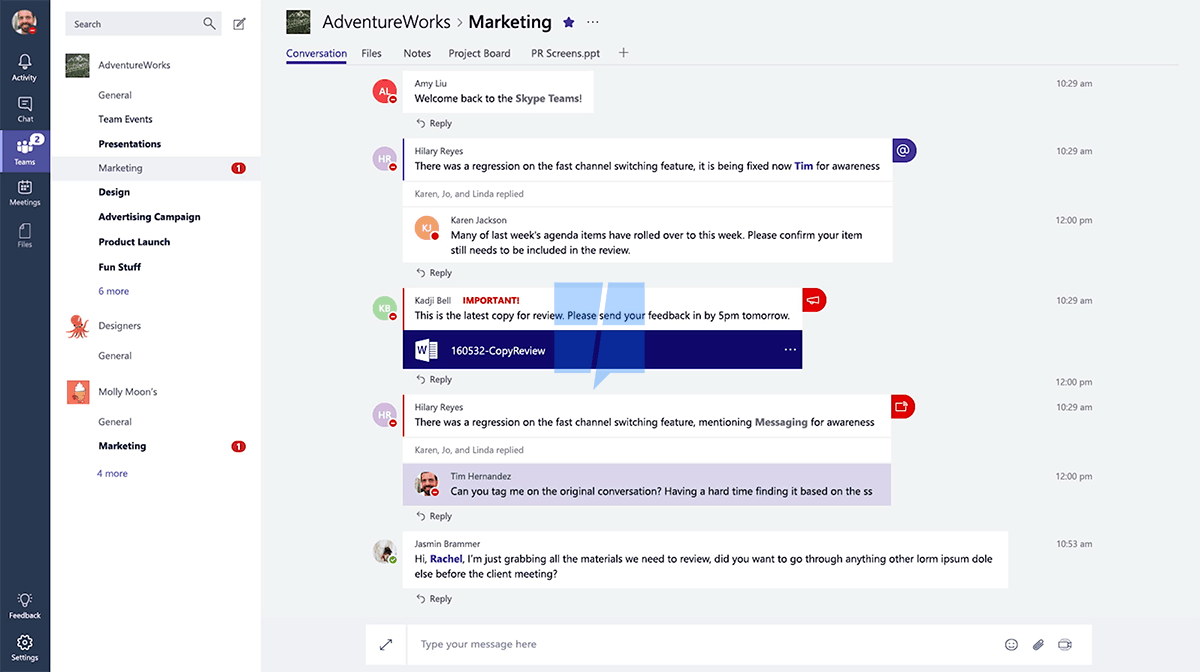
More information about Skype Teams revealed as preview nears

Back in Septemeber, we reported that Microsoft was working on Skype Teams, a new product that was believed to be Microsoft’s answer to Slack for group productivity. Today the folks over at Windows Central have learned some more about Skype Teams as a preview for the product is closer to arrival.

According to Windows Central, Skype Teams will expand from a private beta test in November, and will have a full launch in January of 2017. Additionally, while Microsoft remains quiet about Skype Teams, a report obtained by Windows Central from Petri reveals that Skype teams has been in development for the last 18 months.

Furthur details from the report indicate that Skype Teams will be offered on multiple platforms, including MacOS, iOS, Android, and of course, Windows and Windows Phone (although we do wonder if the latter is actually Windows 10 Mobile). Use of the product, however, will also reportedly require a paid Office 365 business subscription.

Again, Nothing in these reports are official, and so it all should be taken as a fine grain of salt. As more information develops, we will be here to cover it for you.

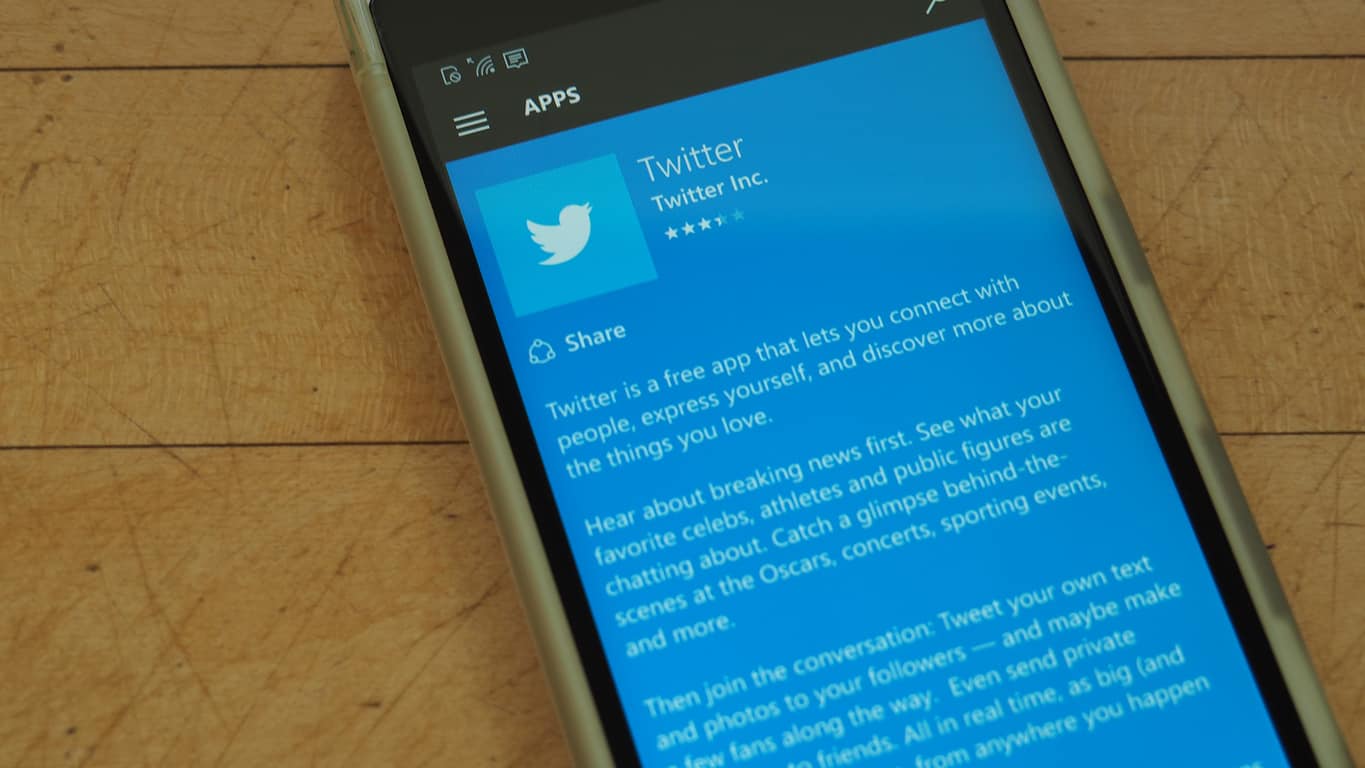
Latest Windows 10 Twitter app update causing crashes on launch

If you’re a fan or avid user of the official Windows 10 Twitter app, then you might want to avoid installing the latest update and consider disabling automatic app updates altogether. Users of the app have reported that the latest Windows 10 Twitter app update is causing crashing issues at launch on Windows 10.

The issue with the most recent version 5.3.3.0 update was posted to Reddit by user Hernandez2000. Additionally, upon further examination (and as seen below), many recent reviewers for the Offical Twitter app in the Windows Store also seem to have the same problem.

lol
Users complaining about the crash issue

To avoid an automatic installation of the update that is causing this issue, you should temporarily disable automatic app updates. To do this, Open the Windows Store app, Click your profile icon in the top right corner and select Settings, and disable the switch seen under “Update apps automatically.”

Have you experienced this issue after the latest Twitter update? This issue can be quite frustrating because it may render the app useless. Let us know by dropping us a comment below.

Call of Duty 3 is now Backward Compatible on Xbox One

The list of Xbox One Backward Compatible titles just got a long awaited new addition. Microsoft has added Call of Duty 3 to the list of Backward Compatible titles, joining Call of Duty: Black Ops and Call of Duty 2.

Call of Duty 3 is a historic first-person shooter that takes place during World War II and was released on November 7, 2006 for the Xbox 360. The game features 14 playable campaign missions which are based on a single combined campaign, with the player being switched between the four nations and their respective characters for each leg of the story.

You can download Call of Duty 3 by clicking here. Once you’ve downloaded it, be sure to come back to WinBeta and let us know your thoughts on the latest addition to the Xbox One Backward Compatible catalog. And, while you’re at it, check out our other posts on the subject and let us know if you own any of the titles!

Fix: The Type of Printhead is Incorrect Error

We print documents frequently, and even though the printing process is straightforward in Windows 10, some issues can occur once in a while. Users reported The type of printhead is incorrect error that prevents them from printing, so let’s see if we can fix that problem.

How can I fix The type of printhead is incorrect error?

Fix – The type of printhead is incorrect

1. Reseat your printhead

Users reported that you can simply fix this problem by reseating your printhead. Before reseating your printhead we strongly suggest that you check your printer instruction manual for detailed instructions on how to remove your printhead. After reseating the printhead, check if the problem is resolved.

2. Make sure that the printhead is properly connected

This error can sometimes appear due to lose contacts, therefore be sure that the printhead is properly connected to your printer. Some users also suggest cleaning the printer and printhead contacts with cue tips and 90% alcohol.

If you plan to clean the contacts, be extra cautious and keep in mind that you can cause damage to your printer if you’re not careful.

3. Remove the head cartridge and clean it

A few users reported that they managed to fix this problem by removing the head cartridge and cleaning it. To see how to remove your cartridge and how to clean it, be sure to check your printer manual. Before placing your cartridge back into the printer, be sure that it’s completely dry to avoid causing damage to your printer.

In addition to the head cartridge, users are also suggesting removing the printhead and cleaning it, so you might want to try that.

4. Check if the printhead is properly installed

Sometimes these errors can occur if you don’t properly install the printhead. Some users reported that this error occurred because their printhead was installed upside down. This is a beginner’s mistake, therefore just be sure that you properly installed the printhead.

5. Replace your printhead

This error can occur if your printhead is faulty, therefore you might have to replace it. Before replacing the printhead, be sure to purchase another one that matches your printer.

6. Reset your printer

According to users, you should be able to fix this problem simply by resetting your printer. Resetting your printer usually involves pressing a certain button combination on it and it’s different for every printer model. To reset your printer properly, be sure to find reset instructions for it.

A few users reported that they fixed the error simply by pressing the Reset button on their printer until it started printing, so you might want to try that as well.

7. Disconnect your printer and try to print again

This is a temporary workaround and you’ll have to use it every time this error appears. To fix the type of printhead is incorrect error, simply turn off your printer. After your printer is turned off, try to print a document again. After that, turn the printer back on and the printing process should start. Once again, this is just a workaround so you’ll have to repeat it if the problem appears again.

Fix – The type of printhead is incorrect MP830

Check the purge unit

This error can sometimes appear due to problems with the purge unit, but you should be able to fix them by gently moving your purge unit back and forth. For more information on how to locate the purge unit, be sure to check your printer manual.

In addition to the purging unit, a few users reported that there’s a small rectangular sponge on the right side of the printer. To fix this problem, be sure that the sponge is seated in its socket.

The type of printhead is incorrect error usually occurs due to hardware problems, but you should be able to fix this problem by using one of our solutions. Also, check out how to solve a problem with the printhead on your HP 6830.

Windows 10 event planning app Revent updates with Live Tile improvements

The recently launched Windows 10 event planner app, Revent, has updated to version 1.1.6.0. This update mostly involves improvements to the Live Tiles which will now show more information. Other small changes include the added ability to press ENTER to start a new line of text within the app and a new feature that will list the app version within an email when sending an email from within the app.

Here’s the official app description: Revent is your handy companion that’ll re-invent the way you plan things. Revent will help you create templates for appointments you frequently plan. Open a created template, just fill in the date and select the calendar you wish to use! Revent will do the rest for you. Cortana can even help open templates for you, so you can keep concentrating on your work.

With the easy to use template builder you can set the time the appointment takes, the location with a map and get more productive before you know it!

Revent is available on both Windows 10 and Windows 10 Mobile devices. Do you use Revent or is there another planner app you recommend? Let us know in the comments below.

Revent
Revent
Developer:
Ikarago
Price:
$2.99

LEGO gets educational with the new WeDo 2.0 Windows 10 app

The LEGO Education WeDo 2.0 app has just launched in the Windows Store and is available for free to download. The app is designed for use by educators looking for a fun and interactive way to teach students about engineering, technology, and programming.

Here’s the official app description: The LEGO Education WeDo 2.0 app allows you to explore great science projects, including engineering, technology, and programming. Incorporating a Project Library with 17 projects, 40 hours of material are included along with a Design Library packed with inspirational ideas. The WeDo 2.0 app contains all you need to create successful, motivating, and engaging science projects.

Why:

  • Engage curiosity by enabling pupils to investigate and design ideas across a range of science topics
  • Boost confidence by encouraging experimentation and problem solving
  • Empower pupils to explore, create, and share projects with a wider audience
  • Excite interest in science, including engineering, technology, and programming, by making it real and relevant

What:

  • 17 projects, including more than 40 hours of material
  • Design Library, packed with inspiring material
  • Documentation tool

The LEGO Education WeDo 2.0 app is obviously different than the popular LEGO video games (pictured) that can be found on video game consoles such as the Xbox One and Xbox 360 and is more tool than game. Still, it has a lot of potential for entertainment with children and adults who like a little more education with their digital media.

“LEGO Education WeDo 2.0 is a hands-on, elementary science solution that develops science practices in the classroom through a robot-based learning system. The unique solution combines the LEGO® brick, classroom-friendly software, engaging, standards-based projects and every student’s desire to discover the world around them,” says a statement on the official Education WeDo 2.0 website. “With WeDo 2.0, students will explore, create, and share their scientific discoveries as they build, program, and modify projects. As they collaborate, they deeply engage with science, engineering, technology, and coding, sparking a love for experimentation and investigation.  Teachers receive support through training, curriculum and built-in assessment.”

Have you tried LEGO Education WeDo 2.0 yet? Share your impressions with the community in the comments below. Is it worth a look?

WeDo 2.0 LEGO® Education
Developer:
LEGO Education
Price:
Free

Virginia is now available to play on Xbox One

The Xbox One first-person thriller, Virginia, is now available to buy, download, and play. The game incorporates TV-style editing with the aim of creating a cinematic storytelling experience and a musical soundtrack that was recorded live by the Prague Philharmonic Orchestra at Smecky Studio.

Here’s the official game description:

Virginia is a single-player first-person thriller set in a small town with a secret. Experience a missing person investigation through the eyes of graduate FBI agent Anne Tarver. 1992. George H. W. Bush and Boris Yeltsin officially put an end to the Cold War. Barcelona held the Summer Olympic Games. The Tonight Show aired its last show with Johnny Carson… and Lucas Fairfax disappeared from his bedroom in Kingdom, Virginia.

As your investigation takes a turn for the sinister, and the list of suspects grows ever larger and stranger, you will make decisions which irrevocably shape the course of Anne’s and agent Halperin’s lives.

Buy Virginia on Xbox One

Have you played Virginia yet? Share your impressions with the community in the comments below.

Co-op space exploration video game Astroneer launching on Xbox One in December

The upcoming space exploration video game, Astroneer, has been given the release window of sometime in December of this year on the Xbox One and Windows 10 PCs. Astroneer was originally scheduled to debut in Autumn but the developers decided that more time was needed to refine aspects of the game design such as controller support.

“We are committed to making Astroneer the best possible experience for all players. Because of this we’ll be spending the next months polishing all the features, adding new content, and optimizing the game,” says a statement on the game’s official blog. “Our goal was to have Astroneer out during the fall season (originally ‘early’ fall) but by pushing back the date just a bit we will improve the game that much more. You only get one chance to play Astroneer for the first time, so we want to make sure that it’s a good one! And while we’re not ready to give a specific date in December just yet, fall ends on December 20th so it’s safe to expect it out before then in the month of December 2016.”

Here’s the official game description for Astroneer:

Explore and exploit distant worlds in ASTRONEER – A game of aerospace industry and interplanetary exploration. The sudden development of technology for rapid space travel enables fast and inexpensive journeys to the stars. Exo Dynamics, the dominant conglomerate in the new field, has opened flights to daring citizens of Earth. Like the Yukon gold rush of old, waves of adventurers sign up to launch themselves into a new frontier, risking everything to seek their fortune in the far reaches of the galaxy. These are the Astroneers.

As an Astroneer, you must find a way to dig out a life on one of a multitude of harsh new worlds. Blast through the terrain to uncover precious artifacts and materials you can use to fuel your quest to become a wealthy baron in the stars. Along the way, discover oddities, raise questions, and uncover mysteries. Perhaps not all is as it seems.

Are you looking forward to Astroneer? Will you buy it on Xbox One or Windows 10? Let us know in the comments below.

Windows 10 Preview build 14931 to be released today

Good news to all Insiders anticipating a new Preview build for Windows 10. Head of the Insider Program, Dona Sarkar just announced a new build for Windows 10 Preview. The new build goes by the number of 14931, and (although Dona didn’t mention it) will be available to Insiders on the Fast ring.

As usual, Dona teases us about a new build on Twitter, just a few hours before she ‘pushes the button,’ and releases the new build to Insiders. Here’s what she said this time:

Although features and improvements of this build are still unknown, we don’t expect any major changes, because it still counts as a ‘early Redstone 2 build.’ Windows 10 Preview build 14931 will probably include a few new features, and some bug fixes. We also hope that the new build will solve at least some problems from the previous release. However, we’ll find out what it brings in a few hours, when the build gets officially released.

So far, interest in this build is pretty high, as users have already started asking about it on the forums. Luckily for all those who are waiting for build 14931 to get released, they won’t have to wait for too long.

As always, we’re going to let you know when the build gets released, and write a few more articles about it, including our traditional error reporting piece. Stay tuned.

RELATED STORIES YOU NEED TO CHECK OUT:

Skype for Life is not a multi-platform app, but a new generation of cross-platform clients

Recent reports suggested Microsoft started working on a cross-platform Skype client code named Skype for Life that would be available for iOS, macOS, Linux, Android and Windows. According to some reports, the company even shut down the Skype office in London to work on this multi-platform app.

In an official statement, the company explained it took this decision to “consolidate offices in London”. As such, it unified engineering positions even though it might affect some global Skype and Yammer roles. However, it committed to helping anybody who might suffer from these drastic changes.

Now, new information just emerged revealing that Skype for Life is not a brand-new cross-platform client, but rather a new generation of cross-platform clients:

These new Skype clients will no doubt be marketed under the banner “Skype for Life,” because these clients, combined with the new architecture, provide pervasive Skype connectivity, no matter where you are or what devices you use. That, clearly, is what “Skype for Life” means. It’s not one new cross-platform client. It’s a new generation of cross-platform clients.

As Microsoft already has different apps for Linux, Web, macOS, iOS, Android, Windows and the Universal Windows Platform, many people thought perhaps the company’s developers came up with the idea of having a cross-platform Skype app.

At the moment, Microsoft is working on other new apps, too. According to some reports, the company is working on its Slack competitor called Skype Teams and on Skype for Business. However, for the time being, the main focus seems to be Skype for Life.

RELATED STORIES TO CHECK OUT:

VMware OS Optimization Tool available for Windows 7, 8,10

Many users complain about the performance of their PCs and constantly look for tools to optimize them. A good recommendation is VMware OS Optimization Tool, which is free for Windows 10, 8.1, 8, 7, Windows Server 2008 (including R2) and Windows Server 2012 (including R2).

The VMware OS Optimization Tool may not have the simplest user interface for beginners, but it’s one of the best Windows optimization software out there. If you want to install this program on your device, follow these steps:

  • Head to VMware, select your location and download the latest trial version of this software. After that, extract the zip file and open the VMwareOSOptimization Tool folder. Find the executable and click on it to launch the tool.
  • During the installation process, the tool will automatically detect the current version of Windows and will select the best built-in optimization template to display.
  • The template will suggest you verity the list of optimizations which number in the hundreds. It’s important to read each optimization carefully before selecting or deselecting it.
  • Finally, click “Optimize” button and start optimizing your Windows operating system.

If you’re a novice user, VMware’s OS Optimization Tool is too advanced for you and you should not use it if you don’t know what you’re doing. When you launch the OS Optimization Tool, you will see five tabs for Analyze, which analyzes all services, scheduled tasks and registry entries, History, which tracks optimization history and the possibility to restore Windows to a pre-optimized state, Remote Analysis, My Templates, Public Templates and References.

The built-in optimization templates can be found under Templates tab. If you don’t like any of them, you can also create your own template. If you choose the default optimization template for Windows 10, it will disable many features and remove default apps, disable scheduled tasks and most importantly, improve login times.

RELATED STORIES TO CHECK OUT:

How to block UWP apps in Windows 10

If you’re a parent, sharing a computer with your kids, or a team manager who wants his colleagues to focus on their work, there surely are some apps or programs you’d like to forbid them to use. We’re not going to ask for a reason, as we’re sure you have one, since you searched for this kind of article.

Anyway, in Windows 10 there are a couple of ways to prevent users from opening certain apps, depending on your current version of the system. Unfortunately, none of them is quite easy, and straightforward, as each method requires some work.

Depending on your needs, you can block apps for your employees, or children. So in this article, we’re going to show you all three ways, and you can choose the one that meets your needs.

Block apps in Windows 10

Method 1 – Block apps in Windows 10 Enterprise/Education

In Windows 10 Enterprise and Education versions, you can completely block any app you want. You can block apps using Local Security Policy, which is the most effective way of blocking apps in Windows 10. Unfortunately this method is ONLY available in Enterprise and Education, as users of Windows 10 Pro and Home versions do not have access to this feature.

In other words, if you use this method in Windows 10 Home, it won’t have any effects. However, since you’re working with security policy, you can create a security policy on a Windows 10 Home computer, and later export it to another computer, that supports this action.

Without any further ado, here’s how to block apps in Windows 10 Enterprise or Education:

First thing you need to do is to make sure the Application Identity process is running. To do that, follow these steps:

  1. Right-click the Start Menu button, and go to Command Prompt (Admin)
  2. Enter the following command, and press Enter: sc config appidsvc start=auto

Now that you’ve made sure the Application Identity process is running, it’s time to block some apps. Here’s what you need to do:

  1. Go to Search, type secpol.msc, and open Local Security Policy as an administrator.
  2. Go to Security Settings > Application Control Policies > AppLocker, and select Configure rule enforcement.block-apps-windows-10-1
  3. Check Configured under Packaged app rules, and then click OK
  4. Right-click on Packaged app Rules, and then go to Automatically generate rules.block-apps-windows-10-2
  5. Select the folder that contains the apps that you want to permit. You probably won’t have to touch anything here, because C: folder is usually selected automatically.
  6. Type a name to identify this set of rules, and then click Next.
  7. On the Rule Preferences page, click Next (the process may take a while)
  8. On the Review Rules page, click Create. The wizard will now create a set of rules allowing the installed set of apps.
  9. You’ll now see a list of all your installed apps, under Packaged apps Rulesblock-apps-windows-10-3
  10. Just right-click on the app you want to block, go to Properties, and select Deny, under Action:block-apps-windows-10-4
  11. Restart your computer

There you go, after performing these steps, all the apps you’ve selected will be blocked from other users from now on. As you’ve now created a set of rules, you can come back any time, and change the app permission settings.

Method 2 – Block apps using Parental Control

If you’re on Windows 10 Pro or Home version, and you want to forbid your kid from using inappropriate apps and content, the obvious solution is the Parental Control feature. With this feature, you can block any app, or website you want, so you don’t have to worry about your child using something he/she shouldn’t.

Here’s how to block apps with Parental Control in Windows 10:

First things first, you need to create a child account for your kid. To do that, follow these steps:

  1. Go to the Settings app > Accounts > Family & other people > Add a family member
  2. On the next screen, click Add a child. It’s advised for your child to have its own Microsoft Account, so enter his/her account credentials, or create a new Account.block-apps-windows-10-5
  3. Enter further required details, like a phone number, and your child’s name
  4. Once you’ve created an Account, an invitation will be send to your child’s account
  5. Once your child logs into his/her account, and confirms the invitation, you’ll be able to manage his/her account

After you’ve created your child’s account, it’s time to decide which apps are appropriate to use. To do that, go to Microsoft’s Family & safety website.

From here, you’ll be able to explicitly allow and block websites, apps and other content. If you select to “only see websites on the allowed list,” then this will be where you will add websites to the “Always allow these” list. Same goes for apps. You can choose to block all apps depending on their age rating, or each app individually, it’s completely up to you.

block-apps-windows-10-6

Once you’re done with blocking websites and apps, just save the changes, and you no longer have to worry about your child using inappropriate apps or websites.

There you go, unfortunately, there’s no straightforward way to block UWP apps in Windows 10 Pro, as Microsoft didn’t want to enable security policies for this version of the system. In case you want to block a whole folder, you can simply encrypt it, and protect it with password. To find out how to do that, check out this article.

If you have any comments, questions, or you’ve found an alternative way of blocking apps in Windows 10, feel free to let us know in the comment section below.

RELATED STORIES YOU NEED TO CHECK OUT:

Gears of War 4 trailer teases gamers with new gear items

The trailer for Gears of War was recently launched and the clip shows off some new action sequences and a couple of surprises. This release means that the countdown until October 11, the release date for Gears of War on the Xbox One and Windows 10, has officially started.

Gears of War 4 belongs to Xbox Play Anywhere, which means that you can either play it on your Windows 10 PC or on the Xbox One console, taking with you the Achievements, progress and Gamerscore saved on Xbox Live. You can even play with others on a different platform in the co-op mode “Never Fight Alone”. This is great because it doesn’t limit your options anymore when it comes to choosing a friend to play together.

All in all, the clip promises a very interesting game filled with adventure, suspense and special effects. Moreover, it seems that the developers have prepared other surprises for the fans too, some of which are not shown in the trailer.

The trailer follows the story of JD. He is trying to fight and survive a new threat that appeared, called the Swarm, together with his friends Kait and Del. JD is the son of Marcus Fenix, the character who, 25 years before, fought together with the Delta Squad and managed to make Sera a safe place for the upcoming generations. Apparently, his son inherited his courage and spirit of adventure, since after living in peace for so many years, he is ready to fight against the new threat.

The new trailer is narrated by John DiMaggio, the voice actor for series mainstay Marcus Fenix. The cover used for the clip is “Nothing Else Matters” from Metallica, performed by Lissie.

RELATED STORIES TO CHECK OUT:

Windows Insiders on the Fast Ring get a new dark theme in the Feedback Hub

If you’re a Windows Insider, you hopefully spend a good deal of time in the Windows 10 Feedback Hub app. That’s where you can give Microsoft your insight into what’s best and worst about the latest Windows 10 builds, and if you’re not providing your input, then you’re not really doing your job as a Windows Insider.

Today, Microsoft provides a new look to the Feedback Hub for Insiders in the Fast Right. Specifically, you get a new dark theme that might make the overall experience a little more pleasant if you’re into that sort of thing. Change the setting, restart the app, and you’re now enjoying a feedback experience that’s a bit less bright.

Feedback Hub dark theme
Feedback Hub dark theme.

The update should be available in the Windows Store. Go hit the update button, then let us know what you think about the new Feedback Hub’s dark theme.

Microsoft Research uses Azure Log Analytics to manage deep neural networks

Microsoft’s Research division typically aims to solve far-off problems that include smart roads that help guide driverless cars, cures for cancer using machine learning, or improving DNA data storage, to list a few. At the center of Microsoft’s Research work sits Machine Learning and Deep Neural Networks (DNN) that help generate next generation server infrastructures that support Windows and Linux cluster environments for large scale data processing of test results and sensory content.

Microsoft service engineer Kris Zenter explains in more detail how the research team makes use of Azure Log Analytics, Linux Server System Resource monitoring, and custom Python applications in attempting to solve and tackle cutting-edge problems.

Azure Log Analytics
Azure Log Analytics

Enter Azure Log Analytics

Azure Log Analytics, a component of Microsoft Operations Management Suite, natively supports log search through billions of records, real-time metric collection, and rich custom visualizations across numerous sources. These out of the box features paired with the flexibility of available data sources made Log Analytics a great option to produce visibility & insights by correlating across DNN clusters & components.

Linux Server System Resource Monitoring

Deep Neural Networks traditionally run on Linux, and Log Analytics supports major Linux distributions as first class citizens. The OMS Agent for Linux was also recently made generally available, built on the open source log collector FluentD.  By leveraging the Linux agent, we were able to easily collect system metrics at 10-second interval and all of our Linux logs without any customization effort.

NVIDIA GPU Information

The Log Analytics platform is also extremely flexible, allowing users to send data via a recently released HTTP POST API. We were able to write a custom Python application to retrieve data from their NVIDIA GPUs and unlock the ability to alert based off of metrics such as GPU Temperature. Additionally, these metrics can be visualized with Custom Views to create rich performance graphs for the team to further monitor.

For more on Azure Log Analytics, the projects Microsoft’s Research division are currently tackling, or on the application of machine learning in science, visit Microsoft’s Azure blog here. Anyone attempting to take advantage of Azure Log Analytics can also get a walkthrough with Python codes at the MSOMS blog.

Where are the datacenters? Here’s a map of all the Azure and AWS regional offerings

As Microsoft’s CEO Satya Nadella has been leading the push to reinvent the company with a mobile-first, cloud-first focus, Azure is expected to become an increasingly important business for the technology giant.
And while Microsoft’s Azure is still trailing behind market leader Amazon Web Services, the Redmond giant is investing massively in its data centers and as of today Azure is available generally available in 30 regions around the world.

Hosting software company Atomia recently published a global map of all Azure and AWS data centers and it’s fascinating to compare how both companies have invested over the years (via Data Center Knowledge):

Microsoft currently has more Azure data centers than its competitor.

As you can see on the map, Microsoft currently has approximately twice as more Azure data centers than its competitor. Interestingly, Amazon has no data centers in the UK and Canada and only one facility in China and India (compared to three Azure data centers in each country for Microsoft). In South Korea, Microsoft will soon catch up to its competitor with two new data centers that you can see on this other map available on the Azure website:

Microsoft is currently building more data centers in the US and South Korea.

As you can see, Microsoft is committed to making its Azure cloud ubiquitous and this will be especially important for customers looking to move their business to the cloud but which need their data to be stored in their country. Let us know in the comments if you think Microsoft’s huge data center investments will allow the company to catch up to Amazon in the future.

Best Windows phone battery saving apps

Windows phone users often complain about various battery issues, and Insiders seem to be particularly plagued by these problems especially after installing the latest builds. For certain Windows phone models, such as Lumia 950 and Lumia 950 XL, the battery issues seem to be a never-ending saga.

The culprit for these issues hasn’t been identified yet: some say Microsoft hasn’t optimized the Windows OS for mobile devices, while others suggest that battery issues are triggered by faulty hardware.

We’ll try to help you alleviate these battery issues by providing you with a list of the best battery saving tools for Windows 10 phones. While these tools are not going to magically solve all your phone battery issues, they will definitely help you extend your terminal’s battery life, prevent battery drain and overheating issues.

Battery saving tools for your Windows 10 phone


Battery Saver Pro +

battery-saver-pro-windows-10-phone
Battery Saver Pro is perhaps the best battery saving app for your Windows 10 phone. This tool offers essential battery saving features such as: power saving mode, smart saving, toggle control, power testing, and more.

Battery Saver Pro ensures a full charge cycle which will increase the worktime of your battery. You can easily follow the battery status on your phone, how much time you have before the phone turns off and other useful information. You can also enable/disable various phone services to further extend the life of your battery. Moreover, the tool will tell you if your phone has enough battery to play a game, a movie, or to browse the web.

Key features include:

  • Accurately estimates battery remaining time
  • Widget that improves battery performance with personalized UI design
  • Indicates how much battery power will be extended if you shut down various services
  • Great set of tips and best practices
  • Elegant, easy to use user interface.

You can install Battery Saver Pro + for free from the Windows Store.


Battery Doctor

battery-doctor-windows-10-phone
If you need a doctor for your phone battery, Battery Doctor will immediately answer your call. This tool intelligently makes changes that optimize your Windows phone and stops the unnecessary battery drain by finding apps and settings that drain power. Once the culprits are found, they are immediately disabled.

Battery Doctor tells you in real time how much battery you got left, how long it takes for your phone to fully charge, while the Live tile displays battery status on your phone’s homescreen.

You can download Battery Doctor for free from the Windows Store.


Smart Battery Suite Pro

smart-battery-suite-windows-10-phone-battery-saver
With Smart Battery Suite, extending your phone’s battery life has never been easier. You can always rely on this tool when travelling, or when you don’t have access to a charging plug. This app reads your mobile device and battery specifications to perform calculations and extend your battery life. Its developers regularly update it to include the latest Windows phone models.

Smart Battery Suite Pro offers the following features:

  • Instantly optimize battery with one tap
  • Stop discharging instantly or save battery life up-to 40%
  • Stylish: comes with 4 colorful themes, beautiful Live tiles and charging wallpaper
  • 4 smart battery saving modes to assist you in critical times: Default Saver, Normal Saver, Super Saver & Instant Saver
  • Battery allerts: 3 notification types for low, draining and full battery.
  • Remaining time calculations: displays battery run time for talk time, Wi-Fi browsing, music playback time, video playback time and standby.

You can download Smart Battery Suite for only $1.29 from the Windows Store.


Battery Saver

battery-saver-windows-10-phoneBattery Saver increases your phone’s battery life so that you don’t run out of battery when you need it the most. The tool constantly informs you about the status of your battery via Live tiles you can pin to your phone’s home screen. You’ll also receive lots of battery saving tips so that you can optimize your phone’s settings.

You can download Battery Saver for free from the Windows Store. If you want to remove adverts, you can buy the app for $0.99.


Battery Care

battery-care-windows-10-phone
Battery Care is a small, simple and elegant app that displays your battery status on your Windows phone, informing you how much battery you got left. This app can also serves as a battery saver, supporting shortcuts to Wi-Fi, Bluetooth, Lock, Airplane and Settings app, allowing you quickly optimize your phone’s parameters.

Most users are satisfied by this app’s performance, but some complain that Battery Care’s barometer never reaches 100%, displaying only 99% even after the phone had been charging all night long.

You can download Battery Care for free from the Windows Store.


Have you tried out the battery saving tools listed in this article? Tell us more about your experience in the comment section below.

RELATED STORIES YOU NEED TO CHECK OUT:

ReCore to get an update this weekend to address long load times on Xbox One and One S

Just last week we reported that gamers playing ReCore on Xbox One were experiencing long wait times, along with a number of other issues. Today the developers of the game have announced that ReCore is set to get an update this weekend to resolve the long load times.

The announcement for the update was made in an official blog post. It reads:
We want you to know that we’ve been listening closely, and the number one thing you’ve mentioned you’d like to see improvements on is load times. We heard you, we appreciate your patience, and we have good news!

An update will be released this week for Xbox One and Xbox One S that will improve load times on those platforms. Keep in mind, some areas may continue to take more time than expected to load because they are larger zones, but we hope this update improves your overall experience traveling through Far Eden.

Are you excited to see this update resolve the long load issue? Are you enjoying ReCore? As always, please let us know what you think by dropping us a comment in the section below.

Xbox Games with Gold for October include Super Mega Baseball, I Am Alive and more

Major Nelson, Microsoft’s Director of Programming for Xbox Live has announced today October’s Games with Gold lineup for both the Xbox One and the Xbox 360. Starting October 1st, Xbox Live Gold subscribers will be able to download Super Mega Baseball: Extra Innings on the Xbox One plus the Xbox 360 title MX versus ATV Reflex. Then on October 16, The Escapists will become available to download on the Xbox One along with the Xbox 360 title I Am Alive. As usual, Xbox One owners will be able to play all four games for free as all new Xbox 360 Games with Gold titles are now playable on the next generation console through backward compatibility.

Last month, Microsoft’s Games with Gold program delivered a nice collection of quality titles such as Assassin’s Creed Chronicles: China, Forza Horizon and Mirror’s Edge. The October lineup seems a bit less exciting at first sight though we’ll let you judge by reading the game’s official descriptions below.

Xbox One

October 1-31: Super Mega Baseball: Extra Innings ($19.99 ERP)

Hilarious. Hardcore. Hardball. Super Mega Baseball packs ultra-tight batting/pitching mechanics, a novel difficulty system dubbed “Ego”, and a deep baseball simulation with accurate physics and comprehensive statistics tracking.

October16- November 15: The Escapists ($19.99 ERP)

The Escapists is an award winning prison break simulation that provides players the opportunity of experiencing a light-hearted insight into everyday prison life. Whilst the aim of the game is simply to escape, the detail is in the execution. (Don’t say the word execution too loud in a prison). You may not be in an open prison, but you are in an open world where in between attending rollcalls, mealtimes and doing your chores you should grab every chance to plan your escape. Do you do favours for other inmates earning money and boosting their opinion of you along the way? Or workout and become stronger? Read to increase your skills or spend your time crafting items into homemade weapons and tools. What about working diligently in your prison job, to gain promotions to new jobs with better benefits? Keep a low profile or go out all guns blazing, as long as you escape in the end, that’s all that matters

Xbox 360 (and Xbox One via backward compatibility)

October 1-15: MX vs ATV Reflex ($29.99 ERP)

Lean your rider to take tighter turns and higher jumps as you power your bike independently. Avoid catastrophic wrecks with separate controls for the rider and vehicle. Dual controls let you tear it up with death-defying tricks and high-flying freestyle action. Fight for traction while you dig up the track to force the competition to carve new race lines. Grip tight and hang on, you’re in control!

October 16-31:  I Am Alive ($14.99 ERP)

One year after a worldwide cataclysmic event has wiped out most of human civilization, a man struggles for survival. Faced with an insecure, decaying, and hazardous world, he scours a desolated city, searching for his long lost wife and daughter. Survive the suffocating, murky streets covered in dust. Climb the teetering remains of the last standing skyscrapers to reach breathable air and find untouched resources. Explore the crumbling ruins of a once-thriving metropolis. And discover a changed human condition, punctuated by distrustful survivors, dangerous armed gangs, and victims in need.

What do you think of the upcoming lineup of Games with Gold titles? If you’re an Xbox Live Gold subscriber, let us know in the comments if you’re looking forward to play this game in October.

Enpass updates its Windows 10 Universal app, adds Windows Hello for Surface

The password management app developer Enpass announced an update today which enables full-time Windows Hello Support for the Microsoft Surface Book and Surface Pro 4. Today’s update brings the Enpass UWP app to version 5.2 and can be downloaded now on PC, mobile device or even HoloLens.

The latest version enables full-time support for Windows Hello on Windows 10 PCs with TPM chips. This means you can unlock the app just using Windows Hello, and not the master password, even when the device or app has just been restarted. While this feature works with Windows 10 PCs with TPM chips, as Enpass points out at this point that essentially means just the Surface Book and Surface Pro 4, for now.

Enpass announces full-time Windows Hello support on Surface devices.

Today’s update also brings a few other new features like Secondary Tiles Support for items you want to access frequently from the start menu. The complete list of what’s new and improved includes:

What’s New:

  • Full-time Windows Hello: Like mobile devices now you would be able to unlock Enpass (always) using Windows Hello on supported Microsoft Surface devices.
  • Field Re-ordering: Re-order the fields in an item the way you like.
  • Secondary Tiles: This newly added option lets you pin your frequently used items directly on the start screen as tiles for quick access.

Improvements:

  • Added a new password strength indicator on Detail screen.
  • Improved behavior of Windows Hello dialog.
  • Added option to open web URLs from clipboard in Enpass browser. (for Windows 10 Phones only)
  • Added more search engines (Bing, Ask, Baidu, Yahoo, DuckDuckGo, Qwant) for Enpass browser. (for Windows 10 Phones only)

Fixes:

  • Bugs fixes and performance improvements.

Lumia 950 and 950 XL owners might be wondering what is so new about this update. That is because Enpass already enabled full-time support for Windows 10 Mobile phones with TPM chips back in June. In today’s announcement, Enpass explains they know it took awhile to bring this to Surface devices. This was because they wanted to do the job right, not just do it quickly. They detailed the security hurdles they had to overcome to enable full-time Windows Hello support in a blog post you can read here.

Password management apps are an easy way to centralize all of your various passwords. And since these apps can remember and enter your passwords for you, you can more readily use long, complicated, and random alphanumeric strings for passwords that are much tougher to crack by sheer brute force. So if you are looking to either upgrade your password security, or simplify managing your ever growing list of passwords, you can pick up Enpass version 5.2 from the appbox below.

Enpass
Enpass

Microsoft builds out blockchain technology with Project Bletchley v1 release

, Principle Program Manager  at Azure Blockchain Engineering, has just taken to the Microsoft Azure blog to announce the details of the release of Bletchley v1.

Project Bletchley is Microsoft’s implementation of blockchain technology on Azure, introducing secure “blocks” of transactions, each timestamped and secured. Blockchains originally came to the forefront with Bitcoin, but are now being used across a wide number of applications.

Overall, Marley points out that, “Bletchley v1 is the release of the first consortium blockchain template that allows customers and partners to spin up a private consortium Ethereum network from a handful of nodes to 100s of nodes in the network.” He also mentions that it reduces the process of setting up a globally distributed multi-node consortium Ethereum network, and how it sets up a portal for rapidly getting started developing applications on Ethereum.

For the complete and in-depth details on what’s new in the release of Bletchley v1 be sure to head over to this official Microsoft Webpage. Once you’ve checked it out, please  come back to WinBeta and drop us a comment to let us know your thoughts on the release!

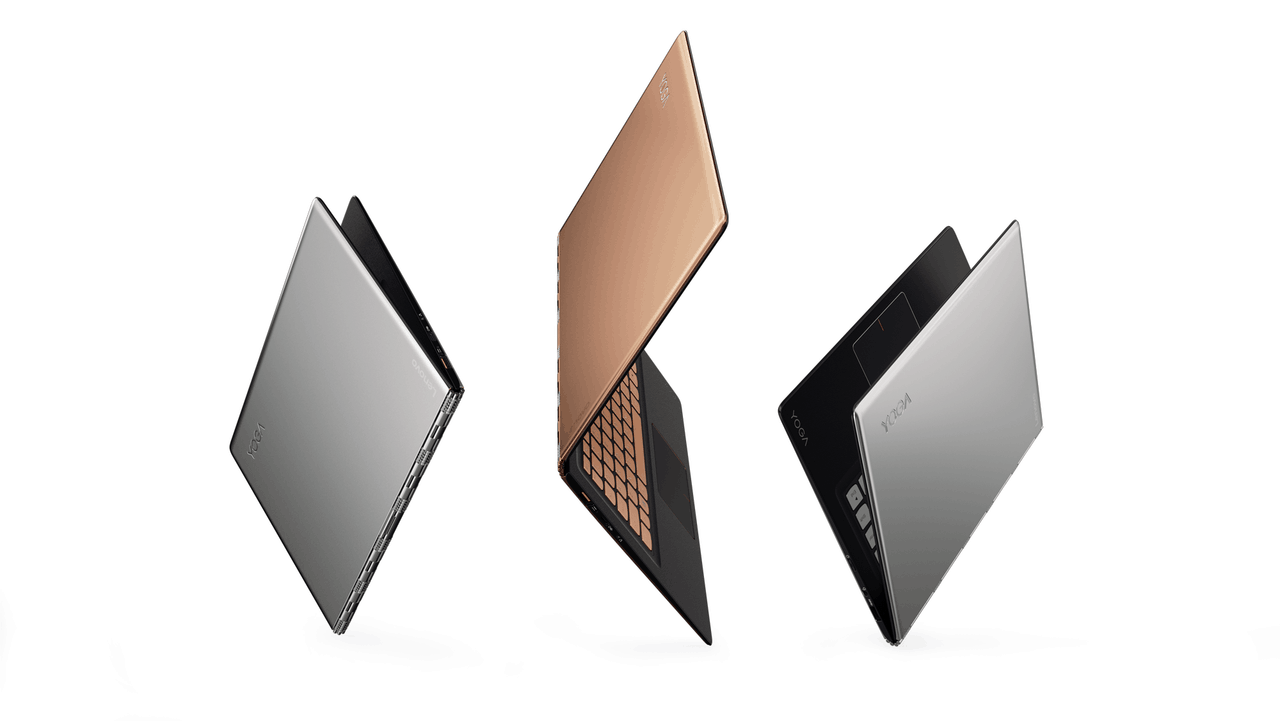
Windows 10 Home Signature Editions Lenovo Yogas locked to disallow Linux installations

Microsoft may love Linux, but apparently not on some machines running Windows 10. In a thread started yesterday on Reddit, user DaemonFC posted links to another thread started on the Lenovo forums back in May of this year, complaining that his Yoga 900, purchased from Best Buy, that has been blocked from installing Linux:

DaemonFC's 1 star review
DaemonFC’s 1 star review

Apparently, Lenovo and Microsoft have an agreement that locks the devices to Windows 10 Home, according to a reply to a (1 star) review on the Best Buy website, cited on the Reddit thread. The machine was not advertised by Best Buy as being a Signature Edition (these special editions are usually sold at Microsoft Stores, loaded with Microsoft services but generally free of other “crapware”), but apparently it was. Here’s what the Lenovo Product Expert said:

This system has a Signature Edition of Windows 10 Home installed. It is locked per our agreement with Microsoft.

The whole discussion has become quite contentious, with Lenovo taking down the entire thread on a request for a BIOS update down, but then returning it, locked to prevent future comments and edited to delete some comments and edit others, as posters were failing to follow “community guidelines.” The Reddit thread has Wayback Machine copies of the Lenovo thread linked in case the original thread disappears again.

This locked BIOS is not confined to just the Yoga 900S, either, and there’s another Lenovo thread on the same problems with the 710S.

We’re reaching out to Microsoft for any comment on the issue, and we’ll keep you updated.

Supergirl, Flash, Arrow and more to be free on the Xbox One CW app

If you’re a fan of Supergirl, Flash, Arrow, or any of the other the hit CW Network television shows, then we have got good news for you. The CW has announced that every show on the CW will soon be available for free on the updated CW app (Via IDigitalTimes.)

As seen above, news on the availability of the free shows was first spread on The Flash’s Twitter account. Moreover, an updated app description for the iOS version of the CW app details that all the latest episodes of CW’s primetime shows will be available from the app on demand without a cable login starting next week. It is still not clear, however, if fans will also be able to stream or access older seasons from the app.

The CW App, nonetheless, is available on virtually every platform, including Xbox One, Amazon Fire TV, iOS, Android, Chromecast, and Roku. Fans located outside the United States, though, appear to be out of luck, as IDigitalTimes notes that they may be greeted with a ‘content unavailable’ message when trying to access the app.

If this has grabbed your attention, you can check out the CW APP via the links below! Once you’ve checked it out, let us know what you think by dropping us a comment below.

The CW
The CW
Developer:
CW Network
Price:
Free


‎The CW
‎The CW
Developer:
The CW Network
Price:
Free


The CW
The CW
Developer:
The CW Network
Price:
Free

Windows Hopic Explorer app updated with a host of new features

The Windows 10 Hopic Explorer app has updated to version 1.1.39.0 with a range of new features and improvements. The app now has a server manager, support for multiple WebDAV servers, photopage, a new quick selection feature when navigating the Servers in the Collection area, support for viewing images in fullscreen and downloading them from the Photopage, and a new ability to take and save photos from within the app.

Other changes with this update include the ability to make donations, new visualisations when saving the settings, files and folders can now be moved via drag & drop into subdirectories within Hopic Explorer, a refresh will no longer occur when renaming files and folders, a new visualisation for saving, and many, many bug fixes.

Here’s the complete list of bug fixes from the version release notes:

  • Bugfix in displaying the License Status
  • Bugfix in the document Editor
  • Bugfix on determine the file types
  • Bugfix on renaming files & folders
  • Bugfix for Drag & Drop within Hopic Explorer
  • Bugfixes with the translations
  • Bugfix for Auto Upload (Anniversary Update)
  • Bugfix in the WebDAV Library
  • Bugfixes for initial synchronization

Here’s the official app description: Hopic Explorer is a complete WebDAV client with which you can access any WebDAV Server and manage your data. Music and video streaming, and many other functions are also supported. Moreover Hopic Explorer offers the possibility that selected folders to be synchronized automatically to your WebDAV Server, this can be used for instace to automatically upload new photos to your WebDAV storage. For flexible working, Hopic Explorer offers full Continuum support and for added security of your data, Windows Hello is also available. Thanks to a setup wizard, the configuration is done in a few steps. Depending on your taste, Hopic Explorer also offers a light and a dark theme.

Hopic Explorer obviously has a very niche target audience. Is this an app that you use? Share your impressions of it with the community in the comments below.

Hopic Explorer
Hopic Explorer
Developer:
andy-dev
Price:
Free

Kodi launches UWP app for Windows 10, reveals involvement in Desktop Bridge

The media player, Kodi, has just been upgraded to the new Universal Windows Platform (UWP) app format and can now be found in the Windows Store for installation on Windows 10 PCs. The app is designed for large screens, such as a television set, and can be used for consuming a variety of media from movies and music to podcasts and images.

Here’s the official app description for Kodi in the Windows Store:

Kodi media center, formerly known as XBMC Media Center, is an award-winning free and open source cross-platform software media player and entertainment hub for digital media for HTPCs (Home theater PCs). It uses a 10-foot user interface designed to be a media player for the living-room, using a remote control as the primary input device. Its graphical user interface (GUI) allows the user to easily browse and view videos, photos, podcasts, and music from a harddrive, optical disc, local network, and the internet using only a few buttons.

In an official post on the Kodi website, the developers reveal that they used Microsoft’s new Desktop Bridge initiative to convert the traditional Desktop app into the modern UWP app supported by the Windows 10 operating system and its numerous features. What’s particularly interesting is that it appears that the Kodi developers actually helped Microsoft develop the Desktop Bridge app conversion process.

“We actively worked together with the Microsoft developers to further improve this Desktop App Converter and the process involved around it which should make it easier for other developers to convert applications in the future,” a Kodi developer by the name of Martijin reveals. “In Desktop Bridge there are some minors restrictions and with our big code cleanup we hit this restriction. With the help of the Microsoft representative and developers we identified what the problem was and with some code changes on our side we were back in business again. All we had to do now was wait for the final launch date when this became available for the wider public. We even received some helpful pointers to fix a problem we were facing and didn’t really know where to start. So we would certainly like to thank them for their help and hopefully work some more in the future.”

Kodi UWP app in Windows 10

Some of the benefits of this format change mentioned in the announcement post are the automatic app updates that users will now receive, the added ability for the developers to receive crash logs from the app, and the way the new app uses the same user data as the original app.

Despite being a UWP app, Kodi is still only usable on Windows 10 PCs, a result of using the Desktop Bridge conversion process. The developers would like to eventually get it running on smartphones running Windows 10 Mobile however and eventually the Xbox One console as well. “Sadly Desktop Bridge doesn’t make it possible to run Kodi on anything else but a Windows 10 desktop computer or Surface,” Martijin explains. “Getting Kodi running as a true UWP app which would allow to install on other devices is still a long way to go and requires quite a few changes before that becomes a possibility. Though the step just made is certainly one in the right direction and we’ll certainly try to get there eventually as making the circle back to the XBOX would complete our journey where it all started.”

Are you a Kodi user? Would you recommend it to other Windows 10 device owners? Let us know in the comments below.

Kodi
Kodi
Developer:
XBMC Foundation
Price:
Free