
Download GIMP for Windows
Free / Open-Source / Version 3.2.8


 2 min. read
 Updated on

GIMP is a free photo editor you can download on Windows and Mac. It’s one of the best raster graphics editors that has brushes and tools for image editing, drawing, touch-up, and conversion.
If you wish to become a graphic designer or to just make adjustments to your photographs by resorting to advanced photo editing tools, you don’t need to turn to expensive and complicated software solutions like Photoshop.
There are many great alternatives which cost considerably less. Take GIMP, for example, which is free and open-source. Once you download GIMP, you can do anything from simple tasks like resizing images to something more elaborate like removing backgrounds and cutting out an image.
GIMP 3.2.8 for Windows
GIMP 3.2.8 fixes a Windows canvas freeze that could occur after opening several images at once. It also fixes a bug that offset vector layers when resizing the canvas. The GIMP team released this version on November 2, 2026.
Download GIMP for Windows · GIMP 3.2.8 release notes
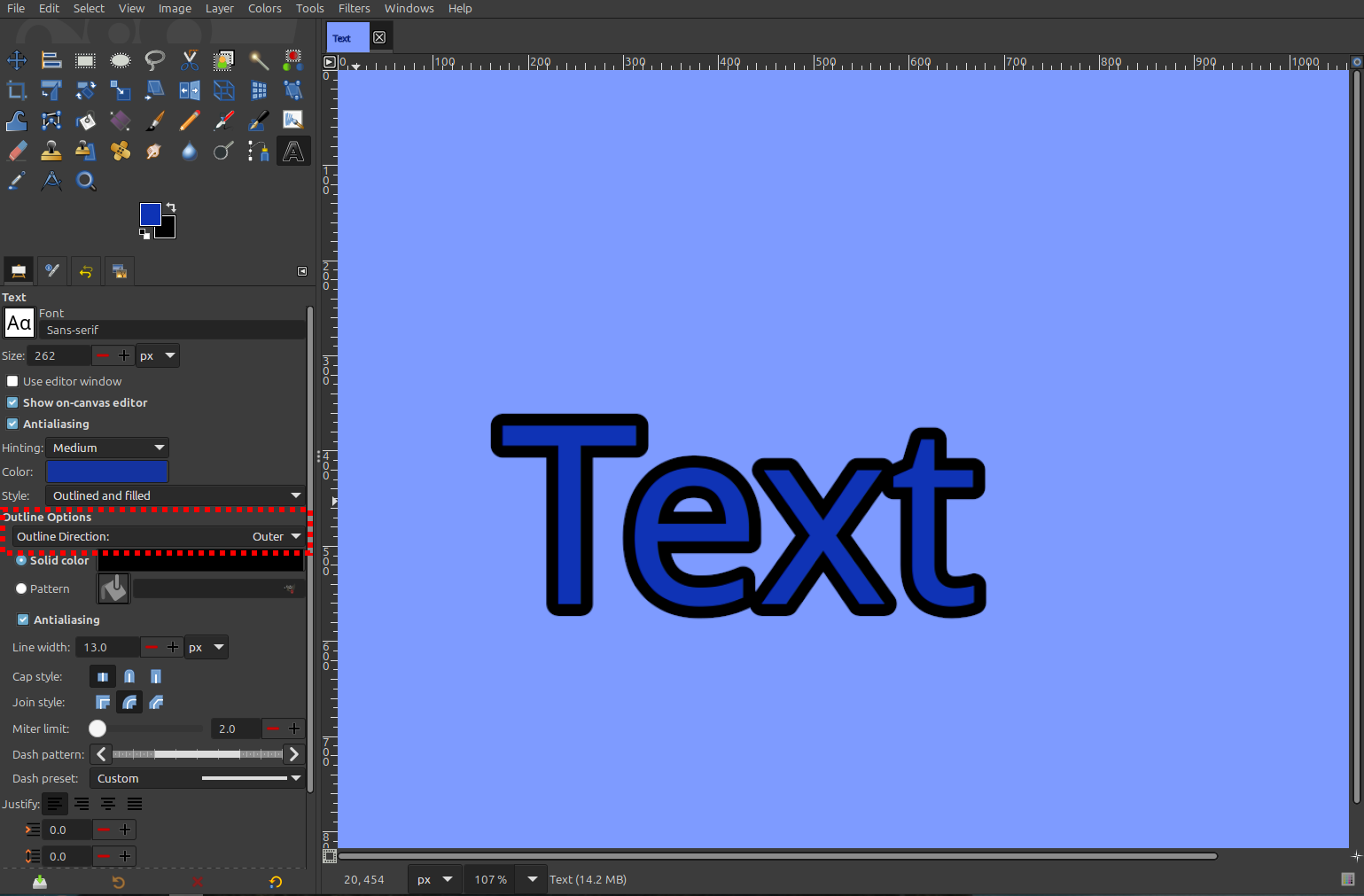
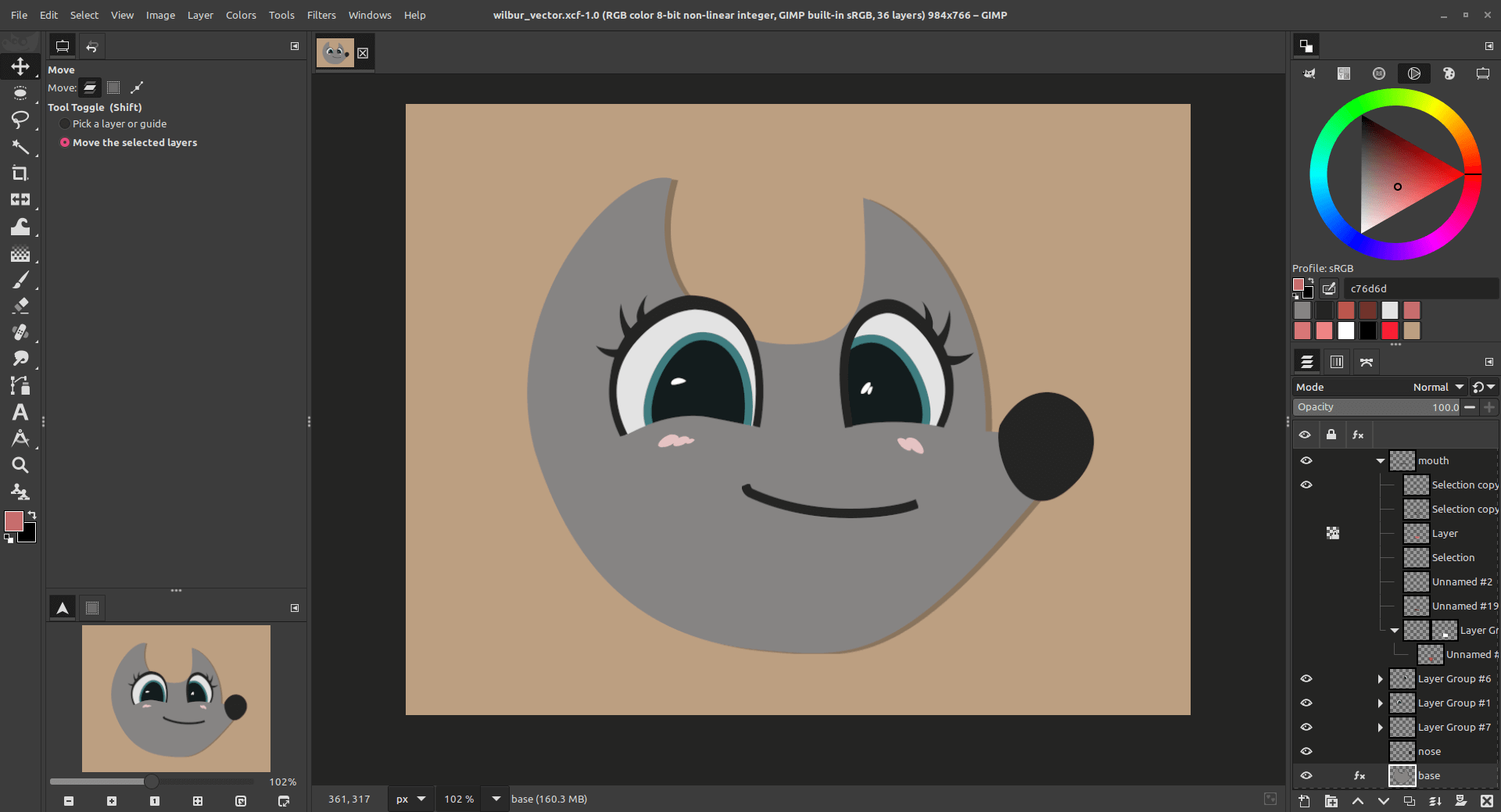
Overview of GIMP features
-
- Customizable interface: fully control the GIMP behavior, workspace, and hotkeys
- Image manipulation: clone, convert color profile, canvas size, photo scaling, cropping, grid settings
- Layers: clone, anchor, merge, delete, transform, scale, auto crop, control stack, mask, transparency
- Selection tools: rectangle, ellipse, free, foreground, fuzzy, by color, intelligent scissors
- Paint tools: bucket fill, blend, pencil, paintbrush, eraser, airbrush, ink, clone, heal, perspective clone, blur/sharpen, smudge, dodge/burn
- Transform tools: align, move, crop, rotate, scale, shear, perspective, flip, cage transform
- Color tools: color balance, hue/saturation, colorize, brightness/contrast, threshold, levels, curves, posterize, desaturate
- Filters: blur, enhance, distort, light and shadow, noise, edge detection, generic, combine, artistic, decor, map, render, web, animation, alpha to logo
- Hardware support: USB and MIDI controllers, pressure-sensitive tablets
- Filetype support: JPEG, GIF, TIFF, PNG, PSD, TGA, PDF, and others including RAW images
- Extensible: improve the program’s functionality by installing third-party plugins created by the GIMP community
- Multilingual: the graphical interface is available in multiple languages
- Cross-platform: compatible with Windows, Linux, and macOS
Screenshots


Our Review
- Pros
- Rich image editing program
- Extensible via plugins
- Free and open-source
- Cons
- A bit difficult for beginners
GIMP system requirements
The standalone Windows installer supports x86_64 and ARM64 PCs running Windows 10 version 1903 or later. The Microsoft Store edition requires Windows 11 or Windows Server 2022 or newer.
Where to download GIMP
Start at the GIMP project’s downloads page and choose Microsoft Windows. The project lists a SHA-256 checksum beside the installer if you want to verify the downloaded file.
GIMP installation and interface
Choose the direct installer for Windows, or use the project’s BitTorrent link to download the same installer. The official page also lists the Microsoft Store edition.
When it comes to the user interface, GIMP neatly divides its elements into two distinct sections: the image window where you can load, draw and edit photos, along with the toolbox where you can access all the graphic manipulation functions.
How to install GIMP plugins

- Download a GIMP plugin to your computer.
- Extract the plugin files from the ZIP archive to any folder.
- In GIMP, go to Edit > Preferences and extend Folders (press +).
- Select Plug-Ins and click the folder button.
- Navigate to the folder where you extracted the plugin.
- Select the folder and press OK.
Unfortunately, the GIMP official registry website is no longer available, so you can’t find and download GIMP plugins from a single place. As such, you have to manually look for plugins.
How to resize an image in GIMP

- Go to Image > Scale Image.
- Press the lock button to keep the aspect ratio.
- Set the new Width or Height.
- Press Scale.
How to cut out an image in GIMP

- Go to Layer > Transparency > Add Alpha Channel.
- Go to Tools > Selection Tools > Fuzzy Select (or press U).
- While holding down Shift, press the parts of the image you want to cut out.
- While holding down Ctrl, use the mouse scrollwheel to zoom in and get a closer look.
- Copy the selection (Ctrl + C), open a blank canvas Ctrl + N, and paste the cutout image (Ctrl + V).
- It might be easier to use Fuzzy Select to select and delete the unwanted background.
- You can undo your actions with Ctrl + Z as much as you want if you made any mistakes.
How to make a transparent background in GIMP

- Go to Layer > Transparency > Add Alpha Channel.
- Go to Tools > Selection Tools > Fuzzy Select (or press U).
- While holding down Shift, select the entire background and press Delete.
- If the background is made from a solid color, go to Layer > Transparency > Color to Alpha.
- Select the background color and press OK.
- If your image has rugged edges, go to Select > Grow and set 2 or 3.
- Go to Filters > Blur > Gaussian Blur.
- You should now have an image with a transparent background and smooth edges.
An excellent free photo editor for Windows and Mac
GIMP is an incredibly rich photo editing tool that you can download and use to deliver high-quality graphical projects. It’s certainly a cheaper alternative to using commercial software like Adobe Photoshop or CorelDRAW since you can use it at no cost for both personal and commercial purposes.
The software solution uses a surprisingly low amount of system resources, considering that other similar products with equally-rich features are pretty resource-demanding. The only real downside to GIMP is that it’s a bit difficult for beginners to get familiar with.
On the bright side, GIMP is accompanied by complete user documentation that should help you every step of the way if you get stuck at any point while handling the photo editor.
FAQ: Learn more about GIMP
- Why is GIMP called GIMP?
GIMP is short for GNU Image Manipulation Program.
- How to add fonts to GIMP?
GIMP doesn’t have a built-in feature for adding fonts. It looks for system fonts, which means that you have to install fonts in Windows (it’s really easy).
- Is GIMP free?
Yes, GIMP can be freely used for both personal and commercial reasons. Users are allowed to run, examine, distribute, and modify the GIMP software code.
Full Specifications
- Software Version
- 3.2.8
- License
- Free / Open-Source
- Keywords
- photo editor, graphics editor
- Release Notes
- November 2, 2026 — GIMP 3.2.8 fixes a Windows canvas freeze that could occur after opening several images at once. It also fixes a bug that offset vector layers when resizing the canvas. https://www.gimp.org/news/2026/11/02/gimp-3-2-8-released/

Read our disclosure page to find out how can you help Windows Report sustain the editorial team. Read more



User forum
0 messages