
How to Unhide Games on Steam in 4 Easy Steps


 3 min. read
  EEST
EEST

If you’ve hidden a game in your Steam library, you might wonder how to make it visible again. The process is simple and only takes a few clicks. Follow the steps below to restore hidden games.
Table of contents
How to Unhide Games on Steam?
1. Open Steam Library
Start by launching the Steam client on your PC to access your games.
- Open the Steam app.
- Click on Library from the top menu.


If you’re just starting with Steam, you may also want to know how to redeem a code on Steam to activate new games.
Running Steam in Big Picture Mode? Switch back to the desktop client before managing hidden titles by following this guide on how to exit Big Picture Mode on Steam.
2. Access Hidden Games
Now you need to locate the section where hidden games are stored.
- In the left sidebar, click the drop-down menu above your game list.
- Select Hidden to display games you’ve previously hidden.

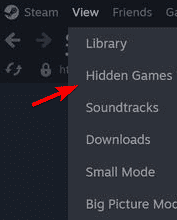
3. Unhide a Game
Once you’ve found your hidden titles, remove them from the hidden list.
- Right-click on the game you want to unhide.
- Select Manage > Remove from Hidden.

- The game will return to your main library list.
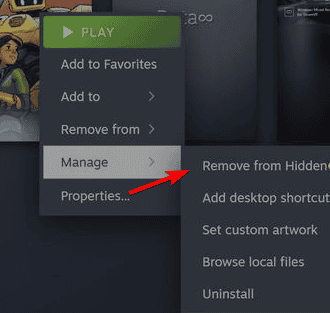
4. Check Collections (Optional)
Finally, make sure your game appears in the right place within your library.
- Go to your Collections tab if you use it for organization.
- Add the unhidden game to your desired category.
If you’re also reorganizing your account, you can see how to change your Steam account name to personalize your profile.
Another way to organize your library is by letting family members or friends play your titles. See how to share games on Steam for detailed instructions on enabling Family Sharing.
Prefer to control your visibility while organizing your library? Learn how to appear offline on Steam to hide your status from friends.
FAQs
You must enable the Hidden filter in your library to display them.
No. It simply restores the title to your visible library list.
Yes. There are no limits; you can toggle hidden status anytime.
No. Your progress, achievements, and settings remain intact.
Conclusion
Unhiding a Steam game only takes a few steps and doesn’t affect your save data or installations. You can toggle hidden status anytime to keep your library organized. For more account management tips, check out how to change your Steam region.
You can also check this guide on Steam password reset issues to fix cases where the platform will not let you change your account password.

Read our disclosure page to find out how can you help Windows Report sustain the editorial team. Read more



Improve this guide


User forum
0 messages