
How to Increase FPS in League of Legends (9 Proven Methods)
Learn what to do in case your FPS drops in League of Legends


 5 min. read
  Updated on
Key notes
- In order to boost your League Of Legends FPS, you can update your drivers.
- Furthermore, you should also set the task as a high priority one from Task Manager.
- Don’t miss out on our top five best game booster software before you replace your PC.
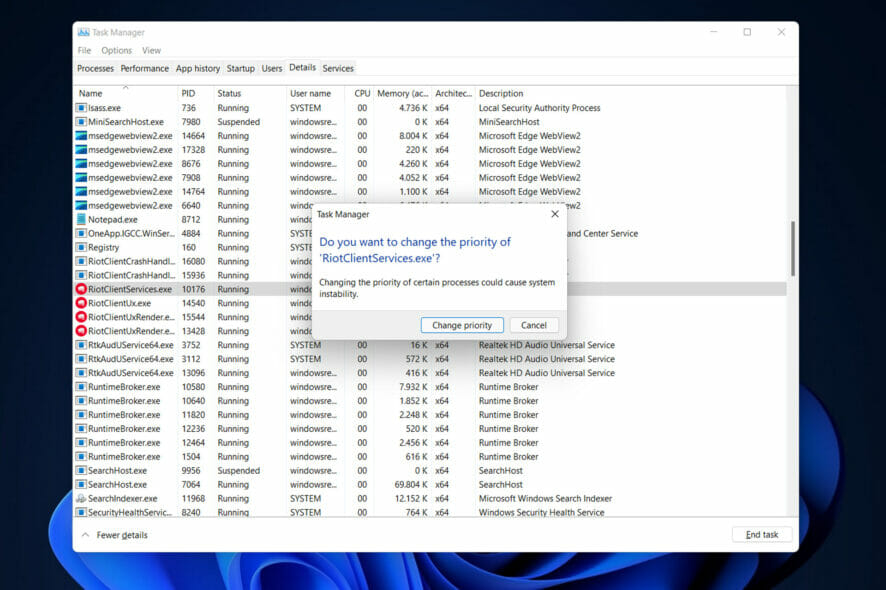
In this guide, you’ll learn exactly how to increase FPS in League of Legends on Windows, whether you’re using a laptop or a desktop. This will put an end to sudden frame drops and stutters and improve gameplay.
Boost Your League of Legends FPS: Step-by-Step Fixes
Table of contents
- How can I increase FPS in LoL?
- 1. Disable full-screen optimizations to increase FPS in LoL
- 2. Set a high priority for the League of Legends service
- 3. Update your PC’s drivers
- 4. Change the game’s settings to increase FPS in League of Legends
- 5. Clean the temp files on your PC
- 6. Disable Background Apps
- 7. Repair the Game
- 8. Switch to Fullscreen or Borderless Mode
- 9. Disable Overlays
- How to Check FPS in League of Legends
🎯 Why Is FPS Dropping in League of Legends?
Here are the most common causes of FPS dips during gameplay:
- Outdated GPU drivers: League won’t run smoothly if your graphics drivers are old.
- Background apps hogging RAM or CPU: Tools like Discord overlays, Chrome, or game boosters can reduce performance.
- High graphics settings on weak hardware: Ultra or High settings may be too much for lower-spec devices.
- Thermal throttling: If your GPU or CPU is overheating, Windows reduces performance to prevent damage.
- Corrupted or missing game files: Damaged installations cause stuttering and lag, and can even lead to issues like League of Legends crashing the computer.
How can I increase FPS in LoL?
1. Disable full-screen optimizations to increase FPS in LoL
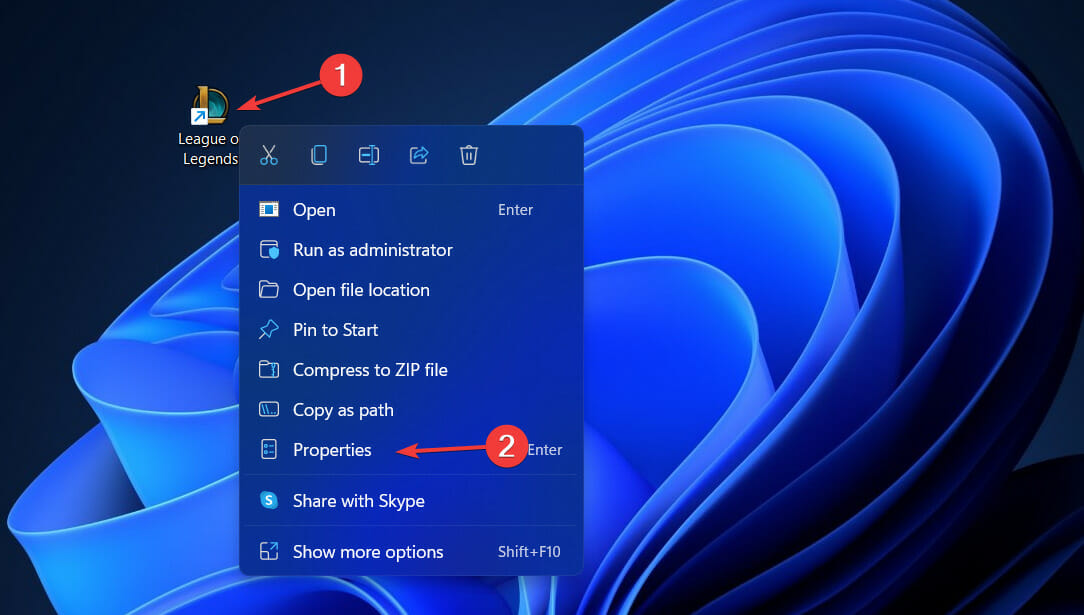
- Right-click on your League Of Legends application and choose Properties.
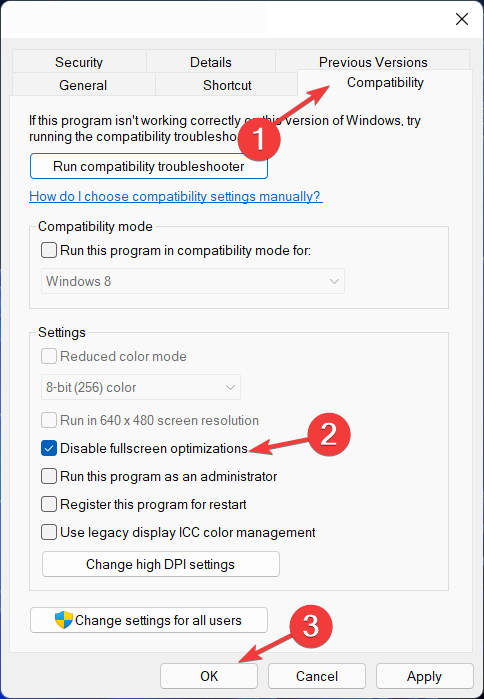
- Navigate to the Compatibility tab and check the Disable full-screen optimizations option.
2. Set a high priority for the League of Legends service
- Open Task Manager by holding CTRL + SHIFT + ESC together.
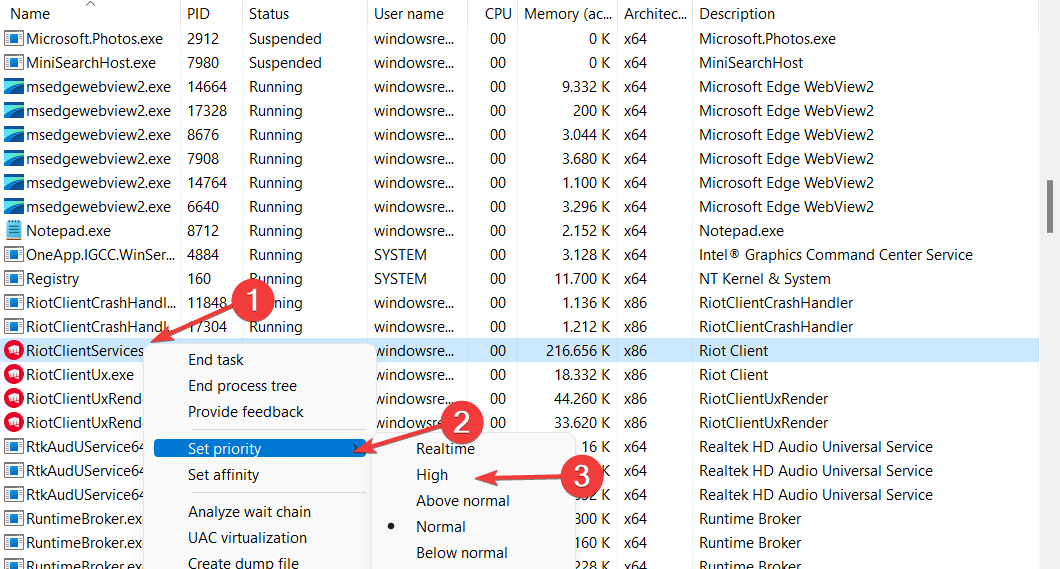
- Find the League Of Legends task under the Details tab, right-click on it, hover over Set priority, and choose High.
3. Update your PC’s drivers
Option 1: Use Windows Update
- Open Settings and go to Windows Update followed by Advanced options.
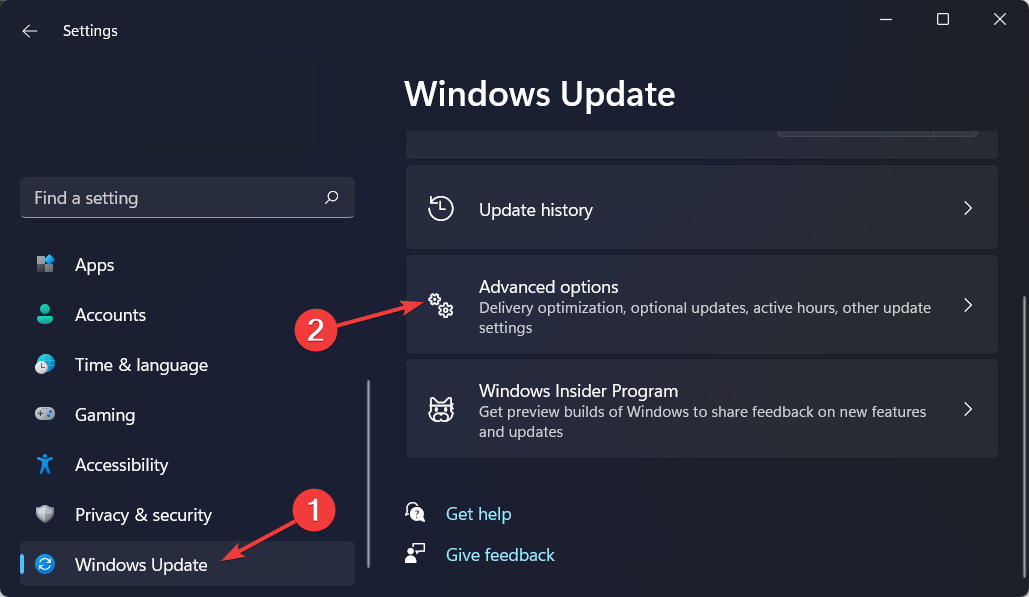
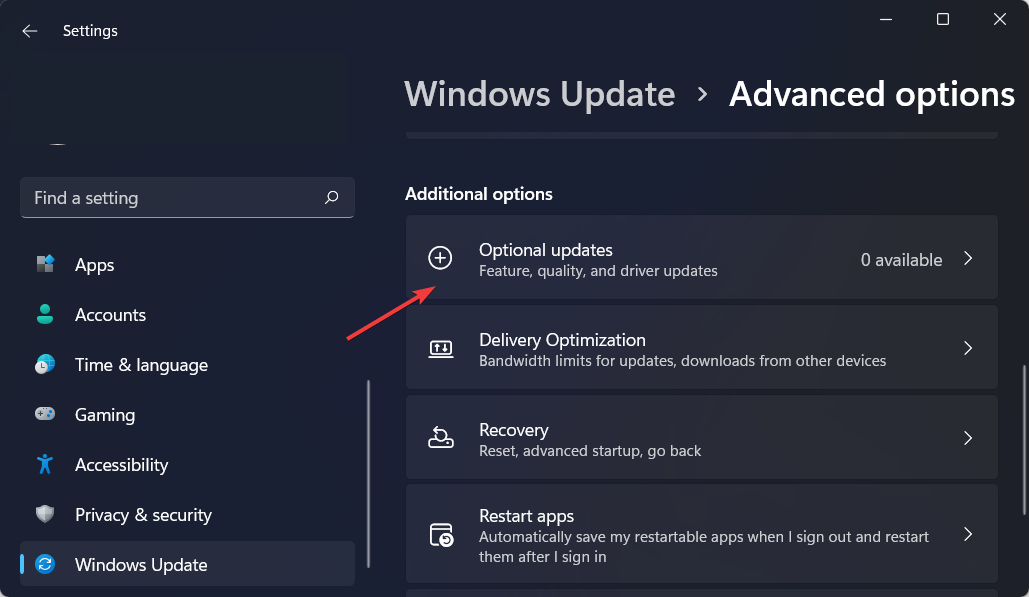
- Here, click on Optional updates and you will be shown the available driver updates that you need to install. Simply click the Download and install button after you check the boxes next to the updates.
Instead of manually updating your drivers every time you face an error related to them, you can opt for third-party software that automatically updates, replaces, and fixes your device drivers.
Option 3: Update via Device Manager
- Press Windows + X and select Device Manager
- Expand Display adapters
- Right-click your GPU (e.g., Intel UHD Graphics, NVIDIA GeForce GTX, AMD Radeon)
- Select Update driver
- Click Search automatically for drivers
- Let Windows install any available updates
- Restart your PC
⚠️ Device Manager often says “best drivers are already installed” even when newer versions exist. It’s better to update manually for peak performance.
Option 3: Download the Latest Drivers Manually
Use your manufacturer’s official driver tools or support pages:
- NVIDIA: Download drivers or use GeForce Experience
- AMD: Use the Auto-Detect Tool or download manually
- Intel: Use the Driver & Support Assistant or the Download Center
- Laptops/Other GPUs: Check your device manufacturer’s support page (Dell, HP, ASUS, etc.)
This can also fix errors like the DirectX crash in League of Legends, which often stems from outdated or incompatible drivers.
4. Change the game’s settings to increase FPS in League of Legends
1. Launch League of Legends and log in to your account.t
2. Click on the wheels icon in the upper-right corner of the game’s window to access Settings.a
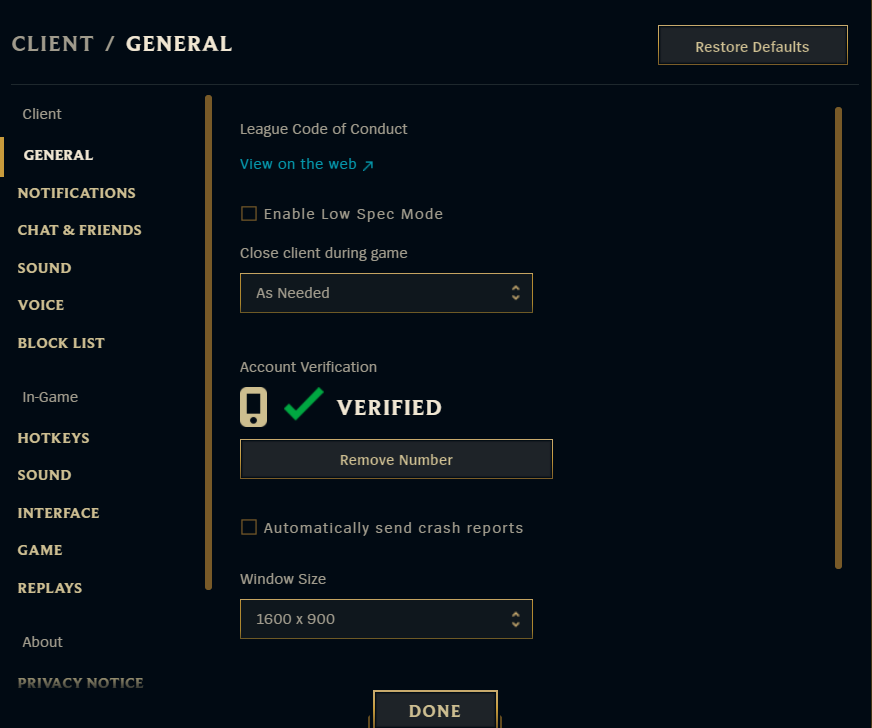
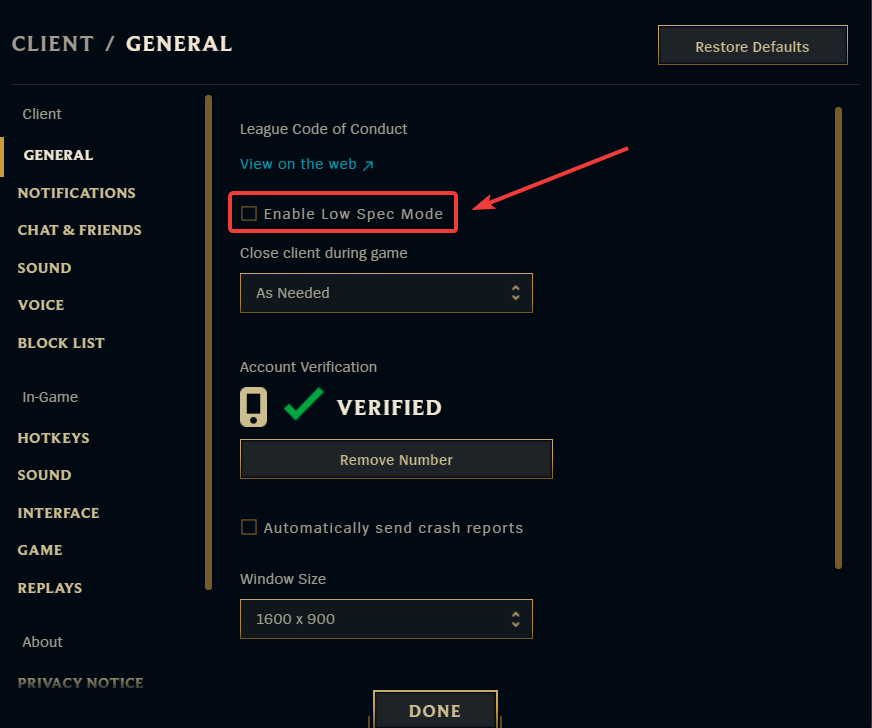
3. Tick the box next to Enable Low Spec Mode.
4. Navigate to the Interface section from the menu on the left.
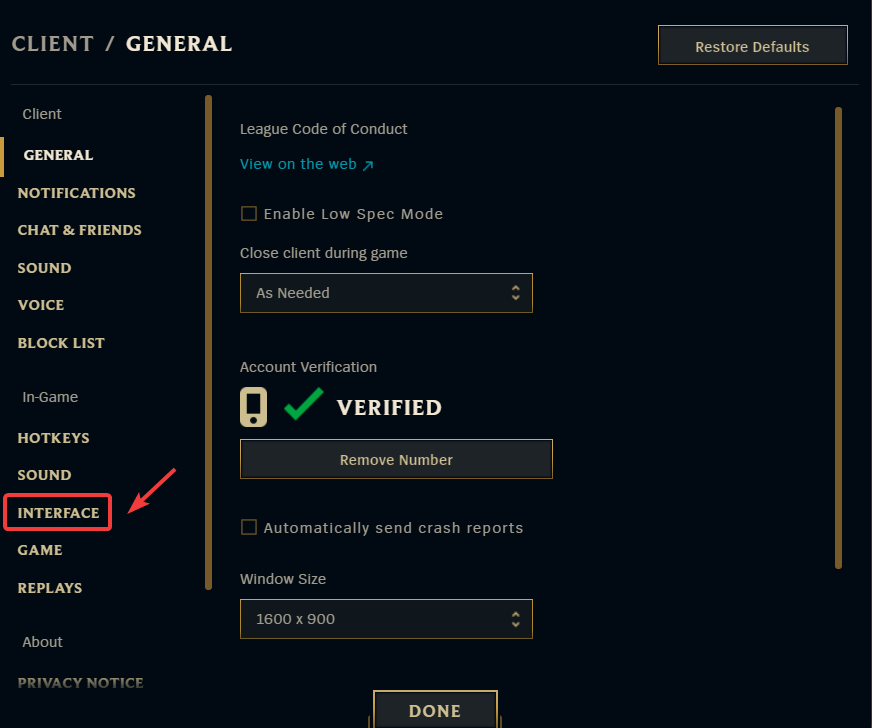
5. Under Health and Resource Bars, ensure the box next to Enable HUD Animations is not checked. If it is, uncheck it.
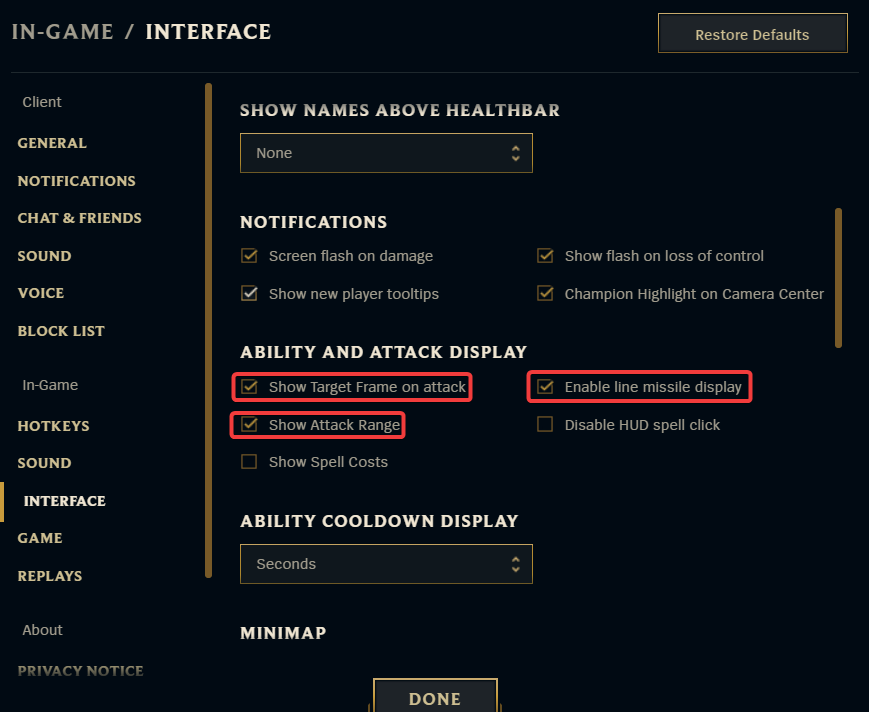
6. Under Ability and Attack Display, disable the following options: Show Target Frame on Attack, Show Attack Range and Enable line missile display.
7. Go to the Game tab on the menu on the left.T
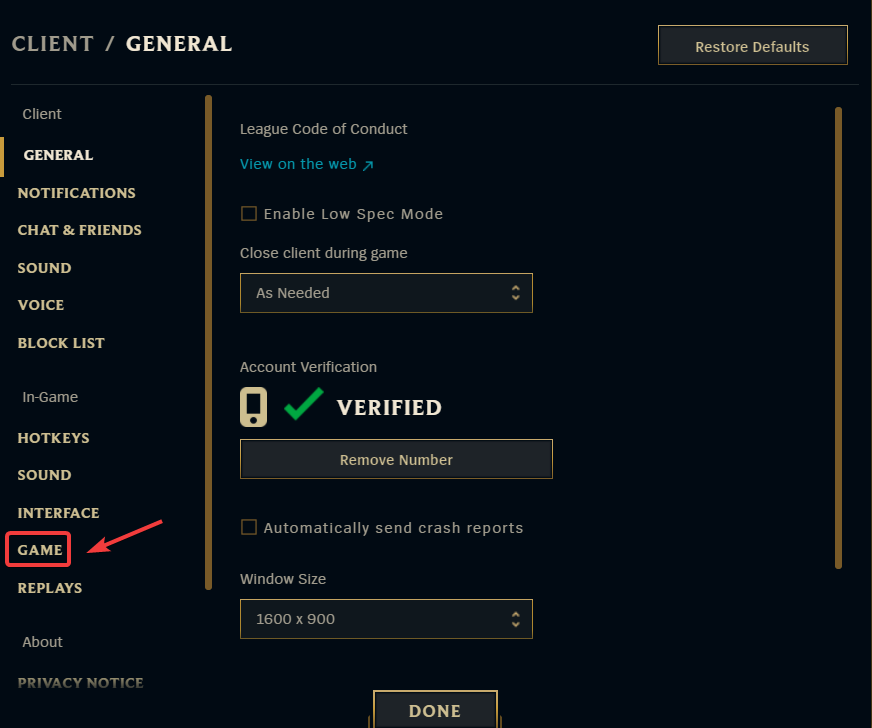
8. Under Graphics, enable the Prefer DX9 Legacy Mode option.h
9. Now we need to modify some settings from within the in-game’s options. To do that, we need to launch a game. You can simply start a Practice Tool game for this.
10. Navigate to the Video tab on the menu from the left.
11. Make the following changes from this menu:
- Uncheck Enable Screen Shake.
- Change your display resolution to your monitor’s native resolution.
- Move the slider for Graphics to Very Low or Low. This will automatically disable Shadow Quality as well.
- Set the Frame Rate Cap to 60 FPS. It is important that the framerate is not set to Uncapped.
- Uncheck Anti-Aliasing and Wait for Vertical Sync.
If you’re playing on old hardware, lowering the graphical settings in the game’s graphics menu can provide a big increase in frame rate.
For anyone experiencing unacceptably low frame rates in League (for example, less than 20 frames per second), the best course of action is to just set everything to Very Low (and disable Anti-Aliasing and Wait for Vertical Sync) and hope for the best.
In case you’re experiencing really low framerates, you may want to consider lowering the game’s resolution, as your system’s GPU will have an easier time churning out lower-resolution frames.
There are also a few small HUD options that, when turned off, can provide a frame rate increase to the player. You may find out more about them by selecting the INTERFACE option from the game’s settings.
If you uncheck Enable HUD animations, Show Target Frame On Attack, Enable Line Missile Display, and Show Attack Range, you may see a significant improvement in performance, making the tweaks to your HUD worthwhile.
5. Clean the temp files on your PC
- Open the Windows search function and type %temp% inside it.
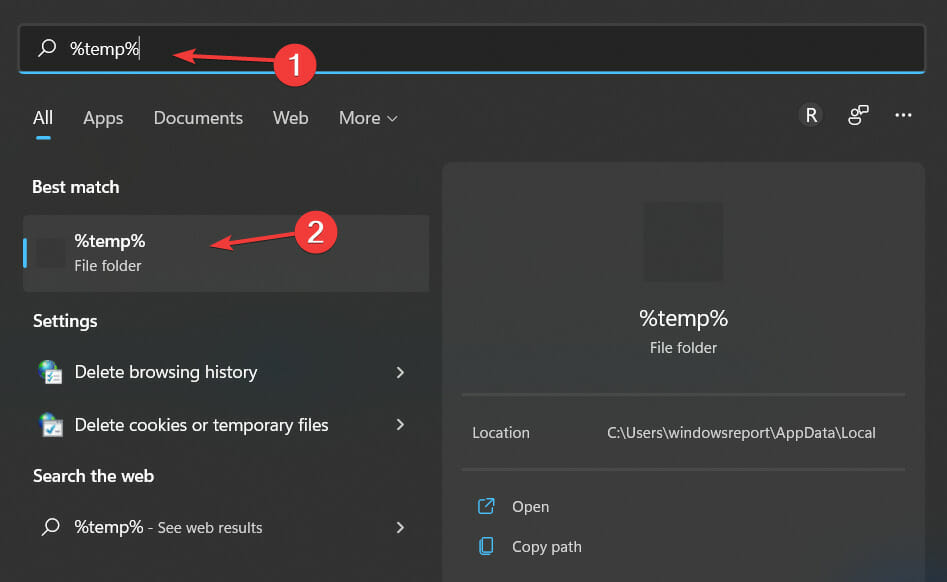
- Once you have entered the Temp folder, select all the files and delete them. Skip any files that won’t be able to delete.
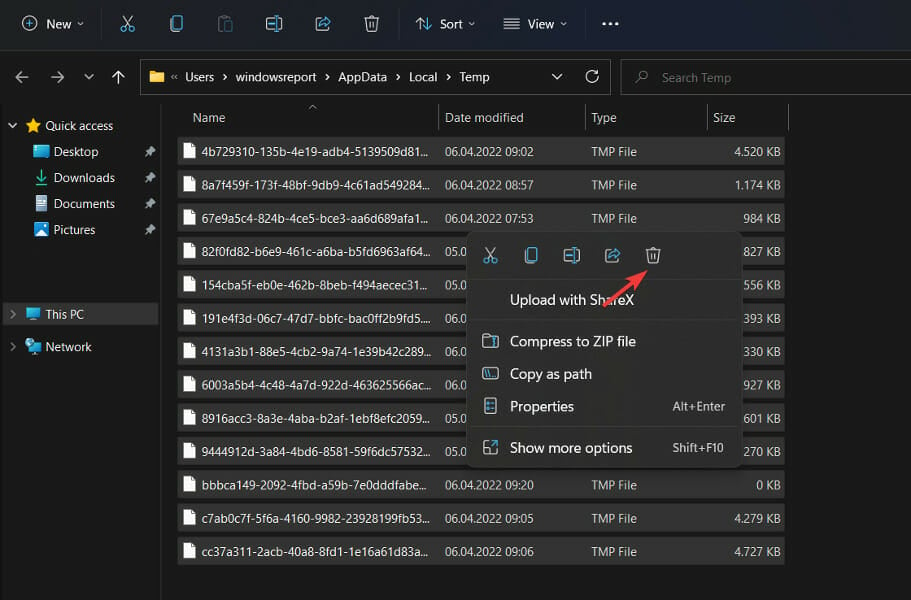
It’s possible that your hard drive is clogged with unnecessary files. If these files are not correctly deleted, they will cause slowness.
6. Disable Background Apps
Free up resources before launching the game:
- Press Ctrl + Shift + Esc to open Task Manager
- End high-resource apps like Discord, browsers, or update tools
- Pay close attention to CPU and Memory columns
Some overlays can also contribute to related issues like ping spikes or stutters in online matches.
7. Repair the Game
Corrupted files = instant FPS drops.
- Open Riot Client
- Click your Profile icon → Settings
- Select League of Legends, then click Repair
This can help with issues such as when League doesn’t launch after champion select or simply won’t start at all.
8. Switch to Fullscreen or Borderless Mode
Running in Fullscreen reduces background interference:
- Open LoL settings → Video
- Change Window Mode to Fullscreen or Borderless
If the game refuses to go full screen, try these steps to fix League not going full screen, especially if you’re using multi-monitor setups.
9. Disable Overlays
Overlays are known FPS killers. Disable the following:
- Discord: Settings → Game Overlay → Turn Off
- GeForce Experience: Settings → In-Game Overlay → Turn Off
- Xbox Game Bar: Settings → Gaming → Turn Off Xbox Game Bar
For players using dual displays, overlays can also cause the dual-monitor bug in League where the game moves between screens or freezes.
How to Check FPS in League of Legends
Option 1: Use League’s Built-In Counter
- Press Ctrl + F during gameplay
- You’ll see FPS (and ping) in the top-right corner
Option 2: Use a Monitoring Tool
Tools like MSI Afterburner or GeForce Experience also display real-time FPS stats
If you need further assistance in boosting your LOL FPS, check out how to fix the League of Legends FPS drop in Windows 10 & 11.
Alternatively, here are the best game booster software tools for Windows 10/11 PCs that you need to check out before you change your PC altogether.
Was this guide helpful? Let us know in the comments section below as well as whether you have any other solutions in mind.

Read our disclosure page to find out how can you help Windows Report sustain the editorial team. Read more



Improve this guide

User forum
0 messages