Windows 10 Mobile build 10581 isn’t the only new thing Microsoft has been working on today. The Office team is also announcing the Office October feature update. This month brings some welcome updates to Office Online, as well as Office Mobile for Android and Office 2016 for OS X.
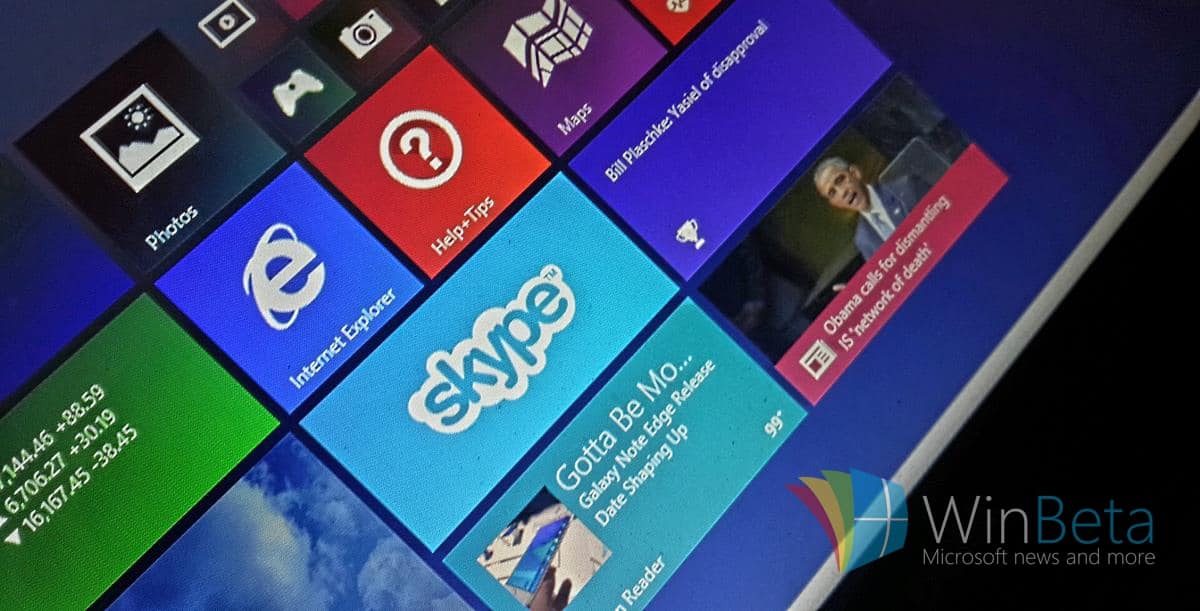
Office Online gains some new Skype integration, taking last month’s basic Skype functionality and expanding it to include voice and video. Starting in November, when you’re collaborating on Word, Excel, PowerPoint, and OneNote documents, you’ll be able to jump into Skype voice and video calls to spice up your co-authoring sessions.
Use Skype for voice and video calls when collaborating in Office Online.
Next, although Windows 10 Edge users will have to wait a little while for extensions, the Office team is full steam ahead on integrating more closely with Google’s Chrome browser. Specifically, they’re introducing a new Chrome extension that provides some instant gratification when creating and accessing documents in Office Online.
Chrome gets a nice new Office Online extension.
Office Online also gets a new Navigation pane to make it easier to work with large Word documents, and formatting Excel online and PowerPoint online should be easier.
In more news, Office on Android went on a diet, specifically being a full 40% smaller. Signing in should be easier for Office 365 work and education users, and Enterprise and Android for Work users can now be fully productive in Android M. Finally, PowerPoint on Android now enjoys a Presenter View to make it easier to present to groups using your robotic device.
The Office team rounded things out in October with Visual Basic enhances to Office 2016 for the Mac. Learn more about what Office developers can now accomplish on the Mac.
So, there you have it, all of October’s Office updates win one fell swoop. Microsoft is certainly keeping itself busy, and keep checking back for more news.
Makes sure you’re on the latest Skype version to access some Bollywood action.
If you’re not aware, Bollywood is the most visible part of India’s film industry, producing scads of Hindi language films and rivalling Hollywood for its influence on the culture. Skype is celebrating that influence by injecting some new video clips into their Moji functionality, as well as some fun new emoticons to spice up your chats.
You’ll want to be on the latest Skype app on your platform of choice to get in on the fun. And as always, Microsoft wants to know which new Mojis and emoticons they should be adding next.
For the release of Windows 10, Microsoft came out with a new browser named Microsoft Edge. Edge has high speed ratings but is still in development. Some features have already been added while others are on the way. The most notable feature still in the wings in extension support. Unfortunately this won’t be available for the public until 2016. With Edge being a fast but unfinished browser, this week’s poll is on when you will use Edge as your primary browser (there are options for already doing so and never).
There are a lot of things that go into picking a browser. Some already use Edge and find it useful. It is fast and has features such as annotations and Cortana integration. It also makes it easy to share things. For some web users features such as syncing between devices and extensions aren’t that big of a deal. For others they are a must. Some won’t use Edge at all, let alone as their primary browser, until extensions are supported.
Let us know by voting and in the comments below when you’ll use Edge as your primary browser and what factors affect your choice of browsers. To hear us discuss the results tune into the WinBeta Podcast this week.
As fans, we sometimes forget that sports is a business. It’s big business, in fact, whether it’s professional football or NASCAR. And these businesses make the same kinds of technology investments that other businesses make, and for the same reasons–to improve productivity, efficiently utilize assets, and make a profit.
Microsoft’s Corporate VP of Developer Platform & Evangelist Steve Guggenheimer spent some time over at the MSDN blog talking about just this topic. Clearly, Microsoft has been making significant investments in being a technology provider to the sports industry, and Guggenheimer provided a fascinating overview of some of their recent efforts.
Technology utilized throughout sports today, from putting spectators in the middle of the action to helping teams gain competitive advantages by enhancing their ability to plan and assess their performance. Internet of Things (IoT) sensors and elaborate 2D and 3D camera systems are two examples of how technology is making a significant impact on how sports are being played and enjoyed.
Guggenheimer focuses on two examples of where technology is being utilized in the most innovative ways, and where Microsoft is a serious player.
First, there’s Zebra, which has partnered with the NFL to place RFID sensors on players to gain up-to-the-second information on precisely where players are on the field, how they’re moving, and even the g-forces they’re achieving (or suffering). As an example of how this impacts a fan’s ability to enjoy a game (not to mention how a team can evaluate plays and players), open up the Windows 10 NFL app and click on “Top Playmakers.”
Check out the Windows NFL app for a new way to experience replays.
Next, there’s NASCAR, which offers up tons of race-day information including live leaderbords, lap-by-lap commentary, real-time updates and video, and social media feeds. Fans can even listen in live to the back-and-forth between drivers and crew as they fight for every second of advantage.
The impact on the business of sports is just as dramatic, if not more so. Guggenheimer covers the example of NASCAR streamlining technical inspections, reducing the time necessary to gather information during eight inspection stages from up to six hours to less than two. And, more information is evaluated more efficiently, improving the process while saving time and money.
NASCAR is turning raceday into an incredibly immersive experience.
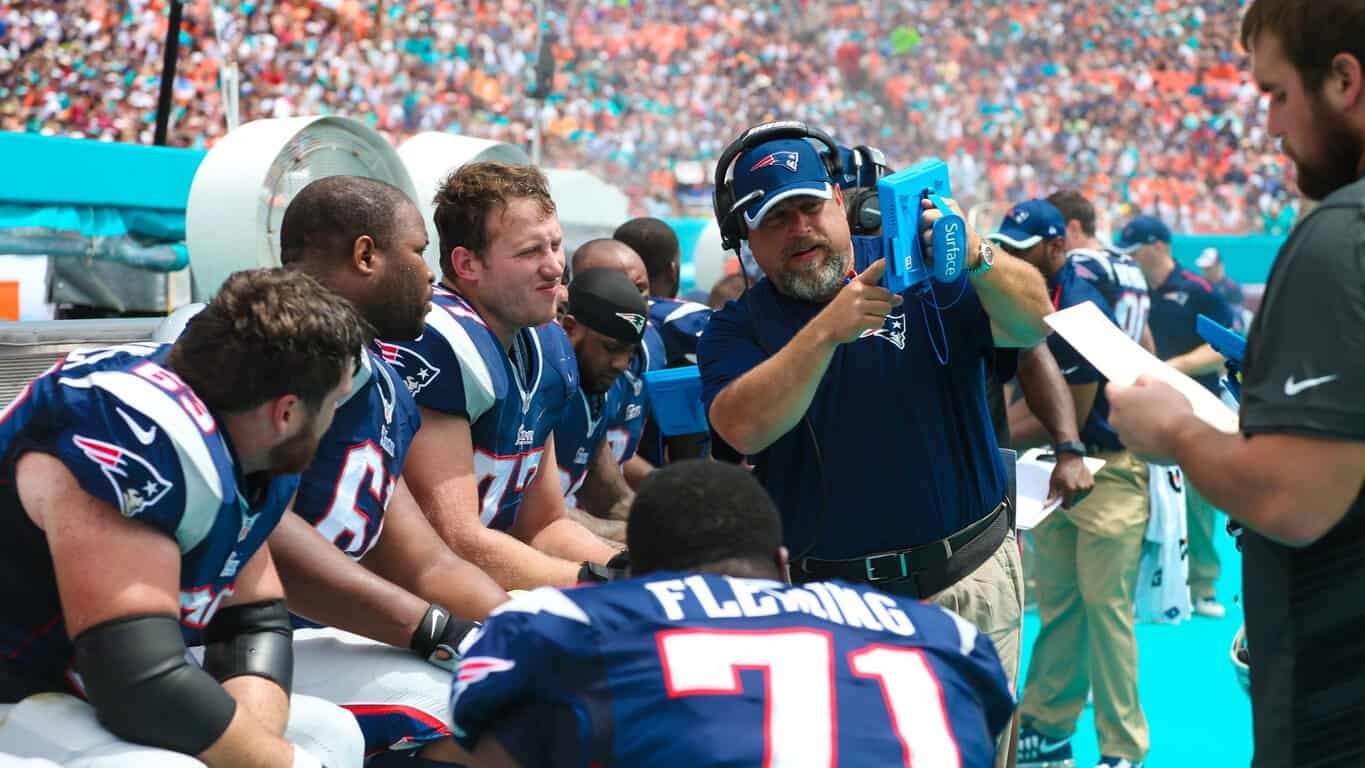
Microsoft’s involvement in sports also has two dynamics. First, it’s a great business opportunity and utilizes everything that Microsoft has to offer, particularly as the company transitions to their “mobile-first, cloud-first” strategy. But it’s also a great marketing tool, with Microsoft Surface devices front and center during every timeout as NFL coaches evaluate plays.
Guggenheimer is speaking to the sports industry today by invitation of Sports Business Daily, where he’s laying out how technology continues to impact sports. Go check out his blog post for more information on all of the ways that Microsoft is a player.
In its mission to “empower every person and every organization on the planet to achieve more,” Microsoft has teamed up with Sequence to help curb the daily violence taking place daily in El Salvador by making handcrafted products. Founder Ariela Suster, along with local artists Oscar Bautista and Natali Orellana, mentor and employ local youth to help her create bracelets, necklaces, scarves, and hats that showcase the best parts of El Salvador’s culture. Suster’s mission is to keep kids out of the gang lifestyle by employing them at Sequence to develop creative designs.
Suster and her Sequence team’s latest creation is an NFC bracelet. The bracelet contains an NFC chip that plays a short background video on the story behind the bracelet; how it was made and who created it, when tapped to the back of Windows Phone, Android, or Blackberry phone. These NFC bracelets are being sold at the flagship Microsoft Store in New York City.
Microsoft helped Sequence grow their idea and business with the help of software and hardware, including the Surface Pro 3, which played an integral part in designing these NFC-implanted bracelets. For every 1,000 bracelets sold, Suster and Sequence can help employ another artist and help save them from being swept up in El Salvadorian gang violence.
Although not available for purchase online through the Microsoft Store, you can purchase these bracelets through the Sequence website.
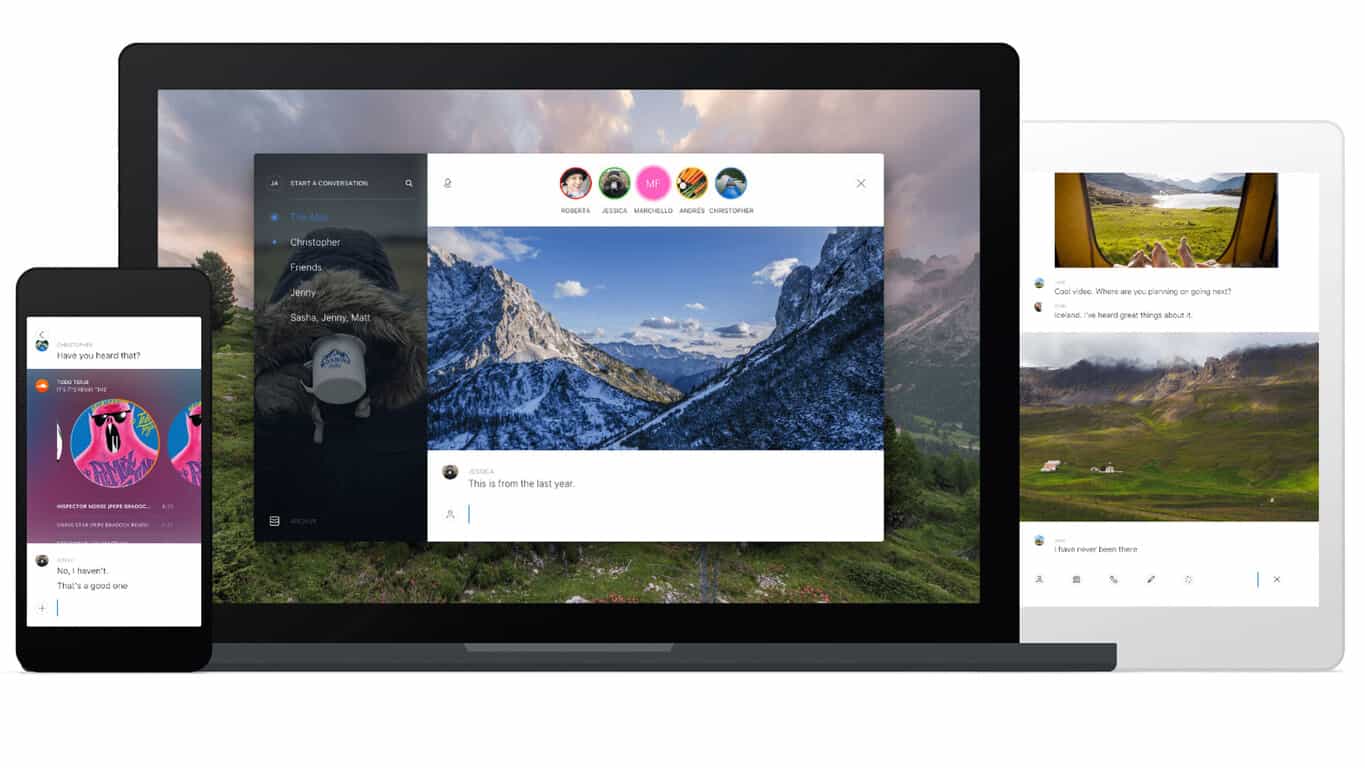
Last December, a group of former Skype employees with extensive experience in online communications launched Wire, a new IM messaging client for iOS, Android, and the web. Now today they’re opening up their messaging client to a new audience with the launch of Wire for Windows, available on Windows 7, 8.x, and 10.
I had a chance to talk with one of the co-founders of Wire, Jonathan Christensen, on a Wire audio chat using the new client earlier this week. Christensen, who worked at Microsoft on Messenger and helped to create Lync (now Skype for Business), led the audio / visual teams at Skype, but when it was acquired by Microsoft he decided it was time to try something new, and left to form Wire.
Along with the help of co-founders Alan Duric (CTO), Priidu Zilmer (head of design), and Koen Vos (chief scientist and audio engineer), the company sought to build a new messaging system that was both beautiful and secure.
Leveraging the team’s experience in audio engineering, Wire is a high fidelity, end-to-end encrypted, and beautifully designed client, now optimized for Windows, featuring:
End-to-end encrypted HD calls – in stereo with groups
Beautiful conversations with high resolution photos and GIFs
YouTube, Spotify, SoundCloud and Vimeo content right inside the chats
Group chats with up to 128 people
Wire conversations are synced between clients, running on a custom built back end built on the Haskell programming language and based in Switzerland, with offices in Berlin. Christensen talked about a “sea change in privacy”, with users in Europe especially looking for more security in their mobile and online communications. He noted the efforts the company has made in both privacy and encryption, pointing out that Wire does not use any data collection methods that make users “pay with their privacy”. For now, the company is concentrating on providing the best and most secure service, but plans to offer premium services.
Wire is easy to use, crystal clear, and sports a clean and simple interface, one that will look really good with Windows 10 especially.
You can try out the new Wire for Windows beginning today, or try out Wire on the Web or on iOS or OSX or Android.
Microsoft announced earlier this month that Windows 10 had surpassed 110 million installations worldwide, which is an impressive number indeed. Windows 10 has been out for three months now, so I decided to check in and see how the install number is holding up. According to my contacts, Windows 10 has now been installed on over 120 million PCs worldwide.
120 million installs in three months is nothing to sniff about. With the Windows 10 November Refresh update around the corner, it’s possible we’ll see that number spike yet again as people who want to upgrade for Windows 10 are likely waiting to the update to release first before making the jump. We’ve also got millions of Xbox One devices waiting to be added to this number too, as Windows 10 for Xbox One rolls out on November 12.
Microsoft wants 1 billion Windows 10 installs in three years. If the Redmond giant keeps this momentum of 120 million installs per three months, in 24 months they’ll be at 960 million installs, just shy of 1 billion. Hopefully by then, Windows 10 Mobile would’ve taken off too, and HoloLens will be out on the market further adding to that install count.
What are your thoughts on 120 million installs? Let us know below!
These steps are for how to connect a Facebook account to an Xbox Live account from within the Xbox Beta app. The steps are expected to be identical once rolled out to the regular Xbox App.
1 ) Once the app is open, look in the upper-right corner of the app. You should see a small Facebook icon and the text, “Link Facebook account.” Click on this.
How to connect Facebook to Xbox Live
Note: If you don’t see this link, or have for some reason unlinked your Facebook account, go into the app’s Settings via the gear icon on the left menu and click on the Facebook link there.
How to connect Facebook to Xbox Live
2 ) Clicking on this link will open up a Facebook login box. Enter your phone number or email address associated with your Facebook account as well as your password and login.
How to connect Facebook to Xbox Live
3 ) Your Xbox Live and Facebook accounts will now be connected and a message should pop up informing you that the connection has been made. The app will now scan for any Facebook friends who have also linked their Xbox Live accounts and present them to you as suggested friends in the upper-right corner of the app.
How to connect Facebook to Xbox Live
Note: Only Facebook friends who have also linked their accounts will show up here. Linking just your accounts will not enable Microsoft to detect which of your Facebook friends have an Xbox Live account or what their Gamertags are.
Are you glad to see this connectivity come to Xbox? What other social network integration would you like to see? Twitter? Google+? Let us know in the comments below.
If you purchased a brand new Surface Book or Surface Pro 4, you were also treated to a brand new Surface Pen which comes in the box. For those that did not know, the updated Surface Pen offers the ultimate writing experience with 1,024 levels of pressure sensitivity and reduced latency. So it’s already designed to offer a great experience.
But you can improve that experience a tad bit more thanks to the Surface app that comes with your Surface Book and Surface Pro 4. All you have to do is fire open the Surface app (it’s pinned to your Start menu) and tap the Pen category on the left side of the app. Under Pen Pressure Sensitivity, simply adjust the slider to change your pen’s settings.
You can use the Ink Test area to test your new pen sensitivity by drawing or writing (make sure you try it with varying levels of pressure). The app will automatically save your settings.
The dilemma for someone considering a switch from a traditionally gasoline-powered vehicle to a hybrid or purely electric vehicle (EV) spans far beyond the initial purchase price. Part of the inherent problem with electric cars is the sparsely populated public EV charging stations found around the world. Unlike, the mostly ubiquitous gasoline station pumping traditional fossil fuels, there are only 106,000 EV charging stations around the world. Furthermore, there are more than 1 million EV’s on the road to date, and industry projections have that number growing in the coming years.
Although the numbers are low for physical EV stations, the global revenue from EV charging stations is expected to increase going from 152.6 million last year to $2.9 billion by 2023. The revenue projections come courtesy of Navigant Research.
In this growing industry, some EV charging station companies are looking to capture that revenue growth with new products, improved scalability while also reducing their maintenance costs at the same time.
ABB Group, an EV charging station company recently partnered with Microsoft to launch a new electric vehicle fast-charging service platform. The ABB Group of companies operates with 140,000 employees in over 100 countries worldwide. With the help of Microsoft’s Azure cloud-based platform and services, ABB’s EV fast-charging stations will benefit from global scalability and advanced management features for ABB customers. The result for ABB is more advanced charging stations for the predicted influx of new EV drivers of the future.
According to Microsoft:
With the rapid pace of innovation these days, platform performance and stability can be key differentiators. Microsoft believes that moving to the cloud offers not only the necessary performance and stability but also the ability to scale — as big and as quickly as needed. This flexibility, combined with stability and security features, is a game-changer for the world’s automotive markets.”
Master of the tease, Gabe Aul of the Windows team has once again piqued the interest of Windows 10 Insiders with another vague tweet. Earlier today, Gabe took to Twitter to sadly inform eager Insiders that there would be no new Windows 10 Mobile Insider build to expect.
Last week, Gabe mentioned that there would be a newer build released sometime this week, and it would be much more stable and do away with the inconvenient rollback and upgrade bug plaguing the latest mobile Insider builds. Here it is Wednesday and Insiders have yet to see a new build.
However, Gabe also took time out to tease that, not only is the newer build much better than he had planned on last week, but that whenever it is delivered to Insiders, it will be done in a way that has “never before with new builds.”
We are working on doing something we’ve never done before with new builds…but not today.
The cryptic message may be little consolation for some impatient Insiders, although, it has raised others curiosity about what Gabe and the Windows team has cooking for the next build. Some have already begun to speculate that the Windows team is finally in a position to start delivering both PC and mobile builds together. Other Insiders believe Microsoft may start implementing A-B testing of different flights.
I wonder if Microsoft is planning to release both a desktop and mobile build at the same time… Maybe even the RTM build?!
— Zac Bowden (@ZacB_) October 28, 2015
If the new build is delivered tomorrow, it may be only a matter of hours before we find out what the Windows teak has up its sleeve.
More to Gabe’s tweets earlier in the week about the new build surpassing his previous predictions from last week of delivering build 10575 to Insiders, an alleged screenshot of a Windows 10 Mobile build 10581 has surfaced on a Russian blog site, Onetile. With no other screen shots of the OS or a clear hands-on video, it’s hard to say if this is more than just wishful photoshopping.
Courtesy of ITHome.com
Either way, the Windows team is set to deliver a new build to Insiders this week and at that time, we’ll know what the ‘never been done before’ is all about.
Many have clamored for Microsoft to make an alternate play into ‘the living’ room, ditching its relatively expensive gaming focused Xbox consoles for a more practical in-home experience for non-gamers. Items such as the Apple TV, Chromecast, Roku and Amazon Fire Stick have all been brought up as pricing and form factors Microsoft should follow, to offer a more convenient way to enjoy the content using Microsoft services.
While we have yet to hear about a Xbox-lite piece of hardware coming from Microsoft anytime soon, the company does appear to be testing alternative content delivery methods for the living room. According to Gadgets360, “Videocon, in partnership with Microsoft, on Wednesday launched what it is calling the world’s first Windows 10-powered LED TV, priced at Rs. 39,990 for the 32-inch panel, and Rs. 52,990 for the 40-inch model.”
The 40-inch TV, with help from Microsoft, can also double as a personal computer. Called ‘One Touch PC, One Touch TV’, it will house Microsoft Office as well as the Windows Store and All Cast app, making it the all-in-one device some hoped the Xbox One would eventually mature into. Specifically, the TV is a full-HD display with 2GB of DDR3 RAM, built in WiFi and houses HDMI ports, 16GB of built-in storage that can be expanded with a microSD card.
The new TV puts a stamp on Microsoft’s new strategy of being everywhere the customers are. As phones, tablets and other screens become the center of attention for most computing needs, building Windows 10 into the few devices people are now using for computing is beginning to make clear sense.
In these changing times, we realised the needs of our consumers of having easy access to technology at their convenience and, therefore, designed the world’s first hybrid TV/ PC,” Videocon Head of Technology and Innovation Akshay.
Currently, Videocon is selling 32 and 40-inch models of its presumably, Android-based TV sets, but depending on the feedback from the market, it is open to upping the size to 55 or 65 inches for both Windows 10 and Android.
Microsoft Director of Windows Business Group Vineet Durani added,
With this innovative product, we intend to extend the Windows 10 experience to more users… At Microsoft, it is our constant endeavor to help our partners enter newer categories and create innovative products in order to offer our customers the best user experience at affordable price points.”
Yesterday, Microsoft’s Brand Anderson announced that in the future version of System Center Configuration Manager will be delivered as a service with more frequent updates and new features. Anderson notes in his announcement that because of Microsoft’s new approach to delivering Windows as a Service “the management solution you’ll use to manage Windows 10 must also must be a service.”
What this new commitment to service and regular updates will mean is:
“Each and every time a new set of Windows 10 capabilities gets released, your management solution will need to be updated as well. This means that you are now going to need immediate support for Windows 10 capabilities multiple times a year.”
The new as a Service model for Configuration Manager will allow for IT professionals to more easily manage the latest updates across a wide arrange of devices, including iOS and Android. Anderson explains this work is an extension of what already began with the 2012/R2 product which built an integrated hybrid solution between Intune and Configuration Manager. Now with the latest push for ConfigMgr to be as a service, it will support:
Update ConfigMgr easily each and every time new Windows capabilities are released.
Update ConfigMgr each and every time updates or iOS and Android are released.
Deliver the single-pane-of-glass for managing all devices – with immediate support across Windows, iOS and Android without you have to go through complex individual upgrades. We’ll do the work for you.
ZDNet’s Mary Jo Foley spotted the blog post yesterday and commented how this move to provide Configuration Manager as-a-Service is part of Microsoft’s continuing efforts to deliver all of its software under a new as-a-Service model. Foley explains that this was signaled earlier in the year by Microsoft when they said “the company would be moving toward more of a service-centric Windows and device management model as it made available more pieces of its promised ‘Windows Update for Business.’” Foley also points out that Microsoft committed back in May to releasing a new version of Configuration Manager by the end of 2015 that will support “deploying, upgrading and managing Windows 10.”
In the future each version or update of Configuration Manager will be supported for 12 months, before organizations are required to update to the latest version in order to continue receiving support. Do you think Configuration Manager’s new as-a-Service model is an improvement that will help you manage multiple devices? Let us know in the comments section below.
With Windows 10, Microsoft has made serious progress in their plan to keep Window modern and relevant. Windows 10 introduced a new app model which shifted many daily useful programs from Win32 programs to Windows Apps which are updated from the Store and ideally run universally across devices. However, there remains a subset of the classic tools which have been in Windows for years. What are these tools, are they useful, and are there any better solutions today?
To begin, these legacy programs are located in relatively the same place since their inclusion into Windows, and that would be within a folder in the Start Menu. Previous versions of Windows kept these programs in a folder named Accessories; in Windows 10 they are in a folder called ‘Windows Accessories.’ Most of these programs are have been obsoleted but still serve some specific purpose which has yet to be replicated by another app.
Windows 10 Character Map Legacy Program
Character Map sits at the top of the list and is a very useful app for anyone who needs to input special characters into the document or art they are working on. The program consists of a drop down which contains all installed fonts, then a massive grid containing every character in the selected font family. Picking a character give a bigger preview, then the select button adds the character to the text box for copying. There is an advanced view check box which adds additional options for choosing character sets, or jumping to a specific Unicode character, and another dropdown for further filtering. The search option does not work as you would expect, so finding the symbol you need could take some time slowly looking row by row for the symbol you need.
Up next, everyone’s favorite web browser, Internet Explorer! Windows 10 shipped with a new and improved web browser called Edge, but good ol’ IE is still hanging around for legacy support. By including IE, Microsoft has been able to keep Edge forward facing without all the legacy code which was bogging down IE. The version included here is IE 11, and when opened for the first time, Microsoft suggests users try Edge. This method seems like a fair balance between legacy support and keeping an OS modern. If users really want/need IE to be front and center they can always pin it to Start, drop an icon on the desktop, or keep it on the taskbar.
After IE comes the lesser known Math Input Panel which is exactly what it sounds. Adding math equations can be very tedious so Microsoft created this program to make writing long and complex equations easy and fast for those who need it. If you frequently print math equations or use them in documents, then this input panel will be a god send, assuming you haven’t found another solution yet. Another more discoverable solution to this problem would be OneNote, which has Ink-to-Math support baked in. Many of these accessories have been replaced or built into OneNote.
Speaking of built into OneNote, next on the list is Notepad which is a basic text editor. Notepad may be the most straightforward program in Windows, because computers do not get much more simple than text on a page. Notepad has been left as a blank page to hold unformatted text since Windows 1.0 and still serves a very simple purpose. Any user who needs text to be free from extra formatting and extra code will find Notepad very useful. The output of Notepad by default are .txt files which are universally supported. Notepad can also serve as a basic coding platform by saving text files as .html, .js, .css, .bat, .vbs, .log, and so on. Many beginner coding courses start with Notepad to emphasize accuracy, and it is a tool every Windows user has by default.
Windows 10 Microsoft Paint
While Notepad is famous (or infamous), Paint may be the most famous legacy program in Windows. Paint has also been around since Windows 1.0 and has received a UI update once in Windows 7 to use the ribbon UI. Like Notepad, Paint may be extremely basic but the program does offer very helpful functions such as converting images between formats, reducing the size of an image, cropping images, and annotating images. While OneNote has tried to take over some of the screen capture annotation functions, Paint still serves as a handy image manipulation program.
Coming in sixth on the list is Remote Desktop Connection tool which does what you would expect, connects to other Windows desktops or servers remotely. Remote Desktop Connection represents the first line of defense when IT support needs to access a computer to preform repairs, maintenance, or troubleshooting. Even though there is an app in the Windows Store which offers a more modern UI, the Remote Desktop Connection tool remains because when uses are having issues they may not be able to connect to the store to download and install an app.
Windows 10 Remote Desktop Connection
Next is the Snipping Tool which is another tool replaced by OneNote. Introduced in Windows Vista, this tool lets users take cropped screenshots with ease, annotate them and save the image to their computer. This program is more user friendly than the PrtScn button which took a screenshot that needed to be pasted somewhere to be viewed. OneNote added a program which lives in the Notification Area called the Send to OneNote Tool which enabled a few shortcuts like Win+Shift+S for screen capture, and Win+N for a new quick note. The Snipping Tool conveniently saves the region to the clipboard for quick pasting into chats, emails, documents, or other programs.
Windows 10 Steps Recorder
After Snipping Tool, the Steps Recorder gives users the ability to record actions leading to problem, bug, or for teaching others how to access a feature or function. The Steps Recorder was in previous version of Windows, but in a different spot with a different icon. Perhaps with the Windows 10 Insider Program, Microsoft wanted more detailed information on their issues. The Steps Recorder is a simple program which takes screenshots and details which buttons are pressed and when to reproduce exactly the same results. This timeline of events can be saved in a Zip file as a MHTML document which is viewable in a web browser. Ideally after a recording is saved it can be sent to developers, support, or other users for analysis.
Sticky Notes represents yet another program which has been overtaken by OneNote and the Send to OneNote Tool. Introduced in Windows Vista (codename Longhorn), this program simply displays floating Sticky Notes which give users the ability to type notes to themselves and have them readily available. OneNote’s Quick Notes feature does this job better because the Quick Notes are saved to OneNote when their mini window is closed. This means if users store information they need to save but accidently close a sticky and ignore or turn off the warning then that information is lost. OneNote on the other hand saves the information for later reference, and all of these notes are searchable.
Windows 10 Sticky Notes
Most people today don’t use fax machines but Microsoft still needs to support those users who do with the Windows Fax and Scan program. In Windows 8, Microsoft released a standalone app called Scan which would connect to scanners and give users options to adjust color, DPI, etc. to make their scans. It would seem Microsoft would consider faxing and apps as mutually exclusive and has chosen not to continue updating the fax capabilities in Windows.
Windows Journal can be lumped with Notepad, Math Input Panel, and others as generally overtaken by OneNote. The core functionality in Windows Journal has been transitioned to OneNote which is now Microsoft’s central pen-input product. Originally, the program was introduced in Windows XP Tablet PC edition and has not seen much development support since then. Microsoft has however continued to include the program in Window 10 for those users who still want to read and write in Windows Journal.
WordPad occupies the awkward space between the barebones Notepad and the fully functional Microsoft Word. This program offers users the ability to write, read, and save documents in open formats such as Rich Text Format, Open Document XML, Plain Text, OpenDocument Text, or a Unicode Text Document. Microsoft must have felt that rolling this functionality into the Word Mobile app for Windows 10 would not satisfy the few users to are accustomed to using WordPad. Since gaining the Ribbon UI in Windows 7, WordPad has not seen any improvements.
Microsoft developed the XPS document format as a response to the ubiquitous PDF, but needed to include a viewer with Windows so any users could benefit from the format. The XPS Viewer simply opens XPS documents and lets users view and potentially sign them. The idea behind the XPS format is that users could share a document which would look exactly the same regardless of where it was opened. Unlike Word documents, XPS documents do not reflow to fit screen sizes and should retain their original intended layout. While this document format never took over the PDF, there are still XPS documents around and Microsoft has included a viewer so users can access them.
Windows 10 Magnifier
The next section of legacy tools included in Windows would be under the Windows Ease of Access folder. These programs are aimed to make using Windows easy for everyone, especially those with a disability. The first tool in this folder is the Magnifier which simply zooms the screen to make objects easier to see. The magnifier can be activated by a quick shortcut (Win+=), a small window appears with the zoom level and other options which then reduces to a transparent magnifying glass. Pressing = or – while holding the Windows key will zoom in or out respectively. From the options window the Magnifier can be used to invert the colors on the display which may be helpful for presenters or anyone looking to easily invert their display colors. However, keep in mind Windows and other programs are unaware the colors have been inverted, so any documents or photos created with inverted colors will look normal on any other device.
Next is the Narrator which reads the screen aloud and can be quickly activated via the shortcut Win+Enter. Activating the Narrator can be very confusing if done accidentally because it will begin reading everything on the screen aloud. The narration is not particularly pleasing and does sound very robotic, however adjustments to the voice such as speed and gender can be changed in the settings. The text which is being read gets a surrounded by a blue box and these items are not constrained by the program but are read by Windows. Text programmed into the tooltip of a button or UI element controls what text gets read when there is little or none.
Windows 10 On-Screen Keyboard
The On-Screen Keyboard in the Windows Ease of Access folder is not the same as the touch keyboard which pops up in tablet mode. Instead, this virtual keyboard is more of a digital reconstruction of a generic keyboard and comes complete with keys such as Home, End, Print Screen, Scroll Lock, Page Up/Down etc. This keyboard has not been optimized like the standard touch keyboard but does have word prediction which can speed typing up. I find the On-Screen Keyboard to be very handy if I am having issues with my computer detecting my keyboard and I need to enter commands. Although since Windows 8, the touch keyboard has been better for text entry than the On-Screen Keyboard.
Finally, the Windows Speech Recognition closes out the Windows Ease of Access folder. This tool lets users control their computers with their voice. The commands are not as simple and fluid as using Cortana but they are much more powerful. In fact, the entire OS can be controlled using the Windows Speech Recognition tool, granted using the tool can be clumsy and awkward to use. Nevertheless, anyone who wishes to have complete control of Windows with their voice has this functionality today with the Windows Speech Recognition tool.
[pullquote align=”full” cite=”” link=”” color=”” class=”” size=””]”OneNote serves as a single program to replace six of the thirteen Windows Accessories”[/pullquote]
All of these legacy desktop programs stand to remind us of how using a computer used to be with a different tool for every function. Now OneNote serves as a single program to replace six of the thirteen Windows Accessories and not only that OneNote does so much more. Windows 10 looks different from Windows 7, but it also works differently; hopefully better. Lucky for those who are not ready to jump on the app train just yet, Microsoft has kept the old toolbox around for those rainy days when an app just doesn’t cut it. These accessories stand as another reminder that when all is said and done Microsoft offers their users the choice to get work done how they please and with the tools they are comfortable with. But if, or when, those users want to move into the modern age of computing with cloud connected apps which run across platform, Microsoft is there too.
If you are a gamer you probably want to get the maximum performance out of your hardware. This is why many AMD users are using Crossfire technology to get the most out of their graphic cards, but sadly, there are reports that Crossfire isn’t working with Windows 10.
What to do if AMD Crossfire Doesn’t Work in Windows 10
Crossfire technology was developed by AMD back in 2005 and it is used to combine two AMD graphic cards to get better performance. This idea sounds great on paper, and many gamers are using this technology to get the maximum performance while gaming. According to reports second GPU isn’t detected on Windows 10, and there’s no support for Crossfire on Windows 10, although it works perfectly on previous versions of Windows. So what can we do to fix this?
Solution 1 – Update your display drivers
Updating your display drivers may be a hard task if you are doing this for the first time. We suggest you try a dedicated driver updater tool that will find and update all the outdated drivers from your PC save and fast.
Using a specialized tool you will also avoid any risk of getting malfunctions.
Solution 2 – Unplug your second monitor
If you’re using two monitors, you might want to unplug second monitor before installing AMD Catalyst drivers. After you have installed the drivers, you can enable Crossfire and then plug in your second monitor. This is a simple workaround, but for some reason Crossfire won’t stay enabled in Catalyst Control Center when the second monitor is plugged in. As you can see, this isn’t the best solution, but it’s a simple workaround that might work for you.
Dragon Nest is a popular free-to-play Massive Multiplayer Online Role Playing Game. Like any MMORPG, you must invest a lot of time into it. Unfortunately, users have reported that the Dragon Nest launcher is not working on Windows 10, and today we’ll try to solve that.
What can I do when Dragon Nest is not launching?
Tip
Users report that Dragon Nest used to run smoothly on previous versions of Windows, but after the update to Windows 10, the game won’t start. This is quite unusual, so let’s see if we can fix that.
1. Try running the game as an administrator
This is a pretty straightforward and simple solution, it might not work for you, but it’s still worth trying.
Locate the Dragon Nest shortcut.
Right-click it and choose Run as administrator from the menu.
2. Change folder permissions
Locate your Dragon Nest installation folder and right-click it.
Select Properties from the menu and go to the Security tab.
Click the Advanced button at the bottom.
You should see the owner’s name at the top of the window.
Click the Change link next to the owner’s name.
If you get a UAC prompt, just click Yes.
In Select User or Group window, click on Advanced.
Next, click Find Now and select your user name in the list below.
Click OK to select it.
Check the Replace owner of subcontainers and objects box.
Click OK to perform the changes.
If you get Windows Security asking for your confirmation, click Yes to confirm.
Locate the Dragon Nest shortcut and right-click it.
Choose Properties from the menu.
Go to the Compatibility tab.
Check the Run this program in compatibility mode for and choose some of the older versions of Windows.
Click Apply and OK to save your settings.
4. Reinstall the game and apply all the patches
If nothing else works, you could try to uninstall the game completely and then reinstall the most recent version with all the latest patches. This should help when Dragon Nest is not launching on Windows 10.
If this doesn’t help, you might want to contact the game developers for more information about this issue.
Tell us which fix worked for you in the comment section below.
Microsoft Sway is a great tool for presenting stories using graphics and video, and OneNote is one of the best note-taking and organizational tools out there. It’s no surprise, then, that when Roads & Kingdoms wanted a set of tools to help them bring travel guides into the 21st century, they turned to Sway and OneNote to get it done.
In a joint project with the help of Microsoft and publisher HarperCollins, Roads & Kingdoms has produced a set of “digital travel collections” using Sway as the foundation, to go along with city guides built on OneNote. The tools are focused on the geography and culture of Japan, and take the concept of the travel guide to places it’s never been before.
Sway and OneNote help extend the travel guide to new dimensions.
According to Roads & Kingdoms founder Matt Goulding:
“The guidebook genre has long been in need of a reboot,” says Goulding. “We see the way forward as a two-part experience: a deep, narrative-driven book to give readers the inspiration they need to travel to Japan, plus a detail-rich digital guide to arm them with the information they need once they get there. Microsoft, with its variety of excellent digital platforms that fit perfectly into the food and travel space, is the perfect partner to bring that second part to life.”
The guide allows travelers to create their own stories.
One example of how Sway can extend the paper travel guide is in how Roads & Kingdoms handles one culinary treat, ramen noodles:
Take ramen as an example of the depth and breadth of the Sway guidebooks. There’s an entire digital guide to the iconic noodle soup in Fukuoka—the spiritual home of ramen, where more than 2,000 ramen shops ply their trade. Not only are there a series of recommendations for the best bowls in Fukuoka, the Sway travel guide includes a specialty map outlining the ultimate ramen crawl, an infographic on Japan’s regional ramen styles and a video clip from “Tampopo,” Japan’s most famous ramen film. This is the ultimate ramen digital guide in the palm of your hand, making it not just a vital collection of expert recommendations, but also an educational and entertainment tool.
OneNote’s contribution is to provide the foundation for a personalized travel guide. You can download one of seven specific city guides as OneNote notebooks, and then mix and match information to create your own guided tour of Japan. Some of the things you can do include:
Combine travel guides
Create a custom sightseeing to-do list
Tag itinerary details
Access your customized OneNote guide even when offline
Of course, you can even use Sway to create your own multimedia trip down memory lane, and share it to friends and family.
The entire collection can be accessed and downloaded via roadsandkingdoms.com/japan, and the team also provides a helpful overview of how to best make use of the guide. Remember that you can download a free version of OneNote for just about any platform, as well access it online. Go to OneNote.com to get started.
Ever since unveiling the first version of the Surface Pro, Microsoft has always made clear its intention to target the market of creatives, one of the strongholds of its chief rival, Apple, and the Surface line has never made more sense to creatives with the arrival of the Surface Book and Surface Pro 4. With their new blog post, Microsoft is making the case for their new Surface device to a specific niche of content creators: musicians.
While the focus is on the Surface Book, the discussed advantages also applies to its tablet sibling, the Surface Pro 4. A video shows artist Thavius Beck and the Surface Book in various use cases, highlighting the hardware features that sets it apart from competitors. Whether on stage, at a studio or at home, the Surface Book’s multitude of input options; touch, pen, keyboard, ensures limitless versatility. The touch screen in particular is used extensively and works great with supported software to provide a more natural way for musicians to interact with their tools. The Surface Book’s powerful internals ensure that content creation is smooth and fast, using top-class, full-featured software that’s only available on a desktop OS like Windows.
No matter how advanced the hardware, it’s the software that makes or breaks it for users, and frankly, with full desktop-grade Windows 10 on board, the Surface Book has it in spades. All Windows-compatible content creation programs are supported, and Microsoft has taken the chance to highlight some new and old favorites among music creators. Bitwig Studio is a popular dynamic music creation software and version 1.3 brings improvements designed for Surface Book, but should be a boon to any premium hybrid machine, including better touch controls optimized for the high-resolution PixelSense screen with various scaling levels, a new special touch music keyboard, radial menu, and the ability to change music effect with pen pressure.
A new version of the relatively fresh music annotation Windows Store app StaffPad also gets a mention, as it’s fully updated and designed for Windows 10 and Surface. The new version brings a home screen that reacts to time and weather information and usability improvements. An “exciting new voice activated smart assistant” was also added to the app; whether this means close integration with Cortana, or an entirely new digital assistant remains a mystery, and will only be solved when the new version goes live later this month.
Finally, music composition behemoth Avid Sibelius also gets a Surface-optimized makeover, shown off in a video made with University of Southern California members.
The Surface Pro 3 started the trend of content creation software being adapted to its unique hardware proposition with Adobe Creative Cloud, and it looks like Microsoft is riding the train well with the new Surface Book. As more and more traditional programs are optimized for high-resolution screens and embracing new inputs found on hybrids, it will be interesting to see how far Microsoft can go in resonating with creatives and trendsetters, who has always been in the firm grip of Apple. In the meantime, check out our hands-on of the Surface Book, and stay tuned for upcoming news. Cover photo showing StaffPad, courtesy of Microsoft Blog.
The Windows Maps app received a nifty update today, bringing it up to version 4.1510.2941.0 on both Windows 10 and Windows phones (it’s a Universal app, after all). The update adds in a few welcome features that bring Microsoft’s cartography solution a little closer to parity with the competition.
First, Windows Maps now offers up multiple routes to a destination along with their impact on time and distance (presumably factoring traffic into the equation). Now, you can see which route will get you to where you need to go with the least muss and fuss.
Windows Maps will now show you multiple routes to a destination.
Additional updates include the ability for Windows Maps to remember where you parked, so you’ll avoid the embarrassing lost-in-the-woods look as you wander around a parking lot trying to find your ride. And, in a very Google Maps-like fashion, Windows Maps will now present a street view of the destination at the end of a route, helping to make sure that you’re actually where you’re supposed to be.
Go ahead and hit the update button, or download the app from the link below if for some reason it’s not already on your Windows devices.
If you’re like me, you probably installed the latest Windows 10 Insider build on your new Surface Book. Why? Because you want to test out the latest in what Microsoft has to offer. If you just purchased a brand new Surface Book, here’s what you need to do in order to update to the latest Windows 10 Insider build.
First, fire up the Settings app and head over to Update & Security. Tap or click on Windows Update and then Advanced options. Under the “Get Insider builds” category, tap or click on get started. You will receive a prompt asking you if you are an Insider, and you will have to sign in with your Microsoft Account.
Once you are signed into your Microsoft Account, you will be taken back to the Advanced options page in Settings and you will now be able to download the latest Windows 10 Insider builds. Hit the back button and check for updates to snag the latest preview build available! Happy testing folks!
The Surface Book comes with an awesome precision touchpad and it also comes with the ability to use touchpad gestures to make your Windows 10 experience that much better. All you have to do is head over to Settings > Devices > Mouse & touchpad and tinker with a few settings.
You can adjust settings for three finger tap, four finger tap, and three finger drag/slide. For example, with a three finger tap on the touchpad, I currently have Cortana set to open. You can change this to open the Action Center instead, or disable this shortcut completely. With this gesture, all I have to do is use three fingers to tap on the touchpad to immediately fire up Cortana for a search. How cool is that?
I have the Action Center open up with a four finger tap, but you can change it to open Cortana instead or have it disabled. With a three finger drag/slide, I kept it at the default setting of “switching apps.” You can disable this option as well if you don’t see a need for it. Basically, you can use three fingers to drag down on the touchpad and this will automatically switch through your open apps.
You can also adjust various other touchpad settings by heading over to Settings > Devices > Mouse & touchpad. For example, you can enable or disable two finger tap for right click as well as two finger pinch to zoom. Give it a try and see if it helps improve your Surface Book experience!
Multimedia is a huge part of our Windows 10 experience, and it can be a big problem if you can’t enjoy multimedia content to the fullest on your PC.
Speaking of multimedia issues, some users report that they cannot use Creative Console Launcher or Control Panel for Soundblaster cards, so let’s try to fix that.
This issue seems to affect Xi-Fi Platinum Fatality cards from Soundblaster, and like most incompatibility issues, the main cause is driver incompatibility.
According to users, audio works fine, but they cannot access the Creative Console Launcher and the Control Panel. There are a few things that might fix this issue.
What to do if Creative Console Launcher doesn’t work in Windows 10?
1. Install Daniel K’s driver pack for Windows 10
Daniel K, a forum user on Creative Forum, created the driver pack for Creative cards. He’s been working on that pack for years, and although his driver pack is unofficial and not supported by Creative Labs, it seems to work better than the drivers that Windows 10 installs.
Although Daniel K’s pack isn’t perfect and has some flaws, such as not being able to save software settings, it will fix problems with Creative Console Launcher or Control Panel for Soundblaster cards. His driver pack supports a variety of Creative cards, and you can download it from here.
2. Revert to the default driver and install Creative Console Launcher separately
If installing Daniel’s drivers didn’t get the job done, you can try one more solution. You can try to revert to the default driver and then install Creative Console Launcher separately. Here’s exactly what you need to do:
Go to Settings > Apps & Features and uninstall everything that is related to Creative.
Restart your computer.
Go to Device Manager and find your Creative audio drivers.
Uninstall the drivers.
Windows should now install its own drivers.
Restart again.
Enter Device Manager once again and find your newly installed drivers.
Right-click them and choose Update.
Choose Browse my computer > Let me pick from a list of device drivers on my computer and choose the latest one.
Now, you need to download Creative Console Launcher and install it.
Just bought a new Surface Book? It comes with the Surface Pen and if you are unable to pair the two during your initial setup, here’s a quick and easy way to do it. All you have to do is head over to the Settings app, tap or click on Devices, then tap or click on Bluetooth. Ensure Bluetooth is turned on and then hold down the top of the Surface Pen for approximately seven seconds.
Here’s a quick breakdown of what you need to do:
Go to Start , and select Settings > Devices > Bluetooth.
Make sure Bluetooth is On.
Hold down the top button of the pen for about seven seconds, until the light at the rear of the pen clip starts to flash.
You’re done! You should now see that the Surface Pen is paired to your Surface Book. If you click the top of the pen, OneNote should immediately launch, allowing you to quickly take notes while on the go. A very convenient feature indeed!
As the holiday shopping season races towards many advertisers, the Bing Ads Agency is set to help provide a curated marketing experience for advertising agencies. The Bing Ads team has recently announced the release of its new marketing tool, Bing Ads Holiday Agency Kit.
The new Bing Ads Holiday Agency Kit comes equipped with insights, marketing materials, coupons and a fun sales contest to help guide marketing efforts this season. Specifically, Microsoft’s new kit includes:
Useful data on holiday market spend and search trends
Templates and strategies to boost your clients’ holiday sales and maximize your time
Tips on how to best connect with holiday shoppers
For advertisers looking for something a bit more precise, The Bing Ads team have also created region-specific kits, which look to harness powerful regional insights to help better market in those areas.
The Bing Ads team is also hosting a chance to win a trip for two to Maui, Hawaii with its Bing Take Places Agency Contest.
From October 26 through December 31, 2015, grow the revenue of your existing Bing Ads accounts or onboard new client accounts to Bing Ads, and you could be eligible to win a trip for two to Maui. Runner ups will win great prizes too! No need to enter, just participate and we’ll monitor your success. See the official rules for the U.S. online.
Grand Prize: Trip for two to Maui. Includes roundtrip airfare, six nights standard hotel accommodation, and a $200 travel allowance.
Silver Prize:* Microsoft Surface Pro 4
Bronze Prize:* Xbox One with EA Sports Madden NFL 16 bundle
From everyone at Bing, have a happy holiday season!
Today’s the day when Microsoft’s newest Surface devices, the Surface Pro 4 and Surface Book, are officially available for purchase and delivery. Accordingly, Microsoft is pulling out all the stops to make sure people are well aware of the general awesomeness of the new machines.
Part of what makes them such incredible productivity powerhouses are the new Surface Pen and Type Cover accessories, and Microsoft has released some new ads highlighting their newest features.
The new pen improves on the Surface Pro 3’s version by offering up industry-leading latency, parallax (essentially, how straight a line the pen can draw), and palm detection, along with a full 1,024 levels of pressure. New pen tips and magnetic storage round out the features that make the new pen such a marked improvement.
The new Type Cover, which comes in two versions, with and without a fingerprint scanner, provides a more traditional design and layout compared to the original Surface Pro 3 Type Cover, with improved spacing and a quieter mechanism. The trackpad has also been improved, with a 40% increase in size. Both versions of the new Type Cover work with the Surface Pro 3, and so that’s a nice bonus for folks who aren’t yet ready to upgrade to a newer machine.
For a modern company, revenues, market shares and earnings are no longer the most important metrics for success: customer happiness is what defines a powerful, enduring brand (look at Apple in the PC and phone market for an example). And it seems that Microsoft is seeing the positive results of its effort in connecting and listening to its customers to its brand, reports Argus Insights.
Argus Insights consolidates feedback from over 942,000 consumer reviews from January to September 2015 to uncover some interesting insights into customer happiness for offerings from some of the most prominent tech brands, including Apple, Microsoft, Google, Amazon and Samsung. According to the research firm, while Apple still reigns supreme in terms of delighting its customers across its product range of phones, tablets and wearables, attributed to its focus on creating an integrated user experience Microsoft is not too far behind and is increasingly making an impact with its smartphones, fitness band and Surface tablets. The success of Microsoft is reported to come from its focus on “crafting new experiences built on solid hardware.” Indeed, Microsoft’s more recent forays into hardware has been well-received, starting from the third-generation Surfaces and the Microsoft Band, and even Lumia phones, while not taking the US market by storms, is doing much better around the world.
Apple has created a Walled Garden with its all-star mix of hardware and software. But over the past year we have watched Microsoft’s success in devices poking holes in Apple’s walls with their tablet and wearables offerings… Unlike Google and Amazon, which offer inexpensive hardware offerings meant to entice more consumers to visit their gardens more often, Microsoft has focused on crafting new experiences built on solid hardware that is delighting consumers. Samsung, without a strong content play, is just leasing space in the gardens of other brands.” – John Feland, CEO Argus Insights
The report also provides some surprising insights regarding how well Microsoft’s other big competitors are connecting with customers. Google’s Nexus line is not making people happy compare to Microsoft and Apple, despite its ownership of Android, as with its Smart Home offerings with Nest (in fact, this section is dragging down brand perception); only Amazon Echo is doing well in this market. Despite strong service offerings, Amazon’s Fire TV Stick is also failing to delight customers. Among the companies included in the research, Samsung seems to be hit the hardest by Apple’s success in devices, while its Smart Home offering of SmartThings is not doing any better than Nest. It seems that with the all-around negative customer perception for other brands, Microsoft’s absence from the Smart Home market is actually an advantage to its brand image.
Microsoft is reaching Apple in customer delight. Image courtesy of Argus Insights.
Overall, the report provides a positive picture of Microsoft’s brand position compare to some of its main competitors. It should be noted that the report’s timeline is only to September 2015, right before Microsoft’s big hardware launch, and with the all-around positivity regarding new devices in the Surface line, as well as pent-up demand for new Lumia models, we can safely assume that Microsoft will see even better results going forward; the company’s biggest mission right now is to build on the momentum and keep on delivering.
TASER makes the eponymous non-lethal self-defense weapon that’s been the subject of many action movies and much controversy since its introduction. Naturally, TASER and law enforcement organizations that use their products are interested in creating a system to effectively gather and manage evidence and make it available throughout and across organizations. That’s where Microsoft’s Azure comes in.
Microsoft’s Azure Government solution is popular with law enforcement, because Microsoft has worked hard to ensure that Azure meets the various compliance standards in place in agencies throughout the world. As an example, Microsoft is the FBI’s only hyper-scale cloud provider contracted according to the agency’s Criminal Justice Information Services Security Policy.
Microsoft Azure plays a key role in helping law enforcement agencies manage information.
This partnership will provide a security-enhanced digital evidence management experience for law enforcement in an efficient and low-cost environment. As part of their work together, TASER and Microsoft will create an integrated approach to capturing and managing evidence including ingesting, retrieving, sharing, analyzing and archiving video, sensor and other data to support law enforcement and criminal justice officials as they work toward creating safer communities.
TASER’s CEO Rick Smith on the partnership:
“We’re incredibly excited to announce our partnership with Microsoft, a recognized public sector leader with valued products across police agencies’ technical needs,” says TASER Founder and CEO Rick Smith. “Microsoft Azure is well known for its industry-leading security and reliability and, with it, we can provide the most secure and compliant cloud capability to our customers. I’m also excited to announce that the new partnership offers future opportunities for Axon customers to leverage even more cutting-edge technologies with Microsoft’s expertise in data analytics, machine learning and computer vision.”
For more information on Microsoft’s Cloud for Government, visit https://microsoft.com/government. Microsoft will be also showcasing their commitment to providing secure and robust cloud solutions for law enforcement agencies at IACP, currently on-going this week in Chicago, IL.
Microsoft finally launched its inaugural flagship store, at 677 Fifth Ave. in New York City, after six long years of waiting for just the right real estate to become available. The store joins Microsoft’s 110 retail outlets in the U.S., Canada, and Puerto Rico in highlighting Microsoft’s hardware and software solutions.
A render of Microsoft’s first-ever flagship Microsoft Store.
So, what makes this new location a “flagship store,” you ask? Well, it’s not just the fact that it spans 22,629 square feet, the largest Microsoft Store to date. The location also features some additional accoutrements:
A larger Answer Desk for providing technical support, even to non-Microsoft Store customers
Two community theatres providing space for free educational and community events
A total of 19 languages spoken by various staff members, such as Arabic, Hindi, Mandarin, Arabic, and Russian, to accommodate New York’s international population
Surface Hub display, the only Microsoft Store able to showcase the company’s largest Surface device
40′ x 20′ exterior culture wall celebrating the “vibrant Fifth Avenue shopping district culture” with non-commercial art playing on the building’s façade
Microsoft is kicking off the new flagship location with a community concert at Rockefeller Center featuring rapper PitBull. The company is also giving more than $3 million in products to New York education and youth charitable organizations, as part of more than $81 million Microsoft has donated to celebrate Microsoft Store launches.
If you live anywhere close to New York City, stop by the new flagship Microsoft Store and say hello. We’re sure the staff there will appreciate the traffic.
Welcome back to our weekly Windows 10 news recap. This week, WinBeta revealed that extensions for Microsoft Edge will be delayed until Redstone in 2016. This story was later confirmed by Microsoft, who issued WinBeta the following statement:
We’re committed to providing customers with a personalized web experience, which is why bringing extensions to Microsoft Edge continues to be a high priority. We’re actively working to develop a secure extension model to make the safest and most reliable browser for our customers, and look forward to sharing more in a future Windows 10 update in 2016.
Extensions for Microsoft Edge were originally going to arrive with Threshold 2, but the company has now decided to wait until early next year before allowing Insiders to begin testing them. Consumers will receive extensions when Redstone 1 rolls out in the summer of 2016.
Also this week, we revealed that Windows 10 “Threshold “, also known as the “Fall Update” will be released within the first week of November, possibly on the 2nd if my sources are correct. Microsoft has been working on Threshold 2 for a few months now, bringing a number of additional features to the operating system that were originally slated for the RTM back in July.
For those who don’t know, Threshold 2 will include a new Messaging app pre-installed with the operating system that will allow you to chat with friends on Skype. It will also bring SMS texting from the desktop with Cortana, plus a number of other improvements to Cortana as a whole.
Microsoft also released a broken update for Insiders this week, which caused many devices that utilise secure boot to BSOD upon boot. For some users, the update is causing blue screens of death (BSODs) and reboot loops, and the only way to fix it for now is to turn off Secure Boot in UEFI.
Microsoft has since pulled the update, so it won’t keep automatically installing. Just imagine if that update rolled out to non-insiders?!
That’s pretty much it this week. Threshold 2 should RTM very soon, so it’s not surprising that there isn’t much Windows 10 news right now. Still, what was your favorite story of this week?
If you’re running Windows 10 and you want to upgrade to newer version you might experience problems from time to time. One of the problems that users have reported is the blue screen caused by athwbx.sys when upgrading Windows 10, and today we’ll try to fix this error.
What to do if Athwbx.sys Prevents Windows 10 From Upgrading to Newer Build
Athwbx.sys is a file related to your Atheros WiFi driver, so let’s try updating your drivers, and see if the issue is resolved. First try to update your drivers ‘normally,’ and if that doesn’t work, try to boot your computer in Safe Mode, and then try to update your drivers:
While booting you’ll need to enter Safe Mode. You can do so by pressing F8 or Shift + F8. If F8 or Shift + F8 combination doesn’t work you’ll have to enter it from Windows 10. If the keyboard shortcut works, proceed to Step 4.
Open the Start menu and click Power.
Hold the Shift button on your keyboard and click on Restart.
After the restart, you will be asked to choose one of the several options. Choose Troubleshoot.
Next select Advanced options.
Choose Startup Settings.
You’ll be notified that you can restart your device in order to change advanced boot options. Press Restart.
After the reboot, you can choose between several options. Press the option that lets you enter into Safe Mode. In our case it’s option number 4, so you can press 4 or F4 to enter into Safe Mode.
In Safe Mode go to Settings and open Device Manager.
Find the Network Adapter section and find your Wireless and Ethernet adapters. Memorize the models because you’ll need to search for new drivers.
Search for the drivers on a different computer. It’s usually the best practice to visit the manufacturer’s website and download the latest drivers, or drivers optimized for Windows 10. We also recommend this third-party tool (100% safe and tested by us) to automatically download all the outdated drivers on your PC.
When you’ve downloaded the drivers, transfer them to a USB flash drive.
Connect the USB with new drivers to your computer and update the drivers.
Most people have reported that updating to the latest driver solved the issue, so we hope that it will work for you, too. However, if you have some other solution, or you have any comments, suggestions, or questions, just reach for the comment section below, and we’ll try to assist you further.
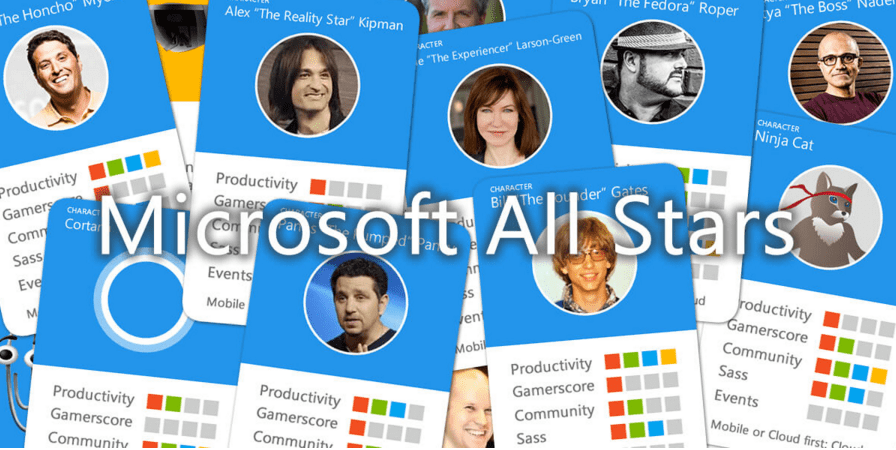
While Microsoft isn’t going to go making an online card game like Hearthstone any time soon, one Microsoft fan made sure that you can have a card game anyways. Michael Gillet has gone about creating Microsoft All Stars, a 2 player card game where you can use cards of your favorite Microsoft Engineers. People like Panos Panay, Bryan Roper, and Satya Nadella are all cards in the game, and they’re pretty amazing.
Each card has different statistics, being defined by productivity, gamerscore, community, sass, and events, and you can use power-up cards to modify them. It’s an exceptionally neat project, and anyone who’s a fan of Microsoft (and more specifically people who enjoy the team that works there) should get a kick out of it.
If you want to play Microsoft All Stars for yourself, you can get all of the cards, read the rules, and even get a DIY kit for your own additions to the game right here. If you just want to check out the cards, you can find them here.
Microsoft has finally made its Universal Windows Platform (UWP) app templates available for Adobe Photoshop. Previously, the templates were only available for Adobe Illustrator and Microsoft PowerPoint.
The templates contain UWP elements such as common controls, fonts, patterns theme colors, and type styles. Users can simply copy elements from the templates into their own Photoshop files. There’s also a template made up of nine screen sizes that enable for creating mockups to show the user how his app will scale on different screen sizes from 4-inch phones to 27-inch desktops. The templates also help the user to quickly create polished apps and visualize what the UI of the app will look like when the app is finished.
If you’re interested, you can download the templates here. Microsoft encourages you to share your feedback with them at their Windows platform developer User Voice, but we’d also like to hear what your thoughts are about the Photoshop templates in the comment section below!
Gameloft has announced a new game that will be available for the Windows and Windows Phone platforms. Sniper Fury is a shooter game that was made in the same game development studio as Blitz Brigade, Brothers in Arms 3, and Modern Combat 5. Here’s a description of the game:
“Using the latest rendering based technology seen in Modern Combat 5: Blackout, Sniper Fury will have amazing visual effects that will make it the best-looking shooter on the store. Accessible gameplay focused on shooting, players will deploy in sniper vantage points with clear missions: eliminate threats, protect allies, survive, and more. Take an impossible shot and see it again with intense kill cams. In Sniper Fury, you are only as good as your aim!”
Gamers who are interested in the new game can pre-register at the game’s official website to unlock some nice in-game content whenever the game becomes available, although we’re unsure the exact release date.
You can also watch the short game trailer below if you want to see a sneak peak of what the game might be like. Be sure to share your thoughts about what you might think of the game in the comments below!
Creating a beautiful product alone doesn’t guarantee adoption or success. The road to innovation and financial success is paved with the mismanaged marketing and failed communications of thousands of would-be competitors. While Microsoft’s Surface Book and Surface Pro 4 have garnered generous praise by the tech elite, the company is only at the beginning of its marketing journey.
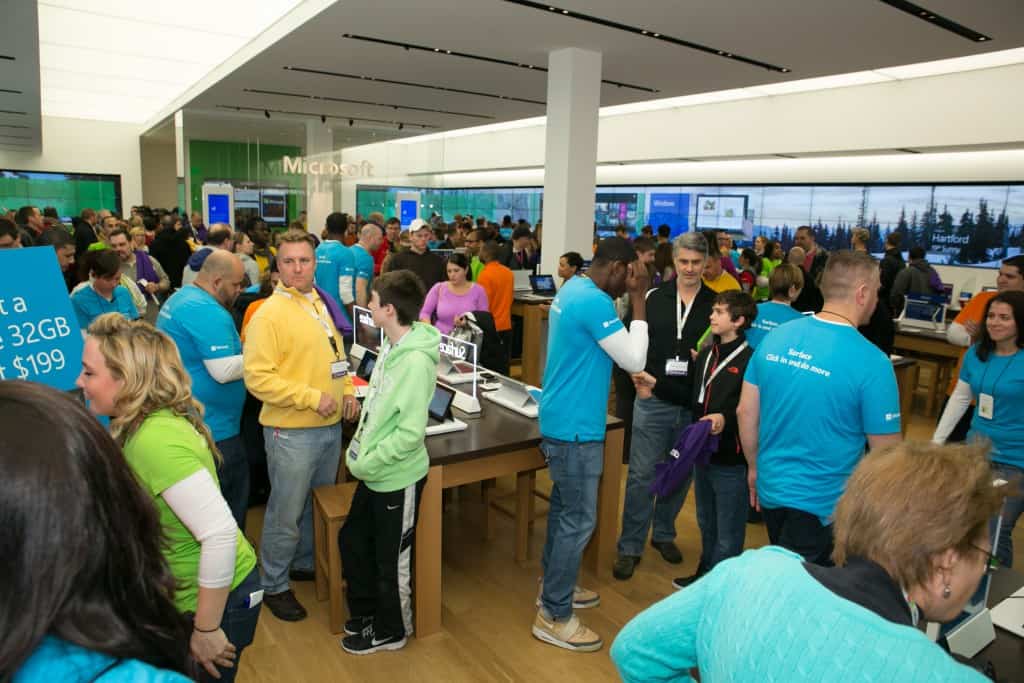
We’ve recently been reporting Microsoft’s efforts to get the information out about its new hardware this Fall. From its street campaigns in New York announcing its new flagship store to tapping the NFL’s elite to make appearances at several of its well-trafficked stores, Microsoft is pulling out all the stops this shopping season.
Microsoft is also rounding outs event list with a few more details regarding breakfast tutorials on the Surface Pro for small businesses, and in-store workshops with Microsoft professionals.
On Monday, October 26, head to your local Microsoft store to experience the launch of the Surface Book and Surface Pro 4. For anyone who has already pre-order their Surface device select stores, in-store pick up now include a t-shirt, Surface sticker, an 8GB USB and accessory carrying pouch for free. While at your local Microsoft Store the company is also encouraging some hands-on time with its new Microsoft Band (Band 2).
Free this weekend? You don’t have to wait until Monday to check out the new Windows 10 devices. Select Microsoft stores have both the new Surface devices and the new Microsoft Band so you can experience them sooner rather than later. You can also preview them online at microsoftstore.com.”
Microsoft’s new event list also has something for small businesses interested in the updated line of Surface devices.
Also on Monday, October 26, some stores will host an in-store breakfast focusing on the Surface Pro 4. Mobile professionals, small business owners and more are invited to the breakfast to learn more about the newest member of the Surface family
Hands-on product demos will highlight some of the top features for small businesses as Surface lets you work from anywhere while on the go.”
Similar to the Genius Bars at Apple stores, Microsoft is also highlighting its highly knowledgeable Answer Desk. For customers interested in the new devices, or OEM-related products, Microsoft is encouraging a trip over stores Answers desk, usually located towards the back of the store.
Microsoft reinvigorated efforts are a welcomed breath of fresh air for the millions of Windows users around. Hopefully, the company can maintain this level of execution that could result in a positive reputation for the stores.
For times and dates on Microsoft Store related events, visit the company’s Facebook page, or call your local store. Unfortunately, it seems many of these events are US-only for now.
Microsoft surprised everyone during the October 6th Windows 10 devices event when the Redmond giant unveiled the Surface Book. Microsoft is touting the Surface Book as “the fastest 13-inch laptop anywhere on the planet” and, portentously, as the “Ultimate Laptop.” This seems to be the ultimate example of Microsoft reinventing a category to, perhaps, show their OEMs how great Windows 10 devices can be designed and built.
If you are looking to snag yourself a fancy new Surface Book, there are several outlets that are carrying the device in the United States and Canada. Microsoft has yet to offer the device outside the United States and Canada, but we’re sure that will change at some point. For now, you can buy the device from the links below (keep in mind that pre-orders are currently taking place until the device becomes officially available on October 26th).
You can also purchase the Surface Book if you have a membership to Costco, but your choices will be limited. You can check out Costco’s offering here. Costco typically offers a bundled deal — and in this case, you can get a one year subscription to Office 365 Personal, and a Microsoft Wireless Display Adapter. Costco will be shipping out the device the week of Nov 9th. For those of you in Canada, check out the below links.
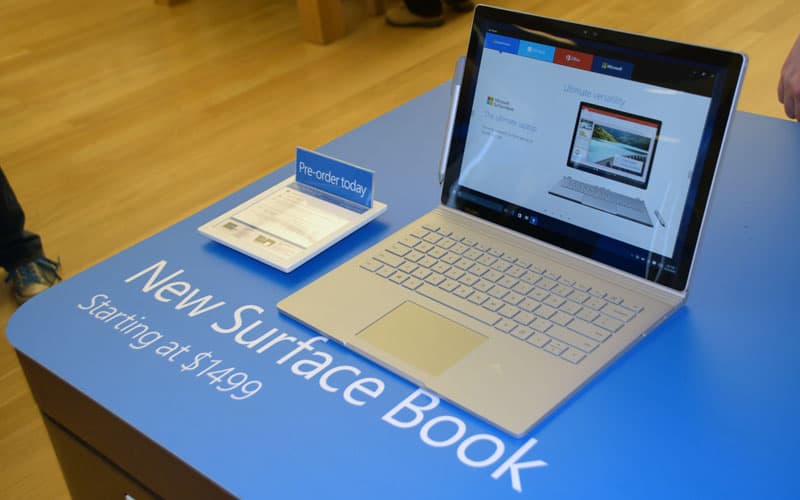
For those wondering, there are several different options to choose from. The cheapest model runs for $1,499 and features 128GB of storage and 8GB of RAM. For $200 more, you can get a dedicated GPU (read more about that here).
You can also head over to a retail Microsoft Store or Best Buy on launch day and see if they have any units in stock. We hope this quite guide helps you and good luck with your purchase! Let us know in the comments below if you pre-ordered a Surface Book and which model you selected. You can also bookmark our dedicated Surface Book page for all the latest news on Microsoft’s newest device.
Google has rolled out an update to their official app on Windows 10, and with this update comes a new app icon reflecting Google’s new logo. The update also adds bug fixes, according to the company.
“The world’s information at your fingertips. A familiar, fast, and precise way to find answers on your Windows 10 device,” the app description reads. This app offers the ability to search Google.com via an app, but you can also do that on the Google website or use Bing instead. But, to each their own. You can grab the app below if you are interested.