HP announces 8 new devices, built for Windows 10

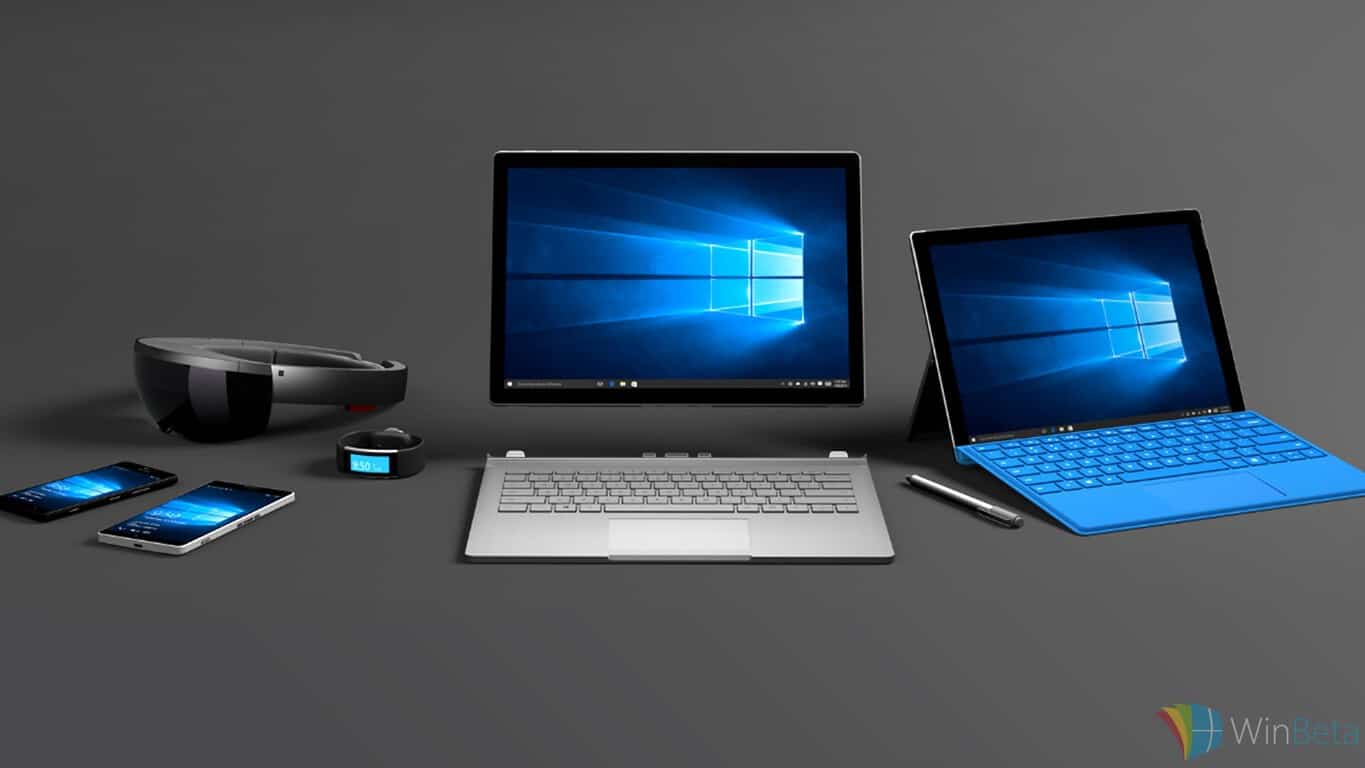
As promised, Microsoft has started a tour of sorts in which execs and business partners are set to show off new Windows 10 devices. The tour started today with HP in Barcelona and will continue with Dell on the 8th.  Other dates include Asus on the 9th, Acer on the 12th, Toshiba on the 13th and finally with Lenovo closing the show on October 19th. As if revealing the Surface Pro 4 and Surface Book, the Lumia 950 and 950XL, and the Microsoft Band 2 was not enough for Windows users, HP has just announced the release of 8 new devices.
Of the newly unveiled devices, here are a few that really stand out.
 
 
HP Spectre x2
The HP Spectre x2, starting at $799.99 and launching on November 8, is poised to compete against the likes of the Surface Pro 4. The device has a very similar 2-in-1 design with an adjustable kickstand and detachable keyboard. Starting $100 less than the SP4, with the inclusion of a stylus, a keyboard, Verizon LTE connectivity, and reversible USB Type-C to Type-A this device is not a bad alternative to Microsoft’s own hybrid tablet.
HPSpectre-x2-e1444223698625
ENVY-8-Note-e1444223217401
HP ENVY Note 8
The HP ENVY Note 8 stands out for its size. HP is offering a full Windows 10 experience powered by an Intel Atom CPU. This device also comes with a digital stylus, although the keyboard is optional here. The ENVY Note 8 also comes with a Verizon LTE and pricing starts at $329.00.
 
 
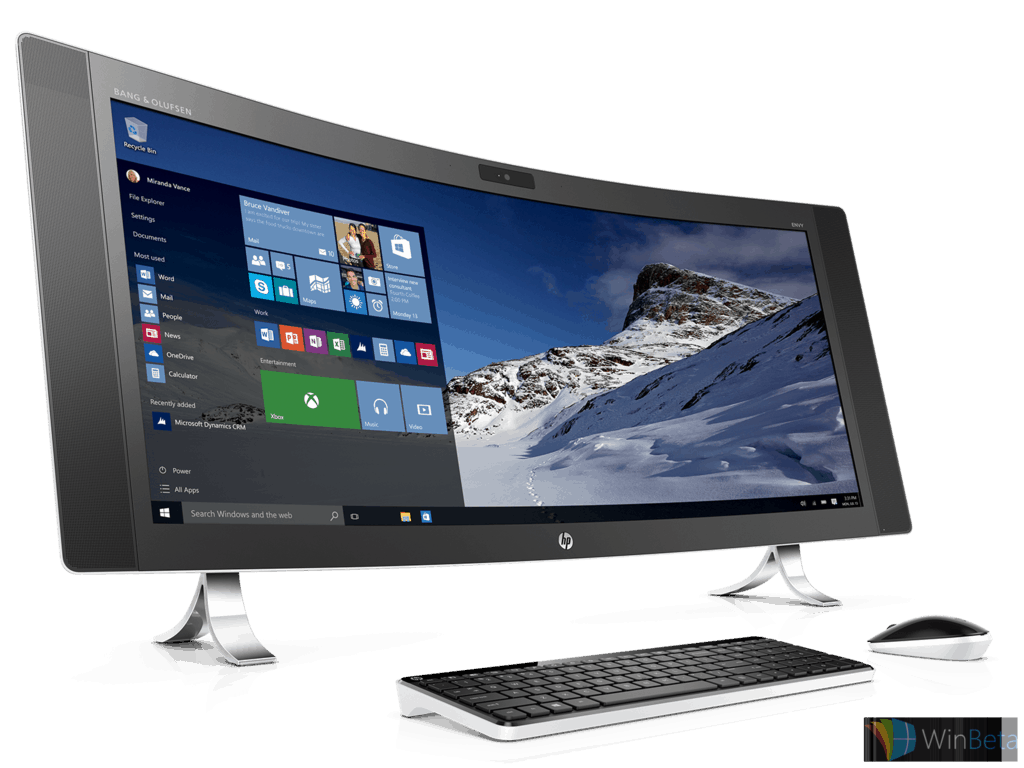
HP ENVY Curved All-in-One
As far as All-in-One’s go, HP’s curved display sets it apart from others of the same genre. The PC has a 34-inch, curved display for both productivity and entertainment.
HP-Envy-AIO


HP Pavilion Gaming Notebook

The HP Pavilion Gaming Notebook is a 15.6-inch notebook powered with a GeForce GTX 950 graphics card and either an Intel i5 or i7 CUP. Storage ranges anywhere from 128 GB to 2 TB and starting at $999.

HP-Stream-11-Poprocks-Angle6

HP Stream Notebook PCs

HP stream Notebooks are for the budget conscious. These devices have very little internal memory but generally come with promotions for Microsoft’s cloud service, OneDrive. The HP Stream will come in two sizes, 11-inches for $199.99 and 13-inches for $229.00
 
 
For more information on HP’s new Windows 10 Devices presentation, click here.

How to Install, Update and Use iTunes on Windows 10

iTunes is one of the most popular multimedia platforms in the world, and although it’s Apple’s product, it is also available for users of Windows operating systems, and Windows 10 is not different. So if you want to use iTunes on Windows 10, here’s everything you need to know about downloading iTunes, importing media, and buying from the iTunes Store on your Windows 10 computer.

itunes windows10

How to install iTunes on Windows 10

Whether you’re installing iTunes for the first time, or updating it, method is the same. Just download the installation file, and if you’re installing it for the first time, it will normally install on your computer, otherwise it will just update the current version of iTunes installed on your Windows 10 PC. Here’s exactly what you need to do:

  1. Go to this adress: www.apple.com/itunes.
  2. Click the blue Download iTunes button in the top-right.
  3. Click the Download Now button.
  4. Click on the download, once it completes, to launch the installer. Once you download the installer, just launch it and follow further installation instructions.

That’s it, now you have the latest version of iTunes installed on your computer. Follow further instructions from this article to learn how to create an Apple ID, import your music, subscribe to services, and more.

How to create an Apple ID for iTunes on Windows 10

Unless you’re using your own music, you’ll have to create an Apple ID to buy music, movies and apps from iTunes. So if you you don’t have Apple ID already, you can create it through iTunes on your Windows 10 PC. Here’s what you need to do:

  1. Click the Sign in button near the top-right of the screen, just next to search bar.
  2. You’ll be asked to login or to create your Apple ID, so just click the Create Apple ID button below.itunes windows 10
  3. Click Continue on the next screen, then Agree to the terms and conditions.
  4. Fill in required information, including e-mail address, security questions, and password. Optionally include a secondary e-mail address and opt in to newsletters. Click Continue when done.
  5. Fill in a billing address on the next screen, and optionally provide credit card payment information. Click Create Apple ID in the bottom-right.
  6. Check your e-mail for a verification message, and click the link provided to complete the process.

If you want to buy and download apps from the store, you’ll have to add your payment info as well. Here’s how to do it:

  1. Click the Apple ID icon on the top right part of the screen, log in, and click Account Info.
  2. Under the Apple ID Summary, you’ll find Payment Information. Click the Edit button.
  3. On the next screen, select your payment method, input the required information, and click Done in the bottom-right.

Now you have your Apple ID set up, and you’re ready to use Apple’s products on your Windows 10 computer.

How to import Music and Videos Into iTunes on Windows 10

You don’t have to buy every song from iTunes Store, as you can import your own. Once you start iTunes for the first time, it will ask you to Scan for Media, and if you choose this option, it will include all media from your computer in your iTunes player. If you want to skip it for now, and do it later, here’s how to import your your media into iTunes:

  1. Click File in the menu at the top of the iTunes window
  2. Click Add Folder to Library… add file itunes windows 10
  3.  Just browse through your folders and add desired music (do the same for videos, and other media).

How to buy from iTunes Store in Windows 10

Of course, one of the main purposes of iTunes app, besides listening to music and watching movies, is buying music and movies and TV shows. But before we get started, you need to make sure your Apple ID has verified payment info, if not, just follow the steps from above, and once you complete everything, you’re ready to buy.

Here’s how to buy desired media from iTunes:

  1. Open iTunes, and go to iTunes Store.
  2. If you want to buy some of the featured items from the store, just click on it, otherwise, search for your favorite song, movie or TV Show.buy from itunes windows 10
  3. Once you’ve found what you want to buy, click on the price and you’ll be asked to enter your Apple ID.
  4. Enter your Apple ID, follow further instructions, and complete the purchase.
  5. Once you buy an item, it will show up in your iTunes Library, more precisely it will be available under My Music, My Movies, or My TV Shows.

Now you know pretty much everything about installing and using iTunes on your Windows 10 computer. Tell us in the comments, which service do you prefer more, iTunes or Groove Music?

Read Also: Fix: Windows 10 Media Player Won’t Rip Music in Windows 10

Microsoft Bingo updated for Windows 10

Hearing the term ‘Bingo!’ may bring about visions of elderly folk scratching numbers off a card in a hall. However, in late 2013 Microsoft took on the task of bringing the game into the twenty-first century. A few months after the release of Microsoft Bingo for PC, it became available on phones as a universal app. Microsoft Bingo, not to be confused with Microsoft’s Bing, has just recently been updated to work with the Windows 10 design language
If the reviews on the Store are anything to go by, people are enjoying this game as it has earned an average rating of four stars. The game allows gamers to ‘travel the world’ earning souvenirs as they fill in their card. Along the way, they can pick up luggage prizes and special rewards for matching Power Card picks.
The game is free to play with in-app purchases and can be downloaded using the link below.

Microsoft Bingo
Microsoft Bingo
Developer:
Xbox Game Studios
Price:
Free

How the October Windows 10 event changed my view of Microsoft

I was fortunate enough to head up to New York yesterday to attend the fabled Microsoft event, vaguely dubbed as a place where the company intended to show off “Windows 10 Devices.” With a name like that, it was very easy for my jaded heart to sink into a cynical pit, condemning Microsoft for an underwhelming showing before anyone even stepped on stage. For so long, the only electronics company that cared to sell its products on a cohesive brand name was Apple. The massive success that Apple has garnered over the years with this approach to marketing is self-evident. Every move that Apple makes is praised by fans, regardless of its significance.

It’s this sort of brand dedication that I’ve always wanted Microsoft to get from its fans. Up until now, Microsoft has always been a company that focused on one thing: being effective, and making great products. It was always a great frustration of mine to see that, with this intense dedication to good products, Microsoft never made the general population care. Apart from a small group of diehards, most people feel lukewarm about the company. What I saw at Moynihan Station felt like a strong move in that direction – one that convinced me that Microsoft is finally getting people to rally behind its products.

IMG_0869

Throughout the entire event, we were soaked in something that I always felt that Microsoft sorely needed: branding. The event oozed aesthetic – at any given time, I knew that I was there to see what Microsoft had hidden up its sleeve. It showed off the sort of pride in one’s brand that we’ve come to know so well from Apple, and that was exactly what I hoped for. This event was, above all else, Microsoft’s chance to prove that they could become a name to the general consumer, and not just be relevant to tech enthusiasts.

[pullquote align=”full” cite=”” link=”” color=”” class=”” size=””]This was the first time that I’ve ever truly felt like a Microsoft fan[/pullquote]

This was the first time that I’ve ever truly felt like a Microsoft fan, and not just a tech fan who appreciated Microsoft’s contribution. From the time I entered the building and saw the Microsoft branding elegantly scattered across the show floor, I felt like I could put away my cynicism and get excited. Whether it was the showmanship displayed in the videos that were shown off, or the electricity that Panos Panay brought on stage with his infectious enthusiasm for Microsoft’s new products.

IMG_0783

I’ve always been interested in what Microsoft has to offer. The company has unequivocally been the most significant player in electronics since its inception, and every move they make is bound to be important to electronics enthusiasts. This event, however, shifted the paradigms entirely. I’m no longer just intrigued by what this company is going to do next – I’m excited. I feel as if Microsoft is beginning to rally a group of true fans, not unlike the folks who have decided to join Apple’s camp, and I think that change in public perception is the best thing that the company could have asked for.

[pullquote align=”full” cite=”” link=”” color=”” class=”” size=””]I’m no longer just intrigued by what this company is going to do next – I’m excited[/pullquote]

Only time will tell how the public is going to remember what happened at Moynihan Station yesterday. It’s entirely possible that the hype is going to wear off, and we’ll see the Microsoft fans sinking back into their holes to chatter about tech amongst themselves. I genuinely hope, however, that people look at this stellar presentation as the turning point in Microsoft’s public face. When the new Lumia phones, the Surface Pro 4, and the Surface Book releasing later this month, I think it’s entirely possible that we see a new wave of true Microsoft diehards.

Microsoft explains using extended srcset and responsive images on the Edge browser

Mobile operating systems with small to negligent market shares are looking towards a more responsive web to champion as an equalizer over the dreaded “app gap”. Systems such as Sailfish, BlackBerry and Windows Phone, all ‘suffer’ from not housing a robust ecosystem of apps. Earlier smartphone visionaries pictured a world where the web and web apps would be used over platform native apps. Unfortunately, the future of web apps has not quite panned out, but that doesn’t mean companies aren’t still hard at work on making it so.
Microsoft, for instance, started using extended srcset and picture element support with Microsoft Edge in Windows Insider Preview build 10547. With support for the new technologies, the Edge browser can now address responsive images. Older implementations of responsive design required developers to provide full responsive image solutions through JavaScript. That method of execution resulted in duplicate downloads, slower load times of sites and degraded performance as a result of executing logic on the a UI thread. The new tools now enable web developers to tailor their image size and art directions to an adaptive layout.
Animation showing adaptive image with art direction using the picture element
Recently, Microsoft has offered developers some guidance on what its believes are the principles of responsive images.

An image is fully responsive if it has three principal characteristics: First, it should download at an appropriate resolution to provide best quality image for the user’s device and based on the expected layout dimensions of the image. Second, it should be served in an efficient format that is supported by the user’s browser, to achieve smaller file sizes without compromising quality. Finally, to the focus of the image should adapt to device and viewport dimensions to ensure the primary subject of an image is always prominently in. The combination of srcset, sizes, and picture allows you to embed images with all of these characteristics so that your users have a great experience on any device or screen size.”

Microsoft’s simple developer principles also include width descriptors, size attributes, tying sizes together with srcset, and improving performance by adding resolution switching.
Microsoft is offering developers a Test Drive demo to get live examples of how the new technologies work with its Microsoft Edge browser.

Microsoft is using feedback to restructure its MVP award

Microsoft Corporate Vice President of Developer Platform & Evangelism Steve “Guggs” Guggenheimer took the opportunity today to announce a restructuring in how the company awards its prestigious MVP awards. Guggenheimer reminisces about all the MVPs he’s met with in the past:

Over the years, I’ve been fortunate to have spoken with many MVPs. I am always impressed by the eagerness to learn that all MVPs seem to share, as well as the common desire MVPs have to share knowledge with others. MVPs design, build and innovate across multiple platforms, devices, and technologies, creating holistic solutions and helping others do the same. That agility and openness is part of the fabric of today’s cloud-first, mobile-first world.

In the same way Microsoft listens to feedback about its products and services, the company has also listened to feedback regarding the MVP program. Microsoft has now taken that feedback and incorporated changes.
The focus of the new changes is to broaden the types of achievements and contributions that can be awarded and to strengthen attention on smaller, more geographically localized efforts. Specifically, the award categories will be shrunken down from 36 areas of technical expertise down to 10 broader categories which encompass 90 different technical areas.
MVP_Award_Category_1 MVP_Award_Category_2
The following categories remain unchanged:

  • Consumer Security
  • Windows Consumer Apps
  • Windows Experience
  • Windows Phone
  • Surface
  • ID@Xbox
  • Xbox
  • Bing Ads
  • Access
  • Excel
  • Macintosh
  • Office System
  • OneNote
  • Outlook
  • PowerPoint
  • Publisher
  • Visio
  • Word

More specifics can be found here.

These changes will prevent limiting the MVP award to only one specific technical area. The new move makes sense as seldom does a candidate contribute only to one particular technology and only that. Many of these technical areas are inter-related, and improvements to one often cannot be had without improvements to others.
The new award structure will also have the effect of encouraging local field teams to recognize and collaborate more with MVP contributors, strengthening the relationship between Microsoft and MVPs.
To further incentivize collaboration with MVPs, Microsoft is now for the first time opening its Channel 9 developer video platform up for MVPs to publish their own content.
These changes are necessary for Microsoft to keep the program in tune with the rapidly changing pace of innovation in the technology sector. The changes also evince a much greater willingness on Microsoft’s part to collaborate with not just other corporations and software communities, but also with its biggest individual contributors.

Microsoft wants us to love Windows, and it matters

As Microsoft enthusiasts, we’ve been saying it all along: this stuff does matter.  Yesterday at a press event in New York, where Microsoft-centric journalists and bloggers were treated warmly and not like some kind of enemy, Microsoft put on a show.  Relaxed, personable, and diverse (sideways fedoras count as diversity, right?), Microsoft talked less about specs and stats and numbers, and more about what it *feels* like to use their products. They’re making a conscious effort, for maybe the first time ever, to help us move from just needing Windows, to beginning to enjoy using Windows to… loving Windows.

This is so far removed from some of the events I covered back in the “Sinofsky era” where Microsoft bloggers/enthusiasts were treated like some kind of maybe-not-quite necessary evil, as if being enthusiastic about the products you used was some kind of laughable notion.  “We don’t care”, as Lily Tomlin voiced as a phone company operator back in the early days of Saturday Night Live, “we don’t have to”.

But now, suddenly, finally, Microsoft is finding that it does need to care.  It’s finding out that making cool stuff matters, and giving enthusiasts not only tools but a reason to belong, a place to “be”, is worth a lot more than just lip service.

Xbox matters.  Gamers are more than just a stepping stone into the living room, they matter.  An Xbox that bungled the gamer experience and kludged an entertainment hub onto their backs at a premium price not only didn’t work, it massively backfired.  Microsoft might make a lot of money someday with the Xbox as the center of the living room experience, but at its core, gaming still needs to matter.

Surface Book
Surface Book

Information workers and road warriors matter, too.  They shouldn’t have to pack around a boring bloated laptop in a bag full of extra batteries and accessories because they just can’t *work* on one of those fancy iPads that the cool kids are carrying.  The Surface Pro has given serious street cred to people who care about how they’re perceived, but need a real working machine.  The Surface Pro line, up to and including the sexy new Surface Pro 4 and the Surface Book, not only works, but it matters.

New Lumia phones
New Lumia phones

Phones matter too, but not only as the best of the current generation, but as a leader for what’s to come.  8 years ago, the only conversations around phones involved Nokia and Blackberry.  That all changed of course, but the nature of phones is not that someone wins, it’s that the landscape changes.  The only thing about phones we know for sure is that in another 8 years, we won’t be using “smartphones” as they exist today.  Continuum may or may not be the way to the future, but Microsoft isn’t standing still, for once. Microsoft enthusiasts, left out in the cold for far too long without a new flagship device, are finally getting not one but two, even as Microsoft understands that these phones aren’t going to be big sellers.  Why? Because enthusiasm matters, and users left out in the cold, even though they’re small in numbers, are vocal in their displeasure when they could be carrying the torch for Microsoft.

And what matters most is Microsoft, One Microsoft.  This is a company that realized that by ignoring Microsoft enthusiasts, and enthusiasm for Microsoft, it was throwing the baby out with the bathwater.  Sure, Microsoft makes a lot of money on the enterprise.  But we don’t stop having feelings when we get to work.  We want to be proud of what we use, to show off our skills and our connection to what’s cool. It matters, and for perhaps the first time ever, Microsoft seems to have figured that out.

Microsoft toaster fridge makes appearance at October 6 hardware event

Apple and Microsoft are very different companies, in a number of important ways. One example is in how the companies treat their competition during important events. Apple tends to poke fun, to put it politely, while Microsoft tends to take a higher road. Most of the time.
At yesterday’s Windows 10 hardware event, someone played a joke on Microsoft Corporate VP Panos Panay, inserting a CAD drawing of a toaster-refrigerator hybrid into his Surface Pro 4 demonstration. Known colloquially as the “toaster fridge,” this mythological creature has haunted the Internet ever since Apple CEO Tim Cook alluded to it during an Apple quarterly earnings report in 2012.

“You can converge a toaster and a refrigerator, but, you know, those things are probably not going to be pleasing to the user,” Cook said.

The mythological toaster fridge.
The mythological toaster fridge, via Microsoft’s Terry Myerson.

Cook’s point was that in trying to merge two different devices, namely laptop computers and tablets, Microsoft was compromising on both. Clearly, with Surface becoming a $3.5 billion product line, quite a few people disagree, and Microsoft’s Surface Pro 4 and Surface Book announcements reveal Cook’s position to be a bit short-sighted.
It’s a lot of fun when companies take jabs at each other, and this one was considerably more innocent than Apple’s disparaging of its own competition. Consider that Panay also lauded the MacBook Air as an excellent device, even as he spoke to the relative strengths of the new Surface Book. That’s classy, in our opinion. And more recently, Cook returned the favor, calling out Microsoft’s importance in helping Apple create truly productive products at this year’s BoxWorks event.

Apple and Microsoft can partner on more things than we can compete on and that is what the customer wants… Office on the Mac is a force. Partner with Microsoft is great for our customers, and that’s why we do it.

We’ll likely see more back and forth between Apple and Microsoft given the latter’s excellent strategic moves lately–Microsoft is a far more confident company today than it was in 2012, and for good reason. Things might become a little warmer, however, as the two companies work together in building out Microsoft’s new productivity platform.

Microsoft Health apps updated for new Band

Yesterday we reported about the 2nd generation Band at the Windows 10 devices event, as well as its October 30th release date. In preparation for the launch of the second generation Microsoft Band, Microsoft has just updated the accompanying Health app across Android, Windows Phone and iOS.
sad
Changes include:
  • Updated UI for universal Windows 10 platform (for Windows Phone version)
  • Newer more blue color scheme replacing the old purple tint.
  • UV monitoring
  • Elevation tracking thanks to the new barometer in the new Band
  • New features for aiding in sleep cycles
  • Workout customization through the health dashboard website. The website features a comprehensive assortment of workout regimens that users can customize to tailor to their own needs and compare their data with the averages of Microsoft’s overall health database.
The new Band was announced yesterday at the Windows 10 devices event alongside several other flagship products, including the Lumia 950/950 XL, the Surface Pro 4, and the unexpected Surface Book. The Band 2 will retail for $249 USD and begin shipping October 30th.

Microsoft Band
Microsoft Band
Price:
Free

The app was not found in the store. ?

The app was not found in the store. ?

How to pre-order the Surface Book, Surface Pro 4, and Microsoft Band

It’s been a super exciting week for tech enthusiasts with Microsoft announcing several exciting new pieces of hardware. Many of them are already up for pre-order right now so here’s a collection of where and how to buy the Surface Pro 4, Surface Book, and new Microsoft Band.

Surface Pro 4

The newest entry in the popular Surface Pro line of tablet/laptop hybrid devices, the Surface Pro 4 is the thinnest and most powerful Surface Pro yet and will make for either a great upgrade device or an entirely new one for those who have yet to jump on the Surface Pro hype train.

Pre-order the Surface Pro 4 online here.
Surface Book

Microsoft’s first ever laptop. This thing is a beast that’s even more powerful than the Surface Pro 4 and gives Apple’s Macbook Pro a run for its money (Microsoft claims it’s twice as fast).

Pre-order the Surface Book online here.

Microsoft Band

The new Microsoft Band is a massive improvement on the first generation. Boasting a completely new design that’s smoother and more comfortable to wear as well as some cool new interior tech, this baby makes the Microsoft Band a lot more tempting to try.

Pre-order the Microsoft Band online here.

Are you going to pre-order any of these new devices or have you already placed your order for all three? Share the hype in the comments below.

Microsoft highlights how you can do great things with Windows 10 in new promo video

When Microsoft introduced Windows 10, there was an emphasizing on the idea that you can “do more” with Windows devices. With today’s announcement, those over at Microsoft are taking it a step further. They do not just want to you “do” or “do more”, today they urging you to “do great things”. With products like the Surface Book and continuum for phones on the Lumia 950(XL), Microsoft is certainly building devices that allow people to do almost anything.
Microsoft and its Windows, Office, Azure, Surface, Lumia, and Band products have always stood on a platform of productivity. If you remember back to those old Apple commercials in which Microsoft was depicted as an older, dorky, and rather boring man in a suit and tie, the company has been traditionally viewed as the “business first” company. It looks as though Microsoft accepts the suit and tie but is ready to show the world they are much more than just business software and corporate offices.

In the two minute video above, Microsoft appeals to almost every person who touches a mobile device. The video features each new product Microsoft announced in today’s keynote, highlight how Windows 10 devieces are for the athletes, the aritits, the designers, the students, the directors and movie editors, the gamers, the architects, the Dj’s, and for the friends. It appears as if Microsoft  is trying to place a Windows 10 device in every working and entertainment space there is, inspiring and urging people to not just do, but to do great things. As the video says, “When there are no limits to what your devices can do, there are no limits to what you can do with them.”
What great things will you do with your Windows 10 devices?

Microsoft kills the Windows button on the Surface Pro 4

Something that we actually speculated would happen earlier this week after we heard rumors of a thinner bezel on the Surface Pro 4 has come to pass: Microsoft has removed the physical Windows key on the Surface Pro 4.
Since the first generation Surface Pro and Surface RT, the Windows symbol has been a constant on the Surface range of devices, offering an easy way for the user to return to the Start Screen and navigate the Windows operating system. With the launch of Windows 10 though, and the new constant presence of the Windows Start Menu in the lower-left corner of the screen (and sad goodbye to the glorious fullscreen apps in Windows 8), the physical Windows button’s relevance has been diminished for many users and with the want for a thinner bezel on everyone’s minds, its removal was inevitable.

Surface Pro 4
Surface Pro 4

The absence of the physical Windows button won’t really be felt until users get their hands on the new Surface Pro 4. For now though, let us know what you think about this rather significant design choice. Do you use the button often? Will you miss it? Share your thoughts in the comments below.

Microsoft actually revealed 2 new Type Covers today

Along with the big (though not surprising) announcement of the Surface Pro 4 during today’s Windows 10 Devices Event, Microsoft also revealed a brand new Type Cover to accompany it. This new Type Cover was shown to be lighter, thinner, and sturdier than previous models and boasts a newly designed glass track pad (which is four times larger than before), a new-look keyset, and is fully backwards compatible with the Surface Pro 3.
Microsoft also revealed a second new Type Cover during their presentation. Glimpsed during the Surface Pro 4 portion of the show, a new Type Cover features a fingerprint reader next to the track pad which can be used to log in or switch profiles. A cute video was shown featuring Microsoft’s Panos Panay’s two children using the fingerprint reader to change profiles on their new Surface Pro 4 and it was shown to be a major feature of both the Surface Pro 4 and its new Type Cover. It was given such a big focus that it would be easy to assume that all of the new Type Covers came with the fingerprint reader. But they don’t. There are in fact two separate versions of this new cover.
After tracking down the individual product pages on Microsoft’s site, there appears to be some contradictory information in regards to which devices the new Type Covers work with as they claim to only work with the Surface Pro 4 in the specs after being promoted as backwards compatible with Surface Pro 3 during the Windows 10 Devices Event.

Surface Pro 4 Type Covers

As of the time of this writing, both of the new Type Covers are up for pre-order on Microsoft’s website and can be selected via the color variant boxes on the product page and thankfully the store page confirms that both Type Covers will work with both the Surface Pro 4 and Pro 3.
Here’s the information on the regular new Type Cover:
Works with Surface Pro 4
11.6″ x 8.54″ x 0.19″ (295mm x 217mm x 4.65mm)
0.63lbs (285 grams)
Black, blue, bright blue, red, and teal1
Layout: QWERTY, full row of function keys (F1 – F12)
Dedicated buttons for Windows shortcuts, media controls, and screen brightness
Right click button
Magnetic attachment
Accelerometer
1 year limited hardware warranty
 
And here’s the specs for the new Type Cover with the fingerprint reader:
Works with Surface Pro 4
11.6″ x 8.54″ x 0.19″ (295mm x 217mm x 4.65mm)
0.63lbs (285 grams)
Available in black
Fingerprint scanner
Mechanical keys that are spread out for precision typing
Layout: QWERTY, full row of function keys (F1 – F12)
Dedicated buttons for Windows shortcuts, media controls, and screen brightness
Right click button
Magnetic attachment
Accelerometer
1 year limited hardware warranty
 
As you can see, they’re fairly similar with the only real differences being the colors available and the fingerprint reader. The regular Surface Pro 4 Type Cover’s RRP is US$129.99 while the Surface Pro 4 Type Cover with Fingerprint ID is US$159.99.
There’s bound to be some confusion amongst consumers with these different variants so make sure to double check you’ve selected the correct one before ordering. Is the fingerprint reader something that you’d pay extra for? Let us know in the comments below.

Tweetium for Windows 10 just hit 4.0, gets interactive notifications

Tweetium is my favorite Twitter app for Windows 10, and i’m sure many of you feel the same way too. The developer of Tweetium has just rolled out an awesome new update, bumping the app version number to 4.0. Here’s what’s new with this update:
The app now features new photographic theme options as well as interactive notifications so you can easily reply back to someone who mentions you. The update also adds image preview enhancements and new settings, as well as a Column mode option to always use a vertical layout. How cool is that? Grab the updated app from the download link below and enjoy the free app! Tweetium also has a pro version with more features, allowing you to have up to 7 accounts, push notifications (mentions, DMs, RTs, quotes, favs, and new followers), a richer Connect view powered by Tweetium Pro notification servers, TweetMarker sync, and integrated news reading powered by Newseen.

Tweetium
Tweetium
Developer:
B-side Software
Price:
Free

Watch Microsoft's #Windows10Devices event again, on-demand

Microsoft fans have been patiently (or not so patiently) waiting for today’s big event. Earlier this morning Microsoft took the stage for almost two hours ushering in a new era of Windows devices. Microsoft streamed their launch event live this morning and now the presentation is available to watch on-demand.
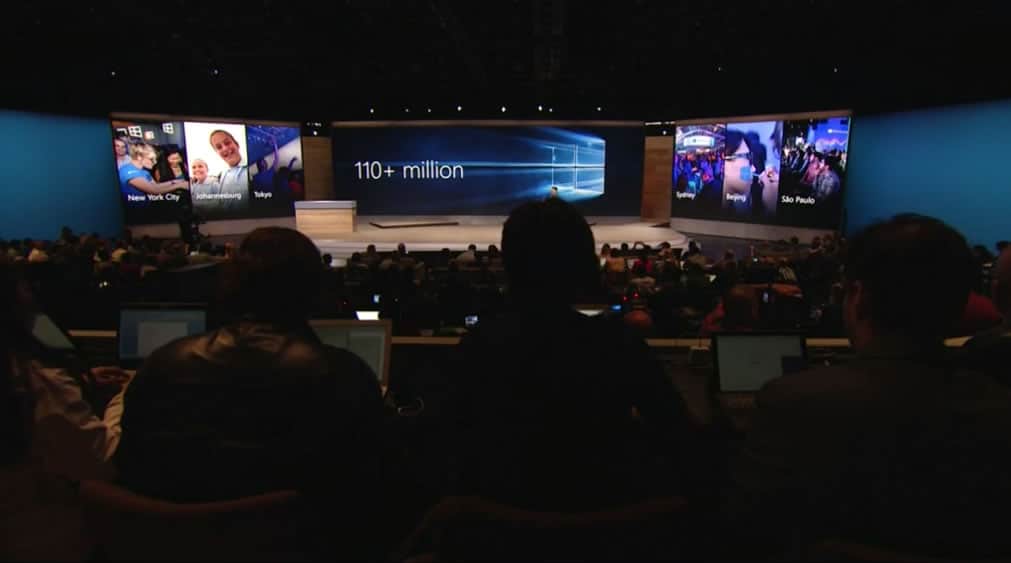
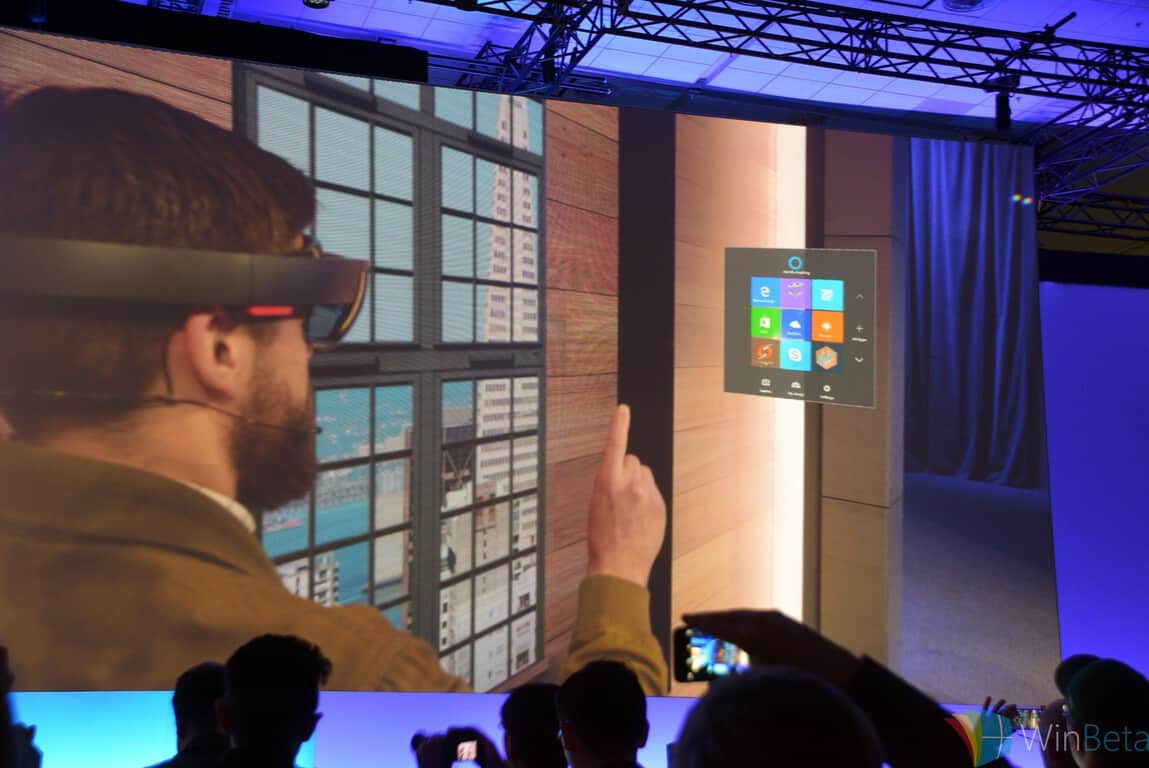
There were quite a few announcements made today. The presentation began with Microsoft announcing over 110 million Windows 10 installs in just eight weeks. We are then given a very interesting look at the HoloLens with Project XRay. The presentation then went into the introduction of the Microsoft Band 2 and the numerous improvements made to the fitness and health device.
From here, Microsoft formally presented the very much leaked Lumia 950 and 950XL. We were fortunate enough to receive a demonstration of continuum for Windows 10 mobile and a brief demo of the iris scanner on these devices, however. Microsoft then swiftly moves into the announcement of the Surface Pro 4. Although this device was very impressive, the Surface Book stole the show. Although rumors indicated we might see two sizes for the Surface Pro 4, instead we were given a hybrid laptop/tablet that’s lack of leaks made for a truly great presentation of a technological marvel.
Were you able to tune in for the presentation this morning or are you planning to sit back with a bowl of popcorn and relive the magic?

Pollapalooza: A bunch of polls about today's Windows 10 devices event

Pollapalooza!! We have a ton of polls today because of the major event. There are mind blowing devices to study and details to digest. Today is more than a home run for Microsoft, it’s a grand slam. Surface Book, Surface Pro 4, Lumia 950 XL, Lumia 950, Lumia 550, HoloLens. These devices bring features we’ve never seen and hardware innovations that would make an orchard of apples jealous. So today we have a special treat, a load of polls. We’ll split them into categories and you can tell us about it. Join us for the WinBeta Podcast this week to swoon like school children over the hardware Microsoft announced today.
First up is the Surface, with the Surface Pro 4 and the surprise of the day the Surface Book there’s stiff competition in house let alone against other OEMs.
 Next up is phones. The Lumia 950 and Lumia 950 XL have high end specs, crisp finish, and were used to show off Continuum. Microsoft had so many big name devices that they basically announced the Lumia 550 under their breath but it was announced nonetheless.

There were even more devices announced and even though they don’t line up well against each other poll wise since they’re in different categories, we’ll have them face each other anyway. The next Microsoft Band shined, the latest Surface Type Cover looks gorgeous and has a fingerprint scanner (and works with the Surface Pro 3 as well), and both the Surface dock and Continuum dock look like natural companions to their respective devices.

Though mostly a hardware event, Microsoft also covered some gaming news. They talked about the new Xbox One experience, a slate of coming Xbox One games, Xbox One backwards compatibility to play Xbox 360 games, and mixed reality gaming that allows you to play games anywhere and hold holograms (really, that’s a thing now).

Today will take more than a day to digest and the media and fans will spend weeks if not months reviewing and analyzing these new devices. There were some other announcements today

Watch it here: Microsoft's Windows 10 devices event

It’s game time everyone. Microsoft is set to start it’s #Windows10Devices event shortly and we’ve got you covered. We’re live at the event, taking photos and going hands-on with whatever is being announced. We’re expecting the Surface Pro 4, Microsoft Band 2, new Lumia flagship phones, and more.
You can head over to our dedicated event page to watch the live stream, see the latest news as it gets posted, and discuss the event as it unfolds. This is a huge day for Microsoft and for the communities that follow the company. Grab some coffee and enjoy the event!
Watch the event here.

Microsoft's Ringtone Maker app gets improved usability and more

Just a few hours ago we saw an update from Fitbit and now Microsoft’s very own Ringtone Maker has received an update as well. According to the change log, Microsoft has worked to improve the app’s stability, add notification alerts for messaging, emails, reminders, and alarm clock, as well as the minimum ringtone length now being one second.
Ringtone maker is an app that does exactly what is says, it allows users to create customer ringtones from DRM free music. Once the app is launched, you are promoted to pick a song that is saved locally on your device. This of course does not include music you may have downloaded with your Groove music pass.
Once you have selected a song, creating your ringtone is extremely simple. The song’s title appears at the top left of your screen and in the center of the app there is a bar holding a dumbbell-shaped slider. This slider allows you to manipulate where the ringtone begins and ends. After selecting your snippet, the ringtone can be saved for use. There is even a prompt to make this your current ringtone
.app1app3app2
Over all, the app is extremely simple and easy to use. Although not much has changed from the previous version, the app’s usability has certainly improved. Are there any other improvements you would like to see from Microsoft’s Ringtone Maker? Let us know in the comments below.

Ringtone Maker
Ringtone Maker
Price:
Free

Microsoft to offer Windows 10 Enterprise for Azure customers

Just a few days ago we reported that Microsoft was implementing user feedback into Azure cloud services, and today we learn a little more about Microsoft’s future plans. For those of you who do not know what Azure is, Azure is a cloud solution for businesses that allows companies to manage all of their IT needs for all of their employees. Through Azure, companies can collaborate on projects online with numerous tools for programing in JavaScript, Python, PHP, .Net and more.
Granted, with cloud services, users have access to company tools but Azure can do even more. Going a step future, companies have the ability to provide virtual PCs for their employees, effectively delivering a complete computer on a network that users can access remotely.
Azure has often allowed this feature with a BYOL (bring your own license) model, until now. It appears as Microsoft is poised to allow businesses to run Windows 10 Enterprise on virtual machines with Azure. What this means is companies will have the option to subscribe to Windows 10 Enterprise and deploy Window’s latest OS to virtual machines for employees. With Microsoft’s bold proclamation of 1 billion users running Windows 10 in the next few years, this seems like a step in the right direction.

Intel shows love for Microsoft with new Windows 10 blog post ahead of big launch

If there’s ever a partnership in the tech world so close that the two sides literally made each other’s success, it’s Intel and Microsoft (so much so that “Wintel” has come to refer to any machine with Intel processor and Microsoft’s Windows OS). And now Intel has reaffirms it commitment to do good with Windows 10 and its partnership with Redmond in a recent blog post.
The blog post, aptly titled “Intel + Microsoft = A new era of computing,” details the ways in which new, innovative features on Windows 10 can deliver “fresh, unsurpassed experiences” with Intel hardware and software. These range from battery optimization for “Hey Cortana” off-hand feature, Intel RealSense camera and Windows Hello, to a new wireless standard for peripherals called WiGig and improvements to Microsoft Edge. The blog post comes at a special time, just days before Microsoft’s biggest ever product launch. The fruits of the collaboration between the two companies will most likely be seen in the upcoming Surface Pro 4, set to be unveiled tomorrow.
Apart from these specific features, Intel also echoes Microsoft’s ambition for converging all Windows devices into running its latest OS, and that Windows 10 will bring a “new era of computing experience” with its universality and ubiquity. We can safely assume, as the blog also stated, that Intel will be right with Microsoft, providing the right platform for its vision to thrive, and their decades-long partnership will continue for yet some time.

Microsoft announces partner events in October to "share exciting news"

Everyone at Microsoft is getting in on the marketing blitz around tomorrows Windows 10 hardware events. This time, we have the Windows team talking up Microsoft partners, which makes sense. Microsoft is introducing some exciting new Windows 10 hardware, and they’re walking a fine line between creating halo devices and stepping on OEM partner toes.
At the same time, Windows 10 fans should be excited that OEMs will continue to introduce new hardware leveraging the operating system’s awesome new features. Microsoft feels the same, and to prove it they’re sending top executives to take part in a number of upcoming OEM events.

Then, over the next few weeks, in conjunction with our partners, we will share exciting news about their new devices designed for Windows 10 at events happening around the world. Microsoft executives, including Terry Myerson, Nick Parker, Yusuf Mehdi and Joe Belfiore will join partners at their press events. Here’s the schedule:
• October 7, we’ll take the stage with HP in Barcelona
• October 8, we’ll be in New York City with Dell
• October 9, we’ll be in San Francisco, with ASUS
• October 12, we’ll be in Taipei with Acer
• October 13, we’ll be in Tokyo with Toshiba
• October 19 we’ll be back in San Francisco with Leno

Microsoft’s success is closely tied to a strong Windows 10 ecosystem, and that comes down to strong OEMs. To that end, Microsoft is making it crystal clear that they support their OEMs. That’s good news for all of us.
As always, hit up our dedicated page to keep up-to-date on Microsoft’s massive Windows 10 event.

Microsoft drops major hints on HoloLens appearance at Windows 10 event

Microsoft’s marketing machine is in full swing in preparation for tomorrow’s big Windows 10 event. We already have a good idea about some of the hardware that will be rolling out, but it appears that Microsoft has even more in store. One of the most exciting products introduced at Microsoft Build 2015 event, HoloLens, appears to be on the docket as well.
The evidence is fairly clear. First, we have a banner on the HoloLens site people to visit the event site.

Microsoft's hinting at a HoloLens appearance.
Microsoft’s hinting at a HoloLens appearance.

That’s not terribly convincing, but check out the Microsoft email sent to HoloLens aficionados with an explicit invite (via Twitter user @paulstorms):

HoloLens announcement

Finally, HoloLens guru Alex Kipman also tweeted about the event and challenged us not to miss it:

HoloLens guru Alex Kipman seems pretty pumped up about the event.

You don’t need a crystal ball to conclude that HoloLens might make an appearance tomorrow. Microsoft CEO Satya Nadella called HoloLens a long-term play recently, and indeed it’s not a product that anyone expects to ship anytime in the near future. But it’s hardware that runs Windows 10, and tomorrow’s event is all about Windows 10 hardware.
We believe our logic is undeniable. Tune in tomorrow for more exciting HoloLens information, and we’re guessing some other surprises as well.

Rumor suggests Google will debut apps on Windows 10 soon

Less than 48 hours before the feverously anticipated Windows 10 Devices event on Tuesday, rumors have been circulating the internet suggesting that Google of all companies may present its own apps for the Windows 10 ecosystem at the event. This move, if true, is quite surprising given the historically antagonistic relationship between the two technology giants.
Perhaps the most prominent example of the storied feud between the two is the Android patent dispute. Other examples include Google blocking Microsoft’s perhaps rather invasive first party Windows Phone YouTube app, or Microsoft threatening Google for potential antitrust behavior. Even Google getting rid of Exchange ActiveSync support for its Gmail service.
And yet, there are plenty of signs things are changing. As we reported this week, Microsoft and Google have finally agreed to drop all lawsuits between each other, agreeing to cooperate for the benefit of the consumer. “Google and Microsoft have agreed to collaborate on certain patent matters and anticipate working together in other areas in the future to benefit our customers,” both companies said in a joint statement.
Microsoft is putting its apps on every platform. The company is even developing apps for iOS and Android that has not yet been developed for its own platforms, such as Send. Microsoft is working to get Google-developed VP9 codec into the Edge browser. Both companies, alongside several others in the industry, are working together to create royalty free video formats for the future.
If this rumor is true, that Google is going to present apps for Windows 10, what does this mean for Microsoft’s future? I’m of the opinion that Google doing such is great for Microsoft’s future.
One of the most common criticisms against Microsoft’s mobile platform is the lack of quality apps for its modern/store/metro/universal/touch-centric ecosystem. This creates a big chicken and egg dilemma where app developers have no incentive to develop for the Windows Store because there aren’t enough customers, and no customer wants to buy into the Windows ecosystem because “there are no apps.”
Google’s refusal to participate in the Windows system was a sign that the company believed not participating did not hurt its position in the mobile industry. In fact, refusing to do so might have even hurt Microsoft’s competitive ability.
Google changing its tune is pivotal because it suggests Google can no longer safely ignore the Windows ecosystem. It would be a sign to the industry that Microsoft’s platform is viable, especially given its rapid adoption rate and expanded Steam usage. Which would invite other developers to follow-suit.
It could perhaps even damage Google’s position. If one of the major reasons for why Windows Phone was shunned was the lack of strong support for Google services, Google presenting at the event removes one of the major obstacles to Windows 10 Mobile adoption. Microsoft’s ecosystem also has a competitive edges that Google doesn’t: the Xbox gaming platform, and virtually every legacy desktop application in existence. Adobe, in it’s own way, is also populating the Microsoft platform, with its support for touch-based versions of its full heavyweight creative applications like Photoshop and Illustrator.
Microsoft, in recent years, has gone from a company trying to extinguish the competition, to a company trying to make as many friends as possible. The Surface team is sponsoring the Adobe MAX conference. Microsoft presented its Office offering for the iPad Pro, as well as partnering with Apple in the enterprise. Microsoft is open sourcing several of its most prized projects, and is now willing to make peace with Google.
Some vocal loyalists have panned Microsoft for catering to the whims of other platforms over its own. If, and it’s admittedly a really big “if”, Google is actually putting its foot into Microsoft’s door, this may be a sign that Nadella’s strategic leadership is really paying off. I honestly see no downside to having Google’s support in Microsoft’s ecosystem.
Perhaps what goes around, comes around.
Editor’s note: This rumor originates from a random Arabic site, which has no proven track record at the time of this post. However, given the nature of recent events between Google and Microsoft, this rumor may have some validity to it — you be the judge of that. We’ll just have to wait until October 6th to find out. In the meantime, discuss in the comments below if you think this is possible and the impact it may create.

Fix: Package not Available for This Phone on Windows 10 Mobile

Windows 10 is available on variety of devices, and you can run Windows 10 on your desktop, laptop, tablet or smartphone. Speaking of smartphones and Windows 10, some users aren’t pleased with Windows 10 and they want to downgrade to Windows 8 but they keep getting Package not available for this phone error.

Package Not available For This Phone on Windows 10 Mobile

How to Fix ‘Package Not available For This Phone’ Error on Windows 10 Mobile

Package not available for this phone is an annoying error, but there are few solutions that you might find useful. If you’re getting this error, it might be because Microsoft’s servers are busy or unavailable at the moment, so sometimes it doesn’t hurt that you wait a few hours before trying to downgrade again. If the error keeps on showing, you might want to try some of these solutions.

Solution 1 – Use Windows Phone Recovery Tool

  1. If you don’t have Windows Phone Recovery Tool make sure that you download it and install it.
  2. Start the application, and if your phone isn’t detected choose My phone is not showing up.
  3. When asked, plug in your phone and perform a soft reset by holding down volume down and power key for a few seconds.
  4. Follow the instructions from the Recovery Tool to complete the downgrade.

Solution 2 – Use Nokia Care Suite and NaviFirm+

Warning: This method is intended for advanced users and if not performed properly and carefully it can damage your phone. Use this method at your own risk. If you don’t know how to flash your phone, please take your device to a local repair shop or hire a professional to do it for you.

  1. Download and install Use Nokia Care Suite and NaviFirm+.
  2. Connect your phone and run Nokia Care Suit.
  3. Find the ProductID of your phone in the right column.
  4. Run NaviFirm+ and find firmware for your phone using the ProductID from the previous step.
  5. Place your firmware into this folder (Remember to change xxx with your product code. For example, product code for Lumia 920 is 821, but different models will have different product code):
    • C:\ProgramData\Nokia\Packages\Products\RM-ххх
  6. Connect your phone and click Recover.
  7. Nokia Care Suit will start flashing your phone, and this process should take about five minutes.

Once again, flashing your phone is intended only for advanced users, if you don’t know how to do it, ask a professional to do it for you.

Read Also: Word 2016 Hangs When Saving Files in Windows 10, but a Fix is Coming

Windows 10 news recap: 100m installs and a new leaked build

Welcome back to another edition of the Windows 10 news recap. This week, it was revealed that Windows 10 had surpassed the 100 million installations milestone. Windows 7 remains the most popular Windows version by far, but 100 million Windows 10 installations is nothing to sneeze at. The impending release of Windows 10 Mobile and new flagship hardware, including the Surface 4 and new high-end Windows 10 Mobile handsets in the Lumia 950 and 950XL, should also help increase these numbers.
Also this week, Microsoft began sending out press invites for an upcoming devices event, in which the company is expected to announce a wide-array of new Windows 10 devices. The Microsoft hosted celebration will take place at Skylight at Moynihan Station in New York City from 8 pm to 12 am EDT where lucky fans will enjoy food, drinks and “exclusive hands-on experiences”. Those experiences will include a chance to use the brand new Windows 10 powered Xbox interface, the Windows 10 Xbox app, and a chance to play Rise of the Tomb Raider and Halo 5 4v4 Arena multiplayer.
In other news this week, Microsoft released a new cumulative update for Windows 10. “This update includes improvements to enhance the functionality of Windows 10. Windows 10 updates are cumulative. Therefore, this package contains all previously-released fixes (see KB 3081448). If you have installed previous updates, only the new fixes that are contained in this package will be downloaded and installed to your computer,” Microsoft explains.
It was also revealed this week that Insiders would not be getting any new builds before October 6th. While the news may be unfortunate for eager Insiders wanting to test a newer preview over the weekend, it seems Gabe may be hinting at build(s) being made available shortly after the October 6th event. Arguably, Microsoft will be showcasing features of Windows 10 Mobile that complement the new hardware, and some of those features may include software Insiders have yet to test. If that is the case, Insiders could expect to see the same ‘showcase’ builds, soon after the event.
Although Insiders didn’t receive an official build, they did get an unofficial one that leaked onto the web. Windows 10 build 10558 comes with several refinements throughout the operating system, including the new Messenger and Skype Video apps, which we told you would be arriving soon. Build 10558 also allows you to install apps to a different drive (you are no longer restricted to “This PC”). Microsoft Edge, the default browser in Windows 10, now features tab previews, yet another feature we talked about last month. Check out our hands-on video of the new build below.

And finally, we end asking you to check out our new Windows 10 devices page. If you’re interested in the upcoming hardware event from Microsoft, you’ll want to stay tuned to that page as everything related to the event will be there!
That’s all for this week, what was your favorite news story?

Windows 10 build 10558: Find My Device feature and Windows Spotlight

Microsoft has implemented a “Find my device” feature in Windows 10 build 10558 — a new build of Windows 10 which leaked onto the internet yesterday. Find my device is a useful feature that allows you to find your device is you lose it, allowing you to see it’s last known location. This feature doesn’t quite work yet in the leaked build, but we definitely see where Microsoft is going with this.


It looks like Enterprise users will be able to utilize the Windows Spotlight feature in Windows 10 after all. Windows 10 build 10558 was leaked yesterday and it features Windows Spotlight for those who are running Windows 10 Enterprise.


Back at Build 2015, Microsoft introduced a new Windows 10 lock screen experience. The new lock screen is designed to give the user the ability to provide feedback on the lock screen background image directly from the lock screen itself.
The new lock screen feature, which Microsoft calls the Windows Spotlight, will not only show you beautiful images from Bing, but also images of Windows devices running certain apps for example. You can choose to ‘like’ or ‘not like’ the lockscreen images so you can curate the types of images which will be displayed on your lockscreen. So for example, if over time, you’ve ‘liked’ images of nature, you’ll start seeing more images of nature show up on your lockscreen, the same goes with pictures of kittens.
Previously, Windows Spotlight was an exclusive feature to Windows 10 Home. After enough feedback from Microsoft, the company implemented the feature on Windows 10 Pro (as of the latest Windows Insider build) and now Windows 10 Enterprise as well.
Stay tuned for more Windows 10 news coverage.

Edge browser in Windows 10 build 10558 gets tab preview, new refinements

We’ve known that tab previews were coming to Microsoft Edge in an upcoming Windows Insider build. In fact, we learned about this from Joe Belfiore, who accidentally revealed the feature during the Microsoft Ignite keynote at New Zealand.
In Windows 10 build 10558, which leaked onto the internet not too long ago, this new feature is available. Tab previews are easy to use and are enabled by default. Simply place your mouse cursor over a tab and you will be greeted with a small preview. How cool is that? Check it out below.

tabpreviews
Tab previews in Edge

Other notable improvements in Windows 10 build 10558 include refinements to the Settings flyout menu in Microsoft Edge. As you can see in the two images below (the first image is of build 10558 and the second image is from build 10547), Microsoft has cleaned up the menu a tad bit. Clearing your browser history is now given a bigger font size and is hard to miss.
Microsoft has also moved “show the favorites bar” to it’s own area under “View favorites settings.” In this area, you can also import favorites from another browser. These two minor improvements simply organize the menu a little bit better.

edgemenuchanges
Microsoft Edge — Windows 10 build 10558

edgemenuchanges2
Microsoft Edge — Windows 10 build 10547

Check out our hands-on demo of this new build here. Microsoft is holding a Windows 10 Devices event on Tuesday, October 6th, and we expect a new build of Windows 10 shortly thereafter. Stay tuned, next week is set to be exciting! Don’t forget to bookmark our #Windows10Devices event page here.

Fix: Unable to Rollback from Windows 10 Mobile to Windows Phone 8.1

Windows 10 is imagined as a single operating system for wide range of devices from tablets and PCs to smartphones. Speaking of smartphones, some users might not be pleased with Windows 10 on their smartphone, and there are users reporting that they are unable to downgrade from Windows 10 to Windows Phone 8.1, so let’s see if we can fix that.

Unable to Rollback From Windows 10 Mobile To Windows Phone 8.1

Here’s What to do if You Can’t Rollback From Windows 10 Mobile To Windows Phone 8.1

Solution 1 – Use Windows Device Recovery Tool

If you’re using Lumia smartphone follow these steps to downgrade to previous version of Windows.

  1. Download and install Windows Device Recovery Tool.
  2. Start the Windows Device Recovery Tool and connect your device when the software tells you. If your phone isn’t automatically detected make sure that you disconnect all other phones from your PC and choose My phone was not detected option. Wait for your phone to be connected with the software, but if the tool isn’t connected after a minute you can try restarting your phone.
  3. Keep your phone connected to your computer and hold Power and Volume down buttons at the same time. Release them when phone starts vibrating.
  4. Press Install software to install it to your phone.
  5. Follow the instruction on your phone to complete the downgrade process.

If you’re using other Nokia phone, you’ll need to do this:

  1. Download and install Nokia Software Recovery Tool.
  2. Start the Nokia Software Recovery Tool and connect your phone with your computer. If you’re asked, select the proper
  3. USB mode on your phone Nokia Suite or Modem.
  4. Follow the instructions given by the Nokia Software Recovery Tool to complete the downgrade.

Solution 2 – Use ROM Recovery Tool

We have to warn you, this solution is difficult and potentially dangerous if not performed correctly. If you’re not careful you could damage your smartphone, so use this solution at your own risk. If you’re not sure how to do this, it’s probably better to take your device to a repair shop or hire a professional to do it for you.

  1. Find Recovery Tool folder on your computer. If you don’t have it installed install it first. The folder location should be:
    • C:Program Files (x86)Microsoft Care SuiteWindows Phone Recovery Tool
  2. Open an administrator command prompt here.
  3. Locate ROM Recovery Tool, it should be located in:
    • C:ProgramDataMicrosoftPackagesProducts
  4. Now you need to find FFU file for your device, it should be something like:
      • C:ProgramDataMicrosoftPackagesProductsrm-914RM914_3058.50000.1425.0005_RETAIL_eu_hungary_4 29_05_443088_prd_signed.ffu

    Warning: Location of FFU file for your device might be different, please be careful when locating your FFU file. Do not use the location above for next step.

  5. Now enter the following into Command Prompt (Again, change the file location to match the location of your FFU file. Do not use the location specified above, it’s just an example):
    • thor2 -mode uefiflash -ffufile “C:ProgramDataMicrosoftPackagesProductsrm-914RM914_3058.50000.1425.0005_RETAIL_eu_hungary_429_05_443088_prd_signed.ffu”
  6. Your phone should begin the flashing process so you’ll need to wait until it’s finished.
  7. After flashing process is complete enter this into Command Prompt to reboot your phone.
    • thor2 -mode rnd -bootnormalmode

Once again we have to mention, this step is intended for advanced users, so if you’re not sure how to do it, please find a professional to do it for you.

Read Also: Fix: This Program Doesn’t Run on Windows 10

Word 2016 Hangs When Saving Files in Windows 10, but a Fix is Coming

According to the Microsoft support forums, it seems that a very annoying issue has been affected Windows 10 users. According to them, Word 2016 hangs when saving files. Here are some more details.
word 2016 save file hangs
Recently Microsoft has announced that there are around 1 million users across OSX and Windows, but it seems that plenty of them have various problems. Today we’re going to talk about one that seems to be affecting Office 2016 users when they are trying to save a file.

Here’s what one of the affected users has been saying:

“I recently installed Office 2016 and Word will lock up constantly when saving a file. I’m using on a Win10 Preview (10547), so I don’t know if they creates issues. After crash, I have to reboot or repeatedly try to open the document. Word will try to recover, ask if I want to open in safe mode, etc. to try to retrieve the file again. After working with it, I can finally get the file to open. I don’t know how to duplicate the crash or what I’m doing to get the file to finally open.”

So, as we can see, it seems that his problems are also caused by the Windows 10 Build 10547, as we’ve reported about various other problems related to that particular build. Among the solutions that have been suggested is to perform an online repair of Office, but it seems it gets stuck on step 1 of 4 or another one.

A Microsoft representative has reached out, saying that this problem should be resolved in the upcoming build 10550 of Windows 10:

“I’m pleased to report that a fix has been identified and should be resolved in build 10550 of Windows 10. If you are still seeing this issue after build 10550, please let us know by replying to this post again.”

So this means that this particular bug is Windows-related and isn’t caused by the Office software itself. However, before that specific build will be released, if you happen to know a temporary working fix, go ahead and leave your comment below so that we could share it with the community.

READ ALSO: Windows 10 Increases Market Share, but Trails Behind Windows 8.1

Microsoft's Gabe Aul wishes Happy Anniversary to Windows Insiders

Everyone’s favorite Microsoftie, Gabe Aul–otherwise known as “he with the big red update button”–took to Twitter to remind everyone that Microsoft’s Windows Insider program is enjoying its first anniversary. As hard as it might be to believe, the Windows 10 Insiders program launched on October 1st, 2014, and has managed to produce a very nice Windows 10 and continues to plug away at Windows 10 Mobile in anticipation of next week’s hardware event.

Gabe Aul tweet that isn't an update announcement.
Gabe Aul tweet.

Head on over to the Insider Hub on Windows 10 for an announcement of the programs one year anniversary. Here’s the gist:

Today marks the one-year anniversary since we first opened the Windows Insider Program. This is a really happy moment for me personally, and a great milestone for the program. It has been amazing to see the impact that the Windows Insider Program has made to how we engineer Windows. The release of Windows 10 the world 2 months ago was made so much better because of your help and feedback throughout the year. Over the last 12 months, we’ve released 27 PC and mobile builds for you to try out and share your feedback, and you’ve seen the highs and lows of developing software with insights and transparency like never before. We continue to be humbled and grateful at the amount of effort and energy that Insiders bring to the program, and we hope that you’ve had a lot of fun along the way too. You got to see things first, try them early in their development, and shape the direction we went. You suggested ideas that made it into the release (and more to come!) and sent bug reports that allowed us to fix problems so that your friends and family running the final release could have a smoother experience.

Of course, the Windows Insider program didn’t end with the official release of Windows 10, and it won’t be ending with Windows 10 Mobile’s release either. It seems like Microsoft will continue to be serious about collecting feedback on its unified operating system well into the future.

How to Run Windows 10 on Raspberry Pi 2

If you own a Raspberry Pi 2, and you want to install Windows 10 on it, you’ve came to the right place. In this article we’re going to show you how to install Windows 10 on Raspberry Pi 2, and why you should do it.

How to Run Windows 10 On Raspberry Pi 2

Why Should You Install Windows 10 on Raspberry Pi 2

Microsoft did a great thing when it introduced its IoT Core version of Windows 10, so since you have the opportunity, you definitely should use this free OS. But what exactly Windows 10 IoT Core is? Windows 10 IoT Core is a ‘stripped-down’ version of Windows 10, which is used in smaller, low-cost pieces of electronics, like Raspberry Pi 2.

Of course, you won’t be able to use Raspberry Pi 2 for some more demanding tasks, like playing modern games, but it is very useful for working on some simpler projects. So, find out below how to install Windows 10 Iot Core on your Raspberry Pi 2 device. If you want to find more instructions, you can also check out Microsoft’s GitHub page with additional info.

How to Install Windows 10 on Raspberry Pi 2

Here’s how to install Windows 10 IoT Core on Raspberry Pi 2:

  1. Create an account at Microsoft Connect
  2. Download the file Windows_IoT_Core_RPI2_BUILD.zip which contains flash.ffu file, which is necessary for installing Window IoT on Raspberry Pi 2
  3. Insert a blank a SD card into your computer, with minimum 8 GB of space
  4.  Open a command prompt, type the following commands, and press Enter after entering each one (This will allow you to find the drive number for your SD card, which you’re going to use in step 6):
    • diskpart
    • list disk
    • exit
  5.  Follow Microsoft’s own instructions for flashing the SD card in Windows 10
  6. Now open the command prompt with administrative rights, apply the image to your SD card by running the following command: (be sure to replace PhysicalDriveN with the value you found in the previous step, for example, if your SD card is disk number 3, use /ApplyDrive:\\.\PhysicalDrive3 below):
    • dism.exe /Apply-Image /ImageFile:flash.ffu /ApplyDrive:\\.\PhysicalDriveN /SkipPlatformCheck
  7.  Now safely remove the SD card from your computer
  8. The card is now ready, and you can boot it in your Raspberry Pi 2

It is great to see that Microsoft decided to support Raspberry Pi project with releasing a new operating system for it. Combination of Raspberry Pi and Microsoft Windows will surely bring a lot of benefits to education and computer science.

Read Also: Fix: Some Settings are Managed by Your Organization in Windows 10

Microsoft and Akamai partner on CDN solution for Azure customers

Content Delivery Networks (CDN) are all the rage, offering up speed, performance, and reliability advantages for organizations. At the same time, Microsoft’s Azure cloud services platforms continues to grow, creating an important revenue source for the company. A new partnership between Microsoft and CDN provider and long-time Microsoft partner Akamai therefore promises to bring new innovative options to Microsoft Azure customers.
Microsoft provides an update on the partnership over at the Azure blog. Essentially, Microsoft has already announced that Azure will be offering Standard and Premium CDN bundles. Now, Akamai will be tasked with providing yet another CDN option.

This partnership is significant because we are integrating Akamai’s industry-leading CDN capabilities directly into the Microsoft Azure cloud platform. Through this new strategic partnership, Microsoft and Akamai are helping usher in the next generation of content delivery both using the cloud and tailored for cloud platform customers. With Akamai, Azure customers will enjoy an expanded global footprint and reach, particularly in Latin America and Asia, as well as access to more capabilities and advanced features. Public sector customers will also enjoy more convenient access as both platforms have achieved the FedRAMP JAB’s highest certification.

All Azure customers will be able to roll out an Azure CDN based on the Akamai Network architecture in early 2016. In the meantime, a handful of target customers will be able to check out the new solution starting on November 1, 2015.

Microsoft Surface 3 has industry-leading display quality

The Surface 3 is an excellent tablet that offers real PC capabilities in a form factor that rivals more limited tablets like Apple’s iPad Air 2, and even the iPad Pro. The Surface 3 runs full Windows 10, and thus enjoys access to the largest library of applications on the planet, is relatively thin and light for such a powerful machine, and is an affordable option. According to DisplayMate, makers of various products related to enhancing display quality, the Surface 3 also has one of the best displays on the market.
DisplayMate analyses delve into a number of key details in determining a display’s quality. Everything from brightness to color accuracy to sharpness and power usage are measured, analyzed, and compared to the relevant competition. In many categories, the Surface 3 led the pack, even against more expensive competition, and Microsoft’s entry-level tablet was competitive in almost every category that DisplayMate considers.
The Surface 3 has a 10.8″ IPS/PLS display with a 3:2 aspect ratio and a resolution of 1920X1280 pixels. Pixels per inch (PPI), which defines how sharp a display is and whether pixels can be seen at typical viewing distances (which Apple defines as “Retina” quality), stands at 214PPI, which makes the display “perfectly sharp” at 16.1 inches. Microsoft’s ClearType sub-pixel rendering further improves text quality.
DisplayMate presents their quantitative analysis in handy tables that provides ratings of Green, Yellow, and Red (essentially best to worst), and the Surface 3 is one of only a handful of displays that have rated almost all Greens across the board. The only exception is brightness decrease as viewing angle increases, where the Surface 3 joins all devices using LCD technology to score a Red for a large decrease.

DisplayMate summary assessment of Surface 3 display.

Areas of particular strength, where the Surface 3’s display received Very Good or Excellent ratings, include:

  • Contrast Ratio
  • Contrast Rating for High Ambient Light
  • Screen Readability in High Ambient Light
  • Black Brightness at 0 lux
  • Lowest Peak Brightness
  • Color of White
  • Relative Power Efficiency

The Surface 3 receives specific praise for being one of a select few devices with displays that maximize color accuracy in typical indoor ambient lighting conditions. While most displays are calibrated in the dark (0 lux), the Surface 3’s display was optimized to provide excellent colors in the conditions where most people use their devices, specifically where ambient lighting is somewhere around 300 lux). The Surface 3 is tied with the Surface Pro 3 and the Samsung Galaxy Tab S 10.5 in this important metric.
DIsplayMate concludes that the Surface 3 is an all-around excellent display:

Based on our extensive Lab tests and measurements on the display for the Surface 3, Microsoft has produced an excellent high performance display for Windows. In fact, the Surface 3 has one of the very best and most accurate displays available on any mobile platform and OS. It joins near the top of a small set of Tablets that have excellent top tier displays – ideal for both professionals that need a very accurate high performance display for their work, and for consumers that want and appreciate a really nice and beautiful display.
The Surface 3 delivers uniformly consistent all around Top Tier display performance: it is only one of a few displays to ever to get all Green (Very Good to Excellent) Ratings in all test and measurement categories (except for Brightness variation with Viewing Angle, which is the case for all LCDs) since we started the Display Technology Shoot-Out article Series in 2006, an impressive achievement for a display. See the Shoot-Out Comparison Table for the detailed test and measurement results. Comparisons with the other leading Tablets are examined below.

If you’re in the market for an entry-level tablet, then head over to the DisplayMate site and check out the complete analysis. You can add a superior display to the already-excellent value represented by Microsoft’s most affordable tablet.

Microsoft's first flagship store set to open October 26th in NYC

Earlier this month we reported that Microsoft’s first flagship store located at 677 Fifth Avenue in New York City was looking close to finished. The temporary scaffolding had been removed and the store received a fresh new cover to conceal the storefront until its ready for the grand opening.


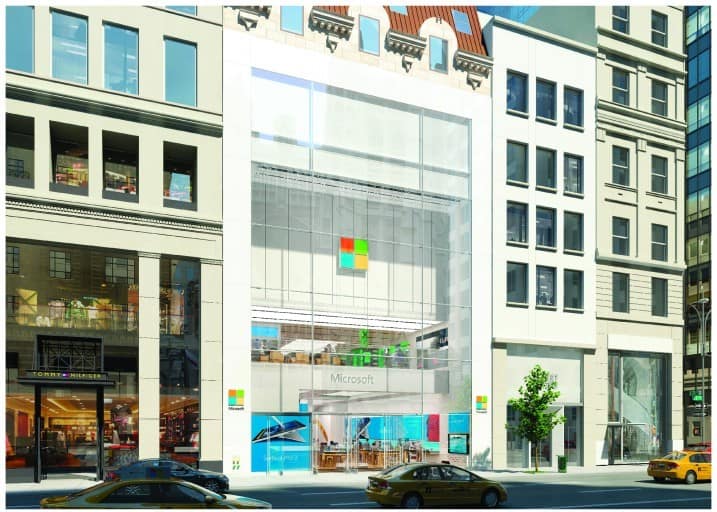
Turns out the store is definitely almost ready as Microsoft announced today that the five floor 22,269 sq. foot store in Manhattan will open Monday, October 26th at noon ET. Microsoft also announced that their second flagship store will open in Sydney, Australia on Pitt Street Mall on Thursday, November 12th at noon AET.
In today’s announcement, Microsoft said:

“These flagship stores have been in the making for six years. When we architected our retail plans, we committed to providing exceptional choice, value and service, and making a positive impact on the communities in which we operate. These flagship stores will deliver on these commitments, offering premier shopping destinations. During the past several months, both flagship store sites have transformed into cutting-edge spaces that represent the best of Microsoft – we can’t wait to open our doors to those who work, live, visit and shop in these areas.”

Microsoft's renderings of their first two flagship stores. NYC (top) and Sydney (bottom).
Microsoft’s renderings of their first two flagship stores. NYC (top) and Sydney (bottom).

To celebrate the opening of the stores, Microsoft has also announced they will be donating more than $5 million in software and technology grants to select local organizations in the New York and Sydney communities. The stores will include familiar Microsoft store features such as the Answer Desk and the Community Theater, but as we have previously reported, Microsoft has said that there will also be a new floor in the store that is an “experimental space” for customers to come and see.
With Microsoft set to announce next week a new lineup of Windows 10 devices, including the rumored Lumia 950/950XL, the Surface Pro 4, and the Band 2, the Microsoft flagship store might be one of the best first places to experience the new devices in person.

How to Fix Epson Scanner Problems in Windows 10/11

Epson is one of the most renowned manufacturers of scanners and printers in the world, and its peripherals are used by millions of users. But, some of these users reported that they’re unable to run Epson scanners after Windows 10 upgrade, so we’ll show them a couple of solutions for that problem.

How to Fix Epson Scanner Problems in Windows 10

Here’s How to Fix Epson Scanner Problems in Windows 10

Solution 1 – Configure Scanner For Your Connection

First thing we’re going to try is to configure your connection with the scanner. Here’s exactly what you need to do:

  1. Go to Start Menu, All Apps, Epson, and then to Epson Scanner Settings
  2. Check Network, and then go to Add
    epson problems windows 10
  3. Now, select IP address of your device and click OK
    epson scan problems windows 10
    If you configured your network, and you’re still unable to run Epson scanner, try some of the following solutions.

Solution 2 – Make Sure WIA Service is Running

If Windows Image Acquisition (WIA) service is disabled, you can’t run any scanner on your computer, so we’re going to check if it’s enabled, and enable it if it isn’t. Here’s exactly what you need to do:

  1. Go to Search, type services.msc and open Services
  2. Find Windows Image Acquisition service, right click on it and go to Properties
  3. Set startup type to Automatic, and click on Run 
    epson scanner problem windows 10
  4. Click OK to save the changes

Solution 3 – Download the Latest Scan Event Manager

Epson Scan Event Manager is a utility software which runs your scanner, and if you’re running an older version of this software, there’s a big chance it’s not compatible with Windows 10. So, go to the Epson website, and look for the latest version of Scan Event Manager for your scanner.

If your issue is driver-related and not just software compatibility, you may need to reinstall the correct package. For models like the Epson i5290, you can follow this Epson i5290 driver download guide to get the proper driver for Windows.

Since we’re talking about compatibility, if you’re using a scanner which is more than 10 years old, it’s probably not compatible with Window 10 at all, so you should consider getting a new scanner.

Read Also: Fix: Unable to Send or Receive Bluetooth Data Between Laptop and Smartphone

Google's Pixel C vs Microsoft's Surface 3

Over the past few weeks we have seen numerous Surface clones appear, from Apple’s recently announced iPad Pro to Lenovo’s new 2-in-1, the Mix 700. With today’s announcement from Google, it looks like the Pixel C, which is set to release later this year, will be the newest contender for Microsoft’s Surface 3. Although Android, as a mobile OS, leads the market, Windows 10 is gaining steam and with the Surface 3, users have access to full Win 32 applications, a real advantage over the Pixel C.

Google's Pixel C
Google’s Pixel C

Like the Surface 3, the Pixel C is a 10.2-inch tablet that will feature its own optional keyboard, although priced $20 higher than Microsoft’s offering.

Microsoft's Surface 3
Microsoft’s Surface 3

A few notable differences between the two 10-inchers is that the Pixel C’s screen is slightly smaller but packs 307 ppi in its 2560×1800 display. This device will run on a NVIDIA Tegra X1 processor with 3GB RAM. The Pixel C will ship with either 32 or 64GB of storage, however, unlike the Surface 3 there is no room for expandable memory. Both tablets come with USB support although the Pixel C totes the newer USB Type-C connector. The Pixel C will also come with both a front and rear facing camera although the specs have yet to be announced. Finally, both devices will start at $499, although the Surface 3 potentially can come with more RAM and LTE connectivity.

Pixel C Surface 3
OS Marshmallow (Android 6.0) Windows 10 Pro
Display 10.2 inch at 2560×1800 10.8 inch at 1920×1280
Processor NVIDIA Tegra X1 Intel Quad Core Atom
GPU NVIDIA Maxwell GPU Intel Gen 8 Broadwell Graphics
RAM 3GB 2 or 4GB
Storage 32 or 64GB 64 or 128GB
Ports USB Type C USB 3.0, Mini Display Port
Camera Front and Rear (Not specified) 3.5 MP FFC 8.0 MP Rear
Network Wi-Fi, Bluetooth Wi-Fi, Bluetooth, 4G LTE
Keyboard Additional $149 Additional $129
Pen Support No Yes

It will be interesting to see how these two tablets fare in the market. Do you think Google’s Pixel C stands a chance against the Surface 3? Let us know in the comments below.