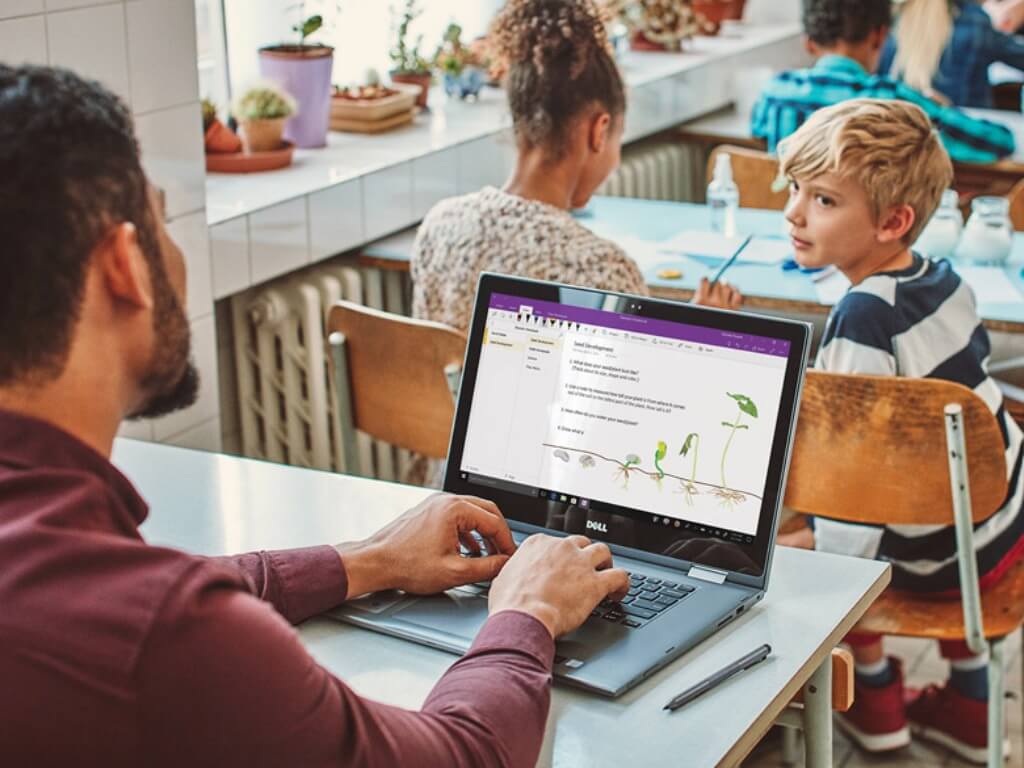
Microsoft revealed today its plan to unify its two separate OneNote apps for Windows into a single client in 2022. The OneNote UWP app that ships for Windows 10 will no longer come pre-installed on new Windows 11 PCs, and Microsoft will be working on integrating its features into the OneNote Win32 app that comes included with Office for Windows.
According to Microsoft, OneNote for Windows 10 users will start seeing invites to update to the new OneNote app in the second half of 2022. OneNote for Windows 10 will continue to be supported until 2025, but its best features are coming to the current OneNote Win32 app that will also get redesigned for Windows 11.
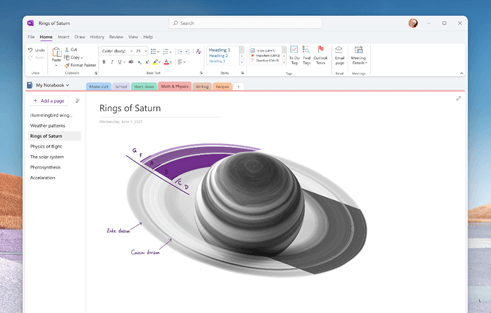
“Advances in Windows and Office will allow us to unify the two apps so that you’ll have the simplicity of a single OneNote app on Windows while enjoying the interface and features you’re already familiar with,” the OneNote team explained. The company shared the following mockup of the redesigned OneNote app for Windows, and you can see that its Windows 11-inspired look will be consistent with the redesigned Office for Windows apps that Microsoft also started testing with Office Insiders.
Microsoft didn’t say when we can expect the OneNote Win32 app to get new capabilities and key existing features currently unique to OneNote for Windows 10, but the new client will likely be available first for Office Insiders. In the meantime, Windows users can continue to use either the OneNote Win32 app or OneNote for Windows 10 as usual, though Microsoft now recommends organizations planning to deploy OneNote to opt for the Win32 version, which will be the way forward for OneNote on Windows.
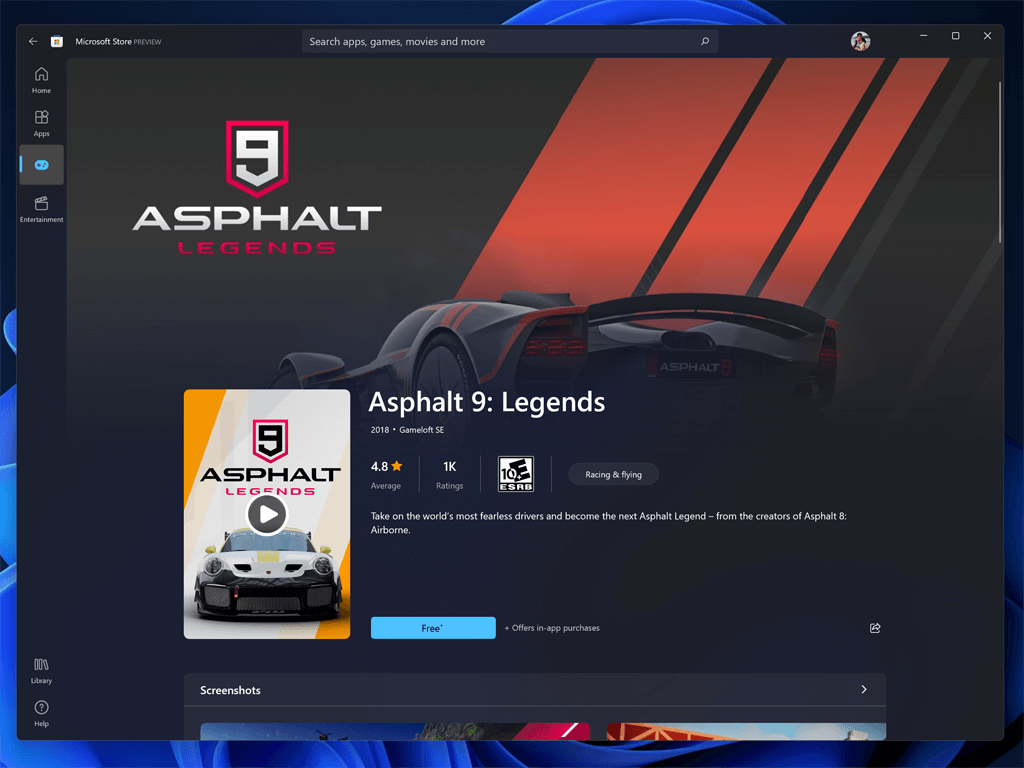
With Windows 11, Microsoft introduced a new version of the Microsoft Store, built to be faster and cleaner. Now today, with the release of the latest Windows 11 Insider build 22000.120, the company is beginning to roll out an updated version of the Store. This update is coming first to Windows Insiders on the Dev Channel, even though the .120 build is available for both Beta and Dev channels.
Here’s what’s new in this latest Store version (#22107.1401.9.0):
Auto-scrolling on Spotlight
Content in Spotlight will now auto-scroll when you’re browsing “so you can discover your next favorite app, movie, or game.”
New design for gaming product detail pages
Product detail pages (or PDP) are being updated to show more info and images for games.
New Ratings and Reviews dialog
The Ratings and Reviews is being updated to make it easier to rate apps and games and provide feedback.
You can check out more info on the Windows Insider blog post, and if you’re in the Beta Channel, as long as there are no blocking changes, you should be seeing this update soon, too.
Microsoft Teams is getting a new “Content from camera” feature that will help meeting participants easily read content from physical whiteboards and documents. The Redmond giant has recently updated the Microsoft 365 Roadmap to indicate that this update will begin rolling out to users on the desktop sometime in September.
The new Content from Camera feature will use special image-processing software to enable the webcam to mask out people writing on a physical whiteboard. This capability should make it easier for remote participants to clearly see what is being written. The Content Camera feature is currently only available for Microsoft Teams Rooms (MTR), and it’s not supported on the desktop client.
This release should help to make distance learning and hybrid meetings environments more engaging than ever before. “Content from camera” in Teams enables you to share content from physical artefacts such as whiteboards and documents in a high quality and legible way during meetings. All you need is a laptop or PC with an in-built camera or with an attached USB camera. Educators can also share content directly from a document camera,” the company explained on the Microsoft 365 roadmap.
Microsoft Edge has started testing a new “Super Duper Secure Mode” that should make browsing more secure by addressing Javascript vulnerabilities within the browser. The feature is currently available for Edge Insiders, and it’s hidden behind an experimental flag in the Canary, Dev, and Beta channels.
Microsoft’s research has revealed that attackers usually target the JavaScript engine called “Just-In-Time (JIT) compilation” to hack web browsers. JIT is basically a complex pipeline of processes used to optimize JavaScript code for performance. Once enabled, the new Super Duper Secure Mode will actually disable the JavaScript just-in-time (JIT) compiler to prevent attackers from hacking into systems of Microsoft Edge users.
With the JIT engine disabled, the Microsoft Edge team enabled additional security features including Control Flow Guard (CFG), Windows’ Arbitrary Code Guard (ACG) as well as Intel’s Control-flow Enforcement Technology (CET). According to Microsoft, JIT had compatibility issues with all these features, and turning off the JavaScript engine should help to provide a more secure browsing experience.
“By disabling JIT, we can enable both mitigations and make exploitation of security bugs in any renderer process component more difficult,” explained Johnathan Norman, Microsoft Edge Vulnerability Research Lead. “This reduction in attack surface kills half of the bugs we see in exploits and every remaining bug becomes more difficult to exploit. To put it another way, we lower costs for users but increase costs for attackers.”
If you want to try out Super Duper Secure Mode, you will need to open Microsoft Edge and go to the edge://flags page. Then type “Super Duper Secure Mode” in the search bar, enable this feature, and finally restart the browser.
However, keep in mind that the Super Duper Secure Mode is an experimental feature in Microsoft Edge, and it may break some websites. Norman noted that the company plans to bring this feature to other platforms, including macOS and Android.
In the meantime, Microsoft will keep listening to user feedback to improve this new Super Duper Secure Mode before making it generally available for everyone. “Our hope is to build something that changes the modern exploit landscape and significantly raises the cost of exploitation for attackers. Mitigations have a long history of being bypassed, so we are seeking feedback from the community to build something of lasting value,” Norman said today.
Owners of a Samsung The Frame smart TV are now able to display high quality 4K artwork from a number of Xbox video games.
This new collaboration, announced earlier this week, is made possible via a new official collection of Xbox artwork called Xbox Through The Years that’s now available via The Frame Art Store exclusively for The Frame smart TV models.
Halo, BioShock, and Microsoft Flight Simulator are confirmed to be featured within The Frame Art Store though many other franchises are also included.
“Our partnership with Samsung allows Frame owners to take a trip through Xbox history and celebrate their favorite games through breath-taking graphic art,” Xbox’s Marcos Waltenberg said as part of the official announcement. “We’re excited with ‘Xbox Through the Years’ to continue building on our years of successful collaboration with Samsung, now around Xbox Series X, Xbox’s fastest and most powerful console ever.”
Microsoft and Samsung have partnered together on various Xbox-related campaigns for several years now, starting with the Xbox One X back in 2017. Samsung is also currently the official TV partner of Microsoft’s Xbox Series X console in both the United States and Canada.
Malware, ransomware, and spyware spiked up in the last two months, so you have to become extra careful about protecting your data. Microsoft did double time on patching security issues and now it’s made it a priority.
Windows Defender is also updated pretty frequently and it has improved protection against the new threats. Moreover, through the Windows 10 May 2020 Update, Microsoft introduced a new security feature to protect your PC from potentially unwanted applications on Windows 10 and Windows 11 as well.
The first rule of Internet security is to never download apps with a poor reputation from wherever you find them free.
That’s because many of them come bundled with potentially unwanted applications (PUA) and if you run them, you will start seeing the consequences: pop-up ads, the system is slowing down, and suddenly, the search engine in your browser is changed.
Microsoft introduces, with the Windows 10 May 2020, a new reputation-based protection feature in the Windows Security app. The new security feature offers protection against PUAs, but right now it’s not enabled by default.
How can I block potentially unwanted apps on Windows?
If you want to turn on the PUA protection and block them in Windows 10 and Windows 11, follow these steps:
Type Reputation in the Windows search box and click on the Reputation-based protection in the results.
Next, click on the App & browser control and the Reputation-based protection settings. Now click on the button to turn ON the Potentially unwanted app blocking setting like in the picture below.
Once you turn on the feature, Windows Security app will block adware, cryptocurrency miners, and other unwanted scamming apps which can be bundled with your free software downloads.
Windows Security app will also let you manage PUA protection and block or allow apps, downloads, or both. It’s nice to know that this feature is also included in the Microsoft Edge browsers so Windows Defender will automatically scan for PUA as the app is being downloaded in the browser.
For the Chromium-based Microsoft Edge, you will need to enable the PUA protection manually. Just open the Edge settings and go to the Privacy and services section. Then scroll down until you find Services and enable the Block potentially unwanted applications option.
We’ve actually tried downloading some known shady adware apps to see how it goes and it doesn’t actually work just yet.
These steps can be useful in blocking OneLaunch malware, so don’t hesitate to give them a try.
If you have any questions or suggestions, make sure you leave it in the comments section below.
Microsoft was already skating on thin ice because of some of the choices that they’ve made regarding the upcoming operating system.
However, if you thought the situation wasn’t bad enough, now the Redmond company decided to mass delete user comments that heavily criticized Windows 11 and everything it stands for.
An unwise plan, considering the backlash they now face because they tried silencing the community that supported them all these years, through the good and the bad.
Microsoft tries to keep users in check by deleting comments
Microsoft is not trying to get the displeased owners of incompatible hardware back under control, but the method they’ve chosen only seems to have angered them even more.
As you would’ve expected, Windows 11 is still one of the hottest and most controversial topics in the world of technology, at the moment.
A few days after the ask-me-anything (AMA) conference in which Microsoft tried to explain the OS transition in more detail, they’ve dealt with the reactions from countless upset customers.
The overall tone and dictatorial nature in which Microsoft has addressed the issue so far have been met with nothing but anger.
So, due to the massive number of negative reactions, Microsoft has closed the comment section under the YouTube video, which also included the erase of all previously posted comments.
Enraged users posted speculations that Microsoft introduced the outrageous system requirements just to sell more new devices, from which the Redmond-based software company would benefit greatly due to the included Windows licenses.
And also considering the fact that the video has gathered over 1000 dislikes and 100 likes so far, it’s likely that this was not Microsoft’s final battle in its effort to gain control over the narrative that is revolving around the controversial Windows 11 upgrade requirements.
Windows users now flood social media platforms with furious comments
Since Microsoft denied its community the right to comment on their Youtube videos, users have now taken to social media platforms to complain about this behavior.
Websites such as Reddit are now teeming with angry users that feel the need to clap back at the way that the Redmond tech giant is conducting its recent business.
Windows 11 is the mistake itself, and no, Microsoft isn’t going to cancel it. Microsoft promised that Windows 10 would be the last windows users would need, now they are ending support in just a few years. Microsoft lied.
This massive wave of user discontent makes one wonder what exactly will happen to Windows 11 in the long run, if it isn’t even out yet and it’s already creating such a negative public reaction.
On the other hand, Windows 98/Me/XP/Vista/7/8/10 have shown a pattern of hating one release then liking it over the next years.
But never has Microsoft demanded such a hardware shift only to run their OS, which is mainly where all the mixed emotions are coming from.
More and more users are now looking towards adopting a Linux experience in the near future, rather than putting up with all of the tech company’s whims.
It will be interesting to see how this story will progress over the following months, and if Microsoft will make any changes that will further impact the Windows 11 story, whether for the better or worse.
What is your opinion on all this situation? Share your thoughts with us in the comments section below.
There’s no doubt that Microsoft Teams is the big thing for Microsoft. With nearly 250 million monthly active users, Teams is in use almost everywhere these days. That’s why Microsoft is making some big changes.
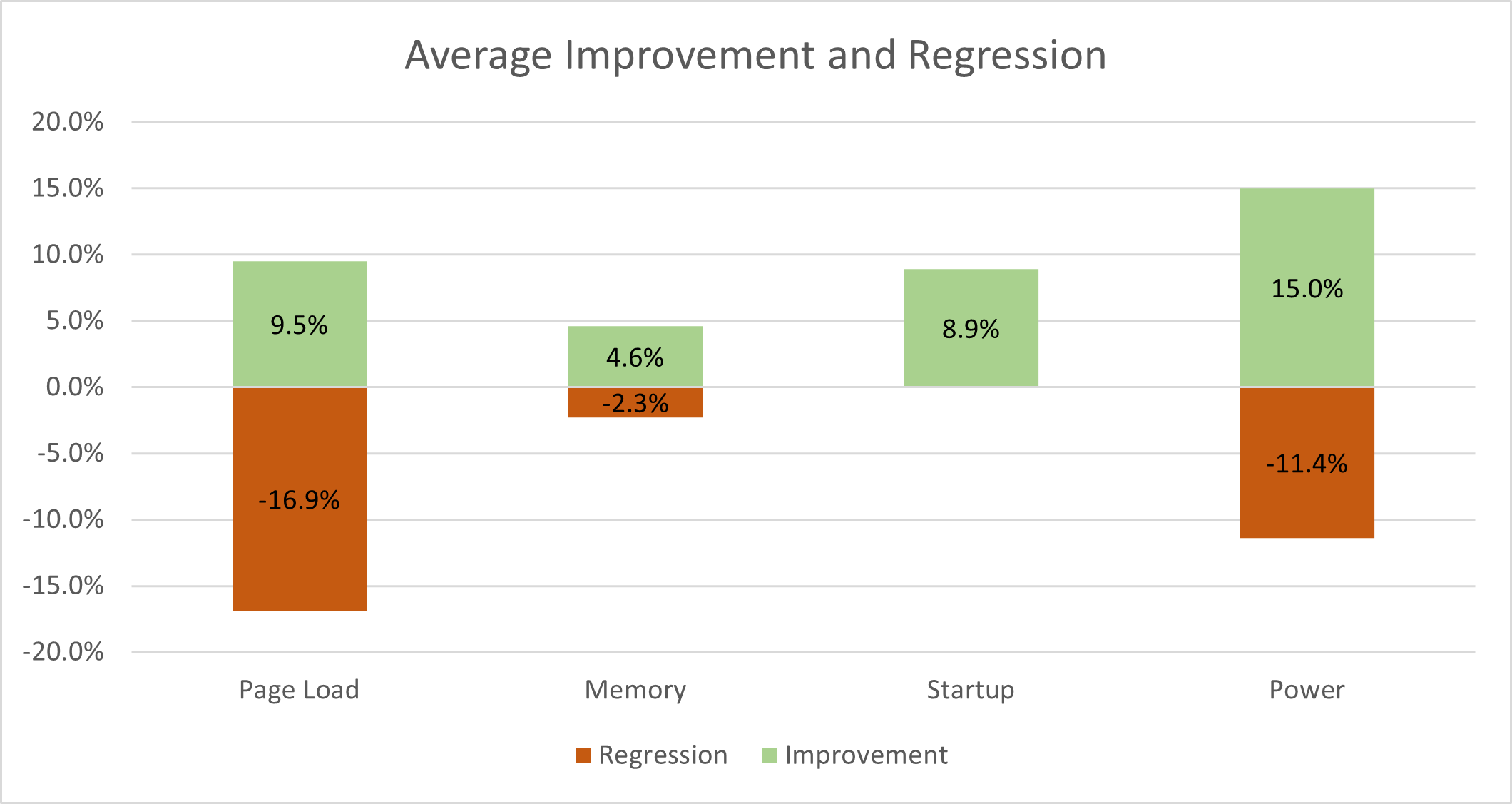
Back in June, Microsoft announced that they would be moving Teams away from a traditional Electron-based desktop app, to a new WebView2 app. The change in engine promised big performance improvements and other long-requested features.
Since then, Microsoft has moved on to bring some of that over into the next-generation Windows 11 operating system via a new “Chat” app in the Taskbar. I’ve spent the last few weeks playing around with the initial version of the implementation. Though I think it offers an exciting first look at what’s to come with Teams, there’s still a lot that is still being worked on before it becomes a full replacement for Skype.
Not fully featured just yet
I’ll begin my piece with a look at the bad stuff. This initial version of the Chat app in Windows 11 isn’t quite yet finished and is limited in scope. There’s still a lot of missing things, but Microsoft promises that additional features will be flighting to Windows Insiders soon. Currently, those promised features are the ones that are missing.
I am not able to make group audio or video calls, join Teams meetings, set my presence or status settings, or even share screens. This made using the Chat app a bit challenging and I did go back to the traditional Electron version of Teams as a result. Basically, in its current form, this current “Chat” app is just for basic text and SMS chats with personal accounts. You also can’t currently add work accounts, either.
Again, Microsoft promised that additional features are coming soon, but there’s reason to worry. Microsoft has been known to be slow to develop Teams features. Pre-pandemic, new features for Teams came at a slow pace. This makes me feel a bit uneasy as to when the Teams chat app will become more fully-featured.
Yet there is hope. Since then, Microsoft has added tons of features to the traditional electron app. There’s Together Mode, native OS notifications, locking and unlocking meetings, and more. I guess the best is yet to come but for now, I’m still waiting.
I love the design and performance
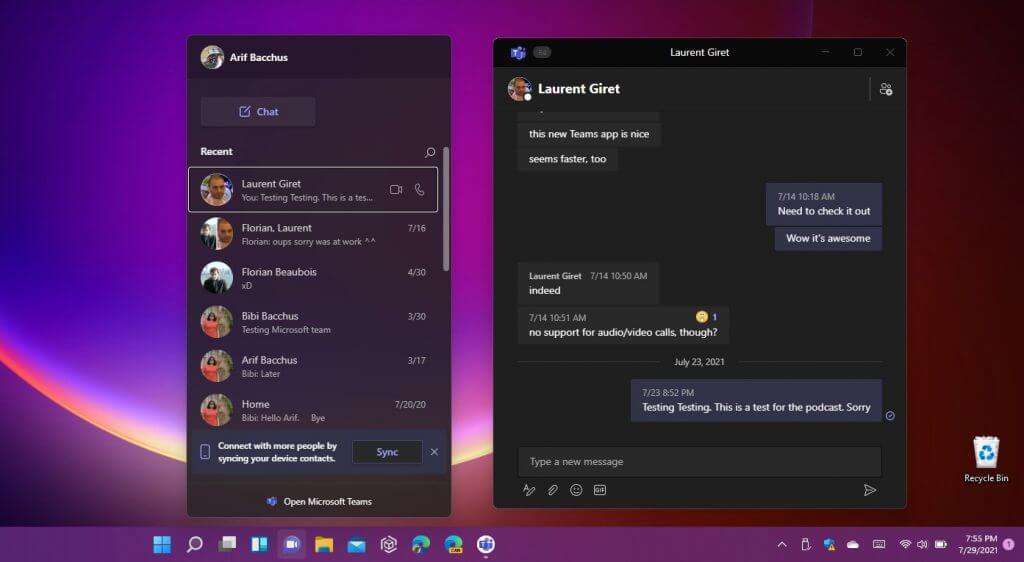
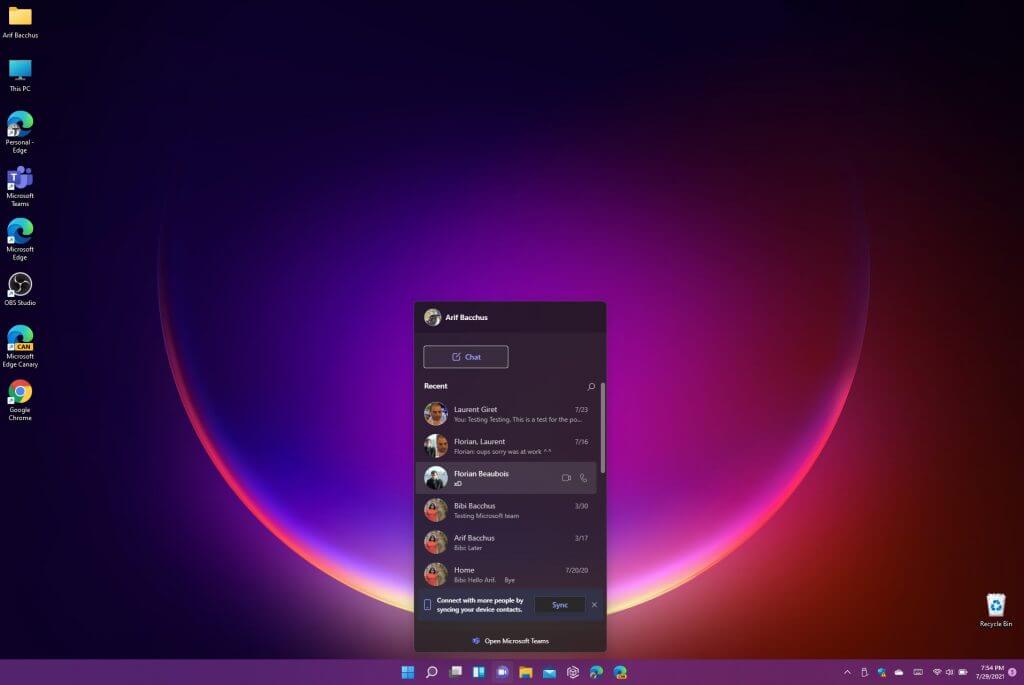
For all the missing features in the Teams Chat app, I really do love the design. Apple’s iMessage and FaceTime open up as separate apps in MacOS, but Microsoft managed to make the Chat app integration very subtle. I love the flyout menu in the Taskbar, and how clean and concise it looks. You’ll see a button to start a new chat, a list of your chats, the ability to sync your contacts. You even can jump into the main app with a single button. It’s a quick and easy way to stay in the action.
Overall, the performance of this new Teams Chat app is pretty impressive. The old Electron app was a little bit too slow for my liking and took a while to load between system reboots. It also bugged out at times, not properly loading chats. This new app has a refreshing layout, allowing you to resize the window the way you want it. There are even integrations with Windows 11’s notifications, letting you reply inline to text chats. Overall, my impressions are pretty much the same as my colleague Laurent Giret, who dived a bit deeper into an initial version of this app.
Lessons to be learned from Skype
For all the great things that are happening with Teams, Microsoft needs to get this new chat app in Windows 11 right this time. In the past, Microsoft made many mistakes with Skype. There was a traditional Skype desktop app, a Skype web app, and a Skype UWP app. Not to forget the “meet now” integration in the Windows 10 Taskbar. That’s too many ways to access one app. Microsoft tried long and hard to force Skype onto Windows users and consumers. If they want Teams to be successful, then this fresh approach for one Teams chat app for everything is one big step forward.
The Xbox Gear Shop, Microsoft’s official online store for Xbox video game merchandise, has been adding loads of new products recently.
A variety of Halo-themed T-shirts, caps, and hoodies have been added, likely to help build hype for the upcoming launch of the Halo Infinite video game on Xbox One, Xbox Series X, and Windows 10 and 11. Accompanying the new Halo line is a fresh Xbox Summer Collection featuring a range of Xbox-branded clothing items with a new purple and orange sunset aesthetic.
In anticipation of the launch of Forza Horizon 5 and Psychonauts 2 on consoles and PC, a tote bag, two stickers, and a collection of T-shirts featuring the Forza Horizons 5 and Psychonauts 2 logos have also been added to the Xbox Gear Shop. There’s even an official Forza Horizon 5-branded license plate frame.
Finishing up the list of new Xbox Gear Shop items are a rather cool Xbox heat change mug (which temporarily sold out recently so is likely very popular), an Xbox 20th anniversary print, and a special book celebrating the past 20 years of the Double Fine game studio.
20 Double Fine Years Book : Legend Edition
The book, 20 Double Fine Years Book, is available in both a regular version and a special Legend Edition that features a special cloth cover with gold metallic print. Both are due out in September and can be pre-ordered now.
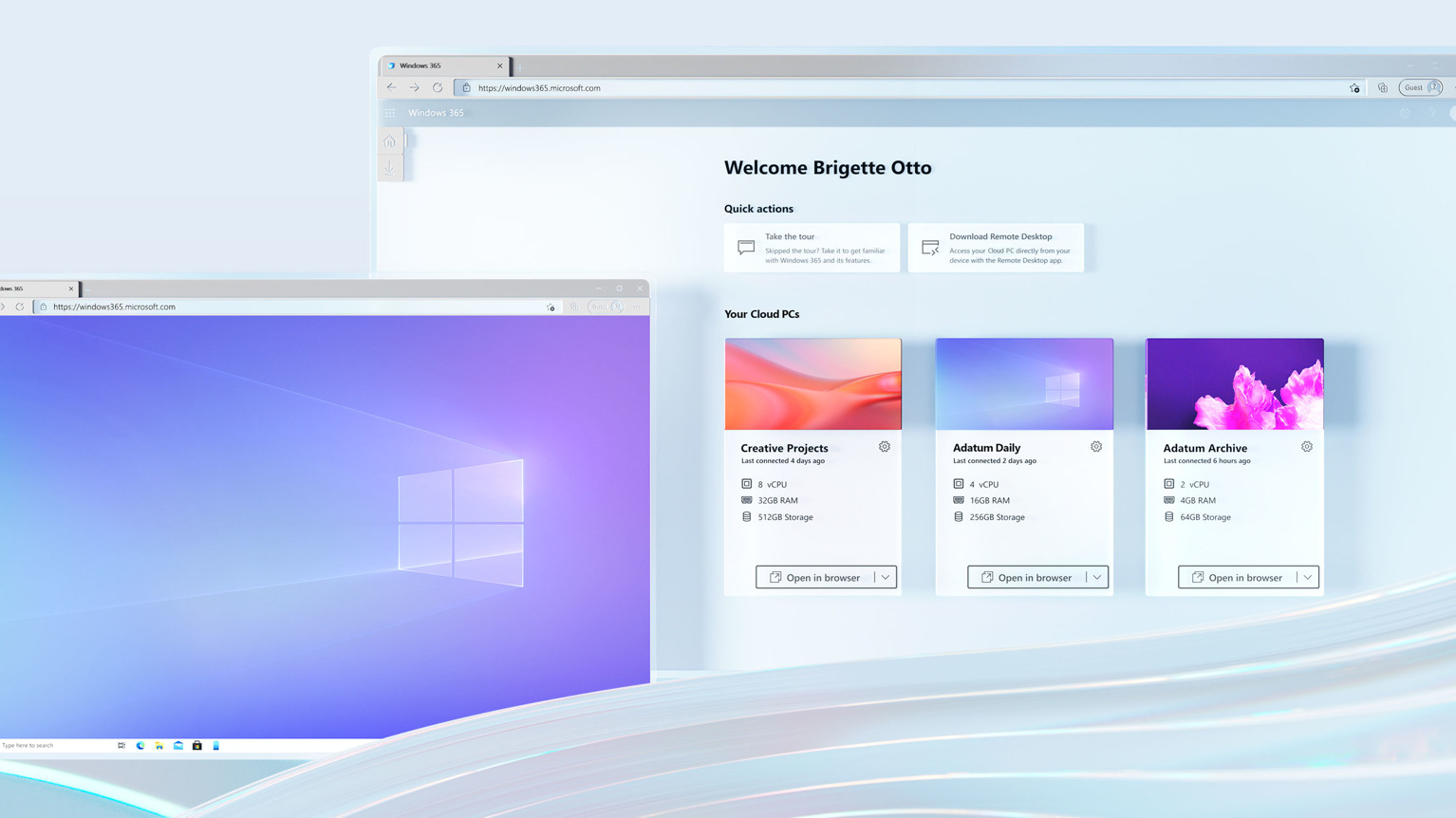
We’re sure that you already know what this is, but just on the off chance you aren’t already aware, know that Windows 365, which is a cloud PC service that will let you take Windows 10 or 11 with you wherever you go via the power of the cloud, has officially launched.
This service will give you the chance to bring Windows to just about any device, be it Mac, iPad, or Android tablet.
Pretty neat, right?
Microsoft 365 Cloud PC pricing starts at $20 a month
If you want to benefit from these services, you will have to pay a monthly fee, which starts at a mere $20 a month.
The big twist here is that this service is focused on businesses and enterprise customers, so if you are thinking that just anyone can snatch up a Windows 365 plan whenever they need Windows for a short stint on a non-native device, you are mistaken.
So, with all this knowledge in your pocket, if you are planning to purchase this service, and start at the bare minimum end of the spectrum, you can get 1vCPU, 2GB of RAM, 64GB of storage, and 12GB of outbound data for $20 per user per month.
Furthermore, taking advantage of the Cloud PC requires you to have the Windows Hybrid Benefit, because, without it, the minimum monthly buy-in is $24.
All the way at the other end of the pricing spectrum is the 8vCPU, 32GB of RAM, 512GB of storage, 70GB of outbound data option for $162 per user per month, or $158 if you have Windows Hybrid Benefit.
In between these mentioned echelons are a wide variety of different configs to suit your business’s specific needs.
You can even save some money each month by cranking down the gigabyte count of RAM and storage.
Just check out Microsoft’s website for a full rundown of all the different pricing options currently available to business and enterprise customers.
It is also not a hard to set up service so don’t be discouraged that you won’t be able to work your way around it if you aren’t highly technical.
So, if you are mostly on the go and you decided that you would want such features for yourself and the business you run, the possibilities are sky-high, literally.
What is your take on the experience versus pricing for these new services? Let us know in the comments section below.
Microsoft announced the first public availability of its “Cloud PC,” Windows 365 yesterday, and they’ve already reached capacity just one day later:
Following significant demand, we have reached capacity for Windows 365 trials. Sign up to receive a notification when trials resume or buy today, here: https://t.co/Jji5RbfTbT
Here at OnMSFT.com, we’re already Microsoft 365 users, and run our site on Azure. In other words, we “eat the dogfood.” Our writers are on a “Business Basic” plan, which means we get Teams (which we use every day as a chat app), Planner (also used every day), and the management features to make adding new writers or moving on from old ones easy and straightforward. We don’t pay for downloadable Office, as it’s not essential to what we do, but for $5 mo per user, the Business Basic plan works well for us.
Windows 365 is aimed (so far) at business and enterprise, and especially Office users, so much so that a requirement of Windows 365 is at least a Business Premium account, as Office is automatically installed on Windows 365 (at least in the generic trial offering). To try out Windows 365, we set our system account to “Business Premium” (upping the price to $20/mo, but adding Office and some Azure Active Directory features, along with Microsoft Endpoint Manager, also needed for Windows 365).
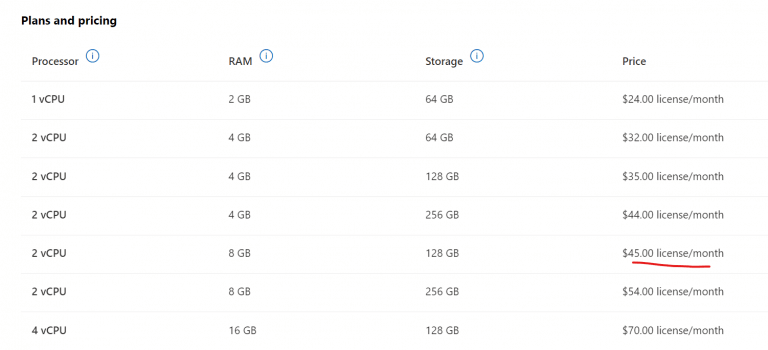
These are some of the Windows 365 prices, they range from $24/mo to $162/mo
After assigning the Business Premium account to system, and adding a Windows 365 license (we chose a 2vCPU/8GB/128GB machine for $45/mo) and assigning that, getting the Windows 365 machine up and running was fairly straightforward. We did seem to get stuck during the install, but after 30 min or so, we were able to move on by refreshing the browser.
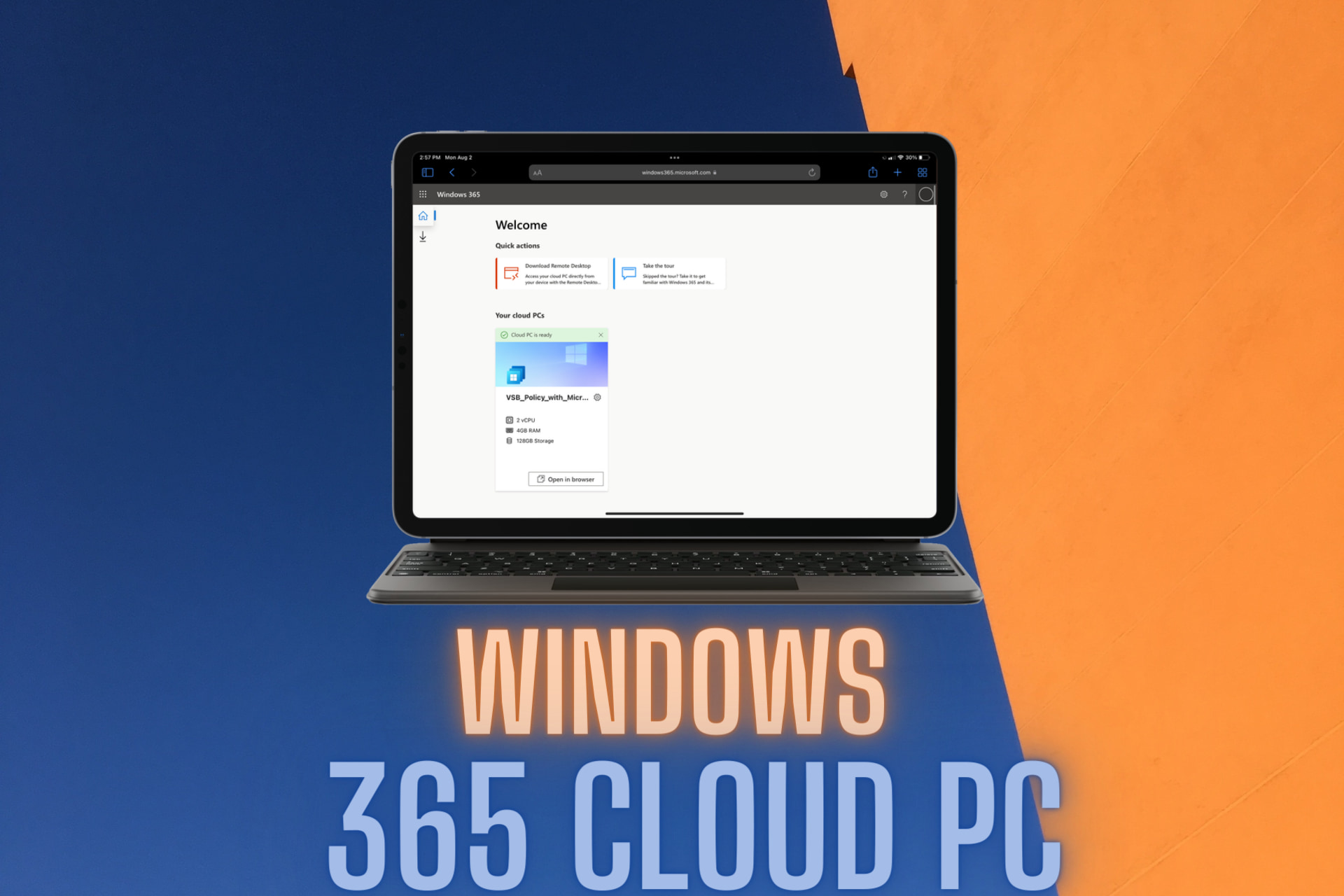
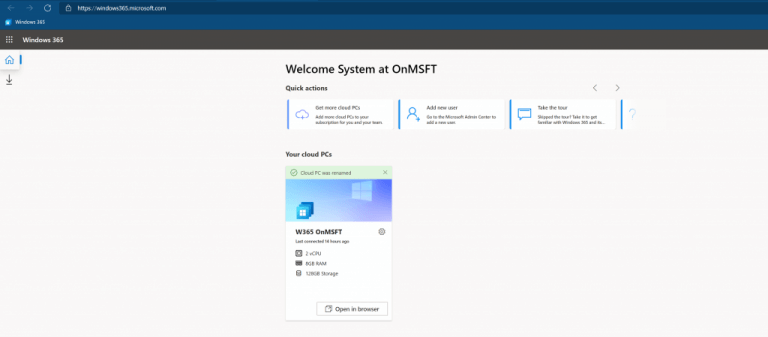
Once Windows 365 is installed, you’re taken to windows365.microsoft.com, the portal for managing Windows 365:
From there, you just click on “Open in browser” for the machine you want to open under “Your Cloud PCs.” From there, you’re taken to Windows 365, running in your browser. One note here, even with a minimal internet connection (out here in rural northeast Washington State, internet is iffy at best, and speeds of 20mbps down / 2-3 mbps up are about as good as it gets), Windows 365 seems to perform as well as can be expected. Of course paying more for a snappier VM would help, but the internet connection doesn’t seem to be a problem.
We’ll dive more into Windows 365 in the coming days and weeks, including connecting to Windows 365 from an Android phone and/or from a Remote Desktop connection, running Windows in the cloud, and managing the Cloud PC. (another note, we tried to install Windows 11: we were able to enroll in the Windows Insider program, and download and install Windows 11. However, the machine failed to reboot, and we’re now resetting it back to a fresh install of Windows 10. Hey, we had to try!).
So far, first impressions are that it seems to work as expected. It’s a full on version of Windows in the cloud, with simple management and deployment, and a range of size and speed options. In attempting our Windows 11 experiment, the connection from Windows 365 to Windows Update etc seemed very slow, and resetting the PC is similarly taking a long time. How much of that is a 2vCPU / 8gb machine, and how much is limited resources for the Windows 365 VM program is hard to say, but the update / reset / install speeds have not been impressive so far.
Windows 365 is also expensive. You can get a pretty good modern Windows 10 laptop for the price of a year’s worth of even the low end Windows 365 configurations. Is it worth it, even for business scenarios like accessing a PC from anywhere, to run Windows in the cloud instead of just buying PCs? Maybe with volume licensing it might make more sense, but for those looking for a consumer version of Windows 365, you might be better off just buying an $800 PC.
Anyway, we’ll keep playing with Windows 365, and report back not only on performance, but also management and deployment. Bottom line is if having Windows in the cloud makes sense for your business, first impressions are that Windows 365 just might fit that bill.
Potentially unwanted applications (PUAs) are programs installed on computers or mobile devices that may compromise user security or privacy and consume computing resources. Previously, Windows 10 users who wanted to use the PUA blocking feature had to activate this feature on their Windows 10 PCs manually; however, going forward, it will be turned on by default for all consumers.
“In the Windows 10 May 2020 Update we added Potentially Unwanted App blocking for everyone running Windows 10, but customers who wanted to use it still had to turn it on. Starting in early August 2021 we’ll begin turning it on by default to make it easier for you to keep your systems performing at their best,” the company explained in a support document.
However, users who would like to turn off the feature will be able to do so by heading to the Windows Security setting, selecting the “App & browser control” option, and then clicking the Reputation-based protection settings. Users will also be able to choose if they want to keep blocking downloads or apps, or both.
Overall, this change can be particularly useful for people who want to keep their devices protected from unwanted third-party programs. These apps can seriously threaten user’s security or privacy, and this is probably why Microsoft is going with PUA protection enabled by default on Windows 10. Let us know in the comments below if you think that this change will help to protect your PCs from malware infections.
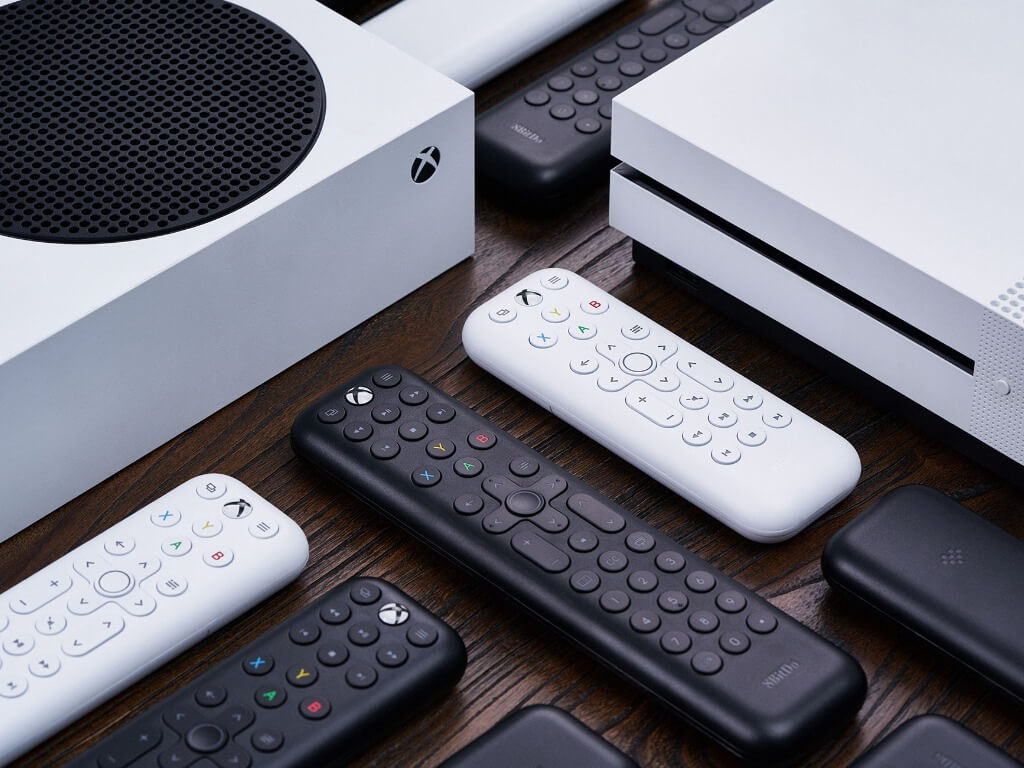
8BitDo, a company known for its Bluetooth controllers and gaming accessories will launch two new Designed For Xbox media remotes in September (via Windows Central). There will be a black Long Edition featuring a number pad, and a white Short Edition that should provide a good alternative to the new PDP Gaming Media Remote for Xbox consoles.
The two new Designed for Xbox media remotes for 8BitDo will use an infrared sensor and require 2 AAA batteries, and they’ll be compatible with Xbox Series X, Series S, and Xbox One consoles. The white Short Edition will be priced at $19.99, with the black Long Edition coming at $24.99.
Overall, the rounded design of the two remotes looks nice and comfortable, and it’s interesting to see the company offering two differently-sized remotes with colors that match Microsoft’s Xbox Series X and Series S consoles. The two remotes almost look like official accessories, and it’s nice to see other companies step up to bolster the Designed for Xbox ecosystem.
The 8BitDo Media remotes will start shipping on September 15, 2021, and you can already find them on Amazon though they’re currently out of stock. If you use your Xbox console, let us know in the comments if you’re interested in these new remotes from 8BitDo
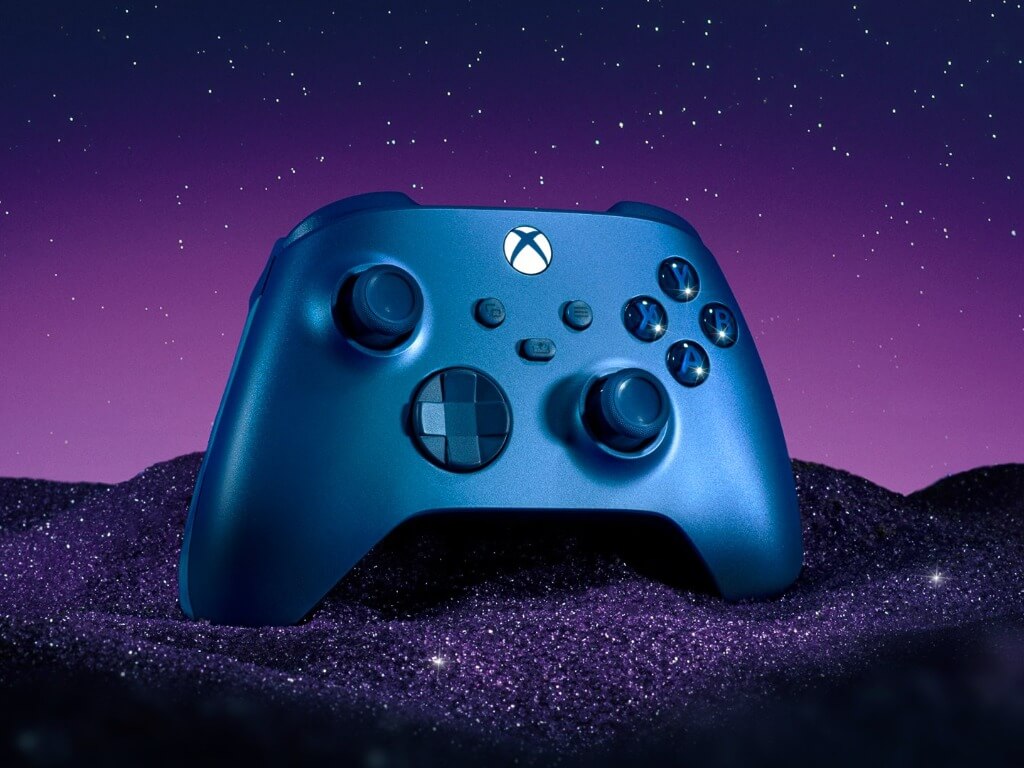
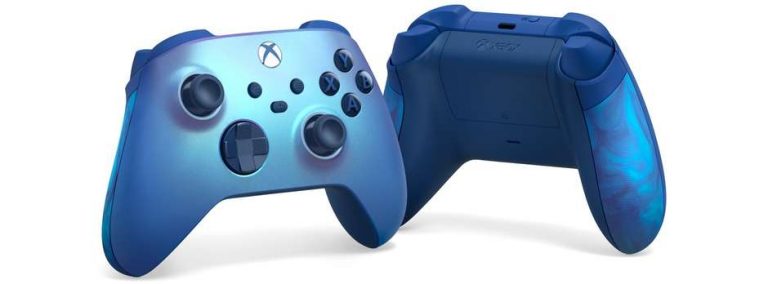
In addition to the “surreal, color-shifting blue shimmer,” this new Aqua Shift Edition controller will be the first one to feature rubberized, dual-colored grips on the sides. Otherwise, gamers can also expect to find textured grip on the trigger, bumpers, and even the back case.
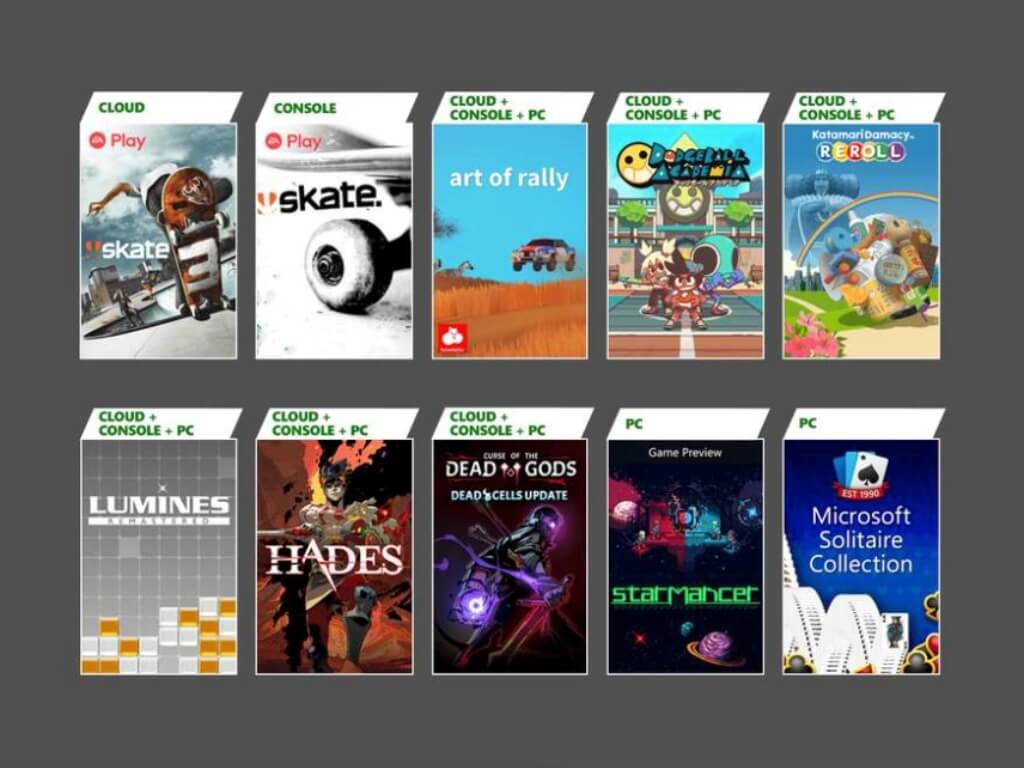
Microsoft has just revealed the new Xbox games coming to Xbox Game Pass in August. Four new games are coming on all platforms this Thursday, August 5, with Curse of the Dead Gods, Dodgeball Academia, Katamari Damacy Reroll, and the puzzle game Lumines Remastered.
For Xbox Game Pass Ultimate members, there are also some EA Play updates this week with Skate joining the EA Play List on August 5, and Skate 3 becoming cloud-enabled on the same day. Dirt 4, Dirt Rally, Dirt Rally 2.0, Grid, and F1 2020 will also become available via EA Play on Xbox consoles starting August 10.
Two more games will be available on Xbox, PC, and Cloud next week, starting with Arf of Rally on August 12. The critically-acclaimed roguelike action game Hades will also join the catalog on August 13, the same day as its launches on Xbox consoles.
Lastly, Xbox Game Pass for PC members will get access to Microsoft Solitaire Collection: Premium Edition on August 17. In addition to the ad-free experience, subscribers will also get an exclusive Xbox Game Pass card to use in the casual game.
Unfortunately, seven games will also leave the Xbox Game Pass catalog in the first half of August: GTA V will be removed on August 8, while Ape Out, Crossing Souls, Darksiders Genesis, Don’t Starve, Final Fantasy VII, and Train Sim World 2020 will follow on August 15.
Razer’s Project Hazel Smart Mask garnered a lot of attention when it was first announced back during CES 2021 with its futuristic design, stylish exterior lights, functional interior lights, a built-in voice amplifier, and high quality filtration that actually makes it a functional tool during this seemingly endless global pandemic.
This smart mask concept proved so popular that Razer soon approved it for mainstream production with the aim to release it in late-2021.
While no specific release date has yet been given for Razer’s mask, it seems as if its launch could be very close with a number of Razer employees recently seen testing early models in the wild and the official Razer socials reminding interested consumers to sign up for the product’s mailing list so that they can be among the first to buy Project Hazel and even participate in some kind of community beta test.
A few Team Razer folks across our global offices have started to trial the latest version of the Project Hazel Smart Mask. Stay up to date as we bring you more details, which may include a community beta test, register your interest here: https://t.co/NC6ZwFCt68pic.twitter.com/gGJepIJ8qr
The above tweet is the first time that there’s been a mention of a beta program for the mask and it’s unclear what exactly this could entail. It’s possible that this could simply be an early access type of program before the mask releases in stores for the general public. More details should be announced soon.
As mentioned above, those interested in picking up a Razer Project Hazel Smart Mask are encouraged to sign up for the mailing list here.
If masks are here to stay, you may as well look cool while wearing one and invest in one that actually does what it promises.
What do you think? Are you planning on buying a Razer Project Hazel Smart Mask? Let us know why or why not in the comments below and then follow us on Twitter and Pinterest for more tech news.
The official list of changes and adjustments made to the Twitter web app over the past month has been published.
Among the more noteworthy changes made in July were the addition of the ability to change the reply preferences of a tweet after it’s been published, added support for login via a Google account, and improved support for voice tweet playback.
Mid-Conversation Controls: We’ve introduced the ability for you to adjust conversation control settings for a Tweet after it’s been sent. This allows authors to adjust the scope of a conversation as it evolves, and empowers authors to pause replies from people outside their network or altogether.
Promoted Tweets: We’ve made improvements around ensuring proper density of promoted Tweets within timelines.
Spaces: You’ll now be able to see the presence of an active Space through profile image rings in search results and on the profile screen. You can click the avatar to join the Space.
Third Party Sign-On: You can now use your Google account to sign up and sign in to your Twitter account.
Voice Tweets: Voice Tweets are now fully supported on Twitter.com, including improved controls, audio dock playback, and captions.
Updated
Accessibility: Clear buttons present in editable fields will now be properly focusable and labelled to make it easier for screen readers and voiceover to access.
Accessibility: Improved labeling and screen reader behavior for expandable menu items in the Topics suggestion flow.
Accessibility: There’s been a lot of work done to improve video caption behavior across browsers and devices. We’re currently experimenting with improvements to caption positioning, and will be enabling these fixes for everyone soon.
Misinformation Labels: Prevent labelling applied to Quote Tweets of labelled Tweets.
Spaces: The Spaces dock will now take advantage of the full screen height on mobile devices.
Video: You can now toggle video captions on and off using the ‘c’ key when the video is focused.
Video: The video player now supports quick scrubbing to playback percentages through the keyboard number keys (0 – 9), and also jumping to the start and end of playback using ‘home’ and ‘end’.
Fixed
Accessibility: Input fields with animating transitions will no longer animate when reduced motion is enabled.
Accessibility: Fixed discrepancies around when user avatars are accessible or not.
Composer: Resolved problems with tapping to create and edit polls on mobile devices.
Composer: Improved alignment of components within the composer.
GIFs: Resolved an issue where searching for multiple results in the GIF picker would show an empty state after the initial search.
Inline Reply: Typeahead results displayed in popover elements will now properly scroll with the composer within timelines.
Lists: Fixed an issue where List timelines would automatically scroll down when opened.
Lists: Adding or removing someone from a List through the editor modal and dismissing without saving will no longer incorrectly persist those changes within a session.
Spaces: Improved synchronization of timing between captions and audio playback.
Spaces: Popover elements opened from within the Spaces dock will no longer scroll with the content behind it.
Timelines: Improved scrolling behavior when dismissing elements such as search dropdowns, and maintaining scroll position between different search result pages.
Toasts: Corrected display issues with toasts that contain an action button.
As we all know by now, especially the ones involved in the active testing of Windows 11, in order to be able to take the future OS for a test drive, you have to become a Windows Insider.
But what happens when you want to part with this experience and stop being an Insider and receiving new builds altogether?
Do not be discouraged if you want to take this leap, as the process is not hard or time-consuming, so you can just do so whenever you feel like this new experience has run its course.
How to get out of Windows Insider program
Rest assured that we will guide you through this process and make sure you understand the necessary steps that you need to perform.
So, if you made up your mind and no longer want to be an Insider, here’s what you need to do in order to opt out of this service if you are a Windows 10 user.
Access the Settings menu on your device.
Click on the Update and Security button.
Select the Windows Insider Program tab and click on Leave the Insider program.
Follow the steps listed by Microsoft.
So, as you can see, this is a simple process and it will only require a few minutes of your time. Only do this if you are absolutely sure that you are done with being an Insider.
How to opt out of the Windows Insider program on Windows 11
Yes, you can also leave the Insider experience behind on Windows 11, but if you also want to roll back to Windows 10, you have to be in a certain user category in order to do so.
First thing’s first, you have to still be in a so-called trial period, which is 10 days long and starts to be measured since the first time you’ve installed a Windows 11 preview build on your device.
But let’s get back to leaving the Insider program on Windows 11. Don’t be alarmed, as this is a fairly simple process that we are prepared to guide you through. Here’s what you need to do:
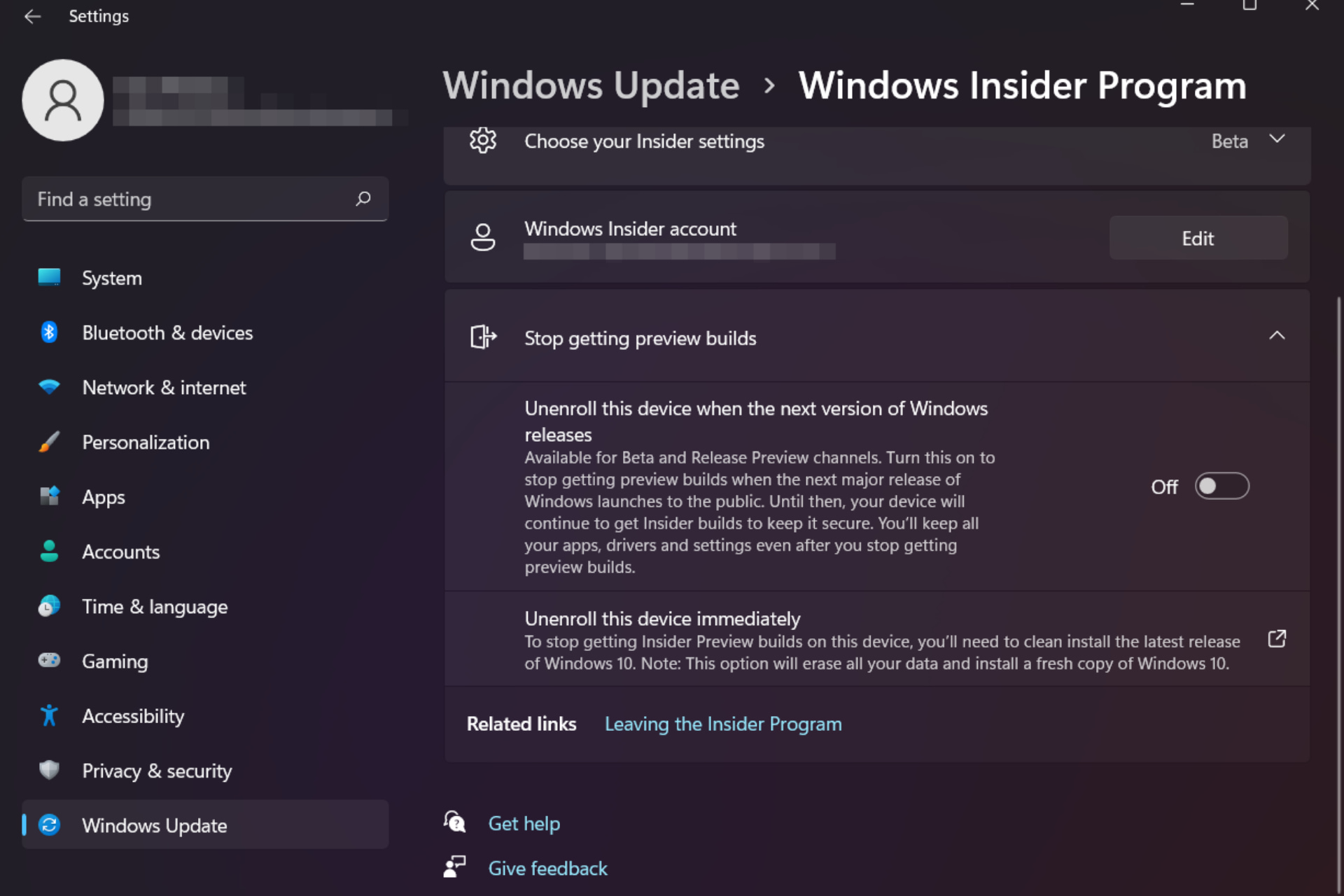
Access the Settings menu on your Windows 11 device.
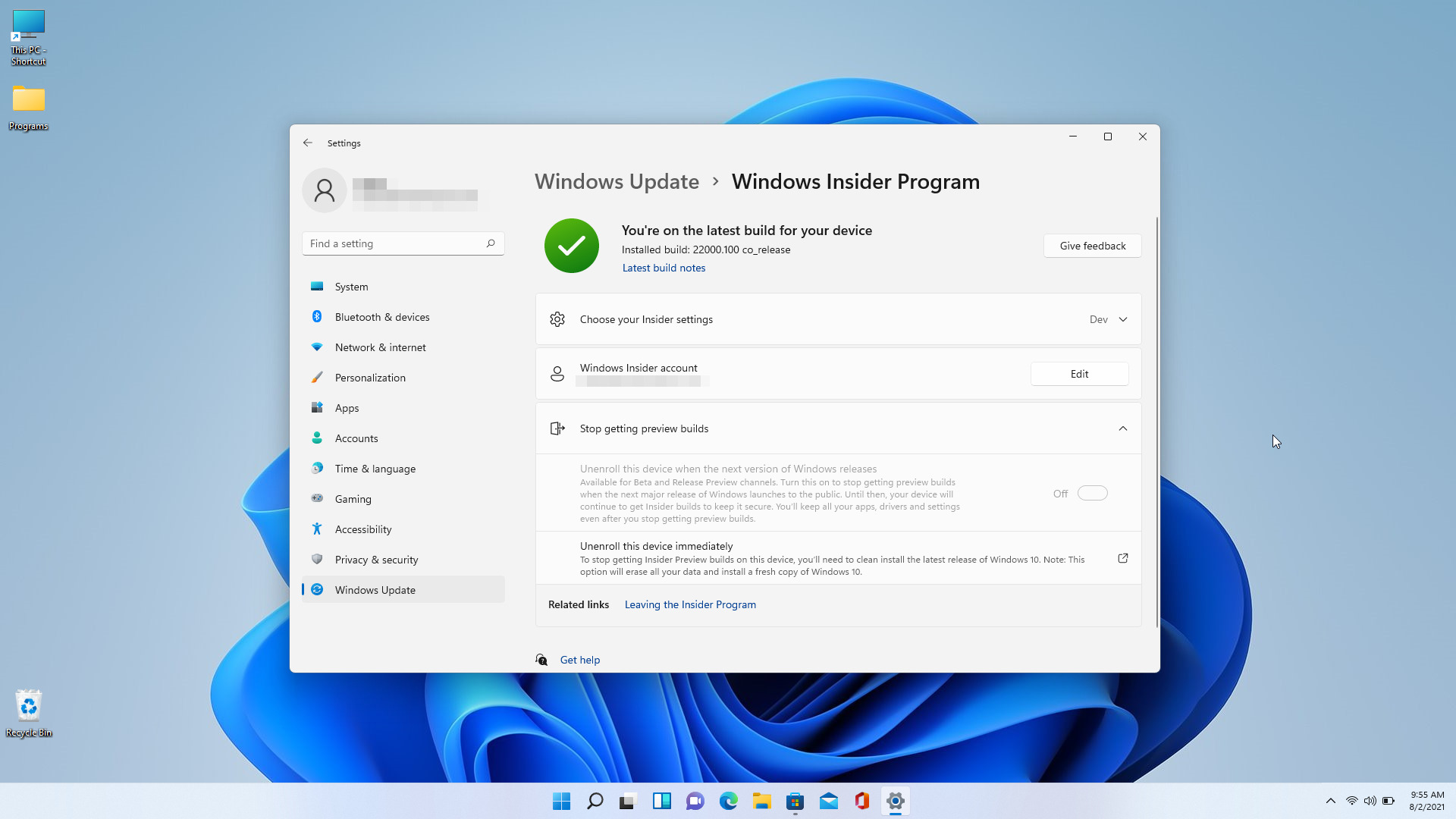
Select the Windows Update tab and click on the Windows Insider Program button.
Click on the Stop getting preview builds button.
If you just want to stop receiving new builds everytime Microoft releases one, switch the Stop getting preview builds option to On.
If you want to leave the Windows Insider Program, click on the Unenroll this device immediately and follow the listed steps.
That’s pretty much all there is to it. As we said, nothing too complicated or time-consuming, so you might want to get on that whenever you have 2 free minutes, if that is really what you want to do.
What can I do if the Unenroll button is greyed out?
There are, however, scenarios in which the Stop getting preview builds option is inaccessible to some users, and it appears totally greyed out.
Rest assured that there is a reason why this is happening, so don’t think of it as an error.
That option will be available when it’s going to release to the public or when an insider build will be the RTM build.
For those unfamiliar with the term, RTM is a document used to ensure that the requirements defined for a system are linked at every point during the verification process. It also ensures that they are duly tested with respect to test parameters and protocols.
Basically, in order for this to work, you need to provide compatibility information to Microsoft, so they can know what they are dealing with.
In order for this information sync to work you need to turn on the diagnostic data options in the Settings menu.
Access the Settings menu on your device.
Selct the Privacy & security tab and then click on the Diagnostis & feedback button.
Turn the Send optional diagnostics data setting to On.
Why leave the Windows Insider program?
Well, this is a bit of a tricky question because nobody is forcing you to do anything. And being a Windows Insider is not a time-limited membership so you can do whatever you please.
If you want to keep testing new Windows features and apps, and even the upcoming OS, then the Windows Insider Program is where you actually need to be.
However, if you got bored with this experience or you are using a production build, which is much more stable, then you can choose to opt out of this service by following the above-listed steps.
There are no mandatory factors here, just your own desire.
Have you decided to leave the Insider program? Tell us in the comments section below if these steps have helped you achieve your goal.
Since Windows 11 is all about new design and experiences, we’re about to present to you another new element that Microsoft is bringing to the table.
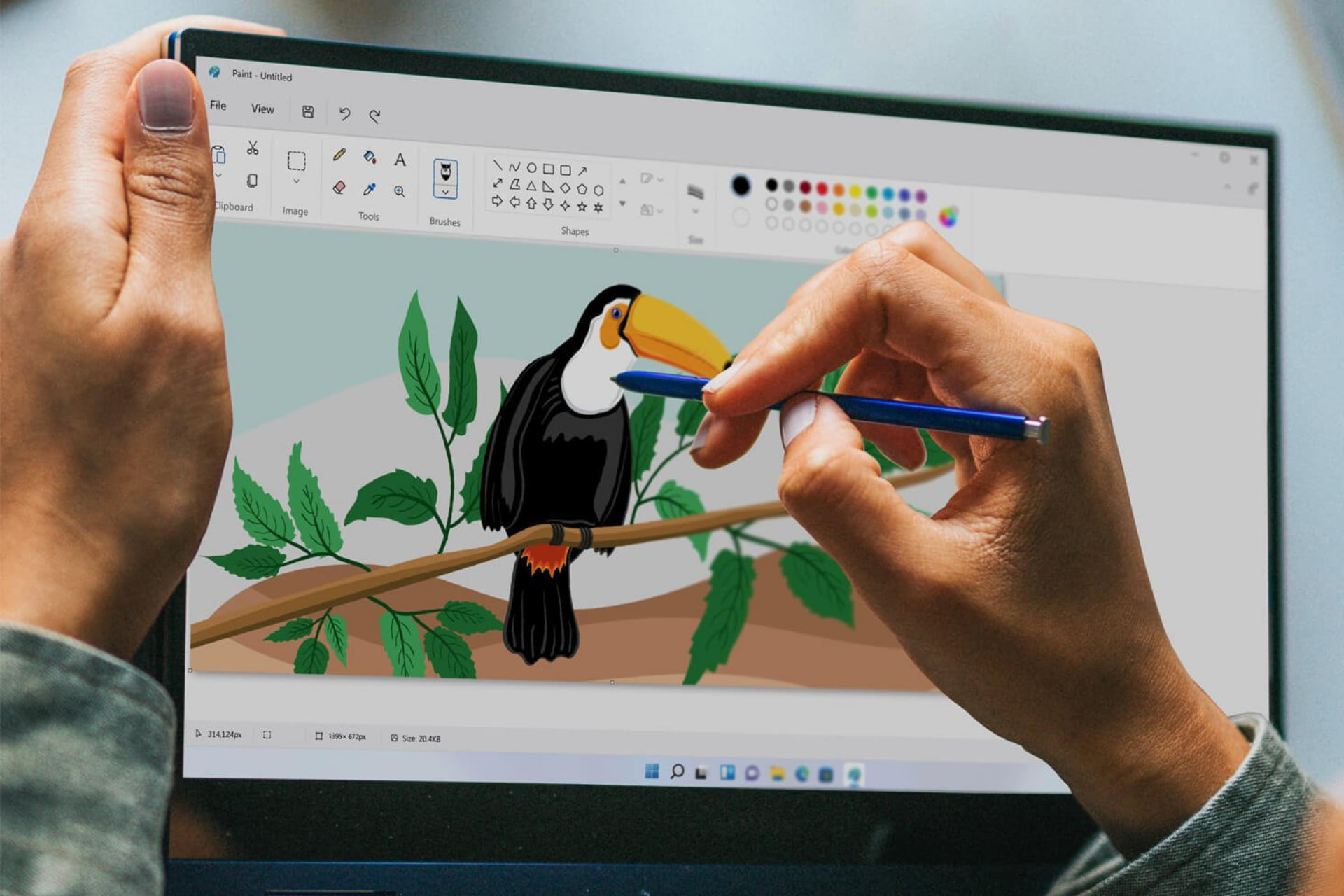
If you weren’t aware, know that an official stock photo of the upcoming redesign of the Microsoft Paint application has been leaked and we must say that it seems to be pretty great.
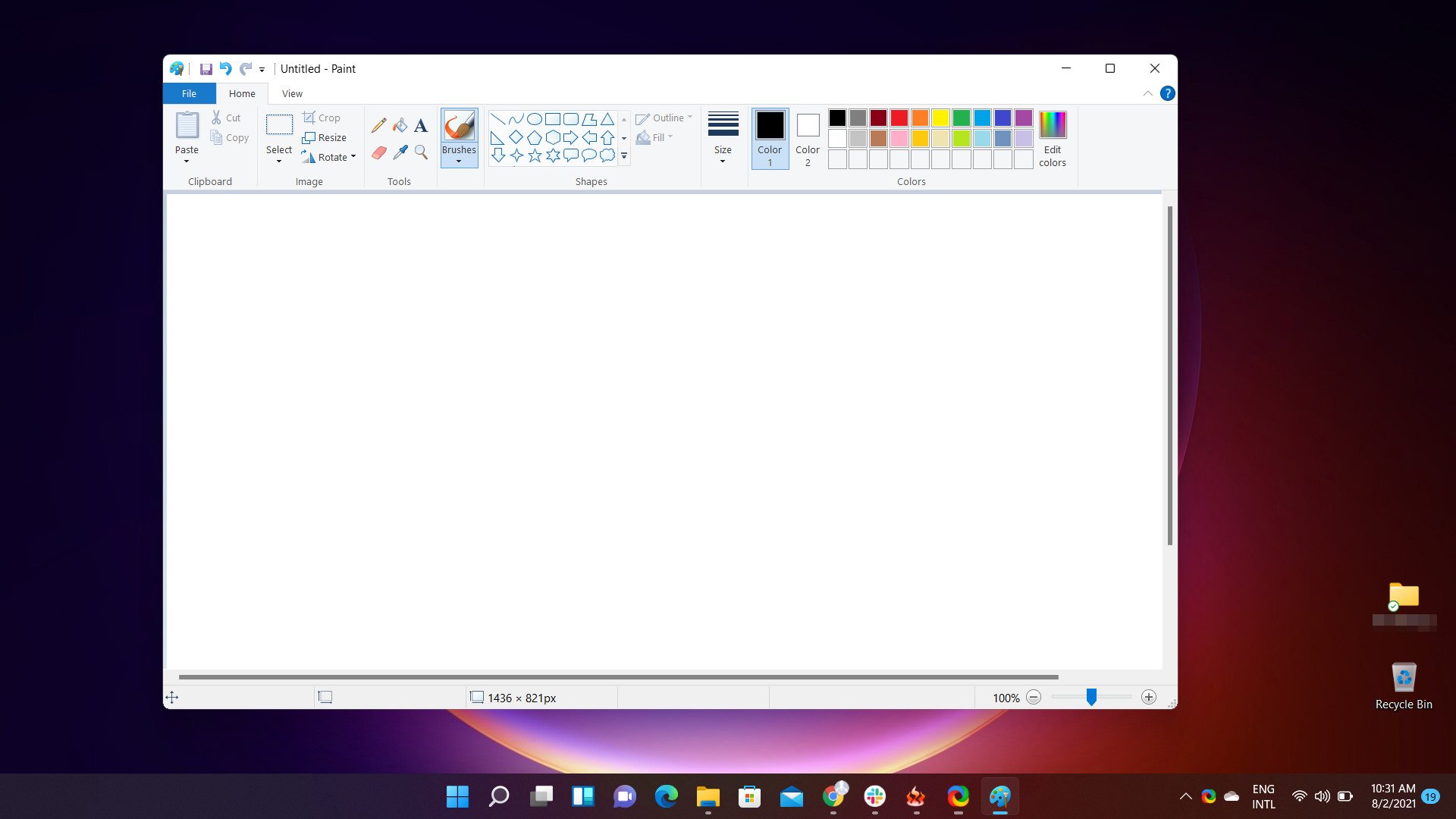
Microsoft Paint was introduced with the first release of Windows in 1985, and while it is not the most advanced tool, it has become a fixture of the operating system.
For those of you who are Windows veterans, you surely remember that Paint was introduced with the first release of Windows in 1985.
It’s not one of the most advanced tools, like PhotoShop, but it has become somewhat of an everpresent feature for the Microsoft OS.
New Windows 11 Paint photos leaked
Here’s another interesting fact about Paint, since we were on this topic. While most of us only use it from time to time to randomly doodle or slightly modify some pictures, others are on a whole new level.
It’s true that, over the years, Paint hasn’t really evolved much, and Microsoft decided to turn it into an optional feature in Windows 10.
Also, while most of the Windows apps are getting an interface makeover with the new OS, Paint is pretty much sticking to the old one.
However, all this is about to change, judging by the official Windows 11 stock photo that the Redmond tech company uploaded to Unsplash.
This gives us all a glimpse of an upcoming version of Paint with a modern user interface. Microsoft has decided to revamp the interface with new icons, rounded color selectors, and a much more modern feel.
Windows 11’s Paint app now has a more simplified toolbar. The already existing ribbon interface has been replaced with a new Fluent header and it comes with all important options, such as File, Edit, brushes, and more.
Photos is also getting revamped
The photo viewing app generically known as Photos is also getting the same visual treatment. It will feel brand new and give us that overall Windows 11 futuristic fluent vibe.
This app has been going through a lot on Windows 10, and it definitely needed a change. Therefore, it is now getting a redesign, joining the new Paint, Snipping Tool, Calendar, Mail, and Calculator.
Ironically, the Windows Photos application has had the Video Editor functionality for quite a while.
Likewise, the Redmond company decided to keep the video editing functionality. The app’s overall design consists of five sections: Collection, Albums, People, Folders, and Video Editor. You can choose any given photo to open in another section.
All the available options are now at the center inside a floating toolbox rather than spreading across the entire top bar.
It also has an all-new file info panel, so you can easily see descriptions, view the photo’s geolocation (if any), and more. The UX’s overall design matches the Windows 11 aesthetic and makes it convenient to use the app.
Coming as a major UI change, you can now view all the photos in the bottom navigation bar, similar to other OEMs such as Apple.
From there, you can even select multiple photos to initiate batch actions. Above all, you can even view multiple photos at once.
Note that these versions are not yet available in Windows 11, but as the OS it is getting closer to its official release as a complete and stable product, we should expect to see it soon.
And even if Paint does not make it into the RTM, for some reason, Microsoft will be updating the program through Windows Feature Experience Packs.
This means that it could be updated and delivered to users at any point outside of Microsoft’s normal update cycle.
What’s your opinion on this new Paint revamp? Share your thoughts with us in the comments section below.
The Organization Explorer feature allows users to find co-workers or teams with similar skills to help them complete their work. “Many of us are also interacting with new colleagues for the first time through email or online chat. Org Explorer can quickly supply you with vital information about their title, group, manager, peers, and more, and aid you in developing strong working relationships,” the Office Insider team explained.
To try out this feature, Office Insiders will need to turn on the “Coming Soon” toggle button available at the upper-right corner of the screen. Once enabled, go to the left app bar and then select the Org Explorer icon. Now navigate to the Search bar, type the name or an email alias of any co-worker, and then choose the name from the list. Finally, click on the card for more information about the person as well as their organization. Alternatively, users can also open Organization Explorer in a dedicated window.
It is important to note that the feature is rolling out in a staggered manner, and not all Outlook users will see it right away. Microsoft will keep listening to the user feedback to improve the experience in the coming weeks before making it generally available to everyone. The Organization Explorer option is only available to enterprise customers with licenses for Microsoft 365 Business, Microsoft 365 E3, or Microsoft 365 E5.
Microsoft news recap is a weekly feature highlighting the top Microsoft news stories of the past week. Sit back, grab some coffee, and enjoy the read!
Microsoft’s FY21 Q4 earnings: Commercial Cloud is a broken record of success for the company, 36% growth YoY
Microsoft’s FY21 Q4 earnings are out, and it has shown yet another quarter of impressive results. Overall, revenue reached $46.2 billion, an increase of 21%. Take a look at the breakdown of the results by business area.
Microsoft acquires Spend Intelligence company Suplari
Suplari, a Seattle-based company that provides AI-automated analytics and insights, has been acquired by Microsoft. The financial details of the acquisition have not been disclosed. The acquisition will help bolster Microsoft’s Dynamics 365 offering.
LinkedIn joins companies who ‘trust’ employees to work-from-home
As some companies are beginning to ask employees to return to the office, others are taking an approach of trusting employees to continue working from home, if they wish to do so. Microsoft’s LinkedIn has joined the roster of those trusting employees to work from home, a reversal of its previous strategy to increase the number of people in offices, as infections begin to rise once again.
LinkedIn looks to expand its ‘Premium Platform’ after announcing $10B annual revenue
Microsoft’s latest earnings report showed that LinkedIn drove a 46% year-on-year increase in revenue, rising to $10B. Following this, it is reported that LinkedIn is looking to expand its Premium Platform, specifically its experimental Premium News service, to include more publishers, expected to come aboard in the coming weeks.
@LinkedIn’s revenue surpassed $10 billion for the first time this fiscal year, up 27%. It’s a testament to how mission critical the platform has become to help people connect, learn, grow, and get hired over the course of their careers.
Microsoft Teams to get auto-delete meeting recording option in September
In September, Microsoft Teams is set to gain a new feature to help manage meeting recordings. It will be possible to set recordings to be automatically deleted on a given expiration date.
Microsoft Teams hits 250 million monthly active users milestone during pandemic
Through the pandemic, Microsoft Teams has seen strong growth as more people work-from-home and find themselves needing to communicate digitally. In its latest update on the usage of Teams, it has been reported that there are now over 250 million monthly active users.
Microsoft Teams now provides phishing protection against malicious links
To protect users against malicious links, phishing protection is now built-in to Microsoft Teams. Leveraging Defender for Office 365 Safe Links protection, organisations will be able to configure Safe Links policies to keep employees safe.
Microsoft Teams public preview now lets users choose where to open Office files
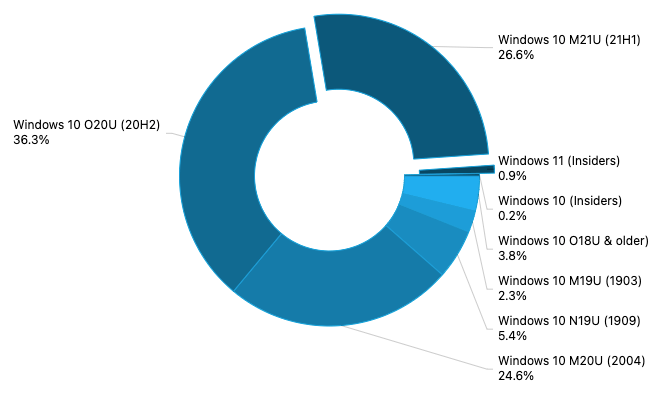
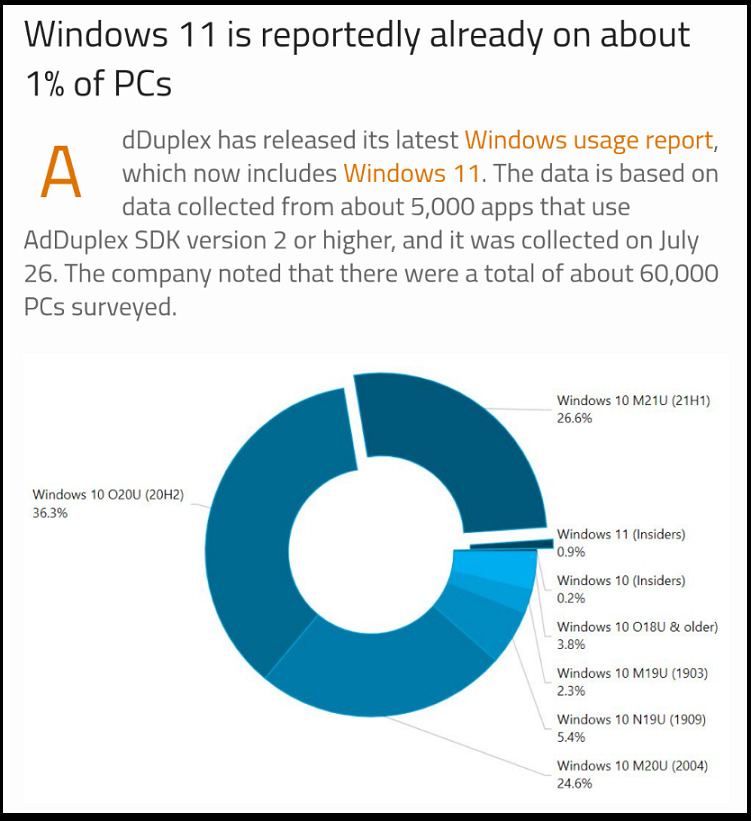
AdDuplex: Windows 10 version 21H1 reaches 26.6% market share in July
According to the latest AdDuplex data, Windows 10 version 21H1 has reached a market share of 26.6% in July, whilst version 20H2 sits at 36.3%.
Microsoft talks about commercial Windows 11 upgrade blocks, update paths & more in AMA webcast
In a 48-minute-long AMA, Aria Carley, a program manager at Microsoft, sought to answer questions about Windows 11, with a particular focus on the commercial side of it all. One hot topic has been Windows 11’s stricter hardware requirements, and specifically on commercial devices, Microsoft has noted that if the device doesn’t meet the new requirements, it won’t be able to install Windows 11.
New optional patches are available for Windows 10 version 21H1 and older
Can you imagine a software release that is perfect? And by perfect we mean it’s free of all the bugs, glitches, or crashes.
You can’t? Well, neither can we. Because such a release is not possible. All software must be tested prior to its debut and, of course, Microsoft’s products are not an exception to the rule.
Throughout this article, we will list as many of them as we can find, so stay tuned for more updates on this topic.
Windows 11 22000.100 Beta bugs
New build causes Invalid data access traps
While some users are enjoying some of the new features that Windows 11 has to offer, others are struggling with getting their systems to work, after the update.
Luckily, if you are in the same situation, there is a quick and easy workaround that will help you move past this.
Apparently, using CCleaner to remove all unused registry keys, and then restarting your system will solve the issue and you no longer have to worry about it.
Windows 11 has Windows 10 taskbar after installing Beta channel
Some Windows users that have just installed the Beta preview version for Windows 11 were more than surprised to notice that not all elements of the OS actually transitioned to their new models.
I installed the new windows 11 beta update today and my taskbar didnt update. its stuck on the windows 10 taskbar and doesnt react to inputs from the windows key on my keyboard. i cant open it when i click it. i alsp cant “shift restart” my pc to delete the update and go back to windows 10.
Furthermore, as if this wasn’t already strange enough, when he logs a different account on the same PC on which the Beta channel is now active, the taskbar seems to be updated.
Upon switching back to his account, the taskbar is back to Windows 10 standards.
Edit: I’m currently running the beta preview when i logged into another account on that pc, the taskbar was normal but when i switched to my normal account the taskbar is broken again.
This is definitely something that Microsoft should look into as soon as possible.
Taskbar flickers continuously
Since we were on the taskbar topic, here’s another glitch that totally ruins the experience of Windows 10 users trying to transition and enjoy the upcoming OS.
If you remember, we’ve reported similar taskbar problems even on the previous Windows 11 builds. Even though the taskbar is an important element of the Windows operating system, there are a lot of things going wrong with it lately.
Battery icon not available on the taskbar
We’ve recently talked about how important is to be aware of your battery usage, if you are using Windows 11 on a portable device, to keep track of which apps drain your battery faster.
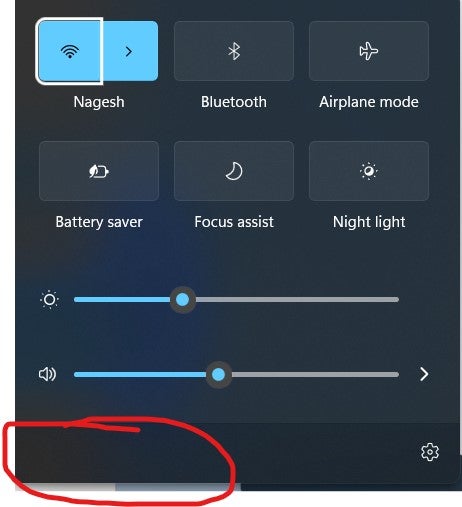
Of course, it’s not impossible, as you can go to the Settings menu and get the same results, only this is not as accessible as the option that is currently missing.
Calendar widget no longer showing any events
Here’s one Windows built-in tool that nobody has mentioned ever since the new OS became available for public testing.
However, after the Beta release, users are starting to notice that something went wrong with it. According to reports, this widget is no longer displaying events, as it did before.
I’m not sure exactly when this happened, but, I’ve got a ProtonMail account registered with my Microsoft account (so no Hotmail, Outlook) and the Microsoft Account Calendar worked flawlessly, I mean I was able to see my events in Windows 11 Widgets.
Since I can’t tell when (but at least a few days by now) it just won’t display any events. Clicking on “learn more” will take me to a 404 Ms page.
Clean install won’t do the trick. I’m sure it’s somehow an API bug or whatever but it just doesn’t work, making (if the account domain is what’s causing this) widgets useless for many, including me.
Even though these issues might seem small and not that important or system-threatening, some users actually rely on these tools in order to get stuff done.
We’re hoping that Microsoft takes all these opinions into consideration and improves the overall experience.
No sound and no Fn key utility
Here’s an issue that has been flagged by users throughout the Windows 11 experience so far, on all builds.
Nobody knows what triggers these conflicts and Microsoft, apparently, hasn’t found a way to prevent this from
Windows Store not recognising installed Win32 apps
If there is one pattern that is visible throughout the flagged issues for Windows 11, it’s definitely the taskbar-Store-Start menu one.
These seem to be the most affected Windows elements at this moment. And since we brought up the Store, here’s another issue to watch out for while testing Windows 11.
Based on Reddit reports on this topic it would seem that the Store app won’t recognize already installed Win32 apps on your device.
The Microsoft shell based winget identifies installed software on someone’s PC even if it wasn’t installed via the command.
Currently it appears that the Windows Store does not identify existing installed software. For example Zoom was already installed on this computer, but the Windows Store offered to ‘install’ it despite it already being installed.
Appreciate the Windows 11 Store is in beta but would assume it would mimic functionality already available through Microsoft’s other tools.
The start menu icon, as well as the other icons that were supposed to be pinned to the taskbar, are simply floating in thin air.
If you are also struggling with such issues, make sure to leave a memo in the FeedbackHub, in order for Microsoft to take it into consideration.
Start menu won’t open and no Search bar function
This is another problem that was reported by multiple Insiders during the testing of previous builds.
Based on their reports, after switching to Beta, the Start menu no longer works. You can click on the icon all you want and even try Ctrl+ Esc. You won’t get any results.
Even the Search function of your Windows 11 OS is going to be compromised by this bug. So don’t bother trying to search for anything because you won’t be able to.
No snapping feature available
As flagged by another Windows Insider, and others during previous builds, updating the Windows 11 version actually breaks the snapping features for windows.
My snapping feature hasn’t been fully functional for the past few days now. It does snap apps to one half of a screen or to a corner, but it does not offer me to snap other apps to other corners or the other half of the screen.
I have “When I snap a window, show what I can snap next to it” enabled.
This is not the first time such a problem arises after a build update and it probably won’t even be the last time, during the whole Windows 11 trial period.
Gaming on Windows 11 still results in massive FPS drop
One of the most inaccessible experiences on the future OS is gaming, unfortunately for many users who desire to continue playing their favorite games even if they are actively testing Windows 11.
However, with Microsoft still ironing out vital wrinkles in the operating system’s core functions, they haven’t had any time to perfect this side of it.
While some games don’t even work on Windows 11, others are playable but at the cost of performance.
Just remember that Windows 11 has just reached its Beta testing phase so there still are issues to be sorted.
Until Microsoft gets around to fixing all these visual bugs, there’s little we can do but provide feedback and wait.
Downgrading back from Windows 11 to Windows 10 causes huge FPS issues
Here’s another report from a Windows 11 user that decided to game on the new OS. After installing the beta version for Windows 11, he actually enjoyed a smoother gaming experience.
But since certain Destiny 2 features weren’t working on the new operating system, he decided to revert back to Windows 10, only to find out that it was a big mistake.
I am a casual destiny player with a couple hundred hours spent in-game with a potato laptop (GTX 1050, 8GB, Intel i7 5th gen). Yesterday, I thought it would be a good idea to upgrade to windows 11 as I heard that upgrading to Windows 11 (even though it is the beta version) helped many people get better frame rates. After downgrading back to Windows 10, I am getting only like 10-15 FPS in D2.
We will keep an open eye for all the reports concerning bugs, glitches, and crashes that occur after the transition from Dev to Beta.
Hopefully, Microsoft can sort these situations out soon, so that we can all enjoy a much smoother, bug-free experience.
What issues did you encounter since transitioning to the Beta channel? Let us know in the comments section below.
As if Windows, as an operating system, didn’t have enough problems, one of the more recent updates for BIOS is actually breaking the OS for many users.
Just as you might have imagined, the community is absolutely enraged, as their devices were rendered unusable after a simple Windows update.
And although this is not the first time that a BIOS update compromised entire systems, most of us thought that we were over such periods.
However, a lot of users are reporting that they are having major troubles with their devices, following the most recent updates applied to BIOS.
BIOS update will brick your PC again
As flagged by multiple users that were victims of this latest software fiasco, after a seemingly simple Windows 10 update, their entire operating systems collapsed.
The problem seems to be embedded in the addition brought to BIOS, through this update. And the way that this issue affects devices is surely driving users crazy.
Hi all I am pulling my hair out! My Lenovo 330 Ideapad updated automatically the bios. Now my dvd/cd drive is not recognized and I tried everything.Also my laptop wont wake up from sleeping mode when I close the lid. It takes forever to turn on or off. There are some issues that came from the latest bios. I have looked on youtube channels for help.I tried to go in and reset the bios but for some reason my laptop would not pop off in the middle when taking it apart. I could sure use help on manually flashing the bios back. Thanks!
Many of the people affected by this update blunder now fear they might lose all the data stored on their hard drives.
Such issues could indeed lead to data loos for some of the parties involved if appropriate measures are not taken.
Of course, formatting your drive will get rid of this problem, but it will also get rid of everything that you have stored on said drive.
You might want to hold back from doing that just yet, while exploring other available less invasive options.
Rest assured that all your data is still salvageable, with the right actions. Note that this issue only destroys your OS, not your drive, and not your data.
Using an alternative boot drive, such as a new HDD, external storage, or a USB stick, you should be able to treat your old broken boot-HDD as a standard storage drive.
Thus, all your data should still be intact and you can transfer it out before reformatting the drive.
In case not already mentioned and you haven’t already zapped it all, this is what I suggest you do if you want to save any data (I’ve done this a million times):Use an adapter or dock to copy your drive contents over to a USB hard drive or flash drive if isn’t too large for the flash drive.
Another alternative is to boot from a live CD,DVD, or USB flash drive version of Ubuntu Linux or another. While there, browse to your files and copy them to a USB storage device.
It looks like it’d be pretty easy to get the hard drive/SSD out of your laptop. If you’re unsure, search on YouTube for your exact model #. I did just now and first hit was showing how to pull it all apart. For the drive, you just have to remove the bottom panel with a handful of screws, then unscrew and remove the HDD/SDD (assuming it’s a 2.5 SATA drive). I did not research to see if possible for M.2 or some other connected drive. It should be doable either way.
So just make sure you’ve explored all viable paths before taking drastic measures that could lead to data loss. Researching this topic a bit more could also prove useful.
How do I stop Windows updating BIOS?
We know you are probably wondering: Isn’t there any way in which you could actually reverse all the changes applied and stop them from reoccurring?
Although the answer is yes, doing so might prove to be trickier than you expected.
Most modern boards have a BIOS recovery, but it may require downloading the flash from another device and could also involve getting access to the mainboard.
If you can still boot your OS, downgrading your BIOS version can be easy. Here’s how you can do it:
Download the Bios version you need from the desired manufacturer.
Save the BIOS files on a FAT32 formatted USB disk.
Press [F2] during POST to get into BIOS setup menu.
Select the Instant Flash utility under [Tool] menu to execute it.
Instant Flash will automatically detect all devices and only list those BIOS versions which are suitable for your motherboard.
Select the suitable BIOS version and click Yes to flash the BIOS.
The system will start to flash the BIOS.
On the off chance you cannot boot your operating system anymore, the process is a bit trickier but totally doable with a bit of patience. Here’s what you need to do:
Download and save the Recovery BIOS file to a temporary directory.
Copy the recovery file (*.BIO) to a USB device.
Plug the device into a USB port of the target computer.
Shut down the computer and unplug the AC power adapter.
Open the chassis and remove the BIOS Configuration Jumper. See the Technical Product Specification for details including the location of this jumper.
Power the computer on.
Wait 2–5 minutes for the update to complete.
The computer turns off when the recovery process is completed, or prompts you to turn it off.
Remove the USB device.
Replace the BIOS Configuration Jumper (image 2 above).
A Docker registry is a centralized and distributed storage system where Docker-named files and images can be stored to ease the software development process.
They contain multiple versions of the same file so developers can work hassle-free without worrying about creating the same images again and again.
A Docker registry is made up of Docker repositories. The repositories containing all the versions of a specific image or file.
The company JFrog developed an end-to-end solution that covers the full lifecycle of your Docker registry, allowing you to manage development, analyze vulnerabilities, do continuous integration and delivery, and control artifact flow and distribution.
What does JFrog Artifactory provide?
The JFrog platform provides unlimited access to the Docker Hub and the Docker Official Images. This will result in simplified cloud-native application development without the usual Docker Hub image pull limits.
The service is available to SaaS cloud JFrog Platform subscribers, including free subscriptions offered on AWS, GCP & Azure.
SaaS subscribers to JFrog’s DevOps Platform offered on AWS, GCP & Azure will get unfederated and unlimited access to the Artifactory Docker Hub.
Features
Multiple secure, highly available Docker registries
Artifactory Docker Registry allows users to create lots of Docker registries per instance. You can also use local repositories as private Docker registries to share the images across your entire organization.
Additionally, proxy and cache remote Docker registries with repositories, and aggregate them under a single virtual Docker registry to access everything from a URL.
Confident Docker production
The Artifactory REST API allows companies to create fully automated Docker promotion pipelines by only promoting Docker images that pass certain quality assurances at every stage.
This way, the resulting image that ends up in the production systems or downloaded by end-users has been fully tested and approved by the automated process.
Go fully automated with the REST API and JFrog CLI
The REST API has an extensive number of features available during the development cycle, allowing you to automate UI processes.
The JFrog CLI simplifies and optimizes automation scripts to make them more efficient, more readable, and easier to maintain.
Ready for Enterprise
Artifactory provides premium stability, accommodating any number of users, and offering massively scalable storage that can sustain terabyte-laden repositories.
Moreover, security is ensured thanks to the advanced replication options, facilitating disaster recovery anywhere in the world.
Build optimization
Artifactory removes any internet or networking-related issues when your Docker images are accessed through local repositories. The CI servers or the developers will not encounter any problems.
Universal Solution
Artifactory is a universal repository, it supports all major package formats, providing the same fully-featured management for any technology.
It also has integration for all the major build tools, CI servers, thus sitting comfortably at the heart of any development ecosystem.
Pricing
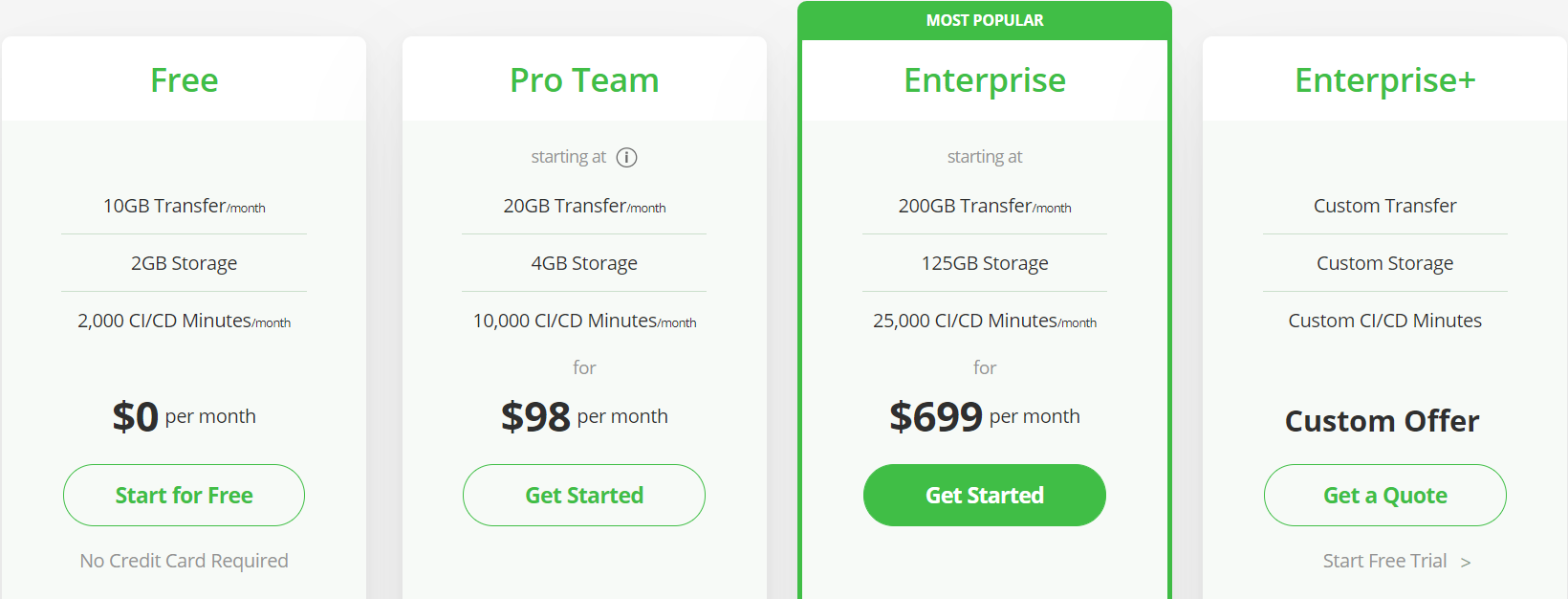
JFrog Artifactory has 4 different price plans, including a free one, a business-oriented one, and custom offers depending on your needs.
Each plan has different features, the free one is the most limited, obviously, but still good enough for an individual or small startup use.
You can check everything they have to offer on their dedicated page. It also contains a comprehensive comparison between all the plans.
Jfrog Artifactory
A great end-to-end Enterprise solution, covering the full lifecycle of your docker registry.
Needless to say, ever since the Redmond tech company first announced Windows 11 as the future OS, there has been endless talk about some of the hardware requirements that devices need to fulfill.
Many didn’t agree with the imposed TPM 2.0 restrictions and this subject has sparked reactions of all kinds from Windows users.
Microsoft held its ground and kept reassuring people that this TPM requirement is for their own safety, because of the enhanced level of protection it was going to offer.
However, some experts recently found that even with these security chips in place, we still can’t be entirely safe from malicious entities, on the off chance that someone gets their hands on our Windows 11 device.
We’re not as safe as Microsoft wants you to think
The tech giant showed an iron will when it came to not cracking under public pressure, especially after the backlash that the TPM 2.0 requirement brought with it from the community.
Trusted Platform Module (TPM) technology is designed to provide hardware-based, security-related functions. A TPM chip is a secure crypto-processor that is designed to carry out cryptographic operations. The chip includes multiple physical security mechanisms to make it tamper-resistant, and malicious software is unable to tamper with the security functions of the TPM.
Experts from Dolos Group found out that, in fact, if one of us were to lose his laptop or have it stolen, TPM could do little to prevent hackers from wreaking havoc.
At the time of this writing, BitLocker does not utilize any encrypted communication features of the TPM 2.0 standard, which means any data coming out of the TPM is coming out in plaintext, including the decryption key for Windows. If we can grab that key, we should be able to decrypt the drive, get access to the VPN client config, and maybe get access to the internal network.
By using this exploit together with other ingenious schemes, researchers were able to take a stolen corporate laptop (as a scenario) and effectively gain access to its associated corporate network, leaving data exposed and vulnerable.
As they further described, after cracking open said laptop, a pre-equipped attacker would use a SOIC-8 clip instead of individual probes, in order to compromise the TPM security chip.
The clip would make it extremely simple to connect to the chip and shave a couple of minutes off a real-world attack.
The entire process is explained in full detail and it is an interesting read if you have a vast technical background and are into this kind of knowledge.
This is disconcerting news, considering that Microsoft made such a big deal about us upgrading to devices that already have such security features integrated.
With that being said, the Redmond-based tech company could do a better job at offering a more secure future for BitLocker, one where such hacking methods are no longer possible.
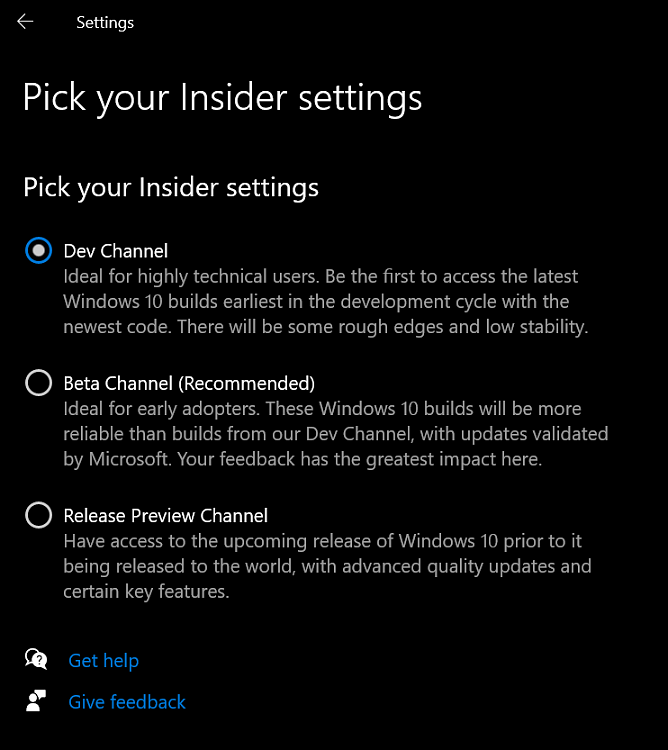
Trying out Windows 11, until today, meant that we had to install the Dev preview. No problem there, except the fact that Microsoft said this version was for highly technical users as it has rough edges.
This beta version is supposed to be less volatile, with builds being validated by Microsoft. Considering all this, you will still probably want to install Windows 11 on a test device or a separate partition.
Microsoft finally opens up the beta Insider channel
Now that the testing period has been going on for quite some time, Microsoft said that it will be paying close attention to how 7th Gen Intel and AMD Zen 1 CPUs perform with Windows 11.
This means that it’s possible for such system builds to actually run the beta but most likely not the final release as well.
With the beta announcement, many users are expecting that we won’t have to deal with such grotesque issues, as we did in the past weeks.
However, the fact that Windows 11 has entered its beta testing phase does not mean that the system will be free of bugs or glitches.
Au contraire, we will still run across many of them, but the Redmond company said that this will in fact be a much smoother experience than the previous one.
We are very excited to announce we are releasing Windows 11 Insider Preview Build 22000.100 to Windows Insiders in the Beta Channel! We highly recommend Insiders in the Beta Channel check out this blog post from June 28th that highlights all the new things in Windows 11 to check out and give us feedback on as you use it! As always, be sure to check out the list of known issues in the blog post below on anything that could impact your experience on your PC. We have also added a few new known issues discovered from Insiders in the Dev Channel since the release last week.
But, putting aside all the bugs, crashes, and missing features, it’s still good practice for when the real deal comes out.
Microsoft has even put together a whole list of current issues that Windows 11 still has, in which it also says that the Teams Chat feature that we have in the Dev channel isn’t currently available for beta users.
Some of the other problems that we’re bound to stumble upon on this version include:
Links to specific Settings pages are not navigating to the correct page in Settings unless Settings is already open.
For some Insiders, the text is not displayed correctly in the UAC dialog. This issue impacts Insiders not running under EN-US.
Windows Sandbox.
So, on the off chance you are an early adopter and were looking for an opportunity to try out Windows 11 in a much stable environment, this is your big chance.
How do I install Windows 11 Beta?
You don’t have to be the most technically gifted on the planet in order to get this done, but it will require a few minutes of your time.
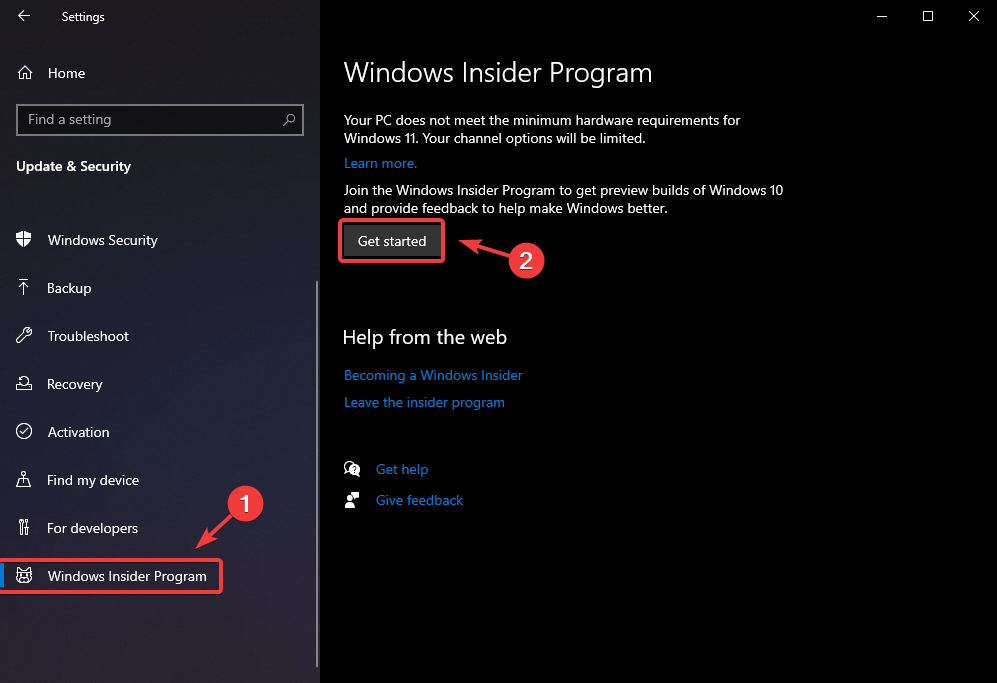
Before you get started though, make sure you’ve joined the Windows Insider community. Here’s what you need to do:
Access the Settings menu.
Click on the Update & Security button.
Select the Windows Insider Program tab and click on Get Started.
Link your Microsoft account.
Selct which channel you want to join.
Restart your device.
Check for updates.
Can’t install Windows 11 Beta
Even though it’s been quite some time now since Microsoft provided availability for Windows 11, for testing purposes, there are users that unfortunately still can’t install the OS on their devices.
We’re just going to talk about the Beta version now. Recently, some reports indicate that there are people that haven’t even gotten around to installing Windows 11, because of error code 0x80070002.
The Fortnite video game’s next big major concert event has been announced and it’s set to happen next week from August 6th through to the 8th on Xbox One, Xbox Series X, Windows PC, and all other supported platforms.
Officially, all that’s known about this event is that it’ll be an in-game music event called the Rift Tour, it will revolve around players being teleported to various realities, and that it will feature a “record-breaking superstar.”
Unofficially? This is going to be the Ariana Grande concert that leakers have been teasing for almost a year now.
The official announcement of Grande’s involvement is expected to happen on August 2nd when Epic Games has promised to reveal more details but a large number of leakers on Twitter with incredibly strong track records have confirmed that this is what the Drift Tour is and there’s very little reason to doubt them at this point.
Ariana Grande x Fortnite Concert will happen on August 6th, 7th & 8th!
The Rift Tour will debut on August 6th and will then replay once on the 7th and then three times on the 8th. It’ll likely be similar to last year’s mind-bending Travis Scott Fortnite concert. Local times are available in-game via the new Rift Tour tab.
Three related quests are currently live in Fortnite for all players to unlock and leakers have discovered an event-exclusive Battle Royale umbrella in the game’s files that will be given to everyone who attends at least one of the concerts.
The umbrella is clearly based on the popular Cuddle Team Leader Fortnite outfit. Interestingly, Cuddle Team Leader was recently featured as a Fortnite Crew skin and was even given a mini story arc told through wallpaper images about her traveling through a rift (portal) to a high tech reality and eventually powering up to become the robotic Mecha Cuddle Master.
This connection has made fans wonder if the Drift Tour will take players to that reality though there’s also a bit of an Ariana Grande connection here as the singer has previously posed in a pink bear onesie on her Instagram.
Cuddle Team Leader and Ariana Grande
Officially, it’s supposed to be the character Ramirez in the Cuddle Team Leader costume but it would be a fun twist if it turned out to be Ariana Grande all along.
Even though there are so many aspects of the new operating system to be analyzed and discussed, ever since it became available for testing, everything seems to revolve around one main topic: aspect.
Windows 11 users state that their favorite element of the upcoming OS is by far the new fluent aspect.
There are, however, certain software choices that can’t adopt this new design style just yet, due to certain incompatibility issues.
This doesn’t stop people from wanting this design applied to all their favorite apps, and the ones that know their way around a PC to design concepts that deliver just that.
One thing is for sure, which is that this probably won’t stop until Microsoft takes heed of all these requests and delivers an OS that includes more of these popular demands.
The Windows 11 design language is requested on more apps
First, let’s all understand what design language means. This is a more technical term that refers to an overarching scheme or style that guides the design of a complement of products or architectural settings.
In this case, since we are talking about Windows 11, it applies to the OS itself. To be more exact, Insiders that already took the future operating system for a spin want its fluent design, with rounded corners, applied to absolutely everything.
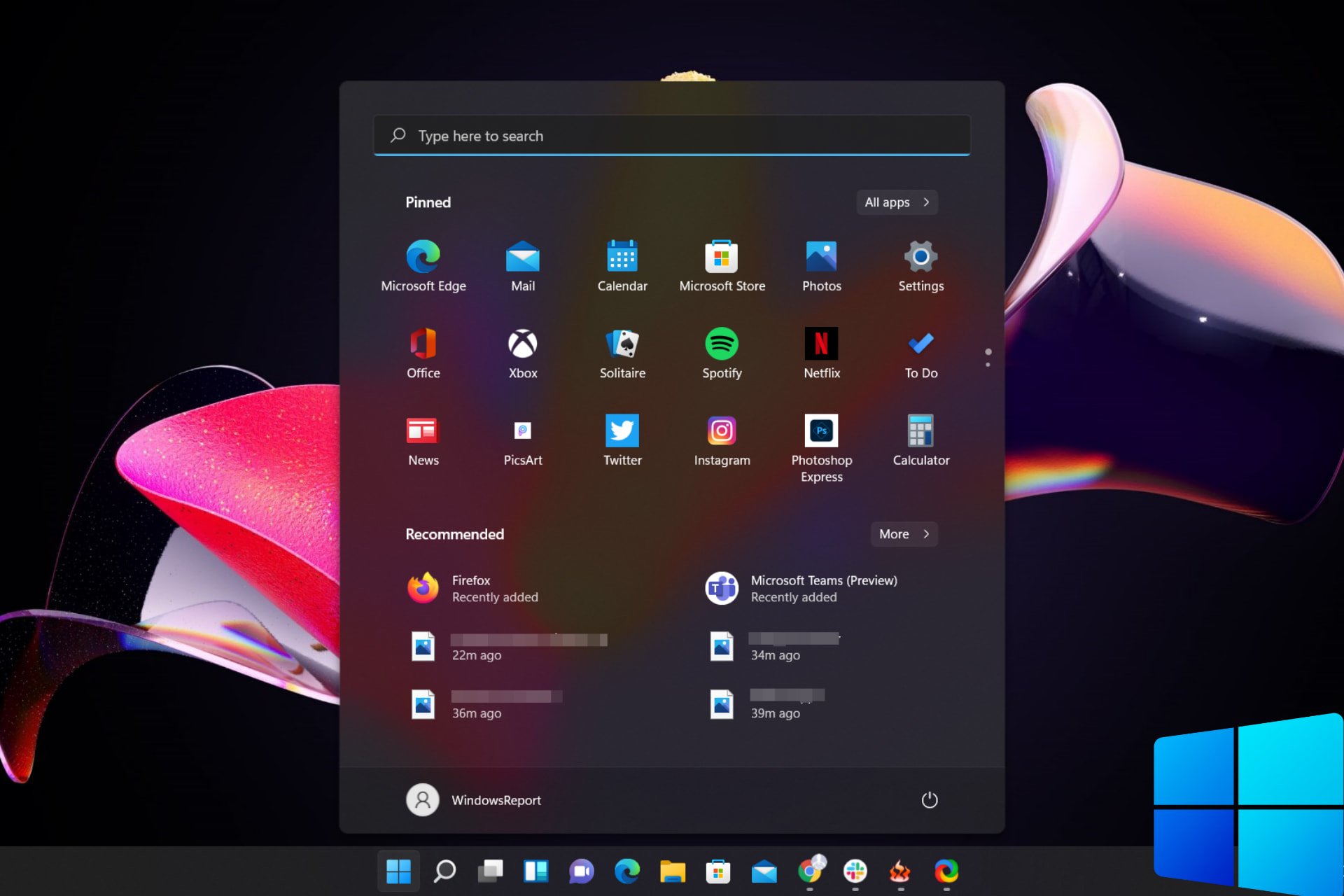
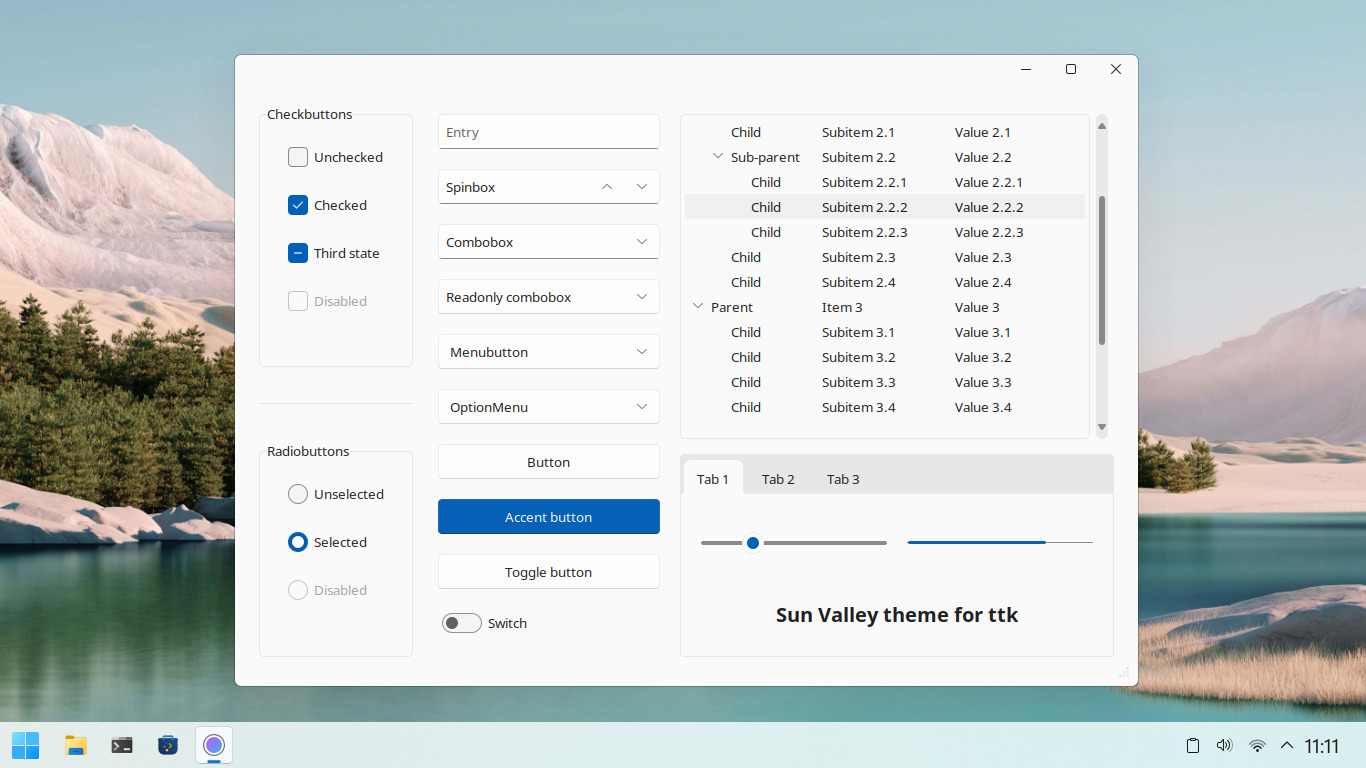
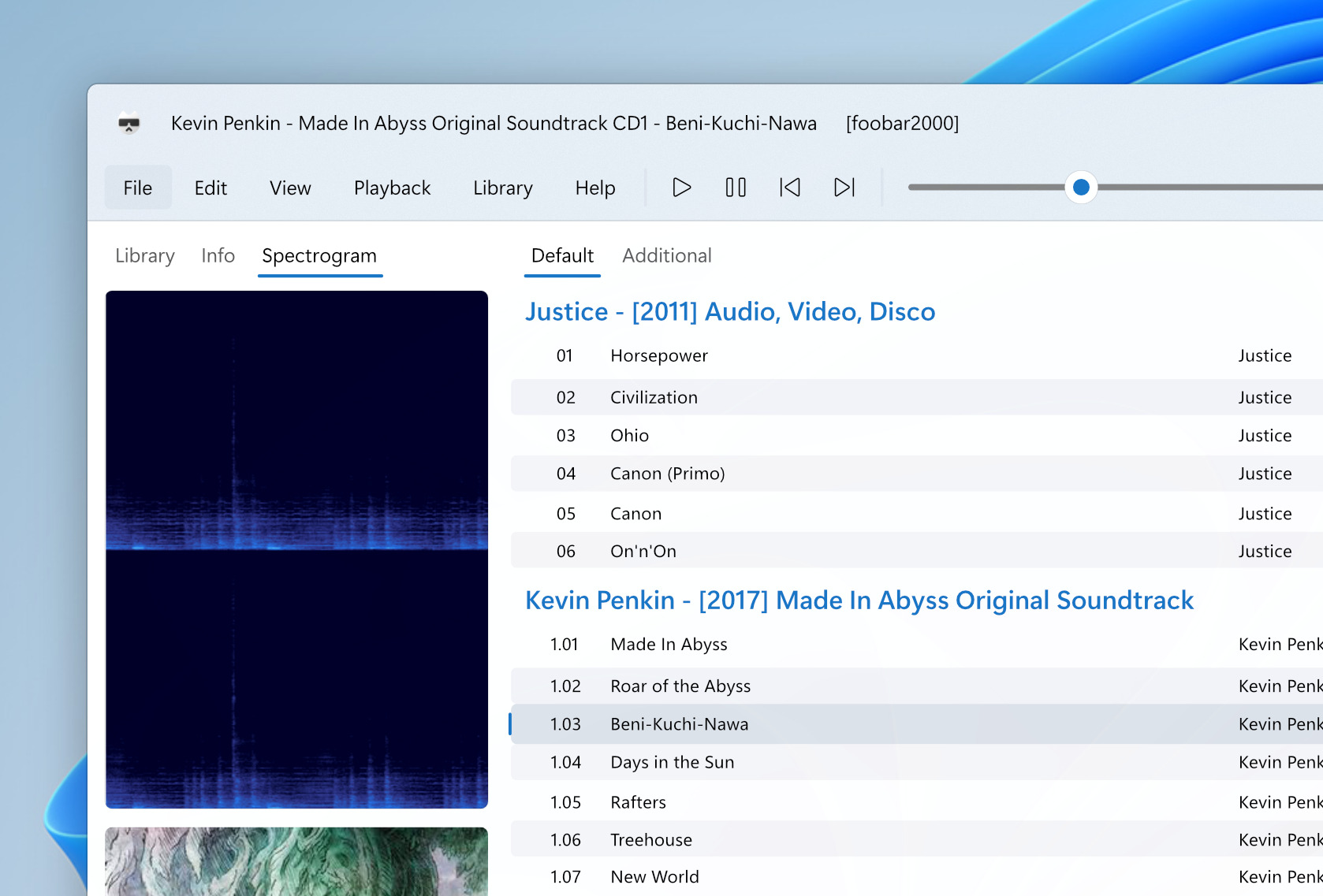
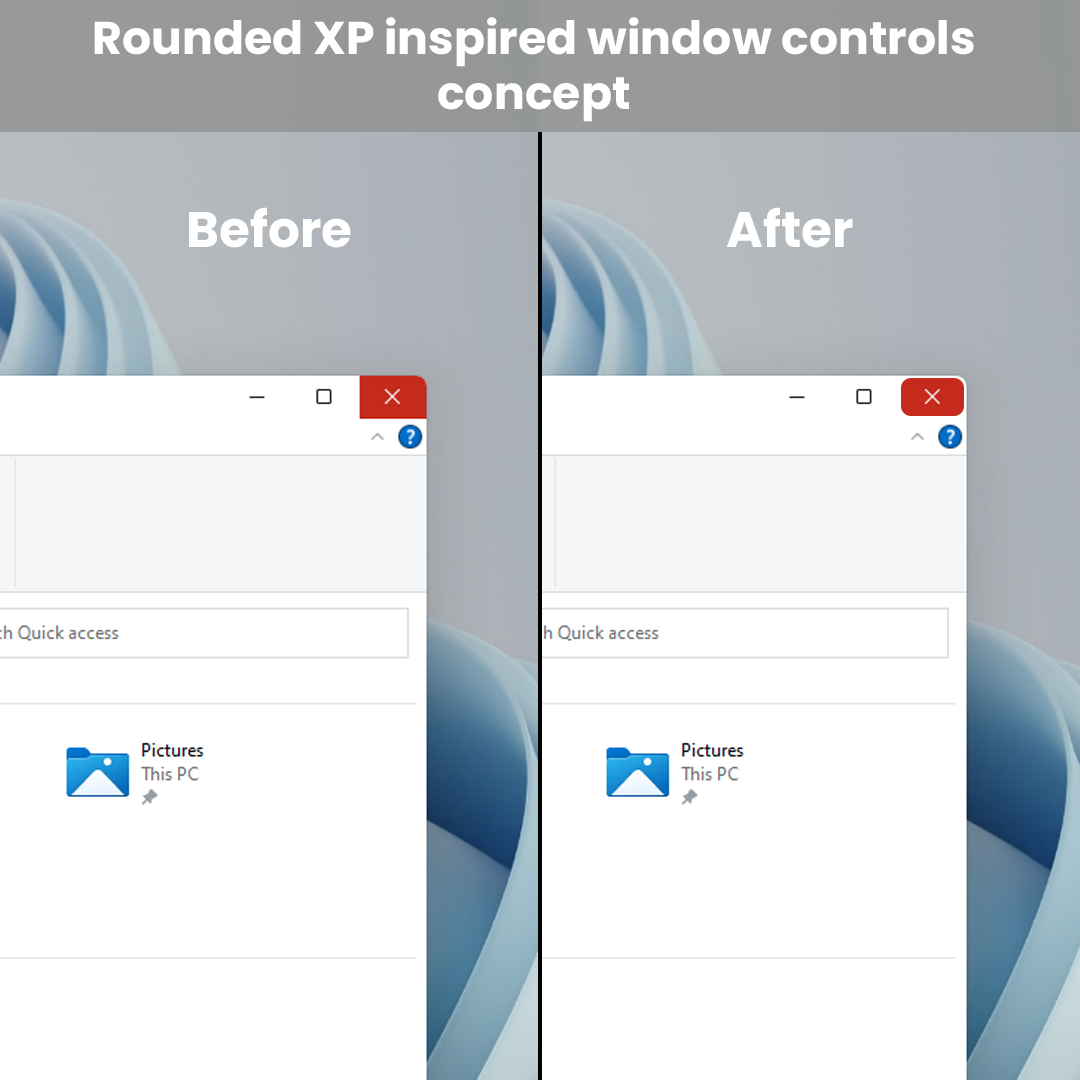
Throughout these weeks in which Windows 11 was available for testing via the Windows Insider program, we’ve witnessed different concepts and software solutions for applying this much-coveted design to more and more apps.
But that now that everyone has got a taste of this new style, it will be hard to stop. And with new concepts surfacing every day, soon enough Microsoft will have to find a way of making every app compatible design-wise.
Daily, specific forums and social media platforms are absolutely bombarded with new ideas on how to bring the fluent style to our most used applications.
In the screenshot above, you can see the design concept for Adobe XD, one of the more popular apps that users have requested to be redesigned according to Windows 11 standards.
The list is vast, as you can imagine because everyone wants to be able to use their favorite applications and be visually pleased, further enhancing the feeling of using new software.
You’ve probably also asked yourself the following question: what’s with all the hype about this new Windows design?
Well, the answer is pretty simple and it has to do with the way we perceive change and react to it. Of course, after using a certain UI for so long, a newly re-designed, better-looking one will certainly be far more appealing.
Furthermore, there has been a lot of talk during these years in which we used Windows 10, about how other operating systems such as macOS, look far better than Windows ever did.
And Microsoft did have a plan to give the OS a complete makeover with the Sun Valley project, but it seems that they’ve just decided to offer us a completely new experience instead.
This makes the buttons look like on Windows XP and you can see what this looks like in the screenshot below. However, not everyone agreed with this new choice, calling the new button appearance childish and impractical.
There seems to be a fine line on how much one can actually tweak the new OS, using these fluent design elements, before it starts becoming tacky and forced.
However, this isn’t really about the built-in elements that Windows comes with as a package. What users really desire is for this design language to be applied to their favorite software.
And believe us when we tell you, that list is a long one. But these are not outrageous demands, as it would feel normal for downloaded and installed software to take the same aspect as the OS it runs on.
This will make the certain app feel like a system native and create an overall harmony of shapes that will surely delight users.
Microsoft Flight Simulator 2020 is one of the most beautiful titles on PC. You can hop in a virtual airplane and fly anywhere in the world, and enjoy seeing famous sights like the Eiffel Tower, Statue of Liberty, Golden Gate Bridge, and more.
As promising as that sounds, it might not be easy to get started for some people. But just like driving simulators, you can tweak your settings to your own liking to make things easy and fun. Today, we have a look at 5 tips and tricks which can help improve the Microsoft Flight Simulator 2020 experience for you.
Tip 1: Use an Xbox Controller for the best experience
One of our most obvious tips involves the way to play the simulator. You can indeed use your keyboard and mouse to play Microsoft Flight Simulator 2020, but the best experience happens when you use an Xbox Controller. This makes the simulator a lot easier to play, and a bit like a driving game like Forza Motorsport. For example, the A &B buttons can control the throttle speed, the control sticks change direction and allow you to switch the view, and the directional pad controls flaps, and trim on select airplanes. It really helps improve your gameplay and makes things a lot less frustrating.
Tip 2: Set departure points in the air for easier flights
Our second tip is for novice flyers. Taking off from an airport can be quite tricky. You need to watch your speed then make sure you pull back on the control stick at the right time to hit the air. You then need to keep your altitude without stalling the airplane. If you’re not careful during takeoff, you might end up crashing. This is why we suggest zoom in on the map and set departure points in the air, nearby the airport, so you can get into your flight more easily. Doing this is simple, just right-click anywhere on the map and you’re good to go. No need to set an arrival airport.
Tip 3: Change the sim settings to make things easier
Third up we have a tip on the simulator settings. By default, you’ll get messages about “you overstressed the aircraft and caused critical damage” if you go over the maximum airspeed, or if you make maneuvers that can damage the plane. You can turn all this off if you want. Just visit the in-simulator settings by clicking Options at the top, choose Assitance Options. You can then go through each of the categories to switch things up as we listed below.
Aircraft Systems: Easy: All other switches to On
Failure and Damage: Easy: All other switches to disabled.
Navigation Aids: Easy: All Switches to On and Auto
Notification: Easy: All Switches to On
Piloting: Easy: All Switches to On
POI: Easy: All Switches to On
User Experience: Easy: All switches to On.
With the settings, your experience will be a lot more noob-friendly. You can take to the skies and make unrealistic banking maneuvers, and fly like a crazy pilot. You won’t face any issues, and you can always switch back to regular settings at any time.
Tip 4: Tweak your graphics settings
If you’re playing Flight Simulator and your PC is struggling to keep up, we suggest you tweak your graphics settings a bit. The sim offers a lot of graphics options for high-end, low-end, and mid-range systems. You can tweak all kinds of different settings for rendering quality, terrain details, buildings, trees, grass, reflections, and more. If your PC really isn’t high-end, we suggest settings things to low, as you’ll still be able to fly, and enjoy the title without crashes and freezes. You can play around with the settings as you see fit until things match up right. Oh, and make sure you’re up and running with the latest version of Microsoft Flight Simulator 2020 as it introduces performance improvements as well as faster load times.
Tip 5: Use Active Pause and AI Auto Pilot
Our final tip involves Active Pause and AI Auto Pilot. We mentioned that Flight Simulator is quite beautiful, so if you’re flying and see something you want to take a closer look at, you can! Just hover your mouse to the top middle part of the screen to bring up the mini-menu and choose the play and pause button. This freezes your aircraft mid-flight and will let you look around. If you’re using an Xbox controller you can summon this menu by clicking down on the left control stick, and then using the stick to pick the play/pause button.
We also want to mention the AI Auto Pilot, too. If you enable this option (second icon from the left of the screen,) you can have the AI fly the airplane for you, while you look around the air and the land below you. It’s helpful for landings, too, if you’re not good at putting the airplane down on the ground. There are other options here, too for route markers, the air traffic controllers, and more. Play around and find the settings that are right for you!
Safe flights!
Our guide mainly covers the PC version of Microsoft Flight Simulator 2020, but the simulator recently made its way to Xbox, too. Xbox gamers have reported issues with not being able to navigate menus, but using a mouse and resetting controller profiles seems to fix the issue. A lot of our tips (asides from the graphics settings and the controller tip) apply to the Xbox version of Microsoft Flight Simulator, so be sure to try on Xbox, too. And, check out our Laurent Giret’s impression post, too.
Microsoft announced yesterday that it had acquired Suplari, a Seattle-based company providing AI-automated analytics & insights, for an undisclosed amount. Suplari helps finance, procurement, and business leaders to optimize their spending by using AI and analytics to predict and manage costs, and Microsoft will use its technology to improve its existing Dynamics 365 offering.
“Together with Dynamics 365, the Suplari Spend Intelligence Cloud will help customers maximize financial visibility by using AI to automate the analysis of current data and historical patterns from multiple data sources. It will also help customers enhance financial decision-making by predicting the best spend management actions moving forward,” explained Frank Weigel, VP of Microsoft’s Dynamics 365 Insights Product Group.
For now, nothing will change for existing customers of the Suplari Spend Intelligence Cloud. “Given Microsoft’s AI, cloud and data investments, customers can expect that Suplari will continue to deliver more AI-driven, predictive & prescriptive insights and integrated workflows for finance, procurement, & supply chain teams,” said Suplari CEO Nikesh Parekh in a separate blog post.
“Context switching comes with a loss of efficiency. Every time you move between your emails, calendar, and tasks, you lose productive time returning back to where you were. In order to help you be more productive and save your time, we’re bringing you a side-by-side view of your mail, calendar, and tasks in Outlook Web as you navigate through your work,” the company explained in the blog post.
Microsoft says that the feature lets Outlook users quickly create tasks or events by simply dragging and dropping emails from their inbox to the My Day side-pane. Users will be able to find these tasks in the default Tasks list, and each of them will contain a link to the relevant emails. This feature should make it easier for users to keep track of their tasks without switching between both apps.
In addition, Outlook users can create a task by selecting a part of the text in an email and editing it in the sidebar. The To Do tab available in the My Day side-pane also supports dragging and dropping a task into the calendar.
To try out this feature, users will first need to go to Outlook.com, navigate to the header and click the My Day option available besides the notifications icon. They can then switch between the To Do and calendar tabs to manage their tasks and events.
Some other features available in the My Day side-pane include the ability to view due tasks from the Calendar tab and right-click any specific task to add a due date or a reminder. The side pane also provides an option to open the Microsoft To Do web app in a separate tab. Let us know in the comments below if you think that this feature will help you to manage your day-to-day work.
Fortnite’s Crew Pack for August 2021 has been revealed and it’ll likely please quite a few longtime players.
The August Fortnite Crew Skin is Summer Skye, a variant of one of the Chapter 2 Season 2’s Battle Pass characters. Much like the original Season 2 version, Summer Skye also features a light and dark look and comes with a sword that can be used as a back bling or an axe.
The Summer Sky skin also comes with two different wraps to match her light and dark aesthetics, a loading screen featuring both the Season 2 and Summer versions, and the usual bonus 1,000 V-Bucks.
All of the content for the August 2021 Fortnite Crew Pack should unlock for subscribers on August 1st. Those with an active Crew subscription before then will also receive the July 2021 Crew Pack featuring Marvel’s Loki.
In addition to the above Crew Pack news, several social accounts today teased an upcoming Fortnite collaboration with the new Suicide Squad movie. The video, which could possibly be the first of several, shows Idris Elba revealing that his Suicide Squad character, Bloodsport, is coming to Fortnite.
As the video says, more information on this collaboration is coming tomorrow. It’s unclear if the Suicide Squad content will coincide with the debut of Superman, another DC Comics character, in Fortnite in two weeks or the new UFO countdown that started earlier this week.
From August 2nd through to the 22nd, Krispy Kreme will be selling official Xbox donuts throughout their various stores and third-party sales points in the United Kingdom and Ireland. They’ll also be available to order online within the same regions.
The Xbox donut, officially referred to as The Nexus Level Doughnut, will be available on its own or as part of a 12-donut box. A box of 12 donuts will include two Xbox donuts, an assortment of 10 other Krispy Kreme donuts, and an entry form for an Xbox Series S console giveaway.
All entries in the competition will receive a code for one free month of Xbox Game Pass (for new subscribers only) regardless of whether the entrant wins or not.
Microsoft really seems to be pushing their new Xbox Series S console lately with the company announcing a different promotion for the console in Australia and New Zealand earlier in the week. While the Xbox ANZ promotion didn’t include any donuts, it did surprise Xbox enthusiasts with the unveiling of a limited edition suitcase inspired by the Xbox Series S console’s aesthetic.
The Redmond-based tech company has published its quarterly income and statistics data and some of the numbers seen there reflect the large differences between the different services they provide.
Given the fact that we went through serious isolation phases during this pandemic, you would even expect Xbox gaming services to have generated much more than they did before.
And even though they’ve sold a lot of new generation consoles for a lot of money, recording an 11% revenue growth, Xbox content and services revenue decreased 4%.
However, Microsoft scored big with products that tailor to a much wealthier niche, addressing all the growing needs of enterprises and capitalizing on the high demand.
Microsoft 365 service sales sky-rocketed
We’ve just mentioned the COVID-19 pandemic and the impact it had on companies all around the world. In order to keep up and continue existing, they’ve all turned to hybrid work as an alternative.
In turn, this paved the way for companies like Microsoft to score big, by providing services especially designed to suit such needs.
Hybrid work meant that more people were going to use Teams as a means of communications, and also resort to Microsoft 365 services in order to keep up productivity.
Just to give you an example, Microsoft 365 consumer subscribers increased to 51.9 million. In turn. this increase meant that Office consumer products and cloud services revenue increased by 18%.
Also, Office commercial products and cloud services revenue increased by another 20%. If we were to translate this into actual money, the sums would be in the order of hundreds of millions.
Furthermore, Microsoft’s server products and cloud services revenue increased by a staggering 34%. This is just to give you a better understanding of how much the global situation has influenced the supply and demand chain.
Overall, Microsoft revealed $46.2bn in revenue during the quarter ending June 30th, 2021, an increase of 21%. Operating income was $19.1bn (up 42%), with net income hitting $16.5bn (a rise of 47%).
Our results show that when we execute well and meet customers’ needs in differentiated ways in large and growing markets, we generate growth, as we’ve seen in our commercial cloud – and in new franchises we’ve built, including gaming, security, and LinkedIn, all of which surpassed $10 billion in annual revenue over the past three years.
Azure, Linkedin and Dynamics are also huge earners for Microsoft
The tech company’s FY21 Q4 report also revealed that its commercial cloud revenue grew by 36% each year, to a grand result of $19.5 billion.
Microsoft’s new CEO, Satya Nadella, praised the Azure department for its incredible results. And rightfully so, considering that the company’s Azure department generated giant revenue growth of 51%.
Also on the top scorer list was LinkedIn, as the business-focused social network brought a revenues increase of 46%, which was fuelled by a 97% growth in its marketing solutions.
Not surprising, considering that user numbers grew by 30% with record engagement. All of this lead to LinkedIn surpassing $10bn in revenues for the first time.
Another one of the Redmond giant’s MVPs for the last quarter is Dynamics, which also contributed generously to the company’s income, with products and cloud services revenue increasing by 33%.
What’s next for Microsoft?
Everyone is now excited about the new operating system and this will for sure be another great turning point in the company’s history.
Many of the companies that can technically perform a transition to the new OS, and can also afford it, will surely opt for this option.
This will again translate into great revenue increases for Microsoft. It’s already going great, considering that we’re still in the early testing stages of Windows 11 and there are already a lot of new OS users.
The waters haven’t exactly settled yet and a lot of employees are still working from home. This means that Microsoft-designed business solutions will still be in high demand for a long period of time.
While some thought that consumer products were going to top this list, enterprise-based services continue to be top earners for Microsoft.
We’re eager to check out the report for the next quarters and compare it to this one.
What’s your opinion on this statistical analysis? Share your opinion with us in the comments section below.
Multimedia entertainment is one of the most popular pastimes of the modern age, with movies and songs taking up a substantial part of any user’s digital library.
However, being on the same page isn’t always possible, so converting and editing audio and video to meet your criteria is one of the reasons why audio and video tools have become so popular. Wondershare UniConverter is a great example to take into consideration.
This article comes as a detailed review of Wondershare UniConverter. We’ll take a closer look at its features, what it can do, and whether or not it is worth using.
What is Wondershare UniConverter?
Labeling Wondershare UniConverter as just a convertor would be an understatement since this tool acts as multiple programs packed into a single one. However, if we were to mention the primary features that it has, they would be the following:
Audio & video compressor
Audio & video converter
Audio & video editor
CD & DVD burner
Screen recorder, and more…
The software is available for download, and all of the tools are available from within a single menu, acting as a standalone product and not an entire software suite with separate included tools.
Speaking of which, UniConverter’s interface just received a facelift, and it looks more modern and compact than ever before, allowing users of all experience levels to enjoy it to its full potential, and maybe even enjoy using it.
What are Wondershare UniConverter’s features?
Convert to and from thousands of formats easily
Wondershare UniConverter started off as a simplistic audio and video converter and has been enriched beyond measure during the past few months.
This was possible by expanding the range of supported audio and video formats, making video conversion faster via GPU acceleration, introducing bulk conversion, support for multiple device formats, and not only.
Keep in mind that it enables you to convert more than 1,000 video and audio formats and supports a wide range of video conversions such as WEBM to MP4, TS to MP4, MP4 to MPEG, AVI to MOV.
UniConverter also supports several VR devices and 4K video formats like MP4, AVI, MOV, MKV, etc. with new formats being constantly added with each new update.
Most importantly, you don’t have to worry about the quality loss when it comes to video conversion since it is powered by the industry-leading APEXTRANS technology which converts videos with zero quality loss or video compression.
A very handy video editor
Once you’ve converted the videos, you can also tweak them, even more, to suit your needs by using UniConverter’s video editor.
While not as fully equipped as professional video editors, it has all the basic tools that you may ever need to tweak a video to make it better, including video cutting, cropping, resizing, changing playback speeds, trimming, and more.
If you’re planning to edit commercial movies or making movies for foreigners, you can use UniConverter to add subtitles to them as well.
You can even use the tool to merge multiple short clips to create elaborated video collages, making it great when you want to spend quality time with your loved ones.
A reliable video compression tool
You can compress the videos using customizable settings so that they take up less storage space, which is especially useful when you’re converting and editing videos meant for mobile devices.
Compressing entire batches of videos is easy by using a single command, and you won’t have to wait too much either, since the speeds are lightning-fast.
In fact, UniConverter is so powerful that you can even use it to compress 8K videos, so turning something that would go well on a wall-sized TV into something iPhone compatible will be easy.
Record your entire screen easily
Streamers and those of you who love making online tutorials will enjoy UniConverter’s built-in screen recorder, especially since it can record full screen, custom screens, games, webcams, video calls, system audio, and microphones.
You can customize the recording frames to capture just small sections of your screen, or simply record everything and edit it afterward.
The framerate and image quality can also be changed, making this feature adjustable depending on what your hardware can deliver.
If you’re not interested in screen capturing and only in recording your webcam, you can do that as well, and use UniConverter to overlay it over custom backgrounds to make the video more engaging.
Recordings can also be edited while screen capturing, with brushed and pencil tools allowing you to doodle, or you can also add entire segments of texts, and you’ll only need one click to remove them all and start over. As for audio editing, feel free to set UniConverter to capture your microphone audio-only.
An efficient video tool to save videos
It’s hard to edit and convert videos if you don’t have them in the first place, and that is why UniConverter allows you to download free videos from over 10000 websites.
Up next, you can automatically convert them to compatible formats for playback on TVs, smartphones, or other devices, or you can save them to perform some editing first.
If you’re interested in more than just one video, you’ll be glad to know that UniConverter supports playlist downloads as well, so it doesn’t matter if you’re talking about one video or 100, UniConverter will get them all as soon as possible.
Keep your data stored on CDs and DVDs easily
Once you’ve downloaded, edited, and converted a video, the next natural step is to store it on some form of media, and many users still like keeping their audio and video files on CDs, DVDs, or even Blu-ray disks.
Of course, this is a feature that UniConverter fully supports, and it also lets you handle disks that already have data on them as well, allowing you to convert DVDs to any format, copy DVDs to other DVD disks, or burn audio files to CDs.
How do I use Wondershare UniConverter?
As with all Wondershare tools, the main focus of UniConverter’s is for the interface to be as intuitive and simplistic as possible, allowing anyone to get started right away with using it.
That being the case, here’s what you need to do in order to use Wondershare UniConverter:
The new version of UniConverter brings a lot of new and exciting features that we definitely need to mention below.
Intuitive Interface – The redesigned interface makes UniConverter 13 more intuitive, and users can quickly find the functions with Favorites
Enhanced Video Converter – UniConverter 13 supports more types of GPU acceleration and enhances the batch conversion speed by 200%, hence saving much valuable time
Improved Compressed Video Quality – Users can quickly get smaller and better-quality compressed video through the enhanced video compressor with variable bitrate
Smart Trim – Quickly editing silent clips through intelligent analysis video volume, this feature helps users save several hours to cut video
Automatic Subtitle Editor –With the automatic subtitle generation feature, users eliminate the need for manual transcription. It will also reduce the chances of human errors to the minimum
Integrated 8K Video Player – The built-in video player supports media files of up to 8K resolution. As a result, users will no longer need third-party programs to watch videos
Closing thoughts
Pros
Affordable
Simplistic UI
A wide variety of tools
Very resource-efficient
Easy to learn and master
Reliable video editing features
Supports +10.000 for video download
Cons
Video editor could use some extra features
We tried going full cycle in terms of using Wondershare UniConverter, from downloading a video off of mainstream media to editing it, converting it to a different format, compressing it, and then finally burning it on a DVD, and we have to admit that it went smoothly every step of the way.
The interface was welcoming, the controls were intuitive, and the conversion/compression and burning speeds were as fast as they could be.
All in all, if you’re a music or video lover, streamer, teacher who creates online tutorials, and pretty much any other type of user that works with multimedia, we recommend that you give Wondershare UniConverter a shot since it is more than worth it.
No less important, media.io converts MP4, MP3, WAV, MOV, and more to any format online, and it is user-friendly with online solutions.
Have you tried Wondershare UniConverter yet? If so, let us as well as other users know what you think of it by using the comments section below.