KB5005101 fixes Bluetooth and USB headphone issues, among 32 others

You might want to know that Microsoft just released another cumulative update for Windows 10 2004, Windows 10 20H2, and Windows 10 21H1 with fixes for thirty-four pending issues.

This preview update is actually part of the Redmond company’s June 2021 monthly C update, allowing Windows 10 users to test the upcoming fixes and changes to be released on September 14th as part of Patch Tuesday.

Windows 10 users get a new cumulative update

Unlike the updates released via Patch Tuesday, this preview update is optional and only contains bug fixes, performance enhancements, and improvements.

It’s important to know that KB5005101 does not contain any security updates whatsoever.

The tech giant decided that it really needs to roll out these two fixes for issues Windows 10 users have been experiencing with Bluetooth and USB headphones.

Addresses an issue that prevents USB audio headsets from working on devices that support USB audio offload. This issue occurs if you installed third-party audio drivers on the devices. Addresses a rare condition that prevents Bluetooth headsets from connecting using the Advanced Audio Distribution Profile (A2DP) for music playback and causes the headsets to only work for voice calls.

Although these problems do not appear to affect that many users, Redmond officials decided that it’s time to make things right and right some OS wrongs.

After installing KB5005101, Windows 10 2004 will have its build number changed to 19041.1202, Windows 10 20H2 to build 19042.1202, and Windows 10 21H1 to build 19042.1202.

This new Windows 10 cumulative update preview includes 34 improvements or fixes, as you can see listed below:

  • Updates a rare condition that causes Bluetooth headsets to only work for voice calls.
  • Updates an issue that provides the wrong Furigana result when you cancel the Japanese reconversion.
  • Updates an issue that resets syncing for Microsoft OneDrive to “Known folders only” after you install a Windows update.
  • Updates an issue that prevents audio headsets that connect to a device using USB from working if the device has certain third-party audio drivers.
  • Updates an issue with resizing images that might produce flickering and residual line artifacts.
  • Updates an issue that prevents you from typing any words in the username box during the out-of-box experience (OOBE) process. This issue occurs when you use the Chinese Input Method Editor (IME).
  • Updates an issue with copying and pasting a text box into Office 365 apps. If you use an IME, you won’t be able to insert text into the text box.
  • Updates an issue that might cause your device to stop working when making a touch input gesture. This issue occurs if you bring more fingers into contact with the touchpad or screen during the middle of the gesture.
  • Updates an issue that might cause an external monitor to display a black screen after Hibernation. This issue might occur when the external monitor connects to a docking station using a certain hardware interface.
  • Updates an issue that resets the brightness for standard dynamic range (SDR) content on high-dynamic range (HDR) monitors. This occurs after you restart your device or reconnect to the device remotely. 

With this release, there are three known issues with KB5005101:

  • Using the Microsoft Japanese Input Method Editor (IME) to enter Kanji characters in an app that automatically allows the input of Furigana characters, you might not get the correct Furigana characters. 
  • Devices with Windows installations created from custom offline media or custom ISO image might have Microsoft Edge Legacy removed by this update, but not automatically replaced by the new Microsoft Edge.
  • After installing the June 21, 2021 (KB5003690) update, some devices cannot install new updates, such as the July 6, 2021 (KB5004945) or later updates. You will receive the error message, PSFX_E_MATCHING_BINARY_MISSING.

How do I download and install KB5005101?

This is a very simple process and will only require a few minutes of your time to complete. In order to download and apply this cumulative update to your system, follow these steps:

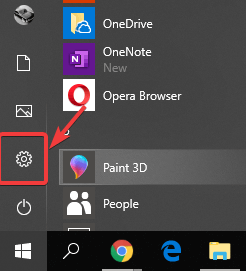
  1. Access the Settings menu on your device.settings button in start menu - DHCP server keeps stopping
  2. Select Windows Update and click on the Check for Updates button.w10 update

As this is an optional update, you will need to click on the Download and install link for the update to be installed.

You can also download it manually by checking out the Microsoft Update Catalog.

Have you managed to successfully install KB5005101? Let us know in the comments section below.

Latest update comes to all Surface Hub devices, includes new Microsoft Edge

Microsoft has announced that the Windows 10 Team 2020 Update 1 is generally available for all Surface Hub devices. The company began rolling out this update back in October 2020 before pausing it to incorporate user feedback.

“We’re pleased to announce that the Windows 10 Team 2020 Update 1, based on Windows 10, version 20H2, is now available for both the first-generation Surface Hub (55” and 84” models) and the latest Surface Hub 2S (50” and 85” models). Hubs connected to Windows Update will receive the update automatically, which typically occurs during nightly maintenance cycles,” the company explained.

The Windows 10 Team 2020 Update 1 is based on Windows 10 version 20H2, and it brings several highly anticipated features for Surface Hub users. First of all, the Surface Hub devices will now use the new Chromium-based Edge as a default browser. The update also brings support for the steady-state background image, so the backdrop of the welcome screen will now be available on the home screen as well. It should help to provide a consistent experience on experience on both screens.

In addition to these features, the Windows 10 Team 2020 Update includes a bunch of capabilities to help IT Admins deploy and manage updates on Surface Hub devices. There are also some new security features, and you can learn more details on this support page.

Microsoft noted that enterprise customers will be able to configure via Windows Update in order to install the Windows 10 Team 2020 Update 1 on their Surface Hub devices. However, be sure to check out the list of known issues with this feature update before making the switch.

Microsoft partners with the world’s largest open school platform in India for upskilling learners

Microsoft and online learning platform, Ed4All, have partnered with National Institute of Open Schooling (NIOS) in India to empower students with digital tools and skills and make learners job-ready in a digital economy. Through this partnership, Microsoft and Ed4All aim to reach over 170 million learners across the open schooling system in India.

Established in 1989 to increase literacy and aimed forward for flexible learning, the National Institute of Open Schooling is the board of education under the Union Government of India. It is the world’s largest open school platform.

As part of this collaboration, Microsoft and Ed4All have launched a customized tech platform for the NIOS Virtual Open School – BLEAP for NIOS. BLEAP stands for Blended Learning and Pedagogy, and also refers to the platform being a Big Leap in school education. BLEAP for NIOS is built on the Microsoft stack of Teams, Microsoft 365, and Azure.

The first-of-its-kind customized tech platform provides learners a personalized learning experience for improved learning outcomes. The platform offers easy-to-consume modules including live demos, hands-on workshops, and assignments along with skill-based courses and certifications. Students across NIOS will also have access to digital courses on technologies like artificial intelligence, cloud computing, cyber security, and data sciences among others.

Navtez Bal, Executive Director – Public Sector at Microsoft India believes that the initiative is an important step in ensuring equity in education and skilling. As India, and the world, rapidly moves towards a digital economy, the skills of the future will look very different from the skills that are needed today.

Best Education Software in 2026 [Out of 15 Tested]

Someone wise once said that you can’t put a price on education. And they were right. You can never have too much knowledge since there’s always room for improvement.

Fortunately, some intelligent individuals have developed online learning tools that can be easily explained to people of all ages.

All you need to do is pull out your laptop or smartphone, go online, log in, and start watching a video where an expert carefully explains complicated concepts in an easy-to-understand language.

The beauty of this technology is that you can take a break whenever you want and later resume when you are ready to continue. Without the pressure of a deadline or test, as in school, there’s no way you cannot succeed.

That is why we’ve compiled a list of the best educational software you can get today.

What are the best education software tools on the market?

Udemy – Plenty of free courses

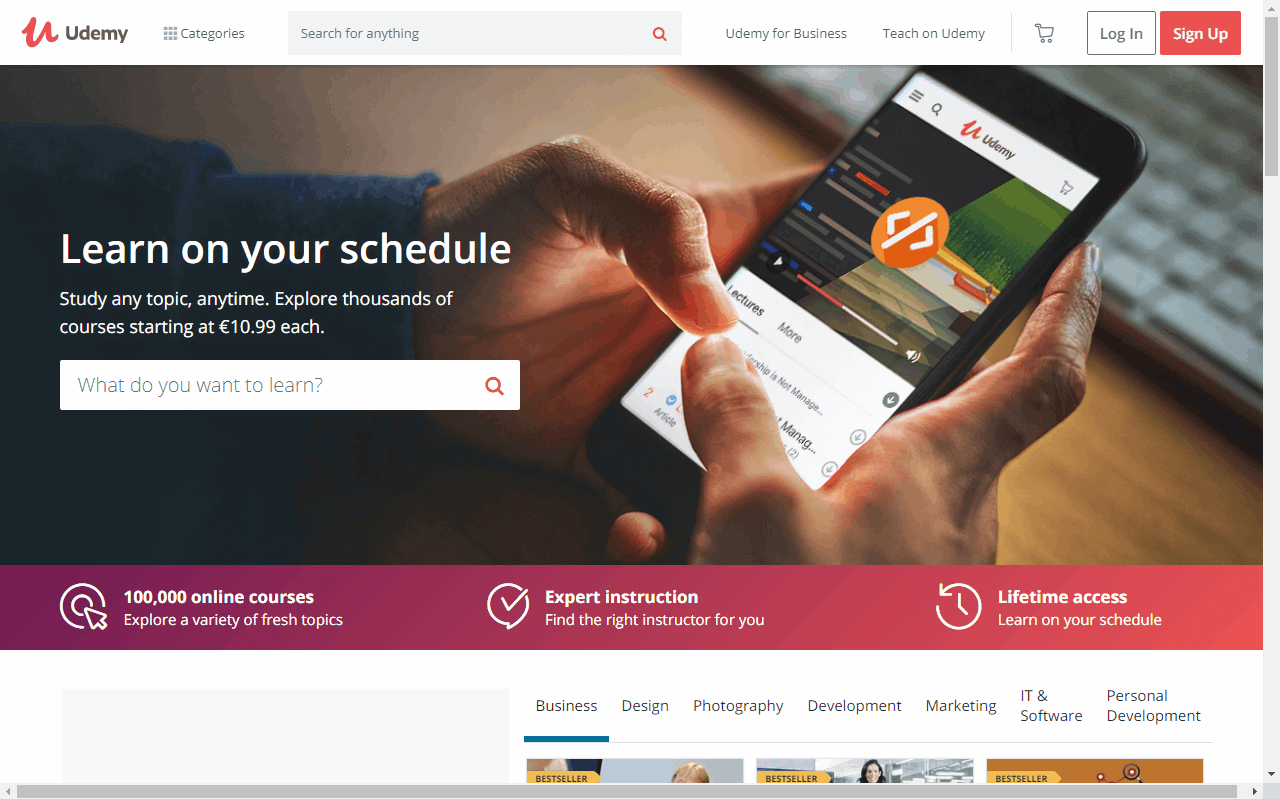
Udemy homepage

There are many wonderful educational tools available on the Internet, and Udemy is certainly one of them. It provides an online learning service for anyone interested in any topic, whether you’re a student or just a curious adult.

Currently, more than 130,000 courses are available on the site in over 50 different languages and more than 190 countries. Professionals in their own fields teach all courses. If you are an expert in something, you can also apply to become an Udemy instructor.

As far as categories are concerned, you can learn new information in development, business, finance, and accounting, IT and software, office productivity, personal development, design, marketing, lifestyle, photography, health and fitness, music, as well as teaching and academics.

For example, suppose you want to know more about network and security (applied in IT). In that case, you can learn about ethical hacking, cybersecurity, Cisco CCNA, penetration testing, IT network fundamentals, or Kali Linux. It’s even possible to obtain IT certifications.

The procedure is pretty simple: you get enrolled in a course, read articles, watch videos at your own pace (not live), and get a certificate of completion at the end. In some cases, for instance, if you want to get an IT certification, you have to pass a test to successfully complete the course.

The great thing about Udemy is that it supports multiple platforms so that you can keep up with your courses not only on your computer but also on your mobile or Smart TV.

Pros:

  • Comes with plenty of free courses
  • Supports multiple platforms
  • Encompasses courses across multiple domains
  • Available in over 50 different languages

Cons:

  • Other similar services may be available at even lower prices

Udemy

Learn any skill you want and get certified in your dream field with Udemy.
Check price Visit Website

Discover by Teachable – All-in-one package

Teachable is a good all-in-one service for online education. It is really easy to use, both for students and course providers, and it has an ever-growing list of features. You can access classes on many different subjects, including design, economics, cooking, business, writing, new media, and music.

The courses created on the platform are very appealing in terms of appearance, they have a lot of visual aids for the lessons provided. 

Different types of media are added to the courses, mainly video materials. Moreover, they offer course providers a lot of integration tools which makes the process of connecting your student work to other apps or services you might be using a lot easier. Among their partnerships, you’ll find Zoom, Google Forms, and Zendesk. They also have Calendly integrations which help in scheduling courses and meetings.

Speaking of meetings, they give you the possibility to participate in online video calls through their platform without the necessity to have an account at another service.

Pros:

  • Easy to use
  • All-in-one package
  • Tons of integrations
  • International Payments

Cons:

  • Quizzes and exams have limited options 

Discover is very flexible in terms of payments. Some course providers offer coupons and have advanced pricing options, like subscriptions, memberships, and one-time payments. They accept international payments in over 130 currencies.

Discover by Teachable

Expand your horizons in any subject with the multimedia resources and one-on-one sessions available on :discover!
Check price Visit Website

Skillshare – Over 26000 courses

The Skillshare homepage

Skillshare is also an online learning platform that teaches people various topics using educational videos. It takes a different approach than Udemy, in the sense that it relies more on interacting with the students.

There are currently more than 26,000 classes available for people interested in learning design, illustration, business, technology, photo and film, entrepreneurship, and writing.

Each class is split into multiple lessons, and each lesson is taught by an instructor in a video. It’s just like watching Netflix, only for self-improvement.

The first lesson is always free, while the remaining ones are accompanied by a lock – a sign that you must subscribe to a premium plan if you want to continue.

In addition to the class description, you can check out reviews and find out what user level is best suited, how engaging is the teacher, how clear are the instructions, how helpful are the examples, and if the expectations of the majority of students were met.

Resources, such as PDFs with examples, can be separately downloaded. Furthermore, you can schedule multiple classes by adding them to a calendar, save favorites, and share videos with your friends.

The good news is that you can try the premium edition of Skillshare for 2 months for free (requires a credit card).

Pros:

  • The first lesson is free
  • Comes with plenty of video tutorials
  • Over 26000 available classes

Cons:

  • Not available in as many languages as other similar services

⇒ Get Skillshare

Closing thoughts on educational software

With the help of online learning tools like Udemy and Skillshare, you can fuel your creativity, add more skills to your portfolio, and constantly feed your mind to become a more healthy individual.

If you’re a programming student, we have a guide that can help you get GitHub Copilot for free, so be sure to check it out.

For those leaning more on the tech side, try Microsoft Certifications for a skill upgrade and resume boost.

It’s official! Windows 11 starts rolling out on October 5th

There has been endless talk about this operating system, ever since Microsoft announced it a few months ago.

Today, we finally know when Windows 11 is going to become available to the masses, as a complete OS.

So, starting with the 5th of October, the free upgrade will begin rolling out to eligible Windows 10 PCs and other devices that come pre-loaded with Windows 11 will start to become available for purchase.

Windows 11 has an official release date

Like many Windows upgrades in the past, this one will be available in phases too. New eligible devices will be offered the upgrade first, and then Windows 11 will become available for more in-market devices in the weeks and months following October 5th.

Following the tremendous learnings from Windows 10, we want to make sure we’re providing you with the best possible experience. We expect all eligible devices to be offered the free upgrade to Windows 11 by mid-2022.

On existing Windows 10 devices, Windows Update will let people know when the upgrade is available for Windows 11.

You can also check to see if your device is eligible for the Windows 11 upgrade through Windows Update, or Microsoft’s dedicated PC Health Check app, which is currently in preview.

But while the OS launches on October 5th, not all of the announced features will be available right away. Microsoft is bringing Android apps, in partnership with Amazon and Intel, but this feature won’t be there with the release.

A preview of Android apps on the new operating system will become available for Windows Insiders in the coming months, suggesting that it likely won’t roll out to all Windows 11 users until 2022.

The Redmond-based tech company also clarified its minimum system requirements for Windows 11 last week, but also revealed a workaround for those who don’t meet them. 

As a matter of fact, you can install Windows 11 on any hardware using an ISO method, as long as the device has a 64-bit 1GHz processor with two or more cores, 4GB of RAM, 64GB of storage, and a TPM 1.2 chip.

However, the catch is that your PC will be in an unsupported state, which means you will not receive any Windows updates whatsoever. Yes, this also means no security updates.

So, if the gadget you are using isn’t fully compatible with Windows 11, Microsoft is still supporting Windows 10 until October 14th, 2025.

Also worth mentioning is that a 21H2 update is arriving for Windows 10 users later this year that includes GPU compute support in the Windows Subsystem for Linux (WSL), Windows Hello improvements, and WPA3 H2E Wi-Fi security support.

Are you excited about Windows 11 coming out on October 5th? Let us know in the comments section below.

Polls in Microsoft Teams meetings will soon support open-ended questions

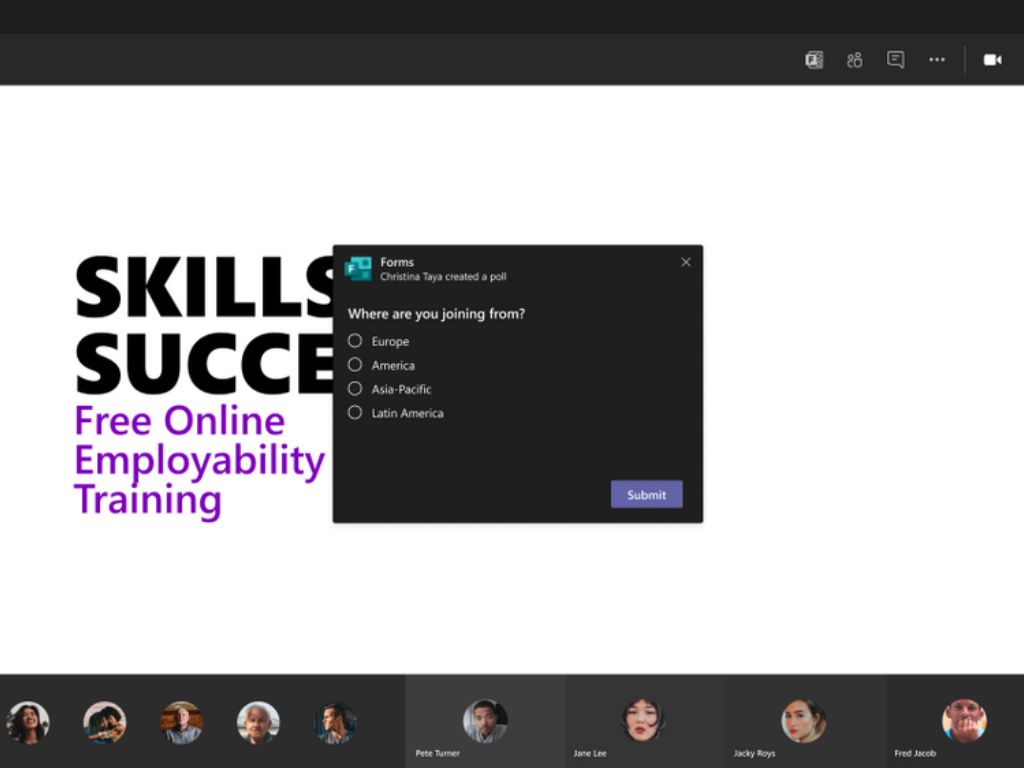
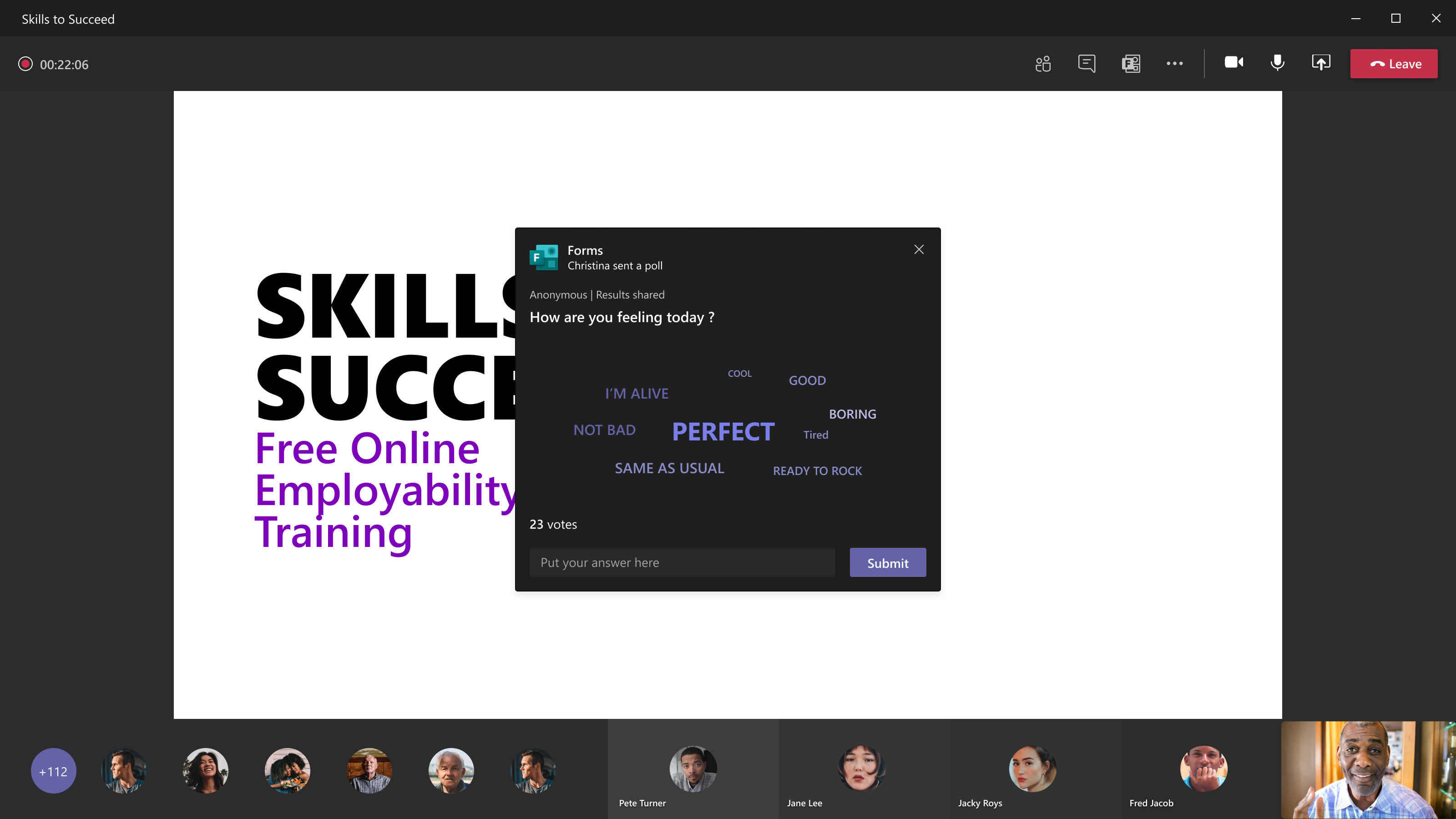
Microsoft Teams is launching a new “word cloud” feature that will help to improve the built-in Polls feature in meetings. This feature is slated to begin rolling out to both desktop and mobile users in late September.

The Microsoft Teams desktop app introduced a new polls experience for meetings back in November last year, and this feature is also available on mobile. It allows presenters to collect instant feedback from attendees’ by creating multiple-choice polls and quizzes. The company is now planning to improve the polling option in Microsoft Teams to boost meeting engagement. This upcoming update will add a new option called “word cloud polls,” allowing presenters to set up an open-ended question for collecting participants’ opinions on a specific topic.

Word Cloud Poll

Just like the multiple-choice polling experience, Microsoft Teams will collect all responses anonymously, and it will not be possible for other users to find out who submitted a particular word.

In addition to this feature, Microsoft Teams is also planning to add a 2×2 gallery view for meetings viewed in the Safari browser. The 2×2 gallery view is already available for Edge or Chrome users, and it can show up to four participant videos during a Teams meeting. This feature is currently under development and will roll out in mid-September.

Windows 11 testers on unsupported PCs are now pushed to reinstall Windows 10

Microsoft has started pushing Windows Insiders currently testing Windows 11 on unsupported PCs to reinstall Windows 10. If you’re currently running the OS on an ineligible device, you should soon see a message in Windows Update explaining that you’ll no longer receive Dev Channel builds on your PC. In other words, it’s time to go back to Windows 10 and continue testing preview builds on the Release Preview Channel if you want to

“Your PC does not meet the minimum hardware requirements for Windows 11. Your device is not eligible to join the Windows Insider Program on Windows 11. Please install Windows 10 to participate in the Windows Insider Program in the Release Preview Channel,” reads the Windows Update message shared by BetaWiki yesterday (via The Verge).

While the notification may come as a surprise for many testers, Microsoft actually announced its plans for Windows Insiders testing Windows 11 on unsupported PCs back on June 24. Here’s what the Windows Insider team said at the time:

Once Windows 11 is generally available, these PCs will be opted out of flighting and will not be able to receive future Windows 11 Insider Preview builds. These PCs must clean install back to Windows 10 with the media (ISOs) that we provide and can then join the Release Preview Channel to preview Windows 10 updates

To be fair, Microsoft is acting a bit early as Windows 11 won’t start rolling out on eligible PCs until October 5, 2021. Anyway, Windows 11 testers on unsupported PCs will no longer receive new Dev channel builds going forward, and reinstalling Windows 10 is now the only way to go. It’s not the end of the line yet for Windows 10 as the OS will be supported throughout 2025, and Windows 10 version 21H2 is also coming later this Fall.

Last week, Microsoft did confirm that it will still be possible to use Windows 11 ISOs to manually install the OS on unsupported devices once Windows 11 is officially released, though with a big caveat: Doing so may prevent users from receiving any updates via Windows Update.

Twitter updates for Windows and web with SRT file caption support and more

The release notes for the last month or so of Twitter updates has been published and, while some of the changes such as the major design revamp were noticed by most users, there are some less obvious additions that slipped under the radar.

Of note is the addition of support for SRT captions files for video subtitles, the enabling of Apple ID login and signup, and a rather prominent promotion of email newsletters on user profiles for those using Apple’s own Revue newsletter service.

Here’s the full release notes:

New

  • Design Refresh: Twitter has a new look and feel! We’ve rolled out changes to our visual design language to help make things more accessible, unique, and focused on you and what you’re talking about. Learn more here.
  • Revue Newsletters: We’ve enabled the ability to discover and subscribe to Revue newsletters through the Twitter profile screen. This is immediately available to all Revue creators, and we’re beginning to experiment with a smaller test group. Learn more here!
  • Third Party Sign-On: You can now use your Apple ID to sign up and sign in to your Twitter account.
  • Video: We’ve enabled the ability for you to upload captions via SRT file when uploading video on Twitter.com. Look for “Upload caption file (.srt)” in the composer after uploading a video attachment.

Updated

  • Fleets: Functionality for viewing Fleets has been removed.
  • Topics: The Topics screen has seen a number of changes to give you more information and context around Topics you may want to follow, and those you are already following. There are now three tabs for viewing “Suggested”, “Following”, and “Not Interested”.
  • Spaces: We’ve made a number of improvements to how captions are processed for Spaces. This should help make dialog clearer, more consistent, and improve scrolling across the conversation.
  • Spaces: Spaces cards will now render within the trending timeline on the Explore screen.
  • Topics: When navigating to the detail screen for a specific Topic, the header will now include the Topic name and subtitle for additional context.

Fixed

  • Account Picker: If there’s a network failure, the account picker will continue to display the buttons for logging out and adding an account, along with the retry button.
  • DMs: Improved spacing of the DM composer to prevent overlap with the iOS home bar on mobile devices.
  • DMs: Attempting to view a conversation you aren’t a part of through a link will no longer render an empty conversation and composer.
  • Language: Corrected scenarios where external links could override the language setting for logged-in visitors.
  • Lists: Rapidly clicking the pin list button will no longer cause duplicate lists to appear in the current session.
  • Lists: The List follow button will now show the proper state after following.
  • Logged Out Errors: Resolved issues where network errors could cause logged out visitors to fall into a state where the page would constantly alternate between login form and error state.
  • Microsoft PWA: Improved detection for PWA app usage through the Microsoft Store.
  • Navigation: Resolved issues related to navigating backward via the browser from certain popovers, especially on Android devices using the system back button.
  • Notifications: The Notifications timeline will now stick to your previous scroll position when navigating across other pages in the app.
  • Profile: Empty state for blocked accounts on the profile screen will no longer cause a horizontal scroll on some window sizes.
  • Timelines: Opening and closing popover elements within timelines will no longer cause the scroll position to adjust unexpectedly.
  • Scrolling: Resolved issues with scroll position being incorrectly offset when navigating between subscreens, such as within settings menus.
  • Settings: Updating a muted word will no longer briefly show an error page.
  • Spaces: Improved how the expanded dock determines its size, preventing instances where the dock expands beyond the window.
  • Spaces: Co-hosts will now display with speaking indicators.
  • Video: Replaying a video within the context of an event carousel will no longer cause the video to loop unexpectedly.
  • Video: Dragging and clicking to reposition the playback indicator will no longer cause a small jump in the indicator’s position.

Have you noticed any changes to Twitter on the web or in the Windows app that aren’t mentioned here? Let us know in the comments below and then follow us on Twitter for more tech news.

Twitter
Twitter
Developer:
Twitter Inc.
Price:
Free

Lake game review: Who knew delivering mail could be this relaxing

Lake is a game about taking a break. About escaping from the busy day-to-day city life and getting away from computers or phones and getting back in touch with your social self.

It’s September 1986 and Meredith, a programmer who has moved to the big city to work on cutting edge software (well, for 1986 at least) is asked by her dad to fill in for two weeks while he is on holiday. He’s the local postman in the lakeside US town of Providence Oaks and you’ll be delivering mail in his stead.

Life is Strange Normal

Error 403: Mail forbidden

Lake is a narrative game that lets you take it easy and do things at your own pace, you get a list of packages and letters to deliver each day and you drive around town to drop them off. Just a normal scenario mimicking everyday life, with no magic or supernatural elements, and that’s perfectly fine every once in a while.

There is no big central plot-line to follow or big story goal to work to, other than the decision you’ll have to make after two weeks: to stay or to go back into the fray. To help you form an opinion on that choice, you chat with people when they open the door and reacquaint yourself with old friends in the town you grew up in.

One such example is Kay, your best friend while growing up and someone who has lived the polar opposite life, while you went to the big city to make a career for yourself, she stayed in your hometown, had kids, and works at the local diner.

Be sure to pass that manual around!

Talking to the townspeople will help you discover yourself in a way and it certainly feels like it gives you enough freedom to make your own choices. I’m a people pleaser by nature and whenever someone asked for my help, I was eager to provide assistance.

During my two weeks in Providence Oaks, I helped a cat lady’s feline companion get back to good health after eating one too many cupcakes, allowed a young mechanic to watch a horror movie at my house because her parents wouldn’t let her and helped prevent deforestation and the building of apartments.

We’ll have a meowvelous time together.

No fear of missing out

Whenever I play a game, I want to be as efficient as possible in experiencing all the possible content. I’ll go out of my way to make sure that I don’t miss a single thing and will not require a second playthrough to get access to a part of the story where it branched off into multiple paths.

Whenever you talk to someone in Lake, there are branching choices you can make in the conversation and even some decisions that can lead to romance, but I never felt like I was losing access to other parts of the game.

If you simply deliver all your packages and mail every day, you’re guaranteed to get all the key interactions the game has to offer and it’s not to be underestimated how that eases the mind and relieves you of all FOMO-related stress.

A Beautiful, relaxing experience

(with this order of images, it looks like I kidnapped her cat, but I assure you I didn’t)

Lake is above all, a relaxing game. It helped me lift my foot off the gas pedal of everyday life a little bit and appreciate the simple, genuine interactions with the townsfolk.

The visuals help bring this experience home, they’re bright and colourful with playful shadows and a calm, overall ambiance. It’s like taking some days off from work, even though you’re technically still working in the game.

The slightly cartoony style fits the game perfectly and when it zooms in on characters during conversations, you can even notice a lot of time went into the lip-syncing, which really matched the narration.

A very so-fish-ticated movie

The delivery of most characters’ voice acting is also spot-on. Outside of perhaps the above-mentioned cat-lady, I never felt like someone was trying too hard to portray a stereotypical persona and they all felt credible to me, including their drives and motivations.

How does it play?

Outside of the narrative choices, you’ll spend most of the game driving around in the Goose, your trusty mail truck, and deliver mail to addresses highlighted on your map. You can look at the minimap in the corner of your screen, or bring up a big version that shows you all the locations you will have to visit that day.

Small note: I thought it was weird that the game used RB to open the map, typically an action you’d press Select/Menu for.

The Goose. It honks. I get it now!

The game had a voice line near the very start about not needing the map soon enough, and I was critical of that idea because I’m notoriously bad at orientation, but true enough, when the second week started, I already knew the streets by heart.

It’s a decently sized area, but the minimal amount of streets makes it easy to navigate. Driving is a joy, with a world that feels alive because of the other cars, pedestrians, and even wildlife.

There is a fast-travel system in place and also an auto-pilot, but you’d be doing yourself a disservice by relying on those too much. Though auto-pilot is useful if you want to send a quick tweet – EDITOR’S NOTE: Don’t text & drive kids!

The map. I’d be lost without it.

Some minor issues

I’ve mostly been singing Lake’s praises so far, but there were still a few rough edges in the version I played on Xbox Series X, though let me preface this by saying that most of these will be fixed on day one or soon after.

I had some cars that seemed to float above the road, pictures not showing up and the loading screen freezing on me in a very particular situation when fast-traveling from one location to another. (See, I told you not to use fast travel. KARMA!)

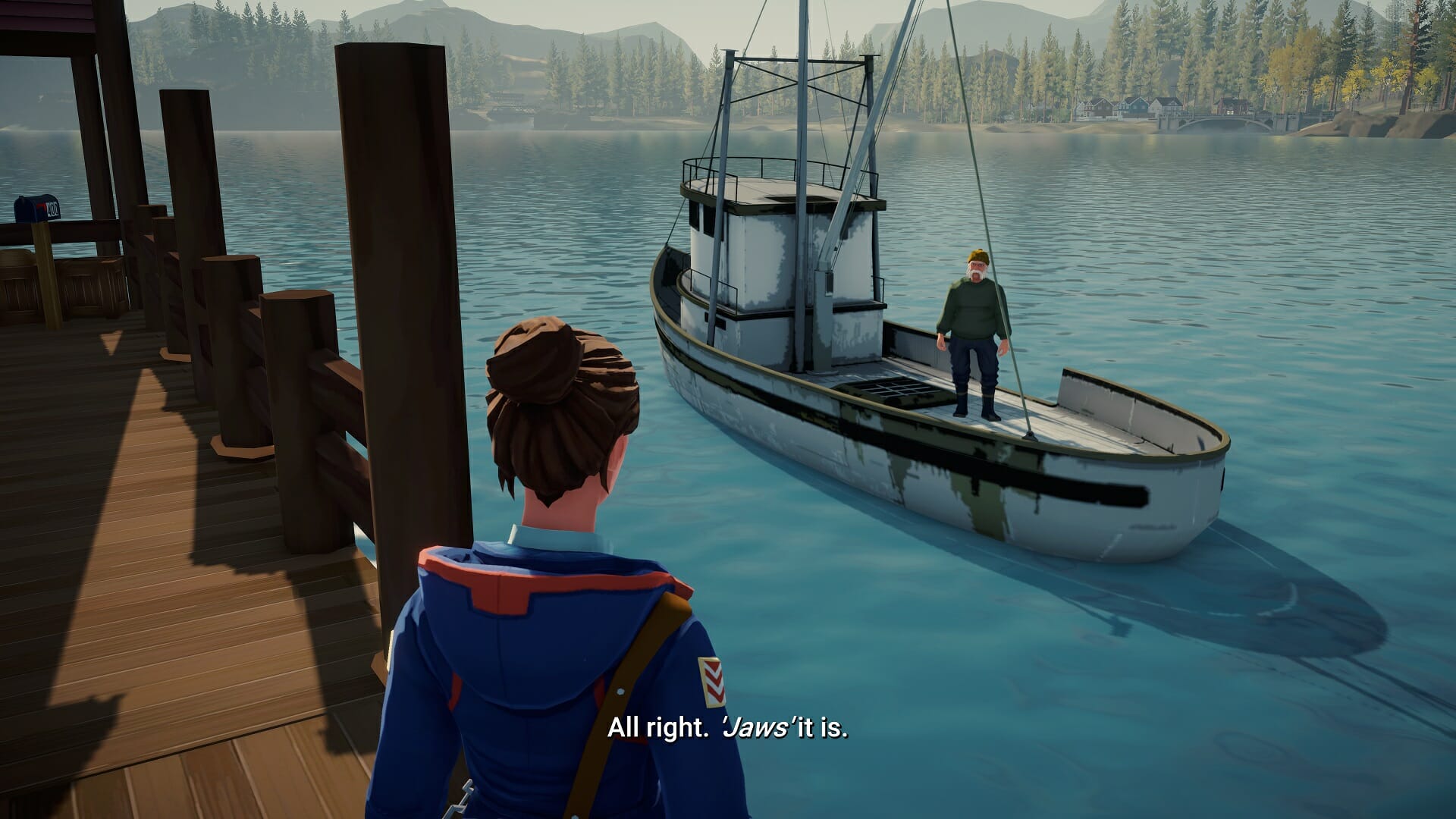
There was even a moment when the old fisherman turned into a much smaller version of himself. But none of these were game breaking and in the last case, quite hilarious.

I’ve relayed all of the bugs I found to the developer and they should soon be fixed.

Tiny fisherman

What could have been better?

I did have some remarks while playing the game though, for example, I was very impressed with the lip-syncing but I was missing some emotions in the facial expressions on the characters. Joy, sadness, anger, they all didn’t translate as well visually, even though the voice actors do a great job.

Keep in mind that this is a small indie studio however and what they have here is already VERY impressive.

Second is the walking speed of Meredith, she’s rather slow on her feet and while there is a “run” button, it’s more like a slightly faster trot. In a game about slowing down and taking in the atmosphere though, I can look past this.

Lastly, the camera was a bit wonky at times. For instance, when walking down a staircase, it would show you the backside of those stairs when walking down.

All minor hindrances in an otherwise great game.

Get out of the way, Em! You’re blocking traffic!

Achievements

Lake only has hidden achievements and most of them are hard to miss if you follow through with all your package deliveries each day. There are a few contextual ones you can get, like finding a guy with a metal detector, climbing the watchtower, or going to the white chapel on a hill, but it’s easy to get them if you know where to look.

Near the ending of the game, there is one final choice you will have to make and each results in one of three different achievements though, so be sure to make a save file on the final playable day for efficiency reasons.

For completionists: All in all, it took me around 6-7 hours to beat the game on my first playthrough.

Need a hand with the Achievements? Check our useful Achievement Guide for Lake!

Final thoughts on Lake

Pros
Very nice visual style that feels soothing
A stress-free experience that slows you down
Interesting people to interact with
Cons
Some minor bugs at the time of writing
Not very replayable

Final Score: 4/5

Lake is a rare game that really forces you to slow down and take in its atmosphere. There is nothing supernatural about it, yet talking to the townspeople had a magical calming effect on me and I was honestly sad to see the credits roll. If you need a break from hectic everyday life, take a trip to the lake.

Lake has genuine human interactions, a bright visual art style that is like a balm for the soul, and a no-stress approach to story-telling. You’re guaranteed to come out of it a more relaxed human being after playing it.

Lake costs $19.99 and is currently available on PC and Xbox consoles, with other console versions on the way.

Disclaimer: Reviewed on Xbox Series X. Review copy provided by the developer.

Movie companies demand that VPNs log user data and disconnect pirates

You should probably know, if you’re into this kind of stuff, that a group of movie companies continues its legal efforts to hold VPN services liable for pirating subscribers.

A new pending lawsuit lists service providers like Surfshark, VPN Unlimited, Zenmate, and ExpressVPN as defendants.

Besides damages, the filmmakers want the VPNs to block pirate sites and start logging user data. The accused companies have yet to respond in court.

As a direct result of the growing threats against online privacy and security, VPN services have become increasingly popular in recent years.

Filmmakers ask for RARBG and The Pirate Bay to be shut down

It’s already a well-known fact that millions of people use VPNs to stay secure and prevent outsiders from tracking their online activities.

However, as with regular Internet providers, a subsection of these subscribers may be engaged in piracy activities.

Throughout the years, we’ve seen copyright holders take several ISPs to court, under charges of failing to disconnect repeat copyright infringers.

Now, these lawsuits have expanded, with VPN providers as the main targets.

Ever since the COVID-19 pandemic started and people spend more time at home, downloading and pirating movies of all sorts, the numbers have grown to staggering heights.

These above-mentioned lawsuits were filed by a group of independent movies companies that also took it upon themselves to go after piracy sites and apps.

Among them are the creators of blockbusters and award-winning movies such as The Hitman’s Bodyguard, Dallas Buyers Club, and London Has Fallen.

One of the main accusations is allowing VPN subscribers to bypass the geographical restrictions of streaming services such as Netflix.

The filmmakers bring to attention various examples of promotional pages where the VPN providers claim that their services can bypass blocking efforts and other restrictive measures.

In some cases, these VPN providers don’t even go to the trouble of hiding such actions, as the following announcement from UnlimitedVPN shows.

Besides bypassing geographical restrictions, the movie companies also list many examples of VPN subscribers who are directly involved in sharing pirated movies via BitTorrent.

And while BitTorrent can also be used legally, the VPN companies allegedly promote their service as a tool to download copyright-infringing material anonymously.

And that’s not all! Filmmakers also argue that some VPNs even partner up with notorious movie piracy websites, in order to promote their services.

As an example, the website YTS.movie encourages the use of ExpressVPN. It’s not immediately clear whether ExpressVPN is aware of that, however.

Hold on to your chair, because the list of grave accusations continues in a manner you wouldn’t have expected.

The movie companies also allege that VPN customers are engaged in other types of inadmissible conduct under this privacy shield, including racist comments, child pornography, and even committing murder.

Based on these claims, as well as others, the filmmakers argue that the VPN services are liable for direct, contributory, and vicarious copyright infringement.

Besides the money they solicit for these frauds, the movie companies also request that the VPN services start blocking known pirate sites such as The Pirate Bay and RARBG.

How do you feel about these legal actions being taken by these production companies? Share your opinion with us in the comments section below.

Microsoft mistakenly posts about public preview of Visual Studio Code for the web

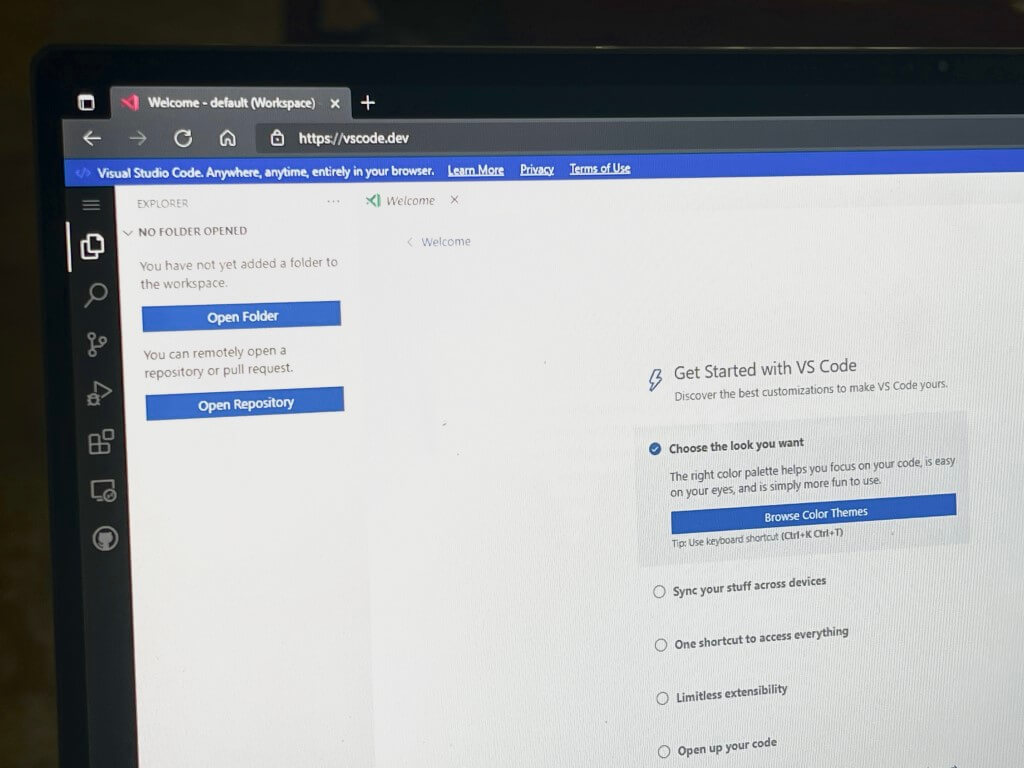
Though an official Microsoft announcement was posted by mistake and has since been deleted, a working version of vscode.dev is still available online. This browser-hosted version of Visual Studio Code lets developers open and browse source code hosted on GitHub and on a local machine (via Bleeping Computer.)

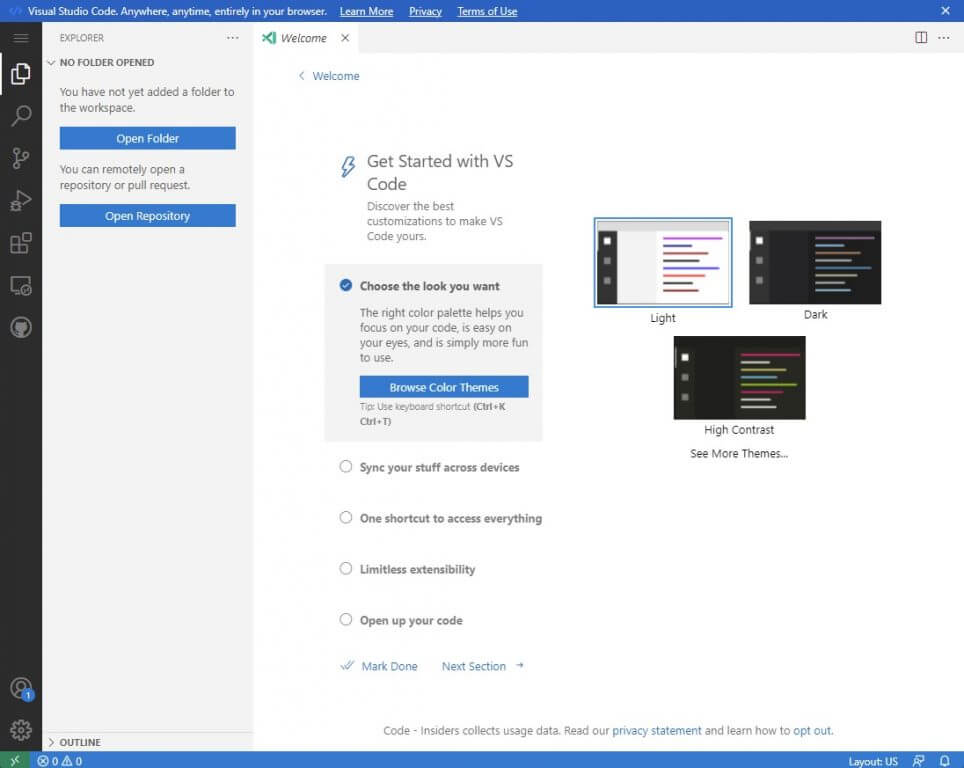
Microsoft tells us via email that a public preview of vscode.dev is not currently available, but Simon Bisson notes that it is working just fine with non-AAD accounts. We were able to log in to the experience using a personal Microsoft Account just fine. You can see a preview of the experience below.

Despite this not being an official public preview, overall, it looks pretty clean with some side toggles for opening repositories, searching, controlling sources, debugging, extensions and GitHub pull requests. Even the area to type code lines is pretty clean and close to the Visual Studio desktop experience.

As a web-based experience, it is important to note that vscode.dev will not have access to building, running, or debugging applications. It also won’t have access to an integrated terminal. Rather, it is more about using the browser as a sandbox for editing code. Bleeping Computer reports that developers can perform functions such as syntax highlighting, search, multiple file editing, and a source control view.

Update: We updated our headline and this article to clarify that a public preview isn’t available and that the Microsoft update was posted by mistake.

How to disable auto-provisioning on your Windows 10 PC

As much as we all love Windows as an operating system, we all have to admit that there are certain parts of it that give us some serious headaches every time we have to deal with them.

Although some system features are not customizable, most of the default settings that Microsoft enabled or disabled on your OS can be tweaked.

Today we are about to get into auto-provisioning for Windows 10, so stick around and find out how to disable and re-enable this feature, if you were to need it again.

How do I turn off auto-provisioning on Windows 10?

First of all, let’s make sure that everyone here understands exactly what auto-provisioning is.

Automated provisioning means having the ability to deploy information technology or telecommunications services using predefined automated procedures, without requiring human interventions.

The Disable-TpmAutoProvisioning cmdlet disables Trusted Platform Module (TPM) auto-provisioning.

Ok, now that we got this out of the way, let’s see how you can turn off such a feature if he no longer requires it, or if the actions he is trying to perform are impossible because of it.

For this operation, we will have to use one of Windows’ built-in tools, which is PowerShell. As you might know, this software is commonly used for automating the management of systems.

It is also used to build, test, and deploy solutions, often in CI/CD environments. PowerShell is built on the .NET Common Language Runtime (CLR).

You can disable provisioning completely or only for the next restart. You can use the Enable-TpmAutoProvisioning cmdlet to enable auto-provisioning.

And you can deactivate it completely, or just for the next restart. Here’s what you have to do:

Disable auto-provisioning permanently

  1. Open the search menu and type PowerShell, then click on the app in order to open it.step 1
  2. Once PowerShell is open, type in the following command.
Disable-TpmAutoProvisioning
TpmReady           : False
TpmPresent         : True
ManagedAuthLevel   : Full
OwnerAuth          : OwnerClearDisabled : True
AutoProvisioning   : Disabled
LockedOut          : False
SelfTest           : {191, 191, 245, 191...}

This command disables TPM auto-provisioning. You can use the Enable-TpmAutoProvisioning cmdlet to enable auto-provisioning.

Disable auto-provisioning for next restart

  1. Open the search menu and type PowerShell, then click on the app in order to open it.step 1
  2. Once PowerShell is open, type in the following command.
PS C:\> Disable-TpmAutoProvisioning -OnlyForNextRestart
TpmReady           : False
TpmPresent         : True
ManagedAuthLevel   : Full
OwnerAuth          : OwnerClearDisabled : True
AutoProvisioning   : DisabledForNextBoot
LockedOut          : False
SelfTest           : {191, 191, 245, 191...}

This command disables TPM auto-provisioning for the next restart. In the next restart after that, auto-provisioning continues.

So, just in case you need to disable this feature, now you know exactly how to do it. If you ever need more advice on how to deal with other situations, know that you are in the right place.

Was this article helpful to you’? Let us know in the comments section below.

Windows Terminal 1.11 is now available with Pane updates and other UI improvements

Microsoft is now rolling out Windows Terminal Preview version 1.11 for Windows Insiders and Windows Terminal 1.10. Windows Terminal 1.11 brings some new features like an acrylic title bar, improvements to the pane, and a lot more. We have you covered with a look at all the changes.

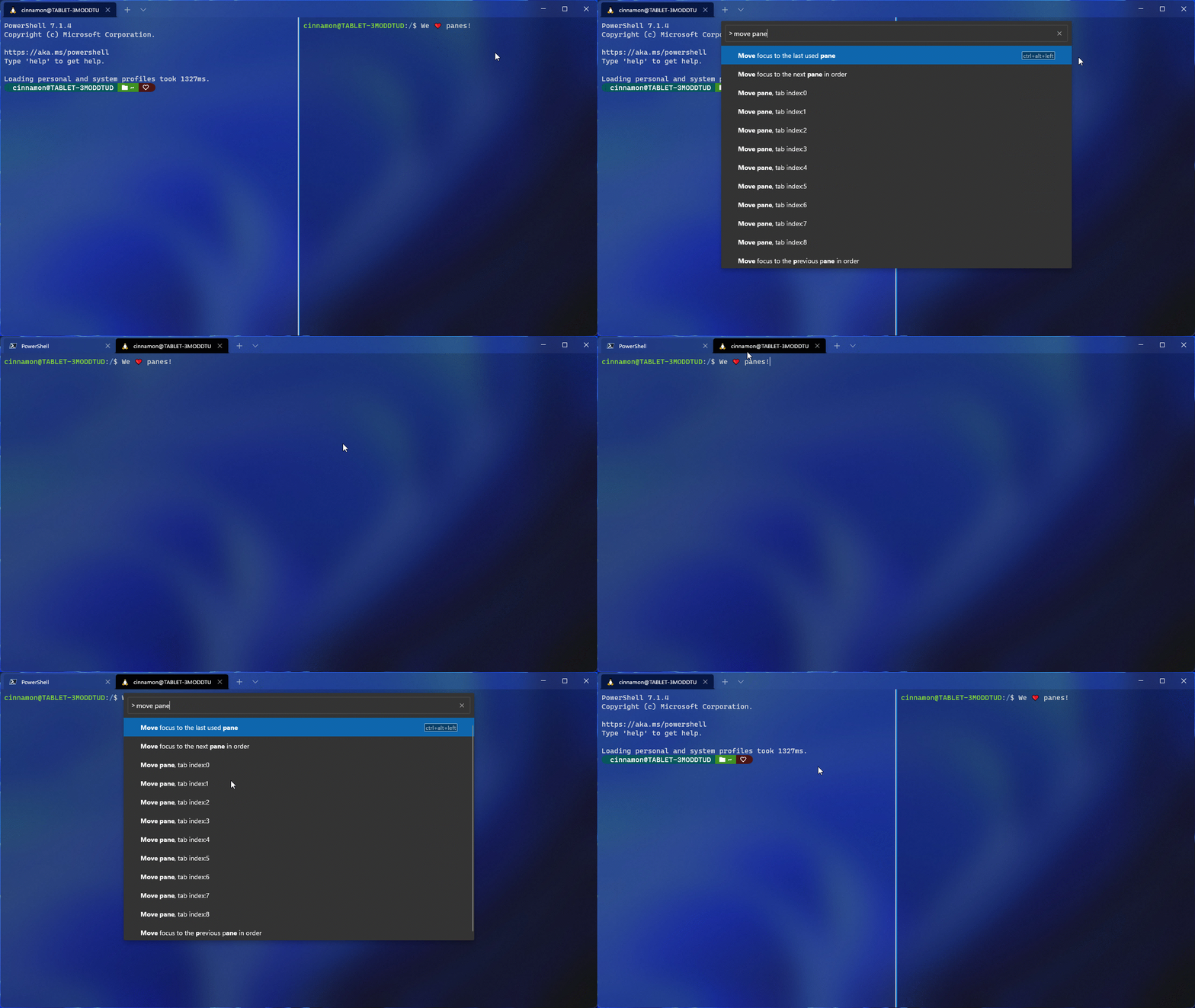
We’ll get into the Pane improvements first. Microsoft is introducing a move pane to tab feature to let you move an open pane to a new or existing tab. Also new is the ability to swap panes within a tab and split the tab in context view. These features should make multitasking in Windows Terminal easier. Microsoft thanks Schuyler Rosefield for most of these contributions.

Windows Terminal

Other than that there’s also a new setting toggle to make your title bar acrylic. This is in the appearance page of the settings UI, and it can be set in your global settings, though you’ll need to restart your terminal to see the difference. We noted the other changes for you below.

  • When adding keys to your actions, you now only have to type the key chord, rather than spelling out all of the keys (i.e. c-t-r-l).
  • The appearance settings that apply to your profile when unfocused are now in the settings UI.
  • The font object now accepts OpenType features and axes in the settings.json file.
  • You can now optionally minimize your terminal to the system tray. Two new global boolean settings were added for this functionality
  • You can now drag and drop directories and files onto the ‘+’ button, which will then open a new tab, pane, or window using the given starting path
  • When launching the terminal via the default terminal setting, the terminal will now use no profile rather than your default profile.
  • You can now choose how you want intense text to appear in your terminal by using the intenseTextStyle profile setting. You can either set your style to be bold, bright, both bold and bright, or have no additional styling added to it

The standard Windows Terminal release will be rolling out via the Windows Insider Program, and will go to retail once testing is finished. This is to ensure that any bugs are squashed. Note that all the features from Windows Terminal 1.10 are also in 1.11, except for the default terminal setting, the editable actions page, and the Defaults page of the settings UI. You can get these bulds today via the Microsoft Store, or from GitHub.

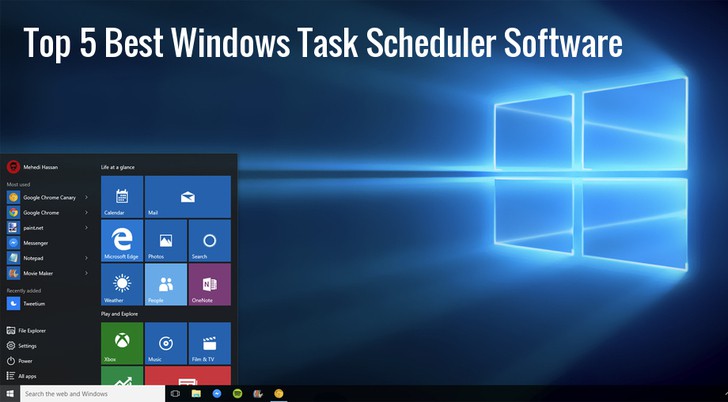
Task Scheduler Software: 7 Best to Download in 2026

If you run a busy office, that is a healthy indication of growth and productivity.

It’s also a good indication that you need a reliable system for scheduling tasks, managing appointments, and keeping track of your clients.

This is where scheduler software comes in handy. Scheduler software lets you schedule tasks easily.

It can open and run any program on your PC, add multiple tasks to its list and give you alert messages before executing any task.

You can also command the scheduler software to shut down or start the computer at a specified time and do more.

The native Windows Task Manager can also do some scheduling but it’s limited in functionality as it only allows users to start or end processes.

Scheduler software programs, on the other hand, are pretty smart and can do more; they can work as a good reminder system and you can even schedule them to set up impromptu scans.

In this article, we will discuss the best free Windows scheduler software.

What are the best free Windows scheduler software?

RoboTask

RoboTask is a software that enables the automatization of repetitive tasks such as AntiVirus Scans or opening e-mails on Windows PCs.

The software has a very simple, visual UI where you can add and schedule different tasks. It will proceed to automatically finish these tasks even when you are not physically near your PC. It is a good solution to save a little bit of time and also to make sure that everything on your schedule is taken care of.

Not only can you create automated tasks, but you can also set certain reaction tasks which will be executed in specific conditions. For example, you can set a task for when your Internet connection is down and if that happens, RoboTask will automatically do the job.

RoboTask manages automated backups, runs applications, opens documents and takes care of process files and folders (copies, moves, renames, deletes). You can also send automated emails and use it as an alarm clock.

RoboTask

RoboTask

Save time with easy to manage task automatization.
Free TrialVisit website

VisualCron

VisualCron is yet another comprehensive task automation tool that can improve your productivity. The software is user-friendly, you do not need any programming skills to use it. However, if you prefer and have the knowledge, it does have a programming interface as well.

The software can automatize over 300 different tasks, which vary from emails to social media posts, to virus scans. You can schedule what needs to get done and VisualCron will proceed with the task at the set time.

In case you are using different productivity software and want to make the switch to VisualCron, rest assured that the transition will be smooth. The task scheduler is able to connect and import data and settings from other similar software and translate them into usable information.

Besides, similarly to RoboTask, VisualCron also has a reactive system that determines certain actions in specific situations. This software calls the specific situations Triggers and it covers a variety of such potential events and their respective reactions.

VisualCron is a paid service with a 45-day free trial.

⇒ Get Visual Cron

Freebyte Task Scheduler

sheduler_software_freebyte_task_scheduler

The Freebyte Task Scheduler is a very effective freeware for task scheduling. You can use it to automatically start programs at pre-defined times.

Available for both Windows and Linux, Freebyte Task Scheduler is a zero-install program that makes it possible for you to schedule multiple programs to launch at different times.

The entire program is wrapped up in a single .exe file that you can save on a USB flash drive, making it very portable. As for the interface, it’s easy to navigate and simple to use.

The application also lets you perform other auxiliary tasks such as full system scans, cleanup, and defragmentation.

⇒ Get Freebyte Task Scheduler

Desktop Reminder

desktop_reminder_sheduler_software

If you are running Windows 10 and simplicity is one of your greatest concerns in scheduler software, then Desktop Reminder will do you good.

This amazing program lets you add and manage tasks efficiently. It includes a unique set of features such as a date navigator, a full calendar, color-coded categories, and a task list that has visual indicators for different types of tasks.

In addition to that, Desktop Reminder comes with other goodies such as automatic time formatting based on different time zones, alarms with customized messages, and automatic notifications for urgent tasks.

It has a clean interface that you can also customize to fit your likes and preferences.

⇒ Get Desktop Reminder

System Scheduler

windows scheduler software-system scheduler

System Scheduler is free software that lets you schedule tasks as well as provide regular reminders as pop-ups.

The program allows you to automate particular actions by running, opening, or closing some programs at a specific time set by you. You can add as many tasks as you wish, run applications, and set pop-up reminders.

For reminders, you can select your favorite audio file as the alert tone as well as allow snoozing. It also allows you to choose which keystrokes activate what programs.

You can even set the program to automatically run for a whole year.

⇒ Get System Scheduler

Task Till Dawn

scheduler_software_tasks_till_dawn

Task Till Dawn is a powerful task scheduler software available for both Windows and Mac OS X.

This is a multilingual program (English, French, Spanish, and German) that can execute repetitive tasks at pre-defined times or intervals.

You can create multiple tasks and set the time in seconds, minutes, hours, days, months or others depending on what and how you want the tasks performed.

Some tasks can be delayed, especially those that require an internet connection to be executed. If a delay was caused by slow or no internet connection, Task Till Dawn displays that error along with other errors in the task list.

⇒ Get Task Till Dawn

Z-Cron Scheduler

scheduler_software_z_cron.1

The Z-Cron Scheduler is a free and robust windows scheduler software that lets you schedule various tasks at different time intervals. Z-Cron serves as a central coordination point for all tasks.

In addition to the time-controlled running of applications, the program performs other auxiliary functions such as directory cleaning, leaving reminders, starting and shutting down the computer.

Quite similar to the Unix Cron, the Z-Cron scheduler is more powerful and can launch all kinds of programs at pre-defined times. You can also configure it to run automatically at the Windows startup.

You can also configure it to send status confirmation via email or Microsoft Messenger service. Z-Cron Scheduler is compatible with Windows 10, 8, 7, XP, and Vista.

⇒ Get Z-Cron Scheduler

Scheduling software is one of the networks of business solutions designed to automate the handling of tasks, simplify your business operations while enhancing your business growth.

The list above highlights the best freeware programs that will help you organize and run tasks smoothly.

There are other advanced scheduler programs (not free) such as Acuity Scheduling that provide convenient functions such as allowing you to invoice and collect payments when a client schedules their visits.

Have you used any of these programs? Let us hear your experiences in the comment section below.

Windows 11 Webcam Requirement: Will Yours Work in 2026?

One of the main focuses of Microsoft, with the official launch of Windows 11, is actually improving performance, and productivity, among others, according to the tech company.

Keep in mind that, even though Microsoft made all these promises about the new OS, the device you are planning to run it on must meet some requirements, in order to properly function.

You need a webcam for your Windows 11 laptop, from 2023

While many of the specifications that Microsoft underlined during this official event are standard, some will become necessities a bit later.

If you have read Microsoft’s documentation, then you most likely know that the file also contained a webcam requirement.

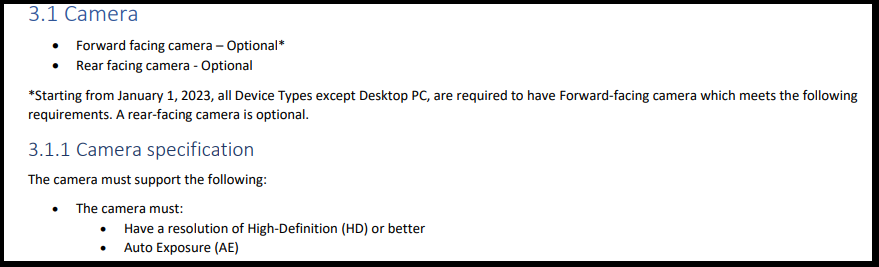
For the moment, Microsoft says that both the front and rear-facing webcams are optional. The tech giant adds that all devices, except for PCs, will be required to have a forward-facing webcam in the near future.

However, this requirement will become mandatory starting with the 1st of January, 2023, a fact which will most likely force many of the manufacturers to also include a webcam in devices like laptops or tablets.

Microsoft doesn’t just want a regular camera on your laptop

During Windows 11’s major unveil event, Microsoft also stated that the webcam required should have a High-Definition resolution or better.

What this means is that Microsoft is expecting 720p with a resolution of 1280 x 720 and 1:1 aspect ratio. Even more, the tech company also wants the webcam to have support for auto white balance and auto exposure.

Before closing, Microsoft also made public another set of rules for devices that will come with a dedicated camera button.

More exactly, the camera button must be able to wake up the device when needed. With all this being said, Microsoft will give manufacturers the freedom to include either a dual-action camera or a single-action camera.

What is your take on all the requirements that Microsoft wants users to complete before using Windows 11? Share your thoughts with us in the comments section below.

Microsoft 365 Usage Analytics data is becoming anonymous by default

Microsoft has announced that it’s making some privacy changes to its Microsoft 365 configurations starting next month. This update will begin rolling out to business customers on September 1, and it will make all user-level information anonymous by default in Microsoft 365 usage analytics.

“At Microsoft, we’re committed to both data-driven insights and user privacy. As part of that commitment, we’re making a change to Microsoft 365 usage analytics on September 1st to pseudonymize user-level information by default.,” the company explained.

For those unfamiliar, Microsoft 365 usage analytics provides access to a dashboard that provides analytical capabilities to measure adoption trends within an organization. It lets IT Admins analyze usage data of Microsoft 365 services, generate custom reports, as well as share insights. Microsoft says this change will allow companies to comply with local privacy laws, and it will impact user-level information stored and accessed across:

  • Microsoft 365 Reports in the Microsoft 365 admin center
  • Microsoft 365 usage reports in Microsoft Graph
  • Microsoft Teams analytics and reporting in the Microsoft Teams admin center
  • The reportRoot: getSharePointSiteUsageDetail API (1.0 and beta) for SharePoint site detail

Microsoft noted that global admins will need to head to the Microsoft 365 admin center to revert this change and show personally identifiable information in their respective tenants. To do this, go to Settings, Org Settings, Services, and choose the “Reports” option. Once there, select the “Show identifiable user information in reports” option available under the “Choose how to show user information” section.

Once enabled, the personally identifiable information (PII) will be visible to both administrators and report readers, but it won’t be accessible to the Usage Summary Reports Reader as well as Global reader. Let us know in the comments below if you think that these changes will help to improve privacy within your organization.

Fortnite’s Crew Legacy Set is an interesting new evolving feature in the popular video game

With today’s update, Fortnite introduced an evolving item, a first for the popular Battle Royale video game.

Named the Fortnite Crew Legacy Set, this new item is being given away as a free gift to all active Fortnite Crew subscribers and will unlock additional styles and functionality for each additional month that a player stays subscribed.

The Fortnite Crew Legacy Set has a total of six stages with each stage unlocking on the 14th of the month. The first stage is available to unlock until December 31st this year while players will have until August 14th next year (just under a year from now) to unlock all of the stages by having six months of active Fortnite Crew subscription.

These deadlines suggest that, rather than leaving this as a gift for all new subscribers, new evolving items will be added in the future so that Fortnite Crew subscribers have a constant reason to stay subscribed once all of the stages are unlocked.

Here’s the details on each unlock:

  • Stage 1: Unlock the Protocol Pack Back Bling upon being subscribed or subscribing to Fortnite Crew. If you’re not subscribed when the v17.50 update releases, you’ll unlock it immediately when you do subscribe.
  • Stage 2: The Back Bling evolves, adding the Protocol Elite Style. This happens on the 14th of the month after Stage 1.
  • Stage 3: The Back Bling evolves again, adding the Protocol Overdrive Style. The Zen Axe Pickaxe emerges from the Back Bling. Both happen on the 14th of the month after Stage 2.
  • Stage 4: The Pickaxe evolves, adding the Zen Striker Style. This happens on the 14th of the month after Stage 3.
  • Stage 5: The Pickaxe evolves again, adding the Zen Ultra Style. This happens on the 14th of the month after Stage 4.
  • Stage 6: The Pickaxe evolves once more, adding the Zen Assault Axe Style. This happens on the 14th of the month after Stage 5.

Going by the above info, current Fortnite Crew subscribers should get Stage 1 today after installing the update and will likely reach Stage 6 on March 14th 2022. However, if Stage 2 unlocks on September 14th, Stage 6 should unlock in February.

The Fortnite Crew Legacy Set isn’t the only new strategy Epic Games is implementing to encourage Crew subscribers to renew their subscriptions each month. September 1st will also see the first Fortnite Crew outfit that’s part of a set. October and November will each unlock the second and third outfits in the set and those that own all three will get special alternative appearances for each one.

Are you a Fortnite Crew subscriber are these items encouraging you to stay a member? Let us know in the comments below and then follow us on Twitter and Pinterest for more gaming news.

Fortnite
Fortnite
Developer:
Epic Games Inc.
Price:
Free


Fortnite - 1,000 V-Bucks


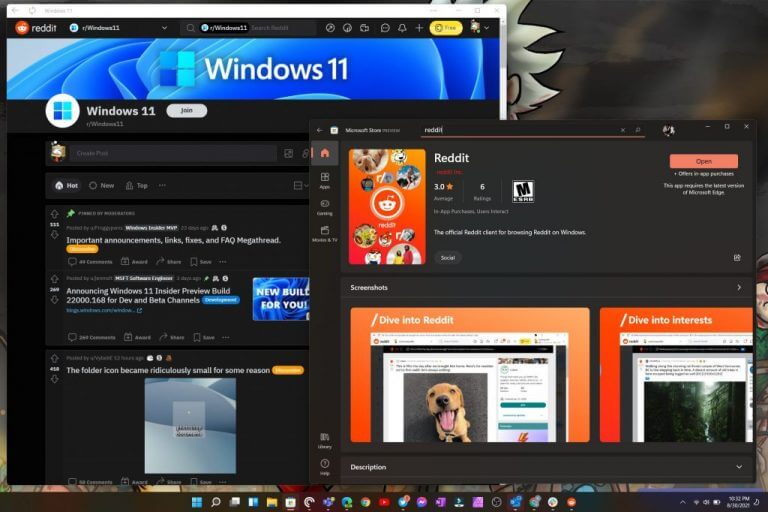
Official Reddit PWA makes its way to the Windows 11 Store

Reddit joins the parade of new apps marching into the Windows 11 Store utilizing Progressive Web App development.

Despite being the front page of the internet since 2005, it wasn’t until 2016 that the company’s technologies caught up to the way its content was being consumed and it came out with its first official app designed for iOS and Android.

While still not offering a dedicated app for the desktop, Reddit eventually released an updated and streamlined user interface refresh two years later in 2018. All this is to say, the notoriously app-stingy social media site surfaced in the new Windows 11 Store as a PWA similar to Instagram, Twitter and TikTok.

Thanks to modern web development, Reddit could be installed on many desktops as a PWA through Chrome and Edge for a few years now, but earlier today, the app has been added to the Windows 11 Store search list and can now be installed just like any other apps on desktops.

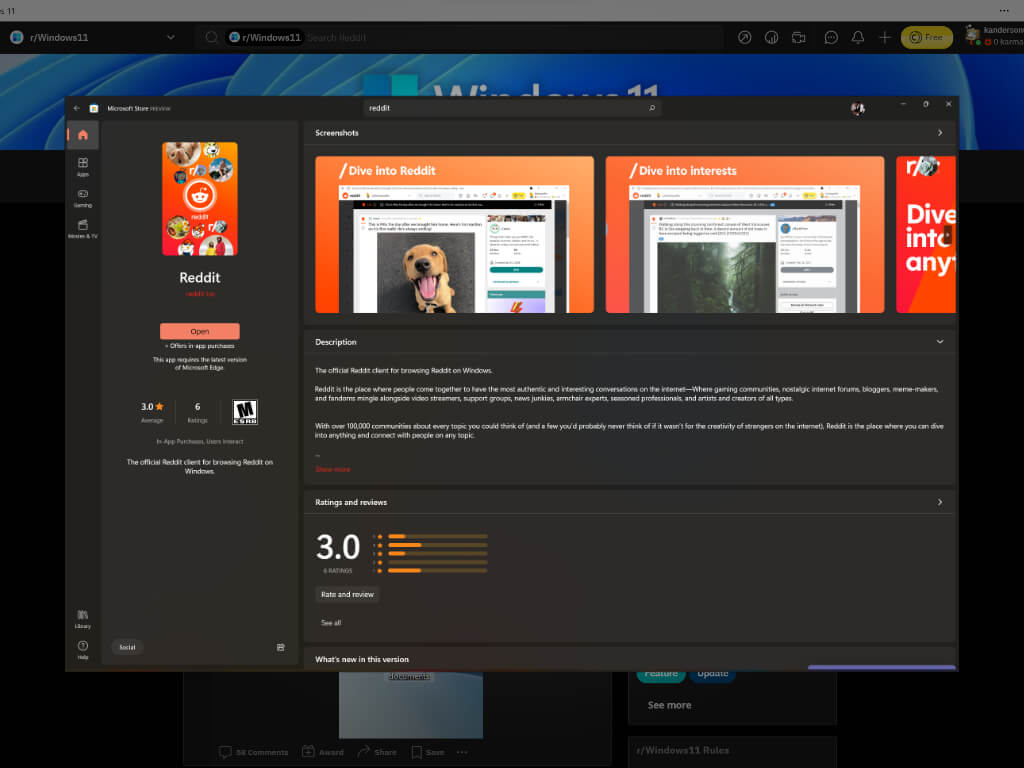
Windows 11 Reddit App

The Reddit PWA is officially made by the company as it’s just a wrapper of the browser experience and as such, is visually identical to the 2018 redesign where there is minimal chrome around the new Reddit desktop view.

While only a PWA, the emergence of an officially sanctioned Reddit app in the Windows 11 Store app helps add credence to Microsoft’s attempt to revitalize a streamlined app platform in Windows 11 as well encouraging developers to bring their varied app experiences to this new version of Windows.

The apps is fairly new to the Windows 11 Store and sits at a 3.0 rating with as little as 6 reviews at the time of the writing.

New phishing campaign is after your credentials, Microsoft warns

The Redmond-based tech company issued a warning for all its users, urging them to take appropriate actions in order to stay protected.

Experts have been tracking a widespread credential-phishing campaign that relies on open redirector links, while simultaneously suggesting it can defend against such schemes.

This is just one of multiple such schemes attempted by malicious third parties in the last few months, so we should really take this warning seriously and do everything we can to protect our sensitive data.

Microsoft raises awareness on new phishing attack

Even though redirect links in email messages are a vital tool to take recipients to third-party websites or track click rates and measure the success of sales and marketing campaigns, there are other ways to go as well.

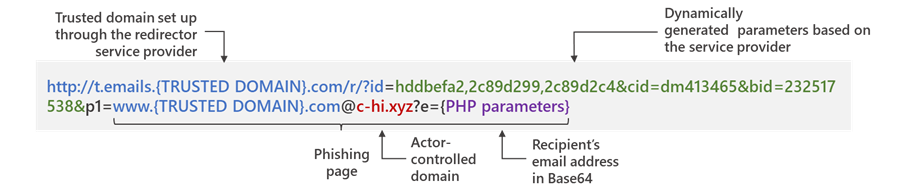
An open redirect is when a web application allows an HTTP parameter to contain a user-supplied URL that causes the HTTP request to be redirected to the referenced resource.

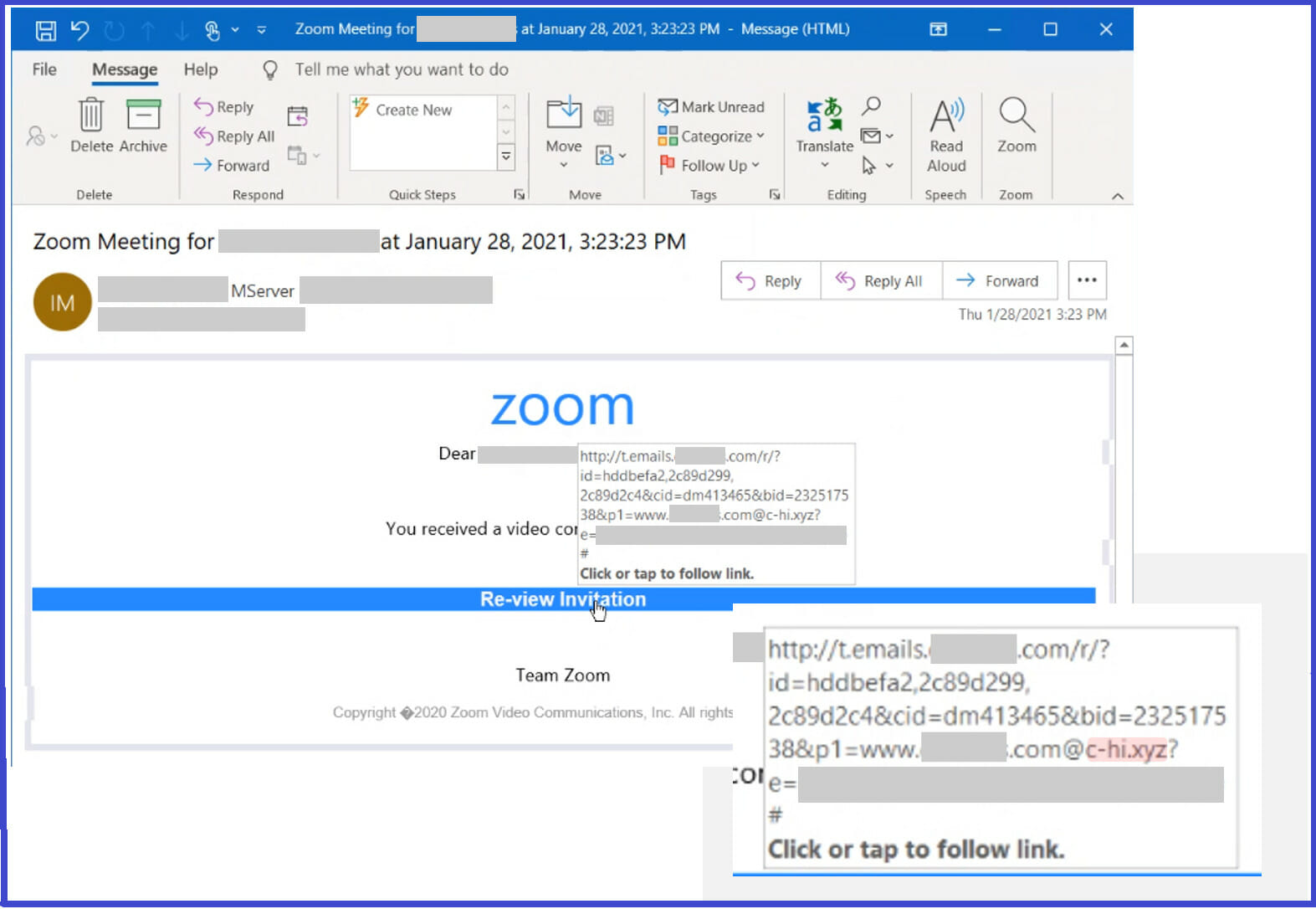
This same technique can be abused by competitors in order to redirect such links to their own infrastructure, at the same time keeping the trusted domain in the full URL intact.

This helps them evade analysis by anti-malware engines, even when users attempt to hover on links to check for any signs of suspicious content.

Source: Microsoft

The Microsoft 365 Defender Threat Intelligence Team developed on this subject and explained how these attacks are conducted, in a detailed blog post.

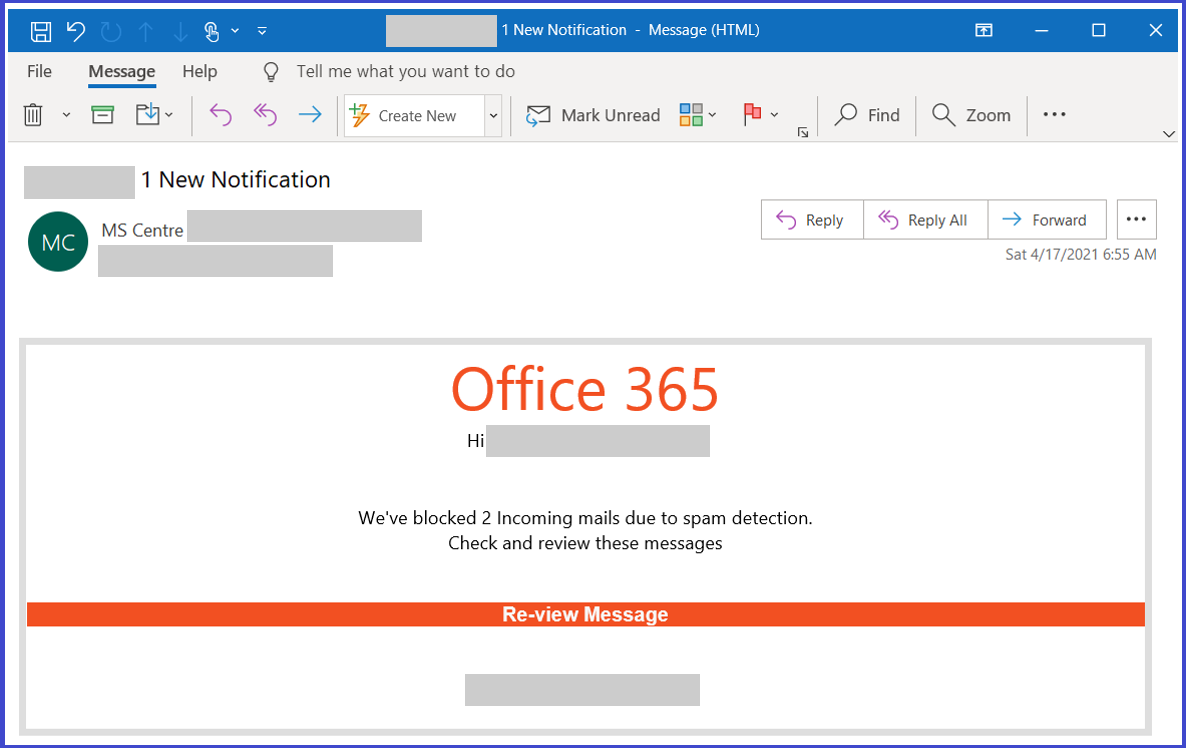
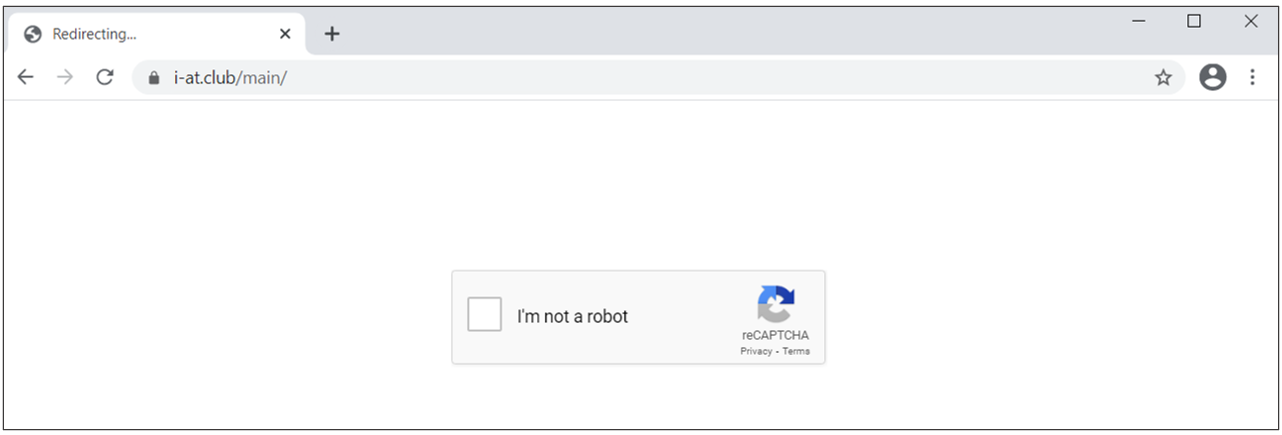
Attackers combine these links with social engineering baits that impersonate well-known productivity tools and services to lure users into clicking. Doing so leads to a series of redirections — including a CAPTCHA verification page that adds a sense of legitimacy and attempts to evade some automated analysis systems — before taking the user to a fake sign-in page. This ultimately leads to credential compromise, which opens the user and their organization to other attacks.

In order to successfully lead potential victims to phishing sites, the redirect URLs embedded in the message are set up using a legitimate service.

In fact, the final actor-controlled domains contained in the link leverage top-level domains .xyz, .club, .shop, and .online, but which are passed as parameters so as to sneak past email gateway solutions.

Microsoft stated that it discovered at least 350 unique phishing domains as part of this hacking campaign.

The most effective tool hackers have is convincing social engineering lures that purport to be notification messages from apps like Office 365 and Zoom, a well-crafted detection evasion technique, and a durable infrastructure to carry out the attacks.

And in order to further bolster the attack’s credibility, clicking the specially-crafted link redirects the users to a malicious landing page that employs Google reCAPTCHA to block any dynamic scanning attempts.

After completing the CAPTCHA verification, the victims are displayed a fraudulent login page mimicking a known service like Microsoft Office 365, only to swipe their passwords upon submitting the information.

If the victim enters a password, the page then refreshes with an error message declaring that the session timed out and directing the visitor to enter the password again.

This is a data validation practice not unlike the double opt-in ritual used by email marketing list services to ensure compliance with spam laws.

Phishing victims get redirected to a legitimate Sophos security website indicating, falsely, that the email message that they were notified to retrieve has been released.

Now that we are aware of the danger, we can go ahead and take immediate appropriate actions, reducing the risk of becoming another statistic in this cyberwar.

Are you doing everything you can to stay protected from phishing attempts? Let us know in the comments section below.

You can get the PC Health Check if you are a Windows Insider

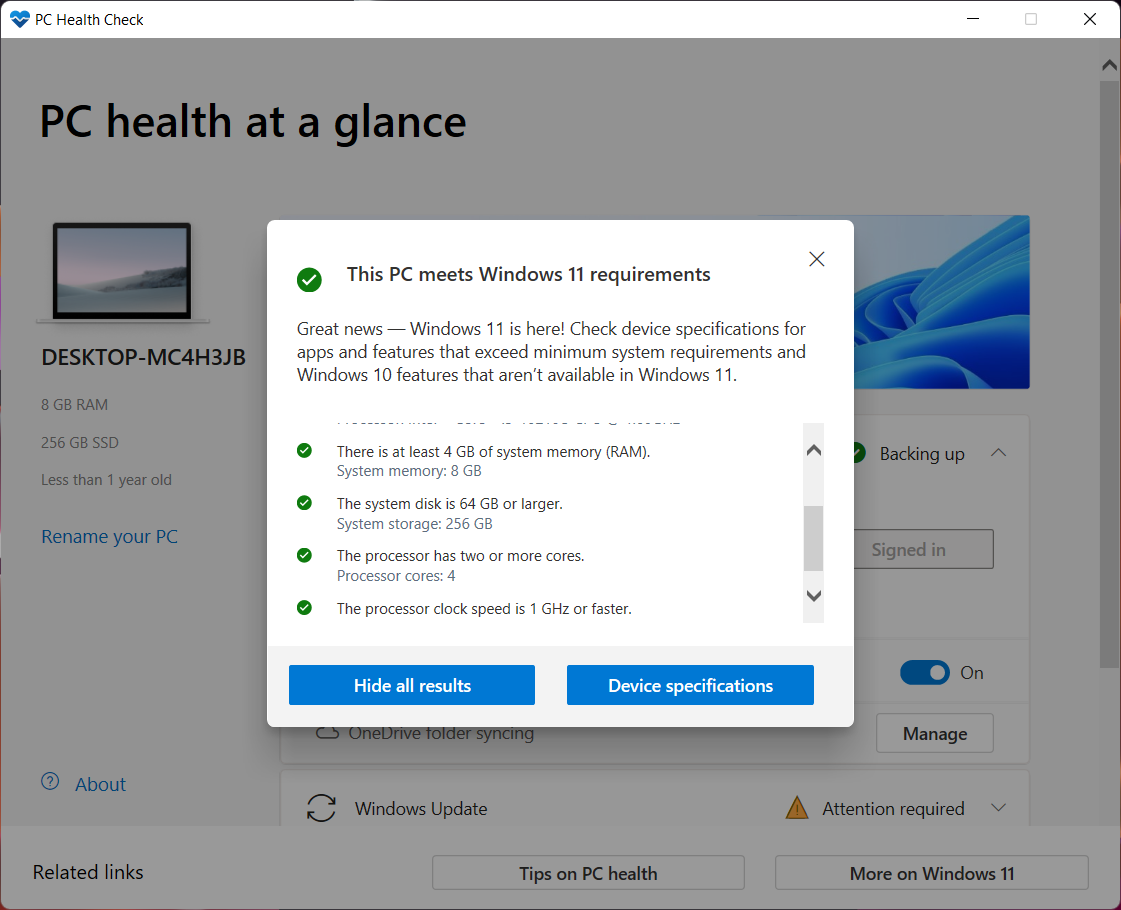
The Redmond tech company had previously launched the PC Health Check app a few months back, software that allows users to quickly check if their systems are Windows 11 compatible.

However, Microsoft took the app down soon after, looking to work on it a little so that it could be a bit more accurate and reliable.

With the provided information, users can either learn how to enable TPM 2.0 on their system or determine what hardware is holding them back.

Microsoft’s diagnosis app is coming back as an Insider preview

Even though it’s been quite a while, Microsoft has returned with an updated version of the diagnosis application.

For the moment you can only find it as a Windows Insider Preview download, most likely since the Windows 11 OS itself is an Insider Preview right now.

So the company likely has plenty more planned for the application by the time Windows 11 is ready to begin shipping.

And of course, as with anything in beta, there is always a chance of bugs and glitches that could ruin our experience.

But the application allows you to get a detailed compatibility check of your system, including the newly added Windows 11 compatible processors that Microsoft recently added to the list.

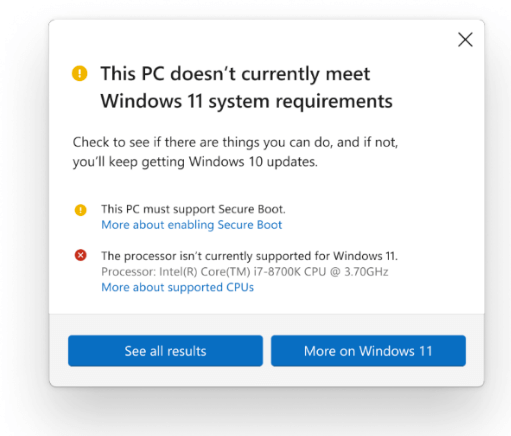
If your system does not meet the strict requirements of the upcoming OS, the app will give you a checklist of detailed reasons why not, and hopefully ways of fixing them.

Right now, you need to use PC Health Check Tool to check compatibility issues with Windows 11.

However, the tech giant is currently working on Windows 10 21H2 in the Release Preview channel, and users noticed a new feature in the OS.

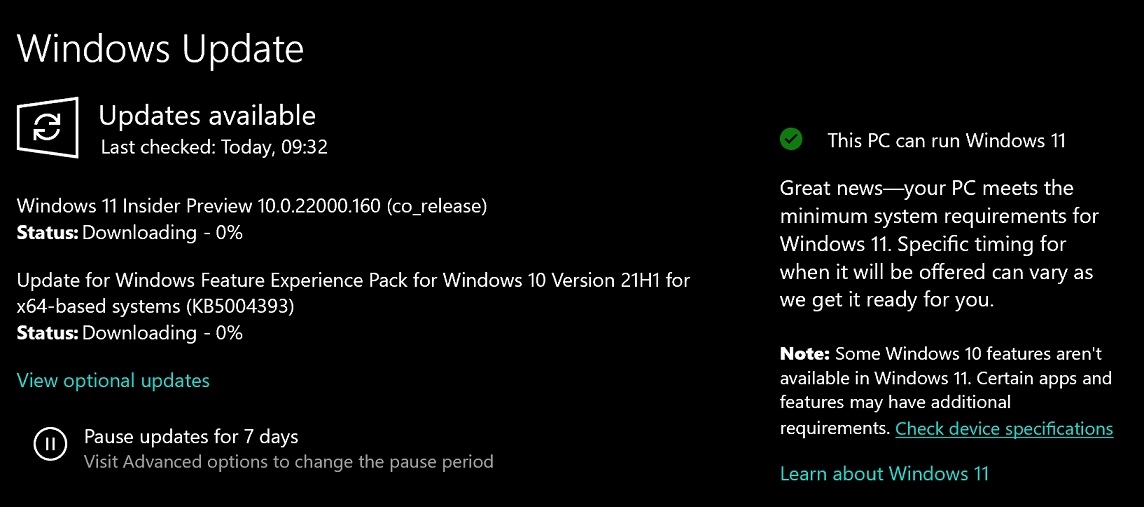
Windows 11 compatibility message

You can also find links to relevant support articles that include more information about Windows 11 requirements and removed features.

Microsoft is currently rolling out the above compatibility message to testers in the Release Preview Channel of the Windows Insider program.

It’s likely that a similar compatibility message will appear on devices that do not meet the requirements. Redmond company tries to identify the compatibility issues using telemetry data and the process cannot be tricked.

You can install Windows 11 on older devices, but won’t get any updates

You should know that users can download Windows 11 onto an older PC that doesn’t have the security requirements.

This involves downloading an official ISO online or creating a bootable media disc or thumb drive using a machine that has Windows 11 installed.

But there’s a catch! Microsoft has warned that these devices will be blocked from updates, including important security updates, due to compatibility issues.

So the lesson here is that, although you can find a way around these requirements, it doesn’t seem worth the effort.

We can all understand how this can be a big problem as, without these crucial security patches, we are exposed.

There you have it. After all the fuss about the system requirements for the new OS, the tech giant decided to give everyone a chance to try it out, regardless of device specs.

All that you have to do right now is assess the situation and figure out if it is worth the risk you are taking.

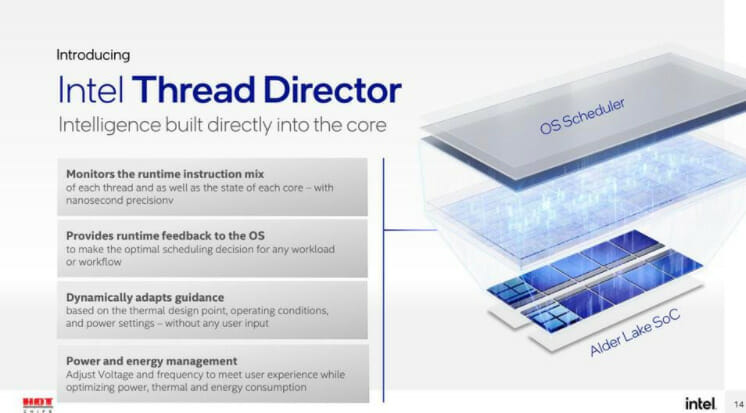
Windows 11 is optimized for upcoming Alder Lake laptops

Windows 11 and Intel’s coming Alder Lake processor promise big changes in performance and efficiency.

For Intel, this will be accomplished via a radical new chip design that divides up tasks between Performance cores and Efficiency cores, P-Core and E-Core respectively. Right now, Intel PC processors only had performance cores.

The manufacturing company expects Performance-core Alder Lake to show a 19% improvement over the current Cypress Cove architecture, aka Rocket Lake, and the mobile curve comparison to show similar gains, citing the ISO frequency standard.

The rollout for these processors has not been announced but could happen this fall. And with Windows 11 supposed to launch around October 20th, 2021, so there isn’t a lot of time left.

Have you diagnosed your device yet? If so, tell us in the comments section below, just how reliable you found the PC Health Check app.

Fax Software for Windows 11 & 10 [Best to Use in 2026]

You might think that fax machines are obsolete when in reality, they are still used by many government agencies and businesses.

Although sending an email is the popular way of sending documents you may be required, from time to time, to send a fax.

Using the PC as a fax machine is not as simple as it may sound because these tools are connected straight to telephone lines.

So since fax machines cannot be connected to computers directly, there are some methods in which faxed files can be sent using a PC.

A dedicated Windows OS fax & scan application enables faxes to be sent. However, this process too requires a dial-up modem and a telephone connection.

How to use a phone line with Windows PC to send a fax

  1. Type Windows Fax and Scan in the search bar to launch the program.
  2. If the program is not activated, open Programs and Features, click on Turn Windows Features on or off, and enable the option under Print and Document Services.
  3. Ensure the telephone line is connected to the PC.
  4. Click on New Fax on the toolbar.
  5. Follow the wizard to connect to the phone line.
  6. Fill out the fax form by entering the recipient number, typing in your message, and attaching your documents.
  7. Click on send to complete.

The line has to be free while sending faxes. An alternative to this is to get a fax telephone landline which is useful if the fax service is used frequently.

Using online faxing software

Online fax services are the most popular way of sending fax documents. They save money but also a lot of stressful time with setting up a machine.

The basic thing with most of these services is to fill the fax form with the recipient number, attach the document, and hit a Send button.

Your PC can be turned into a proper faxing machine using fax software and in this article, we’ll go through a few of these tools.

What is the best fax software for PC?

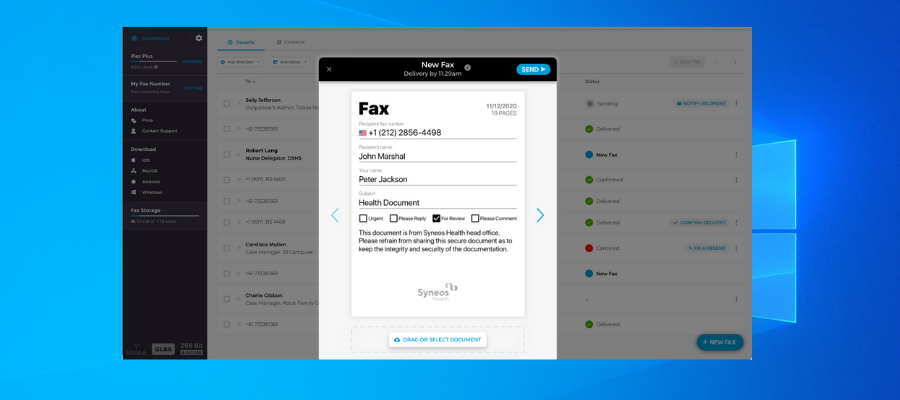
iFax

iFax is a modern and secure fax software equipped with a set of innovative features that help you send, store, and keep your fax documents secure.

This software helps you fax both digital and physical documents. For the digital documents, you just have to attach them to your message, similarly as you would in an e-mail, but using a fax number as the recipient.

The physical documents need to be scanned beforehand, but iFax has a go-to solution for that. Besides the desktop version, iFax has a mobile app that has an integrated scanner feature. Using your phone camera, you’ll be able to make fax-ready scans.

iFax provides high standard security with secure 256-bit end-to-end encryption, so be sure that no one will have access to the content of your documents without your permission.

Other key features of iFax include:

  • Real-time notifications about delivered or recieved faxes
  • Cover page templates
  • Helps you add company logo, notes, and signatures
  • Compatible with fax numbers worldwide
  • Mobile & Desktop apps in complete sync

iFax is a subscription-based service with 3 different plans. The plans are targeted both towards independent users, small businesses, and big corporations.

iFax

Fax your documents easily and securely, even on the go!
Check price Visit website

RingCentral

RingCentral fax sends all types of file formats to any fax machine worldwide, as well as alerting users on their mobile or email about incoming documents.

The app comes in two paid plans. The basic plan includes:

  • Local fax number
  • Cloud integration
  • The possibility of sending and receiving faxes via email, web browser, or mobile
  • Web and phone support.

Porting your fax number is possible, as are international faxes for a low additional fee.

Enabling your digital signature might come in handy, as well as the option to share faxes to multiple recipients. The software includes the option to schedule faxes to be sent at a later time.

Ring Central

Ring Central

The #1 online service to send faxes quicker than you can say Jack Robinson.
Free trial Visit website

VentaFax

fax software venta

Venta fax can be used via a fax modem or an Internet telephone service provider,  in three different plans: home, network, multi-line, and business.

The multi-line edition supports more than 25 computers while the network edition is installed on a server and supports all computers connected to the server network.

The business version comes with nice features. Some of these are controlling recording time, managing unlimited voice recordings, bulk fax delivery, converting faxes to PDFs, and automatically forward them to email.

These add, of course, to the basic fax features: sending, scheduling, and prioritizing faxes, and creating custom cover pages.

Venta fax lacks smartphone integration or an online website version to send faxes locally, via the Internet.

So Venta fax is a good software option for those who want to discard their fax machines for something simpler.

Venta Fax

Venta Fax

The simplest full-featured fax and answering machine software you can get for your PC.
Free trialVisit website

eFax

eFax fax software

This software’s versatility and user-friendly interface make it one of the best fax software at the moment.

eFax comes with plus and pro plans that differ in the number of available faxes.

Access is provided via mobile devices or an online portal. Faxes can be sent as email attachments, so users simply have to photograph the document and fax it as an image.

eFax has exciting features like a digital signature tool, bulk files sharing to multiple recipients, and unlimited storage capacity.

Customer service is quite responsive, and in the service’s help center users can find helpful FAQs and tutorials. A live chat option is also available.

⇒ Get eFax

Myfax

myfax fax software

MyFax is a feature-rich fax software that enables users to send faxes both locally and internationally, with unlimited storage space, Microsoft Outlook integration, and electronic signature capacity.

One of the unique features of MyFax is the specific number of fax pages offered to users for sent and received faxes.

MyFax works as a cross-platform fax app, available through phone, email, and a web-based site.

Incoming faxes are converted into PDF or .tiff format which gives users easy access to the documents, regardless of their initial format.

MyFax has excellent customer service which can be contacted via email or telephone. Their customer care representatives typically respond to within an hour. There is also a detailed FAQ section for assistance as well as a live chat option.

MyFax is highly recommended for newbies and professionals although the monthly quota on fax pages may be a limiting factor for the software.

⇒ Get Myfax

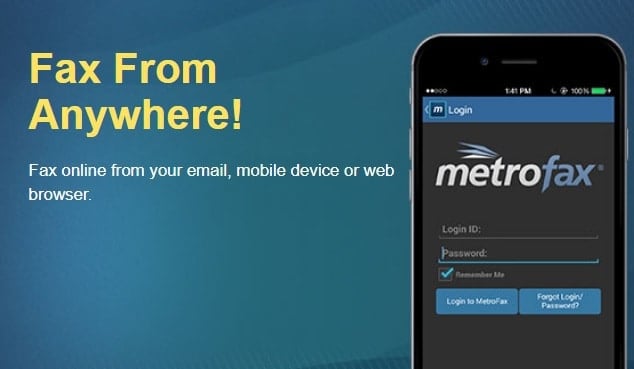
MetroFax

metrofax fax software

MetroFax is one of the most complete fax software available right now with a myriad of features.

It comes with a monthly subscription fee and a limit of 500 faxes pages.

Users can quickly get the hang of all the features the app offers. In fact, these are basic tools that one would expect in any such application:

  • Sending and receiving faxes
  • Digital signature
  • Fax alert
  • Group fax
  • Microsoft Outlook integration
  • unlimited storage space for faxes
  • PDF or .tiff conversion.

The only downside is the inability to schedule faxes for a later date which is a minor inconvenience against the wide range of features provided by this software.

The customer care service is top-notch with tutorials and demos instructing on how to use the software.

Users can contact the customer care representatives via email or phone call. The email response is quite fast. A live chat option is also available.

⇒ Get MetroFax

Sfax

online faxing service

This software is for anyone who values fax security over other features as it ensures maximum privacy when sending and receiving faxes.

Sfax is more expensive compared to other similar software, but it provides additional features, plus HIPPA compliance, ensuring that every fax is extra secured.

More exactly, unlike other fax software that receives and sends fax as email attachments, Sfax sends faxes as a secure link which is safer.

Sfax also allows users to easily port their fax number to their platform without additional costs. The mobile app is perfect for tracking, sending, or receiving faxes, as well.

Sfax supports different document formats and stores faxes for only one year.

Similar to the previous services, customer support is excellent with Sfax as well. The same contact options are provided – phone, email, live chat – each equally reliable.

⇒ Get Sfax

Fax.com

fax software

Fax.com is a basic faxing online service, cheaper than the previous options, but its array of features is also limited.

The service charges a monthly fee as well as an account creation fee. The fax page limit is set at 300/month, with users having the flexibility of allotting the amount for incoming and outgoing faxes.

One notable detail is the extra cost/ each extra page that is faxed – the highest fee among fax software. Also, faxes are stored for just 39 days – the shortest time compared to rival fax software.

Fax.com enables users to send faxes via email or the online portal. The user interface is intuitive and easy to use.

Fox.com does not have a dedicated mobile application, but one can use the mobile browser to send a fax from the Fax.com account.

The software comes with a digital signature feature and Microsoft Outlook compatibility.

Unfortunately, the service doesn’t include fax scheduling or multiple recipients options

⇒ Get Fax.com

Hellofax

helloFax

Yet another software that offers most of the features that are expected in quality fax software.

The professional plan comes with a limit of 500 fax pages for a monthly fee which is more expensive than most fax software, but as we all know quality is never cheap. At least, the account setup is free.

One interesting aspect is that users can sign up for a toll-free number, that can be integrated with Microsoft Outlook.

Hello fax gives users unlimited storage for fax messages and voice recordings.

When using the mobile version, the service can only be accessed via the mobile browser, since there is no dedicated application.

The software does not have a scheduling feature to send faxes at a later date which can be an inconvenience.

⇒ Get HelloFax

Do share with us your experience on how to use your PC as a fax machine. Feel free to comment below.

Xbox becomes new official gaming partner of the England football teams

Xbox has announced a new global partnership with The Football Association, which will result in Xbox becoming the new official gaming partner of the England football teams. England is the homeland of football and the new partnership will see Xbox launch a big marketing campaign with The Football Association to reach football and gaming fans in the UK.

“We see a tremendous organization in The FA, which has the same drive and ambition to empower people as we do at Xbox. Through our partnership, we aim to bring further value to the England Football Teams and power the dreams of players and fans everywhere,” explained Marcos Waltenberg, Director, Xbox Global Partnerships.

With this new global partnership, Xbox will be working with prestigious national teams including the Lionesses, eLions, and the Three Lions, as well as the iconic Wembley Stadium in London and St George’s Park National Football Center at Burton up Trent, Staffordshire.

The UK is Xbox’s biggest market in Europe, but it’s still impressive to see Microsoft make such a big marketing move in the old continent. If you’re a soccer fan, you may remember that Xbox used to be a sponsor of the Seattle Sounders MLS team for many years, until the online retailer Zulily replaced it on the team’s shirts back in 2019.

Windows news recap: 64-bit OneDrive sync client rolls out, Razer mice driver update exploit discovered, and more

Welcome back to our Windows news recap, where we go over the top stories of the past week in the world of Microsoft’s flagship operating system.

Microsoft updates Windows 11 minimum specs, confirms upgrade will be possible on unsupported PCs

The minimum specs required for Windows 11 have been updated to allow for more PCs running Intel 7th Gen processors to be supported, having acknowledged that they identified “a set of PC models that meet the principles while running on Intel 7th Gen processors that we did not originally include in our minimum system requirements”. In addition, Microsoft has now confirmed that users with unsupported PCs will be able to upgrade to Windows 11 using ISO files, but will not be offered the upgrade via Windows Update.

Microsoft updates windows 11 minimum specs, confirms upgrade will be possible on unsupported pcs - onmsft. Com - august 27, 2021

Microsoft starts rolling out 64-bit version of OneDrive sync client for Windows

A 64-bit version of the OneDrive sync client for Windows has begun rolling out. The new version should provide enhanced reliability and performance on Windows 10 PCs running a 64-bit version of Windows 10.

Recent Windows 11 survey shows people warming up to the change

According to a recent survey, people might be warming up to Windows 11, despite initial skepticism. The survey showed that 53 percent surveyed believe Windows 11 “looks amazing. Can’t wait to install it.” Take a look at the full survey results here.

Windows 11 survey

Hackers leverage Razer mice driver updates to access Windows PCs

An exploit has been discovered that allows hackers to essentially take control of a Windows PC, potentially on a long-term basis if installation completes successfully, by making use of Razer mice driver updates. Razer has acknowledged the flaw and is working on a fix.

That’s it for this week. We’ll be back next week with more Windows news.

Asus started rolling out Windows 11 support on older Intel CPU motherboards

If you were wondering if Asus would keep the promise it made not long ago, the answer is yes.

It seems that the company is honoring its previous engagement and has started rolling out Windows 11-compatible firmware, at least for its Z270 series motherboards for Intel 6th and 7th gen processors.

The company had earlier released a list of motherboard chipsets that already had the Trusted Platform Module (TPM) 2.0 module and technically should be able to run Windows 11.

Asus will provide Windows 11 support for older motherboards

In this list of chipsets was Intel’s Z270, which is the tech company’s flagship chipset for the socket LGA1151.

If you weren’t aware, know that the LGA1151 is the predecessor of the firm’s current LGA1200 socket that goes with the 11th gen Rocket Lake-S processors.

The LGA1151 socket supports Intel’s 6th gen (Skylake-S) and 7th gen (Kaby Lake-S) processors.

Almost a week ago and rather quietly, the firm has released the latest BIOS version 1501 on some of its ROG Z270 motherboards.

On models like the Z270F GAMING, the 1501 firmware is still labeled as Beta Version as it is still undergoing final testing before its official release.

Essentially the latest firmware will now enable the TPM or in this case, Intel’s PTT (Platform Trust Technology) in the BIOS by default.

Of course, there could also be other motherboard models too including from other manufacturers which now have compatible firmware available.

If we go just a bit back in time, Microsoft originally stated that the Windows 11 minimum requirements that only 8th gen and newer Intel processors would be compatible with its next OS.

Afterward, the company said that it was testing potential compatibility with Windows 11 on 6th gen Skylake and 7th gen Kaby Lake processors as well.

The official list from Microsoft however still doesn’t have the Skylake and Kaby Lake CPUs listed but that list was updated even before its second statement was released.

So it could be that the tech giant is still testing things out and may update the list later.

Users that are really interested will have to look up that information in their respective motherboard model’s support section.

If you’re unsure what your motherboard model is, you can try running msinfo32 or System Information to find that.

Also, third-party tools like CPU-Z, or Piriform’s Speccy, can be used to look it up.

What motherboard will you be using for WIndows 11? Let us know in the comments section below.

Microsoft starts rolling out 64-bit version of OneDrive sync client for Windows

Microsoft launched a 64-bit version of its OneDrive for Windows sync client in public preview back in April this year. The company announced today that the new 64-bit version of the app has finally started rolling out to all Windows 10 PCs.

Up until now, Microsoft’s OneDrive cloud storage service was only in a 32-bit version for Windows users, and many users have reported performance issues when syncing a large number of files. This 64-bit OneDrive sync app for Windows doesn’t bring any new features, but it should run more efficiently on Windows 10 PCs running a 64-bit version of the OS.

“The 64-bit version is the right choice if you plan to use large files, if you have a lot of files, and if you have a computer that’s running a 64-bit version of Windows. Computers running 64-bit versions of Windows generally have more resources—such as processing power and memory—than their 32-bit predecessors. Also, 64-bit applications can access more memory than 32-bit applications (up to 18.4 million Petabytes),” the OneDrive team explained in a blog post.

The OneDrive 64-bit version is one of the highly requested features, and it is aimed at OneDrive work, school, and personal accounts. Microsoft says the 64-bit OneDrive app will automatically replace the existing 32-bit version if a Windows device meets all the requirements. At this point, the sync client can only be installed on x64 processors, but the company plans to expand its availability to ARM64 devices in the near future.

If you’re interested, you can provide your feedback on the OneDrive UserVoice website. Let us know in the comments down below if you have already received the 64-bit OneDrive sync client on your Windows PCs.

Microsoft Edge Canary now lets select Insiders add text to PDF documents

Microsoft has started testing a new update for its Edge browser that will allow users to add text to PDF files opened in the browser. The feature is gradually rolling out to Edge Insiders in the latest Canary builds (via Windows Latest).

As of today, the built-in PDF reader in Microsoft Edge lets users view documents and annotate them with ink and highlighting directly within the browser. However, users have to rely on some third-party applications (such as Adobe Acrobat Reader) to make minor corrections in their files. This might change soon, as Microsoft plans to bring a new “Add text” tool that should make editing PDFs easier for users.

To try out this feature, users will need to open a PDF document within the browser and click the “Add text” option available besides the “Read aloud” tool. Alternatively, users can also choose to right-click on any part of the document and then select the “Add text” option in the context menu. Users will also be able to change the text color, increase/decrease font size or spacing as well as delete the text note if needed.

Overall, this new Add text feature should be a welcome addition for people who often need to make minor adjustments to the documents. However, it is still in its early testing phases, and there are certain limitations as well. Currently, it doesn’t provide an option to bold, italicize, or underline text and change the font style. We hope that the Edge Insider team will address these issues before making it generally available in the production version of the browser.

Surface Duo 2 shows up on Geekbench ahead of possible Fall release

The slow leak cycle of smartphone releases has been underway for the Surface Duo 2 and now it’s time for the Geekbench results to begin surfacing.

Thanks to a Geekbench leak first reported on by MySmartPrice, Surface Duo 2 fans are getting concrete spec information regarding Microsoft’s follow up to its dual-screen mobile device.

The Geekbench results put a period on the speculation of upcoming upgrades to the Duo line that include a bump up in RAM from 6 to 8GB, the use of a ‘bleeding edge’ SOC in the Snapdragon 888 and what type of performance users can expect from the device.

Based on the results, the Duo 2 is shaping up to be as performative as any other device sporting an 888 SOC, with no additional accelerants built into the software just yet and out putting a 1071 single-core result followed by a 3166 in multi-core testing.

Microsoft-Surface-Duo-2-Geekbench

The guys over at Windows Central are helping to put today’s recent leak into context with their own personal knowledge of the Duo 2 based on conversations with sources familiar with the product.

According to WC, the Surface Duo 2 will come with Android 11 on board and right now that is Microsoft’s focus with few discussions regarding upgrades to Android 12 coming to the Duo 2 in the onset.

Other insider info sourced by WC includes plans from Microsoft to increase the screen sizes (probably by reducing bezels), including NFC, lift to wake gesture support, larger batteries, higher refresh rates, and of course the now infamous camera bump.

With the camera housing on the Duo 2 resides a 12MP standard lens, telephoto and ultrawide sensors which should help address one of the biggest is with the device.

There is still little speculation on how much the end product may retail for, as whereas it may be available for purchase upon launch.

We’ll keep eye out as the story develops.

Researchers reveal now fixed hole in Microsoft’s Azure Cosmos DB security

Microsoft has warned Azure customers in a vulnerability in its Cosmos DB cloud database software after a security company found that they could access information from “thousands of companies,” according to Reuters. The security company, Wiz, found that by exploiting a flaw in Jupyter Notebook, an open source project that allows document and code sharing via a web browser. Jupyter Notebook has been around for years, but has been enabled by default for Azure Cosmos DB customers.

There has been “no evidence that the flaw has been exploited,” but researchers at Wiz were able to gain access to encryption keys that then allowed them access to Cosmos DB databases. Microsoft says it “fixed the issue immediately,” and notified customers via email that although the vulnerability is fixed, they would need to change their access keys.

Microsoft has had its share of problems with cybersecurity as ransomware and other attacks on software vulnerabilities are becoming more and more common. This week, tech CEOs met at the White House to discuss cybersecurity with US President Biden, where Microsoft pledged $20 billion to advance its security solutions over the next five years.

New Halo Infinite dynamic background is now available on Xbox Series X|S consoles

After the Xbox team officially shared the December 8 release date for Halo Infinite at gamescom, the Xbox team has a little surprise for Halo fans this week. If you have an Xbox Series X or Series S console, you can now set a new Halo Infinite dynamic background on your Home dashboard, which looks pretty cool.

The new dynamic background uses Halo Infinite’s cover art, and you’ll notice some lighting changes on Master Chief’s armor as well as the animated Pelican dropship in the background. It’s pretty light on the animations, but this is still good fan service ahead of the game’s release in December.

Microsoft also announced a Limited Edition Halo Infinite Xbox Series X and Xbox Elite Series 2 controller at gamescom earlier this week, although we did earlier with the first technical preview, though both of them are already out of stock on the US Microsoft Store. There’s clearly a lot of enthusiasm for Halo Infinite right now, and now that the game finally has a release date we’re hoping to see more of it soon.

We didn’t get a new look at Halo Infinite’s campaign at gamescom, but it’s now up for pre-order at $59.99 on the Microsoft Store. Of course, Xbox Game Pass members will be able to play it for free on day one, and the game’s multiplayer mode will also be entirely free-to-play on Xbox and PC.

Halo Infinite (Campaign)

Microsoft’s Xbox app updates on Android and iOS devices with new profile improvements

The main Xbox app updated for Android smartphones and tablets today in addition to Apple’s iPhones and iPads.

Both updates are pretty much identical and bring a variety of enhancements to user profiles and Xbox Achievement searching. It should be noted though that while the app updates are live, the added functionality isn’t live yet in all regions (at least not here in Australia) so these new features may take a day or two to show some users.

Here’s the full release notes:

  • New profile updates! You can now tap on the friend and follower buttons to review the full list of users, profile themes are now viewable, and the ‘Where I Play’ section has been added to the About tab.
  • Find your achievements fast with new filter and sort options on the games list.
  • Some people will start seeing industry news and updates with the new “Gaming news” channel on home.

Do you use the Xbox app on your smart device? Let us know what you would add in a future update in the comments below and then follow us on Pinterest and Twitter for more Xbox updates.

‎Xbox
‎Xbox
Price:
Free


Xbox
Xbox
Price:
Free

Classic Myst video game comes to PC and Xbox consoles with 4K, 60 FPS, and raytracing

After almost 30 years since its original release, the classic Myst video game has now been re-released on Microsoft’s Xbox One and Xbox Series X console families and PCs running Windows 10 and Windows 11.

This new version of the game features cloud saves, new accessibility and language options, and Xbox Achievements on all platforms and boasts 4K 60 FPS gameplay with raytracing when played on an Xbox Series X console or a Windows PC with the appropriate hardware.

Cross-buy is supported for this release of Myst which means that buying it on Windows will unlock it for Xbox consoles using the same Microsoft account and vice versa. It’s also now part of the Xbox Game Pass library so subscribers of that service will be able to play it for free from today.

Unfortunately, if you own the original 1993 version, you’re unable to get this new release for free. Apparently enough people were asking about this that the question and answer have both been included on the Microsoft Store listing.

“Thank you for your support over the years!” the official response reads. “We are not giving out free upgrades to previous purchasers of the original Myst. We put a lot of effort into making this new version of Myst and would appreciate your financial support again!”

Here’s the official game description:

Welcome to Myst: a starkly beautiful island, eerily tinged with mystery and shrouded in intrigue. Journey to Myst Island and other stunning, long dormant locations – called “Ages”- and begin to unravel the mystery you have been thrust into. As you learn what happened on the island, you will find that you are playing a key role in an epic story whose ending has not yet been written. Explore deeper connections in these stunning and surreal Ages, uncover a story of ruthless family betrayal, and make choices that will affect both you, and the world of Myst itself.

Cyan, the indie studio that created the beloved classic, has reimagined Myst. Built from the ground up, Myst is teeming with new art, new sound, re-imagined interactions, and even optional puzzle randomization. Finally… the highly anticipated modern Myst experience has arrived!

Are you a longtime fan of Myst or will this be your first time playing it? Let us know in the comments below and then follow us on Facebook and Twitter for more Xbox gaming news.

Myst
Myst
Developer:
Cyan Worlds, Inc.
Price:
$29.99

Microsoft Modern Accessories Review: A nice conference collection on-the-go

Microsoft’s Moden Accessories line dropped at an apocryphal time for customers as the world slowly began to remerge from a pandemic induced quarantine.

During a year and some change, there was a fire sale at most electronic outlets on webcams, microphones, lights, headsets, speakers, and other home office accoutrement as employees revamped makeshift workspaces for extended use.

Microsoft’s answer to the demand was a first party lineup of quality manufactured webcams, speakers, and headsets, unfortunately, its timing was just a few months off.

In April of this year, the company announced its products officially and by May they were on shelves, however, thanks to the increasing number of vaccinated individuals, people were making their way back to offices.

Fortunately, that’s not the end of Microsoft’s Modern Accessories story.
Microsoft Modern Accessories - All

As the pandemic lingers, the landscape of traditional in-person meetings, conferences, or gathers remains influx. People are still opting to meet virtually while in the same building and weary of multi-use equipment which leaves a great opening for Microsoft to fill with its Modern Accessories line and users couldn’t ask for a better quality to price option now.

Look and Feel

Perhaps, it’s a conflation of the Microsoft’s overall design aesthetic and that which the company applies to the Surface lineup, but the Modern Accessories devices seem to borrow from the underlying minimalistic principles, for better or worse.

While none of the devices come in the now-iconic Surface magnesium grey color, they all come in the other most recognized color which is matte black. For anyone adhering to any custom color schemes at their workstations, matte black can often make a muted accent flare that doesn’t distract from the overall look and feel. It’s a trusty go-to color for tech.
Microsoft Modern Accessories - angled

Aside from the iconography of the Teams logo and function indicators, the only other visible marking is the Microsoft logo subtly placed in various spots on the devices.

Lines, breaks in jointing and curves on the devices are mostly unabated and perceptually lend to the notion that the devices are made with minimal tooling which should result in a lasting experience over routine use, but we’ll have to check back in a few more months to confirm.

While the headsets are practically identical in look and feel, it’s the speaker and webcam that really allow Microsoft’s aesthetic to distinguish itself from the market.

The speaker uses a netted fabric material over 2/3 of the casing which harkens to other speakers such as Google and Apple’s home speakers. The overall size of the speaker is about the size of a large modern external hard drive. The speaker comes in its own travel case which proved to be handy in my use. There is also a USB-C connecting cable that wraps and buries itself within the bottom rubber compartment of the speaker.
Microsoft Modern Accessories - speaker

While I would have preferred to have a Bluetooth connection, the inclusion of a USB-C connector was at least forward thinking of Microsoft.

As for the camera, it straddles the line between the traditional dollar-coin sized rounded design of most cameras and the other option of elongated rectangle casings. Microsoft opted for an oblong design with a manual shutter cover. The overall look is distinguishable in a sea of top mounted rounded webcams in the office.

The camera uses the more traditional USB-A connector, while not as forward thinking as the speaker, does line up nicely with its own modern Surface hardware designs which offer one USB-A and one USB-C port.

The camera doesn’t offer the greatest flexibility for up and down angles but manages to capture a wide field of view, so it compensates.

Performance

As a software company, Microsoft provides a secondary level of customization with its Microsoft Accessory Center. In the Accessory Center, users can manage their Modern Accessories and tweak settings that include device controls, color temperatures and HDR for the camera, audio profiles for the headsets and more. The Accessory Center is a relatively lightweight app that appears on first connection but not again. A simple search for Modern Accessory will pop up the app once again.
Microsoft Modern Accessories - software

Regarding the headphone situation, Microsoft’s Modern headsets were as impressive if not slightly better than the Sennheiser’s I was previously using and shoulders above depending on the mics and speakers on laptops.

The wired headset does feel dense but not overly so and I’ve worn them for hours on end switching between conference calls, podcast, and music. The function buttons dangle just below the chest and should rest on desk just as easily to reduce addition weight on the head, neck and ears when worn.

The buttons are clearly displayed and jumping in and out of Teams calls worked about 80 percent of the time. There were times when pressing the Teams button to join a call brought up the screen to join but didn’t automatically join the call. Ending calls, adjusting volume and muting worked as displayed.

The Teams integration shined with flares that included letting other members know when you hit the mute button, this was not present when using Zoom, WebEx or even Skype.

As for the call quality, I’ve had no complaints, and I’ve even conducted podcasts simply using the built-in mic on the headset and the quality between this headset and a Blue Yeti was negligible for the most part.

The flexing mic arm also endears the headset to being used like a regular set of headphones during work. While they’re not noise canceling, they do offer remarkable sound quality. For bass heavy fans, the headset will be lacking but for those of us who spend most of their time listening to podcasts, these headsets are amazing.

The Bluetooth headsets mimics the Surface Headphones with its volume control dial, the democratization of the dial functionality is a welcomed feature for the price point.
Microsoft Modern Accessories - headset

However, not all is rosy for the Bluetooth headset. Since Microsoft made concessions with removing the dongle surface area for buttons found on the wired headset, they’ve all been scrunched on the earcups of the Bluetooth headset. On the ears, the buttons are small, and take quite a while to develop muscle memory to nail the no-look muting, speaking and Teams call log in switches.

When in use, there is a voice indicator of battery life and reaming use time. While a full charge implies over 15 hours of use, I’ve been able to use the headsets over three days with moderate call and listening use, without a second prompt of near-ending battery life.

Moving away from the headset, the Microsoft Modern USB-C Speaker has been a pleasant surprise. The MM USB-C may not be Sonos or Apple Homepod levels of sophistication, it more than performs for its price and size.

The speaker sports the same Teams, Call, Speaker and volume keys as the headsets and they sit flush at the top of the device. A large Teams and speaker button flank the other functional buttons and light up when in use or muted.
Microsoft Modern Accessories - speaker - headset

With a rubber bottom, there is little to no worry about the device sliding around, even on a tilted architect’s desk.

The output of the speaker for Teams and other conference calls is noticeably clear and gets plenty loud. As for using the speaker for music, it has its limits in the mids where you could push distortion if you go too loud.

As I mentioned the connecting cord wraps around the base of the body and can clear roughly 26 inches so it doesn’t go far from your computer but can be positioned into some convenient areas just on the outskirts of your main workstation.

Listeners on the other end claim that my voice came through clearly and background noise was minimal, even in a loud open-office setting.

Microsoft’s Modern USB-C Speaker proposition is, however, a bit of a head scratch for individual use. The Modern headsets have better mic quality and becaue they sit directly over the ear; they also have better audio pick up. The speaker may be a must have for multiple speakers in a single room, but those days seem far and away for the moment.

Last up is the Microsoft Modern Webcam that does as good a job as most webcams listed on Amazon to date.

The video quality is clearer and thanks to an embedded light ring also brighter. A lesser known feature of the Modern Webcam includes a built in mic that can record your voice in a pinch, but I recommend carrying the speaker or headset for most occasions.
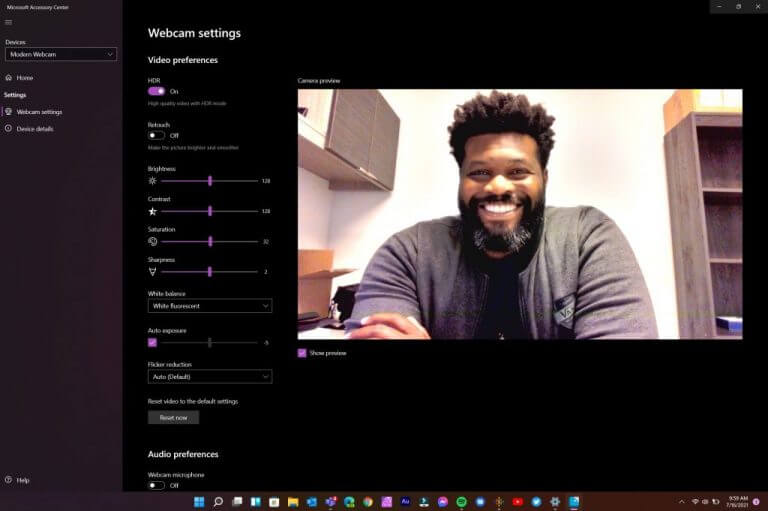
Microsoft Modern Accessories - software

There are no buttons or additional markings outside of the full Microsoft type font that trails the mount of the device.

The manual shutter is clicky when used, but also is not necessarily stiff enough to remain shut if the device is tossed into a moving bag.

Summary

I’ve managed to not only seamlessly integrate the new Microsoft Modern Accessories into my daily routine which blends a mix of home office dedicated in-person workstation, I’ve also hosted several of our OnPodcast episodes with the devices.

Thanks to their minimalistic and compact design considerations, I keep the webcam, headset and speaker in my messenger bag with no extra bulk. In a pinch they’ve become quite handy and have me reconsidering the few hundred bucks I’ve already sunk into modernizing my workstations both at home and in-person.

There are some features I’m look forward to being adopted in their next iteration of these tools such as Windows Hello face recognition and authentication, heftier bass management in the headsets and speaker as well 2K resolution support.

Leveraging its history with mice and keyboards, Microsoft has proven it can maintain its high-quality device manufacturing while also producing something very functional.

The prices may appear outside the market, yet, for what’s accomplished it feels perfectly in line for the travelling conference employee.

How to Disable File Explorer History [Quick Steps]

By now, there is no more need to mention that the File Explorer is Windows’ way of letting users browse through the files and folders on their system.

And even though most people know the exact locations of the files they require, sometimes searching for them, with the built-in function, is easier.

Whenever you search for anything in the File Explorer, the query is stored in the system and shows up in a drop-down suggestion when your try to search for something else.

For some people, this can be a bit problematic if they are using a shared PC or are trying to search through personal or private data.

And if you find yourself in a similar situation and are looking for a solution to disable the search history feature for the File Explorer in Windows 11 operating system, then you are in the right place.

How do I turn off the search history for File Explorer?

In order to get this done, you will use the built-in Local Group Policy Editor feature. It is a tool that allows you to configure Group Policy settings for a Windows PC or a group of PCs.

Basically, it gives you the ability to control the features and functionalities of the Windows-powered machine.

Here’s what you need to do:

  1. Press Windows key + R to open the Run prompt.
  2. Type gpedit.msc. and press Enter.explorer history step 1
  3. From the left hand side, select User Configuration, followed by Administrative Templates, Windows Components, and then File Explorer.explorer history step 2
  4. From the right hand side, double click on the Turn off the display of recent search entries in the File Explorer search box option.file explorer history step 3
  5. In the new window, select the Enable option, and then click Apply.file explorer history step 4

This is the entire process and once you perform these actions, the search history for your Windows 11 File Explorer will be disabled.

Why should I disable my search history?

First of all, you shouldn’t do anything you don’t want to. Secondly, nobody says it’s absolutely necessary to do so.

As we mentioned at the beginning of the article, this is a safe way to keep your information private if you are using a shared device.

You should only disable this preference if you feel like it’s an efficient way to protect sensitive data.

Recently, we’ve been also talking about the process of uninstalling the FeedbackHub for Windows 11, so you might want to check that out as well.

Was this guide useful for you? Let us know in the comments section below.

Windows 7 Password Recovery Tool: Best We Tested in 2026

Looking for the best Windows 7 password reset tools? You’re in for a treat! Today we look at the best recovery tools that’ll help you get back to your tasks in no time.

What are the best Windows 7 password recovery software?

Stellar Password Recovery – Live Update

Stellar Password Recovery can help you find lost passwords, usernames from apps and games, and lost serial numbers.

Some of the most important features brought to the table by Stellar Password Recovery are:

  • User-friendly interface
  • Windows login password resets through a bootable disc
  • Live Update
  • Wide compatibility with numerous Windows versions
  • Free trial for those who are still undecided
Stellar Password Recovery

Stellar Password Recovery

Stellar Password Recovery provides a password recovery guarantee on Windows 7 and other OS versions.
Free Trial Visit Website

Passware Windows Key Basic – Complex password resetting

Windows Key Basic from Passware has a 100% recovery rate. Moreover, its user-friendly interface is appreciated by users, as it offers quick and comprehensive access to any of its features.

Here are its main features that you need to know about:

  • Fully supports Windows versions higher than Vista
  • Supports SATA, RAID, and SCSI drives
  • Resets complex passwords
  • Back up security settings and roll back your password
  • Resets secure boot options
  • 100% money-back policy
Passware Windows Key Basic

Passware Windows Key Basic

Use Passware to recover your passwords in no time! Ready to try this simple tool?
Check Price Visit Website

PassFab 4WinKey – Locked PCs accessing

PassFab 4WinKey will store and manage your credentials but it can also be used as an emergency recovery option in case you forget them.

Here are some of its main features:

  • Access a locked computer
  • Delete or create new accounts
  • Remove admin/user local passwords
  • Create Windows password reset disks
  • Reset forgotten Microsoft account passwords
PassFab 4WinKey

PassFab 4WinKey

Stay protected no matter what and manage your Windows password instantly using this recovery software.
Check Price Visit Website

Active@ Password Changer Professional – Easy to use

Active@ Password Changer Professional can reset local passwords and attributes on all Windows versions when the administrator password has been forgotten, or lost, or a user account has been blocked, disabled, or locked out.

Check out its essential features:

  • The program is very easy to install and use
  • Great password deleter
  • Deletes all kinds of passwords
  • Compatible with all Windows versions
  • Access to the old password is not required

⇒ Get Active@ Password Changer Professional

Windows Password Reset Standard – Simple interface

Windows Password Reset Standard doesn’t actually recover the password, but instead, it removes it. It can tackle passwords of any kind, successfully removing them despite their complexity.

Take a look at the most important features packed in this software:

  • The program is very easy to burn to a CD using the included image-burning software
  • Windows Password Reset Standard is perfect for beginners
  • The software helps you reset Windows Administrator or other user account passwords
  • It is able to reset any lost or forgotten passwords on Windows systems
  • Works with Windows 7, 10, 8.1, 8, Vista, and XP

⇒ Get Windows Password Reset Standard

Ophcrack – Multi-compatibility

The Ophcrack Windows password cracker is another fantastic Windows password recovery tool, and it is completely free. With this program, you will not need any access to Windows to be able to recover your lost passwords.

Check out the essential features of Ophcrack:

  • Compatible with Windows, macOS, Linux, and more
  • Windows Vista/7 or XP users benefit from free tables
  • Brute-force option to crack simple passwords
  • CSV export and Audit mode
  • LiveCD to simplify cracking
  • Free and open-source

⇒ Get Ophcrack

Trinity Rescue Kit – Effective UI

Trinity Rescue Kit is software that needs to be booted from a disc or USB stick in order to work, but provides useful password recovery features.

Here are some of its main features:

  • Delete passwords entirely
  • Set up new custom passwords
  • Works with USB, CD/DVD
  • Simple yet effective UI
  • Compatible with Windows 7, 8, 10, Vista, and XP

⇒ Get Trinity Rescue Kit

UUkeys Windows Password Mate – Great password remover

UUkeys Windows Password Mate is one of your best choices to remove the login password and security settings that may prevent you from logging in safely and quickly.

Take a look at the most important features packed in UUkeys Windows Password Mate:

  • Simple and intuitive interface
  • Easy-to-understand options buttons
  • Works right after booting
  • Removes login restrictions from disabled accounts
  • Compatible with Windows XP, Vista, 7, 8, 10, and Server 2012

⇒ Get UUkeys Windows Password Mate 

How can I set up a password on Windows 7 after resetting it?

  1. Select the Windows icon, then Control Panel.
  2. Then, select Add of remove user passwords.
  3. Choose the user you want to put a password on.
  4. Then, select Create a password.
  5. Type the password you want to set in both of the boxes, then select Create password (you can also type a password hint).

How can I create a secure password?

When creating a password for your administrator account, you have to think about something that you’ll remember, something noteworthy.

However, don’t pick basic words. They are easy to crack. Also, try to stray away from objects, words, or phrases you use on a daily basis since they might be a dead giveaway.

The safest password should include at least an uppercase letter, a lowercase one, a number, and a special character. It might seem too much but it will ensure no one figures it out.

Don’t share your password with anyone, and never write it down! There are many password managers on the market that will keep track of your different credentials, and they use encrypted security to ensure nobody is going to steal the data.

All these programs will come in handy if you lose your Windows 7 admin password and you don’t have any way of retrieving it.

You definitely wouldn’t want to reinstall everything, and that’s why all these tools for recovering your passwords are the last resort and your final rescue.

Check them out. They will all work smoothly for your system running Windows 7 and they will solve the problem without too much hassle.

As always, we’d like to hear any other suggestions or experiences you had with the software, so feel free to share them with us in the comment section below.

Riders Republic game preview: Full of downhill thrills

The Riders Republic closed beta started on the 23rd of August and allowed a select few players to get an early look at Ubisoft’s upcoming extreme sports game. I’ve been enjoying myself on the slopes ever since and am eager to share my impressions with you in this preview article.

? NEWS: Today, during Gamescom’s Opening Night Live Stream, they announced the beta to be open for all players until the 28th of August. Ride on, everyone!

Let’s first answer a simple question with a complicated response. What is Rider’s Republic? It’s what happens if Steep and The Crew 2 married and had a child with elements from both games showing up. It’s Ubisoft’s attempt to fill a gap in the downhill racing genre that previously really only had indie games like Descenders populating it.

Downhill racing

Let’s start with the best part. The downhill racing is an absolute thrill and screenshots won’t do it justice. In fact, the entire game feels like one big motion blur with how fast things are going. Yet the controls are pretty accurate, no matter if you’re playing in third- or first-person mode and you’ll soon be making sharp turns and performing insane tricks after a jump over a cliff.

And should you make a mistake, there is no need to worry. While a tiny slip-up near the finish could end a 1-hour race (yes, really) in The Crew 2 and leave you frustrated, Rider’s Republic solves this by lending the rewind function that has been so incredibly useful in Forza Horizon games.

Stop. Rewind.

When you crash you can quickly press B to get back on your bike and when you miss a checkpoint, you can simply rewind to where you need. The big difference here is that even in single-player mode, rewinding does not affect the opponents, so while it’s extremely useful and often better than restarting the entire race, it’s best used sparingly.

Similar to The Crew 2, is the trio of activities. Next to downhill biking, you can also perform snowboard tricks on the slopes of a snowy mountain or fly a jetpack through gates above the maps you were riding down from just minutes ago.

Strap on your jetpack or hit the slopes

At least these wings aren’t made of wax.

You’d expect them to go for a simple wingsuit, but you’d be wrong. Rider’s Republic instead lets you fly a fuel-powered jetpack that ironically doesn’t feel as fast as cycling down the mountains, but the variation is welcome.

Similarly, if you tire from racing all the time, you can equip your skis or a snowboard and see how many points you can rack up in trick attacks. The loading happens so fast on Xbox Series X, that changing between different events is only a few seconds away.

Spin to win!

Variety is the name of the game and will be the key ingredient for keeping Riders Republic from feeling stale after hours of playing. And in true Ubisoft fashion, there is always something just within reach that will make you want to keep going.

Speaking of changing it up, fans of The Crew 2 will be happy to see the Vehicle wheel returning. In Riders Republic, you can free roam and go hunting for collectibles and you’re able to switch gear at a second’s notice. See a snowy slope? use your skis. Want to go uphill instead, switch to the snowmobile instead. It’s fast, it’s fun and it’s completely frictionless.

Where’s the snow?

If you don’t want to travel to a checkpoint the hard way, you can always just bring up the map and instantly drop to a point nearby. The world is yours to explore and there is always something to do nearby. And when you get there, there will be rewards.

Unlock rewards

So rewarding.

From earning stars by fulfilling specific requests to gaining levels or unlocking new gear that will make you go faster, the possibility to get addicted and lose a ton of hours is real. Completionists will have their hands full with this one.

In single-player games, part of the reward is usually unlocking the next cut-scene or progressing through the story. And while Riders Republic has a decent amount of focus on story, the characters are just a bit too close to being caricatures for my own liking.

The story

“How do you do, fellow kids?”

I bring up the story only at the end of this preview and that’s because I wasn’t very impressed with it. The characters all try too hard to be cool, like a father trying to impress their kids, wanting to convince them that they are still “cool”.

I may not be much of a judge, as a 33-year-old father of two myself, but there were plenty of cringy moments that missed the mark for me. Experience may vary depending on what you find funny, but I just wanted the cutscenes to be over and get back to racing down dusty hills as soon as possible.

Final thoughts on Riders Republic

Pros
Great sense of speed
Lots to do
Great features like backtrack
Cons
Story and acting doesn't really impress
Not very impressive visually

Having played the Riders Republic beta for around seven hours, I can already tell the full game will take many more hours to complete and it will be a ton of fun. Ubisoft has learned from past mistakes in previous games and added some features like Backtrack or implemented fan favourites like the instant switching between different gear.

You can pre-order Riders Republic for PS4, PS5 and Xbox.

It’s shaping up to be a fantastic release for the end of the year and I look forward to getting my hands on the full release.

See you on October 28th!

*Disclaimer: Previewed on Xbox Series X. Beta code provided by the publisher.

How to install any new Windows 11 build as an ISO effortlessly

Have you ever wondered if you can install any Windows 11 build to test out before its public release later this year? Of course, you can always sign up for the Windows Insider program and download the latest Windows 11 build Microsoft makes available through Windows Update.

Recently, Microsoft released the first official ISO files for Windows Insiders. Microsoft’s dedicated Windows Insider Preview Downloads page is great, but there are only a few Windows 11 versions and builds available.

Moreover, if you want to download and install a different Windows 11 build ISO file, Microsoft does not provide you with any other options. So, what if you want to install say the Windows 11 build using an ISO?

There is a third-party website, not affiliated with Microsoft in any way, called UUP dump, that allows you to “download UUP files from Windows Update servers with ease.”

Here, you can download almost any Windows 11 (and Windows 10 builds too) version you want.
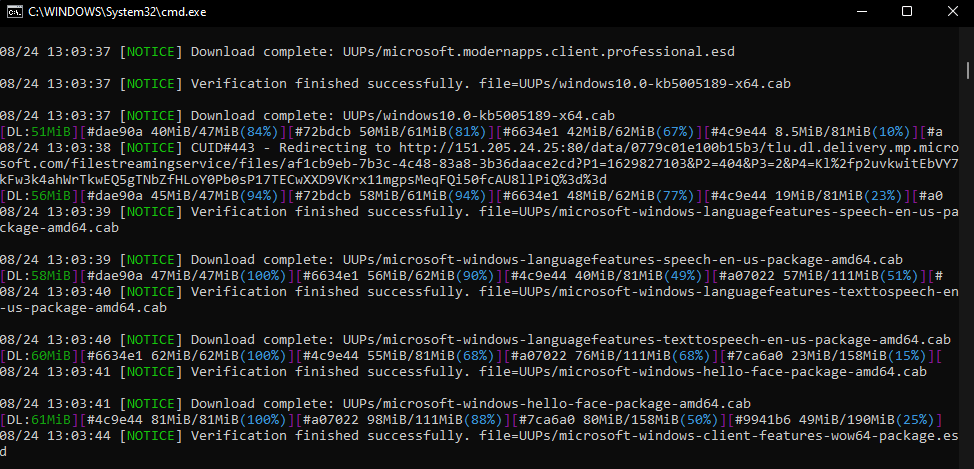
Important disclaimer: Although UUP sources Windows Insider files from Microsoft servers, the UUP website is not an official Microsoft site for downloading ISO files and we take no responsibility if any issues arise. It is not intended to be used as an official source.

Download a Windows 11 build the “official” way

1. Go to Microsoft’s Windows Insider Preview Downloads page.
2. Choose the Windows 11 build you want to download from the list available and click Confirm.
3. Choose your language and click Confirm.
Windows 11 build
4. Download the link to the ISO provided by Microsoft.
Windows 11 build

Download any Windows 10 or Windows 11 ISO file you want using UUP dump

1. Go to UUP dump and choose any Windows 11 build you want. For this example, I chose the latest Dev Channel build.
Windows 11 clean install
2. Next, the Windows 11 build will appear, click on it again to be brought to the next screen to choose your language, Windows versions, and other options.
I decided to download the latest Windows Insider Preview build 22000.160 for the Dev Channel.
Windows 11 clean install
3. Now you have to choose what language, what Windows version, and any additional options you want for the Windows 11 ISO file. Choose “Create download package” when you are ready.
Windows 11 clean install

Now, UUP dump will create a download package (approximately 4 MB) for you that will be download as a zip file. Extract this folder to a folder on your Windows PC.

Inside this folder contains a command file that will download and convert the Windows 11 ISO file. Follow these steps to complete the next process.

1. Right-click the file, “uup_download_windows.cmd” as shown and choose Run as administrator. Windows 11 clean install
2. Confirm your selection via Microsoft User Account Control and choose to Run anyway as shown.
Windows 11 clean install
3. Sit tight, it might be a while; a command box will open and start downloading the necessary files. It will be about 5 GB worth of files, so it may take some time.
Windows 11 clean install
4. Once the download is complete, the command box will automatically launch aria2 to convert the downloaded files into an ISO file.
Available on GitHub, aria2 is an open-source command-line download utility program that UUP dump uses to handle downloading multiple file types from multiple sources.

5. When that process is complete, you can find the ISO file in the same folder as the download package you previously downloaded and extracted.
Windows 11 clean install

Now you have the Windows 11 ISO file, you’ll need to create a bootable drive on USB.

Create a bootable USB

Using Rufus or a similar application, you need to install the ISO file onto a USB drive with at least 8 GB. I used the following settings using Rufus (as seen below). Click Start when you are ready to begin.
windows 11 clean install
When the Rufus process completes, you are all set! Now you have a bootable drive to perform a Windows 11 clean install.

I used this Rufus tutorial provided by Jason Howard, Senior Program Manager of the Windows Insider team at Microsoft.

Just to reiterate, UUP dump is not intended to be used as an official source for Microsoft ISO files. If you are worried at all about it, you can always use the ISO files that Microsoft makes officially available.

Don’t know if your Windows PC can run Windows 11? We got you covered with plenty of Windows 11 How-To articles and more! Don’t forget to check out the OnMSFT podcast, OnPodcast on YouTube!