During an Ignite 2019 session called “State of the browser: Microsoft Edge,” Microsoft officially confirmed that their new Microsoft Edge web browser, an essential redesign of their current Edge browser, will be coming to the Linux operating system sometime in the future.
The reference to Linux was mentioned at the end of a list of supported platforms (cheers WL for the eagle eyes) on a slide titled “The new Microsoft Edge is fully cross-platform.” No release date, let alone a window, is mentioned for the Linux version of Microsoft Edge with the words “available in the future” being the only concrete info provided.
The new version of the Microsoft Edge web browser is already in testing with Insiders on Windows 10 and macOS and is expected to officially launch in public on January 15th next year. Mobile versions of the Edge browser are also available on iOS and Android devices.
If you haven’t heard about or used Windows 10 S yet, it is just a version of Windows 10 that runs on apps from Microsoft Store only.
This means that the previous traditional desktop software will work on this system, however, the rider is that the software has to be packaged by its developer as a Windows app in the Store before it is used on Windows 10 S.
Microsoft launched this new version last year, which will come with many new computers going forward, especially low-cost and education oriented PCs, plus a few premium ones like the Surface Laptop.
While the S doesn’t stand for anything specifically, Microsoft says this system is streamlined for simplicity, security and speed – it actually boots fifteen seconds faster than a PC running Windows 10 Pro with all the same features installed.
The only difference between S and Pro or other Windows 10 versions is the S version can only run apps from Store plus a built-in BitLocker encryption for file security, while the rest have the option to install apps from third party sites and stores.
Windows 10 S will be availed on new machines, but not as a separate version for upgrade or installation like the Pro version, however, you can pick the best Windows 10 S laptop for yourself from the list below.
Best Windows 10 S laptops for 2019
Microsoft Surface Laptop (recommended)
This is probably the rightful heir of the Windows 10 S as it was the first device to launch with the system, and is designed to showcase what the best Windows 10 S laptop should ideally be and look like.
In fact, Microsoft said this laptop is meant to ‘empower people to bring their ideas to life.’ It is built with students in mind and packs a seventh-gen Intel Core processor with a battery life of up to 14.5 hours.
This stylish and premium laptop whose base is covered in Alcantara fabric is available in four different colors: Platinum, Graphite Gold, Cobalt Blue, and Burgundy. It is pretty portable at just 1.25 kilos, with Corning Gorilla Glass touchscreen display, and a palm rest. It doesn’t have a USB-C port though.
This is a low-end, 2-in-1, 14 inch laptop that features an Intel Quad-Core Celeron N3450 processor, 64 GB storage and 4GB RAM, plus a 1080p display.
For casual users who want to browse, send or receive emails and use Office, this is the best Windows 10 S laptop, which is pretty much cheaper than buying a Surface laptop, but still a bit expensive than other Windows 10 S devices.
With this laptop, you get a great full HD screen, and nice look and feel to its thin and light design, plus multiple ports for all your peripherals. It also comes with a touchscreen and pen support, plus a 360 degree hinge.
This is another laptop, besides the Lenovo 100e that Microsoft unveiled as the best Windows 10 S laptop, with a starting price of only $199. It targets the education market as well, and Microsoft announced new Office 365 learning tools for this niche.
The company is also assisting in training teachers through professional development so as to get the most out of the two laptops: Lenovo 100e and this JP Classmate Leap, with Microsoft 365 Education included in the training.
This particular laptop will come with Windows Hello, so users will be able to log in using biometrics like their face or fingerprints.
If you want a laptop that’s not too pricey but engineered for students and educators, then the Lenovo 100e is the best Windows 10 S laptop you can get. It has a rugged built that can withstand the daily rigors that come with school days, plus a battery to last the entire time you’re there, and connectivity features for smoother collaboration.
This laptop has an Intel Celeron processor, HD TN antiglare display, Intel integrated graphics, a battery that lasts up to 10 hours which varies with settings, usage and other factors, 4 GB LP-DDR4 DRAM and 2GB LP-DDR4 DRAM memory with 64 GB eMMC storage, WiFi with Bluetooth 4.1, a rotatable HD camera, two USB ports (2.0 and 3.0), HDMI port, 2-in-1 card reader slot, and much more. Lenovo 100e is available for online purchase.
Yet another low-end laptop meant for the casual user who just wants to use Office, browse or send/receive emails.
This best laptop for Windows 10 S features an 11.6 HD display, 32 GB storage with only 2 GB RAM, and Intel Celeron N3350 processor. If you have multiple apps open at a go, then its RAM size may not be so ideal for you.
However, its design is minimal and well streamlined, making it look dope from any angle. It is quite affordable, but has a low-resolution display, and no touchscreen.
Besides its complicated name, this low-end and low-budget laptop doesn’t have many exciting features besides its affordable price. All you get is a 14 inch laptop with 32GB flash storage, 4GH DDR3 RAM, 1366×768 display, and an AMD E2-6110 1.5GHz processor with Radeon R2 graphics.
This laptop’s AMD processor is more effective but it doesn’t make it a powerhouse. However, it is one of the best Windows 10 S laptops for casual users, has a beautiful design, but no touchscreen and low-res display.
This laptop is designed for the K-12 market and comes preloaded with Windows 10 S.
Features include an Intel Dual-Core Celeron processor, 4GB RAM and 64GB eMMC flash storage, 11.6 inch HD screen, USB and HDMI ports, webcam, and a battery life of up to 11 hours.
The good thing about this best laptop for Windows 10 S is it is rugged so it can survive some pretty harsh treatment, what with its spill-resistant keyboard and its body which survives drops of up to four feet! Its rubber wrapped edges protect it from such drops, plus it can survive the class environment.
If you’re looking for a compact Windows 10 S laptop, then the latest member of the Surface family might be just what you need. This is a 10-inch, 1800×1200 (217 PPI) device, and it comes with 10-point multi-touch display. The device is powered by Intel Pentium Gold 4415Y processor, and it comes with 8GB of RAM.
As for the storage, the device has 128GB SSD, which should be enough for most of your needs. Regarding the graphics, there’s Intel HD Graphics 615, which should be enough for multimedia. The device measures 9.65″ x 6.90″ x 0.33″ and it weighs 1.15lbs so you can easily carry it with you in a bag.
Regarding the connectivity, there’s Wi-Fi 802.11 a/b/g/n/ac as well as Bluetooth 4.1. As for available connections, there’s a single USB-C port, 3.5mm audio jack, Surface Connect port, Surface Type Cover port, and microSDXC card reader.
The device has a 5.0MP front-facing camera and 8.0MP back camera with autofocus. It’s worth mentioning that Windows Hello feature is compatible with Surface Go, so you can use your face to unlock your device.
Microsoft Surface Go is a great device, and it offers great portability with solid hardware, and if you’re looking for a Windows 10 S device, you should definitely consider this model.
This model was being revamped by HP for the new Windows 10 S operating system and features a 360-degree hinge, 11.6 inch HD display, HD camera within the keyboard, a USB-C port and two USB 3.1 ports.
It also comes with an Intel Celeron processor, 64 GB storage and 4GB RAM, plus it is rugged and can withstand spills and drops, with a battery life of up to 11 hours.
Are you using Windows 10 S already? Let us know which laptop you are experiencing it from and your thoughts on the same by leaving a comment in the section below.
This specific deal is part of our bigger selection of the best laptop deals you can find. You might also want to check out our dedicated Black Friday hub for tech deals.
A 2-in-1 laptop is one of the fastest-growing products in the PC industry. The touch-optimized hybrid laptop or the detachable-hybrid tablet with both a physical keyboard and a touchscreen are the latest trends, and if you plan to get one, you probably have already a few tablets in mind.
It’s important to keep your eyes peeled for the best 2-in-1 laptops that you can buy this holiday season. Just to make your choice much easier, we picked the top five 2-in-1 laptops that you can get these days at great prices on Amazon.
Best Windows 10 2-in-1 laptops to purchase this year
Samsung Notebook 9 Pro NP940X3M-K01US (recommended)
The Samsung Notebook 9 Pro can easily get head-to-head with the MacBook Pro for a significantly lower cost. Even if it’s limited to only one configuration, it comes in two different sizes. The Samsung Notebook 9 Pro is a really powerful laptop.
Check out the most important of its features below:
It comes with an excellent look and feel.
The Samsung Notebook 9 Pro uses the S-Pen for amazing effects.
It comes with a Full HD touchscreen for hands-on control.
It also features an HD webcam.
The laptop has a 360-degrees flip-and-fold rotating display.
The technical specs that you should be aware of are the following: Intel Core i7 processor, an Intel HD 620 or an AMD Radeon 540 Graphics card, 8GB or 16GB of RAM, a screen of 13.3 inches with a resolution of 1,920 x 1,080 pixels and storage space of 256GB.
The laptop is partly defined by its inclusion of the S-Pen, and it’s a heavy-hitting hybrid that is as capable as Microsoft’s Surface Book. You will not need to recharge the stylus.
The HP Spectre x360 is more than just a mere hardware refresh, and it’s effortless to use a laptop. You can’t even tell if it’s best used as a laptop or as a tablet due to the fact that its keyboard feels so natural at the touch.
Here are some of the best features included in the HP Spectre x360:
It comes with silent fans.
It comes with a 4K Ultra HD touch screen for hands-on control.
The display boasts impressive clarity and vibrant colors.
The Intel Turbo Boost Technology delivers extra dynamic power whenever you need it.
It’s great for gaming and intense multitasking.
The flash-based SSD has no moving parts, and this results in faster start-up times and data access.
You will benefit from reduced heat production and power draw on the battery.
It has a 360-degree flip-and-fold design that allows a versatile use as a tablet or as a laptop.
Here are the technical specs that are essential: Intel Core i7 CPU, Nvidia GeForce 940MX and Intel HD Graphics 620, 8GB to 16GB of RAM, a 15.6-inch screen with a resolution of 3,840 x 2,160 pixels and storage space of 256GB – 1TB PCIe.
Here are the tech specs that are the most impressive in the Lenovo Yoga 720: Intel Core i5 or i7 CPU, Intel HD Graphics 630 or Nvidia GeForce GTX 1050, 8GB or 16GB of RAM, a resolution of 1,920 x 1,080 Full HD or Ultra HD with a resolution of 3,840 x 2,160, LED multitouch and storage space of 256GB – 1TB, 1 USB Type-C, and 2 USB 3.0, Thunderbolt, Wireless-AC and Bluetooth.
UPDATE: The Lenovo Yoga 730 is now available on the market as well. So, if you want to upgrade your Yoga 720 laptop, you can purchase the new model from Amazon.
Microsoft Surface Book 2
The original Surface Book blew everyone away when it came out back in 2015 and back then it was quite hard to tell whether it was a one-time novelty from the company or if it was just a sneak peek of something else that was on its way. Overall, it was a bit of both.
The Surface Book 2 is just as impressive, and it comes with a lot of the qualities boasted by its predecessor.
Just have a look at the main features sported by the Surface Book 2 below:
You have four versatile modes to choose from crafted of premium and lightweight materials.
The device adapts easily to the way that you work and create as well.
The Surface Book 2 brings the best of Microsoft no matter where you are.
It comes with Windows 10 Pro pre-installed.
It also comes with Microsoft Office2.
With Windows Mixed Reality you will be able to immerse yourself in a brand new reality when you combine the Surface Book 2 with any Windows Mixed Reality headset and also a motion controller as well.
The essential tech specs are the following: Intel Core i5 or i7 CPU, Intel HD Graphics 620 or Nvidia GeForce GTX 1060 with 6GB GDDR5, 8GB to 16GB of RAM, a screen of 13.5 inches with a resolution of 3,000 x 2,000 pixels or a screen of 15 inches with a resolution of 3,240 x 2,160, 256GB to 1TB PCIe SSD.
Lenovo Flex
As its name suggests, this laptop is very…flexible. Its hinges support a full 360° flip-and-fold movement without any problems. You can use this device as a tablet, laptop, in tent mode, you name it.
The 14-inch Full HD LED display offers excellent multitouch support. The 8th-gen Intel Core i5-8250U CPU can clock up to 3.4GHz. Add to that the 4GB/8GB/16GB DDR4 and 128GB/256GB/512GB/1TB SSD and you’ve got some really nice specs.
What we really like about this laptop is its versatility. You can use it to play games, run office-related tasks, play multimedia content and much more.
It also offers excellent connectivity and the lithium-polymer battery can power you for up to 8 hours.
These were our best picks for 2-in-1 laptops for every budget and preference in specs and features.
Check them all out and get your favorite laptop.
This specific deal is part of our bigger selection of thebest laptop deals you can find. You might also want to check out our dedicated Black Friday hub for tech deals.
Ever since its introduction back in 2016, Microsoft’s collaboration software, Teams, has come a long way. The company is always tweaking the experience and adding new features that make it better compete with Slack and be more useful for users. In fact, at one point, Teams reached 13 million daily active users, which is more than Slack.
Indeed, Teams has been on a long journey, but there’s so much more ahead. At Ignite 2019, some new features were announced for the experience. Here’s a look at where Teams will be going heading into the future.
More ways to customize your Microsoft Teams experience
As we pointed out in our comparison piece, Microsoft Teams currently features a UI with a lot of menus and buttons to navigate. Heading into the future, though, Microsoft is hoping to change that. The company is planning on adding a new Multiwindow feature to the app early next year in 2020. With this feature, you’ll have the option to pop-out chats, meetings, calls, and documents into separate windows. This will help streamline your work, as you’ll be able to have what matters most on top of your current workflow.
In addition, for privacy, currently, it is not possible to restrict access to a channel in Microsoft Teams. This is something that’s present in Slack, but will be coming to Teams soon. With the new Private Channel feature, users can create channels within existing teams that can be viewed and accessed by only select members of that team. It will be available from the privacy settings of the new channel.
Finally, Microsoft is also bringing over some more messaging extensions already seen on Slack. This includes a new Polls and Surveys option. Starting next year, clicking on the “…” in the bottom of a message compose box in a chat will give you access to polling and survey options, to get better feedback on questions and other items.
New integrations with the other Office 365 Apps
One of the greatest strengths of Microsoft Teams over Slack is its integrations with other Office 365 apps and services. Well, heading into early next year, Microsoft will be further plugging in the other Office 365 apps like Yammer, To-Do, and Outlook within Teams.
Starting first with Outlook. Next year, you’ll be able to collaborate in Teams directly from Outlook. You’ll be able to move an email conversation from Outlook, attachments, and into a Teams channel or conversation via a new “Share to Teams button.” Conversations from Teams can also be sent to Outlook by clicking on the … options in the conversation.
Other integrations with Outlook include improved missed Microsoft Teams activity emails. These will now be much more actionable, showing missed conversations, replies, and an ability to respond directly from Outlook.
Now, for the To-Do integration. Starting early next year, you’ll be able to see a new “Tasks” bar in the Teams navigation area on the left side. This will show you tasks from across To Do, Teams Channels, Planner, and Outlook. There even will be a smart view, which will show the priority of tasks as well as the end or due dates.
Finally, Microsoft will be introducing a new Yammer app for Microsoft Teams. This will make most communities, conversations, and live events from Yammer available directly from Teams. You’ll be able to pin the app on the left rail of Teams to have quick access to it.
Other key changes
In addition to the above, Microsoft is planning some smaller changes to Teams that will make things easier for Firstline workers who use it. A new SMS Sign-on feature will reduce the friction when signing into Teams with a phone number, and a one-time SMS passcode. Microsoft will also be adding a new Off-shift access feature for Teams on iOS and Android, which will provide users a notification when they’re using Teams on a personal device, and aren’t within payable working hours.
For IT Admins, there are some key new features that will help manage Teams as well as protect important company data. With a new Advisor for Teams features, it will be easier to deploy Teams across an organization. A new App Catalog will also help make it easier for IT Admins to get the information they need before enabling apps from Teams. Admins will even be able to enable new Safe Links options for Teams, which is powered by Office 365 Advanced Threat Protection, and will safeguard users from harmful links in real-time.
Finally, for developers, those who are creating Power Apps will be able to publish their apps in Teams. Users will also be able to pin a Power App to the left bar in Teams. New power automates features in Teams will also allow users to create automated workflows within the app. And, new Power Bi interactive cards in Teams will allow users to quickly find and take actions on data.
Most of these new features are scheduled to go live in early 2020. Keep it tuned to OnMSFT, as we will be going hands-on with them.
Microsoft’s Chromium-based Edge browser got its official launch date—it will be available on January 15, for those who missed Monday’s news. But as exciting as that might sound for some, that doesn’t mean that everyone will get it right off the bad.
As Neowin points out, the new Edge browser will likely roll out to users on a gradual basis. Microsoft will bring the stable version of the browser to a small handful of users, and eventually roll it out to more users if it proves stable enough. This follows the company’s typical habits of careful testing of its services, especially as bad press would be the last thing it needs while launching something new like this.
As far as to which version of Windows 10 will come bundled with the new Edge—well, the answer isn’t so simple. Unlike the legacy version of Edge, the newer browser will update completely independently from Windows 10. Microsoft will eventually roll it out to OEMs sometime after its general availability.
In other words, it’s not about when it’ll be bundled with Windows, it’s about when it will be available to you. If you’re not too keen on waiting, Microsoft has already introduced the Release Candidate of Microsoft Edge in the beta channel, if you’re interested in giving it a try.
Are you looking forward to the new Edge? Or do you think it needs some more work? Feel free to drop a comment down below.
Shadow of the Tomb Raider Definitive Edition features the base game plus all of the downloadable content (DLC) that has been release post-launch such as the new tombs and extra appearances, weapons, and abilities.
Here’s the official game description and trailer:
In Shadow of the Tomb Raider Definitive Edition experience the final chapter of Lara’s origin as she is forged into the Tomb Raider she is destined to be. Combining the base game, all seven DLC challenge tombs, as well as all downloadable weapons, outfits, and skills, Shadow of the Tomb Raider Definitive Edition is the ultimate way to experience Lara’s defining moment.
Shadow of the Tomb Raider is the last game in the Tomb Raider modern reboot trilogy that explores the origins of the character, Lara Croft. This trilogy began with Tomb Raider and was followed by Rise of the Tomb Raider. Both titles also have Definitive Editions on Xbox One.
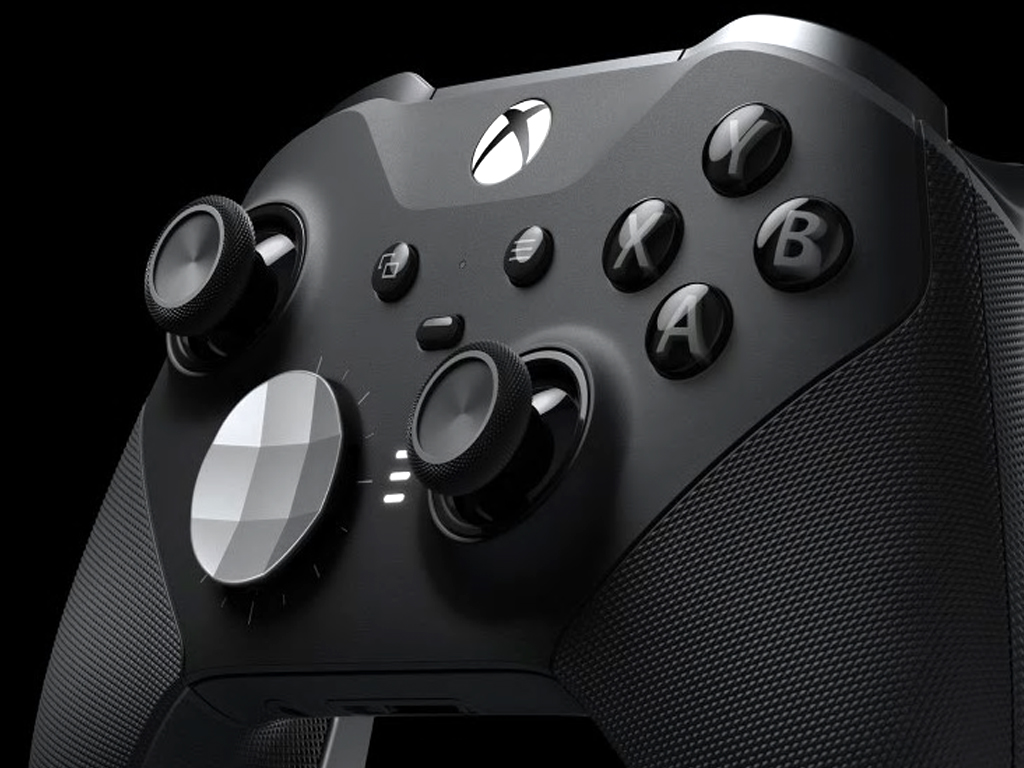
The Xbox Elite Wireless Controller Series 2 is now available to purchase online and in stores. Pre-orders for new controller have also begun shipping to customers.
The Xbox Elite Wireless Controller Series 2 is Microsoft’s successor to their Xbox Elite Wireless Controller which itself was a more advanced iteration of the regular Xbox Wireless Controller. While this new controller features a variety of subtle design improvements, the main reason to pick up the Xbox Elite Wireless Controller Series 2 is the addition of Bluetooth support, which will help it function with a wider variety of devices, and a built-in rechargeable battery.
As with all of the other Xbox Wireless Controllers, the Xbox Elite Wireless Controller Series 2 works with Windows 10 devices and Xbox One consoles and will also work with Microsoft’s upcoming next gen Xbox console, currently going by the codename Xbox Project Scarlett, due for release in late-2020.
Once again, Microsoft and Nokia are metaphorically in bed together but this latest partnership should leave fewer fanboys enraged, business divisions in shambles and workers unemployed.
Since the fall of Windows Phone under the stewardship of Steve Elop and Steve Ballmer and the combined efforts of Nokia and Microsoft, people have been wary of seeing the two shake hands on any collaborative efforts, but over the past few years, the two companies have partnered on several occasions that have flown under the public radar but have had huge public-facing benefits.
Microsoft and Nokia today announced a strategic collaboration to accelerate transformation and innovation across industries with cloud, Artificial Intelligence (AI) and Internet of Things (IoT). By bringing together Microsoft cloud solutions and Nokia’s expertise in mission-critical networking, the companies are uniquely positioned to help enterprises and communications service providers (CSPs) transform their businesses. As Microsoft’s Azure, Azure IoT, Azure AI and Machine Learning solutions combine with Nokia’s LTE/5G-ready private wireless solutions, IP, SD-WAN, and IoT connectivity offerings, the companies will drive industrial digitalization and automation across enterprises, and enable CSPs to offer new services to enterprise customers.
Speaking of CSPs, Microsoft and Nokia plan to host Nokia’s Analytics Virtualization and Automation (AVA) cognitive services on Azure allowing CSPs to move away from hosting their own private data centers to Microsoft’s Azure cloud. The subsequent reality of the move for most CSPs is a reduction in operation cost as companies shift to 5G.
Windows 10’s setup experience doesn’t provide any obvious way to shutdown your computer. Once you’ve booted your PC, you have to work your way through setup until you reach the desktop, at which point you can safely shutdown.
This raises an issue when you’re resetting a device ready for sale. It’s best practice to reset Windows so the new owner sees the first-run setup screens. After resetting, Windows automatically reboots into setup, so you need to shutdown the PC without using the desktop. (Of course, you could hold in the power button, but this isn’t generally advisable.)
Although it’s not advertised anywhere in the UI, there is an age-old escape mechanism within Windows setup. Pressing the Shift+F10 keyboard combination launches a Command Prompt window.
From here, you can run any command as the administrator-level “defaultuser0” user. This user account is created to host the Windows setup experience; it’s automatically removed once you complete setup and reach your own desktop.
With access to the command prompt, it’s simple to shutdown your PC: type shutdown /s /t 0 to immediately shutdown. The /s tells Windows to shutdown (instead of rebooting or suspending); /t 0 means shutdown after 0 seconds (i.e. immediately).
You should use this procedure after Windows 10’s installation has completed. As soon as you get to the first setup screen (asking you to select your language and region), use the sequence of commands to shutdown your device. Do not actually supply any information to the setup screens – you should leave the new owner to run through setup, so that they’re able to configure the device to suit their needs.
Next time you start the device, it will boot straight back into setup. You’re now ready to hand the device to its new owner.
If you’re constantly sending emails out to the same person, it makes sense to add them as a contact so they’re right within your reach. Similar to sending attachments, the process is relatively easy in Outlook. You can add contacts directly from an email, from scratch, from a file, Excel, and much more. In this guide, we’ll explain how you can do just that.
Adding an Outlook Contact from an email message
To add a contact from an Outlook message, you’ll first need to open the message so that the person’s name is shown in either the From, To, CC, or BCC line. You can then right-click on the name and choose the Add to Outlook Contacts option. From the window that opens, you can then fill in all the details that you want to save. Outlook will automatically fill in the contact email address in the email box, and other information about the contact that was fetched from the email. You can end then process by pressing Save.
Adding a contact from scratch
Although adding a contact from an email message is the easiest way to do things, you can also add a contact from scratch. To do so, you can click the People icon at the side of the screen, where your list of accounts is located. You can then click the New Contact option at the top of the sidebar, and add your contact manually by entering in the information you want to include. When you’re done, click Save & Close.
Other ways to add contacts
Like with many things in Office 365, there’s more than one way you can add a contact. As an alternative way to add contacts on Outlook, you can import contacts from a .CSV or .PST file. The .CSV file typically contains contacts exported into a text file, where each contact information is separated by a comma. The .PST file meanwhile, is exported from Outlook and can move your contacts between computers. Here’s how you can do that.
Choose File from the ribbon at the top
Choose Open & Export
Choose Import/Export
To import a .CSV or .PST choose Import from another program or file and choose Next
Choose your option
In the Import a File box, browse to your contacts file, and then double-click to select it.
Once this option is chosen, you can select a folder to save your contacts to. Be sure to choose the account you’re using, and select its subfolder and choose Contacts. Once done, you can press finish.
Once you’ve added a contact via either of the methods above, there’s so much you can do with it. You’re in total control of what information is added to it. You can change the photo for your contact, change how names are displayed, update information, add extension numbers, and more.
You even can forward a contact card to colleagues by clicking the card, choosing the Actions group in the contact tab, and choosing the As an Outlook contact option from the forward list menu. Did you find this guide helpful? Let us know in the comments below.
Following the launch of the Surface Pro 7 and Surface Laptop 3 last month, Microsoft’s ARM-powered Surface Pro X is available today with prices starting at $999. This is Microsoft’s first ARM tablet since the Surface 2 running Windows RT, though the Pro X runs full Windows 10 with some compromises due to the ARM chip.
So far, early reviews of the Surface Pro X have been pretty mixed. It’s worth noting that Microsoft apparently sent review units to just a few media outlets, including popular tech blogs such as The Verge and Engadget. Most reviews highlighted that the custom-designed Microsoft SQ1 ARM processor seem to deliver good performance, but it seems that the tablet fails to deliver the advertised 13 hours of battery life, especially when using emulated Win32 apps.
The tablet also received criticism for its buggy software, the lack of headphone jack, and the Surface Type Cover: It seems that adding a slot for the new Surface Pen makes the Type Cover a bit wobbly, and that it can hide the Windows 10 task bar when a certain amount of pressure is applied.
I haven’t seen many Surface Pro X reviews mention this, but it’s a major problem to me. The keyboard is really wobbly, and as a result it’s often wonky or even cuts off the taskbar when it’s on your lap. Depends how you sit, but it’s a regression imo pic.twitter.com/GHfHePsURz
There’s obviously a lot to like about the Surface Pro X hardware, but it’s still early days for Windows 10 on ARM and the Surface Pro X probably won’t appeal to many due to the compatibility issue with x64 apps. Our own Arif Bacchus has pre-ordered the Surface Pro X, so stay tuned for our full review of the new tablet coming very soon.
The other new product that Microsoft launched this week is the Xbox Elite Wireless Controller Series 2, which we got the chance to try at gamescom in August. The new controller, which Microsoft claims to be the world’s most advanced game controller, comes with new interchangeable thumbstick and paddle shapes, a a wrap-around rubberized grip, a built-in battery lasting up to 40 hours, and a charging case. $179.99 is a lot to ask for a game controller, though keep in mind that all Xbox controllers will be compatible with Project Scarlett when the next-gen Xbox console launches in holiday 2020.
With all of Microsoft’s cross-platform initiatives in 2019, you’re technically no longer limited to just Microsoft devices like a Surface. Generally speaking, the same Microsoft apps and services you enjoy on Windows 10 are also available across other platforms like iOS, macOS, and Android.
So with the recent wave of reviews and talks about Google’s new Pixelbook Go, I really wondered, can this cute little device serve as a “Microsoft” laptop keen to a Surface? With my Surface Pro X still on the way, I’ve been spending the last few days with it as my main laptop, and here’s the answer to that question, straight from the mouth of someone who is heavily integrated into Microsoft’s ecosystem.
A Microsoft laptop that’s all about the Google Play Store
Although Chrome OS was initially limited to the Chrome web browser and PWA apps, in recent times Google unlocked the platform’s true potential with access to the Google Play Store. Over the few days I’ve been spending with the Pixelbook Go, I realized that it is this that sort of makes the Pixelbook Go like a true Microsoft laptop. It essentially feels like the same way you could turn an Android Phone into a Microsoft Phone, just by using Microsoft apps.
Anyway, I quickly discovered that some of the core apps I typically use on my Windows 10 laptops are all available on Chrome OS. For me, this includes Microsoft Teams and Slack for work. Then, for personal use, there are the other Office 365 apps like Word, Excel, and PowerPoint. There are even some other Office 365 apps like OneDrive and Outlook. Other apps like Xbox are not available on Chrome OS, however.
In combination with my work in WordPress in the Chrome web browser, these apps get the same workflow I would on Windows 10. I’m able to write a draft of stories in Microsoft Word, respond to emails through the Outlook app, and keep in touch with colleagues across my two jobs with Slack and Teams. But, is it pretty as it is on a Windows 10 laptop? The short answer is No.
Some of the apps I use on my Pixelbook Go
It’s great as a Microsoft laptop, but there are some limits
As great as having all these apps are, there’s one important point to note. Most Microsoft apps available on Chrome OS via the Google Play Store are simply just ports of Android apps. This means they’re not optimized for Chrome OS laptops and aren’t the full fledged desktop apps as seen on Windows 10. While you can use these apps to get your tasks done, in some cases, that also means they aren’t as powerful or feature complete. This could perhaps be a reason that many people can’t see the Pixelbook Go as a “Microsoft” laptop.
For instance, both the Microsoft Teams and Slack app offers me a different user interface and layout than it would on Windows 10. The overall experience of these apps is a bit similar to how it would appear it would appear if set my Android phone to landscape mode. Coming from using a Surface and Windows 10 as my main device, this was a bit frustrating. To switch between channels in Teams I constantly needed to press the back button, and head back to the main page. There’s also no sidebar from within the app, as is on Windows 10. Most times, I did find myself using the web versions of these apps instead.
The Teams app on ChromeOS is horribly clunky
Additionally, some of these Microsoft apps on the Chrome OS Google Play Store are not as fully-featured as they are on Windows 10. For instance, the OneNote application feels like an oversized Android app. There’s no dark mode support, you can’t resize the sidebar, and overall navigation and touch interface isn’t as intuitive as it is in Windows 10.
There’s even an integration with OneDrive in the ChromeOS Files Explorer when the OneDrive app is installed, but that too is limited. Unlike on Windows 10, you can’t drag and drop files between the OneDrive section of the Files app in Chrome OS. Files in OneDrive are stuck in a “Read Only” mode, though you can still right-click to copy them out to the download folder in the Chrome OS system. But to copy files to a OneDrive account, from Chrome OS you’ll still need to head to the dedicated OneDrive app.
It even syncs up with your Android phone, and Timeline in Windows 10
Microsoft has made great progress with its Your Phone app on Windows 10. As we’ve extensively covered, you’re able to get texts, photos, and notifications from your Android device over on your PC. You even can see the items you’ve started on your Phone, on your PC with the power of Windows Timeline and the Microsoft Edge app. Quite obviously, these features are not present on a Pixelbook Go, but there are Google alternatives and workarounds for it for those hoping to use it as a “Microsoft laptop”
For one, the Google Messages app allows you to send and receive text messages from your Android phone on the Pixelbook Go or any other PC. Other apps from my Android phone (like Snapchat, ESPN, Instagram) are also available on the Pixelbook Go, so if I log into these apps on the laptop, I’ll get the same notifications I normally would. As for my synced photos, when I opened up the OneDrive Android app on my Pixelbook Go, most of my photos from my phone that have been backed up to my OneDrive, appeared on my Pixelbook Go.
Text messages with Google Messages
Finally, there’s the need to address Windows Timeline. While Timeline usually syncs up activities from Edge on mobile, it’s important to note that while the Edge browser is technically available on the Chrome OS Google Play Store, it is almost unusable. In my time, the app would install and launch, but it refused to navigate to webpages at all. This means that on the Pixelbook, you’re stuck with using Google Chrome. However, I did find that there is an extension that can be installed for Chrome on ChromeOS that will sync activities in Timeline. This means that the same websites I opened in Chrome, later appeared back on my Windows 10 PC, and even on my Android phone.
Microsoft apps in the ChromeOS Google Play Store
The hardware is just like a Windows 10 or Microsoft Laptop
Finally, there’s the need to address the physical hardware aspect of the story. Microsoft is known for its excellent hardware, and so is Google. So, does the Pixelbook Go have the same quality and feel like a premium Microsoft laptop or Surface? The answer is yes.
My full thoughts on the build quality and design of the Pixelbook Go are available over at my other job, but seeing as though I’m a Microsoft-fan, I think it’s just as good as anything Microsoft ever made. I’ve never quite seen a Windows laptop that’s quite as petite and compact as the Pixelbook Go. For a clamshell laptop, it feels very portable, slim, and light and is very curvy.
Overall, it really reminiscent of what you can get with a Surface Go. The screen, however, is bigger than what’s on the Surface Go, and there’s the clamshell format too. The keyboard is also much better than anything I’ve ever found on a Surface. Keys have a nice soft-feeling and there’s some bounce back when typing.
Unlike Microsoft which has stuck to strange gimmicks like an Alcantara keyboard to make it’s clamshell devices unique, Google really nailed the hardware aspect of the Pixelbook Go. In going back to a clamshell format, there are no gimmicks. Someone who is used to a traditional Windows 10 laptop can just pick one up and feel right at home.
The short answer is yes, depending on your needs
At the end of the day, I think the Pixelbook Go can serve as a Microsoft laptop if you really want it to. The apps and services you need are all there to enjoy everything Microsoft related, but you might run into some frustrations since you’ll be relying on Android and web experiences or apps.
It is perhaps similar to what Windows 10 Mobile fans once experienced when Microsoft gave up on the platform. You can move yourself to Google’s Android or Chrome OS, but only enjoy it if you stick to the Microsoft apps and services Google Play Store.
Putting it all together, you’re still using a Google product, and there’s nothing better than taking the $650 spent for Pixelbook Go and buying a real Windows 10 machine. You might even enjoy the Surface Pro X, which we’re planning to review next.
As we migrate more and more services to the cloud we are faced with the questions related to how our systems will perform in these new environments. Azure allows us the flexibility of hosting our services and applications across many regions which is very powerful and convenient. But selecting the best location for your systems still remains crucial to ensuring your customers are getting the best possible experience.
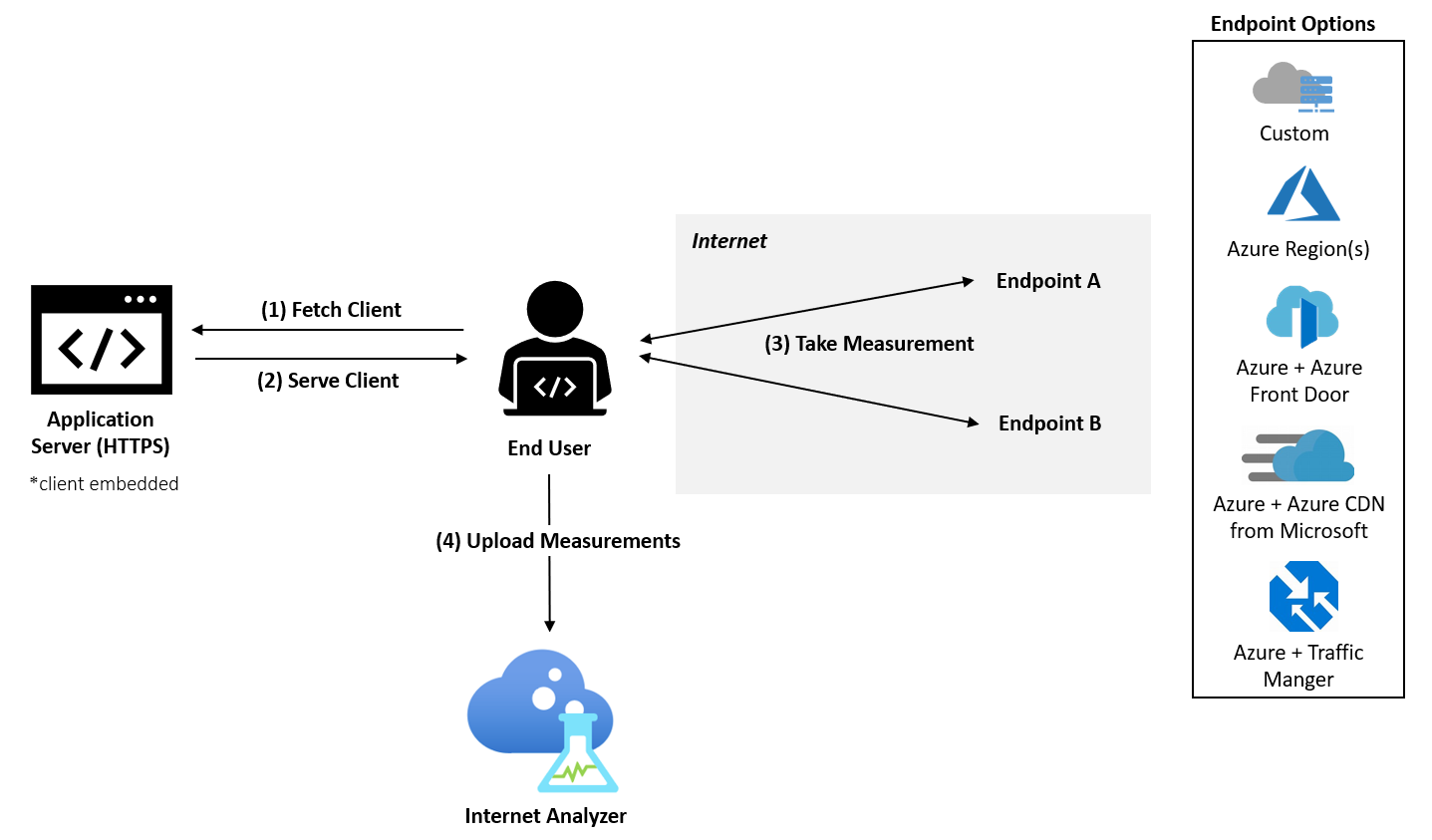
Azure Internet Analyzer is the perfect tool for that job. This client-side measuring platform allows you to quantify the performance impact your customers will experience based on your network and infrastructure configurations. By embedding a small JavaScript client into your application you can measure latency from various regions by running multiple side-by-side tests allowing you to evaluate the performance of your web application from an end user’s perspective.
What does that mean exactly? Let’s say your application mainly serves an audiences based in the continental United States, but you have some users reporting performance or latency issues with your systems in the northeast. By leveraging this new tool you can quickly make informed decisions as to what the best location for your application should be to provide a consistent experience your audience.
This system is still in preview and should not be used for mission critical or production environments at this point. Now that we got that disclaimer out of the way I can tell you its extremely easy to configure and use. There are three basic steps involved. You start by setting up a new Internet Analyzer resource in Azure, then installing the JavaScript client into your application. The final step is collecting the results and using them to find and address potential latency issues which could you be impacting your customers. How you tackle that problem is up to you. There are many approaches, one of the most comprehensive and effective is utilizing a CDN or Content Delivery Network, which Microsoft also offers. You can learn more about Azure CDN here.
When a user visits the Web application, the JavaScript client selects two endpoints to measure across all configured tests. For each endpoint, the client performs a cold and warm measurement. The cold measurement incurs additional latency beside the pure network latency between the user and endpoint such as DNS resolution, TCP connection handshake, and SSL/TLS negotiation. The warm measurement follows just after the cold measurement completes and takes advantage of modern browsers’ persistent TCP connection management to get an accurate measure of end-to-end latency.
There is a ton of news coming out of MS Ignite 2019, but this one is very exiting for me! Do you share your enthusiasm? Although others tools like it exist, do you find having this functionality as part of Azure’s offering appealing?
If you’re up and running with Windows 20H1 preview build 19013, it is time to head to Windows Update for some goodies from Microsoft. The company has just announced the release of Windows 10 20H1 build 19013.1102 to Fast Ring Windows Insiders. This is just a minor update and primarily fixes an issue with Remote Desktop.
Fast ring Insiders: There's an update coming your way to fix a bug causing issues with remote desktop. Build 19013.1102 is now available. See the blog post for more details: https://t.co/5ugcL868X0
According to Microsoft, this build fixes the issue where DWM in the Remote Desktop app would start crashing and the session window would either go totally black, experience black flashes or sign out of the remote desktop session altogether. The release of this new build comes just three days after build 19013.1000 (KB4528332) was pushed out to Windows Insiders. That release didn’t come with any other fixes or changes and rather tested the servicing pipeline.
Despite their holiday 2020 projected release dates, Microsoft’s dual 9-inch Duo and dual 5-inch Neo mobile devices are popping up in the wild this year.
During Microsoft Ignite 2019, several company executives and keynote speakers have been freely demoing use case scenarios of Microsoft’s various enterprised focused development tools and software on both devices, on stage.
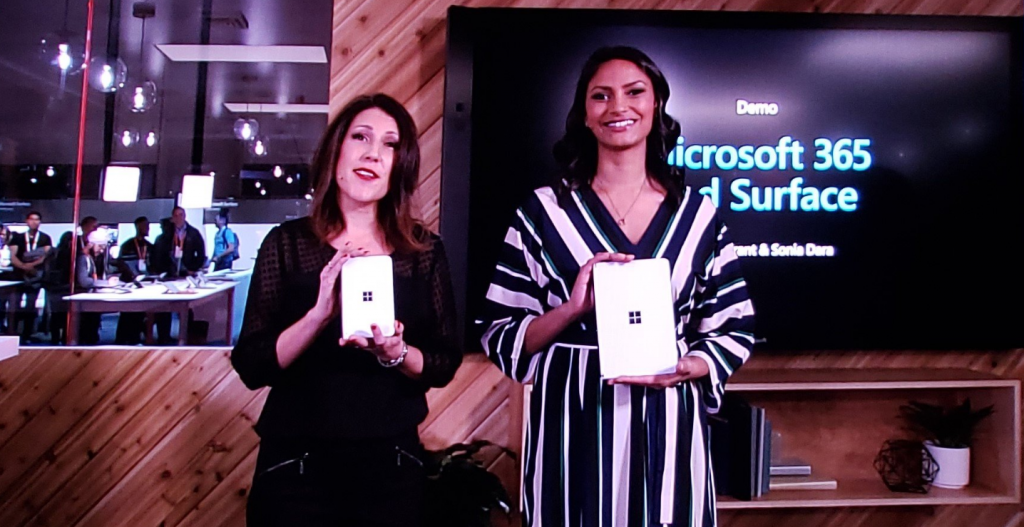
Most notably, was a session discussing the upcoming platform updates to Microsoft 365 where Sharepoint and Visio executive Jared Spataro popped open his Surface Neo to showcase how the company is integrating Microsoft 365 with its future hardware initiatives.
Surface Neo uses the thinnest LCD screens ever produced. Surface Duo got a mention at the Microsoft 365 #MSIgnite keynote too but no demo. pic.twitter.com/8NYzXOm1at
Spataro wasn’t the only Microsoft employee to be wielding a future device from the company as two other executives on the conference floor were also helping CEO Satay Nadella express the business vision of Microsoft 365 and tightly integrated hardware.
With the Surface Duo slated to be running Android, it’ll be interesting to see how much of Microsoft 365’s special sauce makes it to that device in the future.
Either way, it should be encouraging to see the company’s new foldable devices in the wild this early out from its proposed release date, allowing real-world usage to help iron out further potential bugs, hardware glitches or other potentially show-stopping issues.
Microsoft has unloaded a truckload of new product announcements at this year’s Ignite, including a launch date for Edge Chromium, new integration for the Power Platform including a newly renamed Flow (it’s Power Automate now), new tools for Microsoft Teams, and a new service from Azure called Arc, which lets IT pros manage cloud services across cloud platforms (read: on AWS). Microsoft seems intent on broadening the scope of Ignite as the scope of IT itself broadens, not being shy about Surface product placements and developer focused news.
Along that front, Microsoft made two significant dev related announcements today. First up is that Visual Studio Online has launched. This extension of Visual Studio Code Remote Development allows devs to work from anywhere there’s a browser. Trends in today’s development environment heading towards more remote and freelance work, with more collaboration, and working with cloud based workloads that don’t require a powerful dev machine, and Visual Studio Online is built to handle that new way of working. You can learn more about Visual Studio Online over at Microsoft Docs, and try it out now in the browser, connected via Visual Studio Code, or with the Visual Studio Private Preview.
In addition, Microsoft took time to point out some recent enhancements for developers, including the Alpha of WinUI 3, the developer implications of Edge Chromium nearing launch, and improvements to WSL2 (the Windows Subsystem for Linux). You can read more about all of the latest developer news on Kevin Gallo’s blog post.
Despite Microsoft investing heavily in OneNote for Windows 10, the legacy OneNote 2016 desktop app still has its fans. Microsoft is well aware of it, and that’s why the company announced this morning that the popular note-taking app will continue to be supported for years to come.
NEW! "We hear you loud and clear — you want to keep your notes your way!"????
First of all, Microsoft has extended mainstream support for OneNote 2016 through 2023 (and extended support through to align with Office 2019). Starting in March 2020, OneNote 2016 will also be automatically installed with Office 365 and Office. As you may recall, OneNote 2016 was removed from the Office 2019 installer last year, in favor of OneNote for Windows 10, which isn’t as feature complete as the legacy app it’s supposed to replace.
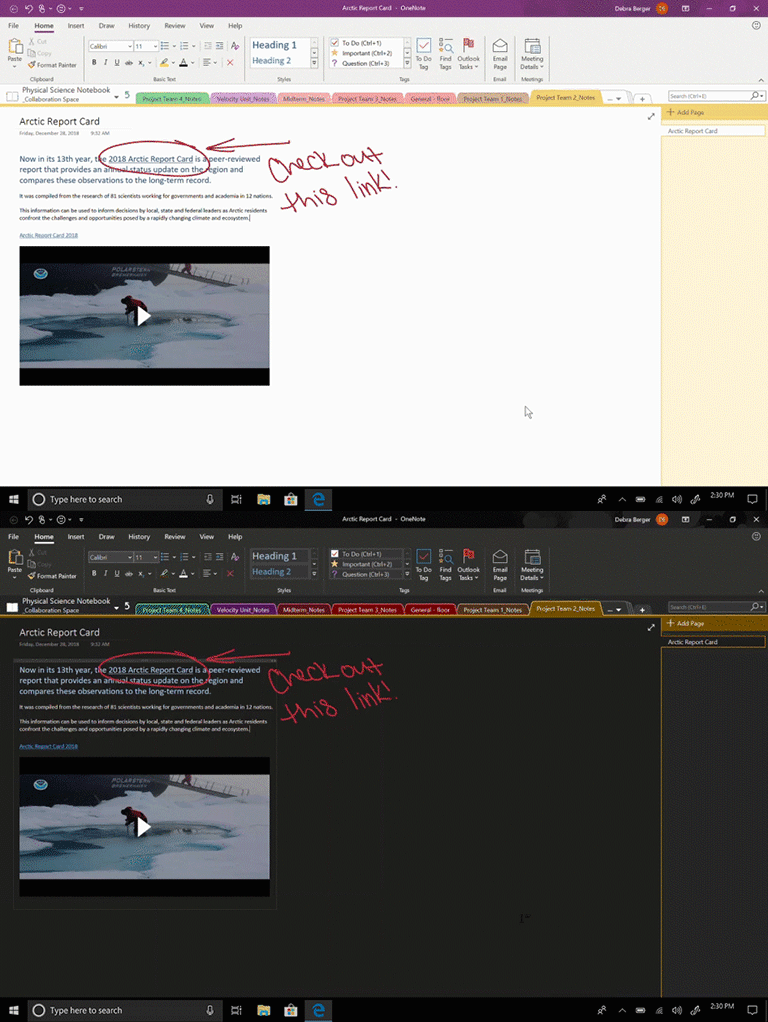
That’s all good news for OneNote 2016 fans, but Microsoft also plans to bring new features to the popular note-taking app. The first addition is dark theme support, which is now rolling out. The OneNote team will also be listening to user feedback to improve the app, and we’re looking forward to seeing what other new features will be coming to OneNote 2016.
In an effort to shrink our carbon footprint on this planet while creating and consuming unprecedented amounts of data, companies have been exploring a multitude of alternative solutions to reduce, reuse and recycle the size of devices, infrastructure, research and development and that includes businesses trafficking cloud data.
At Microsoft’s Ignite 2019 conference, CEO Satya Nadella showed off a portion of the company’s long-term data storage solution with Project Silica, first announced two years ago, where ultrafast laser optics are used to store data in quartz glass by femtosecond laser processes.
Using the example of storing the entire Superman movie on a piece of glass no thicker than a quarter, Nadella highlights the potential of Project Silica’s ability to massively reduce the amount of space apps, or services could take in the future.
Project Silica challenges and re-thinks traditional storage design. Spoiler alert: it involves quartz glass. #MSIgnitepic.twitter.com/Bxtni4NY8x
With a predicted 100 plus zettabytes of data stored in the cloud by 2023, Microsoft is building a group up new technology procedures that should help the company co-design storage systems that can run parallel with”future hardware and software infrastructures in the cloud.”
The rather impressive demo is in early phases and Microsoft is looking to staff up with highly qualified individuals with knowledge in Research in Storage Software and Optical Systems.
Project Silica thus far has been a two-year collaborative project with the University of Southhampton Optoelectronics Research Centre as part of a broader Optics for the Cloud initiative started by Microsoft Research Cambridge.
Just a few days ago Microsoft quietly rolled out an update to its Microsoft Launcher that presumably brought some bug fixes and optimizations as well as the ability to test out a “System Settings” theme selection. Today, November 4, 2019, that same version of the launcher hits the Google Play Store as beta build 5.10 and seemingly becomes an official beta release.
Launcher theme can now follow your system theme on supported devices running Android 9 and above through the new System theme option in Launcher settings, and the dark theme is darker now to improve readability and make content easier on your eyes in the low-light condition.
General bug fixes and performance improvements.
With Microsoft announcing its plans to release the foldable Microsoft Duo next year presumably preloaded with a custom Microsoft-centric launcher, we should expect to see further strides in Microsoft Launcher development that will eventually get ported over to the company’s future mobile device.
Keep in mind, this is a beta build and those interested will need to register either online or in the Google Play Store as a beta participant.
Microsoft is kicking off its Ignite 2019 conference in Orlando, Florida today, which is the company’s annual event for technology leaders. A lot of news have been announced this morning on the first day of the event, and we’ve tried to include all the highlights in one easy-to-digest post. There will be a lot of Microsoft 365 news during the week, but consumers should definitely pay attention to some of the announcements, especially those regarding Microsoft Edge and Office.
Microsoft is targeting January 15, 2020 for the release of a stable version its new Chromium-based Edge browser for Windows and Mac. A release candidate build is available to download today in more than 90 languages, and you can install it alongside the Canary, Dev, or Beta channels.
We heard about this new all-in-one Office app for mobile a couple of weeks ago, and Microsoft is making it official today: The new Office Mobile app for iOS and Android will combine Word, Excel, and Powerpoint functionality in a single app, similar to the old Office Hub on Windows Phone 7/8. The new app also comes with an “Actions” pane, with easy access to common tasks, including scanning documents.
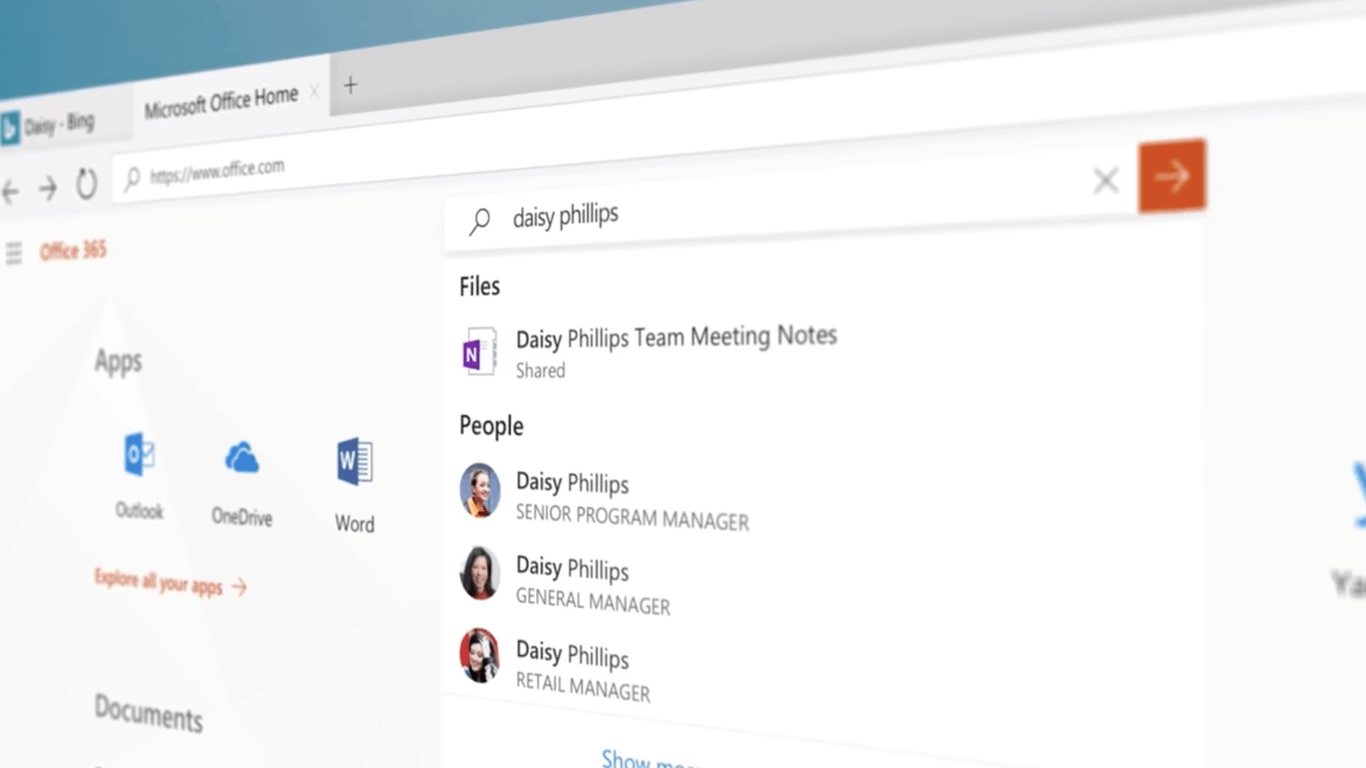
Microsoft Search, the company’s intelligent enterprise search experience built in Bing is getting new features including the ability to search for people using natural language, as well as Acronyms search and office location search (including floor plans). The enterprise search experience is also coming to the Bing mobile app on iOS and Android, as well as the Microsoft Edge Search Bar, which uses Bing by default. Lastly, Microsoft also announced the Microsoft Graph connectors preview program, with already 100 connectors from Salesforce.com, Box and more.
Microsoft Teams, the fastest-growing app in the Microsoft 365 ecosystem is getting some love with the introduction of secure private channels, pinned channels, multi-window chats and meetings. There are also new integrations with To Do, Planner, Outlook, Yammer, Power Platform, and the revamped Microsoft Project.
Microsoft Flow, the company’s alternative to IFTTT is being renamed to Power Automate. The name change has been decided to better align with Power Platform, Microsoft’s suite of tools already including PowerBI and PowerApps. The new Power Automate is also getting new features with Robotic process automation (RPA) for automating complex processes that span legacy and modern applications.
Microsoft introduced today Project Cortex, a new Microsoft 365 app that will use AI to analyze enterprise data to turn it into a knowledge network. The app will be able to organize data into projects and customers, and make it easier for employees to find important info that can be buried in documents, conversations, or videos.
Microsoft is launching today the preview of Azure Arc, which will allow customers to enable Azure data services on any infrastructure, including ones from competing cloud vendors. The Azure Arc for management of Windows and Linux servers on any infrastructure is available in preview starting today, along with the preview of Azure Arc for management of Kubernetes clusters.
Microsoft’s Ignite conference will last through Friday, November 8, and you can watch the introducing Vision keynote here. Ignite is Microsoft’s last big event of the year, and so far the company didn’t disappoint with lots of exciting announcements for users of the company’s popular apps.
Microsoft is using its Ignite 2019 conference as the stage to announce some key changes to Microsoft Teams. The popular collaboration app is picking up new features and integrations with Microsoft To-Do, Microsoft Outlook, and much more.
According to Microsoft, all these features are responses to requests from its top customers. Soon, users will be able to enjoy some new features of Teams such as secure private channels, multiwindow chats, meetings. Importantly, Microsoft is also bringing over task integrations with To-Do and Planner. And, to boost its collaboration abilities, Microsoft is introducing abilities to send an email thread to a Teams channel for discussions. “With the new Teams Chat button in Outlook it is easy to move back-and-forth email conversations out of email into a Teams chat,” explained Frank Shaw, Corporate Vice President, Communications.”
Additionally, Microsoft is also integrating Yammer into Teams. It will be added to the left-hand rail and will make Teams not only a hub for collaboration, but also for workplace communities. Other changes coming to Teams include a new experience and tools for healthcare and Firstline Workers. These people can now create and conduct consultations through Teams. This will pair up with features like SMS Sign-in and Global Sign out.
Finally, for those Teams users who are on Linux devices, Microsoft will finally be launching a Teams app for Linux. The Teams client will support abilities like chats, meetings, and calling. It will be available in the .deb and .rpm formats and will start rolling out as a preview later this year.
Microsoft announced today an important new milestone in its strategy to support hybrid clouds for its customers that working with multiple cloud vendors. At its Ignite conference in Orlando this morning, the company launched the preview of Azure Arc, a new set of technologies that will extend Azure management of Windows and Linux servers on any infrastructure.
“Hundreds of millions of Azure resources are organized, governed and secured daily by customers using Azure management. Azure Arc extends these proven Azure management capabilities to Linux and Windows servers, as well as Kubernetes clusters on any infrastructure across on-premises, multi-cloud and edge,” explained Julia White, CVP of Azure. “Customers can now have a consistent and unified approach to managing their different environments using robust, established capabilities such as Azure Resource Manager, Azure Shell, Azure Portal, API, and Azure Policy.”
The fact that Azure Arc will allow customers to enable Azure data services on any infrastructure should be a pretty big deal, especially when you take into account the ability to use Azure capabilities to manage on-premises infrastuctrures. The Azure Arc for management of Windows and Linux servers on any infrastructure is available in preview starting today, along with the Azure Arc for management of Kubernetes clusters.
At its annual Ignite conference, Microsoft is announcing some key changes for its core business products. One of these involves Microsoft Flow, which has now been renamed as Power Automate.
According to Hames Phillips, Corporate Vice President of Business Applications, Microsoft has opted to rename Microsoft Flow as Power Automate to better align it with the rest of the Power Platform. Alongside this, it will be picking up new features accordingly. This includes new Robotic process automation (RPA) which will help deliver better end-to-end solutions to span AI, APIs, and the UI of the Microsoft Power platform.
Businesses will now be able to use RPA to automate complex processes that span legacy and modern applications. According to Microsoft:
Robotic process automation (RPA) has rapidly become a key technology to address many of these scenarios but generally requires a patchwork of automation services that need integration and management before the real work can get done. Power Automate simplifies these end-to-end scenarios through a unified automation platform that can bridge the gap between API-based automation and UI-based automation.
In addition to the above, Microsoft is also announcing new Power Virtual Agents, security enhancements to Power BI, and tighter integrations between Power Platform and Microsoft Teams. There even is a new set of pre-built models for AI builders. The company explains what these new Power Platform features mean:
Power Virtual Agents—a no-code approach to creating and deploying intelligent, AI-powered bots that will democratize bot creation.
A host of new security enhancements for Power BI, that add industry leading data security capabilities no matter where your analytics data is used and accessed.
Tighter integration between the Power Platform and Microsoft Teams bringing the world’s most popular collaboration app and Power Platform closer together.
A new set of prebuilt models for AI Builderthat add even more advanced AI models to Power Automate and Power Apps that are available to everyone.
All these new features come as part of Microsoft’s efforts to advance the Power Platform and “enable everyone to analyze, act and automate across their organization to transform businesses from the ground up.” More information on these new features will be available during a keynote at Ignite 2019.
Anyone interested in testing out the new Microsoft Edge or moving to a more stable release of the browser can download it right now, here.
Still hesitant about early access usage, Microsoft plans to have a generally available offering come January 15, 2020, with support for over 90 localized languages.
Microsoft has been testing its Chromium-based browser for a little over 11 months now and in most instances provides a very Google-Chrome-like experience that brings the full support of the Chrome Web App extension store to Windows 10 with only a portion of the memory hit.
Microsoft announced some important updates regarding Microsoft Search, the company’s intelligent enterprise search experience at Ignite 2019 this morning. If Microsoft Search was already great for finding information contained within an organization, the Redmond giant is continuing to make it more useful for searching content outside of Microsoft 365.
The new Microsoft Search updates that Microsoft announced today include the ability to search for people using natural language, by mentioning details such as title, team name, or office location. Microsoft Search will also be able to tell what company acronyms mean, and provide floor plans for directions when you search for an office location. Microsoft Search is already available across Bing, Office, Outlook, SharePoint, OneDrive, and Windows, but Microsoft is now bringing it to the Bing mobile apps on iOS and Android. This should certainly help employees save time when searching for information while on the go.
In addition to these new Microsoft Search capabilities that are now generally available, Microsoft also announced some new features coming in private preview. There’s a new Microsoft Graph connectors preview program, which will allow companies to bring more information to their employees using Microsoft Search. The software giant already announced 100 connectors from Salesforce.com, Box and more that will be available in the first half of 2020.
Moreover, Microsoft Search will become available within the search bar in Microsoft Edge, which uses Bing by default. Microsoft also announced today that the new Chromium-based Edge will be available in a stable version in January, and a release candidate is available to download today.
Microsoft has just announced their new service, Project Cortex, for enterprises to help them organize their corporate data. The service uses the power of artificial intelligence to analyze data within documents, and organize them into shared topics such as team projects. Additionally, the service will also be able create topic cards and pages to provide relevant knowledge to individuals within the organization.
Microsoft also explains that Project Cortex can also serve useful as a knowledge repository. The service uses AI and machine learning to obtain information from documents, conversations, meetings, and even videos for individuals to access. It uses content stored on SharePoint to help users manage their information with the promise of built-in security, compliance, and workflow.
Microsoft has been heavily invested in AI solutions for some time now, so it’s no secret the company wants to be well ahead of other players in the game. Project Cortex is part of the company’s knowledge investment area—which also brings an advanced people lookup tool to Microsoft Search in the new Edge—in addition to the other core investment areas: productivity, workflow, security, compliance, and management.
How do you think your organization can incorporate Project Cortex into its workflow? Be sure to share your thoughts in the comments area below.
Microsoft is kicking off its annual Ignite conference for tech leaders today, and the introducing “Vision” keynote featuring CEO Satya Nadella is about to begin at 9AM EST. There will be a livestream on YouTube, and you can watch it below.
Ignite is Microsoft’s last big event of the year, and you can expect a lot of news about Microsoft 365, Office, and Azure. Stay tuned to OnMSFT as we’ll be covering all the big announcements coming this morning.
Microsoft has been on a mission to redesign some of the icons across some of its most famous programs. We’ve already seen new icons for Word, Excel, and PowerPoint, and now it would appear as though the company’s Chromium-based Edge browser is finally getting a new icon that frees the app from Edge and Internet Explorer’s past.
Seen in the featured image above, and as reported by The Verge’s Tom Warren, this new icon is shaped like a lowercase “e.” It is also similar in appearance to a wave and features blue colors on the bottom and greens at the top. It’s not clear what Microsoft’s reasoning was behind choosing this new icon, or if it’s official as of yet, but it can be assumed that there’s a subtle reference to “surfing” the web.
The reveal of this icon was apparently part of a mini-game and easter egg hunt set forth by Microsoft within the Edge Canary version of the browser. Clues were posted on Reddit last week, and Microsoft employees also participated by posting additional clues on social media. As Tom Warren explains:
It all led to a series of words discovered in seven clues, which were then inputted into a Javascript function on Microsoft’s Edge Insider website. This reveal which words needed to be pulled from a video for the final instructions to discover the secret surfing game (edge://surf/) and the new logo when you complete it.
With Microsoft’s annual Ignite conference coming up next week, you can expect the company to explain more about this new icon then. The software giant could perhaps officially launch the Chromium-based browser then, as download links for the stable version recently appeared online.
Surface app updated with Pen Slim support ahead of Surface Pro X launch
The Surface app has received an update to add support for Microsoft’s upcoming products, including the Surface Pro X. The app now supports the Pen Slim.
Microsoft makes using UWP APIs available for Win32 apps
Going forward, developers will be able to use UWP APIs in WIn32 apps, as Microsoft is making the APIs available to a wider developer audience.
Microsoft is “elevating” the Phone Screen experience by removing its dependency on Bluetooth
If you have already installed the Windows 20H1 preview build 19013 that Microsoft pushed to Fast Ring insiders earlier this week, Microsoft has just released a small update for this build that includes no new features and fixes. As the Windows Insider team explained, the purpose of this release is to test the servicing pipeline for future updates.
Fast ring Insiders: there's a small update coming your way. Build 19013.1000 (KB4528332) is available. We are validating our servicing pipeline and you may see an additional LCU release early next week continuing this effort. Thank you!https://t.co/wuF4YZmm66
The updated blog post included a note about Features On Demand (FOD), which in the latest 20H1 builds are available from the Optional features section in the Settings app:
If you try to install a Feature On Demand (FOD) while this update is pending and you restart your PC, it will not trigger this update to successfully install. As a workaround, you can pause updates, un-pause updates, and then scan for updates to get out of this state if this happens to you.
According to the team, Fast Ring Insiders may see a similar update bringing no changes next week. According to a recent report, the 20H1 update may reach “RTM” status as soon as next month to follow Azure’s development cycle, though it may get a couple more months of Insider testing ahead of its expected release in the first half of 2020. In the meantime, it shouldn’t be long before Microsoft announces the release of the Windows 10 November 2019 Update (19H2), which may start rolling next week on Patch Tuesday.
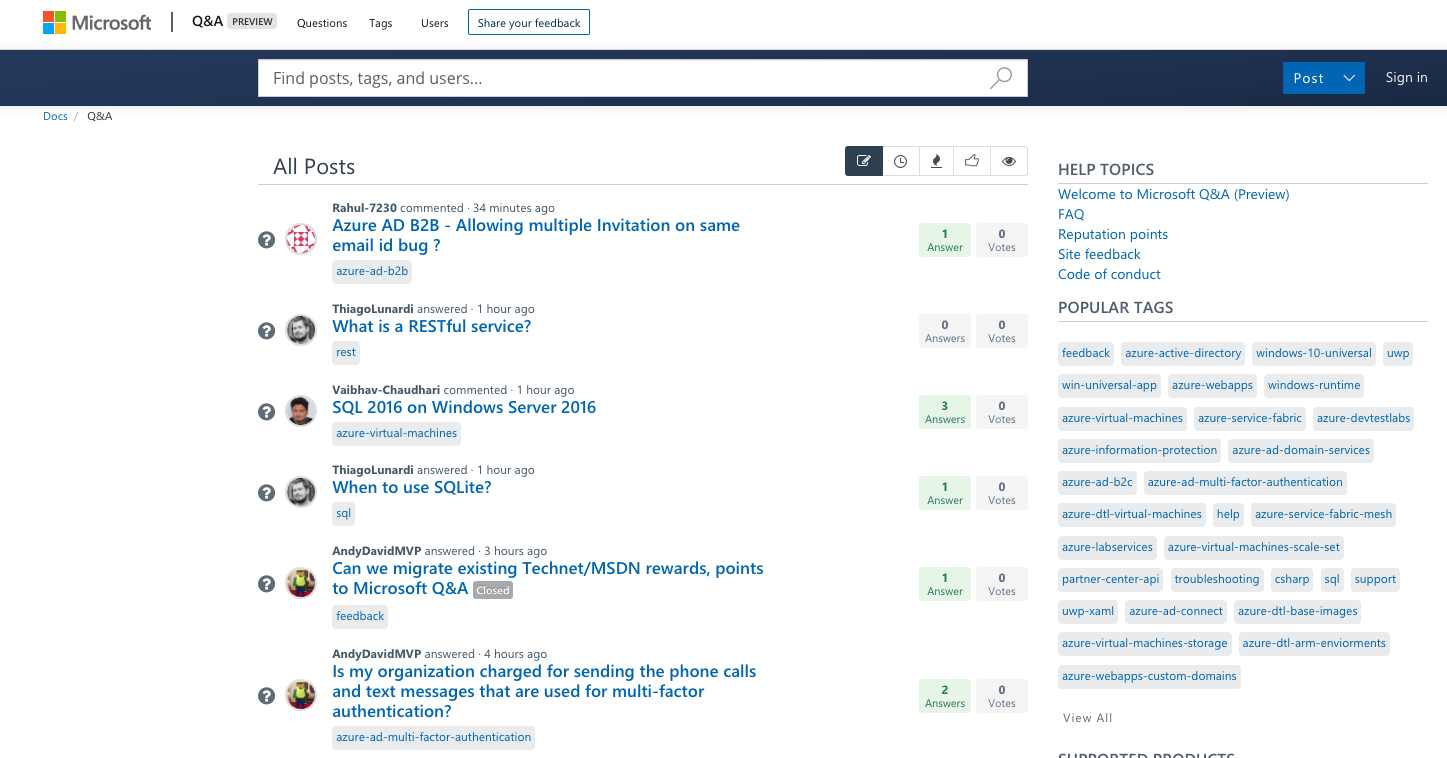
Microsoft has just announced the launch of a new “Microsoft Q&A” website that is set to replace the MSDN and TechNet Forums for any technical questions you have about Microsoft products. The new Q&A website is currently in preview, and Microsoft says that it’s an extension of its docs.microsoft.com platform which already includes a lot of technical information about Azure, Windows, and other Microsoft technologies.
Microsoft Q&A currently lets you ask questions on Microsoft products and services to a community of experts, and the website lets you follow posts, tags or people to be notified about updates. The search bar also provides suggested answers to help you find existing answers as you type.
Microsoft expects to complete the transition from MDSN and TechNet to Microsoft Q&A by mid-2020. “To ensure a smooth transition and minimize any disruption for users, we’ve broken down the migration into multiple phases,” the team explained, and as of this writing the preview version of Microsoft Q&A currently includes content about Azure, the Universal Windows Platform, and the Partner Center API.
EA’s Battlefield V video game is getting a kind of re-release on Microsoft’s Xbox One consoles as the Battlefield V Year 2 Edition. This new version contains the main game, which is still on sale separately, plus a DLC pack that contains a variety of content that was released in the year after the original release such as 13 primary weapons, four vehicles, two epic soldier outfits, 10 weapon skins, and four vehicle skins.
Here’s the official description for the Battlefield V Year 2 Edition:
The best way to join Battlefield V. Experience WW2 as you’ve never seen it before with a vast arsenal, including a catch-up of all weapons and vehicles delivered across year one of the Battlefield V Tides of War Chapters. Stand out on the battlefield with the most popular weapon and vehicle skins released during the year and customize your Company with two Epic soldier outfits. Battlefield V Year 2 Edition includes the Battlefield V base game and 33 Chapter Reward items released in the game’s first year.
For those of you that frequently join discussion boards for whatever reason, you surely know about Yahoo Groups. Back in its prime, Yahoo Groups was arguably the biggest discussion boards available.
Users could typically join groups that revolved around any topic without any charge at all and discuss anything. They could also post content to these groups directly using a web browser or by using email.
The end of an era for Yahoo Groups
However, Yahooannounced that the following changes will come to Yahoo Groups:
On October 28, 2019, all upload functionality will be removed from the site
On December 14, 2019, all content ever posted up to that date will be removed permanently from the site
Yahoo Groups’ privacy settings will also be going through some changes. For example, all public groups will be set to private or restricted.
Any admins and existing members will retain access but new group members will only be able to join once they receive an invitation from the group administrators.
How can I download Yahoo Groups data before it’s gone
Since the December date is drawing more and more closer, you will want to know how to back up any data from Yahoo Groups before it gets deleted.
Select whatever data you want to be included in your download
Click Next
Keep note that processing a download request can take up to 30 days, and only afterward will the download become available
Enter an email address you’d like to be notified at when the download is ready.
Click Request Download
Once you receive an email notification stating that your download is ready, visit the Privacy Dashboard again
Scroll down to Download a summary of your data
Click Your download requests
Right next to your download request, there will be a Download button
Click the Download button
Yahoo Groups is not as popular as it once was, and maybe that is the main reason behind the change.
For those of you that might miss the deadline, the Internet Archive also revealed that it plans to save as much data as possible before the changes take place to preserve the content.
What do you think about the major changes that are coming to Yahoo Groups? Will you try to download any of your data before it disappears for good? Let us know in the comments section below.
RELATED ARTICLES YOU SHOULD CHECK OUT:
Outlook.com gets Groups feature to improve sharing
Everyone that uses Mozilla Firefox is probably used to the browser displaying extended information for sites with Extended Validation certificates.
However, Firefox changed that when they removed the displaying of the Extended Validation certificates entirely. The reasoning behind this change would be that more and more websites are now using the more secure HTTPS than they did in the past.
Because of this, Mozilla stated that it would be more efficient to have a form of signaling in regards to websites that don’t have HTTPS, instead of the ones that do.
However, those that were used to the way things used to be displayed weren’t so pleased, and that is why we’ve created a guide on how to bring back the Extended Validation certificates in the Mozilla Firefoxbrowser.
How do I bring back the EV certificates in Firefox?
LaunchMozilla Firefox
Type in the following line in the Firefox address bar:
about:config
Click on Yes, I accept the risk!
Type in the following line:
security.identityblock.show_extended_validation
Set the preference to TRUE
By following these steps, all the secure sites will now also display their EV certificates in the address bar. If you want to reverse this change, simply follow the steps above, but replace the TRUE value with FALSE.
If you are looking for some extra security, you can also enable the display of non-secure sites.
How do I display a non-secure website?
LaunchMozilla Firefox
Go to about:config page again
Type in the following line:
security.insecure_connection_text.enabled
Set the value of the preference to TRUE to enable not secure or FALSE to disable it.
By following these steps, Firefox will display a crossed-out padlock icon in the address bar when a site that does not use HTTPS. By doing this, the browser will also display the not secure text next to the address bar as well.
Keep in mind that by doing this, you do not directly improve Firefox‘s security level. Instead, this will simply give you an extra visual signal regarding the security of a website you are visiting.
Do you think removing the Extended Validation certificates was a good idea? Share your opinion with us in the comments section below.
Tor Browser is an Internet browser probably most well-known for its securityfeatures. These features allow it to be extremely safe when navigating websites, as it protects your identity and data in pretty much every way imaginable.
Another thing that makes Tor Browser efficient is that it gets frequent updates. One such update introduced the New Identity feature, which allows users to reset their identity when browsing.
One thing you should know is that this is the first version in a long time to be based on Firefox 68 ESR, and not Firefox 60.x.
The feature is only available in the latest version of the browser, which can be found on their official website, completely free of charge. Those of you that already use the browser can simply perform an update to get the latest features.
How do I use the New Identity feature in Tor Browser?
LaunchTor Browser
Navigate your cursor to the upper-right part of the menu
Press the broom icon
A warning message will appear telling you it will close all windows and tabs
Press Yes
The browser will automatically restart
Resume browsing
You may repeat the process as many times as you like, especially if you think your activity is starting to get tracked. However, remember that the browser will not remember what tabs you had open, and you will have to go back on all the websites manually.
According to the Tor website, this option is useful if you want to prevent your subsequent browser activity from being linkable to what you were doing before. This makes it especially useful in extended browsing sessions where your data could be tracked.
Using New Identity it will close all your tabs and windows, clear all private information such as cookies and your browsing history, and use a new set of Tor circuits for all connections.
Basically, it spares you the trouble of closing, restarting and establishing new connections. This makes it great when you need to browse privately, but time is short.
Do you think that the New Identity feature in Tor Browser will further improve the browser’s powerful privacy protection potential?
The Your Phone app is a neat little project that Microsoft has been working on for some time now. It has been updated frequently and enriched with a host of cool new features.
One new feature that Microsoft has been working on is the ability to make actual phone calls from the Your Phone app.
After some hands-on experience, we’ve compiled a guide as to how you can use the Phone Calls feature efficiently
How can I make phone calls with the Your Phone app?
Launch the Your Phone app
Pair your Android smartphone to Windows 10 via Bluetooth
Click on Calls on the right side of the menu
Click on the dial pad to form a phone number
Press the green button to make the call
Additionally, you can look up your contacts using the Search Bar, or by looking them up in the Recent Calls list.
One interesting feature is that the phone and the PC don’t need to be on the same Wi-Fi network in order to work. Thanks to this, you can keep your Android phone on its independent 4G network, disconnected from the Wi-Fi, and the calls from your PC will still work.
Also, since the PC and the Android phone will be linked via Bluetooth, the call will be made instantly. This handy feature has been a long time coming, especially for an app that calls itself Your Phone.
The limits of the Calls feature
The only limitation to this feature is that since the two devices are paired via Bluetooth, the app‘s usefulness is limited by the Bluetooth range. This greatly reduces the number of things you can use this new feature for in real-life applications.
More so, Microsoft has been struggling to make the Your Phone app more stable for public use. This can be easily seen from the number of issues reported by users.
Regardless of which, the Calls feature can be viewed as an experiment to test out the compatibility between devices, and how they can be applied. Whether it is a success or not, only customer feedback will tell.
Do you think that making calls via the Your Phone app is a great improvement? Let us know in the comments section below.


















 Additionally, Microsoft is also integrating Yammer into Teams. It will be added to the left-hand rail and will make Teams not only a hub for collaboration, but also for workplace communities. Other changes coming to Teams include a new experience and tools for healthcare and Firstline Workers. These people can now create and conduct consultations through Teams. This will pair up with features like SMS Sign-in and Global Sign out.