Popular platformers Inside and Limbo double disk pack set for September release

Playdead’s Inside and Limbo are set to be released as a special double on Xbox One and PS4 in September 2017. The double pack deal will be $29.99 and will include both Inside and Limbo. Get it now on Xbox One for $26.99 for a limited time.

In related news, Playdead co-founder and former CEO, Dino Patti, revealed he’s working on a new game with a newly created studio, Jumpship. Somerville is “sci-fi action adventure” game. Here’s a video sneak peek at Somerville.

Buy Inside and Limbo for Xbox One for $26.99 (regular price $29.99)

How to customise your tablet mode experience on Windows 10 convertibles

Windows 10’s tablet mode feature lets you use the operating system with a full screen Start experience. It’s similar to the Start screen of Windows 8, putting everything within reach when you’re using touch as your primary input method. Windows can automatically disable tablet mode when you connect a keyboard, letting you seamlessly switch between the Start screen and complete desktop.

Screenshot of Windows 10 tablet mode settings screen

If you’re using a touch-enabled device, tablet mode will probably be enabled by default. If it’s not, you can activate it manually using the “Tablet mode” quick toggle in Action Center. On convertible PCs like Microsoft’s Surface Pro, tablet mode should be setup to revert to the desktop when a keyboard is connected. To change this behaviour, open the Settings app to the “System” category and “Tablet mode” page.

On this screen, you’ll see all the settings related to tablet mode. The first dropdown option, “When I sign in,” lets you choose whether tablet mode should be enabled by default when you start your device. The options are “Use tablet mode,” “Use desktop mode” and “Use the appropriate mode for my hardware.” The latter will let Windows choose whether to use tablet mode, based on whether desktop input methods such as a mouse and keyboard are connected.

Screenshot of Windows 10 tablet mode setting to change Continuum behaviour

You can change what happens when you attach or remove a keyboard or dock with the “When this device automatically switches tablet mode on or off” dropdown. The “Don’t ask me and don’t switch” option will ignore the change to your device’s configuration, keeping your device in the mode you were previously using. “Don’t ask me and always switch” will do the opposite, always switching the mode without first prompting you. If you’re looking to control the switch yourself, use the “Always ask me before switching” option to get a notification each time that lets you decide whether to toggle tablet mode’s state.

The two buttons at the bottom of the page let you customise tablet mode itself. You can hide the taskbar in tablet mode apps with “Automatically hide the taskbar in tablet mode.” This gives you an experience reminiscent of Windows 8, allowing the running app to utilise the entirety of your display. You can still swipe up from the bottom of the screen to view the taskbar.

Screenshot of Windows 10 tablet interface with taskbar app icons disabled

The other toggle, “Hide app icons on the taskbar in tablet mode,” will strip the taskbar of running app icons. You’re left with just the system tray and Cortana and Task View buttons. This gives you a less cluttered taskbar on smaller tablet sizes. It also leads to a more unified and minimal look by removing the disparate shapes and colours of app icons.

Tablet mode doesn’t have many settings you can change. What is available allows you to create a Windows tablet experience that better suits your own usage. By combining the settings, you can create an experience close to that of Windows 8 when using your device with touch. It can then automatically pivot to a full desktop PC when you dock it to a desktop, offering a better representation of the “2-in-1” concept. Microsoft hasn’t changed tablet mode since the launch of Windows 10 so it’s possible more features could arrive in the coming months, with or beyond the Fall Creators Update.

Poll: is your Windows machine fully patched, are you Petya protected?

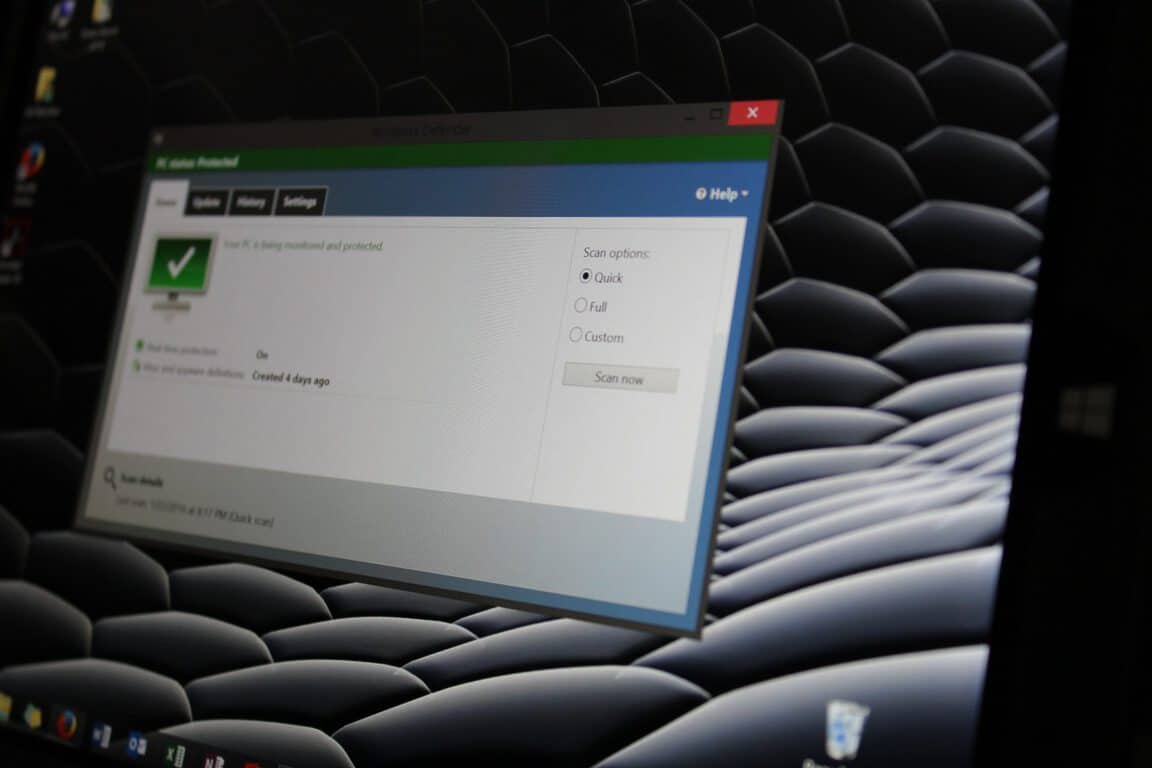
The big news of the week is the latest computer virus outbreak, known generally as “Petya,” although technically Petya was an older virus and this latest outbreak is a more sophisticated variant. Hundreds of thousands of machines have been infected, the majority in Eastern Europe, and the majority running Windows 7.

Microsoft’s Windows Security Blog goes into quite a bit of detail about the new threat, including what the company has done and is doing to mitigate the threat:

To protect our customers, we released cloud-delivered protection updates and made updates to our signature definition packages shortly after. These updates were automatically delivered to all Microsoft free antimalware products, including Windows Defender Antivirus and Microsoft Security Essentials. You can download the latest version of these files manually at the Malware Protection Center.

Windows Defender Advanced Threat Protection (Windows Defender ATP) automatically detects behaviors used by this new ransomware variant without any updates.

If you’re fully patched, and using Windows Defender AntiVirus, you should be protected, although Microsoft has been recommending since last month’s WannaCry virus outbreak that you take the additional step of disabling SMBv1, which will be deprecated in the Windows 10 Fall Creators Update.

Still, lots of users out there aren’t protected as much as they could be, does this include you? Take our poll below and let us know where you stand on keeping your system up to date:


Do you know anyone affected by this latest attack? Has news of these new threats made you think differently about keeping your systems up to date? Or are you one of those “it only happens to the other guy” types? Let us know what you think about Petya and keeping your system up to date in the comments below.

NASCAR gets up to speed with modern technology with Microsoft’s race management app

This past weekend at the Toyota/Save Mart 350 at Sonoma Raceway in California, Microsoft sponsored Kasey Kahne’s #5 Hendrick Motorsports Chevrolet SS. The Redmond giant’s involvement in the sport, though, goes beyond Hendrick Motorsports, as the Seattle-based tech company is helping NASCAR get up to speed with modern technology thanks to an updated race management app built for Windows 10.

The app is part of a three-year tech integration partnership between Microsoft and NASCAR, with the goal of helping the sport in the process of the digital transformation. According to Microsoft, the updated race management app, which is built by NASCAR and Microsoft on Windows 10, helps race officials click a car number to see a driver’s position on the track, or even see when the car last pitted for fresh tires and fuel. And, though it was initially launched in 2016, the updated version of the app launched on Sunday during the Toyota/Save Mart 350 at Sonoma Raceway.

Data and video from the Race fueling the race management app is stored on Microsoft’s Azure cloud platform, helping combine six NASCAR scoring categories (historical data, timing and scoring, pit road officiating, video replay and car positioning) into one single screen. The folks at NASCAR also use Surface Dial with the app, specifically for examining “infraction videos” within the app. Likewise, other Microsoft technologies such as Microsoft Office 365 and SharePoint Online are used by NASCAR officials to stay connected with each other throughout the race weekend.

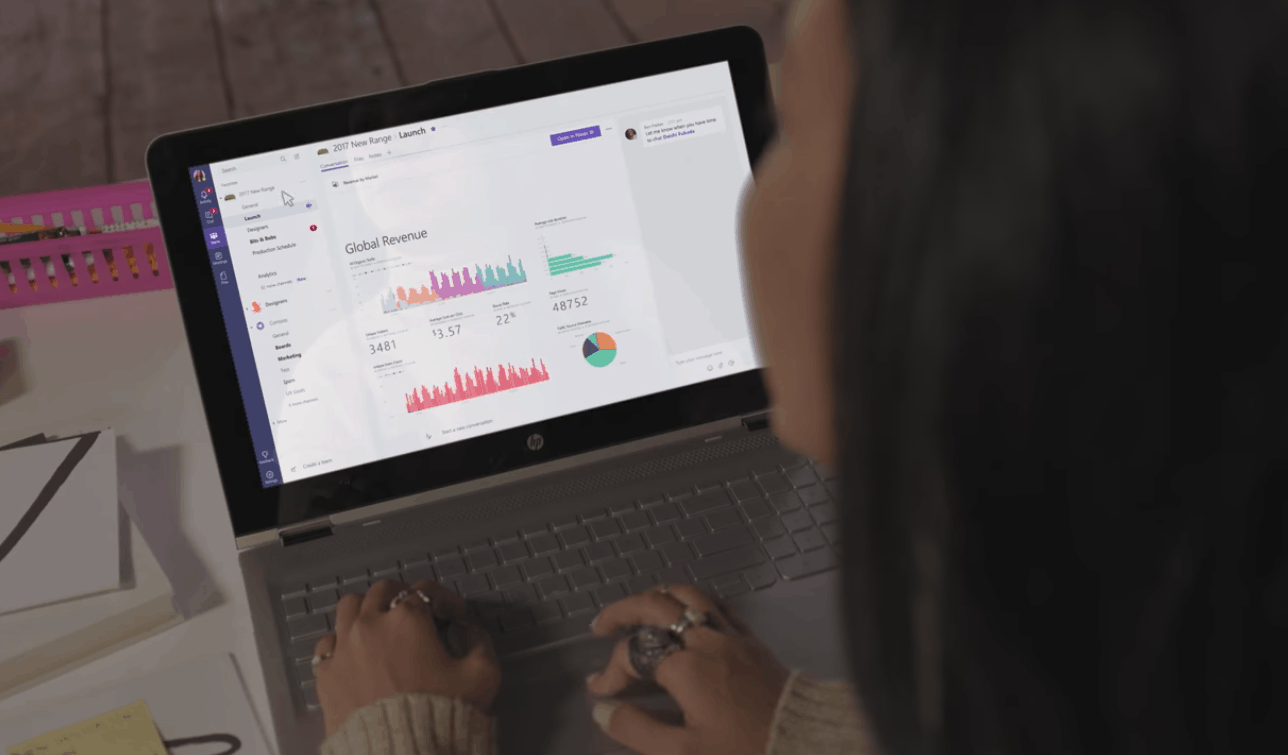
Hendrick Motorsports, one of NASCAR’s top-tier teams, has a similar technology deal with NASCAR. As we previously detailed in our interview with Matthew Cochran, the 12 time Monster Energy Cup championship winning NASCAR team uses Microsoft technologies, such as Microsoft Teams, Windows 10, and more throughout the elite racing organization.

No plans to launch Marvel Heroes Omega on Xbox One in Australia and other regions

While Marvel Heroes Omega is due to make its Xbox One debut on June 30th in just a few days’ time, unfortunately it appears as if it won’t be released in as many regions as previously thought.

Earlier this week, the game’s community manager shared a forum post which detailed all of the information regarding the Xbox One version and within that post was a list of regions where Marvel Heroes Omega was expected to launch in, a list that was a bit shorter than many were expecting.

While the exclusion of some countries like Japan and China are understandable due to the relatively low number of Xbox One consoles sold in each country and the need to localize the game’s content, Australia and New Zealand not making the list is a big surprise due to the fact that the Xbox One console is very popular in both countries and each of them use the same language for their games as the United Kingdom (which is on the list).

I reached out and asked for confirmation on these exclusions and was simply told, “Currently, we do not have plans to bring it to Australia on Xbox One. Sorry!” No reason has been given for this decision.

Are you disappointed by the lack of support for some countries? Sign off in the comments below.

Windows 10 Twitter app adds support for Periscopes and Live Events

The official Twitter app for Windows 10 has updated with new support for Periscope live streams, which were previously unusable on the app, and additional support for Periscope feeds filmed in 360 degrees video. The Twitter app has also been given new notifications for when live events go, well, live, and a new prominent link to current live events at the top of the Home timeline.

Do you ever use Twitter to watch live video? Let us know in the comments below.

Twitter
Twitter
Developer:
Twitter Inc.
Price:
Free

Microsoft announces customized analytics Sports Performance Platform based on Azure/Power BI

Data is an absolutely massive deal when it comes to anything – whether it be engineering, architecture, or – as Microsoft’s reminding us – even sports. Microsoft has launched the Sports Performance Platform, a new platform of software that’s giving players and coaches an opportunity to numerically analyze the performance of players and teams as a whole to turn coaching into a science.

The best way to see the Sports Performance Platform at work is through this video, made by the Seattle Reign FC – a football club that’s one of the first to take this technology to its limits and see just what kind of applications it has. The team at the Seattle Reign FC use the video to show off the program, an talk a bit about why it’s so important for the future of sports for teams to start integrating this kind of data.

A look at the SPP’s data

Head coach of the team, Laura Harvey, says that this kind of technology is giving precise answers to questions about the fitness of players – something that was very much up to interpretation in many cases beforehand. The Sports Performance Platform gives teams those kinds of answers by plugging in data to a system built on Power BI and Azure, and crunching those numbers in a way that can be easily interpreted and used.

This is just the beginning, as many sports teams haven’t quite gotten their hands on this yet – but you can rest assured that it’ll catch on. With Microsoft already deeply embedded as a partner of the NFL, it wouldn’t be surprising at all to see American football teams getting their hands on tools like this going into the next season.

SharePoint communication sites begin rollout for Office 365 First Release customers

While talking SharePoint won’t endear you to your flagship phone-toting or smart watch bearing friends, it might get you a seat at the table of professionals who appreciate enterprise communications.

Last month the Office team talked about all things SharPoint during its SharePoint Virtual Summit. During the summit, details about SharePoint communication sites, dynamic sites, mobile apps, and cross-platform development for the Mac. Adding to the recent cacophony of SharePoint noise, the Office team announced communication sites will be available for Office 365 First Release customers.

Create a beautiful communication site in seconds

Communication sites are perfect for internal cross-company campaigns, weekly and monthly reports or status updates, product launches, events and more. To help you jumpstart getting your message out fast, communication sites provide configurable templates for the sites and pages within. When you click Create site from the SharePoint home in Office 365, you have a choice of three initial site designs:

  • Topic—Select the Topic design when you have a lot of information to share, such as news, events and other content.
  • Showcase—Use the Showcase design to feature a product, team or event using photos or images.
  • Blank—Start with a blank site and make your design come to life quickly and easily.

Users also get more customization options with Communication Sites to continue refining and enhancing news. The ability to create full-width layouts and enhanced title regions with custom header images should make office communication a bit more fun and personal.

Communication Sites also brings comments to pages where each new article and page can be loaded with comments for references during meetings or collaboration sessions. Finally, share options in Communication Sites include email as users can now see thumbnails, title, descriptions and additional messages from senders.

There are web improvements coming in today’s update such as:

  • Power BI and Microsoft Stream—Bring in interactive reports using the Power BI web part, and embed single videos or full channels from Microsoft Stream—the single destination within Office 365 for your cross-company video management. Both Power BI and Microsoft Stream are now generally available.
  • GIF support—When you add an Image web part into a news article or page, you can now include animated GIFs in your layout.
  • New “See all” pages—When there is more content than can be shown within the first view the Highlighted content and Site activity web parts, you can click See all to go to a full-page experience to see all the content and activity.
  • Updated News web part—Showcase your news using multiple layouts to highlight what’s important with greater flexibility. You can use the default Top story layout, view news as a list or side-by-side.

There is a lot more to cover regarding SharePoint and the Office team is sharing its calendar of information and feature releases. Dates and times can be found via @SharePoint Twitter handle or the Office blogs.

Microsoft announces four week Family Caregiver leave benefit

Microsoft is always saying how it invests in its employees by encouraging higher education and hiring new employees that better diversify its resources. But today, the tech giant has taken a step back to show how much it truly values those in the company by offering employees a new benefit.

The four week family caregiver leave is designed to cater to employees that need to take fully paid time off to take care of a family member. The benefit, now available for U.S. branches as well as 22 other countries already, applies to those with family that are undertaking ‘serious health conditions’.

Microsoft Human Resources vice president Kathleen Hogan, and cancer survivor, explained in her own words:

In all these scenarios, the birth of a child, one’s own health needs, or the needs of a close family member, one thing is certain: employees need flexibility and support to make a decision that’s best for them.

There are still some countries that have yet to have the family caregiver leave established. However, Microsoft is promising all of its hundreds of thousands employees the benefit within the upcoming months.

Petya ransomware running rampant: how to turn off SMBv1 in Windows to make sure you’re safe

Last month it was the “WannaCry” virus wreaking havoc over the internet, and now this week another ransomware exploit is rapidly expanding across Europe and the Ukraine especially. The new variant, dubbed “Petya,” uses the same SMBv1 exploit that WannaCry uses to rapidly replicate throughout network systems, but holds infected computers hostage in a significantly different way.

According to a post in Hacker News, the Petya ransomware, also known as “Petwrap,” is spreading rapidly, “shutting down computers at corporates, power supplies, and banks across Russia, Ukraine, Spain, France, UK, India, and Europe and demanding demands $300 in bitcoins,” and has affected over 300,000 computers in only 72 hours.

Petya does not encrypt files one by one in its attempt to elicit those Bitcoin payments, but uses an even more nefarious method:

Instead, Petya reboots victims computers and encrypts the hard drive’s master file table (MFT) and rendering the master boot record (MBR) inoperable, restricting access to the full system by seizing information about file names, sizes, and location on the physical disk. Petya replaces the computer’s MBR with its own malicious code that displays the ransom note and leaves computers unable to boot.

Microsoft issued a series of patches for this type of exploit back in April, including taking the unusual step of patching the unsupported Windows XP operating system, so if you’re current on updates you should be ok. However the company also recommends removing the unused but vulnerable SMBv1 file sharing protocol from your systems.

It’s pretty easy to do, and well worth it for the peace of mind it could bring as yet another ransomware exploit powered by leaked NSA hacking tools runs amuck. Our colleague over at ZDNet, Ed Bott, runs through the procedure for Windows 10 machines:

  • Open the Control Panel (search for it from the Start Menu)
  • Click Programs and Features, and then on the left hand column
  • Click Turn Windows Features on or off
  • Scroll down to SMB 1.0/CIFS File Sharing support,
  • Uncheck it, and reboot

This works for Windows 10 and Windows 8.1, Ed has further instructions if you’re still on Windows 7. As he says, there’s simply no reason for you to be running SMBv1, and Microsoft is planning to remove it entirely in the Windows 10 Fall Creators Update.

For now, governments and industries are grappling to fight the ransomware and perhaps looking at their penchant for running older unpatched systems, as the dirty tricks of the NSA continue to come back to haunt us.

Stay safe out there!


You can now enable Remote Desktop from the Windows 10 Settings page

The Windows 10 Fall Creators Update will be a practical operating system. Microsoft is working at full speed to perfect this OS version and get it ready for its the official release scheduled to take place in September.

The latest Windows 10 builds have been very rich in new features, revealing many upcoming improvements. The Redmond giant is planning to revamp Windows 10 completely, adding a new smoother UI and better organizing menus. This will include the overhaul of the Settings page for a more intuitive and practical manner. One such practical change is the presence of the Remote Desktop feature on the Settings page.

Enable Remote Desktop from the Settings page

To access and customize this feature, go to Settings > System > Remote Desktop. Microsoft added Remote Desktop to Settings so that users can establish a remote connection much quicker.

As part of our ongoing effort to converge Settings and Control Panel, you can now enable Remote Desktop and configure related settings from Settings > System > Remote Desktop!  We’ve improved this page from its counterpart in Control Panel to help you more easily establish a remote connection to your PC from a Remote Desktop client application.

On the new Remote Desktop settings page, you can find associated settings like sleep (“Keep my PC awake for connections when it is plugged in”) and PC discoverability to detect if your PC is remotely accessible.

Hopefully, the Remote Desktop feature won’t be affected by any issues in the Fall Creators Update. As a quick reminder, many Creators Update users reported that the OS sometimes disables remote desktop connections.

RELATED STORIES YOU NEED TO CHECK OUT:

US Justice Department wants to take Microsoft to Supreme Court in offshore email case

Microsoft values privacy, even while facing the wrath of the Department of Justice. Recently, the DoJ has been pushing on the tech giant, claiming that the recent rulings in its favor are severely misinterpreting the law. Now, CNN reports that the Department of Justice will be approaching the Supreme Court about Microsoft’s refusal to provide private information from other jurisdictions.

The case that brought the legislative debate about originated when the federal government wanted information about a potential drug trafficking case. Law enforcement sought Microsoft out for private emails and information stored on its database servers in Ireland. The courts first found that Microsoft should hand over the information, but after appealing to the Second Circuit, it was reversed. After all, if Microsoft gave the U.S. government information stored in Ireland, what was stopping other governments from requesting U.S. information?

The Department of Justice didn’t take too kindly to the ruling, now appealing to the Supreme Court for clarification. It believes that if information can be accessed “domestically with the click of a computer mouse”, then the information is fair game for the U.S. government.

Brad Smith countered the DoJ claiming that it seemed ‘backward’ to continue the debate in courts. “The DOJ’s position would put businesses in impossible conflict-of-law situations and hurt the security, jobs, and personal rights of Americans,” he explained in Friday’s blog post.

In less than one year, a new European data protection law will go into effect. Under that law – called the General Data Protection Regulation – it would be illegal for a company to bring customer data from Europe into the U.S. in response to a unilateral U.S. search warrant.

This isn’t the first time Microsoft’s integrity was called into question regarding transnational information. An employee was criminally charged and the company fined for not complying with a request between the differing laws Brazil and the U.S. Smith believes that no matter who ‘wins’ the case with the Supreme Court, that the new legislation is still a much needed addition.


How to customise the folder shortcuts in the Windows 10 Start Menu

Windows 10’s Start Menu lets you quickly access your apps with its rotating Live Tiles and scrolling “All Apps” list. You can also use Start to jump straight to the core areas of File Explorer, either through pinned Tiles or with the persistent shortcuts on the left side of the menu.

Screenshot of Windows 10's Start Menu shortcuts

By default, Windows 10 includes Start Menu links to important folders such as Documents, Pictures and Music. You’ll see them displayed as icons above the Power, Settings and File Explorer buttons to the left of Start’s All Apps list. Clicking one of the shortcuts will open the folder in File Explorer.

Screenshot of Windows 10 Start menu settings

You can change the folders that appear in this list, letting you add other frequently-used File Explorer views to Start. To customise the links that are displayed, open the Settings app to the “Personalisation” category and navigate to the “Start” page. At the bottom of the screen, click or tap the “Choose which folders appear on Start” link.

Screenshot of Windows 10 choose Start folders screen

The “Choose which folders appear on Start” settings page will open. You can use the toggle buttons to enable or disable any of the main File Explorer folders that are listed. It’s also possible to turn off the File Explorer and Settings app shortcuts, allowing you to remove everything except the Power button.

Screenshot of Windows 10 Start menu with no folder shortcuts

When you’ve done changing the folders that appear, close the Settings app and open the Start menu. You’ll see your customised icons appear on the left side of the menu.

Screenshot of Window 10 File Explorer Live TIle Jump List

The feature is quite basic as you can’t change the order of the folders or add ones you’ve created yourself. You’re restricted to the options available in the menu and the automated arrangement that Windows creates. If you’re looking for more flexibility, you can try pinning folders to your Start menu by right-clicking them and choosing “Pin to Start.” You could also use File Explorer’s jump list on the Start menu or taskbar by right-clicking the app’s icon and pinning recently-accessed locations.

Microsoft Story Labs explores tomorrow’s technology today with .future podcast

Earlier this year, the Windows Insider team launched a new monthly podcast which has since become a great source of information for Windows enthusiasts. If you enjoy listening to technology podcasts but still looking for something less Windows-focused, Microsoft also got you covered with a brand new podcast called .future.

This latest creation is the result of a partnership between Microsoft Story Labs, technology reporter Cristina Quinn and Gimlet Creative, and according to the first teaser .future will be all about questioning how we all make the future happen. Here is the official description:

The future isn’t random; it’s the result of the choices we make now. Choices about how we think, work, communicate and learn.
Join Microsoft Story Labs and Gimlet Creative for .future, a new podcast that explores tomorrow’s technology today and how it will affect generations to come. Hosted by science and technology reporter Cristina Quinn, the show will feature conversations on the most transformational technologies of our time, from artificial intelligence to Minecraft to cybersecurity.

It’s interesting to see Microsoft experimenting more with podcasts this year, even though podcasts support on Windows 10 still leaves much to be desired. If you’re interested, the first episode of .future will drop on Wednesday, June 28, and you can already subscribe to the podcast via RSS or iTunes.

Microsoft won’t deliver Guest Access for Teams this month, says it remains a “top priority”

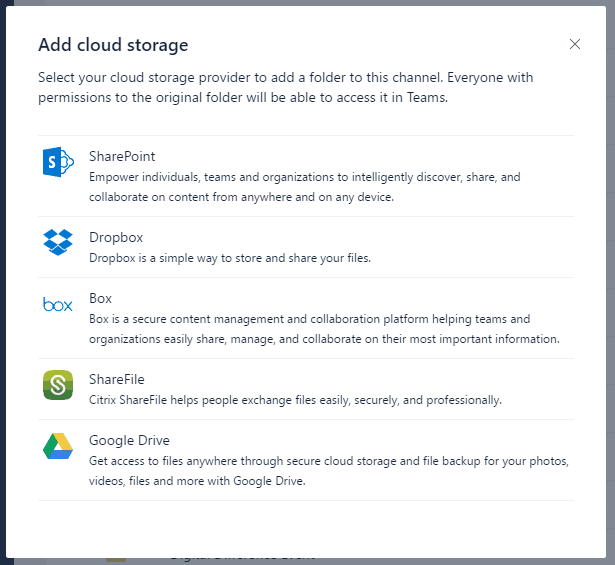
Last week, Microsoft released a significant update for its Teams collaboration app, rolling out new classroom experiences for Office 365 Education customers. In addition, several popular cloud storage services such as Dropbox, Google Drive and Box are now supported in Teams, which is great for companies that don’t put all their eggs in the Office 365/OneDrive basket.

Overall, Teams is slowly but surely becoming a solid Slack competitor, even though Slack still has at least one killer feature that Teams has yet support, and this is Guest Access support: for those unfamiliar, Guest Access allows companies to give freelancers or vendors access to teams and channels. To make it even clearer, it’s a key feature to make Teams a viable option for communicating with people outside of your organization.

When Teams became generally available in March, Microsoft announced that external access support would be available in June, though it seems that Microsoft is still working on the much-anticipated feature. As spotted by ZDNet’s Mary Jo Foley, Suphatra Rufo, the Microsoft employee managing the Teams uservoice website posted the following update last week:

We were aiming for June, as we had stated in our GA blog post, but we’re facing some issues so it’s looking like it will be just a tad bit longer (not too long). This is a top priority, so trust me when I say you will have it soon!

Foley is guessing that the Redmond giant could finally announce Guest Access support next month at the Inspire conference in Washington D.C., and it would make sense to announce the feature at the partner-focused event. Let us know in the comments if you think Guest Access support could bring more companies to adopt Microsoft Teams.

The missing podcast experience in Windows 10

The wave of internet radio feels as though it is beginning to crest as more average Joes move from celestial radio broadcasting to more on-demanding streaming options for both music and verbal content. With almost everyone and their mother now using the catchphrase “hey check out my podcast,” as some sort of new age business card, it seems the market for podcasting has matured to a point where creativity in marketing is becoming sought after resources.

From multi-platform presences to Patreon campaigns for self-starters, podcasting has blossomed beyond a few internet savvy ranters huddle in their own corner of the web to a multimillion dollar business for some and an entertainment outlet for most.

Niche conversations about craptastic movies hidden in the bowels of Netflix or weekly follow-ups to today’s most popular TV hits are all being had via podcasts and the number of listeners is increasing.

With that being said, Microsoft recently launched its own tech-related podcast titled .future, where the company plans to devote time and resources to talk about the stories surrounding the growing technologies in the tech sector that are touching the lives of average people every day.

Wonderful.

However, I have an issue and it’s not with the content of .future or even Microsoft’s sudden acknowledgment of the medium but the company’s overall lack of support for and accessibility of podcasts in Windows to date.

Where is Microsoft?

It’s a known quantity that Apple is in the podcasting business. Not only with its support through its own included podcast app but now Apple is moving into monetization territory as it seeks to help entrepreneurs establish more reliable marketing metrics with its newly announced support of feed structures and serialization of podcasts.

Google recently upped its podcasting game by bundling its podcasting efforts into the Google Play Music app service, which can be used both via your closest Android device as well as from the web if necessary. While we don’t fully know how well Google Play Music is doing as far as revenue and sales numbers, the idea that the built in music app has a readily accessible podcast storefront seems like a no-brainer for the company.


It was a natural transition for Spotify to include podcast into its software and even Amazon is wading the waters by enabling podcasts in its relatively popular Alexa and Dot speakers.


Yet, Microsoft with over a billion Windows users offers nothing in the way of discoverability or use of podcasts in its Windows ecosystem and I feel it’s a huge missed opportunity. I’ll grant Microsoft’s earlier Windows efforts leniency as podcasting remained a relatively nascent endeavor reserved mostly for tech junkies with enough disposable income to invest in microphones, noise canceling padding for rooms and expensive audio channeling hardware.

However, as Microsoft continues to future proof Windows 10 with continuous updating, I’m beside myself that the company has omitted podcasting support. The Windows team is building support for augmented reality, 3D printing, holographic sound, and multiple biometric authentication methods but has yet to deliver a single first party podcast app for Windows 10.

Where it went wrong

Instead of putting the growing entertainment platform of podcasting on a perch next to music and radio in the Groove app, the Windows team has seen fit to let users aimlessly search its sparse Windows Store for the best 3rd party app to suit their needs. In theory, the “search the Windows Store” approach would be a sound one if the same Grade-A developers who support iOS and Android with apps such as Pocket Casts, Overcast, DoggCatcher, or Sticher Radio were present.

Perhaps, most upsetting was the fleeting effort put forth by the Zune and Window Phone team over eight years ago which showcased what podcast support could look like on the Windows platform. With Zune, Microsoft matched efforts with iTunes in offering a one-stop shop for all things entertainment, including but not limited to, podcasts. Users could search for and download their favorite podcast for listening on either Windows PCs or Zune devices similar to iTunes and iPods. Even as Apple brought podcasting to its phone, Zune users could still listen on the go with their Zune HD devices (as humorous as it sounds in hindsight).

As the Windows Phone team sought inspiration from the Zune interface and UX, it seemed like it would be only a matter of time before that same level of attention to podcasting on the desktop side would make its way to the phone.

For what it’s worth, a podcast app eventually made its way to Windows Phone 8.1, but seemed like a consolation prize for the loss of Zune software support on the desktop. In 2014 the fate of first party podcasting support from Windows rest on the shoulders of a single phone app that lived on a diminishing user based device.


My hope at the time was that Windows team, which in 2014, was taking heavy cues from its Windows Phone team in designing a hybrid operating system that leaned heavily on app settings, navigation and animations would bring along the lone podcasting app for the ride. Instead, the Windows team not only left its first party podcasting app to wither and die on the phone platform but gave no indication as to when or if another effort would be developed for its new ‘modern’ operating system.

Here we are three and half years later since the Windows team made an attempt at supporting podcasts, and its evolving Groove Music app (formerly Xbox Music) still has no ties to podcast discovery, monetization or marketing.

There’s still hope

I want to be clear, that there are some talented developers who are building some top notch podcasting experiences such as GoverPro TuneIn Radio, and Podcasts!, however, when it comes to discovery and marketing, placing a podcast app in the pre-bundled Groove app would go miles for podcasters and Microsoft’s 500 million Windows 10 users.


While Microsoft has yet to reveal the number of subscribers its Groove Music service yields, I still believe the company has an opportunity in developing and supporting podcast efforts in Windows 10. Arguably securing the productivity sector many moons ago, Microsoft has some time to court the content creators who entertain their largest reoccurring user base, and they seem to be acknowledging that as they prepare for a second “Creators Update” schedule for Fall 2017.

How it should work

From my own anecdotal experience in the productivity workforce, I can say that podcast listening comes second only to the set-and-forget-it music playlist streaming. Typically, Pandora or Spotify can be found bellowing in the offices of workers who are buried forehead deep in Excel or Sheets work, but there is a second class of worker who fill their rooms with the sound of sports analysts, comedians, political pundits, pop culture observers and more.

Many of these types of workers I found listening to podcasts seem to be doing so as if they are transitioning their passions, niches or interest into on-demand streaming vocal entertainment. Want someone to validate your lousy fantasy football weekend trades? There is a podcast for that. Want someone to quickly fill you in on the latest Marvel superhero before seeing a movie with your geek friends? There is podcast for that. Want to beef up your knowledge on urban serial killers of the 19th century? Yes, there is a podcast for that. Largely, these people are using their Android and iPhones sitting alongside their Windows machine to satisfy their niche endeavors during while being productive at work.

An opportunity still exists for Microsoft to pitch Windows 10 as the one stop shop by marketing podcasts in the Groove app that sits on the desktop right next to that presentation that needs reviewing. Even if Windows 10 “lock in” leave some with the bitter afterthought of Windows strategies of old, the Windows team should develop the podcast section in conjunction with Microsoft’s new mandate of being on all platforms including the web. The synergies behind putting a podcast section in the Groove app sell themselves. Adding the podcast section to the Groove app would give Microsoft a better chance to sell Windows 10 users on iOS and Android devices the Groove service.

Furthermore, Microsoft will soon be marketing its Surface Laptop and Windows 10 S in the Fall for students and judging by the price differential, the company’s target audience for the device is college students. Even when locking down accessibility of apps to the Windows Store, the selection for podcast experiences is a bit lacking.

However, having podcasts available in the Groove app which comes readily available in the Start Menu upon bootup would not only boost Grooves usage numbers but give podcasters another viable platform to market to as well. Now, Windows 10 users who still prefer to use their own copy of albums and collections but enjoy the occasional podcast, Groove becomes a useful app.

Lastly, and it’s a bit of a stretch, but similar to the new Photos app, Microsoft could build rudimentary tools into the Groove app to help amateur podcasters get off the ground. As Apple is supporting telemetry data for podcasts, Microsoft too can begin to exert some ecosystem lock-in by giving that college student with a Surface Laptop the necessary tools to host their own engineering podcast with a $35 dollar mic off Amazon and a single Windows 10 app that sits in their Start Menu.

Wrapping it up

Whatever the case may be, I believe there is still a large audience not being fully served by the Windows 10 podcasts experience or lack thereof. There are perhaps more elegant ways to incorporate a podcast experience into Windows 10 than what I’ve presented here, but remaining silent while a handful of under supported developers eek out a handful of apps doesn’t seem to be a good approach. In the light of recent moves by other platforms, I fear once again that Microsoft may be letting a relatively big opportunity slip through its grasp despite being in a position to fully capitalize on the chance to get people “loving” Windows.

Hopefully Groove, or someone, has podcasting on the docket as the Windows team continues to build great and notable experiences into Windows 10. If not, perhaps, Spotify coming to the Windows Store may be the end of my dance with Groove and random 3rd party podcast apps due to the sheer convenience of a single well-established destination.


Get a $5 credit with any book purchase on the Windows Store

If you have yet to purchase any books on the Windows Store, now is a good time to explore the new digital store category. Indeed, Microsoft is running a limited time offer that will grant you $5 Windows Store credit for any book purchase in the Windows Store (via Neowin).

This is a pretty good deal, as you’ll get the $5 promotional gift code even if you purchase a $0.99 book in the Store. The special offer is only available in the US through June 30, you’ll need a PC or phone with the Windows 10 Creators Update to take advantage of it (eBooks are not available in the Windows Store with prior versions of Windows 10). Sound off in the comments if you’re likely to take advantage of this offer this week.

How to delete windows.old straight from Settings in The Fall Creators Update

The Windows 10 Fall Creators Update brings a series of useful new features to the table, and many of them directly target the Settings page. Speaking of which, the revamped Settings page now allows users to delete the windows.old folder straight from Settings.

Prior to the Fall Creators Update, Windows users had to follow a series of steps to delete the windows.old folder. Thanks to the new feature, users can now access and delete this folder much easier and faster.

Delete previous versions of Windows from Storage Sense

Here’s how to delete windows.old from Settings in The Fall Creators Update:

1. Go to Start > type ‘settings‘ > select the first result to open the Settings page

2. Go to  System > Storage

3. In the newly opened Storage Sense page, enable the option and click ‘Change how we free up space’

4. Under the ‘Free up space now’ section, check the option ‘Delete previous versions of Windows’ to delete the windows.old folder > click Clean now

The Fall Creators Update enhances the Storage Sense features to free up space and the new windows.old clean up is a very useful addition. At the same time, the OS tweaked the design of Storage Sense a bit to make everything fit together neatly.

If you want to try out the new features, you can enroll in the Windows Insider Program. For the time being, the new features are only available for Insiders. The general public will be able to use them starting September when Microsoft officially launches Windows 10 Fall Creators Update.

Meanwhile, here’s how you can delete the windows.old folder on older Windows versions:

How to remove the Windows.old folder

As a quick reminder, the Windows.old folder appears when you upgrade your version of Windows or perform a clean install of Windows 10. The role of this folder is to keep your previous Windows installation files so that you can to restore it. Here’s how to remove the Windows.old folder:

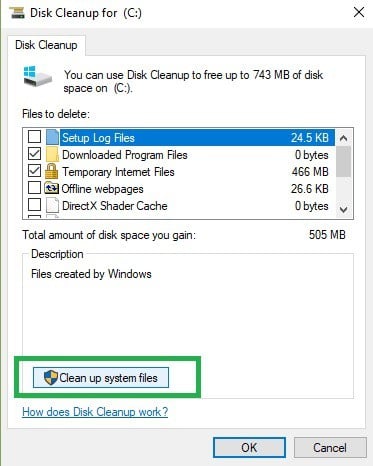
1. Type Disk Cleanup > select the drive where you installed the OS > select Clean up system files

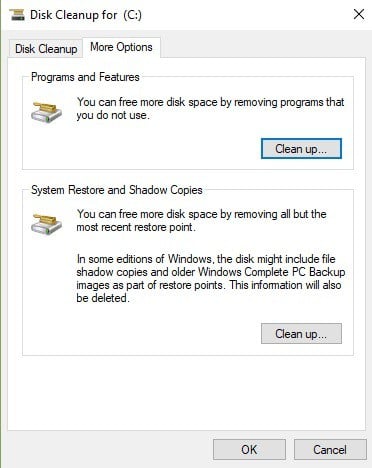
2. Wait for the utility to calculate how much space it can free up > on the new windows, click on the “More options” tab

3. Go to System Restores and Shadow copies > hit Clean up

RELATED STORIES YOU NEED TO CHECK OUT:

  • Windows 10 Fall Creators Update adds one-handed touch keyboard support for tablets

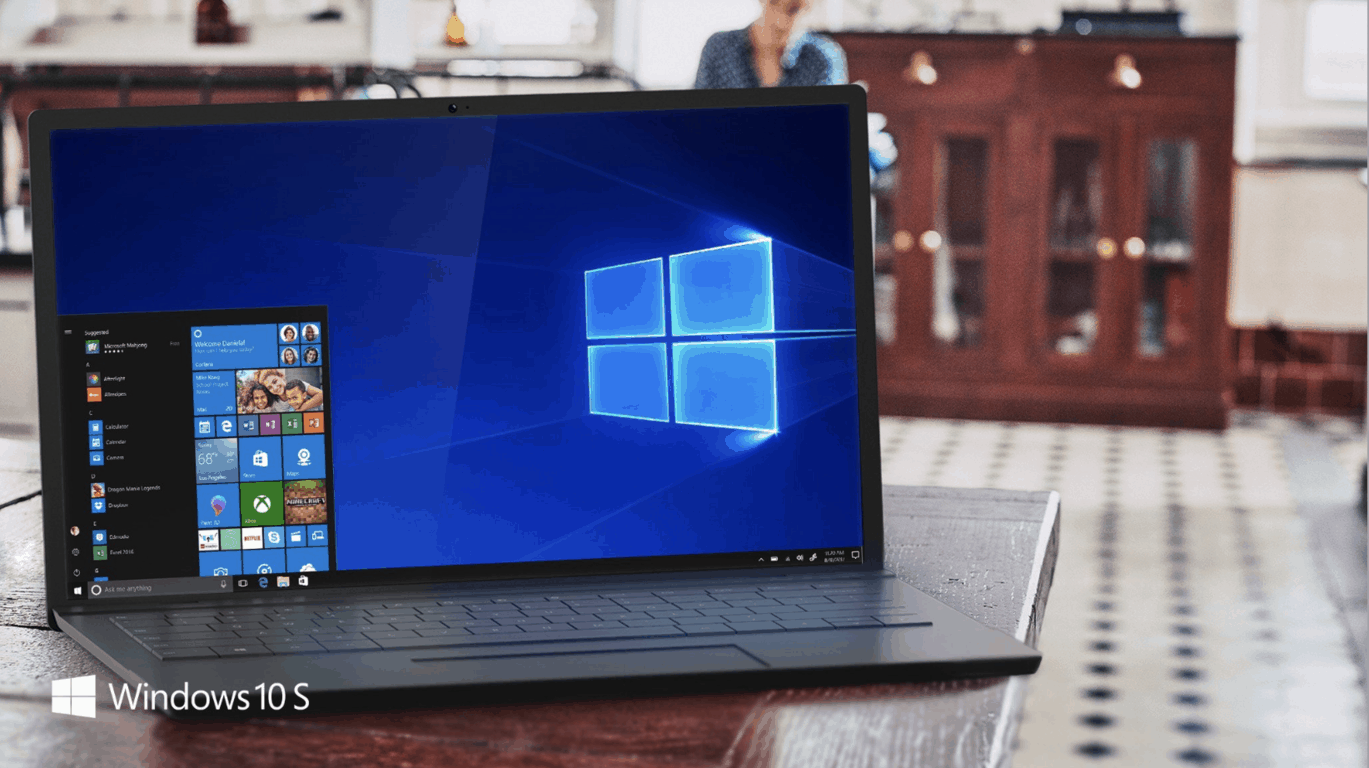
How to downgrade your Surface Laptop from Windows 10 Pro to Windows 10 S

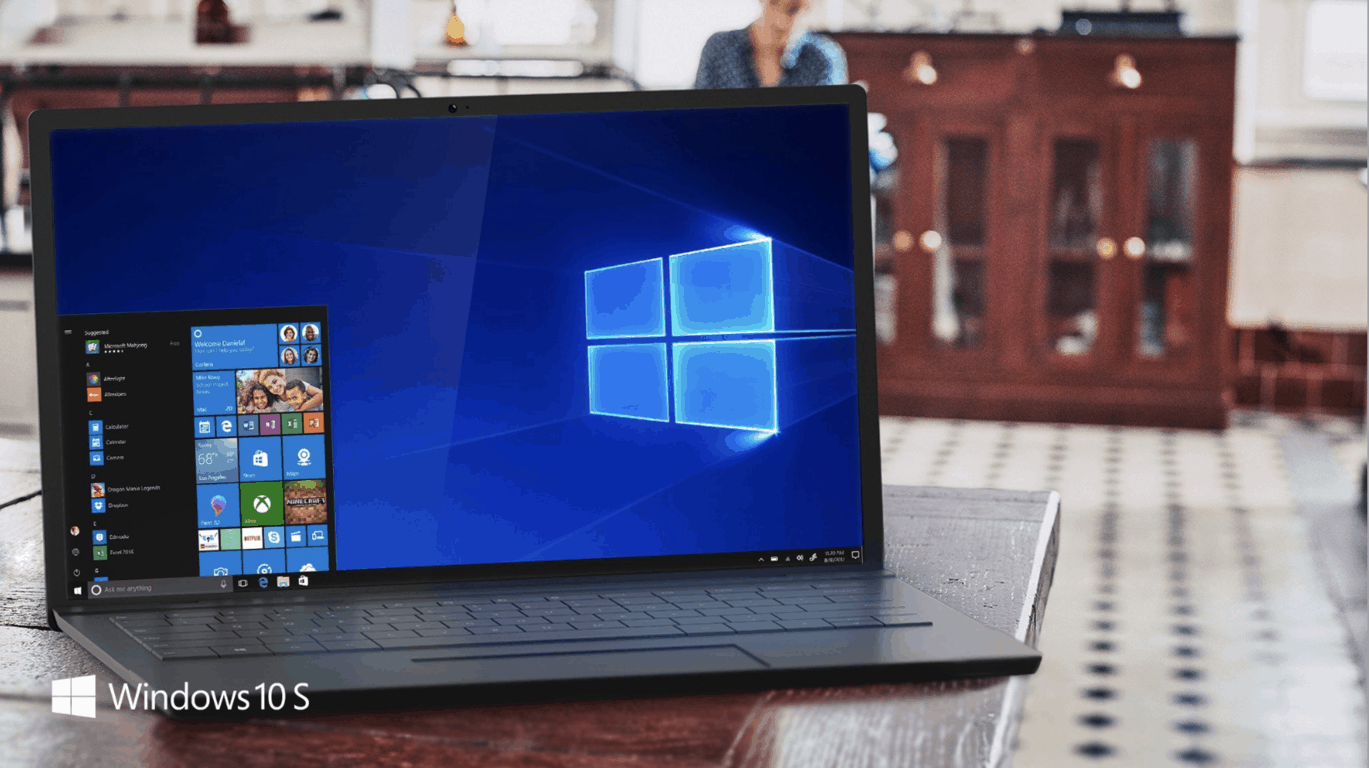
The Surface Laptop was only recently released and comes with Windows 10 S, an OS that restricts downloads to only the Windows Store. The company offers users the option to upgrade to Windows 10 Pro for free until later this year.

Windows 10 S vs. Windows 10 Pro

According to Microsoft, Windows 10 S is more efficient than Windows 10 Pro. If you have upgraded from Windows 10 S to Windows 10 Pro but don’t like its battery life or the machine’s performance, you may want to downgrade back to Windows 10 S.

The official recovery image for the Surface Laptop

Microsoft just released the recovery image for the Surface Laptop which will allow users to go back to Windows 10 S on your device at the cost of all its files. The 9GB recovery image is available for download to reset your Surface Laptop now.

The fact that Microsoft doesn’t allow you to go back to Windows 10 S from Windows 10 Pro without resetting your device is rather odd. The company would want more users to get the new version of Windows 10 for lots of reasons. Maybe it’s something that the company will add in the future, but for now, you have to settle for the recovery image.

Microsoft offers a simple tutorial for helping users with the process on the same page where the recovery image is. You also have the option of contacting Microsoft Support to get help with the downgrade process.

RELATED STORIES TO CHECK OUT:

How to disable the Microsoft Edge welcome screen

In case you’re one of those users who doesn’t find the Windows 10 welcome screen too useful after updates, we’ll show you how to disable it on the Creators Update.

Microsoft Edge’s welcome screen

Ever since  the Anniversary Update, Windows 10 shows you a welcome screen that loads when you sign in after installing a new update or a new Windows Insider Preview build. Some users don’t find this to be a problem even if the page displays a promotion for Microsoft Edge or advertises apps or Office 365 from the Windows Store. Some of you might find this pretty annoying, though, which is why we’re showing you the necessary steps to disable this.

Disabling the welcome screen on Windows 10

If you don’t want to see the welcome screen anymore, you should know that starting with the Windows 10 Creators Update, the Settings app includes a brand new option that can disable the welcome screen after you update some features or after you install a new version of Windows 10.

Follow these steps:

  • Go to Settings.
  • Go to System.
  • Click Notifications & Actions.
  • Under Notifications, turn off the Show me the ‘Windows welcome experience after updates and occasionally when I sign in to highlight what’s new and suggested’ toggle switch.

After you complete these steps, we assure you that you won’t see the welcome screen anymore, after a feature update or after you install an Insider preview build. Just remember that this particular setting will not be preserved in case you are doing a clean installation of Windows 10 because this process will delete your apps, files, and settings.

RELATED STORIES TO CHECK OUT:

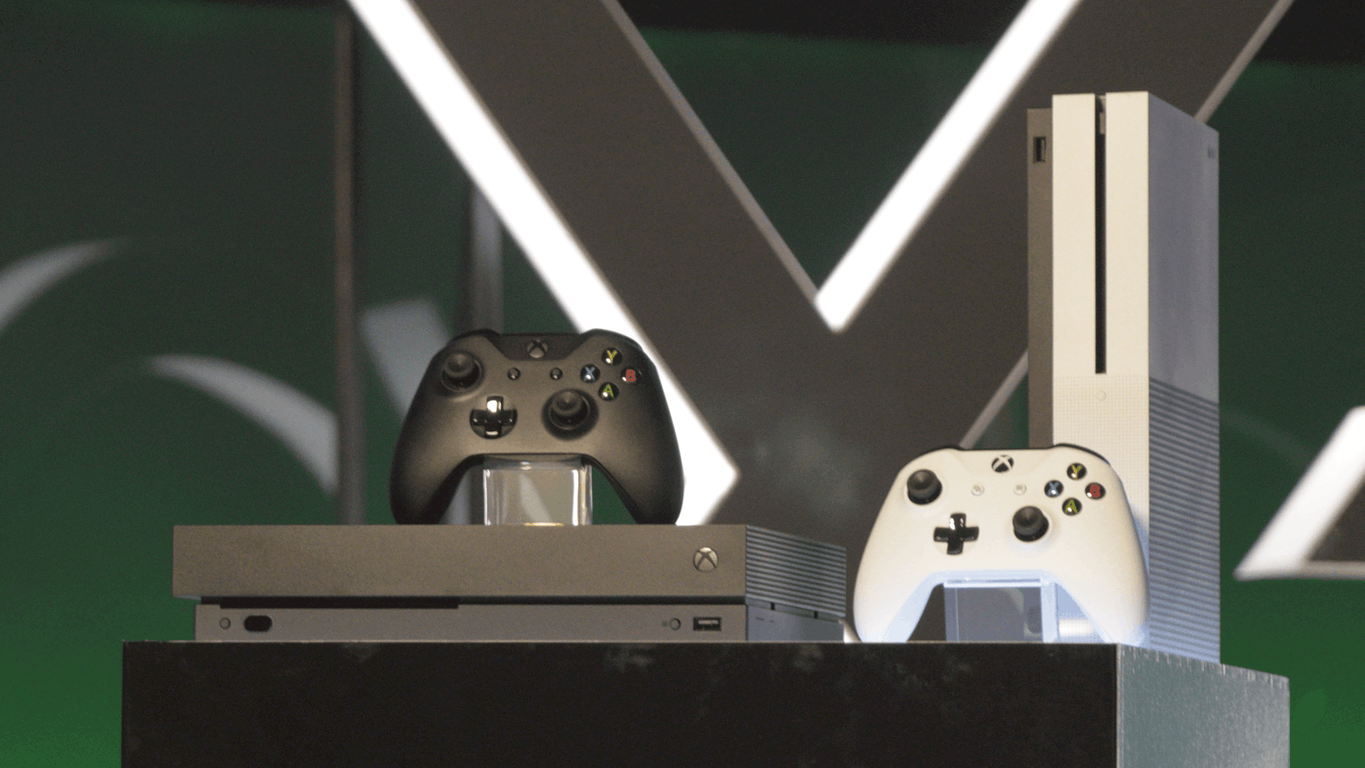
Xbox news recap: Gigantic graduates from beta in July, Destiny’s PS4 exclusives go to Xbox in October and more

Welcome to our weekly Xbox news recap series, where we go over the top stories of the past week in the world of Xbox. Let’s get started.

Gigantic graduates from beta in July

Gigantic, a third person MOBA-like title funded by Microsoft, is finally graduating from its beta stages in July. The switch from beta to a live launch is something that many people wouldn’t have predicted, considering how many early access games tend to stay in their beta phases for what seems like forever. Gigantic will be available on Steam on July 20th, and is currently available to all users on Xbox One who want to give it a shot.

Gigantic on Xbox One

Destiny’s PS4 exclusives go to Xbox in October

Destiny’s community has always been split up by one thing, and only one – the fact that Bungie’s partnership with Sony gives Playstation users exclusive content. In a game that’s heavily focused around running content in repetition and collecting loot, holding anything away from players creates some stress. Thankfully, it was announced recently that those exclusives will be coming over to Xbox in October. While this is a month after the game’s sequel releases, it’s still a nice gesture to those who don’t upgrade.

Call of Duty: Modern Warfare Remastered will be available as a standalone title

Call of Duty: Modern Warfare Remastered came out with Infinite Warfare as a bonus to those who spent a little bit of extra money. For those who weren’t interested in the sci-fi game, Activision will soon be releasing the game as a standalone title. The classic shooter’s remastered version will be launching on June 27th on disc and digital download for $40.

Call of Duty Modern Warfare Remastered

Conan Exiles coming to Xbox Game Preview

Conan Exiles, the Rust-like open world multiplayer game that made a few waves months ago is making its way to the Xbox One via the Xbox Game Preview program. The game will be experimenting the same way that the current Early Access game on PC is, although it’ll have the added benefit of being enhanced by the Xbox One X. The standard array of Xbox One X improvements is coming to Conan Exiles, with native 4K being the biggest on the list.

Conan Exiles

PC Paladins players can copy accounts to Xbox for a limited time

Paladins is a pretty excellent shooter, frequently known as “Discount Overwatch” on account of its similar style and cast of characters, just on a free title. For those who have been enjoying the quirky team-based shooter on PC who want to bring it over to the Xbox One, there’s now an option to carry over your account cross-platform. Those who transfer their accounts over will get to keep all of their currency and unlocked content, although their statistics won’t stick around – nor will their premium Gems.

Paladins

Thanks for joining us. To keep up to date with all the latest Xbox news, keep a close eye on our Xbox One tag.

Windows 10 news recap: SUSE brings Linux to the Windows Store, Wall Street Journal ending its app, and more

Welcome back to our Windows 10 news recap. We are continuing the trend of our weekly “Windows 10 news recap” series where we go over the top stories of the past week in the world of Microsoft’s flagship operating system.

SUSE brings 2 of its Linux distros to the Windows Store for Windows 10 Insiders

Microsoft stated at its Build 2017 conference that it would be bringing Linux distributions to the Windows Store, such as Ubuntu and Fedora. Now, SUSE has added 2 of its Linux distros to the Windows Store:

  • SUSE Linux Enterprise Server
  • openSUSE Leap

openSUSE Leap 42
openSUSE Leap 42
Developer:
SUSE
Price:
Free


SUSE Linux Enterprise Server 12
Developer:
SUSE
Price:
Free

BetaArchive accidentally leaks Windows 10 source code for parts of Windows 10’s driver stack

In what appears to be an accidental leak, BetaArchive leaked a small part of source code for part of Windows 10’s driver stack, that is normally only given to OEMs and partners of Microsoft, allowing them to create drivers for the operating system. The files have since been deleted, and it isn’t thought that there will be many (if any) security exploits as a result.

Microsoft provided the following statement on the issue:

Our review confirms that these files are actually a portion of the source code from the Shared Source Initiative and is used by OEMs and partners.

Malicious Word macros can run on “secure” Windows 10 S, tests show

Despite Windows 10 S being touted as secure, due to its walled-garden nature, it has been found that the inevitable Word macros can still run ransom on the operating system, potentially leaving at least one security hole.

MIcrosoft Word

Windows 10 Wall Street Journal app to close next week

The Wall Street Journal is apparently ending its Windows 10 app in the coming days, on June 30th. Users are receiving notifications in the app that signals its closure.

That’s it for this week – we’ll be back next week with more Windows 10 news!

You can now find Spotify in the Windows Store

When Microsoft revealed the Surface Laptop and Windows 10 S, Spotify was also announced alongside them. And now, you can get try the app out now straight from the Windows Store. While the app is no different than the Windows PC version, you will get a new tile and easier install, uninstall and upgrade processes.

Spotify features

With Spotify, you can play your favorite songs and albums free on Windows 10. You are able to stream your favorite tracks instantly, browse the charts and also fire up readymade playlists in every genre and mood. You will also be able to discover new music with amazing playlists built especially for you.

Free version of Spotify

You can play any song, artist, album or playlist instantly and browse hundreds of readymade playlists. You can also enjoy podcasts, videos, and audiobooks and you’ll be able to discover more music with personalized playlists. You can stream Radio and stay on top of the Charts.

Premium version

With the paid tier, you can download tunes and play them offline, all without ads. Plus, you’ll enjoy even better sound quality. Try the Premium version for free for 30 days without any strings attached. The app is compatible with PCs running Windows 10 and the fact that Spotify is in the Windows Store means that Surface Laptop owners still running Windows 10 S will be able to download and install the app.

Microsoft’s Windows 10 S is only compatible with apps from the Windows Store.

Hide Control Panel settings on PC to stop other users from changing your settings

In case you didn’t know, you have the ability to stop users from changing your settings in the Control Panel. Here is how to do this in Windows 10:

1. Hiding Control Panel settings using Group Policy

  • Open the Run command by using the Windows key and R keyboard shortcut.
  • Type gpedit.msc and click OK. This way you’ll open the Local Group Policy Editor.
  • Browse the path: User Configuration > Administrative Templates > Control Panel
  • Double click on Hide specified Control Panel items policy.
  • Select Enabled.
  • Click on the Show button.
  • Type the names of the items that you don’t want Control Panel to show anymore.
  • Click Ok, Apply and then on Ok again.

Close the Local Group Policy and open the Control Panel. You should only see the items you specified.

2. Hiding Control Panel settings using Registry

  • Open the Run command by using the Windows key and R keyboard shortcut.
  • Type regedit and click on OK to open the Registry.
  • Go to HKEY_CURRENT_USER\SOFTWARE\Microsoft\Windows\CurrentVersion\Policies\Explorer
  • Right click on the right side, select New and then click on DWORD.
  • Name the key DisallowCPL and press Enter.
  • Double click of the DWORD you created and set the value from 0 to 1.
  • Right click on the Explorer folder. Select New and press on Key.
  • Name the key DisallowCPL and press Enter.
  • Right click on the right side, select New and click on String Value.
  • Name the key with the desired setting you want to hide and press Enter.
  • Double-click on the newly created string.
  • Type the name of the Control Panel item you want to hide and click on OK.

Even if these steps work on Windows 10, all the instructions above will remain the same in case you’re running Windows 8.x or Windows 7.

RELATED STORIES TO CHECK OUT:

Conan Exiles coming to Xbox Game Preview on August 16, will be an Xbox One X Enhanced game

Conan Exiles, an open-world survival game, featuring singleplayer, co-op, and online multiplayer, that is expected to generally release in 2018, is coming to Xbox Game Preview this year. The description of the game reads:

Conan Exiles is an open-world survival game set in the brutal lands of “Conan the Barbarian.” Here you have been exiled to a harsh desert, where you must build and dominate the lands around you to survive. You can either play alone in single-player, in co-op with friends, or on a private or public online server populated with dozens of other players.

Announced on the Xbox Wire blog, Conan Exiles will be coming to Xbox Game Preview on August 16th.

The game has already been on Early Access for PC, and since then has had a number of updates, as Funcom’s Communications Manager notes:

Since its start in Early Access on PC, we have updated Conan Exiles many times, squashed lots of bugs, and introduced a ton of new content like dungeons, siege weapons, a dyeing system, new building pieces, new furniture, grenades, and more. Because the game has had the time to mature for several months now on PC, Xbox One gamers will play a game that’s bigger and better than ever before.

It will remain in Xbox Game Preview until the first quarter of 2018, which is when the game is planned to launch. Additionally, Conan Exiles will be an Xbox One X Enhanced title, delivering native 4K.

Xbox Game Preview is a way of testing out games that are not currently in a finished state, and are subject to change.

Bungie to bring PlayStation-exclusive Destiny content to Xbox in October

Destiny, Bungie’s latest FPS franchise, is set to bring all of its current PlayStation-exclusive content to other platforms this year – in October, months after Destiny 2 releases, in August.

In a recap of “This Week At Bungie”, the Bungie team stated:

The weapons, armor, and playable activities that have been available only on PlayStation will transfer to the Xbox in October, 2017. Exclusive content from The Taken King will migrate to all four launch platforms, including legacy consoles – including PlayStation 4, PlayStation 3, Xbox One, and Xbox 360. Exclusive content from Rise of Iron will only migrate to PlayStation 4 and Xbox One. We’ll follow up with a more exact date before it arrives.

While this is good news for those playing Destiny on Xbox One and Xbox 360, it is still a sour subject amongst the gaming community – with platform exclusives limiting the ability of players to choose what they want to play across platforms, and the content that they can play with.

What’s new in Office 365 in June: Teams classroom experiences, Streams and more

Microsoft’s Office team seemed pretty busy in the month of June as it broadly released Microsoft Teams, offered up Office 365 security protection and compliance updates as well as making their Stream service generally available.

Fortunately, every month the Office team compiles a list of all the updates issued in a month and publishes them as a record keeping process.

Here are the updates that came to Office and Office-related services this month in detail:

Microsoft Teams to everyone

We’re excited to announce that the new classroom experiences in Microsoft Teams are now rolling out to Office 365 for Education customers. For students, Teams helps create safe and engaging classroom environments with rich conversations including text, video and voice, as well as custom class themes, stickers and emojis. Educators can save time with student class rosters automatically populated from the school’s information system. They can also move effortlessly between planning lessons, creating content and providing feedback with the help of integrated OneNote Class Notebooks, Assignments and Office apps. Lastly, Teams provides a hub for educators and staff to connect with each other outside the classroom (for example, in professional learning communities), all from a single experience within Office 365 for Education.
Office 365 Security Updates

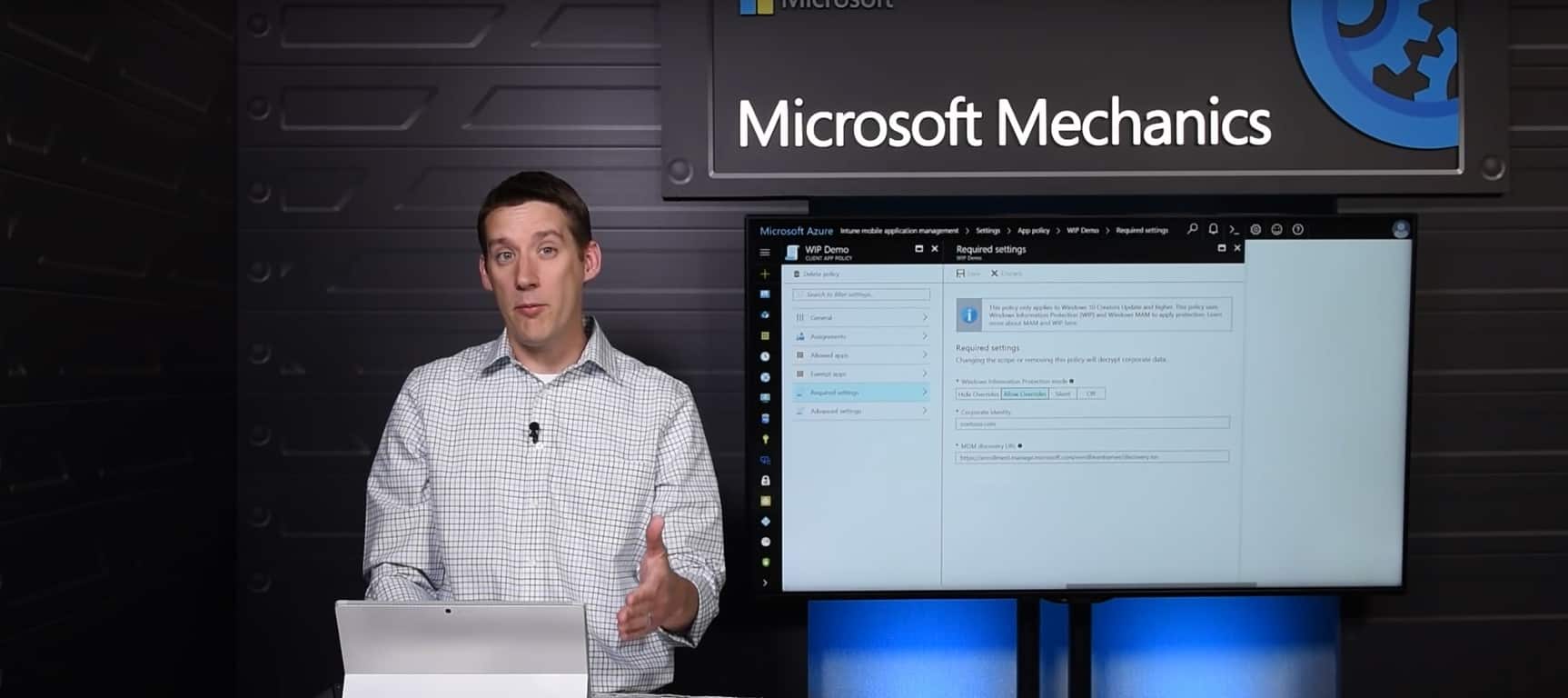
Windows Information Protection (WIP) support is expanding beyond Office mobile apps to Office on Windows desktops. WIP helps prevent accidental data leaks while letting your employees maintain control over their personal data. They can simply designate content created in these apps as “work” or “personal,” so your IT department can protect or remove only business data. Learn more about Windows Information Protection.
The Office team also announced some additional security and compliance updates that include enabling threat management and protection of sensitive information. The new update can be found in Office’s Advance Threat Protection service which offers newly enhanced reporting through Safe Links policy configurations.

Microsoft Forms comes to more users

Previously available for education customers, Microsoft Forms is rolling out for commercial customers, providing a lightweight web tool for creating surveys, quizzes and polls. It helps anybody in your organization easily collect customer feedback, measure employee satisfaction, organize team events and more.

Stream is now generally available

Microsoft Stream is generally available—Microsoft Stream is an intelligent video service for commercial customers to easily and securely upload, share, manage and view videos in a single experience. Speech-to-text transcription, face detection, intelligent search and more make video consumption more efficient. IT can also tailor Microsoft Stream to fit their organization’s needs with management and security capabilities.

And the rest…

Even with adding all the above additions for users, the Office team managed to pack a few more lesser highlighted features to the June release of Office 365.

Office 365 users can now share their work habits with co-employees using the MyAnalytics insights addition. Managers and staff can optimize meet times, after hours email correspondence and based on the insights gather over time through shared MyAnalytics reports.

Lastly, the recently released Office Researcher tool got some much needed love. Researcher can now be used beyond Word on the desktop app for PCs. Researcher is now being supported on the Word app for Macs as well as OneNote for Windows 10. While not the full openness some would like to see, the recent baby steps in availability are promising.

As Microsoft continues to mold Office 365 into its own self sustaining platform, its users on all platforms that appear to be the big winners.

Google, LinkedIn or Yahoo connections will no longer sync with your Microsoft and Skype account

Microsoft is sending out emails to Skype users with a notification that Google, LinkedIn or Yahoo connections will no longer auto-populate in Skype. While the message sounds alarming, the change is not expected to impact existing connections, added manually or automatically, and users will still be able to search for and add new friends.

Here is the full email below:

We are reaching out because you have connected one or more of the following social accounts to your Skype account: Google, LinkedIn, Yahoo or your Mac address book.

Unfortunately, your Skype contact list will no longer auto‑populate with social account contacts after Ju‍ly 17, 20‍‍17. Rest assured this change will not impact your existing connections whether you added them manually or automatically, and you will still be able to search for and add new friends.

As noted by Microsoft on this FAQ, the reason for the change is part of a larger picture, and because the company is now “consolidating several consumer services to deliver innovative features in future product releases.” The Redmond giant explains that as a result, contact synchronization is no longer supported for third-party social media and external email networks connected to your Microsoft account. Other noteworthy tidbits about this change can be seen below.

Third-party social media and external email networks affected by this change include LinkedIn, Twitter, Yahoo, Google, Facebook, and Sina Weibo. You can add and maintain contacts that were created using a Microsoft account. These contacts may have been created through Outlook.com or Skype. If you connected third-party social media or external email network accounts to a Microsoft account through the People web app, contact synchronization will stop. Third-party social media or external email network contacts will not be visible in contact lists on Outlook.com or OneDrive. Contacts in your social media and email networks are not affected by this change. To maintain contacts in your social media or email networks, use the native apps for those services.

Microsoft adds that these changes will also affect the Windows 8.1 People app as well as the Windows 8 and 8.1 Calendar app, which used to be consistent with the “Hub” philosophy of Windows Phone 7 and 8. Let us know in the comments if you’re disappointed to see that Microsoft is no longer playing nice with other social media accounts.

Microsoft begins rollout of new classroom experience in Teams for Office 365 Education customers

It’s now been three months since Microsoft made its Teams collaboration service available to all Office 365 Education customers, but the company had much more in the pipeline for students and teachers. Last month, the Redmond giant unveiled new classroom experiences in Teams during its education-themed event in New York, and these latest innovations are now rolling out to all Office 365 Education customers across 181 markets and in 25 different languages.

“The latest experiences in Microsoft Teams, the digital hub for teachers and students in Office 365 for Education, are designed to help schools achieve more together: by fostering deeply engaged classrooms, strengthening professional learning communities, and tailoring more effective school communication,” explained the company today. Here are the main new features that will be soon be available to all Office 365 Education users:

• School Data Sync automatically populates classes with student rosters connected to the school’s information system.
• OneNote Class Notebooks are built into every class, allowing teachers to organize interactive lessons and deliver personalized learning right from Teams.
• Apps integrate into the classroom experience, so teachers can quickly access the Office 365apps they already use – like Word, Excel, PowerPoint, and Planner – and customize their classroom with education apps.
• End-to-end assignment management in Teams enables teachers to move quickly and effortlessly from creation and distribution to grading and feedback.

As a reminder, Office 365 for Education is free for teachers who are currently working at an academic institution and students who are currently attending an academic institution. You just need a valid school email address to enroll your school, and you can learn more about the offering on the dedicated website.
Microsoft Teams adds Dropbox, Google Drive, Box Drive, ShareFile integrations for cloud storage

A couple of days ago, Microsoft Teams announced that they would be adding third party cloud storage ‘soon’. As of yesterday’s update, the team collaboration software now has four more alternatives to using the default SharePoint/OneDrive setup.

Dropbox, Box, Google Drive, and ShareFile integrations have all joined Microsoft Teams. Now workplaces that use one of these options are able to add the cloud storage folders easily to Teams where users with permissions can view, edit, and save in one convenient location.

While Google Drive and Dropbox are more commonly known, Box and ShareFile are a bit less so. Box itself just recently added its desktop support with Box Sync adding Teams integration just two weeks later. ShareFile is more focused towards business and client interactions, making it a perfect addition to the Team’s cloud storage options.

It’s possible we’ll see more options added as Microsoft develops Teams further. The software continues to get regular updates for features, improvements, and fixes thanks to community feedback through the Feedback Hub. Even if their release notes page is just a little behind.

Two men arrested for attempting to hack Microsoft

Two Britons have been arrested yesterday by the local authorities for attempting to hack into Microsoft’s network (via the BBC). The suspects are a 22-year-old from Sleaford and a 25-year-old from Bracknell, who are reportedly members of a bigger group that was looking to steal customer data from the Redmond giant.

“It is believed that the men were involved in repeated attempts to infiltrate the Microsoft network between January and March this year,” wrote the BBC. “Both were charged under the UK’s Computer Misuse Act that criminalises unauthorised access to computers.”

Tom Burt, Microsoft’s vice president and deputy general counsel of the Digital Crimes Unit told the BBC that the suspects did not succeed to access customer data. “We have comprehensive measures in place to prevent, detect, and respond to attacks,” he explained. “We also have specialist teams focused on working with law enforcement to identify people who attack either us or our customers, and we’re committed to fast and effective action against attackers.”

Xbox Play Anywhere game Gigantic graduating from Beta in July

Gigantic, the free-to-play third-person MOBA that is currently available on Xbox One, Windows 7, 8 and 10 will finally go out of beta next month. Developer Motiga announced yesterday that the game will be officially released on all aforementioned platforms on June 20, but the team is celebrating the upcoming milestone with another content update.

“We’ve added bot matches to help you hone your skills, voice chat to aid communication and coordination with your team, and a whole new teaching experience for new players just getting started in the game,” explained Motiga in the blog post. “We’ve also updated each of Gigantic’s battlefields, as well as a huge number of improvements to the in-game UI and Heroes.”

Gigantic is an Xbox Play Anywhere title that supports cross-play multiplayer between Xbox One and Windows 10, but the game will also be released on Steam on July 20 for PC gamers using Windows 7 and 8. If you have yet to try it, you can download the free beta from the download link below.

Gigantic
Gigantic
Developer:
Motiga, Inc
Price:
Free

Titanfall 2 DLC and Xbox One X 4K details released

EA has announced their sixth load of downloadable content (DLC) for the Titanfall 2 video game and has provided confirmation on their plans for the title on Microsoft’s upcoming Xbox One X console.

The new DLC will be called The War Games and is planned to launch on the 27th of June. The update will contain two new maps, a new execution called Shadow Boxing, a third weapon slot for pilots, will add Titan Brawl to the main game mode options, and will introduce a new game mode named Free Agents. All of this content will be completely free to all Titanfall 2 owners and another DLC update is expected in July.

Xbox One X console support had already been stated by other Microsoft statements but EA has now confirmed that this means that Titanfall 2 will get an update that will add true 4K resolution and dynamic super scaling. This Xbox One X update will likely be completely free like all of the other Xbox One X game updates on other titles.

Do you still play Titanfall 2 on your Xbox One and are you excited for these updates? Let us know in the comments below.

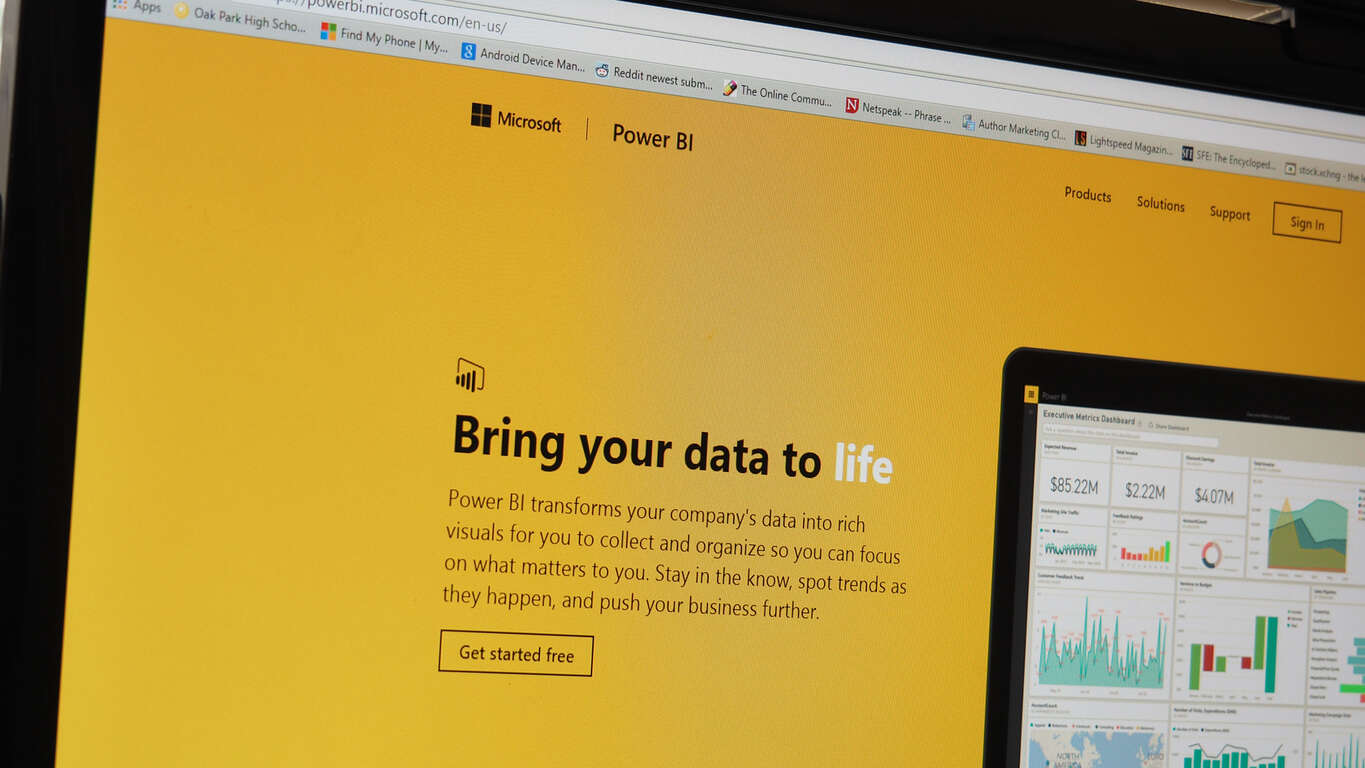
Take a Power BI Survey and you might come home with a $50 gift card

Looking to put some cash in your pocket? If you’re willing to put it to chance, you can get a $50 AMEX gift card by taking a survey for the Power BI team. It’s a quick survey for Power BI users who want to help the developers make a difference in the future of the platform.

The gift card will be sent out on a completely random basis – three people will be selected to receive it, out of the individuals who took the survey. If you’re chosen to win, you’ll be getting an email to the account provided. Be sure to keep an eye out in the time following the survey to see if it’s your lucky day.

How to manage personal, work and school accounts in Windows 10

head to the “Access work or school” pageWindows 10 includes simplified options for staying connected to your work or school account on your personal device. Unlike previous Windows versions, you can use files and resources provided by your organisation without having to switch user accounts. The operating system lets you link external accounts to your main sign-in address.

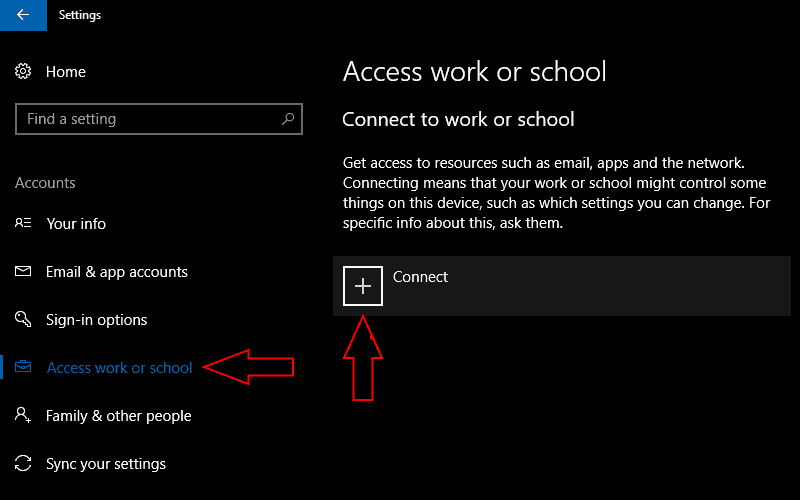
Screenshot of Windows 10 Creators Update "access work or school" settings page

To get started, head to the “Accounts” section of the Settings app. Microsoft changed the arrangement of the work access settings with the Windows 10 Creators Update so the next stage depends on your Windows version.

If you have the Creators Update installed, head to the “Access work or school” page and click the “Connect” button. On older editions of Windows 10, the option is called “Work access.” Click the “Add a work or school account” link to start the sign-in procedure.

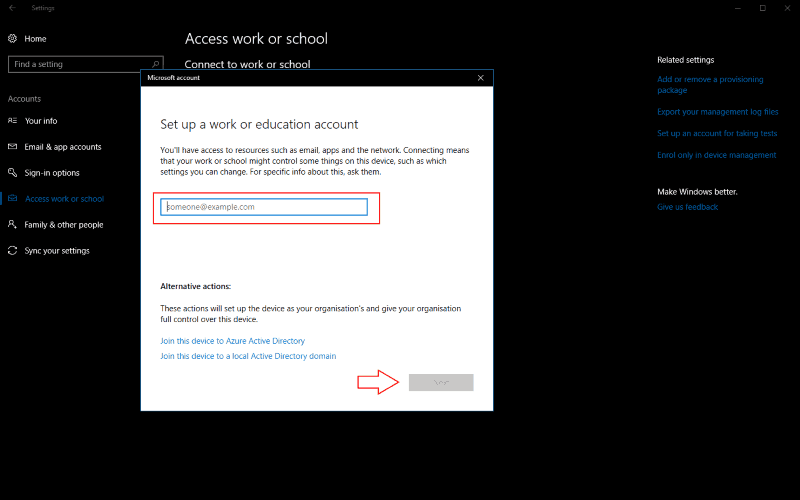
Screenshot of Windows 10 "set up a work account" prompt

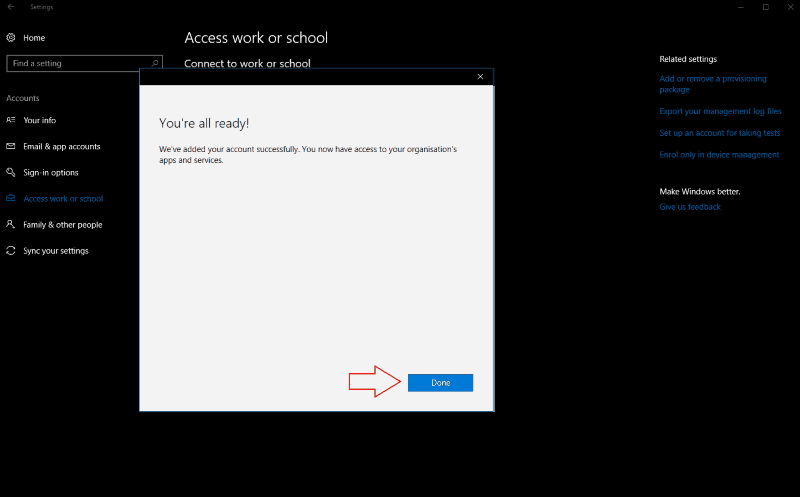
In the “Set up a work or education account” prompt that appears, enter your organisation email address to connect your account. Click the “Next” button and Windows will configure your new account and add it to the system. When the process completes, you’ll be able to access your work or school email, apps and networking utilities on your personal PC. The account will be accessible in the Mail app and corporate apps can be downloaded from the Windows Store.

In many instances, this will be all you need to access your work or school account in Windows 10. In some instances, you may need to go a step further. Organisations might require you to register your device with their Azure Active Directory server. This gives them more control over your device, including the ability to retrieve files and remotely lock it down.

Screenshot of Windows 10 add account confirmation screen

To connect to an Azure Active Directory, click the “Join this device to Azure Active Directory” link in the “Set up a work or education” account window. Enter your organisation-provided Office 365 email address and follow the prompts to add the account. If you’re on the same network as your organisation’s Active Directory, use the “Join this device to a local Active Directory domain” link and provide the domain name of the Azure server to connect to.

In either case, you’ll be prompted to review and accept your organisation’s new controls over your device. Once you confirm the Azure Active Directory policies, your device will be connected to your work or school. It’ll effectively be registered as one of their devices, giving them complete control over its operation. You’ll be able to access your email, company files and Windows Store for Business apps once the account is linked.

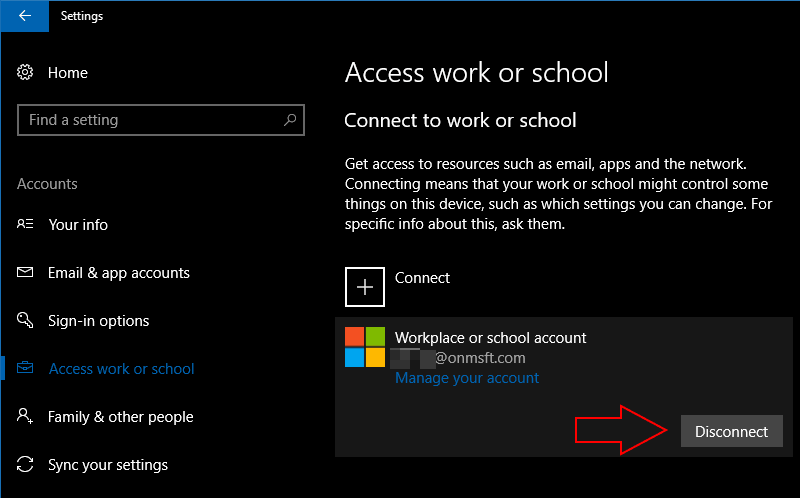
Screenshot of Windows 10 removing an account

Linking a work or school account to Windows 10 lets you use your company’s resources without being confined to the Office 365 web apps. If you aren’t sure of the settings to use, you can refer to Microsoft’s online documentation. When you’re connecting to an Azure Active Directory, your organisation’s IT administrator should be able to assist you to get your device configured with the correct policies.

If you need to remove a work or school account, return to the “Accounts” section of the Settings app and navigate back to the “Access work or school” page. Click the account you want to unlink and press the “Disconnect” button. Follow the prompts to complete the account removal process.

Turns out Windows 10 S blocks side-loaded UWP apps, regedit, powershell, and cmd, too

Windows 10 S, the new version of Windows 10 streamlined for security and performance is only shipping with Microsoft’s Surface Laptop for now, and it’s still a bit too early to know how the market will react to it. One thing is already clear though: Microsoft could have done a better job at explaining its most important features and limitations.

As you may know, the key point of differentiation between Windows 10 S and Windows 10 Home or Pro is that new OS can only run apps coming from the Windows Store. As all apps have to be signed by Microsoft, which means that it’s not possible to side-load UWP apps on a Windows 10 S PC, making internal corporate apps unusable on Windows 10 S.

That actually might not be so bad, as in addition to UWP apps an increasing number of desktop converted apps are being released on the Windows Store. The latest additions including Office 2016, WhatsApp and Spotify, and iTunes will also be available later this year. However, you won’t find some specific apps on this app store, such as popular web browsers like Google Chrome and Firefox.

While this may be all right for the average Joe (Windows 10 S seems to be mostly targeted at students and Chromebook users), other Windows 10 S limitations may be harder to digest for more demanding users. Looking closer at all the little details that Microsoft failed to communicate more appropriately, ZDNet reporter Ed Bott highlighted today some important restrictions such as the unavailability of regedit, powershell, the Windows Command processor and more on Windows 10 S:

The Windows 10 S Driver Requirements page notes that a number of Windows components are “blocked from executing on Windows 10 S.” The long list includes the following tools that many IT pros and developers would consider essential: bash.exe, cdb.exe, cmd.exe, cscript.exe, csi.exe, dnx.exe, kd.exe, lxssmanager.dll, msbuild.exe, ntsd.exe, powershell.exe, powershell_ise.exe, rcsi.exe, reg.exe, regedt32.exe, windbg.exe, wmic.exe, wscript.exe. A colleague confirmed that even the Windows Command Processor, cmd.exe, can’t run interactively in Windows 10 S.

In addition, Bott noted that some specific types of apps won’t be allowed on the Windows Store, including “third-party antivirus software, backup programs, and disk utilities that use file-system filter drivers.” Last but not least, Bott explained that unlike Windows 10 Pro machines, Windows 10 S PCs can’t join a Windows domain or be managed by Microsoft’s Active Directory, though Azure AD is supported.

“Anyone looking for a general purpose laptop will, quite rightly, be scared off by those restrictions,” shares Bott. “But they’re key to the unique value proposition of Windows 10 S, which offers a Windows configuration that clueless users can’t screw up, even if they try,” he added. That’s a really important point, and just like there is a market for Chromebooks, there is probably a market for Windows 10 S PCs.

Overall, Windows 10 S seems to combine the best of Chrome OS (security and easy management) with the Windows 10 you already know and love, except support for all Win32 apps and other power user features. Because Microsoft shipped Windows 10 S first on its premium Surface Laptop, we’re inclined to judge it as an OS for demanding users, but we probably shouldn’t: Windows 10 S makes perfect sense on low-end machines (it will also be cheaper to license for manufacturers), or in managed environments like schools.

it’s safe to assume, however, that the majority of consumers who purchase Microsoft’s Surface Laptop will take advantage of the free upgrade to Windows 10 Pro, because yes, there is no point in spending more than $1,000 on a premium Microsoft laptop just to be limited with Windows Store apps.