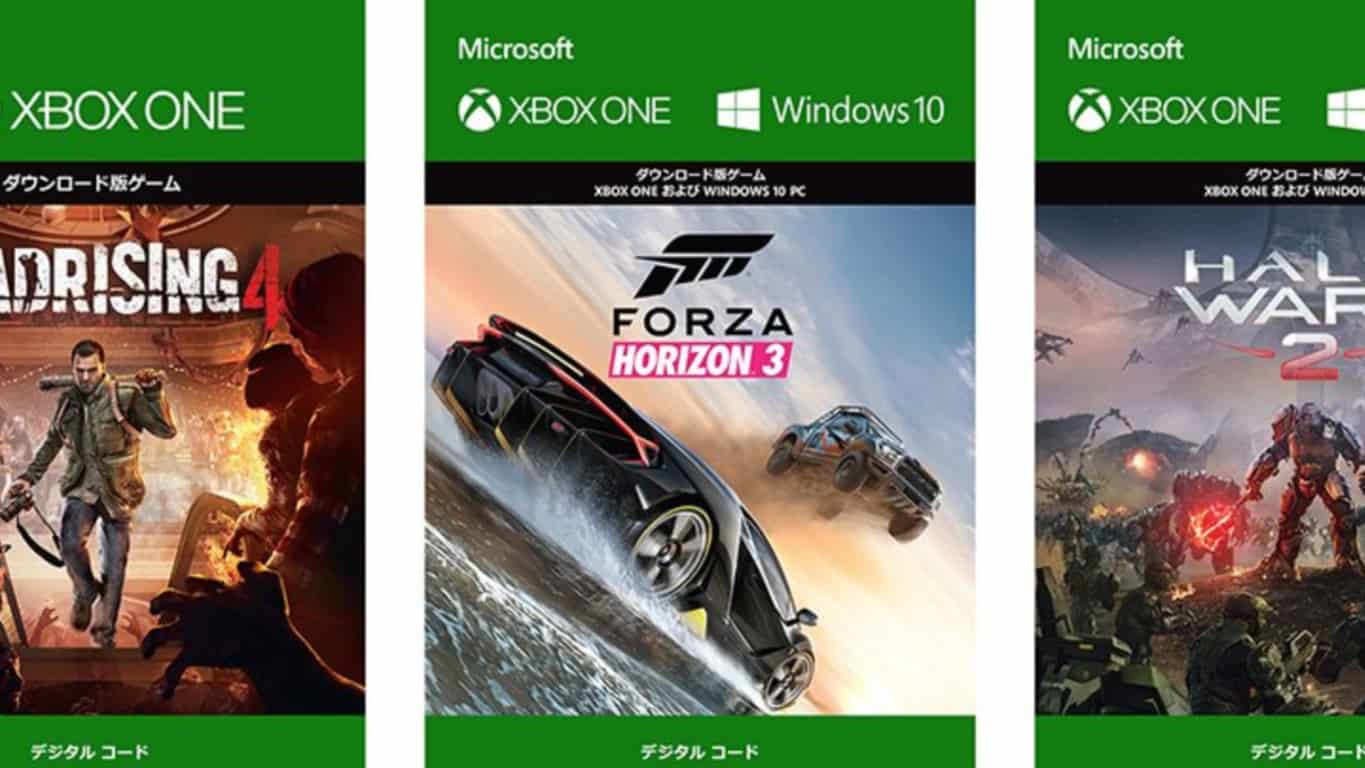
A couple of weeks ago, Microsoft announced that 343 Industries would bring a little surprise for Halo fans during E3 2017, and the company finally revealed what it was about yesterday: “Awakening the Nightmare,” a full DLC expansion for the RTS game Halo Wars 2 will be released later this Fall on Xbox One and Windows 10. The additional content will bring new campaign missions where the Flood, the parasitic alien life form which appeared in previous Halo games will make its comeback.
In addition, Awakening the Nightmare will introduce exclusive multiplayer leaders, new maps as well as a new multiplayer mode called Terminus Fireflight. “In this tower-defense style firefight mode, you can build various types of walls, mini bases, and turrets to protect your Terminus from every enemy unit imaginable including new mini bosses,” explained the Xbox team.
This Fall, Halo Wars 2 will also be one of the select Xbox One games that will receive free updates to take full advantage of the power of Xbox One X. Let us know in the comments if you’re excited about these upcoming updates for the RTS game.
During Microsoft’s Xbox E3 briefing, there were a lot of announcements – both the unveiling of the company’s next console, Xbox One X, but also of a chest full of new Xbox games, updates to existing games, and the announcement of Original Xbox Backward Compatibility.
What we didn’t get much of however, was talk of any new features coming to Xbox, Xbox Live or the Dashboard. When asked on Twitter, Mike Ybarra has confirmed that new features will be coming to Xbox, but that E3 had “too many games,” saying that they’re saving the new features for now, however, they will “talk about it soon”:
Saving those, will talk about soon but not at e3. We had too many games to show. https://t.co/KjQ7nmxHvA
It’s unclear what these new features could be. One hope would be for the Xbox 360 Backward Compatible games to finally be properly integrated into the Xbox Store. Other than that, we’ll have to wait and see.
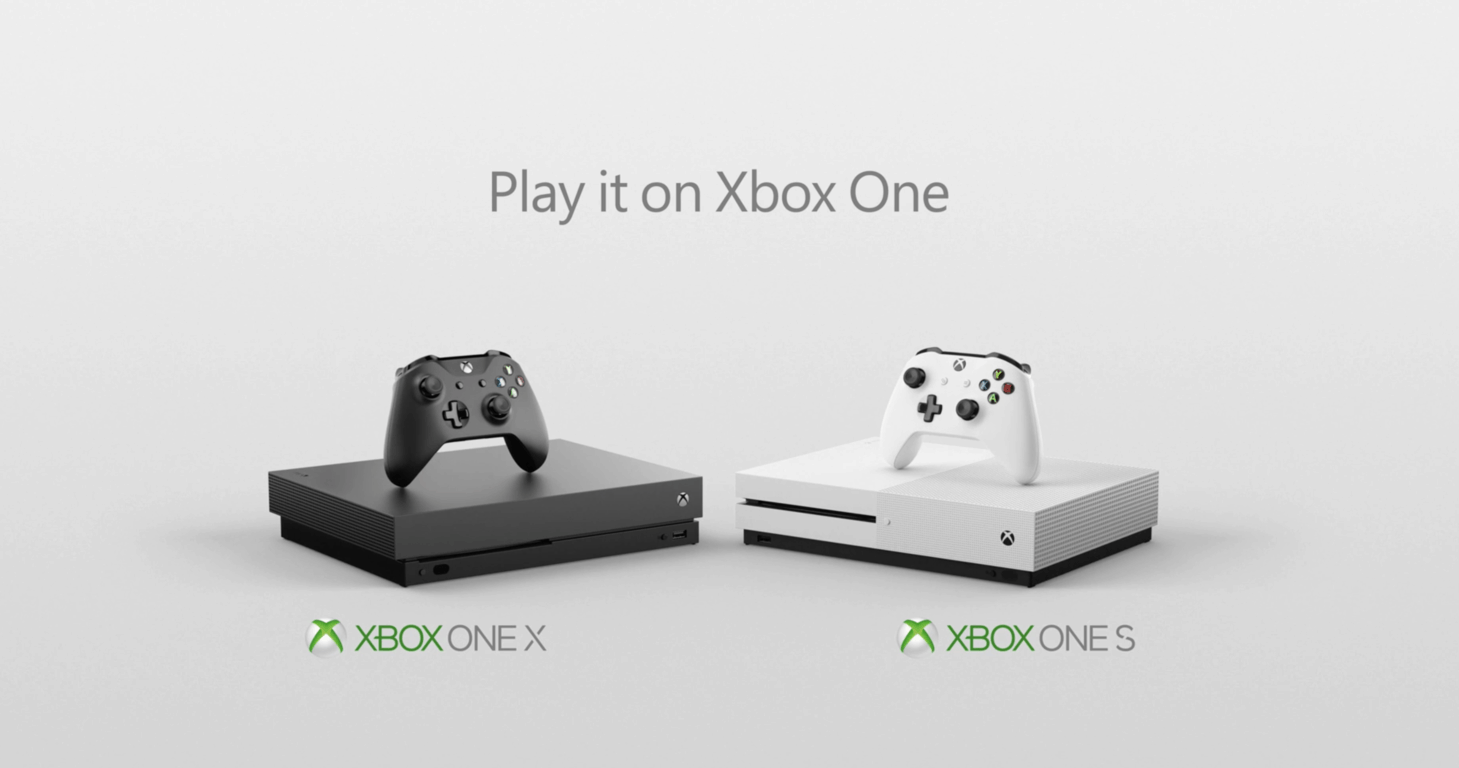
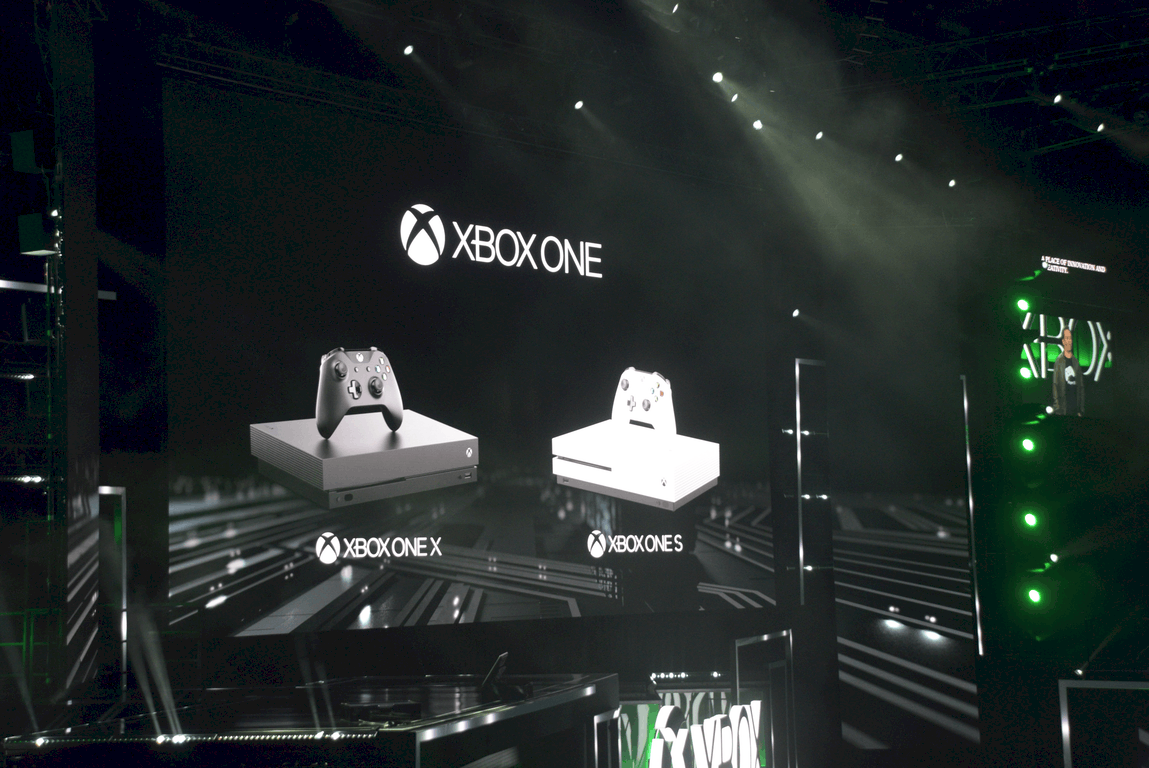
At the Xbox E3 briefing yesterday, Microsoft unveiled its next gaming console, the Xbox One X. During the event, the company stated that the console launches worldwide on November 7, this year.
For those in the United Kingdom, Xbox One X will come in at £449.99 or for those in Canada it will be $599. The price difference is largely based on tax, with it varying between the different economical zones.
If you’re wondering how much the Xbox One X will cost in countries other than the United Kingdom, United States and Canada, click here to view the price on the Xbox website. You’ll need to scroll towards the bottom of the page to see the pricing information.
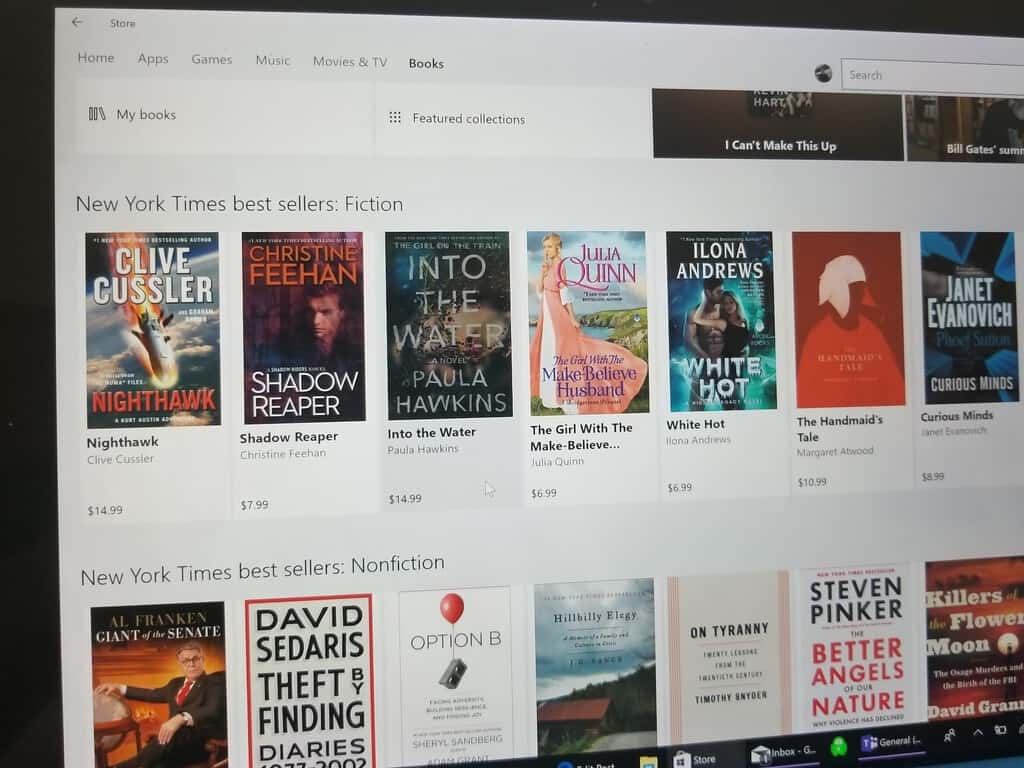
Microsoft has a number of helpful Windows 10 hints and highlights available on the Windows blog. Here’s another helpful tip on how you can now browse books in the Windows Store with the Windows 10 Creators Update. At this time, you can only use this tip on Windows 10 in the US, but Microsoft plans on bringing this feature to new regions soon.
The Windows Store has a new digital category available; Books. Whatever reading genre, or age group, the Windows Store has something for every reader out there. Once you purchase a book in the Windows Store, you can start reading it right away using Microsoft Edge when you are using a Windows 10 device, whether you’re online or off.
Edge allows you to personalize your reading experience by providing custom personalization of font sizes, layouts, and themes. For the hearing, vision, and reading accessibility options, there are numerous Learning Tools integrated in Edge. Read Aloud and text spacing are available for easier reading for those with dyslexia or for those learning to read English as a Second Language (ESL).
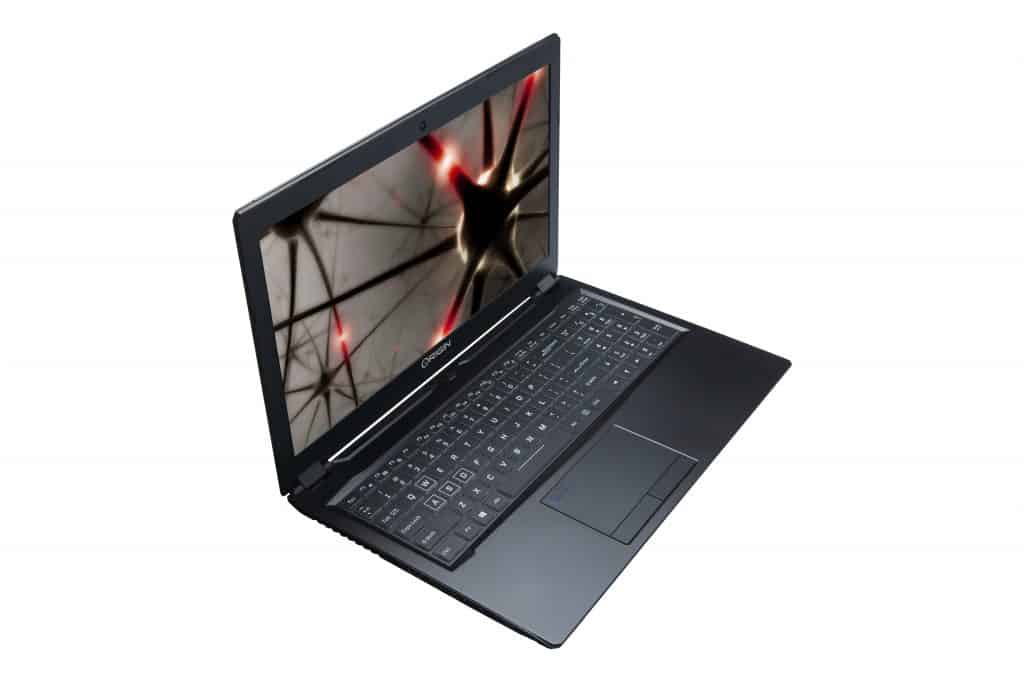
At E3 today, the custom personal computer manufacturing company, ORIGIN PC, gave the world a sneak peek at upcoming EVO15-S Windows 10 powered gaming laptop. The laptop weighs in at 4.3 pounds and supports up to NVIDIA’s latest GeForce GTX 1070 desktop-class graphics for high efficiency, battery life, and much more.
Overall, the new EVO15-S is powered by the 7th Generation Intel Core i7-7700HQ Processor, and up to 32GB (2 x 16GB) DDR4 2666MHz Memory. Coming with up to a NVIDIA GeForce GTX 1070 8GB GDDR5 VR-Ready GPU, it also can be configured with up to 1 x 2TB m.2 PCIe and 1 x 2.5” 4TB HDD/SSD. For extra piece of mind, the laptop even comes with free lifetime 24/7 Us-based tech support. Other notable specs can be seen below.
Optional 15.6” 4K-UHD (3840×2160) or a FHD (1920*1080) HD IPS display
Intel Dual Band Wireless-AC 8260/li>
Built-in HD Webcam
Sound BlasterX Pro-Gaming 360˚
2x USB Type C 3.1, 3x USB 3.0, 1x USB 2.0, and a 6-in-1 Push-Push Card reader
Backlit multi-color keyboard and optional custom paint
Pricing, availability will soon be posted to OriginPC.com, so if you’re interested, be sure to check out the website. Once you’ve checked it out, let us know your thoughts in the comments below.
A week ago, we learned that Microsoft had quietly filed a new trademark for a gaming-related S-shaped logo at the European Union Intellectual Property Office. The discovery of this new logo just a couple of days ahead of Microsoft’s E3 media briefing suggested that it could be related to what we used to call “Project Scorpio.” However, it turns out this was just the new logo for the Xbox One S.
As Reddit user jasonht pointed out earlier today, Microsoft is using this new logo to market the “old” Xbox One S, while a similar X-shaped logo has been created for the brand new Xbox One X. You can find the image with the two new logos at the end of two separate E3 2017 videos that Microsoft published on the Xbox YouTube channel yesterday.
We know that many Xbox fans really wanted Microsoft to keep the “Scorpio” name for its new console, but “Xbox One X” is slowly growing on us. It stays consistent with the Xbox One S branding, and it’s also much better than the “Xbox 10 S” name that was suggested by some Twitter users last week after analyzing some pre-E3 trailers.
There are lots of game makers, console announcements, and games, games, games, here at E3 2017, but Intel is here too, to stake their claim with dedicated PC gamers. Their press conference and PC Gaming Show is set to kick off in just a few minutes at the Theatre at Ace Hotel here in downtown Los Angeles, and you can watch the events unfold right here:
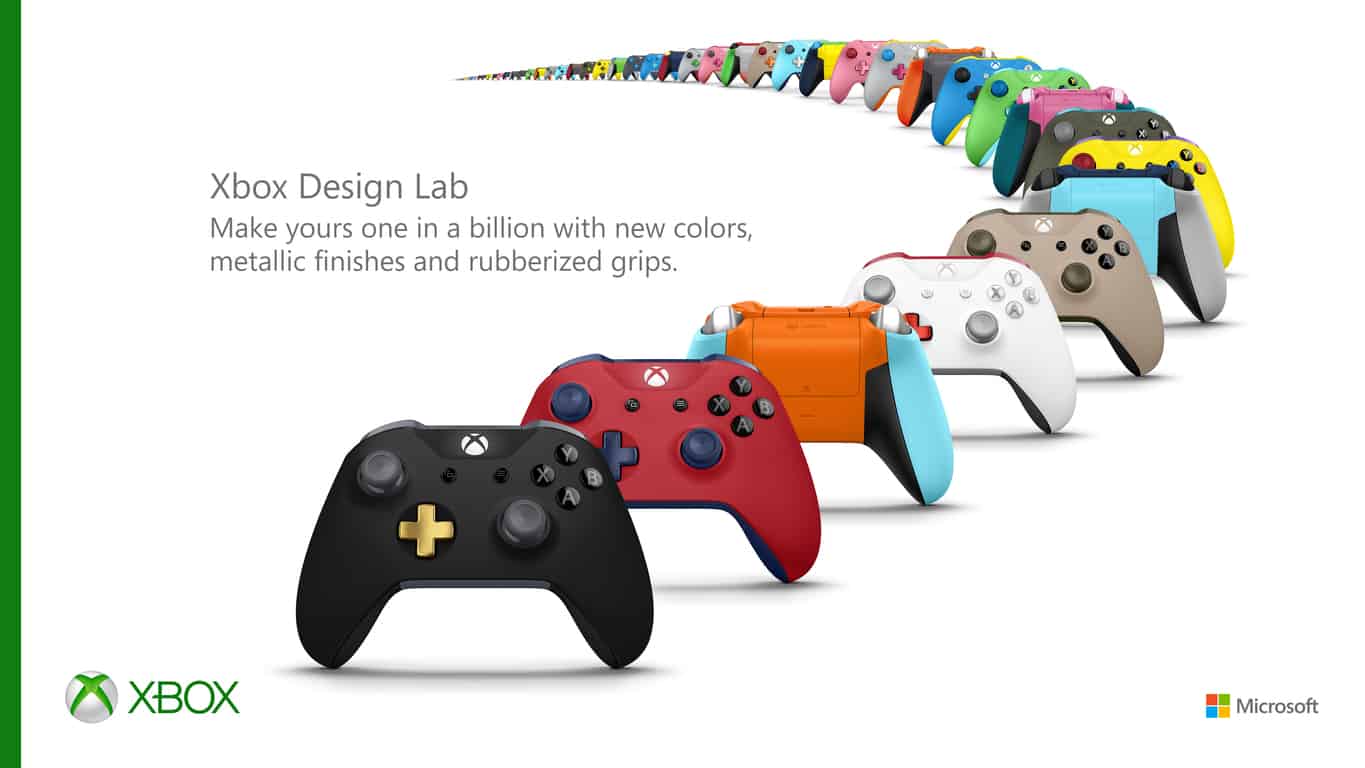
It has already been a year since Microsoft launched its Xbox Design Lab in North America, giving local Xbox fans the chance to purchase their own customized version of the new Xbox One controller. The experiment has been a success for the company, with Xbox Global Marketing Manager Bree White sharing today on Xbox Wire that fans have already created “hundreds of thousands of unique designs that express their creativity and style.”
To keep riding on this momentum, White just announced that Xbox Design Lab is now available in the UK, Germany and France starting today, with more European countries to be added later this summer. In addition to the pre-existing customization options for the controller body, back case, D-pad, bumpers, triggers, thumbsticks, ABXY buttons and View and Menu buttons, Microsoft is also adding the following new options today:
4 new color options including Ink Blue, Mineral Blue, Sierra Brown and Desert Tan
11 new thumbstick colors including Glacier Blue, Zest Orange, Retro Pink, Electric Green, Robot White, Lightning Yellow, Ash Gray, Ink Blue, Mineral Blue, Sierra Brown and Desert Tan
New metallic finishes for D-pads and triggers to add a premium look to your controller
Black rubberized grips for added comfort and control
Xbox Design Lab custom controllers can be yours for £69.99 if you live in the UK or €79.99 for consumers France and Germany, and you can create yours on the dedicated website. For a limited time, laser engraving your custom 16-character message is free for everyone through June 19 (it’s usually a $9.99 option). Sound off in the comments if you think the Xbox Design Lab is a great initiative for Xbox fans.
If you’re looking to purchase Xbox One games come November, things might be a little confusing for you since certain games will soon be carrying the “Xbox One X enhanced” name. Though it is known that all Xbox One X games will work on Xbox One (without the special enhanced 4K features), Microsoft has come up with a solution to distinguish these enhanced games from the standard titles (via The Verge).
As seen above, the solution is a series of new logos which will be visible on both retail Xbox games and in the Xbox Store. Specifically, there are three logos, which show Xbox One X Enhanced, support for High Dynamic Range (HDR) and support for 4K Ultra HD. Microsoft tells The Verge that the logos are for letting gamers know “when a developer has done special work to take advantage of Xbox One X’s 6 teraflops of performance and to distinguish it from existing Xbox One titles.”
As a reminder, Xbox One X Enhanced is expected to boost backward compatible titles such as Halo Wars 2, Gears of War 4 and more so the games can take full advantage of the power of the console. It also has been confirmed on the stage at E3 that even if games are not explicitly stated as being enhanced, they will still play better on Xbox One X.
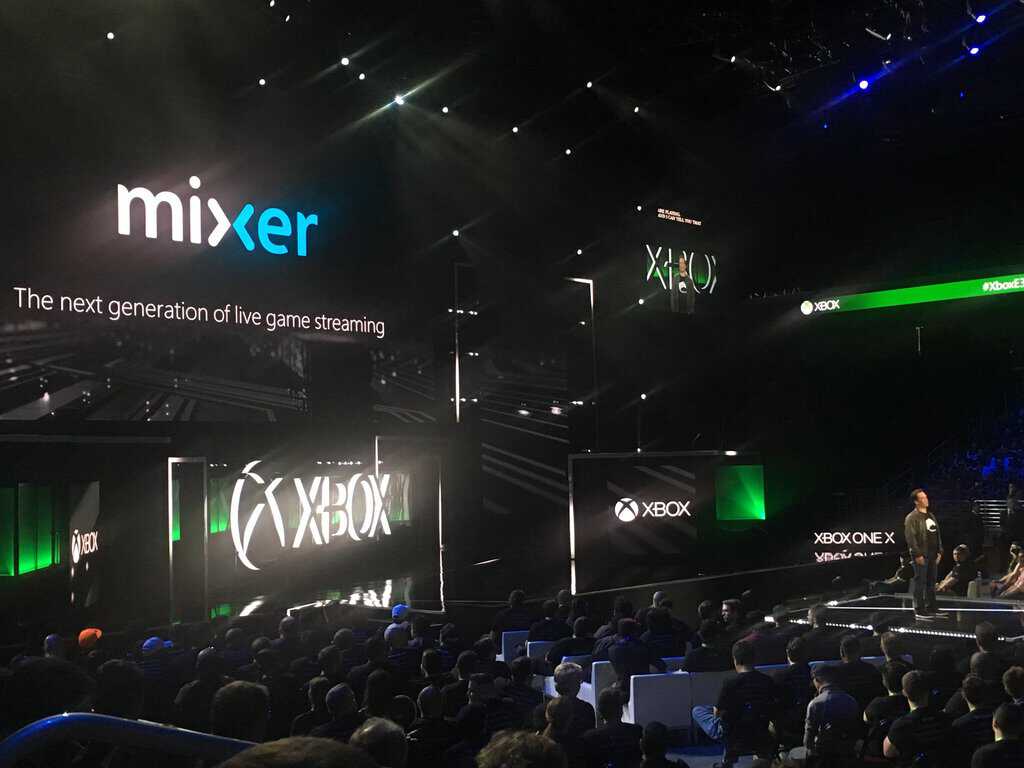
Mixer, the new live streaming video platform that Microsoft recently re-launched was supposed to be the best place to watch the company’s E3 press briefing yesterday: if Microsoft broadcasted the event on several video platforms such as YouTube and Twitch, those of you who watched it on Mixer could do it in super high resolution thanks to a special edition 4K broadcast.
Unfortunately for Microsoft, Mixer had some issues yesterday which many users complained about on Twitter. Some people experienced lags and delays, and many users were also unable to log in with their Mixer account:
Despite these issues, it seems that the experience was a success for Microsoft. Mixer co-founder Matt Salsamendi tweeted yesterday that Microsoft’s E3 briefing was viewed more than 1 million times on Mixer, which is impressive for a platform that is still not well known by consumers.
1 year ago, I met with @ccgibson at E3 to explore Beam + Xbox. Today, the briefing was viewed > 1 million times on the platform. Surreal. pic.twitter.com/PksGLF7rRd
If you didn’t watch Microsoft’s E3 event on Mixer yesterday, we remind you that the Mixer team has just extended its free digital content and games offer in light of yesterday’s technical difficulties: those of you who watch the upcoming Xbox Daily shows (the first one starts today at 3M PDT) can win a “MixPot” full of digital freebies including the Rare Replay Xbox One bundle, the Minecraft Redstone Specialists Skin Pack and more. That sounds like a pretty good incentive to try the service this week, if you ask us!
Yooka-Laylee is a 3D platform game developed by Team17 that has recently appeared on the Windows Store for Windows 10 devices.
Explore enormous and beautiful worlds
The game’s initial release was back in April for PC and consoles and while its launch on Microsoft’s own PC storefront was a bit delayed, this is not such a big surprise.
The game is an open-world platformer at its roots and is reminiscent of Rare’s Banjo-Kazooie franchise. In an attempt to capture the traditional feeling of the genre, the game inherited various features from the iconic series, like exploring beautiful worlds full of an unforgettable cast of characters and tons of shiny collectibles.
Interestingly, Yooka-Laylee’s official release on Windows 10 hasn’t been announced yet, but if you browse through the Windows Store you’ll be able to find it there. Its priced at $39.99 and is double the size when compared the Xbox One version at 11.33 GB. Its minimum system requirements are similar to the Steam version, meaning an requirement of an Intel i5-2500 3.3GHz, a NVIDIA GTS450 or and AMD Radeon 6858HD and 1GB of video memory.
Play Anywhere feature missing
Unfortunately, the game lacks support for Play Anywhere, Microsoft’s new initiative to enable cross-platform purchases, saves and multiplayer between the Xbox One and Windows 10. The company announced Play Anywhere support for Yooka-Laylee via Xbox Wire back in April but after that, Microsoft revised the post and told readers the announcement was a mistake.
Microsoft just unleashed a boat load of gaming news during its E3 2017 keynote, but among the litenany of information, the annoucement of the Xbox One X Enhanced program stood out for many.
While the Xbox One X is a powerhouse of a machine, it’s the in the software where Microsoft is making some huge strides and that includes expanding its backward compatibility offerings. Towards the end of the Xbox keynote, Xbox head Phil Spencer mentioned that not only were several Xbox One games such as Halo Wars 2, Minecraft, Killer Instinct, Horizon 3, and Gears of War 4 getting the beefed up 4K resolution treatment on the Xbox One, but that select games from the much older Xbox 360 would be joining in on the fun.
Xbox also revealed that “Gears of War 4,” “Forza Horizon 3,” “Minecraft,” “Resident Evil 7,” “Final Fantasy 15,” “Tom Clancy’s Ghost Recon Wildlands,” “Rocket League” and dozens of other popular Xbox One games will receive free updates to take full advantage of the power of Xbox One X.”
Perhaps, the best part of the Enhance program is that it is a free 4K upgrade to qualifying titles, so for those who have been holding onto some older games hoping for some repreave, the Xbox division should be delivering very soon.
Cuphead, after being stuck in development hell for years, has finally gotten a release date announced. The iconic looking 2D platformer will be launching on September 29th, just a few months away. For those who have been waiting what seems like forever for this truly unique title, this is a huge deal.
Cuphead will be available on September 29th for Xbox One, Windows 10 and Steam! https://t.co/GoWO3180w1
We didn’t get much more today in the way of gameplay, but that’s understandable considering we’ve gotten gameplay every E3 for the past couple of years. All we can do now is hope that, when the game finally comes out this September, it’s going to meet its massive expectations.
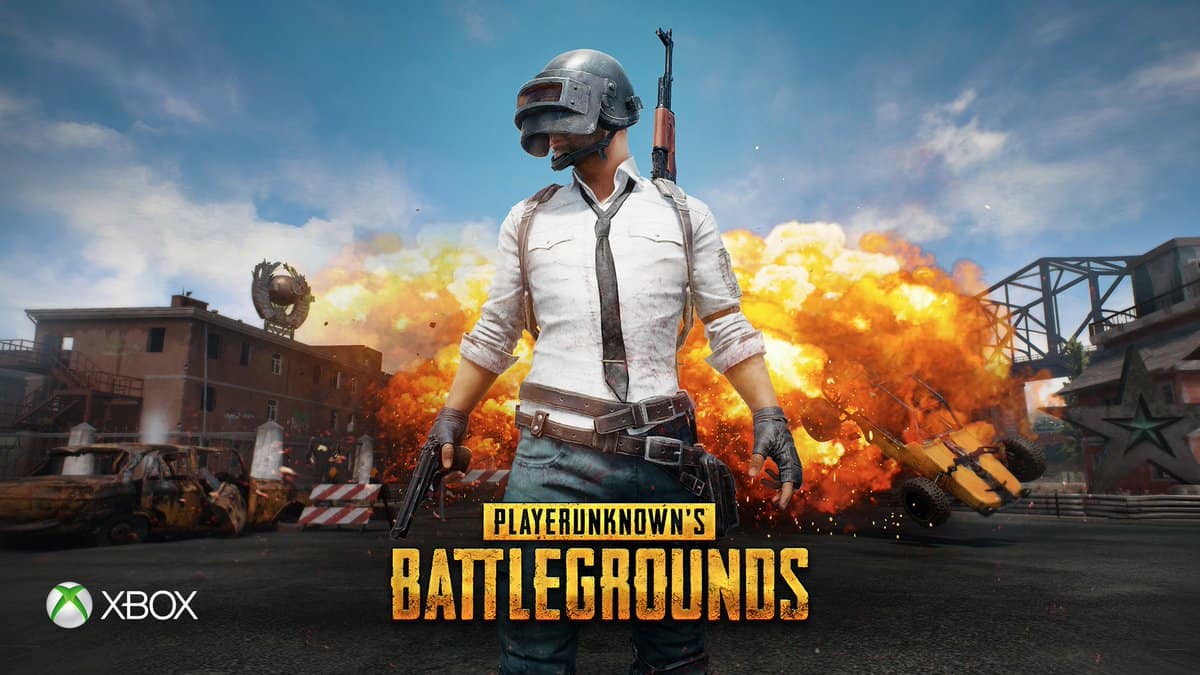
Player Unknown’s Battlegrounds has been the biggest title to come out in a very, very long time. It took the world by storm as the battle royale game built from the ground up by Player Unknown, the modder who pioneered the franchise as an add-on to the game DayZ. Microsoft announced today that Player Unknown’s Battlegrounds is console exclusive to the Xbox One console family.
The game will remain on PC, obviously, but it will be console exclusive to the Xbox family of devices. If your only access to games right now is coming from a PS4 or a Nintendo Switch, you’re going to be out of luck. While we don’t have a release date for when Player Unknown’s Battlegrounds will be launching on Xbox One, we know it’ll be here by the end of the year unless there’s some delay.
Welcome back to our Windows 10 news recap. We are continuing the trend of our weekly “Windows 10 news recap” series where we go over the top stories of the past week in the world of Microsoft’s flagship operating system.
New Windows 10 mixed reality apps show up in Windows Store
As mixed reality for Windows 10 gets closer to consumers being able to get their hands on it with OEMs headsets, such as those we’ve seen from HP and Acer, a couple new apps have appeared in the Windows Store that exist to assist users in the first-time setup process for the mixed reality headsets that will be coming to market.
Twitter user provides sneak peek at revamped Windows 10 on-screen keyboard
After an unintentional release of some Windows 10 Insider builds the other week, we discovered that Microsoft is working on bringing a new on-screen keyboard to Windows 10 PCs, inspired by Windows 10 Mobile. Now, we’ve got a peek at what it looks like so far.
A sneak peek at Expressive Input, hopefully coming in the Fall Creators Update pic.twitter.com/SiPg8sidP5
A new open-world platformer has made its way to the Windows Store on Windows 10. While it supports Xbox Live, it unfortunately is not an Xbox Play Anywhere title, thus those who bought it on Xbox One already will need to buy it again if they wish to play it on a Windows 10 PC.
Windows 10 Facebook users finally get Reactions on comments with latest Beta update
Microsoft (MSFT) news recap is a weekly feature highlighting the top Microsoft news stories of the past week. Sit back, grab some coffee, and enjoy the read!
Microsoft will shut down its Docs.com file hosting service on December 15
Docs.com, a public file hosting service that allowed people to search for publicly shared files, is being shut down by Microsoft later this year, on December 15th. Microsoft is asking users to move files to OneDrive to retain them.
Microsoft foils 1.5 million attacks on their cloud systems per day
With Microsoft being one of the largest cloud company’s in the world, there are lots of potential attacks across its range of services, including Azure, OneDrive, Office 365 and others. Investing around $1 billion per year in security, the company has foils more than 1.5 million attacks per day on its cloud services.
Microsoft owes $28.2 Million to Israel in taxes, ruling connected to 2006 acquisition of Gteko
It’s no secret that companies attempt to avoid tax – usually, the bigger the company, the more they’ll try to avoid paying. The tech industry itself is very well-known for making use of tax avoidance schemes. Now, Microsoft has potentially found itself in hot water, as it owes $28.2 milion in taxes to Israel over a company it acquired, Gteko, following a court ruling.
Microsoft MS Rewards will launch in France on June 12, French Windows Insiders can test it now
After launching in the United Kingdom recently, Microsoft’s Rewards program is finally coming to France on June 12th. Windows Insiders will be able to test it now. For other EU countries, it will be on the way at some point this year.
That’s it for this week – we’ll be back next week with more Microsoft news!
Microsoft and EA are giving Xbox One players a chance to trial EA Access free for 1 week only, ahead of Microsoft’s E3 conference.
With EA Access, you can download a multitude of EA games, such as Titanfall, Battlefield, and FIFA, as well as many more. It’s a subscription-based service, where a monthly fee is paid in order to download and access the games (similar to Netflix, and more recently, Microsoft’s Xbox Game Pass service).
The Windows 10 Fall Creators Update brings an interesting feature that automatically detects media files. After a storage scan, the OS detects relevant media folders you might want to include in your collection, and suggests them to you when you add new media files.
In other words, Windows 10 makes suggestions regarding the folders where you should add your media files. In this manner, you can better organize your media content.
Photos, Groove Music and Movies & TV all have one thing in common: exploring your local content based on the folders you provide. We’ve heard your feedback that sometimes local media is missing as a result of folders not being included, so with this build we’re adding new logic to address this. After a storage scan, we will now detect relevant media folders you might want to include in your collection when looking at the files via UWP apps, and suggest them to you when you go to add new folders.
Insiders can already try this feature out. If you’re curious to see how this feature works, add a new folder with pictures, songs, or videos to your desktop, go to Storage Settings and hit the refresh button. This will trigger a scan and the next time you add a folder to your favorite UWP app, you’ll see a window pop-up, suggesting you where you should add the new media files.
If you want to check out the upcoming Windows 10 Fall Creators Update features, you can enroll in the Windows Insider Program. The only downside is that these early OS versions often come with bugs — after all, that’s the whole purpose of the Insiders Program.
All Creators Update users will have access to these new features in September, when Microsoft rolls out the Fall Creators Update OS.
According to some Chinese leaks, Microsoft’s Windows phone’s successor may be called the Surface Mobile. Check out the leaked potential features of the upcoming mobile device below.
Surface Mobile features
The leaked details were initially found by a Twitter user named WalkingCat and it seems that this Microsoft source is very reliable judging by previous tips revealed.
After the Chinese leaks were translated, it was revealed that Surface Mobile would support the Surface Pen and that it would work with a Snapdragon processor. Also, it seems that it will also sport a kickstand that can open as far as 185 degrees, similar to the Surface PC and the Surface Pro.
A new Microsoft feature for a device that will be called Onto Table seems to point to a built-in projector capable of displaying a full desktop via Continuum. The Surface Mobile’s battery is rumored to be able to last for an hour when the mobile device is running in this particular mode.
More codenames are dropped
Surface Peking and Surface Slavonia codenames also appear in the leaks, but we don’t know for sure what they could mean. Both of them are used alongside the term “terminal” and we can assume that they could be related to some hardware similar to the Microsoft Display Dock the company uses for its Continuum functionality.
Another codename is Project Andromeda and is just as ambiguous as the previous ones. It might refer to a new range of Surface Mobile devices, but it could also mean something related to the new OS that should be an evolved Windows 10 Mobile.
Even if there is no official statement by the company regarding this, we’re pretty excited about what the future for Microsoft’s mobile market holds. .
If your company plans on switching from Google’s G Suite to Office 365, then it may need some guidance on getting started with Microsoft’s cloud productivity suite. Luckily, the company foresaw this and released a series of online guides targeted at beginners to make the transition easier.
Eight new guides for switching to Office 365 from Google G Suite
Microsoft community manager Michael Holste just posted the announcement on the company’s official page addressing all business owners who want to switch to Microsoft Office 365: “We have your go-to guides to help you get up and running in Office 365 with minimum disruption.”
The first of eight brand new guides for Word, PowerPoint, Excel, Outlook, and OneDrive are available on the same page and feature everything you need to know about the company’s alternatives offered for Google Docs, Gmail, and Google Drive.
The eight guides include the following:
Switching to OneDrive for Businesses from Google Drive
Switching to Word from Docs
Switching to Excel from Sheets
Switching to PowerPoint from Slides
Switching to Outlook Mail from Gmail
Switching to Outlook Calendar from G Suite Calendar
Switching to Outlook People from G Suite Contacts
Switching to Skype for Business from Hangouts Meet
You will find all the necessary information about installing these guides on Microsoft’s page where you can also check out the system requirements for everything to work correctly.
According to Microsoft, more online guides are on their way to users, but until they are launched, you can check out the company’s Tech Community website for more details, information, and to discuss topics with Office 365 specialists.
Macphun’s image editing apps Luminar and Aurora HDR aim to bridge the gap between professional and consumer image-editing tools and are coming to Windows in October.
Macphun, delivering amazing products for a decade
Macphun is the developer of comprehensive photo-editing apps from California. Established in 2008, it managed to create various innovative photography software including Focus, Snapheal, Intensify, Noiseless, FX Photo Studio, Aurora HDR, and Luminar.
The company’s apps have been rated very highly on the Apple App Store, and flagship product Luminar won the distinguished TIPA award for Best Imaging Software 2017 just five months after it was released.
After delivering great products for Mac users for almost a decade, the company is excited to bring Windows users products that combine simplicity and power: Luminar and Aurora HDR.
Luminar
This “supercharged photo software” as the company likes to call it makes complex editing enjoyable and comfortable. It features more than 1000 bonuses that allow users to unleash creativity, including overlays, presets and posing ideas.
The famous photographer, educator, and CEO of KelbyOne Scott Kelby commented on the software: “I’ve been shooting portraits since I could pick up a camera! Macphun’s Luminar Software helps me quickly take my portraits in cool, creative directions. I think you’ll dig it.”
The app is powered by the latest photo processing technology created by Macphun and brings users a fast native RAW processor supporting various cameras.
Aurora HDR
Aurora HDR was first released back in November 2016 and was co-developed with the world’s preeminent HDR photographer Trey Ratcliff.
The app makes the complex tasks invovled with HDR photography effortless. It features one-click presets and many advanced tone-mapping and layers, noise reduction, and masking controls for great luminosity.
Macphun will launch a public beta of Luminar in July and the final version for Windows in November. Aurora for both Mac and Windows will be released in October.
Welcome to our weekly Xbox news recap series, where we go over the top stories of the past week in the world of Xbox. Let’s get started.
Microsoft puts hidden message in their Scorpio ads
Queue the X-files music: Microsoft has been putting some hidden messages in their Scorpio advertising, presumably to tease some things about the console ahead of E3. While it’s no kind of full-blown alternate reality game, there are some cool details in there that are promising. A message reading 6>4, for instance, leads us to believe that Scorpio will have 6 teraflops vs the PS4 Pro’s 4. A message reading X10S101-317 has some users thinking that it’ll be releasing on October 13, 2017 (X10s (10.13.17)). In response, Microsoft’s Albert Penello just said that Xbox fans have “sharp eyes.”
VR won’t be at E3 this year
Virtual Reality will be just about absent this year, or will at the very least not be a focus. Microsoft’s Alex Kipman stated that the company is focused on creating mixed reality experiences for PC right now, as opposed to console. This year is going to belong to Scorpio, and Microsoft is doubling down on that by dedicating most of their presentation to their newest Xbox console. We’ll see if VR is mentioned at all, but don’t count on it.
“Our primary focus is making our mixed reality experiences a success on Windows 10 PCs. We believe that right now a Windows PC is the best platform for mixed reality as its open ecosystem and enormous installed base offer the best opportunity for developers, and Windows offers the most choices for consumers.”
“Windows has been the birthplace of a variety of technologies, and we believe this will hold for mixed reality too. Given the efforts we have underway on Windows for mixed reality, and our belief that console VR should be wireless, right now we are focused on developing mixed reality experiences for the PC, not on the console.”
Mixer users will get free games and DLC for watching E3
According to a tweet from Xbox, users who log in on Mixer and watch this year’s E3 conference will be getting free games and DLC. There was nothing specific as to what games are going to be on tap for this offer – nor was there any indication that this is a random giveaway and not just a guaranteed gift. If you want to find out, you’re probably just going to have to watch on Mixer. Considering Mixer is offering objectively the best quality of video, that shouldn’t break anyone’s heart.
Initially Scorpio was going to have 12 GB of RAM, with 4 set aside for the dashboard and other simple functions. According to a tweet by Phil Spencer, the team has unlocked an extra GB of RAM for developers to play with, bringing it up to 9 total. Games that don’t use the whole 9GB will have the extra space there for temporary storage, there to help with processing and make things like loading screens go much faster.
We’ll keep tuning Scorpio to empower creators to share the best versions of their games. Unlocked extra GB of RAM for them, now 9GB of GDDR5
A new vulnerability has been found that can allow malware to spread by just hovering over a link in a PowerPoint document (via Ars Technica).
This kind of attack is different, as it doesn’t require the use of macros or scripts as seen in previous attacks, instead merely hovering over what could seem like a legitimate link is enough to kickstart the infection process.
The attack works by using Windows PowerShell. Newer versions of PowerPoint will ask users whether they’d like to exit Protected View, whereas older versions are less protected.
One example where this trick can be used is by placing a malicious link in a PowerPoint that says “Loading…” – users are then likely to disable Protected View to see the full document, hover over the link and unknowingly infect their PC with malware.
While there is no fix so far, users are recommended to be weary of which PowerPoint documents they open and which links they hover over.
Microsoft recently launched a new Windows 10 Mobile build. As expected, build 15222 doesn’t bring any new features but only a series of bug fixes that address Whatsapp launch issues, some Cortana bugs, and some notification issues. It also includes all the improvements from KB4016871 and KB4020102.
If you installed Windows 10 Mobile build 15222, keep in mind that in some cases, the WeChat app may crash on launch.
Here are the complete patch notes for build 15222:
The copyright date is correctly showing 2017 now under Settings > System > About.
Fixed an issue where WhatsApp would not launch after updating to the latest Mobile builds.
Fixed an issue with using the Japanese 12 Key soft keyboard where the “right arrow” key did not input a space
Fixed an issue with the Bulgarian keyboard localization for the HP Lap Dock in Continuum.
We have further improved the reliability of notifications for apps with a paired Bluetooth device, such as Fitbit.
Improved the Time & Language settings page UX for Speech and Keyboard language downloads. Previously, the status would show “Downloading” for speech and “Installing” for keyboard. Unless, the user tapped on the language or navigated to the Update & Security settings page, there was no indication that a restart is required to complete the installation. Now when the update reaches the reboot pending state, a “Restart Required” is displayed under the language.
Fixed several enterprise device management issues.
Fixed an issue where notifications and Cortana’s cross-devices settings on your device were not being mirrored to your PC.
Windows 10 Mobile build 15222 also brings issues of its own, including Insiders reporrting that their phones constantly lag and restart after installing this build.
When waking from sleep, screen stays in background image for a minute or more before you’re able to enter a pin
When the alarm goes off, I can hear the alarm, the screen doesn’t load the notification banner that allows me to snooze. […]
Facebook, messenger and many apps take significant time to load in comparison to previous versions. […]
Sometimes when using the camera, the camera will close and then the phone will randomly restart several seconds later.
Have you encountered any issues after installing Windows 10 Mobile build 15222?
Microsoft recently released a new firmware update for Surface Pro 3 applicable to the Surface Pro Embedded Controller Firmware and the Surface Pro UEFI.
Available updates for all Surface Pro 3 devices
Take a look at what’s new in the latest firmware for the Surface Pro 3:
The Surface Pro Embedded Controller Firmware improves battery life during sleep.
The Surface Pro UEFI improves PXE performance on IPv6.
While there doesn’t seem to be any security-related updates involved, any boost for battery life is a great move especially for a device that already has its share of battery issues.
Updates like this are cumulative so when you install the latest one, you will also get all the previous updates your Surface device doesn’t have already. On its official page, Microsoft states that only updates that apply to Surface devices must be downloaded and installed.
Installing the updates manually
You also have the opportunity to install the updates manually. All you have to do is follow these steps:
Go to Start and select Settings > Update & Security > Windows Update
Select Check for updates and if new updates are available, they will be installed automatically
You may have to restart your Surface device after all the updates have finished installing
If you update the OS on your Surface device, this will remove your current update history. Firmware updates don’t offer the possibility of uninstalling them or reverting them to an earlier version.
If you are using a Surface Pro 3, you should be able to get these firmware updates now from the Windows Store. You will get all current software, firmware, and drivers for the Surface Pro 3 including the optional WinTab drivers. On the same page, you’ll also notice all the links to drivers for other Surface devices in the Details section.
On the Windows blog, Microsoft shows that there is an extra incentive to using Edge with Windows 10. In a new pilot feature, Cortana can provide you with some extra help in finding the best price when shopping online using Edge.
Microsoft Program Manager Dheeraj Mehta, works on Cortana in Microsoft Edge, and provides more detail on the pilot feature:
“With Cortana and Microsoft Edge, we hope to continue offering features that will help you save time and money when shopping online using the Microsoft Edge web browser. To that end, we recently released a pilot feature that helps find the best pricing for the product you are viewing. However, Cortana will only notify you if the relevant details are available at the time of your visit. We are just beginning to roll this out to everyone on Windows 10 Creators Update to get feedback. Currently the feature supports 14 retailers including Amazon, Walmart, and eBay, within the US. We will be increasing availability and the number of retailers we support in the months ahead, so stay tuned for more updates. When you visit the site of a supported retailer, Cortana will alert you that there are other options available at a lower price for the same product.”
This pilot feature is similar to the one that already appears when using Cortana in Edge. When using the Windows 10 Creators Update, the only difference is that there are more Cortana options available when you visit a supported retailer in Edge.
Microsoft will continue to make improvements to this pilot feature, but be sure provide Microsoft with feedback on this feature and other improvements you’d like to see in Cortana in Edge in the future.
After all the wait and all the hype, E3 2017 is finally upon us. With new games and more coming to Xbox One and Windows 10, not to mention all things Project Scorpio, Microsoft will surely put on one hell of a show! Although E3 2017 doesn’t officially kick off until Tuesday, June 13, 2017 we will be able to enjoy all-new game trailers all weekend long!
On Sunday, June 11, Microsoft stops with all the teasers (hopefully) and shows all the games and more that is coming with Project Scorpio. There are plenty of ways to view Microsoft’s Sunday event, including 4K options on YouTube and Mixer, on Twitch, Facebook, Twitter, Fuse, and your Xbox. Microsoft’s event starts at 2PM PT, 5PM ET.
Here is a look at other notable events happening at E3 2017, this weekend:
Electronic Arts (EA) will also hold a special event on Saturday at 12PM PT / 3PM ET to show off new FIFA 18 gameplay on Xbox One and Windows 10. EA will likely kick things off with new trailers for Star Wars Battlefront 2, The Sims, and more. EA’s live stream will be available Twitch and YouTube.
Joining Microsoft on Sunday, Bethesda will be holding an event to reveal the new games. Based on rumors, The Verge believes that Bethesda will show off trailers for Starfield, a sci-fi open-world RPG, and another game in the works, along with new sequels to their most popular game franchises, including Elder Scrolls Online.
#BE3 is less than a week away! Join us Sunday night at 9PM PT to see what's new from Bethesda! pic.twitter.com/7uvHMmB04Q
The live stream of Bethesda’s event will be available on Twitch or YouTube, starting at 9PM PT / 12AM ET.
On Monday, June 12, there will be a huge PC Gaming Show that will feature a number of big-name and new game developers showcasing their new games for Windows PCs. Polygon has an updated list of the developers and games that will be on hand at the PC Gaming Show.
Polygon says Microsoft representatives will be available at the PC Gaming Show to show “how Xbox plays into [Windows 10] PC.” Microsoft will likely talk about the further expansion of the games available on Xbox Play Anywhere.
Of course there will be lots more, including news on Scorpio, lots of games, and maybe even a few surprises! Stay tuned and OnMSFT will keep you updated on all the latest from E3.
On June 19, 2017, Jared Kushner, Senior Advisor to the President of the United States and the President’s son-in-law, is leading a American Technology Council (ATC) summit meeting in the hopes to talk about modernizing the US government. According to an article by Bloomberg, the White House is inviting Microsoft CEO Satya Nadella, along with ten other company heads to talk about different technology matters, including technology sales to US government agencies.
So far the list of companies that will be joining Microsoft include Apple, Amazon, Oracle, IBM, and Alphabet, Inc. Facebook is one of the companies that was invited, but has not yet responded to the White House invitation.
The ATC was created by an executive order enacted by President Trump on May 1, 2017. The council’s goal is to “transform and modernize” the US government IT and digital services. information technology and digital services. Former Microsoft CEO Chris Liddell is the Director of the ATC. The last ATC summit meeting took place shortly before Trump’s inauguration in December 2016.
Little progress has been made since then, with technology executives and their companies taking a stand against the Trump administration’s policies, including the “travel ban” on people traveling from nations with large Muslim populations.
Additionally, several companies, including Microsoft, have disagreed with Trump’s recent decision to pull the US out of the Paris Climate Agreement. It will interesting to see what will Kushner’s role be in the next ATC meeting on June 19.
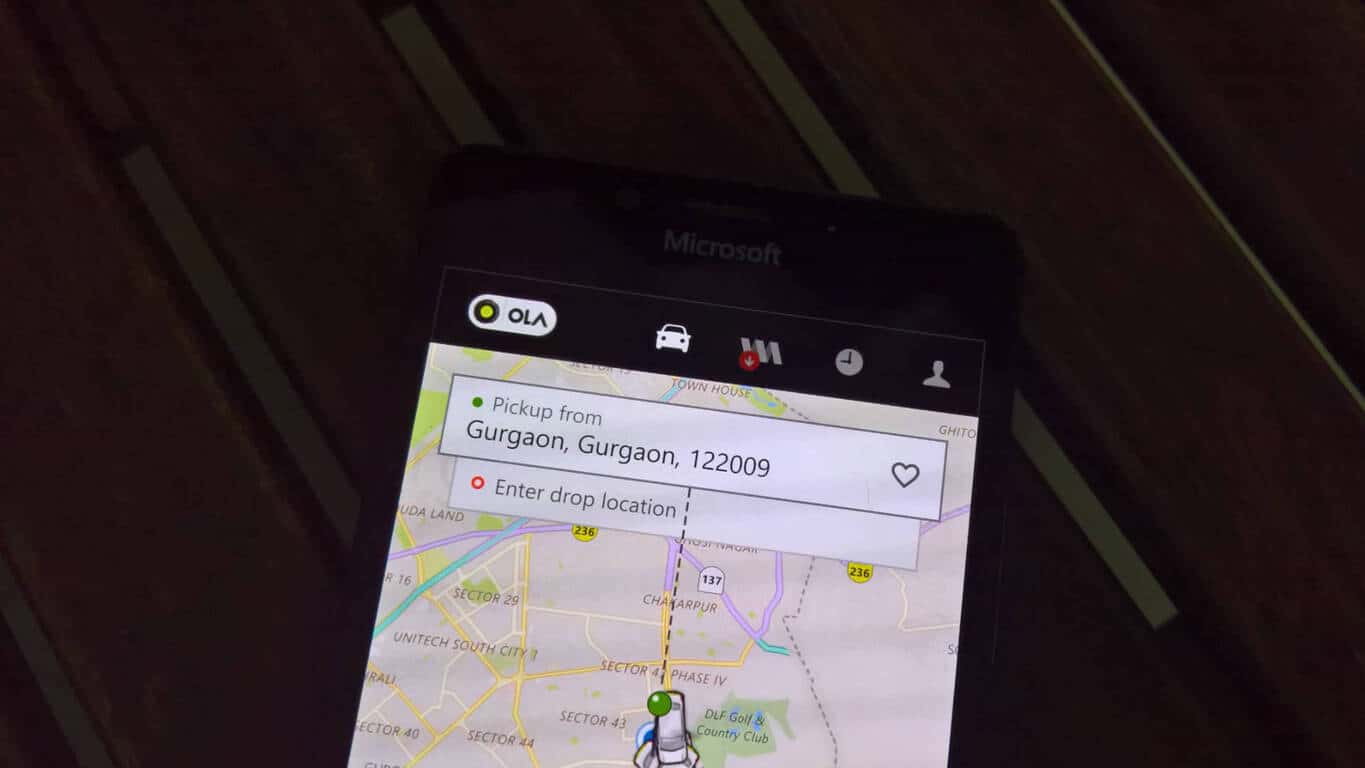
Established in 2010, Ola Cabs is one of the leading cab aggregator services in India. Similar to Uber, Ola is in fact the company’s biggest rival in the market.
While Ola Cabs has had an app for Windows phone since long, responding to our reader @rianext06 on Twitter, the company has shared that it has stopped any further development for Windows platform.
The app is still available on the Windows Store and will continue to work with existing features. However, no new updates or feature additions will be available for Windows devices. For example, Ola Share Pass, a recent offering of Ola Cabs, is not available on the Windows app.
For a lot of users, especially in cities where Uber is not available, this would be a disappointing news. Incidentally, the Uber app in India too is limited and hardly gets any new features. The user experience too is dated and not updated to match the recent refresh on Android and iOS.
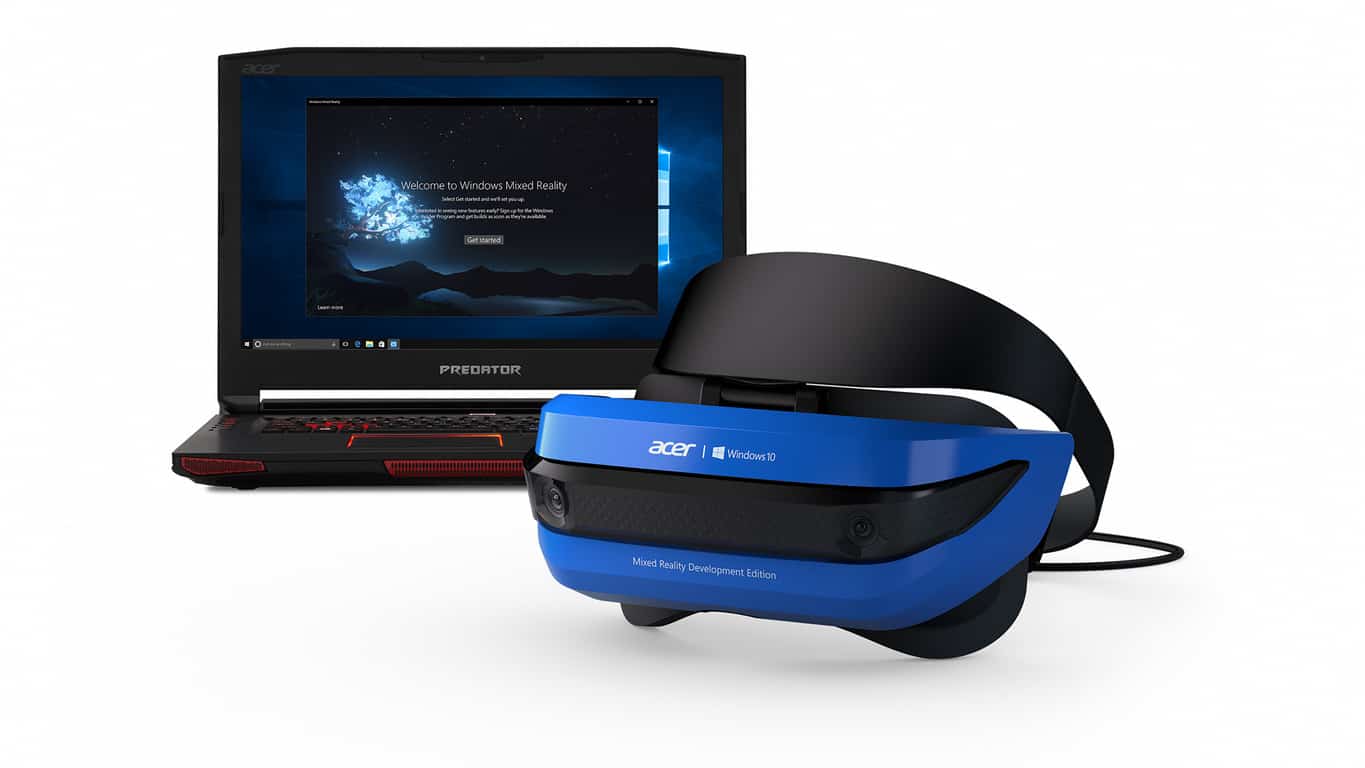
HP and Acer have both launched their own official apps for their Windows 10 augmented/virtual/mixed reality headsets. Both apps are very simple and are designed to help first-time users set up their devices and also showcase the hardware’s capabilities.
HP’s Device Companion Application is described as, “the application that comes at first run holographic device. When the user plug in the VR HMD (Head Mounted Display), it will run automatically and users are immediately delighted by holographic experiences and can seamlessly set up VR device,” while Acer’s Acer Windows Mixed Reality HMD DCA app is described only as a “Companion app for the Acer Windows Mixed Reality Head-Mounted Display.”
System Restore is a handy Windows tool to revert the platform earlier. However, the tool may sometimes bug, and you can receive an error along the lines of, System Restore failed to extract the original copy of the directory from the restore point.
Luckily, there are a few potential fixes for that error. This article reviews the best solutions and common triggers for the problem.
Why am I getting System Restore failed to extract the original copy of the directory from the restore point error?
The error message usually indicates a problem with the System Restore feature in your Windows operating system. The error may happen due to a variety of reasons, including:
Corruption in the system files or the restore point – If the restore point you are trying to use is corrupted or damaged, the System Restore feature may be unable to extract original directory copies from the restore point.
Lack of disk space – If your computer does not have enough free disk space to store the restored files, the System Restore feature may fail to extract the original copy of the directory from the restore point.
Antivirus software – Some antivirus tools can interfere with the System Restore process, causing it to fail.
Third-party software – Certain third-party software programs can also cause issues with the System Restore feature.
How can I fix System Restore failed to extract the original copy error?
1. Run System restore in Safe Mode
Restart the computer while pressing the Shift key.
Select Troubleshoot, then Advanced options.
Click Startup Setting.
Now click on Restart.
Finally, press F4 to select Safe Mode from the Advanced Boot Options menu. Now you can use the System Restore tool in Safe Mode.
You should boot your computer into Safe Mode and try running System Restore. This is important because third-party software or drivers can sometimes interfere with the restore process, and Safe Mode can help bypass these issues.
2. Run a virus scan
Type Windows Security in the Search bar, and click on the relevant search result.
Now, click on Virus & threat protection.
Click on Scan options.
Select Full scan and click the Scan now button at the bottom. Once the scan is done, you can try System Restore.
3. Disable antivirus software
Click on the hidden access arrow in the Taskbar.
Click on your antivirus icon, hover over Avast shields Control and select Disable for 10 minutes (This step varies for different antivirus software).
After this, confirm you no longer get System Restore failed to extract the original copy. Sometimes, antivirus software can block the restore process.
4. Run SFC and CHKDSK utilities
4.1 Running SFC
Press Windows + X and select Command Prompt (Admin).
Type the script below and hit Enter. SFC /scannow
Wait while the script runs, and at completion, test System Restore.
4.2 Running CHKDSK
Press Windows + X and select Command Prompt (Admin).
Type the script below and hit Enter (replace C with the drive letter where you want to run the scan). chkdsk C: /f /r"
Wait while the script runs, and at completion, confirm you no longer get System Restore failed to extract the original copy.
5. Perform a clean boot
Press Windows + R, type msconfig, and hit the Enter key.
Click on the Services tab, check the Hide all Microsoft services option, then click the Disable all button.
Next, click on the Startup tab and the Open Task Manager link.
Disable all the startup items by right-clicking each and clicking the Disable button.
Close your Task Manager and return to the System Configuration window.
Click OK, restart your computer, and rerun the System Restore.
6. Enable System Protection
Press and hold the Windows + R key.
In the run dialog box, write: rstrui and hit Enter.
Click the Configure button.
Click the Turn on system protection radio button if it’s not selected and press theApply then OK.
Rerun the utility and see if System Restore failed to extract the original copy is resolved.
The Turn on System Protection option is usually selected by default, but something could have happened to turn it off.
In the run dialog box, write: rstrui and hit Enter.
Click on the System Restore button.
Choose a restore point and hit Next.
Lastly, select Finish.
Selecting an alternative restore point might do the trick, but elect a restore point that goes further back than the original one chosen. Of course, the further back the restore point, the better, but remember that System Restore also removes software.
Those are some fixes for System Restore failed to extract the original copy. As a last resort, you could reinstall Windows, as covered in this Windows Report article. However, there are usually better ways to fix System Restore.
We’re looking at some serious quality of life changes with the new Insider build, 16215. Microsoft added in a ton of new features and tweaks for both the Windows 10 Shell and the settings menu, offering Windows 10 users some meaningful changes as they interact with their desktop.
Here’s the log of changes, for both Shell and Settings.
Shell Improvements:
Enhancing your Share experience: We want sharing to be easy and natural. With the last build we added people-first sharing, and with this build we’re bringing another new Share feature to your desktop:
Copy Link: Don’t see the app you’re looking for in the Share UI? If you’re sharing a link – like a website in Microsoft Edge, or an app from Store – we’ve added a new option in the Share UI to copy that link to your clipboard, so you easily can paste it into your app of choice.
New local media folder detection for UWPs: Photos, Groove Music and Movies & TV all have one thing in common: exploring your local content based on the folders you provide. We’ve heard your feedback that sometimes local media is missing as a result of folders not being included, so with this build we’re adding new logic to address this. After a storage scan, we will now detect relevant media folders you might want to include in your collection when looking at the files via UWP apps, and suggest them to you when you go to add new folders. Want to try it out now? Add a new folder with 30+ pictures, songs, or videos to your desktop. Go to Storage Settings and press the refresh button to trigger a scan. The next time you go to add a folder to your favorite UWP (such as Groove Music), you’ll see this new experience:
Note: If no new media is detected, you will see the file picker dialog.
My People Improvements:
We fixed an issue where the icons of contacts pinned to the taskbar would appear cut off when using small taskbar icons.
We’ve updated our logic so that if you have the My People flyout open, you can now drop a file onto any of the contacts pinned in the overflow area to initiate a share with them.
We’re updated the sound made when you receive an emoji from one of the contacts pinned to the People bar in the taskbar.
We improved My People reliability and fixed an issue where hit testing would become offset after adding or removing items from the systray.
Night light improvements including:
We fixed an issue where mirroring a display and then disconnecting from it would break night light on that screen.
We fixed an issue where when night light had been manually enabled, and the device entered then exited S3 sleep, night could then become disabled.
As a result of your feedback, we’ve updated our logic to now use a quick transition into night flight if applicable after rebooting or manually enabling night light.
Folder Suggestions
Settings Improvements:
New Video Playback Settings: Head to Settings > Personalization > Video Playback and you’ll now find some additional controls for media enthusiasts. If you have an HDR monitor, we’d love to hear your feedback on how video streaming feels when these new options are enabled. We’ve also added some battery settings for you to decide whether you’d prefer to optimize video streaming for battery usage or video quality.
Note: You’ll noticed a “Unsupported video type or invalid file path” error at the top of the page. This is a known issue we’re looking into, it shouldn’t otherwise impact the usage of these settings.
A new HDR and Advanced Color Settings Page: If you have at least one connected display that supports HDR, you’ll now see some additional information! Go to Settings > System > Display > “HDR and advanced color settings” to find more details about the HDR settings of the currently selected display.
Per-App Defaults Settings Page: In the past, when using Settings you had to start with your file type or protocol if you wanted to make a change to the default app. That’s changing with this build, and you can now start with your app, and then see the available options for what it can handle. To see this new option, go to Settings > Apps > Default apps > “Set defaults by App”. Choose an app and click ‘Manage’ to see all the file types and protocol associations for which the app is the default. This page takes the place of the one that had been available in Control Panel, as part of our ongoing effort to converge the settings experience.
Updated Network connection properties page: We’ve heard your feedback that setting a network profile to public or private isn’t discoverable, so we’ve updated the Network connection properties page to make it easier and prominent. Instead of the previous toggle under “Make this PC discoverable”, you’ll now find two radio buttons to select whether the profile should be public or private.
A new context menu for Wi-Fi networks in the View Available Networks flyout: To get you where you need to go faster, we’ve added a new context menu full of quick actions when you right-click one of the listed Wi-Fi networks. Options include Connect, Disconnect, View Properties, or ForgetNetwork.
Edge Settings
Windows Update improvements:
View your active Windows Update policies: If there are any applied group policies for Windows Update, a page will now appear in Windows Update Settings so you can look through them.
Understanding your updates: We now list out the individual update status and progress in Settings > Update & Security > Windows Update. So if there are multiple updates pending (for example, a new build, a driver update, and a definition update for Windows Defender), you can see and track each different status, which wasn’t as obvious with the single progress bar used in prior builds.
We’ve heard your feedback, and have adjusted the order of the Settings categories so that the new Cortana category is now more central, and the Windows Update category is now once again the final one in the list.
When moving or uninstalling an app from the Apps & Features Settings page, you’ll now see a progress bar.
We fixed an issue where pinned secondary tiles would appear as groups in that app’s Notification & Actions Settings.
We fixed an issue resulting in garbled characters when viewing the new tips in Settings on non-English languages
On top of some big changes to sharing -particularly the new option to copy text onto your clipboard in the share menu – we’ve also got some meaningful changes to contacts, and the settings menu. Beyond the new features, those tweaks to some of the settings issues are going to make a big difference. Enjoy!
The Windows Insider team is rolling out the Windows 10 Preview build 16215 to Fast Ring Insiders today, and this is a pretty massive update that brings several new features and improvements. The new bits also brings a fresh coat of paint to the Windows 10 Start Menu and Action Center, which have both received some nice Fluent Design touches. You can learn everything that’s new below:
Start improvements include:
Acrylic: If you have transparency enabled for Start, you’ll notice it’s now been updated to use the new acrylic design.
Vertical resize: No more glitches at the bottom of the frame.
Horizontal resize: The frame now starts resizing horizontally immediately (like vertical resize), as opposed to only “snapping” to certain widths.
Diagonal resize: The frame can be resized diagonally!
Resize grips: It’s now easier to “grip” the edge of the frame to start resizing.
Tablet mode transition: Smoother transition into tablet mode.
A new look for Action Center: Action Center has been redesigned based on your feedback to provide much clearer information separation and hierarchy. And the new design for Action Center also includes elements of our Fluent Design System such as acrylic! (and in case you were wondering, we’ve also added acrylic to our notification toasts!). As a reminder, you can customize the visible quick actions by going to Settings > System > Notifications & actions.
Note: we’re investigating a bug where notifications in the Action Center lose their outline if acrylic falls back to having no transparency. This will be fixed in a later flight.
As you can see in the above image, all these changes look really good and we like the new design for Action Center. Microsoft is just getting started with Fluent Design, so you can expect the new design language to pop up in new areas over the next few weeks. Let us know in the comments what do you think of the new UI for Start and Action Center.
We’ve heard about CShell before in the past, and some details even leaked out last week, offering up a closer look at Microsoft’s new attempt at bringing a single platform consistent user experience across all devices. Today, however, Zac Bowden from Windows Central has taken things a bit further, and using an early pre-release version of CShell on an HP Elite x3, has managed to detail how Windows 10 Continuum will be enhanced by CShell.
Overall, the CShell enhanced version of Windows 10 Continuum brings a near identical Windows 10 desktop experience to your Windows Phone. Gone are the days when Continuum is limited to just one window, and gone is the phone status bar at the top of the screen.
On a device with CShell, the Continuum phone status bar now gets combined into the taskbar in a corner of the system tray, similar to on the desktop, showing icons for Action Center, battery, Wifi, Bluetooth status. And, there is also increased customization, including accent colors on the title bar, taskbar, and action center.
CShell Continuum, Image from Zac Bowden/Windows Central
While the Cortana, Task View, and Start Buttons stay in the same location, new with the CShell enhanced version of Windows 10 Continuum is the ability to customize live tiles sizes and context menus, and the option to turn live tiles on and off for certain apps. According to Zac, you are also able to drag the taskbar to the edge of the display, either on the top, left, or right sides.
Also new is the fact that apps will now open in a window (yes, this means there is multi-window support!,) that can be sized up or down, or snapped side by side, just like on Windows 10 Desktop. Keyboard shortcuts for these common window movements will work too, as does double-clicking on the title bar to maximize and minimize.
Multi-Window in Continuum, Image from Zac Bowden/Windows Central
Again, Zac Bowden is using an early pre-release version of CShell on an HP Elite x3, so things are not exactly perfect. He points out that Fluent Design apps “work like you’d expect,” but also mentions that a lot of work for Fluent Design features for CShell “is not ready at this time.” And, while you can copy and paste between apps, but you still can’t drag and drop between apps.
Since this still appears to be in development internally at Microsoft, It’s not exactly clear if or when Microsoft plans to push out this to the public, to what Windows Phone devices, or which of these features will make it to final builds.
Nonetheless, these enhancements are all very exciting. Do you like the looks of this enhanced version of Continuum? Let us know your thoughts below.
If you look at Azure, Office 365, OneDrive or other online services such as Outlook.com or Xbox Live, it’s clear the cloud has become essential to everything Microsoft does. Microsoft is no longer the Windows and Office-centric company it once was, as the rise of cloud computing has completely changed our computing habits over the last 10 years.
Millions of consumers and business users use the Microsoft Cloud every day, and the company now has a huge responsibility to keep its cloud safe and secure for everyone. This is certainly not an easy task, as increasingly sophisticated cyber attacks are now targeting consumers who don’t necessarily know how to protect themselves against them.
“At any point in time on any day of the week, Microsoft’s cloud computing operations are under attack,” explained the company this week in a lengthy article detailing its security efforts. “The company detects a whopping 1.5 million attempts a day to compromise its systems.”
If this sounds a bit scary, Microsoft also learns a lot from all these threats: every second, the Redmond giant adds hundreds of gigabytes’ worth of telemetry to the Intelligent Security Graph, which protects all Azure, Office 365 and Windows 10 users in real time. Additionally, the company scans 400 billion emails for malware and phishing scams each month through Office 365 and Outlook.
Overall, Microsoft invests about $1 billion in cloud security each year, but the company made it clear that cybersecurity should be a coordinated effort: that’s why Microsoft’s Chief Legal Officer Brad Smith has recently called for a Digital Geneva Convention following the widespread WannaCrypt attack.
“There are a lot of pieces that need to come together for us to be successful in cybersecurity,” Smith said. “It requires strong action by technology companies. It requires strong affirmative action by customers and it also requires strong affirmative action by governments.” It remains to be seen if major tech companies and governments are ready to cooperate more to protect citizens from cyber attacks, but it’s good to know that Microsoft takes cybersecurity very seriously. You can learn more about the company’s efforts to protect both consumers and business by checking the feature post on Microsoft’s website.
As part of a reorganization announced internally within the company on June 7th, Microsoft has chosen to restructure its cloud, data, and AI organizations. The changes reportedly take effect immediately and were reportedly announced by Scott Guthrie, and Harry Shum (via ZDNet.)
Part of the changes include a new Cloud AI Platform organization, led by Corporate Vice President Joseph Sirosh. This division will be responsible for Azure Search, Azure Machine Learning, the Microsoft Bot Framework, R Server and the Algorithms and Data Science Solution team. Since Joseph Sirosh previously handled the Data Platform group at Microsoft, it now will be led by Corporate Vice President of Azure, Jason Zander, and be part of a new Azure + Data Platform Group.
Another change involves current head of Microsoft’s Microsoft’s Business Applications Platform and Intelligence, James Phillips. He will now have a new responsibility as head of new Business Applications Group. Also involved is head of Dynamics Customer Engagement Solutions, Jujhar Singh, who now will be moving into a new role inside Microsoft, while still staying as Corporate Vice President of Dynamics Customer Engagement Solutions for two more months. Lastly, Charlotte Yarkoni will now take on additional responsibilities in Azure Marketplace and AppSource.
Though specifics were not really available, there are also some changes, and perhaps a shutdown, coming to Microsoft’s Developer Evangelism (DX) team. In a blog post, former DX chief Steven Guggenheimer explained that he moved to a new role working for Harry Shum, suggesting that teams previously part of DX will also join him too.
ZDNet is reporting that layoffs are not a part of the “near-term” plans of these internal changes. To no surprise, Microsoft has not yet commented on the changes at DX, and even the restructuring of its cloud, data, and AI organization.