Quick actions get drag-n-drop customization in latest internal Windows 10 builds

Microsoft is bringing more customization options to quick actions found in the Action Center on Windows 10 and Windows 10 Mobile, with latest internal builds allowing the user to drag-n-drop actions into any order they please, making for a much more personalized and customizable quick action bar.

Unlike with the current public version of Windows 10, the new and improved quick action customization options allow actions to be placed in any order, even when the quick actions area is expanded in Action Center. On the current public builds of Windows 10, only the first row of quick actions are customizable.

actioncenterquick
Quick action customization (internal build)

Furthermore, internal builds now allow you to add and remove quick actions as you please, meaning users can now select only a specific amount of quick actions that they want to show up in Action Center, instead of having all of them display even if you don’t use them. This too should help make the Action Center more personal.

Microsoft is doing lots to improve the Action Center experience in Windows 10, and with the Anniversary Update these changes should make synergy between Windows 10 and Windows 10 Mobile much more prominent. It is currently unclear when these new improvements will show up in an Insider build, if not the next one then it’ll definitely be the one after that. Stay tuned at WinBeta for more Windows 10 news.

Microsoft working on a new design for the Windows Store

It’s rumored that Microsoft is testing a new design for the Windows 10 Store internally. However, the re-designed Store isn’t slated to make its way to users until the Anniversary Update or at least some later Windows 10 Preview build.

With the redesign, Microsoft will reportedly change the layout of the Store and enhance app listings. The new design will also allow developers to place a background image of the app instead of just a plain color, which is currently the case.

windows 10 store redesign

The Spotlight area of the Store will also receive some noticeable changes to sport a nice, flat design instead. Featured apps will be showed as Start Menu tiles which will improve the touch interface of Windows 10 in the Store, and an improved Search algorithm should also arrive with the new design, allowing users to find an app or a game they’re looking a lot easier.

These improvements are still in the early works, and a lot of work needs to be done. But once Microsoft finishes the re-design, we should receive a better Windows Store experience. This is going to be the first design change of the Store since the release of Windows 10, so it was about time for Microsoft to introduce some enhancements.

windows 10 store new design

Read Also: Microsoft releases Desktop App Converter, aka Project Centennial, for download

Anniversary Update to Improve Windows 10

While the re-designed Windows Store should arrive for users with the Anniversary Update, that’s not the only improvement Microsoft is preparing for the second major Windows 10 update.

Besides the new look for the Store itself, Microsoft will also introduce cross-platform compatibility with the Xbox One upon the install the Anniversary Update. Microsoft plans to achieve this by merging two platforms’ stores into one big marketplace for both devices. Additionally, Microsoft is planning to bring some Xbox One games to Windows 10, another cross-platform aspect that’s highly anticipated.

Of course, the Store isn’t the only Windows 10 feature that will be redesigned with the Anniversary Update. Microsoft also plans some design changes for the Windows 10 Start Menu and Action Center. The Start Menu should receive some layout changes and new Chasable Live Tiles, while the Action Center should receive better sync with Windows 10 Mobile and more. 

A lot of functionality and design improvements are on the way, so it’s obvious that Microsoft is pinning its hopes in the Anniversary Update. Cross-platform compatibility is perhaps the most important aspect of the update, so all possible design changes will be oriented towards it due to its importance.

Tell us in the comments below: which Anniversary Update feature are you looking forward to?

Read Also: Microsoft patents low-power tethering Wi-Fi, could make it to its next flagship phone

Gears of War 4 release date set, take a look at the official trailer

Microsoft finally announced the release date of Gears of War 4 a couple of days ago. Kait, JD, and Del will step up to the next big challenge on October 11 and exclusively on the Xbox One. Microsoft will try to make up for  the bad impression of the Windows 10 version with the new game, so we’re looking forward to hearing from critics and players alike.

While we wait for the full game to be released, Microsoft will kick off the multiplayer beta for players to test it out. The beta will begin on April 18 and will be available to all players who played Gears of War: Ultimate Edition on Xbox One or Windows 10. The beta version will also be available for all members of Xbox Live Gold starting from April 25.

Previous Gears of War installments (with the exception of Gears of War: Ultimate Edition for Windows 10) saw solid success among fans, so Microsoft decided to stick to the old recipe. Namely, the new game will have similar gameplay elements as previous ones in addition to being powered by Unreal Engine 4.

“Gears of War 4 marks the beginning of an epic new saga for one of gaming’s most celebrated franchises, as a new band of heroes rises to confront a fearsome new threat. Harkening back to the dark and intense roots of the original classic, fans can expect a familiar, yet distinct evolution of gameplay, including brutal and intimate action, a heart-pounding campaign, genre-defining multiplayer and stunning visuals powered by Unreal Engine 4.”

  • Read Also: Windows 10 and Xbox One Fable Legends still on the horizon?

Gears of War 4 is set 25 years after Gears of War 3, and its main characters will be Marcus Fenix’s son, JD Fenix, and two other characters: Kait and Del. The entire game takes place over the course of just 24 hours.

Gears of War 4 as brutal as always

In adddition to revealing its official release date, Microsoft also released the first official Gears of War 4 trailer. The trailer premiered during Fear the Walking Dead’s season two premiere last night, and features a series of flashbacks of the main protagonist, JD Fenix. Check out the first official trailer below:

The Gears of War franchise is infamous for its explicit content and high amount of blood, gore, and violence. So, Rod Fergusson, head of Gears of War 4 developer The Coalition, said that the game will feature a gore and explicit language filter.

“One of the things I got was a person playing and there’s a kid in the room. It wasn’t that the kid was playing, just walking by and daddy was playing the game or mommy is and the here’s, you know, ‘motherf**ker, oh damn.’ We tend to be a hypocritical lot for language and sex and violence. I’m 100 percent that way.”

If you’re a fan of the franchise, make sure to sign up for the open beta when it gets released. We hope that Microsoft will keep doing a good job when it comes to releasing major Gears of War titles and that this game will be as successful as the previous one.

You can also let us know about your expectations for the game in the comments below!

Read Also:  Marvel: Avengers Alliance 2 comes to Windows 10

STEP and Microsoft collaborate on a program for children with learning differences

Toby Bradshaw of the Developer Experience Team at Microsoft has reached out to work with Conor Davey, founder of STEP on a new program tailored towards children with learning differences. The program, dubbed STEPtoday, works with children with learning differences and difficulties in the US and the UK through focused movement.

STEPtoday is a personalized program set up for children to improve learning, behavior, attention. Most common students are seven years old and above and exhibit the symptoms associated with dyslexia, dyspraxia, and ADHD. It uses physical exercise to stimulate the child’s cerebellum and help them absorb information easier. The movements are balanced, focus, and repetitive over a long period of time. The program, which can take over a year to complete, has had significant success in the active children, both academically and mentally.

That success depends ultimately on the accuracy and compliance of the student in question. For the last 2-3 years, Microsoft has been collaborating with STEP to enhance the software that children use with the program.

This isn’t the first time that Microsoft has reached out to change the world with new technology. Recently we’ve seen examples of Microsoft Cloud improving global economy by bringing banking to remote locations in the world. As Liam Kelly, Board member of Microsoft UK said:

“Microsoft empowers people and organizations to achieve more in entirely new ways; to teach and learn through exploration and to adapt to individual learning needs. I am excited to see how emerging technologies can be used to help people in ways we have never imagined. Innovations in technology have the potential to make learning fun and engaging and can lead to the learning process being an even more rewarding experience”

With Microsoft’s partnership and increasingly innovative technology, Davey has set new goals for the program’s software to be able to measure movements with better results. Monitoring, capturing, and scoring the exercises will help each child in the program perfect their performance to achieve better results. Ultimately, his hopes are to increase the success rate of children that join the STEPtoday program and change their lives for the better.

Forza 6 and Fallout 4 headline this week’s Xbox Deals with Gold

For all of you Xbox owners with a shortage of games and the need to find a good deal, Xbox’s Deals With Gold program is here to give you a few options. For Xbox One and Xbox 360 alike, there’s a fantastic library of games for you to save on this week. From Fallout 4 to Remember Me, there’s a little something for everybody this time around. If you don’t feel like looking at each of the sale titles, indie games and all, we’ll lay out the highlights for you right here.

Fallout 4 (17% off) / Fallout 4 Digital Deluxe Edition (15% off) – Xbox One

Fallout 4.

Bethesda Game Studios, the award-winning creators of Fallout 3 and Skyrim, welcomes you to the world of Fallout 4 . Winner of more than 50 Game of the Year awards, including top honors at the 2016 D.I.C.E. Awards. Fallout 4 is the studio’s most ambitious game ever and the next generation of open-world gaming. As the sole survivor of Vault 111, you enter a world destroyed by nuclear war. Only you can rebuild and determine the fate of the Wasteland. Welcome home.

Author’s note: Buy this. Pretty cut and dry, here. Fallout 4 is a masterpiece, and one of the greatest games of the generation. Bringing together all of the best aspects of its predecessors in the setting of post-apocalyptic Massachusetts, Fallout 4 created an incredibly memorable experience that, after playing more than 100 hours, I still keep on coming back to – finding more new content each time.

Forza Motorsport 6 Standard (17% off) / Deluxe (15% off) / Ultimate (10% off) editions – Xbox One

Forza Motorsport 6.

Forza Motorsport 6 is the most beautiful and comprehensive racing game of this generation. Collect and race over 450 Forzavista cars, all with working cockpits and full damage. Master wet weather and night racing on your road to victory. Compete in epic 24-player races and Forza Race Leagues across 26 world-famous locales, all at a stunning 1080p resolution and 60 frames per second. The Forza Motorsport 6 Standard Edition includes Forza Motorsport 6, Forza Hub, and the Ten Year Anniversary Car Pack, which features 10 specially tuned and liveried cars, including the 2009 Ferrari 458 Italia, the 2014 Lamborghini Hurácan and the 2013 McLaren P1™.

Dishonored Definitive Edition (50% off) – Xbox One

Dishonored.

Arkane Studios’ Dishonored®, winner of over 100 Game of the Year awards, and all of its additional content come to the next generation in Dishonored® Definitive Edition! With Dishonored’s flexible combat system, creatively eliminate your targets as you combine the supernatural abilities, weapons and unusual gadgets at your disposal. “Void Walker’s Arsenal” offers unique character bonuses, additional bone charm slots, and more that will aid you in pursuit of revenge. Enter the world of the Outsider in “Dunwall City Trials” where you will put your combat, stealth and mobility skills to the test. Finally, play as the legendary assassin Daud in “The Knife of Dunwall” and “The Brigmore Witches”.

Author’s note: This one comes highly recommended. The second Bethesda game on this list, Dishonored created an incredibly interesting world and gave us one of the best first person stealth experiences we’ve gotten in decades. The sequel is coming out fairly soon, so if you’re interested you ought to pick Dishonored up while it’s on sale so you can catch up.

Remember Me (75% off) – Xbox 360

Image from Remember Me
Remember Me.

Neo-Paris. 2084. Personal memories can now be digitised, bought, sold and traded. The last remnants of privacy and intimacy have been swept away in what appears to be a logical progression of the explosive growth of social networks at the beginning of the 21st century. The citizens themselves have accepted this surveillance society in exchange for the comfort only smart technology can provide. This memory economy gives immense power over society to just a handful of people. Remember Me™ is a 3rd person action adventure where players take on the role of Nilin, a former elite memory hunter with the ability to break into people’s minds and steal or even alter their memories. The authorities, fearful of her knowledge and capabilities arrested Nilin and wiped her memory clean. After her escape from prison, Nilin sets out on a mission to recover her identity, helped by her last and only friend. This search for her past leads to her being hunted by the very people that created this surveillance society.

Author’s note: This one sort of snuck under the radar for a lot of people, but I am wholly confident in saying that it’s a really excellent game.  Remember Me was the breakout title of Dontnod entertainment, the studio that brought us Life Is Strange last year – that alone should tell you that they know how to tell a good story. A gripping world along with a fun and innovative combat system that allows you to build your own combos makes for one of my favorite titles of 2013, and one that you’d be crazy to overlook at just 10 bucks.

So, there you have it. this week’s Xbox Deals with Gold is a good one, so get out that credit card and start saving some money on some very good Xbox titles.

Sonic the Fighters, Duke Nukem MP, and Garou MOTW are the newest Xbox One Backward Compatible titles

XBox One has updated their list with even more games that can be played with its Backward Compatibility functionality. Sonic the Fighters, Duke Nukem Manhattan Project, and Garou: Mark of the Wolves has been added to the roster of XBox 360 games brought forward to the XBox One for players to enjoy once more with the same save files, add-ons, achievements, and Gamerscore rank that they previously had.

Last year, Microsoft released its Xbox One Backward Compatibility feature, making it easier for players who bought XBox 360 games to enjoy their purchases on a new console. The monthly updated list includes hundreds of games and Microsoft has boasted that they intend to bring hundreds more including  fan favorites such as Bioshock, Call of Duty: Black Ops, and  Skate 3 eventually to the Xbox One.

Players can also take advantage of the Games with Gold premium membership allowing them access to a hand-selected group of free games rotated twice a month along with discounts and promotions. Also, all future Xbox 360 Games with Gold titles will be playable on XBox One with the Backwards Compatibility feature.


Microsoft’s preview program expands to include business management tool ‘Project Madeira’

Over the past couple of years, Microsoft has opened up several of its program and services to participation from the public. With several public previews that include Office 365, Windows 10 and Windows 10 Mobile as well as its cloud offering Azure, Microsoft has opened its doors to feedback from the people who actually use the services day in and day out.

Microsoft is looking to add yet another service to its preview program under the code name Project Madeira. Project Madeira is designed to enable small and medium-sized companies with a management solution for connecting to Office 365 apps and solutions on both mobile and PC.

Microsoft is on a mission to reinvent productivity with a comprehensive business management solution that works right within Office 365. Start your preview of Project “Madeira” to see how easy it is to manage your sales, finances, billing, purchasing, and inventory — all without leaving Outlook. This Project “Madeira” for Windows app extends the experience to your mobile and touch-enabled devices for productivity on the go.”

According to a tipster over at Windows Central, there is a list of features and functionality announced by Microsoft, coming to the preview that include:

  • A new level of productivity – Project “Madeira” reduces time wasted switching back and forth between business applications and email. It automatically identifies business context such as invoices and quote requests within Outlook and presents the user with the tools and data needed to take immediate action – all without leaving Outlook. If you know how to use Office, then you know how to use Project “Madeira.”
  • Cloud first – Project “Madeira” is designed from the ground up as a true multi-tenant public cloud service on Microsoft Azure, meaning SMBs can get up and running quickly, manage costs and rest assured knowing their data is more protected in hyper-scale, enterprise-class data centers.
  • Mobile first – Project “Madeira” is built for a mobile workforce, with a consistently great user experience across almost any device or form factor. Customers can access the service through a Web browser, or using apps for Windows, iOS or Android devices.
  • Built for growth – Project “Madeira” is a comprehensive business management solution for growing companies with roughly 10 to 100 employees. These are companies that need more than the simple financial and accounting tools they started with but aren’t yet ready to make a big investment in a customized enterprise resource planning (ERP) system. Without sacrificing ease of use or speed of setup, Project “Madeira” offers a fully powered business management solution in the cloud, with capabilities spanning financials, dimensions, sales and purchase management, inventory, CRM (opportunity management), multi-currency, and business insight. In addition, Microsoft’s ecosystem of independent software vendors are building rich extensions for Project “Madeira.” These extensions cover horizontal add-on functionality as well as full industry-specific vertical solutions. They will be available in a marketplace soon.

As far as availability details are concerned, it appears that the preview will last a for a few more months as the Project Madeira folks evaluate the feedback given by the preview community. The apps for mobile and PC can be snagged through the Windows Store today!

Microsoft Research is looking at DNA for storing your data

The amount of digital data is quickly surpassing the available storage limits that our current technology can hold. The capacity of data storage can reach up to 16 zettabytes or higher in the upcoming year. With an ever-growing need for more and more baby pictures, cat gifs, and memes, Microsoft has turned its attention to producing a long-term solution through DNA.

The Molecular Information Systems Lab (MISL) at University of Washington has been funded by Microsoft to explore the potential data storage in high-density DNA strings. The publication collaborated by Microsoft Research and UW goes into further technical details presenting the architecture of an archival DNA storage system. “We think the time is ripe to consider DNA-based storage seriously and explore system designs and architectural implications.”

The team of 14 MISL researchers at UW exploring DNA storage.
A picture of some of the team at UW exploring DNA storage.

DNA storage has proven to be a durable archival option with up to 1 exabyte per cubic millimeter and a half-life of over 500 years. The team at MISL was able to develop a technique that fits all that digital data into the size of a single sugar cube. In comparison, Facebook recently built an entire data super center dedicated to 1 exabyte of cold storage two years ago in Prineville, Oregon.

Although the synthesizing of data into DNA has a long life, it is not considered practical. In an article from UW, they go into detail about the barriers to bringing the studies to reality. “Currently, the largest barrier to viable DNA storage is the cost and efficiency with which DNA can be synthesized (or manufactured) and sequenced (or read) on a large scale.” Meaning that the data stored would take longer to process through the DNA strings going in and out; that doesn’t mean that it will deter them from continuing to research.

In time, Microsoft hopes that the advances in hybrid silicon and biochemical systems will make DNA storage a sincere consideration when it comes to storing a vast amount of the world’s data in the most secure storage option to date.

Movies & TV app for Windows 10 updated with improved downloads

Microsoft  recently updated its Movies & TV Universal app with download improvements, good for all those Windows 10 users that have made it the number one choice when it comes to entertainment.

Thanks to this app, users can store and watch all your films and TV programs all in one place on all devices. The Movies & TV app brings you the latest entertainment in one simple, fast, and elegant app on Windows.

You can play and manage videos from your personal collection at any given time. You have also access to premium content and play movies and TV programs you’ve purchased from the Movies & TV Store.

You can also rent the latest hit movies and commercial-free TV shows from Microsoft and watch them using the Movies & TV app, at home or on the go.


Enjoy some quality time the best Windows 10 movie apps to download now!


This app features:

  • The latest blockbuster movies: watch the latest and biggest movies before they are on DVD or subscription services. And with bonus movie content, you’ll be able to enjoy additional features such as director’s commentaries, deleted scenes, and interviews with the cast and crew.

  • TV without commercials: you can access commercial-free TV shows the day after they air on broadcast networks. Buy single episodes, or buy a season pass to save up to 50% per episode and get the latest episodes automatically delivered to your library.

  • It’s easier with Xbox: with an Xbox and Kinect, you can use your voice to quickly control the action and search for movies and TV, or use gestures to navigate menus or control the videos on screen.

  • Have fun, get rewarded: with Xbox Live Rewards, get rewarded you for doing what you love. Rent or buy movies from Microsoft and we’ll deposit credits to your account that you can use to buy games, apps, music or even more movies and TV shows.

Give it a try: download the app from here.

Microsoft details how Windows Hello enhances Edge security

Microsoft announced at Build 2016 that Windows Hello support will be coming to the company’s Edge browser. Integrating Windows Hello into Edge will bring the convenience and enhanced security of Microsoft’s biometric solution to Web sites, which will make it easier–and thus more likely–to implement robust security. Today, the Microsoft Edge Dev blog provided some additional details on precisely how Windows Hello will be applied in Edge.

Screen Capture showing Windows Hello prompt to log in to a web page
Windows Hello security prompt.

Here’s the impetus behind the integration:

Passwords can be a hassle. Most people don’t create strong passwords or make sure to maintain a different one for every site. People create easy-to-remember passwords and typically use the same passwords across all of their accounts. Surprisingly – and if it’s not surprising to you, you may want to change your password – passwords like “123456” and “password” are very common. Malicious actors can use social engineering, phishing, or key logging techniques to steal passwords from your machine, or they can compromise the server where the passwords are stored. When the same password is used across several sites, compromising one account can expose many others to abuse.

We look forward to a web where the user doesn’t need to remember a password, and the server doesn’t need to store a password in order to authenticate that user. Windows Hello, combined with Web Authentication, enables this vision with biometrics and asymmetric cryptography. In order to authenticate a user, the server sends down a plain text challenge to the browser. Once Microsoft Edge is able to verify the user through Windows Hello, the system will sign the challenge with a private key previously provisioned for this user and send the signature back to the server. If the server can validate the signature using the public key it has for that user and verify the challenge is correct, it can authenticate the user securely.

In other words, by making security more invisible and less intrusive to the user, Microsoft can increase the likelihood of users and Web sites implement robust security measures. No longer will users not to device and manage their own strong passwords–Windows 10, Windows Hello, and Edge will provide a platform to take away that burden entirely.

Some of the methods that will be utilized include the following. Much of this requires the cooperation of a number of organizations and Web developers in general, but it lays a strong foundation. Here’s a summary.

Web Authentication: Passwordless and Two Factor Authentication

We’ve been working at the FIDO Alliance with organizations from across the industry to enable strong credentials and help move the web off of passwords. The main goal of the FIDO Alliance is to standardize these interfaces, so websites can use Windows Hello and other biometric devices across browsers. The FIDO Alliance had recently submitted the FIDO 2.0 proposal to the W3C and the newly formed Web Authentication working group is standardizing these APIs in the W3C Web Authentication specification.

Registering the user

To use Web Auth, you, the identity provider, will first need to create a Web Auth credential for your user using the window.webauthn.makeCredential method.

When you use the makeCredential method, Microsoft Edge will first ask Windows Hello to use face or fingerprint identification to verify that the user is the same user as the one logged into the Windows account. Once this step is completed, Microsoft Passport will generate a public/private key pair and store the private key in the Trusted Platform Module (TPM), the dedicated crypto processor hardware used to store credentials. If the user doesn’t have a TPM enabled device, these keys will be stored in software. These credentials are created per origin, per Windows account, and will not be roamed because they are tied to the device. This means that you’ll need to make sure the user registers to use Windows Hello for every device they use. This makes the credentials even stronger – they can only be used by a particular user on a particular origin on a particular device.

Authenticating the user

Once the credential is created on the client, the next time the user attempts to log into the site, you can offer to sign them in using Windows Hello instead of a password. You will authenticate the user using the window.webauthn.getAssertion call.

The getAssertion call has a number of optional parameters, but the only required parameter is the challenge. This is the challenge that the server will send down to the client. This challenge is a random quantity generated by the server. Since the challenge is not predictable by an attacker, the server can be assured that any assertions it receives were freshly generated in response to this challenge and are not replays of earlier assertions. The allowList parameter also takes an optional list of credential ID information to locate the correct private key. This information is useful if you’re doing two factor auth and you can share the id from the server, where it is stored. In the passwordless case, you don’t want to share the id from the server because the user hasn’t yet authenticated.

Server side authentication

Once you receive the assertion on the server, you will need to validate the signature. The below Node.JS code shows how you would validate the signature to authenticate the user on the server. We also have the same code available in C# and PHP.

Evolving Web Authentication standard and Microsoft Edge implementation

As mentioned above, Microsoft Edge has an early implementation of Web Authentication and there are a number of differences between our implementation and the April 2016 spec.

  • Microsoft Edge APIs are ms- prefixed
  • Microsoft Edge does not yet support external credentials like USB keys or Bluetooth devices. The current
  • API is limited to embedded credentials stored in the TPM.
  • The currently logged in Windows user account must be configured to support at least a PIN, preferably face or fingerprint biometrics. This is to ensure that we can authenticate the access to the TPM.
  • We do not support all of the options in the current Web Auth spec draft, like extensions or timeouts.
  • As mentioned earlier, our implementation requires that the list of acceptable credential IDs be included in every getAssertion call.

If you’re a developer and need to get a head start, then Microsoft has a number of resources available to you:

Windows 10 offers up a number of advancements over previous versions of Windows, and enhanced security is just one of them. We’re looking forward to the day when we can use Windows Hello to authenticate to Web sites and remove one more reason to remember those long and hard-to-recall passwords.

Office 365 helps put the personal in personal stylist

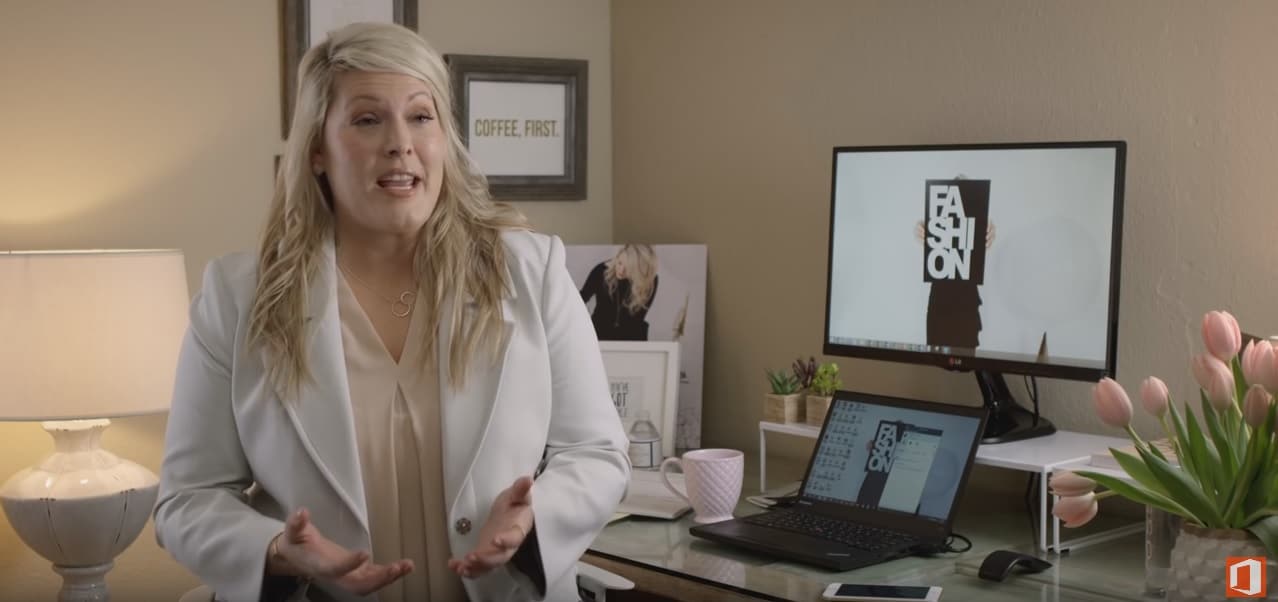
Microsoft spoke at length about the new features that it has planned for its Office 365 platform in the coming months during its Build 2016 conference, but it’s people such as Constance Turman who are most affected by the company’s plans as an everyday user of the productivity suite.

The owner of The Constant Stylist, Constance is a personal fashion and style consultant living in the greater Seattle, using Office 365 to help her stay nimble, available, and professional when dealing with her clients, partnering businesses and company goals.

I wanted to be known for constant availability and dedication to my clients, and I knew from the beginning that I would need the right technology. I have to collaborate with clients, vendors, shop owners and event teams every day. I’m out of the office at least half the time—shopping, meetings and traveling. I needed a solution that would allow me to stay connected and productive on the go, but I wanted to focus on my clients and my business, not worry about how to manage all kinds of technology. I began with Outlook.com, but quickly switched to the full suite of cloud services in Office 365.”

The notion that Office 365 can be a Swiss army knife that very few people properly utilize without an overbearing IT Pro has been partially dispelled in Constance’s case as she managed the productivity suite for her company single-handily, albeit a personal small business.

I implemented Office 365 myself. I felt like an IT pro. Once I set it up, I didn’t have to learn anything new, and the transition was super easy. Now, I have no infrastructure to maintain and just one environment to manage.”

As Microsoft continues to transition Office 365 into more of a serviceable platform versus a one-and-done product install, the company is also attempting to streamline its engagement. Ideally, Microsoft would like everyone from personal business owners to Fortune 500 companies using Office 365 to varying degrees. With Office 365, Microsoft’s scalable approach pitch is becoming a reality for those interested.

Microsoft VP leaves to head up Wizards of the Coast

Microsoft Vice President of technical sales Chris Cocks will soon leave the company to become President of American game publisher and Hasbro subsidiary Wizards of the Coast, Hasbro announced yesterday in a press release. Wizard of the Coast currently publishes games and entertainment under brands such as Magic: The Gathering, Dungeons & Dragons and Duel Masters and outgoing President Greg Leeds will stay on “to ensure a smooth transition to Cocks” according to the press release. President of Hasbro Brands John Frascotti added:

“We’re very excited to welcome Chris to the Wizards of the Coast family. As an avid fan and player with extensive digital experience, I’m confident Chris is the right person to help us build on the tremendous momentum around our brands and take the franchise to the next level by delivering exciting new experiences to our growing and passionate fan base around the world.”

Cocks, “an avid player and fan of Wizards of the Coast brands” led a global sales and technical engagement team at Microsoft for eight years and will officially join as President of Wizards of the Coast on June 6. The press release also mentions that Cocks previously had product management and marketing leadership positions in Xbox and MSN, and he also worked on hit franchises like Halo and Fable before serving as Vice President of Educational Games at LeapFrog.

We’ll see if Cocks will be able to use his tech background to bring all these in-person, tabletop role-playing games into the digital gaming world. Are you familiar with Wizard of the Coast collectible card games and role-playing games? Please tell us about it in the comments.

Quantum Break Windows 10 codes released starting today

After many years of waiting, Quantum Break is now out and now one week old. Thanks to a tip from reader Brendon, though, we can now report to you that Windows 10 codes for the game are being delivered starting today.

This means that those of you who preordered the game through the Xbox or Microsoft Store promotion should start receiving your free Windows 10 Quantum Break code soon. Just like the Alan Wake codes, however, the Windows 10 codes for Quantum Break will be deployed in waves, so a little bit of patience is required on your behalf.

We previously reviewed Quantum Break and found that the game achieved exactly what it set out to do: marry the mediums of live action film and video games, and make it so that both portions would be great on their own.  Quantum Break has also appeared to be a hit, as the title is the best-selling new Microsoft Studios IP this generation, as well as the best-selling boxed game in the UK this week.

Microsoft introduces its new, soft, Surface Pro 4 Signature Type Cover

A unique aspect of the Microsoft Surface is its detachable keyboard. At fashion week in Milan this week, however, the Surface Keyboard and the latest luxury brands, material, and tech of the world of design came together as one.  So, sporting a sophisticated design, and made of luxury sources from Italy used in high-end fashion, Microsoft has just revealed the Signature Type Cover.

With the new Signature cover, Microsoft wanted to make something that not only looked good but also something that felt good while being held in the hands. To accomplish this, Microsoft went to Nera Montoro in Italy and found a luxury material named Alcantara.  The material is unique and is extruded, crimped, needle-punched and dyed to ultimately blend Italian luxury, and the aesthetics and durability of Finnish minimalistic design.

Thanks to the precise material section of the Alcantara material in the new Signature Type Cover, a beautiful two tone grey mélange effect is created. It is also soft to the touch and changes over time, creating a unique experience that makes the Signature Type Cover truly your own.

Screen Shot 2016-04-12 at 9.50.21 AM
A look at the Signature Edition Type Cover

Each Signature Type Cover takes five weeks to produce,  and the process intertwines engineering as well as design. The new cover, though, still sports the familiar design seen on the latest generation of Surface Pro keyboards.

The Signature Type Cover is priced at $159.99 and will be available through Microsoft Stores in the United States, Australia, Austria, Canada, China, France, Germany, Hong Kong, Italy, Japan, New Zealand, Switzerland, and The United Kingdom. It is compatible with the Surface Pro 4, as well as the Surface Pro 3. Weighing in at 285 grams, the cover will no doubt bring a premium and expensive feel to your Microsoft device.

PubMatic’s Windows SDK can help developers make more money

When Windows 10 launched, developers also gained the option to make Universal Apps for all sorts of Windows 10 devices. So, since these Windows 10 apps can work across Windows devices, PubMatic, a leading marketing automation software company for publishers, has built a Windows SDK that can incorporate ads on apps across multiple devices, and ultimately put more money in the pockets of developers.

With the PubMatic SDK, both novice and advanced developers can monetize apps without swapping out the SDK based on the targeted device. Also, because the PubMatic SDK is built for the Universal Windows Platform, apps developed with the SDK can be deployed on any Windows 10 device (be it desktop, mobile, or tablet) without any changes.

The PubMatic SDK is modular and also provides unique benefits such as integrating with either single or multiple ad formats at the same time. In addition, Banner, Interstitial, Native, Rich Media MRAID 2.0, Video, and VAST 3.0 are all types of ads which the SDK supports.

Ultimately, the SDK empowers developers to make the most out of their digital assets through enriched data parameters, privacy, and integration with dozens of mobile ad networks. The full details on the SDK, and instructions on how to deploy and use it can be obtained from Microsoft.

Windows XP is still the third-most popular OS

Windows XP was launched a whopping 15 years ago but still can claim to be more popular than Windows 8.1. In the end, that feat couldn’t have been that hard given how dreadful it was. Still, it’s a remarkable performance Microsoft must be proud of despite having ended support for Windows XP two years ago.  Not much can stop die-hard fans from continuing to run it on their devices, though, even considering that third parties like as Google and Opera have also long ended their support for XP. None of this seems to bother Windows XP users in the slightest.

According to Tech Radar, Windows 10 currently has a market share of 14.15%, Windows 8.1 is on 9.56% of the world’s PCs, and Windows XP stands tall with a market share of 10.9% — making it the third most popular OS worldwide

But how could this surprising reality be explained? It appears this is not a matter of choice: XP users haven’t make the transition to another Windows OS because they simply can’t. In emerging markets, most people use recycled computers that already have Windows XP installed on them. These users can’t afford to buy an original Windows 10 pack. Corporations also use Windows XP because they don’t have the necessary resources to upgrade their OS.

The main issue when it comes to using Windows XP is its vulnerability to threats. Since Microsoft has not rolled out any upgrades or security patches for two years now, the systems running Windows XP are exposed to risks, making them easy prey for all the malware programs that have released ever since 2014. Again, corporations using Windows XP are running the highest risk by using the outdated OS since malicious programs can break the system and send valuable or confidential data to hackers.

Nevertheless, Windows XP has been one of the most successful operating systems launched by Microsoft. Thanks to its plethora of features, its very user-friendly interface, its security level (let’s not forget that XP was launched in an era where malware and spyware became a huge problem) and its default browser among other elements, Windows XP is a king in the OS world. And who knows how long it will still be in the top three most popular OS?

iOS app Pori Fashion Show becomes a Windows 10 app thanks to Windows Bridge for iOS

Pori Fashion Show is a dress up children’s game created for iOS. Kids can drag and drop the clothes and accessories that they want to wear on ‘paper doll’ cartoons, save the images for sharing later, or even walk them down an animated fashion runway like top models.

This game, like many apps, was once restricted solely to iOS. Dong Yoon Park, creator of the Pori Fashion Show, is also the Senior User Experience Designer at Microsoft. As the design leader for Windows Bridge for iOS, Park decided to bring his game over to the Windows platform while re-using the existing code.

About the Game

Pori Fashion Show uses a standard UIKit controls like UICollectionView, UIImageView, and UIButton. UILongPressGestureRecognizer and UIPanGestureRecognizer enable the drag and drop gestures in the game.

Importing the Project

For developers that use a Mac, the easiest way to get started is to set up Windows 10 and Virtual Studio on a virtual machine. This will make it simpler to switch between Xcode and Visual Studio. Developers can download an evaluation virtual machines with both Windows 10 and Visual Studio installed already on the bottom of the Windows Bridge for iOS page.

After configuring your developing environment:

  1. Use the vsimporter tool to import your Xcode project to a new Visual Studio Universal Windows Platform project with Objective-C support.
  2. Type ‘powershell“ in Cortana’s search box to open Windows PowerShell.
  3. Run ‘C:\YOUR_WINOBJC_PATH\bin\vsimporter’. The .vsimporter and .sln will be generated automatically.

4_vsimporter

Using a virtual machine will provide a shared folder feature on a network drive which Visual Studio will not allow. The easiest means to share the source code folder to Windows is to override the project’s output directory. Right-click the project, click on Properties, and change the output directory under the General menu to $(Temp)\$(MSBuildProjectName)\bin\$(Configuration)\. Please note that Temp should be an environment variable pointing to your Temp directory.

6_outputdirectory

Building A Solution

At this point, clicking the Build Solution button will come up with many errors. The most common errors are caused by developers forgetting to remove the iOS-specific frameworks and libraries. Other errors might crop up from libraries that are still in active development. The Pori Fashion Show app had both, creating the need to remove the StoreKit, MessageUI, and Social frameworks and find a workaround to replace Storyboard.

For some errors, you might have to rewrite the iOS layout in the code. For most common issues, Auto-Layout Constraints can fix the problem. However, if a developer has trouble adding them, there is a Programmatically Creating Constraints webpage to help. In Pori Fashion Show’s case, the Auto-Layout Constraints worked just fine.

8_errors

Park’s app uses standard UIKit controls with custom images. Most of the UI elements are container types that don’t have OS-specific style or UI controls with custom images. For these types, Windows Bridge for iOS will not require any changes to run the app. For UIKit controls without customization, however, the program will try to translate them into UI controls for Windows.

An example of the default iOU controls translated to Windows versions.
For Pori Fashion Show, the UIAlertView was translated to Dialog UI control in Windows.

When your app is accessing unimplemented APIs, the console will respond with an error message “[Stubbed function called!]” or “(E_NOTIMPL)” in the output console. Even though Pori Fashion Show uses two APIs for gestures, the console only came up with a recognizer error. UILongPressGestureRecognizer is the API that makes it possible to scroll through the collection of neat clothes collection on the app.

Finding alternatives and workarounds to unimplemented APIs might take a few creative tricks. For Pori Fashion Show, this meant using the app’s other recognizer’s velocity to detect the scrolling direction instead.

18_scrolling
Park removed the unimplemented API causing errors and made a workaround in his app’s gesture recognizer.

Another common problem for errors is failing to use cross-platform naming conventions such as using colons in iOS while Windows does not allow it. Pori Fashion Show updated their screen capture code but now there was another problem! Saving images of the dressed up dolls caused the colors to be altered. Since Windows Bridge for iOS is under constant development, Park went back to the source. After opening an issue with WinObjC on GitHub, the team responded and fixed the issue with an updated SDK release.

Bridging the Gap

It’s best to test the shared source code in both Xcode and Visual Studio. After confirming that the code ran on both Windows and iOS, Pori Fashion Show was successfully bridged!

20_apprunning-1024x638
Pori Fashion Show running on an iOS Simulator and on Windows.

Bridging current iOS apps to the Windows platform is an effective way to bring your project to a new level with a larger market. Universal Windows Platform apps are capable of running across many types of devices including smart phones, tablets, laptops, desktops, and even the upcoming XBox that is still in development.

Killer Instinct World Cup 2017 announced, here’s how to qualify

With season 3 of Killer Instinct finally available for Xbox One and Windows 10 users and the already nice bundles you can check out to go along with its release, details are now emerging regarding the qualifiers for Killer Instinct World Cup 2017.

Brandon Alexander, head of the Killer Instinct World Cup, made the official announcement today. In it, he listed what needed to be done in order to qualify for the World Cup; namely, any gamer with a Xbox One or Windows 10 PC must enter the series of 8 Bit Beatdown Tournaments first. (You can do so by following this link.) Here’s what else the executive said:

We just announced our Online KIWC Qualifiers: the KI Pro League and the sanctioning of the 8 Bit Beatdown tourtnaments! Both are FREE to enter and is open to anyone via Xbox One or Windows 10 PC! To register for 8 bit beatdown and KI Pro League (until the KIWC site is up and running) go to 8bitbeatdown.net

I have some more ways for you to qualify from the comfort of your own home! In KI we have something awesome called Ranked leagues and once you achieve Killer Tier you can start competing for Top 32! Well I am happy to announce that all of Top 32 will receive KIWC Points again for the Season! Let the grind begin!

Offline tournaments for this KIWC season are also going to be available. It’s important to note that Kombo Klash events are the only way to earn points offline for KIWC 2017. Here’s how the complete list with locations looks like:

  • Texas Showdown (4/22-24, Houston, Texas)
  • Northwest Majors (4/29-5/1, Des Moines, Washington)
  • Combo Breaker 2016 (5/27-29, St. Charles, Illinois)
  • CEO (Community Effort Orlando, 6/24-26, Orlando Florida)
  • Kombo Klash (8/6-7, San Antonio, Texas)
  • Absolute Battle (8/26-28, Dallas, TX)
  • Heart of Battle (12/2-4, Houston, Texas)
  • Kumite In Tennessee (1/6-8/2017 and location TBA)
  • Kombo Klash Netherlands (Date and location TBA)
  • Kombo Klash France (Date and location TBA)
  • Kombo Klash Canada (Date and location TBA)
  • Kombo Klash Community Choice (Date and location TBA)

Furthermore, once you achieve Killer Tier in the ranked leagues, you can start competing for the top 32 spots. Those in the top 32 will then receive Killer Instinct World Cup points for the season.

READ ALSO: TellTale Games launching 7 Days to Die on Xbox One in June

Windows 10 Insider build 14316 adds QR codes to bluescreens of death

One of the more frustrating aspects of using a personal computer–any computer, in fact–are the inevitable bugs and crashes. Every modern operating system suffers from the same, and sometimes those crashes can be catastrophic, requiring hard reboots to resolve. Windows has its own version of these sorts of crashes, once called the black screen of death (BSOD) and more recently evolved into the blue screen of death (also BSOD).

BSOD’s have always presented sometimes arcane bits of information on what problem caused the crash, and in the past, the information sometimes flew by so quickly that no normal person could jot down error codes and other information fast enough to help with troubleshooting. It looks like Microsoft might be working to help with this specific issue, according to forum visitor at BetaArchive, who posted a screenshot from Windows 10 Insider build 14316 showing a QR code embedded in a BSOD.

Windows 10 BSOD QR Code
Windows 10 BSOD QR code.

This looks like a nice solution for grabbing information on exactly which codes were generated during a BSOD and quickly researching a solution to them. We’ll need to keep our eye on this and future Windows 10 Insider builds to see how helpful these new QR codes really are in the troubleshooting process.

This new Windows 10 Mobile smartphone sells for $230 but only in Japan

For whatever reason the Japanese are loving Windows 10 Mobile, and we’ve seen them unveil a few impressive devices in that regard. Now another new smartphone is being prepared for voracious Japanese consumers: the Covia BREEZ X5.

This is probably the first time when you’re hearing about this company, but we believe it’s not going to be the last time. The Covia is slated for a release later this month. Here’s a quick rundown of some if its most important specs:

  • dual SIM phone covia breeze windows 10 mobile smartphone
  • 1280x 720 IPS display
  • quad-core Qualcomm Snapdragon 210 processor running at 1.1GHz
  • 1GB of RAM and 8GB of onboard storage
  • 8MP rear camera with a LED flash along with a 2MP front-facing camera
  • 2500mAh removable battery
  • 4G LTE, WiFi 802.11 b/g/n, Bluetooth 4.0 and GPS connectivity

Since it gets Windows 10 out-of-the-box, the device will come with Cortana, Microsoft Edge, OneDrive and the Microsoft Office Suite. Covia is marketing its BREEZ X5 at business users, saying it “allows IT to test the latest Windows 10 Mobile updates against critical line of business systems and apps, before you distribute to end users via MDM (Mobile Device Management)“.

The smartphone will retail for around ¥24,800, which equals roughly $226. However, the smartphone is most likely going to be available for the Japanese market only. Still, it would be great if OEMs from other parts of the world could learn from how these Japanese companies are approaching Windows 10 Mobile overall

READ ALSO: The downgrade from Windows 10 Mobile to Windows Phone 8.1 still possible

Microsoft makes it easy for educators to get free Office 365 and share OneNote Staff Notebooks

A few months after the Office team announced new features for OneNote Class Notebooks and Staff Notebooks, Microsoft announced today that school leaders, teachers, and education staff who do not have an Office 365 Education account can now sign up to get a free Office 365 account that will allow them to create OneNote Staff Notebooks for their schools. Staff Notebooks are an Office 365 feature that allows education staff leaders to “set up a collaboration space for meeting notes, shared curriculum or initiatives, create a content library for read-only staff material and add a private workspace for each staff member.”

To sign up for a free Office 365 Education account, education staff just need to visit this address and click on “Sign up for a free Office 365 account.” Then, users have to enter their school email address to check if their institution is eligible for a free Office 365 account. In case you already have an Office 365 account set up by your school, then you can just click on “Staff Notebook Sign-In” to sign in with your existing account and launch the Staff Notebook app.

The sign-up or sign-in process is pretty straightforward.
The sign up or sign in process is pretty straightforward.

Once your Office 365 account is set up, open the app launcher on the upper left corner and select “View all my apps” in the lower left corner to launch the Staff Notebook app. Then, you will first have to choose a name for your notebook before being allowed to add staff members by entering their school email addresses (your colleagues will then receive an email invitation to set up an Office 365 account and join your Staff Notebook). Right after that, you will be able to see a preview of your Staff Notebook, just click on “create” to follow through.

At the end of the process, click "create" if your Staff Notebook looks good.
At the end of the process, click “create” if your Staff Notebook looks good.

To complete the process, you will receive a link to the Staff notebook that you can share with other staff members. Clicking the link will open your Staff Notebook in OneNote, and your staff members who will open it will receive an email invite to join it. The overall process is pretty straightforward, but you can get more detailed instructions on this help page if you need it. Last, Microsoft has also set up a dedicated page for free OneNote professional development for education staff.

Office 365 email security tells you if an email message isn’t safe

In today’s modern world of phishing and malware, clicking what may seem like a legitimate link in an email may end up not only compromising your own computer, but also your entire company. Luckily, the folks over at Office 365 are working on rolling out an additional layer of email protection for all users of Office 365.

Named Safety Tips in Exchange Protection, the addition layer will ensure a warning to the user in an email that is marked suspicious, or reassurance when a message is safe.  Under the new protection, Messages will be marked in color-coded categories as either, Suspicious, Unkown, Trusted, or Safe. As per Microsoft, the categories are described below:

  • Messages marked Suspicious have a red safety tip and are either a known phishing message, have failed sender authentication, are a suspected spoofing message or have met some other criteria that Exchange Online Protection has used to determine the message is fraudulent. You should not interact with suspicious messages and instead should delete them.
  • A yellow bar at the top of the message indicates an Unknown safety level. Being marked as Unknown indicates that Exchange Online Protection has marked the message as spam. You can click the It’s not spam link in the yellow bar of a junk mail item to move the message to your inbox.
  • Messages from a Trusted sender display a green bar at the top of the message. These are from domains identified by Microsoft as being safe.
  • Messages marked with a gray safety tip indicates that the email was not filtered for spam because it is either considered Safe by the user’s organization, is on the user’s safe senders list or Exchange Online Protection marked the message as junk but the user moved it out of the junk folder to the inbox. The gray safety bar also appears when images within the message have been disabled.
Types of Filers
Color-coded categories

This level of protection analyzes data patterns across millions of emails to identify spam, malware and phishing threats.  Then, based on this ongoing analysis, Exchange Online Protection is able to identify suspicious messages and apply the appropriate Safety Tip.

All types of Safety tips are included in Outlook on the web, and Outlook clients will only display the Suspicious safety tips. It is also worth noting that most messages will not have a safety tip, as Microsoft only adds them in as when they have information users need.

Microsoft Research to attend the 25th annual WWW conference

The 25th annual World Wide Web conference kicks off today in Montreal. From now until Friday, tech experts and academics from around the globe will be discussing research, development, standards and applications for the future of the web.

Microsoft is one of the high-level sponsors of the event, but Microsoft Research is there this week for very practical reasons. In a blog post published today, Microsoft research detailed more about why they are attending the 25th annual WWW conference and what they hope to achieve.

At last year’s WWW conference, Microsoft Researched announced the release of Microsoft Academic Graph to help academic researchers map the citation relationships between scientific publications. This allows researchers to map out when scientific studies and journal articles cite each other or have other relationships such as similar authors, institutions, journals, venues, and fields of study. As a result, researchers and academics can connect with existing research in new ways as they perform their own studies.

Now Microsoft Research is back at the WWW conference with two new workshops related to the Microsoft Academic Graph. One workshop, titled BigScholar, focuses on how researchers from the National University of Singapore are using MAG data “to explore a methodology for conference rating” based on the research that is related to a conference and how that research is used by other academics.

Microsoft Research’s second workshop is SAVE-SD, which stands for Semantics, Analytics, Visualization: Enhancing Scholarly Data). This workshop is described as focusing “on bridging the gap between theoretical and practical aspects of scholarly data.”

Microsoft Research states they are hoping this year to connect with “innovators and researchers to learn more about how they’re using and integrating our academic services,” as well as explain the future direction of Microsoft Academic. They feel their two workshops show how in the past year Microsoft Research’s Academic Graph has had an impact on the variety of research. They are also excited by new possibilities with practical applications which they will be speaking more about this week at the WWW conference.

If you are attending this year’s WWW conference in Montreal, you can stop by booth 701 to speak with the Microsoft Research team which is eager to hear more about how academics are utilizing their Academic Graph.

Upgrading your Office 365 subscription from Personal to Home

Microsoft’s Office 365 Personal subscription plan is one of best cloud service subscriptions you can get in terms of value. For $69.99 USD per year (or $6.99 per month), you not only get the full repertoire of desktop and mobile editable Office apps, you also get 60 complementary minutes of Skype calls per month, and a massive 1TB of online OneDrive storage: by far the most competitive rate for personal cloud storage among the major providers today.

Alas, the “Personal” in Office 365 Personal is to be interpreted quite literally, as it only allows one desktop installation (Mac or PC), one tablet, and one phone installation. This is easily remedied by upgrading to the Home subscription, which costs $99.99 USD per year (or $9.99 per month), and expands the device capacity five-fold each way.

It’s a perfectly conceivable that a subscriber, after using the his/her Personal subscription for a few months, may deem it wise to upgrade to the Home subscription to take advantage of the extra carrying capacity. As it happens, Microsoft’s front-facing website materials don’t exactly make it clear what this entails or how to achieve this. The abundance of FAQs meticulously avoid answering this really obvious question.

Office 365 upgrade personal to home 03
Office 365 upgrade personal to home
Office 365 upgrade personal to home 04
Office 365 upgrade personal to home

You’d think there would be a “convert to XYZ subscription” button found in account management, and that you simply pay the difference for the remainder of the year if applicable, but no. I found no such option.

Only after some deeper digging into a relatively obscure Office 365 support page do we find a clear, if a bit indirect, answer to this question.

Office 365 upgrade personal to home 05

As it turns out, if you buy another year of a Home subscription on top of your current Personal subscription, your account will automatically convert the remaining time on your Personal subscription into a Home subscription. To do this, just buy an Office 365 yearly Home normally through the main Office 365 product page.

Once that’s done, in addition to the usual array of receipts and confirmations,  you’ll receive an email confirmation indicating that your Personal subscription has successfully been converted to a Home subscription.

Office 365 upgrade personal to home 02

You can confirm this by going into your account’s settings, and seeing the subscription type, in addition to the added year.

Office 365 upgrade personal to home 01

In my case, I have a Personal subscription I paid for this year, and additional “free” year of Personal granted to me via a promotion on my Lumia 950, and finally, I topped it off with a new Home subscription, converting that extra 1.5 years to Home “for free” in a certain sense.

It’s worth noting that according to the FAQ, this game of subscription Othello can only be played for up to five years.

This conversion strategy Microsoft employs can be either a good or bad thing. If you plan on committing yourself to Redmond’s master plan, this is great, because by just renewing for Home another year (which you ostensibly were going to do anyway), you get your remaining Personal time converted for free.

This could also be seen as a bit of a sucker punch to some, as it forces you to indulge another year of subscription that you might not actually want or need. It’s also obnoxiously opaque, as it takes a lot of digging just to only tentatively confirm that this is the actual behavior. But it’s not intuitive. Buying an advanced subscription doesn’t immediately seem like it would retroactively change a previous subscription.

This system seems to be designed to encourage people to stay with Office 365 for as long as possible. Which is be perfectly fine if the company could just be a bit more obvious about it.

Either way, I’m thoroughly enjoying my new Home subscription.

Quantum Break is the best selling new game for Xbox One, says Aaron Greenberg

Quantum Break, Microsoft’s newest Xbox One exclusive title is less than a week old, but it has already broken records. Aaron Greenberg, Xbox’s head of marketing, has just said that Quantum Break is now the best selling new Microsoft Studios IP this generation, as well as the best-selling boxed game in the UK this week.

Overall, the milestone also means that in one week Quantum Break has outsold other IP titles from this Xbox generation, such as Sunset Overdrive and Crytek’s Ryse.

ChartTrack, meanwhile, is the group behind the statistics for the best-selling boxed game in the UK statistic. Tracking only Xbox One physical disc based sales for the title, the group claims that Quantum  beat out Codemasters Dirty Rally for the top spot in the UK.

We previously reviewed Quantum Break, and we found it to be a masterfully presented game that achieved exactly what it set out to do—marry the mediums of live action film and video games.

Microsoft adds picture zoom and more to latest Sway app update for Windows 10

Microsoft’s popular storytelling app Sway has picked up an update on Windows 10 with some notable new changes on board. Along with the usual bug fixes, the new update give users the ability to zoom in and navigate photos on touch-enabled devices by touching their screen.

Additionally, another new feature introduced in the latest update is Jump lists, which offer users a quick way to access the recent sways and pin them. Simply right click on the Sway app in Windows taskbar to access the recent sway and add them to their jump lists.

Here’s the complete change log:

  • Picture Zoom: You can now touch your screen to zoom in and navigate through groups of photos on touch-enabled devices.
  • Jump List: Right-click the Sway app in the Windows taskbar to quickly access recent Sways. You can also pin your favorites so they always show up in the Jump List
  • Miscellaneous: We’ve fixed several bugs in this release.

Other Recent Updates:

  • New Languages — Sway now supports 14 additional languages.
  • Living Images — Sway now supports Windows 10 Living Images, bringing more life to your stories.
  • Viewing Navigation — While viewing any Sway, you can now select your preferred navigation style.
  • Recent Documents — Using your Microsoft Account, it’s now easy to find documents on your OneDrive sorted by work you’ve done most recently and then drag and drop them right into your Sway.
  • Faster Viewing — Viewing Sways with multiple photos is now a faster, more fluid, and responsive experience.

If you happen to be a regular user of Sway, head over to the Windows Store and update the app to make use of all the new features introduced in the update.

Sway
Sway
Price:
Free

Google might bring Chrome notifications to Windows 10 Action Center

Although the company originally denied it, there’s actually a good chance that Google will introduce native Chrome notifications to Windows 10. Google Chrome native notification support is already being tested for Mac OS X with some users already able to try the feature and luckily for Windows 10 users, there’s still hope.

Native notification support allows Mac OS X users to receive Chrome native notifications through the Mac’s own Notification Center, just like notifications from every other app. Users are able to receive Chrome notifications about new e-mail, websites, and more — all with integration with the platform’s own Do Not Disturb option, as well.

If Chrome native notifications ever come to Windows 10, users will receive them through the Action Center in the same manner as notifications from UWP apps and other programs. While Mac users can enable this option by going to chrome://flags/#enable-native-notifications, as of now it is not available for Windows 10 users.

  • Read Also: Microsoft Edge for Windows 10 to get even more new features soon

Windows 10 might receive Chrome notifications in the future

Originally, Google stated that they wouldn’t support Chrome native notifications in the Windows 10 Action Center. Although this Windows 10 feature looked like a perfect fit for Chrome notifications, the company explained that there were too many “behaviorial differences between Windows 10 and older versions” and therefore had no plans to bring Chrome notifications to Microsoft’s latest operating system.

However, it looks like Google changed its tune: when asked about possible notifications support on Windows 10, a Google developer said that the team is actually exploring ways to bring Chrome notifications to the Windows 10 Action Center.

“Nothing is 100% sure on Windows until implementation begins and we fully evaluate what is possible, but it seems likely to me at least that we will be able to support native notifications on Windows 10,” the Chromium team member said.chrome notification center

The Windows 10 Action Center would be a perfect replacement for Chrome Notifications Center because it will make receiving Google notifications more natural. However, it remains to be seen would like to receive Chrome notifications in their Action Center in the first place.

Previously, Google decided to pull support for Chrome Notification Center because some users didn’t even notice it was there. So, with this, no one can guarantee that a transition from the Chrome Notification Center to the Windows 10 Action Center would make any positive changes.

However, Google probably thinks that both the Windows 10 Action Center and Mac Notification Center will make Chrome notifications more visible and therefore more accessible to users, which could translate to a superior advantage compared to the old Chrome Notification Center.

Tell us in the comments below: would you like to receive Google Chrome notifications in your Windows 10 Action Center? Or do you think another type of notifications in Windows 10 is unnecessary?

Marvel: Avengers Alliance 2 comes to Windows 10

The wait has ended: Marvel: Avengers Alliance 2 has finally landed in the Microsoft Store. The sequel to the smash hit Marvel: Avengers Alliance brings a more robust mobile gaming experience, greater customization and awesome visuals. In the follow-up, the context of the game is the same: players must assemble a team of superheroes from Daredevil and Spider-Man to heroes from teams like the Guardians of the Galaxy and the Avengers to fight against Ultron, Baron Strucker, and other menacing super villains.

To make things more difficult, a bizarre set of galactic collisions called Incursions have threatened the fate of Earth. Use the powerful energy of Iso-8 to prevent the destruction of the universe by yourself or with friends and other players from around the world to carry on this battle against the most evil of enemies.

READ ALSO: Madefire comic book store now supports Windows 10 PC and mobile

The app contains social media links to connect with others so you can let others know how brave you are. There are also in-app purchases that cost real money, so pay attention what you click on (because that Vault of Gold costs $99.99!). If you’re the free-to-play type, you can watch ads for rewards since the game comes with third party advertising .

Here’s for a brief description of the game:

  • assemble the ultimate team to defeat notorious super villains

  • strategize and defeat evil forces in epic 3-on-3 combat

  • level-up and customize Super Heroes

  • collect and equip unique abilities for each Super Hero

  • take on dozens of replayable missions

  • win bonus rewards for completing Daily Operations

  • get powerful rewards in PVP tournaments

  • team up with friends’ Super Heroes to conquer missions

Despite the fun the game promises, many users have complained about game crashes after the first day:

This game worked fine for the first day. Played it for an hour, tried the second day, app doesn’t work. Now have tried for the last 4 days to no prevail. It doesn’t work.

Another player confirms:

I’ve installed this twice now, same thing issue both times. Game works the first time, the second day it stops working and crashes on the Marvel startup screen.

An upgrade to Windows 10 is necessary to play this game and maybe explains why the game crashed for certain users. Try it out for yourself though: download the game from the Microsoft Store.

READ ALSO: TellTale Games launching 7 Days to Die on Xbox One in June

Monitor your app’s performance with the Dev Center Windows 10 app

For those of you who are Windows app developers, you utilize Microsoft’s Dev Center as a resource to update and monitor your app in the Windows Store. With the Dev Center app, you can monitor the health and performance of your app, as well as see acquisitions data, investigate app crashes, and more using the official Dev Center app for Windows 10.

“The Microsoft Dev Center app allows you to quickly view details about the health and performance of your Windows Store apps on any Windows 10 device. Note: You must have an active Windows developer account in order to view this data,” the app description reads.

The app is universal and works on both mobile and desktop. This is the first public release of the Dev Center app and there is one known issue in regards to analytics data. “Some Analytics data shown in the app may differ slightly from what you find on the Dev Center Dashboard. This difference has to do with differences in the data refresh times of the two systems. We are actively working to bring these two systems in sync.”

This is the first public release of the Dev Center app and there is one known issue in regards to analytics data. “Some Analytics data shown in the app may differ slightly from what you find on the Dev Center Dashboard. This difference has to do with differences in the data refresh times of the two systems. We are actively working to bring these two systems in sync.”

Microsoft is working to add IAP reporting, payouts reporting, and more features to the app this summer. Thanks @nithinsuren for the tip!

Dev Center
Dev Center
Price:
Free

Plenty of Windows 10 build 14316 issues being reported by Insiders

Microsoft released the new build 14316 for Windows 10 Preview a couple of days ago, and it brought a lot of improvements, additions, and new features. Like every new build, though, t looks like it also caused a lot of problems for the Insiders who installed it.

As usual, Microsoft told us both which issues were addressed and which new ones were created, but users are encountering many more problems than Microsoft originally mentioned. For the past couple of builds, the number of issues reported by users is relatively high, which is not good especially if Microsoft wants to keep as many insiders in the Insider program as possible.

Check out the list of issues reported by users in Windows 10 Preview build 14316 below.

Windows 10 Preview build 14316 reported problems

We will start off with our old friend: the update installation failure, present in the previous 14295 build along with the 14291 and 14279 builds — pretty much all the build releases. We can’t recall if there had been a single build released since the introduction of Windows 10 Preview that hasn’t caused installation problems for at least a few users. Build 14316 is of course not different, as some users reported on the Community forums that they’re unable to download and install the latest build.

“The last 3 updates on the windows 10 insider program have all failed with similar messages to this one. Windows 10 Insider Preview 14316 – Error 0x80070005. I’m beginning to wonder if Microsoft has forgotten how to write their own software.”

By now, you can guess how helpful Microsoft engineers were with regards to this problem, so users who encountered it again basically can’t do anything to solve the problem. We can recommend you to try running the WUReset script  like wealways always have, but we can’t guarantee it will work.

Those who were able to install the build encounter problems of their own. One user reported on the forums that upon installing build 14316, he got caught in a continuous reboot loop. Reportedly, everything worked fine, than the computer just started to restart by itself. Other users and Microsoft engineers tried to help him, but without any luck.

“Hello, I installed Windows 10 Insider Preview 14316 and got caught in a continuous reboot loop. All the applications I’ve tried work fine but the system reboots after 10- 20 minutes from booting up. In fact, I just noticed that the system reboots even when I’m not logged in. Is this common with this build? What should I do from here?”

constant reboot windows 10 buld 14316

If you too encountered this problem, you can try solutions listed in our article about constant reboot problem in Windows 10. While we hope it will be helpful for you, once again, we can’t guarantee anything.

I can confirm that unlike in the previous two builds, the sfc/scannow command now works fine for me, so it seems Microsoft finally fixed this issue (If it’s different for you, please let us know in the comments). But users reported that another diagnostics command doesn’t work in the latest build. Namely, the dism.exe command in the Command Prompt doesn’t work in this build.

“I try to repair build cos some problems and “dism.exe /online /cleanup-image /scanhealth” said that “The component store is repairable”, but after that I’ve run “dism.exe /online /cleanup-image /restorehealth” and 1st time stuck at 4,5% with Error: 1726, than I’ve run for the 2nd time but it stuck at 93,1% with the sameError: 1726.”

Unfortunately, you’ll have to wait for Microsoft to fix this issue as we don’t have the proper solution. This is probably the similar case as with the sfc/scannow command in previous builds.

dism.exe command doesnt work windows 10 build 14316

We continue our report with crashing problems in Windows 10 Preview after installing the latest build. One user said on the Microsoft Community forum that her system simply crashes without any reason. “Build 14316.rs1 keeps crashing with ‘fault on non-paged area. The system just randomly crashes and restarts.” Do you have any idea what might fix this issue?

Microsoft introduced Bash on Ubuntu for Windows 10 with the latest Preview build, which is a welcom feature. However, some users reported that they’re unable to install Bash, as they encountered the “Downloading from the Windows Store… 0%Error: 0x800c0008″ error.

Luckily, users who reported the issue found the solution by himself. So, if you’re also encountering a problem with installing Bash on your Windows 10 Preview, try the following:

  1. Go to Search, type internet options, and open Internet Options
  2. Go to Advanced tab, and click on Restore Advanced settings
  3. Click OK
  4. Open the Command Prompt, and try to install Bash again.bash windows 10 problem

Restoring Advanced internet setting should solve the problem with installing Bash, so we don’t consider this problem a serious issue.

One user also complained that he wasn’t able to perform some basic actions, like updating drivers and syncing files to OneDrive, upon installing the build. He said that every time he tried to perform a certain action, he received a ‘critical error’.

“After Build 14316 install finished today, I tried to: Install latest ASUS Smart Gesture touchpad software; Pick & sync my files, folders to Onedrive; Clicking link to Microsoft help provided in “Feedback Hub” app on Developer mode problem. In all three instances my ASUS K-55A laptop went to Critical error message & rebooted.”

Unfortunately, he didn’t receive a single response on Microsoft’s forum, so we’re not sure what can be done to fix this issue.

BSODs are a common thing in Windows 10 Preview, and it looks like build 14316 isn’t an exception. One user reported on the Community forum that he receives a “DRIVER_POWER_STATE_FAILURE” error, followed by the BSOD, on his Surface Pro 4.

“It’s seems like this was an issue in builds early last year, but I’m getting in the latest build 14316 on my Surface Pro 4. My computer crashes to a BSOD using within the first few minutes after I have logged in.  It’s possible that either Skype or Skype for Business is a contributor to the problem, but obviously a drive is involved as well.”

For BSOD issues caused by the “DRIVER_POWER_STATE_FAILURE” error, we recommend our article about it. So, if you’re also facing the same problem, check out the suggestions from the article and you might find a solution. Make sure to let us know in the comments if you managed to solve the problem.

DRIVER_POWER_STATE_FAILURE windows 10 preview 14316

These are the most serious problems in build 14316 reported by users. As the build is just a few days old, we’ll check again for the new issues soon, and we’ll update this article if new problems are reported.

If you’ve encountered any of your own issues that we didn’t include in this article, please let us know in the comment so we can mention it here.


Interview: Opera founder Jon von Tetzchner speaks about Vivaldi

The long awaited stable version of the Vivaldi web browser has finally been released for public consumption and we have to say, it certainly brings back the old feeling of using the original version of the Opera web browser.

We got the chance to speak with the CEO of Vivaldi, Jon von Tetzchner, about the web browser and why folks should give it a try. It is clear from what he has to say that he is passionate about this browser and confident in its capabilities of walking with the big boys.

What were the motivations behind the creation of Vivaldi?

There are not a lot of browser choices today on the PC side. Most people cannot even name the five main browsers. In addition, they all address the same users and follow the same philosophy. They are all about reducing the feature set and being as simple as possible. That sounds great until you want to do something a bit more complicated and find that the browser will not do it or makes it difficult.

Vivaldi is different. We are proud to offer more features out of the box than any other browser. We are also proud to offer more ways to configure the browser than any other browser. We believe we should adapt to the user. When you download Vivaldi, you will note the fresh look, the fresh colors, that change when you browse. But after a little while, you start learning new things. You change some settings. After a while, it feels like Vivaldi was made just for you and it was!

How will Vivaldi compete with Chrome seeing as both web browsers use the same rendering engine?

There is a lot more to the browser than the engine. Vivaldi has a very different user interface. It has a lot more features out of the box. Just try it out and you will understand.

Have you ever thought about Vivaldi having its own extension storefront to be more independent from Google?

We have discussed it, but for now, we believe it is best to just offer the Chrome store.

Opera Software has decided to create its own browser-based adblocker. Do you guys have similar plans?

No. We believe there are plenty of great extensions available if this is something you wish to do.

The Bing search engine has not been added as a search option in Vivaldi. Are there any plans to change this in the future to come?

Bing is the default search engine in most markets.

Will future versions of Vivaldi tap into some Windows 10 features such as Cortana?

We will evaluate that as we continue to develop the browser.

What is Vivaldi’s mobile strategy when it comes down to Windows 10 Mobile?

Our primary focus will be Android, but we will evaluate our options as we move forward.

Give the best reasons why advanced web users should choose Vivaldi over the likes of Microsoft Edge or even newest version of Opera.

It is all about the features and the ability to tailor the browser to your needs. Let’s look at a few reasons, but every user has their own.

We know that many users like having a lot of tabs. Thus, we have done a number of things to make that easier:

1. Vivaldi has tab stacks. This provides a hierarchy of tabs and makes it easier to have an overview over a lot of tabs.

2. Vivaldi has tab stack tiles. This enables you to view multiple pages at the same time. Great if you have a huge screen

with high resolution.

3. If you happen to close a tab by mistake, Vivaldi has an undelete feature.

4. You can place your tabs on the left, right, top or bottom or you can hide them all.

This was all about tabs and we have plenty of tab options as well. But there is more. The panel we have in Vivaldi has some great features as well:

5. The panel on the left side in Vivaldi (or right side if you prefer) has bookmarks, notes and downloads out of the box.

6. The bookmarks panel includes thumbnails of your bookmarks (when you have visited them), which makes it easier to browse the bookmarks.

7. The notes panel is useful for adding notes. Select a piece of text on a web page. Use the context menu to add it to a note. The text is added and the link to the page as well. You can add a screenshot as well if you like.

8. You can add your own web panels. Great for things like twitter, news feeds, or any other site or service that you want to always have available.

When opening a blank window, there is plenty to play with as well. Vivaldi has speed dials. This is for your favorite sites.

You can have groups of speed dials and folders as well. This visual presentation of your bookmarks is a firm favorite of our users.

At the bottom of the window, we have included a few more controls. These allow you to zoom web content, turn on and off image loading and generally play with the presentation of the page.

We recognize that people have different ways of interacting with their computers. Some people like to mostly use the mouse. Others like mouse gestures. Some prefer keyboard shortcuts. We provide all of that and quick commands as well, which is a command interface to the browser.

In most browsers, these settings are hidden. They are not considered important and they tend to not provide a lot of choices.

We do things differently here as well and provide very rich options. Try it out!

So the list is long. It is all a question of what is important to you. Our experience is that our users love the flexibility and features we have on offer.

Skype UWP Preview debuts in latest Windows 10 build

Just like it was announced a couple of weeks ago, Microsoft released the preview version of Skype UWP with the latest build 14316 for Windows 10 Preview. The app is already integrated, with all Insiders who’ve installed the latest Windows 10 Preview build able to test it.

Microsoft hasn’t precise revealed when it would be released to users who with Windows 10 Threshold 2, but we won’t be surprised if it comes with the Anniversary Update. One thing is for sure: Insiders will receive updates for the app all the way until its release.

The app doesn’t contain any new features compared to the Desktop version, and it actually looks like a light version of Skype for Desktop complete with a rougher design and fewer features. So, at least for now, Microsoft hasn’t done anything but transfer the app to the UWP platform and subtract a few features. But this was expected as the Skype UWP is still in its early development phase. We’re sure Microsoft will polish it in the coming Windows 10 Preview builds. Remember how Windows 10 itself looked like in the earliest builds?

skype uwp windows 10 preview

Despite the fact that this is the very first version of Skype UWP Preview, it worked just fine. We haven’t encountered a single crash while using it (although we heard some people complained about occasional crashes, but nothing serious), so Microsoft did a solid job with that. The app does feel a little laggy, but you can’t get everything perfect in the first try.

Microsoft is looking for a better future of Skype UWP

Microsoft tried to bring Skype to the Metro platform in Windows 8, but that didn’t work out. Microsoft tried to separate Skype into two apps in the Threshold 2 Update for Windows 10 to an even worse fate, with the project shut down only a few moths after. So, the company now hopes that third time’s a charm and that Skype UWP will actually be well received by users. Will Microsoft achieve that? We’re not sure. Skype for Desktop was, and is still is, the most popular version of the service among Windows users. The introduction of the new version will hardly convince those who already were used to using the desktop version to switch.

If Microsoft wants users to adopt the UWP version, it’ll need to make the UWP version the absolute best version of Skype ever. This could be a complex process for Microsoft and the company will need to play its cards carefully. If Skype UWP gets some cool features that are not available on the Desktop version, some users will change apps but some other will be very unsatisfied. Perhaps the most drastic measure to convince people to use the UWP version is to discontinue the Desktop version completely. That, however, would probably cause a riot and could potentially cost the company millions.

It will be interesting to see how the situation with the Skype UWP develops, and what Microsoft plans to do to avoid the “Skype Metro app scenario”.  Until then, if you’re a Windows Insider, you can try the app for free — just don’t forget to tell us about your impressions in the comments below!

Enpass password manager service is working on an Edge extension

Enpass is a desktop and mobile app that’s designed to manage your passwords and make sure that you can keep all of your sensitive information together in a way that’s not only convenient, but secure. It only makes sense that an application focused around the cutting edge of digital security would look into what Microsoft has been doing, and according to Enpass’ Twitter account, the app may soon be making its way onto Microsoft Edge some time in the near future as an extension.

There’s a whole lot of room for Enpass to integrate their service into Microsoft Edge, most notably – as Tiago mentioned – the upcoming integration with Windows Hello that was announced during Build last week. We know that Windows Hello is going to be an asset for any organizations that intend to make a priority out of security, especially ones like Enpass whose entire business revolves around managing sensitive login information.

With this being a brief Twitter announcement, we don’t know much of anything about the details of Enpass’ upcoming Edge integration. As stated in their tweet, details should be coming soon.

Thanks to BiggishTuba558 for the tip!

Convert your Win32 apps to the UWP with Project Centennial

Microsoft wants developers to convert their classic desktop apps to the UWP (Universal Windows Platform). Its new plan is called Project Centennial, and the software giant is hoping it takes off because it would be a great tool to get many more Win32 apps on the UWP train.

From what we have come to understand, the use of Project Centennial would place Win32 apps in an AppX package that can be installed and uninstalled easily. Furthermore, the app should available from the Windows Store, but we’re not sure how much work will be required from developers to make this possible.

With Project Centennial, each Win32 app must take advantage of some Windows 10 features before Microsoft will consider accepting the app in the Windows Store. The app must also be reliable and safe from viruses and other potential threats. From our point of view, this is the perfect initiative for the many legacy Win32 apps that will never be rewritten from scratch to support the Universal Windows Platform.

Here are some key benefits of converting your Win32 apps with Project Centennial according to Microsoft:

  • Your app’s installation experience is much smoother for your customers. You can deploy it to computers using sideloading (see Sideload LOB apps in Windows 10), and it leaves no trace behind after being uninstalled. Longer term, you’ll also be able to publish your app to the Windows Store.
  • Because your converted app has package identity, you can call more UWP APIs, even from the full-trust partition, than you could before.
  • At your own pace, you can add UWP features to your app’s package, like a XAML user-interface, live tile updates, UWP background tasks, app services, and many more. All of the functionality available to any other UWP app is available to your app.
  • If you choose to move all of your app’s functionality out of the full-trust partition of the app and into the app container partition, then your app will be able to run on any Windows 10 device.
  • As a UWP app, your app is able to do the things it could do as a classic desktop app. It interacts with a virtualized view of the registry and file system that’s indistinguishable from the actual registry and file system.
  • Your app can participate in the Windows Store’s built-in licensing and automatic update facilities. Automatic update is a highly reliable and efficient mechanism, because only the changed parts of files are downloaded.

If converting is as easy as Microsoft says it will be, then we should see thousands of legacy apps moving over to the Windows Store in the near future.

Microsoft Garage releases Hub Keyboard for iOS

Microsoft Garage is continuing with its plan to provide interesting apps for mobile devices. The latest is Hub Keyboard, an app that was first released on Android but is now available on Apple’s iOS mobile platforms.

Hub Keyboard takes full control by replacing the stock keyboard that comes with your iOS device. This keyboard from Microsoft makes it possible for users to gain access to OneDrive where they can select files and share them with friends or family.

It’s an interesting app with neat features, but there is one major downside that might discourage many users from giving it a try. What is that reason, you wonder? Well, users will need to have an Office 365 account to take advantage of Hub Keyboard and all its features.

We’re not certain why Microsoft decided to travel down this route as it would definitely limit the amount of people who would be willing to see what this Hub Keyboard is all about.

The main reason behind the decision to create this keyboard app, is to increase productivity in the workplace. As it stands right now, users tend to be clunky when working with their mobile phone, and that is understandable seeing as the screen is small.

With this Hub Keyboard idea, users will no longer have to switch between a million apps since many cool features are built-in and ready to go on all cylinders.

“I was thinking about how we can help users be more productive in the mobile space,” according to Steve Won, a senior designer on the Office team. “After a couple of months hacking at it, there was an internal science fair, a showcase of independent projects, and that’s where I was able to receive a lot more feedback and attention. Things started picking up.”

At the end of the day, unless Microsoft makes some big changes Hub Keyboard will probably be left stuck in the gutter with no way out. Furthermore, this keyboard will likely never make it to Windows 10 Mobile.

Vivaldi browser for Windows 10 brings back the old Opera

The Vivaldi web browser has finally exited its beta phase and now sports a stable version number of 1.0. Many of us here at Windows Report have been following the progress of this web browser ever since it was announced, so we’re happy to see it reach this point. And ever since the stable version was made available, we’ve been using it nonstop to see if it’s worth your time.

What’s the verdict?

Well, yes, it is worth your time — especially if you’re a remnant from the old Opera days. This web browser is smooth and fast, which shouldn’t be surprising because it relies on Google Chrome’s rendering engine, the very same engine that powers the new version of the Opera web browser. But unlike Opera, the boys at Vivaldi have not shied away from adding several advanced features to their web browser. The ability to customize Vivaldi in a multitude of ways is one of the reasons why old Opera fans are adopting this new browser: to regain a feeling of an experience lost to the annals of old technology.

READ ALSO: Best Windows 10 Email Clients and Apps to Use

Here are all the key features offered by Vivaldi:

  • Tab Stacks
  • Tab Stack Tiling
  • Sessions
  • Notes
  • Quick commands
  • Mouse gestures and keyboard shortcuts
  • Speed Dial
  • Better bookmarks
  • Web Panels

When compared to the likes of Microsoft Edge, Firefox, Google Chrome and Firefox, how does Vivaldi compare?

Vivaldi in its current form feels great and never fails to render pages correctly. On the Windows 10 platform, we find that sometimes it would take a long time before it would recognize that the user had entered a URL. This tended to happen with Google Chrome and Opera at times, but seeing as all three are based on the same rendering engine, this doesn’t come as much of a surprise.

We ran some HTML5 tests and Vivaldi came in third, with Chrome at the top and Opera a close second. Firefox came in at fourth with Edge fighting its way up from the bottom of the pile.

Overall, Vivaldi has quickly transformed into a web browser anyone can use. In our minds, this is what the new Opera should have been instead of the watered down mess it is now.

If you’re a person who misses the old Opera, then this web browser is for you. The majority of its cool features are here and we’re certain the team will now focus on adding missing elements in future updates.

Download Vivaldi via its official website right here.

  • READ ALSO: Microsoft’s RemoteEdge will stream Edge browser to other platforms