
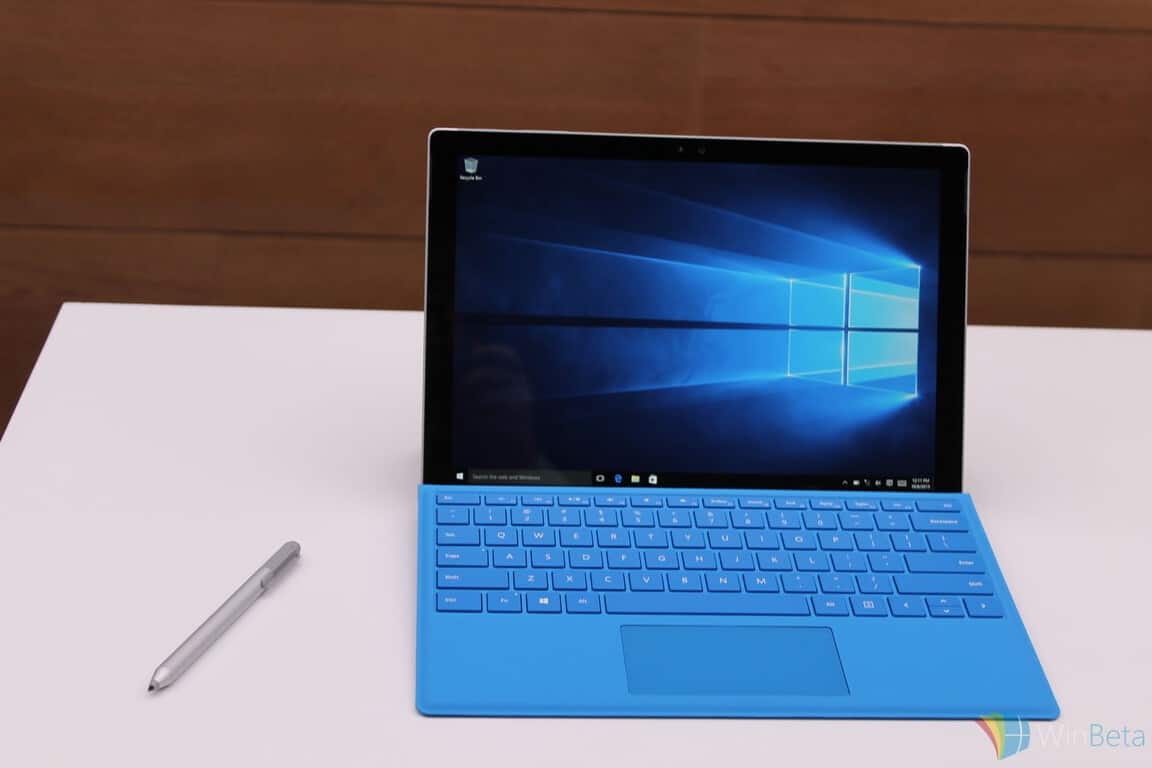
For designers being creative is in their blood. Inspiration can come from a variety of things from what they eat to the places they travel to the things they see with their own eyes; inspiration is everywhere they go. When such inspiration hits, we use these moments to expound upon an idea, draw up a new sketch, design a new pattern or capture a moment in a new way. For these moments being able to quickly record this inspiration is key to their success. The pen and paper for people of this profession has for years been a go-to item. However, with the rise of technology, how would a device like the Surface Pro 4 help a professional become more creative and achieve a higher level of work?
Microsoft teamed up with interior designer and blogger Justina Blakeney, a graduate of UCLA in World Arts and Culture, to use the new Surface Pro 4 in her line of work. With the launch of the Surface line, Microsoft has a goal of giving creative professionals the ability to manifest their ideas wherever they go. With the ability to run design-oriented programs like Adobe Photoshop and Illustrator, a designer like Justina Blakeney has the power to create at any moment.
Having a design geared towards portability and light weight the Surface Pro 4 gives its owner the opportunity to lighten their load. Offering the full power of Intel Core processors and Windows 10, designers have all the capabilities of a much heavier laptop, but with exciting additional features like pen and touch support. Adobe has partnered with Microsoft as well to update their popular applications to take advantage of the touch and pen technology of the Surface Pro 4.
Having a full-powered PC in the weight and design of a tablet, natural Pen support and a touch-enabled interface gives designers the ability to capture new ideas whenever inspiration hits. Microsoft and designer Justina Blakeney have together proven once more the power of the Surface Pro 4 in the professional field.
Submit feedback via Windows 10 Insider Hub survey, enter to win a Surface Book
As a Windows Insider, you’re likely already providing copious amounts of feedback to Microsoft about your Windows 10 experiences. But as usual, Microsoft just can’t be happy without even more input from Windows Insiders.
To this end, Microsoft has published a survey via the Insider Hub app:
As you know in the Windows Insider Program we love to hear your feedback to know how we can make our products better (see Samer Sawaya’s post here for how use feedback to make a better Windows). We are also always looking for ways to improve the Windows Insider Program. We get lots of great feedback from lots of you at various events, via Twitter, and in the Windows Feedback App that we use to help shape the direction of the Windows Insider Program.
We have lots of exciting plans for the Windows Insider Program in 2016 that we will share as we complete the work in future builds. From time to time a larger form survey helps us take all the feedback we have received and better prioritize this feedback against our plans with the opinions of all Windows Insiders around the world. We will also use this survey and future surveys, in this long form or in the product, to gauge how well we are doing with the Windows Insider Program.
If there is something you have been meaning to tell us or ask for now is your time. It’s through feedback, including this survey, that allows us to use the voice of the Windows Insiders to make a better Windows and makes the Windows and Device Group a better team.
This week, we’re going to send our first global survey to Windows Insiders in 20 languages hosted by our survey vendor SurveryGizmo.com to better understand Insiders across the globe and to use that feedback to grow and improve the Insider Program.
We’d deeply appreciate if you can take 10-15 minutes to let us know what you think by filling the survey out – you can access the survey via the links below.
For taking the time to complete this survey and if you choose to include your associated Microsoft Insider email address, you’ll be entered into a sweepstakes to win a free Surface Book!
Yes, that’s right: complete the survey and get a chance to nab a Surface Book. Can’t beat that with a stick, can you? There are a few questions, some with a fair number of things to rate, but it shouldn’t take too much of your time.
Go to the Insider Hub and click on your favorite language to get started. If American English is yours, then just click here.
Thanks to WinBeta reader Nicholas for the tip!
Microsoft Philanthropies centralizes the company's new philanthropic vision
Microsoft has long been big on corporate philanthropy, contributing significant funding to a number of charitable efforts worldwide. To date, the company’s efforts have apparently been too scattered and unfocused, because as the Microsoft blog reports, CEO Satya Nadella has put his mind to the creation of a new vision and organization around Microsoft’s philanthropy.
Dubbed Microsoft Philanthropies, the new organization will be focused on helping the organization meet its central mission: to “empower every person and every organization on the planet to achieve more.” As Nadella said in his shareholder’s letter earlier in 2015:
“In the year ahead we will continue to ask ourselves what are the challenges mankind faces, how can technology help, and what is the contribution of Microsoft?”
Going forward, Microsoft’s philanthropic efforts will be focused on the same kind of things, and in terms of helping technology reach those who so far have not benefited from what technology can do. Microsoft recognizes limitations in accessing technology such as:
– Poverty limits access to the very tools that can empower people to create a better life for themselves, their families and their communities.
– A lack of education – especially in STEM disciplines – limits the ability of people to participate in the opportunities created by the growth of the global economy.
– Accessibility remains a key challenge, with too many people with disabilities encountering barriers to using essential new technologies.
– People in remote or displaced communities often confront great challenges accessing technology and information when they need it most.
The new organization will therefore commit its funds and technology to empower people and make technology more inclusive, through strategic investments, focusing technical assets, collaborative partnerships, and increasing the reach and scale of the company’s efforts to spotlight root causes of digital exclusion and encourage action.
Examples of recent Microsoft efforts along these lines include:
– One example is the $75 million we have committed to computer science education worldwide over the next three years. Early next year, we will detail the programs and partnerships that will turn this commitment into action.
– The Microsoft employee team that developed the Eye Gaze solution is an example of the creativity, passion and innovation that we’ll do more to support, partnering with leaders in the nonprofit, educational and civic community, over the next six-to-12 months.
– For example, we will invest in nonprofit programs to compliment Microsoft’s Affordable Access Initiative, which is designed to help new business grow in remote areas and connect people to the cloud.
– We’ll do this through social good marketing initiatives, such as our recent Upgrade Your World campaign, which provided $10 million to help 100 nonprofits do more good in their communities.
Mary Snapp will head up the new Microsoft Philanthropies organization. Chief Operating Officer duties will be handed off to Lorie Forte Harnick. Make sure to read the entire post to learn more about Microsoft’s upcoming focus on charitable giving, and we’ll be sure to keep you up to date as well.
Microsoft is looking to hire 100 professionals in Ireland

Microsoft and the country of Ireland have had a lengthy history, including 30 years of operations, a data disclosure case and some tangential involvement in the companies tax measures. Now it looks like Microsoft is further solidifying its ties with the country by upping its total employee count in the area by 160. Microsoft’s search for 100 professional employees and 60 additional interns bolsters its current 1,200 employee roster in Dublin, Ireland.
The Irish Times is reporting that Microsoft is looking for people to fill roles such as service, process, and software engineers, data analytics experts, program managers, finance experts, and many more. The new positions will most likely work across the four divisions that operate in Dublin area for Microsoft.
In a statement to the Irish Times, managing director of Microsoft Ireland, Cathriona Hallahan describes the type of employees the company is hoping to acquire through its newly established job hunt.
The type of people we are looking to attract should be creative thinkers with a growth mindset, passionate about technology innovation, customer-obsessed, and interested in working in a fast-paced, dynamic environment. The roles that we’re recruiting for are diverse and demonstrate the breadth of opportunities available when working with a technology leader. In particular, our engineering roles span Windows, Office, Dynamics and Azure Cloud Services.”
In addition to the new jobs, Microsoft is also investing roughly 134 million into building a new centralized campus for its employees. The news Microsoft’s Ireland job hunt stands juxtaposed to many of its more recent actions of cutting jobs and shuffling of management to keep the company lean and driven. Perhaps, Microsoft is taking a pause on job cutting and looking to re-establish its international presence.
Microsoft uses Office 365 to move users beyond Internet Explorer 8 and 9
Microsoft has been desperately trying to get its users to move on from old and vulnerable versions of Internet Explorer to its more recent efforts at web browsing, including its new Windows 10 Edge browser.
In a continued effort to usher Windows users along the path of change, Microsoft is now enlisting the help of its widely popular Office 365 subscription to spur adoption of its more modern browsers.
Beginning January 12, 2016, owners of an Office 365 subscription will now find the system requirements for the service altered. Office 365 workloads are being changed across the board and will now effect users who still use Internet Explorer 8 and 9. While not fully banishing the older browsers ability to work alongside Office 365, users who continue to use IE 8 and 9 will see a noticeably “diminished experience.”
Office 365 is designed to work with the latest version of the Microsoft Edge browser. Microsoft Edge browser updates are available through the Windows Servicing branches. Office 365 might continue to work with versions of the Edge browser older than the latest branch, but Office 365 can’t provide any guarantees.”
Microsoft has already stated changes to browser support in January of next year that affect most Windows users as a whole. Now, it seems that Microsoft is using Office 365 as another means to push along users into leaving older versions of IE behind.
On its system requirements page for Office 365, other browser compatibility services are listed, including Yammer, Sharepoint, and Office Online that will also suffer when combined with IE 8 or 9. For now, Office 365 will continue to work with older versions of IE and even manage beyond the January deadline. However, Windows, Office 365 and most of Microsoft’s services are looking to leverage new technologies and security advancements from newer browsers, users of older browsers will be doing so at their own risk starting January.
Microsoft Gulf announces Windows 10 coming soon to Dubai with Surface Pro 4, Lumia 950 and 950 XL releases
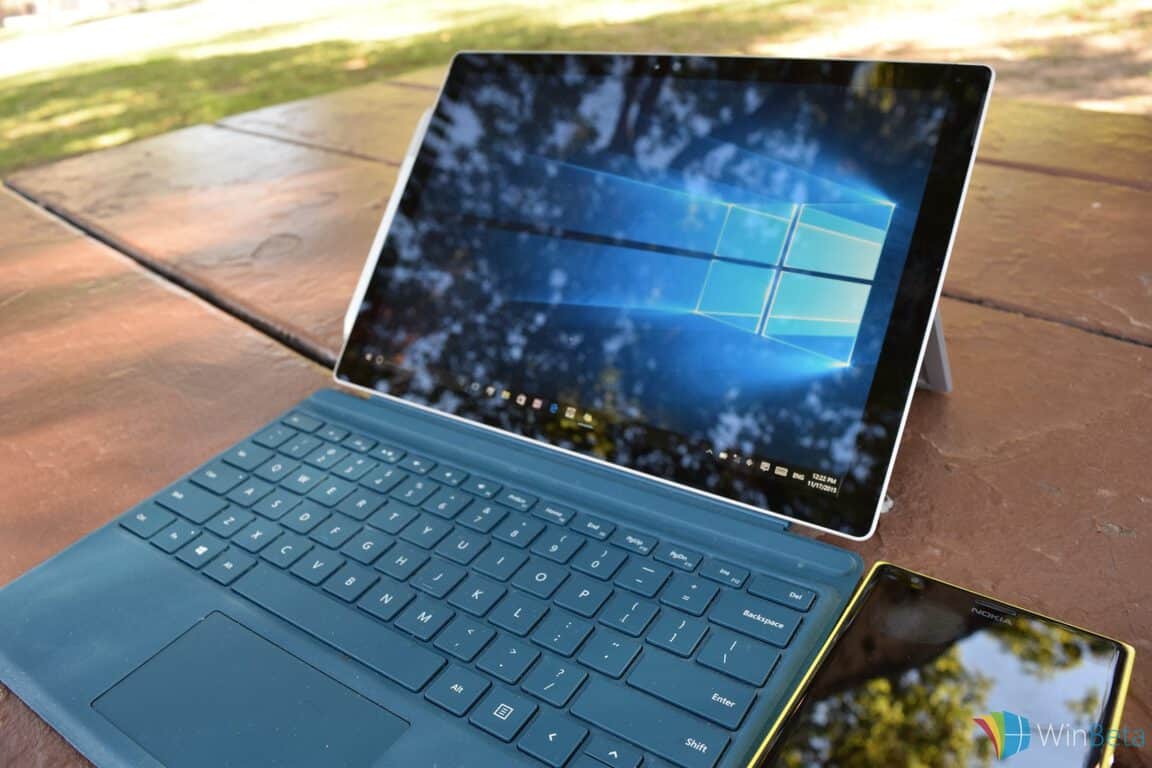
Microsoft continues to push Windows 10 devices around the globe, getting Windows 10 and Windows 10 Mobile flagship devices in the hands of users everywhere. As Emirates 24/7 reports, Microsoft is having a launch party today in Dubai to introduce the Surface Pro 4 and the Lumia 950 and 950 XL smartphones.
Surface Pro 4 pricing starts at Dh3,395 (roughly $925 at current conversion rates), and will be available starting January 1, 2016. Microsoft Gulf Partner Strategy and Program Lead Mohammed Arif was excited about the hybrid’s announcement and the impact of the introduction on Microsoft’s long-term goal of over a billion Windows 10 users:
“We have 1.5 billion people on the Windows ecosystem worldwide,” said Arif, adding that the Windows 10 has seen the fastest offtake in the firm’s history – it is already installed on 110 million (and counting) devices in 192 countries.
“With our bold ambition of creating more personal computing and empowering individuals to do more, we are taking innovation to the next level and building upon the unique experiences of Windows 10 for our users,” said Arif.
The Lumia 950 and 950 XL were also introduced, with the Lumia 950 at Dh2,099 (app. $572) and the Lumia 950 XL at Dh2,349 (app. $640). The Display Dock is priced at a promotional Dh99 (app. $27), and a Continuum Connectivity Pack at Dh499 (app. $136). Release dates for the new Lumia flagships were not indicated.
We’re excited to see Windows 10 devices push out to new corners of the world. The more people that can purchase the newest devices, the better the chance of Microsoft achieving its goal of taking over the world.
Microsoft introduces new creative talent in Surface Book and Surface Pro 4 videos
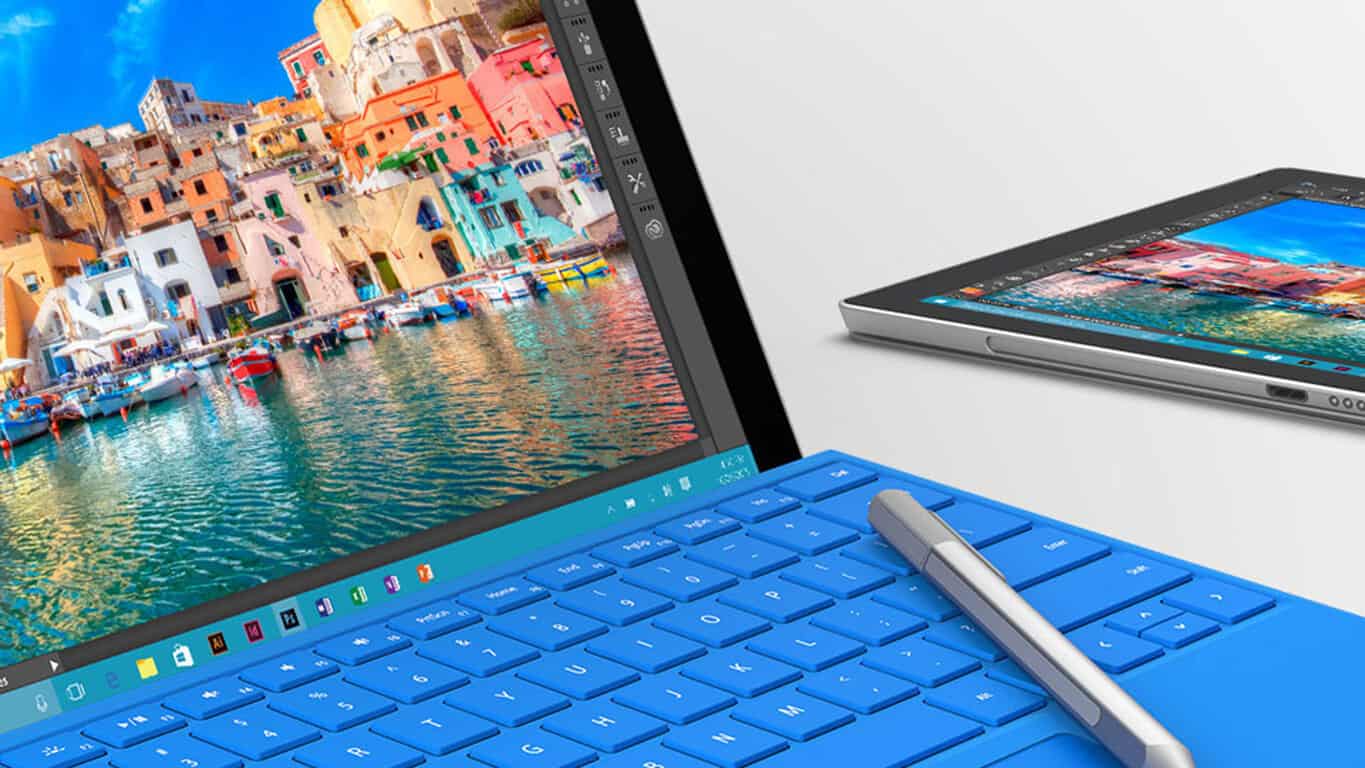
Microsoft has been laying on the apologies lately over issues with the Surface Pro 4 and Surface Book, but that’s not stopping them from marketing the flagship Windows 10 hybrids. They’ve released a number of fun new videos to promote the devices that we thought you might enjoy.
In the first video, classical pianist, YouTube musician, and apsiring video game music composer Kyle Landry spends some time talking about how he creates his masterpieces:
Next, we have designer, artist, and best-selling author Justina Blakeney being introduced to a Surface Pro 4:
Photographer and director Ravi Vora is next up, spending a few minutes talking about his creative efforts and getting introduced to the Surface Book:
Finally, video effects studio Corridor Digital is introduced, and they’re given their own Surface Book to incorporate into their workflow:
Microsoft has been very focused on real-world and often creative uses for their hybrid Windows 10 machines, and these videos do a nice job of introducing some of the newest creative talent to join the Surface community. We’re sure they’ll be highlighted in future videos as well, as they learn to be more productively creative with their Windows 10 machines, and we’ll be sure to keep you updated on their progress.
Microsoft opens its second US Innovation Center, this one in Atlanta
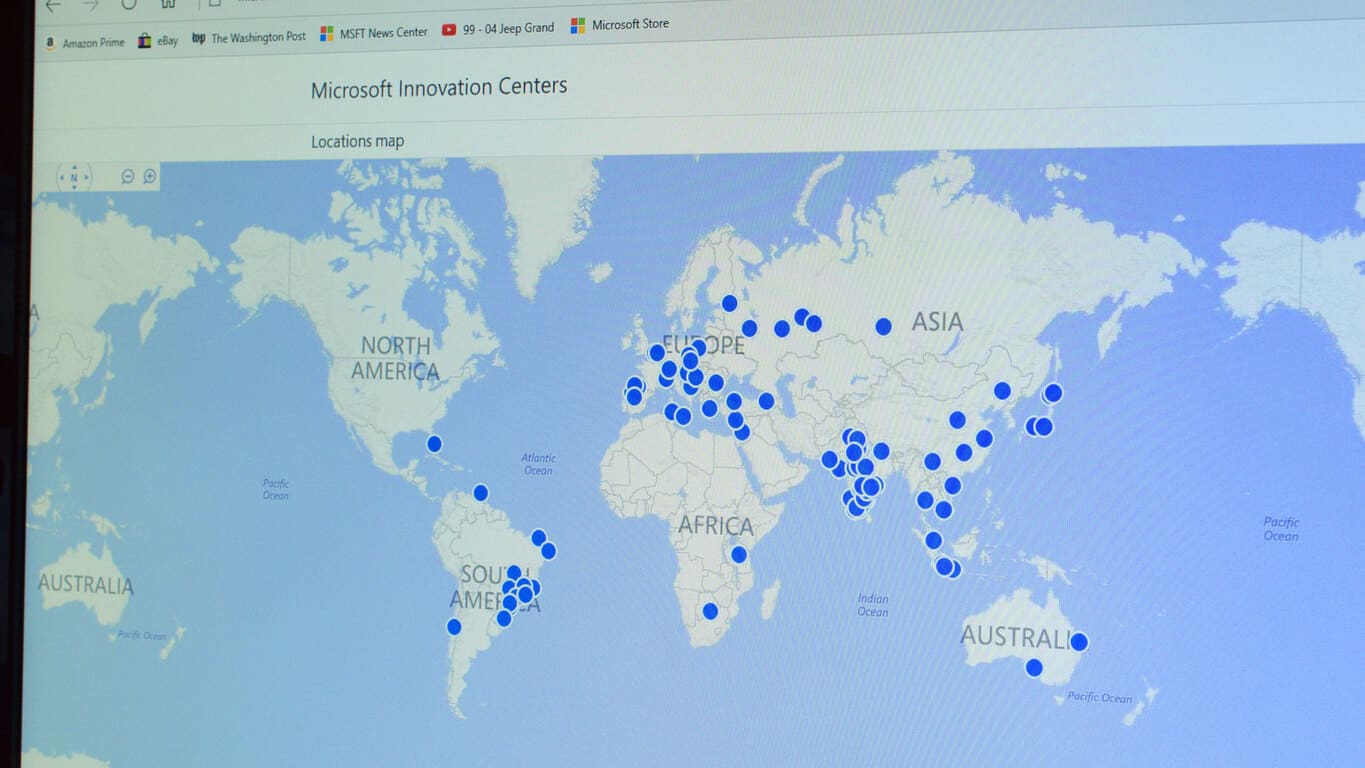
Microsoft is opening its second US “Microsoft Innovation Center”, this one based in Atlanta, and marking the occasion with a grand opening today. The center, located in Atlanta’s historic Flatiron building, is part of Microsoft’s renewed commitment to engage with startups, governments, students, and faculty.
“We envision the MIC at Flatiron City becoming a destination for entrepreneurs, academia and corporations,” says Arun Nijhawan, managing principal at Lucror Resources. “A place for people with diverse backgrounds to meet, exchange ideas, leverage their respective strengths and truly innovate. We see each feature of the MIC, whether it be the HoloLens or cloud-based services, as assets for Atlanta’s vibrant entrepreneurial community, as well as for its established industry players.”
The innovation center came about as a result of the CityNext Digital Alliance, a partnership between the city of Atlanta and Microsoft’s CityNext initiative. The Flatiron building is becoming quite the technology hub, also housing co-working spaces, the Women’s Entrepreneurship Initiative, and the Georgia Tech Enterprise Innovation Institute.
Microsoft currently has over 100 Innovation Centers worldwide, and Atlanta joins Miami, Florida as the second US city to host a center.
Microsoft wants your feedback with Continuum
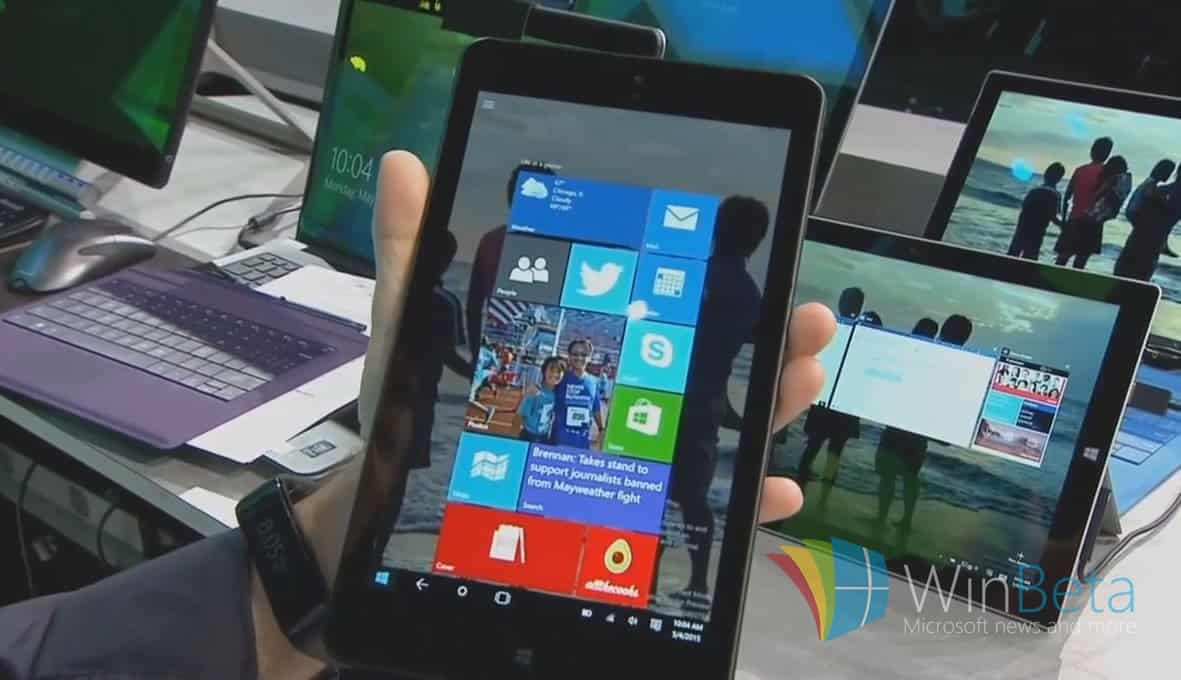
Continuum is by far one of the most interesting features Windows 10, allowing users to use their Lumia Windows 10 Mobile phones with a keyboard, mouse, and display. The interface automatically adapts the environment, turning your phone into an (almost) full-fledged PC.
The Continuum Team “is eager to hear Insider feedback,” and has posted some questions in their Microsoft Answers forums and are seeking your answers. Here are the four questions posted so far:
- Continuum Insight #1: What apps matter most on Continuum for phone?
- Continuum Insight #2: How will you use Remote Desktop with Continuum for phone?
- Continuum Insight #3: What PC features matter most for Continuum for phone?
- Continuum Insight #4: In what environments would you want to use Continuum for phone?
Each question has further questions about the specific things. For instance, Microsoft wants to know which app would you use with Continuum for phone which is not available at the moment, or the app on the desktop/PC. Or, how do you want to use Continuum on your phone, which tasks will you do, which apps to use, and where would you use Continuum for phone (home office, connected to big screen TV, kitchen, dorm room, touchdown area in a public space, etc.)?
Similarly, there are several things the company wants to know in order to improve the feature. Continuum for Windows 10 Mobile requires you to have the Display Dock which transforms your mobile device into a full-fledged PC so you can connect your smartphone to a display and work on it using peripheral devices such as a mouse and a keyboard.
Head over to the respective question using the links above to provide your valuable feedback about the questions above.
Windows Maps for Windows 10 snags lane guidance and more in latest update

Windows Maps has just updated on Windows 10 and Windows 10 Mobile and has added several new features such as lane guidance in turn-by-turn navigation and the ability for users to pin their Work and Home locations to Start which will allow one-tap directions to these two locations from wherever they are.
To help get Windows Map users into the Christmas spirit, a special feature allowing for the tracking of Santa Claus has been added, however this feature is only available in specific regions and is strangely absent over here in Australia where we very much celebrate Christmas and share America’s passion for tracking ol’ Kris Kringle (who is totally real).
Another new addition to the Windows Maps app with this update is the new Cameras option which actually streams live footage from select traffic cameras. This feature appears to be limited to North American users and even then only in some select locations.
Will this update encourage you to use Windows Maps more or do you prefer another app such as HERE Maps? Let us know in the comments below.
Fix: Unable to Downgrade to Windows Phone 8.1 Using Windows Recovery Tool

We’re close to the release of Windows 10 Mobile RTM (at least we think we’re close), and a lot of Windows Phone 8.1 users already switched to the Preview of the new mobile OS. Since Windows 10 is almost ready for the commercial use, its Preview version is very close to the full version, as it features minimum of bugs. But some people may decide to, for some reason, downgrade their Windows Phone devices to Windows Phone 8.1.
For all users who want to downgrade their phones, Microsoft provided a handy tool, called Windows Phone Recovery tool, which allows you to easily downgrade your system to Windows Phone 8.1. But one user complained on Microsoft Community forums that he’s unable to use Windows Phone Recovery tool to downgrade his phone, as it shows him a “Software package not available for this phone” error.
Something obviously went wrong with Windows 10 Mobile Preview, so it stopped to be compatible with the recovery tool. It’s probably because updates weren’t applied properly, but we cannot confirm that. Anyway, we found out that the only solution for this problem is resting the phone. After the reset, factory settings will be applied, and you should be able to downgrade your phone to Windows Phone 8.1 without any problems.
In case you don’t know how to reset your phone, follow these instructions (Since you probably can access phone’s settings, there’s no need to perform a ‘physical’ restart, so we’re going to do this the easier way):
- Go to Settings, and open System
- Go to About, and tap on Reset your phone
- Wait until the process is finished
After the phone is reset, try to downgrade it using Windows Recovery tool again, and it should work properly. Since you already planned to downgrade your phone, I assume you already created a backup of your data. If you didn’t, don’t forget to do that.
Windows 10 adds another great Universal Windows app, Tweet It!

The development of Universal Windows apps continues as popular 3rd party Twitter client Tweet It! throws its hat into the ring for the best Twitter app on the Windows 10 platform. With recent additions such as Fenice for Twitter and Aeries becoming Universal Windows apps, Windows 10 users are now becoming flush with excellent alternative Twitter experiences.
The new Tweet It! update is every bit as comprehensive as the other offerings, and shines in a few ways, the others do not. Similar to Aerise and Fenice for Twitter, Tweet It! was written to work across phones, tablets and PCs. However, Tweet It! is designed much like a first-party Windows 10 app, removing the familiar pivot navigation similar Twitter clients still utilize for the controversial hamburger menu.
Other Tweet It! deviations include swippable gestures similar to the Outlook Mail app, for responding, retweeting, favoriting, or quoting on mobile. For many, swipeable gestures make for an ideal Twitter experience as long-pressing can get cumbersome at times for one handed use. Tweet It! developers also included support for Microsoft’s big personal computing bet, Continuum. The app in full-screen mode offers an immersive viewing experience for the avid Twitter junkie. The app also enables handcrafted filtered push notifications and the tweet streaming as features.


Perhaps the only real drawback to Tweet It! versus its competition, is it’s steep app cost. Without a free trial, Tweet It! developers are asking customers to go out on a leap of faith for $5.99. Thanks in part to Twitter’s tokenization method and the popularity of Tweet It! the app can not offer a free trial at the moment.

As the app was designed from the ground up to work with Windows 10 and Continuum as a Universal app, customers of the older Tweet It! app are unfortunately being left out in the cold for the time being. Microsoft has already stated, that most Windows 8.1 devices should be getting upgraded to Windows 10 Mobile in the coming months. Hopefully, the wait to upgrade Windows 10 Mobile for Windows 8 and 8.1 customers is not too long, this time, around.
The new Tweet It! app is available in the Windows Store now.
Let us know your thoughts on the UI, UX and which Twitter app you most prefer.

Virtual CloneDrive for Windows Brings ElbyCDIO Fix and More Improvements

Virtual CloneDrive is believed to be one of the best virtual drive software currently available for Windows users, and this has remained the same with the release of Windows 10, as well.
What makes Virtual CloneDrive so popular among Windows users is that it lets you use virtual drives with many features at your disposal and is completely free, on top of that. Now Virtual CloneDrive has reached version 5.4.9.0 and it brought a couple of new features and fixes, as follows:
- Windows 7 uses scsiport driver instead of storport, so this has been changed in order to fix rare compatibility issues
- Was fixed the problem where ElbyCDIO was not restarted after uninstall
- A couple of other minor changes and improvements have been deployed, as well, but these haven’t been documented.
If you want to keep track of all the updates and hear more about Virtual CloneDrive, then go ahead and follow our dedicated download page for this. Also, if you’re interesting in other related stories, check out how to burn ISO files in Windows 10 and some of the best free burning software for Windows 10.
VideoInspector Fixes Problems with Windows 10 Support in Log File

As the name pretty much suggests it, VideoInspector is a software tool which helps bring detailed information regarding your video files. Now it has reached version 2.8.3.135 and a couple of useful features have been released.
By using VideoInspector, you will be able to tell the reason why your video files have no sound or don’t render as they should. VideoInspector will help you install the required codecs and will also inspect your system to find which codecs are available.
Here are the new features and bug fixes in VideoInspector 2.8.3.135:
- Google Search for missing codecs – resolved
- Upgrade of internal JEDI Libraries – resolved
- Windows 10 support in log file – resolved
- Japanese translation update – resolved
So, as we can see, at least in my opinion as a Windows 10 user, the most significant update is the fix for Windows 10 users. You can have a look at all the important changes which have been release to VideoInspector for Windows 10 users on our dedicated download page.
Office 365 Planner begins roll out to First Release customers
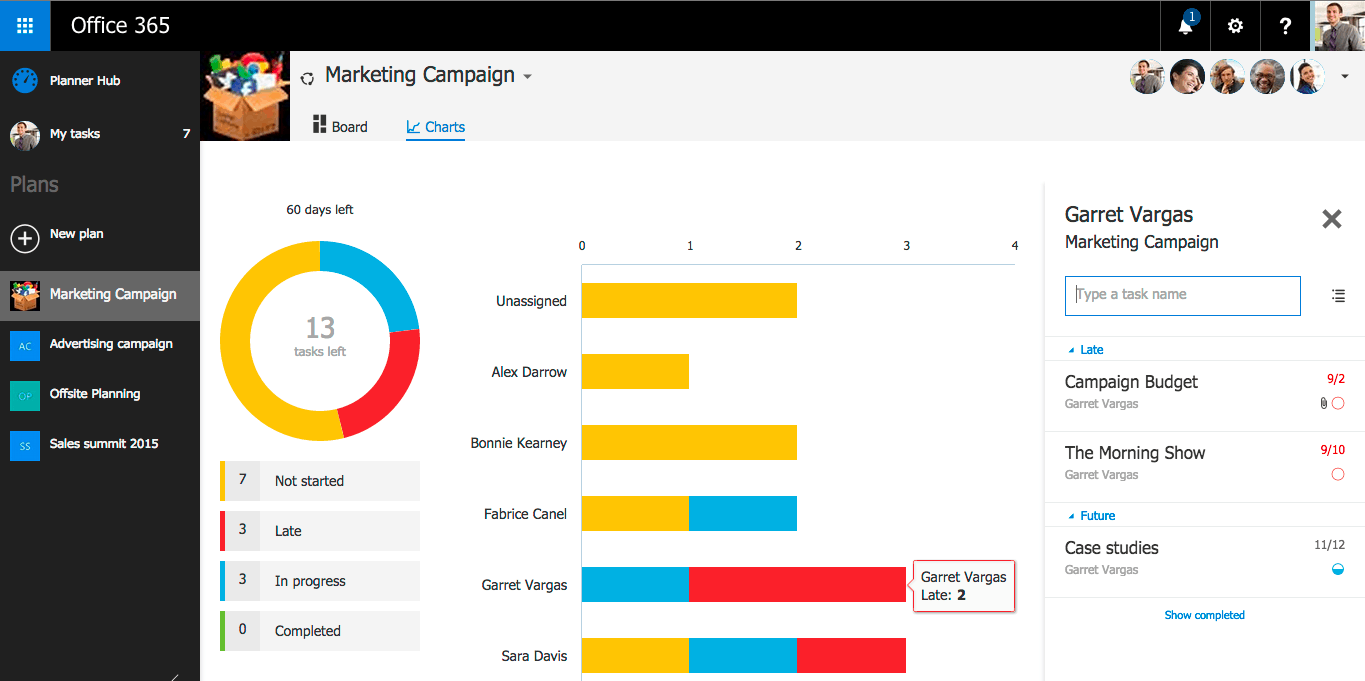
Office 365 First Release customers get the newly-minted Planner preview today. Planner allows teams to collaborate better by helping people visualize projects and delegate tasks easier. Planner enables you to create plans, assign jobs, share documents and files, chat in real time and get updates on team member progress.
Planner utilizes the use of “Boards” and “Cards,” to organize work. For each project, there is a Board, and within each Board, a work item or task is listed as a Card. Within the Card, there can be attachments, due dates, conversations, or labels associated with it. Any team member can receive email notifications about Cards if they are assigned or added to a conversation by using Outlook 2016.
When Planner was first announced in September, it wasn’t known what Office 365 plan participants would be eligible to use Planner. Now, Microsoft revealed which Office 365 members would be able to use Planner preview: Office 365 Enterprise E1, Office 365 Enterprise E3, Office 365 Enterprise E4, Office 365 Education, Office 365 Education E3, Office 365 Education E4, Office 365 Business Essentials and Office 365 Business Premium.
While the Office 365 Planner is just a preview release at the moment and is not available for all Office 365 plans, it may become more widely available at a later date.
Wall Street Journal gets the Universal Windows App treatment

The Wall Street Journal (WSJ) is the newest big name news source to have a Universal Windows App (UWA). While not technically a new appearance in the Windows Store, the new upgrade to UWA brings several improvements in user interface, performance and usability. Let’s have a look.
First impression
My first experience with the new app was not a smooth one, as the first setup ended at the edition choice (WSJ app now offers 5 editions of the paper from US, Europe, Asia, Korea, and Japan), before the app crashed. Subsequent uses, however, have been great, albeit with a little chugging here and there in loading articles. Beware that while the app is free, you can only read a few articles before being forced to subscribe at a fee.


Design
The app follows the Windows 10 design guideline tightly, down to the bottom actions menu to compliment the main hamburger up on the top right. The user interface is clean and minimal, almost spartan. With the liberal amount of white empty space being used, a dark theme would be much more appreciated by the eyes, however. Picture slideshow and videos work as advertised (the video player’s UI, especially, is a carbon copy of Microsoft’s stock Movies app, down to icons; no options to change video resolution, however).


Article view
The reading experience itself, while quite good, leaves things to be desired. Texts are crisp and well-formatted, but are confined to one column of about one third of the app window itself; there is no option to use the almost criminally wasted two sides to view anything. Zooming options are offered via buttons in the bottom action menu (no pinch-to-zoom), however, they do little to alleviate the claustrophobic feeling of reading only the middle of the screen. Also, as previously mentioned, a dark theme, or reading mode would be greatly appreciated here. There is an option to download articles for offline reading; however, the location of downloaded articles is a bit too well-hidden, near the bottom of the hamburger menu.


Conclusion
Overall, the upgrade is a good effort from the WSJ developer at improving the experience of the app, which allegedly has been quite unsatisfactory from user reviews; some improvements in the reading experience would be greatly welcomed, however. WSJ readers should definitely give it a try (or another try). We are looking forward to how the app will evolve in the future.

Microsoft's Hour of Code draws millions of students from around the world

Over the past week Microsoft, along with its partners with YouthSpark and Code.org, helped celebrate Computer Science Education Week. In September, I introduced you to Genesis, a young girl whose passion for programming was made possible though Microsoft’s YouthSpark initiative. Though programs such as this, Microsoft is encouraging young people from around the world to learn how to code and shape our digital future. Additionally, Microsoft’s partnership with the creator of Hour of Code, Code.org, has given them the ability to reach anyone with a computer, providing hands-on tutorials and sessions for coding.
During Computer Science Education week, Microsoft and Code.org used Minecraft as their primary platform to introduce coding. Over the course of the week, the Redmond based company hosted coding sessions in over 50 different countries in addition to conducting Hour of Code camps through out the US by means of its Microsoft Store channels. Microsoft’s blog, The Fire Hose, reported:
It was exciting to see millions of young people in every corner of the world spark a passion for coding – from learning basic coding skills with British Prime Minister David Cameron in the U.K., to learning coding for the very first time at the Thika School for the Visually Impaired in Kenya, to being inspired by teachers, tech leaders and innovators from around the world.
It is clear that quite a few individuals working behind the scenes at Microsoft see the importance of teaching young people how to program. What is even more impressive is how Microsoft has been able to utilize Minecraft as a vehicle for teaching code. As a result, we will likely witness many such efforts in the years to come. Let us know if you had a chance to participate in Computer Science Education week or the opportunity to learn to code with Minecraft in the comments below.
Display Dock for Continuum receives its first update, here’s how to get it

On Friday, December 11th, Microsoft rolled out the very first update to the Continuum Display Dock for Windows 10 Mobile. For those of you who wondering how to update your display dock, here’s how to do it. It’s actually a really simple process.
First, head over to the Windows Store on your Lumia 950 or Lumia 950 XL and update the Gadgets app. You should see an update pending for Gadgets (if it hasn’t already been updated).
Once you update the Gadgets app, plug in the Display Dock to the power outlet, and plug in your phone to the Dock. The Display Dock will appear as “HD-500” in the Gadgets app.
Launch the Gadgets app and you will see a small message at the bottom of the app informing you that an update is required for best results and performance (version 4.0). Tap on the “update now” button.
Your Lumia 950 or Lumia 950 XL will now download the update and install it to the Display Dock (how cool is that?) Once the update is done (it takes less than a minute), you will be asked to unplug the Display Dock from the power outlet and plug it back in.
There you go! Your Display Dock is now running the latest firmware update available. Nothing new screams out at you feature-wise, but we’ll take performance improvements anytime!
iTunes for Windows 10 Updated with Apple Music Catalog Improvements

As you very well know, iTunes is a free software for owners of Apple devices which helps them play all of their digital music, video and other content. It makes it very easy to sync content to your iPod, iPhone, and Apple TV.
The most recent update is marked as 12.3.2 and it brings a couple of minor improvements that you should pay attention to in case you are an iTunes users and also rely on Windows as your day-to-day system.
iTunes 12.3.2 improvements
Here’s how the changelog for iTunes 12.3.2 looks like:
- This update allows you to see works, composers, and performers while browsing Classical music in the Apple Music catalog
- Stability and performance improvements
The 32-bit version comes with a size of 112.0 MB while downloading iTunes 12.3.2 on your 64-bit Windows 10 will take up 127.0 MB. We’re talking only about Windows 10 because we strongly believe everybody should make the jump to Windows 10, but of course you can still download it. Go ahead and follow our dedicated iTunes download page for Windows 10 users to keep track of previous changes, as well.
This specific iTunes update was pushed in order to match Apple Music changes made earlier in iOS 9.2. As for stability and performance improvements, it seems that these mainly address some security issues for Windows 7 users, which in my opinion is just another reason to update to Windows 10.
Microsoft's Office Lens, Word, and Skype are three of Google's Best of 2015 apps
It’s no secret by now that Microsoft has their own apps on rival platforms like iOS and Android. Google has actually named Microsoft’s Office Lens as one of their Best of 2015 apps, along with Microsoft Word. Glad to see at least two of Microsoft’s apps receiving praise from Google.
Office Lens, for those that did not know, is an app that allows you to trim, enhance, and make pictures of whiteboards and documents into a readable format and saves them to OneNote. Office Lens can convert images to PDF, Word, and even PowerPoint.
At the time of this story, Office Lens has had over 70,000 reviews and has an average rating of 4.5. There are over a million installs of Office Lens on Android devices.
Microsoft Word, on the other hand, offers a familiar look and feel on the go. Microsoft Word has over 269 thousand reviews, with an average rating of 4.4. There are more than 10,000,000 installs of this app! Skype has also made the list, having an average rating of 4.1 and close to 8 thousand reviews.
#OfficeLens is now one of @GooglePlay's Best of 2015 apps! Get it today: https://t.co/mXcQ8Yh2er pic.twitter.com/9Zikvigen5
— Microsoft Office (@Office) December 13, 2015
It’s not the first time one of Microsoft’s apps have made it to a top-ten list. Time Magazine recently named Microsoft Translator as one of the top-ten apps of 2015.
We’re glad to see Microsoft’s app development efforts prove to be appealing to consumers, no matter what platform they are on. You can check out Google’s list of best apps here.


Facebook Beta app for Windows 10 is not a Project Islandwood port

In mid-November of this year, Facebook Beta for Windows 10 appeared in the Windows Store. Microsoft had stated that a universal Facebook app would be launching soon and we already have a taste of that with the Windows 10 Mobile Facebook app. Currently, the desktop app is being tested and will likely be rolled out early next year.
It was originally rumored that the Facebook Beta app for Windows 10 was a Project Islandwood port, meaning the code was ported from iOS to Windows 10. You can head over here to read about Project Islandwood. In a nutshell, Project Islandwood is the codename for “Windows Bridge for iOS” allowing developers to build a Universal Windows Platform app using Visual Studio 2015 while using existing code from an iOS app. Project Astoria (Windows Bridge for Android), for those wondering, was put on hold indefinitely.
Facebook for Windows 10 is a 'bridged app', but not using Islandwood, they use instead 'Osmeta', a start-up acquired by facebook 2 years ago
— Rudy Huyn (@RudyHuyn) December 3, 2015
According to a tweet from Rudy Huyn, the Facebook app for Windows 10 is not a Project Islandwood app, rather it was ported using “Osmeta.”Osmeta was a Mountain View-based mobile software startup that was acquired by Facebook about two years ago. Osmeta had the tools necessary to theoretically have one core functionality run across multiple platforms.
This doesn’t change the fact that the app is a “bridged” app or port from iOS, but it’s cool to know what technology was used to make it happen. Now if only we can see all these different Facebook apps bridged together into just one app, so people aren’t confused on which app belongs to who (I kid, I kid!)
For all you app developers out there, have you experimented with Project Islandwood? Should there be more tools available for app developers to create bridged apps? Share your thoughts in the comments below.
Thanks BiggishTuba558 for the tip!
Windows 10 news recap: Upgrade push, new updates and more
Welcome back to another weekly Windows 10 news recap. It’s been a busy week for Microsoft, especially with the company’s Windows 10 platform. Let’s take a look back at some of the hot stories relating to Windows 10 in a special feature we call “Windows 10 news recap.”
Microsoft begins a more aggressive push to get users upgraded to Windows 10
According to PCworld.com, Mayfield believes Microsoft is using their Windows Updates to manipulate PC’s into automatically downloading Windows 10 in an effort to get the new OS running on as many devices as possible. The article even goes as far as saying that today’s Windows Update can possibly bring about a change that would make the Windows 10 upgrade an optional Windows Update instead.
Mayfield states that the Windows Update client is working together with Microsoft’s Windows 10 upgrade app to accomplish this. The change will effectively align the Windows 10 upgrade as a part of the normal Windows Updates users receive regularly. Although it will show as optional, that will only be for a finite amount of time. Next year, however, this status will change from optional to recommended. Recommended updates through the Windows Update client automatically download, this will then include the Windows 10 upgrade. Although users can still opt to cancel installation of the new OS, many users may see the OS change as just another update.
Here’s Microsoft’s response to all this. The company announced back in October that this would occur.
“We will soon be publishing Windows 10 as an “Optional Update” in Windows Update for all Windows 7 and Windows 8.1 customers. Windows Update is the trusted, logical location for our most important updates, and adding Windows 10 here is another way we will make it easy for you to find your upgrade. Early next year, we expect to be re-categorizing Windows 10 as a “Recommended Update”. Depending upon your Windows Update settings, this may cause the upgrade process to automatically initiate on your device. Before the upgrade changes the OS of your device, you will be clearly prompted to choose whether or not to continue. And of course, if you choose to upgrade (our recommendation!), then you will have 31 days to roll back to your previous Windows version if you don’t love it.”
New cumulative update for Windows 10 Version 1511 rolls out (KB3116900)
Microsoft has just rolled out KB3116900, a new cumulative update for Windows 10 Version 1511 (November 2015 Update). Unfortunately, at the time of this post, Microsoft has not revealed a changelog, so we’re left fending on our own to see what’s new or fixed. Head over to Windows Update to snag this new update now! Let us know in the comments below if you notice any new improvements or problems.
Microsoft rolled out a cumulative update for Windows 10 just last week (KB3116908) and the change log only mentions improvements to enhance the functionality of the operating system. Windows 10 Version 1511 updates are cumulative, so these updates will contain all previously-released fixes.
Windows 10 used by nearly 30% of all Steam gamers
Windows 10 continues its slow and steady takeover among the tech-savvy population of Steam users, rising to just shy of 29% usage among all operating systems, and more than 30% within the Windows family, according to the newest Steam November report.
This measured increase is pretty much in line with the adoption rate for Windows 10 in general, which has been on a steady rise, passing 120 millions a month ago, likely due to Microsoft’s staggered strategy regarding pushing out the update (which, from recent events, seems to be prepared for a quickening soon.) Windows 7, while it still sits at the top of the Windows food chain in Steam adoption, continues to decline.
Mail and Calendar, Photos, and Xbox apps for Windows 10 updated
Microsoft was on a roll today with app updates. Not only did we see a huge update to the Groove Music app, as well as the Movies & TV app, Microsoft has rolled out updates to various other Windows 10 core apps too.
Mail and Calendar snagged a new update today, along with the Photos app and the Xbox app, unfortunately, Microsoft did not provide a change log for these particular updates. One thing to note in the Photos app, you now have an “Add to favorites” option in the menu. Windows Alarms & Clocks app and the Get Office app also received an update today with no change log.
Dedicated Microsoft Edge extensions page revealed early as new Redstone build nears
A user by the name of H0x0d on Twitter appears to have found a dedicated webpage from Microsoft asking Windows Insiders to begin testing Extensions for Microsoft Edge. The web page looks to not be ready for the public just yet as the header of the web page still includes a placeholder build number and other placeholder bits, but this does mean Microsoft is getting closer to releasing a new build!
The web page actually has links to two extensions for Edge that you can download right now, Pinterest and Reddit Enhancement Suite. Edge on build 10586 doesn’t support extensions unfortunately, so it looks like these won’t yet run. Still, I’ve been hearing whispers for a while now that Microsoft is planning to get a Redstone build out before the years end, and I hear Microsoft already has a few Redstone build candidates in the running for an Insider release.
So there you have it. What was your favorite news story from this week? Let us know below.
Download Latest Nvidia GeForce Drivers for Windows 10

If you have recently upgraded to Windows 10, then you know there are plenty of problems and issues. One of them involves dealing with outdated drivers, and that’s why you need to make sure you’re running the most current ones.
There are millions out there who are using an Nvidia graphics card and we have decided to keep track of the latest GeForce Drivers for Windows 10 and talk about the new features which have been released.
Downlod Nvidia GeForce Drivers for Windows 10
In order to download the latest GeForce drivers for Windows 10, you are advised to use the NVIDIA Smart Scan which only requires the latest version of Java to be installed.
The reason why we don’t offer direct download links is that there are just way too many graphics cards out there and the best way is to automatically find drivers for your NVIDIA products instead of having to download them separately.
Another smart way to make sure you’re always getting the latest drivers for your Nvidia card on Windows 10 is to use GeForce Experience software which automatically notifies you of new driver releases from NVIDIA.
Download Nvidia GeForce Game Ready Drivers
Nvidia GeForce 359.06
This specific update was released on 2015.12.1 for Windows 10 users and it comes with a file size of 303.75 MB. This update is said to “ensure the best gaming experience for Just Cause 3 and Rainbow Six: Siege“. Nvidia also said the following:
Prior to a new title launching, our driver team is working up until the last minute to ensure every performance tweak and bug fix possible makes it into the Game Ready driver. As a result, you can be sure you’ll have the best day-1 gaming experience for your favorite new titles.
Use third-party software
In case you don’t want to spend time looking for the right drivers and manually installing them, then we recommend using professional third-party software that can complete these actions with a few clicks.
A computer cannot handle video cards, computer programs, sound cards; they must be managed by a driver. You can manually update drivers if you have a thorough understanding of the drivers your PC requires.
If you don’t have the knowledge to do it, the driver updater utility is the best alternative. Fortect Driver Updater keeps your system running smoothly by upgrading its drivers. This utility scans your system and discovers outdated drivers that cause slowdowns.
However, a program like Fortect Driver Updater not only downloads and installs drivers, but also manages them by troubleshooting, backing up, and restoring them.
While third-party software can be handy, if you’re explicitly struggling to download NVIDIA drivers, our comprehensive guide on resolving NVIDIA driver download issues on Windows 10 provides targeted solutions.
We will be constantly updating this article whenever something of significant importance comes from Nvidia’s side, so you can bookmark it for further reference. On this page, you will be sure to find
Outlook Mail and Calendar app update sees return of linked inboxes
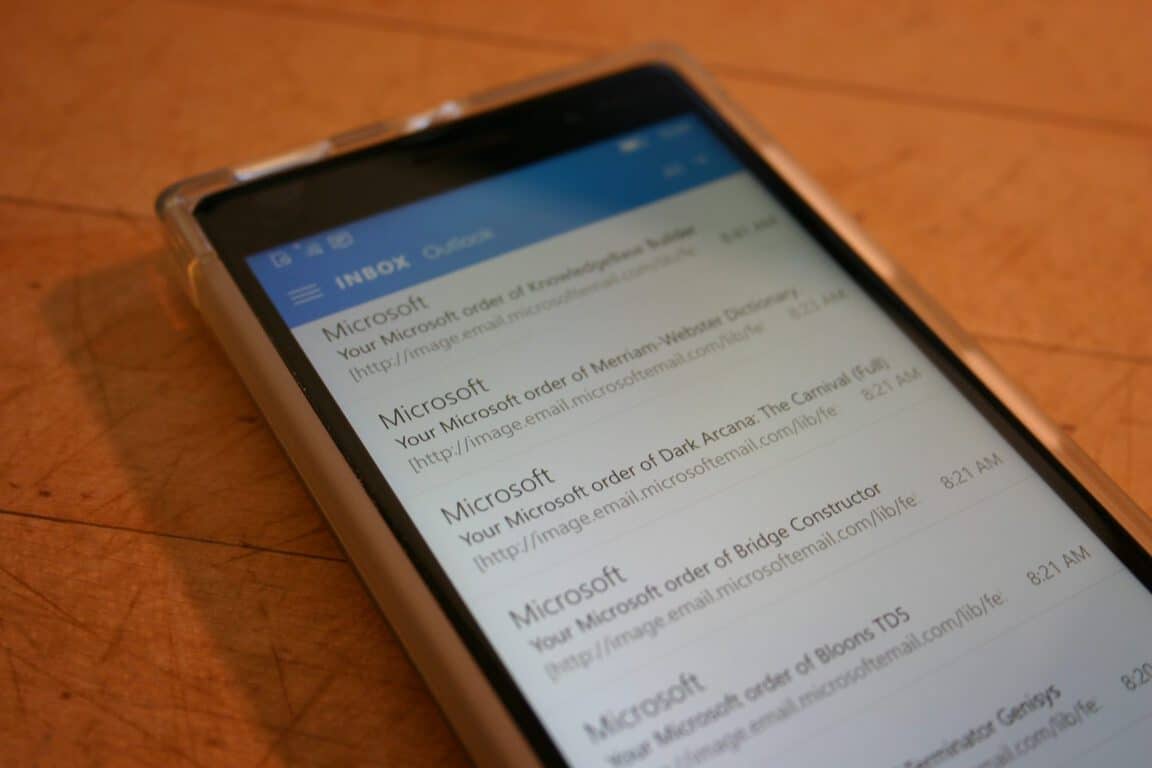
Outlook Mail for Windows 10 has received a few handy updates in the past few days. Earlier this week, Microsoft updated the mail app with a few useful features such as portrait week view for mobile devices as well as full screen reading support for phablets as well as a bunch of bug fixes and improvements.
The company has pushed out yet another update for the Outlook Mail and Calendar app. The app page doesn’t list the changes introduced so it seems the update focuses more bug fixes and enhancements. However, Windows Insiders head Gabriel Aul shed some light on the update and mentioned that it brings linked inboxes back for everyone.
An update to the Outlook Mail app for Windows 10 just went live. Linked inboxes are back!
— Gabriel Aul (@GabeAul) December 12, 2015
Previously, the feature was introduced for Windows Insiders, but with this update, all Windows 10 users will be able to make use of this.
Head over to the Windows Store using the link below and grab the updated Outlook Mail and Calendar app for your device.

Microsoft’s Music experience is much better today than it has been in years
Earlier this week, Windows software engineer on the Groove Music team, Ellen Kilbourne, alerted her Twitter followers to a rather significant update to the app headed to mobile devices. The new update brought many requested features as well as a handful of neat new additions to the app, unfortunately, for Ellen, her tweet got snagged on bewildered former Zune and Xbox Music users.
During a recent discussion with a colleague, I realized that the long-held perception of Xbox Music and subsequently, Groove Music, may have led to the current criticism Ellen’s update tweet may have received. Looking back on what the update brings and what Groove Music has evolved into as of today, it seems Windows 10 and Windows 10 Mobile users have a more than comparable music service to use, albeit lacking some features still.
The most recent update to the Groove Music app for mobile brought some handy features such as press and hold to reorder tracks within a playlist, new listings for recent plays, additional Cortana support, and OneDrive/Groove song duplication alerts.
Access
Beginning with new users, a 30-day free trial is provided access to 40 million song library ad-free. Specifically, users will gain access to a trove of over 18 million tracks from the US as well as over 38 million tracks found globally. For new or existing users, they can access their music content from a web page, PC, Xbox, iPhone, Android devices, and Windows Phones. Similar to Spotify, Groove Music can be accessed practically from any device.
For paying customers, a Groove Music Pass includes a monthly or annual subscription pricing tier. For a month to month subscription, customers are looking at $9.99 US plus tax or many can opt for a yearly price of $99.00 US plus tax. Microsoft also offers discounts to the both monthly, quarterly and annual pricing structures in the form of Work & Play bundles, or Bing Rewards, throughout the year. As for international availability, customers are encouraged to visit the Groove Support page for more details.
Playing in the Cloud
Similar to Spotify, Groove Music can be accessed practically from any device. With clients on the web, PCs, Xbox, iPhone, Android, and Windows Phone, Windows users on any platform are poised to get the most out of their subscriptions. Utilizing the cloud, Microsoft has also given the Groove Music Pass activation for up to five devices at a time in addition to using the web, changes to a music collection span across device and platform. Recently, Groove Music added the ability incorporate songs and albums stored in Microsoft’s cloud offering, OneDrive. Before some recent business policies, OneDrive users could practically stream their entire music collection in OneDrive and use the Groove Music interface as their personal music player, equipped with full art, and varying degrees of meta-data included. Groove’s integration of personal music also included music collected through iTunes as well.
[pullquote align=”right” cite=”” link=”” color=”” class=”” size=””]Groove Music has been a bit of a hit and miss with hardcore Windows users[/pullquote]
The new Groove Music ‘locker’ is a feature that is becoming an industry standard as other music services such as Google Play Music, Amazon Music, and iTunes Match are now offering them respectively. Unfortunately, services such as Spotify, Rdio, and Songza do not provide the same cloud-locker integration.
Usage
Even with matching other streaming services with on and off device services, Groove Music has been a bit of a hit and miss with hardcore Windows users, specifically, zealot-like Zune holdouts when it comes to the apps fluidity between mobile, Xbox and PC. Preceding the long and troubled past of the Groove Music app ‘rebuild’, the new app has undergone a visual and functional redesign for better or for worse, to say the least. The new app, as of today, brings the controversial hamburger menu, that can now be accessed with or without a swipe to help improve one-handed usability. Identical to the previous Xbox Music app on Windows Phone, users have access to volume, track navigation and one-tap access to the app from anywhere within the OS by tapping the hardware volume buttons.
Other features that have been added, addressed or worked on over the course of the Groove Music app development include:
- Artist based radio stations. (perhaps the closest thing users will get to curated playlist for some time)
- Detailed artist info.
- Improved exploration, shopping and downloading experiences.
- Landscape viewing and navigation.
- Songs and albums in your collection, sort by the date you’ve added them by default. You can still switch to sorting alphabetically. (or by artist in the case of albums)
- You can now swipe from the left to bring up the hamburger menu. It makes it easier to use the app with a single hand.
- Press-hold to re-order tracks within a playlist.
- Previously, only plays from your collection would appear in Recent Plays – now it also includes things you’ve played directly from Explore.[Groove Music Pass Required]
- Shows download progress in the title bar, and also, provide an entry point to the download manager from within the left nav menu. This aligns with what the Movies & TV app includes.
- Tell Cortana to ‘Play Electronic’ and she will shuffle all your electronic music for you. [where Cortana is supported]
- In the event that, during an upgrade, a data base needs to be rebuilt (this should be very infrequent), it’ll show a little explanatory dialog explaining what’s happening.
- Detection of songs which are duplicated between OneDrive and Music Pass pop a notification asking if you’d like us to automatically remove them.
- Reverted the recent change to the font size of the song title in Now Playing. It’s smaller now.
- Updated the layout of the artist gallery to have proper spacing, alignment and remove the color-matched square backgrounds.
- Added the Explore modules to the Artist Details page at larger resolutions. [Groove Music Pass Required]
- Updated the layout of Explore at higher resolutions to look correct, and also respond better to scroll wheel. The modules also have a flipper control to allow scrolling within the page. [Groove Music Pass Required]
- Updates to the Search results page layouts to look good at higher resolutions.
- Updates to the layout of the Add-to menu at higher resolutions.
- Updates to the layout of the Recent Plays gallery at higher resolutions.
- You can share a link to music by tapping Share in the context menu. Tell your friends what you’ve been listening to!
- Automatically show more albums for artists you’re exploring if you aren’t on a metered data connection to reduce data usage.
- The theme setting in the app is now tied to the related system setting.
- Improvements in the way the app searches for music on your mobile device.
- Popular settings from the desktop version of the app are now in the mobile version – look for settings related to Downloads, Media Info, and OneDrive in the mobile app.
- Read album reviews.
- Update to Playlist header.
- Remove things from Recent Plays.
- Improved Live Tile UX Showing the Groove logo when artwork is displayed
- Showing album art.
- Removing the black half gradient.
- Shuffling the metadata around to be more useful.
- iHeart Radio integration.
Comparison
While most of the above list have been features set in place to address holes left by the transition from Xbox Music app written in Silverlight to the new Groove app written with an entirely different code, it is proof that the Groove Music app offers much of the same experiences as the competition. Furthermore, on Windows devices, particularly Windows 10 Mobile where competitive offerings are lacking, the Groove Music app offers a stellar listening experience.
[pullquote align=”left” cite=”” link=”” color=”” class=”” size=””]the app has been met with criticism on its design and discoverability[/pullquote]
Apple Music was recently updated with the purchase and integration of Beats Music to add curated playlist and Online Radio offerings and in doing so, the app has been met with criticism on its design and discoverability. During its initial launch, reviews complained of too many menus, hidden tools and mismanagement of music libraries on both devices and in the cloud. While Spotify remains the poster child for social sharing of music, curated playlist, cross-platform availability, its Windows offerings tend to trail behind in features, settings and updates compared to iOS and Android platforms. Google Play Music offers a very comprehensive music experience and has recently bolstered its efforts adding bits of YouTube to its customers, yet, once again, Windows users are forced into a web-only experience. Regardless of how the pie is sliced, a Windows user will have a void in their music experience across devices and platforms using any of the leading services.
Due to Windows relevancy in the market, it seems that for folks tied to Windows devices, Groove Music by default is an excellent solution. Perhaps that is not saying much, but for a many, Groove offers a lot. Furthermore, the app is making strides as it gains Sonos support, iHeartRadio integration, and is making more of its APIs accessible for other possible future alliances.

Yes, Groove lacks a Family Plan offering comparative to the rest of the industry as well as an adequate curation solution beyond Artist Radio, but as a cross-platform, cloud-connected music service, it has been remarkably rebuilt. With almost bi-monthly updates (some, mainly bug fixes) the Groove Music app for both Windows 10 PCs and Mobile devices has retained much of what it lost during its rebuilding stage and seems better prepared to incorporate new industry standards as they arise.
[pullquote align=”left” cite=”” link=”” color=”” class=”” size=””]For many Zune and Xbox Music refugees, years of complaining may have colored reality with perception[/pullquote]
As each new Groove update hits the Windows Store, it’s evident that user feedback is being addressed, albeit not in any particular order or with any regard to user requested timeframes, but addressed nonetheless. For many Zune and Xbox Music refugees, years of complaining may have colored reality with perception, but the Microsoft music experience of today is much better than it has been in years.

Microsoft to frustrated Surface Book and Pro 4 owners: we're hearing you loud and clear
Some Surface Book and Surface Pro 4 owners have been frustrated at their new devices due to several issues involving the display, standby mode, and more. Microsoft has taken it to the official Surface support forum to basically apologize and reiterate that they are hearing you loud and clear. The usual “your feedback is valuable” phrase is also mentioned as well as a note that they are working to issue additional fixes as soon as possible. Here’s what Microsoft had to say in the official support forum:
First, a big thanks to all of our customers for your open and candid feedback on Surface Book and Surface Pro 4. For those of you who’ve had a less-than-perfect experience, we’re sorry for any frustration this has caused. Please know that we’re reading your comments and hearing you loud and clear. Your input is incredibly valuable in helping us address your questions with timely updates and fixes. Since launch, we have aggressively pursued the most pressing feedback. We have already issued a number of updates via Windows Update and are working to issue additional updates and fixes as soon as possible to further improve the overall Surface experience. To ensure that you have received the most recent updates, we recommend you check out our support page with instructions on how to download and install the latest Surface and Windows updates. Surface Book update history can be found here and Surface Pro 4 update history can be found here.
Microsoft has already promised that a fix for the sleep issue will arrive in January. While not everyone with a Surface Book or Surface Pro 4 are affected by these problems, consumers that are affected are obviously frustrated that their expensive piece of hardware isn’t working as advertised. Is your Surface Book or Surface Pro 4 facing any issues? How do you feel about Microsoft’s apology?
Manage iPad, iPhone Without Jailbreak with this iTunes Alternative for Windows

We’re all Windows here, but let’s change the subject for a second, because we have one really good tool to present you. The program is called iTools, and it’s a free alternative to iTunes. iTools is a perfect tool for managing your Apple devices, such as iPad, iPhone, iPod, etc. without jailbreak or iTunes.
With iTools, you can easily transfer your multimedia content (books, music, movies, photos, etc.) between your devices and PC. It can also help you to install, uninstall and backup your apps and restore your folders. So basically, iTools works with Apple’s devices the similar way as File Explorer works on Windows.

iTools supports absolutely all iPod, iPhone and iPad devices. Check out all important iTools features here:
- Ringtone maker: iTools lets you create ringtones from music held on your computer.
- iTunes access: From iTools, you can access all of your iTunes backup files, so you can access old data and media.
- App management: The app management feature allows you to view and edit your apps.
- Data Migrate: iTools support migrating data between iOS devices.
- Super Backup: Backup, restore and clone any iOS device, completely or selectively per data set
- File Explorer: View the system directory & file system of the device to learn more about your device.
- Desktop Management: Desktop Management help you drag bulk apps at one time by mouse!
- Fast Optimization: Clean up most junk files. Enjoy a cleaner, faster and better device, in almost every way.
- Battery Master: Dashboard of your battery, all detail information you need to keep your device and battery healthy!
- Portable Disk: Turn your iPod or iPhone into a portable drive.
- Transfer music between any iPhone, iPod or iPad and any Mac or PC.
- Real-time Desktop – Real-time project your desktop into computer desktop.
- Copy every picture and movie to your computer, from the Camera Roll, from your Photo Albums.
- Real-time Log – Getting more clear of your device system running log by Real-time log.
- Crash Log – You can find most of crash log here and find out the problem as soon as possible.
- Firmware Download – Download the newest firmware, automatically recognize your device and download without your learning.
- Wireless Management – Say no to cables!
iTools is a completely free tool, and it is compatible with Windows 10. You can download it for free by follow its official page here on Windows Report where we also track all the latest changes and offer for download only the latest version.
Download iTools for Windows 10: How to Install it

If you are an iPhone owner and a Windows user, things might not be as straightforward. A problem appears when you want to use an iTunes alternative without relying on iTunes. And that’s why you need to download iTools for Windows 10.
iTools is one such tool and doesn’t even require your Apple device to be jailbroken. And what’s terrific is that iTools is completely free. Along with some great features, iTools made it among the best in its range.
In this article, we will discuss all the most recent versions of the program and provide direct download links to them.
Can you download iTools to a PC?
Yes, iTools is meant to be downloaded to a Windows PC and used for transferring between it and the Apple device. It’s a handy tool, and with each upgrade, you get many more features and enhancements in terms of performance.
For those who haven’t tried it yet, and are facing issues with iTunes, we recommend you download iTools and discover the wide array of tasks it can accomplish.
How do I install iTools on Windows 10?
Download iTools 4 from the official website
- Go to iTools official website, and click on the iTools Direct download button.

- Follow the on-screen instructions until you view the available versions, and download one that best meets your needs.

- After you have are done with the purchase, run the setup, and follow the on-screen instructions to complete the installation.
The latest version, iTools 4 for Windows 10, is available for download on the official website. While it claims to be the best iPhone transfer software, there’s no doubt it’s amongst the top iTunes alternatives. And this version has received several enhancements and boasts additional features.
That’s all! This is how you can download iTools in Windows 7, Windows 10, or Windows 11. It’s compatible with all iterations of the OS and should work seamlessly.
In case you are facing issues with it, there are several other iPhone to Windows data transfer software.
For any queries or to share your review of iTools, drop a comment below.
Microsoft backs down, lets users keep all of their free OneDrive storage

One of the most controversial decisions that Microsoft has made in recent memory was its decision to cut down on the free storage that’s offered to those using free OneDrive accounts. The reaction was decidedly negative, as one would expect from a decision that is unarguably something that’s negative for the users. While Microsoft stays confident that it needs to limit the free storage that it hands out from now on, it realizes that it can’t afford to make so many of its users so upset.
We've heard the feedback from our fans. You'll be able to keep your free storage when the changes happen in 2016. https://t.co/WLxKcCRrQe
— OneDrive (@onedrive) December 11, 2015
Microsoft has decided to give OneDrive users the option to keep their 15 GB of free storage, as long as they just opt in with a website that marks their accounts to be unchanged when the update rolls out. Anyone who cares about keeping the extra 10 GB of storage space (and, let’s be honest, you do) can opt in any time before January 31st and their accounts will be unaffected by the change.
A post on the UserVoice, with some 70,000 votes, was marked as closed, with the following response from Microsoft Group Program Manager Douglas Pierce:
In November we made a business decision to reduce storage limits for OneDrive. Since then, we’ve heard clearly from our Windows and OneDrive fans about the frustration and disappointment we have caused. We realize the announcement came across as blaming customers for using our product. For this, we are truly sorry and would like to apologize to the community.
While we are not changing our overall plans, we’d like to clarify what we are doing for customers impacted by the changes and share a new offer which we hope will go a long way in making the situation better for our biggest fans.
Office 365 Home, Personal, and University subscriptions will continue to include 1 TB of storage. Any subscriber who received additional storage as part of our unlimited offer will keep it for at least 12 months. For anyone unhappy with the decision to not offer unlimited storage, we will offer a full refund.
For customers of our free service who have over 5 GB of content and who are directly impacted by the storage change, we will offer one free year of Office 365 Personal, which includes 1 TB of storage. These customers will receive an email with redemption information early next year.
In addition, for our biggest fans who have been loyal advocates for OneDrive, we are adding a new offer that lets you keep your existing 15 GB of free storage when the changes happen next year. If you also have the 15 GB camera roll bonus, you’ll be able to keep that as well. From now until the end of January, you can sign up to keep your storage at the link below.
https://aka.ms/onedrivestorage
We are all genuinely sorry for the frustration this decision has caused and for the way it was communicated. Thank you for sticking with us.
It’s not perfect, as it still ends up leaving those who aren’t plugged into the news in the dust. That said, those people will, more often than not, not be using the cloud with the same fervor that all of us do. It’s nice to see Microsoft at least offering us a consolation prize in light of the decision they had to make.
Thanks for the tip, Brendon!
Microsoft buys 160 acres in San Antonio Texas for new data center

Microsoft has had its head in the Cloud for some time now, and as that push gets harder every year, it only makes sense that Microsoft need to invest in more data centers. As was predicted around a year ago, Microsoft has decided to take the plunge in San Antonio and purchase nearly 160 acres of land from the Texas Research & Technology Foundation.
This purchase will reportedly house what Microsoft intends to be one of the largest data centers in the United States, and seems to have been a relatively good deal for both sides. Microsoft now has a massive plot of land to start work on its data center, and the TRTF are going to use the money that they made to help fund some of Alamo City’s new biotech companies.
Microsoft plans to begin the first phases of construction this coming January, and will be putting together 8 different buildings for the data center. Construction should span over the course of 5 years, and will be creating around 900 jobs.
Microsoft offers 10 top albums from 2015 free for Windows 10 users
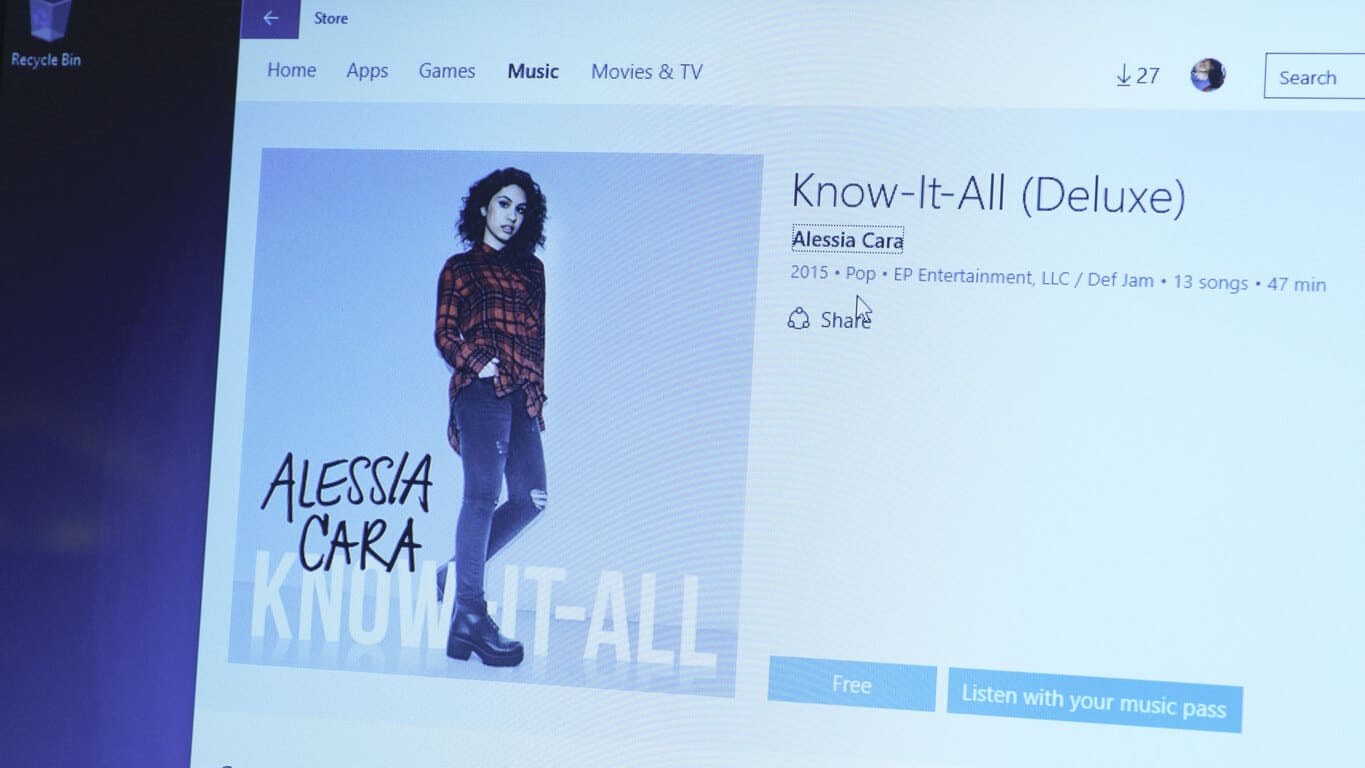
Last year, Microsoft offered “Music Deals” throughout the holidays, allowing users with the Music Deals app to download albums and songs at some steep discounts. We haven’t seen Music Deals return this year, but today Microsoft is offering something just as good or even better: 10 top albums from 2015, all available free for Windows 10 users.
Getting the albums is easy, if you’re in the United States and you are running Windows 10, just click on the albums, choose “Free”, and then download the albums or add them to your collection.
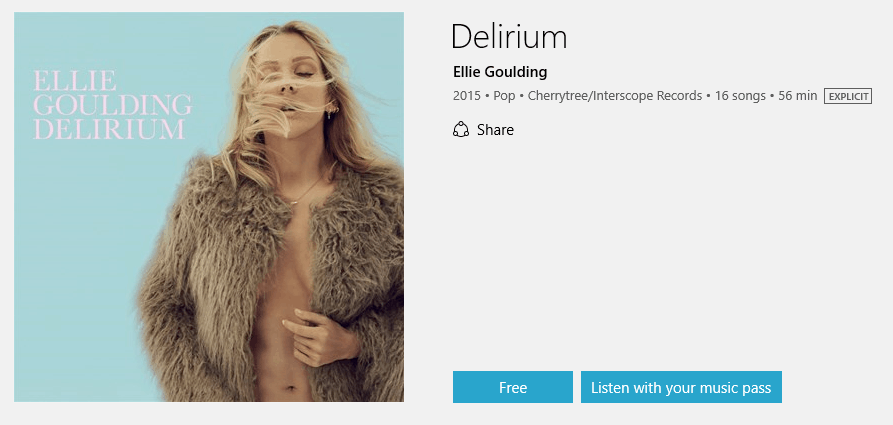
Here’s the list of albums with their download links:
James Bay – Chaos and the Calm
Alabama Shakes – Sound & Color
Tame Impala – Currents
Selena Gomez – Revival
Ellie Goulding – Delerium
Alessia Cara – Know It All
Breaking Benjamin – Dark Before Dawn
Jeezy – Church In These Streets
Logic – The Incredible True Story
Big Sean – Dark Sky Paradise
All in all a nice mix of free music just in time for the holidays. You can learn more about the albums on the Windows Experience blog post, or just get to downloading. Have fun!
Tip: Windows 10 Has a New Battery Indicator

Over the years look of Windows has drastically changed, and it has been slowly moving to touchscreen devices in terms of design. Most parts of Windows 10 got a new look, and the same goes for Windows 10 battery indicator.
One of the greatest visual changes is the new Modern Settings app and already few options from Control Panel have been moved entirely to the new Settings app. With Control Panel and its components moving to the new look it’s no wonder to see other sections updated as well. Speaking of visual updates today we’re going to see how has battery indicator changed in Windows 10.
Battery indicator is used to check the status of your battery if you’re on a device such as laptop or tablet, and the first thing that you’ll notice about battery indicator is that it’s a lot bigger than in previous versions of Windows.
This is because Windows 10 is designed to be touchscreen friendly and with bigger battery indicator information you can easily use it with your fingers. As for the design, it has been changed as well and new battery indicator comes with solid white background and without borders so it matches the look of other Modern Apps.

New design looks clean and since the indicator takes more space the fonts are bigger and more readable so you can easily see how much battery life you have left, and you won’t be distracted by graphics or extra options.
The new minimalistic design looks great but instead of having two options such as More power options and Adjust screen brightness like in previous versions now we only have More battery info option. This isn’t a bad design choice since it saves space and it makes the battery indicator more clean and more important data more visible.
As you can see, new battery indicator in Windows 10 has been changed for better, and with its new design it will show you important data better than before.
Microsoft sends out Lumia 950, Display Dock goodies to some Windows Insiders

Earlier this month there had been signs that Microsoft was expanding its Insiders program, which is used to test early versions of operating systems and programs, to include testing of physical hardware devices.
Select Windows Insiders were sent a series of special invites hinting that the program was due for some sort of expansion and that those Insiders that had provided Microsoft with exceptionally detailed and quality feedback on Windows 10 Mobile Insider Preview in particular would somehow be involved. Along with this letter was a survey to complete and instructions for participants to inform Microsoft of their mailing address and what sort of device they were currently using.
Very little had been heard regarding these surveys until today when a Windows Insider posted on Reddit about a letter he got from Microsoft informing him that they wanted to send him a new Lumia 950 or 950 XL, a display dock, and an Actiontec wireless adapter. It appears that Microsoft is interested in having active Windows Insiders continue to partake in the program using the latest devices to get the best real-case usage data of their software that they can. It’s unlikely they’re giving Lumia 950s to every Windows Insider for example, only those that are active in the program and appear to not already own one. The Lumia 950 and Lumia 950XL are the two main Windows 10 Mobile flagship phones so it makes sense that Microsoft would want more testing done on these.
Windows Insiders are currently used to test early versions of Windows 10 for Desktop and Windows 10 Mobile for Windows phones. Microsoft also runs a similar program for Xbox One owners called the Xbox One Preview Program (or, Xbox One Preview Programme, depending on the region) which tests early versions of the console’s operating system as well as several apps.
Have you ever participated in one of these programs? Are they worthwhile? Let us know about your experiences in the comments below.
How to Download and Install TeamViewer for Free

TeamViewer is one of the most popular and most used Windows software for remote control, desktop sharing, online meetings, web conferencing, and computer file transfer. And many are looking to download and install TeamViewer on Windows.
TeamViewer has become almost synonymous with remote desktop support, used by millions worldwide. It’s quick, has a simple interface, and, best of all, seamlessly performs the intended task. So, let’s find out how to download the latest version of TeamViewer.
How do I install TeamViewer on my PC?
Download and install TeamViewer from the setup
- Download TeamViewer on your PC.
- Once it’s downloaded, run the setup.
- We recommend you go with the Default installation and click on Accept-next.

- After the installation is complete, launch TeamViewer, create an account or sign in, and set it up.
You can easily get TeamViewer up and running on the PC in no time. Alternatively, you can download TeamViewer from the official website. Both the 32-bit and 62-bit versions of the software are available so you can choose one depending on the OS.

That’s it! You will not have TeamViewer running, but you can use it to access another PC remotely. And the process is pretty straightforward.
Is TeamViewer free for PC?
TeamViewer is free for personal use, so individual users won’t have to shell out a single penny to download or access the software.
However, depending on the plan, enterprises or organizations will have to pay an annual subscription. If you are interested in the paid plans, check the TeamViewer pricing.
Before you leave, do check our curated list of the best antivirus with remote control management. You can also check our guide on tv_w32.exe file to learn what it does.
For any queries or to share your review of TeamViewer, drop a comment below.
Sprint launches carrier billing for Windows Store purchases
Carrier billing has arrived on the scene in North America via telecommunications company, Sprint. Sprint customers will now be able to pay for content in the Windows Store bought on their PCs (such as apps, movies, and music) and charge the expenses directly to their Sprint account instead of through a credit card which is usually done. Customers can, of course, continue to make purchases with their credit cards if they wish.
This is simply another option provided for those that either don’t have a credit card or wish to reduce the number of bills they receive each month. It’s unclear exactly how many users would find this billing method more convenient, especially with most people already having a credit card on file for previous app purchases as well as Xbox content, which is connected to the same Microsoft Store account used for PC apps.
Microsoft’s Terry Myerson first announced carrier billing across Windows 10 devices during Build 2015 back in April of this year. There have been no further details released on other carriers rolling it out but it’s probably safe to assume this is something Microsoft would like to see broadly implemented.
Would you use carrier billing on your PC or other Windows 10 devices? Let us know in the comments below.
Game Insight releases two new Windows 10 games

The group over at Game Insight have been hard at work on bringing two new games for Windows 10. As of today, the wait is over for those games. Game Insight is happily announcing the launch of Love & Dragons and Maritime Kingdom for Windows 10.
The two new titles add to an already robust stable of games available to Windows 10 users from Game Insight. With 13 titles already in the Windows Store, some users may need to make some space on their devices for the recent additions.
As far as the new games are concerned, Maritime Kingdom is trading and city building experience not too dissimilar from the likes of Sim City. The game adds a new sophisticated trade and barter system that lets gamers manage over 30 resources. Other intricate details such as navigating diplomacy and fleet building should offer gamers days of continuous entertainment.
Gamers may also enjoy:
- Explore the four corners of the globe in over 350 quests
- Create a mighty city with over 40 building types
- Build a mighty fleet & establish trade routes
- Establish diplomatic relations with other powerful rulers
Love and Dragons, on the other hand, is a colorful and spirited hidden object game. Gamers are set on a journey with their companion Miralda to oppose unforgiving prophecy while also helping her find her true love in the process. Love and Dragons is particularly unique in its ability to weave an actual plot through the games basic ‘Where’s Waldo-like’ gameplay. During the gamers journey, they will encounter mighty warriors, sorcerers, and, of course, a dragon or two.
Other key elements include:
- Amazing hidden objects game will take you on an unforgettable journey through the world of magic
- Lots of characters with their own unique background, nature and hobbies
- Hard fight with the criminal bosses and the creatures of the abyss
- Unexpected plot twists, mystery and intrigue
- Convenient friends system allowing you to help each other and play together
- Great graphics and sound – You will be able to make friends with dragons, take part in the liberation of the empire and to make peace between the warring states.
Gamers can grab both titles from the Windows Store today.

