Valid Key Media Center Activation Doesn’t Work in Windows 8.1, 10

More and more problems appear everyday with Windows 8.1 and our duty is to report them to help the community. Now, a new issue is being reported by an user who says that he can’t activate Media Center in Windows 8.1 even if he has a valid key

Thank God I am running Windows 8.1 Pro!

As it seems, even if you have a valid product key, this doesn’t mean your problems are over in Windows 8.1. A fresh new problem has been made official on the Microsoft Community support forums that we scour daily to try and solve annoying problems related to Windows 8 and Windows 8.1. Here’s what the user is saying:

I had updated to windows 8.1 media center , after the installation it had asked to enter the key for activation. i had enter the key and it had accepted the key and display the massage windows is activated. after few days now it gives the notification to enter the product key. and when i enter the same key , its not accepting the key and gives the massage. This key didn’t work , please check it and try it again. i dont know what to do despite of entering a valid key.

Read Also: Chrome Looks Blurry in Windows 8.1: What to do

Now, this is a serious problem, actually. Let’s say that you have a valid key, you bought the product or you are a student, anyway, you have a legit software. So, when you see that you can’t activate the much-needed Media Center in Windows 8.1, then it definitely breaks your nerves. If you somehow know a solution for this fix, do share it with us so we can help all those in trouble.

Windows 8.1 Tablets with Intel Bay Trail 64-bit Chips Coming in Q1 2014

Intel is preparing for 2014 with Intel Bay Trail chips that the company is expected to unveil in the first quarter of the next year. But what’s interesting is that besides Windows 8.1, Android is also targeted

Get ready for a 2014 filled with awesome Windows 8 tablets!

During an investor meeting in Santa Clara, California, which was webcast, Brian Krzanich, the new CEO of Intel, has revealed a part of Intel’s plans for the beginning of the next year. According to him, tablets with 64-bit versions of the Bay Trail chips will become available next year. Intel is developing a 64-bit version of the Android OS to work with Bay Trail chips, that will be released after Bay Trail tablets with a 64-bit version of Microsoft’s Windows 8.1 will be unveiled in Q1 of 2014.

What’s interesting is that Intel said that Android tablets with Bay Trail could be available starting at $150, so this means that Intel keeps the price affordable for its new 64-bit chips. At such a low price tag, it’s quite possible that 2014 will be the year when the tablet market will see a huge boost in number of users.

64-bit chips are capable of supporting more than the 4GB of RAM that 32-bit chips are limited to, which will make place for intense gaming and 4K Ultra HD support on Windows 8.1 and Android tablets. Intel didn’t mention when exactly will we see the first 64-bit Bay Trail Android or Windows 8.1 tablet, but the Consumer Electronics Show (CES) in Las Vegas in January 2014 could be a potential place.Hermann Eul, Intel’s general manager, mobile and communications group, speaking at the company’s investor day on Thursday said the following

It’s not only about Windows 64-bit, we’ve been talking about Android as well. We have 64-bit Windows shipping next quarter and, needless to say, we’ll run fast to make this happen on Android as well.

Kraznich also said that sales of Intel based tablets will quadruple next year, to more than 40 million, which is definitely going to put a huge pressure on the iPad’s shoulders.

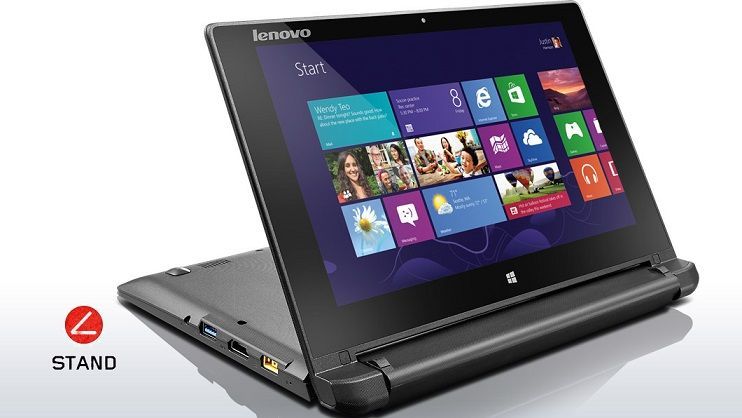
Cheap Windows 8.1 Laptop Announced: Dual-mode Lenovo Flex 10

Lenovo is one of the biggest computer and laptop manufacturers in the world and it releases new products almost every week. Now, the company has announced the Lenovo Flex 10, a cheap Windows 8.1 laptop that can be used in dual-mode
affordable windows 8.1 laptop
The Lenovo Flex 10 is a cheap Windows 8.1 touch convertible notebook that is perfect if you want to benefit from its portability and the touch interface of Windows 8.  The Flex 10 flips 300 degrees from laptop to stand mode, making it perfect to enjoy movies or to use touch applications. So, if you’re not using the keyboard, you can just flips its screen to see some pictures or watch the latest episode from your favorite show. We don’t know yet its official pricing, but it is rumored to be around $550.

It comes with a 10.1″ 10-point multitouch display that is optimized for Windows 8.1. The Flex 10 is less than 1″ thick and weighs less than 3 pounds – 17.3mm (0.68″) thick and weighs 1.2kg (2.6 lbs). You will find the ergonomic AccuType keyboard, stereo speakers,  integrated 720P HD webcam inside. It has a 1,366 x 768 resolution and a Bay Trail Pentium or Celeron processor instead of Haswell. Find below its full tech specs:

  • Processor – Intel® Quad Core™ Pentium™ N3510 processor, Celeron® N2910 processor; Intel® Dual Core™ Celeron® N2810 processor, Celeron® N2805 processor
  • Display / Resolution – 10.1″ HD (1366 x 768) resolution
  • Graphics – Integrated graphics
  • Memory – Up to 2GB DDR3L memory (Celeron® model), Up to 4GB DDR3L memory (Pentium™ model)
  • Hard Disk Drive – Up to 500GB storage
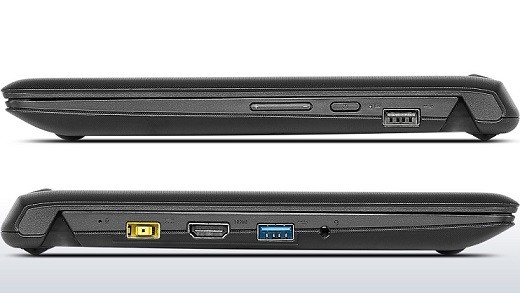
  • Connectors – USB 3.0 x 1, USB 2.0 x 1, HDMI, Audio combo jack
  • Sound – Stereo speakers
  • Integrated Communications – Bluetooth® 4.0, WiFi 802.11 b/g/n
  • Weight – 1.2 kg (2.64 lbs)
  • Camera – 720p webcam
  • Dimension – 273 mm x 188.5 mm x 21 mm (10.74″ x 7.42″ x 0.82″)

Its battery life is said to last only up to 4 hours with a standard 3-cell battery, which is probably its biggest drawback. It also comes with the  Lenovo Energy Manager software to increase battery life and the Veriface Pro face recognition software.

Nokia 2520 vs iPad Air: Video Advertising

This is not a battle of specs, but rather Nokia’s take on the iPad Air with their latest advertising. This is the same advertising philosophy that Microsoft has been trying for years now. But will it work?

This new advertising meant to highlight how awesome the Nokia Lumia 2520 Windows RT tablet seems very similar to a Microsoft Surface RT vs. Apple iPad that Microsoft has released quite a while ago, despite horrible sales back then. Albeit initially Nokia was said to quit working on a  Windows RT tablet project, it has finally seen the daylight under the form of Nokia 2520.

Read Also: Former Microsoft CTO Creates Exclusive $80 App for iPhone/iPad

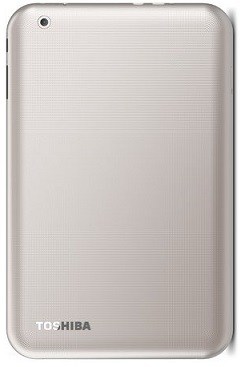
As for the above ad itself, we must give the due credit to the advertising agency, as it brings out the advantages that the Lumia 2520 has over the iPad Air, and it all basically boils down to productivity. However, despite this, the iPad doesn’t seem to be afraid of Windows 8 tablets, but maybe the launch of such devices as the Dell Venue 8 Pro or the Lenovo Miix2 and the Toshiba Encore will put pressure on Apple’s darling tablet.

Windows 8, 10 App Check: Vkontakte

The official VKontakte Windows 8 app or VK, as it is also known, is available in the Windows Store. We take it for a quick ride to see if it can suit your needs of online communication.
vkontakte windows 8
The official VKontakte app for Windows 8 has been available in the Windows Store for quite a while now, but it lacked a lot of important features to make it truly a standalone client. With the launch of Windows 8.1, the developers of VKontackte have also released a revamped version of this popular social network in Russian speaking countries.

Vkontakte is some sort of a local Facebook, similar to Odnoklassniki and is very popular in Russia, Ukraine, Belorussia, Moldova and other countries where there is a considerable number of Russian-speaking people. There are actually over 220 million with registered profiles, so there is quite a lot of interested for a Windows 8.1 app, as well.

The multiple-sized Live Tiles are available, including the big one. Also, there’s split screen support. The VKontakte app for Windows 8.1 is very similar to the Windows Phone 8 version. If you don’t want to install Vkontacte for Windows 8 (download link at the end), you can use the IM+ Instant Messenger, which also has ICQ login options.

Read Also: Yahoo Messenger for Windows 8: The Same Fun While Chatting

The latest update for Windows 8.1 app Vkontakte has added the  “Feedback” section, English and Ukrainian languages, Bing maps and Yandex.Maps, as well as many other small changes and fixes.

Download Vkontakte VK for Windows 8

Microsoft admits Windows RT is inflexible, could disappear

Microsoft admits Windows RT is inflexible, could disappear

Microsofts’s Executive Vice President of Devices and Studios, Julie Larson-Green, has strongly hinted that Windows RT could be disappearing from the Windows line-up at some point in the future. IN a Q&A session at the UBS Global Technology Summit earlier in the week, Larson-Green was asked about the initial launch of Surface and the confusion that the existence of Windows RT caused.

Hear the word Windows and you probably immediately think of the desktop version of Windows 8.1 — it’s easy to forget that Windows RT exists, and Windows Phone is usually thought of as being an entirely separate entity. At Microsoft, these are seen as three branches from the same tree, but it is fair to say that there has been some confusion about the difference between Windows 8.1 and Windows RT 8.1.

In the Q&A session, Larson-Green agreed that both consumers and suppliers had been confused by the two variants of Windows 8, going on to say that the aim with Windows RT was to create a “closed, turnkey experience” much like Apple has done with iOS. Explaining the reason for the two different branches of Windows, Larson-Green said that the aim was to create one system that delivered the full power of a PC, and another that provided the simplicity of a tablet.

She did admit that the goal had not been explained “super-well” and said that more could have been done to differentiate between the two. She also went as far as saying that Windows RT “doesn’t have all the flexibility of Windows”. But what she says next is particularly interesting.

“We have the Windows Phone OS. We have Windows RT and we have full Windows. We’re not going to have three. We do think there’s a world where there is a more mobile operating system that doesn’t have the risks to battery life, or the risks to security. But, it also comes at the cost of flexibility. So we believe in that vision and that direction and we’re continuing down that path.”

So what is meant by those six little word “we’re not going to have three”?

There are a few options open to Microsoft here. Windows Phone and RT could be merged into a single mobile platform, Windows RT could be renamed so as not to include the Windows name and hopefully eliminate confusion, or Windows RT could just be completely dropped.

Which route do you think makes the most sense? Was Windows RT badly thought out? Can Microsoft rescue the platform and make it a success?

Dell Venue 8 Pro: the Best Windows 8 iPad Mini Competition?

Dell’s Windows 8.1 Venue 8 Pro Windows 8.1 tablet is one of the most interesting tablets to consider for buying and we go through the most interesting review to make a conclusion.
dell venue 8 pro reviews
We’ve just finished comparing the Dell Venue 8 Pro with the Lenovo Miix 2 in a battle of cheap, reliable and small-ish Windows 8.1 tablets. Now, it’s time to see what the reviewers are saying about the Dell Venue 8 Pro in order to make a compilation of judgments, if I can say so, from the people who tested the tablet.

What you need to know is that there is confusion between this tablet and the Dell Venue 8 smartphone, so be careful. If you want, you can also have a look at the Dell Venue 8 Pro user manual, as well. A reminder of the specs that Dell Venue 8 Pro comes with can also be found in our vs piece with the Lenovo Miix 2, so we won’t go over that again in detail, so here are the main features:

Dell Venue 8 Pro Specifications

  • 8 inch 1280×800 HD IPS display w Active Digitizer (more on this later)
  • Intel Bay Trail Z3740D 1.33Ghz Quad core CPU with Intel HD graphics
  • 2GB DDR3 RAM
  • 32 or 64GB eMMC storage
  • Office Home and Student 2013
  • Dimensions: 216.2 mm (8.51”) x 130 mm (5.11”) x 9 mm (0.35”); 405g (0.89lb)
  • Ports: Micro USB 2.0, microSD, headphone jack
  • 1.2MP front and 5MP rear cameras

Dell Venue 8 Pro Reviews Roundup

The reviews for the Dell Venue 8 Pro are lengthy and if you’re interested in buying the product, I’m sure you’ve browsed a few of them already. But what I will be focusing here is the conclusion and the wrap-up lines that usually matter when giving your final opinion about a certain product. Here are the ones I found to be the most conclusive.

David Pierce with The Verge found the following strong and weak points

  • Good Stuff – Great price for a Windows tablet, Good battery life, Solid performance
  • Bad Stuff – Broken auto brightness, No Micro HDMI to make use of desktop apps, Bad Windows key placement

Dell’s Venue 8 Pro is the best Windows competition for the iPad mini, but it’s still far from matching Apple’s tablet. The out of box experience of the display dimming is unforgivable in a modern device, and Dell’s odd decision to place a Windows key at the top of the tablet is equally puzzling. The lack of Windows 8 apps holds this type of device back somewhat, but the potential is promising. Microsoft has laid some solid foundations with Windows 8.1, and will let you read, surf, listen to music, and watch movies. That’s really what these types of tablets are about: consumption.

Paul Thurott from Winsupersite:

I really hoped to offer something definitive about this well-made device, to be able to issue some kind of a general recommendation that could stand up to deeper scrutiny. But the Dell Venue 8 Pro is a victim of the Windows Store interface and a few strange design decisions, and while some will take no issue with either, many will. And you need to be aware of the limitations. I like this device quite a bit. It pretty much proves that a Windows mini-tablet can work, and work well. Can I recommend it? Not without caveats, and without a discussion of those ecosystem issues.

But yes, this is a high-quality machine, and it has me wondering now about its bigger brother, the Dell Venue 11 Pro, which comes in a low-end version that features innards similar to the Venue 8 Pro. I also has me wondering about competing Windows 8-based mini-tablets like the Lenovo Miix 2 and Toshiba Encore. Perhaps it’s time to look at one of those next.

Ef Jay with UmpcPortal:

In summary, the Dell feels more like a regular, full powered PC than a tablet built for casual usage. Tasks execute quickly, with the exception of things like installing programs or unzipping files since that is still dependent on relatively slow eMMC storage but once programs are installed working with them and navigating round the OS feels responsive and fast in such a way that you do not feel you are using a budget system.

Only a side by side comparison with a more powerful PC will expose the Dell’s limitations but in isolation it could easily work as a main system for work processing, web browsing and even some light PC gaming. Compared to Atom devices of old including those that launched with Windows 8, the Dell Venue 8 Pro and other Bay Trail tablets are a much better and satisfying experience and finally realize the dream of having a full PC in your hand without compromising on performance, portability or battery life.

Preston Gralla from ComputerWorld

If you’re looking for a reasonably priced, well-performing Windows 8.1 tablet, the Dell Venue 8 Pro is the one to get. Given its size, it’s suitable only as a tablet and won’t do double-duty as an ultrabook, as the far more expensive Surface Pro 2 with keyboard can. If an 8-inch screen isn’t big enough for you, you might want to consider the $500 Dell Venue 11 Pro, which comes with a 1920-x-1080-pixel 10.8-in. screen, can handle up to 8GB of memory and up to 256GB of storage, has a 2-megapixel front-facing and an 8-megapixel back-facing camera, and includes a full USB 3.0 port as well as a Mini HDMI port. The Venue 8 Pro may not be quite perfect — but let’s face it, $300 won’t buy you perfection. However, it will buy you a quite good Windows 8.1 tablet, and that’s great news for Windows lovers.

Read Also: New Windows 8.1 Toshiba Ultrabook has an Amazing Battery Life of 22 Hours

Now, after reading these reviews, no doubt I am going to include it on my short list of Windows 8 tablets for this holiday. What about you?

Dell Venue 8 Pro VS Lenovo Miix 2: Who Wins?

The fight for the best small and cheap Windows 8 tablet is going on and now we confront the Dell Venue 8 Pro and the Lenovo Miix 2 to see who is the winner that you might be looking to get this holiday.

Holidays are just around the corner and I guess that you, just like me, are planning on buying a Windows 8 tablet, but you don’t know which one. The above link will point you to a guide that will try to explain what Windows 8 or Windows 8.1 tablet to get this holiday season. Microsoft has got some sweet Black Friday and holiday deals, so maybe you could have a look there, as well.

Previously, we have did some other Windows 8 tablet comparisons, putting tete-a-tete the Toshiba Encore and the Asus T100 and comparing the same Toshiba Encore with the Lenovo Miix 2. Now, it’s time to bring in a new player – the Dell Venue 8 Pro and confront it with the Lenovo Miix 2 to see who wins.

Lenovo Miix 2 vs Dell Venue 8 Pro: Battle of Specs

Both these tablets come with Windows 8.1 built-in and have the same size of 8 inch. There are many other similarities between these two, but what you need to be paying attention are the differences. We will highlight them to make it easier for you.

  • Price – both the Lenovo Miix 2 and the Dell Venue 8 Pro have the same starting price of $299, but you can buy the Dell Venue Pro 8 from Amazon for $20 less, that is, if Amazon is available in your countrydell venue 8 pro
  • Display – the Miix 2 has a HD 16:9 widescreen with IPS technology and a 1280 x 800 with 10-finger multi-touch support while the Venue Pro 8 comes with IPS LED of the same 1280 x 800 resolution and 10-finger multi-touch support. Although the wording is a little different, these displays are basically the same
  • Processor – both Windows 8.1 tablets come with the same Z3740D Intel Bay Trail Dual Core up to 1.80 GHz
  • Memory – Again, here we see some small differences, the Lenovo Miix 2 coming wit a 2 GB LPDDR2 800 MHz vs Dual Venue 8 Pro’s 2 GB DDR3L-RS 1333 MHz one. This means that the Dell Venue 8 Pro should be a tad faster than the Miix2. But, in real-life usage, I reckon that this difference is negligible
  • Storage – no differences here a 32 GB SSD internal storage for both tablets. To extend that storage, the Miix 2 comes with a Micro SD reader while Dell Venue 8 Pro supplements that with SDHC and SDXC versions. Another small win for the Venue 8 Pro.
  • Audio and Video – no differences here, both the Lenovo Miix 2 and the Dell Venue 8 Pro coming with integrated audio and intel HD graphics. It’s hard to expect something else at this price tag, to be frank.lenovo miix 2 vs dell venue pro 8
  • Ports – the Lenovo Miix 2 seems to be the winner here as it has Micro USB 2.0, Micro HDMI and Headphone output while the Dell Venue 8 Pro comes with an older generation Micro USB and only headphone output/microphone input combo. The Micro HDMI and Micro USB 2.0 on the Miix 2 are much welcome inclusions
  • Battery – both Windows 8.1 tablets have  a 2-cell lithium-ion battery and what I’ve seen from the reviews is that both of them average somewhere around 7+ hours. But, the specs sheet says that the Lenovo Miix 2’s can be alive for up to 7 hours while Dell’s Venue 8 Pro promises 8 hours.
  • Camera – the Lenovo Miix 2 has a 2 MP front camera sensor and a 5 MP in the rear while Dell’s Venue 8 Pro has only a 1.2 MP HD webcam and a 5 MP in the back. If you plan on doing a lot of video chatting, then the Miix2 should be your choice.
  • Wireless – Bluetooth is found on both tablets but where it gets interesting is that while the Lenovo Miix2 comes with the 802.11b/g/n WiFi standard, the Dell Venue 8 Pro wins the game with the latest 802.11a/g/n WiFi standard, which is faster and also Miracast enabled. Read more about Miracast on the above link.
  • Dimensions – Now, we’re getting down touchy and feely, comparing the sizes. Lenovo Miix2 comes with the following dimensions – 8.46 x 5.19 x 0.31 in (214.88 x 131.82 x 7.87 mm) while the Dell Venue 8 Pro has these 8.50 x 5.12 x 0.35 in (215.90 x 130.04 x 8.89 mm). So, we can see that the Lenovo Miix 2 is a tad thinner, by around 1mm.
  • Weight – the Lenovo Miix 2 wins the weight battle, as well, wheighing 0.77 lbs (349.26 g) versus Dell’s Venue 8 Pro’s 0.87 lbs (394.62 g). So, this means fifty grams lighter, but personally that shouldn’t matter that much. But, then again, it’s up to your personal taste.

Read Also: AMD to Launch a Windows 8.1 Gaming Tablet with Mullins Chips

So, it’s pretty hard to see which one you should go for as each one has its strong and weak points. Go through the article once more and decide for yourself what matters the most and what are the features you’re looking for.

update – the Lenovo Miix 2 does not have a micro HDMI port, and I previously said it comes with one. The information was taken from Microsoft’s Store, but the official Lenovo website says that it doesn’t have one, so please excuse my mistake.

Windows 8, 10 App Check: TripAdvisor

TripAdvisor has finally made it to the Windows Store for Windows 8 and Windows RT owners. Read our review to understand whether the Windows 8 app performs as good as the web version of TripAdvisor.

Start planning your awesome trips and travels straight from your Windows 8 tablet with the TripAdvisor app

What I didn’t understand about the TripAdvisor app’s coming to Windows 8 is the fact that it wasn’t promoted as much as Facebook or even Flipboard. That’s why many didn’t find out that the official Tripadvisor app has been launched for Windows users. Well, now you know, so it’s time to have a quick look at it.

The official Windows 8 app lets you browse Tripadvisor’s entire travel database and doesn’t serve just like a cloak for the web interface, like many LinkedIn Windows 8 apps do, for example. As always, TripAdvisor can be used to look-up a hotel or location and when searching for a location, a list of hotels, restaurants, attractions and guides will be displayed for you.

Just like we’re used to with the web app of TripAdvisor, the hotels and attractions are sorted by popularity, but you can change that to make the sorting by price, business or family, price per night, rating, hotel class and a number of other parameters. You also have the option of clicking on a map to view places of interest near your location. The user interface is neatly designed and doesn’t make you wanna switch to the web browser. If you have a TripAdvisor account, you can log in to post reviews or save places. App’s description goes like this:

Millions of traveler reviews, photos, maps from TripAdvisor. Plan and have your perfect trip. With over 100 million reviews and opinions by travelers, TripAdvisor makes it easy to find the lowest airfare, best hotels, great restaurants, and fun things to do, wherever you go. And booking options for hotels, restaurants and flights are just a tap away.

Read also: 10 Best Windows 8 Travel Apps

When looking for he best hotel for you, you will see which places won the Travelers’ Choice award. You can also compare airfares and find great deals straight from within the Windows 8 TripAdvisor app. Despite the fact that it has got a huge database, the app was very smooth and quick, without any lags, whatsoever. Follow the link from below to get the official TripAdvisor app for Windows 8 and start planning the perfect travel.

Download TripAdvisor Hotels Flights Restaurants for Windows 8

Parrot AR Drone and Zik get Windows 8, 10 Support

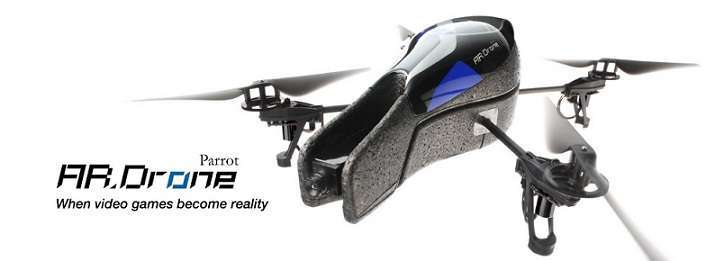
Parrot and Microsoft have announced that the official Parrot Apps which control the Parrot Zik headphones and Parrot AR.Drone 2.0 quadcopter will soon get Windows 8, Windows 8.1 and Windows Phone 8 support
parrot ar drone windows 8
Windows Phone 8 users have long awaited for Parrot to make their AR Drone and Zik headphones apps and driver available, and now it seems that the company is almost there. The augmented reality gaming fun will come to Windows 8, as well, since the company has announced that they will be bringing support to Windows 8 and Windows RT, as well.

You will soon be able to use the Parrot Zik headphones and pilot the AR Drone or AR Drone 2.0 Parrot drone even from your Windows 8 desktop or tablet as well as Windows RT. Windows Phone 8 users can already download the free Parrot Audio Suite app from the Windows Phone store (link at the end) will the Windows 8.1 and Windows RT 8.1 version of the app will be released next month.

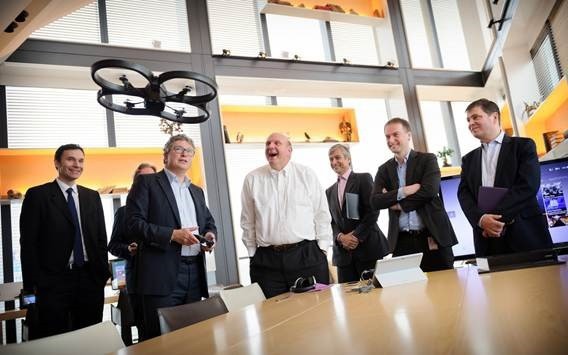
The Parrot AR.FreeFlight app will be appearing on Windows 8, being available in the Windows Store in early December of 2013 while the Windows Phone 8 app for the Parrot AR.Drone 2.0 is expected to launch in early 2014. Henri Seydoux, founder and CEO of Parrot said the following during a meeting with Steve Ballmer:

Read also: Steve Ballmer: Microsoft Has 1 Million Servers in their Datacenters, Only Second to Google

parrot ar drone 2.0 windows 8 zik

We have been working for months with Microsoft to ensure the compatibility of Windows 8 and Windows Phone 8 devices with Parrot products. I am happy to announce the Windows compatibility of apps that are linked to two of our star products: the AR.Drone and the Zik headphones.

I don’t know about you, but I’ve always wanted a gadget like the Parrot AR Drone and now that support for Windows 8 is coming, I will soon be able to control it from my Windows 8 tablet as I plan on buying on this Christmas. Sweet!

Download the Parrot Audio Suite application for Windows Phone 8

Windows 8, 10 App Check: Flow Free

Flow is one of the most popular games for those playing it on mobile devices. But when it comes to Windows 8 tablets, there aren’t too many compelling Flow games in the Windows Store, but Flow Free is a great exception and we take it for a ride

Once you start playing, you become glued to the screen - I am telling you this!
Once you start playing, you become glued to the screen – I am telling you this!

When I first saw a Flow game that a friend of mine was playing, I didn’t really get the point, but now after playing for several hours in a row on my Windows 8 tablet, I realize what the big deal was about. Flow Free for Windows 8 is an addicting game but one that puts your brain to work, just like a chess or a checkers game would do.

Flow Free is a simple yet addictive puzzle game. Connect matching colors with pipe to create a flow. Pair all colors, and cover the entire board to solve each puzzle. But watch out, pipes will break if they cross or overlap! Free play through hundreds of levels, or race against the clock in Time Trial mode. Gameplay ranges from simple and relaxed, to challenging and frenetic, and everywhere in between. How you play is up to you. So, give Flow Free a try, and experience “mind like water”!

This is how the official description of the Flow Free game for Windows 8 goes like. This is a free app with more than 600 free levels available in the Free Play mode. The app comes with 10 different board sizes and four different level packs: Free Classic, Bonus, 8×8 Mania, and Jumbo level. If you want, you can purchase more packs, and if you’re a Flow aficionado, I assume you’ll do that. But it is not necessary, as 600 free levels are more than enough.

Read Also: 5 Best Windows 8 Scrabble Apps

You get to track the completion of each level in the Free Play mode and try to be as accurate and quick as possible by using the fewest number of moves. The Time Trial is a special mode where speed is all that matters. The user interface is clean and smooth with fun sounds and clean graphics. Follow the link to download and install Flow Free on your Windows tablets.

Download Flow Free app for Windows 8.1, Windows RT

See Microsoft’s Black Friday Deals for 2013: Gaming, Tablets, Laptops

Black Friday is just around the corner but Microsoft has already started its offers for the 2013 holiday season. We will be updating the post with more deals as we get them

microsoft black friday deals 2013
Start saving, because BlackFriday is finally here! What are you going to get this year?

Set your alarm (you can do it in Windows 8, as well) for BlackFriday, as prices will drop at midnight ET on November 28th on Microsoft’s Stores, both online and physical locations. To make it easier for you, we have gathered in a single place all of Microsoft’s Black Friday Deals for 2013 which include Xbox One and Xbox 360, games, Windows 8 tablets, laptops and much more.

Some of the prices have been leaked already, while we wait for other product listings to get a price tag, as well. Once that happens, we will update this article as soon as possible. So, be sure to bookmark it and come back just in time for 2013’s edition of the Black Friday.

Microsoft’s Black Friday Deals for 2013

At the moment, we also don’t know if the Black Friday deals are exclusive to online ordering or if you can get them from Microsoft’s physical retail stores, as well. The 2013 Black Fridaysale kicks off at midnight EST November 28th, and here’s what Microsoft is going to seriously discount. All orders include free shipping, as well, but we don’t know an estimate shipping time as of now.

For now, we only have the link to Microsoft’s online store, but will provide individual links once they become available, as well.

Microsoft’s 2013 Black Friday Xbox and Games offer

2013 black friday xbox games microsoft

  • $299 Xbox 360 250GB console for $199
  • $249 Xbox 360 4GB console for $179
  • $59 Call of Duty: Ghosts for $39.99 (Xbox 360), $49.99 (Xbox One)
  • $59 Grand Theft Auto V for $33.99
  • $59 Battlefield 4 for $38.99 (Xbox 360)
  • $59 FIFA 14 for $24.99 (Xbox 360)
  • $59 Assassin’s Creed IV: Black Flag for $33.99 (Xbox 360)
  • $59 Madden NFL 25 for $24.99 (Xbox 360)
  • $75 Skylanders Swap Force for $38.99
  • $20 Minecraft for $14.99
  • $39 Halo 4: Game of the Year Edition for Xbox 360 for N/A
  • $55 Xbox 360 Special Edition Camouflage Wireless Controller for N/A

Microsoft’s 2013 Black Friday Tablets offer

microsoft black friday 2013 tablets surface

  • $349 Surface RT 32GB for $199
  • $399 Surface RT 64GB for $379 (December 1st)

Microsoft’s 2013 Black Friday Laptops offer

microsoft black friday 2013 laptops

  • $849 Dell Inspiron 15Z with Intel Core i5 processor, 6GB RAM, 32GB SSD and 500GB HDD for $399
  • $849 Samsung ATIV Book 5 NP540U4E-K01US Ultrabook for N/A
  • $649 Gateway NV570P10u Touchscreen LaptopGateway NV570P10u for N/A

Microsoft’s 2013 Black Friday Headphones and Speakers offer

headphones speakers black friday 2013 microsoft

  • $55 WeSC Piston Street Headphones for N/A
  • $200 Beats by Dr. Dre Pill Bluetooth Wireless Audio System for N/A
  • $25 Skullcandy Ink’d 2 Earbuds with Inline Mic for N/A
  • $250 Beats by Dr. Dre Mixr Headphones (Neon Orange) for N/A
  • $180 Beats by Dr. Dre Solo HD Headphones (Blue) for N/A
  • $150 Jawbone JAMBOX (Black) for N/a

Microsoft’s 2013 Black Friday Smartphones offer

nokia lumia black friday 2013 microsoft

  • $99 Nokia Lumia 520 No Contract for AT&T for N/A

Other Microsoft 2013 Black Friday offers

  • $2,200 MakerBot Replicator 2 Desktop 3D Printer for N/A

Windows 8.1 Xbox One SmartGlass App Released in the Windows Store

The Xbox One commercial launch is just around the corner and to have everything in place, Microsoft has decided to launch the Xbox One SmartGlass App in the Windows Store for Windows 8 and Windows 8.1 users

xbox one smartglass windows 8.1
The Windows 8.1 companion app for the Xbox One is already here, this is how it looks like

You are probably waiting for the moment when the Xbox One pre-orders finally start so you can order yours. But if you have a Windows 8 tablet or device, you can already download and install the official Xbox One SmartGlass app that Microsoft has just launched in the Windows Store. By using the new app you will be able to  navigate on the Xbox One using the keyboard or touch.

The application has received companion apps for Windows Phone 8, iOS and Android, as well.  The Xbox One SmartGlass App for Windows 8 comes with options to control your media and set top box with the remote control function. You can also browse the web, track achievements, chat with friends and access the help files of each game from a Windows 8.1 device. Here’s how the app’s description goes:

Xbox One SmartGlass is the perfect companion app for your Xbox One, both in your living room and on the go. Connect and control your Xbox One. Stay connected with the games and gamers you like. And add a new dimension to your console entertainment with the mobile device you already own.

Read Also: Microsoft Reveals ‘ID@Xbox’: Xbox One Indie Self-publishing Program

The Windows 8 and Windows Phone 8 apps for the Xbox One are very similar to the one for Xbox 360. The app is currently available in the following languages: German, Spanish, French, English (Australia), Italian, Spanish (Mexico), Portuguese (Brazil), English (United Kingdom), English (Ireland), English (New Zealand), English. Follow the link from below to download and install it on your Windows 8 and Windows RT devices.

Download Xbox One SmartGlass app for Windows 8.1

Microsoft Store on eBay officially opens today in the USA

Microsoft Store on eBay officially opens today in the USA

Microsoft has expanded its retail footprint and unveiled the Microsoft Store on eBay today, for those of you in the United States. The Microsoft Store on eBay offers consumers another convenient and safe online shopping experience for Microsoft products.

“Today, I am thrilled to announce the opening of the Microsoft Store on eBay in the U.S.! We are excited to work with eBay to help expand our retail footprint and give even more customers another complimentary, convenient and safe online shopping destination to purchase their favorite Microsoft first-party products – just in time for the busy holiday shopping season,” Microsoft’s Vice President Online Commerce Kevin Eagan stated in an official blog post today.

Since eBay features over 124 million active users globally, the made sense for Microsoft to capitalize on having its own products given special attention on the popular site. “Our customers can expect the same safe online shopping experience, return policy and free shipping from the Microsoft Store on eBay that they’ve come to expect on microsoftstore.com,” Microsoft explained.

“The Microsoft Store on eBay will sell Microsoft first-party products, as well as curated products appealing to the eBay community, resulting in a unique shopping experience entirely different from shopping in a brick and mortar store,” eBay stated in an official press release today. This store will offer Surface RT, Surface Pro, Xbox 360 and accessories, Kinect, Surface accessories, Microsoft keyboards and mice, and refurbished products. Interestingly, the store isn’t offering the Surface 2 or Surface Pro 2 – at least not yet .

The Microsoft Store on eBay looks very similar to the online Microsoft Store, so your shopping experience can be familiar. Head over to the store and check it out for yourself – they even have a Deals section!

Windows 8.1, 10 VLC App is Almost Ready to be Released

We have been waiting for quite a while now for the official VLC app to make its way into the Windows Store for Windows 8, Windows 8.1 and Windows RT users. Now, it seems that the team is closer than ever to finally releasing it as a Windows 8.1 app

VideoLAN, the developer of VLC, is getting closer and closer to finally releasing an official VLC app for Windows 8 users. Almost a year ago, VideoLAN started a KickStarter project and managed to raise more than $75,000 for the development of an official Windows Store VLC app. The long wait is mainly due to “forbidden calls” in the program.

But now it seems that the VideoLAN developers have overcome and the final moment is nearing. The team has recently tweeted that VLC for Windows 8 now has audio output. The VLC app for Windows 8 has already passed the Windows App Certification Kit back in September, so any moment now we could see it in the Windows Store.

The VideoLAN team also replied to someone asking on Twitter that they are going to release an official VLC app for Windows Phone 8 users, as well. There is a chance that the company could launch them in the same time.

Tests Show SSD to be Faster on Windows 8.1, 10 than Windows 7

A couple of recent hardware tests prove that the Solid State Drives are indeed faster in Windows 8.1 as it was previously assumed. Not over the previous Windows 8 edition but when compared to Windows 7. Read to find out more.
windows 8.1 vs windows 7 ssd
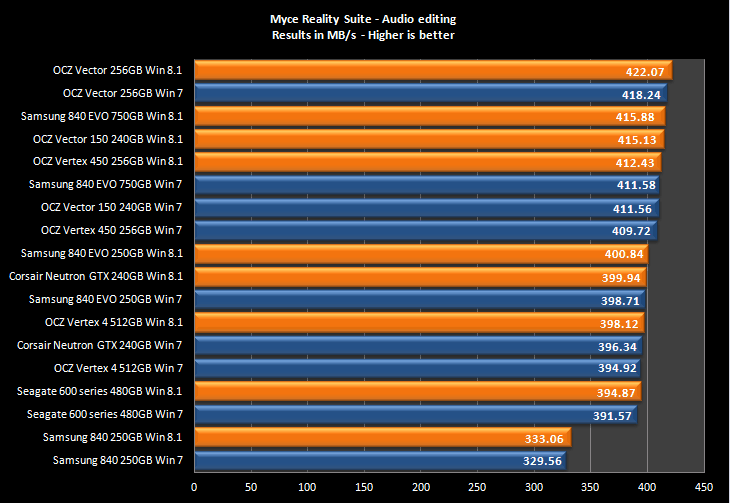
According to some hardware testing performed by Myce.com, it seems that Windows 8.1 is faster in data throughput on Solid State Disks (SSDs) than Windows 7 is. Results on Windows 8.1 are on all occasions 3 MB/s to 4 MB/s higher than the same hardware speed tests on Windows 7. You will find below the graph with results from several SSDs. Here’s what else was said regarding this discovery:

The reason why it’s faster is unknown, it wouldn’t be surprising if Microsoft made optimisations to its latest operating system but the company has not disclosed any information on what was internally changed for disk operations. The differences were discovered during the development of the third version of our Myce Reality Suite of tests. A range of tests made from real everyday applications and real data, there are no simulated tests and everything is in the real world. The only thing that’s synthetic is that everything is automated to make the tests fair, no matter which drive the tests are run on.

windows 8.1 ssd speed

I can confirm myself that the SSD is much faster on my Windows 8.1 desktop than it is on my previous Windows 7 laptop. But, of course, let’s not overlook the obvious fact that the Solid State Drives are also newer and come with several improvements, but Myce did include in the above graph older versions, as well. What is you personal experience with this?

Best 8 Windows 8 Apps This Week

Another week has come to an end and we are there to report you the best Windows 8 apps that have been launched in the Windows Store. Some of the most important ones are Flibpoard, Walgreens, TripAdvisor, 3D Builder, Asphalt 8: Airborne and a few more!

At the moment of writing this roundup with the best Windows 8 apps for the past week, there were more than 127,000 apps in the Windows Store, which represents an increase of more than 1,000 apps in just one week. We’ve still got a long road before we can compare against Play Store or the iOS App Store, but at least we know things are moving.

You can also check out the best Windows 8 apps from the past week where you will find Facebook, 7-Eleven, UNO and others. Now, without further ado, let’s have a look at best 8 new Windows 8 apps that have been launched in the Windows Store.

Best 8 new Windows 8 apps this week

Flipboard

windows 8 app flipboardFlipboard has finally made it to Windows 8, just as it was promised by Microsoft when it unveiled Windows 8.1. Use the app to discover and save online content on your Windows 8 tablet. Flipboard for Windows 8.1 comes with a completely optimized touch interface, offering the options to save stories, share links, topics, blogs, or sites and create your own magazines.

Asphalt 8: Airborne

asphalt airborne 8 windows 8.1

Get read for some awesome racing on your Windows 8 tablets, as the Asphalt 8: Airborne game developed by Gameloft has been launched in the Windows Store. The game has amazing graphics and can be played both on desktop and touch screen devices. A must-have for any gamers out there!

Walgreens

walgreens windows 8The Walgreens chain of stores is United States’ largest drug retail store and it has now released a Windows 8 app for its customers. You can use the Windows 8 pharmacy app to locate a Walgreens store near your location and also to easily refill prescriptions. I hope to see more health-oriented apps released in the Windows Store in the future.

3D Builder

free 3d printing app 3d builder

Microsoft has announced even prior to the release of its Windows 8.1 update that the company is going to include support for 3D printing. Now the company has released the 3D Builder app in the Windows Store. You can print to your Windows 8.1-ready 3D printer from a wide range of 3D ready objects. You can also upload CAD projects, but unfortunately you can’t create 3D objects straight from the app.

Lexmark Printer Home

best windows 8 apps lexmarkWith the Lexmark Printer Home app for Windows 8 you will be able to configure advanced Lexmark printer settings directly from Windows Store, check the status of printers associated with the app and monitor supply levels, like toner and paper. Let’s wait until HP, Canon and others will receive similar apps.

TripAdvisor

best windows 8 apps trip advisorFinally, TripAdvisor has been released as a Windows 8 app, albeit without too much fanfare. For many users out there, it is the best travel app to have on your Windows 8 or Windows RT tablet. It brings all the functions that the web app has, so go ahead and start planning the perfect holiday!

Newton

newton best windows 8 appsNewton, as the description of this awesome Windows 8 game goes, is a:

hamster powered by science, on a madcap adventure! Smash through objects and collect atoms in this fast paced and addictive running game. Use the atoms to customize and power up Newton. Destroy everything in your path in order to save science itself!

Once you start playing, you will become glued to the screen of your tablet, so proceed with maximum care!

Battleship HD

best windows 8 app battleshipBattleship games are very popular in countries from the Eastern Europe but people from all over the world play the game. We’ve previously written about another awesome Windows 8 battleship game, so check it out, as well. Battleship HD is a paid game that comes with upgrading levels, statistics and achievements, ranks, information about the opponent and skin effect fleets.

Remove Delta Search Malware in Windows 8, 10 [How to]

Delta-Search is a program which comes with certain free software downloaded from third party sites. But the problem is that it brings malware and third-party advertising. Here’s how to get rid of it.

The program installs a new toolbar (Delta-toolbar), changes your homepage, your default search engine, adds additional search providers and because it modifies the Windows registry after you restart your web browser it overwrites default values. Why to get rid of it? Because it’s an unwanted program which tracks and sends information about your web searches to third party servers for advertising so when you make a search the first results are sponsored links that might not be related to your search queries.

How to get rid of Delta-Search?

There are some steps you need to follow in order to completely remove it:

      1. Uninstall the program from your Windows 8

  • Drag your mouse pointer to the right edge of the screen, select Search and search for “control panel” .
  • Select Programs and Features or Uninstall a program and when the list of currently installed programs appear scroll through it, select the programs related to Delta (Delta, Delta Toolbar, Delta Search, etc) and any other unwanted program.

     2. Remove browser extension

Internet Explorer

– Click on the Tools icon and select Manage add-ons.
– Click on Toolbars and Extensions and select Delta Toolbar and any other extension related to Delta.
– Under Toolbars and Extensions click on Search Providers and on the right side right-click on Bing and select Set as default.

windows 8

– To remove Delta Search right-click on it and Remove.

windows 8

– To change your home page click again on Tools icon and select Internet Options. In the General  tab click on Use default to use Internet Explorer default home page.

Mozilla Firefox

– Click on the Firefox button (left-up corner) and select Add-ons.
windows 8
– Click on Extensions and remove Delta Toolbar and any extension related to Delta.
– Click again on the Firefox button and then click on Options. From the General tab click on Restore to default button under the homepage address.

windows 8
– Click on Delta Search icon, as shown in the image below, and select Manage Search Engines. Select from the list Delta Search and click on the Remove button.

windows 8

Google Chrome

– Click on the Chrome menu button Chrome-button (right-up corner), select Settings and then click on Extensions.
– Remove Delta Toolbar and any other Delta related extensions by clicking on the trash can icon from the right side.
– In the left panel of the Settings window click on Settings tab and click on Manage search engines from the Search section.

– Click on the X that appears in the left right when you put the mouse pointer on the Delta Search search engine and click on Make default that appears when you hover on Google search engine.

windows 8
– Click again on the Chrome menu button, then on Settings, select Settings tab and check Open the New Tab page from the On startup section.

3. Remove Delta Search using AdwCleaner

This utility will scan your computer for malicious files and registry keys that may be installed on your computer.

You can download AdwCleaner by clicking on the following link: general-changelog-team.fr/fr/downloads/finish/20-outils-de-xplode/2-adwcleaner  .

Install and open the utility. Click on Scan button.
After the scan is over click on Clean button in order to remove Delta Search malicious files.
Now the program will ask to reboot the computer. Press Ok and it’s done.

Now your problem is solved. To prevent a future infection try to install software from the developer’s official website and choose Custom installation so you can install only what interests you and get rid of PUPs (potentially unwanted program).

Awesome Windows 8, 10 Puzzle Game: Animated Puzzles

Passionate about puzzle games? Great, because Animated Puzzles is one of the best looking puzzle apps you can play on your Windows 8 device and it’s perfectly suited for the touch interface.
animated puzzles windows 8
Here, at Wind8Apps we love puzzle games for Windows 8 and he have reviewed quite a lot of them. Here are some of the past articles on this – Best Windows RT Games: Puzzle Games, Picture Logic: Addictive Windows 8 Puzzle Game, Play Puzzle in Windows 8 With PuzzleTouch App. Now, it’s time to welcome a new puzzle game in the family – Animated Puzzles.

Here’s how Mexond, its developers, officially describes the app:

Jigsaw puzzle game with a new and challenging twist! A super fun and relaxing picture puzzle game, with an intriguing, mind-bending twist; animated puzzles! Try to get the right pieces into place while parts of the image keeps moving. It’s new, different and extremely pleasing! The motions in the pictures gives a completely new puzzle experience! Go ahead and try for yourself! It’s free!

As you can see from the description the puzzles actually “move”, which is kind of awesome and looks great especially on a Windows 8 tablet. The developer also notes that this puzzle game belongs to the jigsaw genre. Inside the puzzle game, to overview you can just pinch to zoom in/out and adjust the size. You can switch from portrait to landscape mode anytime you want.

The app also has live tiles support, which means it is fully compatible with Windows 8.1. Some of you might be a little annoyed by the advertising banner inside the app, but hey, developers have to survive somehow, right? And, after all, this is a free Windows 8 puzzle game app. You can choose to remove ads for $1.49, which is a feature that can be found in app’s settings.

Inside the Animated Puzzles app everything is very simple. On the main menu you can choose to start playing, see the app’s rating or socially connect to the app. While playing you can pause and have a quick glimpse at the puzzle’s solutions. You can then proceed to the next one and see how you fare on the leaderboard thanks to the global highscores option. Follow the link from below to download and install Animated Puzzles on your Windows 8 device.

Download Animated Puzzles for Windows 8

Is your computing life 100 percent dedicated to Microsoft and its products?

Is your computing life 100 percent dedicated to Microsoft?

As you’re reading this website, there’s an extremely high chance that you’re using at least one Microsoft product — the chances are that you use more than one. It would be a pretty safe bet for me to place money on the fact that most of you use Windows as your main operating system… I wouldn’t expect to win any prizes for insight there!

But it would be foolish to think that 100 percent of visitors to WinBeta are using exclusively Microsoft products. If you’re anything like the team here, you probably use a wide variety of devices.  I thought it would be interesting to share some details about the devices I use and see how it compares to everyone else.

As a writing, I spend a huge proportion of my time sitting in front of my computer. My operating system of choice is Windows; it has been for years. I have been known to dip into the world of Ubuntu from time to time, but I always return to the fold after a little while. Although I have a decent desktop machine — which dual boots between Ubuntu and Windows 8 (yep… this baby is yet to be upgraded to 8.1!) — I spend most of my time working on a laptop.

I find this gives me greater flexibility in terms of working in different locations as I can just grab my machine, take it wherever I’m going and pick up from where I left off. I have a netbook (oh yes!) running Windows 8.1, but the majority of my time is spent typing away on a Surface Pro. This is a device that took me a little while to get used to (and I still rarely make use of the touchscreen) but it is a great compromise between a tablet, a laptop and a desktop computer.

“My reliance on Windows for work means I just could not use a Chromebook full time”

But this is not the only operating system I use. I also have a couple of Chromebooks which make for a nice change from time to time. I’m yet to fully immerse myself in Chrome OS, but the Chromebook 11 is a lovely machine — providing you’re not one of the unlucky people to have one with an overheating charger. These are more of a curiosity for me at the moment than anything else. In terms of writing, they are perfectly competent machines, but my reliance on Windows for work means I just could not use one full time — well… I guess I could remotely access a Windows computer, but that’s too much like hard work when working away from home!

With mobile devices I’m a little fragmented. Going back a few years I owned, and loved, an iPhone 3GS. But it seemed that this was just a phase I had to go through, and I found that I feel out of love with iOS, my eye distracted by the lure of Android (oh, there was a brief flirtation with BlackBerry, but the less said about that the better!).

Android is still my mobile OS of choice at the moment. I have a semi-retired HTC Sensation which was replaced with an HTC One and then a Samsung Galaxy S4. What’s that? Microsoft make a mobile OS too? Yep, I know. I also have a Nokia Lumia 928, and it’s a device that confuses me. Back in the years before smartphones, I’ve got through more Nokia handsets than I care to remember! The 928 is a lovely piece of hardware. It is solid, pleasing to hold and feels incredibly well-built.

What lets it down for me is Windows Phone 8. Sure, it’s an improvement on Windows Phone, but I actually preferred Windows Mobile 6! I’m looking forward to upgrading to 8.1, but for the time being it just feels too restrictive to me. My opinion may change in time, but for now Android wins me over.

The same is true for tablets. While I have a Surface Pro, it’s a bit too heavy to me to consider using it as a tablet in bed. The significantly smaller and lighter Nexus 7 fits the bill for me right now. Being Android-based like my phone, it’s great to be able to keep my apps and settings in sync and it’s great for keeping up to date with news, browsing the web, watching videos and playing games. It does everything I need it to and more, and there are more apps than you can shake a stick at. There’s also an iPad 2 knocking around the house, but that’s rarely fired up these day. But I’m still more likely to pick up Apple’s tablet than my Surface Pro to use as a tablet (although an iPad Air would be tempting if it was rather cheaper!).

“I still consider myself primarily a Microsoft user”

That said, I am very much looking forward to getting my hands on the Nokia Lumia 2520 when it launches. Thus far I have limited myself to fully-fledged Windows on a tablet in the form of my Surface Pro, so it will be interesting to try out a “proper” dedicated tablet running the RT variant of Windows 8.1.

With this mix-bag of devices and operating systems, I still consider myself primarily a Microsoft user. I’ve never been much of a gamer, but I have owned both an Xbox and an Xbox 360 over the years (both were used mainly as media servers). The Xbox One is grabbing my attention though, and I’m looking forward to playing with one. It could be the console that gets me back into gaming (the last time I was seriously a “gamer” was when the SNES was king!).

So — how about you? Let us know about your set up. Do you rely on different hardware for different tasks, such as Windows for your desktop, Android for a tablet and iOS for a phone? How many of you are completely dedicated to Microsoft? It would be interesting to know if you think Microsoft has anything to learn from the likes of Apple, Google and Linux — or if the influence could work the other way as well. Share your thoughts in the comments below!

What Windows 8 Tablet to buy This Holiday? [2013]

Christmas and the Holiday shopping season is approaching and you are probably wondering what Windows 8 or Windows 8.1 tablet to buy, either for you or to gift it to someone. We go through the best offers in the market and bring you the best there is.
what windows 8 tablet
This holiday season is a very important one for Microsoft as the Redmond giant plans on selling 16 million Windows tablets, which is a very bold purpose and one that is obviously aimed at the new iPads and Android tablets. The overhaul that Windows 8.1 brought to Windows 8 hopes to help Microsoft make Windows 8 tablets mainstream and also improve the Windows retail experience.

We won’t put here all the Windows 8 and Windows RT tablets but only the best there is, of course, without making a hole in your budget. Prior to getting down to some of the best Windows 8.1 and Windows 8 tablets you could buy this holiday, what you need to know is how to choose your tablet. There are some important things we need to clear before proceeding, as you might find use in these advices when looking for the best Windows 8 tablet to get this Christmas.

What are you going to use it for?

This is the very first question you need to ask yourself. If you plan on buying a Windows 8 tablet this holiday to play games, watch move and entertain yourself, then you don’t need to buy accessories to stay productive. Instead, you’ll need to pay attention at its performance and display. If, on the other hand, you plan on doing a lot of work on it, software and accessories mater. Or, you could find one that makes a mix of these two.

What is your budget?

The cheaper, the better, one might say, but cheap many times means also poor quality. While hunting for a good offer make sure you don’t forget about quality. If you have a generous budget, then you could be looking at a hybrid device, not only a tablet. Of course, only if you need such a device. If you have more than $1000 to spend, then you’re probably looking at an awesome hybrid, convertible laptop. But there are even sub-$500 Windows 8 convertibles that you could rely on. Bottom line is this – decide how much you can spend and what is your definite budget for the acquisition.

What software?

Here, it all comes down to Windows 8 or Windows RT. If it weren’t for under-$500 tablets that come with Windows 8.1 preinstalled, maybe Windows RT would still have a chance. But other that Microsoft’s Surface tablets and Nokia’s 2520, there’s not too much to see here. Granted, the Nokia 2520 is one great looking device and if you’re attracted by its shine, then go for it, it deserves it. But don’t forget that Windows RT is a dumber version of Windows 8, lacking a lot of the important features.

Some of the best Windows 8 tablets for this holiday

Some of you might consider this list biased, but feel free to leave your comment at the end of the article letting us know what do you consider to be the best Windows 8 tablet to choose this 2013 season. What we have included in this list is a good mix of affordable and reliable tablets, but also gaming machines and super powerhouses. You decide what’s best for you.

Lenovo Miix 2 from $300

lenovo miix2 holiday windows 8 tablet

  • Processor – Intel Atom Processor Bay Trail T 1.8 GHz
  • Operating System – Windows 8.1
  • Display/Resolution – 8″ HD 1280 x 800 WXGA display with IPS technology
  • Graphics – Integrated graphics
  • Memory – 1GB, Up to 2 GB LPDDR3 memory
  • Hard Disk Drive – 16GB, Up to 128 GB eMMC storage
  • Integrated Communications – Bluetooth® 4.0, WiFi 802.11 b/g/n, 3G
  • Sound – Stereo speakers, integrated microphone
  • Battery – Up to 7 hours
  • Dimension – 5.2″ x 8.5″ x 0.3″
  • Weight (Net) – 0.77 lbs
  • Camera – 2MP front camera / 5MP rear camera
  • Connectors – Micro-USB, Micro SD, Micro SIM, Audio Combo Jack
  • Software Offering – Lenovo Companion App, McAfee Internet Security (30-day free trial), VeriFace Pro face recognition, Office Home and Student 2013, Lenovo Cloud Storage, Evernote, CyberLink YouCam, Skype, Zinio Online Newstand, Amazon Kindle for PC

Lenovo Yoga 2 Pro from $929

Lenovo Yoga 2 Pro best windows 8 tablet holiday

  • Processor – 4th Generation Intel Core i3-4010U Processor (1.70GHz 1600MHz 3MB)
  • Operating System – Windows 8.1 64
  • Display/Resolution – 13.3″ QHD+ LED Glossy Multi-touch 3200×1800
  • Graphics – Intel® HD Graphics 4400
  • Memory – 4.0GB PC3-12800 DDR3L SDRAM 1600 MHz, up to 8 GB
  • Hard Disk Drive – 128GB SSD, up to 256
  • Integrated Communications – Bluetooth® 4.0, Intel® Wireless-N 7260 (802.11bgn)
  • Sound – Stereo speakers Dolby® Home Theater®, integrated microphone
  • Battery – Up to 9 hours with standard battery
  • Weight (Net) – Starting at 3.1 lbs
  • Camera – 2MP front camera / 5MP rear camera
  • Connectors – 1 USB 3.0, 1 USB 2.0, micro-HDMI, 2-in-1 card reader, combo jack

Lenovo IdeaPad Yoga 11S from $800

Lenovo IdeaPad Yoga 11S christmas

  • Processor – 3rd generation Intel® Core™ i3-3229Y (1.40GHz 1600MHz 3MB)
  • Operating System – Windows 8.1 64
  • Display/Resolution – 11.6″ multimode high-definition (1366 x 768) display, 16:9 widescreen with IPS technology
  • Graphics – Integrated Intel® HD Graphics 4000
  • Memory – 4GB PC3-12800 DDR3 SDRAM 1600 MHz SODIMM, up to 8GB
  • Hard Disk Drive – 128/256/512GB DDR (double data rate) SSD (solid state drive); HDD Interface: m-SATA II (SATA300); DMA Mode: Transfer Multiword DMA mode-2, Ultra-DMA Mode 6; User Upgradable: No
  • Integrated Communications – Bluetooth® 4.0, WiFi 802.11 b/g/n, 3G
  • Sound – Stereo speakers, integrated microphone
  • Battery – Up to 7 hours
  • Weight (Net) – Starting at 3.1 lbs
  • Camera – Integrated 720p HD webcam
  • Connectors – Micro-USB, Micro SD, Micro SIM, Audio Combo Jack

Toshiba Encore from $330

toshiba encore windows 8 holiday season

  • Screen Size – 8 inches
  • Max Screen Resolution – 1280×800 pixels
  • Processor – 1.8 GHz Atom Z3740
  • RAM – 2 GB DDR3
  • Internal storage – 32 GB
  • Thickness – 0.43 inches
  • Cameras – high-resolution 8MP camera, plus 2MP HD webcam for video calls and chats
  • Graphics Coprocessor – Intel HD Graphics
  • Wireless Type – 802.11bgn and also Micro USB 2.0 and Micro HDMI ports
  • Weight – 1.1 pounds (0.5 kg)
  • Flash Memory Size – up to 32 GB
  • Sensors – gyroscope, accelerometer and GPS
  • Other offers – 30 days of free unlimited world calling to landlines in Skype; full version of Office Home Student 2013

ASUS Transformer Book T100 from $350

asus transformers book t100 best windows 8 tablet

  • Size and type – 10.1” HD IPS display with multi-touch capabilities, 2 in 1 tablet with a detachable keyboard, transforming the device from a 10-inch tablet to a laptop
  • Weight – thin and light design weighing in at only 1.2 lbs. in tablet mode
  • Ports – the detachable keyboard dock includes a USB 3.0 SuperSpeed port for quick file transfers
  • Battery – estimated 11 hours of battery life
  • OS – Windows 8.1
  • Processor – Intel® Atom™ Bay Trail-T Z3740 Quad Core processor

Dell Venue 11 Pro from $500

Dell Venue 11 Pro windows 8 holiday

  • Thickness – .4 inches
  • Weight – 1.57 pounds
  • Screen size – 10.8 inches
  • Operating system- Windows 8.1
  • CPU – Intel Bay Trail
  • RAM size – 2 GB, 8 GB, 4 GB

Dell XPS 11 from $500

Dell XPS 11 windows 8 christmas

  • Dimension – 0.6 inches Thickness, 1.20 Kg (2.5 Pounds)
  • Display – 11.6 inches, 2560 x 1440 Pixels resolutions, Gorilla Glass, Wireless Display
  • Connectivity – USB 3.0, Wi-Fi, Bluetooth
  • Software – Windows 8 OS
  • Performance –  Intel HD Graphics, Intel Core i3 Processor, 4 GB RAM, 256 GB Internal Memory

DellVenue 8 Pro

dell venue 8 pro

  • Processor – Intel® Atom™ processor Z3740D with 32GB storage (2MB Cache, up to 1.8GHz Quad-Core)
  • OS – Windows 8.1 (32Bit) English
  • Memory – 2GB Single Channel DDR3L-RS 1600MHz
  • Video Card – Intel® HD Graphics
  • Display – 8.0 inch IPS Display with HD (WXGA 1280 x 800) resolution with 10-pt capacitive touch
  • Dimensions – Thickness: 0.35” (9mm), Width: 5.12” (130mm), Length: 8.50” (216mm); Weight – Starting at 395g / 0.87lb
  • Wireless – Dell Wireless 1538 Dual-Band 2×2 802.11n WiFi + Bluetooth® 4.0
  • Camera – Integrated 1.2MP HD Webcam (front) / 5MP (back)
  • Ports – 1 x Micro-AB USB2.0 (for trickle charging and data transfer), 1 x Headphone and microphone combojack, 1 x 3FF micro-SIM slot (optional)

Sony Vaio Tap 11 from $800

sony vaio tap 11

  • World’s thinnest (0.39”) Windows 8 Tablet PC
  • Features an aluminum magnetic full pitch keyboard/cover with a touch pad
  • SD card reader, USB 3.0, micro HDMI and Intel® Wireless Display (WiDi) which easily streams the computer screen directly to compatible HDTV
  • Estimated 6 hours of battery life
  • OS: Windows 8.1
  • Powered by the Intel® Pentium® 3560Y or 4th generation Intel® Core™ processors

Sony Vaio Tap 21 from $1000

sony vaio tap 21

  • Battery life – Up to 4 hours
  • Weight – 4.4 lbs
  • Dimensions – 20.61″ x 12.63″ x 1.39″ All-in-One PC
  • Screen size and resolution – 21.5″, 1920 x 1080
  • Hard drive size –   1000 GB HDD
  • RAM – 4 GB
  • Processor – Intel Haswell ULT i5
  • Graphics -Internal
  • Ports – Wireless keyboard & mouse, HDMI® out, USB 3.0, NFC

Microsoft Surface Pro 2 from $900

microsoft surface pro 2 holiday

  • Software –  Windows 8.1 Pro
  • Dimensions – 10.81 x 6.81 x 0.53 in
  • Weight – 2 lbs
  • Casing – VaporMg
  • Color – Dark Titanium
  • Storage & Memory – 64/128GB, 256/512GB; 4GB RAM/GB RAM
  • Display – Screen: 10.6 inch ClearType Full HD Display, 10-point multi-touch
  • Resolution: 1920 x 1080, Aspect Ratio: 16:9 (widescreen)
  • CPU & Wireless -4th generation Intel® Core™ i5 Processor, Wi-Fi (802.11a/b/g/n), Bluetooth 4.0 Low Energy technology
  • Battery Life – 7-15 days idle life, Charges in 2-4 hours with included power supply
  • Camera,Video & Audio – Two 720p HD cameras, front and rear-facing, Microphone, Stereo speakers with Dolby® sound
  • Ports – Full-size USB 3.0, microSDXC card reader, Headset jack, Mini DisplayPort

Lenovo ThinkPad Tablet 2 from $566

lenovo thinkpad tablet 2 christmas

  • Processor – Intel® Atom™ Processor Z2760 (DC/4T, 1.8Ghz Burst, 1.5Ghz HFM, 600Mhz LFM)
  • Operating System – Windows 8 32
  • Display – 10.1″ (16:9) HD WXGA (1366×768), Multitouch IPS
  • System – Intel HD GMA
  • Base – 64GB, WiFi, Digitizer & Pen
  • Memory – 2GB LPDDR2
  • Battery – 2-cell Li-Polymer Battery, 30 Wh

These are, in my humble opinion the best Windows 8 tablets and convertibles you could buy for the 2013 holiday season. We will be updating this story with new entries, if needs be. Albeit we did include some ultrabooks, powerful convertibles and even all in ones, we tried to stay below the $1000 mark.

Feel free to leave your comment below if you think another device should make the cut. You can also feel free to let us know which is your favorite Windows 8 tablet and why. Happy Christmas and have a wonderful holiday season ahead of you!

Windows 8, 10 App Check: TED Speakers

If you were looking for a reliable TED Windows 8 app, your search needs to stop as TED Speakers is the one you need. If you will not be satisfied with this one, we’ll throw in two more TED apps as bonus
ted talks windows 8 app
Many are inspired by the TED talks as you will find there thousands of videos from awesome people that have ingenious ideas to fix various areas of our lives. Therefore, many who own a Windows 8 tablet are probably looking to find a reliable TED app to use on their slates.

By using the TED Speakers app on Windows 8 or Windows RT you can watch videos completely free, search for the topics you are interested and even download the desired TED talks. You will find TED Speakers who talk about art, design, politics, education, culture, business, global issues, technology and development, and entertainment.

What is nice is that the TED talks are chronologically organized, with more than 900 TED talks grouped by the latest month. The also has received a recent update in Windows 8.1 that brings improvements in the contract search and graphic details. If you are interested, the developer has created an exact copy of this TED app but which comes with subtitles.

ted app windows 8Follow the links from below to download TED Speakers for Windows 8 as we ll as the app that brings subtitles to the videos. You can also give it a try to the TED App by Thomas Mutzl developer and the Windows 8 app TEDTalks HD by Krzysiek Kozak.

Download TED Speakers for Windows 8

Download TED Speakers Subtitled for Windows 8


You Can Now Remotely Connect Windows 7 to Windows 8.1, 10

One sought after feature brought by a recent update released by Microsoft is the ability to remotely connect Windows 7 SP1 to device running Windows 8.1 and Windows Server 2012 R2. Read below to find out more
remote connect windows 7 windows 8Microsoft released quite a lot of updates in its November 2013 Patch Tuesday, but one of them that wasn’t so talked about is the ability to remotely connect a Windows 7 SP1 computer to a Windows 8.1 and Windows Server 2012 R2 device. Rod Trent with WindowsItPro has discovered the finding, saying the following:

In a recent Windows 7 update designated as a performance and reliability patch, there’s also a sought after component that allows computers running Windows 7 SP1 to create remote connections to computers running Windows 8.1 and Windows Server 2012 R2. Unless you dig around in the release notes for the update, you’ll just never know that a new Remote Desktop Connection (RDC) client is included.

By installing this update, Windows 7 SP1 users will be able to use the new Remote Desktop Services features introduced in Windows 8.1 and Windows Server 2012 R2. They will get faster reconnections, dynamic desktop resolution modifications, session shadowing, and better security.

However, before installing the reliability patch that brings this feature you will also have to make sure you have the following updates: KB2574819 and KB2857650. They add support for DTLS in Windows 7 SP1 and Windows Server 2008 R2 SP1 and improve the RemoteApp and Desktop Connections features available for Windows 7.

If you are looking to connect remotely to another Windows 8.1 device, be it a tablet or a desktop machine, you should know that there’s an official TeamViewer app that you could use, as well, called the Team Viewer Touch. How do you plan on using the remote connectivity feature from Windows 7 to Windows 8.1?

Windows 8 App Flipboard Arrives in the Windows Store with Full Windows 8.1, 10 Support

The long wait for Flipboard users has finally come to an end as the official Flipboard app has been launched in the Windows Store for Windows 8.1 and Windows RT 8.1 users. Read below to find more about it.

windows 8 app flipboard
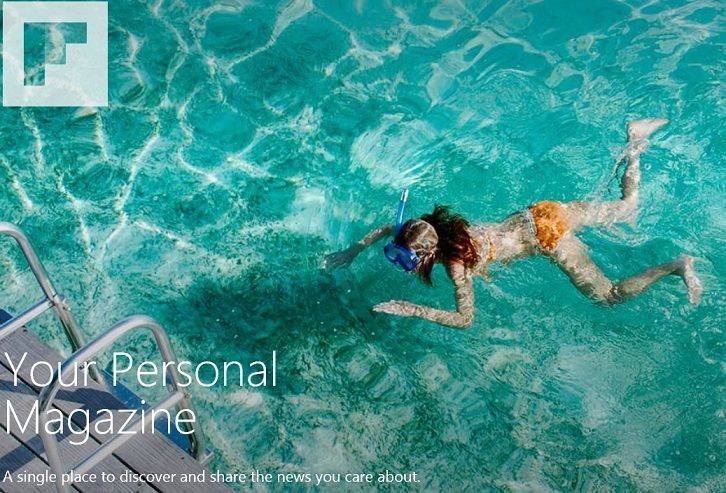
The official Flipboard app has finally arrived in the Windows Store, Windows 8.1 and Windows RT 8.1 users are invited to download it, of course, as well, as Windows 8 and Windows RT users, if you haven’t made the update yet. Flipboard for Windows 8.1 comes with a completely optimized touch interface, offering the options to save stories, share links, topics, blogs, or sites and create your own magazines.

You can use the Windows 8.1 Flipboard app to connect up to 12 social networks, including Twitter, Facebook, Instagram, and Google+. There are 12 localized editions of the Windows 8.1 Flipboard app that include Australia, Canada, UK, US, Japan, Italy, and Germany. As expected, live tile support is also offered to Windows 8.1 users, so by pinning your favorite topics on the Start screen, you won’t even need to launch the Windows 8 Flipboard app.

The official Flipboard app for Windows 8.1 description reads like this:

Flipboard is your personal magazine. It is the most popular way to catch up on the news you care about, read stories from around the world and browse the articles, videos and photos friends are sharing. To begin, pick a few topics and tap any of the tiles to begin flipping through your personal magazine. Use the Discover button to customize your Flipboard with iconic sources like The New York Times, PEOPLE magazine, Fast Company and many more.

You can also connect your social networks like Facebook, Instagram and Twitter. Share what you are reading and enjoy updates from friends all in one place. When you find things you like on Flipboard, use the + button to save it into your own magazines. Build magazines on any topic, from Great Hikes to Gear & Gadgets. Tap the Discover button and select “By Our Readers” to explore magazines other readers are making.

Follow the link from below to download and install the Windows 8.1 Flipboard app on your devices:

Download Windows 8.1 Flipboard app

Windows 8, 10 App Check: ICQ Brings Free Messaging With Style

The official ICQ for Windows 8 is present in the Windows Store and it brings free messaging, as well as free video and audio calls. Read our review to find more about it.
windows 8 icq
Those of you who were wondering whether ICQ was dead or not for Windows 8 users now have the answer – it is not. As a matter of fact, the Windows 8 ICQ app has been in the Windows Store for quite a while, but we’ve decided to see how it looks like only now. And we are pleasantly surprised.

Of course, maybe there aren’t so many ICQ users as before, many of them fleeing to other services, Facebook being the biggest of them all or by using an all-in-one instant messenger like IM+. You get cool, proprietary ICQ smilies with the official Windows 8 app, people search function; all in an elegant and and simple touch interface.

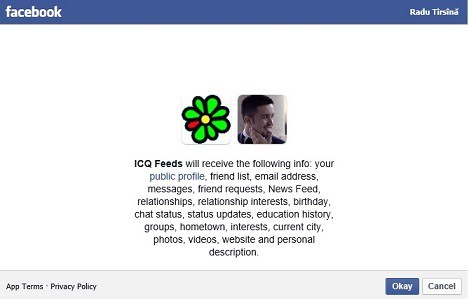
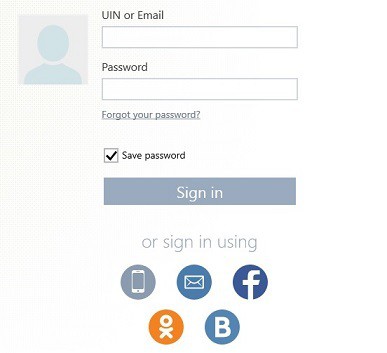
You can sign in using your Facebook, VKontakte or Odnoklassniki account. Besides sending pictures, video and files, you also have the option of sending free SMS. I logged into ICQ using my Facebook account and noted some slow loading, perhaps it happens only the first time when ICQ synchronizes with your Facebook account.

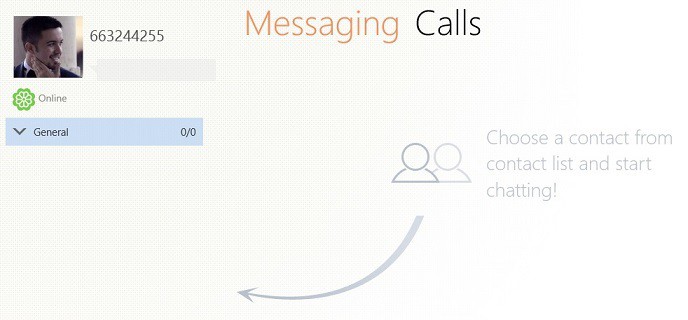
You have the option of letting the Windows 8 ICQ app run in the background to receive notification and show your status. By right clicking in the app you will be able to add a new contact, a new group or if you want, you can sign out. I found the app to be very fast and what I liked about it is that it is advertising free. Follow the link from below to install ICQ on Windows 8 or Windows RT and start enjoying the free messaging right away!

Download ICQ app for Windows 8

Nokia releases photography-based Storyteller app

Nokia Lumia 1520

It’s only been 3 weeks since Nokia World was hosted in Abu Dhabi, and we got to see the Nokia Lumia 1520, the Nokia Lumia 1320, the Nokia Lumia 2520, and many other new apps and features. One of the new apps is the Nokia Storyteller app. This app will be available on both Windows Phone 8 and Windows 8, with a beta already being released on the Windows Phone Store. The thing is, you will need to have Lumia Black to download the app.

The Nokia Storyteller app complies with Nokia’s initiative of all-photography on mobile devices. The app displays where and when all your pictures were taken. This is ideal for people who travel a lot, or tourists, because this app can recall missing memories they had at the point where they took the image or the video.

The Nokia Storyteller app is now available as a beta in the Windows Phone Store, but users can’t download it since Nokia has told us that this will work with Lumia Black. Only users who have Lumia Black and GDR3 will be able to download the app.

To get a better look at the app, Windows Phone Central has a hands-on video explaining its features.

It’s rather odd that Nokia has released this app before the Lumia Black update, but Nokia might be slowly teasing us, since they already have the Nokia Beamer app in the Windows Phone Store. It’s only a matter of weeks until we see Nokia’s Lumia Black update appear on our phones, I guess we’ll just have to wait.

Microsoft’s Windows Store Now at 1.7M Daily Downloads

New statistics reveal that the Windows Store has reached a 1.7 million daily downloads milestone in October, which is an increase of 38.56 percent compared to figures revealed in June. Still, it has a long way before it can be considered a rival for Apple’s or Google store of apps

windows store daily downloadsMicrosoft has provided developers with information that the Windows Store managed to reach a new milestone in the past month – 1.7 million daily downloads. The last time when Microsoft has disclosed daily downloads in the Windows Store was in June; now, the new numbers represent a 38.56% increase since then. Most likely, the overhaul that Windows 8.1 has brought is to be considered the main cause.

According to Microsoft’s dataset, around 51.2 million free and paid applications were downloaded during the month of October, up from 36.9 million in June. More than 1.3 million download in October were for paid Windows 8 apps, while downloads for free apps have reached 49.7 million. You can see more statistics in the above table.

Microsoft’s Windows Store might beat the Apple Mac Store, but it is definitely no match for Apple’s store. Apple has had en estimated 60 billion App Store downloads in October with an average of almost 75 million daily downloads. According to this data, Apple is tallying 43.8 times as many downloads per day than Microsoft.

One of the reasons is constituted by the fact that Apple has a huge number of iOS devices in the whole world while Windows 8’s market share is still in its incipient stage. Another reason is the absence of important apps in the Windows Store, and the presence of a lot of “junk apps”, like I call them. Maybe the launch of cheap Window 8 tablets will contribute to the increase of apps in the Windows Store, because at the moment, it can’t compete with Google and Apple.

Microsoft expands Office 365 availability to 17 new markets and 4 new languages

Microsoft expands Office 365 availability to 17 new markets and 4 new languages

Microsoft has announced the expanded availability of Office 365, the company’s cloud-powered office productivity suite, to seventeen new markets and four new languages. In total, this would mean that Office 365 is now commercially available in 123 markets.

“Office 365 is expanding availability to 17 new markets and 4 new languages.  Office 365 is now commercially available in 123 markets, additionally 120-day trials are available in 18 markets where paid subscriptions may become available in the future,” Microsoft stated in an official blog post.

The new markets with paid subscriptions include: Bangladesh, Uzbekistan, Vietnam, Lebanon, Jamaica, Bolivia, Brunei, Nicaragua, Honduras, Albania, Armenia, Bosnia and Herzegovina, Senegal, Côte d’Ivoire, Georgia, Ghana, Mauritius, Iraq, Bermuda, Rwanda, Belize, Cameroon, Moldova, Mongolia, Zimbabwe, Cape Verde, Fiji, Kyrgyzstan, Virgin Islands (U.S.), Bahamas, Cayman Islands, Angola, and Libya. 

The new Office 365 120-day trial markets include: Palestinian Territories, Congo (DRC), Tajikistan, Turkmenistan, Botswana, Namibia, Curaçao, Faroe Islands, Monaco, St. Kitts and Nevis, Ethiopia, Uganda, Zambia, Afghanistan, and Tanzania. 

The four new languages include: Indonesian, Kazakh, Hindi, and Hebrew. This brings the total number of languages to 40.

Windows 8, 10 App Check: Dailymotion Brings Free Online Videos and Movies

Dailymotion isn’t as popular as Youtube but still, it remains one of the best video-sharing websites in the world. We’re having a look at how it fares on Windows 8 and Windows 8.1
dailymotion windows 8 app
If you too are pissed that there isn’t yet an official Youtube app for Windows 8, then you need to look for alternatives. And one of them is Dailymotion, a popular video-sharing website where you can find millions of free videos and even free movies, if you have the patients of watching in parts.

Recently, Dailymotion has also been updated for Windows 8.1, featuring a better player with HD support, a redesigned homescreen and overall performance optimizations. As the description goes, use the Dailymotion Windows 8 app “to search, watch and share more than 20 millions videos”.  You also get to enjoy your videos in HD quality, up to 1080, which makes it look super cool especially on a tablet.

You have at your disposal a very large and diversified library containing videos on topics such as News, Sports, Music, Movies, Video Games and more. You also can share videos and pin to your Windows 8 start screen users, playlists, groups and channels to get notifications and easily access them with a single tap.

What has surprised me is that there were no ads at all inside the Dailymotion app for Windows 8, which is definitely an awesome thing. Follow the link from below to download and install Dailymotion on your Windows 8, Windows 8.1 or Windows RT device.

Download Dailymotion for Windows 8

Top 10 New Features for Business in Windows 8.1

The Windows 8.1 update released by Microsoft comes with important features for business and enterprise users. We have selected top 9 that might interest you
windows 8.1 business features
Whether you’re running a small business or a bigger one, you need to know what new features Windows 8.1 brings for your enterprise. Previously, we’ve talked about such notable features for enterprise user as mail enhancements, high DPI support, fingerprint password support, wireless networking enhancements and much more.

Now, it’s time to recount all the most important features from what we have already mentioned and talk about some new ones. In a recent post on TechNet community, Mike Halsey, Microsoft MVP has shared and highlighted 8.1 important features for business users in Windows 8.1. Here they are:

  • Mobile Tethering – Windows 8.1 introduces Mobile tethering support.  Your Windows 8.1 device with an in-built SIM or a mobile data dongle can share the data connection with up to ten devices can connect to at a time.
  • Multi-Monitor Display Scaling – Windows 8.1 fixes the issue of different displays not appearing correctly because of different desktop scaling that makes text and other items smaller.
  • Wireless Display Support – Windows 8.1 brings support for WiDi and Miracast wireless displays, meaning a compatible screen or a projector can be used as second screens. Read more about this in our article about top new 3 wireless networking features in Windows 8.1.
  • Workplace Join – Workplace Join allows access of a company domain without the PC having to be previously configured. This way, IT administrators enforce strict company security and access policies while granting access permissions to BYOD PCs.
  • Work Folders – BYOD devices synchronize work files for use away from the office with a BYOD device, without previous configuration
  • InstantGo – Windows 8.1 starts faster, as quick as 300ms with compatible hardware
  • Wi-Fi Direct and NFC Printing support – Windows 8.1 comes with support for Wi-Fi Direct and NFC Printing, enabling the latest generation of printers.
  • Improved Biometrics – Windows 8.1 includes new support for fingerprint sensors
  • New APIs – new programming APIs allow integration with 3D printers and much more

Microsoft’s Windows operating system celebrates its 30th birthday

Microsoft's Windows operating system celebrates its 30th birthday

Today is a big day for Microsoft’s Windows operating system. For those who do not remember, November 10th, 1983, was the day that a young Bill Gates introduced Windows 1.0 to the world as an operating system that would help start the PC revolution and change the way we use computers to this day. Today, we celebrate the 30th birthday of Windows.

“Microsoft works on the first version of a new operating system. Interface Manager is the code name and is considered as the final name, but Windows prevails because it best describes the boxes or computing “windows” that are fundamental to the new system.Windows is announced in 1983, but it takes a while to develop,” Microsoft explains on the Windows history website. Apparently, haters believed this new “Windows” would become “vaporware.”

Two years after the initial announcement, Microsoft shipped Windows 1.0 on November 20 of 1985. This marked a radical change from typing DOS commands to simply moving a mouse to point and clicking your way though “windows.” Bill Gates, at the time, described this as a “unique software designed for the serious PC user.”

For those who remember, Windows 1.0 only required a minimum of 256 kilobytes (KB), two double-sided floppy disk drives, and a graphics adapter card. A hard disk and 512 KB memory is recommended for running multiple programs or when using DOS 3.0 or higher.

Eventually, the “Program Manager” shell in Windows was evolved into the “Windows Explorer” desktop shell which made its debut in Windows 95. Enhancements were made to the shell as the years went on and ultimately was set aside for the new Modern user interface and Start Screen in Windows 8.

Windows now commands over 90% of the operating system market share, surpassing competitors such as Apple OSX and Linux.

We’ve embedded two videos for you below to relive the old memories in celebration of Windows’ birthday. In the first video, we can see a young Steve Ballmer promoting the first version of Windows. In the second video, we can listen to all the default startup sounds of Windows through the ages. Enjoy and lets wish Windows a happy birthday!

Windows 8, 10 App Number Mill is an Awesome Math Solver

Solving math problems and equations isn’t easy, but if you have a Windows 8 tablet, then Number Mill comes to the rescue. One of the best math solving apps we’ve seen so far.

number mill windows 8

Number Mill is one of the best Windows 8 math apps that are going to be very useful for students, pupils, teachers and everybody that needs to solve something quick. Here’s how the developers describe this Windows 8 app:

When Excel is an overkill but a calculator is not enough Number Mill comes to rescue. It is a math solver reinvented for touch UI. The app provides great user experience for both touch and mouse inputs.

And here are the things you can do inside the app:

  • Simple and clear user interface with snappy results
  • Great spreadsheet alternative and more features than a traditional calculator
  • Rich formula language lets you perform arithmetic operations, percent and trigonometric calculations and much more
  • Save calculations sheet for further use or you can even export it to text or spreadsheet
  • Skins support, as you can choose from metro, blackboard, paper, wood, metal and flat

When first opening the app, you might not understand what to do, but after spending a few minutes with the app on your tablet, you will get used to it and see its benefits. Follow the link from below to download it on Windows 8 and Windows RT

Download Number Mill for Windows 8

Toshiba Encore vs Lenovo Miix2: Specs Comparison

When looking for a reliable and cheap Windows 8.1 tablet, you’ve probably included the 8-inch Toshiba Encore and the Lenovo Miix 2, both of them being some appealing device. Let’s have a look and see who wins.
toshiba encore windows 8.1 cheap tabletWe have recently shared with you the news that pre-orders have started for the Toshiba Encore and the Lenovo Miix2 Windows 8.1 tablets. And some of you are probably wondering which one is better and what should you be buying. That’s why we have come up with this comparison post. You can also have a look at the battle between the Toshiba Encore and the Asus T100, if you’re interested.

To make it very easy to compare the Lenovo Miix2 with the Toshiba Encore, we have included in this article an image to make it easier for our readers, thanks to the comparison system made by PhoneArena. We have highlighted with green the specs that are the “winning” ones. The image doesn’t contain all the details, so we’re discussing about the rest in the bullet-ed list from below.

Lenovo Miix2 vs Toshiba Encore

We can see that the Lenovo Miix is thinner and lighter than the Toshiba Encore, measuring 0.31 inches and weighing 11.2 ounces (0.317 kg) compared to 0.43 inches and 1.1 pounds (0.5 kg). So, it is lighter by 189 grams and thinner by 0.12 inches. Another important advantage for the Lenovo Miix 2 is the price, as it currently retails for $299, which is thirty dollars less than Toshiba Encore’s price of $329.

lenovo miix 2 vs toshiba encore

Toshiba isn’t winning in the camera field, as it did with the Asus T100, as both tablets sport a high-resolution from 8MP camera with a 2MP HD webcam for video calls and chats. Besides these big differences mentioned above, the tablets are basically the same. So, as it stands now, it’s obvious that Lenovo‘s Miix2 is the winner here.

Skype teams with Thor, performs super hero-style good deeds

Skype teams with Thor, performs super hero-style good deeds

Thor: The Dark World, the second movie in the Marvel series, which chronicles the mythical Norwegian god, debuts today. Expected to follow in the line of blockbuster hits, the movie has received considerable media attention. While Microsoft, like any company, is always looking for a bit of publicity, the software giant teamed with Marvel Studio to also bring about a bit of cheer.

However, in this particular Thor adventure, there are no bad guys to swing the mighty hammer at, and no destruction will be wrought. Instead, Microsoft communications property Skype allowed “fans the chance to submit their burning questions to the cast of Marvel’s Thor: The Dark World and also Kevin Feige, the producer and President of Marvel Entertainment.” Needless to say, the response was overwhelming, with many videos even featuring fans dressed in costume. You can watch the results here.

Those selected in this contest also got a treat beyond just having their question answered — “of course, every movie has a premiere, and this time Skype was a part of not just one, but two! Some of our Moment Makers had the chance to attend and make moments of their own.” So far, this all sounds like a lot of fun, and a great opportunity for fans. But not all of what Microsoft did was about fun and games, there was a more somber note.

“We also transported the action and excitement of the red carpet to patients at Children’s Hospital Los Angeles. A giant monitor showcased a special Skype video call that brought the heroes of Marvel’s Thor: The Dark World together with the children at the hospital. A special area in the hospital was transformed to resemble Thor’s mythical home of Asgard, immersing the children in Thor’s world as they watched a special, simultaneous showing of Marvel’s Thor: The Dark World.”

Microsoft, while it gets little attention, does a fair amount for charitable reasons. One could argue that it’s for appearances sake, but consider founder Bill Gates’ work with his foundation and the promise to give away his fortune for the good of others. Perhaps, despite the frequent “evil corporation” tag, the company can earn a bit of slack from the media, at least once in a while.

Toshiba Encore vs ASUS T100: Battle of Cheap Windows 8.1 Tablets

If you are looking to buy some cheap and decent Windows 8.1 tablets, then you’ve probably shortlisted the Toshiba Encore and the Asus T100 in the finalists. Let’s have a look at how this Toshiba Encore vs Asus T100 fight looks like and who will win
toshiba encore vs asus t100
Yesterday, we shared with you the news that Windows 8.1 eight incher tablets Toshiba Encore and Lenovo Miix 2 have finally went on sale, with pre-orders starting. Now, it’s time to start a specs fight between the Toshiba Encore and the Asus T100, as you’re probably not sure if you’re look at both of them right now.

Stay tuned and subscribe to Wind8apps to get more fights like this delivered to your inbox. The best way to play Windows 8 apps is on tablets like these, so that’s why we’re trying to see which of them is better suited for your needs. Without further ado, let’s put these two cheap, yet great Windows 8.1 to the specs comparison battle!

Toshiba Encore vs Asus Transformer Book T100

First of all, a few things need to be said about these two devices: the Toshiba Encore comes with a 8-inch size while the Asus T100 is a 10.1-inch convertible 2-in-1 touchscreen laptop. So, they are from two different leagues, so we can’t really compare this, as it depends on your tastes and needs. Therefore, before jumping to the specs comparison from below, decided whether you need a convertible 10 inch laptop or a smaller tablet that is also more portable.

  • Price and capacity: the 32-GB Toshiba Encore model is $330 while Asus T100 is more expensive, but comes with an impressive 64 GB Solid-State Drive for the price of $400asus t100 vs toshiba encore
  • Processor and RAM: Toshiba Encore has a 1.8 GHz Atom Z3740 processor and Asus T100 comes with the same 1.86 GHz Intel Atom kernel and they also have the same 2 GB DDR3 RAM
  • Battery life: Toshiba said that a final estimate for Encore’s battery life hasn’t been yet released, but we’ve seen in many places 7 hours being listed. Compare that to the 11 hours that Asus claims for its T100 Windows 8.1 notebook.
  • Camera: the Asus T100 comes with a mediocre 1.2 front camera, because it’s a notebook while Toshiba Encore has a 8MP back sensor with a 2MP one in the front

So, as you can see for yourself, the Asus T100 has much more strong points than the Toshiba Encore and is currently cheaper only by $70. But if you’re looking for a cheap Windows 8.1 convertible laptop, then this is it. Let’s not forget that you also get the keyboard dock included in the price, which is a very, very sweet deal. Here’s what Anand from AnadTech had to say about the Asus T100

The T100 truly lives up to the Transformer brand. The combination of Intel’s Bay Trail silicon and ASUS‘ mechanicals gives the device a dual personality. In tablet mode it’s just as portable as any other 10-inch tablet, while in clamshell mode it can be a netbook-style ultraportable PC. I’d love to see ASUS continue down this path and truly try to perfect the device. I look at the work that ASUS and Google do together and can’t help but wonder what the T100 would look like if it had the same sort of pressure/influence. Perhaps that’s a bigger criticism of how Microsoft works with its partners, but I look at the comparison of ASUS tablets with and without Google’s influence and try to imagine a further polished Transformer Book. That’s something I’d really like to see.

To be fair, we don’t have yet too many reviews of the Toshiba Encore, so we will wait for an updated on that, as well. But, in my opinion, you should go for the Asus T100, as it seems to be the best choice. You can always leave the keyboard dock home if you don’t want to carry it around.

See All The Windows 8, 10 Mail app Keyboard Shortcuts

The Windows 8 and Windows 8.1 Mail app becomes much easier to easy, both on tablet and in desktop mode, if you know and learn the keyboard shortcuts that it has. Here are all of them

windows 8 mail app keyboard shortcuts

Whether you’re using the Mail app on a tablet, on a laptop or on a hybrid device, you could become much more productive by learning the keyboard shortcuts. When you have to deal with your email on a daily business it doesn’t become so absurd to know most of them. But since we don’t know what exactly you are going to use, find below all the shortcuts working in the Mail app for Windows 8 and Windows 8.1.

We have talked about some of the most important features that the Windows 8.1 Mail app brings for enterprise users and this list of keyboard shortcuts is definitely one of them. Brace yourself, as this is quite a long list. What you need to do to make it quicker is this – just search for your desired function in this article if you’re looking for one. So, here they are:

  • Ctrl+R – Reply
  • Ctrl+Shift+R – Reply all
  • Ctrl+F – Forward
  • Ctrl+M – Move item to a different folder
  • Ctrl+J – Toggle between marking a message as junk or not junk
  • Ctrl+Shift+U – Show only unread messages
  • Ctrl+Shift+A – Show all messages
  • Ctrl+Shift+E – Show Folder options
  • Ctrl+U – Mark as unread, Underline text (When you’re writing an email)
  • Ctrl+Q – Mark as read
  • Ctrl+A – Select all messages, Insert, Toggle between Flag and Remove flag for messages
  • Ctrl+N – New Message
  • F5 – Sync
  • Alt+B – Put focus on the bcc button
  • Alt+C – Put focus on the cc button, Accept
  • Alt+D – Decline
  • Alt+T – Put focus on the To button, Tentative
  • Alt+V – Open the invitation in Calendar
  • Alt+S – Send mail
  • Ctrl+O – Opens message in a new window
  • Ctrl+Alt+S – Gives you an options to delete one or all messages from a particular sender
  • Alt+I – Insert attachment
  • Ctrl+Shift+F – Select a font
  • Ctrl+Spacebar – Clear formatting
  • Ctrl+Y – Redo
  • F4 – Redo
  • Ctrl+[ – Decrease font size one point
  • Ctrl+] – Increase font size one point
  • Ctrl+Shift+, -Decrease font size
  • Ctrl+Shift+. – Increase font size
  • Ctrl+K – Add a link
  • Ctrl+E – Center
  • Ctrl+L – Indent left
  • Ctrl+R – Indent right
  • Ctrl+Shift+L – Bullets
  • Ctrl+M – Indent when text is selected
  • Ctrl+Shift+M – Outdent
  • Tab or Shift+Tab – Indent/outdent when text is selected or when focus is in a list
  • Shift+Tab – When focus is not in a list, cycle through tabs in reverse order.
  • Ctrl+’ – Acute accent
  • Ctrl+, – Cedilla accent
  • Ctrl+Shift+6 – Circumflex accent
  • Ctrl+Shift+; – Diaeresis accent
  • Ctrl+` – Grave accent
  • Ctrl+Shift+7 – Ligature accent
  • Ctrl+Shift+2 – Ring accent
  • Ctrl+/ – Slash accent
  • Ctrl+Shift+`- Tilde accent
  • Alt+Ctrl+Shift+1 – Inverted exclamation mark
  • Alt+Ctrl+Shift+/ – Inverted question mark
  • Ctrl+Shift+S – Sweep
  • Ctrl+E – Search
  • Ctrl + Z – Undo
  • Ctrl + B – Bold
  • Ctrl + I – Italicize
  • Ctrl + U – Underline
  • Ctrl + C – Copy
  • Ctrl + V – Paste
  • Ctrl + S – Save draft
  • F6 – When writing an email, shifts focus to the send button

Phew, quite the list, am I right? Now, let us know which of the above keyboard shortcuts in the Windows 8 Mail app you are really going to use, since it’s impossible to believe someone could know and use them all.