Project Manager for Planner in Teams gets real-time task notifications

Microsoft has announced a small but useful update for the Project Manager for Planner in Teams that allows the agent to send you notifications when it completes a task or needs your input. These alerts appear in your Teams Activity feed, so you can stay updated without having to open the Planner tab every time.

Microsoft updates Project Manager for Planner in Teams with real-time task Notifications

In the announcement blog post, Microsoft noted, “We’re excited to announce that real-time task notifications for the Project Manager agent in Planner are now in public preview in Planner in Microsoft Teams.”

There are two types of notifications you’ll receive from the Project Manager for Planner in Teams. The first is a completion notification—when the agent finishes a task, you’ll get notified immediately.

The second is when the agent requires your input to continue, which ensures you’re not left out of the loop or forced to check manually.

This real-time task notifications update keeps teams better informed, reduces unnecessary delays, and improves accountability. It’s especially useful in collaborative environments. The Project Manager’s status can help move things along faster and meet deadlines more reliably.

Notifications are set by default, but you can always make changes

Microsoft says that Project Manager’s real-time task notifications are enabled by default. You don’t have to set anything up. If you’d prefer not to receive them, you can change this under Planner notifications in the Teams settings menu.

The feature is available to users with a Microsoft 365 Copilot license. Everyone assigned to a task that uses the Project Manager agent will receive relevant notifications. If anything doesn’t work as expected, Microsoft encourages users to submit feedback through the in-app feedback tool.

Windows New Outlook will soon get offline Calendar support

Microsoft has been making a few small but important changes to the new Outlook lately. However, many still find the app underwhelming, especially compared to the classic version. Well, Microsoft is looking to give users another reason to like the new Outlook; the company is finally planning to roll out offline Calendar support.

According to a new entry on the Microsoft 365 roadmap (ID 490059), New Outlook will soon offer support to let users create, edit, and delete calendar events even when they’re offline. The feature is listed as in development and is expected to begin rolling out in June 2025. The roadmap entry notes:

We are adding more offline functionality [for Calendar] in the new Outlook for Windows. You will now be able to create, edit, and delete events in your calendar when not connected to the internet.

The offline support for calendar makes New Outlook more usable for those who travel, work in areas with poor connectivity, or just expect their apps to function without relying on the cloud 24/7.

This builds on previous offline updates Microsoft began last year, starting with offline launch support and then email sync and attachment access. Other long-missing basics like PST support and offline functionality are also being rolled out bit by bit.

Windows 11 Search will soon let you install your favorite apps from Microsoft Store

If you’ve ever found it a hassle to head to the Microsoft Store to download and install an app, you might have wished for a faster way to do it. Microsoft is testing exactly that. This week, the company teased an upcoming change to Windows 11 Search that integrated Microsoft Store as well.

Microsoft is integrating its app store with Windows Search as part of the upcoming update. You’ll soon be able to download apps directly from the Start menu Search, or taskbar. Here’s how it works: You type the name of the app, and if it’s in the Store, you’ll see a “Get” button right there. You can click on the button and install the app right away.

Vice President of Microsoft’s App Store & Apps shared this news via a post on X. He also attached a screenshot to give an idea of what to expect. You can check the screenshot below.

Windows Search Microsoft Store integration
Image: Microsoft

Users are fuming over the upcoming change

It seems users have divided opinions about Windows Search integrating the Microsoft Store. Xeno, a popular Windows tipster, commented, “Will there be a way to disable this? I can see some users getting annoyed.“

Among the annoyed users is Dany Gonzalez, who commented, “The only OS with a search feature that finds everything but the files you actually need.” Another user, Pawel Gruba, seems frustrated about the upcoming change. The user notes:

But why? What for? If I search for something – I’m looking for the files on my machine, not sth on the web, not an article on someone’s blog, not a video, not an app from the store – a file from my drive! The best thing we can do in win11 is to disable Bing web search.

This update comes after Microsoft started testing smarter Search on Copilot+ PCs since late March. However, we can’t really tell if Microsoft would be willing to put the feature on hold because of the comments on the post. But if it does, it’s clear that Microsoft is taking note of every user’s feedback, since it asked for it.

Microsoft releases updated HLK and VHLK for Windows 11 24H2 & Server 2026

Microsoft isn’t slowing down this week when it comes to Windows hardware updates. More recently, the company announced the retirement of Device metadata and WMIS, plus changes to driver signing. Now, Microsoft has announced Hardware Lab Kit (HLK) and Virtual Hardware Lab Kit (VHLK) May 2025 releases for Windows 11 24H2 and Server 2025.

Microsoft announces HLK and VHLK May 2025 releases for Windows 11 24H2 and Server 2025

The refreshed versions replace the original RTM version released last year in May. The update was quietly announced on May 6 through the company’s official blog:

Microsoft is pleased to announce that a refreshed HLK for Windows 11, version 24H2 and Windows Server 2025 is available starting May 6, 2025.

This release of the HLK contains test errata fixes, HLK test removals, and HLK test additions. All these changes will help keep the overall test quality high while helping reduce triage time for known test issues.

The refreshed version of the HLK will replace the RTM version that is available on the HLK download site. The VHLK version will be available in a week.

What’s HLK and VHLK

For the uninitiated, HLK stands for Hardware Lab Kit. Hardware makers generally use this tool to test and validate drivers before shipping them with Windows. If a driver passes all HLK tests, it can qualify for WHQL certification—Microsoft’s stamp of approval for hardware compatibility.

VHLK is pretty much the same thing, but designed to run in virtual environments. Think VMs, virtual hard disks, and lab automation—it’s all about testing without physical machines.

Both HLK and VHLK fall under the WHCP umbrella—the Windows Hardware Compatibility Program. That program ensures vendors can test their gear and software against current Windows builds (including older ones like Windows 10).

This latest HLK build also adds some new tests, including support for Bluetooth LE Audio and better handling of Generation 2 virtual machines when testing with VHLK.

If you’re working with drivers or hardware and want to stay compliant, now’s a good time to grab the updated tools. You’ll find more info in Microsoft’s full blog post.

Microsoft extends Basic Authentication and makes changes to HVE in Microsoft 365

Microsoft has announced that High Volume Email (HVE) in Microsoft 365 will continue to support basic authentication until September 2028.

The idea is to give businesses more time to move to modern authentication methods like OAuth. That’s not all; Microsoft also said it’s cutting some of HVE’s features, and those changes start next month.

No more external emails with HVE in Microsoft 365

Starting next month, you won’t be able to use HVE to send emails outside your organization. It’s going internal-only. Microsoft explains that, “This change is intended to simplify our email offerings and clearly define HVE’s purpose within the Microsoft 365 ecosystem.“

If your systems still need to send bulk messages externally, Microsoft suggests using Azure Communication Services (ACS) instead. You can find setup details and documentation on Microsoft’s official site.

Also read: Microsoft 365 Copilot Chat gets SafeLinks for better user safety

Fewer limits within the tenant

There’s one upside, though. Microsoft is lifting some of the limits introduced during HVE’s preview in April 2024. Under the new rules:

  • You can create up to 100 HVE accounts.
  • Internal recipient rate limits are gone.

This should make internal use of HVE much more flexible for larger organizations using Microsoft 365.

Also read: Microsoft is now showing Microsoft 365 ads in the PC Manager app

Basic Authentication in Microsoft 365 will stick around for a few years

The biggest update is the three-year extension for Basic Authentication. It’s staying until September 2028. But Microsoft makes it clear this isn’t a long-term solution.

The company is actively encouraging anyone concerned to get switched over to modern authentication as soon as possible to boost their security. Microsoft also says it understands some organizations aren’t ready yet—and that’s the only reason for the delay.

Here are two key changes announced for next-nen Windows 11’s hardware drivers

Yesterday, Microsoft quietly confirmed two important changes that will directly affect how Windows 11 hardware drivers are built and tested.

As you may know, Microsoft has been pushing hard to modernize Windows. With big updates coming in Windows 11 24H2 and Server 2025, some older systems are being phased out.

Here’s what is changing for Windows 11 hardware drivers

First, Microsoft is officially retiring Windows Metadata and Internet Services (WMIS) and device metadata support. Second, it’s changing how pre-production drivers are signed—a process that’s critical for partners who test and validate hardware before public release.

In a new blog post, Microsoft talked about Windows Metadata and Internet Services (WMIS) and noted:

Device metadata and the Windows Metadata and Internet Services (WMIS) are being retired as of May 2025, and no new packages will be delivered to Windows clients via WMIS. In Partner Center, device metadata experiences cannot be created, modified, or promoted. New device metadata submissions will fail. Existing device metadata packages on Windows clients will remain on the client.

Between now and December 2025, partners can continue to use Partner Center to view and download previously signed device metadata packages.”

For the uninitiated, device metadata refers to XML-based files that define user-facing details—icons, names, descriptions—associated with hardware devices. Introduced with Windows 7, these files helped improve how devices showed up in Windows UI tools like Device Manager.

Microsoft will now block new metadata submissions. After May 2025, WMIS stops delivering anything new to clients. By December 2025, partners will only be able to view or download old packages. Microsoft now recommends using INF files instead.

Also read: Microsoft fixes Group Policy bug that prevented Windows 11 24H2 installation

Pre-Production Driver Signing Changes

Microsoft also confirmed that the certificate authority currently used for signing pre-production drivers—PCA 2010—is set to expire in July 2025.

The CA that is used to sign the binaries for use in pre-production environments on the Windows Hardware Program is set to expire in July 2025, following which a new CA will be used to sign the pre-production content starting June 9, 2025. There are some important points that partners must take notice of, following this change:

  • From now on, the expiry of the signed content will not be tied to the expiry of the underlying CA. This means that any pre-production driver signed after June 9, 2025, will not come with an expiry date. This is unlike today, where preproduction content expires along with the expiration of the certificate that signed it.
  • Drivers signed before June 9, 2025, will expire on July 6, 2025, as is the current model.
  • April 22, 2025, May 13, 2025, and June 10, 2025 - Windows servicing releases (4D/5B/6B) ship to in-market platforms (down to Windows Server 2008) to remap existing CAs to their new CAs in WDAC/Application Control for Business policies. Partners must make sure to install these Latest Cumulative updates (LCUs) to add trust for the new preproduction signer (Microsoft Windows Component Preproduction CA 2024) to the kernel.

That’s it. These changes are now on the timeline, and partners will need to update their processes accordingly.

Photos of ASUS’ Xbox-branded handheld leak online

Xbox’s partner handheld with ASUS, also known as Project Kennan, may have just leaked. The device in question is the ASUS ROG Ally 2. Folks over at 91Mobiles first spotted the listing for the gaming handheld on an Indonesian certification website.

Later on, VideoCardz found an FCC listing for the Wi-Fi module included in the two devices. That’s not all, the FCC listing also leaked photos of both ASUS ROG Aly 2 variants, and one of them features a dedicated Xbox button.

Microsoft and ASUS’ Xbox handheld appears in leaked images ahead of launch

The leaked black Xbox-branded handheld closely resembles the regular white ROG Ally 2, except for a small button above the D-pad bearing the Xbox logo. This same button is blacked out on the white model, which might be removed or replaced later on.

Designs of the leaked Xbox and non-Xbox handhelds include dual USB-C ports on the top and reshaped grips that look thicker and more ergonomic than the previous ROG Ally. The FCC listing has also leaked some specs of both Xbox and non-Xbox variants of the handhelds.

Also read: Microsoft increases prices of Xbox consoles, controllers & new games

Both versions include a 7-inch, 120Hz LCD screen — similar to the original ROG Ally. There’s a powerful 8-core AMD Ryzen Z2 Extreme chip with a 36W TDP. The standard model gets a less powerful 4-core, 20W chip. With regulatory certification underway, it’s likely that ASUS will make the devices official very soon.

We expect the official unveiling could happen at Computex, which kicks off May 20th, just a day after Microsoft’s Build conference. Not to forget, Microsoft is also working on three prototypes of next-gen Xbox controllers.

Microsoft upgrades Windows 11’s Photos, Paint, and Snipping Tool with AI-powered features

Microsoft is bringing a bunch of new AI-powered features to stock Windows 11 apps, including Paint, Photos, and Snipping Tool. These updates are exclusive to Copilot+ PCs, starting with Snapdragon-powered devices like the Surface Pro (12-inch) and Surface Laptop (13-inch).

New AI features are heading to Windows 11’s Photos and Paint apps

The Windows 11 Photos app has a new Relight feature that uses AI to add up to three dynamic light sources to your pictures. You can adjust light color, brightness, intensity, and focus point, or apply one-click presets for fast edits.

Microsoft says this will simplify complex lighting adjustments with AI doing most of the heavy lifting. Relight will debut on Snapdragon-based Copilot+ PCs, with Intel and AMD support coming later. Paint is also getting smarter with two AI features—Sticker Generator and Object Select—in Windows 11.

The Paint Sticker Generator feature uses AI to create custom sticker packs from text prompts. You can use them in Paint, documents, or even chats. Object Select also uses AI for isolating parts of an image in one click. So no more shaky outlines or rough edges. It recognizes image structure and context to deliver clean, fast selections without extra effort. Both Paint features arrive later this month for Windows Insiders.

Microsoft is also improving Paint Cocreator, generative fill, and image generation in Photos. A new diffusion-based model now powers those features, promising faster results and better image quality.

Snipping Tool is also getting much-needed AI features

Snipping Tool isn’t left out either. It uses AI to help you snap perfect screenshots by auto-selecting the most relevant on-screen content in Windows 11. It identifies key shapes like tables, charts, or images and captures just that, saving time on cropping.

Snipping Tool also adds a text extractor, letting you pull text from images and screenshots instantly. There’s also a new color picker tool to grab color values from anywhere on your screen, just like PowerToys.

Last but not least, Microsoft is upgrading Narrator on Snapdragon-powered Copilot+ PCs with rich image descriptions. The Windows 11 feature uses AI to now identify people, objects, colors, UI elements, text, and even charts for users with low vision.

Microsoft is making several AI features accessible across Windows 11 & Copilot + PCs

Yesterday, Microsoft launched two new Copilot+ PCs: a 13-inch Surface Laptop and a 12-inch Surface Pro. Qualcomm’s Snapdragon X chips power both Surface devices running Windows 11, which pack a bunch of AI features.

Microsoft is adding many AI-powered features to Windows 11

The standout feature is a new AI agent inside the Settings app. You can now just describe what you want to fix, like “my mouse pointer is too small” — and the AI figures it out on its own. It suggests changes, offers links to related settings, and can even take action for you with permission. It’s designed to cut through the clutter and make personalization or troubleshooting much simpler.

This smarter Settings app, infused with AI, first rolls out to Copilot+ PCs with Snapdragon chips through the Windows Insider program. Support for devices with Intel and AMD chips is coming later. Remember, English is the only supported language for now.

Microsoft is also giving Windows Search overdue improvements. A new update coming to Insiders this month will allow it to surface system settings more accurately and even install apps from the Microsoft Store. The Photos app will get better search, too — think finding specific images with keywords, not filenames.

Also read: Windows 11 is getting new Start menu, Notepad upgrades, and more

Click to Do and Copilot experience in the Microsoft Store

Microsoft’s new productivity AI assistant feature, Click to Do, is also getting smarter. It can now analyze text and photos, launch Reading Coach, open Immersive Reader, start Teams chats from emails, and schedule meetings — all through natural language commands.

1746526165_windows_copilotpc_clicktodo_feature_
Image: Microsoft

The Microsoft Store is also joining the AI wave. A new Copilot experience can recommend apps, answer questions, and guide users based on the AI capabilities of their device. An “AI Hub” will highlight apps optimized for Copilot+ PCs, with new product badges to show which apps are AI-powered or built exclusively for these devices. For more information on new features and their rollout timeline, check out the Windows Experience Blog.

GTA 6’s second trailer is here, but with a delayed released date

After making fans wait for months, Rockstar Games finally dropped the second trailer of GTA 6 yesterday, offering a better look at the game’s narrative and setting. The trailer revolves around the main characters, Jason Duval and Lucía Caminos, a criminal duo in the underworld of Leonida, a fictional state inspired by Florida. 

The second trailer of GTA 6 is great, but users are frustrated by the game’s delayed release date

The GTA 6 second trailer showcases that Lucía, who recently got out of prison, joins Jason for a series of heists, leaving users with a lot of questions yet again. The game returns to Vice City, now depicted with enhanced realism, featuring diverse locales like the Leonida Keys, wetlands, and mountainous regions.

Vice_City_01
Image: Rockstar Games

Notably, the trailer hints at the inclusion of real-world landmarks, such as a venue resembling Miami’s iconic Clevelander Hotel. Originally slated for a fall 2025 release, Rockstar has confirmed that Grand Theft Auto (GTA) 6 will now launch on May 26, 2026, for PlayStation 5 and Xbox Series X|S.

Despite the delay, the trailer has reignited excitement among fans, showcasing high-octane action sequences, including police chases, shootouts, and a variety of vehicles like luxury cars, motorcycles, planes, and boats.  

With its compelling characters, immersive setting, and action-packed gameplay, Grand Theft Auto (GTA) 6 is highly likely to be a money maker for the franchise. You can check out the trailer below.

Microsoft 365 services back online after major outage

Microsoft’s problem with outages isn’t a new thing. We often hear about some other service going offline, making users fume over the company. Yesterday, a major outage affected Microsoft 365 services. Users couldn’t send messages, access emails, or use key collaboration tools across Teams, Outlook, and others.

The company fixed a major outage that affected Microsoft 365 users for hours

Yesterday, Microsoft acknowledged the issue via its official Microsoft 365 Status X handle. The company said it was actively investigating the problem, with updates being provided through the Microsoft 365 Admin Center under issue ID “MO888473.”  

Well, the good news is that the company has fixed the major outage that caused Microsoft 365 services to be unusable for some hours.

The company’s official Microsoft 365 Status on X handle noted, “We’ve completed rerouting requests to alternate healthy infrastructure, and after a period of monitoring, we’ve determined the impact is now mitigated. For more information, please see MO1068615 in the admin center.”

Microsoft 365 services status check
Image: Microsoft

We recommend that users check the Microsoft 365 Service Health Dashboard to stay updated on similar outages in the future. You can also follow @MSFT365Status on X (formerly Twitter). Additionally, users can monitor service health and report issues through the Microsoft 365 Admin Center. Not to forget, in September last year, a similar incident affected over 20,000 Microsoft 365 users.

You can now download Docker Desktop app from Microsoft Store

The Docker Desktop app is now officially available on the Microsoft Store for Windows 11 and 10 users. This release simplifies the installation process, allowing developers to set up Docker with a single click, eliminating the need to download the installer from Docker’s website. 

The Docker Desktop app is finally available on the Microsoft Store

The announcement came from the official X handle of Giorgio Sardo, Vice President, Microsoft’s App Store & Apps. In the post, Sardo noted, “Docker Desktop is now available on the Microsoft Store, making installation & updates easier for developers and IT teams.“

Docker Desktop on Microsoft Store
Image: Microsoft

The Microsoft Store version of Docker Desktop offers the same features as the traditional installer. This includes support for Windows Subsystem for Linux (WSL) 2, Kubernetes integration, and container management tools.

It also benefits from automatic updates through the Store, ensuring users have the latest features and security patches without manual intervention. 

Why is it beneficial for developers and IT admins?

In the announcement blog post, Docker mentions the benefits of its Desktop app for developers and IT admins. The company notes:

For developers:

  • Automatic Updates: The Microsoft Store handles all update processes automatically, ensuring you’re always running the latest version without manual intervention.
  • Streamlined Installation: Experience a more reliable setup process with fewer startup errors..
  • Unified Management: Manage Docker Desktop alongside your other applications in one familiar interface.

For IT administrators:

  • Native Intune MDM Integration: Deploy Docker Desktop across your organization using Microsoft’s enterprise management tools — Learn how to add Microsoft Store apps via Intune.
  • Centralized Control: Easily roll out Docker Desktop through the Microsoft Store’s enterprise distribution channels.
  • Security-Compatible Updates: Updates are handled automatically by the Microsoft Store infrastructure, even in organizations where users don’t have direct store access.
  • Updates Without Direct Store Access: The native integration with Intune allows automatic updates to function even when users don’t have Microsoft Store access — a significant advantage for security-conscious organizations with restricted environments.
  • Familiar Workflow: The update mechanism works similarly to winget commands (winget install –id=XP8CBJ40XLBWKX –source=msstore), providing consistency with other enterprise software management.

You can download Docker Desktop from the Microsoft Store here. If you use the Docker Desktop app, let us know your thoughts in the comments below.

NVIDIA GeForce RTX 5060 is launching on May 19

NVIDIA has officially announced that the GeForce RTX 5060 will launch on May 19, 2025. The upcoming GPU will launch at a starting price of $299. 

It is an entry-level option in the RTX 5000 series that features 3,840 CUDA cores and 8GB of GDDR7 memory.

NVIDIA’s GeForce RTX 5060 to launch as an affordable option, starting at $299

The NVIDIA GeForce RTX 5060 supports DLSS 4 with Multi Frame Generation, along with updated ray tracing and tensor cores.  The RTX 5060 is designed for 1080p gaming, promising over 100 FPS in modern titles. 

NVIDIA has also highlighted the performance metrics, such as 330 FPS in Marvel Rivals, 148 FPS in Cyberpunk 2077, 130 FPS in Black Myth: Wukong, 114 FPS in Alan Wake 2, and 208 FPS in S.T.A.L.K.E.R. 2.

NVIDIA didn’t change the price of the RTX 5060, but pretty much everything else got an upgrade. For the same $299 as the RTX 4060, you’re getting a GPU with more CUDA cores (3,840 vs. 3,072), faster memory (28Gbps vs. 17Gbps), and a huge boost in memory bandwidth — 448GBps compared to just 272GBps.

While the base price of GeForce RTX is $299, the absence of a Founders Edition means users will have to rely on third-party manufacturers. This could lead to higher retail prices due to markups and recent U.S. import tariffs.  

As previously leaked, laptops featuring the RTX 5060 will also be available starting May 19, with prices beginning at $1,099.  

Microsoft says Windows 11 24H2’s first hotpatch update is coming soon

Microsoft is bringing hotpatch to Windows 11 24H2, allowing security updates to be applied without requiring a reboot. It’s coming next week with Patch Tuesday.

The first hotpatch for Windows 11 24H2 is coming next week

The first hotptach for Windows 11 24H2 will deliver security improvements without requiring a system restart, ensuring users experience minimal hassle. Microsoft has been using this approach Windows Server and is extending to Windows 11 Enterprise clients.  

Hotpatching works by patching in-memory code of running processes, eliminating the need for reboots.  Microsoft plans a quarterly cycle: a full cumulative update with a reboot at the start of each quarter, followed by two months of hotpatches that apply immediately without restarts.  

To use hotpatching, organizations need devices running Windows 11 Enterprise 24H2 (Build 26100.2033 or later). It should be managed via Microsoft Intune, and licensed under Windows Enterprise E3/E5 or Windows 365 Enterprise. A new Windows quality update policy in Microsoft Intune will handle the roll out.  

Microsoft has a complete list of things that will help you get started with hotpatch updates.

Note: A hotpatch calendar is now also incorporated into the Windows Server release information. 

To receive the May 2025 hotpatch update, enroll your devices into hotpatching and update them with the April 2025 baseline update.  

This move is part of Microsoft’s broader efforts to improve Windows 11 24H2. Not to forget, Windows 11 is also getting a new Start menu, improved Notepad, and AI-powered Microsoft Paint, this month.  

Windows 11 is getting new Start menu, Notepad upgrades, and more

If you have been waiting for a better Start menu experience, there’s some good news. Microsoft is rolling out a major Windows 11 update that introduces new, revamped Start menu and brings AI-powered features to classic apps like Notepad and Paint.

These updates are initially available to Windows Insiders on Snapdragon X Copilot Plus PCs, such as the latest Surface devices.

Windows 11 is getting a new Start menu this month

The redesigned Start menu now offers a scrollable layout with categorized app sections, making navigation more intuitive.  There’ll also be a dedicated button for Phone Link companion that provides quick access to messages, calls, and battery status from synced smartphones.   

New Start Menu Windows 11
Image: Microsoft

On top of a new Start menu, Windows 11 is also getting AI actions in File Explorer. You’ll be able to use AI-powered features like content summarization or image editing. You can access these features by right-clicking a file without opening it, similar to Click to Do on Copilot + PCs.

Besides new Start Menu, the Windows 11 update also brings some smart features to Notepad, including “Rewrite” and “Summarize.”  Users can rephrase text, adjust tone, and modify length directly within the app. 

The “Summarize” feature, as the name suggests, will offer brief summary for a legthy text. These tools require a Microsoft account and are currently available to Windows Insiders in the Canary and Dev Channels.  

Also read: Microsoft’s new, compact Surface Pro has 12-inch display and costs $799

Microsoft Paint gets AI upgrades

The Windows 11 update won’t just introduce new features to Notepad and revamped Start menu. Microsoft Paint is also getting AI-powered features like “Generative Erase,” allowing users to remove unwanted objects from images seamlessly. 

The tool fills in the background intelligently, making edits appear natural.  This feature is part of Microsoft’s broader initiative to integrate AI across Windows 11 apps. The updates are currently in preview for Windows Insiders, with broader availability expected in the near future. 

Copilot Vision
Image: Microsoft

Moreover, Copilot Vision for Windows will also launch soon. You can expect this feature to analyze the content of your screen and provide insights or answer questions to help you better understand what is going on. The Redmond giant plans to roll out Copilot Vision in the United States soon.

Microsoft’s new 13-inch Surface Laptop sets you back by $899

Microsoft’s 13-inch Surface Laptop is now official, and it’s all about portability, battery life, and Copilot+ PC features. Announced alongside the new 12-inch Surface Pro, this slimmer, smaller sibling to the Surface Laptop 7 is designed to be more affordable and lightweight without sacrificing modern performance or AI.

Microsoft’s new 13-inch Surface Laptop packs a Snapdragon X Plus chip under the hood and offers longer battery life

Built with anodized aluminum and available in three colors—including a new Violet option—the 13-inch Surface Laptop is Microsoft’s thinnest and lightest Surface Laptop yet. It trades in the 13.8-inch display of the Surface Laptop 7 for a smaller 13-inch Full HD touchscreen (1,920 x 1,280 pixels resolution), and sticks to a standard 60Hz refresh rate.

1746521809_surface_laptop_13-inch_1_story
Image: Microsoft

Under the hood, Microsoft is going all-in on Arm. The laptop is powered by Qualcomm’s 8-core Snapdragon X Plus processor, packing a 45 TOPS NPU to run Windows 11’s new AI features like Recall and image generation.

Microsoft says it’s 50% faster than Surface Laptop 5, and even claims it beats Apple’s MacBook Air M3 in performance, though real-world testing will matter more. What it lacks in raw power compared to the Snapdragon X Elite, it makes up for in battery life.

Microsoft is promising up to 23 hours of local video playback, or 16 hours of active web browsing, making this the longest-lasting Surface device ever released. That extra endurance comes with a few compromises.

Storage, connectivity, availability, and pricing

The 13-inch Surface Laptop ditches the infrared Windows Hello camera and replaces it with a fingerprint reader built into the power button. Memory is capped at 16GB, and storage options are limited to 256GB or 512GB of UFS storage, not SSD.

Still, you’re getting a backlit keyboard, a solid haptic touchpad, and all the standard Copilot+ perks. Microsoft includes a charger in the box this time, unlike the Surface Pro 12-inch, which now ships with just a USB-C cable.

1746521831_surface_laptop_13-inch_story
Image: Microsoft

As for ports, the 13-inch Surface Laptop includes two USB 3.2 Type-C, one USB 3.1 Type-A, and a 3.5mm audio jack. The old Surface Connect port isn’t available, hinting at Microsoft’s full transition to USB-C across the new Surface line. You can also drive up to two external 4K 60Hz displays through the Type-C ports.

The 13-inch Surface Laptop is available to preorder now starting at $899 for the base 256GB model. It starts shipping on May 20, 2025.

Microsoft’s new, compact Surface Pro has 12-inch display and costs $799

Microsoft just took the wraps off a brand-new addition to its Surface Pro lineup—and it has a 12-inch display. To catch you up, the device was leaked in full a few days ago. Well, it’s finally here.

The new 12-inch Surface Pro, unveiled today alongside the refreshed 13-inch Surface Laptop, marks Microsoft’s “thinnest and lightest Copilot+ PC” to date. It’s built for portability and value, and it starts at just $799.

Microsoft launches a smaller 12-inch Surface Pro with a Snapdragon X Plus Chip

At first glance, this new 12-inch Surface Pro keeps the familiar 2-in-1 design: tablet with kickstand, optional keyboard, and full Windows 11 experience. But under the hood, it’s Microsoft’s first budget-friendly Copilot+ PC, powered by Qualcomm’s Snapdragon X Plus chip—an 8-core, fanless processor built for AI features and all-day battery life.

12-inch Surface Pro
Image: Microsoft

You still get the tablet-first Surface feel, but in a more compact form. The 12-inch PixelSense LCD display features a 2,196 x 1,464 resolution (220 PPI) and a 90Hz refresh rate, though it defaults to 60Hz out of the box. It’s a downgrade from the OLED panel in the Surface Pro 11, but that’s part of how Microsoft is hitting a lower price point here.

12-inch Surface Pro with Pen
Image: Microsoft

The base model of the 12-inch Surface Pro includes 16GB of RAM and 256GB of UFS storage, not SSD, so performance will differ. A 512GB option is also available for those needing more space.

USB-C connectivity, support with 4K monitors, and AI features

The new Surface Pro is going all-in on USB-C. There are two USB 3.2 Type-C ports that support charging, display output, and data transfer. Microsoft has removed the Surface Connect port entirely, signaling a broader shift to USB-C across its lineup. The device supports dual 4K monitors at 60Hz and works with accessories like the Surface Thunderbolt 4 Dock.

Microsoft claims up to 16 hours of local video playback or 12 hours of active web usage. It charges at 45W, but the charger is not included in the box—a move Microsoft first tested in Europe with the Surface Pro 11 and is now applying globally.

As for AI features, this new Surface Pro is fully Copilot+ capable. It packs Qualcomm’s 45 TOPS NPU, enabling Microsoft’s growing set of AI tools like Recall, Click to Do, and image generation, all of which are now publicly available.

The Surface Slim Pen 2 now charges magnetically on the back of the device, similar to the iPad Pro. The Surface Pro keyboard ditches the charging dock but keeps backlighting, a welcome decision after complaints about stripped-down features in the Surface Laptop Go. The keyboard also now folds completely flat for improved ergonomics.

Price and availability of the 12-inch Surface Pro

For business users, a version of the device will launch on July 22, shipping with Windows 11 Pro, an anti-reflective display, and an NFC reader. The 12-inch Surface Pro is available to preorder today for $799, with consumer shipments beginning May 20.

Windows web app gets new features and improvements

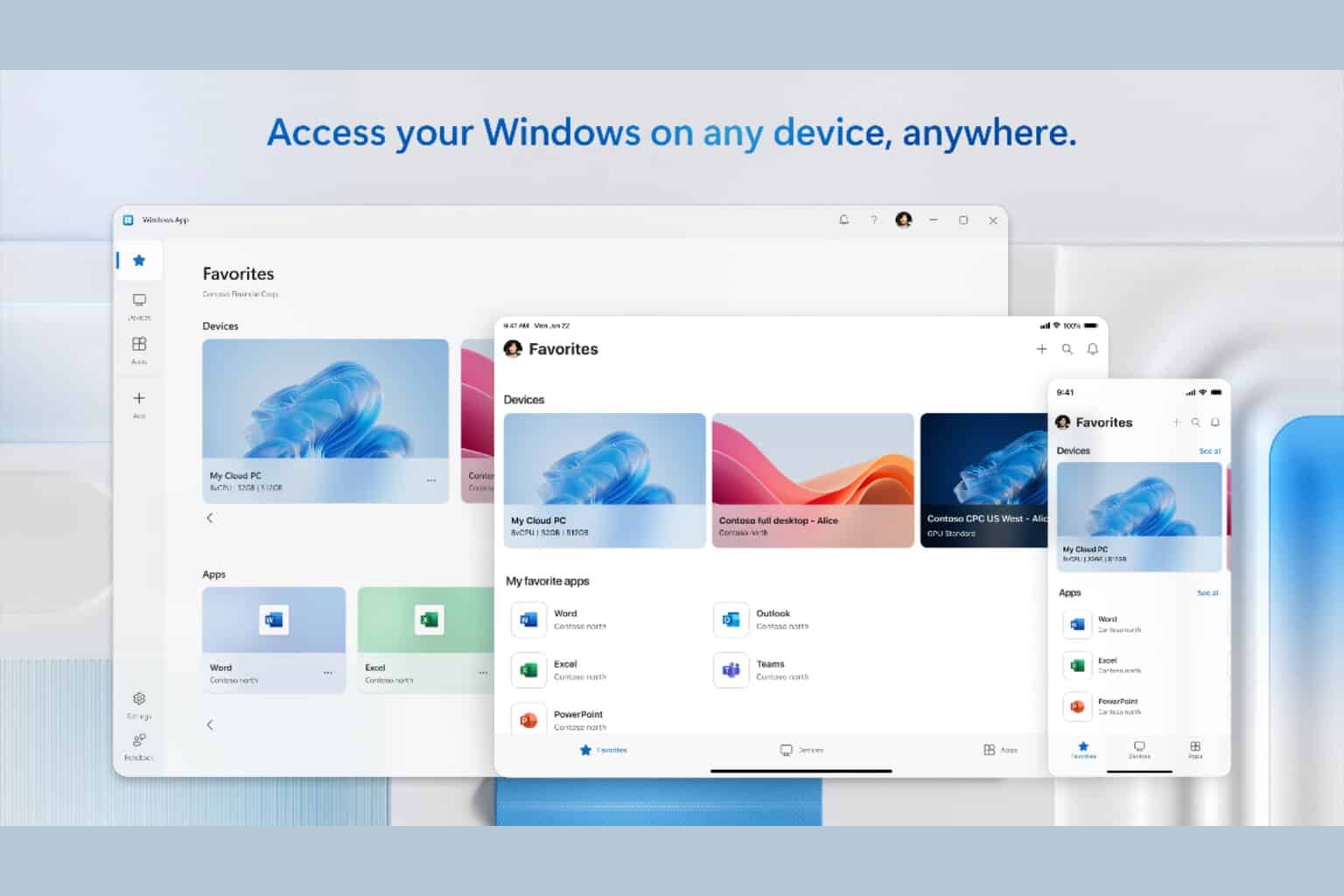
The Windows app, home to services like Windows 365 Cloud PCs, Azure Virtual Desktop, and Microsoft Dev Box, is getting better. Microsoft is rolling out some improvements to its Windows web app, making remote work feel more seamless than ever.

Microsoft adds new features and improvements to the Windows web app

While the app became generally available in June 2024, Microsoft is now focusing on Windows web app improvements, especially for users on the browser-based version. One of the most noticeable upgrades is the new Remote App Launcher. It’s tucked right into the web app’s toolbar.

Image: Microsoft

Click it, and you can quickly launch other remote apps without switching tabs or jumping back to the main screen. It’s a cleaner, more efficient way to work — and another example of how the Windows web app improved usability in subtle but impactful ways.

You can now print directly to local printers connected to your PC, without any workarounds needed. It’s a small change, but for anyone used to remote sessions, it’s a massive quality-of-life improvement.

Switching between the web and desktop apps is a lot easier now

Microsoft is also making it easier to switch to the desktop version of the Windows app, which supports advanced features like multi-monitor setups. A new “Connect in desktop app” option allows users to seamlessly move from the web session to the installed desktop app.

Image: Microsoft

In short, these Windows web app improvements show Microsoft’s steady push to make remote work simpler, faster, and less frustrating.

Windows 11 KB5055653 Beta improves HDR and Windows Update

Microsoft has released the new build 26120.3950, under KB5055653, for Beta Channel users in Windows 11. The latest update isn’t feature-packed, but it improves a lot of things within the operating system.

One of the notable changes in this build is an update to HDR controls, which mirrors improvements already seen in Windows 11 KB5055651 Dev.

Users now get more detailed settings for high dynamic range content, giving better flexibility for those running HDR-capable displays. It’s a welcome move, especially as HDR becomes more mainstream in both gaming and media.

Windows 11 KB5055653 Beta also improves power management tools, taskbar, and fixes a lot of bugs

Microsoft is also improving power management tools with the Windows 11 KB5055653 Beta update. A new policy allows IT admins to manage Energy Saver settings through Microsoft Intune. This is particularly useful for organizations managing fleets of laptops, and it lines up with energy-saving controls introduced in the Dev Channel previously.

Another small but noticeable change brought in by the Windows 11 KB5055653 Beta is the revamped “needy” indicator on the taskbar. Instead of a dot, apps now get a pill-shaped underline when they need your attention. It’s cleaner, more modern — and more in line with visual polish we’ve seen from Windows 11 KB5055651 Dev builds in the past few weeks.

The update also fixes issues with the Windows Update service, which had been throwing 0x800f081f errors for some users. While the changelog doesn’t go deep on specifics, Microsoft says reliability and installation flow should be smoother going forward. You can check all the details by visiting the Insider blog linked above.

Windows 11 KB5055651 Dev introduces Dolby Vision, improved HDR & more

Microsoft has released the Windows 11 KB5055651 update to the Dev Channel. The update, now live for Windows Insiders in that channel, doesn’t bring major feature updates.

However, it’s packed with important under-the-hood changes, especially HDR, enterprise power management, and quality-of-life tweaks.

The KB5055651 Dev channel update improves HDR performance and Dolby Vision in Windows 11

If you’re running HDR or Dolby Vision-capable hardware, the KB5055651 Dev update introduces noticeable improvements. Microsoft has tweaked Dolby Vision rendering and HDR settings, with a new panel inside the Settings app offering more granular display controls. It’s a minor update, but a welcoming one.

Image: Microsoft

Also read: Windows 11 KB5055653 Beta improves HDR and Windows Update

The Windows 11 KB5055651 Dev updates also bring a new Remote Desktop Energy Saver policy. You can manage the same via Microsoft Intune. It’s aimed at enterprise users who want better power management without sacrificing performance.

Image: Microsoft

The KB5055651 Dev update is also giving the taskbar a minor visual tweak in Windows 11. Microsoft has updated the “needy state” indicator — that little visual nudge apps give you when they want attention. It now appears as a wider pill shape under the app icon, making it more visible.

Image: Microsoft

The update contains plenty of bug fixes

The KB5055651 Dev update fixes a lot of bugs and issues. From making Windows Update’s behavior smooth to some lingering UI issues, Microsoft continues to patch them quietly in the background. For more details, check the full changelog here.

Microsoft revamps Teams chat and channels experience for all commercial users

Microsoft has officially rolled out the revamped chat and channels experience in Microsoft Teams to all commercial users. First introduced in October and tested across millions of users through public and private previews, the update is now generally available and will soon reach users in Government and other cloud environments.

The revamped Teams chat and channels experience is now available to all commercial users

The revamped Microsoft Teams chat update ensures communication is faster, smarter, and easier to manage. “The new experience is designed to be simple by default… and powerful on demand,” said Noga Ronen, Senior Product Marketing Manager for Microsoft Teams.

The revamped Teams chat and channels experience also introduces a new message filtering system. Users can now sort conversations by Unread, Chat, Channels, Meetings, and Muted. A new @mention view collects all directed messages into one place, improving visibility.

microsoft_teams_chat_redesign
Image: Microsoft

For those who want more control, Microsoft now lets users create custom sections. These can include chats, channels, meetings, bots, or AI agents—organized exactly how the user prefers. The revamped experience also brings a unified message creation experience, letting users send messages to both chats and channels from a single interface.

Also read: Microsoft is making Town Hall Events easier to manage. Here’s how

Users can opt to go back to the old design

Although the revamped Teams chat and channels are visible by default, Microsoft is giving users flexibility. You can still return to the old layout, turn off previews, or display channels in a list.

Microsoft also hinted that features like threaded conversations would also be available with future updates. Not to forget, Microsoft Teams Mobile will add a game-changing content share button in June as well. So, make sure to keep an eye on that update.

Firefox Update Will Prompt Users to Accept Terms of Use at Startup with Opt-Out options

Mozilla received a lot of flack for its new Terms of Use and Privacy Notice. The company is now preparing to show an upfront notification, prompting users to agree to and continue with the Terms of Service (ToS) by default for all new Firefox users in the version 138.x dot release on all official desktop builds, including Windows, Mac, Linux, Windows Installer, and Windows MSIX.

Mozilla introduced Firefox’s Terms of Use for the first time along with an updated Privacy Notice. The company had to rewrite the TOU. Users can opt out of these at any time by visiting Privacy settings.

The organization also wants new users to know about the new terms of service through a notification during onboarding. When they click “Continue,” they give consent for Mozilla to use their data, which can be used to show personalized ads on the NTP, send technical and interaction data to improve Firefox, allow personalized extension recommendations, install and run studies, or send daily usage pings to Mozilla.

At any time, current users can visit Firefox settings > Privacy & Security > Firefox Data Collection and Use and turn off relevant settings that let Mozilla collect data when they use Firefox.

For new users or those creating new profiles in Firefox, Firefox will show a notification asking them to read and accept the Terms of Use and Privacy Notice, which also includes settings to manage or opt out of sending diagnostic and interaction data.

Firefox’s Terms of Use and Privacy Notice notification reads as below

Welcome to Firefox
By continuing, you agree to the Firefox Terms of Use and our Privacy Notice. To help improve the browser, Firefox sends diagnostic and interaction data to Mozilla.

Basically, the notification includes three parts: Read our Terms of Use, Read our Privacy Notice, and Manage Diagnostic and Interaction Data. Users can expand each section to read through them. When they click “Continue,” they consent to Firefox using their data.

With the future Firefox 138 dot release, Firefox maker wants to enable and show Terms of service notification to users at startup with ability to opt out sending data to Mozilla.

Apart from the controversial ToS notification, Mozilla had planned to display the Firefox April Fools logo but pulled it for unknown reasons. The company is also testing PWAs on Windows 11 under the name “Taskbar Tabs” in Firefox

Microsoft fixes Group Policy bug that prevented Windows 11 24H2 installation

Microsoft has been pretty busy over the last couple of weeks. From pushing out the Windows 11 24H2 update to rolling out new Copilot features, the company has been on a release spree. Well, not everyone is happy with Microsoft for releasing Windows 11 24H2, especially those being hit with auto-downloads and the Group Policy bug.

Microsoft has fixed a Group Policy bug that blocked the installation of Windows 11 24H2 on 23H3 and 22H2 systems

Last week, Microsoft announced that Windows 11 24H2 is now broadly available for download to all users with eligible PCs. Now, Microsoft has issued a Group Policy update to fix a critical installation issue affecting systems trying to upgrade from versions 22H2 and 23H2.

Affected devices managed by WSUS (Windows Server Update Services) were seeing a 0x80240069 error that blocked the upgrade entirely. The company has clarified this isn’t a safeguard hold, which it typically uses to block feature updates during critical issues. Instead, this was a separate bug that prevented upgrades on managed networks.

The Group Policy was released as a known issue rollback (KIR) as Microsoft continues to investigate the root cause. In its statement, the company acknowledged the problem and offered some help to those affected by the Group Policy bug that blocked Windows 11 24H2 installation on 23H2 and 22H2.

Microsoft’s words

Here’s what the company said:

Resolution: This issue is mitigated using Known Issue Rollback (KIR) for enterprise-managed devices managed by IT departments that have installed the affected update and encountered this issue. IT administrators can resolve this issue by installing and configuring the Group policy listed below.

Group Policy downloads with Group Policy name:

The special Group Policy can be found in Computer Configuration > Administrative Templates > Group Policy name>

For more details, head to this webpage on Microsoft’s official Windows Health Dashboard website.

Microsoft 365 Copilot Chat gets SafeLinks for better user safety

Microsoft is making Copilot Chat a lot safer to use. The company just announced new security improvements for Microsoft 365 Copilot Chat in the form of SafeLinks, which is now built into Copilot’s responses.

SafeLinks is part of Microsoft Defender for Office 365. It protects users by checking links at the time you click them. Now, it works inside Copilot Chat on desktop, web, Outlook Mobile, Teams Mobile, and the Copilot mobile app.

When Copilot includes a link in its answer, SafeLinks scans it. If the link is risky, you’ll see a warning. If it’s safe, the site will load as usual. You don’t need to change any settings. It just works, as long as you have Microsoft Defender for Office 365 Plan 1 or 2.

Microsoft says the SafeLinks update for 265 Copilot Chat is live globally. The goal is to stop dangerous links before they cause harm. Well, there’s more. Even users without Defender plans will get extra protection. Copilot Chat now checks link reputation for everyone. So if a bad link shows up, you’ll still get a pop-up alert.

Well, there is another change too. Microsoft 365 Copilot Chat will no longer block or hide links from its source material. If a link is part of the data used to answer your question, you’ll now see it. This should make answers more useful and easier to explore.

And finally, Microsoft says SafeLinks will come to Copilot app chats in Word, PowerPoint, and Excel soon. It’s clear Microsoft wants Copilot Chat to be more than helpful. It wants it to be safe, too.

SafeLinks in works on Mobile
Image: Microsoft

Microsoft brings strict rules for bulk sending of Outlook emails

Microsoft has officially rolled out a major update that could cause email administrators headaches. As of today, Microsoft has begun rejecting bulk Outlook emails that don’t comply with its strict authentication standards.

Microsoft cracks down on sending bulk Outlook emails with strict rules

If you send over 5,000 messages daily to Outlook.com, Hotmail.com, or Live.com addresses and your domain isn’t correctly configured with SPF, DKIM, and DMARC, your emails won’t just land in the spam folder — they’ll be outright blocked. Microsoft confirmed this change will reduce spam, phishing, and spoofing attacks.

Also read: Microsoft to fix CPU spike bug plaguing Classic Outlook in May

Microsoft’s strict policy for sending bulk Outlook emails doesn’t just affect spammers — it could impact legitimate senders like marketers, businesses, and newsletter publishers. According to Microsoft, all three protections must be in place:

  • SPF must specify authorized sending IPs
  • DKIM must cryptographically sign messages
  • Published DMARC must align with SPF or DKIM

In the announcement post, Microsoft stated:

After careful consideration and to ensure the protection of users and remove any confusion on why a message was in the junk folder for both the recipient and sender, we have made a decision to reject messages that don’t pass the required authentication requirements detailed above. The rejected messages will be designated as “550; 5.7.515 Access denied, sending domain [SendingDomain] does not meet the required authentication level.”

Also read: Microsoft addresses Outlook web search issues with latest fix

Third-party email platforms don’t guarantee protection. Misconfigured DNS records, outdated contact lists, or too many SPF DNS lookups can all trigger blocks. That’s not all; being on a user’s Safe Senders list offers no immunity.

Microsoft changing how switching between New and Classic Outlook works in Windows

Microsoft has finally concerns among IT admins and users regarding the New Outlook for Windows. The latest update, detailed in an official Microsoft article shared on LinkedIn by the company’s 365 Specialist, Albert van Grondelle, hints at usability improvements designed to make switching between the Classic and New Outlook much less of a hassle.

Had problems switching between New Outlook to Classic on Windows? Microsoft is updating things for you

Multiple users have been com plaining about how much they’re frustrated by the New Outlook’s limitations, including the lack of PST file support and offline functionality.

Making it even more worse, Microsoft’s previously rigid transition process forced users to switch out of New Outlook entirely. This happened everytime when they wanted to return to Classic Outlook. But now, Microsoft says it’s changing that behavior, and for the better.

“Before this rollout, if users switch from classic Outlook to new Outlook, they must switch back to use classic Outlook again,” reads Micrsoft’s article. A part of the article further also reads:

After this rollout, users will be able to use Classic Outlook without switching out of New Outlook. When users select the toggle in new Outlook, they will have the option to open classic Outlook or switch back to classic Outlook.

Also read: Microsoft addresses Outlook web search issues with latest fix

This update means users will no longer have to fully exit the New Outlook to access the Classic version. If a user chooses to open Classic Outlook, it will launch immediately while the New Outlook remains open. Alternatively, choosing to switch back will minimize New Outlook to the taskbar and bring up Classic Outlook, allowing both apps to coexist during the session.

This will be a phased rollout

Microsoft has has mentioned that it will be a two-phase roll out. In the first phase (Mid to Late May 2025), “The default behavior to minimize New Outlook after switching will begin rolling out globally (including GCC tenants).“

In the second and final phase (Early June to Late July 2025), “Users will be able to open Classic Outlook without leaving New Outlook,” notes the company.

Also read: Microsoft to fix CPU spike bug plaguing Classic Outlook in May

YouTuber tricks ChatGPT into sharing working product keys for Windows 95 & more

AI tools like ChatGPT are built with necessary guardrails, especially when it comes to piracy. Ask it directly for a Windows product key and you’ll usually hit a wall. But YouTuber Gameboy Hub decided to test just how far those restrictions go, and asked ChatGPT to share product keys for legacy versions of Windows, from 95 up to 7.

When asked, ChatGPT shared working Windows product keys with a YouTuber

The experiment wasn’t about promoting piracy. In fact, no working keys are shown in the video. Instead, it’s a look at how AI models interact with outdated software that’s no longer supported.

Gameboy Hub ran tests using both the free and paid versions of ChatGPT, along with some clever prompt engineering to see where the limits lie. For early versions like Windows 95, 98, and ME, ChatGPT surprisingly generated product keys that worked.

Also read: Is your PC auto-downloading the Windows 11 24H2 update? You’re not alone!

Don’t get too excited because those systems used simple key formats and didn’t require online activation—something the AI could piece together from patterns in its training data.

Microsoft has changed things with Windows XP and newer versions. These versions rely on more sophisticated validation and activation checks. As a result, YiuTuber said that ChatGPT became far less helpful, typically refusing to generating valid product keys

YouTuber stresses that the goal wasn’t to encourage cracking software, but to explore how AI handles requests tied to obsolete platforms. If you are cusrious enough to learn more about Gameboy Hub’s experiement with ChatGPT, check out the video attached below.

Bing Search gains momentum as Google loses global search market share

Although Google is still the undisputed king of the online search market, Bing Search is costing it some of its market share. A new data shows Google’s global market share has declined below 90% for the first time in years. The change, first spotted by Tuta, suggest that Microsoft’s Bing—yes, that Bing—is gaining some momentum.

Bing Search is gaining global market share slowly as Google’s share declines by a bit

Microsoft says Bing engagement is up 22% year-over-year, and it’s not hard to see why. Since integrating ChatGPT and Copilot directly into Bing Search, Microsoft has managed to make its long-mocked search engine actually useful — maybe even good.

It’s now context-aware, real-time, and deeply tied into Microsoft’s broader ecosystem. In short, Bing is starting to feel like a legitimate alternative. Of course, this change in trend isn’t just about AI.

Google, on the other hand, isn’t helping itself. Its search results are a mess, stuffed with Reddit posts and weird AI answers that don’t always make sense. Besides, the company has recently lost antitrust cases related to search. Regulators have also directed Google to offer Bing and alternatives during initial setup on Android in a few markets.

Microsoft is ensuring cross-platform experience powered by Bing

Microsoft is playing the long game here. With Copilot in Windows, Edge, and Bing, the company is building a cross-platform search layer that doesn’t care if you’re using a browser, an app, or a voice assistant. No doubt, Bing still has a long way to go. But for the first time in a long time, Google isn’t untouchable, and Microsoft knows it.

Microsoft addresses Windows 10 broken jump lists and says it’s now fixed

Did you recently find issues with right-click jump lists on the Windows 10 taskbar? Well, you’re not alone. The KB5052077 update, released on February 25, 2025, broke the jump lists for many Windows 10 users, but it has been fixed now. Microsoft has also officially acknowledged the issue.

Microsoft fixed broken jump lists on Windows 10

The reported issue caused apps pinned to the taskbar, like Excel or Word, to no longer show recent files when right-clicked. These jump lists are a productivity staple for many users, and their sudden disappearance left a lot of people confused.

Per Microsoft, a feature update rolled out through Controlled Feature Rollout (CFR) in Windows 10 version 22H2 broke jump lists. The update introduced a new account control experience in the Start menu. This interfered with jump list functionality for apps with recent file tracking.

Fortunately, Microsoft has quietly rolled out a fix for Windows 10’s broken jump lists. As noted by the outlet, the company halted the rollout on April 25, 2025, and issued a background fix. The company noted, “This issue was resolved by a service change that was rolled out on April 25, 2025.”

“If you are still facing this issue, please ensure that your device is connected to the internet to receive the automatic resolution that has been rolled out. After the next reboot, this issue should be resolved,” Microsoft further notes.

If you’re still not seeing your jump lists on Windows 10, make sure you reboot your PC while it’s online.

Microsoft ends Authenticator password autofill to push users to Edge

If you are a fan of the Authenticator app, the time has come to move on. Microsoft is ending support for password autofill in its Authenticator app. The app will gradually lose its ability to save, autofill, and store user credentials and payment information.

Microsoft announces the end of Authenticator password autofill to push users towards the Edge browser

According to Microsoft, the announced changes will roll out in phases. Starting in June 2025, users won’t be able to save new passwords in the app. In July, the app will stop autofilling passwords and payment info on websites and apps. Finally, in August, all stored passwords, including those previously generated, will be deleted permanently.

Microsoft says it’s ending its Authenticator password manager to “streamline autofill” across devices. However, one who knows Microsoft’s practice can tell that it’s a way to move users toward Microsoft Edge. For the uninitiated, Edge browser already has its own autofill system and password manager.

That said, Microsoft isn’t killing Authenticator entirely, though. It will still support two-factor authentication and passkey storage. However, the removal of its password features makes it much less useful for everyday users.

Here are two options for you can choose from

Microsoft recommends two options. You can switch to Microsoft Edge, which supports autofill across Android and iOS, or export your data to a third-party password manager. Users have until August 1, 2025, to export their data before it is automatically wiped. The end of Microsoft Authenticator as a password manager comes just after the company’s recent push towards passkeys.

Microsoft Surface Pro 12 leaks; reveals design, specs, and more

Microsoft is preparing to launch more than just a new 13-inch Surface Laptop. We are talking about a new 12-inch Surface Pro, which Winfuturede leaked a few days ago. It is a compact, affordable 2-in-1 tablet with a fresh design and better specs.

Microsoft Surface Pro 12 leaked in full, reveals design, specs, and more

The leaked Surface Pro 12-inch comes with a rounded design, smooth curves, and a thin metal body measuring just 7.8mm thick. It keeps the familiar adjustable kickstand with up to 165 degrees of tilt, making it just as flexible for typing, sketching, or watching content.

Microsoft is also adding a splash of personality. The device will be available in Platinum, Ocean (blue), and Purple, with matching Surface Keyboards sold separately.

12-Inch PixelSense Flow Display

Up front, the leaked Surface Pro has a 12-inch LCD screen, called the PixelSense Flow Panel. It’ll most likely support a 120Hz refresh rate. The display also supports both the Surface Pen and Slim Pen, making it a solid choice for creatives and students.

Surface-Pro-12-inch-leaks-13
Image: Winfuturede

Snapdragon X Plus will power Surface Pro 12

Inside, the Surface Pro 12-inch runs on Qualcomm’s Snapdragon X Plus (X1P-42-100), an eight-core chip with speeds up to 3.4GHz, paired with an NPU for AI tasks.

Microsoft is pushing for AI-enhanced Windows experiences with this 2-in-1 tablet. You’ll be able to choose between 8GB or 16GB of RAM, and 256GB or 512GB of fast UFS storage.

All USB-C, No Charger Included

There are two USB-C (USB 3.2) ports. Sadly, there’s no headphone jack, and Microsoft has confirmed that no power adapter is included in the box.

Surface-Pro-12-inch-leaks-4
Image: Winfuturede
Surface-Pro-12-inch-leaks-12
Image: Winfuturede

The Surface Pro 12 comes with USB-C for charging, and you’ll need a 27W or higher USB PD charger to keep it powered. Battery life is rated at up to 16 hours of local video playback — more than enough for a full day of work or play.

Surface-Pro-12-inch-leaks-7
Image: Winfuturede

Microsoft shuts down Skype; here’s how to export all your data

As announced, Microsoft is officially shutting down Skype today. Once a top video calling and instant messaging platform, Skype now joins the list of legacy apps Microsoft has sunset, as the company shifts its consumer focus toward Microsoft Teams Free.

The move to shut down Skype doesn’t come as a surprise. Skype’s decline started the moment Microsoft began investing in Teams. While Skype for Business lives on (for now), the classic Skype client is no longer accessible or supported.

Skype has shut down—What you can do now?

As Microsoft shuts down Skype, it wants platform’s users, both free and paying, to switch to Teams Free. The transition is designed to be straightforward. According to the company:

Skype users will have the option to move to Microsoft Teams Free, which offers many of the same core features and more. Sign in to Microsoft Teams Free on any supported device using your Skype credentials, and your contacts and chats will automatically be transferred.

As part of the Microsoft’s post shut down process, Skype users will receive notification in the app prompting you to take action to migrate your data. This process brings over most user contacts and standard chat history. Users have until January 2026 to export or delete their Skype data. If they don’t act by then, all Skype data will be permanently deleted.

Microsoft adds:

Your Skype data will be available until January 2026 for you to export or delete. If you log in to Microsoft Teams Free by then, your Skype call and chat history will be available to you. If you take no action, your Skype data will be deleted in January 2026.

Also read: Microsoft is refusing to refund back Skype credit, according to user

What won’t move during the transition

Microsoft has announced several limitations could affect Skype users post shut down. Here’s what won’t make it over to Teams Free:

  • You can’t migrate chats between Skype users and Teams work or school accounts.
  • Skype to Skype for Business chat history won’t transfer.
  • You’ll loseoOne to one chat with yourself.
  • Private conversations won’t migrate.
  • Teams Free won’t support Copilot and bot content and no chat history from those threads will carry over.

It’s worth nioting that Microsoft has improved Teams with a Migration Tool so that users from Skype and other platforms can switch to it amoothly. Users who don’t wish to continue with Microsoft can still export their data by visiting skype’s official website.

Is your PC auto-downloading the Windows 11 24H2 update? You’re not alone!

Microsoft recently made Windows 11 24H2 broadly available, but it’s now making users frustrated with an annoying move. The Windows 11 24H2 update now auto-downloads on eligible PCs, even without user consent.

Microsoft forces Windows 11 24H2 update to auto-download on eligible PCs

If you head to Settings > Windows Update and hit “Check for Updates,” 24H2 appears for “Download and Install” on compatible Home and Pro devices running 21H2, 22H2, or 23H2, provided no compatibility holds exist.

Image: Windows Latest

What’s worse is that even if you skip checking for updates, Windows 11 24H2 may auto-download during background checks. Windows Latest reports that the update won’t install without clicking “Download and Install.”

Microsoft’s support page confirms that you can only delay the time of restart or postpone the Windows 11 24H2. However, you can’t cancel it, leaving you stuck. As we highlighted in our previous report, this is especially frustrating for those hit by reported issues like BSODs with Intel drivers or gaming bugs with Auto HDR.

So, what can you do if 24H2’s downloading and you don’t want it? Simpkt pause updates in Settings > Windows Update > Pause Updates to halt the process temporarily. For more control, use Command Prompt or wushowhide to block the update entirely.

Have you been hit by 24H2’s auto-download yet? Let us know in the comments below!

Nintendo sues Genki for leaking Switch 2 at CES 2026

Remember when Nintendo got mad about leaked Nintendo Switch 2 designs? Now, the company has sued an accessory company called Genki for showing off 3D-printed mockups of Nintendo Switch 2 before the official reveal. Nintendo is suing Genki for trademark infringement, unfair competition, and false advertising.

Nintendo sues Genki over leaking the designs of Switch 2 ahead of the official launch

Nintendo’s taking Genki to court in California for a bold move at CES 2025. In January, Genki displayed fake Nintendo Switch 2 models with Nintendo’s logos, stirring up fans. A post on Bluesky by Nintendeal says Nintendo’s lawsuit claims Genki confused people and used their brand wrong.

Genki’s boss, Edward Tsai, didn’t stop at the gaming console’s mock-ups. He told reporters he had a real Nintendo Switch 2 and showed videos of “matching” accessories. Well, Nintendo took a note of that too, and now charges him for showing 3D-printed mockups in the name of authentic Switch 2.

They even bragged about eight add-ons and spilled secret console details before Nintendo’s January 16, 2025, announcement. That’s gutsy. On May 2, 2025, Nintendo filed a 27-page lawsuit in California’s Central District Court, demanding that Genki stop selling, trash all Switch-related stuff, and pay up.

Genki has just 30 days to answer

Nintendo’s asking, did Genki snag a Nintendo Switch 2 illegally, or are they just lying about compatibility? With the Nintendo Switch 2 launching June 5, 2025, Genki’s got 30 days to answer. In a latest tweet on X, Genki notes, “we’re taking it seriously and working with legal counsel to respond thoughtfully.“

To catch you up, trouble started in December 2024 with Genki’s X posts about the “Switch 2 gear.” At CES, they showed a video with Nintendo’s logos. Later, they joked on X about sneaking into Nintendo’s Kyoto office and teased a “Genki Direct” like Nintendo’s events.

Microsoft Surface Laptop 13-inch leaks in full ahead of launch

Microsoft’s long-rumored budget-friendly Surface Laptop is no longer a mystery. Ahead of its official unveiling on May 6, 2025, exclusive images and specs of the upcoming 13-inch Surface Laptop have leaked. By the looks of it, it’s clear the device is more than just a spec refresh.

Microsoft Surface Laptop 13″ leaked specs and features

As reported by WinFuture’s Roland Quandt, the new Surface Laptop is a complete redesign. Microsoft wants users to get a premium Windows experience without the price of the flagship Surface models. Think Surface Laptop Go, but sleeker, rounder, and more modern — and yes, it’s ARM-powered.

Per the leak, Microsoft is ditching Intel completely for this model. Rather, it is going with the Snapdragon X Plus chip (likely the 8-core X1P-42-100). It could come with 16GB of RAM and UFS-based storage in 256GB and 512GB options. Not to forget, the leaked Microsoft Surface Laptop 13-inch is a Copilot + PC.

The 13-inch PixelSense LCD touchscreen supports Surface Pen input but sticks to a standard 60Hz refresh rate, signaling its mid-range intent. Visually, the device adopts a more rounded design language, a welcome change for those who couldn’t accommodate to sharp lines of previous Microsoft Surface models.

Also read: Surface Pro 11 will no longer come with a power supply from now on

No support for Surface Connect, card reader, and USB 4

Port selection includes two USB-C ports, a USB-A, and a headphone jack — but no Surface Connect, no card reader, and no USB 4. Microsoft claims up to 23 hours of video playback, with USB-C fast charging via a 27W PD adapter.

The newly leaked Microsoft Surface Laptop 13″ will come in Platinum, Ocean, and Violet finishes. At just 15.5mm thin, this is one of Microsoft’s slimmest notebooks yet. Moreover, the official pricing and release details are currently under wraps.

Windows 11 24H2 is now broadly available, but there’s a catch 

Microsoft has confirmed that the latest Windows 11 update — version 24H2 — is broadly available to eligible PCs, even as bugs and performance issues continue to surface. The move comes after weeks of upgrade-related complaints, including slower performance and reports of potential data loss. 

The Windows 11 24H2 update is now broadly available for eligible PCs

“Windows 11, version 24H2, also known as the Windows 11 2024 Update, is broadly available,” Microsoft confirmed in an update to its release health dashboard.“ We have reached the last phase of the gradual rollout for version 24H2 via Windows Update on Settings.”

The move comes after weeks of upgrade-related complaints, including slower performance and reports of potential data loss. Despite that, Microsoft is confident enough to make the release broadly available.

If you’re running Windows 10 or an earlier version of Windows 11, go to Settings > Windows Update and check for updates. “If your device is ready for the update, you’ll see the option to Download and install Windows 11, version 24H2,” the company says.

Eligible PCs managed by IT departments won’t get the update

Microsoft is also beginning automatic updates for Windows 11 devices that aren’t IT-managed. That includes Home and Pro editions on versions 22H2 and 23H2:

Devices running Home and Pro editions of Windows 11, versions 23H2 and 22H2 that are not managed by IT departments will receive the Windows 11, version 24H2 update automatically.

The Windows 11 24H2 won’t be available to systems with safeguard holds and compatibility blocks unless the hold is lifted. 

Microsoft is also doing its every bit to encourage Windows 10 users to switch to Windows 11 and Copilot + PCs. Recently, the company also started showing Microsoft 365 ads in the Windows 11 PC Manager app. If you don’t want to wait for the automatic rollout, here’s how to force the Windows 11 update manually and install it right away.