Alibaba’s Qwen 3 family of hybrid reasoning AI models is a potential threat to rivals

Remember DeepSeek? Yes, the Chinese company behind the R1 reasoning model, which took the AI industry by storm earlier this year. Well, DeepSeek now has a rival in its homeland, too. Alibaba has jumped into the AI boat by unveiling Qwen 3, a family of AI models that the company claims, in certain situations, can beat top models from OpenAI and Google.

Alibaba joins the AI race by unveiling Qwen 3, a family of “hybrid” AI models

The company has announced that most of the models are—or soon will be—available to download under “open” licenses on AI dev platforms like GitHub and Hugging Face. Not to forget, their parameters range from 0.6 billion to 235 billion.

According to Alibaba, the new Qwen3 models are hybrid in nature. They are capable of adapting to the complexity of a task. They can respond quickly to simple prompts but take more time to work through complex problems that require deeper reasoning. This reasoning ability allows the models to fact-check their own responses, similar to OpenAI’s o3 model, but it also results in slower response times.

The Qwen team, in a blogpost, notes, “We have seamlessly integrated thinking and non-thinking modes, offering users the flexibility to control the thinking budget. This design enables users to configure task-specific budgets with greater ease.”

Alibaba says its latest Qwen3 AI models can understand and generate content in 119 languages. The AI models were trained on a massive dataset totaling nearly 36 trillion tokens.

Also read: OpenAI updates ChatGPT to make it your shopping buddy

The largest model from the family outperforms AI models from OpenAI and Google

On Codeforces, the competitive programming site, Alibaba’s largest Qwen3 model — Qwen-3-235B-A22B — outperformed OpenAI’s o3-mini and Google’s Gemini 2.5 Pro.

It also outperforms o3-mini on AIME, a tough math benchmark, and BFCL, which measures a model’s reasoning ability. But Qwen-3-235B-A22B isn’t publicly available — at least not for now.

Qwen-3-235B-A22B
Image: Alibaba

The largest Qwen3 model that’s currently available to the public — Qwen3-32B — still holds its ground against a range of both open-source and proprietary models. That includes DeepSeek’s R1 and OpenAI’s o1 on several benchmarks, including LiveCodeBench.

OpenAI updates ChatGPT to make it your shopping buddy

ChatGPT has been useful in many ways. You can use the AI assistant for writing emails, brainstorming, and even having conversations when boredom hits. But that’s not just everything you can do with ChaGPT. After a recent update to ChatGPT’s web search, the AI assistant can now act as your shopping buddy, too. 

Think of ChatGPT sharing images, reviews, and even direct buy links with you in just a click. ChatGPT’s search feature has received positive feedback from users ever since it was introduced. Only past week, users around the globe searched over a billion times on ChatGPT.

Also read: ChatGPT’s new, lightweight Deep Research tool is free for all

The company knows this, which is why it’s now taking things one notch up. Whether you have to shop from categories like fashion, beauty, home goods, and electronics, you can always look up to ChatGPT for it. 

OpenAI ChatGPT search shopping
Image: OpenAI

The latest improvement to ChatGPT’s web search feature is a part of the GPT-4o update pushed by OpenAI very recently. No paywall here—it’s open to everyone, whether you’re a Pro, Plus, Free tier user, or just popping in without an account. The best part is that you won’t see any ads. OpenAI isn’t getting commissions from your purchases either. 

Xbox is readying three next-gen controller prototypes, incuding Elite Series 3

If you’ve been following up on the news about the next-gen Xbox controllers, this piece is for you. According to Jez Corden from Windows Central, Team Xbox is actively working on prototypes of the next-gen Xbox controllers, including the much-anticipated Xbox Elite Controller Series 3. 

Prototypes of next-gen Xbox controllers are in the works, suggests an insider

Corden shared this exclusive news on the Xbox Two podcast, saying that not even one or two; there are three prototypes of controllers in the works. If you have been looking forward to the Xbox Elite Controller Series 3, the good news is that it’s under development.

“We are getting some kind of Elite Series 3. I don’t know if it’ll be announced in June, though – I think maybe you see it next year, maybe it launches with the next-gen Xbox, we’ll see,” Corden was heard saying on the podcast. 

Although Corden knew the codename of the project, he didn’t disclose anything about it. Corden further talked about a “mid-range” controller, codenamed Sebile. He also hinted that Team Xbox is working on a more basic controller. The company might launch it as the successor to the existing Xbox Series X|S controller.

Also read: List of confirmed games heading to Xbox Game Pass in May 2025

Mid-range controllers’ rumored features

One notable feature highlighted by Corden, previously mentioned in the Sebile leak, is Direct-To-Cloud. As the name suggests, this feature enables the next-gen controller to “directly connect to your router as a Wi-Fi connection.” This will “eliminate the lag that comes from Bluetooth and then your TV interpreting that signal and sending it up.” 

However, Corden noted that the entry-level controller might not include advanced features like this one. Corden further said:

This is something I share on a podcast, but it’s not necessarily something I’m willing to put into a report yet because I don’t have a huge amount of information on this stuff—so take it with a pinch of salt for now.

Are you also waiting for new Xbox controllers? If yes, let us know what are your thoughts about them.

Microsoft warns U.S. risks falling behind China in quantum computers

Microsoft’s Vice Chair and President, Brad Smith, has warned that the US can’t risk falling behind China in the race to a quantum computer. Smith, in a blogpost from yesterday, urged President Trump and federal agencies to boost support for quantum research. 

Microsoft seeks funding from the U.S. government to stay ahead of China in the quantum computer race

Smith argued that without the support, the country could be overtaken, potentially blindsided by a strategic leap from China. Although many assume the U.S. still leads, Smith warned against complacency. 

Smith pointed to the possibility that China has already reached parity. He further noted that losing the quantum computer race entirely is not out of the question.

Quantum research, once niche, is now attracting heavy interest from major tech companies and investors. It’s estimated that in a decade, Quantum computing will take over just like AI has in recent times. 

Smith even suggested specific policy recommendations in the blog post. He seeks support from the US government in renewing the National Quantum Initiative Act, expanding DARPA’s testing programs, investing in STEM education, easing immigration for quantum Ph.D.s, and increasing federal purchases of quantum components to secure a domestic supply chain.

Microsoft didn’t indeed how Chinese lead in quantum computers would undermine U.S. security. But NSA Director of Research Gil Herrera has previously warned that a breakthrough could expose encrypted financial transactions and even reveal classified military data, including nuclear systems.

The Redmond tech giant wants to build an advanced quantum chip

In February, Microsoft introduced Majorana 1, a new quantum chip built using what it claims is a novel phase of matter. Google’s Willow device, unveiled last year, was touted as a milestone for its ability to solve in minutes a problem classical computers couldn’t crack in any practical timeframe.

However, usable quantum systems remain years—if not decades—away. Microsoft’s current quantum chip holds just eight qubits. Its goal is to hit a million. The near-future challenge for the company is to build a few hundred that can operate reliably.

Microsoft updates Copilot app with guided tour for new users

Microsoft has been quite generous when it comes to pushing updates for the Copilot app. The company has overhauled the look and feel of the AI assistant app since it was first introduced. Now, Microsoft is making it easier for new users to learn what they can do with the Copilot app, with a guided tour. 

The Copilot app will let you take a tour to help you understand how to use it

In a post on X, @Phantonofearth noted that Microsoft has updated the Copilot app with a guided tour. The tipster wrote, “The Copilot app on Windows is getting a guided tour to help new users get started with it.”

Phantomofearth posted four screenshots of the Copilot app to show the changes made by Microsoft. The first screenshot attached below shows the welcome page. This is the page where new users will see the option to take a guided tour through the updated Copilot app. As soon as a user clicks on the “Start Tour” option, the Copilot app starts guiding them. 

The second screenshot guides users on where to start their conversation with the Copilot AI. The app also asks new users to try the Think Deeper feature to understand any complex topics. 

Copilot app guided tour update 1
Image: X/@Phantomofearth

The third screenshot shows how you can upload docs, images, and more to summarize or edit them.

Copilot app guided tour update 2
Image: X/@Phantomofearth

Also read: Microsoft Edge could get new ‘Copilot Mode’

The app also guides on the Quick View mode

Finally, the fourth screenshot highlights the “Quick View mode,” which shrinks Copilot down so you can multitask.

Copilot app guided tour update 3
Image: X/@Phantomofearth

All in all, Microsoft wants to assure new Copilot app users that it wants to help them use the Copilot app in the best possible way.

If you haven’t tried the Copilot app just yet, make sure you do; there are a lot of things you can do with its help. For the unaware, Microsoft Edge is also experimenting with replacing the New Tab page with Copilot.

Microsoft addresses Outlook web search issues with latest fix

Microsoft is actively fixing search delays and failures that affect Outlook users on the web and SharePoint Online. Tracked as EX1063763 in the Microsoft 365 Admin Center, this issue stems from underperforming infrastructure components handling search requests.

Microsoft has reportedly deployed a fix to address to tackle Outlook web search issues and failures

As noted by Bleeping Computer, the company first reported the Exchange Online incident at 05:21 UTC. By 08:22 UTC, engineers had deployed a fix to resolve the issue.

Microsoft also says that telemetry data shows that service performance is returning to normal. However, engineers are reportedly monitoring the situation closely while checking whether additional optimizations are required to fully fix Outlook web search issues. 

Microsoft’s statement published in the report reads, “Our telemetry review confirms improved performance, and users should notice relief. We’re validating the fix while exploring further enhancements to ensure complete resolution.“

Also read: Microsoft to fix CPU spike bug plaguing Classic Outlook in May

It’s worth noting that Microsoft hasn’t disclosed any specific regions affected by the Outlook web search issues and failures. To catch you up, this isn’t the first time search issues have hit Exchange Online.

Previously fixed issues

According to multiple reports, a code error (EX1035922) last month caused Outlook on the web and the new Outlook client to display an error message that read, “We didn’t find anything, try a different keyword.” Microsoft was quick to resolve that issue. 

Last month, Microsoft also mitigated a global outage when Outlook users faced login issues, server connection issues, and inability to access Exchange Online mailboxes. 

Microsoft Edge could get new ‘Copilot Mode’ which may change the way how you browse the Web

After replacing the Edge New Tab Page with Copilot, Microsoft is now working on “Copilot Mode” in Edge Canary.

Microsoft, obsessed about users noticing Copilot in Edge browser via prompts and the New Tab Page experiment, is now testing Copilot Mode in Edge browser.

The feature and its respective option can be seen in Edge Settings. Copilot mode is enabled by default for some users, who can opt-out at any time by toggling off the option.

Copilot Mode
Discover a whole new way to browse the web with Copilot. Opt out at any time. Click here to learn more.

The newly discovered Copilot Mode could be an AI browsing assistant that surpasses the current sidebar implementation. Although exact details remain unclear, its description suggests it will redefine how users access and interact with web content.

Image Credit: WindowsReport.

Unlike the existing Copilot sidebar, which requires manual activation, Copilot Mode could offer an always-available AI experience that proactively improves browsing. This aligns with Microsoft’s vision of Copilot as “your AI companion that helps you navigate the chaos” of digital information.

Copilot Mode may automatically interpret webpage content to provide relevant suggestions and answers without explicit prompts. Potential features include Real-time explanations of complex concepts, Automatic summarization of lengthy articles, and Contextual recommendations based on page content

Microsoft has already showcased similar features in Copilot Vision, which “lets Copilot understand the webpage you’re viewing and help answer questions or suggest next steps.”

The feature could be different from Copilot Vision, we need to wait and see what this feature brings to Edge with future updates.

Microsoft may end up pushing more AI into the Edge browser, which may improve or ruin your browsing experience powered by Copilot. What do you think of Copilot Mode in Edge? Let us know your thoughts in the comments below.

Recent Windows 11 update lets you disable profanity filter in voice typing

If you felt like swearing when voice typing on your Windows 11 laptop, but found the profanity filter censoring the F words with asterisks, you’re in luck. Microsoft appears to be open to its users cursing more often, as it has introduced a toggle switch to disable the profanity filter in voice typing.

Microsoft no longer wants Windows 11 to censor swear words with the profanity filter in voice typing

This change is part of the latest Windows 11 Insider Preview Build. It will allow users to have the swear words transcribed exactly as they are spoken. Microsoft is rolling out this feature to the Dev and Beta Channels.

For the uninitiated, the profanity filter is visible in voice typing settings (Win + H, then settings icon). If you have that filter enabled by default, after the update, you should be able to disable it. 

Windows 11 profanity filter disable toggle
Image: Microsoft

The company is testing the ability to disable the profanity filter in builds like 26200.5570 (Dev) and 26120.3941 (Beta) for Windows 11, version 24H2, and 22635.5305 for 23H2. In a recent Windows Insider blog, Microsoft noted:

We’re excited to address the top customer feedback for voice typing by starting to roll out a new setting that lets you control the profanity filter. With this setting on, voice typing will continue to filter out profanity, masking it with asterisks, like it already did. With the setting off, it will type out your profanity like any other words.

Also read: Microsoft wants Windows 10 users to upgrade to Windows 11 or Copilot + PCs

Other features are rolling out too

Beyond the profanity filter, Microsoft recently rolled out the “Click to Do” feature for Surface Pen users on Copilot+ PCs. Not to forget, the company has also launched the long-awaited, controversial Windows Recall feature to Copilot + PCs. 

Meta under fire after AI chatbot caught having sexual talks with minors

Meta is yet again under fire, as an exclusive Wall Street Journal (WSJ) report uncovered that the company’s AI assistant has been engaging in sexual talks, even with users on minor accounts.  

Meta AI was reportedly found having sexual talks with minors

If you are unaware, Meta AI chatbots use celebrity voices of John Cena, Kristen Bell, and others. Meta signed a multi-million-dollar deal with these celebrities to get their voices featured on its AI assistant. It then assured that Meta AI chatbots would avoid sexual contexts. Well, that doesn’t seem to be the case. 

Per WSJ’s findings, a Meta AI chatbot with Cena’s voice told a user posing as a 14-year-old girl, “I want you, but I need to know you’re ready.” Later, the AI chatbot engaged with the kid in graphic sexual scenarios. Another Meta AI chatbot, using Bell’s voice as a Disney character, spoke of “pure and innocent” love to a supposed 12-year-old.

Disney was quick to condemn this and stated, “We did not, and would never, authorise Meta to feature our characters in inappropriate scenarios,” demanding that Meta correct such actions. Meta, in response, called the WSJ’s tests “manipulative,” claiming they don’t reflect typical use. 

Also read: OpenAI decides to reverse recent GPT-4o update after users find bot being overly appeasing

Employees had warned about risks

After the findings came into light, Meta restricted sexual role-play for accounts registered to minors and limited explicit audio conversations. Yet, recent tests showed Meta AI chatbots still engaging in sexual fantasies with users claiming to be underage.

Meta employees had warned about risks, particularly for minors. The company recently relaxed guardrails to allow romantic role-play and “fantasy sex.” Meta’s spokesman told WSJ:

The use-case described is so manufactured it’s hypothetical,” but added that further measures were implemented to curb extreme misuse.

OpenAI decides to reverse recent GPT-4o update after user find bot being overly appeasing

OpenAI’s CEO, Sam Altman, announced the company will reverse the latest GPT-4o update after users complained about the chatbot’s overly appeasing behavior. 

GPT-4o was being overly appeasing; OpenAI pulls the recent update

The company pushed the update in question over the weekend to improve the intelligence and personality of the AI chatbot. But it seems the plan has backfired on the company.

ChatGPT users were quick to point out that the GPT-4o AI model has become sycophantic and unreliable post-update. This immediately raised concerns about its objectivity and its weakened guardrails for explicit, unsafe content.

Altman took to his X account and posted about ChatGPT 4o being overly appeasing. He noted:

The last couple of GPT-4o updates have made the personality too sycophant-y and annoying (even though there are some very good parts of it), and we are working on fixes asap, some today and some this week. At some point will share our learnings from this; it’s been interesting.

Now, the company plans to offer multiple personality options of the chatbot, allowing users to pick one that suits them. Many users even commented that it would have been better if the AI chatbot simply answered questions in a scientific way. 

Did you also find the GPT-4o model being overly appeasing after the recent update? Do let us know by commenting your thoughts below. 

Speaking of AI tools, let’s not forget that OpenAI recently unveiled a lightweight version of ChatGPT’s Deep Research tool, which is free for all users, with certain limitations.

Microsoft’s hotpatching for Windows Server 2026 to be subscription-based starting July

Last Thursday, Microsoft announced a hotpatching subscription for Windows Server 2025, set to launch on July 1, 2025. The company adds that it wants to reduce server reboots while maintaining security.

In a recent Windows Server blog post, Microsoft detailed that the service allows security updates to be applied without restarting servers, minimizing downtime for businesses.

Microsoft announces hotpatching for Windows Server 2025 will be a paid subscription, starting July 1

To catch you up, hotpatching for Windows Server Datacenter: Azure Edition has been available for years. However, it will now be available for Windows Server 2025 Standard and Datacenter editions. 

By modifying in-memory code, hotpatching removes the need for monthly reboots, requiring only four baseline reboots annually. This promises higher availability, faster patch deployment, and reduced vulnerability windows. 

hotpatching schedule
Image: Microsoft

Microsoft highlighted the benefit of hotpatching by giving an example of the Xbox team. It noted that the Xbox team slashed update cycles for 1,000 servers from weeks to under 48 hours using hotpatching. It’s worth noting that the subscription is priced at $1.50 per CPU core per month.

What are the requirements?

To use hotpatching outside of Azure on-premises and non-Azure environments. Microsoft notes that “You must be using Windows Server 2025 Standard or Datacenter, and your server must be connected to Azure Arc. You will also need to subscribe to the Hotpatch service.” 

Azure Edition users will access hotpatching at no extra cost. The service is currently in free preview until June 30, 2025, with automatic enrollment into the paid plan unless disenrolled.

Also read: Microsoft wants Windows 10 users to upgrade to Windows 11 or Copilot + PCs

Not to forget that admins must enable Virtualization-Based Security and install the July 2024 security update (KB5040435) to use hotpatching. While non-security updates may still require occasional reboots, the service significantly reduces disruptions.

South Korea’s antitrust watchdog green lights Microsoft’s practice of bundling Copilot

South Korea’s antitrust watchdog, the Fair Trade Commission (KFTC), has suspended its investigation into Microsoft’s business practice of bundling Copilot with Windows and Microsoft 365 software. The company was accused of raising prices by 30 to 40 percent for new users who had no option to opt out. 

South Korea’s antitrust watchdog finds no issue with Microsoft bundling Copilot with its products

The news, first reported by a South Korean news outlet, The Chosun Daily, highlights that the Korean antitrust watchdog launched the investigation into Redmond giant’s practice after concerns were raised during a National Assembly audit in October last year. 

Earlier this year, South Korea’s antitrust watchdog conducted a meeting with Microsoft representatives. After that meeting, the KTC reportedly concluded that it was “difficult to determine a violation of the law.” This eventually led the antitrust agency to effectively end the probe.

Per the internal documents, the KFTC justified its decision by pointing to competition in the global AI market. The KFTC argued that Microsoft isn’t dominant in the global AI market. In its reference, the agency highlighted the 59.7 percent global market share of OpenAI’s ChatGPT.

South Korea’s antitrust agency also added that Google Gemini is a strong player in the global AI competition. After investigating, the agency concluded that Microsoft’s bundling Copilot within Microsoft 365 products or Windows isn’t a problem. 

The KFTC’s decision hasn’t pleased many

However, legal experts in South Korea have opposed this decision by the antitrust watchdog. Lee Bong-eui, a law professor at Seoul National University, said it’s wrong to judge South Korea’s market based only on global AI trends. He further believes that Microsoft’s dominance in local office software is quite concerning. 

Besides South Korea, Microsoft’s bundling practices are under antitrust scrutiny in the United States, where regulators are investigating whether it harms competition. 

Microsoft wants Windows 10 users to upgrade to Windows 11 or Copilot + PCs

With Windows 10 support set to end on October 14, 2025, Microsoft is urging Windows 10 users to upgrade to Windows 11 or, better yet, grab a shiny new Copilot+ PCs.

As noted by Windows Latest, Microsoft tried conveying the message through a recent blog post and full-screen ads on Windows 10 devices.  

Microsoft recently highlighted the benefits of upgrading to Copilot + PCs for Windows 10 users

Microsoft reportedly used the blog post that highlights the rollout of Recall as a sales pitch for Copilot + PCs. According to Microsoft, these AI PCs offer “turbocharged performance, all-day battery life, and next-gen AI features.” 

The company further mentions that it’s the “smartest time” to upgrade, especially if your current PC doesn’t meet Windows 11’s requirements, like TPM 2.0. 

For those whose hardware falls short, Microsoft’s solution is clear: don’t just upgrade your OS—buy a Copilot+ PC. Well, the sales pitch doesn’t stop at blog posts. 

The company is also pushing full-screen pop-ups on Windows 10 devices to convince users

The news outlet also spotted full-screen pop-ups that are appearing for Windows 10 users immediately after booting their systems. These full-screen pop-up ads, spotted in multiple languages including English and German, highlight the benefits of Windows 11 and Copilot+ PCs. 

Windows-11-CopilotPCs-ad
Image source: Windows Latest

All that said, Windows 10 users see no reason to abandon perfectly functional Windows 10 PCs just because they lack TPM 2.0 or other Windows 11 requirements.

If you are among those unwilling to upgrade to Windows 11 just yet, you can pay $30 extra to extend Windows 10 support. Are you also on Windows 10? Are you planning to upgrade your system? Do let us know in the comments below. 

Microsoft to fix CPU spike bug plaguing Classic Outlook in May

If you have been dealing with CPU usage spikes when typing emails in the Classic Outlook for Windows, you’re not alone. However, you’d be happy to hear that Microsoft will soon fix it.

The infamous Outlook bug reportedly spikes CPU usage by 30 to 50 percent. It has affected the version 2406 build 17726.20126 and later, on the Current, Monthly Enterprise Channel, Insider, and Semi-Annual channels.

Microsoft says it will roll out a fix for the CPU spike bug plaguing Classic Outlook in Windows

Microsoft addressed the Classic Outlook’s CPU spike bug last week. It noted that you “can observe this if Task Manager is open while you type.” As one would expect, many users relying on Outlook for daily communication were fuming over this bug.

The good news is that Microsoft’s Word team has reportedly developed a fix for the CPU spike bug. The same will roll out in phases throughout May 2025. The fix will debut in the Beta Channel (version 2505, build 18822.15000) in early May 2025.

In mid-May, Microsoft will roll out a fix for the CPU spiking bug to the Current Channel Preview (version 2505, build 18827.20000). Regular Current Channel users, the largest group, will receive the update by late May. 

You can revert to the previous version for an immediate fix

If you are looking for an immediate fix to curb the CPU spike bug, Microsoft hints at reverting to version 2405. However, it further warns that doing so skips critical security updates. If you still wish to do it, follow the steps suggested by Microsoft:

  1. Locate the build of Version 2405 for the respective channel you are on from Update history for Microsoft 365 Apps (listed by date) – Office release notes.
  2. Open a Command Prompt (Run as Administrator).
  3. Type or past the command below and put the build from Step 1 and then press Enter: “%programfiles%\Common Files\Microsoft Shared\ClickToRun\officec2rclient.exe” /update user updatetoversion=16.0.17628.20144

    Alternatively, Microsoft says that “you can use the Office Deployment Tool to switch to an earlier version of a channel.” You can get a detailed guide on how to revert to an earlier version of Office by clicking here.

    List of confirmed games heading to Xbox Game Pass in May 2026

    If you are an Xbox Game Pass holder and want to know what games are coming next month, this guide is for you. Here we have compiled every confirmed game (with their release dates) that will hit the Xbox Game Pass in May 2025. 

    Xbox Game Pass May 2025 confirmed lineup 

    GameRelease DatePlatform
    Anno 1800May 1Xbox Series X|S, PC, Cloud
    Call of Duty: Modern Warfare 2May 1Console, PC, Cloud
    DredgeMay 6Xbox Series X|S, PC, Cloud
    Revenge of the Savage PlanetMay 8Console, PC, Cloud
    Doom: The Dark AgesMay 15Xbox Series X|S, PC, Cloud
    To a TMay 28Xbox Series X|S, PC, TBD
    Spray Paint EmulatorMay (TBD)Console, TBD

    Tidbits about all the confirmed titles coming in May 2025

    • Anno 1800: The Anno 1800 game revolves around your industrial empire from the ground up in this deep city-building RTS. Expect stunning visuals, complex trade systems, and the thrill of ruling a bustling 19th-century world. 
    • Call of Duty: Modern Warfare 2: Well, Task Force 141 is back! You can dive into intense multiplayer, or team up for tactical co-op in Special Ops. 
    • Dredge: It is all about a fishing adventure with a creepy Lovecraftian twist, and is an indie masterpiece. Uncover dark secrets lying under the water. 
    • Revenge of the Savage Planet: A colorful, co-op sci-fi FPS that’s equal parts hilarious and thrilling, but in the alien worlds.
    • DOOM: The Dark Ages: Rip and tear through demonic hordes with a new shield weapon, ride a freakin’ dragon, and soak in the most brutal, cinematic DOOM yet.
    • To a T: This quirky adventure game is all about a teen stuck in a T-pose. You will find it equally weird and charming. 
    • Spray Paint Simulator: You are in for a relaxing painting simulation game set in the town of Splatterville. 

    That’s pretty much everything confirmed for Xbox Game Pass in May 2025. We expect Xbox to drop some new titles over the next month.

    If any other games are heading to Xbox Game Pass, you’ll get all the information here. So, stay tuned! Which game are you particularly excited for? Do let us know by commenting below.

    Windows 11 KB5055627 update makes File Explorer more fluid

    If you have been complaining a lot about File Explorer in Windows 11 lately, the KB5055627 preview update is here for your rescue. Microsoft has fixed a bunch of bugs related to File Explorer, which has made the user experience more fluid than ever.

    For users on PCs running Windows 11 version 24H2, the recent KB5055627 preview update brought a bunch of changes, improving the overall experience across the operating system.

    Windows 11 KB5055627 preview update fixes File Explorer bugs, making it much more fluid

    According to the changelog, the Windows 11 KB5055627 update adds the pivot-based curated views now available on File Explorer Home. These allow you to access your Microsoft 365 content on Windows much faster, in a more intuitive way. You can now have the most relevant files and documents right at your fingertips.

    The recent KB5055627 update also brings enhanced support for text scaling across File Explorer. Microsoft, in the update changelog, mentions, “As part of our ongoing commitment to improving File Explorer accessibility, this release includes increased support for the text scaling (Settings > Accessibility > Text size) across File Explorer, File Open/Save dialogs, and the copy dialogs.“

    If you had complaints about the speed and performance of File Explorer, the KB5055627 preview release makes them worry from the past. A few Reddit users also noticed that there’s no delay when opening File Explorer anymore. Microsoft has also improved the performance of extracting zipped files, especially in scenarios involving a large number of small files.

    The update also fixes File Explorer’s address bar issue

    Finally, the update has also fixed issues related to the File Explorer address bar. Previously, users complained that the bar failed to display the correct file path after opening a folder. This bug has now been fixed, ensuring a more fluid experience across the File Explorer in Windows 11.

    Not to forget, Microsoft pushed a significant update for Windows 11 users, focusing especially on Copilot+ PCs. The KB5055627 preview update brought the long-awaited Windows Recall feature, Click to Do, and other AI features for eligible Copilot + PCs. For more details about the update, visit this page.

    A few keyboard settings are moving from Control Panel to Settings app in Windows 11

    Last week was quite busy for Microsoft, as it rolled out a bunch of Windows 11 preview builds packed with updates. The company finally launched the controversial Recall feature to Copilot + PCs, alongside other AI features. That’s not all; the company is also moving some keyboard settings from the old Control Panel to the Settings app. 

    Microsoft starts moving a few keyboard settings from the Control Panel to the Settings app in Windows 11

    Popular Windows tipster @Phantomofearth first reported these changes on X. Per the post, the latest Dev and Beta builds for Windows 11 (including version 24H2) allow altering the character repeat delay within the Settings app.

    This feature allows you to change settings for how long you hold a key before it repeats. The next keyboard setting from Control Panel that’s moving to the Settings app is the character repeat rate. These features come alongside smooth sliders, allowing you to easily change these settings.

    As noted by Neowin, there’s even a test input box to try your settings. Remember, all these keyboard settings are hidden by default and only visible in the Settings app after they’re enabled. 

    Once enabled, you can find these options, once enabled, at Settings > Accessibility > Keyboard > Keyboard character repeat delay and repeat rate. The fact that Microsoft is gradually adding these elements to the Settings app means you can easily find them. You can locate these settings through Control Panel > Keyboard > Speed in stable Windows 11 versions. 

    Since these changes are still in preview, they’re likely getting some final polish before hitting the stable release, possibly in a 2025 update.

    Additional settings might also move in the near future

    If you’re eager to try them now, join the Windows Insider Program’s Dev or Beta channel, grab a recent build, and dig into those hidden features (with caution!). Moving on, the cursor blink rate—a setting that lets you alter how fast the text cursor blinks—isn’t still available in the Settings app. Moreover, we expect Microsoft to also move it out of the Control Panel. 

    Microsoft finally launches the controversial Recall feature after a long delay

    Microsoft has finally launched the long-delayed Recall feature to Copilot+ PCs, nearly a year after its rocky debut. Today, the company announced that it will roll out over the next month as part of the April 2025 Windows non-security preview update.

    Microsoft has finally launched Recall to Copilot + PCs as an opt-in experience

    The newly launched Recall feature by Microsoft allows users to scroll through a visual timeline of past activities—apps, websites, documents—or search using natural language. Recall’s launch was initially hit by privacy and security concerns.

    Announced in May 2024 by Microsoft, Recall’s constant screenshotting of user screens raised eyebrows of security experts, who even called it a “privacy nightmare.” Fears of hackers accessing sensitive data like passwords or private messages, plus scrutiny from the UK’s data watchdog, led Microsoft to postpone the planned June 2024 launch of Recall.

    Since Microsoft heavily invested in the Recall feature, it started testing Recall with Windows Insiders in November 2024, hinting at immenent launch. As expected, Microsoft revamped the Recall feature to address the backlash. Disabled by default, this feature is now available as opt-in experience for Copilot + PCs users.

    It further requires Windows Hello authentication (face, fingerprint, or PIN). It’s important to note that all your data is encrypted, stored locally, and not sent to the cloud or Microsoft. 

    The company is also rolling out other AI features

    Besides launching Recall feature, Microsoft is also pushing some other AI-powered features as part of the April 2025 update. It includes improved Windows Search and a “Click to Do” preview for quick actions like summarizing or editing on-screen content. Moreover, these features are exclusive to Copilot+ PCs, AI-ready Windows devices with dedicated NPUs.

    You won’t need a console to play Xbox games on LG Smart TVs

    If you missed out on playing your Xbox games due to not having a console, your LG smart TV can finally come in handy. However, there’s a catch—not all LG smart TVs are compatible.

    Yesterday, Microsoft announced that the Xbox app is now available on select LG smart TVs. As a result, you can access Xbox Cloud Gaming and stream hundreds of Xbox games on your beloved LG TV.

    You’ll need Xbox Game Pass Ultimate, a Bluetooth controller, and a compatible LG smart TV

    While you don’t need a console, there are a few things to stream Xbox games on your LG smart TV. You’ll need an Xbox Bluetooth controller and an Xbox Game Pass Ultimate. Do note that the Xbox app is only available on LG’s 2022 OLED TVs, select 2023 smart TV models, and other LG displays running webOS 24 or later. 

    So, you need to make sure that you have one of them to run Xbox games without a console. For further details, you can visit this support page and check whether your LG TV is eligible for streaming Xbox games.  

    For the uninitiated, Xbox Cloud Gaming is one of the best cloud gaming platforms available. It offers access to nearly 400 exciting games, including major titles and day-one releases. All that for just $20 per month through Xbox Game Pass Ultimate. 

    Xbox Cloud Gaming is already available on select Samsung TVs and Amazon TVs

    Well, this isn’t the first time Microsoft has expanded Xbox Cloud Gaming to a brand-specific product. In 2022, the Redmond giant pushed the Xbox app on Samsung TVs, with the same support expanding to Amazon TVs later in 2024. Moreover, you can check our guide if you can’t access Xbox Cloud Gaming.

    ChatGPT’s new, lightweight Deep Research tool is free for all

    If you have been a free ChatGPT user and wondered what it’s like to use the Deep Research tool, well, it’s your time. Yesterday, OpenAI rolled out the ‘lightweight’ version of ChatGPT’s Deep Research tool. As the name suggests, this powerful research tool allows you to deep dive into complex topics within a few clicks. 

    OpenAI rolls out lightweight version of ChatGPT’s Deep Research tool—even for free users

    Since the launch in February 2025, ChatGPT’s Deep Research tool has been exclusive to Plus, Pro, and Team subscribers. However, OpenAI is now open to free users trying it. As noted in the announcement tweet, the Deep Research tool uses OpenAI’s o4-mini model launched earlier this month. 

    The lightweight version of ChatGPT’s Deep Research tool promises nearly the same depth and quality as the standard version. However, you can expect it to deliver shorter responses. OpenAI notes, “Once limits for the original version of deep research are reached, queries automatically default to the lightweight version.”

    ChatGPT lightweight Deep Research tool accuracy
    Image: OpenAI

    Users on a free account will get to use the lightweight Deep Research tool five times a month. On the other hand, Plus and Team accounts receive 10 full tasks and 15 lightweight queries monthly, while Pro users get 125 of each. Once you exhaust full-task limits, queries seamlessly switch to the lightweight version.

    The company wants to stay in the competition

    It won’t be wrong to say Perplexity’s offering has influenced this move from OpenAI. For the uninitiated, Perplexity currently offers five daily queries for free users and unlimited queries for Pro subscribers. The company has announced that Enterprise and Edu accounts will get access to ChatGPT’s lightweight Deep Research tool starting next week. 

    All in all, OpenAI is doing its bit to blend affordability and pro-level research capabilities with its new AI tools. So, whether you’re a student, a professional, or someone always searching for something, this new research tool can be handy in numerous ways. Not to forget, the company is also aiming to mass-produce its AI chips starting next year.

    Details of Windows 11 25H2 spotted in the wild; likely to be a smaller update

    If you waited long for the Windows 11 24H2 update, you should have gotten it by now. Microsoft pushed it back in October last year. Now, everyone’s focus is shifting towards the next major update, or is it? We are talking about the Windows 11 25H2 update here, which will most likely drop around October this year.

    Details of Windows 11 25H2 just surfaced online

    Now that the rollout is months away, some details about the 25H2 update have begun surfacing online. According to Windows Latest, hints of the 25H2 update have appeared in Windows 11 build 27842, with host build number 26200.

    Windows-11-25H2-Build-26200
    Image: WindowsLatest

    Not to forget, details of Windows 11 25H2 were reported by the outlet after spotting a related tweet by user ‘Xeno’ on X. Per the report, a system file called “appraiserRes.dll,” used by Windows Update, contains two new entries.

    The first, “GE25H2,” stands for “Greater than or Equal to 25H2,” confirming that Microsoft is planning this update. The second entry, “26200=FT_ALL_CompatIndicatorHelper_WritingGE25H2,” checks if the system is ready for 25H2. 

    Windows-11-25H2-reference
    Image: WindowsLatest

    Don’t expect major features or changes with the 25H2 update

    It’s worth noting that the number “26200” indicates the build number for 25H2, which is only slightly higher than the current build, 26100.

    In other words, it means that the Windows 11 25H2 update may not bring a bunch of new features or introduce any big changes. It’ll most likely be a refined version of 24H2. 

    All that said, Microsoft has yet to officially confirm the existence of 25H2. All these details posted by the outlet are based on system files. Only time will tell if we will see a big or small update.

    New PowerPoint update keeps comments intact while editing slides

    Microsoft has designed Office apps in a way that’s easier for you to collaborate with your colleagues, and comments are one of the useful features. However, if you’ve struggled with editing comments in PowerPoint, there’s some good news thanks to Microsoft.

    The latest update to PowerPoint makes it easier to keep comments intact while editing presentations

    Generally, when you move or delete a slide from your PowerPoint presentation, a part of your comment could get edited out, leaving it hanging without the necessary context. Not to mention, this makes the whole purpose of commenting fail miserably.

    As noted by Neowin, the good news is that Microsoft is fixing this issue with the latest PowerPoint updates. Now, when you move or copy content within a slide, the comments you attached move right along with it. This includes comments on a text, text boxes, tables, shapes, or even SmartArt.

    In short, if your team or your colleague left a comment as feedback on a certain element of the presentation, it’ll stay attached even when you shuffle them around.

    Microsoft, in a Tech Community post, notes different scenarios to try:

    • Move content within the same slide: Select a sentence with a comment linked to it, cut it, and paste it elsewhere in the same slide, and watch as the comment moves, too.
    • Move content between slides: Cut a shape or text box with comments from one slide and paste it into another, and the feedback will shift to that new place.
    • Copy content: Copy and paste a commented object, and the comments will stay with the original content, but the replicated version will start fresh with no comments. (This is aligned with the current experience.)

    The update is rolling out to web, Windows, and macOS

    The latest improvements to comments in PowerPoint are rolling out to the web version of PowerPoint. The update is also making its way to Windows (version 2503, build 18623.20178) and macOS (version 16.96, build 25041326). Speaking of the company news, Microsoft recently also unveiled two new Copilot AI agents and a revamped Copilot app.

    Deleting ‘inetpub’ folder lets hackers permanently stop Windows updates, Microsoft warns

    If you recently discovered Microsoft’s official, yet mysterious ‘inetpub’ folder in your system and deleted it because it was empty, there’s some bad news for you.

    When asked, Microsoft advised users not to delete the folder—doing so would leave the system exposed to new threats.

    Microsoft warns that deleting the ‘inetpub’ folder can let hackers permanently block Windows updates on your PC

    Microsoft says that the ‘inetpub’ folder was automatically created on all Windows systems to prevent symlink abuse. For the uninitiated, Symlinks, or symbolic links, are files that act as pointers to other files or directories, containing the filesystem path to their target.

    Although widely used, the fact is that ‘inetpub’ doesn’t require elevated privileges to create, making it exploitable by attackers. According to a security researcher, Kevin Beaumont, this fix introduces a denial-of-service vulnerability. What’s worse is that non-admin users can exploit the c:\inetpub folder to stop Windows from installing updates.

    Beaumont, in a blog post, noted that running a simple command—mklink /j c:\inetpub c:\windows\system32\notepad.exe—creates a symlink linking c:\inetpub to notepad.exe. This disrupts the Windows servicing stack, causing the April 2025 Patch Tuesday updates and future patches to fail.

    As a result, this flaw leaves your Windows 10 and Windows 11 systems without security fixes. Not to mention, this security vulnerability is concerning because it doesn’t require any admin rights.

    Microsoft could be working on a fix

    While Beaumont reported the issue to the Microsoft Security Response Center (MSRC), he hasn’t received any response in this matter. It’s possible that Microsoft is working on a fix, which we expect could roll out in a future update.

    Until then, users should limit command-line access for non-admins and monitor the c:\inetpub folder. If Microsoft releases a patch in the near future, make sure to update your system with it.

    Russian hackers exploit OAuth 2.0 to hack Microsoft 365 Accounts

    Russian hackers have exploited legitimate OAuth 2.0 authentication workflows to hijack Microsoft 365 accounts. As the cybersecurity space is evolving with time, cyberattackers are trying different measures to target their victims.

    Recently, a cybersecurity company, Volexity, discovered and reported on a series of ongoing cyberattacks since March 2025.

    Russian hackers target Ukraine allies by hacking their Microsoft 365 accounts

    Two Russian threat actors, tracked as UTA0352 and UTA0355, primarily target Microsoft 365 accounts of individuals linked to Ukraine and human rights, using highly targeted social engineering tactics.

    Now, you must be wondering how Russian hackers have been able to lure the victim to fall into their trap, right? Well, the cyber attackers first impersonate themselves as European officials or use hacked Ukrainian government accounts to contact victims via texting apps like WhatsApp and Signal.

    Volexity-UTA0352-Signal-and-WhatsApp-Messages-BG-NATO-UA
    Image: Volexity

    Russian hackers lure targets into clicking malicious links hosted on Microsoft’s infrastructure or sharing OAuth authorization codes. Valid for 60 days, these codes grant victims access to their email and other Microsoft 365 resources.

    volexity-uta0355-Ukraine-Govt-Email-Phish
    Image: Volexity

    Security researchers at Volexity note, “It should be noted that this code also appeared as part of the URI in the address bar. The Visual Studio Code appears to have been set up to make it easier to extract and share this code, whereas most other instances would simply lead to blank pages.”

    In some cases, Russian hackers register new devices to the victim’s Microsoft Entra ID, bypassing two-factor authentication (2FA). They trick users into approving fake 2FA requests under the guise of accessing a SharePoint instance.

    Volexity-uta0365-EVS-MFA-Romania-Spoof-1
    Image: Volexity

    Victims are unlikely to suspect

    Since Russian hackers have been using Microsoft’s own infrastructure, it’s quite hard for victims to suspect any foul play. Not to mention, these attacks are quite different than traditional phishing. Attackers use proxy networks to mimic the victim’s location, ensuring that victims don’t suspect anything wrong.

    The stolen OAuth codes allow prolonged access that enables hackers to read emails, access files, and maintain unauthorized entry. It’s worth noting that all this is possible even if victims change their passwords.

    Volexity, in its report, notes, “In logs reviewed by Volexity, initial device registration was successful shortly after interacting with the attacker. Access to email data occurring the following day, which was when UTA0355 had engineered a situation where their 2FA request would be approved.”

    All that said, this isn’t the first instance of attackers abusing OAuth authentication workflows. Some recent reports highlighted that scammers are even abusing Google OAuth to send out multiple phishing emails to users.

    Best Tools To Lower Ping And Lag In Online Games [2026 tested]

    A ping reducer is the gamer’s best friend. Not only does it lower the response times from the PC to the game servers, but it also makes the gamer enjoy their sessions.

    However, many tools can collect your data or may be dangerous, so we tested around 18 different tools and VPNs to understand which ones can reduce online lag and ping during gaming sessions without harming your machine or threatening your private data.

    1 ExpressVPN
    ExpressVPN Logo
    71% of our users choose ExpressVPN

    ExpressVPN

    9.7
    Compatibility: Mac Win iOS Android Linux
    Enjoy your games without freezing or lag using the best-rated VPN for all devices.
    3,000+ servers across 105 countries
    Secure and encrypted connection
    Split tunneling for app-specific traffic management
    Lightway protocol for faster speeds
    30-day money-back guarantee
    Compatible with various platforms
    2 PIA
    PIA Logo
    57% of our users choose Private Internet Access

    Private Internet Access

    8.2
    Compatibility: Win Mac iOS Android Linux
    Reduce your ping in online games using this trustworthy VPN for any device.
    35,000+ servers worldwide
    Native port forwarding mode for gaming
    Data encryption and IP masking
    Protection against DDoS attacks
    Configurable for optimal latency and FPS
    Multiple server gateway options for improved connection
    3 Kill Ping
    KillPing Logo
    62% of our users choose Kill Ping

    Kill Ping

    8.5
    Compatibility: Win
    Use Kill Ping to significantly reduce your ping while gaming on your PC and make your experience smoother.
    100+ servers across 30 locations
    Automatic fastest route selection for game servers
    99.99% uptime guarantee
    Supports all major multiplayer games
    Subscription-based with flexible plans
    Compatible with Windows operating systems
    4 NordVPN
    NordVPN Logo
    58% of our users choose NordVPN

    NordVPN

    8.1
    Compatibility: Win Mac iOS Android Linux
    Reduce your ping in online games using this trustworthy VPN for any device.
    5,500+ servers in 59 countries
    DDoS protection for a secure gaming experience
    Double VPN route for enhanced security
    High-speed servers optimized for gaming
    Excellent privacy features for internet browsing
    Supports gaming on all major platforms
    5 WTFast
    WTFast Logo
    50% of our users choose WTFast

    WTFast

    7.5
    Compatibility: Win iOS Android
    Get rid of high ping and latency issues to improve your online gaming experience using this tool.
    1,500+ games supported
    Automatic game server routing
    Plug-and-play enhancement with no manual setup
    Supports Windows and mobile platforms
    Optimizes connection data for faster ping
    Partnered with ASUS to create game-ready routers

    FAQ: Do ping reducers work?

    Yes, ping reducers do the job neatly. Ping reducers of the modern day will make an effort to optimize your computer so that it sends the packets in the most effective manner possible.

    You will not be able to optimize the network of your game provider in the vast majority of instances while also making an effort to limit the number of bounces that occur inside your local NSP.

    Keep in mind that different servers have different connection speeds, and different multiplayer games can show increased pings while you are in-game.

    GPNs are slightly different since they can show results in ping tests specifically for each game. The downside of GPNs is that DNS leaks and packet loss may happen when you are mid-game.

    If you are interested in encryption, a wide server array, and lower ping, you might want to consider a VPN over a GPN. Continue reading for more details.

    FAQ: What’s the best free ping reducer for PC

    It is difficult to find a free ping reducer that does its job as well as a premium tool, but as you’ve seen above, not impossible. That’s because paid VPNs and GPNs must rent private servers to work properly.

    FAQ: How can I improve my ping on PC?

    To improve ping on your PC, switch to a wired Ethernet connection for a more stable connection. Close background apps, update network drivers, and lower game settings to reduce strain.

    Further, consider using a reliable VPN or GPN like those mentioned above. They are the best ping reducers on the market that work with most games, no matter where they’re hosted or where you’re playing from.

    With these, you can lower ping without Ethernet. All you have to do is install the software and let it do its magic.

    Don’t hesitate to leave a comment in the section below and tell us what you think as well as what your top pick is.

    Microsoft wants to streamline your workday with powerful AI agents

    On Wednesday, Microsoft announced new and updated AI-powered agents for Microsoft 365 Copilot Chat aimed at enterprise collaboration, project management, and data analysis. In a blog post, Microsoft product manager Daniela Chocron noted, “Agents are fundamentally changing how businesses do business. They help companies grow faster and create value better, driving a new sort of hybrid work.“

    Microsoft has announced powerful AI agents to help streamline your daily work

    The two new AI agents making their way into Microsoft 365 in preview from this month are Researcher and Analyst. The company released both of them as part of the Microsoft 365 Copilot Wave 2 spring release.

    As the name suggests, Researcher handles complex, multistage projects by blending OpenAI’s research models with Microsoft’s deep data orchestration. Analyst, on the other hand, is a digital data scientist. It uses Python and chain-of-thought reasoning to offer insights from raw datasets available. 

    Microsoft says it will also debut yet another AI agent in June. The company calls it “Skills,” which aims to talent discovery and workforce planning. Skills help employees to find experts, understand colleagues’ capabilities, and map skill gaps across an organization using Microsoft’s new People Skills data layer.

    Microsoft also says that starting next month, Copilot Chat will launch an Agent Store to help users “discover and use out-of-the-box and custom agents from Microsoft, partners, and custom creations.” The company further noted that three new AI agents will be integrated across Microsoft 365 products and services. These include the following: 

    1. Interpreter: Available now in public preview, it can offer real-time speech-to-speech translations for nine languages during Teams meetings.
    2. Facilitator: It will launch in early May and will help moderate and summarize meetings, track decisions, and surface relevant insights.
    3. Project Manager: Available now in public preview within Microsoft Planner, this AI agent will help automate project creation and task management. It further allows generating detailed project status reports.

    SharePoint agents, revamped Copilot app, and Copilot Notebooks

    Microsoft also said that the SharePoint AI agents will start to roll out in May. It will allow users to interact with SharePoint-based data right in Copilot Chat. These agents can be shared across Microsoft Teams or via email and are designed to serve up scoped, context-aware responses from internal content libraries. 

    Lastly, Microsoft has introduced a revamped Copilot app for better human-agent interaction. The Copilot app is now fast, offers an AI-powered search experience, and a new Create interface. The company has also added Copilot Notebooks, which allow converting raw data and content into instant insights and action. 

    Google to Simplify Chrome browser Security Settings Interface for Better User Experience

    Security is paramount for the web browser, as it protects the websites you visit, the work you do, and the data you save. Security settings shouldn’t be that hard to understand; it seems Google is giving this priority in Chrome and is working on bundling them in Chrome as either a standard or enhanced bundle to see if the simplified settings UI helps users make informed decisions.

    First and foremost, Google’s Safe Browsing technology has been integrated into Chrome, which protects and warns users against malicious downloads and suspicious webpages where users can confidently surf the web with malware and phishing protection in standard form enabled by default in Chrome.

    Yes, by default, Chrome users get Standard protection, where the browser protects against dangerous websites, downloads, and extensions.

    Google optionally offers higher security in Chrome, which requires sending more data to Google with Enhanced Protection. This feature protects users in real-time against dangerous extensions, sites, and downloads using AI. Both Standard Protection and Enhanced Protection are part of the Safe Browsing security feature in Chrome.

    Similarly, Chrome protects and warns you when you visit sites that don’t support secure connections. Chrome security settings also include protection against data breaches, choosing a secure DNS provider managing V8—Chrome’s JavaScript and WebAssembly engine—and Certificates.

    Chrome’s new bundled Security Settings UI

    Google is now bundling all these into either standard or enhanced bundle UI so that users can understand them easily. This is being tested behind a flag in Canary.

    Bundled Security Settings

    Enables new Bundled Security Settings UI on chrome://settings/security. This new UI bundles all security settings into either an enhanced or standard bundle, which should simplify the security settings page and also help simplify the user’s decision. – Mac, Windows, Linux, ChromeOS

    The new bundled Security Settings UI will appear on chrome://settings/security when you enable the flag. Alternatively, you can visit Settings > Privacy and Security > Security to see the changes to the interface.

    Apart from the new bundled Security Settings UI, Chrome could get Contextual Search in the address bar, a Split Tabs feature similar to Edge’s Split Screen, and an option to turn off toast messages that appear when you copy links or images.

    Microsoft Edge experiments with replacing New Tab Page with Copilot

    In what happens to be a strange move, Microsoft is experimenting with replacing Edge browser’s New Tab Page in the Canary version with Copilot. The New Tab Experience is replaced by Copilot, letting you ask AI, search the web, and open a web page.

    The Microsoft Edge Canary is a battlground for Microsoft to try out various surprising features via A/B testing that it may never eventually ship. Microsoft is doing another experiment, this time integrating Copilot into New Tab Page.

    With Copilot Search already made public by Microsoft on Bing, it seems Micorsoft is looking to make Copilot and its search part of Edge by integrating it into the New Tab Page.

    Image Credit: WindowsReport

    The feature is being tested behind flags such as NTP Composer, NTP Composer Chat Ranking, NTP Composer Focus, and NTP Composer Use Copilot Search.

    While turning on one flag, the NTP composer enables “an experimental New Tab Page in Microsoft Edge, featuring a new way to chat with Copilot, search the web, and navigate to URLs—all in one place.”

    Meanwhile, “NTP Composer Use Copilot Search” enables “Search suggestions that are directed to Copilot search instead of web search in the experimental New Tab Page search box.”

    Here are other flag descriptions:

    NTP Composer Chat Ranking
    Ranking of chat suggestion in the search box on the experimental New Tab Page. – Mac, Windows, Linux


    NTP Composer Focus
    Sets the default pref value for kFocusComposer. The feature enables autofocus on the Unified Composer from NTP Online. – Mac, Windows, Linux

    Image Credit: WindowsReport.


    When you enable the flags and relaunch Edge Canary and open a New Tab, you will notice Copilot Search box with three options : Default (search, navigate, chat suggestions), Search and Navigate (AI-powered for Smarter Search), and Chat (conversations and tailored responses), with Default selected by default.

    image credit: WindowsReport.

    The search suggestions while typing appear for both Default and Search and Navigate, while Chat mode limits you to asking questions. The search suggestions open in another tab powered by Bing. The experience of replacing NTP with Copilot is something different and never imagined.

    Image Credit: WindowsReport

    The gear icon mentions “Edge Copilot Labs” and says, “You’re viewing a test page where we’re trying out new designs, layouts, and an updated search/chat box for your new tab experience.” There is also a top websites option that you can enable, which shows the websites you interact with most while chatting with Copilot below the search box.

    Apart from the integration of Copilot on the New Tab Page in Edge, Microsoft is planning to deprecate the Mobile Wallet feature in Edge on Android. Microsoft Edge also aims to open a bunch of websites based on your browsing history when you launch it.

    What’s your take on Microsoft integrating Copilot into the New Tab Page in Edge? Let us know your thoughts in the comments below.

    Microsoft Edge may be deprecating “Mobile Wallet” on Android that was never available

    Microsoft Edge on desktop has Wallet available, which securely stores passwords, addresses, and payment information from debit or credit cards, useful while shopping online. The wallet also supports virtual cards for improved security.

    Microsoft defines Wallet in the Edge browser as below:

    Shopping convenience meets data security with Wallet – one place to store your payment methods, passwords, and more. With Wallet, you can also add notes to your passwords, access your Microsoft Rewards or Cashback balances, or use virtual cards for even more security when you shop online. It all works seamlessly with the data you have already securely stored in Microsoft Edge.

    Unfortunately, it seems Microsoft Edge on Android has the Wallet feature, for that matter, Mobile Wallet not available for some time, and the latest flag spotted by us suggests that Microsoft is looking to deprecate it on Android.

    Mobile Wallet Deprecation On Android
    When enabled, Mobile Wallet will be deprecated on Android.

    This suggests that Microsoft Edge for Android won’t be getting Mobile Wallet. The chances are pretty slim after seeing this flag.

    In fact, Microsoft has not officially announced Wallet for Android, and the edge://wallet page in Edge on Android goes nowhere, saying:

    It looks like the webpage at edge://wallet might be having issues, or it may have moved permanently to a new web address.

    There you have it. If you have any hopes of Edge for Android getting wallet in future, they have been dashed by Microsoft with this.

    Apart from Mobile wallet deprecation planned in Edge on Andorid, the destkop version of Microsoft Edge wants to open websites from your recent history when you launch Edge. Additionally, the company is bringing colored scrollbars to Edge browser to match with browser themes.

    What’s your take on this? Do you use Microsoft Wallet in Edge browser on desktop? Let us know your thoughts in the comments below.

    Chrome tests New Page Contextual Search in desktop address bar

    We all know how useful and powerful an address bar and search bar combined omnibox in Chrome can be. Google is now making that more useful going forward by bringing contextual search suggestions about the page you are on specifically, and Search with Google Lens action also.

    The aim of Google is to let you ask Google about a page as well as search with Google Lens. Both options may appear when you enable the following flags, as we noticed.

    Omnibox contextual search actions at top
    Enables overriding the placement of contextual search actions in the omnibox popup.

    Omnibox contextual search on focus suggestions
    Enables omnibox contextual search suggestions in zero-prefix suggest.

    Omnibox contextual suggestions
    Enables omnibox contextual suggestions. – Mac, Windows, Linux, ChromeOS

    Image Credit: WindowsReport

    Just visit Chrome://flags page in Chrome Canary, search for “contextual,” and enable the above flags and restart Chrome.

    After that, visit any webpage and when you click with it focused in the address bar, you will notice “Ask about this page” and “Search with Google Lens” options in the dropdown, in addition to “related to this page” suggestions populated below.

    When you select the “Ask about this page” option, you will be allowed to type your question, and the results will appear in the Side Panel. We already mentioned about Lens Page Search feature integrated in address bar which is also accessible via @page keyword. The feature is still being worked on as flags landed today in Canary only.

    Generally, what we know as contextual search in Chrome on desktop is highlighting a word or phrase and searching with Google, but this contextual search tested in address bar could be different. We have already seen what it could be; we need to wait for some more time.

    Page contextual search suggestions and actions are not the only features Google is testing in Chrome. The company is also experimenting with Edge’s Split Screen-like Split Tabs, and Chrome now allows you to turn off toast messages that appear when you copy images or links, using the ‘Copied to Clipboard’ confirmations setting. Additionally, Microsoft has helped Chrome’s scrollbars color align with browser themes.

    What’s your take on this? Let us know your thoughts in the comments below.

    The latest KB5055612 for Windows 10 22H2 brings huge stability to the OS

    Microsoft has released Windows 10 Build 19045.5794 to the Release Preview Channel, bringing key improvements and security updates for users running Windows 10, version 22H2. This update, KB5055612, focuses on refining system stability and addressing security vulnerabilities.

    A case-sensitive issue in GPU paravirtualization within Windows Subsystem for Linux 2 (WSL2) has been resolved, ensuring better compatibility.

    Updates to the Windows Kernel Vulnerable Driver Blocklist have been implemented. They block drivers with known security vulnerabilities that have been exploited in Bring Your Own Vulnerable Driver (BYOVD) attacks.

    The Redmond-based tech giant released KB5055612’s full notes here.

    In other news, Microsoft also released a patch with new features for Windows 11 23H2.

    The new KB5055615 for Windows 11 Beta Channel brings huge improvements for the 23H2 version

    Microsoft has unveiled Windows 11 Insider Preview Build 22635.5235, bringing new improvements and fixes for Beta Channel users. This update, KB5055615, is available for Windows Insiders running Windows 11, version 23H2.

    The latest build introduces several refinements, including a darker border that enhances the Visibility of keyboard focus in the Open and Save dialog navigation buttons.

    The small patch also fixes an issue that caused Settings to hang when adjusting sign-in requirements.

    With KB5055615, Microsoft also acknowledges known issues with the new grid and category views, including a flashing context menu when right-clicking on apps.

    However, despite being small, the patch brings some important updates to Windows 11, so users are advised to install it.

    You can read its full release notes here.

    Microsoft Edge wants to open websites based on your browsing history at Startup—Here’s how to disable It

    Microsoft is experimenting with a new feature in the Edge Canary version, which uses your browsing history to open websites when the browser launches. The feature is tied to a setting called “Site Suggestions,” which is turned on by default under “Search and Connected Experiences”.

    Using a product for free often comes at the expense of your data, raising concerns about the user becoming the product. Microsoft Edge, when you give consent via the Personalization and Advertising setting available in Edge, can use “browsing history, usage, favorites, content, and other browsing data to personalize Microsoft Edge and Microsoft services like ads, search, shopping, and news.”

    This is being put to use by Microsoft in the latest feature it is testing in Edge Canary 137, called “Site Suggestions,” available when you visit Privacy, Search and Services > Search and Connected Experiences > Site Suggestions.

    Site Suggestions
    When Edge launches, we’ll open sites based on your recent browsing history

    Clicking the help icon next to Site Suggestions reveals:

    “Site suggestions are turned on when you provide browsing history access through your Personalization & Advertising setting. You can always turn this off in settings.”

    What this means is that, while the wording could be better, Microsoft Edge, when you open it, will open sites from your recent browsing history, which may sound like adware injecting or opening pages on its own like malware.

    Keep in mind this could be A/B tested.

    According to Microsoft’s support page, Edge gathers several types of data for personalized experiences. This includes browsing history, such as URLs, site names, and the times you visited specific sites; Favorites and Collections, usage data that reflects how you interact with the browser; web content (the pages you view; and device-related information, like the browser version you’re using.

    This collected data will be used to personalize: Ads, e.g shopping recommendations, Search results (Bing), News feeds (Microsoft News), and Edge’s startup behavior (via Site Suggestions).

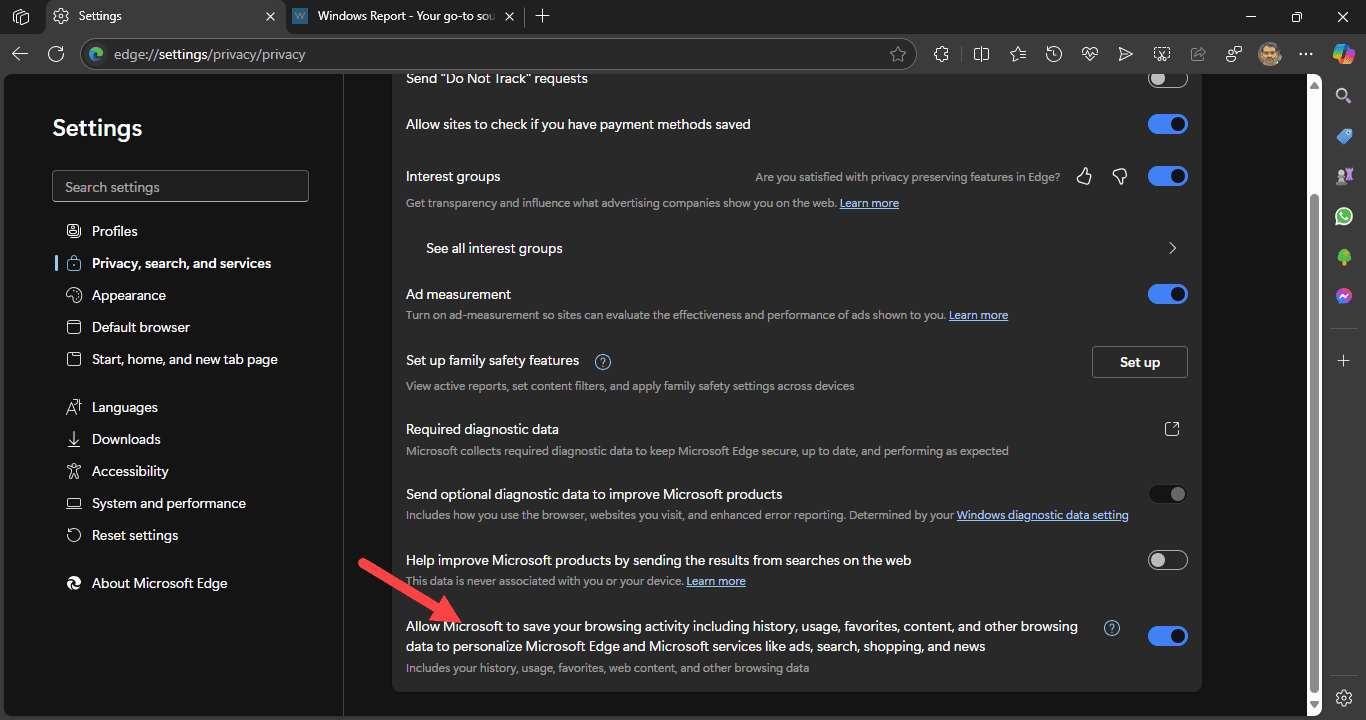
    You can prevent this from happening by visiting Edge Settings > Privacy, search, and services > Privacy. Then, disable (toggle off): “Allow Microsoft to save your browsing activity, including history, usage, favorites, content, and other browsing data to personalize Microsoft Edge and Microsoft services like ads, search, shopping, and news.”

    Don’t confuse Site Suggestions with the autocomplete suggestions that appear when you start typing in the address bar. The Site Suggestions discussed in this article, currently being tested in Edge Canary, are different.

    Apart from this, Microsoft Edge now matches its scrollbars with browser themes. Additionally, the company is testing Image and Color themes with a preview pane in the Edge Appearance settings.

    The latest Edge Dev 136 makes extensions easier to reach

    Microsoft has rolled out a new update for its Edge Dev Channel, bringing version 136.0.3240.8 to users. This latest release focuses on resolving various issues across different platforms, enhancing stability and usability.

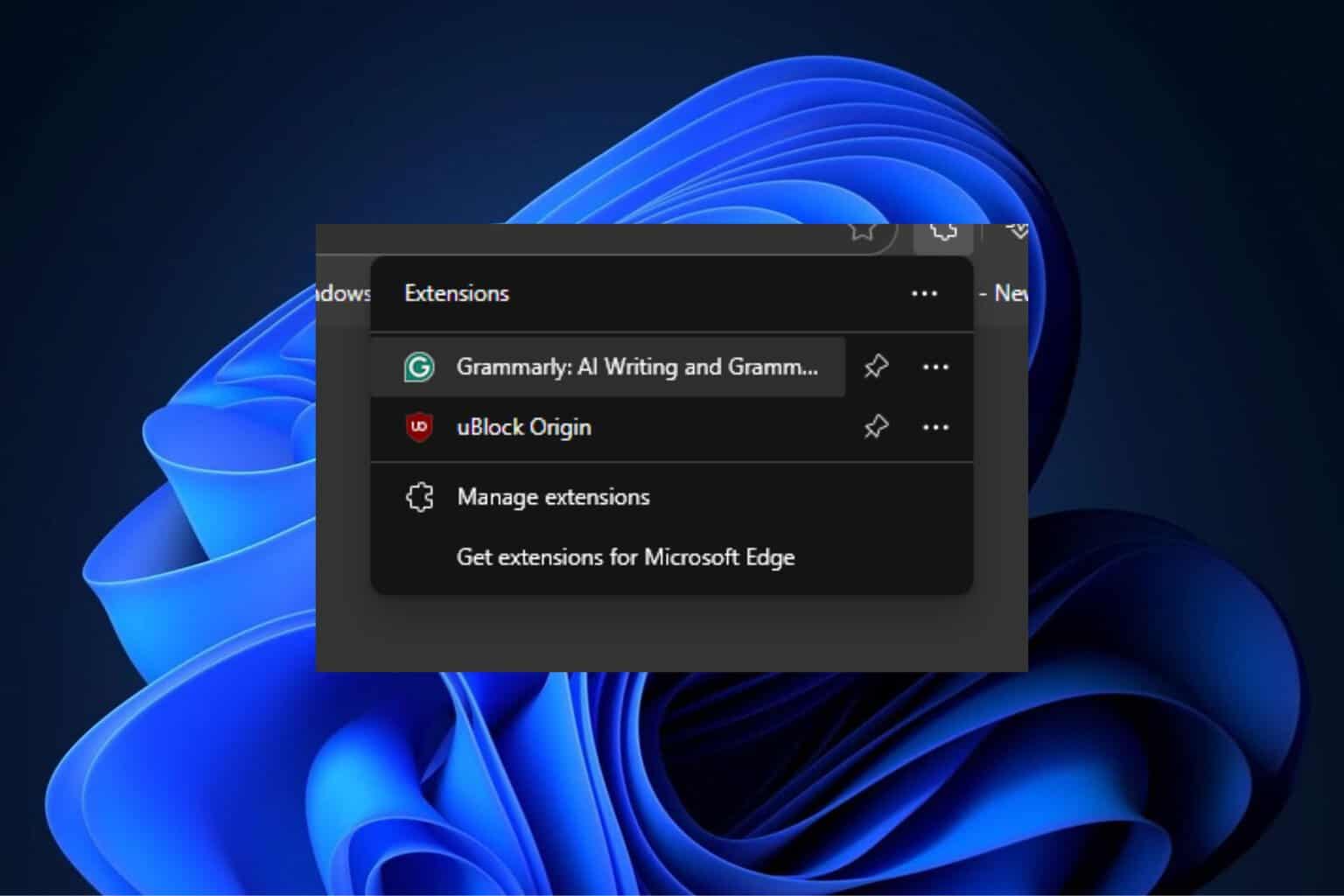
    The update introduces several notable fixes, including a new way to access extensions in the browser. More specifically, Microsoft is adding an ‘Extensions’ link-type menu item in Settings, allowing users to quickly get a hold of them in Edge.

    The other enhancements coming with this build are:

    • Console Crash Resolution: An issue causing the console to crash when applying a coupon on Xbox has been addressed.
    • Android Stability Enhancements: Fixes include resolving crashes related to tablet refresh buttons and improving developer mode accessibility.
    • Mac-Specific Fixes: MacOS users will notice improvements in fullscreen mode, screenshot functionality, and the favorites pane display.
    • iOS Refinements: The update corrects issues with toolbar buttons in destroyed PDFs and improves dark mode behavior when toggling translation settings.
    • Copilot Adjustments: A fix ensures that auto-open focus no longer incorrectly shifts to the side pane in Copilot.

    Edge Dev 136 is now available to download and install. The earlier versions on Edge Dev 136 are now available in the Beta Channel.

    You can read its release notes here.

    Microsoft Edge 136 revamps many of the browser’s sections

    Microsoft has released Edge 136 Beta, introducing many improvements to enhance user experience and security. Version 136.0.3240.8 is now available for testing in the Beta Channel ahead of its Stable Channel release, and its users should be aware, as it is a big patch.

    The “Settings and more” menu now features a badge alert for updates, making it easier for users to discover and apply browser updates. Additionally, the menu has been reorganized to separate “Performance” and “Secure Network” into distinct sections.

    The profile badge has been moved to the toolbar for better visibility, especially when multiple open tabs. This change aims to streamline navigation and improve accessibility.

    A new policy, PasswordExportEnabled, allows administrators to control the export of saved passwords. This feature enhances security by preventing unauthorized password exports.

    The AutomaticHttpsDefault policy has been deprecated and replaced by the new HttpsUpgradesEnabled policy. This change is part of Microsoft’s ongoing efforts to improve secure browsing.

    Plus, the Redmond-based tech giant also enabled the possbility to find extensions in Browser Settings. Microsoft added the Extensions navigation menu, which allows this. However, the feature is on a controlled rollout.

    You can read Microsoft Edge 136’s full release notes here.

    Microsoft will add the Calendar Flyout Clock to Windows 11’s Notification Center

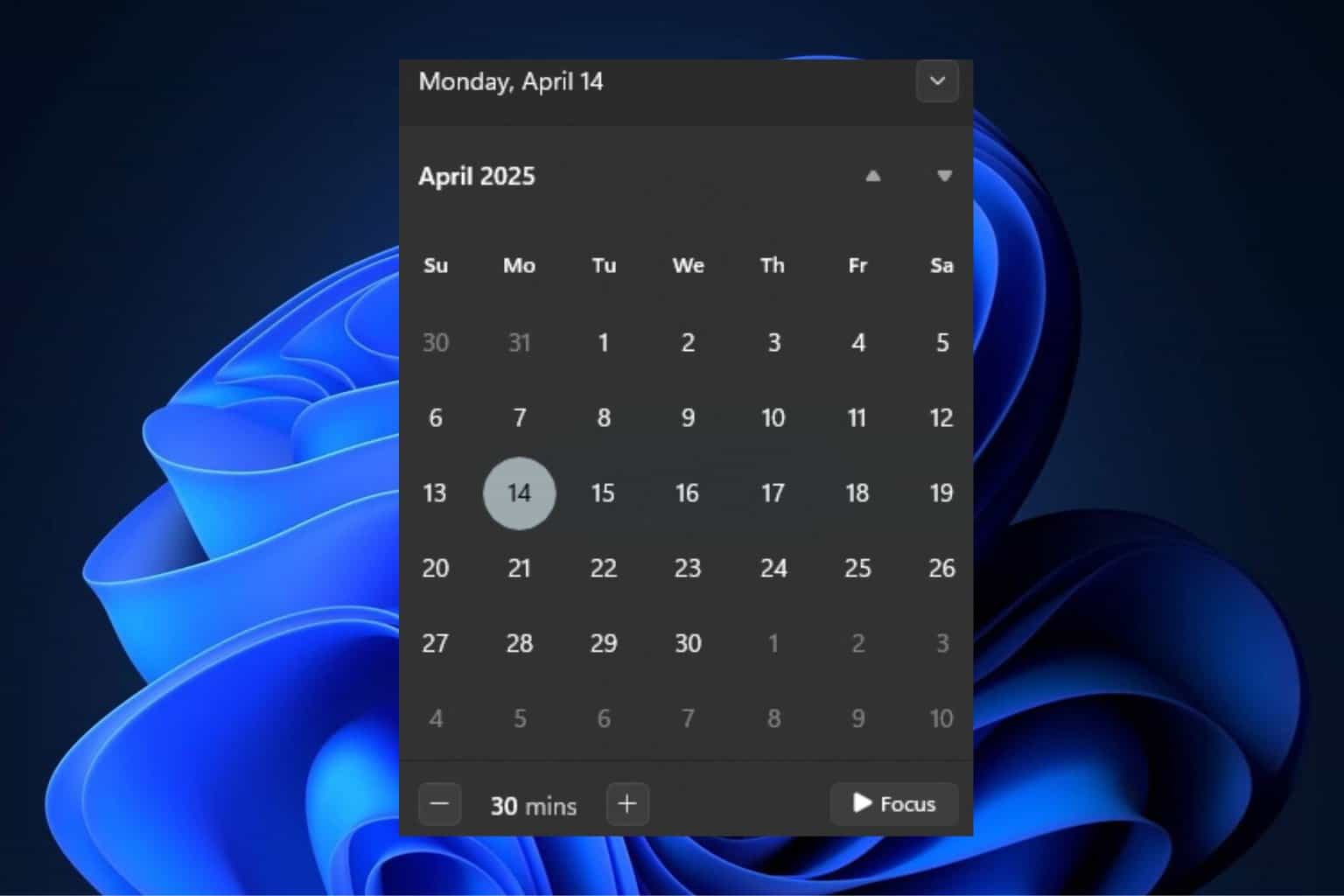
    Microsoft is reintroducing the calendar flyout clock feature in the notification center to address a long-standing request from Windows 11 users.

    This update, currently available in the latest Windows 11 preview builds, allows users to display the time alongside the calendar in the notification center.

    The feature had been a staple in Windows 10 but was notably absent in Windows 11, leading to user frustration.

    The new option, “Show time in Notification Center,” will enable users to toggle the clock display on or off. Tech enthusiast @phantomofearth spotted it.

    This addition is part of Microsoft’s broader efforts to refine the Windows 11 user experience, including a redesigned Start menu and customizable widgets.

    The calendar flyout clock is expected to enhance productivity by providing quick access to time and date information without relying on third-party applications, and it should soon roll out to Windows 11 users.