In a big news for teachers and students, Microsoft and Khan Academy have joined forces to deliver more teaching-oriented AI tools. An outcome of the collaboration is that Khanmigo for Teacher is now available for free to K-12 educators across the US.
Khanmigo previously cost $4 per month, which translates into $48 of direct annual savings for educators.
Khan Academy is a non-profit education organization founded by Sal Khan and headquartered in the US. It’s used by students and teachers worldwide. The partnership between the two was announced during the ongoing Microsoft Build 2024 event.
According to Microsoft News, Khanmigo will now be hosted on the Azure AI service, making it the latest to switch to Microsoft’s native cloud and AI platform. Also, high-quality content from Khan Academy’s library will now be integrated into Copilot and Teams for Education to expand access to more educators and students.
As for Microsoft, the Redmond-based tech giant will benefit from access to math-related questions and answers to develop and fine-tune the AI-powered math tutoring capabilities of Phi-3, its new small language model.
The collaboration between Microsoft and Khan Academy offers a wide array of benefits to educators and students in the US. In my opinion, these benefits should be available across the globe, especially in countries where access to good education remains a privilege only a few can afford!
We saw all sorts of innovations regarding Windows during the Build conference, and while most of them were focused on ARM and Copilot, there was a segment dedicated to VR.
Microsoft announced its collaboration with Meta, and that they are planning to extend Windows apps into 3D space, so here’s what we know.
Microsoft will bring Windows volumetric apps to Meta Quest
As The Verge reports this was announced during the Build event, and Microsoft showcased a digital exploded 3D view of the Xbox controller viewed from Meta Quest 3.
Since this is a digital object, you can manipulate it as you like with your hands. The credit goes to Creo, one of Microsoft’s partners, for bringing this interactive visualization to Quest.
This looks impressive, and if you’re a developer, you can get access to a volumetric API and experiment further after signing in for a developer preview.
Chrome extensions are a double-edged sword. They can enhance your online experience and improve your browser speed but can also slow it down. Sometimes, extensions can affect the performance of your device because some of them use a lot of CPU, especially when combined with a sizeable cache. However, if you use them correctly, you can decrease the loading speeds of various sites.
In addition, DebugBear, a web page optimization service, analyzed 5000 Chrome extensions to find which ones could impact our performance the most.
How do Chrome extensions work?
Whether you are using Chrome or other browsers, extensions work similarly. They execute a code on the website you access, which should only run when needed. As a result, they increase your processing time. Some extensions do that, but they optimize pages and reduce load speeds.
For example, Monica AI, an extension that runs its code when a page starts loading, increases the processing time by 1.3 but reduces page load speed significantly.
Extensions can start working before, during, and after a page loads. According to DebugBear’s research, the extensions that process data before a page loads reduce the website loading times more than the others. On the other hand, the ones that run their code after a page finishes loading have a lesser impact on the loading times.
If you used a VPN extension, you might have noticed that pages take a while to load. This happens because they reroute the traffic through another server and run their code before a page starts loading. Also, Trancy AI Subtitles and Klarna Pay Later cause long load times.
Chrome extensions might now always affect the time it takes for a page to load. However, they can create slow page interactions. The Avira Password Manager adds a 160-millisecond delay when you select random elements from a page.
Ad-blockers reduce the CPU processing time
If you want to improve your browsing performance, get an ad-blocker. Ad-block extensions make pages load faster and improve the speed of your interactions, but having more than one or two could reduce the performance of your device. The research by DebugBear shows that without an ad-blocker, an ad-heavy page has a 57 CPU processing time. Yet, with an ad block, the number drops to 4.
According to the list of ad block extensions shared by DebugBear, uBlock Origin is one of the best ad blockers for Chrome, while AdBlock and AdBlock Plus are some of the worst. Also, if you want, check the Chrome Extension Performance Lookup tool.
Ultimately, you can use Chrome extensions like ad-blockers and optimizers to decrease the loading times and improve the speed of your interactions. If they don’t help, and you have a high CPU while browsing, consider removing some of your extensions or using two different browsers, one for work and one for your free time. Also, clear your cache.
Are you using an ad block extension for Chrome? Let us know in the comments.
As you might already know, Microsoft announced the new Copilot + PC devices (aka the AI PCs we’ve been hearing about all year). These new laptops are incredibly fast, and use a lot of AI everywhere to allow users to get work done easily and quickly. Plus, their battery life is quite impressive.
The new devices will use CPU, GPU, and NPU to streamline productivity, and there will be certain apps that will work best only for them. With this in mind, Qualcomm will be releasing the new Snapdragon Dev Kit for Windows to allow users to build such apps specifically for Copilot + PC devices.
The Snapdragon Dev Kit for Windows was officially announced at the Microsoft Build 2024 event, with the Redmond-based tech giant stating:
Featuring the NPU that powers the Copilot+ PCs, the Snapdragon Dev Kit for Windows has a form factor that is easily stackable and is designed specifically to be a developer’s everyday dev box, providing the maximum power and flexibility developers need. It is powered by a 3.8 GHz 12 Core Oryon CPU with dual core boost up to 4.4GHz, comes with 32 GB LPDDR5x memory, 512GB M2 storage, 80 Watt system architecture, support for up to 3 concurrent external displays and uses 20% ocean bound plastic.
Microsoft
However, the Snapdragon Dev Kit for Windows won’t be cheap. You’ll have to put $899 on the table, on June 18th, when Qualcomm will release. It will sport some impressive specs, though, including:
A 3.8 GHz 12 Core Oryon CPU
Dual-core boost up to 4.4GHz
32 GB LPDDR5x memory
512GB M2 storage
80 Watt system architecture
Wi-Fi 7, Bluetooth 5.4
USB4, USB 3.2, ethernet, 3.5mm audio, and HDMI ports
If you’re interested in a Copilot + PC device, just know you have plenty of options to choose from. Samsung, Lenovo, Acer, Asus, and even HP (which resurrected a 22 years old laptop series especially for AI) have announced such devices. However, you’ll have to spend some money: the cheapest one starts at $999.
Microsoft is making Visual Studio Code for Education free for all, and at the end of the month, it will be generally available to everyone who wants to learn how to code.
The program won’t need any kind of installation, as it includes a sandbox learning environment, which means everyone can hop in and just learn.
The Redmond-based tech giant intended to make the platform as simple and intuitive as possible, stating:
Visual Studio Code for Education will simplify the learning process with a streamlined code editing experience that’s optimized for education. It will feature a content window for learning materials, a simplified user interface and an intuitive layout, making it easier for students to master essential coding concepts. The platform’s one-click-to-code functionality removes any setup barriers, allowing students to start coding immediately.
Microsoft
Users will be able to start coding directly in the web browser, and it will be available across multiple and different devices, platforms, and browsers, with Microsoft ensuring that the platform will be available to as many people as possible.
The preview is available now for users to try, and can be accessed here. By the end of the month, Visual Studio Code for Education should be generally available to everyone.
In other news, the Redmond-based tech giant announced Copilot extensions, and speaking of coding, those learning how to do it in the platform can end up creating extensions and publishing them in app stores in Teams and Outlook.
At the Microsoft Build 2024, the Redmond-based tech giant made the event all about AI, specifically, Copilot. We have the Copilot + PC devices; the company also announced Team Copilot, a new assistant in Microsoft Teams meant to tackle the rise of Google’s AI Teammate; then, the Redmond-based tech giant also released new tools to Copilot Studio.
However, you’ll be delighted to know that some of these topics will be known as Copilot Extensions, moving forwards. Remember when Microsoft announced Copilot Plugins? Well, they’re extensions now.
Copilot extensions will enhance Microsoft Copilot by enabling new actions and customized knowledge for grounding within Copilot. With Copilot extensions, users will get a Copilot experience that is tailored with the data, systems and workflows they use every day — all in the flow of their work.
Microsoft
If you’re a developer and you made Copilot plugins, Microsoft will add them as Copilot extensions in the Teams Toolkit for Visual Studio Code. You’ll also have access to new features, and you’ll be able to build Copilot extensions for others.
If you’re not a developer, then you can already access some Copilot extensions from companies such as Mural, or Jira.
Speaking of Copilot, the Redmond-based tech giant will also allow companies that use SharePoint to let their employees build their own extensions, using the company’s data. This way, productivity can be greatly enhanced.
These copilots help individuals find the files they need and can even answer questions based on the contents of the SharePoint site. Easy to create in just a few clicks, with additional enhancements available using Microsoft Copilot Studio, these copilots can be easily shared within an organization.
Microsoft
The Redmond-based tech giant released the Early Access Program for this feature, and it will launch a public preview of the new Copilot development sometime in 2024.
At the Build 2024 conference, Microsoft announced the general availability of Visual Studio 2022 17.10. The latest release has many powerful features and enhancements, spotlighting the integration of GitHub Copilot, the advanced AI-powered coding assistant.
With the integration of GitHub Copilot with Visual Studio, you get a coding partner with better context, smart suggestions, and the ability to complete your codes, making you more productive.
GitHub Copilot is integrated as an extension in Visual Studio and is a combination of Copilot and Copilot Chat, but you can’t get it through the usual Visual Studio Marketplace or Extension Manager.
Instead, it is included in the Visual Studio installer as a recommended component, ensuring seamless activation. This means it will come pre-installed by default, but you can choose not to install it.
Let’s talk about Visual Studio’s latest enhancements with GitHub Copilot.
Speeds up coding experiences
GitHub Copilot helps you code faster by giving real-time suggestions and allowing you to complete code intelligently. The chat feature will enable sustained, threaded conversations to build context and background for the problem you are working on.
Furthermore, GitHub Copilot Chat offers slash commands and references for specific tasks, making sharing knowledge easy even with new team members. Slash commands like /doc or /explain quickly instruct Copilot about what you need, while references like #solution or #locals give more context.
Makes debugging faster
Debugging code becomes easier if you have GitHub Copilot in Visual Studio. For instance, developers are often forced to inspect bugs that come from exceptions, which is annoying and time-consuming.
However, now, when the error is identified, the AI-powered Exception Helper guides you through the troubleshooting process.
AI-powered Exception Helper uses exception type and call stacks combo to help you form context-rich questions from diagnostic data available to Visual Studio’s debugger.
Visual Studio now also supports rubber ducking, which lets you explain the problem in your natural written language while the debugger is paused. You can also include the local’s reference (#locals) to ask direct questions about the state of a variable.
Another useful debugging feature, deadlock detection helper can help you find blocking states in your application and suggest solutions for the underlying code. Microsoft has also integrated GitHub Copilot into breakpoint workflows, allowing you to set conditions for strategically pausing the debugger during investigations.
Streamlines unit testing and code maintenance
Generating and resolving unit tests are essential aspects of software development but are repetitive and time-consuming.
GitHub Copilot can assist you in creating and resolving these tests, helping teams preserve code coverage and overall code health, thereby streamlining the development process.
By offering smart PR and commit suggestions, GitHub Copilot simplifies code maintenance and enhances clarity and consistency across projects.
Other than this, Visual Studio 2022 17.10 has:
A JSON-based settings UI to simplify IDE customization
AI-powered code reviews and better debugging and diagnostics support.
New GitHub Copilot-powered Visual Studio brings an improved Attach to Process dialog
The Conditional Breakpoints feature allows developers to set conditions based on hit counts, expressions, or both.
The ability to pin Targets in CMake projects and updated Unreal Engine (UE) macros
Support for SQL Server Data Tools (SSDT).
To conclude, with the AI assistant at their beck and call, developers can code faster, debug smarter, and be more innovative and productive.
Do you think GitHub Copilot with Visual Studio will help you code faster and better? If so, share your views with our readers in the comments section below.
At the Microsoft Build 2024 conference, the Redmond-based tech giant announced that it will add tools to Copilot Studio to give developers the chance to build generative AI assistants for a variety of contexts. These generative AI assistants can be used to assist users in their businesses, for example.
These new capabilities will allow users to delegate authority to Copilot to automate long-running business processes, reason over actions and user inputs, leverage memory and knowledge for context, learn based on user feedback and exception requests and ask for help when it encounters situations that it doesn’t know how to handle.
Microsoft
Along with these tools, developers who build AI assistants for Microsoft 365 can also make them available to others through Copilot Studio.
Copilot extensions built with Copilot Studio will allow developers to customize copilots with instructions, knowledge from data sources and actions from plugins, Microsoft Power Automate flows and more. They will be simple to build and will enable extensibility and customization for specific domains or personas, such as expense reporting or employee onboarding, enabling a more relevant and personalized copilot experience.
Microsoft
The Redmond-based tech giant will help developers release their AI assistants, also called Copilot extensions, to a variety of app stores in Outlook, Teams, and more.
Copilot Studio will also introduce Copilot connectors that will allow developers to access other platforms, such Microsoft Graph, or Power Platform directly from there.
Copilot connectors in Copilot Studio, in preview, will bring together Microsoft Graph and Power Platform connectors, AI skills in Microsoft Fabric (in private preview) and Microsoft Dataverse to make the process of grounding copilots in first- and third-party line-of-business data a wizard-based experience configured through Copilot Studio. This will enable developers to quickly incorporate their organizational knowledge into copilots, enable new actions and add real-time intelligent Q&A over productivity, operational and analytical data.
Microsoft
Finally, Microsoft will add templates to Copilot Studio so that developers can quickly start to work on projects without having to waste time building them from scratch.
All these tools coming to Copilot Studio will be available soon, although no specific date has been given yet. Either way, developers will enjoy the new tools, as they will greatly enhance workflows and productivity all around.
Speaking of Copilot, the Redmond-based tech giant also announced Team Copilot, which as its name suggests, is an assistant on its own, and Microsoft’s take on Google’s AI Teammate.
When Microsoft is making all its products future-ready, we can’t imagine the company not touching PowerToys, a dynamic set of tools that can customize Windows beyond conventional settings.
With the latest version 0.81, the Redmond tech giant has proved that. With this new update, you will get Advanced Paste, a utility that can convert anything you copy into another format. For example, it can convert Python code to C# with comments.
Here is what the company said about Advanced Paste:
Advanced Paste is An Al powered tool to put your clipboard content into any format you need, focused towards developer workflows. Note: this will replace the formatted text in your clipboard with the selected format.
To use this feature, copy something and press Windows + Shift + V to open the tool’s interface. You can also paste the result using Windows + Ctrl + Alt + V.
Here is the list of changes introduced in the update
New utility: Advanced Paste, an AI powered tool to convert your clipboard content into another format.
Command Not Found now uses the PowerShell Gallery release and now supports ARM64.
Fixed most accessibility issues opened after the latest accessibility review.
Refactored, packaged and released the main Environment Variables Editor, Hosts File Editor and Registry Preview utilities functionality as controls to be integrated into DevHome.
General:
Fixed crashes on older CPUS by updating .NET to 8.0.4. (This was a hotfix for 0.80)
Advanced Paste
New utility: Advanced Paste, an AI powered tool to convert your clipboard content into another format.
Always On Top
Enable border anti-aliasing.
Color Picker
Improved accessibility by making the Settings and Copy to clipboard buttons focusable.
Improved accessibility by supporting picking a color using the keyboard.
Command Not Found
Upgraded the Command Not Found to use the new PowerShell Gallery release and support ARM64.
Environment Variables Editor
Refactored, packaged and released the main Environment Variables Editor functionality as a control to be integrated into DevHome.
FancyZones
Fixed window wrap around behavior when overriding Windows key and arrow shortcuts on single monitor scenarios.
Improved accessibility of the editor by listing the keyboard shortcuts in the Canvas Editor.
File Explorer add-ons
Updated Monaco to 0.47 and added the new sticky scroll setting for DevFiles viewer.
Added the new font size setting for DevFiles viewer.
Added support for .srt (subtitle) file previewing in DevFiles viewer.
Hosts File Editor
Refactored, packaged and released the main Hosts File Editor functionality as a control to be integrated into DevHome.
Image Resizer
Supported narrator announcing the checkboxes in the UI and the sizes combobox.
Improved accessibility by increasing contrast in the text color of combobox items.
Installer
Fixed some install failures when the folders the DSC module is to be installed in isn’t accessible by the WiX installer. (This was a hotfix for 0.80)
Detecting install location for DSC now uses registry instead of WMI to improve performance.
Fixed an error causing the machine scope installer to not install correctly in machines where the documents folder is in a UNC network path. We’re still working in a fix for the user scope installer.
Keyboard Manager
Fixed startup crashes in the editor when the Visual C++ Redistributable wasn’t installed. (This was a hotfix for 0.80)
Fixed an accessibility issue where the first button wasn’t focused after adding a new row in the editor.
Environment Variables are now expanded in arguments of programs started through a shortcut.
Paste as Plain Text
Paste as Plain Text was removed as a separate utility, since its functionality is now part of the Advanced Paste utility.
Peek
Updated icons, tweaked UI and refactored internal code.
Updated Monaco to 0.47 and added the new sticky scroll setting for DevFiles viewer.
Added the new font size setting for DevFiles viewer.
Upgrade the SharpCompress dependency to 0.37.2 and fixed archive parsing.
Fixed aliasing in the image viewer.
Added support for .srt (subtitle) file previewing in DevFiles viewer.
Power Rename
Fixed the descriptions that were mixed up in the regex helper (\S and \w).
PowerToys Run
Added support for UNC paths starting with // in the Folder plugin.
Fixed the plugin load failed message to list the failed plugins.
Icons for MSIX packages are now updated when a package update is detected.
Use Mica backdrop instead of Acrylic to fix random crashes caused by the Windows composition being momentarily turned off.
Improved accessibility in the results list action buttons by improving contrast of hovered/focused buttons.
Quick Accent
Added support for the Esperanto character set.
Added the ǽ and ϑ characters.
Registry Preview
Refactored, packaged and released the main Registry Preview functionality as a control to be integrated into DevHome. Thanks @dabhattimsft for validating and integrating into DevHome!
Text Extractor
Fixed an issue causing the Settings page to not be opened when clicking the Settings button in Text Extractor’s overlay. (This was a hotfix for 0.80)
Settings
Improved UI ordering of the File Explorer add-ons.
Applied fixes to theme overriding and cleaned up unneeded code.
Fixed misspells in references to the Hosts File Editor utility.
Improved accessibility of the Select Folder button in the Settings Backup UI.
Improved accessibility by improving focus and tab navigation in the ColorPicker page.
Added a description to the fallback encoder setting in the Image Resizer page.
Refactored and improved performance in the PowerToys Run plugins UI in the Settings page.
Fixed a crash when a user cleared the contents of a Number Box in the PowerToys Run plugins additional options.
Update the PATH environment variables with the user scope PATH when entering the Command Not Found page to improve PowerShell detection.
You can download the latest version of PowerToys from the Microsoft Store or GitHub. If you already have the app, head to Settings>General>Check for updates. Also, share your experience with our readers in the comments section below.
At the Microsoft Build 2024, the Redmond-based tech giant announced some big and exciting new features coming to its work-oriented platform, Teams, including the new Team Copilot, the company’s own approach to Google’s AI Teammate.
Team Copilot, while quite exciting, might not be enough to surpass the real excitement coming to Teams, which is the ability to create your own custom emojis. Yes, you’ve heard that right.
The platform will be updated to allow users to upload their emojis, and once there, they will be available to the whole tenancy. Here’s what Microsoft says:
Once uploaded, custom emojis will only be visible within the user’s tenant. IT admins will be able to decide who has permission to create custom emojis, delete custom emojis or turn off the capability altogether.
Microsoft
The capability will not be available right away, as Microsoft will release it in a preview in June. However, at the Build 2024 conference, the Redmond-based tech giant says another exciting feature is available immediately in the platform, and that’s the ability to find shared code faster:
When a developer shares code via a permalink in Teams chat, it now expands to provide a rich preview from Microsoft Azure DevOps, enabling the recipient to view the code in the source app.
Microsoft
Plus, aside from being able to come up with their own custom emojis in Teams, users will also be able to use the platform’s Intelligent Recap to transcribe a Teams meeting without the need to have the audio recording of it.
At the Build 2024 conference, the Redmond tech giant announced that Microsoft Edge will include real-time video translation and features promoting protection against data leaks.
If you often feel a language barrier is stopping you from watching your favorite content, Microsoft has solved that with the feature of real-time video translation for Edge. The feature will use artificial intelligence to process videos to dub and provide subtitles to help you understand the content you are watching.
This real-time video dubbing and subtitles will be available on several video-sharing platforms, including Bloomberg, Reuters, YouTube, Coursera, LinkedIn, and more. It can translate Spanish into English, English into German, Spanish, Italian, and even Hindi. This update will make video content more accessible for people with disabilities.
If your native language is not mentioned here, don’t sweat; Microsoft has promised to add more languages with the upcoming updates.
Microsoft Edge of Business also gets new security features to protect data while browsing. These will prevent data leaks and secure company data from vulnerabilities.
In June 2024, Microsoft will also get new policies to block screenshot-taking features to protect your sensitive data from being stolen. Here is what the announcement mentioned:
Data exfiltration in the browser is a major concern for organizations due to financial, reputational and operational impact. Edge for Business will support screenshot prevention policies set across Microsoft 365, Microsoft Defender for Cloud Apps, Microsoft Intune Mobile Application Management and Microsoft Purview.
This is another important update for IT admins that will ensure that the Edge is always up to date. This is critical as browser security vulnerability issues have been at an all-time peak.
Along with this, the update coming in weeks will ensure that admins will see outdated Edge instances and will be able to take proactive measures, like restarting the browser forcefully, installing updates, disabling specific features, or configuring automatic updates.
What do you think about these changes? Share your views with our readers in the comments section below.
Earlier this year, Microsoft released Phi-3 Mini, an AI model with 3.8 billion parameters, which can run locally, rather than on-cloud, and it’s quite impressive.
Today, at the Microsoft Build 2024, the Redmond-based tech giant announced the new Phi-3 Vision, which can accept images and videos as prompts, and it can generate answers based on them.
Microsoft made Phi-3 Vision bigger than its Mini version: it has 4.2 billion parameters, and it’s now available in a private preview.
However, there is no word when it will become generally available, but the Redmond-based tech giant will most likely release it later this year.
Speaking of AI, Microsoft Teams will also get a Team Copilot model, and similar to Google’s AI Teammate, this one will help users access information easily and faster.
Microsoft wasn’t joking when it said this year’s Build is all about AI.
At the Microsoft Build 2024, the Redmond-based tech giant introduced Team Copilot, an assistant that will be ever present in Teams chats to help all users access information easily, and faster.
As a valuable new team member, Team Copilot will work with teams to transform collaboration and workflows, and take on administrative tasks that are often time-consuming and costly for teams.
Team Copilot will be considered a Meeting facilitator, which will allow the AI to manage agenda for meetings, and do other tasks, such as taking notes, suggesting tasks, and summarising.
Microsoft has also developed Team Copilot to allow users from these meetings to co-author and edit these notes.
There is also a Group Moderator feature that Team Copilot is capable of. This one will bring it closer to Google AI Teammate, by responding to questions and helping users access information. Team Copilot will also work as a manager, and Microsoft developed it to supervise projects. It can use the Planner app in Teams to recommend tasks, and it can check up on deadlines. It can even send heads up to Teams members on their upcoming deadlines.
Microsoft will release Team Copilot sometime later this year.
In many ways, this new tool is Microsoft’s response to Google’s AI Teammate, which was previously announced by the tech company as a tool that can revolutionize workspaces. So, in many ways, the Redmond-based tech giant is seeking to catch up, and won’t let Google catch its breath.
It will be interesting to see how this new technology is adopted by users everywhere.
With the new builds released, we have seen that Microsoft is stressing the introduction of ads to promote its Office and AI products in Windows 11.
Some of the newest ones, like the one in the Settings app, cannot be removed, which is frustrating. However, there is a solution to this problem, Win11Debloat. It is a lightweight PowerShell script
What is Win11Debloat?
Here is what the description of this script on GitHub says:
Win11Debloat is a simple, easy to use and lightweight powershell script that can remove pre-installed Windows bloatware apps, disable telemetry and declutter the experience by disabling or removing intrusive interface elements, ads and more. No need to painstakingly go through all the settings yourself, or remove apps one by one. Win11Debloat makes the process quick and easy!
You can pick and choose exactly which modifications you want the script to make, or use the default settings. If you are unhappy with any of the changes you can easily revert them by using the registry files that are included in the ‘Regfiles’ folder. All of the apps that are removed can be reinstalled from the Microsoft store.
You can choose to customize the script to your needs or select the default mode to apply the changes
What can you do with Win11Debloat?
Remove apps – You can delete several bloatware apps and select which ones to keep or delete. You can also remove pinned apps from the start menu on your Windows 11 devices.
Bing & Copilot – Remove or disable Bing or Cortana in Windows search on Windows 10 and 11. You can also disable Windows Copilot on your Windows 11 computer.
Telemetry & suggested content – Disable diagnostic data, app-launch tracking & targeted ads. You can also disable tips, tricks, suggestions, and ads in Settings, Start, Notifications, Windows Explorer, and the lock screen.
Windows Explorer – Unhide the hidden files, drives, folders, and file extensions for known file types. You can also hide duplicate removable drive entries from the Windows Explorer navigation pane.
Context menu—You can get the Windows 10 context menu on your Windows 11 computer. You can hide many things in the Windows Explorer side panel, including 3D objects, music, and the OneDrive folder.
Taskbar – Allows you to align the Taskbar to the left and hide or change the search box or icon on the taskbar on Windows 11. You can also hide the taskview button from the Taskbar.
How can I use this script to debloat my Windows?
You can download and run the script automatically through Windows PowerShell. All you need to do is open PowerShell as an administrator, then copy & paste the following code in PowerShell and press Enter: & ([scriptblock]::Create((irm “https://raw.githubusercontent.com/Raphire/Win11Debloat/master/Get.ps1”)))
Once the script installs git and Win11Debloat, you will see the Win11Debloat menu. To continue, you can choose either the default or custom mode.
This method also supports parameters, so to use them, you need to add the parameters at the end with spaces in between. Here is the example presented on GitHub: & ([scriptblock]::Create((irm “https://raw.githubusercontent.com/Raphire/Win11Debloat/master/Get.ps1”))) -RunDefaults -Silent
However, if you don’t want to go through all this, you can download the latest version of the script, extract it from the Zip file, and go to the Win11Debloat folder. Locate and double-click the Run.bat file to execute the script.
You will now see the Win11Debloat menu in PowerShell; choose custom or default mode like before to continue.
Parameters
Here is the list of parameters given on GitHub that you can use to change the script according to your needs:
Parameter
Description
-Silent
Suppresses all interactive prompts, so the script will run without requiring any user input.
-RunDefaults
Run the script with the default settings.
-RemoveApps
Remove the default selection of bloatware apps.
-RemoveAppsCustom
Remove all apps from the ‘CustomAppsList’ file. IMPORTANT: Run the script with the -RunAppConfigurator parameter to create this file first. No apps will be removed if this file does not exist!
-RunAppConfigurator
Run the app configurator to create a ‘CustomAppsList’ file. Run the script with the -RemoveAppsCustom parameter to remove these apps.
-RemoveCommApps
Remove the Mail, Calender, and People apps.
-RemoveW11Outlook
Remove the new Outlook for Windows app.
-RemoveDevApps
Remove developer-related apps such as Remote Desktop, DevHome and Power Automate.
-RemoveGamingApps
Remove the Xbox App and Xbox Gamebar.
-ClearStart
Remove all pinned apps from the start menu. NOTE: This applies to all existing and new users. (Windows 11 update 22H2 or later only)
-DisableTelemetry
Disable telemetry, diagnostic data & targeted ads.
-DisableBing
Disable & remove bing search, bing AI & cortana in Windows search.
-DisableSuggestions
Disable tips, tricks, suggestions and ads in start, settings, notifications and Windows explorer.
-DisableLockscreenTips
Disable tips & tricks on the lockscreen.
-RevertContextMenu
Restore the old Windows 10 style context menu. (Windows 11 only)
-ShowHiddenFolders
Show hidden files, folders and drives.
-ShowKnownFileExt
Show file extensions for known file types.
-HideDupliDrive
Hide duplicate removable drive entries from the Windows explorer navigation pane, so only the entry under ‘This PC’ remains.
-TaskbarAlignLeft
Align taskbar icons to the left. (Windows 11 only)
-HideSearchTb
Hide search icon from the taskbar. (Windows 11 only)
-ShowSearchIconTb
Show search icon on the taskbar. (Windows 11 only)
-ShowSearchLabelTb
Show search icon with label on the taskbar. (Windows 11 only)
-ShowSearchBoxTb
Show search box on the taskbar. (Windows 11 only)
-HideTaskview
Hide the taskview button from the taskbar. (Windows 11 only)
-DisableCopilot
Disable Windows copilot. (Windows 11 only)
-DisableWidgets
Disable the widget service & hide the widget (news and interests) icon from the taskbar.
-HideChat
Hide the chat (meet now) icon from the taskbar.
-HideOnedrive
Hide the onedrive folder in the Windows explorer sidepanel. (Windows 10 only)
-Hide3dObjects
Hide the 3D objects folder under ‘This pc’ in Windows explorer. (Windows 10 only)
-HideMusic
Hide the music folder under ‘This pc’ in Windows explorer. (Windows 10 only)
-HideIncludeInLibrary
Hide the ‘Include in library’ option in the context menu. (Windows 10 only)
-HideGiveAccessTo
Hide the ‘Give access to’ option in the context menu. (Windows 10 only)
-HideShare
Hide the ‘Share’ option in the context menu. (Windows 10 only)
To conclude, by running the Win11Debloat. you can eliminate intrusive ads and other bloatware apps from your computer, allowing for a truly streamlined and optimized experience.
Have you tried the Win11Debloat script? If yes, share your experience with our readers in the comments section below.
The best Windows 11 boot repair tool can easily resolve start-up issues.
If you can’t enter your PC’s Desktop environment or if it loads the Startup Repair screen, there’s a problem with its boot record. Often, after a blue screen of death or other PC breakdowns, the Windows logo keeps appearing but it won’t start up. You’ll need a boot repair tool for situations like this.
Fortunately, I’ve tested more than 20 options, including both Windows 11 native and third-party tools.
Finally, I singled out the following 10 utilities for their reliability. I’ve also outlined their features, functionalities, and pricing so you can choose the one that suits you the best.
Ready?
10 Best Windows 11 Boot Repair Tools
Let’s start with the native Windows 11 OS tools you can access for free. Also, Windows will often prompt you to use these options first.
EaseUS Partition Master is one of the most popular tools to manage HDDs, SSDs, and NVMe SSDs. It enables you to get out of a Windows boot record error issue swiftly without running a single line of code. Also, if you can’t access the Desktop, you can still use its special features to migrate your Windows installation drive to another PC.
Firstly, if your PC is working fine or there are very few instances of startup issues, you should install the tool right now. Then, you can use it to create a clone of the existing Windows installation drive using the Clone OS Disk option.
You can use this backup later to migrate your whole Windows 11 installation to a new PC and keep all files, documents, software, etc.
Secondly, if you’re ready to migrate the Windows OS right now but you’re expecting that the PC might break down anytime, you can use the Migrate OS tool. Both the Clone OS Disk and Migrate OS options guide you through the whole process step-by-step.
EaseUS also offers a no-code approach to disk type conversion. You can access the Disk Converter feature to fix any of the following root causes behind startup issues:
Convert MBR to GPT: If you’re planning to use Windows 11, you must convert the old HDD or SSD partitions to GPT from MBR.
Convert Basic to Dynamic: By converting basic disks to dynamic, you can get more flexibility in Windows PC volume management.
Furthermore, its Bootable Media module allows you to set up the WinPE environment and fix startup issues with guidance from EaseUS. The software will also run synchronously with WinPE to guide you through the troubleshooting.
For this scenario, you can first create a WinPE-enabled bootable disk using the Create bootable media option. Then, use the Enable Partition Master PreOS feature to let WinPE run before Windows startup for fixing purposes.
Thirdly, you’ll find the Boot Repair tool in the Toolkit section of EaseUS Partition Master. This module lets you select a boot partition that requires troubleshooting.
Upon restarting, EaseUS attempts to fix the boot record file of the selected partition.
Other useful features include:
Burn ISO: Use it to create a bootable CD, DVD, or USB stick from Windows ISO files.
Rebuild MBR: If the startup error is due to the Windows 11 Master Boot Record (MBR) corruption, you can go to ToolKit > Rebuild MBR and choose the partition for MBR fixing.
UEFI Items: The Windows Boot Manager tool in the UEFI Items menu allows you to switch between multiple boot disks. If the current startup error is due to the wrong boot disk selection, you can fix that using this feature.
Pricing: Monthly subscription starts at $19.95 for one month. You can use the activation key on up to two PCs.
Pros
Cons
Limited boot repair and partition management features are available in the free edition.
Most features are behind the paywall.
Visual and automatic ways to fix startup issues.
It lets you migrate Windows 11 OS to a new HDD or SSD with minimal effort.
4DDiG Windows Boot Genius offers a sleek graphical user interface for boot repair in a Windows 11 startup repair environment. It lets you create a recovery disk in a few minutes on your primary or secondary PC. Then, you can use the recovery USB stick to boot in the problematic PC.
The Windows Rescue dialog shows up on the startup repair screen. You can choose from various automatic and manual methods to fix the booting issues. If you’re a beginner-level user, go with the Automated repair option.
The tool will automatically find and mount the problematic Windows 11 installation partition on the PC. It’ll usually rewrite the Bootcode on the boot partition and restart the PC to test if the existing Windows installation will load.
Other handy features include:
Software Key Recovery
Data Recovery
Partition Management
Internet Browser
Command Prompt
Copy Files from Windows Directory.
Pricing: You can get a license for one PC for $18.95/ month. If you need a license key to service multiple PCs, you must go for the 1-Year License plan.
Pros
Cons
The free trial lets you use limited features.
It can’t create an ISO Windows boot recovery image.
Excellent user interface, even on the startup repair screen.
The monthly plan only supports one PC. If you need to accommodate more than that, you must buy a 1-Year long subscription.
Automated boot repair with one click.
The subscription cost is a bit on the higher side.
It lets you recover data from the Windows installation directory.
It can extract the Windows installation key.
Offers Windows installation drive cloning and backup.
Outlines clear instructions to access the Boot Order menu from the UEFI BIOS for PCs from different brands.
Windows Recovery Environment (WinRE) – Best for DIY Troubleshooting
WinRE is the primary tool to fix various Windows 11 loading issues including boot-up errors. If your PC intermittently encounters startup issues, you can use this option from your Desktop. Simply press the Shift key and restart the device to force Windows to boot into WinRE.
If you’ve already created a backup drive in an external HDD, SSD, or USB stick, the Use a device dialog can start the recovery process straight away. You can also use cloned copies of your Windows 11 installation directory. Other system recovery options include Windows Recovery DVDs and network directories.
However, if you didn’t create a recovery or clone disk of your Windows 11 installation, you can go to the Troubleshoot menu.
Here, you get the following additional options to fix Windows boot problems:
Reset this PC: Use a Windows installation media to set up the operating system from scratch. However, you’ll keep your own files saved on the C: drive. The tool will move old Windows files to a separate directory on the C: drive. This method isn’t destructive because you keep your personal files. Still, you’ll lose the apps you’ve earlier installed on your PC.
DaRT Recovery Tools: This is a library of various Windows system tools that can run from the startup repair screen. For example, the Explorer tool allows you to browse the content of all the partitions and drives of the PC. So, you can use this feature to move personal data from C: drive to a different partition if you’re going to install a fresh copy of Windows 11. Other important tools are Locksmith, Crash Analyzer, File Restore, Disk Commander, Solution Wizard, etc.
Advanced options: Here, you’ll find the normal Startup Repair tool that often fails to fix booting issues. Besides this, you can access the Command Prompt to run the bootrec command to fix boot records and use the System Restore tool to revert back to the previous state.
All things considered, DaRT is your best bet to fix a range of boot issues. For example, you can run the Solution Wizard from DaRT and choose the System will not start correctly option for automatic detection of startup issues and attempt a permanent fix.
Sometimes, the boot issue you’re facing happens due to the corrupted header of the Guid Partition Table (GPT). In this case, you can use the Disk Commander tool of DaRT and choose Restore the header of the GPT.
Pros
Cons
Windows 11 built-in boot repair solution.
Using it can be time-consuming.
It’s a reliable and secure tool developed by Microsoft.
It involves a lot of manual effort.
Offers numerous ways to fix startup issues.
It’s easily accessible from Windows 11 Desktop and startup screen.
Bootrec.exe – Best for Severe Boot Record Issues
If you know how to operate the Windows Command Prompt tool and are okay with executing a few simple commands, you can try this option. However, you should execute the Startup Repair feature first. If this troubleshooter doesn’t generate any results, you can move on to Bootrec.exe.
The Command Prompt card is in Choose an option > Troubleshoot > Advanced options. Once you open the terminal, you can either run the bootrec.exe command and then execute subsequent commands with just a forward slash.
For example, if you’ve already run the bootrec.exe program, you can enter /fixmbr to rewrite the MBR code into the boot partition. Alternatively, you can execute the commands in this format bootrec /fixmbr too.
If you’ve chosen to use Bootrec.exe to fix Windows 11 startup issues, type in bootrec and then the following commands in the order:
/fixmbr: It’ll show a positive result instantly.
/fixboot: This command generates the Access is denied error.
/nt60 SYS: Updates NTFS filesystem boot code.
/fixboot: It’ll run this time.
/rebuildbcd: This command will detect your device’s OS. You must press Y so the system can rebuild the BCD library.
exit: Close Command Prompt.
Finally, you can reboot the PC from WinRE to startup. If you’ve executed the above-mentioned commands as instructed, you should be able to fix the Windows 11 boot-up issue.
Pros
Cons
This method addresses various boot issues, like corrupted boot records, missing BCD, and damaged MBR.
Requires familiarity with the command-line interface, which can be intimidating for non-technical users.
Accessible during boot failures.
Can’t fix hardware-related issues.
No need to download or install additional tools.
Incorrect use can lead to unintended changes or data loss.
Reset this PC – Best for Quick Fixes Right From Your Desktop
Reset this PC should be your go-to option to fix Windows 11 boot problems if you can enter the Desktop. You should be able to locate this feature in the System menu of the Windows 11 Settings app. Once you’re on the System screen, find the recovery option from the right-side menu to access Reset this PC.
Here, you get the following two options to proceed:
Keep my files: If you choose this, Windows will move the old Windows 11 files into a directory on the C: drive. Then, it’ll prompt you to insert the installation media to re-install the operating system. However, previous apps won’t work anymore. You’ll have to manually install and activate them.
Remove everything: This method will wipe off the entire C: drive and prepare the drive for a fresh Windows 11 setup. It’ll also require a bootable DVD or USB stick.
Pros
Cons
A user-friendly interface for restoring the Windows 11 OS.
It comes with the risk of data loss.
It also fixes PC performance and software issues.
It often doesn’t retain important hardware drivers, like GPUs, sound systems, etc.
You can choose to keep personal files or wipe off the entire partition.
Resetting Windows 11 is a time-consuming process.
It’s built into the Windows 11 OS, so additional installation isn’t needed.
You’ll need to reinstall third-party applications and reconfigure settings.
Automatic Repair – Best for Random Boot Issues
If your Windows 11 PC restarts itself and can’t go past the loading screen, the Automatic Repair tool will activate. Sometimes, it takes up to three abrupt restarts or loading errors for this mode to load.
On the dialog box, the system will ask you to either Restart or move to troubleshoot in the Advanced options dialog box.
If you think that the previous loading errors were temporary, you can hit the Restart button to apply basic troubleshooting. If your PC doesn’t enter the lock screen, the next time choose Advanced options.
The Advanced options features are the same as the WinRE tool, as explained earlier in this article.
Pros
Cons
You can use this tool even if you’ve got limited technical knowledge of Windows 11 boot partitions.
Its success rate is lower than other methods.
Quickly diagnoses and attempts to fix common startup problems.
The tool doesn’t show what action it’s taking even if it can successfully fix the boot partition.
No need to download and install tools as this is a built-in feature of Windows 11.
Sometimes, it can get stuck in a loop of repeated repairs without any progress.
Minimal data loss risk when compared to the alternative methods.
Windows Installation Media – Best for Fixing Boot Issues From the Root
You can boot your PC from a Windows 11 installation media to repair the existing setup. Windows bootable media comes in two forms. You can either use a bootable DVD or transform a USB stick into a bootable drive using Rufus. The latter option is much faster, though.
You can simply execute the Windows 11 setup file from the DVD or USB stick. Most of the setup process will happen on the Desktop. Moreover, you can choose whether you want to keep old files or perform a fresh installation by formatting the existing OS partition.
Once the bootable media has downloaded the necessary updates, your PC will restart and install the rest of the OS files.
You might need to enter an activation code if you didn’t get the previous Windows 11 copy with the PC or have bought it digitally.
This process is much faster than the rest of the built-in Windows 11 boot repair techniques. However, you’ll lose the previous apps installed on the old installation partition.
Pros
Cons
You can access a range of repair tools, including system restore, command prompt, and full reinstallation options.
You might need a second Windows PC to create the bootable media.
Often fixes boot, software, and hardware issues from the root.
The entire process could take up to an hour.
It can fix the boot partition even offline.
A clean Windows installation always comes with advanced data loss risks.
You’ll also install the latest updates.
So far, you’ve learned about the built-in utilities you can try out. You might have noticed that the above tools require considerable manual effort. If you’re a beginner or a nontechie and you’re okay with using a freeware or paid third-party Windows 11 boot repair tool, check out these options:
For this to work, you’ll need a bootable USB drive with the same edition of Windows 11 that’s installed on your PC. Rufus is the best freeware choice to create a bootable USB storage device from the Windows 11 ISO file.
This bootable media creation program is completely transparent. You can access its publicly available source code to explore if there’s any spyware or malware that might harm you.
All you need to do is download and run Rufus on your PC. There’s no need to install it. Also, there’s a portable version. You can use it on PCs with limited user account rights or you want to run it from a USB drive instead.
Besides creating a bootable media, you can use Rufus for the following purposes:
You want to work on a computer where the Windows OS isn’t installed yet.
You’d like to flash any hardware firmware or motherboard BIOS from the Disk Operating System (DOS).
There’s a low-level utility you need to run.
Moreover, it offers a simple user interface. It automatically detects a compatible USB storage device connected to the PC. It also clearly indicates from where you can browse and select the Windows 11 ISO file for removable media creation.
Pricing: It’s free for personal and commercial use. Its source code is also open. You can modify the source code to develop your own program.
Pros
Cons
Freeware and open-source.
It doesn’t directly fix the boot record. It helps you create a bootable drive.
No installation is needed.
It doesn’t support external HDDs and SSDs for bootable drive creation out of the box.
No-code approach for Windows bootable media configuration.
Securely formats the target USB drive with compatible Windows OS file systems.
Provides options for GPT and MBR-based bootable media creation.
It’s regularly updated for security and quality.
It can automatically download Windows 11 ISO from the Microsoft servers.
Easy Recovery Essentials for Windows is a software suite designed to get your PC back up and running when stuck in startup and boot issues. It’s packed with multiple PC troubleshooting features on the startup screen. You don’t need to access the Desktop or home screen to run troubleshooting scenarios.
The most useful feature is the Automated Repair function. It can automatically scan the entire system and find active or inactive Windows installations. Once you select the target Windows installation, it fixes file system corruptions, fixes the bootloader, recreates MBR, removes viruses and malware from boot files, and more.
You can also use this tool to perform a Windows 11 System Restore without accessing the home screen. You’ll find the System Restore tool in the Automated Repair dialog. It shows you all the available restore points.
You can choose one from the list to revert your system to one of the last known good configurations before the onset of boot issues.
However, sometimes you can’t resolve Windows 11 startup issues without a new OS installation. If you do that, you also lose all content on the Windows installation drive. For such scenarios, Easy Recovery offers the Browse/ Backup Files functionality.
You can use this module to visually copy and paste content from the C: drive to another partition of the HDD/SSD or a different device.
Pricing: Starts from $19.99 for the Home package for Windows 11 PCs. There are different pricing slabs for different Windows OSs. For Windows Server OS, you must buy the server-enabled version separately.
Pros
Cons
Completely automated boot repair functionalities.
No free trial is available.
Browse and backup personal files from C: drive from a PC that won’t boot.
The user interface is a bit outdated.
Doesn’t need Desktop access.
You need a second PC to run this tool from a USB or CD if the main PC isn’t booting up.
Works from a USB or CD.
You can perform a system restore on a PC that won’t start up.
You can use Lazesoft Recovery Suite to perform various recovery activities on a Windows 11 PC that won’t boot up to the Desktop. Here are some of the most useful modules:
Burn CD/ USB Disk: This module creates a WinPE recovery operating system. You can get the WinPE as an ISO image file, burn it onto a CD or DVD, and write it directly on a bootable USB stick.
Data Recovery: It lets you recover data from the Windows installation folder to different partitions of the same or different HDD or SSD. Also, this feature can recover accidentally deleted data from storage devices.
Password Recovery: If you forget the Windows PC user account password or Windows 11 activation key, use this feature.
Disk Image & Clone: You can create a recovery disk for the entire Windows 11 installation directory. If none of the modules work to fix the Windows OS boot-up issue, you might need to set up Windows from scratch. Instead of starting from the beginning, you can connect the recovery HDD or SSD and install the most recent backup of your existing Windows system.
Besides the above-mentioned features, Windows Recovery is one of the major attractions. It offers you more than five startup recovery options. The module also works on the Windows startup screen to help you fix boot-up issues.
Firstly, you’ll need the Burn CD/ USB Disk tool to create the Lazesoft Windows Recovery disk.
When you restart the malfunctioning PC, access the Boot order section in the UEFI BIOS and choose the Lazesoft disk.
The PC will boot into the Lazesoft Windows Recovery interface.
Here, you can choose any of the following depending on the severity of the issue:
One Click Fix: The best-suited Windows 11 boot repair tool for novice and beginner-level Windows users. Simply click on the One Click Fix button and wait for Lazesoft to try to fix the startup problems.
Boot Crash: This module lets you choose the cause of the system startup issue. For example, you can pick MBR Repair, Fix Boot Sector, Rebuild Boot Sector, Missing Windows File Repair, Chkdsk, and Final Solution.
Loading Crash: You can fix random crashes that keep rebooting the PC on the Windows logo screen.
Restore Disk: Use a backup disk created previously to repair the Windows 11 installation.
Pricing: You can buy a lifetime license for $17.95 for the Lazesoft Windows Recovery Professional Edition. If you want all the features, go for the $27.95 package.
Pros
Cons
Offers a free trial for home use only.
The Burn CD/ USB Disk tool occasionally fails to create the WinPE recovery disk on a USB stick.
Comes with 10+ system tools to fix issues like corrupted BCD, boot files, Windows Registry, etc.
Comes with a moderate-level learning curve.
You can recover files from the Win 11 installation directory and save them to a different drive.
You must know how to change the boot order to use the Lazesoft Live CD feature.
It lets you use the Windows System Restore tool on the startup repair screen.
It doesn’t automatically take over the boot order feature of the motherboard to boot to the Lazesoft recovery disk.
You can send a diagnosis file to Lazesoft support for severe system failures.
No need to invest a lot of time in understanding and operating the built-in Windows Recovery tools.
Find below the methodology I’ve devised to select the most reliable boot repair tools for Windows 11:
1. Windows 11 Built-In Options
I’ve explored all boot repair tools that are directly available on your Windows 11 OS. Moreover, I prioritized those that nontechies can use without any previous experience. I’ve also chosen a mix of built-in options that run from the Windows 11 Desktop and on the startup repair screen.
2. Device Data Priority
I emphasized non-destructive resolutions where you can keep existing device data, drives, and partitions, and still repair the boot issue. However, you can only fix some startup issues with a fresh Windows 11 installation.
3. Ease of Use
Most of the tools described above are fairly easy to understand and operate. Also, I’ve only chosen options that offer visual instructions, automated boot fix wizards, etc.
4. Graphical User Interface
I prioritized solutions that offer an intuitive graphical user interface to interact with the tool without writing any code or executing commands. However, for power users, I’ve included one command line-based tool as well.
5. Repair Success Rate
I’ve tested 20+ tools to repair Windows 11 boot problems. Then, I’ve only listed those that offered the best success rates.
6. Data Privacy and Security for Third-Party Apps
I’ve only listed third-party apps that value user privacy and security. I ensured they don’t inject malicious codes into the Windows 11 OS to steal your data, show in-app advertisements, or display Windows 11 ads.
7. Affordability for Third-Party Tools
I’ve excluded non-Microsoft boot repair tools that aim to siphon off money from its users for things that even default utilities can achieve.
8. User Reviews for Third-Party Apps
I’ve gone through many user reviews for all the test tools to understand user feedback. Then, I’ve excluded options that didn’t address user complaints.
9. Technical Documentation and Tutorials
All the tools and techniques mentioned above offer extensive tutorial and documentation resources. You can use those to learn more about Windows boot recovery functionalities.
10. Availability of Technical Support for Third-Party Tools
I’ve also ensured that all the third-party apps offer professional and accessible customer support.
Furthermore, all the non-Microsoft tools are regularly updated.
11. Additional Features
The third-party apps I’ve listed offer additional solutions apart from Windows boot recovery. For example, you can recover the Windows installation key, extract data from the Windows 11 installation partition, etc.
Conclusion
So, now you’re much closer to finding the ideal Windows 11 boot repair tool.
Did you try any of the above tools and experience any positive results? Do you know of a better option that’s suitable for everyone? Write your replies and share your thoughts in the comment box below.
Jake Armstrong, the product manager on the Excel team, announced that Microsoft 365 Insiders will be able to use three new functions: REGEXTEST, REGEXEXTRACT, and REGEXREPLACE, which employ Regular Expressions to help parse text.
With the announcement, Microsoft has added a warning, which says:
These are preview functions. Their signature and results may change substantially before being broadly released, based on your feedback. So, we do not recommend using these functions in important workbooks until they are generally available.
What are Regular expression (Regex) functions?
As mentioned in the official announcement, Regular expressions:
Regex are sequences of characters that define search patterns, commonly used for string searching and text parsing. They are incredibly versatile and are often used to check if a string contains a certain pattern, extract substrings that match the pattern, or replace substrings that match the pattern.
The new regex functions we are introducing are:
REGEXTEST: Checks if any part of the supplied text matches a regex pattern.
REGEXEXTRACT: Extracts one or more parts of the supplied text that match a regex pattern.
REGEXREPLACE: Searches for a regex pattern within the supplied text and replaces it with different text.
REGEXTEST
It checks if the pattern matches any part of the provided text, matches the pattern. If it matches, it says True, but if it fails, it returns with False.
The syntax of the function is: REGEXTEST(text, pattern, [case_sensitivity])
Argument
Description
text(required)
This parameter can either be the text string you want to match against or a reference to a cell that contains the text for comparison
pattern(required)
This parameter represents the regular expression (“regex”) that defines the pattern of text you wish to match.
case_sensitivity
It determines whether the match is case-sensitive. The match is case-sensitive by default. You can enter one of the following values 0 – Case sensitive 1 – Case insensitive
REGEXEXTRACT
REGEXEXTRACT lets you retrieve text from a string using a supplied regular expression. You can choose to extract the first match, all matches, or capture groups from the first match.
The syntax of the REGEXEXTRACT function is – REGEXEXTRACT(text, pattern, [return_mode], [case_sensitivity])
Argument
Description
text(required)
The parameter contains the text or the reference to a cell containing the text you want to retrieve strings from.
pattern(required)
The parameter represents a regular expression (“regex”) that defines the pattern of text you wish to extract.
return_mode
A number that describes what strings you want to retrieve. The return mode is 0 by default. The possible values areas listed: 0: Return the first string that matches the pattern 1: Return all strings that match the pattern as an array 2: Return capturing groups from the first match as an array
case_sensitivity
It determines whether the match is case-sensitive. The match is case-sensitive by default. You can enter one of the following: 0: Case sensitive 1: Case insensitive
REGEXREPLACE
This function allows you to replace text from a string with another string on the basis of supplied regular expression.
The full syntax of REGEXREPLACE is – REGEXEXTRACT(text, pattern, [return_mode], [case_sensitivity])
Argument
Description
text(required)
The parameter has text or the reference to a cell containing the text you wish to replace strings within.
pattern(required)
It is a regular expression (“regex”) that defines the pattern of text you want to replace.
replacement(required)
The text you wish to replace instances of pattern.
occurrence
This parameter defines which instance of the pattern you want to replace. The occurrence is 0 by default, which replaces all instances. A negative number replaces that instance, searching from the end.
case_sensitivity
It determines whether the match is case-sensitive. The match is case-sensitive by default. You can enter one of the following: 0: Case sensitive 1: Case insensitive
Tips & tricks offered to use Regex functions easily
You can use Symbols, also known as Tokens, in regex patterns that match with various characters. Microsoft has listed some useful tokens:
[0-9] – any numerical digit
[a-z] – a character in the range of a to z
“.” – any character
a – the a character
a* – zero or more a
a+ – one or more a
You can also ask Bing Copilot for regex patterns. Microsoft also announced that they would be adding functionality for match mode arguments to use regex within XLOOKUP and XMATCH in the near future. In this regex pattern, it will be available as the lookup value.
These functions are now available for Beta Channel users with either Windows Version 2406 (Build 17715.20000) or later and Mac Version 16.86 (Build 24051422) or later.
It seems like there’s no end to problems caused by Vanguard on a Windows PC, from the inability to load the Management Console to frequent boot errors. Now, another issue has emerged where you can’t run CHKDSK with Vanguard installed!
CHKDSK or Check Disk is a built-in Windows utility that allows you to quickly fix file system errors, eliminate bad sectors, and repair storage drives.
The issue was first highlighted in a post on Reddit by miba54. The Windows 10 user reports that when running CHKDSK with Vanguard installed, the scan either doesn’t start on reboot or fails within a few seconds. But that doesn’t happen after Vanguard is uninstalled.
Many were quick to verify and confirm the report, indicating that Vanguard indeed conflicts with Check Disk. A Windows user wrote,
Verified on my pc CHKDSK is not working with Vanguard installed.
Even when I tried to do so, the scan kept aborting within a few seconds.
Perhaps the problem is that when Vanguard’s anti-cheat system sees Check Disk making changes to the game files, the program automatically terminates the scan, even at the expense of breaking critical Windows functionality and built-in tools.
However, developers should be able to better identify where things go wrong!
It isn’t the first time Vanguard has conflicted with CHKDSK
I am as surprised as you are!
In 2020, there were reports of Vanguard automatically triggering CHKDSK on every reboot.
The problem was widespread at the time, affecting a large number of users. And back then, too, uninstalling Vanguard did the trick.
It seems that developers fixed the bug over time because there have been no major reports since then. But a similar problem has reappeared!
So, if you ever find that CHKDSK is not running or is automatically triggered on every boot, verify whether Vanguard is installed on the PC and uninstall the program.
Have you tried to recreate the problem? If so, let us know whether Check Disk runs with Vanguard installed.
It should be a no-brainer that investing in top-tier hardware should give you a pass when it comes to most game issues but even high-end PCs experience some stutter occasionally.
However, this doesn’t mean that your hardware is faulty, you just need to know the right buttons to push to achieve an immersive gaming experience that is stutter-free.
Why is my PC suddenly stuttering in games?
1. Storage bottlenecks
You may have the space requirements to install a game but as you play a game, your game file size also grows. This includes any addition of mods or supporting software to enhance your game.
It therefore becomes slow because of the time taken to access files because of their size. Slow load times can impact game performance and cause some stuttering as your system can’t fetch data quickly enough.
2. Limited graphics card
Although your PC may be a high-end one, most of them come with an integrated GPU. They’re not bad for everyday tasks but if you’re gaming, you’ll need a strong contender for this position. Most modern games have high graphic demands so an integrated GPU may struggle with performance.
Further, your integrated GPU is competing with your CPU for RAM so sharing of resources may leave your games with insufficient resources hence the stuttering.
3. Inadequate cooling
If you don’t have a proper cooling system, your GPU shifts its performance to stop your PC from overheating instead of rendering graphics. Without prioritizing its main tasks during gameplay, your games are bound to experience a lot of stuttering.
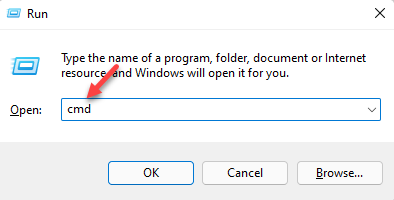
Launch the Run console, by pressing the Win + R keys together.
Type cmd in the search box and press the Ctrl + Shift + Enter keys simultaneously.
In the elevated Command Prompt window that opens, run the following command and press Enter: chkdsk /f C:
Replace C: with the drive, you are using.
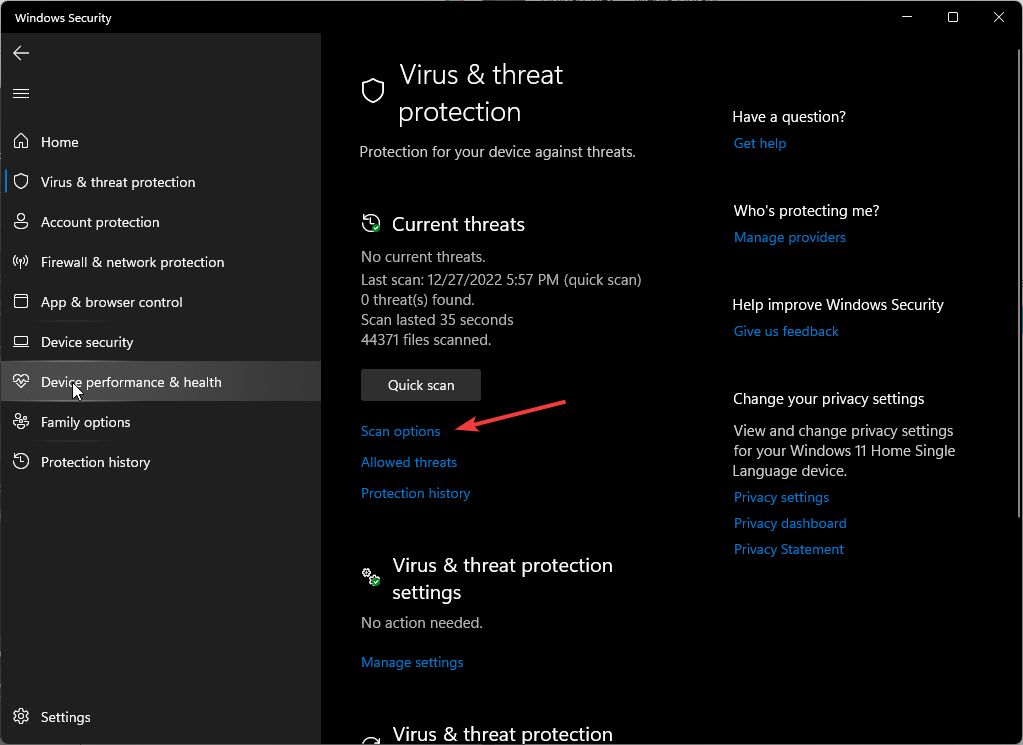
9. Scan for viruses
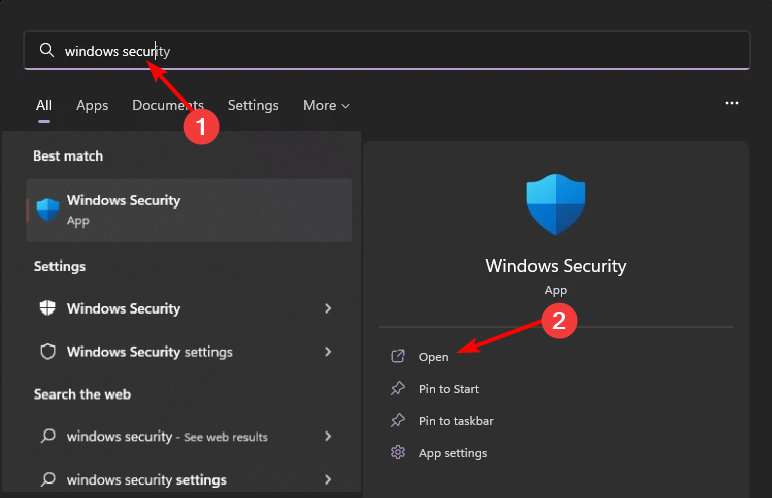
Press the Windows key, search Windows Security, and click Open.
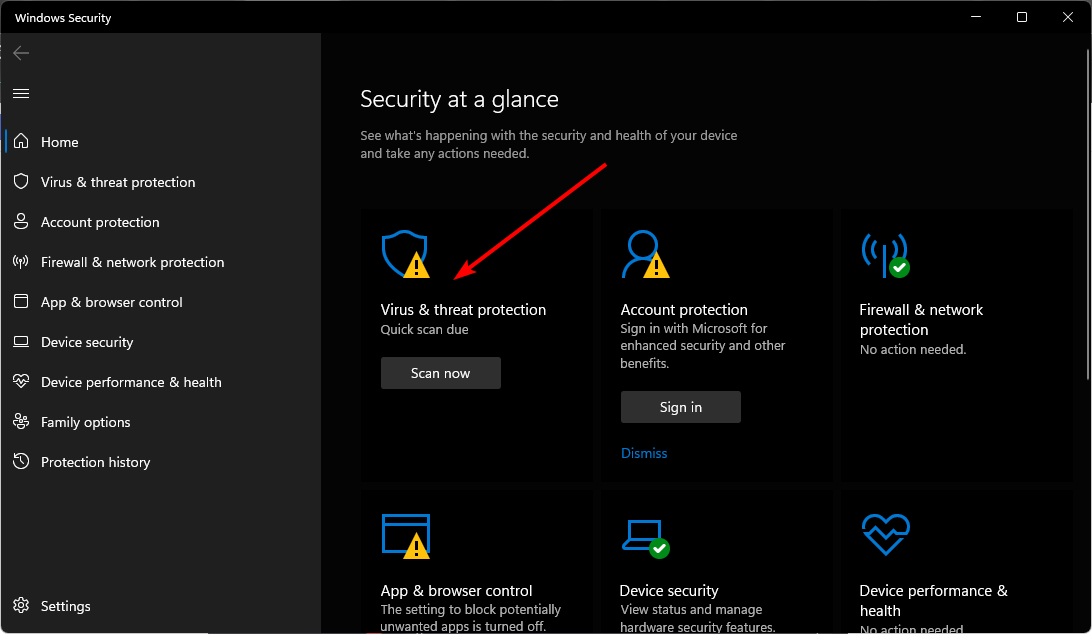
Select Virus & threat protection.
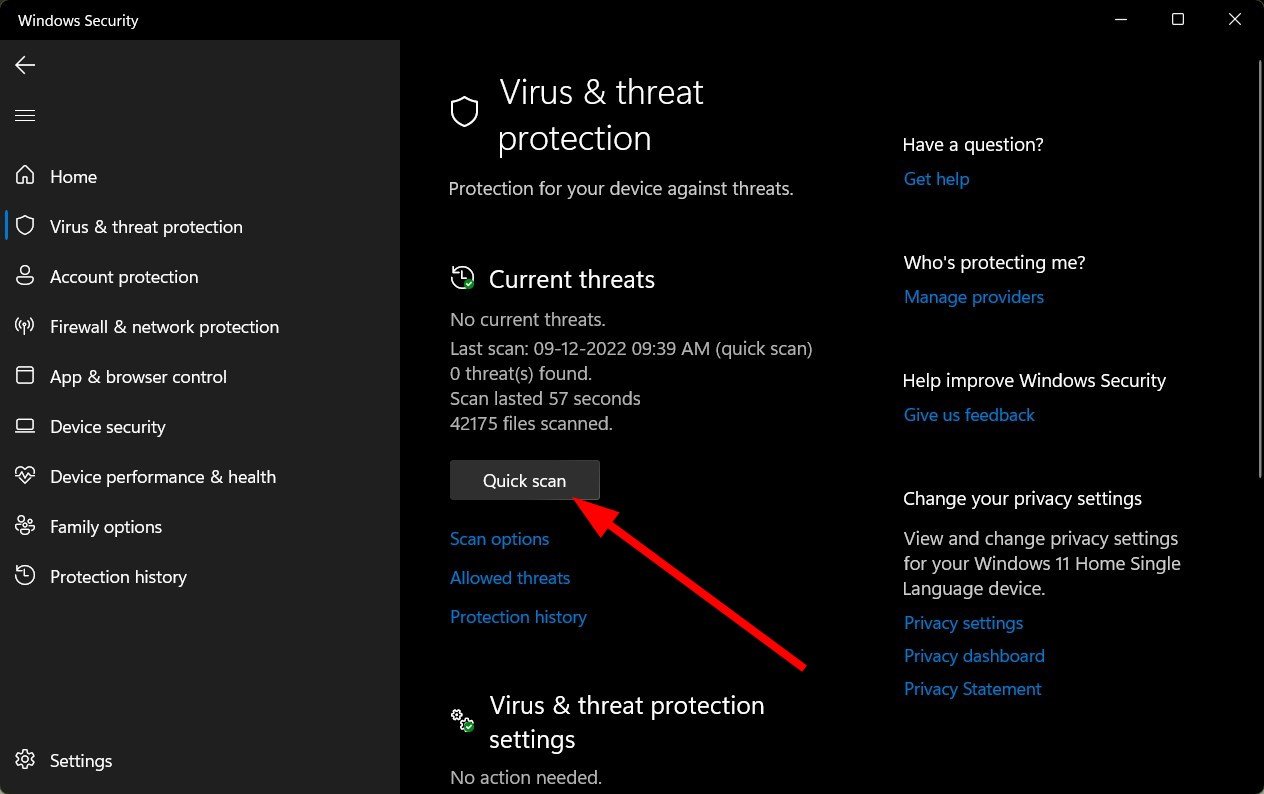
Next, press Quick scan under Current threats.
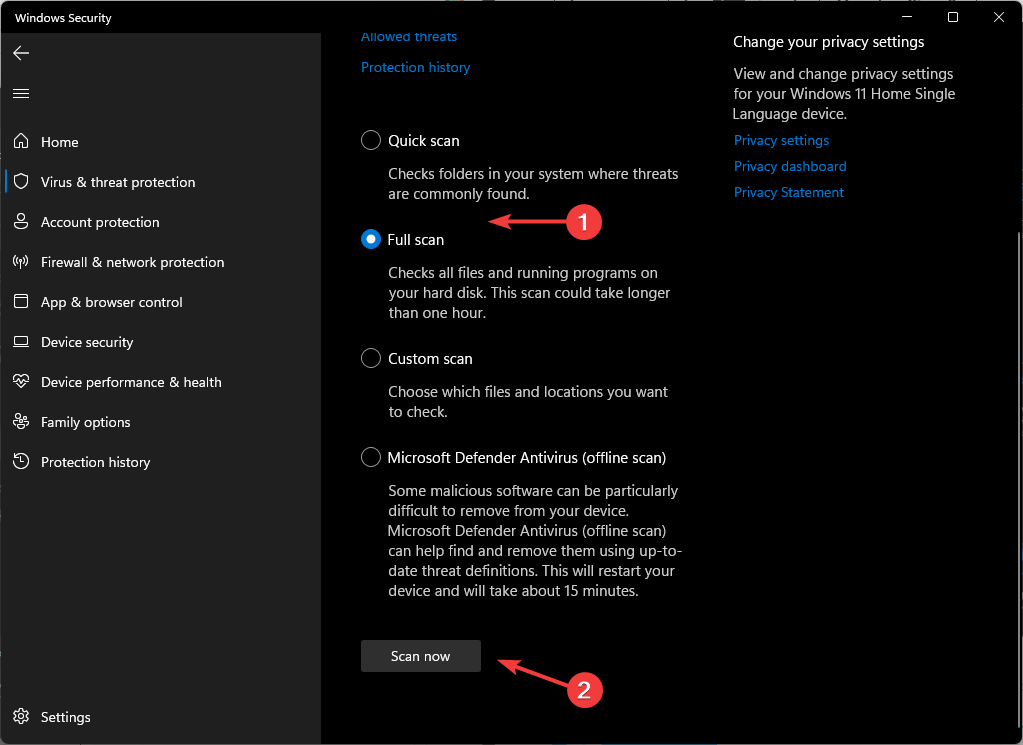
If you don’t find any threats, proceed to perform a full scan by clicking on Scan options just below Quick scan.
Click on Full scan, then Scan now to perform a deep scan of your PC.
Wait for the process to finish and restart your system.
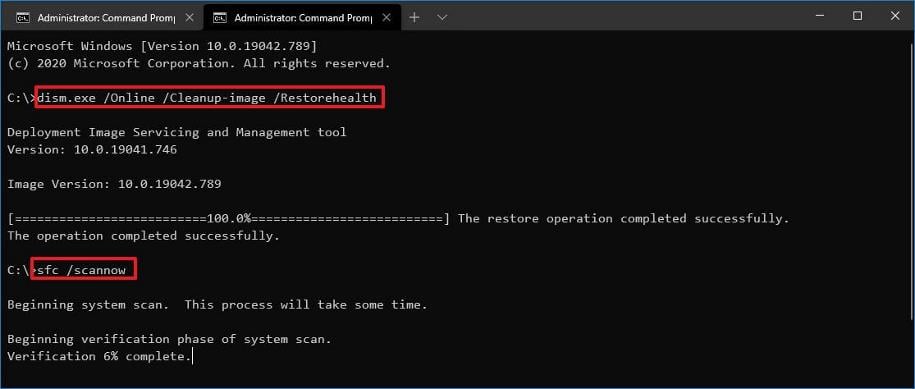
10. Scan for System File errors
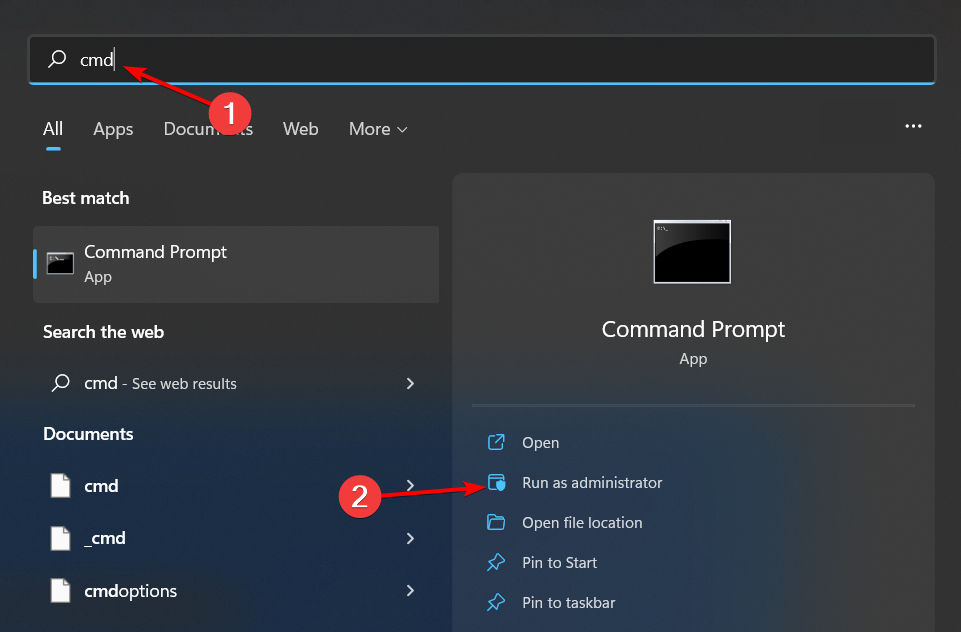
Hit the Start Menu icon, type cmd in the search bar, and click Run as administrator.
Type the following commands and press Enter after each one:DISM.exe /Online /Cleanup-Image /Restorehealthsfc /scannow
3. Game-related issues
11. Enable Game Mode
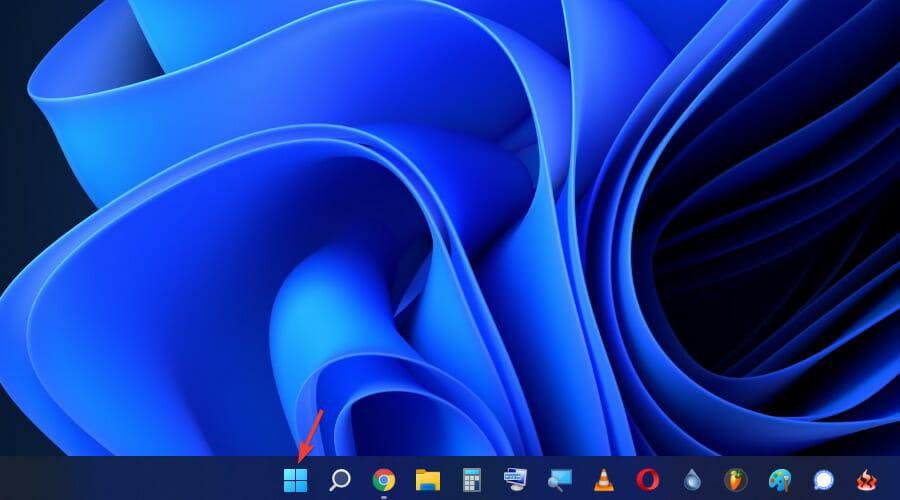
Click Start from the taskbar.
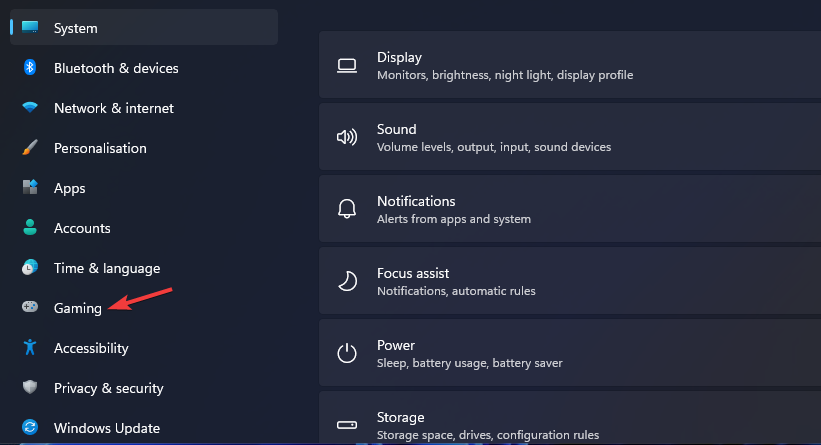
Choose Settings.
Then select the Gaming tab in Settings.
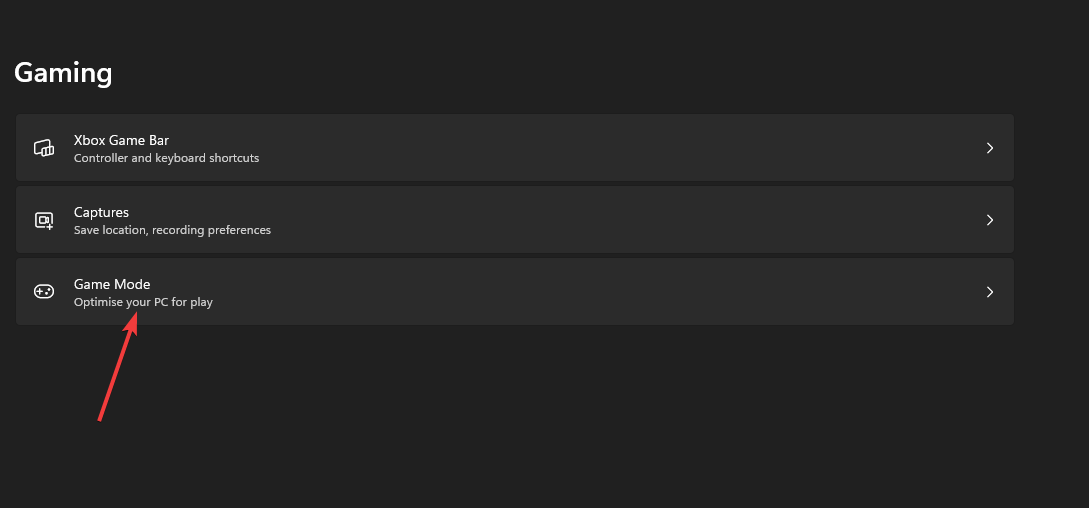
Click Game Mode on the Gaming tab.
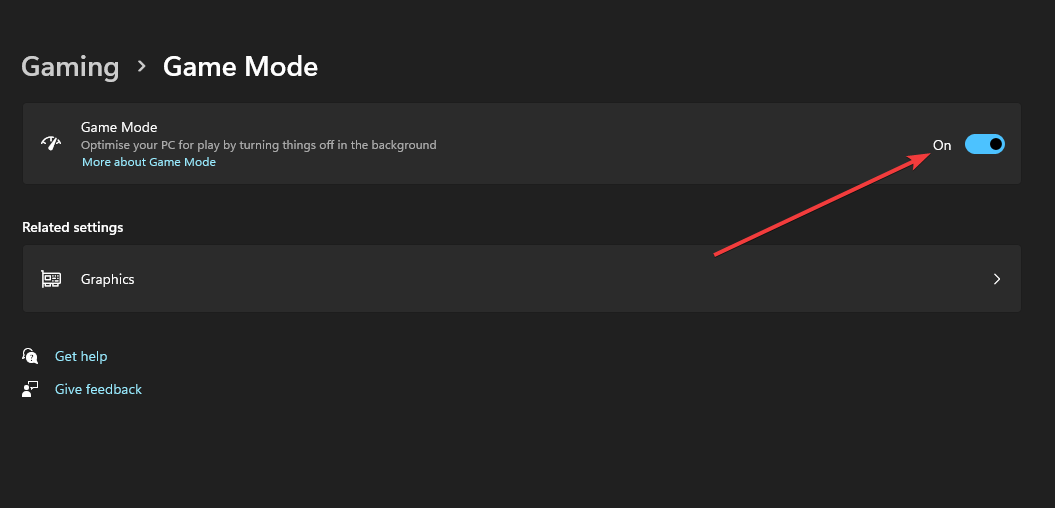
Turn on the Game Mode option to enable it.
12. Enable the Steam Overlay
Left-click the Start button, type Steam in the search bar, and launch it.
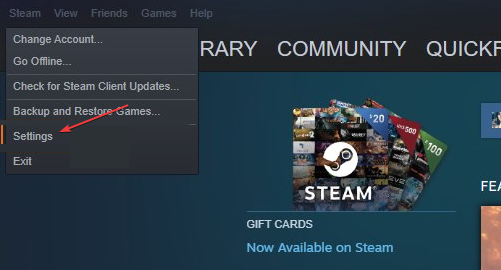
Click the Steam tab and select Settings.
Hit on In-Game, then check the box next to Enable the Steam Overlay while in-game.
Click OK to save your changes.
Restart the game client and check if the issue persists.
13. Verify the integrity of the game files
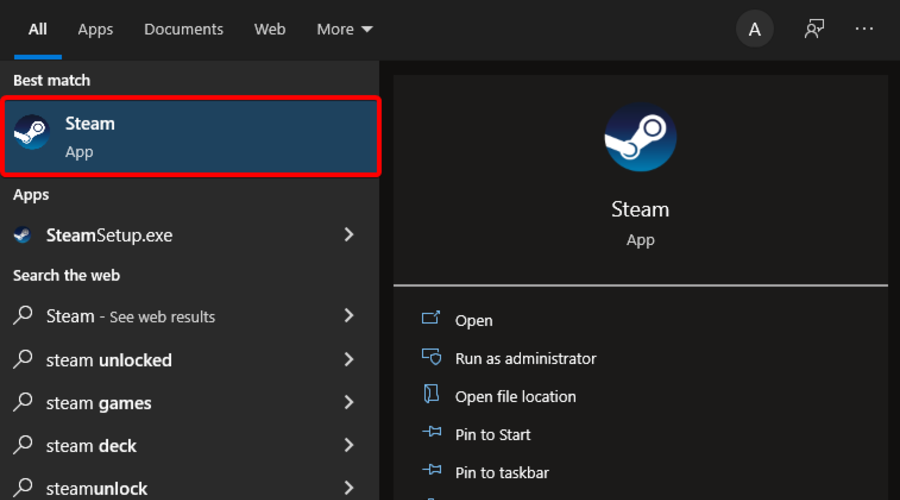
Hit the Windows key, type Steam, then open the desktop client.
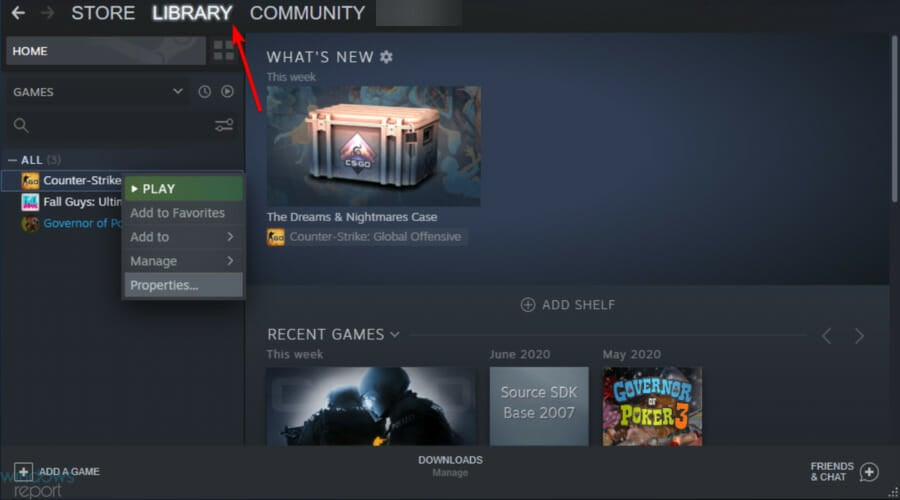
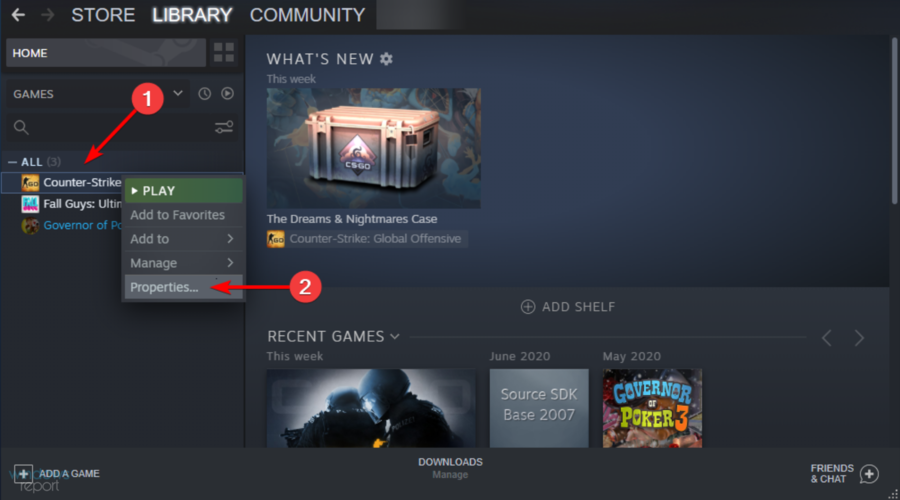
Click on Library.
Right-click on the problematic game and select Properties.
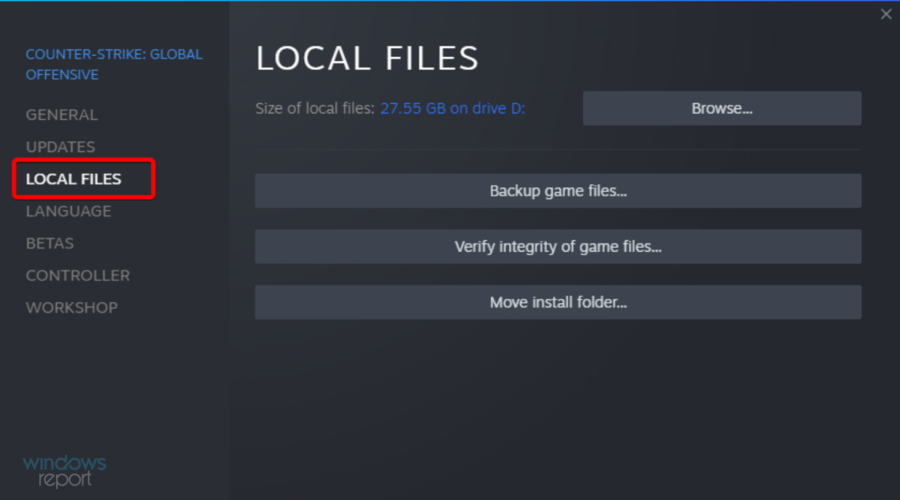
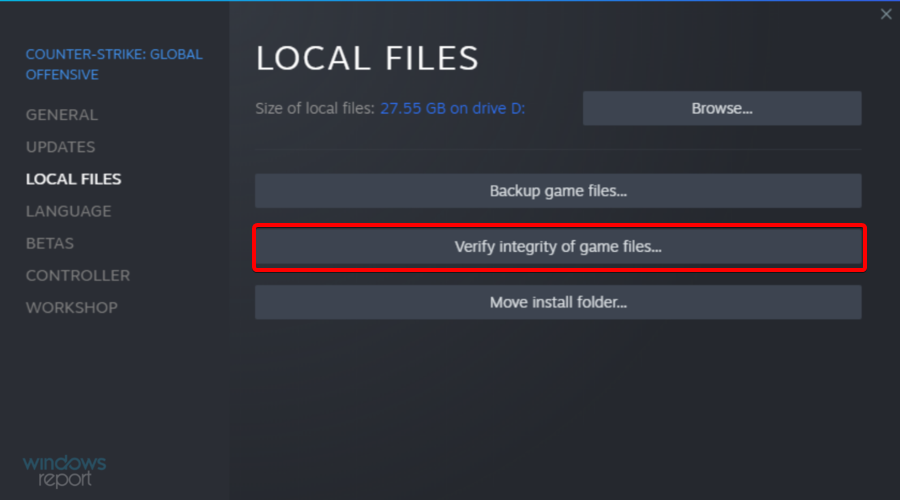
Under Properties, click on the Local Filestab.
Here, click on Verify integrity of game files.
14. Reinstall the problematic game in compatibility mode
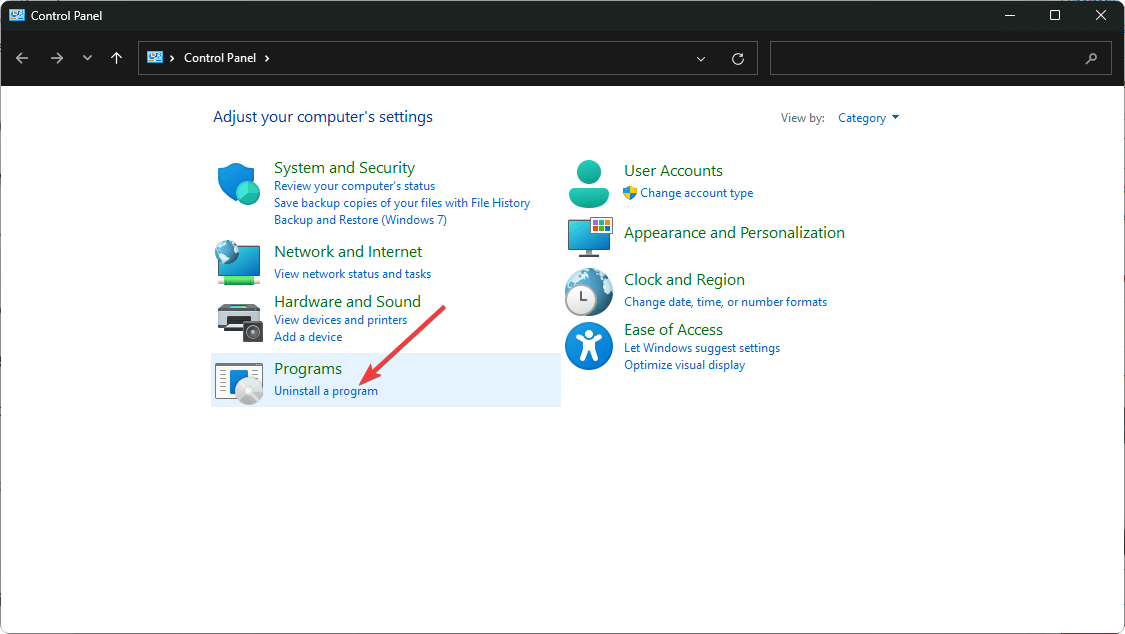
Click on the Start Menu icon, type Control Panel on the search bar, and click Open.
Select Uninstall a Program under Programs.
Find the problematic app, click on it, and select Uninstall.
Confirm uninstallation in the next pop-up.
Install the app again from the official website.
Locate the .exe file of the problematic app usually in one of the following paths depending on your version of Windows: C:\Program Files (x86) or C:\Program Files
Scroll down until you find the program you’re looking for.
Right-click on the .exe file of the program and select Properties.
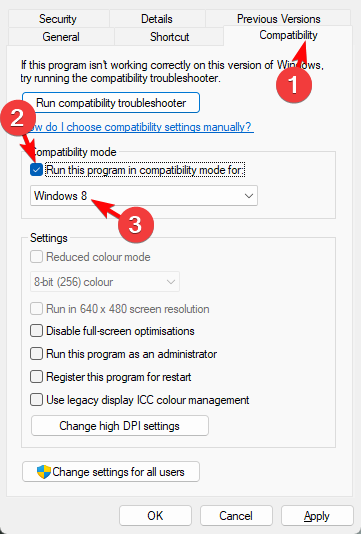
Navigate to the Compatibility tab, check the Run this program in Compatibility mode option, and select Windows 8 from the drop-down menu.
Allow the program to finish installing, then check whether the error persists.
Additional considerations to prevent stuttering
Your connection to the internet matters so where possible, always use an Ethernet cable for a more stable connection and minimize network congestion.
Always check that your game meets the system requirements and update it regularly. Also, update your OS to prevent compatibility issues.
Consider cloud gaming to offload the strain on your graphics card. Your game has a better fighting chance when rendering is not in the hands of an integrated GPU.
Incorporate gaming optimization software to stand in where your hardware won’t. Your games could use the extra push to perform better.
You may need to upgrade some components like your processor after some time especially if you want to maintain a good gaming speed. Still, as long as you’ve got a good gaming laptop, everything else usually falls into place.
Have you had the challenges of game stuttering on your high-end PC? What was the root cause of the issue and how did you handle it? We’d like to get your experience on this so leave your comments down below.
Xbox Game Pass is great if you want to play new games from Microsoft on day one or try some popular titles.
If you want to get Xbox Game Pass Ultimate, now might be a perfect time since it’s available at a massive discount.
Don’t miss your chance to save on Xbox Game Pass Ultimate with this deal
As GameSpot writes, there’s a new promotion available at Target and Stack Social that lets you get 30% off a three-month Xbox Game Pass Ultimate subscription.
Since Microsoft allows you to stack your subscriptions, you can get several subscriptions and combine them to get a yearly subscription with a discount.
That’s not the best part, as these types of discounts are available for both new and already existing users. You can get Game Pass Ultimate 3-month subscription for $35 at the following sellers:
Starfield witnessed months of lull after an all-time high concurrent player count of 330,723 at the time of release. But the numbers are finally picking up, and credit for it goes to the latest Starfield update, 1.11.36!
The update, one of the biggest to date, introduced a wide array of new features, bug patches, and the much-loved Frame Rate Target on Xbox.
Increase in Starfield’s player base reported across PC and Xbox
When I started looking at the numbers, it was evident that the rise was across both Steam and Xbox. While the data isn’t extremely accurate, when a similar pattern emerges for days at a stretch, we can rely on it, as is the case with the increase in Starfield’s player base.
For Steam, I went with SteamDB. Over the weekend after the 1.11.36 update, the concurrent player base rose to 11,933 on Sunday, i.e., May 19, 2024. When comparing it with the previous Sunday’s (May 12) figure of 9047, we get a 31.9% increase. Similarly, for the Sunday before that (May 5), the concurrent player base was 10,139, thus translating into a 17.7% increase.
Starfield’s player count (Image source: SteamDB)
So, based on these figures, Starfield’s PC player base has gone up by roughly 15%-35% over the last few weeks!
As for Xbox, there is no such reliable source of information. But when looking at the Most Popular Xbox Game Pass games, Starfields has made significant progress and now sits comfortably in the top 20. That does indicate a rise in player count!
Besides, a report by TrueAchievement suggests that Starfield registered a 72% increase in Xbox players after rolling out the 1.11.36 update. If that’s true, the developers would be mighty impressed by the results because the update was primarily centred around the Xbox console.
Players find the 60 FPS update surprisingly good
For these new figures to be factually correct, there must be positive activity across dedicated and general forums. That’s where I looked next and found that players were all praises for the latest Starfield 1.11.36 update. Here’s what a few said,
LITERALLY i feel the same. It’s A NEW GAME for me. Im amazed, this got me back. I feel like Starfield got re-released again.
The 60FPS is ungodly jarring. It’s literally like playing an entirely new game.
I’m so happy with the new performance update on console! I’m super immersed now because of the smooth 60fps! Feels amazing! Maybe late, but still a good job, Bethesda! Thank you. Now I can raise my personal rating of this game from 7 to 8!
I quit before the patch & replayed Borderlands 3 & was shocked by how much more sharp & clear it was considering that game was originally made for last generation consoles. Back now after the patch & it’s so, so much better.
Based on the available information, we can conclude that many returned to Starfield after the 60FPS update, and, as a result, there was a rise in concurrent player count.
Now, I can’t help but wonder whether future updates, if as big, could help Starfield regain the lost glory!
ARM devices are becoming a focus for Microsoft, so it’s no wonder that many software developers are optimizing their software for Windows ARM.
Speaking of which, Adobe has pledged to bring its suite of tools to Windows on ARM, so here’s what we know so far.
Windows ARM will finally be able to run Adobe software
If you own an ARM device and use Adobe software, you’ll be pleased to hear that Adobe has pledged better support for Windows ARM devices, as Windows Central reports.
This was announced during the Microsoft AI and Surface event, and Adobe stated that a full range of apps is coming soon to Windows ARM. Here’s the statement from Microsoft:
Together with Adobe, we are thrilled to announce Adobe’s flagship apps are coming to Copilot+ PCs, including Photoshop, Lightroom and Express – available today.
Illustrator, Premiere Pro and more are coming this summer. And we’re continuing to partner to optimize AI in these apps for the NPU. For Adobe Creative Cloud customers, they will benefit from the full performance advantages of Copilot+ PCs to express their creativity faster than ever before.
This is great news for all Adobe users and owners of ARM devices, and we’re happy to see that software developers are starting to accept the ARM platform.
Are you wondering how to get a better ping in Australia? You’re at the right place, then. High ping can be a frustrating barrier to enjoying online gaming, streaming, or video conferencing. The challenge can be even greater for Australians due to distanced servers, poor or crowded networks, background apps, etc.
Luckily, you can reduce your latency in a few simple steps, so stay tuned!
How To Get Better Ping in Australia
Before doing anything else, try these straightforward fixes:
Restart your router, PC, or consoles.
Try servers that are closer to you.
If these didn’t work, proceed to the real guide.
Add Exception on Firewall
Firewalls are essential for protecting your computer from malicious attacks, but they can also interfere with your internet connection and increase your ping. Adding exceptions for your games or applications in your firewall settings can help reduce latency.
To do this:
Type “control panel” on the search button beside the Windows icon then click Enter.
Tap “System and Security.”
Select “Windows Defender Firewall.”
Click “Advanced Settings.”
Pick “Inbound Rules.”
Click “New Rule.”
Tap “Program” then click Next.
Click on the Browse button, select the app you want to exempt, and tap Next.
Select “Allow the connection” then tap “Next.”
Determine when to apply the rule: domain, private, or public. Then click the Next button.
Add name and description, then tap Finish.
Use a VPN
A VPN can help improve your ping by providing a more direct route to the game server to shorten the data travel distance. Ensure you pick a high-quality VPN with servers in strategic locations and low-latency connections.
I’ll use ExpressVPN for this example because it has servers in 105 countries.
Here’s how to do it:
Go to the official ExpressVPN website, create an account, and subscribe.
Download an app that’s compatible with your device.
Launch the app, add your credentials, and tap Continue.
Tap on the three dots and select a location near the game’s server to lower the ping.
If you’re using other VPNs like CyberGhost, select gaming or streaming-optimized servers. They can help you get a lower ping for such activities. Cool, right?
Use an Ethernet Cord
A wired connection provides a direct link to your router, offering more stable and faster data transmission. Wi-Fi connections can be subject to physical obstructions, and signal degradation over distance.
An Ethernet cord, on the other hand, eliminates these variables and ensures a consistent and lower-latency connection.
Minimize Devices on Your Network
If multiple devices are connected to your network and using bandwidth simultaneously, your ping can rise. To reduce congestion, disconnect devices that aren’t in use.
By freeing up bandwidth, more of your internet connection will be dedicated to the activity that requires low ping.
Quit Apps in the Background
Applications running in the background can consume valuable bandwidth and increase your ping. You can close them using your Task Manager. It’ll allow your device to focus on the task at hand, thus reducing your ping.
Here’s what to do:
Press Ctrl + Shift + Esc on Windows to open the Task Manager.
Right-click on the apps and tap End task.
Flush the DNS
Flushing your DNS can help resolve network issues that may be causing high ping. Sometimes, the DNS cache can become corrupted or outdated, leading to connectivity issues.
Follow the below steps:
Type cmd on the search button beside the Windows Icon and tap Enter.
Select “Run as administrator.”
Type ipconfig /flushdnsand hit Enter.
Upgrade Your Router
An outdated router can slow down your internet connection, resulting in a higher ping. Investing in a high-quality model can make a difference.
Look for routers that support the latest Wi-Fi standards like Wi-Fi 6 or 7 and have features designed to reduce latency like Quality of Service (QoS) settings. It’ll allow you to prioritize gaming traffic over other types of data.
Adjust Your Game Settings
In-game settings can also affect your ping and overall performance, but only if your computer is struggling to keep up with the game specs. Lowering your graphics settings can reduce the load on your system. It’ll improve performance and reduce input lag.
Additionally, some games offer specific settings to reduce latency, such as disabling V-Sync or reducing the maximum frame rate.
Experiment with these settings to find the optimal balance between visual quality and performance.
Bonus Tips
If all else fails, try these solutions:
Upgrade your internet plan.
Contact your Internet Service Provider.
Change your ISP.
So, now you know how to get a better ping in Australia! You can try multiple approaches, from optimizing your home network to making smart choices about servers and settings. These steps will help you enjoy a smoother online experience, whether you’re gaming, streaming, or working.
If you have any extra suggestions, feel free to share them in the comments below.
Microsoft Build 2024 is around the corner, but before we hear anything about the new AI features, tools, services, and updates, an online leak showed us what the latest Windows 11 wallpapers look like. They continue using the well-known bloom, but its colors are changed to match the ones used for Copilot.
To get the new Windows 11 wallpaper earlier, some users cropped it from a leak shared by Evan Blass on X. Also, the upcoming Windows Arm-based PCs might have the Copilot-themed Windows 11 wallpaper as default.
The new Windows 11 wallpaper has a dark-mode version
You can use the available dark-mode wallpapers for your OLED displays. In addition, there are a few variations available. One features a blueish shadow around the bloom, one has a reflection, and one is plain.
According to Neowin, some rumors speculate that there is an upcoming AI-based wallpaper effect, and it might interact with your cursor. After all, Microsoft didn’t officially announce that feature. So, it might be just a speculation. Until we receive more official information, take a peek at the new wallpapers.
Default Windows 11 wallpaper
Dark ModeWindows 11 wallpaper
As you can see, the new wallpapers have shades of green, orange, pink, yellow, and blue. They give the original a refreshing touch. However, if you don’t like them and prefer the original one more, you could check the Surface Pro 10 and Surface Laptop 6 for Business wallpapers because they are elegant and have fewer colors.
Ultimately, we need to wait a bit more for Microsoft to announce officially the Windows 11 wallpapers. It will most likely happen in the upcoming days during the Microsoft Build 2024 conference. Also, we are waiting to hear more about the new Surface laptops and AI innovations.
What are your thoughts on the new wallpapers? Let us know in the comments.
Keyloggers are rather dangerous since they can track everything you type, and are used to steal your login information and other sensitive data.
Recently, a new keylogger was discovered on the main page of the Microsoft Exchange Servers, so here’s what you should know.
The new keylogger puts many companies and governments at risk
As Cyber Security News reports, Positive Technologies’ Expert Security Centre has found a hidden keylogger hidden on the main page of Microsoft Exchange Servers.
This is a major security issue that can affect various businesses and governments around the world. The PT ESC team discovered the keylogger while investigating a compromised Exchange Server.
The code was found in the clkLgn() function, and the code stores usernames and passwords in a file that can be accessed via a specific path.
This was achieved by exploiting the ProxyShell vulnerability in Exchange Servers. This allowed hackers to put a keylogger on the main page and use it to gather login credentials.
To do this, hackers altered the logon.aspx file to process data and store it in a file that is accessible remotely.
More than 30 victims were affected including government agencies, educational institutions, corporations, and IT companies.
As for impacted countries, Russia, as well as several countries in Africa and the Middle East were affected by this keylogger.
PT ESC has notified affected organizations and it’s advising them to check for the malicious code on the main page and patch all vulnerabilities.
In addition, administrators are advised to monitor logs vigilantly for unusual activity and to enhance security by using multi-factor authentication.
Amongst the host of changes made at Microsoft in the last few months, the increased focus on Arm-based devices has caught my attention. Windows-on-Arm was never really a huge success, but with the latest push, things are about to change!
Microsoft’s latest releases, Surface Pro and Surface Laptop, are powered by Snapdragon X Elite, an Arm processor.
Talking about Windows-on-Arm during the recent Surface Event, Microsoft highlighted the enhanced capabilities and the efforts it made for app compatibility on Arm PCs.
For apps that are not yet compatible, Microsoft has a new emulator, Prism. According to the Redmond-based tech giant, the Prism translation layer will do for Windows what Rosetta did for Macs. And the success story of Rosetta is well known to all!
Discussing the benefits of the new Prism emulator, the Head of the Windows and Surface team, Pavan Davuluri, said,
We spent a ton of energy here. For apps that are not yet native, we’re now able to take advantage of Prism’s capabilities and solve this with the better energy, platform, and performance efficiency of the emulator.
According to Microsoft’s official blog, the Prism emulator helps apps deliver 2x performance with Snapdragon X Elite compared to the previous generation.
And if they (users) need to run apps in emulation, they’ll experience a significant performance boost with the new Prism emulator for app compatibility and performance. Emulated apps on PCs running the Snapdragon X Elite are more than 2x faster than previous generation Windows Arm devices running Windows 11 22H2.
Third-party app developers have been more than enthusiastic about the idea of Windows-on-Arm, with many already releasing supported app versions. This includes Google Chrome, Brave, Opera, Adobe Photoshop, and Spotify, amongst others.
On its part, Microsoft has released Arm-compatible versions of several native apps, including Teams, PowerPoint, Word, Excel, Outlook, OneNote, and OneDrive.
For the apps that don’t yet support the Arm architecture, you can rely on the new Prism emulator and eliminate performance throttling. On the contrary, it will be a significantly improved experience over the previous generation!
What do you think about Microsoft’s new Prism emulator? Share with our readers in the comments section.
While it was already available in the Preview mode to a handful of users, the Cocreator feature, powered by Dall-E, in Microsoft Paint is now official!
Talking about the feature at the Surface Event 2024, Microsoft explained that it can be used to generate images and doodles in the native Paint app based on text prompts, much like how Copilot or ChatGPT does it.
The best part is that it’s integrated into the Paint app!
Recently, Microsoft introduced a Creativity slider for Cocreator to help users configure how much of the image generation and refining has to be done by AI. The feature is still in the works, and there should be further enhancements in the coming months.
Cocreator in Paint (Image source: Microsoft)
Having used Cocreator for a few months now, I can say that it’s one of the best additions to Microsoft Paint in recent years, and it really enhances the entire experience. Now, I don’t have to start from scratch every time, but can use the AI-powered feature to draw (even better) images.
We know Qualcomm is focusing on the Snapdragon X Series of chips, which will be shipping in June 2024, with Microsoft Copilot +PC in mind.
Intel is also not behind. The tech giant is all set to launch a processor code-named Lunar Lake in Q3 2024, just in time for the holiday season.
The processor will include 80 new laptop designs from more than 20 original PC manufacturers and AI capabilities for Copilot+ PCs. In addition, it will have Copilot+ features, including Recall, which will be available in future updates.
Keeping in mind, the success of Intel Core Ultra processors and with the launch of Lunar Lake, Intel is all set to ship more than 40 million AI-powered PC processors this year.
Michelle Johnston Holthaus, Intel executive vice president and general manager of the Client Computing Group said:
With breakthrough power efficiency, the trusted compatibility of x86 architecture and the industry’s deepest catalog of software enablement across the CPU, GPU and NPU, we will deliver the most competitive joint client hardware and software offering in our history with Lunar Lake and Copilot+.
Intel also added:
Lunar Lake is expected to be a groundbreaking mobile processor for AI PCs with more than 3 times the AI performance compared with the previous generation. With more than 40 NPU tera operations per second (TOPS), Intel’s next generation processors will provide the capabilities necessary for Copilot+ experiences coming to market. In addition to the higher performing NPU, Lunar Lake will also be equipped with over 60 GPU TOPS delivering more than 100 platform TOPS.
Pavan Davuluri, corporate vice president of Windows + Devices at Microsoft said:
The launch of Lunar Lake will bring meaningful fundamental improvements across security, battery life, and more thanks to our deep co-engineering partnership with Intel. We are excited to see Lunar Lake come to market with a 40+ TOPS NPU which will deliver Microsoft’s Copilot+ experiences at scale when available.
Snapdragon X chips are already in the news due to the AI-powered chips, now Intel has joined the race, soon AMD will follow. As of now, Snapdragon X powered devices are estimated to be launched on high prices but there is no such news for Intel.
What do you think about this announcement by Intel? Share your views with our readers in the comments section below.
We know that Microsoft is integrating Copilot in all kinds of services, but it seems that Copilot is slowly making its way to the gaming world.
The first game that will get Copilot support is Minecraft, so here’s what that means for the future of the game.
Copilot AI will be available in Minecraft, here’s what you should know
This information comes from TweakTown and according to them Copilot will act as a digital assistant and provide players with in-game information, help, and tips.
This was shown during the Surface and AI event, and the results are impressive.
It seems that Copilot is using OpenAI’s GPT-4o technology, to communicate with users, meaning that no textual input is required. You can simply ask Copilot a question regarding the game, and it will give you an answer.
According to the presentation, Copilot will be able to analyze your inventory and give you information on where to find certain items in the game.
While this feature looks impressive it will require NPU hardware to run, and we can’t wait to see it in action. Bear in mind that Minecraft is the first game to get this feature, but we’re positive that more will follow.
This isn’t the only Copilot change as Microsoft plans to bring Copilot + PC later this year. If you get a Copilot + PC device, you’ll also get a chance to use the Windows Recall, so don’t miss it.
Microsoft is increasing the number of extensions available for Edge on Android. While previously limited to just three, the company is adding four more in the Canary version. But that’s not all! Edge now allows installing these extensions simultaneously, saving you time. You don’t need to wait for one extension installation to finish before initiating another.
After switching to the Blink/Chromium engine, Microsoft Edge supported installing extensions from the Chrome Web Store on desktops. However, the Chromium-based Chrome doesn’t support extensions on Android.
Microsoft remained silent on this for some time, but then suddenly added extension support to Android, initially offering three extensions: Ublock Origin, Global Speed, and Dark Reader.
How to Enable and Install Multiple Extensions Simultaneously in Microsoft Edge on Android
Launch Microsoft Edge.
Visit edge://flags in the address bar.
Find and enable “Android Extension v2.”
Restart the Edge browser.
Click on the menu and select “Extensions.”
You’ll notice four new extensions here.
Click “Get” on each extension to install them.
These four extensions will be installed simultaneously.
Android Extension V2 when enabled, more extensions are available, and user can install extensions in parallel- Android. edge-extensions-android-v2
More About the New Extensions
Immersive Translate: This appears to be a new extension without many reviews, so use it with caution.
Unhook: This extension improves the YouTube experience by removing recommendations.
Cookie Editor & I Don’t Care About Cookies: Both of these extensions focus on managing cookies within Edge.
Note: Microsoft Edge itself comes with a built-in translation feature on all platforms, including Android.
On May 14, 2024, Siemens Digital Industries Software announced making Siemens Xcelerator available through Microsoft Azure, the Redmond-based tech giant’s native cloud and AI platform. This will enhance the user experience and allow customers access to more of Microsoft’s AI-powered solutions.
Speaking to Siemens Newsroom on the partnership, Tony Hemmelgarn, CEO and President of Siemens Digital Industries Software, said,
Our customers have asked for Siemens to bring our industry leading industrial software to Azure. Siemens and Microsoft have been partners for more than 35 years, and we are pleased to expand this partnership so we can best enable our customers to digitally transform through our joint solutions.
Early on, after the expansion, Siemens will host the native Teamcenter X on Microsoft Azure, allowing teams to save on IT costs, minimize cycle time, boost speed, and facilitate better data control.
Siemens has also confirmed the development of a Copilot for Microsoft 365 plugin for the Teamcenter app on Microsoft Teams. It will allow workers to keep better track of the workload progress, letting them effectively prioritize tasks. The plugin will also help workers generate quick summaries of pending tasks.
While speaking on the expansion of the existing partnership, Nick Parker, President of Industry & Partnerships at Microsoft, said,
As Microsoft and Siemens continue to deepen our collaboration, we are excited to bring the power of Azure AI to the Siemens Xcelerator portfolio to meet growing market demand and help businesses focus on delivering differentiated customer value faster. By harnessing our latest advances with generative AI and Copilot capabilities, together we empower design engineers, frontline workers and teams across business functions and geographies, unlocking new levels of customer-centric innovation and productivity.
Hellblade 2 is a highly anticipated game, and to promote the launch of the game, the Xbox Gear Shop has introduced a few new items.
The store now offers several different clothes and accessories inspired by the game, so let’s check them out.
Hellblade 2 merchandise is now available on the Xbox Gear Shop
This information comes from TheGamer, and to promote the launch of the game, the Xbox Gear Shop has added a few new items to its offer.
The first item is the Hellblade 2 T-shirt that features Senua surrounded by hands. If you need something minimalistic, there’s also a Hellblade 2 hoodie that only features the name of the game and game symbols on the sleeve.
The game is releasing today, and it will be available on the Game Pass, so why not show the developers some love by getting one of these two items?
Acer laptops have evolved significantly over time, offering curated products and catering to a broader user base. And the latest on the list, the Acer Swift 14 AI, a Copilot + PC, is one of their best to date!
Copilot+ PCs are the fastest, most intelligent Windows PCs ever built. With powerful new silicon capable of an incredible 40+ TOPS (trillion operations per second), all–day battery life and access to the most advanced AI models, Copilot+ PCs will enable you to do things you can’t on any other PC.
The Acer Swift 14 AI does all that and a lot more!
About the Acer Swift 14 AI
The Swift 14 AI series comprises two models, one with a Snapdragon X Plus (10-core CPU) processor and another with a Snapdragon X Elite (12-core CPU). The series comes with a built-in NPU (Neural Processing Unit), delivering 45 TOPS.
The NPU plays a critical role in boosting security and privacy by running AI-powered tasks locally on the PC instead of processing them on external cloud servers.
An Arm-based PC, theSwift 14 AI supports all of Microsoft’s built-in AI features like Copilot, Recall, Cocreator, Live Captions, and video call enhancements.
Besides, the laptop offers a wide array of built-in AI-powered solutions curated by Acer, including options to quickly streamline settings, automatic framing, advanced background blur, AI noise cancellation, and sensors that automatically lock the laptop when you step away for enhanced privacy and battery life.
Swift 14 AI (Image source: Acer)
The series comes with storage and RAM options up to 1 TB and 32 GB, respectively, with 136 GB/s memory bandwidth and 8533 MT/s memory transfer rate. And with a 75Wh battery, the laptop will last you an entire day on a single charge!
Coming to the Acer Swift 14 AI’s design, it has a 14.5″ display, is sleek, lightweight and features an aluminum chassis. Besides, you can rotate the display around the hinges by 180°. Touchscreen options for the laptop are also available.
As for security and a seamless log-in experience, the laptop features an IR Facial Recognition Camera and fingerprint scanner. Just set up Windows Hello, and you are good to go!
Initially, in June’24, the Acer Swift 14 AI will be introduced in Europe and the Middle East at a price of €1,499. It’s slated to hit the shelves in North America, priced at $1,099, a month later in July.
Not long ago, the U.S. revoked Intel & Qualcomm’s licenses for exporting chips to Huawei. The reason behind the ban is to slow down China’s technological advancement. This decision led Huawei to release a new processor named Kirin 9000C with its new Qingyun W515x computer.
Qingyun W515 specifications
The new Qingyun W515 is a slimline OEM PC made for businesses. According to Tom’s Hardware, it has a slim Micro-ATX form factor for low-profile PCIe cards and comes with three storage options.
The first configuration has 8GB RAM and a 256GB SSD, the second one has 8GB RAM and a 512GB SSD, and the third one has 16GB RAM and a 512GB SSD. In addition, all of them include a single NVMe M.2 PCIe slot.
Huawei didn’t mention anything else about its Kirin 9000C CPU specifications. Yet, some rumors say that the Kirin division is working on a processor capable of rivaling Apple’s M3. So, even with the U.S. regulations, Huawei might have found a way to improve the performance of its home-made processors.
The computer tower has three USB Type A 3.2 Gen 1 ports, a Type-C port, an audio jack, and a disk drive on the front, and has three audio jacks, a single serial port, VGA, HDMI, four USB Type-A 3.2 Gen 1 ports, and an ethernet slot on the back.
In addition, the case has three low-profile slots, but the motherboard has only one PCie x1 slot. So, you can only connect a small single- or dual-slot low-profile 1x compatible PCIe cards.
Is Kirin 9000C better than its predecessor?
Kirin 9000C is an octa-core processor with 12 threads and a 2.48 frequency. It clocks up to 3.1 GHz and features an Arm-based Mali-G78 integrated GPU. Also, it might use SMIC’s 5nm tech. However, compared to its predecessor, Kirin 9000, this model has a lower GPU performance and is slower.
Ultimately, this is most of what we know about Huawei’s new Qingyun W515 computer and the Kirin 9000C processor. We will get more details about the PC soon. Hopefully, we will see some demos or benchmarks to know what it is capable of.
What are your thoughts? Will Huawei manage to create processors that rival Apple’s M3? Let us know in the comments.
This update addresses an issue that affects a Microsoft Entra ID account. Devices cannot authenticate a second one. This occurs after you install the Windows update, dated November 13, 2023
This update addresses an issue that affects a server after you remove it from a domain. The Get-LocalGroupMember cmdlet returns an exception. This occurs if the local groups contain domain members.
This update addresses an issue that affects a Windows Presentation Foundation (WPF) app. It stops responding.
This update addresses an issue that displays a hidden window. Its title bar has no content and no client area. This occurs when you share your screen using certain apps.
This update addresses an issue that affects an IPP-over-USB printer. After you delete it, it still appears as not available in Control Panel.
This update addresses an issue that affects TWAIN drivers. They might stop responding when you use them in a virtual environment.
This update brings Country and Operator Settings Asset (COSA) profiles up to date for certain mobile operators.
This update addresses an issue that affects the Share button on USB controllers. It might not work with Game Bar.
This update addresses an issue that affects Unified Write Filter (UWF) Windows Management Instrumentation (WMI) API calls. Calls to shut down or restart the system throw an access denied exception.
If you are still not a Windows Insider, you can follow this detailed guide to join the program and enjoy the latest updates before they are released to the public. Microsoft also released the Release Preview builds for Windows 11 22H2 and 23H2 last week. To learn more about the update on Windows 11, you can check out this article.
What do you like about Microsoft’s latest Insider Preview Build? Share your views with our readers in the comments section.
Recently, Microsoft released Windows 11 Insider Preview Build 26120.670 (KB5037869) to the Dev Channel. This small update, which includes a few improvements in File Explorer, addresses issues like Windows updates not completing.
Here is the list of changes and improvements mentioned in the release notes:
Changes and Improvements gradually being rolled out to the Dev Channel with toggle on
[General]
This update includes a small set of general improvements and fixes that improve the overall experience for Insiders running this build on their PCs.
Fixes for everyone in the Dev Channel
[Other]
Fixed an issue where the Network Locations header was missing in the This PC section of File Explorer.
This update affects next secure record 3 (NSEC3) validation in a recursive resolver. Its limit is now 1,000 computations. One computation is equal to the validation of one label with one iteration. DNS Server Administrators can change the default number of computations. To do this, use the registry setting below.
This update addresses an issue that might affect domain controllers (DC). NTLM authentication traffic might increase.
This update addresses an issue that affects the installation of a Windows update. It fails to complete. This occurs when you have to restart your device more than once.
This update addresses an issue that might affect Virtual Secure Mode (VSM) scenarios. They might fail. These scenarios include VPN, Windows Hello, Credential Guard, and Key Guard.
The Redmond tech giant also mentioned that after this update, users may find that the Windows + W shortcut may not work correctly when opening the Widgets board.
If you are still not a Windows Insider, you can follow this detailed guide to join the program and enjoy the latest updates before they are released to the public.
What do you like about Microsoft’s latest Insider Preview Build? Share your views with our readers in the comments section.
When replying to an OMEv2 encrypted email from Outlook Desktop, many users complained that they got Microsoft Outlook was not able to create a message with a restricted permission error.
The issue has been reported starting with Current Channel Version 2402 (Build 17328.20142) and higher. One of the users, Andre Taylor_BITS on Microsoft Community said:
Within my organization we have Information Rights Management configured for users to use the Encrypt button in Outlook to encrypt emails. One of the users in our organization is unable to encrypt any messages.
When the Encrypt drop-down menu is opened, the user is provided with only one option “Set permissions”. Upon select the option the following error message is displayed “Outlook was not able to create a message with restricted permission“.
Please advise.
Many Microsoft moderators tried to help users with the issue, but the problem persists. Now, Microsoft has acknowledged the issue and mentioned that they have been working on fixing it so you need to wait for sometime.
Meanwhile, if you want to use Outlook Desktop to reply to encrypted emails urgently, the Redmond tech giant has offered a temporary solution for this problem, here’s what is mentioned on the official support page:
Open a Command Prompt window from the Windows search box, type Command Prompt, right-click Command Prompt, and select Run as administrator.
Paste the commands below into the Command Prompt window and press Enter after each:
cd %programfiles%\Common Files\Microsoft Shared\ClickToRun
officec2rclient.exe /update user updatetoversion=16.0.17231.20236
If you don’t want to use this one, you can reply to the encrypted emails in the new Outlook or Outlook Web Access, as they don’t have this issue.
Which workaround worked for you? Share your opinions with our readers in the comments section below.