Xbox Insiders on the Alpha ring to get a new build with fixes for reported issues

The Xbox team are releasing a new build to Xbox Insiders on the Preview Program. Those in the Alpha ring will receive this build 2AM GMT (2PM PST) that delivers fixes for a number of issues.

Here is the changelog:

• My Games and Apps

  • Fixed an error that resulted in content that was installing/downloading not resuming after a reboot.
  • Certain games when installing had been failing to run on first launch until a reboot – this is now fixed.

• Party Chat

Reliability fixes to improve the time it takes for users to join a Party Chat session who had been experiencing long join times.

• Pseudo Localization/Language Translation String Fixes

Users will no longer see incorrect language translations in the build. If you do encounter any incorrect strings please report a problem.

• Profile

Fixed an issue which caused the incorrect profile color to display after powering on the console.

There are also some known issues (and workarounds) to be weary of too:

• Games Installation

Games that are installed fail to launch. Workaround: If the games are installed to an external drive please copy the game to the internal drive or attempt to delete the title and redownload to fix the launch error.

• Display

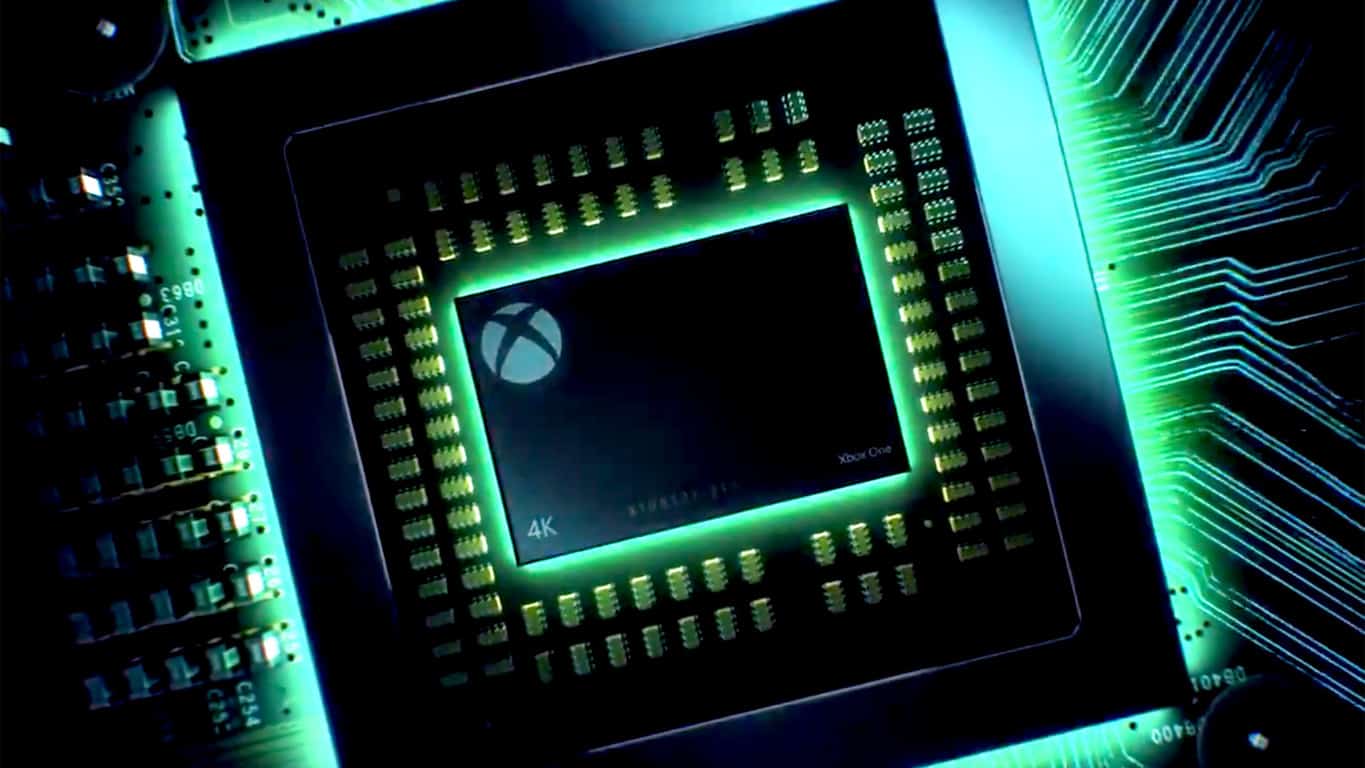
We are investigating the inaccurate RGB colors that have been reported when displaying in 4K HDR mode when playing a UHD disc.

• Tournaments

• The left and right navigation for selecting date and time during Tournament creation is currently reversed when the console language is set to Arabic or Hebrew.

• Left and right navigation in Tournament twists is reversed when the console language is set to Arabic or Hebrew.

• Left and right navigation in the bracket view of Tournaments is reversed when the console language is set to Arabic or Hebrew

• Avatars on Home

Users wishing to represent themselves as an avatar can do so by changing their settings under My profile > Customize profile > Show my avatar.

Hopefully this build will deliver a smoother experience to those in the Alpha ring. Let us know in the comments below once you’ve had chance to give the build a run!

How to fix PUBG bugs on Xbox One

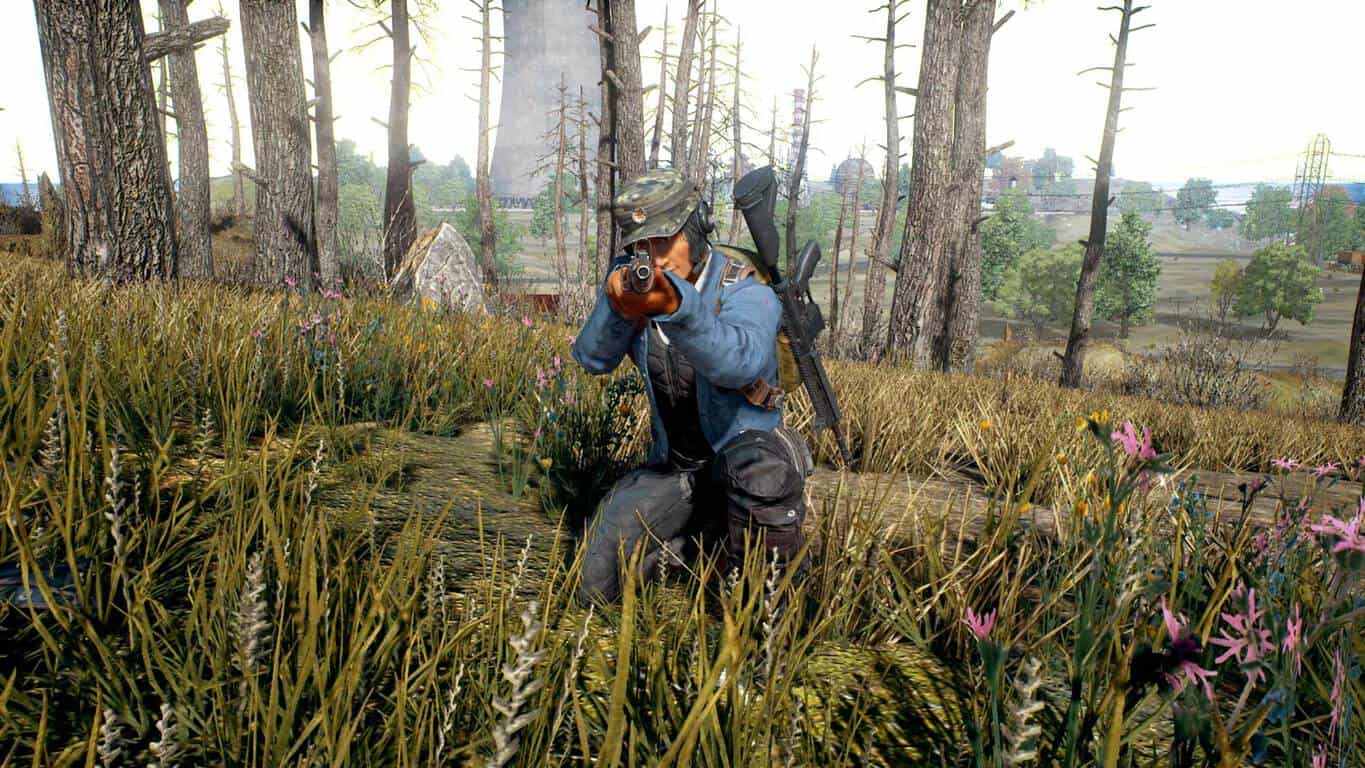
PlayerUnkown’s Battleground is the ultimate multiplayer online battle royale game. The title recently reached an impressive number of 4 million players on Xbox One.

While PUBG is indeed a very addictive and challenging game, it also tests players’ patience and troubleshooting skills. From time to time, players encounter various issues that limit their gaming experience.

In this article, we’re going to show you how you can fix common PlayerUnkown’s Battleground bugs on Xbox One and resume your gaming sessions as quickly as possible.

You can use the guide below to fix the following issues: FPS drops, lag, crashes, launch problems, stutter, memory issues, audio bugs, and more.

Fix common PUBG issues on Xbox One

FIX pubg XBOX

First things first, try restarting your console. Press and hold the Xbox button on the console for about 10-15 seconds. The console should turn off. Now, press the same button to turn it on and check if the problem persists.

If this quick workaround didn’t help, continue the troubleshooting process using the solutions below.

1. Install the latest PUBG/ Xbox One updates

The game received a series of important patches lately, aimed at fixing many game issues and errors. Make sure that you installed the latest PUGB updates on your console so as to take advantage of the latest fixes and improvements.

At the same time, don’t forget to update your console as well. Press the Xbox button to launch the guide, navigate to Settings, go to All settings, select System and then select Updates. Now, select the option ‘Keep my console up to date’ to install the latest Xbox One updates.

2. Test network connection

A faulty or unstable network connection may also prevent your from enjoying a smooth PUBG gaming session on your Xbox One.

Open the guide by pressing the Xbox button. Navigate to System > Settings > Network > Network settings. If there are any known network issues, they’ll be listed in the middle of the screen.

Go to the Network settings screen and select Test network connection. If you get an error message after running this test, use the  Xbox One Network Connection Error Solution to troubleshoot it.

3. Refresh your profile

By that, we mean removing and adding your profile back. If the PUBG issue occur mainly on a particular user profile, the data and files associated with it may be corrupted.

Open the guide > go to System > Settings > Account > Remove accounts. Select the problematic account (the one that’s experiencing PUBG gameplay issues) > select Remove to confirm.

Refresh your account data by downloading your profile again. Open the guide and select your gamerpic, scroll down and select Add new. Now enter the email address and password that you use for the account that you just removed. Be careful not to select the option ‘Get a new account’ otherwise your will create a brand-new account.

Follow the on-screen instructions to set up your account. Once you’re done, launch PUBG again and check if the issue persists.

4. Clear the local save

You can also delete the local save to fix corruption issues. Here are the steps to follow:

  1. Open the guide by pressing the Xbox button, and go to My games & apps. Select PUBG and press the Menu button on the controller.
  2. Select Manage game, go to Saved Data and select the saved data for your gamertag.
  3. Press A on your controller > select Delete > restart your console.

5. Reset Xbox One

If restarting and updating the console didn’t help, try resetting it. Here are the steps to follow:

  1. Turn off your console > unplug the power cord > wait for one minute
  2. Plug the power cord back in
  3. Press and hold the BIND button and the EJECT button on the Xbox One > press the Xbox button on the console.
  4. Continue holding the BIND and EJECT buttons for about 15 seconds.
  5. You should hear two  power-up tones > you can now release the BIND and EJECT buttons
  6. The Xbox One console should boot up > the Xbox Startup Troubleshooter should now be available on the screen
  7. Use the D-pad and A button on your controller > select Reset this Xbox.
  8. Don’t forget to select the option ‘Keep games and apps’
  9. Wait until the reset process finishes.

We hope that these 5 solutions helped you fix the issues affecting PUBG so that you can enjoy a smooth gaming experience.

RELATED STORIES TO CHECK OUT:

How to fix NVidia driver error code 37 for good

Driver errors are usually caused either by hardware problems, or new installations, but they can also be caused by corrupted drivers and other system resource problems.

When you get NVIDIA driver error 37, it may be due to a temporary problem with the hardware, or you made a change in your computer’s device manager.

There are solutions to help fix this error and this article looks at some of them.

FIX: NVidia driver error code 37

  1. Restart your computer
  2. Run the Hardware and Devices troubleshooter
  3. Roll back driver
  4. Update driver
  5. Uninstall and reinstall driver
  6. Perform a System Restore
  7. Boot in Safe Mode with Networking
  8. Replace your hardware

Solution 1: Restart your computer

Sometimes the best way to fix issues you may not know solutions to is to restart your computer. If this doesn’t fix the NVIDIA driver error code 37 on your computer, try the next solution.

Solution 2: Run the Hardware and Devices troubleshooter

The Hardware and Devices troubleshooter checks for commonly occurring issues and ensures any new device or hardware is correctly installed on your computer.

Here’s how to do this:

  • Right click Start
  • Select Control Panel
  • Go to View by option on the top right corner
  • Click the drop down arrow and select Large icons
NVidia driver error code 37
  • Click Troubleshooting
NVidia driver error code 37
  • Click Hardware and Sound
NVidia driver error code 37
  • Click Configure a Device
  • Click Next to run the troubleshooter

Follow the instructions to run the Hardware and Devices troubleshooter.  The troubleshooter will begin detecting any issues that may be causing NVIDIA driver error code 37.

Solution 3: Roll back the driver

  • Right click Start
  • Select Device Manager
NVidia driver error code 37
  • Select Sound Video and Game controllers and click to expand the list then choose the NVIDIA card.
NVidia driver error code 37
  • Right click the on NVIDIA card, and then select Properties.
  • In Properties, select the Driver tab
  • Select Roll Back Driver, then follow the prompts
NVidia driver error code 37

If the button is unavailable, that means there’s no driver to roll back to.

If Windows can’t find a new driver for your NVIDIA card, visit your computer manufacturer’s website to download the latest driver.

If you don’t have any driver updates available, right-click on the graphics card driver and click Uninstall, then restart your computer.

Solution 4 – Update drivers

4.1. Update drivers from Windows Update

  • Click Start
  • Select Settings
NVidia driver error code 37
  • Select Update & Security
NVidia driver error code 37
  • Select Windows Update
NVidia driver error code 37
  • Click Check for updates

4.2. Update drivers from manufacturer’s website

Go to NVIDIA manufacturer website, check for the latest Windows 10 drivers available and then install it based on the instructions on the website.

How to update drivers from manufacturer’s website:

  • Right click Start
NVidia driver error code 37
  • Select Device Manager
NVidia driver error code 37
  • Expand the Sound, Video and game controllers option
NVidia driver error code 37
  • Right click on the NVIDIA card
  • Click Update driver software
  • Restart your computer

4.3. Update drivers automatically

It is important to mention that downloading and updating drivers manually can permanently damage your system by choosing and installing the wrong driver versions. In order to prevent that from the start, we strongly suggest to do it automatically by using an automatic tool.

A dedicated third-party tool will help you not damaging your PC by downloading and installing the wrong driver versions. After several tests, our team concluded that Fortect Driver Updater is the best-automatized solution.
⇒ Get Fortect Driver Updater

Solution 5: Uninstall and reinstall NVIDIA driver

Driver files should be uninstalled before you update to newer drivers, or when removing an older NVIDIA card and replacing with a new one. Here’s how to uninstall NVIDIA drivers from your system:

  • Right click Start
NVidia driver error code 37
  • Select Control Panel
NVidia driver error code 37
  • Double click Add/Remove Programs icon
  • Select NVIDIA Windows Display Drivers
  • Click Change/Remove or Add/Remove button
  • Confirm that you wish to continue with the uninstall
  • A prompt will appear asking if you want to delete all saved nView profiles. Clicking Yes will delete all nView software and saved profiles. Clicking No will remove nView software but the profile files are saved in WindowsnView directory on your hard disk.
  • Once driver files have uninstalled, restart your computer to complete uninstallation
  • Turn on your computer and reinstall NVIDIA driver

ALSO READ: Fix: DRIVER_VERIFIER_DETECTED_VIOLATION error in Windows 10

Solution 6: Perform a System Restore

If you get a Windows 10 browser not working problem on your computer, use System Restore to create restore points using the steps below and see if it helps:

  • Click Start
  • Go to the search field box and type System Restore
  • Click System Restore in the list of search results
  • Enter your administrator account password or grant permissions if prompted to
  • In the System Restore dialog box, click Choose a different restore point
NVidia driver error code 37
  • Click Next
  • Click a restore point created before you experienced the problem
  • Click Next
  • Click Finish

Restoring doesn’t affect your personal files. It however removes apps, drivers and updates installed after the restore point was created.

To go back to a restore point, do the following:

  • Right click Start
  • Select Control Panel
NVidia driver error code 37
  • In the control panel search box, type Recovery
  • Select Recovery
NVidia driver error code 37
  • Click Open System Restore
  • Click Next
  • Choose the restore point related to the problematic program/app, driver or update
  • Click Next
  • Click Finish

Solution 7: Boot in Safe Mode with Networking

Safe Mode with Networking starts Windows in safe mode, including the network drivers and services you need to access the internet or other computers on the same network.

Follow these steps to boot into safe mode with networking:

  • Restart your computer
  • When the sign-in screen is displayed, hold down SHIFT key while you select Power then Restart
  • After the computer restarts to Choose an option screen and select Troubleshoot
NVidia driver error code 37
  • Select Advanced options
NVidia driver error code 37
  • Click Startup Settings
NVidia driver error code 37
  • Click Restart
  • Once it restarts, you will see a list of options. select 5 or F5 for Safe Mode with Networking

Once you’re in safe mode, you can a System File Checker (SFC) scan

How to run an SFC scan

A System File Checker scan checks all protected system files, and then replaces the incorrect versions, with the genuine, correct Microsoft versions.

Here’s how to do this:

  • Click Start
  • Go to the search field box and type CMD
  • Right click Command Prompt and select Run as Administrator
NVidia driver error code 37
  • Type sfc/scannow
NVidia driver error code 37
  • Press Enter
  • Restart your computer

Do the following to exit Safe Mode:

  • Right click Start button
NVidia driver error code 37
  • Select Run
NVidia driver error code 37
  • Type msconfig
  • A pop up will open
  • Go to the Boot tab
NVidia driver error code 37
  • Deselect or uncheck Safe Boot option box
  • Restart your computer

Solution 8: Replace hardware

If none of the above solutions worked, then you may need to replace the NVIDIA card as it has the driver error code 37. It may also be that your device isn’t compatible with the Windows version on your computer hence error 37, if you have a newer hardware on an old OS.

Let us know if any of the above solutions worked for you by leaving a comment in the section below.

RELATED STORIES TO CHECK OUT:

PUBG boasts over 4 million players on Xbox One

Despite the bumpy road, Player’s Unknown Battlegrounds has hit the historic milestone of hosting over 4 million players on a single console.

As of today, 4 million Xbox One players are the lucky bunch of gamers who are the beneficiaries of rounds of optimizations, bug fixes, and other content updates.

With that being said, the Xbox team wants to further promote the game by offering currently invested gamers new in-game bonuses.

To show the community our appreciation for your support and feedback, we are rewarding players with 30,000 Battle Points to purchase cosmetic crates in the game. Anyone who has purchased or purchases PUBG on Xbox One and has created a character before January 31 at 12AM PST will receive this bonus, so if you’ve been waiting to jump onto the island, now is the perfect time to become a part of our growing community on conso le. Bonus Battle Points will be delivered and appear directly in players BP accounts (right below their gamertag) after February 1, 2018 at 12AM PT.

As an Xbox One exclusive (timed presumably), gamers should expect to see additional promotions similar to these throughout the year and the marketing teams seem pretty excited about the title.

We will continue to build on the foundation we’ve laid with PUBG on Xbox One with the feedback received from the community and we encourage you to continue in your pursuit of chicken dinners! Be sure to stay tuned to Xbox Wire and Major Nelson for all the latest PUBG news. See you on the battleground!

Even though the gifting season has come and gone, PUBG still ranks as one of the Xbox’s most gifted titles to date. Perhaps, you can convince a generous friend or family member to get you started soon and join this round of game giveaways.

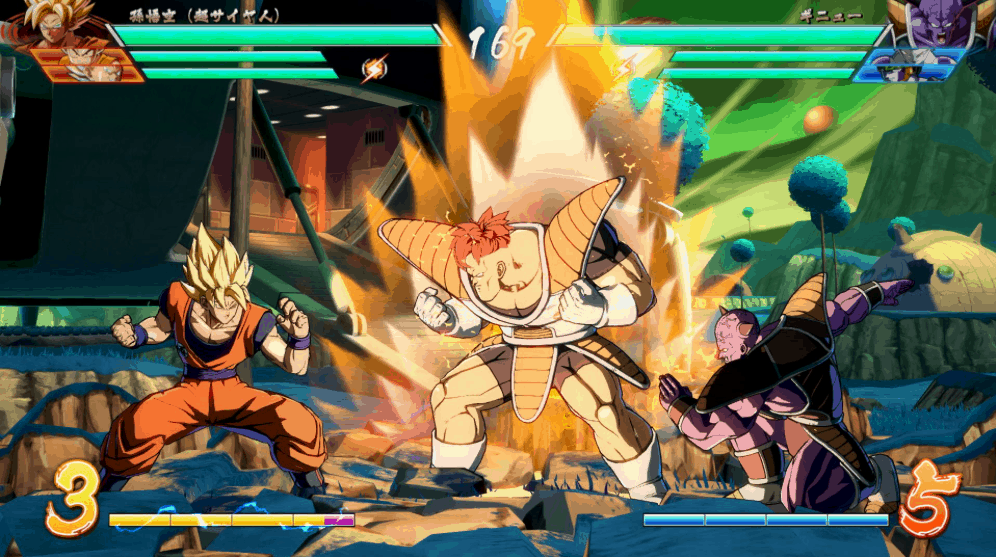
Enhanced for Xbox One X, Dragon Ball FighterZ arrives on Xbox One family of devices

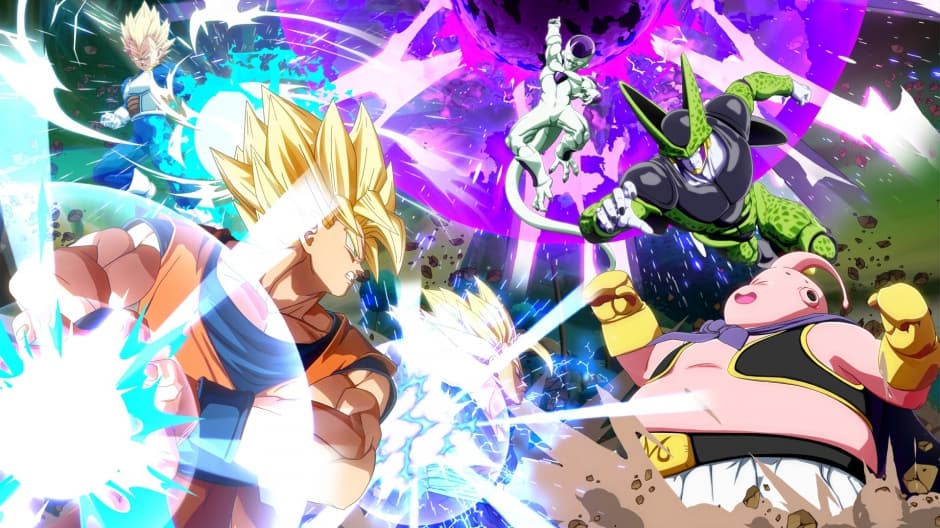
Dragon Ball FighterZ, the much-anticipated fighting game based on the popular manga series, is now available on the Xbox One. Fighting games may have a pretty niche audience these days, but Dragon Ball FighterZ gained a lot of hype since Microsoft showed the first game trailer during its E3 2017 conference.

“With amazing looking character models and an easy to learn but hard to master fighting gameplay, Dragon Ball FighterZ looks to be the definitive fighting game experience for fans of the “Dragon Ball” anime franchise,” a blog post on Xbox Wire reads. The game is powered by the Unreal Engine 4 and it runs at 60 FPS on all Xbox One consoles with higher resolution graphics (not true 4K) on the Xbox One X.

Dragon Ball FighterZ has a 87 score on Metacritic at the time of our writing, making it the best Xbox One release of 2018 so far. The standard edition of the critically-acclaimed game is a $59.99 purchase, and you can get it from the link below.

Windows 10 Photos app now lets you “Choose a star” in your automatically generated videos

Last year, Microsoft introduced a new “Story Remix” feature in the Windows 10 Photos app, which helps users create short videos with cool transitions, background music and more. This feature was unveiled during Build 2017, and shipped to all Windows 10 users with the Fall Creators Update.

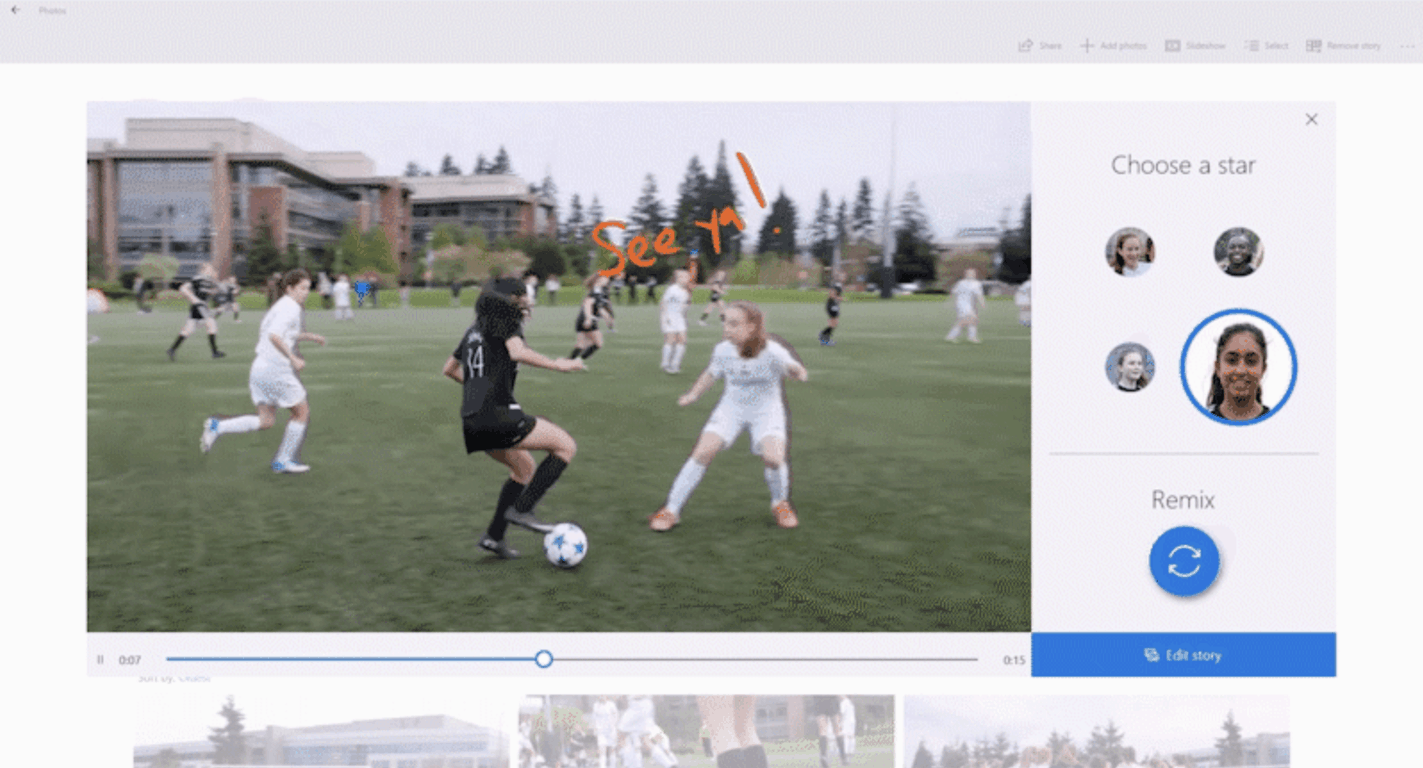
Yesterday, the latest update for the Photos app introduced a new “Choose a Star” feature in Story Remix. This is something that Microsoft first demoed back at Build 2017, and it lets you put the spotlight on the person of your choice in your automatically generated videos.

“With today’s update, you can take your filmmaking to the next level by selecting yourself or nominating someone to be the star in your automatically generated creation,” Microsoft explained in a blog post. “Photos will then build a video around the person you choose, pulling in relevant photos and videos, zooming in on your star, and choosing an appropriate theme.” You can see how it works in the GIF below:

Choose a star

To try this new Story Remix feature, you’ll have to create an “Automatic video with music” in the Photos app and then select the photos and videos you want to see in your story. You can then automatically customize your video by clicking the “Remix it for me” button, and the option to choose the star of the film should appear just below.

We’re glad to see Microsoft delivering on its vision for Story Remix it showed us last year. The Photos app is already one of the best UWP apps the company created for Windows 10, and it keeps adding new features at a regular pace.

LEGO Indiana Jones 2 and Split/Second head to Xbox One via Backward Compatibility

Some new games have entered the fray as Backward Compatible titles on the Xbox One. This time around, Lego Indiana Jones 2 and Split/Second are joining the Xbox One library, presenting a relatively diverse set of genres for gamers that want a taste of something different.

As always, the process for Backward Compatible titles is very easy. Just pop in your existing copy of the game, and your Xbox One is going to do the rest of the work for you. If you want a full account of the hundreds of Backward Compatible games, you can check Major Nelson’s handy list right here.

Microsoft reportedly working on new lightweight version of Windows 10 code-named Polaris

When Microsoft officially unveiled Windows 10 back in September 2014, the company said that it would be “the last version of Windows.” At the time, it wasn’t exactly clear if this meant that there would be no “Windows 11,” or if Microsoft was just referring to Windows as a service.

As it turned out, we saw Microsoft introduce several new Windows 10 SKUs last year: there was Windows 10 S, which can only run Windows Store apps, as well as Windows 10 Pro for workstations. These are just different flavors of Windows 10 for PC, and even the slightly locked down Windows 10 S isn’t really much simpler to use compared to a standard Windows 10 PC, or a Chromebook.

But that doesn’t mean that Microsoft isn’t interested in radically simplifying how Windows 10 works, and get rid of all the legacy stuff that make the OS too complex, too slow, and too battery hungry. Android beat Windows as the dominant OS for Internet usage last year, and Microsoft certainly won’t let Windows 10 sit on the sidelines in the near future.

Last year, we learned that Microsoft was reportedly working hard on making Windows 10 more modular, an effort that has been codenamed “Windows Core OS.” This is a necessary work for creating new form-factors powered by Windows, such as the foldable mobile device that we’ve already seen in many patents.

According to a new report from Windows Central, Windows Core OS could be the base of two new operating systems from Microsoft: Andromeda OS, which will apparently power the company’s rumored foldable mobile device, and Polaris, a streamlined version of Windows 10 for PCs.

According to my sources, Microsoft is building a brand new version of Windows 10 for PC devices like desktops, laptops and 2-in-1’s. This new version is entirely built on UWP, making it Microsoft’s first truly modern Windows OS for the traditional PC form factor. It strips out old legacy components and features in favor of a lighter OS with excellent battery life and performance.

Compared to Windows 10 S, Polaris will reportedly be more lightweight and modern, dropping the current Windows Shell, the legacy Control Panel and more. Polaris will be built entirely on Microsoft’s UWP technology (which also means a UWP-based File Explorer), but Microsoft said to be working on bringing support for legacy Win32 apps “when required.”

Some legacy Windows 10 features.

Polaris will reportedly coexist with standard Windows 10. “Existing Windows users won’t be able to upgrade or switch to Polaris, nor will eventual Polaris users be able to upgrade to traditional Windows 10 Pro,” the report says. Presumably, Polaris will be able to deliver much better battery life thanks to removal of all legacy features, and it should also be as easy to use as an iPad or a Chromebook.

Microsoft has already tried several times to simplify Windows, starting with Windows 8/RT and now Windows 10 S. But as you know, the company never managed to get rid of all the legacy stuff, including the massive library of Win32 apps. Polaris will apparently be a fresh start that really pushes Microsoft’s UWP platform forward, but could it appeal to consumers?

Most people now associate Windows with a desktop OS that gives you complete freedom: That’s why many people still don’t consider iPads or Chromebooks as “real PCs.” Yes, Windows is complex, but it’s one of the most versatile operating systems in the market, which is one of the reasons why it remains relevant today.

With the rise of Chromebooks and mobile devices though, Microsoft may well not have the choice to not drastically change how Windows works. According to Windows Central, Polaris may not surface until 2019, assuming Microsoft doesn’t cancel it at some point.

Xbox One’s Anthem video game – delayed until next year?

There are reports that BioWare’s upcoming Xbox One game, Anthem, will be delayed until a 2019 release. Not great news for Xbox One gamers expecting Anthem’s original Fall 2018 release date, but not entirely unexpected. Anthem was originally announced at E3 2017 and As noted by Gamesindustry.biz report, BioWare insiders mentioned to Kotaku that the original Fall 2018 release date was “never realistic.”

Take a look at Anthem on Xbox One in the video below.

Anthem is set to be released on Xbox One first, no later than March 2019, with versions for Windows 10 PCs and other platforms later in the year. In addition to Anthem, BioWare is working on another installment of Dragon Age, and Star Wars: The Old Republic MMO. Electronic Arts (EA), which owns BioWare, is still dealing with the fallout from the Star Wars Battlefront II loot crate fiasco, so the company needs to make sure that it doesn’t further alienate players with a poor game release. BioWare will have to deliver a solid game experience with Anthem or face a possible restructuring by EA.

Windows 10 Fall Creators Update already on most PCs, AdDuplex stats show

The AdDuplex report for January 2018 is out, and it shows that the Windows 10 Fall Creators continues its propagation at a steady pace. According to AdDuplex’s latest data collected over the day of January 22, 74.3% of Windows 10 PCs are now running the Fall Creators Update (up 20.7% points). Remember that AdDuplex collects data from apps connected to their ad network, so only PCs with at least one of those apps running is counted.

“Fall Creators Update is growing rapidly and you can see the difference in ascend speed compared to the Creators Update,” highlighted AdDuplex. Indeed, it took six months for the Creators Update to be installed on 3 out of 4 Windows 10 PCs, and the Fall Creators Update achieved this in nearly half the time.

Looking closer at the Fall Creators Update propagation by PC manufacturer, AdDuplex’s data shows that Dell, Asus, Acer, Toshiba and more all surpassed Microsoft this month. 74.2% of Microsoft’s Surface devices are already running the latest Windows 10 version, though it’s worth noting that the Surface Laptop and the older Surface Pro 3 are lagging behind. Speaking about the Laptop, AdDuplex said that “It is unclear if there’s some model-specific issue or if this is somehow related to Windows 10 S.”

Two weeks ago, Microsoft announced that the Fall Creators Update was now “fully available,” meaning that it’s now being pushed to all compatible devices. “The Fall Creators Update was the fastest Windows 10 release to reach 100M devices, all while achieving higher customer satisfaction ratings compared to prior updates,” the company also said at the time.

New Xbox One S 1TB PUBG bundle briefly appears on Amazon

Player Unknown’s Battlegrounds (PUBG) is currently one of the most popular multiplayer games on Xbox One, but Microsoft may have bigger plans for the title. Indeed, the folks on Reddit recently noticed that a new Xbox One S 1TB PUBG bundle briefly appeared on Amazon.

The bundle was listed for release on February 20th, which at the time of writing is a little over a month away. There’s no telling what the price on the bundle may be as it’s not listed in the screenshot provided above. We’re assuming it may be over the $300 range, which is the pricing on most 1TB Xbox One S bundles.

Definitely interesting to see that Microsoft will be selling a bundle with an unfished game that is still depending on the feedback of those who are playing it. Time will tell what this bundle is all about, so it’s best to keep tuned for more in the days ahead.

“Massive additions” coming to Star Wars Battlefront II on Xbox One in coming months

Star Wars Battlefront II’s community manager, Sledgehammer70, today shared some data on the video game’s first season and revealed what’s to come over the next few months on Xbox One and other platforms.

A new game mode, Jetpack Cargo, is slated to launch in February. This mode will pit two teams of eight players against each other, all of which must use characters with the jetpack ability. Curiously, this mode will apparently only be playable for a limited time and won’t be a permanent game mode.

Details on the progression system revamp will be revealed in March. Star Wars Battlefront II has been heavily criticised for shifting to the Star Card and loot box system for character progression over actual play experience like was used in the previous game. (I personally don’t mind the current system at all but such a big deal has been made about it that the game developers have been pretty much forced to react to the controversy.)

The second season for the game is coming “soon” and it will apparently feature some improvements over the first season. “We’ve learned a lot from the first season of content for Star Wars Battlefront II, and we’re integrating those insights into our plans moving forward,” Sledgehammer70 says. “We know you’re waiting for details on what’s coming in the next season, and we’ll have more to tell you soon.”

No timeframe was given for the second season though it stands to reason that it will likely begin when the progression system update rolls out, possibly in March. Seasons of Star Wars Battlefront typically involve the addition of new locations and characters and it makes sense that they would want to push out all of the big content changes at once.

The post doesn’t reveal how many players actually participated in the first season of Star Wars Battlefront II but it does mentions that players spawned over 156 million times on the new Crait level and over 35 million times on D’Qar.

Are you looking forward to the future changes in Star Wars Battlefront II? What would you like to see in the second season? Let us know in the comments below.

Windows 10 users will soon be able to delete telemetry data

Microsoft made the wise decision to improve Windows 10 users’ privacy controls. It seems that the company stuck to its decision and now the forthcoming version of Windows is set to bring even more privacy-related improvements.

The latest Insider Build of the forthcoming Windows 10 version 1803 suggests that the OS will include some brand new options to view and delete logs.

Microsoft enhances transparency regarding collected data

Lots of users have often criticized Microsoft for spying on them by collecting so much data. On the other hand, the company always made sure to explain to users that all the info gathered from systems running Windows 10 is nothing but telemetry data for fixing bugs and improving the OS’s performance. Now, new tools are on the way to allow you to view the data Microsoft collects from the Windows 10 computers.

Users will be able to view and delete diagnostic data

Microsoft plans to introduce two new options in the forthcoming version of Windows 10: Diagnostic Data Viewer and Delete diagnostic data. Both the new features will be available under a new section that will be called Diagnostics & Feedback.

You can figure out what these two options will be good for by their names only. The first one, the diagnostic Data Viewer will allow users to view the telemetry information that was gathered and that is supposed to be sent to Microsoft. The second functionality, Delete diagnostic data, will apparently allow users to delete the data before the system send it to Microsoft.

Other privacy options in the works

Microsoft is also experimenting with more privacy-related features that will be included in the next version of Windows 10 such as the access to the dictionary that is generated by Microsoft after tracking the words typed on the PC. It looks like you’ll be able to clear this dictionary and view all the items just the way that they were recorded in the first place.

We’ll probably get to see more in-depth details on these privacy improvements in the future version of Windows 10 which is set to be ready for launch sometime in April.

RELATED STORIES TO CHECK OUT:

Microsoft’s Gavriella Schuster shares more about the “unprecedented opportunities” ahead for Partners

Microsoft has always been good to its partners. It’s an organization that does a ton of business with other businesses in order to build a foundation for its services – not the least of which is a massive cloud ecosystem. In a new blog post from One Commercial Partner’s Corporate Vice President, Gavriella Schuster, it was explained what kind of opportunities partners are going to have access to in the near future.

Schuster points out that the estimated economic value of digital transformation over the next five years is about $20 trillion, proving that Microsoft partners will have no shortage of lucrative opportunities as the world continues to push the boundaries of what technology can do. The blog post tossed out a few impressive figures – seen below – that showed off just what Microsoft’s partners have meant for the Redmond giant over the past few years.

Microsoft Partner Success

To help Microsoft’s pitch, the blog post offered a few testimonials from partners. For instance,  DataStax reports that it “has seen a 140 percent increase in pipeline growth,” and Barracuda mentions that its business “has grown by more than 300 percent in large part due to co-selling with Microsoft. ”

The blog was capped off by the Sixth entry in a series of free “playbooks,” designed to help partners take advantage of a certain area of technology in order to improve their business. This one has to do with Artificial Intelligence – something that’s been increasingly on the tip of everyone’s tongue lately, in the tech world.

Insider preview 17083 puts a focus on Windows Shell improvements

Over the past couple of weeks, the Windows team has put, what feels like, an inordinate amount of public facing effort behind highlighting their efforts to improve the Windows Shell.

The first highlighted bits first surfaced in the previous Insider build, 17074, with improvements to Quiet Hours that run automated in the background for most users. Here is the quick list as a refresher:

  • Quiet Hours will automatically turn on when you are duplicating your display. Never get interrupted during presentations again!
  • Quiet Hours will turn on automatically when you are playing a full-screen exclusive DirectX game.
  • You can set the schedule that works for you so that Quiet Hours are always on when you want them. Go to Settings > Quiet Hours to configure your schedule.
  • Customize your own priority list so that your important people and apps always breakthrough when Quiet Hours are on. People pinned to your taskbar with always break through!
  • See a summary of what you missed while you were in Quiet Hours.
  • If you’re using Cortana, you can also have Quiet Hours turn on while you’re at home.

In today’s preview build 17083, Windows Shell improvements continue as well as gaining a slick new name, Focus Assist.

Quiet Hours gets a new name and more! With the expanding feature set in this area, we will now be calling it Focus Assist. Speaking of which, you can now also switch between the three Focus Assist modes by right-clicking the Action Center icon in the taskbar.

Build 17083 boast a bevy of new features and updates, but with a emphasis on Shell improvements, it’s becoming clear that the Windows team is finally getting around to more fine tuning of Windows 10 rather than the several years of plumbing work some Insiders have gotten used to.

Office 365 now officially available in the Windows 10 Microsoft Store

After a six month period of testing with Windows Insiders and Windows 10 S users, Microsoft has officially released Office 365 to the Windows 10 Microsoft Store (via Neowin.) This is a big moment, and great news for those who own Windows 10 S devices, which only allows users to download programs and apps from the Microsoft Store.

To be clear, there are two current specific store listings, Office 365 Personal and Office 365 Home. Both of these listings for Office 365 in the Microsoft Store no longer have “Preview” tag, and several of our writers who were not previously testing Office 365 in the Store can now download the Office 365 programs.

Though there does not appear to be any direct download links, you can also access Word, Excel, PowerPoint, Access, Outlook, and Publisher 2016 by searching via the Microsoft Store in Windows 10. OneNote 2016 is not included, and users can instead opt for the OneNote UWP app. Keep in mind, though, that you will need to uninstall pre-existing versions of the Office desktop apps in order to download and use Office 365 from the Microsoft store.

As we previously noted, the experience of these Microsoft Store Office 365 apps is the same as the classic .exe/Win32 desktop applications. The only difference is the added benefits of a smooth update process, and a cleaner uninstall. More Office 365 SKUs are apparently coming soon, including Office 365 business, so you can expect this to be the next big thing for Microsoft.

Windows Settings and Windows App Permissions get improved in build 17083

Microsoft today released Windows 10 Build 17083 to those in Skip Ahead and Fast Ring. This build comes with a laundry list of changes, fixes, and known issues, but it also brings some new options in Windows Settings, and in Windows App Permissions. Here is what you need to know.

Windows App Permissions:

Control access to your pictures, videos, or documents folders: With this build we’re giving you more control so you can now decide which UWP apps can access your pictures, videos, or documents folders. If a UWP app needs access to any of these, a consent dialog will pop up prompting you to accept or deny the request. If at any time you change your mind about the decision, you can go to Settings > Privacy where you’ll find 3 new Settings pages (one for each of the folders). If you deny access to a particular folder, to protect your privacy that UWP app will revert to only being able to access its local app folder.

Windows Settings Improvements:

  • See your UWP app version numbers: We’ve heard your feedback, and in addition to the other work we’ve been doing on the UWP app settings pages in Settings we’ve also updated them to include the app version number for easy reference. As a reminder, the easiest way to get to the app settings page for a particular UWP app is to right-click the app in Start and select More > App settings
  • New options for sorting your startup apps: Based on your feedback we’ve added a dropdown to the Settings > Apps > Startup settings page so you can choose to sort the apps listed by name, state, or startup impact.
  • We’ve heard your feedback and have added a new setting for those who would prefer their scrollbars stay always visible. It’s available under Settings > Ease of Access > Display. Turning this setting off will result in the scroll bars in UWP (XAML) apps persisting as scrollbars in their full expanded size, even when not interacting with them.
  • In order to help reduce accidental invocation of this hotkey, we’ve added a new checkbox for this under Settings > Ease of Access > Color filters settings page. The default state is disabled.
  • We’ve added Narrator landmarks throughout Settings to quickly move between search, navigation list, and main landmarks. And for Narrator users, the page heading (shown visually at the top of each page) will no longer read out as being at the bottom of each page.

Microsoft is also making a number of changes to Ease of Access in Settings, including adding Narrator landmarks throughout Settings to help users with disabilities quickly move between options. They’ve also shortened the name of the “Cursor, pointer and touch feedback” page to “Cursor & pointer size.” See below for the new Ease of Access improvements in Settings.

  • We’ve swapped the positions of Color Filters & High Contrast in the Settings > Ease of Access navigation list.
  • In Settings > Ease of Access > High Contrast, we’ve switched the default theme to be “High Contrast Black”.
  • We’ve added links to Settings > Ease of Access > Narrator Settings for learning how to use Narrator and for adding more voices. Also the cursor movement mode combo box in the “Use Narrator cursor” sub-section has been removed.
  • We’ve updated the Settings > Ease of Access > Speech page to present information & settings about Dictation, Cortana, as well as Windows Speech Recognition.
  • We fixed an issue where Settings > Ease of Access > Eye control was a blank page.
  • We’ve updated the Ease of Access search terms & results to better align with the available settings.
  • Duplicate search results have been removed.
  • Throughout Settings > Ease of Access you’ll find new “Related settings” links.

This is shaping up to be a bit of the Privacy Update, so it’s great to see that you can further control the access apps have to photos, on your computer. Definitely a lot to look at in Settings with this latest build. Feel free to look at things yourself, and drop us a comment with your thoughts in the section below.

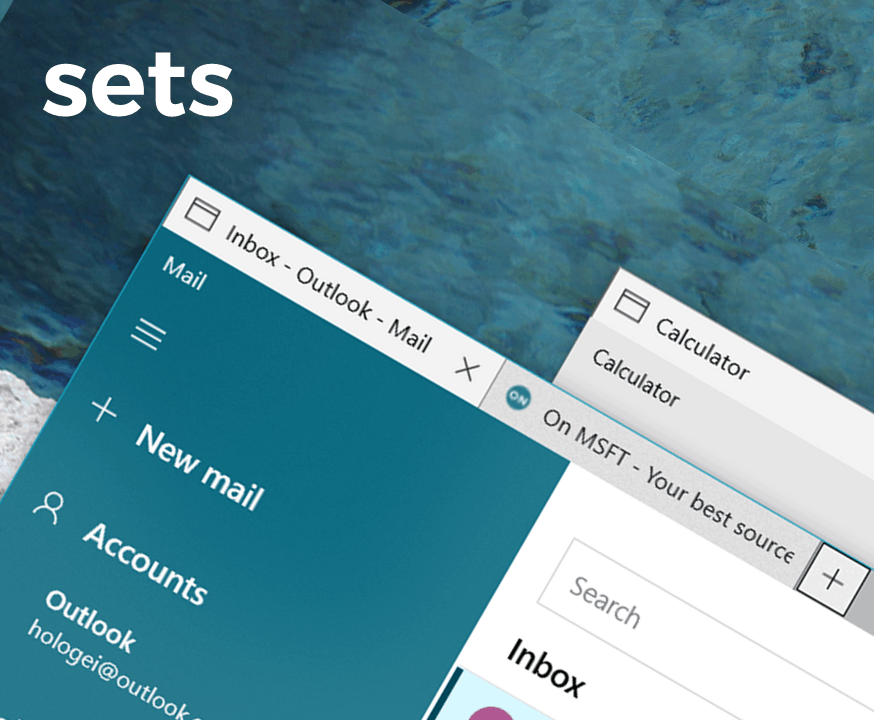
Microsoft closes access to Sets, won’t be back until Windows 10 Insider testing begins for RS5

I suppose it’s hard to miss what you never had and for some Windows 10 Insiders, this latest news will probably be received with a meh and a shrug.

According to a memo that has gone out to the limited number of testers with access, the sought after features of Sets has gone through its testing paces and the Windows group has enough telemetry to shut down the project for now and not bring it back until some later date in the future.

Sets is now offline -> Thank you for your support of the early testing we’ve done with Sets. Your feedback helps us as we continue to develop this feature. Starting with this build, we’re taking Sets offline as we ready RS4 for release. If you have been testing Sets, you will no longer see it – however, Sets will return soon in a post-RS4 flight! Thanks again for feedback, and we look forward to sharing new Sets features with you soon.

For most Insiders, the news lands with a muted response as Sets was released to only a handful of testers and only spanned the length of one preview release (not counting the 2.0 fix release). However, for those Windows 10 Insiders who had access to the feature in the previous 17074 build, this latest news puts them in a bit of a quandary as to whether or not to upgrade to the Sets-less new build. Not having tried it myself, I can’t speak to the additional functionality Sets may have provided but judging from the engineering notes on the latest Windows 10 Insider preview, testers will be missing out on a lot of new features in preview 17083 as they cling to their build with Sets.

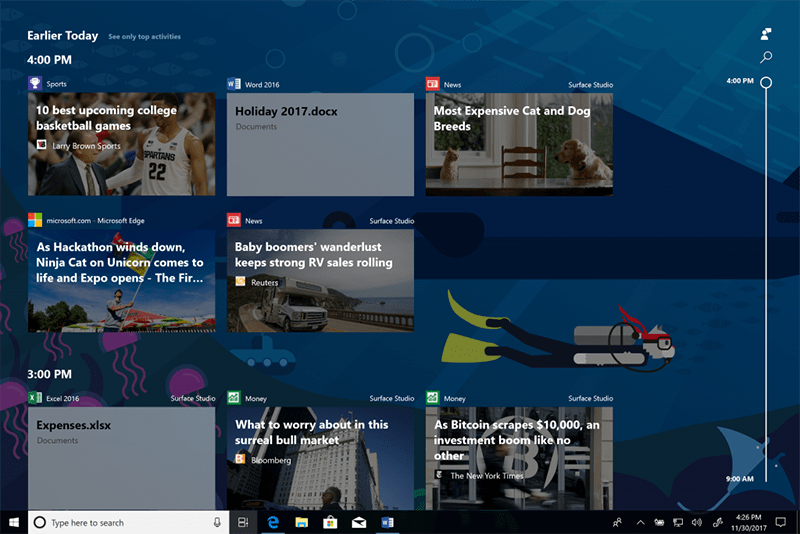
Windows 10 Insider build 17083 includes Timeline improvements

Microsoft just released Windows 10 Insider build 17083, and as has been the norm lately, it’s chock full of new goodness, including news of some Timeline improvements, set in motion by Windows Insider user feedback.

One of the most requested changes was for an ability to make it easier to delete multiple activities from the Timeline. In this new build, you’ll now be able to “delete everything from a given hour or day from the context menu”:

When you are in the default view, you will see a new “clear all from day” option when right-clicking on an activity. If you clicked “see all” to see activities for just one day, this option changes to allow you to “clear all from hour” instead. Because this option can clear a lot of activities at once, we will ask you to confirm this choice before deleting the activities.

In addition, and in keeping with this build’s focus on privacy, you’ll now be able to have access to more granular control of the privacy of activities:

A new setting allows you to sync your activities to the cloud for a seamless cross-device experience. You can enable “Let Windows sync my activities from this PC to the cloud” in the settings app, or you can enable it via an option provided at the bottom of Timeline. Until new users enable this setting, Timeline will only show four days of activities. (If you are upgrading from an earlier WIP flight, you may not see this option as the setting is already enabled.)


Microsoft releases Windows 10 Insider build 17083 with new privacy controls, get it now!

It’s Wednesday 10 am in Redmond, time to push a big red button and release another Windows Insider build. While Redstone 4 is winding down as we head toward a Spring 2018 release, the company is including one set of new features in this latest build, giving Windows users more control over what data Microsoft collects and what it stores.

The new Diagnostic Data Viewer was spotted earlier this week by Ed Bott over at ZDNet, and this morning Microsoft published a blog post detailing the new privacy controls.

You can download the latest build now if you’re a Windows Insider in the Fast Ring, and we’ll have more on what’s included in this latest build up soon, so stay tuned to OnMSFT.com.

[Updated] First Windows 10 Redstone 4 Bug Bash set for Feb 2nd

During yesterday’s Windows Insider Webcast, the Windows Insider team mentioned the initial Redstone 4 Windows 10 bug bash will be coming up on February 2nd (via Neowin.) This is the first of what may be many Bug Bashes for this development cycle, perhaps also being one of the first signals that development of new features in Redstone 4 may be winding down soon.

It’s not certain at what time the Bug Bash will kick off, or at what time it will end, but these Bug Bash events usually last a little over a week. You can expect for Microsoft to share the timeline, and the specifics of what bugs they are looking for soon, but for now it’s best to keep those bug reports coming via the Feedback Hub.

Update: Microsoft officially announced the Bug Bash in today’s blog post for Windows 10 Insider Preview build 17083. It will run from February 2nd until February 11th. There will also be a Bug Bash webcast on February 6th on Mixer.

Bug Bashes also usually come with quests in the Feedback Hub, putting Windows Insiders in charge of trying out specific Windows features and reporting back to the Insider team on how everything works. We last saw a  Bug Bash for Redstone 3, and the Fall Creators Update back July of last year.

Microsoft will also be holding a special bug bash webcast on Mixer, giving Windows Insiders a chance to interact with members of the Windows 10 team. You can expect more details soon, maybe in an upcoming build blog post, so be sure to keep tuned for more in the days ahead.

Microsoft hires Annie Parker as new global head of startups

Noted by ZDNet, Microsoft has hired Annie Parker as a new global head of startups. Parker was previously the interim CEO at Fishburner and is more well known as the co-founder of the startup accelerator, Muru-D.

Annie Parker will be joining Microsoft in March and promises there are many “fabulous plans” to share. She first mentioned the news of joining Microsoft on Twitter, saying that “It’s a wonderful opportunity to work at scale & to make a global impact, I can’t wait to get started!

A Microsoft spokesperson mentioned the pleasure of having Parker join the Microsoft family, saying “We are pleased to confirm that Annie Parker has joined Microsoft to work on our startup programs.”

Parker will be handing over her CEO role at Fishburner to COO Pandora Shelley. We congratulate Annie Parker on her new position at Microsoft and look forward to hearing more from her in the months ahead.

Microsoft trademarks “Airband” for use with white spaces internet technology

One of Microsoft’s most notable efforts in the past few years has been white space technology – an initiative that involves taking old, unused parts of the broadcast spectrum in order to help rural communities access the internet, where they might otherwise have trouble. With internet access considered a basic human right by the United Nations, Microsoft’s efforts have been a push towards creating a more connected world. They’ve been testing the technology in places like the Philippines for a while, and just registered for a couple of trademarks with the “Airband” name.

Two trademarks were spotted by MSPU: One trademark that covers the “development of computer hardware and software” regarding white spaces, and another trademark that deals with “Providing business information and consulting in the field of white space telecommunications and internet connectivity.” These trademarks were both certified on January 16th, and mark the next push in Microsoft’s attempts to make Airband a big brand.

Microsoft tweeted about their Airband Initiative Grant Fund just a couple of weeks before the trademarks went through, indicating that the company is making a significant branding push for the Airband name. Keep an eye out in the near future for Microsoft to keep pushing forward with white space technology – likely expanding it out into more regions.

https://twitter.com/Microsoft/status/949354134628478976

Microsoft rolls out add-in store updates for Outlook

Outlook, a core app in Microsoft’s Office productivity suite is much more than an popular email client. In addition to its calendar, contacts and tasks management capabilities, the app can integrate with various third-party services via Outlook add-ins, which developers can release in the Outlook Store.

Outlook add-ins are currently available with Outlook 2016 or Outlook 2013 for Windows, Outlook 2016 for Mac, Outlook on the web for Office 365 customers or Outlook.com mailboxes. Over the next couple of days, you’ll notice that the add-in store has been updated with a redesigned layout, with the addition of quick start guides explaining how to use the different add-ins.

You can search by keyword to see top related add-ins at a glance.

The search experience has also been improved to give you better search results. “Now, you can quickly search all available add-ins by add-in name or keyword,” the Outlook team explained. “For example, if you type in a keyword like “contact” and the top related add-ins will be available for you at a glance.”

This is a nice update that will likely please Outlook power-users. The Outlook team is also open to hear your feedback on the new store experience on the Outlook Feedback website.

Fix Forza Horizon 3 errors

Forza Horizon 3 (FH3) is an Xbox Play Anywhere game, which means you can play it both on Xbox One and your PC – at no additional cost.

This game lets you customize everything, from your friends, to the cars you want to drive, the music, and even the driving terrain for a never-seen-before experience.

However, like every other gaming experience, this game also has its shortcomings, but we’ll show you how to fix Forza Horizon 3 errors that may affect gameplay.

FIX: Forza Horizon 3 errors

  1. Error FH301
  2. Invalid Profile
  3. Error FH101
  4. Error FH203
  5. Error FH204
  6. Error FH401
  7. Error FH501
  8. Error FH601

1. Error FH301: An incompatible graphics driver is detected and there may be known issues with your current GPU manufacturer’s driver version

Ensure that you have installed the latest drivers for your graphics device.

Solution: check for the latest updates for your Windows 10 device by doing the following:

  • Click Start
  • Select Settings
  • Select Update & security.
  • Go to the Windows update tab
  • Select Check now to see if any updates are available for your device.
  • Once the updates have downloaded, select Install now to start installation.
  • After update installation, save and close any open apps and then restart your device so the latest updates can take effect

Note: Visit your graphics card driver manufacturer’s website for more information about it.

Update drivers automatically

If this method doesn’t work or you do not have the necessary computer skills to update/fix the drivers manually, we strongly suggest doing it automatically by using a specialized tool.

These applications were developed to avoid damaging the PC due to improper driver version’s installation. Once you have selected the drivers to update the software will do everything on your behalf automatically. 

2. Error: Invalid Profile

Whenever you get an invalid profile error as you launch FH3, you have to sign out and sign in again on the Xbox App. Once you do that, try the methods below to resolve the issue.

Restart your apps

  • Right click Start
  • Select Runrun windows command
  • Type msconfig and press Enter or click OK.
fix Forza Horizon 3 Errors
  • Go to the General tab
  • Click Normal Startup, and then click OK.normal startup windows
  • When you are prompted to restart the computer, click Restart.

Reset Windows Store cache

  • Right click Start
  • Click on Command Prompt (Admin).
fix Forza Horizon 3 Errors
  • Type wsreset.exe, and then hit Enter.
  • Close the Command prompt, and then launch Windows Store.
  • Update the Xbox App in the Windows Store.
  • If there is no option for you to update it, uninstall and reinstall the app.

If you’re trying to launch FH3 and you get the Invalid Profile error on your PC or Xbox console, try the following for each:

PC: Ensure your PC offline permissions are set to ON

  • Open Microsoft Store
  • Click on your profile image
  • Click Settings
  • Make sure your PC offline permissions are set to ON
  • Disconnect your PC from the internet
  • Go to Windows Settings
  • Select System
  • Select Storage
windows storage
  • Click This PC
  • Select Apps & Gamesapps & games windows 10
  • Search for and select Forza Horizon 3forza horizon 3
  • Click Advanced Options> Reset
  • Start the game, play for a few minutes to create a new local save, and then connect back to the internet

Xbox

  • Go to Home and select My games and apps
  • Highlight Forza Horizon 3 game
  • Press Menu button on your controller
  • Select Manage Game
  • On the left screen, go to the menu and scroll down to Saved Data
  • Highlight the saved data for your gamertag on the right
  • Press the A button on your controller
  • You’ll be prompted to confirm deletion of the game save data. Select Delete everywhere to remove the saved data from the console, the cloud, and all other consoles you play on

Note: Delete from console only removes the local copy of the save data, but you can get it from the cloud when you play next. Selecting Cancel leaves your data intact.

3. Error FH101: Your system’s CPU doesn’t meet the requirements to run the game.

FH3 requires a CPU with a minimum of 4 logical cores, which can either be 4 physical or 2 hyper-threaded physical cores.

Solution: Upgrade your system’s CPU, or, use a computer with a CPU that meets the minimum requirements, and then try to download and launch the game again.

Some of the supported CPUs include Intel Core i7-6700, Intel Core i7-3820, Intel Core i5-6600k, Intel Core i3-4170, AMD FX-8320, and AMD FX-6300.

4. Error FH203: An unsupported GPU has been detected

In order to run FH3 game, a GPU (graphics processing unit) with Resource Binding Tier 2 is required. Some older cards may support DirectX 12 but do not support the features needed to run this game.

Solution: Upgrade your GPU card.

You can check the kind of card you have by doing the following:

  • Go to Start
  • Select Settings
  • Select System
  • Select Display 
  • Scroll to the bottom and select Advanced display settings
fix Forza Horizon 3 Errors
  • Scroll to the bottom and select Display adapter properties.
fix Forza Horizon 3 Errors
  • The Adapter Type will display the name of the GPU, and the Dedicated Memory will display your Adapter Type.
fix Forza Horizon 3 Errors

Some of the supported GPU cards include the NVIDIA 980ti, NVIDIA 970, GeForce GTX 750 Ti, Radeon R9 290X  Radeon R7 250X.

5. Error FH204: An unsupported GPU has been detected.

In this case, a GPU with Tiled Resources Tier 1 is required to run FH3. Some older cards may support DirectX 12 but not the features needed to play this game.

Solution: use the same steps for fixing error FH203.

6. Error FH401: Your system memory does not meet the minimum requirements to run FH3

A minimum of 8 GB system RAM must be available in order to download the game.

Solution: check your system storage and install additional RAM by doing the following:

  • Right click Start
  • Select Run
  • Type “dxdiag” and then press Enterto launch the DirectX Diagnostic Tool.
  • On the Systemtab in the System Information window, look at Memory. The listed amount must be 8 GB or higher to run FH3.

Game Fire is a game booster that will optimize your system resources for gaming mode and will get rid of freezes, lags, low FPS and other issues while playing. Download it now (free) for a better gaming experience.

7. Error FH501: Your system’s video card doesn’t support DirectX 12

Solution: check your system information and upgrade to a video card that supports DirectX 12.

You can find out if your video card supports DirectX 12, by doing the following:

  • Right click Start
  • Select Run
  • Type “dxdiag” and then press Enterto launch the DirectX Diagnostic Tool.
  • On the Systemtab in the System Information window, look at DirectX version. It should be a value of 12 or higher to run FH3.

8. Error FH601: Some Windows Media components are missing, and your version of Windows 10 is missing the necessary media .dlls to install FH3

To resolve this issue, download the required Windows Media components which are available for free at Media Feature Pack for Windows 10 N and Windows 10 KN editions.

Let us know in the comments section if any of these solutions helped you fix Forza Horizon 3 errors.

RELATED STORIES TO CHECK OUT:

Xbox One gamers in Australia get a special Back to School video games sale

Microsoft is holding a special Back to School sale for Xbox One gamers in Australia. The sale runs until January 29th and features 25-60% discounts on some major titles. Here’s some of the more popular games worth checking out in the sale.

The full list of discounts is available to view here. Make sure to click on the green button at the bottom of the page to display the entire list.

Are you going to grab any of these video games for your Xbox One? Let us know in the comments below.

New Xbox One Preview Alpha build tests Game Pass section & hiding Xbox Achievements

Preview Alpha build 1802.180119-1917 has begun to roll out to select Xbox One console owners enrolled in the Xbox Insiders program. This latest build tests a new Xbox Game Pass section in the My games & apps area of the Xbox One dashboard and also gives users the ability to hide Xbox Achievements from the Next Achievement section in addition to a variety of bug fixes and improvements.

The ability to hide Achievements is actually not mentioned in the release notes however Microsoft’s Brad Rossetti made a point to mention it in a tweet earlier today so that Xbox Insiders would be aware of the feature. Here’s the full release notes.

NEW FEATURES:

  • My Games and Apps Collection – Game Pass
  • We have enabled a new feature to show an “Xbox Game Pass” tab within “My games & apps” for users on Preview Alpha with an active Game Pass subscription.
  • If someone has an active Game Pass subscription, they will see this tab appear in “My games & apps” and be able to quickly install available games from Game Pass. It works just like ‘Ready to install’ but for Game Pass.
  • For users in Preview Alpha who do not have Game Pass, they will see the updated left navigation—section dividers added and Memberships tab has moved.

FIXES:

Profile

  • Fixed an issue which caused the incorrect profile color to display after powering on the console.

System Update

  • Resolved an issue which sometimes caused the console to get stuck at a loading screen (with a loading spinner only) when downloading a system update.

Party Chat

  • Resolved an issue which sometimes caused party chat to crash in the Guide.

KNOWN ISSUES:

  • Home
  • You may be unable to add/remove/edit content blocks by pressing Y.
  • System Setup – Kinect
  • When setting up a Kinect during the initial console set-up experience, the setup fails when tuning audio.

Network Transfer

  • The network transfer fails when initiated from a console on 1802 (this update).
  • Workaround: You can perform a network transfer using an 1802 console as the  source and initiating the network transfer from a 1711 console on the same network.

Pseudo-Localization

  • You may notice strange characters which replace normal translated text on the dashboard, Guide, and other areas. Please use Report a problem when you encounter these issues.

Games Installation

  • Games that are installed fail to launch.
  • Workaround: If the games are installed to an external drive please copy the game to the internal drive or attempt to delete the title and redownload to fix the launch error.

Display

  • We are investigating the inaccurate RGB colors that have been reported when displaying in 4K HDR mode when playing a UHD disc.

Tournaments

  • The left and right navigation for selecting date and time during Tournament creation is currently reversed when the console language is set to Arabic or Hebrew.
  • Left and right navigation in Tournament twists is reversed when the console language is set to Arabic or Hebrew.
  • Left and right navigation in the bracket view of Tournaments is reversed when the console language is set to Arabic or Hebrew

Avatars on Home

  • Users wishing to represent themselves as an avatar can do so by changing their settings under My profile > Customize profile > Show my avatar.

Have you downloaded the new build yet? Share your thoughts on it with the community in the comments below.

New open beta for Dragon Ball FighterZ kicks off today on Xbox One

Dragon FigherZ is the next big fighting game to come out of the illustrious Dragon Ball Z franchise, and it has quite a few fans up in a tizzy. The game brings with it an exceptionally colorful art style that’s true to the anime that inspired it, as well as a tight fighting game experience. The game has entered an open beta period, for those who want to try it.

The beta is only going on Xbox One for one day – starting at 9PM on Tuesday, January 23rd, and running for 24 hours, until 9PM the next day. Both times are in PST, so if you’re on the East coast, you’ll be able to begin and end when the clock strikes 12. Enjoy!

Tune in to the next Windows Insider webcast, today (1/23) at 10am PST

The next Windows Insider webcast is today at 10 AM PST, and you don’t want to miss it. As always, the podcast will be held on Mixer, and you can convert the time to your local time zone by checking here.

We’re hoping to hear more about the next Redstone 4 build during the webcast, but there is no telling what kind of fun you’ll experience while watching. As you may recall, last month’s webcast featured a demo of Windows Timeline, so you might want to watch this month’s webcast as well.

The webcast is also a great way to connect with the Windows Insider team and have them answer your burning questions. And if you happen to miss it live, you always can check later in the day to watch it on demand. Do you think you will be tuning into this month’s podcast? Let us know your thoughts in the comments below!

All future Microsoft Studios titles headed to Xbox Games Pass on launch day, Phil Spencer says

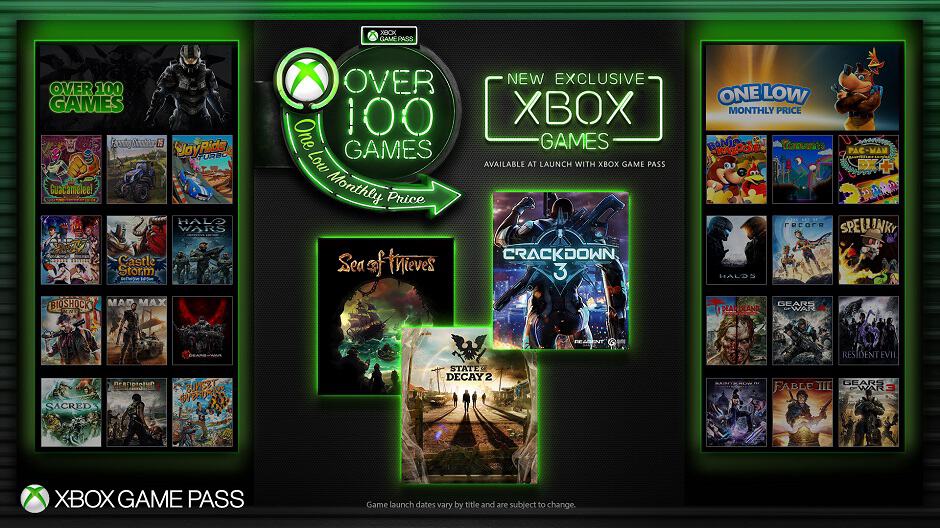
Microsoft’s Xbox Game Pass subscription service has just become much more interesting for gamers. Today, Xbox Head Phil Spencer announced that all future Microsoft Studios titles will be available via Xbox Games Pass on launch day. “This means that when Sea of Thieves launches on March 20, it will be included in Xbox Game Pass to all members,” the exec explained.

Spencer described this news as a “major expansion to Xbox Game Pass that underscores our commitment to deliver our fans the ultimate gaming subscription service.” Indeed, Microsoft is pretty much doing what Netflix and Amazon Video do when they simultaneously release self-produced content in all markets where they operate.

Microsoft has several exclusive first-party games in the pipeline this year including Sea of Thieves, Crackdown 3 and State of Decay 2, and all of them will be available via Xbox Games Pass on launch day. This is pretty great if you don’t want to spend $60 on each of them. Even better, all these games will support Xbox Play Anywhere, which means that Xbox Games Pass is becoming much more interesting for PC gamers this year.

If you’re not very excited by the upcoming games from Microsoft Studios, you may want to reconsider when Microsoft releases new episodes of its biggest franchises such as Halo, Gears of War and Forza. Gears of War 4 and Halo 5: Guardians are already included in the Xbox Games Pass catalog, but it’s still not clear if Forza Horizon 3 and the more recent Forza Motorsport 7 could be added soon.

Last but not least, Spencer announced today that 6-month Xbox Game Pass cards will soon be available to purchase for $59 at select retailers. In the US, GameStop will be one the first retail partners to offer the new cards on March 20. “By working closely with retail partners, Xbox Game Pass will have valuable ambassadors in popular destinations for gamers to discover new and exciting games and enjoy community,” Spencer explained.

Latest Xbox One update, available for everyone, fixes issues with Party Chat, Dolby Atmos, Wi-Fi, and more

Microsoft has released an update for the Xbox One family of systems, focused on fixing issues with Party Chat, Dolby Atmos, Wi-Fi, and more. Though it does not bring any new features, this update is the first Xbox One update for all users since November of 2017, and it definitely will help make things much more stable (via Windows Central.)

As always, if you’ve set up your Xbox to run in Instant On mode, the update should have automatically downloaded to your console. If not, you can head to Settings, System, Console Info and Updates, to manually download the update. See the changelog below for more on the fixes in this release.

OS version: 10.0.16299.4055 (rs3_release_xbox_dev_1711.171203-1700) and 10.0.16299.4059 (rs3_release_xbox_dev_1711.180109-1130)

  • Store: Resolved an issue that sometimes prevented users from pressing B to go back when navigating the Store.
  • Privacy & online safety: Resolved an issue that caused child accounts with family restrictions to retain the restrictions after graduating to an adult account.
  • Party chat: Resolved an issue that caused some users to lose party chat audio and voice quality fixes.
  • Audio: AVRs with HDMI-passthrough should no longer break Dolby Atmos for home theater if the TV and console are turned on before the AVR.
  • Wi-Fi: Resolved an issue that omitted certain wireless networks when scanning for available wireless networks. Resolved an issue that sometimes caused unexpected network disconnections when using a wireless connection.

Microsoft continues to test new Xbox One features with Xbox Insiders, so if you’re eager to try out new Xbox One updates before they hit the public, sign up now to be an Xbox Insider. Let us know your thoughts on this latest update in the comments section below.

Outlook.com beta welcomes back Skype integration

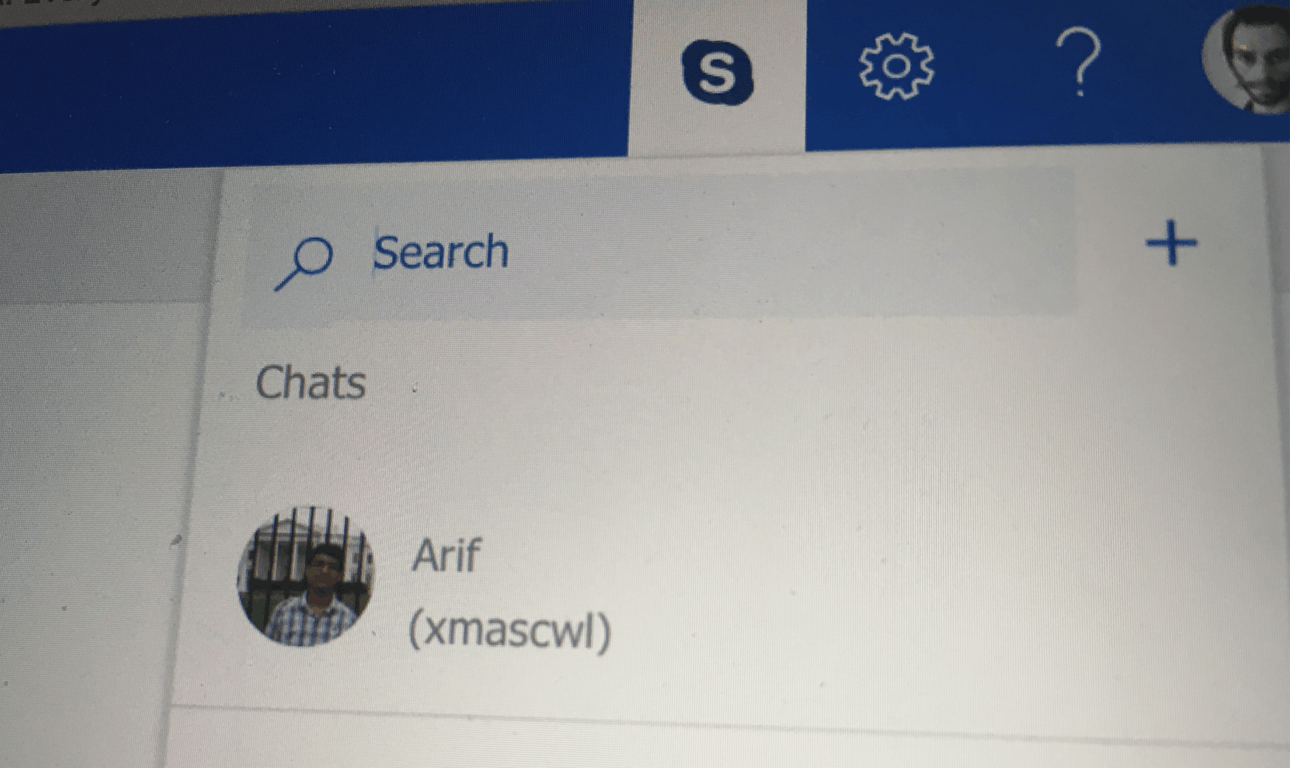
Microsoft has been beta testing a new version of Outlook.com since last year, which dropped the previous Skype integration. Accessible via a dedicated button in the top bar, the built-in Skype app allowed Outlook.com users to access all core features of the messaging app including voice and video calls.

Bringing back the Skype integration to Outlook.com beta was one of the top requested items on the Outlook Feedback website, and Microsoft finally delivered this week. The Skype button is back in the top bar, though the built-in app now looks and works differently.

You can now open multiple chat windows.

You can only chat with your Skype contacts now, and voice and video calls are no longer available. However, it’s now possible to open multiple chats at the same time, which is pretty useful. We also noticed that it’s not currently possible to change your status to “Absent” or “Invisible,” though this will likely be addressed soon. “More improvements to the Skype integration will come in the future, but for now, “please enjoy the upgraded Skype chat experience,” Microsoft said in a message on the Outlook Feedback website.

The Skype button only shows up in the Mail section of Outlook.com, not in the Calendar section which also received a fresh coat of paint this month. If you didn’t like this Skype integration before, be aware that there is still no way to completely turn it off. However, you can mute all notifications in the Settings panel under General > Skype > Notifications.

Deals With Gold: Star Wars Battlefront II is 50% off on Xbox One this week

Microsoft’s new weekly Deals With Gold discounts are now live and there are some usually pretty expensive games up for grabs with significantly reduced prices.

Star Wars Battlefront II on Xbox One has been reduced by 40% this week while the special Elite Trooper Deluxe Edition is now half price. The Elite Trooper Deluxe Edition contains the main Battlefront II video game plus upgrades for all troopers, exclusive alternate skins for Rey and Kylo Ren, plus a variety of Star Cards which are used to enhance characters’ skills in-game.

Other Xbox One games with big discounts worth mentioning are Battlefield 4 (75% off), NBA LIVE 18: The One Edition (75% off), and Titanfall 2: Ultimate Edition (67% off). On the Xbox 360 console, several Street Fighter video games have been discounts as has the Dark Elves add-on for Blood Bowl (33% off). You can see the full list of discounted games here. Note that Deals With Gold discounts are only available to Xbox Live Gold subscribers.

Are you going to grab any of these discounted games? Let us know in the comments below.

Microsoft launches Xbox One X in India

In a press conference in New Delhi today, Microsoft announced the launch of Xbox One X in India. The ‘most powerful gaming console’ – as Microsoft puts it – was launched in November 2017 internationally and is the smallest Xbox console to date.

The Xbox One X is powered by an eight-core custom AMD CPU clocked at 2.3GHz coupled with 8GB flash memory and 12GB of GDDR5 graphics memory. The console packs in 1TB HDD internal storage and comes with a 4K UHD Blu-ray Optical Disc Drive.

We are delighted to offer gamers the world’s most powerful console with access to the largest and most diverse games lineup in Xbox history, including Forza Motorsport 7, Assassin’s Creed: Origins, Cuphead and Super Lucky’s Tale, out of more than 1,300 titles and more than 220 exclusives available on the Xbox One X, just a few short months after the device’s global launch. We’ve listened to our community and are excited to be bringing this new console to Indian gamers.

– Priyadarshi Mohapatra – Country General Manager, Consumer & Devices Sales, Microsoft India


The Xbox One X is available starting today across online (Microsoft Store, Amazon, and Flipkart) and offline stores (Landmark, Croma, and over 100 specialty gaming stores) at a price of ₹44,990 ($705).

The price is almost $200 more than the price in the United States which might irk the gaming enthusiasts in the country, but that’s not an aberration in the electronics scene in the country. It’s good to see the device hitting the shores of India much quicker after the global launch than what has been the case before with Xbox in India. Even PlayStation 4 Pro has had supply issues in India since launch.

Are you looking forward to picking an Xbox One X? What are your thoughts on the pricing? Tell us in the comments!

Windows 10 KB4073291 causes install errors and abrupt reboots

It seems that the annoying boot up issues on AMD computers are here to stay. Microsoft recently pushed three new Windows 10 updates (KB4073291, KB4075199, KB4075200) aimed at providing additional protection against the Meltdown and Spectre CPU vulnerabilities and addressing the issue where AMD computers fail to start.

Windows 10 v1709 KB4073291

This update provides additional protection for 32-Bit (x86) version of Windows 10 Fall Creators Update after you install KB4056892 (OS Build 16299.192). Speaking of this update, keep in mind that you may want to temporarily block it. Many users reported that KB4056892 causes a bevy of issues, ranging from install errors to  PC crashes.

Of course, not installing this patch means exposing your machine to threats. So, choose wisely.

KB4073291 issues

Microsoft listed three known issues on KB4073291’s support page, once of them being quite severe. The update may sometimes cause Windows Update History to report that KB4054517 failed to install due to error 0x80070643. However, despite the fact that Windows Update incorrectly reports that the update failed to install, KB4054517 successfully installs. You can navigate to Check for Updates to verify the installation and confirm that there are no additional patches available.

At the same time, due to compatibility issues with some antivirus versions, KB4073291 may sometimes cause stop errors or abrupt reboots. The best solution is to contact your antivirus vendor for guidance.

KB4075199 and KB4075200

Update KB4075199 is available only for Windows 10 Enterprise and addresses the issue where some users on a small subset of older AMD processors get into an unbootable state.

As far as KB4075200 is concerned, it fixes the issue where old AMD processors fail to boot up and also addresses the bug where certain system parts fail to log off correctly, which leads to unnecessary queries for user credentials.

Have you downloaded KB4073291, KB4075199 and KB4075200 on your computer? Did you encounter any other issues afterwards?

RELATED STORIES TO CHECK OUT:

You’ll soon be able to view and delete diagnostic data in Windows 10

Privacy concerns have been among the many reasons some have stayed away from Windows 10 at all costs. Despite the introduction of a new privacy dashboard last year, many have still claimed that Windows 10 collects too many diagnostics information.

Well, it turns out that you may soon have the ability to view, control and delete diagnostic data in Windows 10 (via ZDNet.) Indeed, there is a new Diagnostic data viewer button in the Diagnostics and feedback settings in Windows 10 Insider Preview build 17063 and 17074. Also in the same area is a button which will presumably give users the ability to delete diagnostic data. Both are just placeholders are at the moment, but you can likely assume the full functionality will come to light soon.

The Diagnostics options in Settings

Microsoft has steadily improved on privacy features and options in Windows 10, and the company recently noted that 71% of Windows 10 users share all of their diagnostics data with Microsoft. The company also said last year that new privacy features in the Windows 10 Creators Update have been positively received by users.